Finding an affordable unlocked smartphone. Our winner is the Sony Xperia XA2.

Now that the days of carrier subsidized smartphones have largely come to a close, many of us are considering purchasing our mobile devices outright. Shelling out nearly a thousand dollars for the latest flagship hardware is a tough pill to swallow. Spending $35.00 a month on the financing plan can also leave a nasty taste in your mouth, especially if you need multiple devices. What other options are out there?

Several manufacturers have responded by producing some decent hardware for between two and three hundred dollars. My teen son’s hand me down gave up the ghost this week so I suddenly found myself with a reason to take a hard look at the options in this price range. I started where I always do; with a ton of research.

There are a surprising number of entrants in our price range but as always, a good list of requirements will help narrow them down. Besides all the standard WiFi, Bluetooth, etc. smart phone stuff. We also needed LTE support, a fast processor (teens = games), the newest version of Android with a proven update track record, and a decent camera. Optionally, we also wanted biometric security, because typing in a password sucks, and NFC is nice, too.

The requirement that really narrows down the field in a hurry is the Android version. From my research I deduced that one of the ways these mid-tier devices are being differentiated from the top-tier devices is that many of them are running outdated operating system versions with no upgrade path. A lot of the devices I looked at were still on 6.x or 7.x and had no listed date for an Oreo (8.0) update. Several of the “off brand” makers appear to never update their devices. You’re stuck with whatever was on it when it shipped, unless you have the skills to root it and install a custom ROM. For a lot of us this won’t matter much, but if you like to play games and run many apps, it’s a concern. Developers eventually stop supporting the older OS versions because they have too.

The next most limiting category is the processor. Current flagship level devices have Octa-core (8 processing units on the chip) monsters that push almost 3 Gigahertz on each core. The closer you are to this spec the better your device will perform with the newest apps. Again, many of the lower-tier devices cut corners here by going with only quad-core 1.X Ghz chips. If you mostly send texts, take calls, and browse the web these lower end CPUs are fine but don’t expect Facebook and Twitter to scroll fast and you’ll also be left out in the cold when it comes to intense games.

Keeping our requirements in mind, I narrowed down the list to three contenders, rather than filling this page with their specs I’ve just linked to them so you can look for yourself.

The Moto X doesn’t have Android 8.0 on it out of the box but the update for it is already available. Motorola used to be a major player in the smart phone market. Their Droid series was top of the line, but after being bought and sold several times in the last few years, the brand has been somewhat tarnished. The phone itself was fine, but the styling was pretty bland and we didn’t like the launcher very much.

Nokia has recently separated from Microsoft and is trying to establish itself in an already crowded market. The specs and styling on this one look good and it’s getting some positive on-line reviews but we couldn’t find one in a store to get hands on with it.

In the end we chose the Sony. For my teen, one of its biggest selling points was the styling; it is a sharp-looking mobile that is available in four different color schemes. The next most important stand-out to him was the audio equalizer and amp, a feature that is lacking in most devices at this price point. I liked that it had Android Oreo on it right out of the box and that it’s predecessor the XA1, had also been updated.


We purchased the Sony at Bestbuy for $319.00. It’s a good value at this price. The phone has a nice screen, great audio, the latest version of Android, a snappy octa-core processor, 3 Gigabytes of RAM, 32 Gigabytes of onboard storage and it can take a memory card. It also has a 23 megapixel back camera, and 8 megapixel front camera, a fingerprint scanner, and an FM radio.

Both cameras work well enough in well lit rooms and outside but get poorer results in low light. There are multiple reports of issues with call quality in other on-line reviews but ours doesn’t have this issue at all. I’ve also seen reviews that say the WiFi randomly turns off but again, this issue hasn’t afflicted our unit.

Overall my son and I have been very happy with the XA2. A word of warning, there are not very many cases specfically made for this device. There are some, but you’ll probably have to order them on-line (we did).

Digital Security. Why maintain the illusion of privacy?

In the age of the Internet, social media, robot vacuums, and computerized record keeping in almost every industry, is anything truly private or are we just kidding ourselves? Can you live in a connected society and still maintain a modicum of privacy? I don’t think you can. More importantly, I’m not sure you should try.

In my career I have often been employed by various healthcare and financial companies. Until the HIPAA act of 1996, these types of institutions did not have data security departments for the most part. Effectivley meaning that somebody getting ahold of your personal records was no big deal. What changed to make the protection of this and other seemingly private information worthy of a multi-billion dollar industry of its own?

The world has been bamboozled into thinking that the “privacy” of your digital identity somehow matters. Account credentials aside, your personal preferences, medical records, shopping history, and web-site preferences have no intrinsic value.  I liken this phenomenon to the marketing campaigns that have resulted in crystalized carbon (diamonds) escalating to ridiculous values. A series of commercials in the 1950s made the substance a “must have” for any couple thinking about marriage. Diamonds are not a girls best friend, they are literally made from one of the most common substances in the known universe. A diamond’s value is determined solely by the mislead perception of the masses and so too, is the value of privacy and thus the value of personal data.

There is no such thing as digital privacy, there never has been and there never will be. How does one privately share something? The notion that its possible to do so is entirely nonsensical. It was difficult to privately communicate in the analog world; everyone has witnessed a teacher intercepting a note. It’s impossible in the digital realm. Everything you do or have done on every computerized device you have ever touched is logged by the systems you were interacting with at the time. The systems and their interconnected software cannot function without the data you provide them. If you authenticated (logged on) to the device or a service with some type of account then the logs can be correlated to you personally.

Facebook cannot post your latest witty comment if you don’t type it into their app’s box. The email you send to your BFF cannot be delivered without traveling through countless routers, switches, appliances, and computers each one of which learns your email address, your IP address, what type of system you are using and more. The photo application on your smartphone cannot organize your pictures by the location you took them in if it didn’t know where you were when you snapped them. You cannot connect to Xbox live and play a game with other users anonymously. In all of these cases, the purveyor of the services you’ve connected to is able to find out exactly who and where you are if they are willing to invest the time and effort to do so.

You can obscure your digital trail from service providers by using man in the middle services like VPNs and TOR, but you’ve only shifted the burden of identification to those service providers instead. You may feel or have read that TOR, or the encryption your VPN uses, is unbeatable but that information has been proven to be false multiple times. At best, it makes you more difficult to track. At worst using these technologies flags you as someone worthy of extra attention.

HIPPA, FISMA, and GPDR are regulatory laws that have been enacted in the United States and Europe to ensure organizations take steps to safeguard your personally identifiable data. They accomplish this goal by applying expensive fines to companies that are determined to have lost private data. There are all kinds of loopholes and exceptions in the regulations, of course, but that isn’t the main issue in my opinion.

HIPPA violations can warrant fines of up to $250,000 per infraction. These fines impart a value on the data. It makes good business sense to invest in personnel and solutions that drastically reduce the chances of the information being accessed in an unauthorized manner, as long as the cost is less than the fines. The same is true for your personal information on your own computer. It’s value is determined by what you would pay to have it kept private. Thus, the computer security industry was born.

What if we didn’t care? How much financial value would personal data have if we all stopped pretending that it was private in the first place? Assuming we could get over ourselves and de-value privacy, who would invest time and resources into obtaining worthless information?  Our own misconceptions about the number of people and companies that have access to every bit of your supposedly private information from your social security number to your bank card info, has been leveraged to build a booming empire around making something public feel private.

Creative Journaling with the iPad: Part 2, Getting started with Goodnotes

In the same way that computerized word processing displaced type-writers; many people are making the switch from paper journals and diaries to digital ones. Computer based journaling offers several key benefits over paper: backups, sharing, multimedia, and security options are all easily accessible options in an application but difficult to achieve in paper.

Apple’s tablets and phones have a multitude of applications dedicated to the art of journaling and notetaking. One of the mot popular options is Goodnotes. The software has quickly become a favorite among creative types and for good reason. It features support for multiple smart styluses including: the Apple Pencil, Wacom’s Bamboo Finetip, and Pencil 53 to name a few. The app also has advanced palm detection and PDF markup. Your data can be automatically backed up to one of several cloud storage providers and synchronization between multiple Apple devices is facilitated by iCloud.

Goodnotes works well as an everyday note taking app. You can easily create a personalized notebook with it’s many built-in Notebook covers and page styles. Unlike other note taking programs, Goodnotes does not use a sectioning layout. You’ll just add a new notebook for every subject. The brushes and pencils are great and the lasso tool is epic. You can lasso and move almost any object.

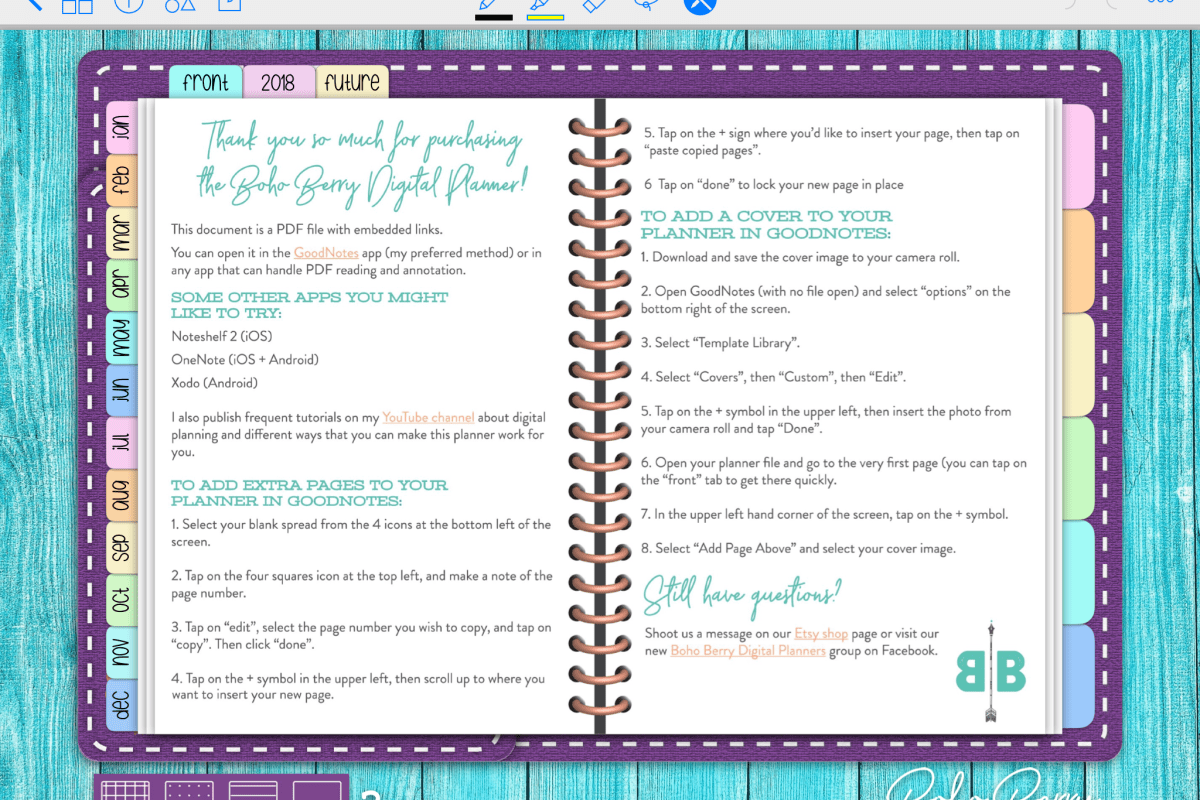
Where Goodnotes really shines is in it’s ability to import notebook templates. Etsy is full of templates that have been created by some very talented people. Many of them come with stickers, banners, and other premade flair that you lasso and drop onto a page. Lots of the templates have hyperlinked facades that replicate actual paper journals down to the bindings and cover stitching.

The information you enter into your notebooks will be indexed and searchable. Even the items you enter in handwriting will show up in most cases. You can also export pages from your notebooks to either PDF or image files for easy sharing.

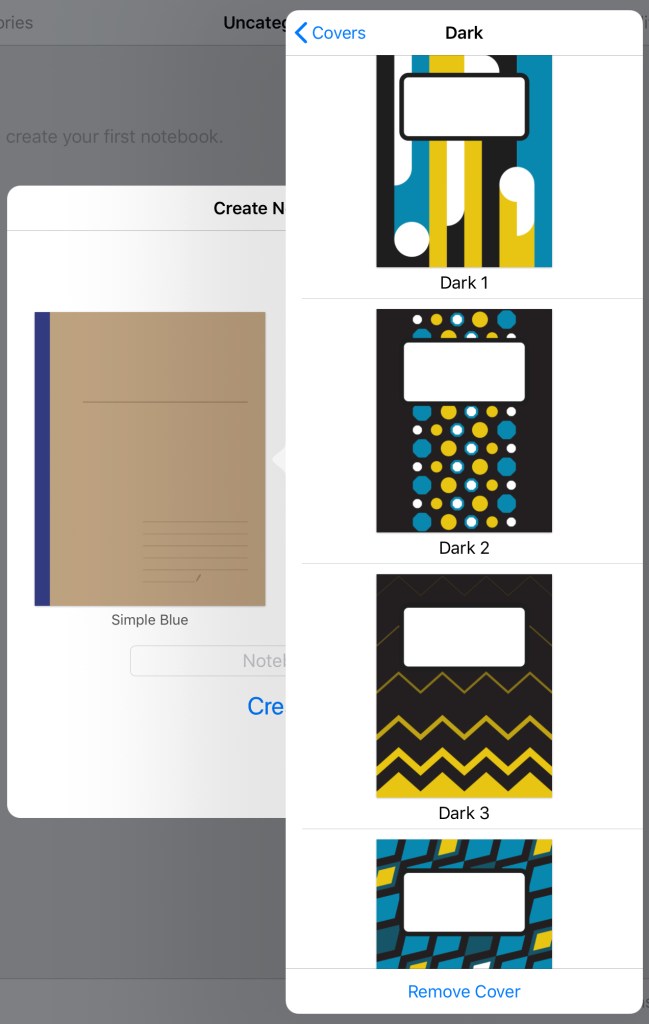
To get started in Goodnote; download the app from the Apple Store. I suggest restarting your device before launching the software. If you’ve purchased a template you’ll want to follow the instructions that came with it, most of them utilize the import function to get going. Otherwise open the software and watch the introduction. When it’s finished click the + button in the upper left corner and choose “Create Notebook”

covers

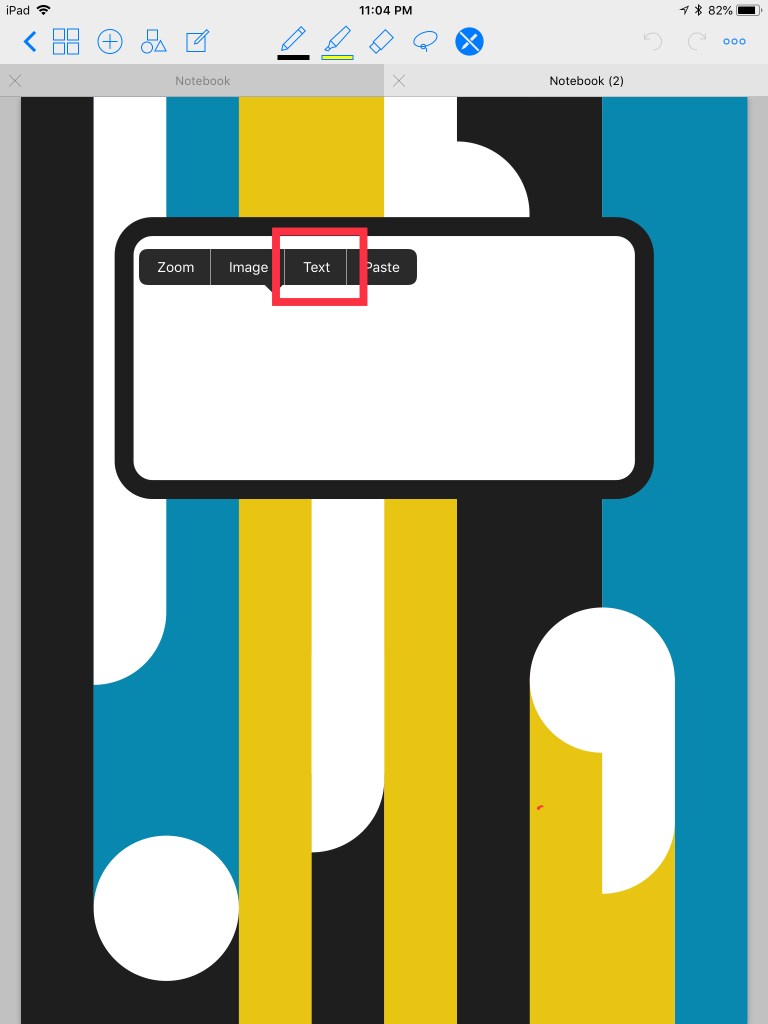
Tap the cover thumbnail to choose the cover you like best and then do the same for the paper. You’ll be able to easily change both options later so don’t strain your brain on this step. Tap and hold on your notebook’s label and select text to give it a name. You can also use the writing tools in the top menu for the name tag.

20180510_040425000_iOS

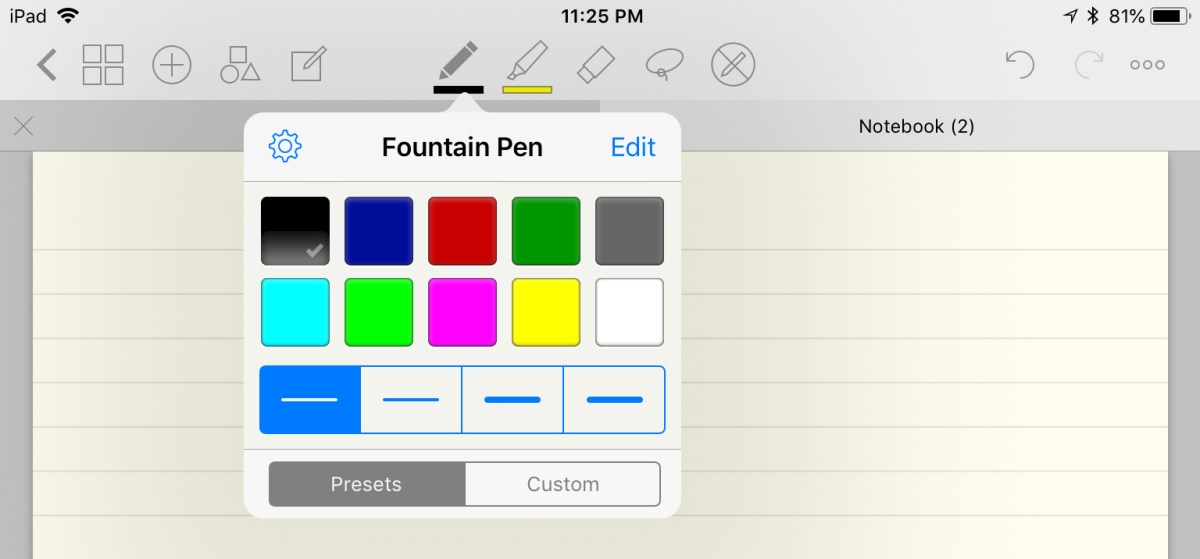
After you have the label sorted, swipe to the left with two fingers to open the first page. The tool icons in the top menu are self explanatory. Tap on an icon twice to open that tool’s menu for more options.

20180510_042504000_iOS

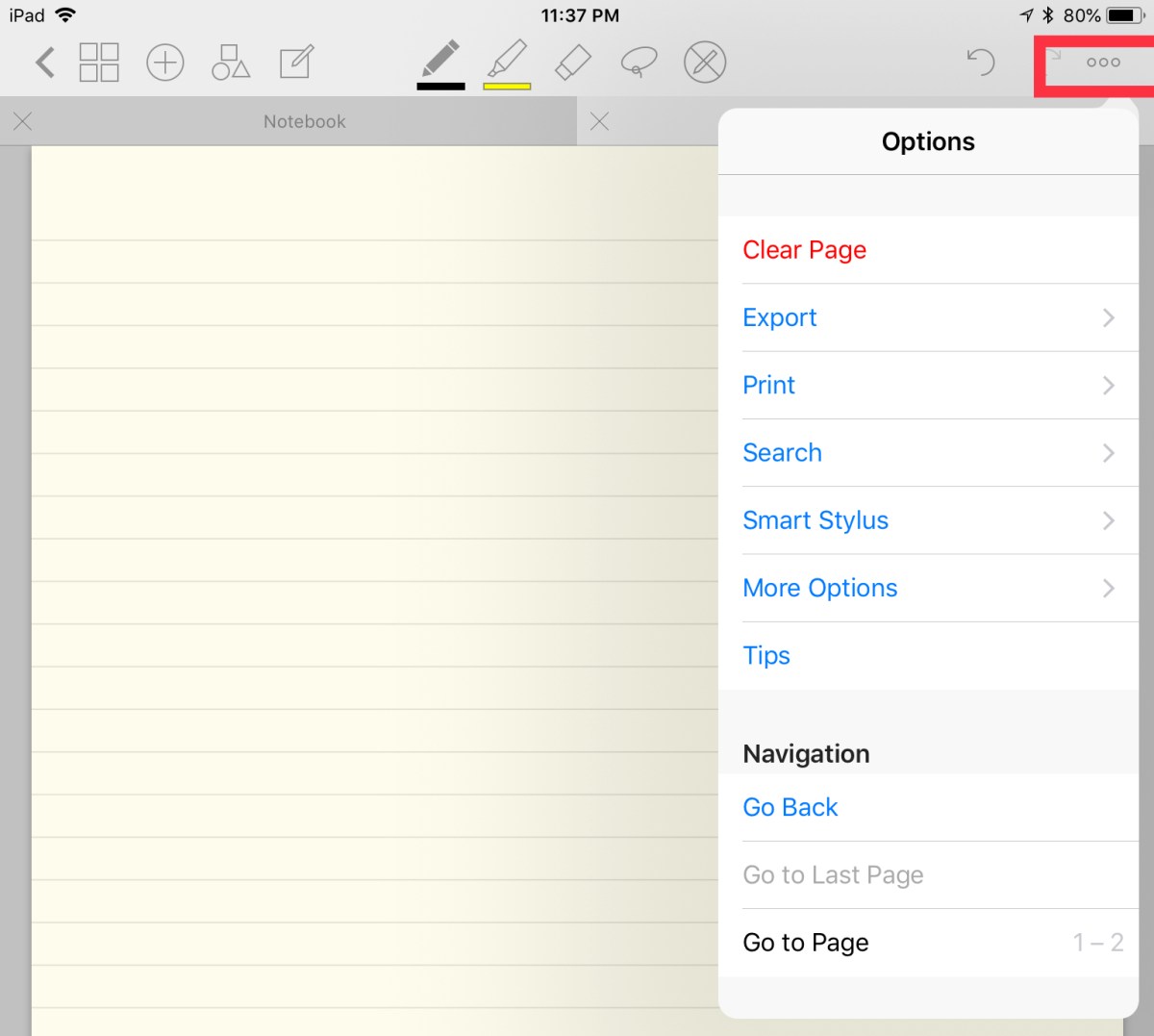
The action menu icon in the upper right corner will allow you to change things like the page type (under more options) and allow you to export or import information. You can also print your pages from here.

20180510_043728000_iOS

Overall I find Goodnotes to be more creative and decorative than either Evernote or Onenote are, especially if you have an Apple Pencil or one of the other supported styluses. It doesn’t offer the structure or integration options available in the other packages. As a business oriented professional, I appreciate Goodnotes’ design and it’s templating solutions but I struggle to come up with a reason to use it over OneNote.

If you have to choose between them I think the decision is similar to choosing between an Apple device or a PC. Goodnotes looks better and one could argue that it’s easier to use but OneNote is more flexible and integrated into lots of other Office software. Lucky for me; I have both.

PowerShell; Start Automatic Services and Report Status

Many environments have patching processes or other updates that reboot large numbers of systems. Occasionally, when those systems boot up, some of their services fail to start. It takes too long to logon to each server and manually check and start failed services. PowerShell can do the job for us.

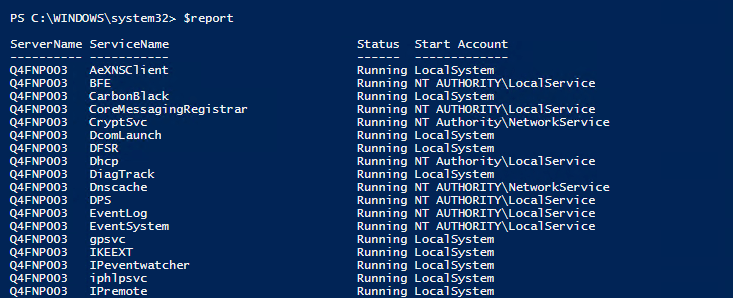
The code below will import a list of server names (text file with only the hostnames) and scan each server in the list for services that are set to automatic. If any of the servers’ automatic services are discovered to be stopped it will try to restart them.

The script will then report on all of the automatic services except those that stopped normally.

$servers = Get-Content C:\servers.txt
$report = @()
Foreach ($Server in $Servers) {
Get-WMIObject win32_service -ComputerName $server -Filter "startmode = 'auto' AND state != 'running'" | Invoke-WmiMethod -Name StartService
$wmi = Get-wmiobject win32_service -Filter "startmode = 'auto' AND Exitcode =0" -ComputerName $server
$report += $wmi | select-object @{n="ServerName";e={Get-WmiObject win32_computersystem -ComputerName $server|select name -ExpandProperty name}}, @{n="ServiceName";e={$_.name}},@{n="Status";e={$_.state}},@{n="Start Account";e={$_.startname}}
}
$report|export-csv C:\Services-Report.csv -NoTypeInformation

You can make this operation more dynamic by replacing the $servers variable with code to find all of the $servers on your network. It would also be easy to output the $report to an email message or HTML dashboard.

Enjoy.

Samsung’s Galaxy Book 10.6. My new main squeeze.

For the last four years my daily driver has been a Surface Pro 3. It’s been my favorite mobile PC of all time. I have produced more digital work on it than on any other single system. In part because it’s physical design allows it to be used comfortably almost anywhere and it’s power allows it to do most anything. Put it on a desk and it can give any Ultrabook a run for it’s money. Dock it with external monitors, keyboard, and mouse and it makes a powerful workstation. Strip off it’s keyboard and pick up the stylus and it’s a good tablet.

Notice I said “good” tablet. From my prospective, the Surface Pro 3 is a little too heavy to be a great tablet. I can hold it in one hand, resting on my upraised knee and write on the screen for a while but that is basically the only position that works for me. I get tired fairly quickly and have to take a break. Its also a little too big for couch surfing. Size issues aside I’ve been able to make it work all these years.

I’ve been on the look-out for a smaller tablet that was still powerful enough to be my main system. I have to run PhotoShop, Illustrator, Visual Studio, write documents, run multiple apps, and I’m not a fan of waiting. My task demands tend to rule out systems that use the Atom processors. I’ve tried them a few times, I like my Dell Venue 8 Pro, but it just isn’t quite fast enough and lives most of it’s life in my desk drawer.

I’ve had my eye on Samsung’s Galaxy Book since it launched. The combination of Intel’s m-series processor and the small 10.6″ footprint caught my attention. There are mixed reviews of the tablet out on the intertubes. They run the gambit from best tablet ever to POS. I’ve had good experiences with other Samsung equipment so I decided to give it a shot. Originally I had purchased the tablet for my spouse, to replace her aging iPad mini but although she liked the tablet itself, she didn’t enjoy Windows. She ended up with a new iPad and I inherited the Galaxy Book. Neither of us could be happier.

The Galaxy Book comes in two sizes 10.6″ and 12″. For my use the 10.6″ is the ideal size. It’s essentially the same size as the smaller iPad Pro. The larger system is roughly the same dimensions as my Surface Pro 3 and so doesn’t solve my one-handed couch surfing problems. I’m also not sure that any 12″ tablet is going to beat Microsoft’s. None of the units that I’ve tried so far have managed to pull it off.

I think the best way to describe the device’s physicality is to say that holding it feels similar to holding an iPad. It’s thin, light, and made of premium materials. The screen is vibrant and just the right size. The speakers sound surprisingly good but they are side facing which causes me to turn up the volume. There’s no rear camera, just a front facing one for video calls.

The front camera is not compatible with Windows Hello and there’s no onboard fingerprint scanner. If you own a Samsung phone you can use a service called Samsung Flow to pair your phone’s security devices to the tablet. I can use either the Fingerprint or Iris scanner on my Note 8 to logon to my tablet. It was a little clunky to get running but it works surprisingly well once your get the hang of it. Flow also sends all of your phone’s notification messages to your tablet and let’s you reply to them.

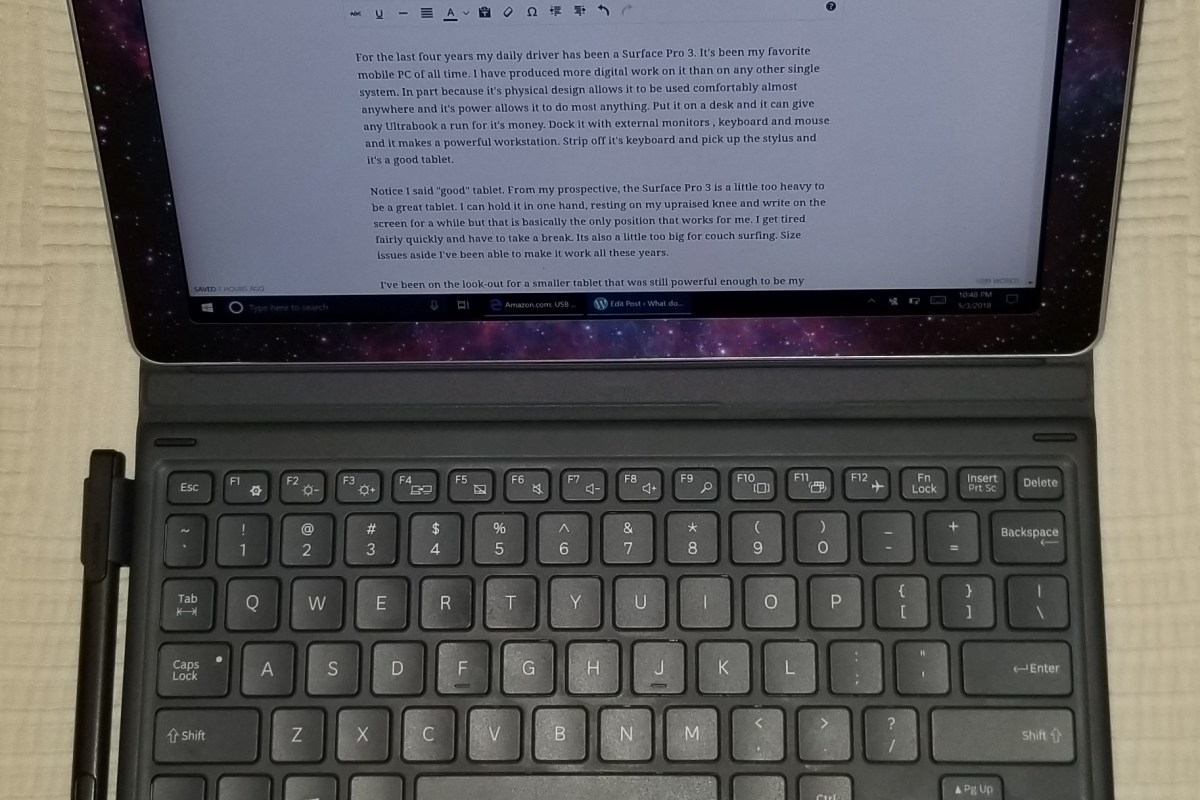
The device ships with a case that contains a keyboard and touchpad combo. The keys are small but I have no trouble touch typing at full speed. The keyboard isn’t backlit and that’s a bummer, but I didn’t have to shell out an extra hundred bucks for it so I won’t cry too much. The touchpad is fine, it gets the job done and has a lot of options for gestures which I like. The case looks nice and doubles as a multi-angle stand. It has two positions for typing, a couple for vid watching, and one specifically for drawing or writing.

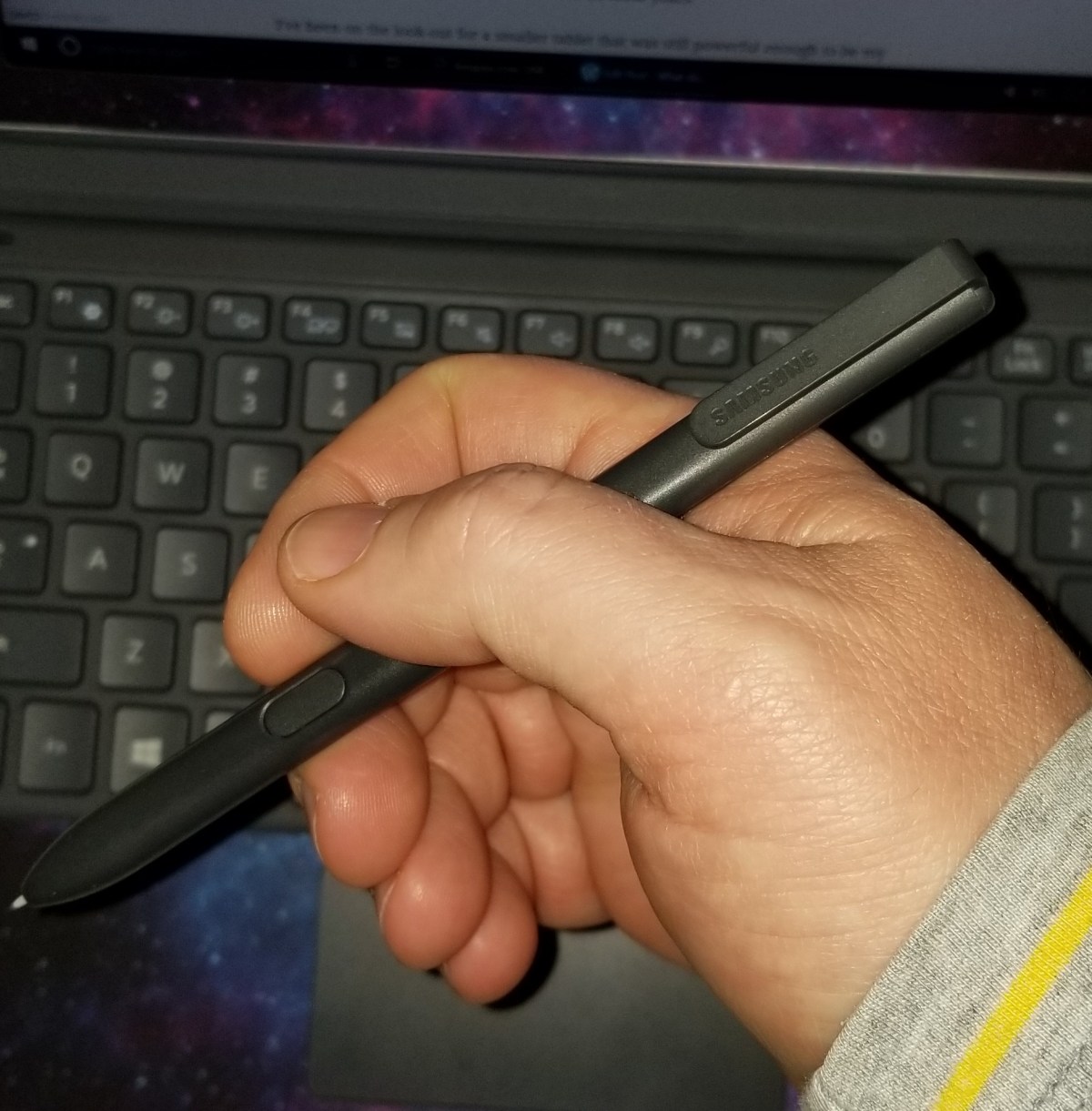
That brings us to my favorite piece. The S-Pen is great. It has pressure sensitivity and tilt support. The ERM (Wacom) digitizer is accurate and doesn’t suffer from parallax issues. The shape of the S-Pen basically requires that you hold it the same way every time that you pick it up. The clip and button location force the situation but luckily it is fairly comfortable. The tips are replaceable and it comes with two different styles

Spen

.

If you’re not in love with the Pen itself there are several other options. There are a few different Wacom styluses that will work, the S-Pen from a Note phone will work, and there are several third party ERM compatible devices available like those made for the Surface 1 and 2.

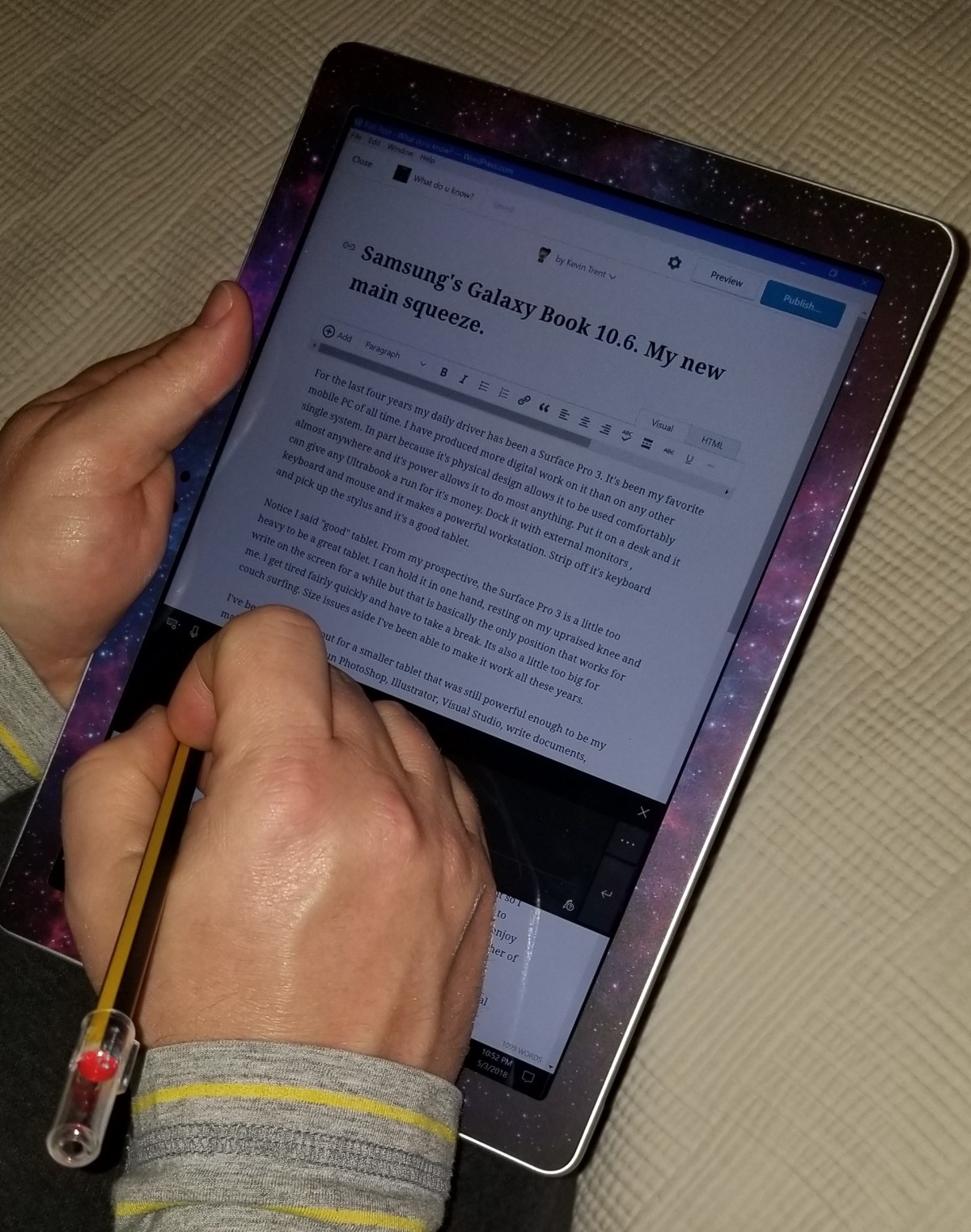
Samsung teamed up with STAEDLTER to make a truly epic digital pencil. It’s an exact replica of the classic Noris #2 pencil down to the freshly sharpened tip. You can find them on Amazon for less than $30.00 if you catch a sale. It’s my favorite stylus ever, period. That’s saying something considering that I’ve owned and used almost every type of digital writing instrument ever made. Yes, I have an Apple Pencil, and the Studio Pen, and a Wacom Intous, and an XP-Pen and a Dell, and . . . . . . .

When it comes to performance, I’m impressed. I’ve been using it as my main system for a few weeks and haven’t experienced any wait-rage yet. I’m not one for elaborate benchmarking. I find that the results of such testing are often irrelevant. All that matters is the ability of a device to do it’s tasks in a satisfactory manner. That being said, web pages are snappy to load and Outlook runs well. Photoshop and Illustrator both run fine and there’s no lag when drawing. I’m even able to play some games; Sims 4 and Skyrim both play well as does Fruit Ninja and several others from the Windows Store. Multi-tasking is no issue either.

The same USB C dock that enables DEX mode on my Note 8 works on this tablet to connect an external monitor, keyboard, and mouse. When “docked” the system makes a decent workstation although I rarely use it as one. Most nights you can find me on the couch writing on the Galaxy Book in tablet mode just like I’m doing now.

tablet write

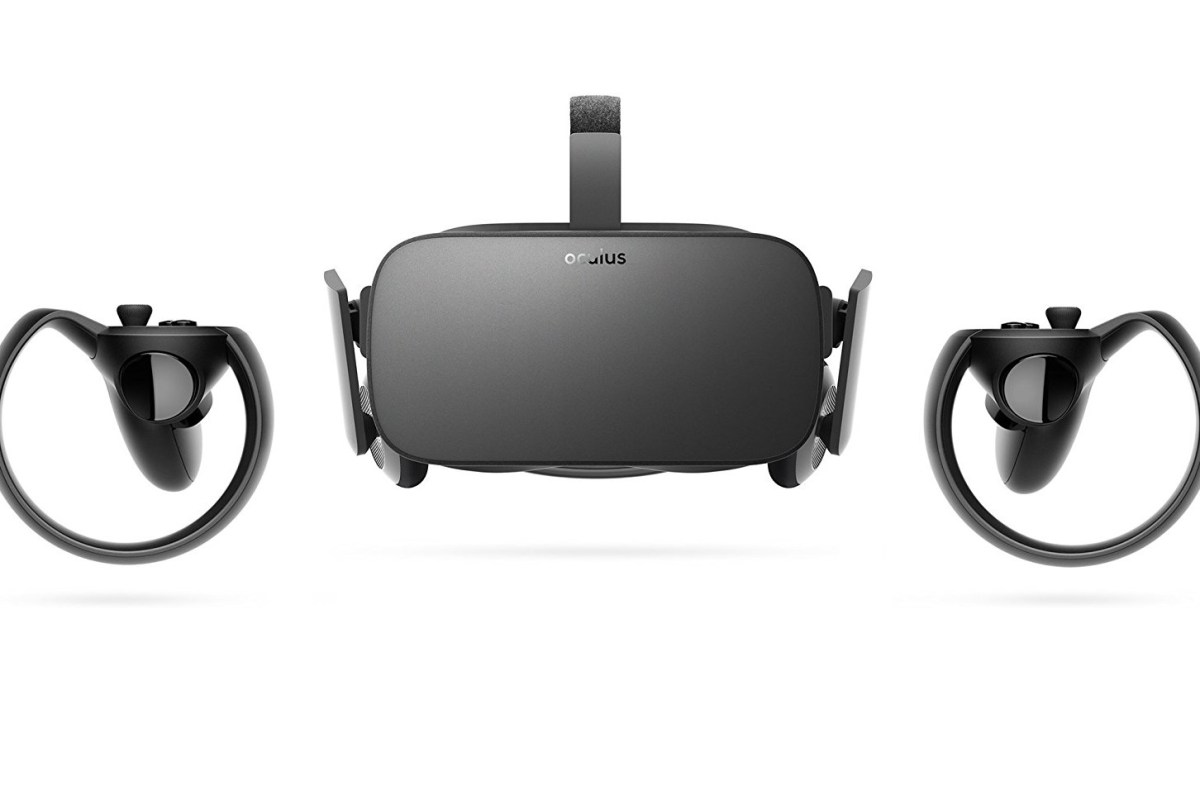
Oculus Rift No HDMI Cable Connected, AMD GPU

My PC recently downloaded the Windows 10 April 2018 update. The installation of the feature update went fine. After my system booted up I started verifying everything was working and noticed that I could no longer access the Radeon Settings software for my GPU.

No problem, there was a new version out anyway so I installed 18.4.1 and bob’s your uncle, it fixed the problem. I went on about my day.  Later that evening one of my children reported that they couldn’t get the Oculus Rift to work. I checked it out and found that the Oculus software showed “No HDMI cable connected”. I check all the cables; I went so far as to disconnect all of them and reconnect them one at a time. All the USB cables were detected but no HDMI.

I unplugged the cable from the Rift itself. You gently pull back on the foam insert and the HDMI cable will disconnect. Be gentle though, if you break this cable you’ll be up a creek. It didn’t work. I figured maybe the software got corrupted during the update so I uninstalled it and then downloaded and installed the newest version. Still no go.

The only thing in the event viewer or any of the Oculus log files that I could find was a reference to OCVRLauncher not having a user session. I started suspecting the AMD driver was at fault so I uninstalled it and tried the headset using the built-in Windows driver. It worked.

After testing every version of the driver I had on my hard drive I found that the newest version of the Radeon Adrenalin software that I can run and still use my Rift is 18.2.1. Even 18.2.2 will not work. I cannot say if the Windows 10 April 2018 update has anything to do with this problem or not. To be honest I’m not sure what version of Radeon I had installed before my system was updated and I’m not willing to roll back the Windows update because I don’t have the time. If you’re having a similar issue with your Oculus Rift and AMD GPU combo, you can get the driver version 18.2.1 here.

UPDATE: 

I evenentually had to update my drivers past 18.2.1, some of my software required it. I was able to permantley resolve the issue by doing the following:

  1. Uninstall all AMD software (add/remove programs)
  2. Delete all AMD folders from the C drive
  3. Run the AMD driver clean up utility 
  4. Download and install the newest AMD driver.

Powershell; Dynamic System Uptime Report for Windows Servers and or Workstations

After you’ve cranked out a few reports in PowerShell, either you or your boss will eventually wonder if it can be used to create an uptime report. A quick search of the Internet will return lots of options for calculating the uptime by subtracting the lastboottime, obtained via WMI, from the current date. This technique works well but few if any of the articles suggest how you go about creating a report that shows the information for all of your Windows Servers.

I tried a handful of the scripts I found on-line and didn’t like the results so I decided to write my own. The code below will scan your window’s domains and locate a domain controller in each. It will contact those domain controllers and scan for computer objects whose operating system contains the words “Windows Server”. Next it will connect to each of those computers and use WMI to calculate the uptime. Finally it will create a report showing each server’s Name, Operating System, and Up Time.

It would be simple to have the report scan workstations instead. Just change the word “Server” to “Workstation”, you could also add an and statement to do both. Emailing the report would be cinch as well (Search for PowerShell SendMail) and the script already written in a manner that would support running it as a scheduled task.

Enjoy.

Import-Module ActiveDirectory
$domains = (Get-ADForest).domains
$dcs = Foreach ($domain in $domains) {Get-ADDomainController -DomainName $domain -Discover -Service PrimaryDC}
$servers = Foreach ($dc in $dcs) {
Get-ADComputer -Properties * -Filter {(OperatingSystem -like "*Windows Server*")}|Select DNSHostName -ExpandProperty DNSHostName
}

$report = @()

Foreach ($Server in $Servers) {
$wmi = Get-WMIObject -Class Win32_OperatingSystem -ComputerName $Server
$lastboottime = $wmi.ConvertToDateTime($wmi.LastBootUpTime)
$sysuptime = (Get-Date) - $lastboottime
$uptime = "$($sysuptime.days) Days, $($sysuptime.hours) Hours, $($sysuptime.minutes) Minutes, $($sysuptime.seconds) Seconds"
$Report += $wmi | select @{n="Server";e={$_.CSName}}, @{n="Operating System";e={$_.Caption}}, @{n="System Uptime";e={$uptime}}
}
$Report|Export-CSV $env:userprofile\documents\Windows_Server_Uptime_Report.csv -notypeinformation