Xbox One X vs. Xbox One S vs. Xbox One

I play almost as many console games, as I do PC titles. I had been playing my original Xbox One and ruled out an upgrade. My logic being that I’d use the PC for 4K and HDR. It turns out that plan was a little short sighted.

I play console games with a lot of friends and family. To be honest, the friends and family thing is the reason I still have consoles at all (except for the Switch). I kept finding myself missing the higher end graphics during these sessions, especially after I got my new HDR screen. Lucky for me, Microsoft discounted the Xbox One X to $399.00 for the Fallout 76 bundle.

At this point, I’ve played hundreds of hours of games: Titan Fall 2, Halo 5, Apex, Battlefield 5, Gears of War 4, and more on all three models of the Xbox One. I’ve even hooked them up side by side just to eyeball the differences.

The differences are both less and more than you might think. Allow me to explain. The Xbox One has great graphics especially when running games that were created specifically for it. I could get all technical about resolutions and frames per second, but specs don’t really matter, experiences do. The Xbox One provides a much better gaming experience than its predecessor was able to.

The Xbox One S introduces HDR (high dynamic range) and slightly higher resolution and FPS. If your screen and the game you are playing supports HDR, the change is dramatic. Colors are richer, shadows deeper, and everything is generally more defined. The improved controller supports Bluetooth connectivity which makes hooking it up to your PC easier and the One S is physically smaller than the original.

The Xbox One X allows for full 4k HDR 60 FPS gaming on the titles that support it. Several games have been updated, just look for Xbox One X Enhanced in their descriptions on the store. The differences between 1080P and 2160P are realized in the texture of materials and objects more than anywhere else. Skin looks almost real, the line between leather and cloth in clothing is clearly defined, wood looks like it would give you a splinter.

The differences in game play are the greatest between HDR and NON-HDR. With HDR capabilities, spotting a sniper hiding in the distance is easier because the character is more clearly defined. Nailing the corner at eighty miles per hour feels safer because the road’s surface and transitions are more obvious.

With the addition of 4K, games are more photo-realistic than ever before. However, beyond pure ascetics, the high resolution doesn’t add anything to the game play. In-fact, you might be able to argue that it causes more mistakes. More than once I was fragged in a game of CoD or Titan Fall 2 because I was busy admiring the scenery instead of watching where I was going. Granted, I got used to the new looks after a while.

I really enjoy my Xbox One X and highly recommend it to anyone looking to get their first unit or to those who are upgrading from the original. If you already have the Xbox One S, I can’t say the upgrade to the X is entirely worth the expense. If you already have an S and aren’t dying to play 4K games right now, holding off for Project Scarlet may be a wiser financial decision. Of course games are rarely about smart money choices.
4K HDR TVs Can Be Good Monitors

A while back, I added an Nvidia 2080 Ti to my gamming computer. I had been using a 40″ 4K TV as a monitor but it was an older model that lacked HDR. Time for an upgrade! Read on to find out what I chose and why.

A colleague is lucky enough to have a 4K ASUS Predator and it is fantastic, but out of my price range. If at all possible, I need a screen that can serve as a computer monitor, a screen for my consoles, and possibly a TV. I know that is asking for a lot, but I have a lot of stuff and not a lot of space.

Most monitors will support multiple types of connections but can have a difficult time downsizing their resolutions. Many “TV” screens have slower pixel response times and extra signal processing that introduces lag, but they handle multiple sources and resolutions more effectively.

Is a dedicated monitor going to have a better picture? Absolutely. When hooking a computer up to a TV, you lose a little quality and even with game modes and the like. Televisions are just slower. However, if you want to hook up your Nintendo Switch to a 4K HDR gaming monitor you will probably be disappointed with the results. So it comes down to a trade off, performance versus flexibility. Cost is probably in there too LOL.

I limit the screen size to 40″ because anything bigger is too large to be on a desk three feet in front of my face. The 40″ size running 4K means that I can open multiple “full size” windows and do not need multiple monitors. Games take my full field of vision without requiring me to turn my head to see the edges.

The trick to using a TV as a monitor is to turn the “Sharpness” setting down as far as it will go and to carefully adjust the brightness and contrast. If you get the balance right, you can get a decent picture without ghosting (blurry text). Some smart TVs will detect that you’ve hooked a computer up to them and make the changes automatically.

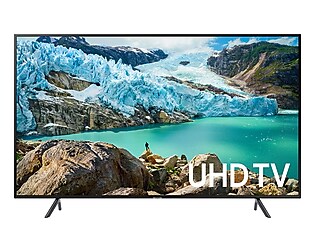
I was able to talk my local electronics store into connecting a few of their TVs up to a laptop so that I could get an idea of how they would perform as a monitor. That experience, combined with research on-line, led me to choose the Samsung RU7100. It’s game mode reduces lag by disabling most of the signal processing features. It’s smart functions include Apple Air Play and my cable provider’s app.

I’ve had the screen up and running for almost a month now and am very happy with my choice. I flip between my computer, iPad, Cable TV, and game consoles effortlessly. The picture looks great no matter what source is selected. I’ve received multiple compliments on it from both my techie and non-techie visitors. Many of them are surprised to learn its a four hundred dollar TV and not something much more expensive.

Python Programable Robots with LEGO?

A few years back, I picked up a Lego Mindstorms kit when they went on sale. My family had fun building all of the robots that the kit provides instructions for. We also tried several of the designs people have published on-line.

Mindstorms are comprised of Lego bricks, gears, shafts, wheels, and other various pieces similar to those found in the Technic sets. In addition to the bricks they also have motors, sensors, wiring, a remote, and a brain box to programmatically control your creations via a simple to use drag-n-drop app on your mobile or PC.

ourbot

Once we’d had our fun with them, they went back in the box. Fast forward a few years, my now teenage son, approached me saying that he wanted to learn how to code in Python. He asked if I had any ideas for a project he could use for motivation. Having just gone through a bunch of items to put in the neighborhood garage sale, I thought of the Mindstorms. I had recently read an article regarding a Python runtime someone had created for the control box. “Let’s build a robot.”, I answered.

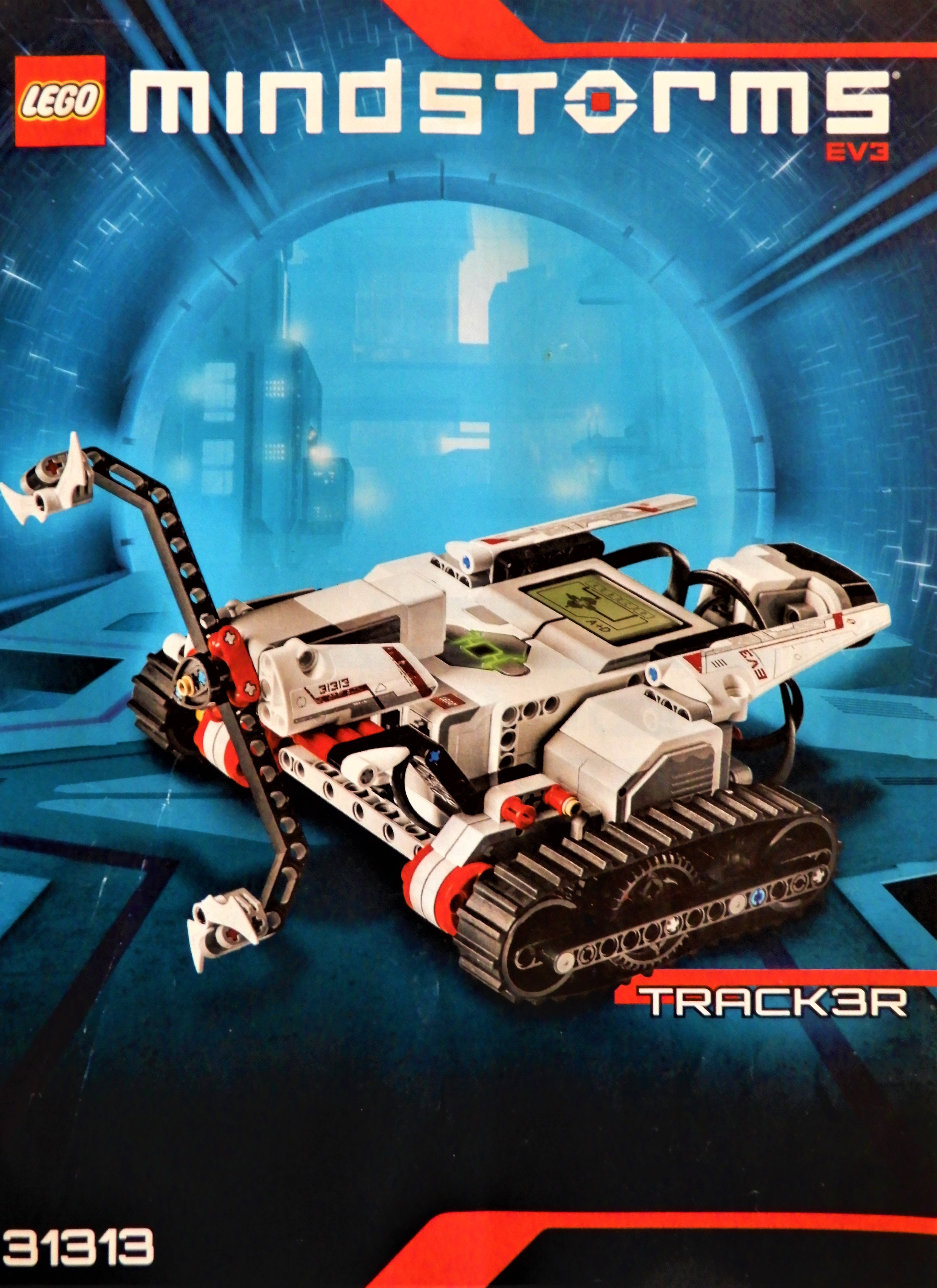
He thought of building a Roomba like bot, that could navigate its environment. We would need to write software to tell the machine to make a reverse J-turn when either the forward or downward facing sensors detected an obstacle. He used the TRACK3R plans from LEGO as the basis for the vehicle. Basically, we built a tank with a sonic sensor facing downward and an IR sensor facing forward.

Track3r

Once he had assembled the bot, the next step was to load the Linux based OS onto a MicroSD card. We followed the well written instructions on the Lego education site and at Ev3Dev.org to get our controller to dual boot Linux with an embedded Python framework. If you are planning a similar project, the best advice I can give is to be patient, go slow, and follow each instruction exactly.

There is a extension for Microsoft’s Visual Code IDE that makes getting up and coding a breeze. The Ev3DevPython site has some great documentation for installing and using the extension. They also have some sample code, video instructions, and a lot of other useful information. I would suggest visiting the site before starting your own build.

2019-06-09

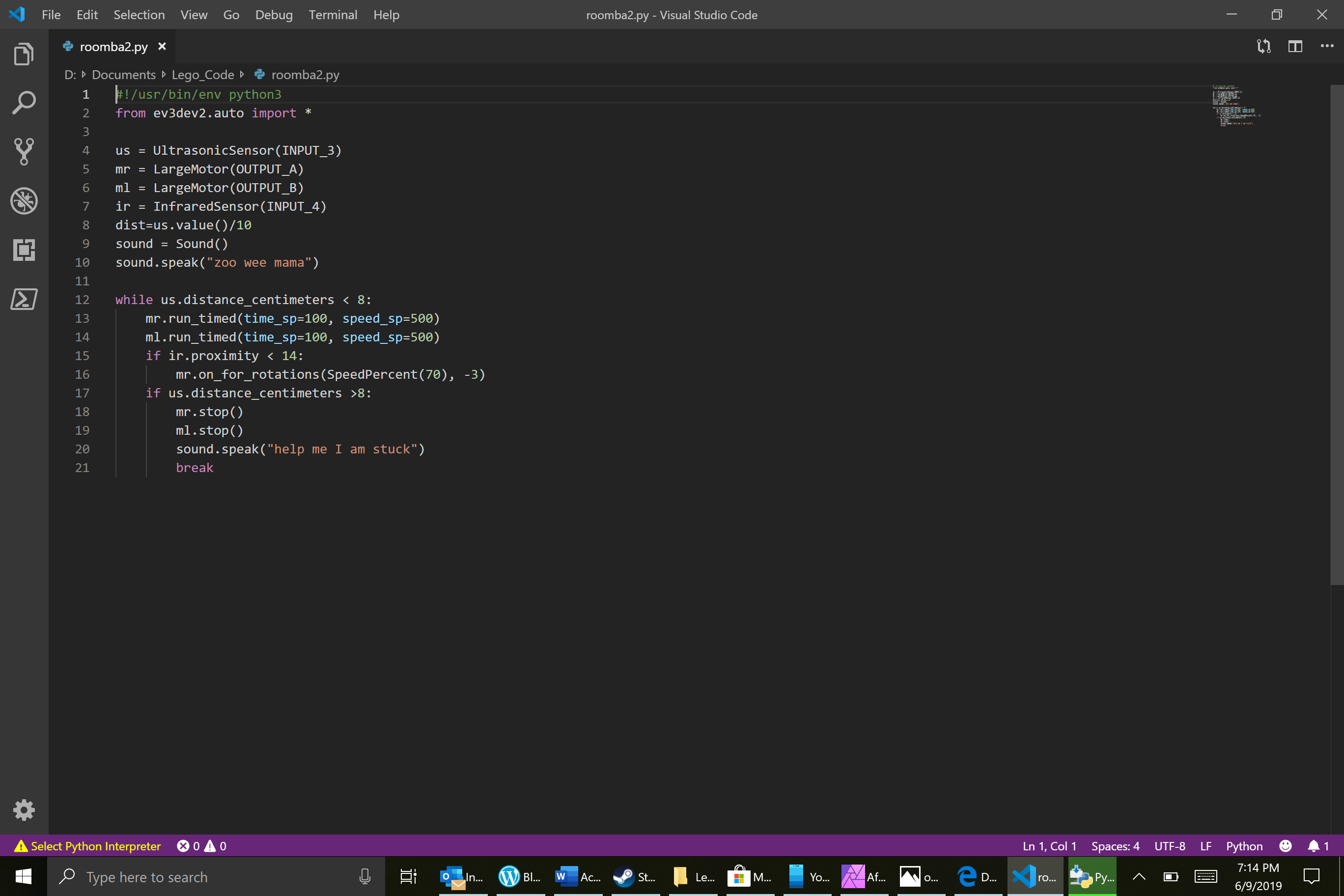
After all the moving parts were sorted, we began testing various solutions for the code that would allow our bot to autonomously drive around the house. At first, we struggled trying to get the tank to run straight. We were trying to use the “MoveTank” method, but couldn’t keep it running in a loop. We solved the problem by running each motor, individually, in a while loop. The finished “Roomba” code is below. Feel free to use it in your own projects. You may need to change the Output ports to match the way your bot is wired.

#!/usr/bin/env python3
from ev3dev2.auto import *

us = UltrasonicSensor(INPUT_3)
mr = LargeMotor(OUTPUT_A)
ml = LargeMotor(OUTPUT_B)
ir = InfraredSensor(INPUT_4)
dist=us.value()/10
sound = Sound()
sound.speak("zoo wee mama")

while us.distance_centimeters < 8:
    mr.run_timed(time_sp=100, speed_sp=500)
    ml.run_timed(time_sp=100, speed_sp=500)
    if ir.proximity < 14:
        mr.on_for_rotations(SpeedPercent(70), -3)
    if us.distance_centimeters >8:
        mr.stop()
        ml.stop()
        sound.speak("help me I am stuck")
        break