PowerShell: List all non-system Service Accounts in A Windows Domain

During a recent security exercise, I needed to validate all of the admin created service accounts in use on a customer’s Windows domain. The only problem was the total lack of trust in the documentation. In order to check them, I would first have to find the service accounts across dozens of customer environments.

Surely Microsoft included a method to acquire the data I needed? I mean, it’s their recommendation to review the accounts in the first place. So, I’ll just fire up the domain service account console. Yeah, right, you are on your own.

Some of my co-workers had resorted to logging on to each server one at a time, but I had way too many for a manual search. Of all the skills that I have invested my time into learning, none have paid off like knowing PowerShell. Run the script below from a DC or system with the RSAT AD modules installed. Use a Domain Admin account in an elevated PowerShell console. It will find all of the Windows servers in the domain and list the services that are automatically starting with a named account.

$ErrorActionPreference = "SilentlyContinue"
 
Import-Module ActiveDirectory 

$domains = (Get-ADForest).domains
$dcs = Foreach ($domain in $domains) {
    Get-ADDomainController -DomainName $domain -Discover -Service PrimaryDC
}
$servers = Foreach ($dc in $dcs) {
    Get-ADComputer -Properties * -Filter {(OperatingSystem -like "*Windows Server*")}| Select-Object DNSHostName -ExpandProperty DNSHostName
}

Foreach ($Server in $Servers) { 
    Get-WmiObject -Class win32_service -ComputerName $Server -Property SystemName, Name, StartMode, StartName, State | 
    Select-Object SystemName, Name, StartMode, StartName, State | 
    Where-Object {($_.startmode -like "auto") -and ($_.startname -NotLike "*NT Auth*") -and ($_.startname -Notlike "*Local*") -and ($_.startname -Notlike $null)} |
    Format-Table -AutoSize
}
Trouble landing a GPU? Go fish for a CPU instead.

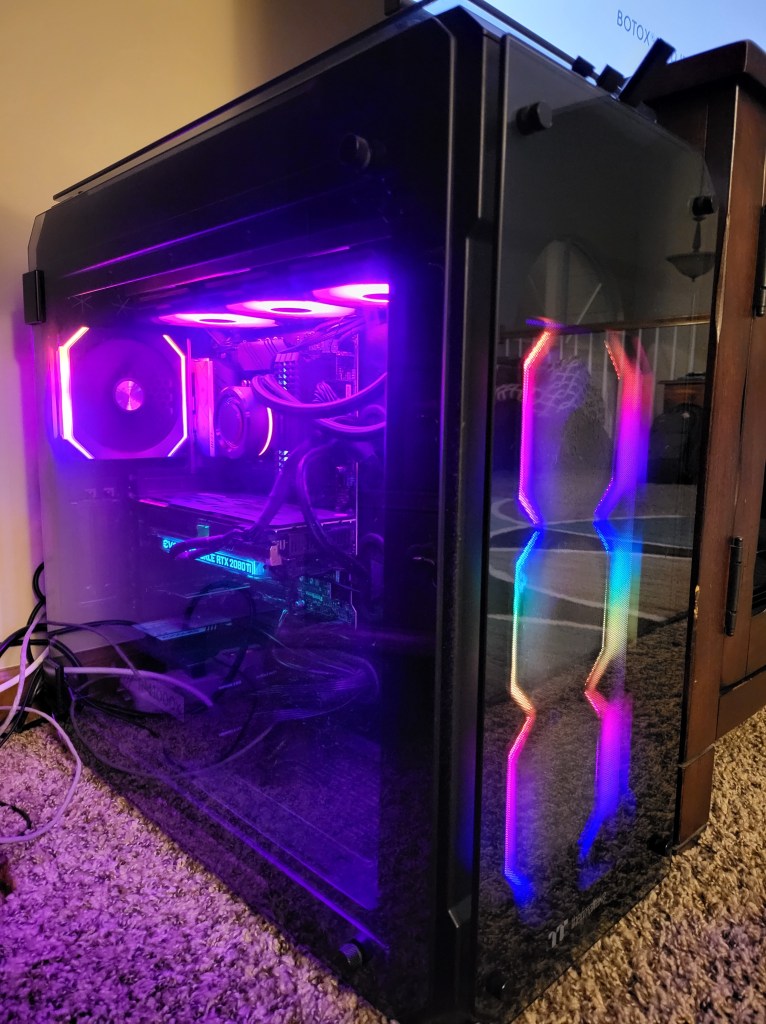
My main gaming rig, the “Elder-Wand,” has been struggling to maintain 120 FPS at 4K in several triple A titles as of late. I’ve been holding off on upgrades while waiting for the GPU mess to sort itself out. After more than a year of waiting, I’ve decided to change tactics.

Running the benchmark utilities built into games like Tomb Raider, Gears of War, and Borderlands revealed interesting  data. The Kaby Lake CPU and 270Z chipset were  bigger bottlenecks than my 2080 Ti. Time to overhaul the old girl. After consideration and research, I decided to go with an Alder Lake i-7 and a few accessories.

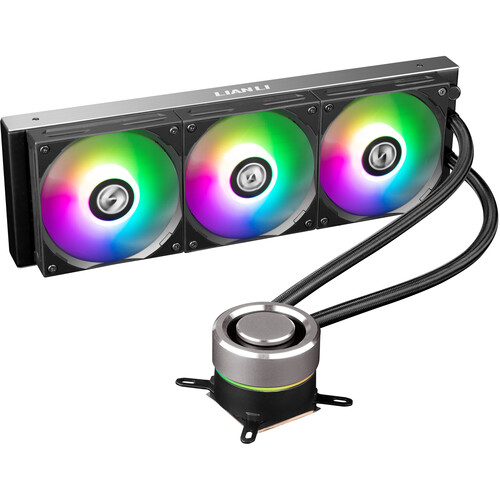
While choosing the motherboard, I opted for keeping my DDR4 memory and existing nVME storage. Instead of upgrading those components, I would upgrade the cooling system to better support overclocking the graphics card. I felt like it was the best strategy to obtain the most performance I could out of the system. I chose a Lian Li Galahad 360 AIO CPU cooler and their UNI Fan SL case fans.

One major reason for choosing the Lian Li equipment was the need to find an in-stock CPU cooler that fits the new Alder Lake 1700 socket. The other is their innovative modular linking solution. UNI fans lock together and form a single controllable stack both in terms of the blade/motor control and lighting. Each stack of fans takes a single set of connectors (PMW/RGB) on the motherboard. The effect is striking and looks fantastic sitting next to the home theatre set up. My favorite pre-programmed pattern is the dripping rainbow. It reminds me of the Lava lamp from my childhood bedroom.

The installation of the new equipment was pretty straightforward. I was caught off-gard by how much pressure you have to apply to the CPU retainer’s handle on the new socket to lock it in place. I made it through the always nerve-wracking first boot with no issues. Windows 10 detected the new hardware on its own.

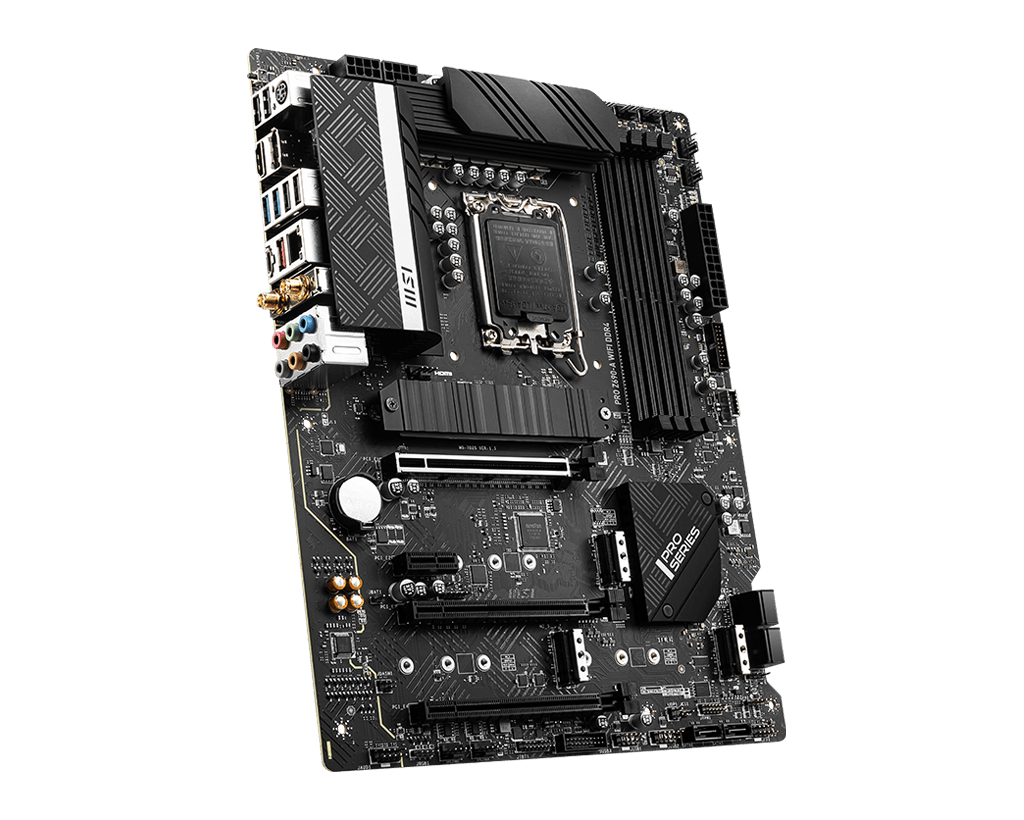
The motherboard I replaced was an MSI. I had stuck with the brand when I picked the PRO Z690-A WIFI DDR4. I had hopes of having an easier time with the software. It paid off! The MSI Center detected the new model, and Live Update took care of the rest. The Lian Li cooling system said it was compatible with MSI’s control software, and it is. Once I installed LConnect, MSI Center offerrered to control the cooling and lighting. I agreed.

So now the moment of truth had come. I had spent around $1000.00 and an entire day off on this little upgrade experiment. Was it worth it? The first thing I ran was Destiny 2. I went into the settings and pushed everything to the max. Before the upgrade, I averaged 😯 FPS; now, I was running at 100. I ended the game and used my GPU’s control app to boost the power, cooling, and clock cycles up by about 30%.

The AIO block removes most of the CPU exhaust heat from the case’s interior. The inside of the case is much cooler and hovers at 35°. The extra capacity allows me to overclock as long as I watch my telemetry. It took a while to get everything tuned, but eventually, I got the FPS average up to the 120 goal. Fantastic results if you ask me.

My Experience with Installing Windows 11 On Stuff

In the beginning, there was so much confusion around Microsoft’s new OS requirements that even many professionals had to tune out the noise. Now that 11 has actually landed, the requirements aren’t too difficult to grasp, right? TPM 2.0 and an eighth gen or newer CPU are the big ones.

If you are okay with accepting some risk, then you can bend the rules and load the new version on pretty much anything. Side doors are always an intriguing option for inquisitive people. They almost always come with some grave side effects, and Microsoft doesn’t disappoint.

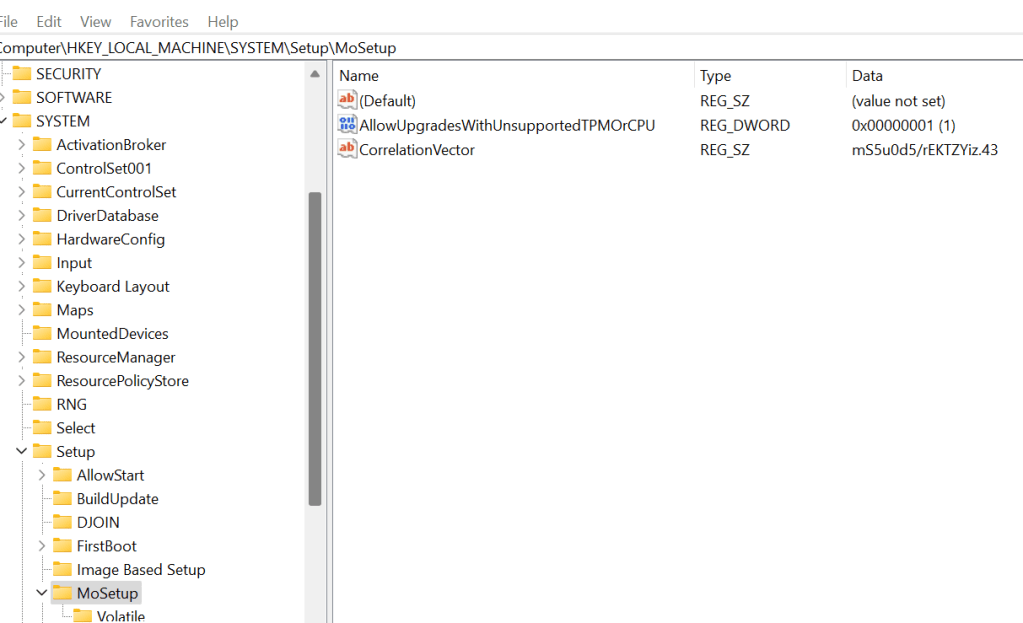
If you edit the registry of most computers from the Windows 7 era (already running 10), the TPM and CPU checks can be bypassed. This allows the Windows 11 upgrade to be intiatied by mounting the ISO and running setup. You will be accepting an agreement that states you are proceeding at your own peril and that future updates may be withheld. I followed The Verge’s three step guide the first time: read it @ https://www.theverge.com/22715331/how-to-install-windows-11-unsupported-cpu-intel-amd-registry-regedit

Tip: if the key/folder doesn’t exist, then just create it yourself.

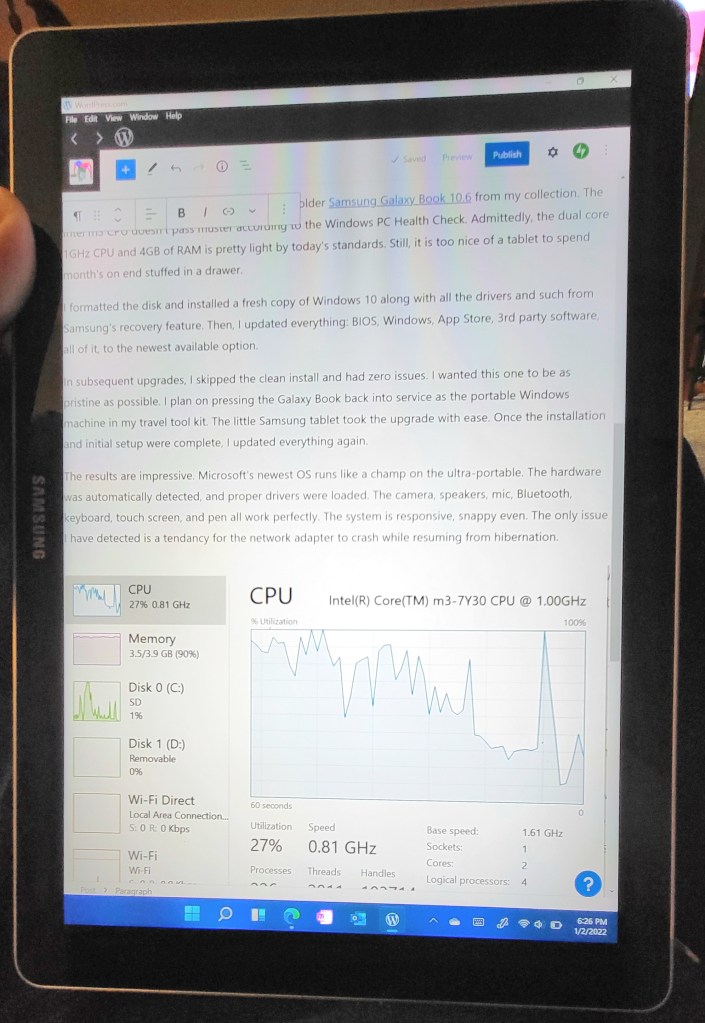
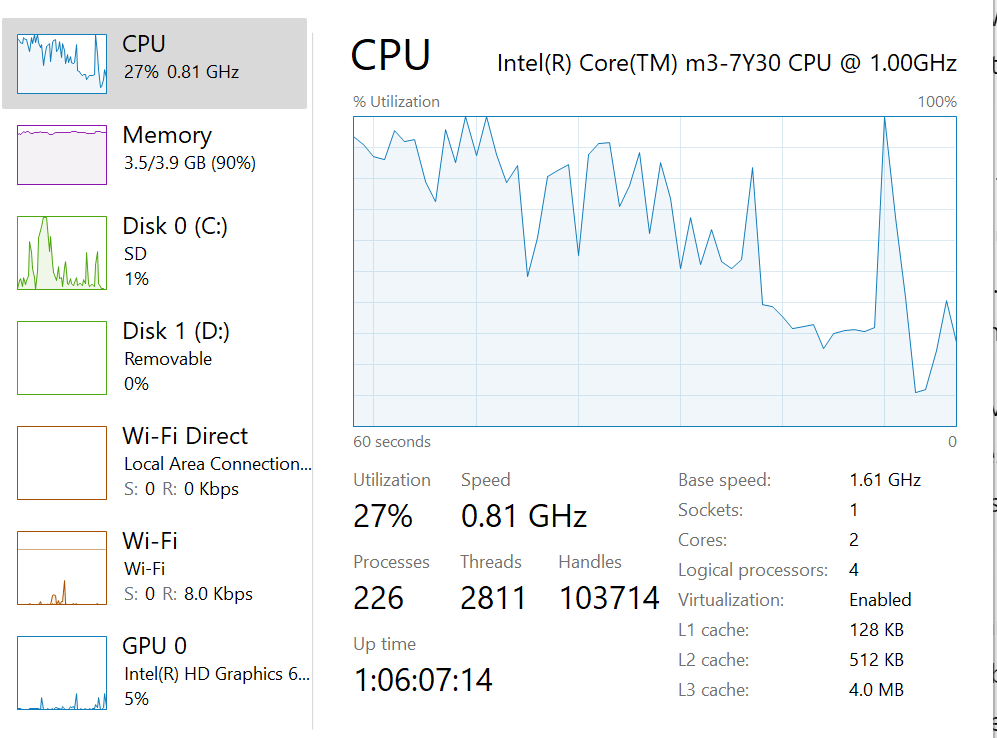
The first thing I used the technique on was an older Samsung Galaxy Book 10.6. The Intel m3 CPU doesn’t pass muster according to the Windows PC Health Check. Admittedly, the dual core 1GHz CPU and 4GB of RAM are pretty light by today’s standards. 

I formatted the disk and installed a fresh copy of Windows 10 along with all the drivers and such from Samsung’s recovery feature. Then, I updated everything: BIOS, Windows, App Store, 3rd party software, all of it, to the newest available option.

In subsequent upgrades, I skipped the clean install and had zero issues. I wanted this one to be as pristine as possible. I plan on pressing the Galaxy Book back into service as the portable Windows machine in my travel tool kit. The little Samsung tablet took the upgrade with ease. Once the installation and initial setup were complete, I updated everything again.

The results are impressive. Microsoft’s newest OS runs like a champ on the ultra-portable. The hardware was automatically detected, and proper drivers were loaded. The camera, speakers, mic, Bluetooth, keyboard, touch screen, and pen all work perfectly. The system is responsive, snappy even. The only issue I have detected is a tendancy for the network adapter to crash while resuming from hibernation.

I proceeded to upgrade a Dell G3 laptop, Lenovo gaming laptop, an HP Elite Book, a Dell Venue tablet, a Surface 3,  Surface Go, Surface Go 2, Surface Book 2, and multiple custom built gaming desktop systems of both Intel and AMD architectures. In all of that, the network resume glitch is the only issue I have personally encountered.

Here’s the thing: I have encountered that glitch on three different systems. Both wireless and wired nics have been affected. I’ve tried everything I know but have not been able to resolve the problem without resorting to disabling hibernation. Incidentally, disabling the network adapter in the device manager and then turning it back can sometimes help.

Given how draconian Microsoft has been in the media about the requirements, I was pleasantly surprised. My experience to date has been that any system or software compatible with Windows 10 is also compatible with Windows 11. Or, at least, it can be if you are willing to jump through Microsoft’s hoops.