Host Custom Email Domains With Your iCloud+ Subscription

In this day and age, your digital identity can be as important as your real life persona. Just as you use fashion to convey your desired public image, usernames, email addresses, and the like can influence how people view your on-line identity. For the longest time, everyone just used one of the big free identity pools like gmail.com, outlook.com, or their ISP’s domain.

Recently I discovered that the family and personal editions of Microsoft 365 will allow custom domain names. That got me thinking, what about the Apple side of tech? It turns out that paid iCloud accounts will also host your custom email domain.

On a iPad, iPhone, or MacBook, open settings then click on your account in the menu on the left. Click on iCloud and scroll down to tap “Custom domain name”. You should also be able to go straight to the iCloud page in Safari https://www.icloud.com/icloudplus/customdomain. If you visit the site from a non-Apple device you will face some authentication hurdles, but I’m told it can still be done.
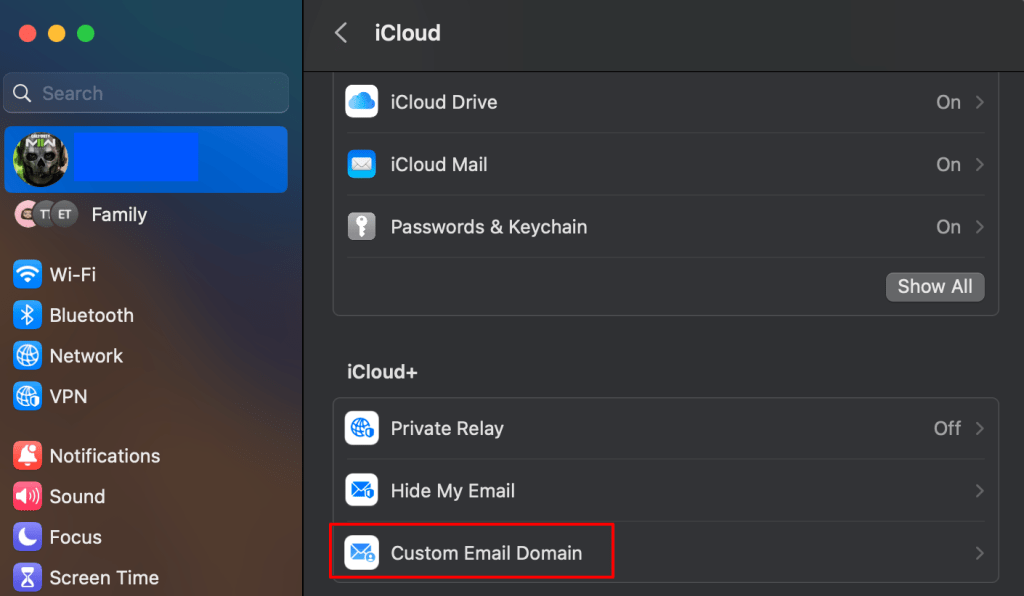
The easiest way to get started is from the settings app on your Apple Device.

Sign into iCloud when prompted and the setup process will start. The first thing you’ll need to decide is whether to use a domain you already own, or purchase a new one. Click the appropriate button and follow the instructions. I’m using a domain I already own in these instructions.

When you reach the step regarding existing email addresses, pay close attention. This is not where you setup up new addresses. If you are not moving email hosting from another service to iCloud, you should click the “No email addresses” button. If you try to add existing addresses, apple will send a verification email and you will be stuck. If you get stuck, use the back button to go to step one and remove the domain to start over.
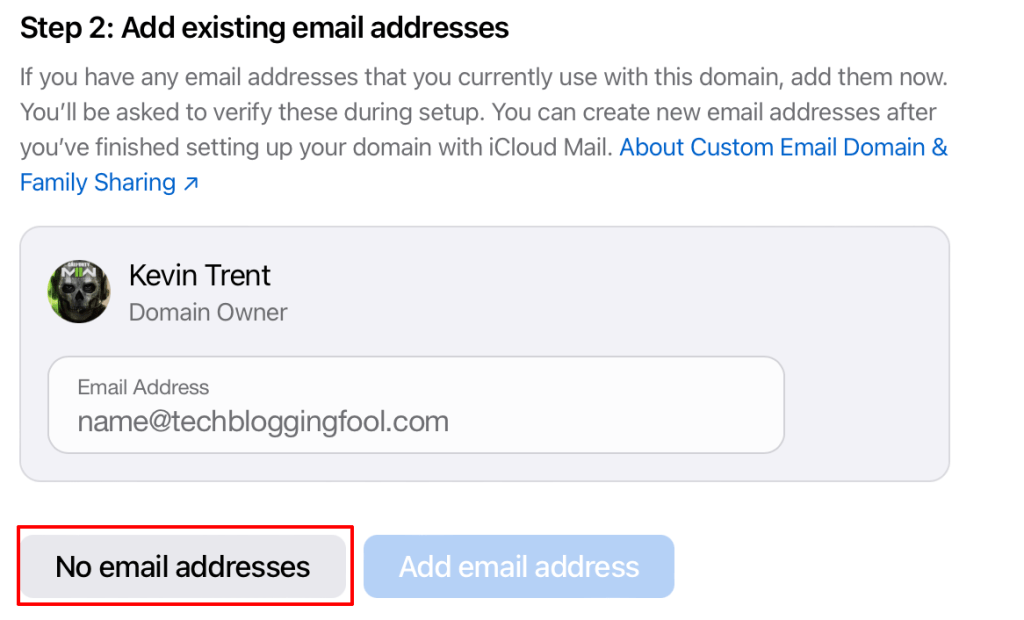
Adding existing addresses from this screen sends verification emails to them. Use the “No email addresses” option unless you are migrating from another SMTP host.

If you have chosen to use a domain that you already own, there are some DNS records that you will need to create. This is typically done on the domain registrar site that you purchased the name from. Logon to their control panel and find the Manage DNS (will vary in name and location) option. Create the records exactly as they appear in the setup portal (View button). Apple also emailed you the records to your iCloud address when you reached this step (look in the Apple Mail app).
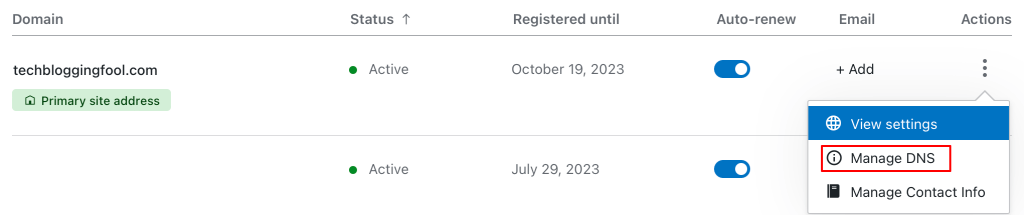
Most domain registrars also host your DNS.

Note: The screen that shows the records you need to create includes a trailing period after some of the values. However, most DNS servers cannot accommodate a trailing period in their fields. If your DNS server will not accept the pasted copy, remove the period.
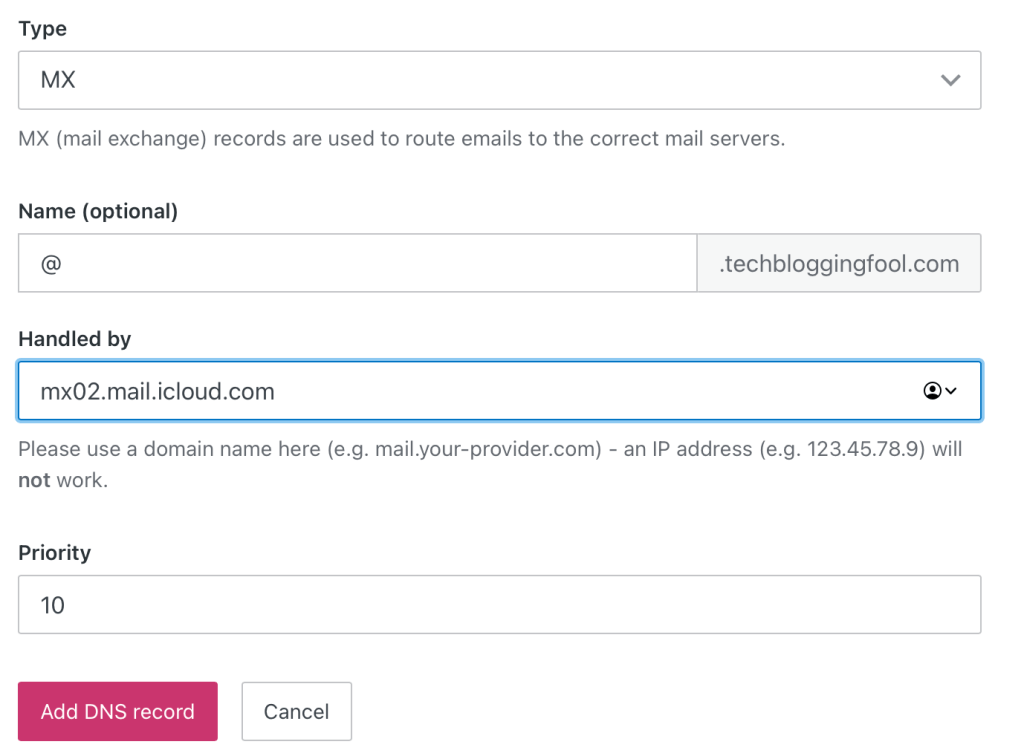
Create each record, remove trailing periods in the values if they keep you from proceeding.

In all you should have created four DNS records. They should look similar to mine below. The data is different for each domain so do not use the values from my screenshot.
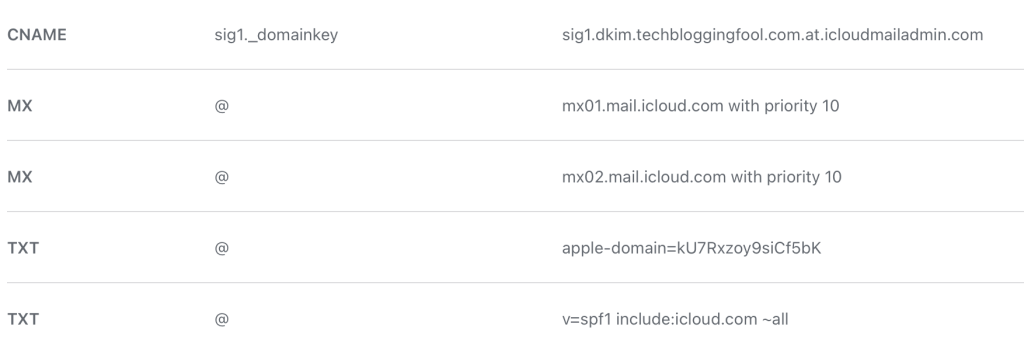
A full description of these records can be found at: https://support.apple.com/en-us/HT212524

Back on the iCloud setup screen click Finish. Then click Confirm and Apple will verify that you have setup the records correctly. On the next screen you will add your email address(s). You can add up to 5 addresses to your own account or to iCloud family members.
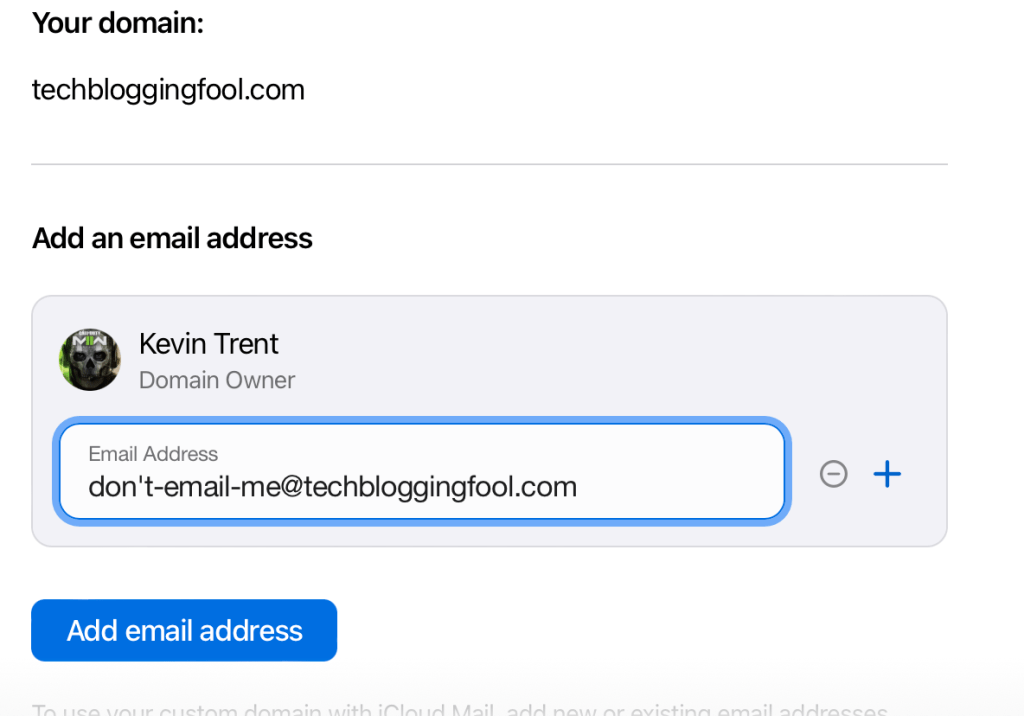
Use the – and + buttons on the right to remove and add addresses to your account.

That’s it, you are all setup to use your custom domain. It can take up to 48 hours for the email addresses you created to become fully useable on the internet. You can manage your email settings by access the Custom domain option in the settings app as described above or by visiting https://www.icloud.com/icloudplus/customdomain in your browser. Enjoy.
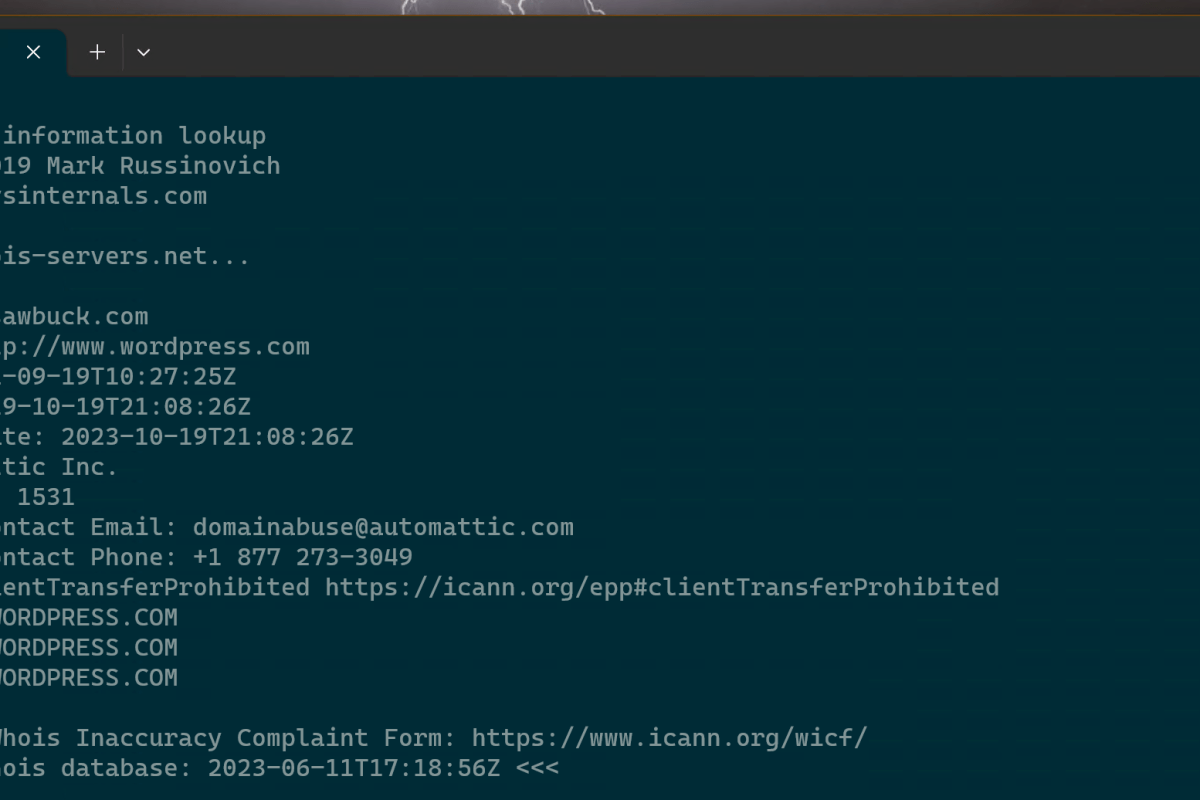
IT Life Hack: Run WhoIs and Other Windows Sysinternals CLI Tools in Windows Terminal

If you work in IT long enough, you will eventually need to create or edit public DNS records for  something. This means you need to find the public DNS servers first. Whols is the online database that contains the information you are after.

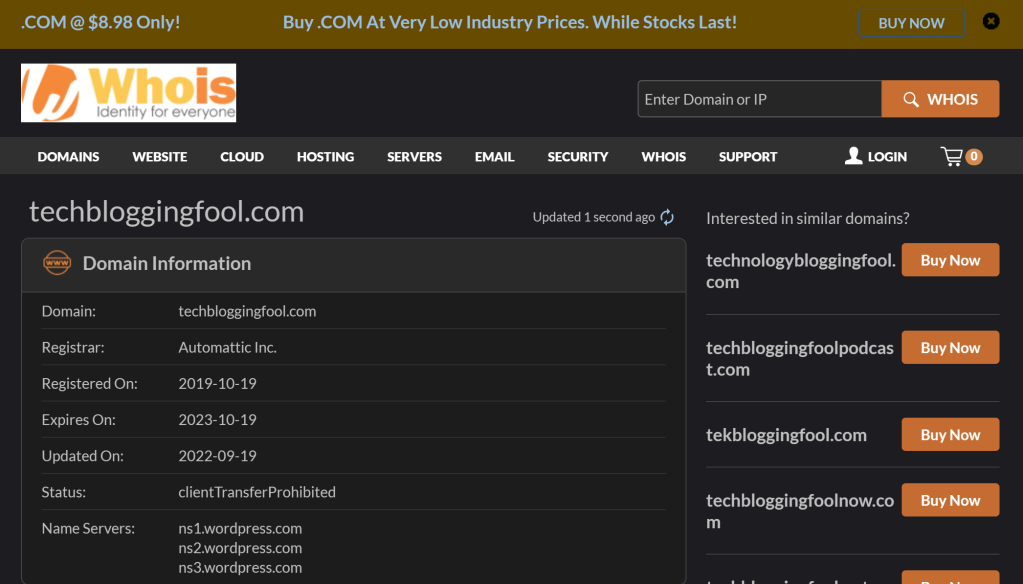
The good news is that WhoIs is publicly accessible via a number of websites. The bad news is that most of them require you to accept tracking cookies or run a gauntlet of captcha tests.  Some make you suffer through Ad hell to get the information you need.

My usual whois site. https://www.whois.com/whois is relatively painless, but the CLI is still faster and easier, in my opinion.

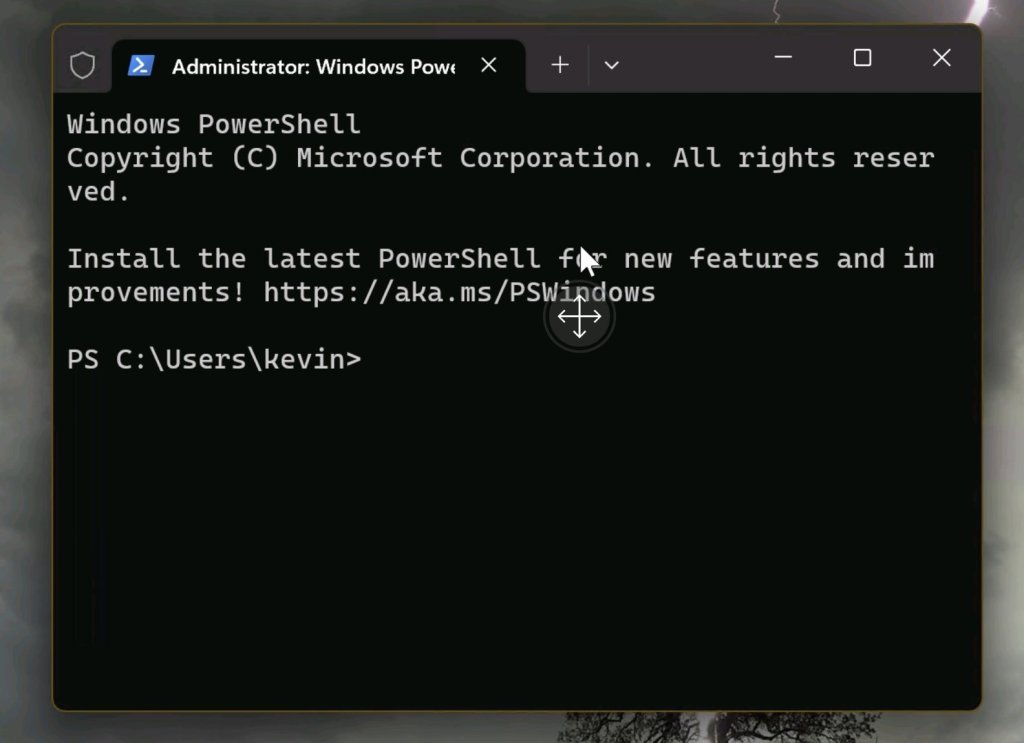
Microsoft’s Terminal application for Windows 10 and 11 is extremely versatile. 10 users need to get Microsoft’s Windows TerminaI app from the Microsoft Store. It’s the default Terminal in 11. Much like the famous Putty, it allows for custom saved connection profiles. It also rus multiple CLI consoles like SSH, PowerShell, Telnet, and CMD in tabs that make flipping through open sessions easy.

Windows Terminal is a Tab based multi-protocol text terminal that features customization.

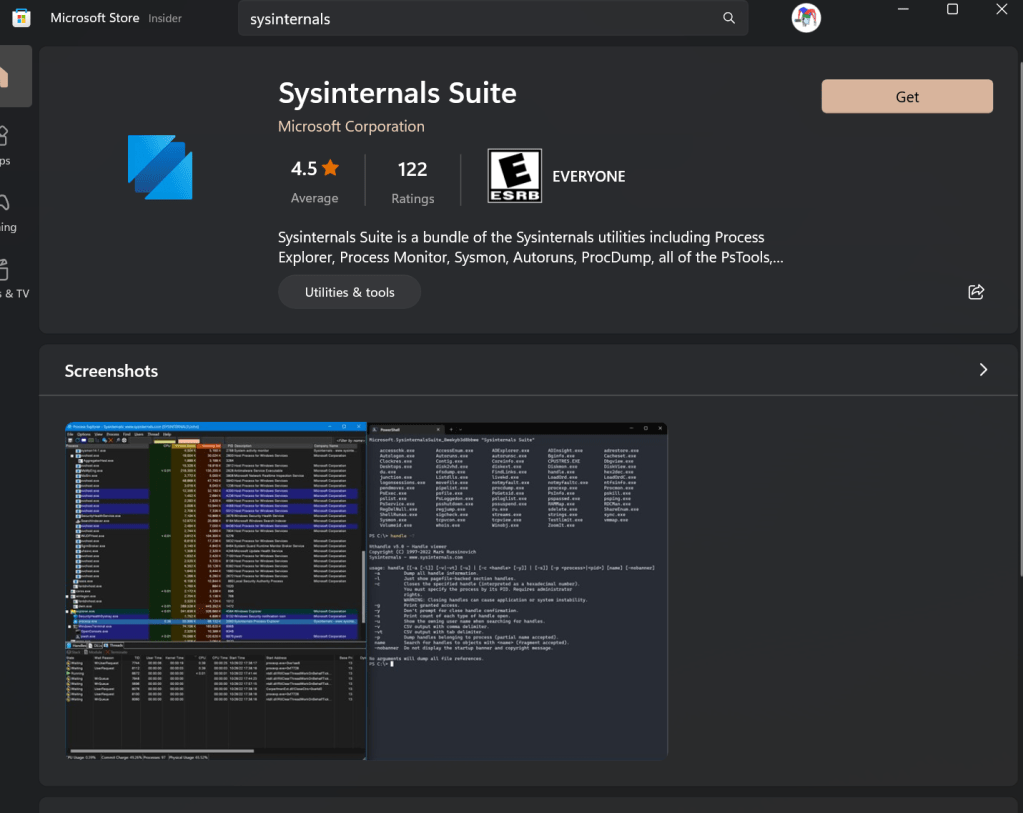
SysInternals has provided a CMD based WhoIs client for years. You can install the free SystInternels suite from the Microsft App Store. It is also possible to download and install each individual tool. There are even Linux versions for some of them. See the Sysinternals section of Microsoft’s site for all the options.

They’ve been essential tools to debug Windows for decades.

It’s easy to combine the two and create a time-saving WhoIS CLI that is faster and easier to use than a website. More or less, the process is to create a CMD profile that points to the folder that Sysinternals installs into. To get started, make sure both the Sysinternals Suite and Windows Terminal are installed. Click the Get button in their respective links above. 

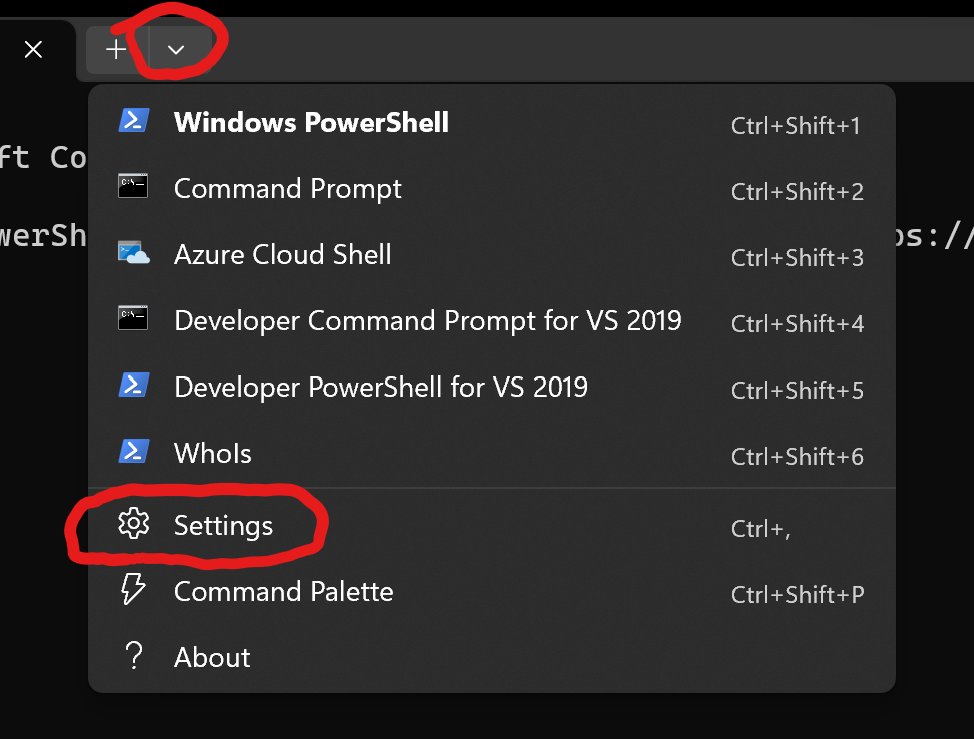
Now open Windows Terminal and click the drop down to the right of the last tab.  Go to settings.

Add new connections and customize your experience from settings.

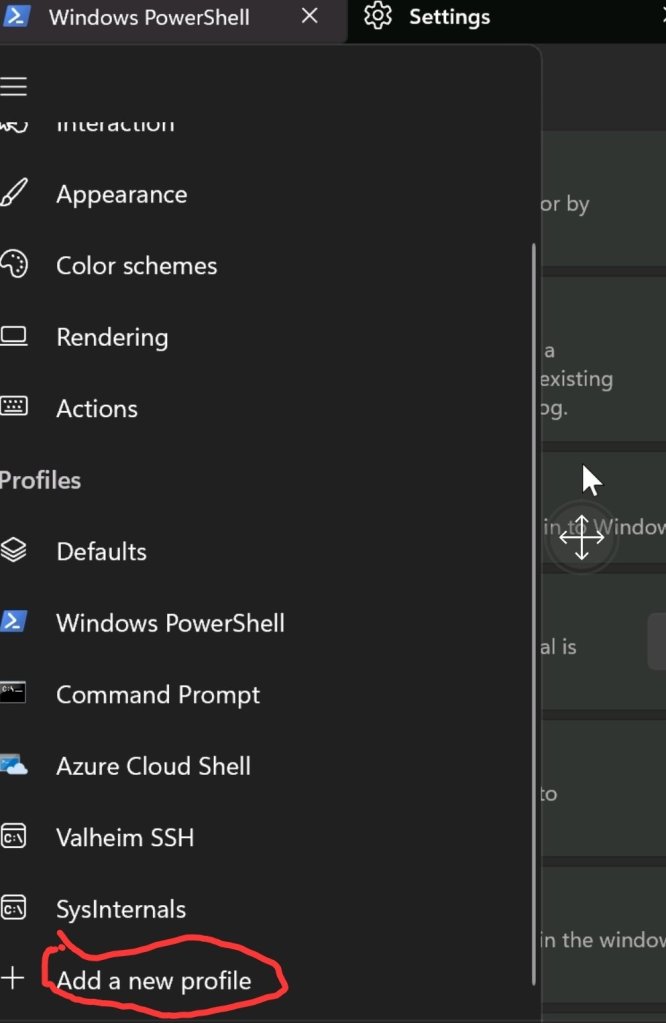
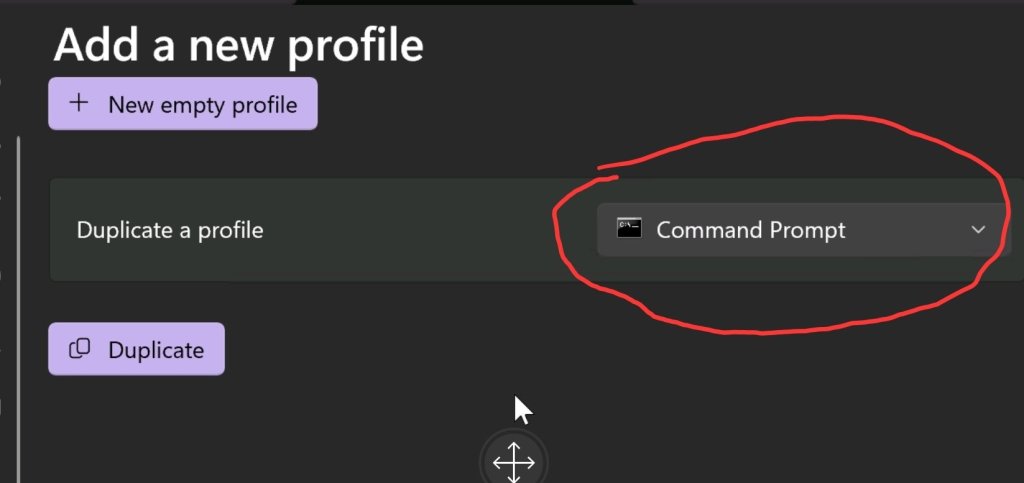
Add a new profile by the clicking menu button  followed by the ” add new profile” button.  Pick the option to copy a current profile and select CMD from the drop-down. 

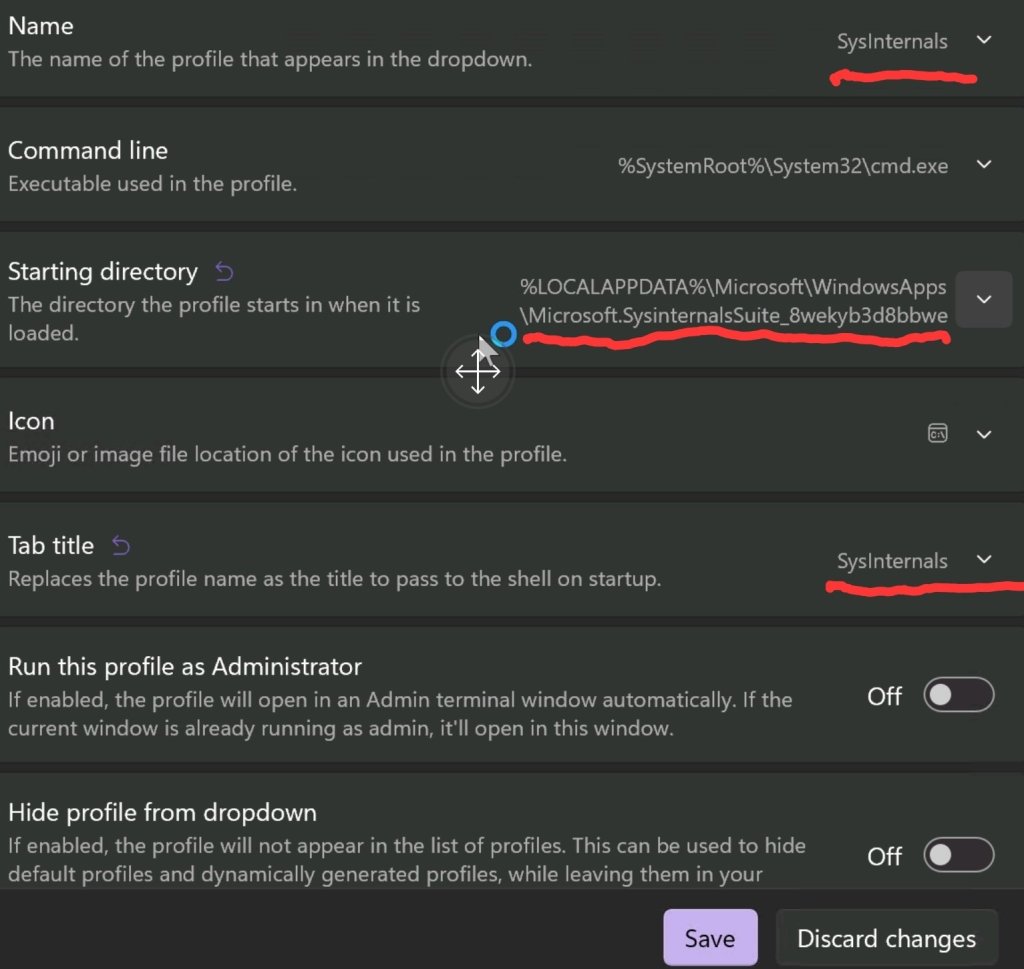
Adjust the fields outlined in red to match the picture below. Use the drop-down at the end of each attribute. If you installed Windows Terminal from the app, the path should be: %LOCALAPPDATA%\Microsoft\WindowsApps\Microsoft.SysinternalsSuite_8wekyb3d8bbwe. Otherwise, you created the path during installation. 

Change the underlined options.

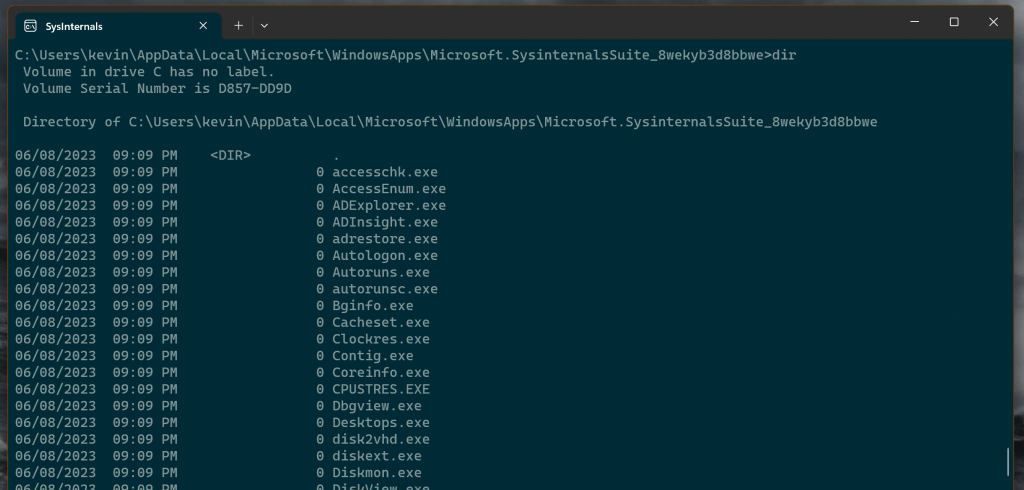
Save your changes and exit the menus. Now you should have a “SysInternals” tab available in the tab drop down menu. Open it and type whois followed by the domain name or IP address you are attempting to identify. All the other CLI tools in the SysInternals Suite work in the same manner (assuming you installed them). Type the name of the command followed by any attributes. List them by running a dir cmd, enjoy.

DIR will list all the Sysinternals tools that are available.