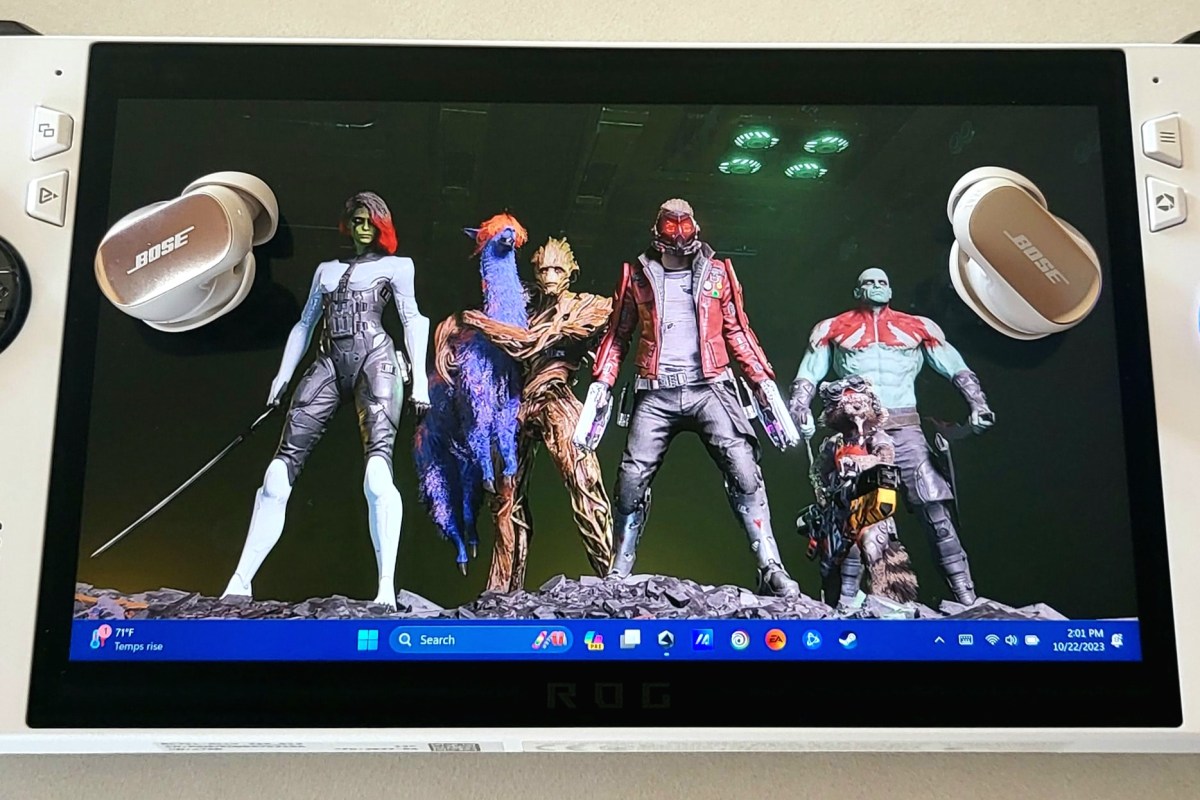
I have written several articles about the ROG Ally and its abilities. The Nintendo Switch sized gaming PC makes playing on the couch, in bed, or on the go a comfortable and fun experience. It is the device I play on most because of its combination of portability and performance.
I recently upgraded my earbuds to the new Bose Quiet Comfort Ultras. ANC earbuds make it easy to escape the noises of the world when you want to. As one might expect, the Bose active nose canceling feature of their flagship earbuds is exceptional. While they cannot achieve total silence in loud environments, they certainly make almost any noise tolerable.
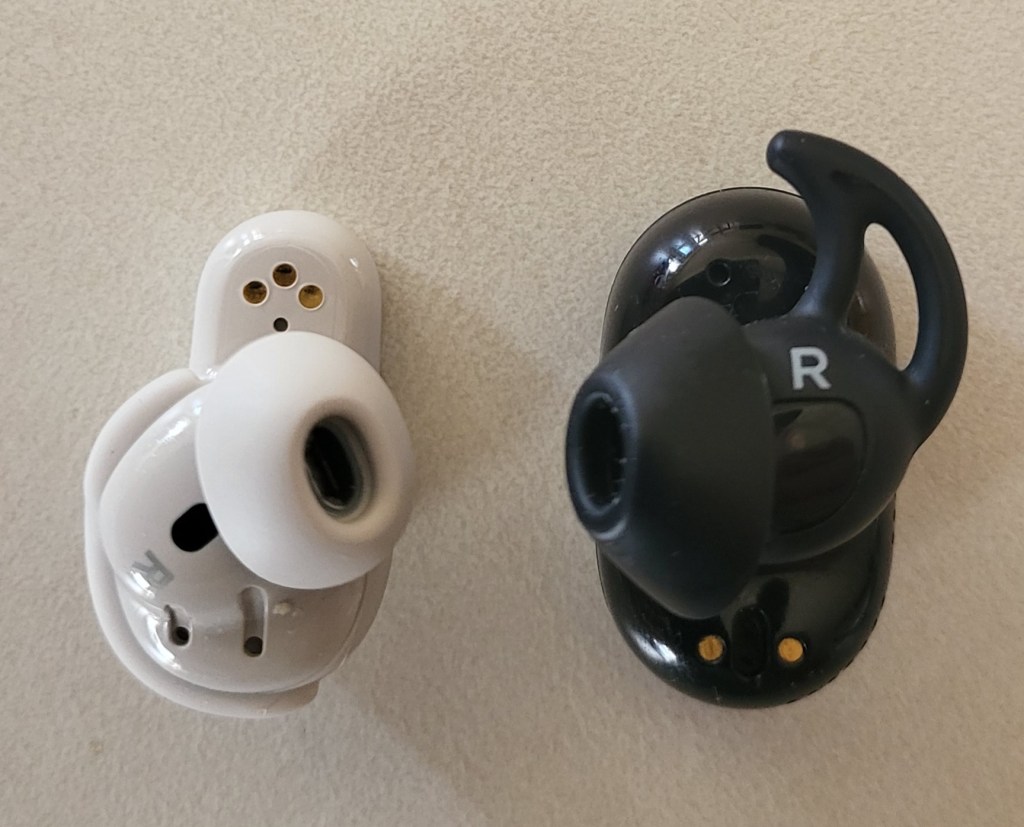
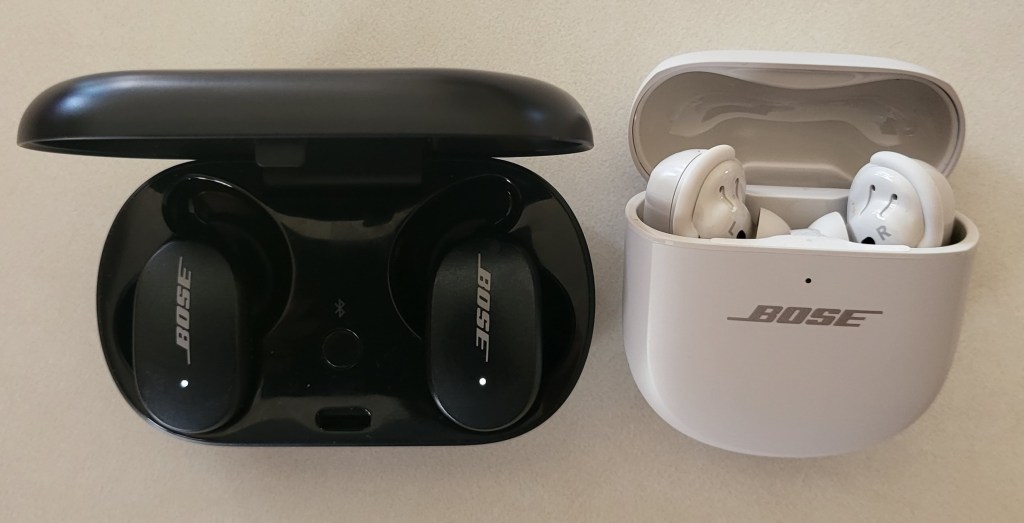
The new QC Ultras are smaller and lighter than previous Quiet Comfort earbuds. They also feature a a new method to achieve a secure comfortable fit. I find the new tips and fins to be a welcome upgrade over my original QC earbuds. The Ultras stay in my ears while walking, running, and while I’m chewing, or talking. So far, they don’t seem to leave sore spots where they make contact.
My favorite feature is the immersive audio. The QC Ultras use Bose magic to make any type of audio source sound like you are listening to it on a hi-fi stereo speaker setup and sitting right in the sweet spot. When I first read about the function, I was skeptical. Now that I’ve experienced it for myself, I am impressed. The wide sound stage and auto ANC combine to great effect.
The most important reason for me upgrading to the new earbuds was their low latency support. I have struggled to play games with BT headphones and earbuds since the beginning. I just can’t get over the audio lag that almost all of them suffer from.
Pulling the trigger to take a shot and not hearing the sound until after the next round is chambered, is distracting. Hearing footsteps coming up behind you, knowing it is too late to do anything about them is frustrating. Watching cutscenes that play like old voiced-over karate films is annoying.
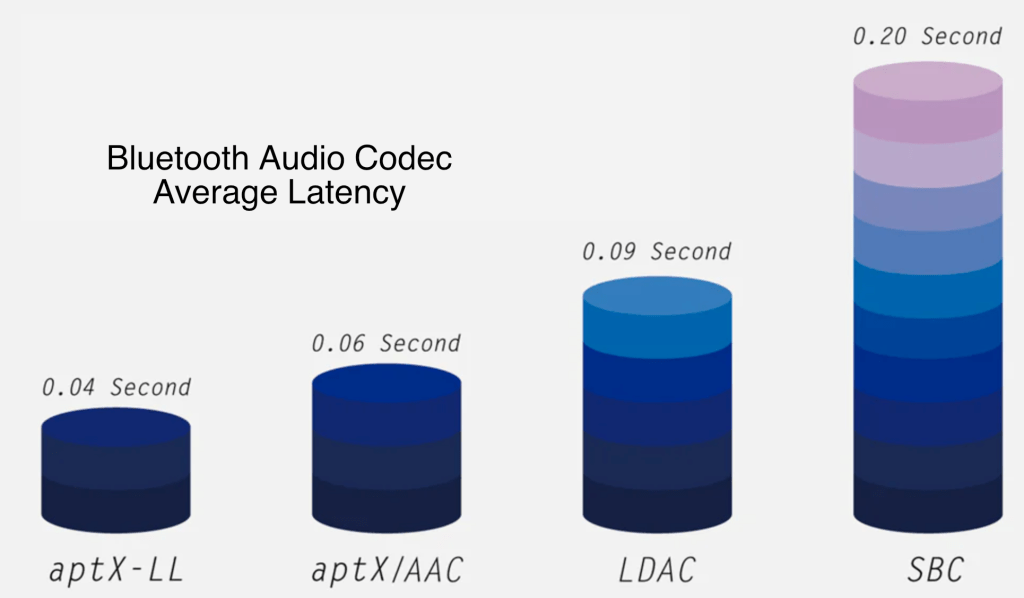
The QC Ultra earbuds completely solve these issues. When paired with my phone there is no detectable lag in any of the games I have tested so far. There’s also no lag in video streams or video calls, people’s lip movements and sounds stay in sync on both.
This lack of lag on my phone got me wondering what the performance would be like if I paired the earbuds with my Ally. It has literally been years since I’ve bothered using Bluetooth audio with a PC for anything but Teams and Zoom. The lag was just insufferable.
I was pleased to discover that I could not detect any lag while playing PC games with the Ultra earbuds. I tried several modern and older games along with a couple of emulators, and they all worked perfectly. The earbud’s mics were great for game chat, too.
I have the Dolby Atmos for Headphones, DTS for Headphones, and Windows Sonic for headphones, audio apps for Windows. All of the virtual surround sound drivers worked with the QC Ultras and did not introduce any detectable lag.
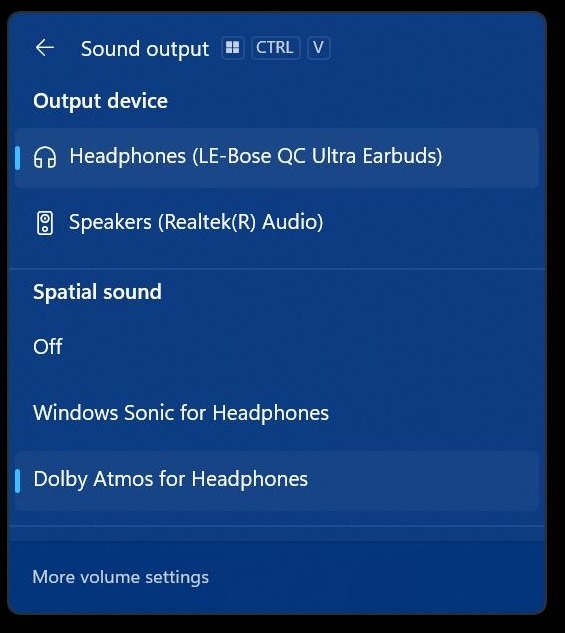
I’ve paired the QC Ultra Earbuds with my wife’s Steam Deck and I’ve also paired them with my Meta Quest 3. I got fantastic results with both. The Bose Music app for your phone lets you add multiple devices and switch between them, but they only connect to one thing at a time.
I upgraded to get a better experience from the advertised low latency. Bose delivered on that promise. Audio sites are giving the new earbuds high marks overall, subtracting a few points due to the lack of multi-point and wireless charging. If you’ve been looking for BT earbuds specifically for gaming, I’m not sure you can do better right now.


 techbloggingfool.com