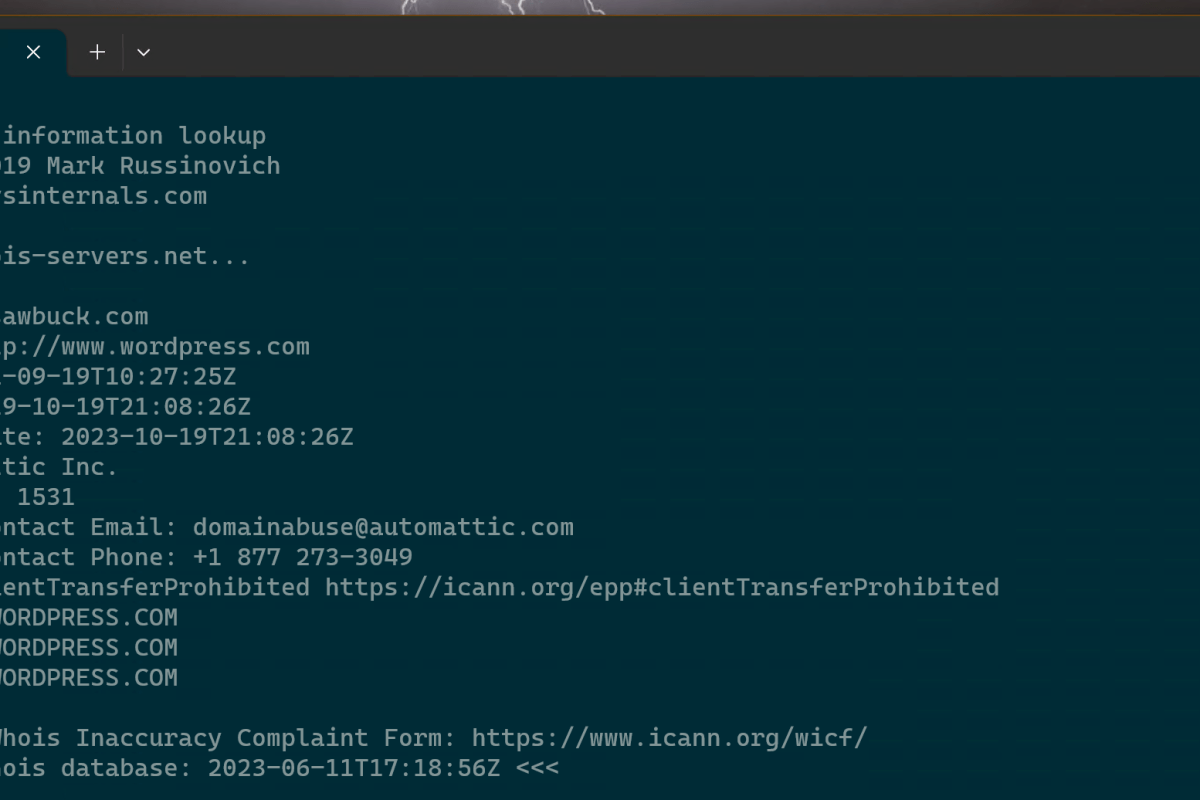
If you work in IT long enough, you will eventually need to create or edit public DNS records for something. This means you need to find the public DNS servers first. Whols is the online database that contains the information you are after.
The good news is that WhoIs is publicly accessible via a number of websites. The bad news is that most of them require you to accept tracking cookies or run a gauntlet of captcha tests. Some make you suffer through Ad hell to get the information you need.

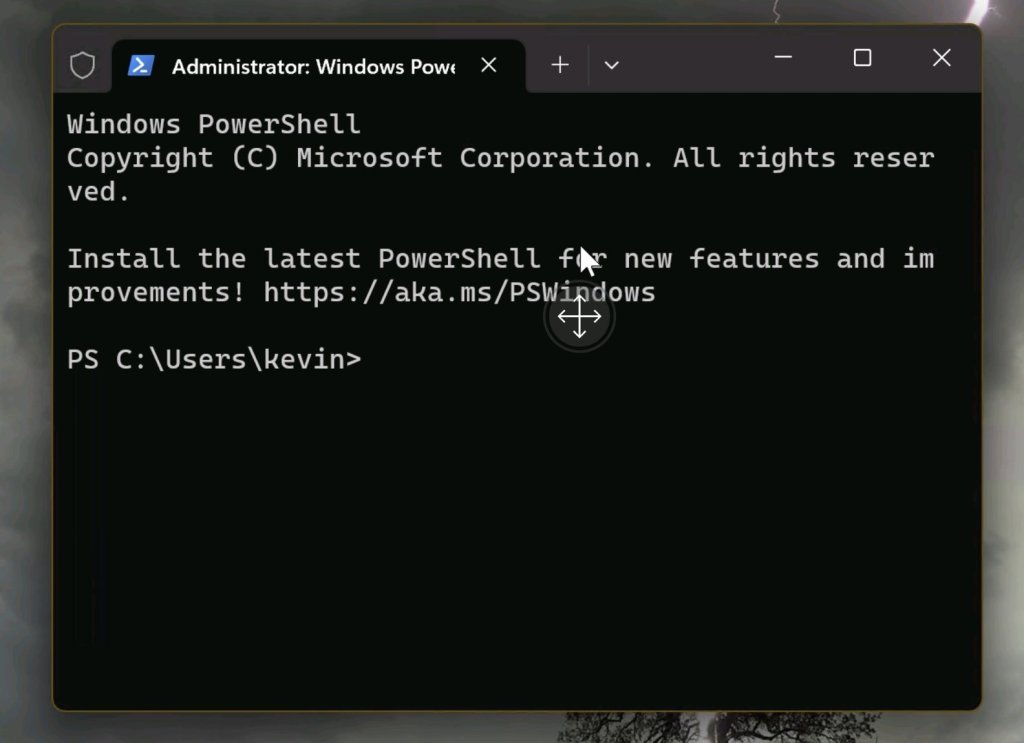
Microsoft’s Terminal application for Windows 10 and 11 is extremely versatile. 10 users need to get Microsoft’s Windows TerminaI app from the Microsoft Store. It’s the default Terminal in 11. Much like the famous Putty, it allows for custom saved connection profiles. It also rus multiple CLI consoles like SSH, PowerShell, Telnet, and CMD in tabs that make flipping through open sessions easy.
SysInternals has provided a CMD based WhoIs client for years. You can install the free SystInternels suite from the Microsft App Store. It is also possible to download and install each individual tool. There are even Linux versions for some of them. See the Sysinternals section of Microsoft’s site for all the options.
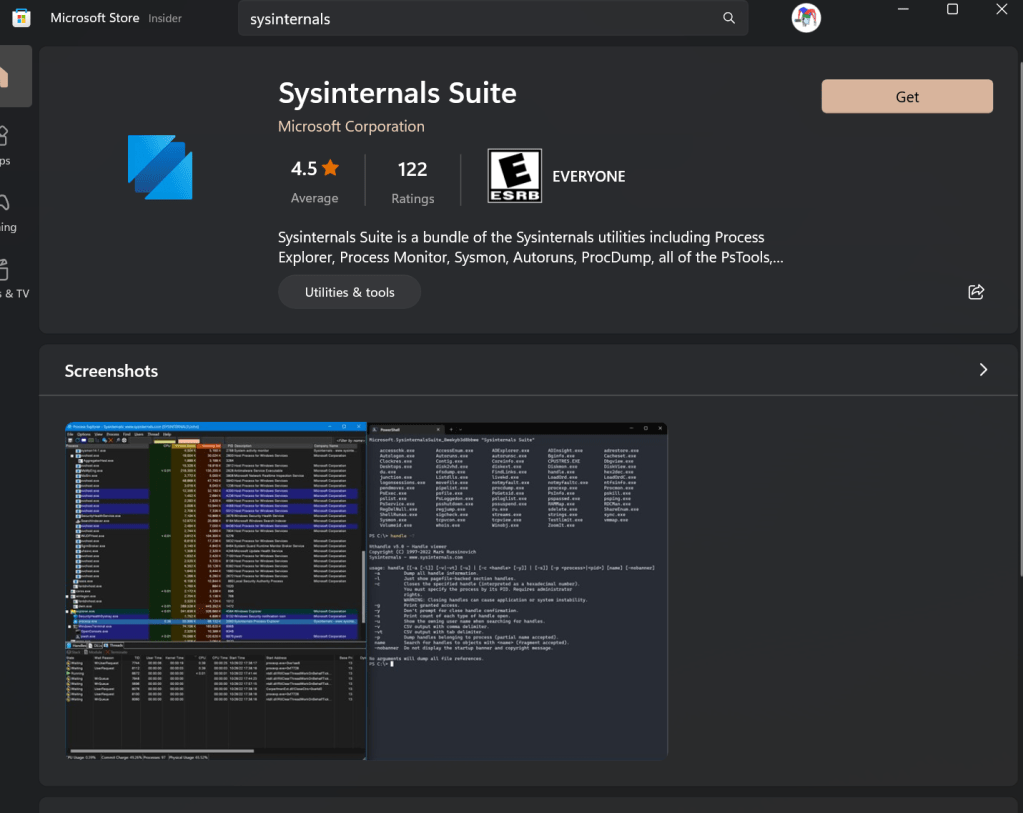
It’s easy to combine the two and create a time-saving WhoIS CLI that is faster and easier to use than a website. More or less, the process is to create a CMD profile that points to the folder that Sysinternals installs into. To get started, make sure both the Sysinternals Suite and Windows Terminal are installed. Click the Get button in their respective links above.
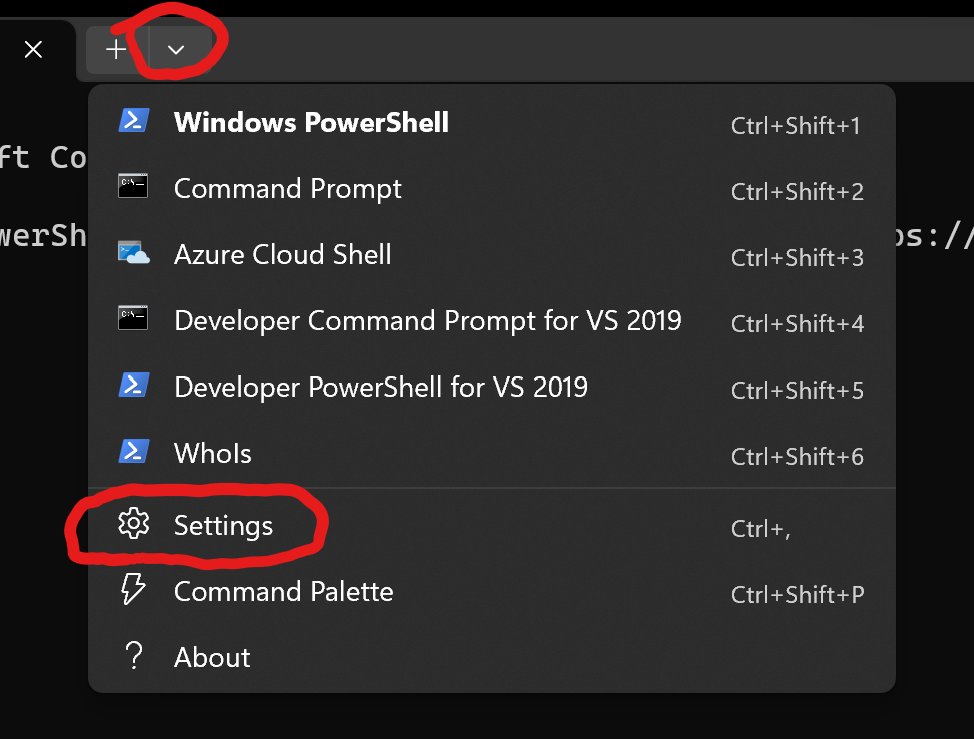
Now open Windows Terminal and click the drop down to the right of the last tab. Go to settings.
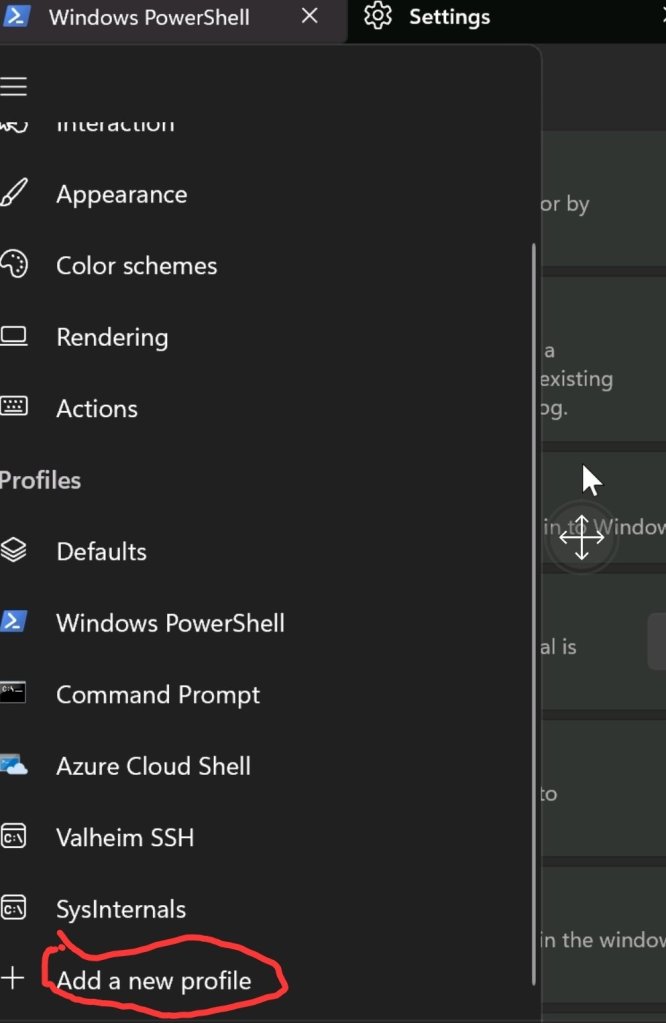
Add a new profile by the clicking menu button followed by the ” add new profile” button. Pick the option to copy a current profile and select CMD from the drop-down.
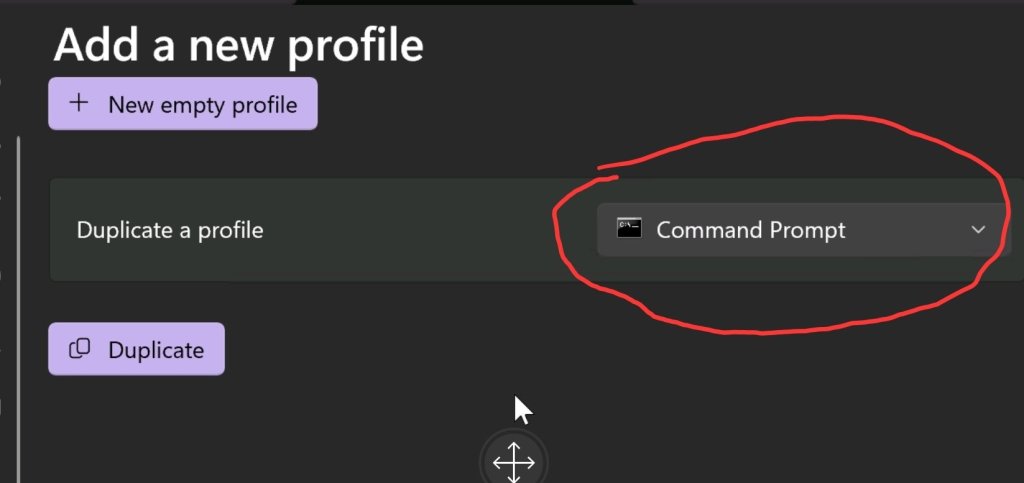
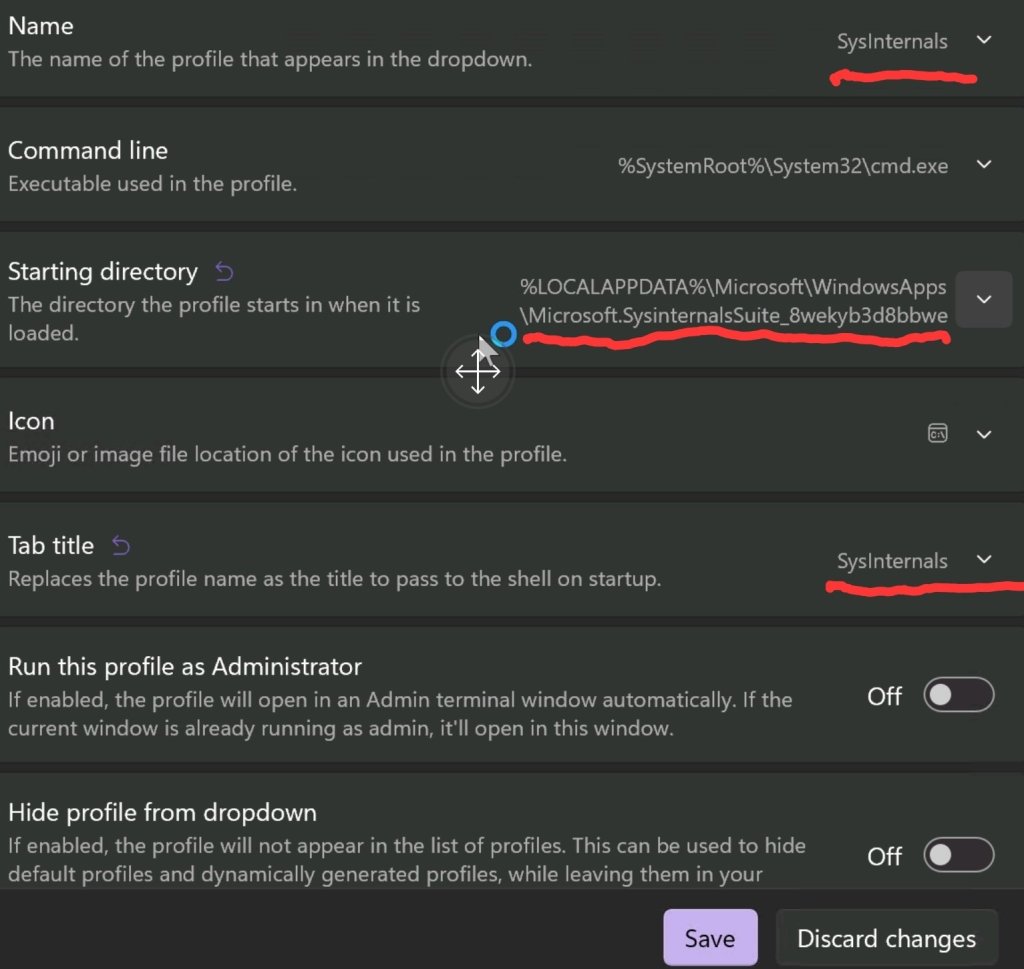
Adjust the fields outlined in red to match the picture below. Use the drop-down at the end of each attribute. If you installed Windows Terminal from the app, the path should be: %LOCALAPPDATA%\Microsoft\WindowsApps\Microsoft.SysinternalsSuite_8wekyb3d8bbwe. Otherwise, you created the path during installation.
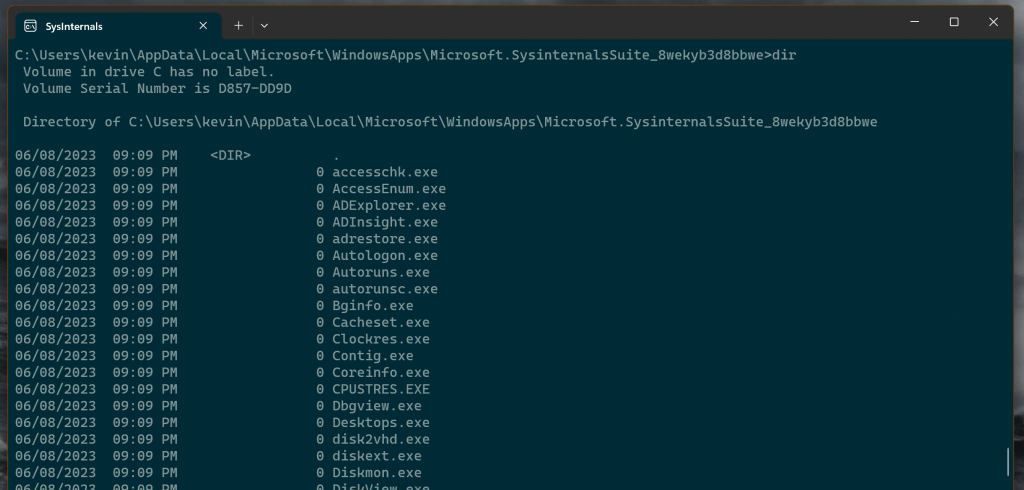
Save your changes and exit the menus. Now you should have a “SysInternals” tab available in the tab drop down menu. Open it and type whois followed by the domain name or IP address you are attempting to identify. All the other CLI tools in the SysInternals Suite work in the same manner (assuming you installed them). Type the name of the command followed by any attributes. List them by running a dir cmd, enjoy.
 techbloggingfool.com