PowerShell; SharePoint Online Inventory and User Activity Report

I am frequently asked to generate various reports for SharePoint Online. Usually, I can get the requested information from the Microsoft 365 Reports console, this time was different. We had just merged two Microsoft 365 tenants. The data move had worked according to the tools. The problem was that independent reports showed people were still using the old target sites after the cut date.

Microsoft’s SharePoint activity reports obscure the user’s identity for security reasons. We specifically needed to identify who was accessing data in the old tenant to troubleshoot the issue. There is a setup option you can toggle to display user identities in the reports. I turned on the switch and waited five business days with no results. I couldn’t wait any longer and needed to pivot to another solution. If you want to try, the Microsoft documentation is here.

I decided to go with a PowerShell generated report instead. Power BI would also have been a good choice, but I had an ace up my sleeve. I have been using a PowerShell script written by Salaudeen Rajack on his SharePoint Diary blog for quite a while. I knew that it was almost perfect for this project. I would just need to craft a method for looping it through all of the sub-sites in our old tenant.

Salaudeen’s script is based on the open-source PnP SharePoint PowerShell module. He uses it to create a PowerShell function. This function takes a folder and file level inventory of all the documents stored in any given SharePoint site. It generates a report showing the URL, total size, type, creation date, last accessed date, along with the user account.

I didn’t want to authenticate hundreds of times as the function looped through each site in the tenant. So, I registered the PnP module as an App in Entra ID and used certificate-based authentication. Again, Salaudeen’s blog provides excellent instructions.

All that was left was to generate a list of all the individual site URLs. Then I needed to pass them through a logic loop to call the report function. The resulting report is perfect for understanding your SharePoint Online environment as a whole.

I ran the script above on a tenant with around 500 sub-sites and about a thousand users. It took nine and a half hours to finish. The resulting CSV file was 42 megabytes in size. You’ll need to know the URL for your SharePoint Online admin console. You’ll also need the ClientID from the Entra app you registered.

The script is configured for an interactive logon so that it will work with MFA. After the first logon prompt each sub-site will use the same session. Once you have generated the report, there is a lot you can do with Excel to highlight various aspects.

References:

Explore the Features of Microsoft PC Manager

A few days back I was browsing the Microsoft App store on my laptop. I wasn’t looking for anything specific. I was just filling the time between meetings. I had searched the store for “Microsoft”, I like to keep tabs on any new software they release. That’s when I noticed it.

A new app named PC Manager was in the list. The description was interesting. Microsoft has created an app to make monitoring and managing your computer easier. The Windows Settings and Task Manager apps are notoriously confusing for folks that don’t live and breathe IT work. This had all the hallmarks of a better solution.

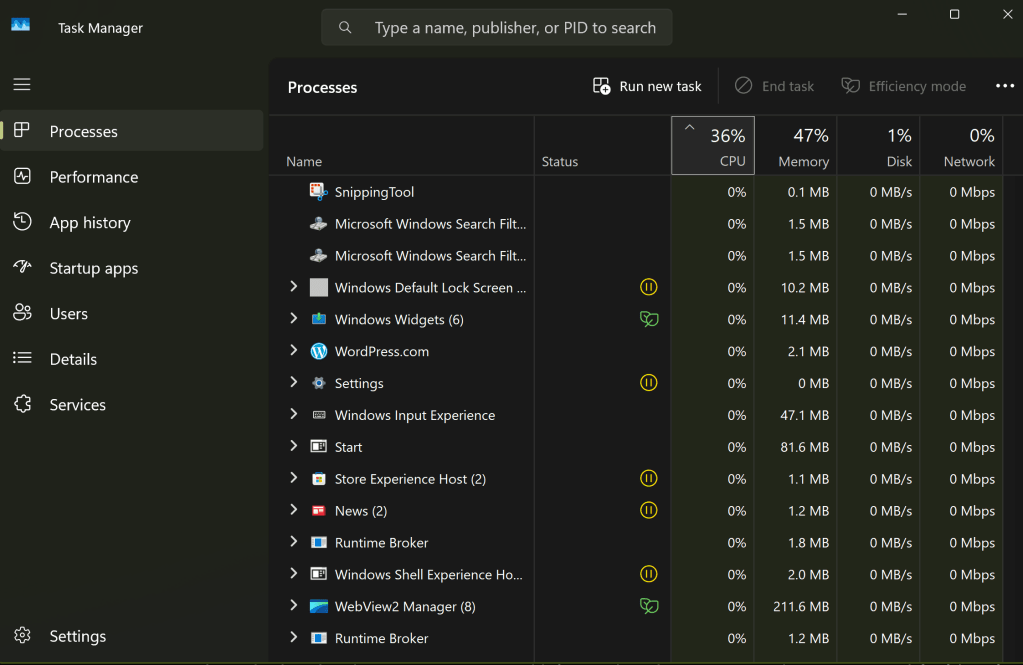
Task Manager has been the default Windows system utility app since 1996.

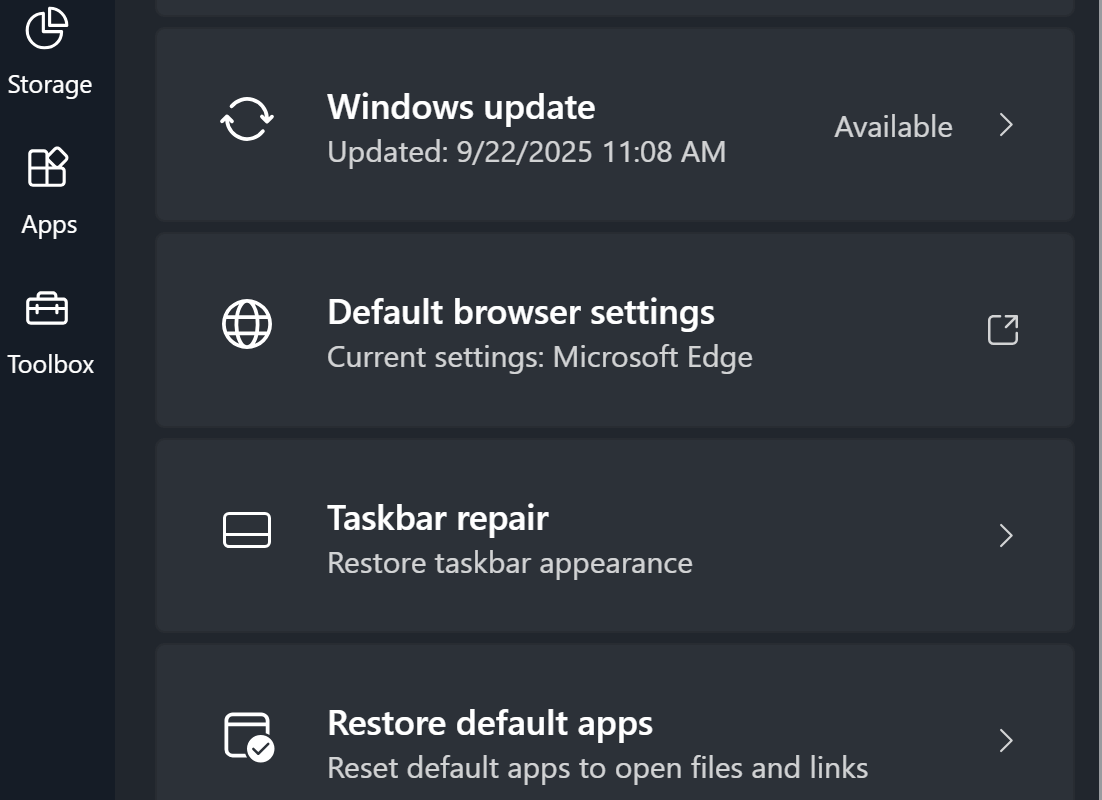
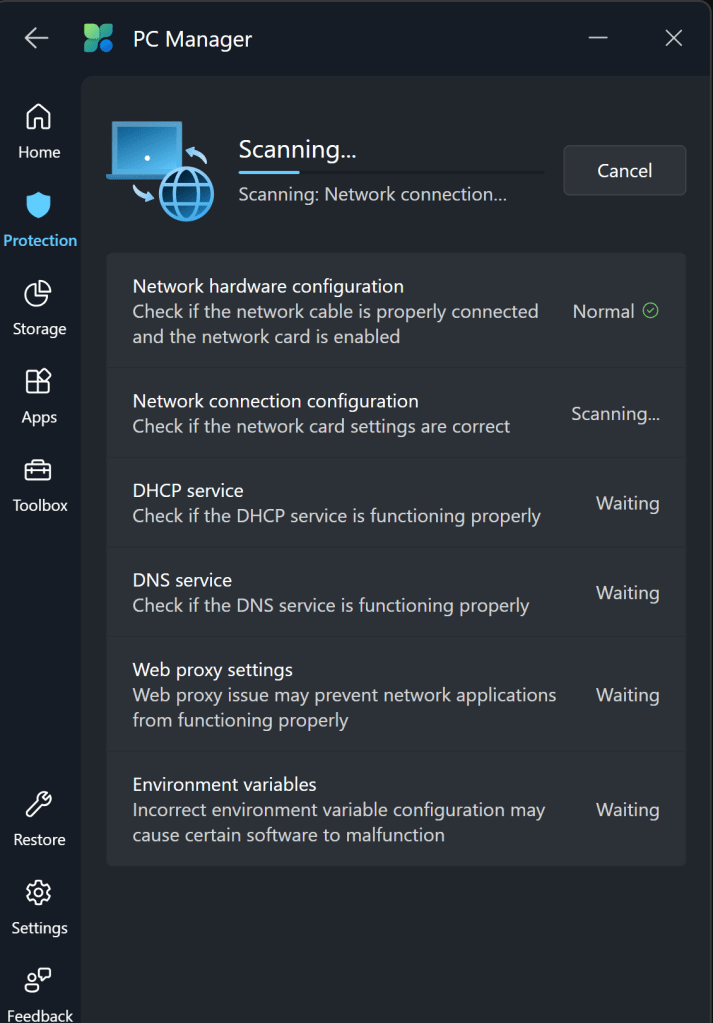
From my point of view, PC Manager delivers. It has quick links to things like take a screen shot, and the calculator app. You can easily see and manage the running apps and processes on your system. It can automatically clean up your hard drive by removing temp files from the OS and apps. The network test shows you everything about your system connectivity in one place.

The toolbar is a fantastic edition to my Windows desktop. The feature isn’t turned on by default. If you want to try it, look in the Toolbox and flip the toggle to on. If you drag the toolbar to an edge of your screen, it will attach to that spot and auto-hide itself. The toolbar shows your total memory use, Wi-Fi signal stats, 4 shortcuts, and a search bar.

Snap the PC Manager toolbar to a screen edge and it will auto-hide. You can choose your own shortcuts and quick links.

There aren’t any new abilities or information; all of this stuff is available in Windows via other methods. IT workers don’t always appreciate Microsoft adding another way to do stuff. It adds to their already full workloads. That being said, this particular tool seems useful. I like the toolbar, and it simplifies maintenance tasks. It’s free, give it a try and see what you think.

Starfield, After the Fixes and DLC. A No Spoilers Review

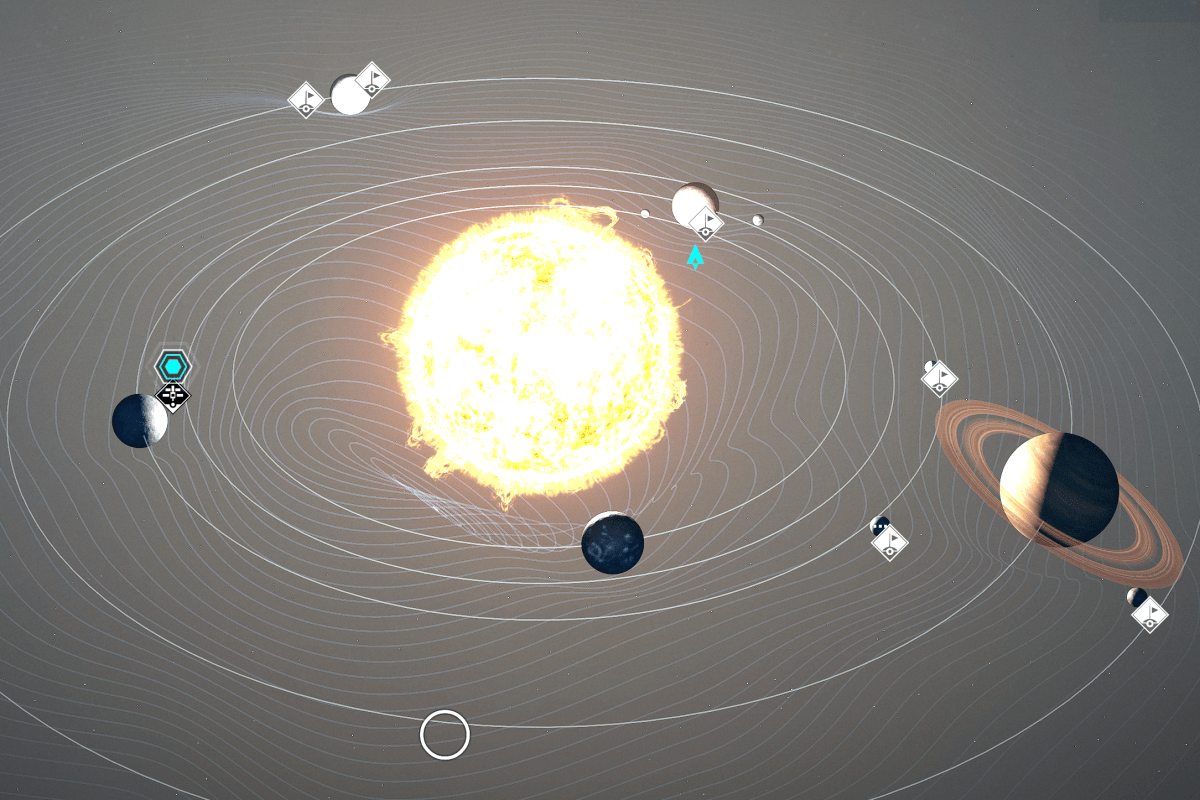
Starfield solar system

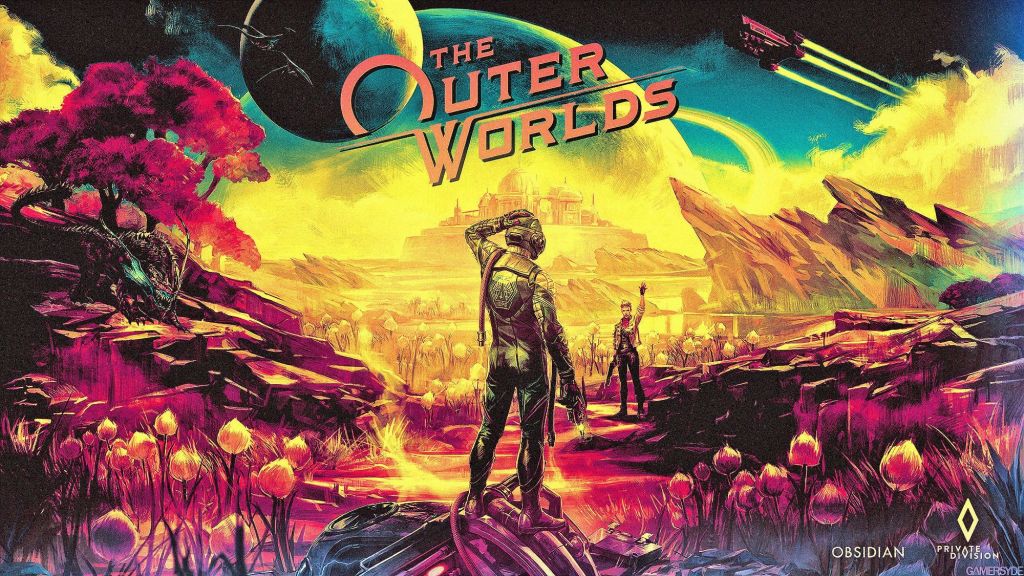
When Starfield first launched, it received more negative press than anyone expected. The game was difficult to run even on powerful gaming PC hardware. There were glitches galore. Worse, thanks in part to out of balance weapons and armor, Bethesda’s version of a space adventure seemed mundane. Reviews at the time said other titles in the genre did it better. Obsidian’s Outer Worlds was often named as an example of one.

Another top-tier space based adventure RPG.

Bethesda has long since released multiple fixes and enhancements for Starfield along with its first DLC. There have also been multiple driver updates for NVIDIA and AMD graphics cards since the game’s launch. The Xbox has also had several major updates.

I find that this is the ideal time to start a campaign in long play games like this. The developers usually have most of the bugs ironed out by the time the first DLC drops. Starfield has finally matured to that sweet spot. So, I fired it up and built a new character a few months ago.

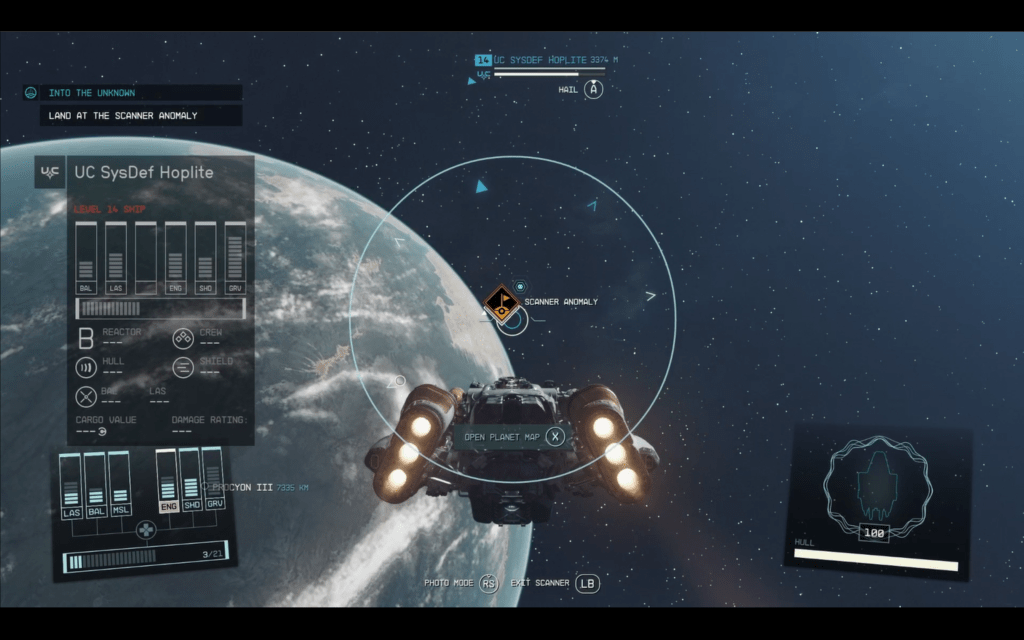
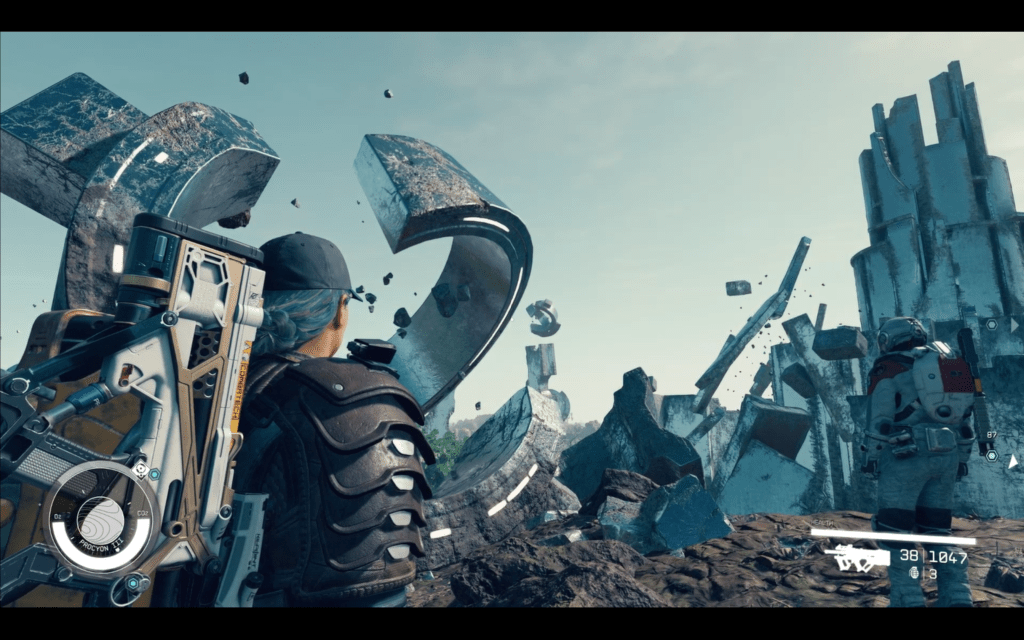
Bethesda put a lot into the “space” part of this adventure.

The game looks great, and play has been much smoother this time around. I play on almost every type of device out there. I have my Xbox/X connected to an 82-inch 4K, QLED Samsung TV. At that size, the graphics hold up well. From a normal viewing distance of about eight feet, everything looks great. The edges of objects become fuzzy when you get within three or four feet. The graphics fidelity continues to get worse the closer you get. It’s not bad for a console. Especially considering how huge and graphically detailed Starfield is.

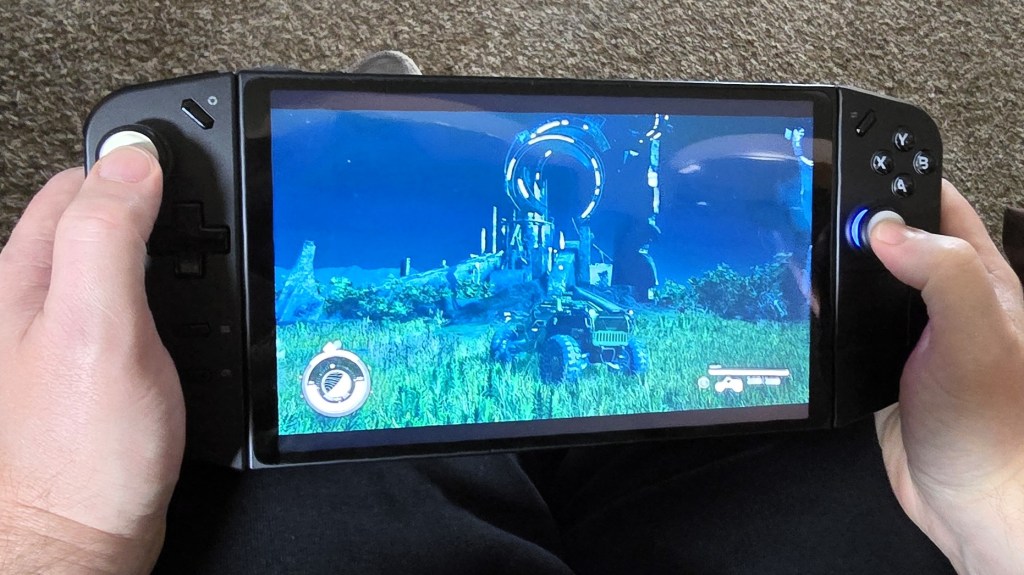
I’ve also been playing on a handheld (Z1 Extreme), my desktop (i9/4090), and via streaming to all kinds of devices. No matter how you choose to play, the game performs. The frame rate stays stable for the most part. Only during intense combat on under-powered hardware like the Go do I notice a lot of lag. The dynamic settings are your best bet when starting out. If you have a monster gaming card and are able to run 4K Ultra, Starfield is breathtaking. The textures are so good, especially on OLED monitors.

Sitting on the couch and playing Starfield while hanging out with my family is a perfect afternoon.

Speaking of monitors, I’ve got the 82 inch TV mentioned above. Then my gaming PC has both a 49-inch 32:10 OLED ultrawide curved screen and a 48-inch OLED flat panel. My tablet has an 11 inch OLED , and the Lenovo Go is an 8 inch LCD. I’ve seen this title on lots of screens. For this game, up close to the curved ultrawide offers the best experience, in my opinion.  Something about the landscape filling most of your field of view really adds to Starfield’s aurora.

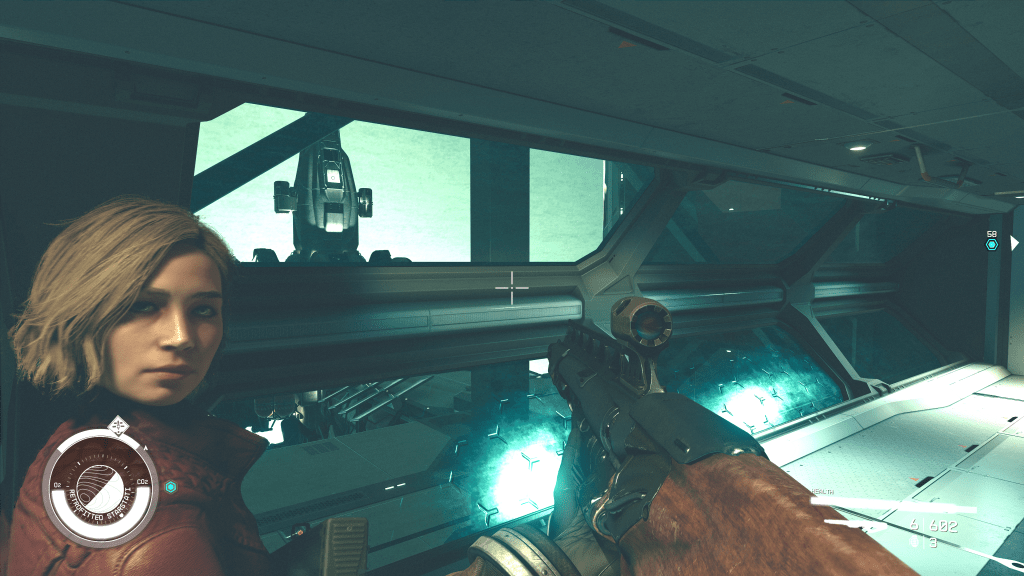
The game plays like living in a space opera adventure movie in the most detailed ways. Everyone talks in this game, everyone. There are more than a quarter of a million lines of voiced dialog. Some of it occurs in NPC conversations that are surprisingly deep and complex if you stop to listen. A few of those deep conversations launch side-quests.

Starfield is good at slow rolling you into playing all night. You start out intending to do something quick. Next thing you know, it is two in the morning. You can tell it’s from the same group that gave us the Elder Scrolls. It has the same brilliant pacing and variety of play types.

Some reviews I’ve read see the similarity with other titles from the publisher as a negative factor. I think the “New IP” marketing message distorted people’s expectations. Early advertising implied that Starfield would be a completely different experience from the Bethesda titles that came before it. Many were disappointed when it turned out to be “Skyrim in space”, but I think that’s the point.

Of course, the “Old-West” is in space too.

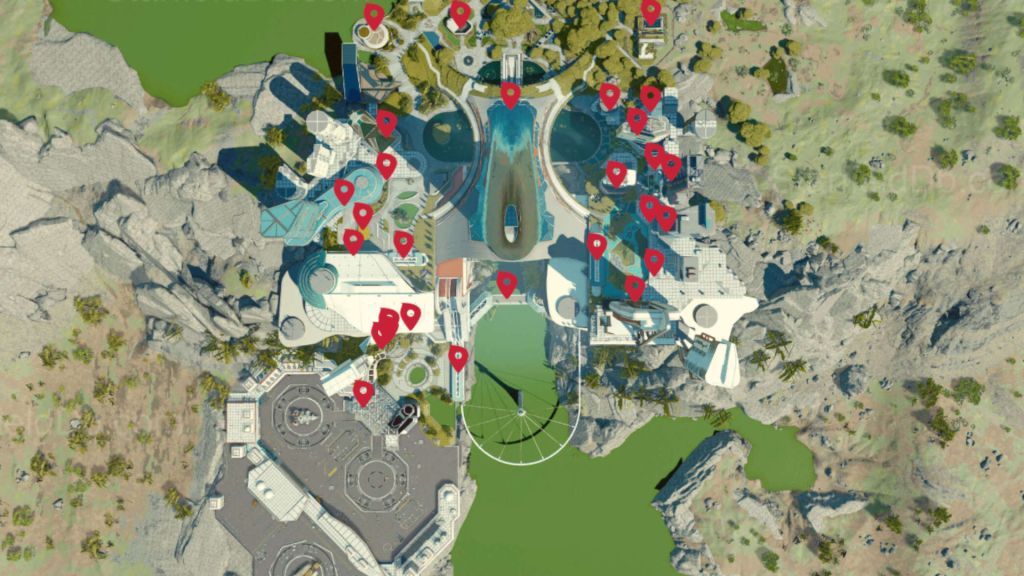
Once of my favorite aspects of Starfield is its ability to be both massive and intricate at the same time. Pull up the map, and you can zoom in and out of multiple solar systems that are light years apart. All that vastness of galaxies and yet, you will eventually know your way around New Atlantis is like your real-life neighborhood. I know Ryujin Tower as well as my real-life employer’s corporate building at this point.

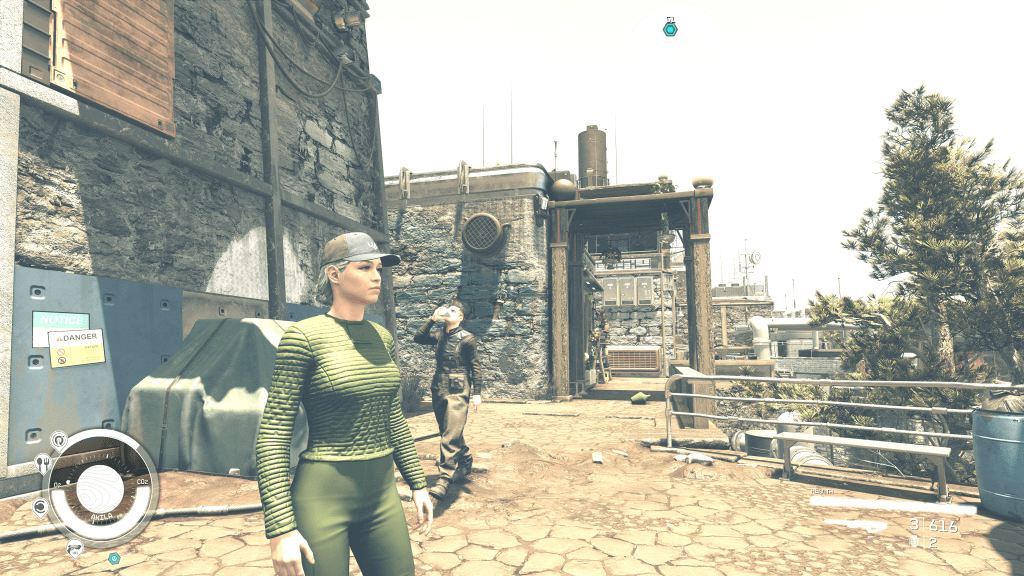
Some of the cities are large and take a long time to fully explore. New Atlantis is one of those.

The Bethesda formula works well in the space adventure genre. The game’s quests and side quests cover the whole field of mission types and dungeon crawls. Everything from raiding bases and hunting monsters, to dogfights in space are covered. I’ve run into assassination jobs, military attack missions, detective puzzle stories, and more. Just when I think I’ve encountered every possible type of mission, something new and clever happens.

Some encounters with a random NPC can end up leading to complex story-based missions that take hours to complete. Other missions are one and done quick XP boosts that are over before your fingers are fully warmed up. There’s a good balance of action and idle life moments. Once you get into a session it’s easy to stay in for a few hours. You’ll barely realize how much time has passed in the real world.

There are some fantastic locations to explore, and the story is engaging enough to keep you following the mission list.

My favorite thing about Bethesda games still rings true in Starfield. You don’t have to fully participate in every aspect of the game to live a life in their worlds. The game requires you to use the tools, but you can focus on the things you enjoy most. Progress through the missions and quests isn’t directly tied to a specific solution.

For example, I don’t always get a lot out of the building, crafting, and collecting often featured in role-playing games. Starfield doesn’t force building or crafting as much as other RPGs do. Bethesda lets you choose how to acquire the ships, weaponry, and other goods you’ll need. I prefer to grind for credits and buy my gear. My character is a merc, to be sure.

I’ve chosen a life of combat and conquest. I spend my rank points on gun skills and put my money into my ship’s firepower.

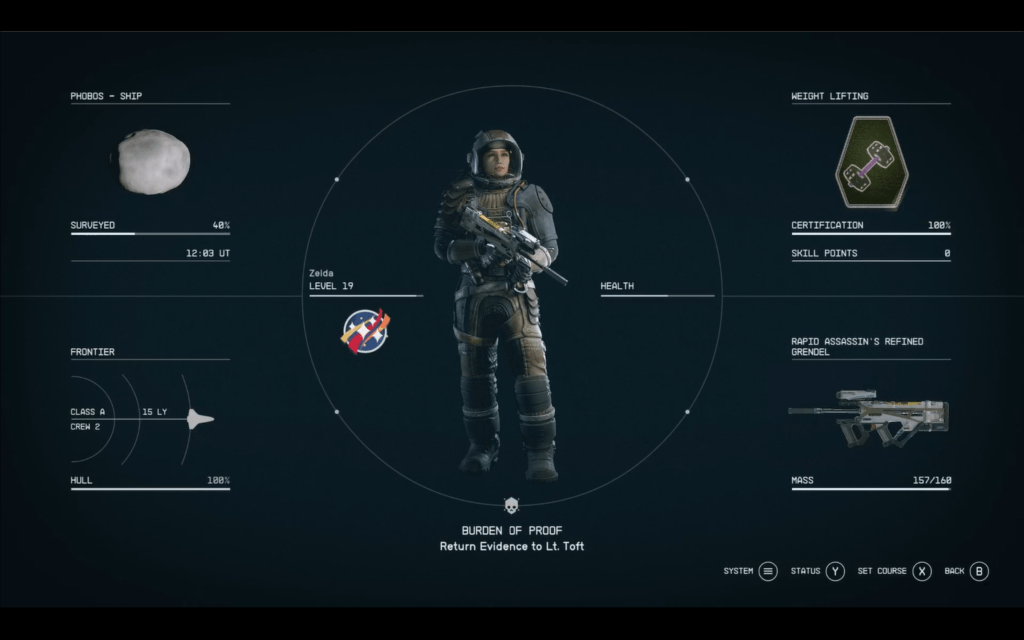
I’m about forty hours into this Starfield run. In that time, I’ve mastered the game’s combat mechanics for the character and ship. Fights in space or on the ground don’t make me sweat anymore. I have completed a little more than half of the main story. I’ve finished most of the Ryujin corporate faction missions. I’ve also turned in a lot of bounties and finished whole side-story arcs. I’m a level 20, with an upgraded ship and enough guns to blast my way out of anything.

The missions and quests are just fantastic. Some have numerous characters and locations; others are quick and ferocious.

This far in and the game still feels like it will take a year to finish. I haven’t even completed the main story line yet. There are whole categories of skills that I haven’t spent a single point on. Multiple quest lines that I thought were almost over are still going. Some players and publications have critiqued the amount of content, but as a relative newbie it seems almost overwhelming.

The combat is spectacular both in space and on the ground. There are numerous weapon types for you to master. Your character has a thruster-pack to jump-jet away, or hover and rain death from above with. You can upgrade your companion’s firepower and armor, and they’ll do real damage on your behalf. If you invest money and time into your weapons load out, you can build a character capable of extreme violence.

I not very effective at talking my way out of situations.

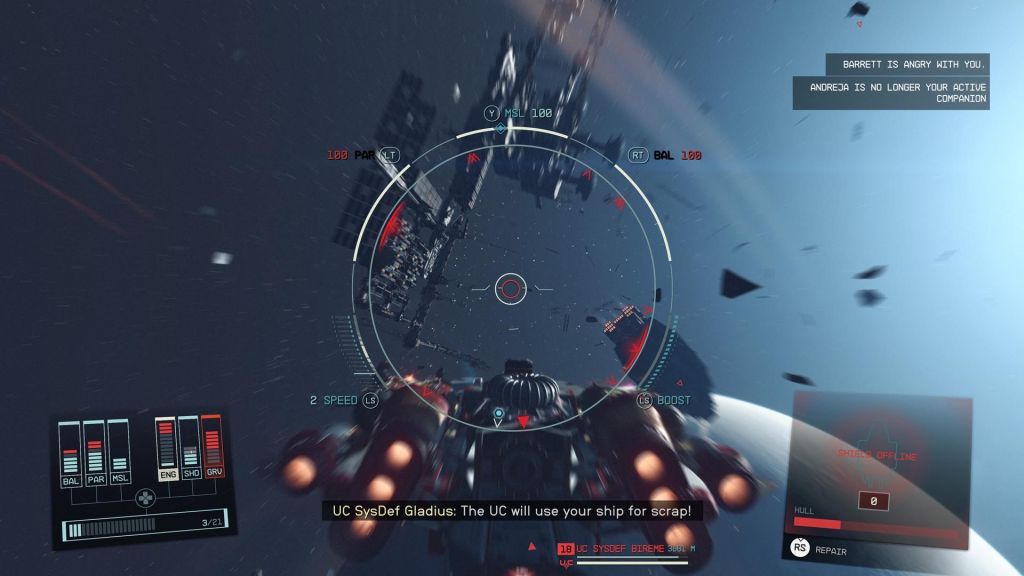
Space battles vary from single ship encounters to multi-planet hopping chases. You can hail, disable and board, or fully destroy the opposition. Ship building is great in this title. Your options are limited by the resources you can get your hands on, and that’s about it. The flight controls are fairly simple. Much like Star Trek’s Enterprise, you can focus your ships’ energy where you need it during engagements. Boosting weapons over sheilds, or put everything into the engines and run. The choice is yours to make most of the time.

Space battles can be intense. Unlock the targeting skill to make them easier to win.

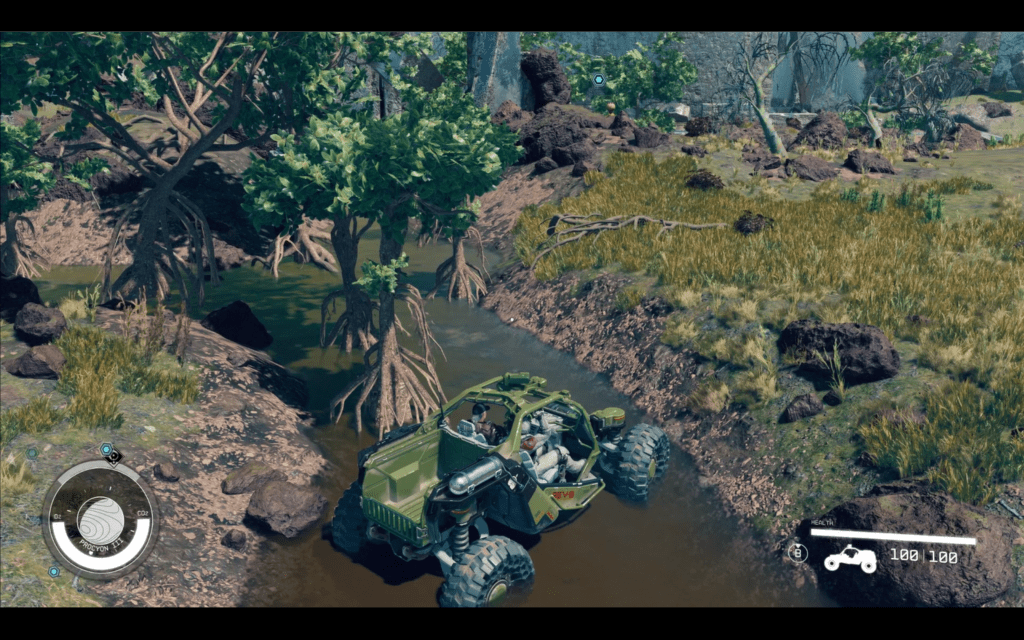
Then there’s your ground transportation. The addition of the REV-8 ground vehicle is most welcome. The off-road machine features jet pack hover/jumping of its own. It also has a turbo boost and a canon. The canon requires accuracy to be effective, but once you get it dialed in, watch out baddies. I’ve devastated entire enemy strongholds with my REV-8. It reminds me of the Mako from Mass-Effect in a lot of ways. The jumping feature is extremely useful and can be cheesed to great effect if you like to play that way.

The ground vehicle wasn’t available at launch. Many feel that it should have been there from the start.

Besides the new car, there have been a lot of other “quality of life” upgrades since the original launch version. Decorating your ship’s interior and vastly improved city maps were huge. You can visit Bethesda’s site and read the patch notes if you want to puruse the full list. Even though the DLC has launched, there have still been patches and updates. The game is still being actively invested in by Microsoft and Bethesda.

I don’t have anything overly negative to report on when it comes to Starfield. It’s a fun way to pass a few hours while staying at home. The story isn’t the best sci-fi story I’ve ever encountered, but it is good. It’s more than good enough to anchor a game like this. The character development is over the top. There are so many NPCs to interact with that it’s easy to lose track.

Another epic game that had a bad launch.

In my opinion, Starfield got a bum rap at launch in much the same way that Cyberpunk 2077 did. The hype machine was setting the bar for success way up high. I think both titles were launched prematurely by business leaders who were money blinded. Lucky for us, both games also ultimately got wrangled into something many of us consider to be masterpieces.

PowerShell Script to Check Active Directory Member Servers for Automatic Services’ Status

I’ve been caught by an automatic service not starting after system reboots from things like patching. I’ve written several versions of the script below over the years. This is my most recent edition. You’ll need the Active Directory module installed on the system that executes the script.

The code will scan your entire AD for member systems with a Windows Server operating system. It will present you with a list to choose from. It will then test RPC (135) connectivity and scan the automatic services on those that are reachable. The script will report any servers that do not have a status of “running” along with any that were not reachable.

   <#
        .SYNOPSIS
        Checks Acitive Directory Memeber Servers for Automatic Serices that are not currently running.
        .DESCRIPTION
        Dynamically generates list of Active Directory Servers.
        Uses WMI to examine the status of all services set to automatically start on selected servers.
        Filters common automatic services that do not stay started by default: mapsbroker, cdpsvc, gupdate, remoteregistry, sppsvc, wbiosrvc, 
        iphlpsvc, tiledatamodelsvc, clr_optimization, and Microsoft Edge Update are currently excluded from the report.
        .INPUTS
        Get-ServerAutoSerivcesStatus displays a gridview of selectable Active Directory memeber servers. 
        Shift+ and CTRL+ select are enabled.
        CTRL+A to select all.
        Criteria to filter.
        .OUTPUTS
        System.String. / Gridview Get-ServerAutoSerivcesStatus returns a string showing all status on selected servers running, 
        or a gridview of the servers and services that are not. 
        Get-ServerAutoSerivcesStatus also displays a string listing servers that did not respond on TCP 135 (RPC). 
        .EXAMPLE
        PS> Get-ServerAutoSerivcesStatus.ps1
    #>
$ErrorActionPreference = "SilentlyContinue"
$Servers = Get-ADComputer -Filter 'Operatingsystem -Like "*server*"' -Properties dnshostname|
    Select-Object dnshostname -ExpandProperty dnshostname|
    Out-GridView -Title "Select Servers To Enumerate AutoServices. CTRL+A to Select All" -PassThru
$Report = @()
$ErrorLog = @()
$ServersOnline = @()
Write-Host -ForegroundColor Yellow "Please wait, testing connectivity to selected servers....."
Foreach ($Server in $Servers) {
    If ((Test-NetConnection -WarningAction SilentlyContinue -ComputerName $Server -Port 135).tcptestsucceeded){$Serversonline += $Server}
    Else {$Errorlog += $Server}
    }
ForEach ($Server in $ServersOnline) {
    $Wmi = Get-WMIObject win32_service -ComputerName $Server -Filter 'State != "Running" AND StartMode = "Auto"'|
        Select-Object @{n="ServerName"; e={$server}}, @{n="ServiceName";e={$_.name}},@{n="Status";e={$_.state}},@{n="Start Account";e={$_.startname}}
    $Report += $Wmi | Write-Host
    }
$Report | Where-Object {($_.ServiceName -notlike "mapsbroker") -and ($_.ServiceName -notlike "cdpsvc") -and ($_.ServiceName -notlike "gupdate") -and 
    ($_.ServiceName -notlike "remoteregistry") -and ($_.ServiceName -notlike "sppsvc") -and ($_.ServiceName -notlike "wbiosrvc") -and ($_.ServiceName -notlike "iphlpsvc") -and
    ($_.ServiceName -notlike "tiledatamodelsvc") -and ($_.ServiceName -notlike "*clr_optimization*") -and ($_.ServiceName -notlike "Microsoft Edge Update") | 
    Select-Object @{n="Server";e={$server}}, @{n="Stopped Service";e={$_.displayname}
        }
    }
If ($Rerport -ne $null) {$Report | Out-GridView -Title "These automatic serivces are not running"}
    Else {Write-Host -ForegroundColor Green "All Automatic Services on $($Serversonline.count) reachable servers are started."}
If ($ErrorLog -ne $null) {Write-Host -ForegroundColor Red "These $($ErrorLog.count) servers were not reachable via RPC (port 135)`n `n" ($ErrorLog -join ",`n")}
    Else {Write-Host "No connection issues to selected servers detected."}
Pause
Exit