Ten Changes to Get the Most Out of Your Lenovo Legion Go

I have learned so much about the Lenovo Legion Go handheld gaming PC over my time owning and using one. I’ve gone to great lengths to tune mine for everyday couch and mobile gaming. It has all my games installed and ready to go. It’s stable, games and power can be suspended and resumed mid play for convenience. Everything runs screaming fast and looks fantastic. Games and media sound so good, too!

Read on to discover the settings, tweaks, and modifications that I’ve used to get the most out of my Go. You won’t believe the difference these settings can make in your experience. As a bonus, most of them are free and easy.

  1. Sound
  2. Update Everything
  3. Touch Screen
  4. Floating Keyboard
  5. Hibernation Is Better
  6. Controllers and Buttons
  7. GPU Upscaling
  8. BIOS/UEFI Tweaks
  9. Optimize Windows 11 for Gaming
  10. SSD Swap

Sound

The first pain point with my precious handheld gaming PC. The speakers are subpar. Left at their default settings, they are high-pitched and struggle with power. Much of the potential volume is lost due to the speaker ports being on the top edge and angled away. Hold your hands up like rabbit ears behind the mesh while watching a video. You’ll be shocked by how much sound the speakers are really pumping out.
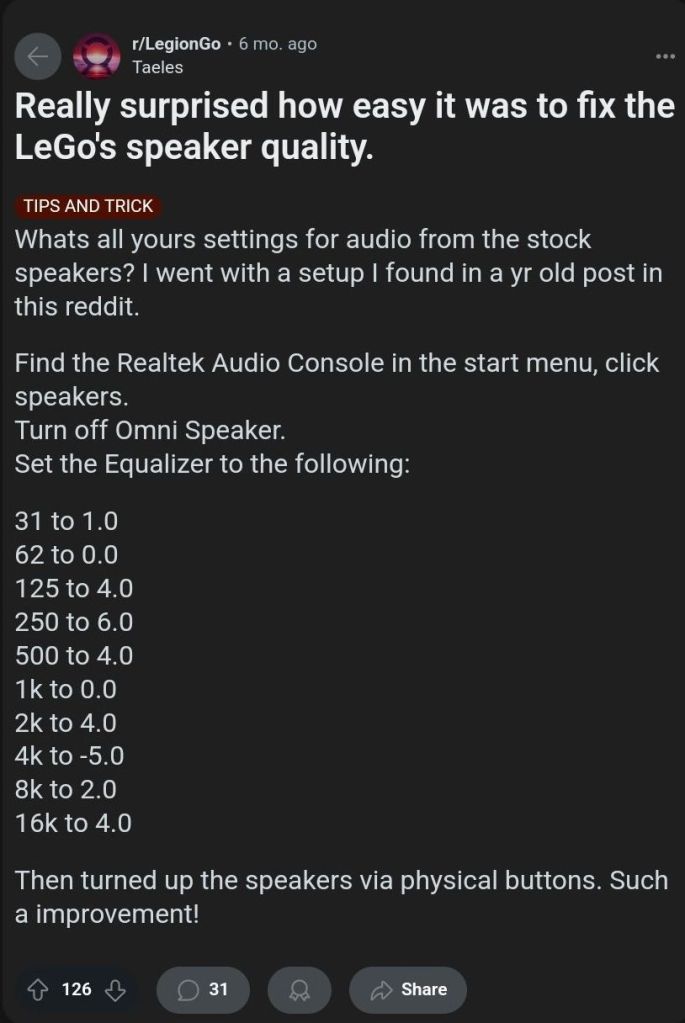
If you research the topic of poor sound, you’ll see there are several software workarounds that help considerably. The easy/free method is to use the Realtek Audio Console. Open it from the Start Menu to toggle off a feature called the “Omni Speaker”. Then use the same software to adjust the equalizer frequencies. Find this idea and lots of others at: https://www.reddit.com/r/LegionGo/

I used the equalizer changes above in conjunction with an app I already owned. Dolby Access is a Windows Store App that applies a Dolby Atmos surround sound effect to your PC’s sound system. The Go’s speakers sound so much better with the effect enabled. The dimensional soundscape achieved by applying some cheap software is surprising.
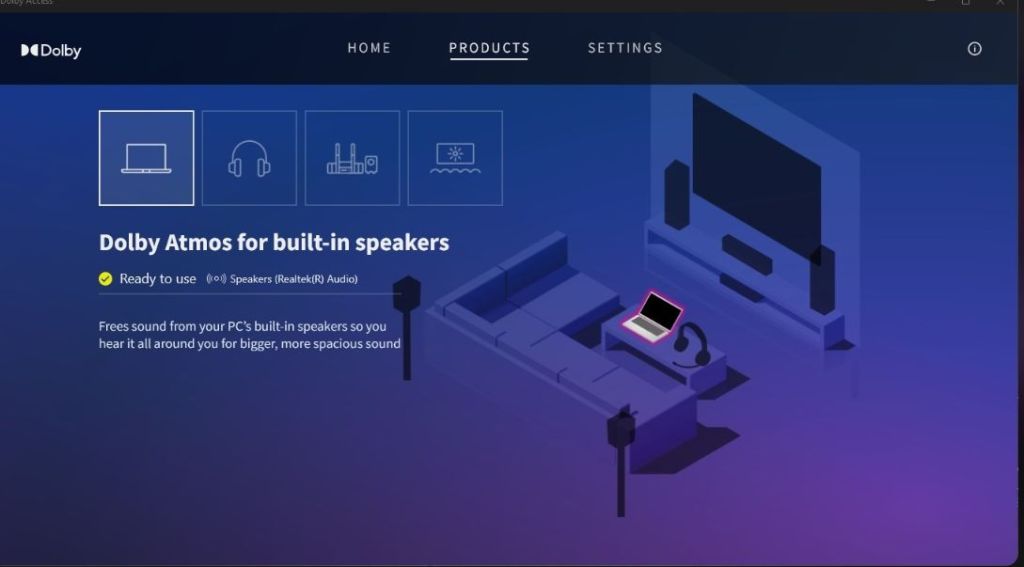
Dolby Access has a free demo. It costs $15 in the Microsoft App store.

Dolby’s magic app features a gaming performance mode that increases the accuracy of sound location. This is especially important in competitive games. It works well. I don’t fully understand how they trick your hearing so well. Things that are supposed to be behind you, sound like it.
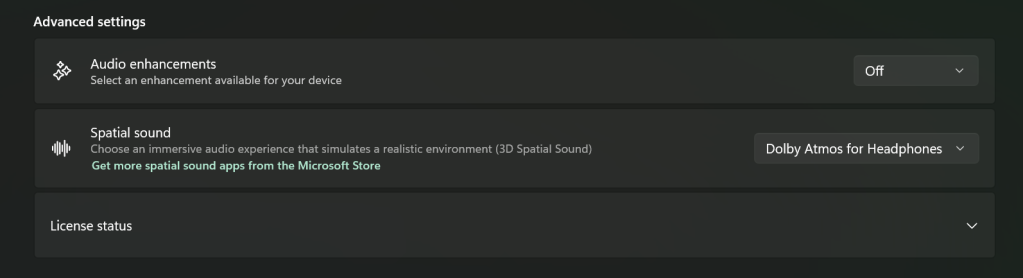
For Dolby Access, or any spatial sound app to be the most effective, disable Window’s sound enhancements. Go to Settings -> System -> Sound and click on the speakers. Advanced -> Audio enhancements toggle off.

If you don’t have or want to purchase Dolby Access, there are some open-source options out there. I haven’t tried it yet, but I’ve seen FXSound mentioned several times while doing my research. It gets a lot of recommendations and positive reviews and is donation-ware.

Update Everything

The Legion Go is a complex machine. Especially its software layer. The sheer number of places you must check for updates is astonishing. Here’s a rundown of everywhere you need to check. I try to do this at least once a week.

  • Windows Update
    • Accessed by going to Settings -> Windows Update
    • I like to open the advanced options and flip on the toggle to receive updates for all Microsoft products.
  • Microsoft App (MSIX packages) Updates
    • Open the Microsoft Store App (shopping bag icon in start menu). Then click on Downloads (menu on left) from there click the Get Updates.
  • Legion Space
    • Disks and Drivers. Open Legion Space ->Settings -> Scroll down -> Disks and Drivers -> Check for Updates.
    • Controller Firmware Updates. Go to Controllers in the menu, scroll the bottom menu left to More. Scroll to the bottom of More page and click the Controller Firmware Update button.
  • App Updates.
    • Game Launchers. Steam, Xbox, Ubisoft, and EA Desktop, all have client updates in each app’s settings menu
    • Game updates. Each game gets its own updates (usually handled by the launchers).
    • Other software.
      • Example: The emulator app Dolphin needs updated frequently.

Touch Screen

One quality of life upgrade was realized just by changing my bad habit of touching the screen too much. I had been using the touch screen to enter my PIN and to scroll. This was making my screen filthy. Every time I picked up the little machine to play something, it was covered in fingerprints and smudges.

There were two changes I made to drastically reduce how often I had to clean the screen. First, at the PIN prompt you can usually click the A button to get the on-screen number pad to open. Then you can use the buttons, D-pad, shoulders, and triggers to enter your PIN code just like on an Xbox.
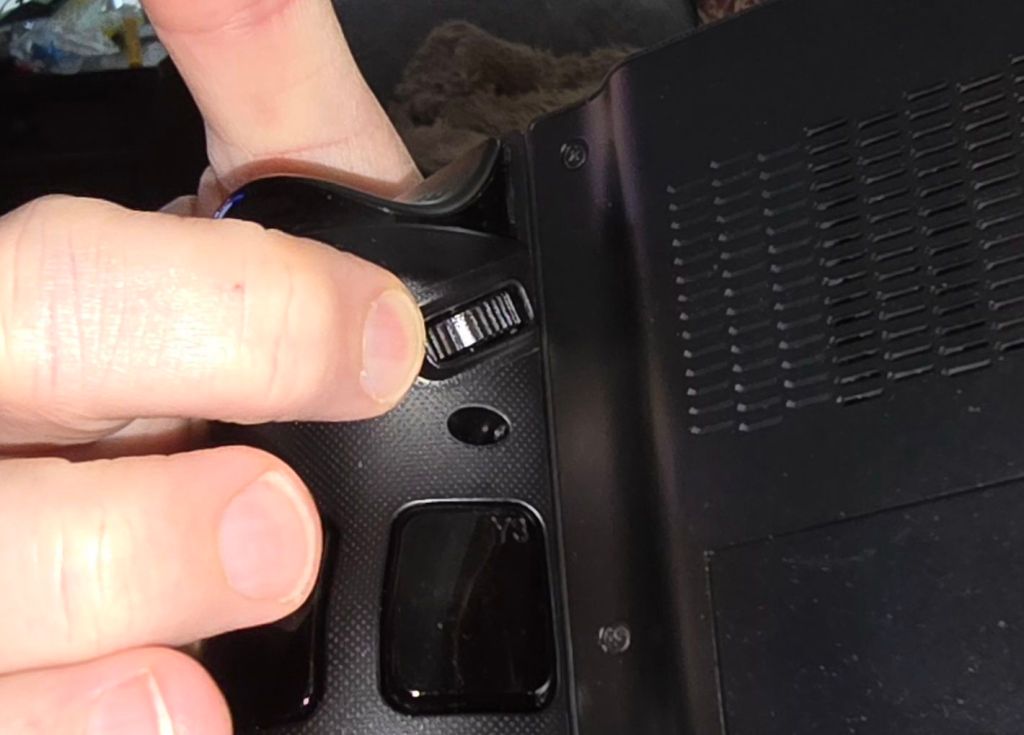
Using the scroll wheel reduces fingerprints.
Tapping and holding on the touch pad activates the right-click menu.

Second, the little wheel on the upper rear nook of the right controller is for scrolling. It works better and is more comfortable than touching the screen in most situations. The only trick is to remember that it’s back there.

Floating Keyboard

The OSK (On-Screen Keyboard) is huge the first time you try and enter text with it. It takes up the entire bottom half of the screen. This makes entering information into forms very difficult. The form either gets cut in half or squished to an illegible size when the keyboard opens. It’s a good thing there’s a built-in solution. You can resize and float the OSK in Windows.

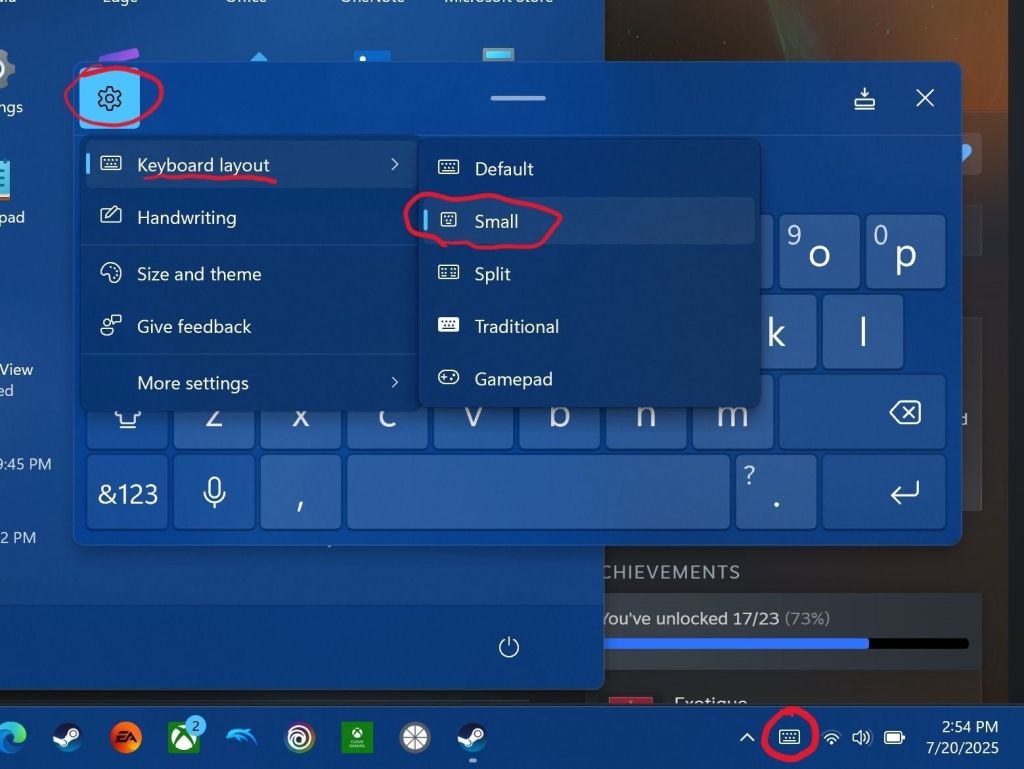
Open the keyboard by touching or clicking the icon for it near the clock on your taskbar. Click or tap on the settings gear in the upper left corner of the keyboard’s panel. Then select Keyboard Layout from the menu and click small. Now you can use the little dash at the top of the OSK to drag it out of your way!

The small floating keyboard layout is easy to drag at of your way. Clicking Size and theme in the Keyboard’s settings will let you change its color size, and key size.
Hibernation Is Better

Batteries suck, but we’re stuck with them until some genius invents something else. For some unknown reason, the Go drains its battery in just a few hours of sleep mode. Do yourself a solid and change the power button’s function to hibernate instead of sleep.

There are two benefits hibernation has over sleep mode. The first is that your battery won’t be dead the next time you pick it up. Hibernation uses a lot less power over time than sleeping does.

The hibernation process exports everything in the computer’s memory to a save file on the hard drive. Then it powers down the RAM chips. This reduces power consumption. It also gives us our other benefit.
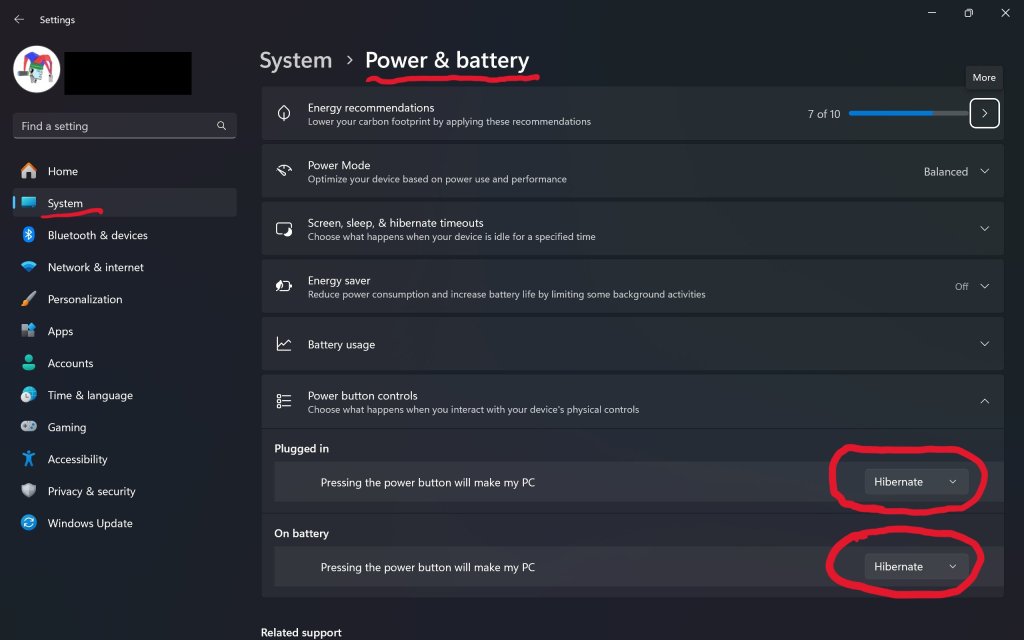
Go to Settings-> System-> Power & Battery to change what the power button does.

Everything running in RAM is saved to a file. This includes any game that is actively playing or paused when you pressed the power button. The LeGo can stay in hibernation for days with your game perfectly suspended in time.

The process takes a few seconds at most. In my opinion, hibernation makes the device more usable in real life situations. I play on my lunch break at work. Hibernating when my break is over means my battery and game will be ready to resume on the next day. You usually can’t do that with sleep mode.

Controllers and Buttons

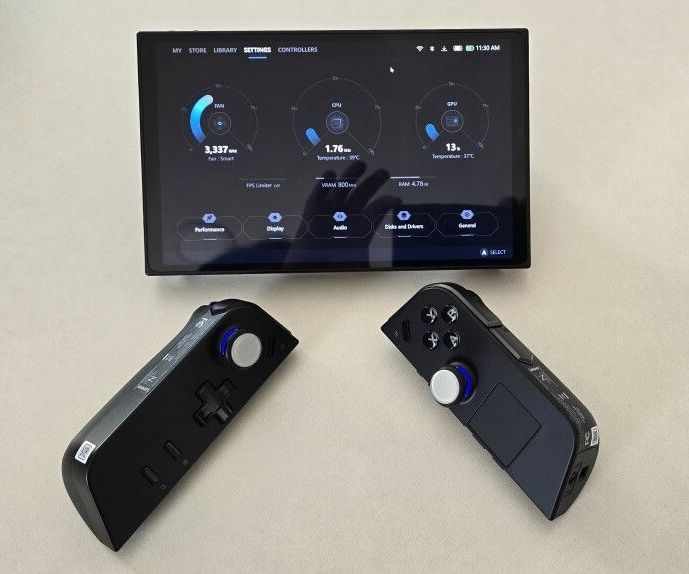
The controllers on the Legion Go are a work of art. They are well constructed, feel great, and are tuned for a light touch. They disconnect from the main chassis like the Nintendo Switch’s do.

The placement of the menu and view buttons near the bottom of the left controller is a problem though. Those buttons are used in games heavily and stretching your thumb down to click them gets old. Especially in a game like Destiny 2 where you constantly need access to the character menu and maps.

There is an option to swap their functions with the Legion Space and Quick Control menu buttons. Open Legion Space and go to Controllers, then scroll to More. Scroll down the page and flip the toggle to swap the buttons.
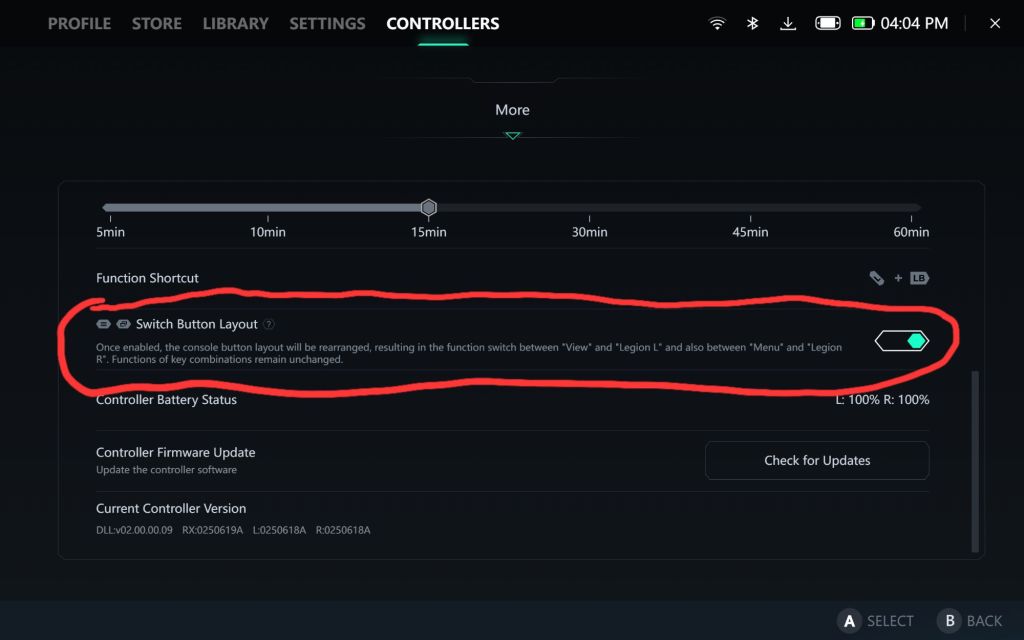
Your thumbs will thank you for flipping this toggle on.

My other tip about the controllers is to take the time and map the back buttons. I tie them to crouch/slide, melee, reload, and jump in almost every FPS game that I play. Back buttons allow you to keep both thumbs on the sticks while performing button actions. This can be a big advantage in some games.

To map them, open Legion Space. Go to Controllers in the top menu then click the Button Mapping button in the list at the bottom. Now click the top View/Edit Layout button. Finally, click the Rear-View choice at the bottom of the screen. Click on each button to pull up the mapping menu for it.

GPU Upscaling

There are lots of tweaks and changes you can make to boost the performance of your Go in various games. One of the most potent is to setup the various upscale options for both on your GO and in your games. The Legion Go supports AMD’s Radeon Super Resolution and their FidelityFX (FSR 3) technologies. Taking advantage of them reduces the load on your GPU which usually translates to an increased frame rate.

AAA titles can run in the 60-110 FPS range with good fidelity once you learn to tune and upscale them. I haven’t written a comprehensive guide to upscale games yet, but the basics are easy. Open the AMD Adrenaline app and turn on the scaling options.
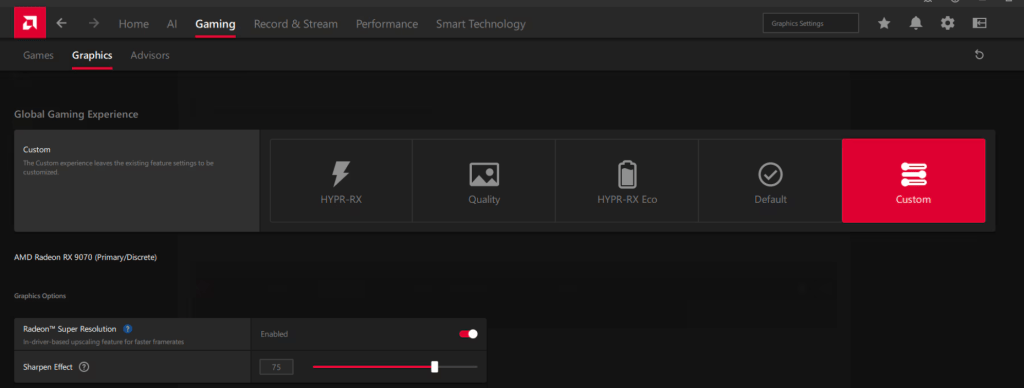
There’s also a switch for RSR in the Legion quick menu.

The details of scaling are a rabbit hole of advanced tweaks and changes. Things like algorithms, game resolution options, post-processing settings, and sharpening effects can alter your experience. YouTube and the sub-Reddit mentioned above are good places to start building knowledge if you want to go deep.
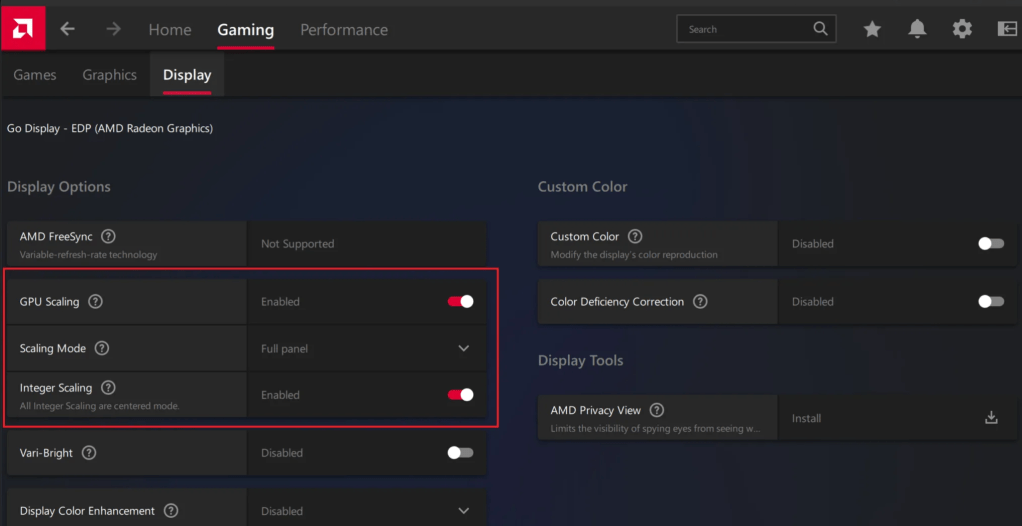
GPU scaling options are dependent on driver and software versions. If you don’t see the options, make sure your software is all updated.

Learning to upscale and tweak your games is probably the most impactful performance boost you can get on this system. If you’re not already familiar with scaling, try using 1600X1200 @ 144Hz as your display resolution. Then run your games at 800X600. If you can’t set the game’s resolution to 800×600, change the resolution scale to 50%. It amounts to the same thing.

If you are less than impressed with AMD’s GPU scaling abilities, there are also other options available. While doing research, I noticed that lots of people are mentioning the Steam App Lossless Scaling as a great alternate. The app is $6.99 in the Steam store: https://store.steampowered.com/app/993090/Lossless_Scaling/

BIOS/UEFI Tweaks

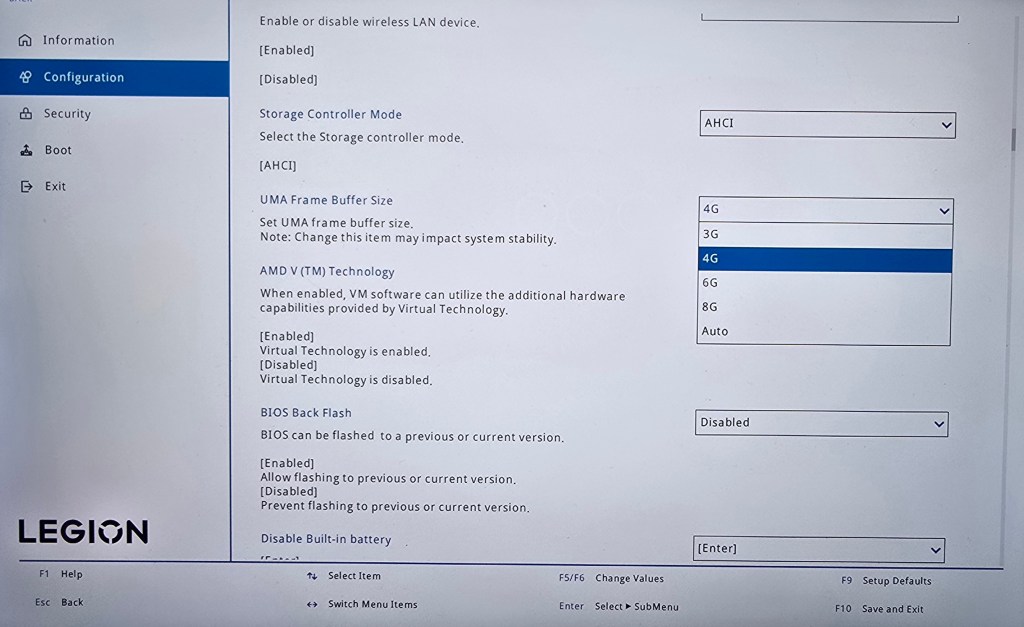
In the Legion Go’s BIOS there are two settings we can adjust that effect game performance. The first is how much of the system’s 16 Gigabytes of RAM is reserved to support the GPU. By default, 3 GB of VRAM is selected but this can slow some games down. I get better performance and game stability with 4 GB assigned to graphics processing. That leaves 12 GB for Windows and your game, which is plenty in most cases.
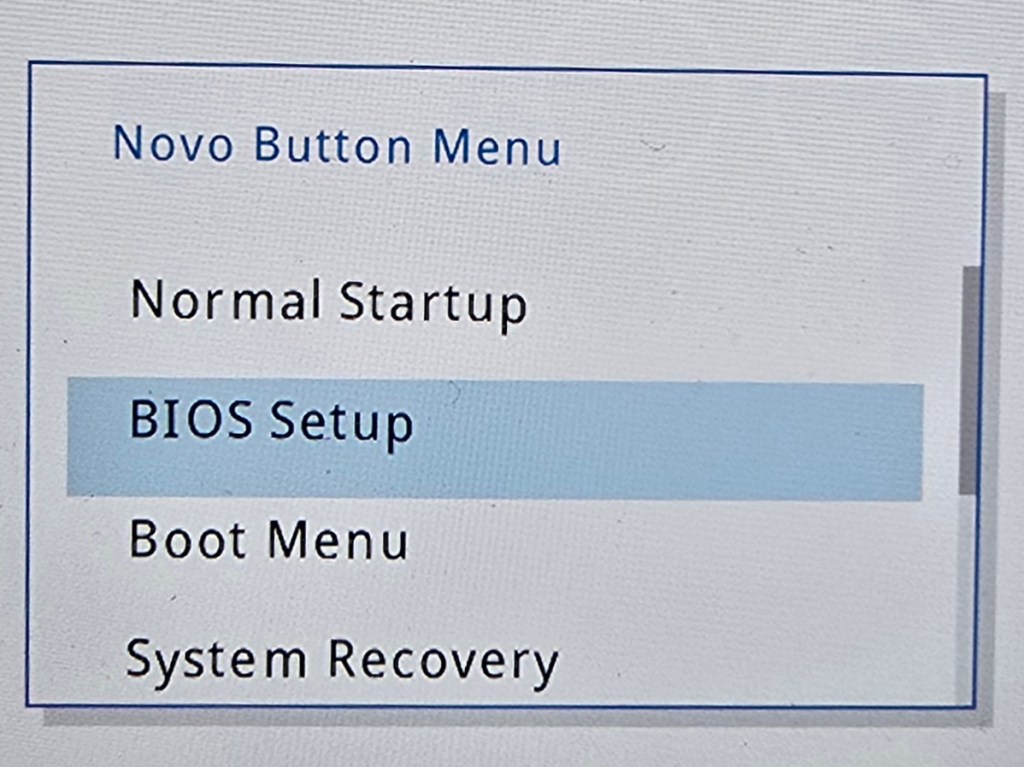
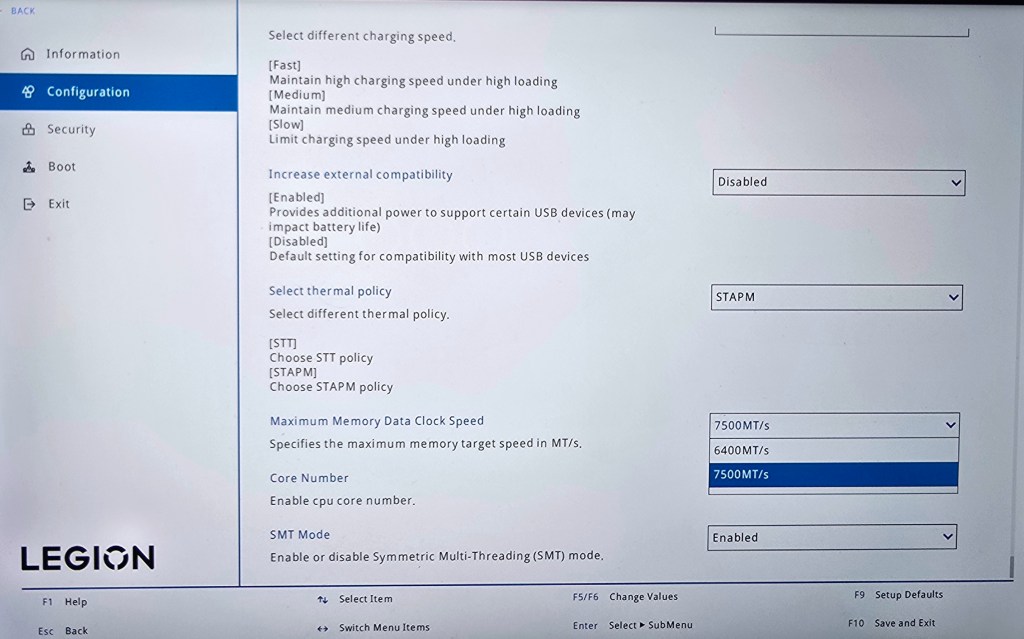
You can also overclock the RAM for an overall performance boost. Increasing the RAM’s speed will cause it to generate more heat. Excessive heat can impact CPU and GPU throttling. Consider the environment you play in.

Before you make either change, verify you are on the newest version of the system firmware. You Boot to the UEFI control screen to make these changes by shutting down first. Then hold down the Power and Volume up buttons at the same time for a few seconds.

Optimize Windows 11 for Gaming

The Legion Go is running Windows 11 Home. The default security posture of Windows 11 is not optimized for gaming. Specifically, memory integrity and the Virtual Machine Platform features of Windows 11 can slow down some games.

Turning these features off is a personal choice. You are technically weakening the operating system’s security by doing so. Review Microsoft’s documentation for an explanation and the instructions at: https://support.microsoft.com/en-us/windows/options-to-optimize-gaming-performance-in-windows-11-a255f612-2949-4373-a566-ff6f3f474613

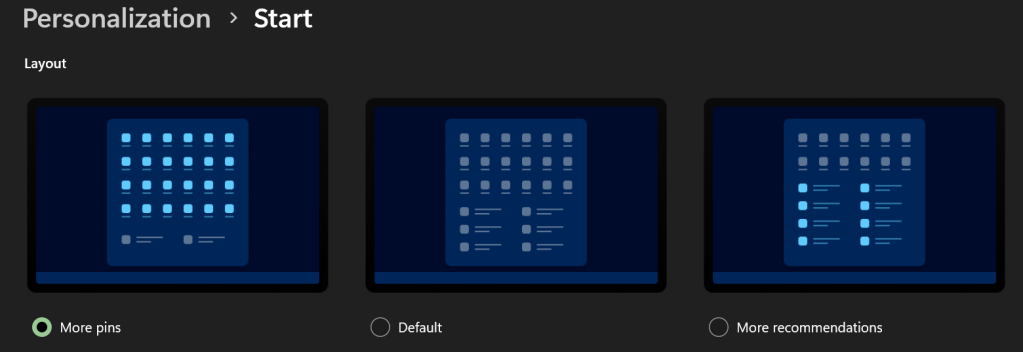
I like to PIN my games to Start. Go to Settings -> Personalization -> Start -> and select the option for more PINs if you do too.
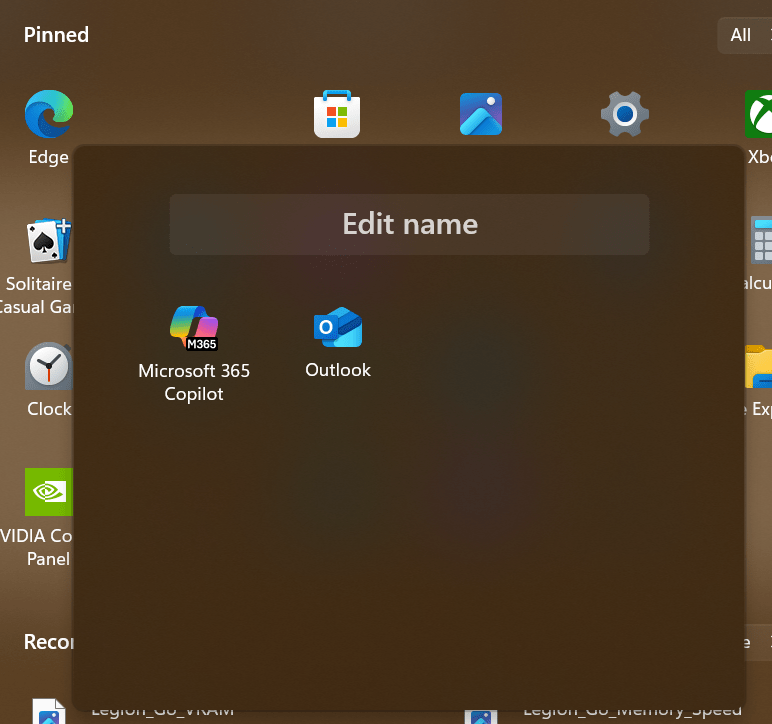
Make folders on the Start Menu. Dragging one icon onto another. Drag and drop icons as needed to add. Rename a folder by clicking into it. Right click on folders in the start menu to move them left or right.

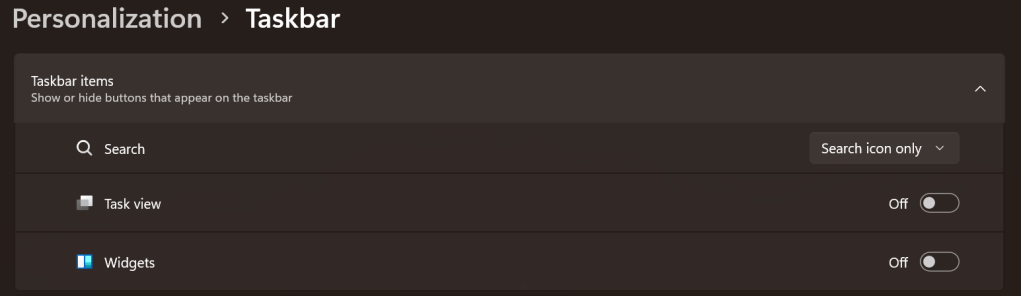
Maximize the task bar space. Settings -> Personalization -> Taskbar:
Search -> Icon.
Disable Task View.
Disable Widgets.
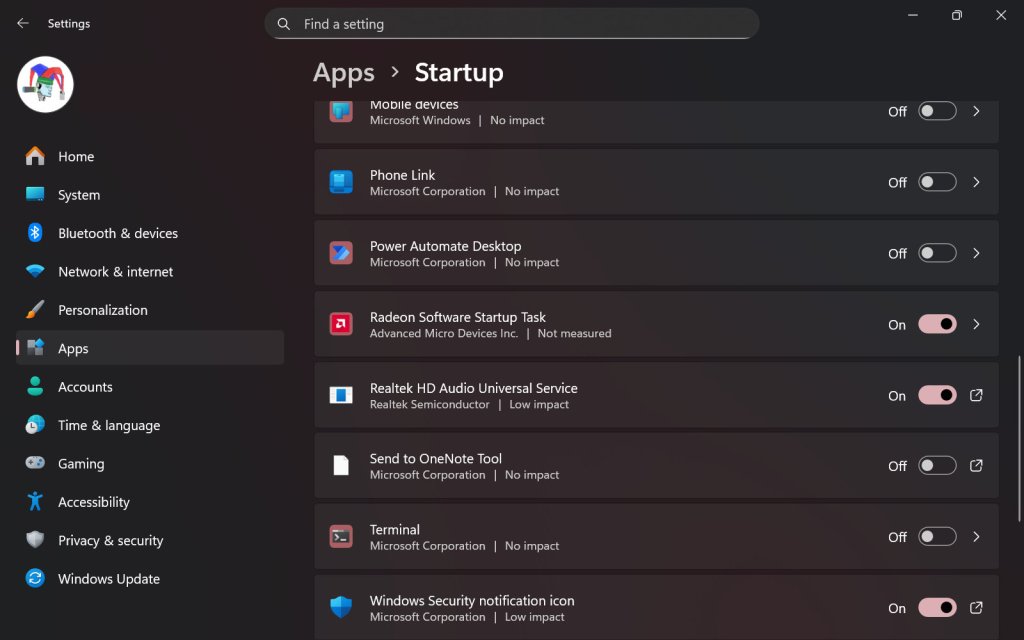
On my Legion Go, I disable most of the start-up apps. It helps conserve CPU cycles, RAM, and disk I/O for the games. Go to Settings-> Apps -> Startup. I only leave three apps toggled on. The Radeon Software Startup Task, Realtek HD Audio Universal Service, and the Windows Security notification icon.
SSD Swap

I replaced the factory storage with a much faster and higher-capacity unit from Corsair. The upgrade has had a major impact on daily life with the LeGo. Downloads, and loading times are much faster. I can store my entire active catalog of games. Everything feels snappy. Read I SSD Swapped My Lenovo Legion Go. It Was Worth It for the details and instructions. 
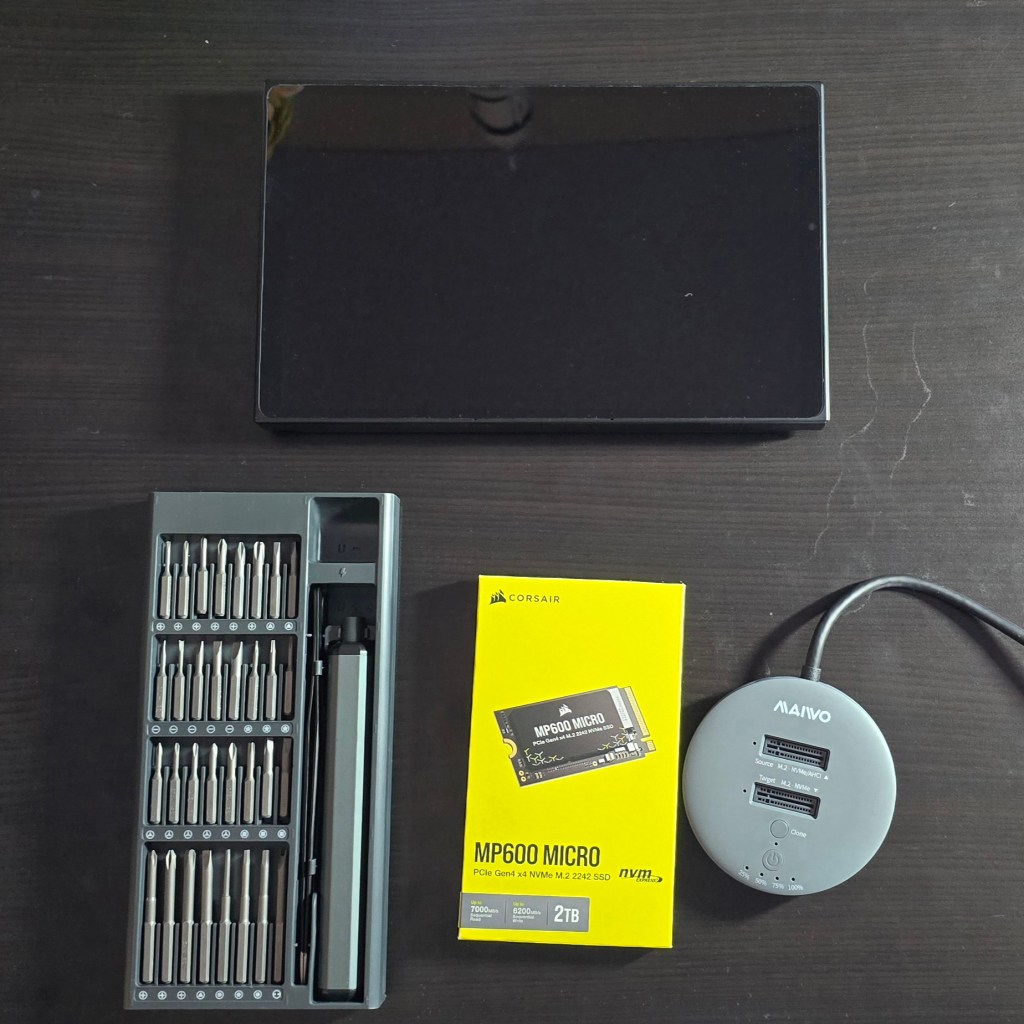
Installing faster high high-capacity storage is a great upgrade.

The Legion Go is an excellent gaming computer right out of the box. Tweaks, changes, and upgrades like the ones above help make it even better. I use mine more than any other gaming system and that’s saying something.
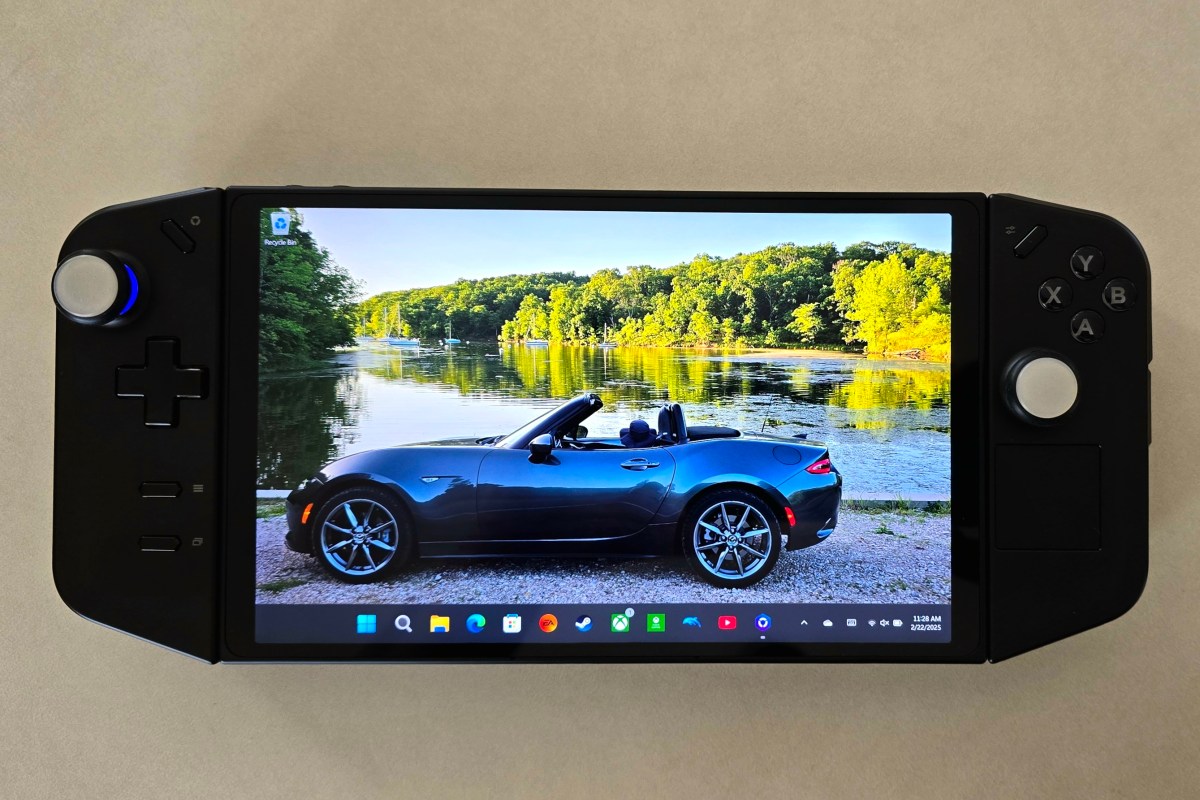
An Owner’s Review of the Lenovo Legion Go Handheld Gaming PC

When the Legion Go launched, I was really interested in it. On paper, it fixed the minor annoyances I had with my ASUS ROG Ally. It wasn’t quite enough of an upgrade to justify purchasing one.

Lucky me, my partner got me one for Christmas, and I’ve been playing it ever since. I’ve played Call of Duty Black Ops 6, Halo Infinite, and Project Cars 2&3. I’ve also played Microsoft Flight Simulator, SIMS 4, Marvel Rivals, and various emulators on the handheld.

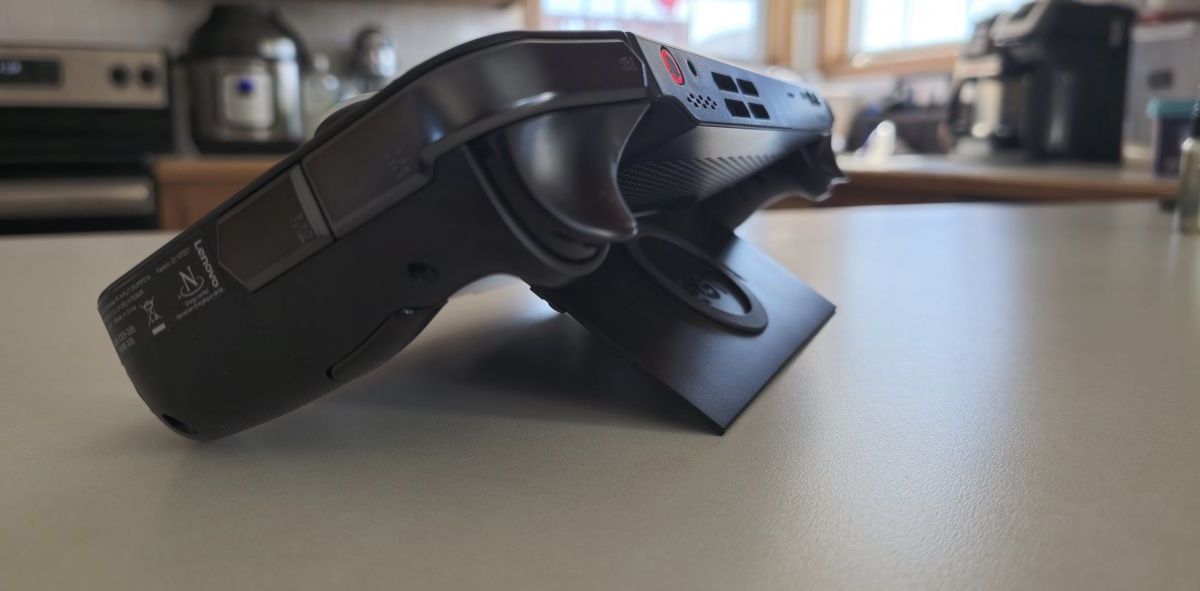
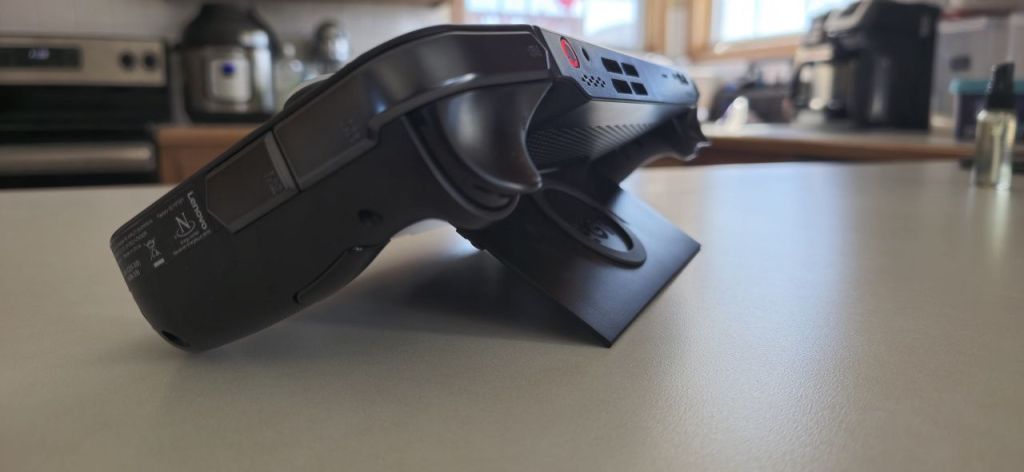
The built-in kickstand is something I use a lot.

I can’t say enough about the AMD Ryzen Z1 Extreme APU. The powerhouse chip runs games from this generation at 1900×1200 and nearly 100 FPS. You’ll need to enable AMD FSR on the device and configure your game to use it to get that performance.

An AMD APU shares RAM between the GPU and CPU. You can adjust the amount of DDR memory that each function is assigned from the available pool. Most games will work on 4GB of Video RAM and 4GB of System RAM as other similar handhelds have proven time and again.

The Go has 16GB, so you can assign 8GB to the CPU and 8GB to GPU. This lets you run more graphical processes. This means higher textures, more shadows, and better post processing without losing frame speed.

In addition to the memory advantage it has over similar systems, the Go has a small built-in touch-pad. It’s located on the lower portion of the right controller. The little pad is not unlike those found on Valve’s Steam Deck, but it lacks the advanced pressure sensing.

I use the mouse function constantly when navigating game menus. It’s a bar setting kind of feature. I think manufacturers should include one on all handheld game systems released in the future.

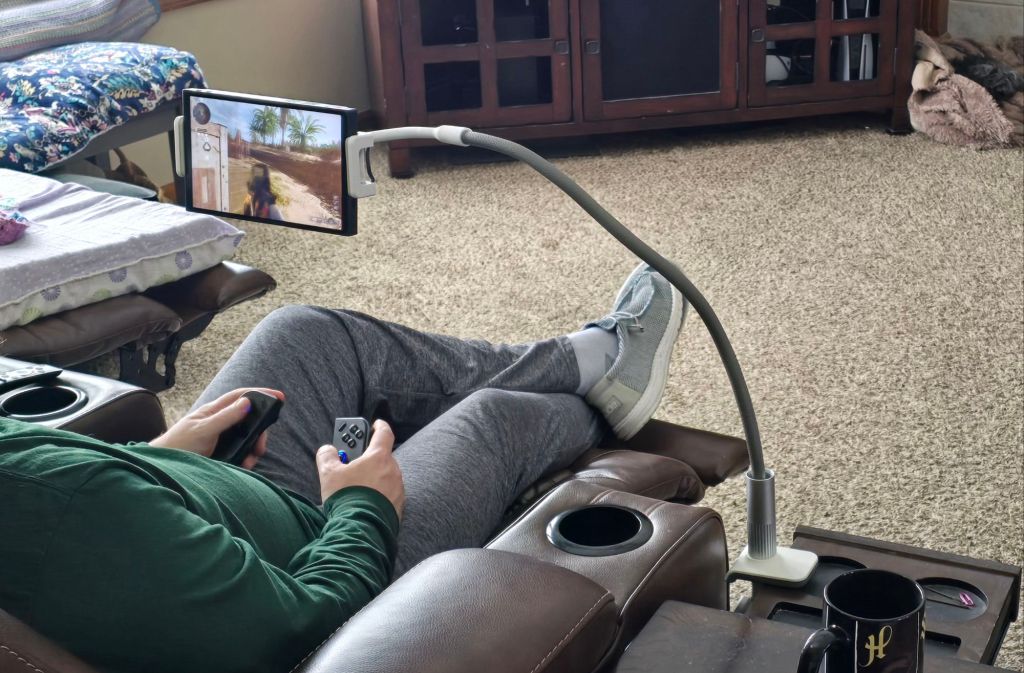
Speaking of controllers, the Go’s are removable a la’ the Nintendo Switch. I can not overstate how much of an advantage in ergonomics this design is. I have a “gooseneck mount” that I put the display in. It holds my screen in the perfect position, even in bed. Then, I remove the controllers and am able to keep my arms and hands in natural positions instead of crossing my body.

Removable controllers are a big ergonomic advantage.

You might think that I’ve run out of upgraded features to describe, but the Lenovo engineers were working overtime on this thing. Pop the right controller off and flip the FPS switch on the bottom. Set it in the included slider stand, and it becomes a pistol grip mouse. This function takes some getting used to, but is quite effective once you master it.
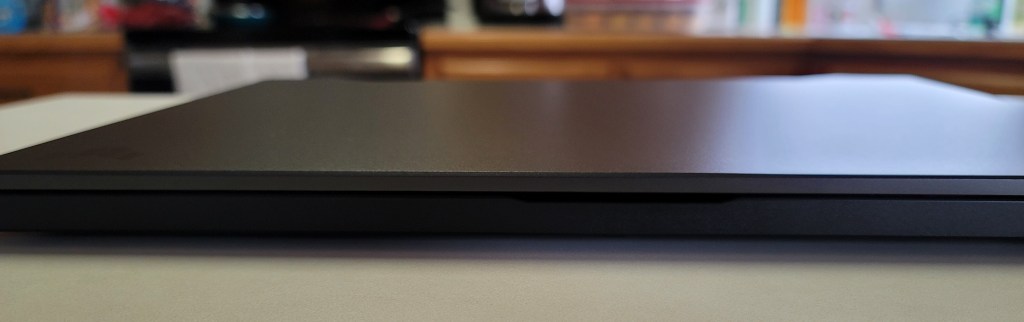
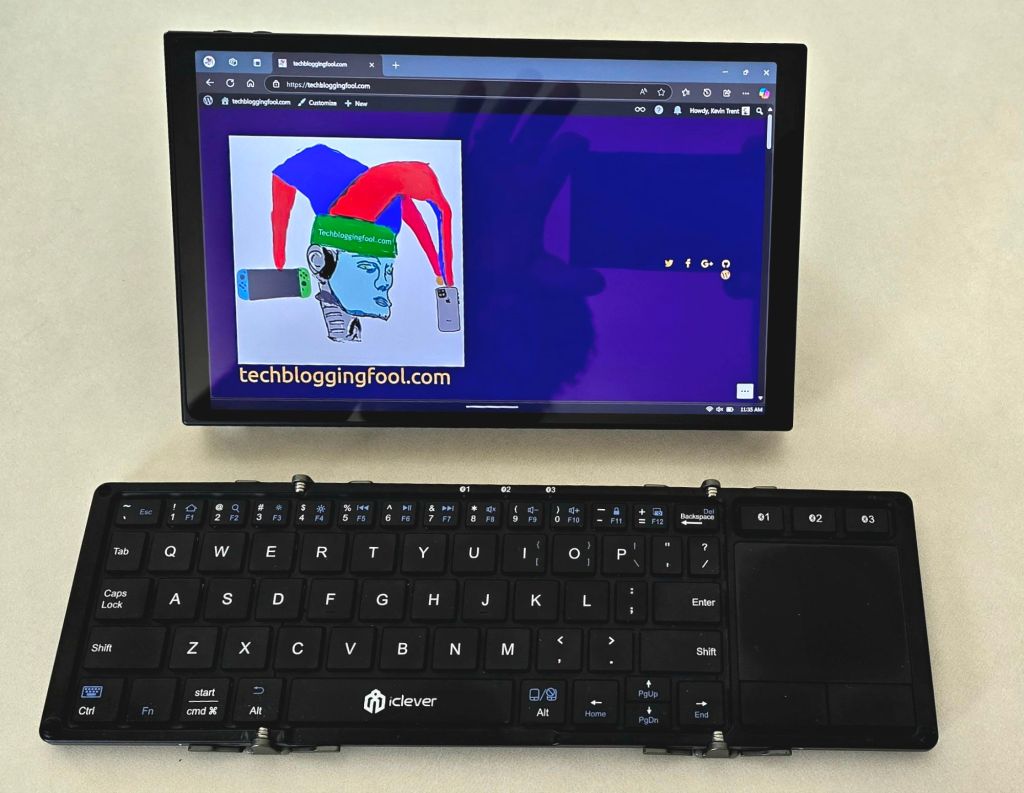
In addition to the gaming prowess, the Legion Go is a surprisingly capable laptop replacement. Remove the controllers, open the built-in stand, and pair a Bluetooth mouse and keyboard. The experience is similar to other 2-N-1 tablets. All beit on a slightly smaller screen than most. I’ve written docs, worked on spreadsheets, and remoted into all kinds of systems this way.

The Go makes a great portable computer if you add a keyboard and mouse.

The Legion Go can play most modern AAA titles like Starfield, Black Ops 6, Halo Infinite, and Forza Horizons 5 in 1900×1200 at around on one hundred frames per second. After you tune the game for the device. I frequently win online matches on my lunch break at work using it.

Beyond the normal future device wishes of better battery, lighter, and more powerful, there’s nothing to complain about. My Legion Go is the perfect form factor for this type of device, given the available technology. I’ve been extremely happy with it. Does anybody want to buy a used Ally Z1 Extreme?


Starfield, After the Fixes and DLC. A No Spoilers Review

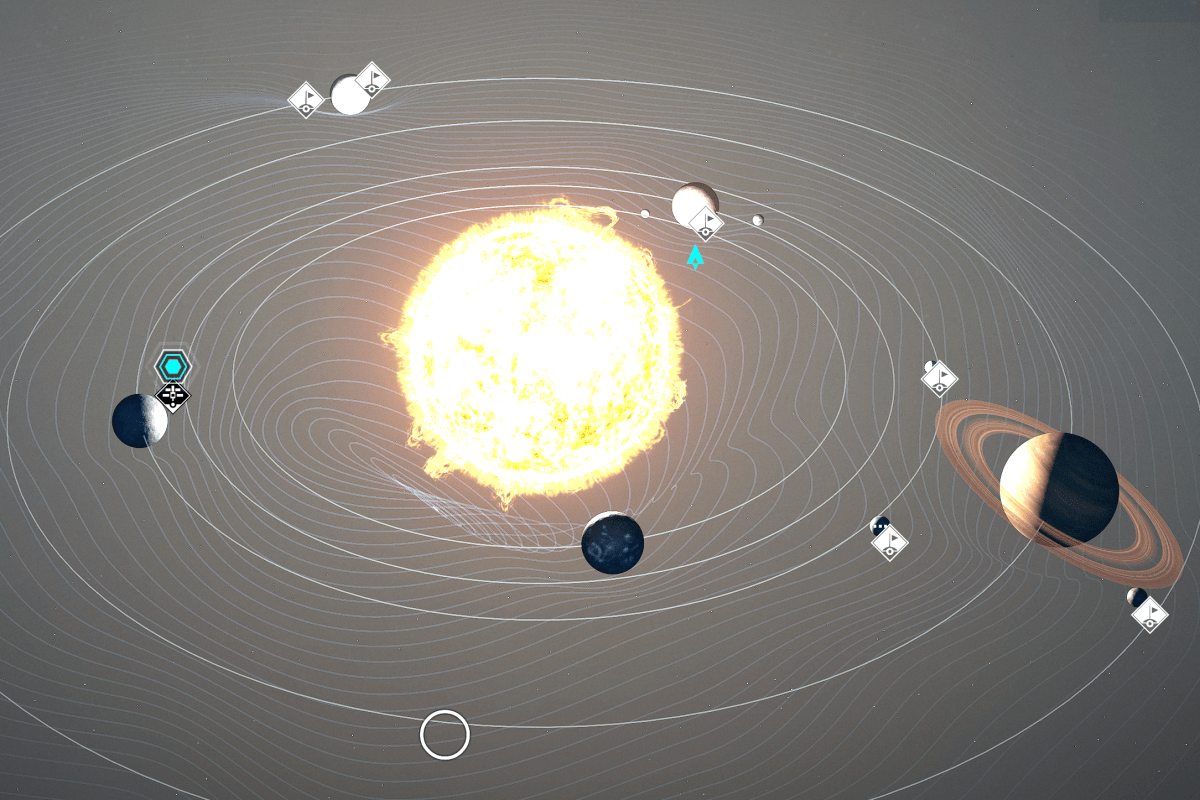
Starfield solar system

When Starfield first launched, it received more negative press than anyone expected. The game was difficult to run even on powerful gaming PC hardware. There were glitches galore. Worse, thanks in part to out of balance weapons and armor, Bethesda’s version of a space adventure seemed mundane. Reviews at the time said other titles in the genre did it better. Obsidian’s Outer Worlds was often named as an example of one.

Another top-tier space based adventure RPG.

Bethesda has long since released multiple fixes and enhancements for Starfield along with its first DLC. There have also been multiple driver updates for NVIDIA and AMD graphics cards since the game’s launch. The Xbox has also had several major updates.

I find that this is the ideal time to start a campaign in long play games like this. The developers usually have most of the bugs ironed out by the time the first DLC drops. Starfield has finally matured to that sweet spot. So, I fired it up and built a new character a few months ago.

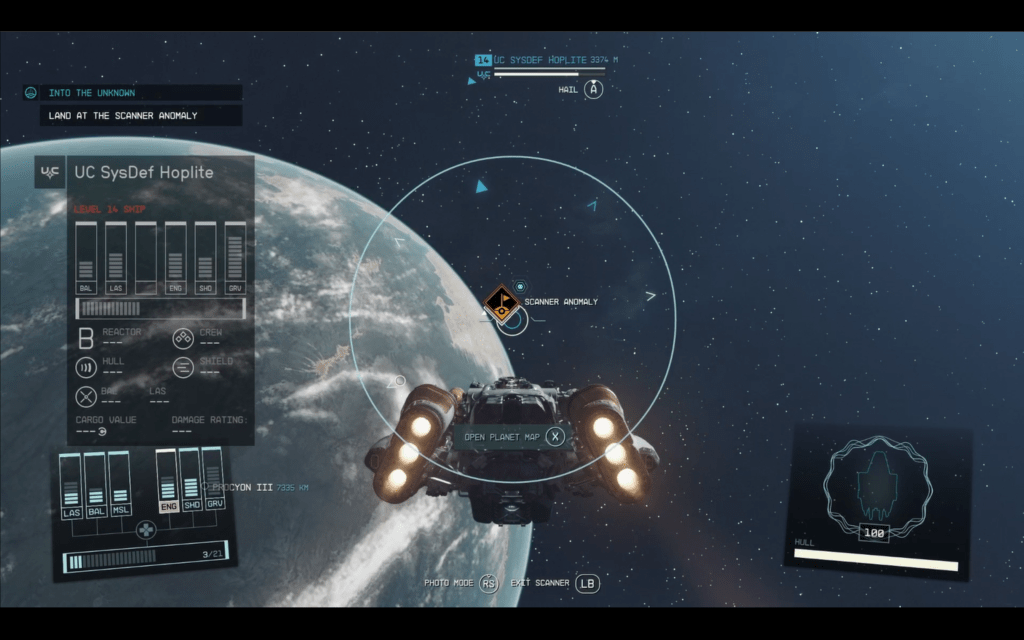
Bethesda put a lot into the “space” part of this adventure.

The game looks great, and play has been much smoother this time around. I play on almost every type of device out there. I have my Xbox/X connected to an 82-inch 4K, QLED Samsung TV. At that size, the graphics hold up well. From a normal viewing distance of about eight feet, everything looks great. The edges of objects become fuzzy when you get within three or four feet. The graphics fidelity continues to get worse the closer you get. It’s not bad for a console. Especially considering how huge and graphically detailed Starfield is.

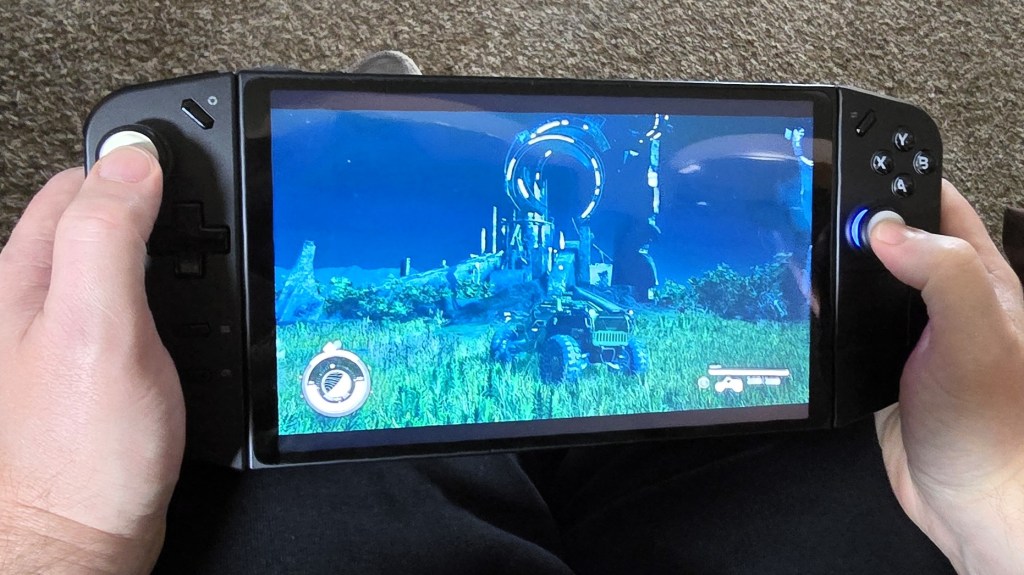
I’ve also been playing on a handheld (Z1 Extreme), my desktop (i9/4090), and via streaming to all kinds of devices. No matter how you choose to play, the game performs. The frame rate stays stable for the most part. Only during intense combat on under-powered hardware like the Go do I notice a lot of lag. The dynamic settings are your best bet when starting out. If you have a monster gaming card and are able to run 4K Ultra, Starfield is breathtaking. The textures are so good, especially on OLED monitors.

Sitting on the couch and playing Starfield while hanging out with my family is a perfect afternoon.

Speaking of monitors, I’ve got the 82 inch TV mentioned above. Then my gaming PC has both a 49-inch 32:10 OLED ultrawide curved screen and a 48-inch OLED flat panel. My tablet has an 11 inch OLED , and the Lenovo Go is an 8 inch LCD. I’ve seen this title on lots of screens. For this game, up close to the curved ultrawide offers the best experience, in my opinion.  Something about the landscape filling most of your field of view really adds to Starfield’s aurora.

The game plays like living in a space opera adventure movie in the most detailed ways. Everyone talks in this game, everyone. There are more than a quarter of a million lines of voiced dialog. Some of it occurs in NPC conversations that are surprisingly deep and complex if you stop to listen. A few of those deep conversations launch side-quests.

Starfield is good at slow rolling you into playing all night. You start out intending to do something quick. Next thing you know, it is two in the morning. You can tell it’s from the same group that gave us the Elder Scrolls. It has the same brilliant pacing and variety of play types.

Some reviews I’ve read see the similarity with other titles from the publisher as a negative factor. I think the “New IP” marketing message distorted people’s expectations. Early advertising implied that Starfield would be a completely different experience from the Bethesda titles that came before it. Many were disappointed when it turned out to be “Skyrim in space”, but I think that’s the point.

Of course, the “Old-West” is in space too.

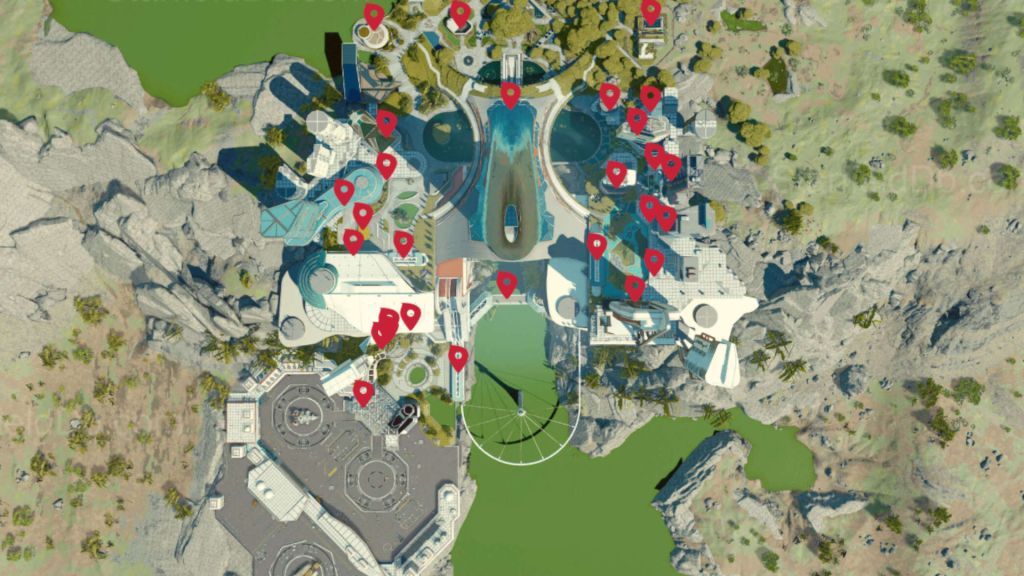
Once of my favorite aspects of Starfield is its ability to be both massive and intricate at the same time. Pull up the map, and you can zoom in and out of multiple solar systems that are light years apart. All that vastness of galaxies and yet, you will eventually know your way around New Atlantis is like your real-life neighborhood. I know Ryujin Tower as well as my real-life employer’s corporate building at this point.

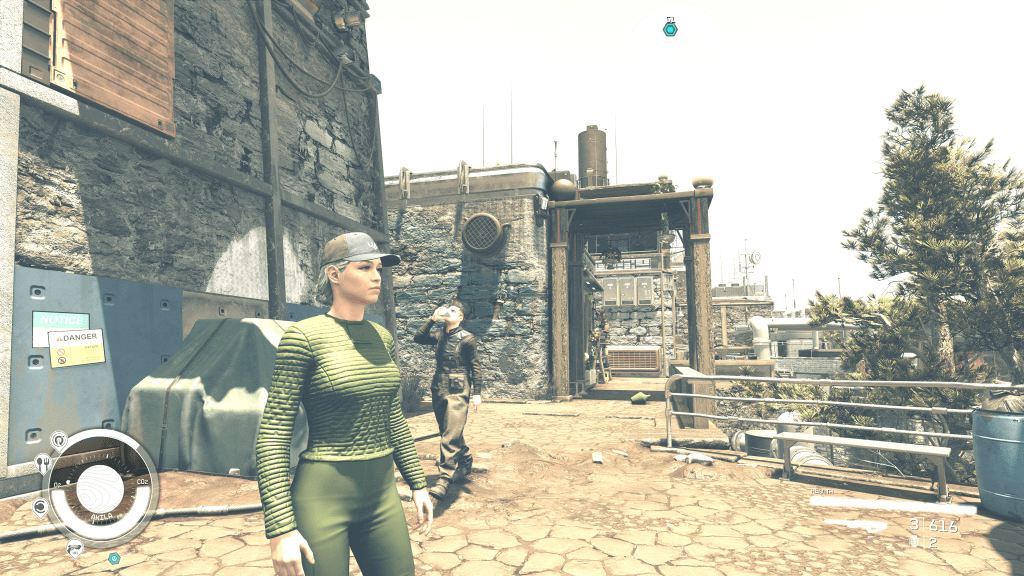
Some of the cities are large and take a long time to fully explore. New Atlantis is one of those.

The Bethesda formula works well in the space adventure genre. The game’s quests and side quests cover the whole field of mission types and dungeon crawls. Everything from raiding bases and hunting monsters, to dogfights in space are covered. I’ve run into assassination jobs, military attack missions, detective puzzle stories, and more. Just when I think I’ve encountered every possible type of mission, something new and clever happens.

Some encounters with a random NPC can end up leading to complex story-based missions that take hours to complete. Other missions are one and done quick XP boosts that are over before your fingers are fully warmed up. There’s a good balance of action and idle life moments. Once you get into a session it’s easy to stay in for a few hours. You’ll barely realize how much time has passed in the real world.

There are some fantastic locations to explore, and the story is engaging enough to keep you following the mission list.

My favorite thing about Bethesda games still rings true in Starfield. You don’t have to fully participate in every aspect of the game to live a life in their worlds. The game requires you to use the tools, but you can focus on the things you enjoy most. Progress through the missions and quests isn’t directly tied to a specific solution.

For example, I don’t always get a lot out of the building, crafting, and collecting often featured in role-playing games. Starfield doesn’t force building or crafting as much as other RPGs do. Bethesda lets you choose how to acquire the ships, weaponry, and other goods you’ll need. I prefer to grind for credits and buy my gear. My character is a merc, to be sure.

I’ve chosen a life of combat and conquest. I spend my rank points on gun skills and put my money into my ship’s firepower.

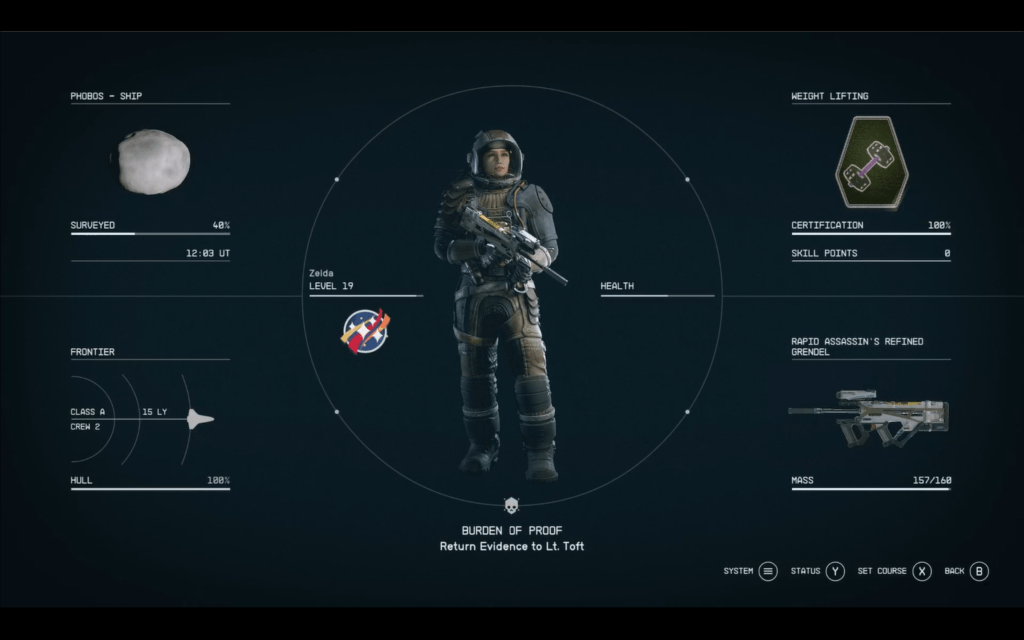
I’m about forty hours into this Starfield run. In that time, I’ve mastered the game’s combat mechanics for the character and ship. Fights in space or on the ground don’t make me sweat anymore. I have completed a little more than half of the main story. I’ve finished most of the Ryujin corporate faction missions. I’ve also turned in a lot of bounties and finished whole side-story arcs. I’m a level 20, with an upgraded ship and enough guns to blast my way out of anything.
The missions and quests are just fantastic. Some have numerous characters and locations; others are quick and ferocious.

This far in and the game still feels like it will take a year to finish. I haven’t even completed the main story line yet. There are whole categories of skills that I haven’t spent a single point on. Multiple quest lines that I thought were almost over are still going. Some players and publications have critiqued the amount of content, but as a relative newbie it seems almost overwhelming.
The combat is spectacular both in space and on the ground. There are numerous weapon types for you to master. Your character has a thruster-pack to jump-jet away, or hover and rain death from above with. You can upgrade your companion’s firepower and armor, and they’ll do real damage on your behalf. If you invest money and time into your weapons load out, you can build a character capable of extreme violence.

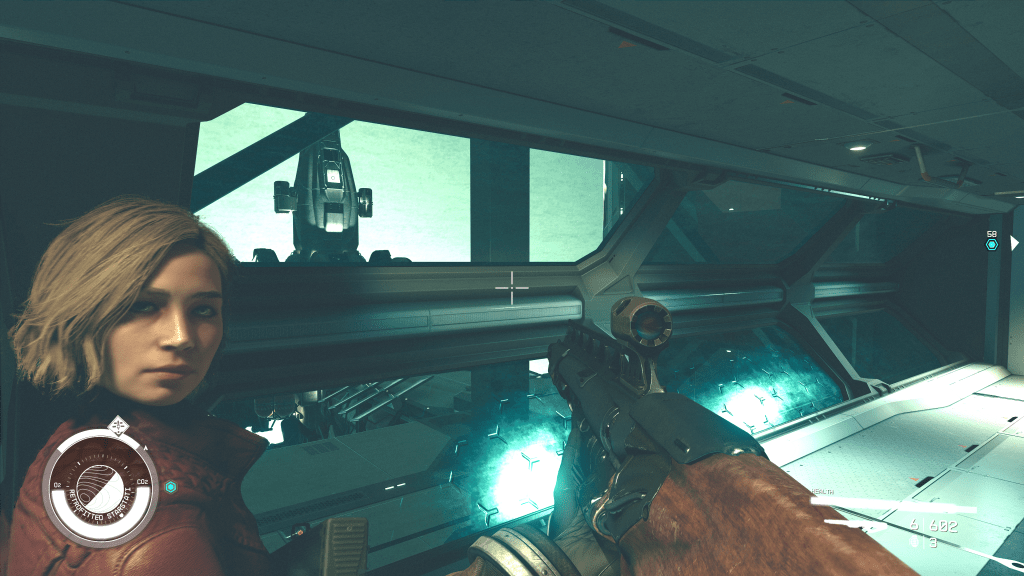
I not very effective at talking my way out of situations.

Space battles vary from single ship encounters to multi-planet hopping chases. You can hail, disable and board, or fully destroy the opposition. Ship building is great in this title. Your options are limited by the resources you can get your hands on, and that’s about it. The flight controls are fairly simple. Much like Star Trek’s Enterprise, you can focus your ships’ energy where you need it during engagements. Boosting weapons over sheilds, or put everything into the engines and run. The choice is yours to make most of the time.

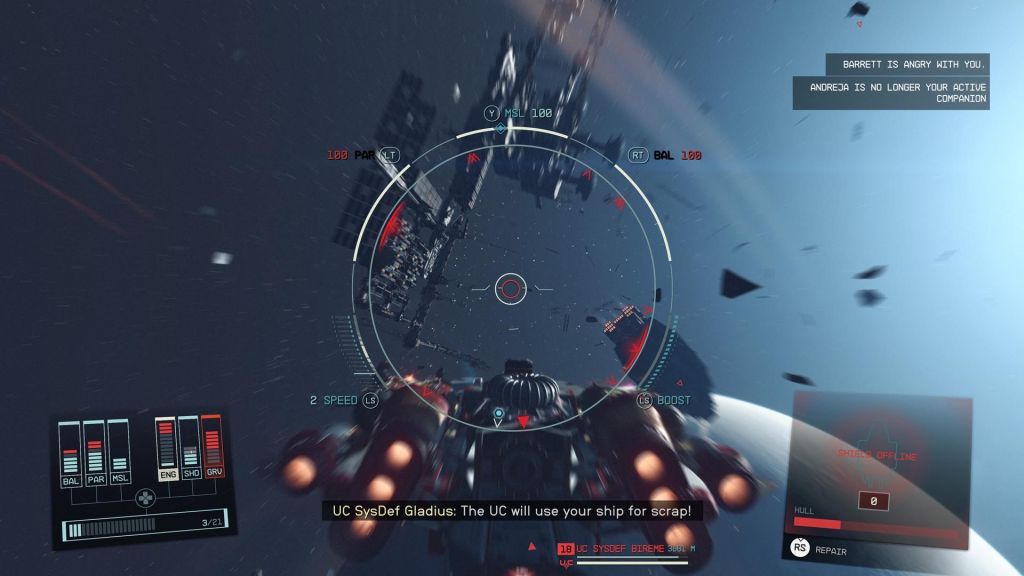
Space battles can be intense. Unlock the targeting skill to make them easier to win.

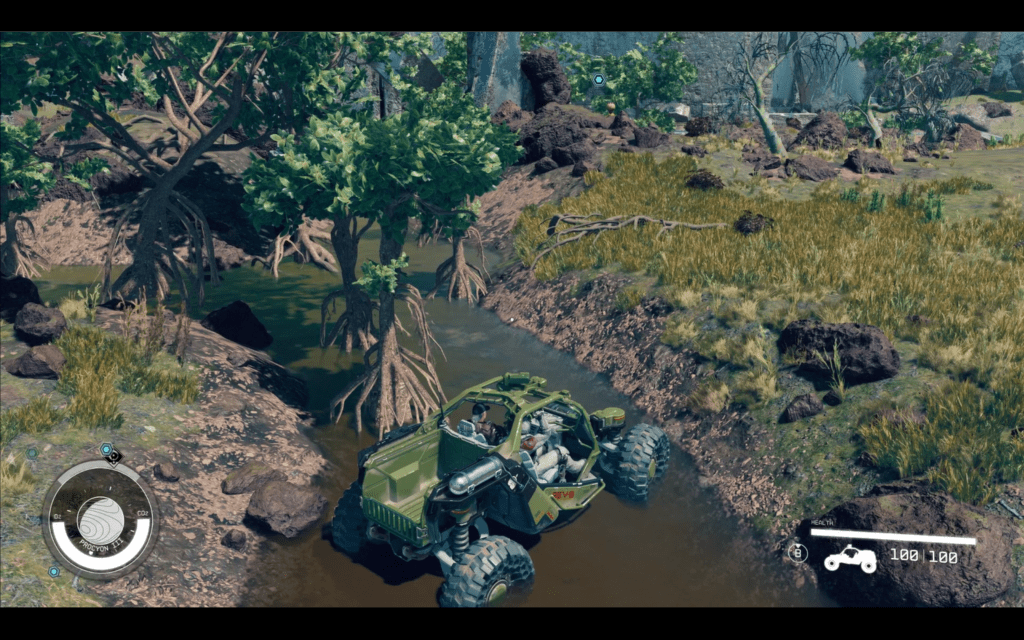
Then there’s your ground transportation. The addition of the REV-8 ground vehicle is most welcome. The off-road machine features jet pack hover/jumping of its own. It also has a turbo boost and a canon. The canon requires accuracy to be effective, but once you get it dialed in, watch out baddies. I’ve devastated entire enemy strongholds with my REV-8. It reminds me of the Mako from Mass-Effect in a lot of ways. The jumping feature is extremely useful and can be cheesed to great effect if you like to play that way.

The ground vehicle wasn’t available at launch. Many feel that it should have been there from the start.

Besides the new car, there have been a lot of other “quality of life” upgrades since the original launch version. Decorating your ship’s interior and vastly improved city maps were huge. You can visit Bethesda’s site and read the patch notes if you want to puruse the full list. Even though the DLC has launched, there have still been patches and updates. The game is still being actively invested in by Microsoft and Bethesda.

I don’t have anything overly negative to report on when it comes to Starfield. It’s a fun way to pass a few hours while staying at home. The story isn’t the best sci-fi story I’ve ever encountered, but it is good. It’s more than good enough to anchor a game like this. The character development is over the top. There are so many NPCs to interact with that it’s easy to lose track.

Another epic game that had a bad launch.

In my opinion, Starfield got a bum rap at launch in much the same way that Cyberpunk 2077 did. The hype machine was setting the bar for success way up high. I think both titles were launched prematurely by business leaders who were money blinded. Lucky for us, both games also ultimately got wrangled into something many of us consider to be masterpieces.

The Last Major Update from 343 Has Dialed in Halo Infinite

I’ve been a Halo player since the beginning of the game. Like a lot of entertainment franchises, some of the titles stand out more than the others. The current version “Halo Infinite” was initially well received When it launched at the end of 2021. It added unique power ups like a grapple that proved to be very popular.

After the popular launch, there was an extended period where very little content was released. The game fell out of favor, and the player pool contracted. That all changed when the winter update dropped in November of 2022. 343 has steadily released stellar updates ever since.

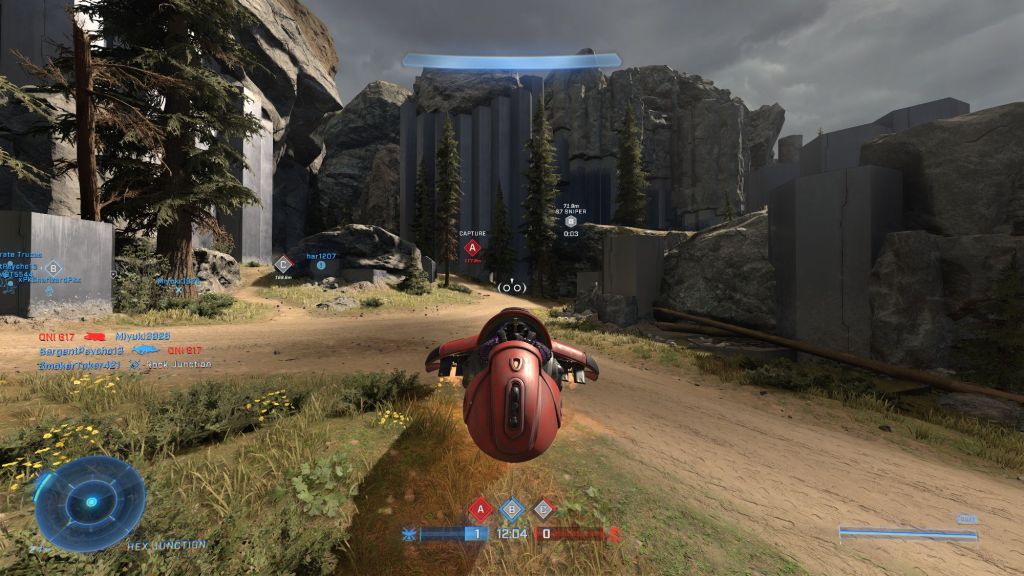
The Ghost can turn a losing team’s fortune around or extend a winning team’s lead when acquired by a skilled pilot.

The addition of retro Halo 3 maps and game types was especially well received by the player community. There’s nothing like a shot of nostalgia from a game that you strived to conquer long ago. The old maps have been remastered, and they’re never looked better. Another nice touch is that the modern versions of power weapons appear exactly where the originals did.

The 343-dev team also released the long-awaited Firefight mode in December of 2023. Waves of ever more powerful AI enemies attack your squad. Firefight encourages teamwork over competitiveness. Winning without working together is almost impossible.

In Firefight, the enemies get stronger, faster, and use better tactics in each wave.

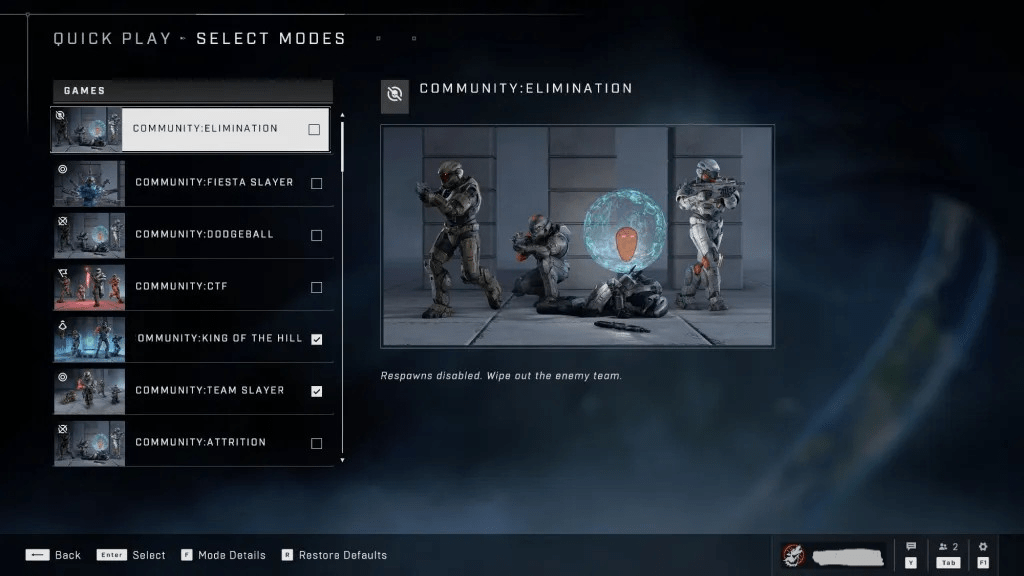
In what’s reported to be the final major update for Halo Infinite, the game’s creators added yet another new feature in June of 2024. The Match Composer lets players choose the game types they want to cycle through during their session. There are more than eighty game types in the Quickplay list alone. Once you find your favorites, the custom lists you create are saved to your profile.

The match composer lets you build custom play lists for each category of multiplayer games.

Halo’s famous built-in editor and creativity tool is called the Forge. This mode allows everything from mild modifications on existing maps to full custom game creation. Publish your design to the community or share it just with your friends. Think Mario Maker with guns, tanks, and aircraft.

The Forge is a powerful game editing tool.

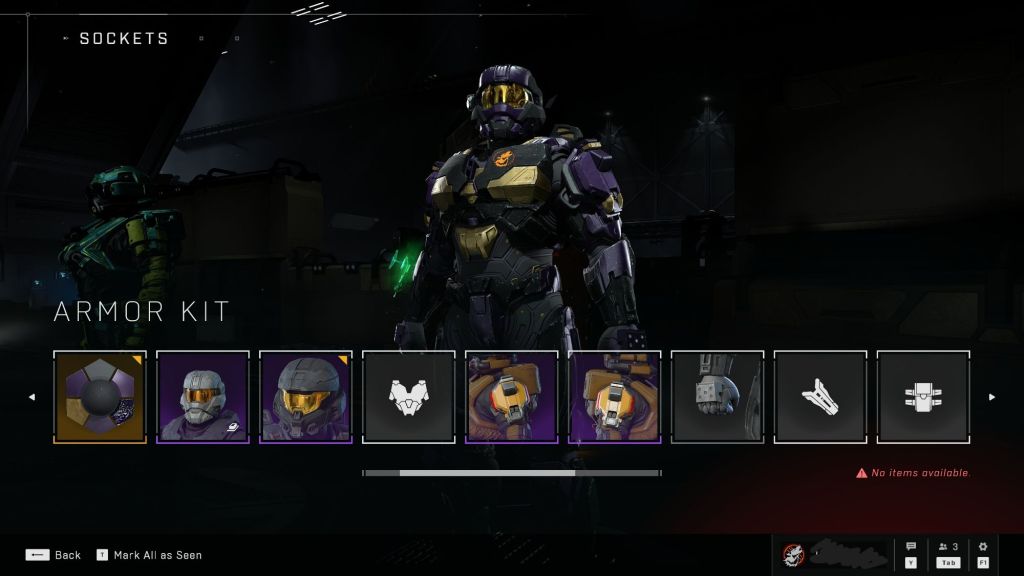
At ten dollars per cycle, the base Halo Infinite Battle Pass is one of the least expensive options around. Used for unlocking character, weapon, and vehicle customizations, the Battle Pass isn’t required, the unlocked items are cosmetic only. Plus, you can earn some unlocks in the free-to play edition. It takes a lot longer to be sure though.

There’s a lot of customizations to unlock.

The multi-player part of the game is free to play, so anyone with an Xbox or PC can join the lists and test their metal. Expecting to dominate based on your skills in other FPS titles is a mistake in my personal opinion.

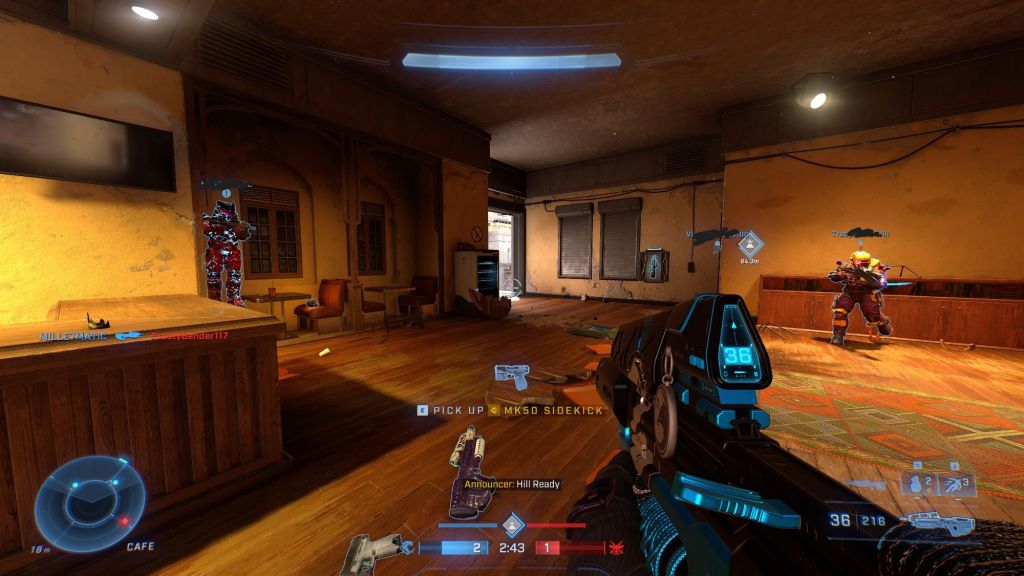
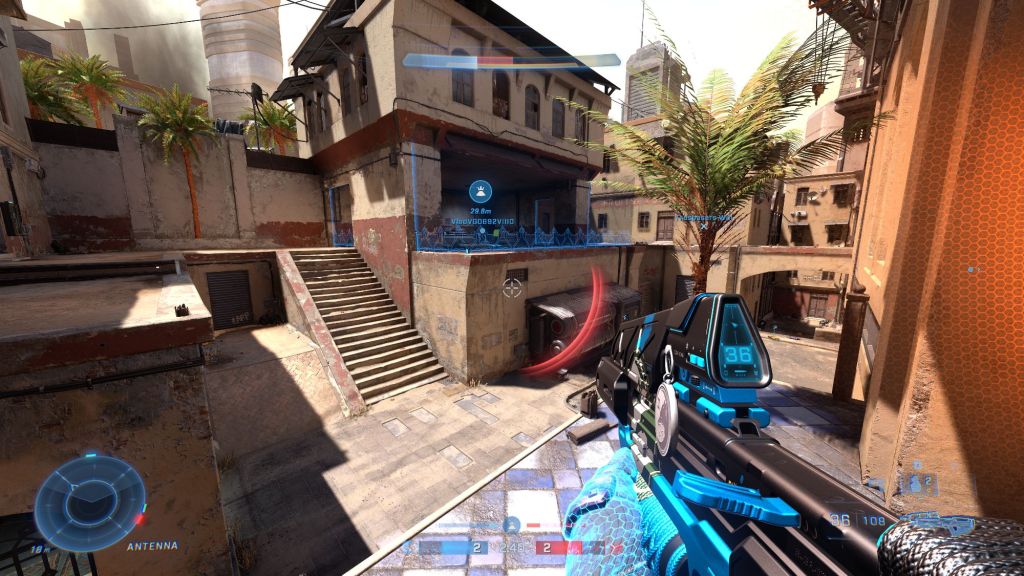
Halo hits a little different than CoD and Battlefield. Multi-kills are rare, and one-shot kills even more so in Halo. Protracted up close battles are frequent thanks to a lower ammo capacity in the weapons. Two kills per clip is rare in most of the guns. Power weapons spawn with very limited ammo capacities.

Shields, power slides, jumping, and dashing combine to make evasive maneuvers effective. Your target has a good chance of escaping if you don’t land every shot and have to reload. Perhaps the biggest difference from the more popular CoD style games is that all players have the same loadouts. There’s no strategic choice advantage when it comes to weapons and maps. You can’t choose your auto shotgun with the drum mag and laser sight because you know the next map in the rotation is tight.

You usually have a chance at counter attacking your assailant.  Pulling off a reversal earns you a medal.

If you haven’t played Halo Infinite lately, there is almost certainly something new going on since the last time you queued up. If you have never tried the game, there’s a lot of content available and plenty of players in the lobby. There’s even an AI training mode to help teach you the ropes and let you practice with the weapons. The game features Easy Anti-Cheat to help keep things fair. Most multi-player games start in two – five minutes.

The major updates for this iteration of Halo are over, but 343 has committed to multi-player enhancements for the time being. 343 is remaining tight lipped on what “enhancements” means in this context.
ASUS TUF DASH F15 an Underrated Nvidia 3070 RTX Gaming Laptop

I’ve have owned so many laptops that I’ve literally lost count. Some of those systems, like my Surface Book, are capable of playing games. However, none of them are, or were, dedicated game machines. I’ve helped my friends and family pick out their portable game machines and have spent plenty of hours playing on them. Their cost versus their life span was always prohibiting from my point of view. I could get more bang for my buck from a desktop rig and portability wasn’t a concern.

Now that top of the line GPU cards cost almost as much as an entire laptop, I have reconsidered my position. I wanted something that I could treat like a gaming console and hook up to my televisions. I also plan on it traveling with us some depending on the destination. It needed to have enough power to play AAA titles on decent settings, but I didn’t want to break the bank. The closer I could stay to $1500.00 the better. I figured I would pay at least that much to get a hold of an upgraded GPU for my desktop, if I could find one at all.

I started my shopping spree by doing a bunch of research. At the time the best gaming laptops still had RTX 2070 and 2080 cards in them. I just happened to be on BestBuy’s site when they put up the ASUS TUF system with an RTX 3070 for pre-order. I was a little concerned with pre-ordering a system that featured a brand new, untested card, but you can’t always play it safe. I wasn’t in a hurry and I knew I could return it if I didn’t like it, so I pulled the trigger. Waiting more than two months for it to get here was agonizing.

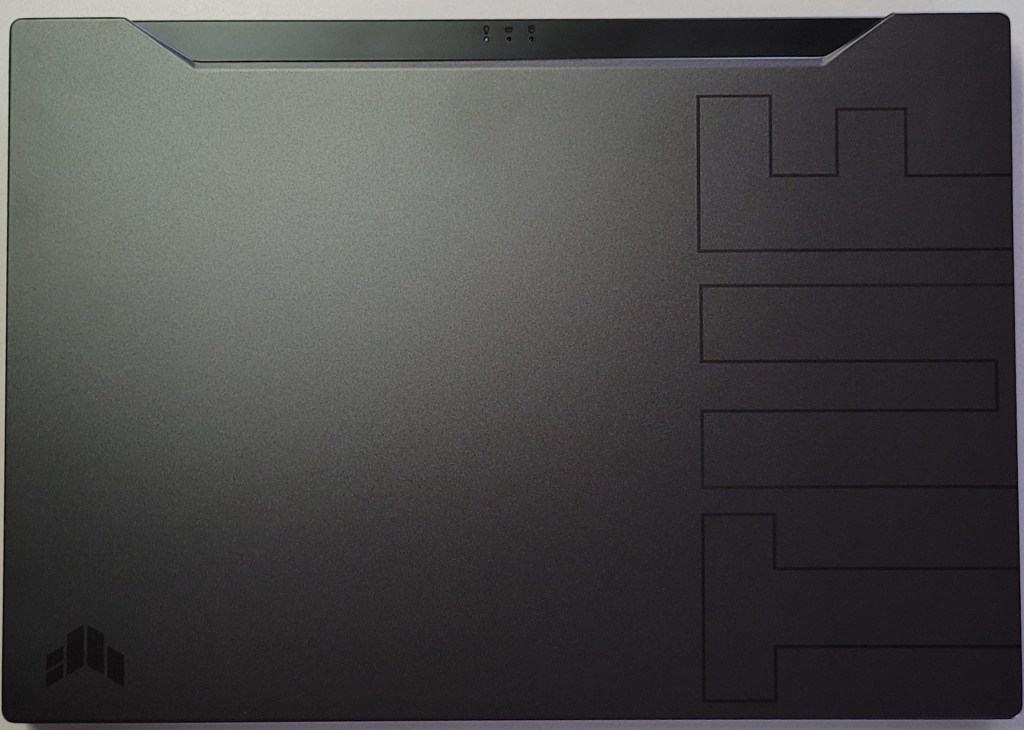
Of course it showed up in the middle of a work day so I couldn’t immediately tear into it. As soon as my shift was over, I carefully opened the box and was pleasantly surprised by the look and feel of the system. The nondescript case is metal, there are two color choices, I have the black one. Except for the lightly etched TUF and logo on the lid, it looks like any other high-end slim notebook you might see in a boardroom. It measures 14.17 x 9.92 x 0.78 inches (360 x 252 x 19.9mm) and weighs 4.41 pounds (2kg).

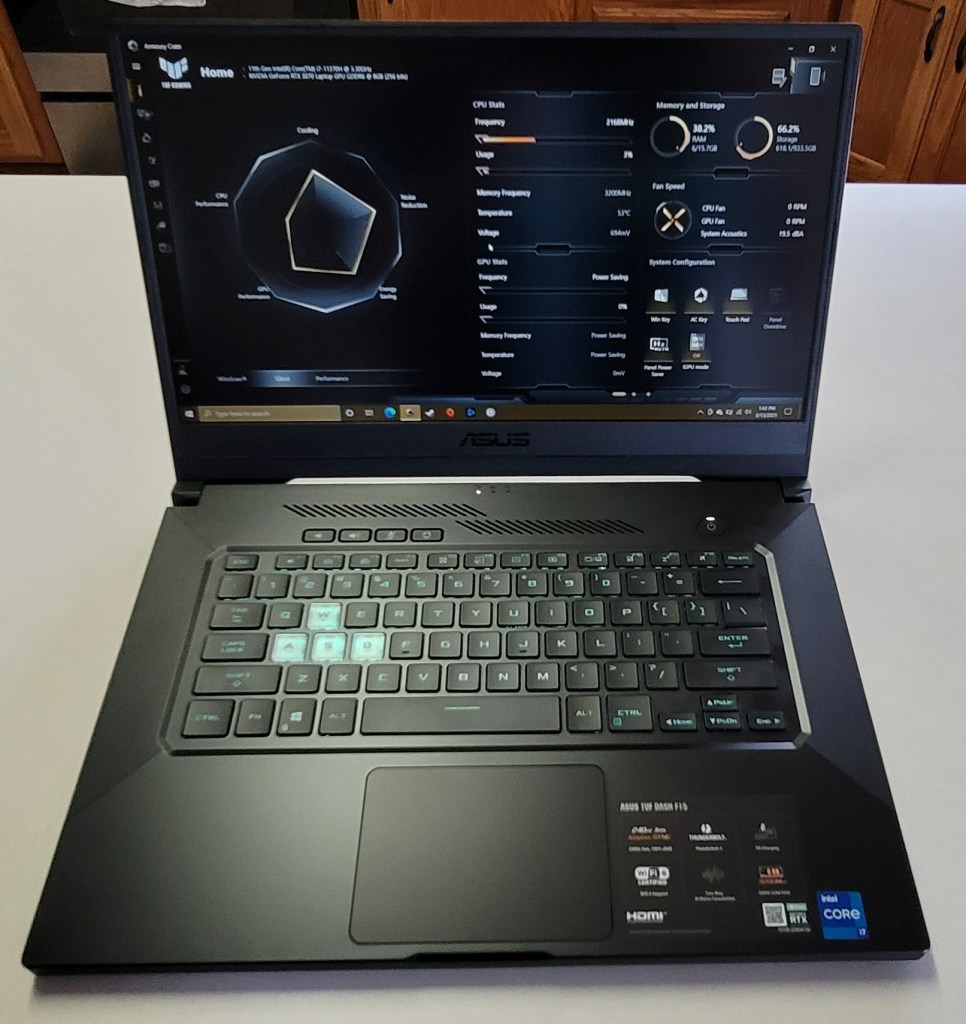
The 15.6 inch screen features thin bezels along the top and sides. There’s no built-in web cam and if you’re planning on this being a daily driver, that may be an issue in today’s video conference based world. The non-HDR screen is 1080P and can hit 240 frames per second witch is super smooth. You may wonder why I didn’t go for a 4k or 1440P screen. On a 15.6″ display the extra res doesn’t exactly equate to a better picture. It does however, require more of your GPU and battery to push. You’ll also spend more on the systems that have higher resolutions. I didn’t see any 3070 laptops with a 1440P+ screen for less than $2000.00.

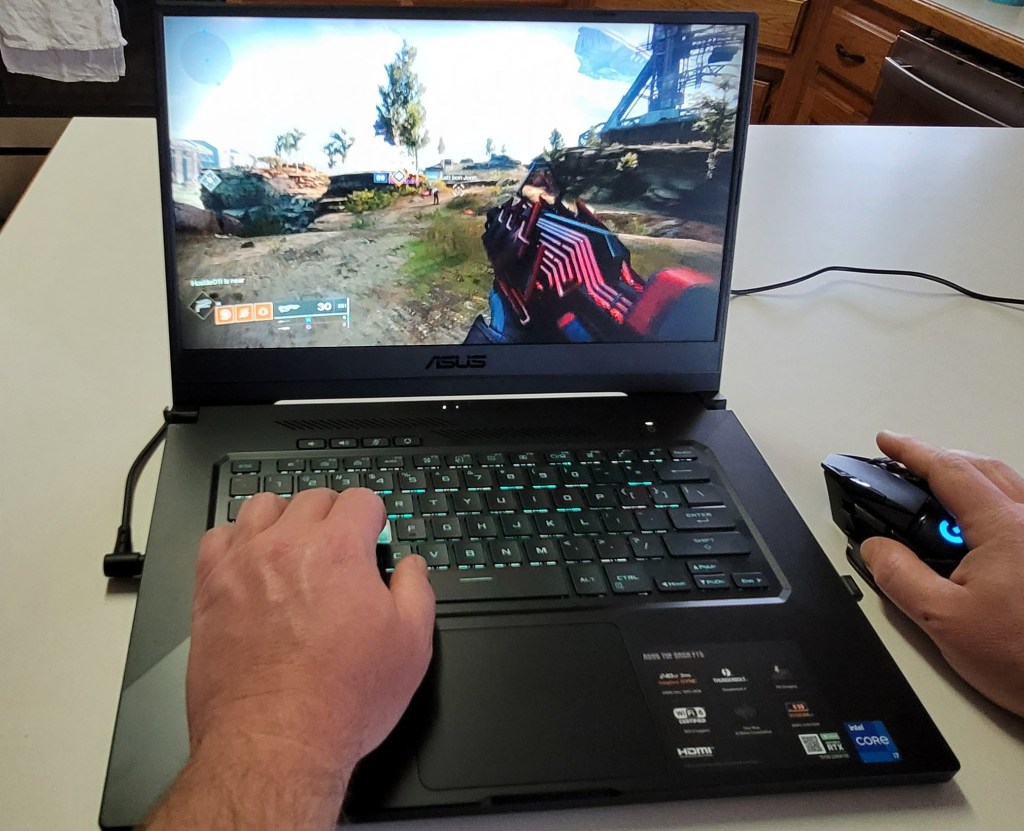
The keyboard is backlit and the WASD caps are clear. It is only a single teal color but I like it. There’s a row of dedicated volume, mic, and management keys which I find myself using more than I thought I would. The keys themselves feel great, the caps are a little concave and there’s a decent snap from the membrane that lets you know you’ve completed the stroke. The trackpad is nice. It is offset from the spacebar, but centered under your thumbs where it should be. It’s responsive, but ignores my accidental brushes while typing.

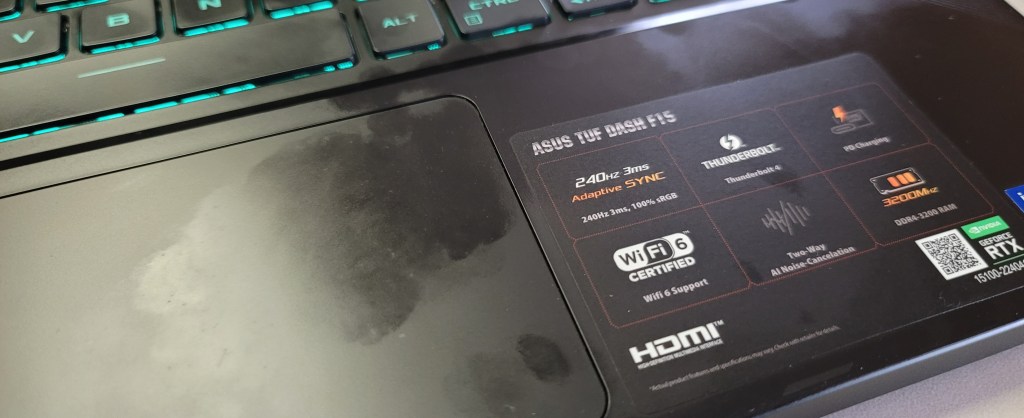
The deck and trackpad are fingerprint magnets.

The sound system is decent and has a trick that I didn’t expect to work. It has built-in noise canceling in the on-board mics. You know what? It totally works. I’ve played multiple on-line games of CoD, Apex, and Destiny without head phones and questioned my friends about how I sounded. I wanted to know if they could hear the fans, or the game echoing from the speakers and was pleasantly surprised to learn they didn’t. It’s really nice to be able to play without headphones once in a while.

You’ll find an HDMI 2.1 port to connect the system to your home theatre. I recommend that you get an HDMI 2.1 rated cable to go with it. Otherwise you will probably have issues hitting higher frame rates with HDR enabled. I did. When connected to my Q70t home theatre using an HDMI 1.4 cable, I could do 120 hertz or 60 hertz with HDR. A new $10.00 2.1 cable from Amazon solved the issue.

You will also find a Thunderbolt 1.4 port which will take care of docking stations, external GPUs, display port monitors and lots of other accessories including most USB-C devices. It also has an RJ-45 network jack, headphone/mic jack, and three USB 3.0 ports. The Intel AX201 is Wi-Fi 6 compatible and hits the 1200 MB/ps mark with ease. Bluetooth is built-in as well. I’ve connected my system to the afore mentioned home theatre with an external keyboard and mouse without needing another port.

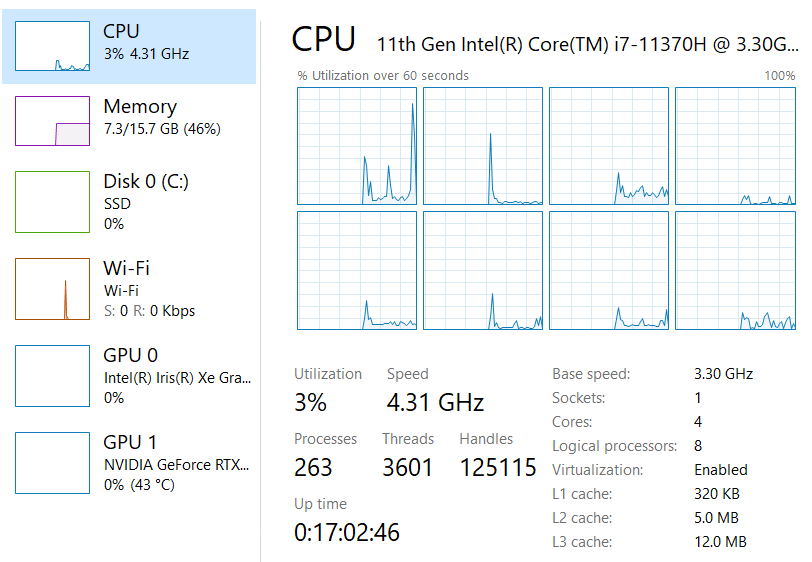
The one terabyte SSD is fast and large enough to hold the games I am currently playing. It came with 16GB of PC-3200 RAM, I will probably be taking advantage of the fact that it is user upgradable in the future but it does the job. The 11th gen 4 core i-7 11370H CPU is more than fast enough for anything I plan on doing.

Right out of the box I was disappointed with the performance of the GPU. I spent an hour running updates, BIOS, firmware, Windows, drivers, and the management app all needed updates. It’s a good thing I bothered before packing it back up, it was like a totally different system. When playing CoD BlackOps, Destiny, Apex, Tomb Raider, and Doom Eternal on the built-in screen I was able set everything to ultra, including ray tracing, and still hit over 120 fps with the fans barely running.

When connected to my big screen I have a choice to make. I can run the games on high, or ultra at 1440P and still hit my TV’s 120 FPS limit with HDR on. Or, I can crank down some of the settings to medium and low and run at 4K with 60 – 90 FPS. Personally I prefer the lower resolution with more post processing, but the games look and play great either way. At 4K they look and play better than the same games on my PS4 Pro, or Xbox One X at the same resolution. If you want more out of your system make sure to get one that is not a Max-Q GPU design. Basically, the thin and light gaming systems use the Max-Q versions of GPUs which limit power to prevent overheating. The thicker, heavier systems tend to have the full power chips that preform better but are, well, huge.

Overall I’m really happy with the ASUS. It is a good balance of performance and cost. There are systems with the same GPU that have features like a web cam and RGB lighting, but they’re all much closer to the $2000.00 price point. I’ve had the DASH F15 for a couple of weeks and have spent a lot of hours sitting in my easy chair with it on my lap and connected to my TV. It’s a keeper.

Nvidia’s 2080 Ti, The New Hottness

Gaming PCs have been part of my life for as long as I can remember. I like to build them myself and through the years I’ve learned that getting the best quality components is less expensive in the long run. Much like buying your kid a pair of sneakers that is one size too big, high-end equipment has a longer useable life because it is overpowered for the current generation of games and applications.

At well over a thousand dollars for the least expensive iteration, does Nvidia’s new flagship chipset provide enough bang for the buck? Will it offer enough future-proofing at this price point? I’ve read tons of benchmark results, perused many articles both for as well as against, and watched countless review videos. I’ve decided that it is time to find out first-hand. This one component will cost more than everything else in my system put together. It better be worth it!

DSCN1185

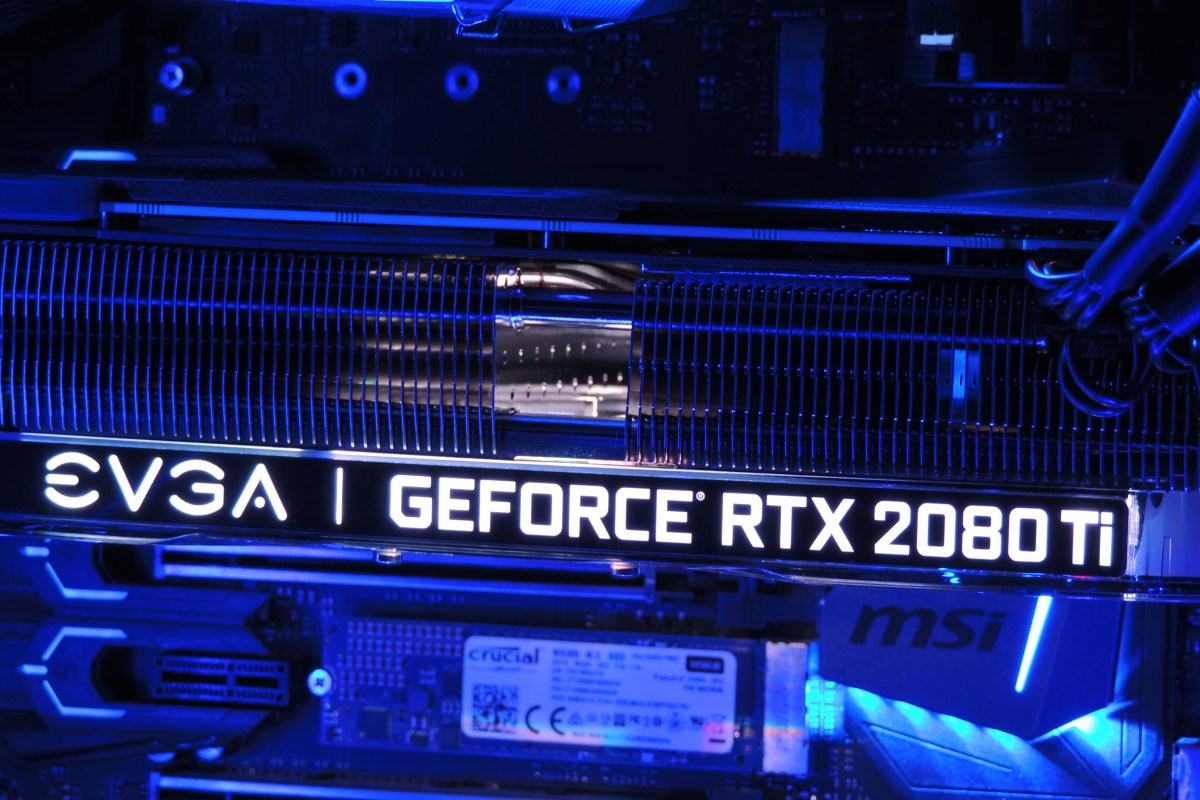
Just deciding which manufacture’s card and which of their ten or more models to get was a project unto itself. The decision was made more difficult by many options being unavailable. Some of my top contenders were back-ordered for as long as six weeks. The various cards differ from each other in a couple of ways. First is whether they have a factory overclock applied or not. Second is how many fans their chassis have attached. Generally speaking, the higher the overclock, the more fans you need to keep it cool. The current generation of these cards come in one, two, or three fan configurations. I ended up with an EVGA Gefroce RTX 2080 Ti XC Ultra Gaming card. It has a slight overclock and two high-speed fans.

Nvidia’s new monster requires dual eight pin power connectors and a minimum of six-hundred and fifty watts. The PSU in Elder-Wand that ran my previous RX-480 had the dual connectors but was rated for only six-hundred watts. I decided to try it with the 2080ti anyway, just to see what would happen. At first I thought everything was going to be ok. The system booted, the Nvidia drivers loaded, and my desktop screen looked great. My web browser and Visual Studio worked well. Everything went sideways when I tried to launch Destiny 2. The fans on the GPU went nuts and my system froze completely. Luckily this was just an experiment and I had a Corsair RM 1000x on deck.

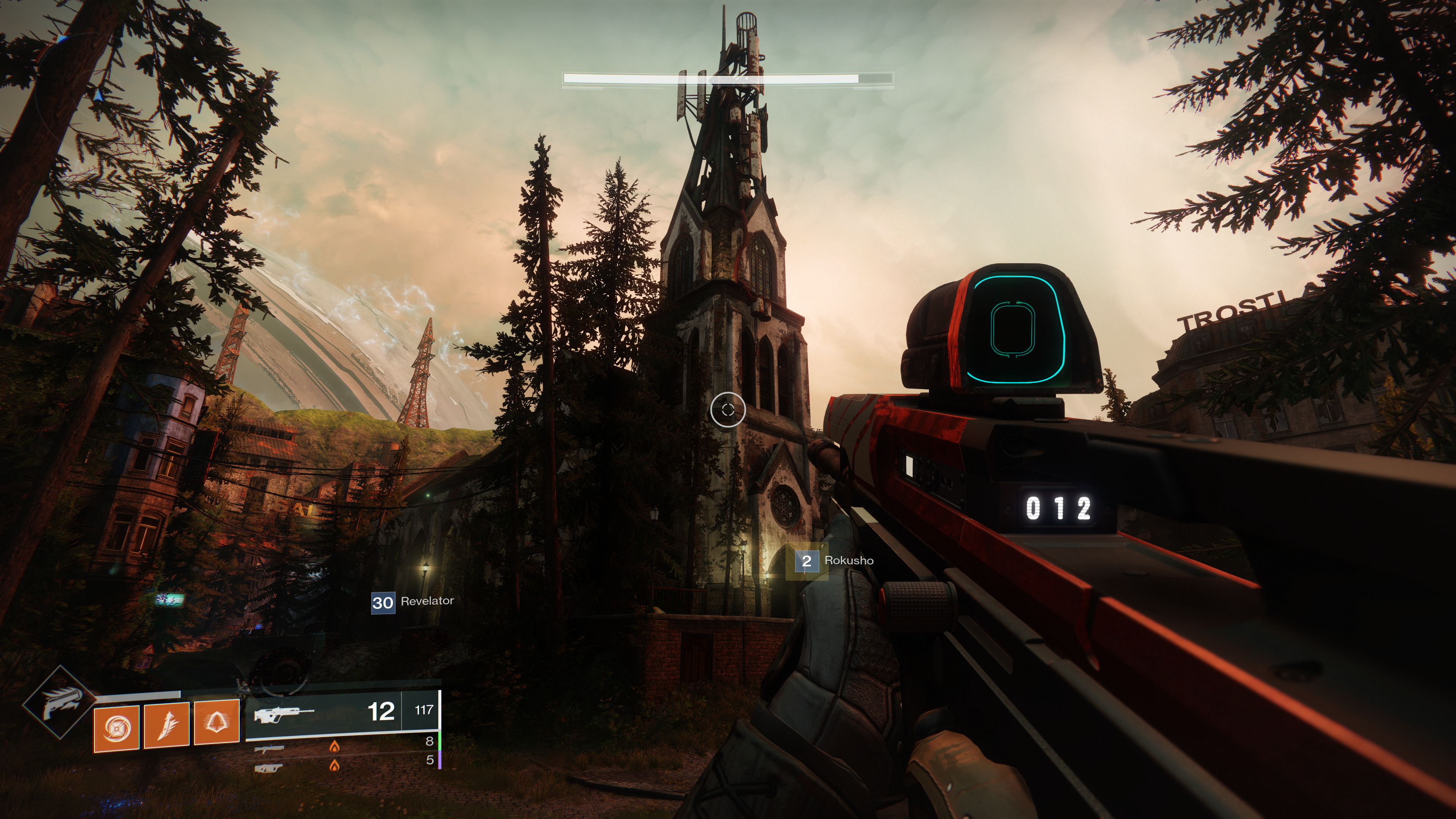
After installing the new PSU, I fired up the same game (Destiny 2) and set all the graphics options to their maximum modes. I went to Earth in the game because the Trostland (EDZ) has a variety of environments and lighting situations in a small area. I was floored. Staring at my 40 inch 4K screen was like looking through a window at an actual church. Albeit one in which odd purple aliens are running around shooting at each other.

2018-12-22 (3)

I systematically set all of the games I am currently playing to 4K ultra and they all preformed flawlessly. The card wasn’t struggling to keep up and 60 FPS (max for my screen) was a breeze. The fans were in cruising mode and it was obvious there’s a lot of head room between what current games are consuming and the power this chipset can bring to bear. I don’t think future proofing is going to be an issue, but the price per year is going to end up on the high side. If the card lasts the typical three years I’m looking at four-hundred per year which is the equivalent of buying a new top-tier console every birthday.

2018-12-23

Besides being the most powerful consumer card on the market, Nvidia’s other claim to fame for the new chipset is being the first to enable real-time ray-tracing. The technique allows the GPU to simulate the path that rays of light would follow in nature, providing a realistic photo like picture. Especially where reflective surfaces like water, clouds, or ice are concerned. Until now ray-tracing required server farms to render and was only used in CG for movies and TV.

2018-12-23 (10)

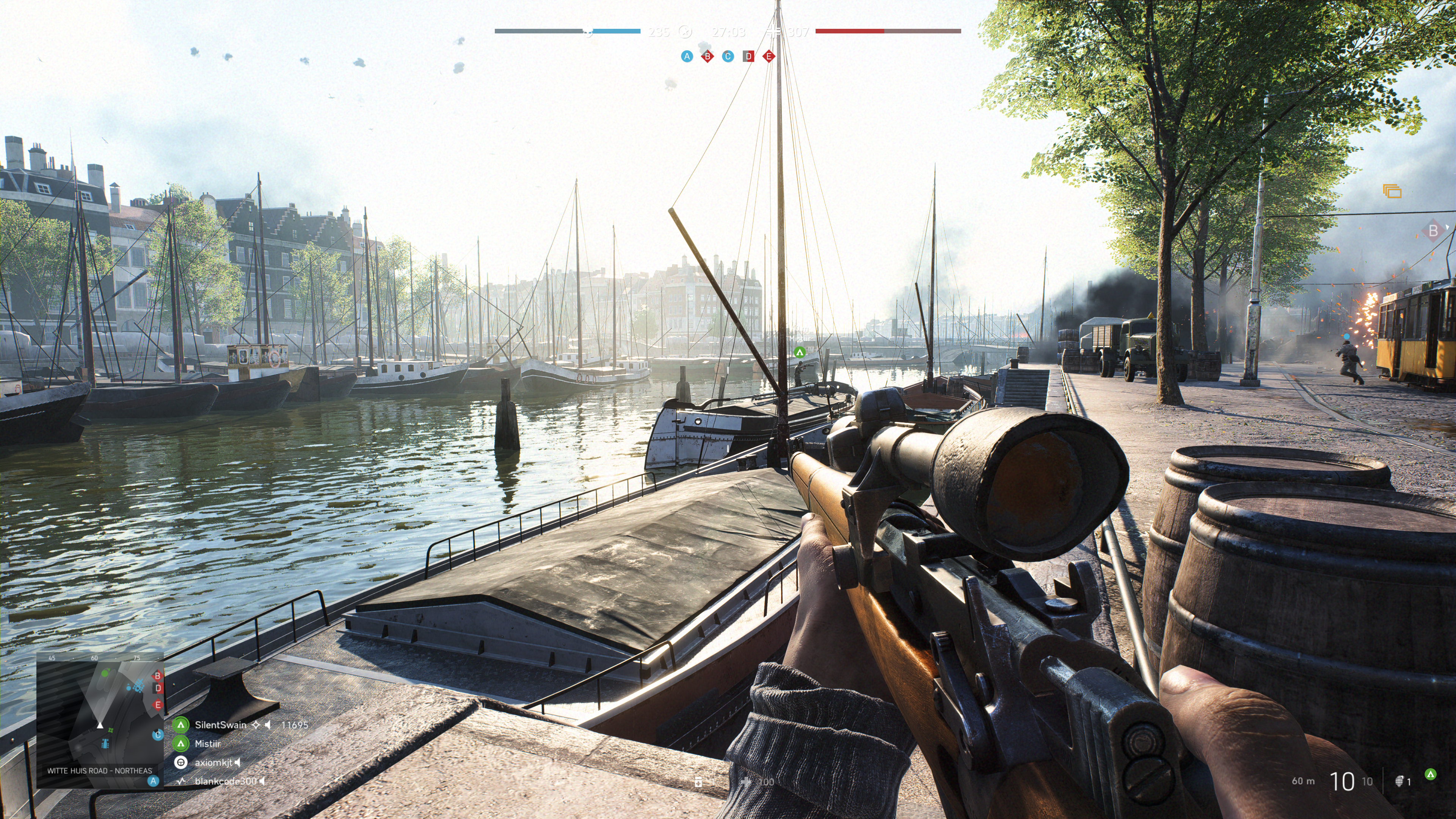
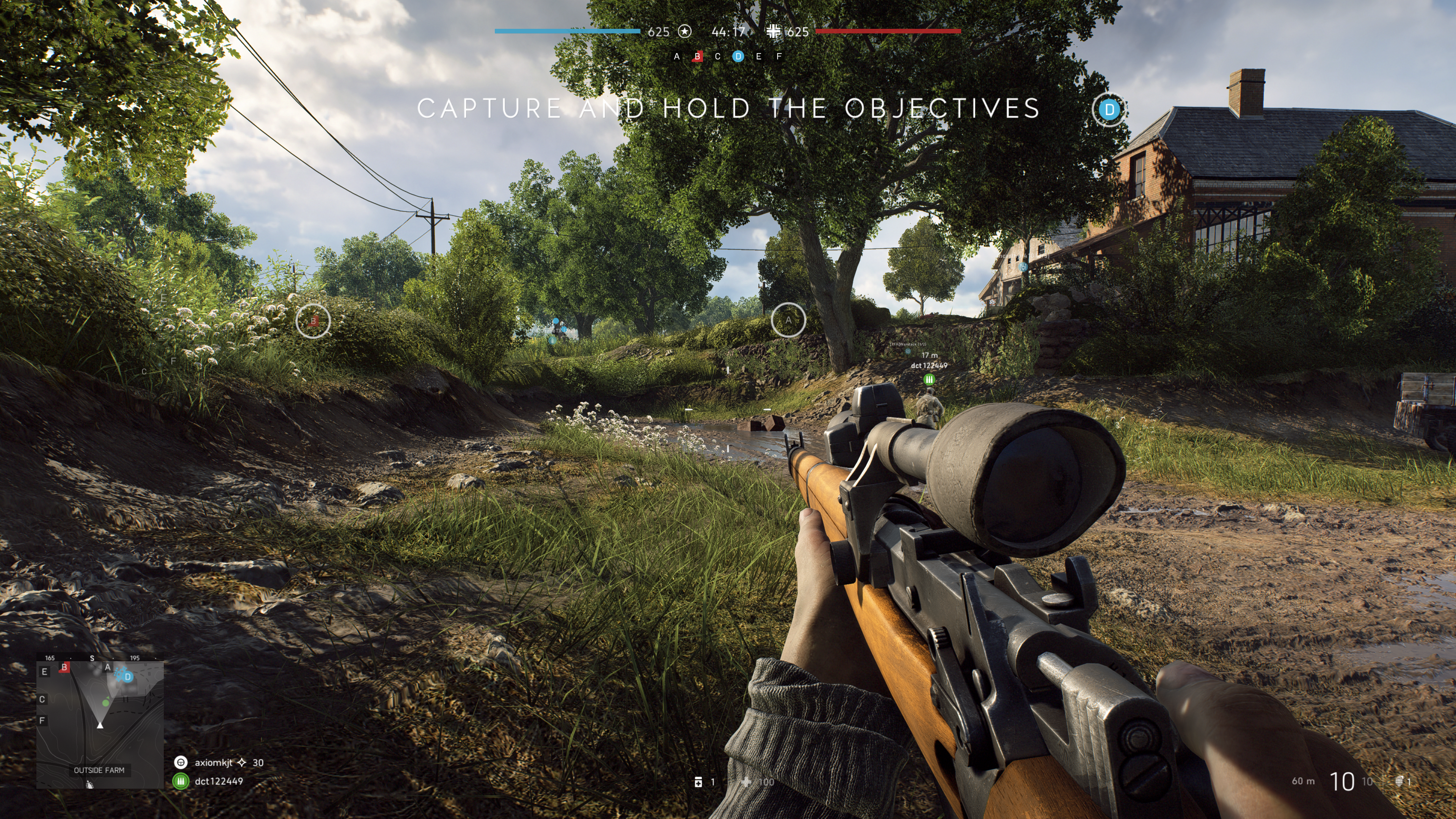
There are only a handful of games that can utilize ray-tracing right now and it remains to be seen whether the tech will catch on in the main stream. Lucky for me, my purchase came with one of the DRX enabled titles, Battelfield V.  I was impressed with results. You do take a hit to FPS when enabling the feature, but I was still able to stay close to sixty most of the time.

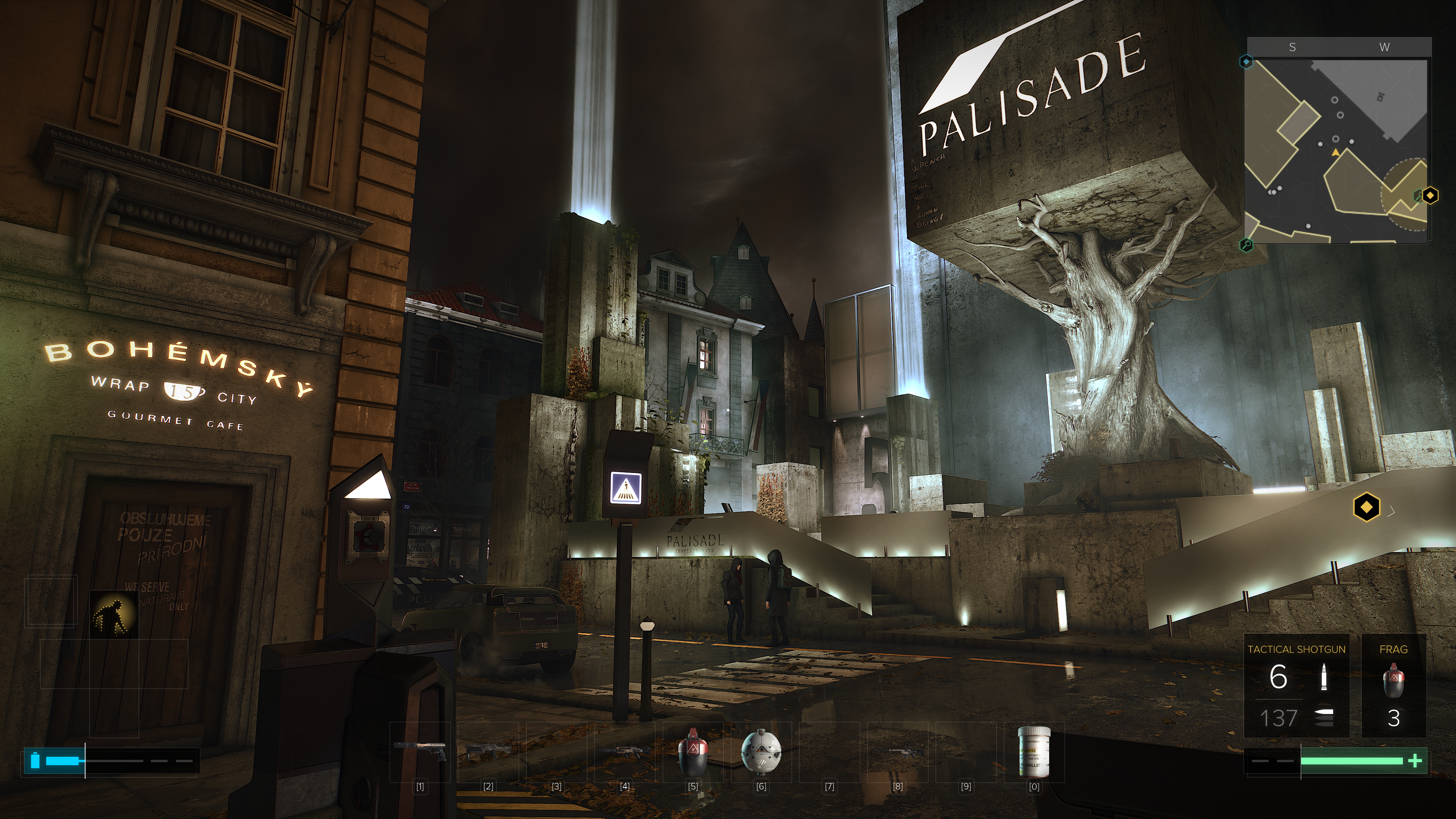
The net result is that surfaces look almost real. I imagine that if I removed the text and in-game overlays from the screen grabs above and below, you would be hard-pressed to identify them as a computer generated images. These were taken in the middle of an on-line multiplayer battle. Notice the superb reflections from the slight dampness in the ditch on the right and the gleam off the weapon’s surfaces and the shooter’s skin in the picture below. The water in the picture above is the best I’ve seen in a game, period.

2018-12-22 (4)

The other gaming function that the 2080ti excels at is Virtual Reality. Current VR goggles are somewhat lacking in resolution and this causes items that are “far away” to appear grainy or digitized. One technique to help minimize the degradation is to enable supersampling. Essentially supersampling tells the system to use multiple copies of every image to fill in the detail; it’s a type of anti-aliasing. This operation takes a lot of horsepower from your GPU especially when you consider that you need to run two displays at 90 frames per second while doing it. The 2080ti was easily able to support 5.0 (highest setting in SteamVR) supersampling for all of my games.

The price of this chipset puts it out of reach for a lot of gamers and that is a shame. The power to run all games at 2160P with ultra everything is intoxicating. The 2080ti lives up to the hype in my opinion. I doubt if it will last long enough to be considered a wise financial decision, but don’t most hobbies end up costing you a lot of money in the the end?

Photographs appearing in this article are courtesy of Tyler Trent.