Troubleshooting Windows update can be a fruitless waste of time. The update service is complicated and often intertwined with third-party management tools. Thanks to supply chain attacks, updates get super scrutinized by security tools. That extra level can cause interference issues. In short, the Windows update process breaks a lot for a lot of reasons.
From my point of view, the best way to fix Windows update in many cases is to reset it. To do that, we need to stop the services so that the files are not in use. Then we’ll need to delete them. We also need to delete all of the Windows update settings from the registry.
In organizations that are audited it is ideal to make backups before altering settings or files. This script makes copies of all the files and settings before any changes are made. The backup copies are named with a date value known as ticks which generates a new number on every run. This makes the script an easy one to schedule as a repeating task using various methods.
# This script executes the following actions:
# 1. Stops the Windows Services that access files in the SoftwareDistribution and CatRoot2 folders.
# 2. Appends the SoftwareDistribution and CatRoot2 folder names with a date stamp.
#       The SoftwareDistribution folder contains the cache for downloaded and installed updates.
#       The CatRoot2 folder contains the cache for downloaded and installed updates.
#       These folder contain the cache for downloaded and installed updates. Refreshing them often clears
#       patching issues.
# 3. Backs up, then removes the registry records under the key HKLM\SOFTWARE\Policies\Microsoft\Windows\WindowsUpdate\*
#       The records will automatically repopulate when Windows Update is run or on the next GPO cycle.
# 4. Starts the services that were stopped.
# If at all possible you should immediately run Windows update on a system after executing this script.
# Before the next GPO cycle runs and the changes are reverted.
# This script backs up the SoftwareDistribution and CatRoot2 folders by renaming them with a date stamp.
# This script is intended to be run as a local administrator on the system that needs repaired.
$DateStamp = Get-Date |Select-Object Ticks -ExpandProperty Ticks
Write-Host -ForegroundColor Yellow "Stopping Services that access Windows Update's files."
    Stop-Service "Windows Update" -Force -Confirm:$false
    Stop-Service "Background Intelligent Transfer Service"
    Stop-Service "Cryptographic Services"
    Stop-Service "Windows Installer" -Force -Confirm:$false
Write-Host  -ForegroundColor Yellow "Renaming C:\Windows\SoftwareDistribution to SoftwareDistribution.$DateStamp"
    Rename-Item -Path "C:\Windows\SoftwareDistribution" -NewName "SoftwareDistribution.$DateStamp" -Force -ErrorAction SilentlyContinue
Write-Host  -ForegroundColor Yellow "Renaming C:\Windows\System32\CatRoot2 to CatRoot2.$DateStamp"
    Rename-Item -Path "C:\Windows\System32\CatRoot2" -NewName "CatRoot2.$DateStamp" -Force -ErrorAction SilentlyContinue
Write-Host  -ForegroundColor Yellow "Renaming C:\Windows\System32\Catroot to Catroot.$DateStamp"
Write-Host  -ForegroundColor Yellow "Resetting WindowsUpdate Registry Keys to Default"
    # The registry keys will be recreated when Widows Update is run or on the next GPO cycle.
    If (Get-ItemProperty -Path "HKLM:\SOFTWARE\Policies\Microsoft\Windows\WindowsUpdate" -ErrorAction SilentlyContinue) {
        Write-Host -ForegroundColor Yellow "Backing up the Windows Update registry keys to $env:USERPROFILE\Downloads\widowsupdateregistrykeys.$DateStamp.txt"
        Get-ItemProperty -Path "HKLM:\SOFTWARE\Policies\Microsoft\Windows\WindowsUpdate" | Out-File -FilePath $env:USERPROFILE\Downloads\widowsupdateregistrykeys.$DateStamp.txt
        Remove-Item -Path "HKLM:\SOFTWARE\Policies\Microsoft\Windows\WindowsUpdate" -Recurse -Force
        Write-Host -ForegroundColor Green "The Windows Update registry keys have been removed."
     } Else {
        Write-Host -ForegroundColor Green "The Windows Update registry keys do not exist."
    }
Write-Host -ForegroundColor Green "Starting services that were previously stopped."
    Start-Service "Windows Update"
    Start-Service "Background Intelligent Transfer Service"
    Start-Service "Cryptographic Services"
    Start-Service "Windows Installer"
Write-Host -ForegroundColor Green "The script is complete. Windows Update has been repaired, please try your updates again ASAP."
Write-Host -ForegroundColor Red "The following errors occurred."
Write-Host -ForegroundColor Red $error
Pause
Exit
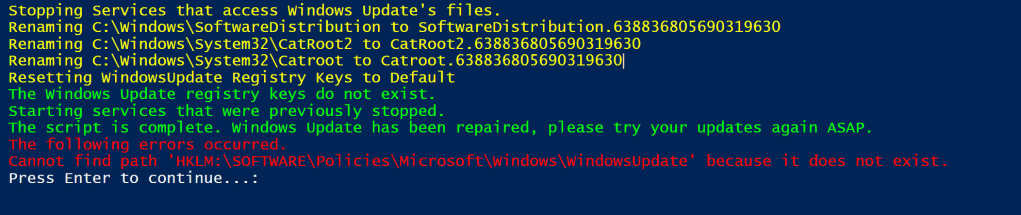
I have relied on this script for a while. In its current form, it is intended to be run interactively in an admin PowerShell session. If you remove the write-host lines, the rest of the code makes a good function to add to the beginning of your patching processes.
 techbloggingfool.com