PowerShell; WSUS 2016 – 2012 server-side vs. client-side targeting and how to automate grouping.

Every admin or engineer who has installed a Windows Server Update Services server (WSUS) on their network has had to choose between sever-side and client-side targeting. The choice between flexibility and automation can often be a difficult one to make. Maybe it doesn’t have to be? PowerShell allows us to access the internal workings of WSUS and customise them to our liking. Read-on to see the method I came up with for allowing the flexibility of server-side targeting with automated group assignment.

For those who are unfamiliar with WSUS targeting options, server-side targeting allows an administrator to add or remove systems to or from WSUS groups in the software’s management console. Many of the companies I have worked for like to periodically change-up their patching routines. This usually means modifying your update groups. For example; perhaps all the SQL servers are currently grouped / patched together but the new Director wants them patched with the applications that use their databases. These types of changes occur in real-time and are simple to manage in the GUI when you’re set up for server-side targeting. The drawback to this option is that someone has to sort all of the computers into the correct groups manually; if your network has a lot of nodes, the task can be daunting. Furthermore, admins will need to watch for the addition of new systems and sort those into the proper groups.

The other option is client-side targeting. In this configuration, you create GPOs that tell each OU they are linked to, what group those servers belong in. This automates the sorting process but is much less flexible. In the example above, to regroup our SQL servers we would need to create new GPOs for the OUs that contain them and remove the old ones. Then we’d need to wait for all the replication and registration to occur which can take a very long time on large networks.

With a little PowerShell know how, we can close the gap between the server-side setup that most admins would prefer to run (who doesn’t like flexibility) and the client-side config you almost feel forced to run on a large network. WSUS has had a dedicated PowerShell interface since the 2012 edition. You can use PowerShell on the older versions, but you need to manually load the assemblies and the command structure is slightly different (Google it).

First, if you haven’t already, you’ll need to install the RSTAT tools for your operating system. You’ll also want to install the SQL Server 2012 CLR Types and SQL Server Report Viewer runtime. The RSTAT tools will add the PowerShell module for WSUS to your system and the other pieces will let you run WSUS reports if you need them.

For WSUS to see your systems at all, you’ll need to point each server’s Windows Update service at your WSUS server. The easiest way to do this is with a GPO linked to the top-level server and/or workstation OU(s) in your domain. You’ll need to configure the Specify intranet Microsoft update service location and the Configure Automatic Updates policies.

DO NOT CONFIGURE the Enable Client Side Targeting policy.

Your WSUS server should be configured for server-side targeting. If you don’t do this, the options for moving computers to new groups will not be available in the management console at all. The setting is in the WSUS managment console.

If everything has worked out, all of the systems that we’re going to manage patching on will now be in the “Unassigned Computers” group. This is exactly where we need them be. Having them in this group means that our script can be much simpler. We won’t have to check for connectivity, SSL, RPC, and all that jazz because the systems wouldn’t show up in the “Unassigned Computers” group if that stuff wasn’t working. In fact, if you have systems that didn’t show up, you need to start checking those protocols and settings. You’ll also want to be sure that you didn’t miss an OU with the GPO that is configuring the update services to point at your WSUS server. If you opted to encrypt the traffic to and from WSUS, you’ll also want to make sure you CA and Root certs are trusted by the client systems.

Now you’ll need to configure all your Target Groups in WSUS. Until you get the hang of how this technique works, I suggest that you create a group for each of the system OUs in your Active Directory. This makes sorting easier to implemeant and explain. Once you understand how everything works, you’ll have no problem customizing things. It is important to keep in mind that because we’re using server-side targeting, computers can belong to more than one patching group, this will not cause any kind of conflict. WSUS only patches a computer once with any given patch so whichever group applies the update first wins.

Before proceeding, you’ll need to import the ActiveDirectory and WindowsUpdate PowerShell Modules (see the first two lines below). There are lots of ways to access WSUS through PowerShell (this is Windows after all) but one of the easiet is to call the connection every time that you want to use it. We can use this code to build a list of the computers in our Unassigend Group. Make sure you adjust the portnumber parameter to match your situation. The code below is referencing the default encrypted port for the manangment console.

#Import the modules we need:
Import-Module ActiveDirectory
Import-Module WindowsUpdate
#Build a list of the unassigned computers names:
$NewServersFull = Get-WsusServer
-Name WSUS_Server_Name -PortNumber 8530|
Get-WsusComputer -ComputerTargetGroups "Unassigned Computers"|
select Fulldomainname -ExpandProperty Fulldomainname

Notice that we assigned that list of computer names to a variable? We’re going to run these computers through the Get-ADComputer cmdlet to see if it belongs to a particular OU. The Get-ADComputer cmdlet tends not to like FQDNs as an identity parameter so we need to shorten our names to just the NETBIOS portion (strip off the domain name).

$NewServers = Foreach ($server in $newserversfull) {
$server.split(‘.’)[0]
}

Now $NewServers is an array containing our short server names. This list can be used as the identity parameter in a Get-ADComputer loop. That loop is going to check to see if a computer belongs in a given OU. I like to create functions for each system OU in my Active Directory and then loop the list of names through each. When a system matches the OU I’m coding for, I insert it into the correct WSUS target group. Here’s what one of those functions looks like.

Function MY-OU-NAME {
$MY_OU_NAME = Foreach ($server in $newservers) {
Get-ADComputer -Identity $server -Properties * |
Select dnshostname,canonicalname -ExpandProperty
canonicalname| Where canonicalname -Like
"mydomain.com/mydomainsite/ToplevelOU/Servers/*"|
Select dnshostname -ExpandProperty dnshostname
}

Foreach ($server in $MY_OU_NAME) {
Get-WsusServer -Name WSUSSERVERNAME -PortNumber 8530|
Get-WsusComputer -NameIncludes $server|
Add-WsusComputer -TargetGroupName "MY - WSUS - GROUP"
}
}

The * on the end of the canonicalname is important, it allows the where statement match every system in that location. You could also use the filter and searchbase parameters to search the OU directly, instead of the canonicalname. I don’t because I had already generated a list of canonicalnames for all my OUs for another project and I’m lazy 🙂 . If you want to find the canonicalname for an OU, just pick a computer in the OU and run Get-ADComputer -Identity computername -Properties *|select CanonicalName or use ADUC.

Copy and paste a new function into your script for every OU that has computers you want to assign to a WSUS group. For each (man I type that a lot) function, you’ll need to change the Function Name (MY-OU-NAME), Variable Name (MY_OU_NAME), and the WSUS target group name (“MY – WSUS – GROUP”).

At the end of our script we can use a little logic to prevent the process from running if there aren’t any new computers in the unassiged group. We can also send a report showing the servers that were added. Or, we can notify someone that the script ran but there weren’t any new servers to add.

If ($newserversfull.count -gt 0 ) {
$body = $newserversfull|out-string
FunctionName
FunctionName
FunctionName
Send-MailMessage -SmtpServer my.email.server
-From report@wsus.mydomain.com
-to my-email@mydomain.com
-Subject "WSUS Servers Added"
-body $body
}
Else {
Send-MailMessage -SmtpServer my.email.server
-From report@wsus.mydomain.com
-to my-email@mydomain.com
-Subject "WSUS No New Servers this time -EOM"
}
$leftovers = Get-WsusServer -Name WSUS_Server_Name -PortNumber 8530|
Get-WsusComputer -ComputerTargetGroups "Unassigned Computers"|
select Fulldomainname -ExpandProperty Fulldomainname
If ($leftovers.count -gt 0) {
Send-MailMessage -SmtpServer my.email.server
-From report@wsus.mydomain.com
-to my-email@mydomain.com
-Subject "Systems that coudn't be grouped by WSUS"
-body $leftovers
}

That last little bit ($leftovers) runs the same code we started with. If our script has done its job, there shouldn’t be anything left in the unassigned computers group. If there are computers still in there, you’ll want to know so that you can manually intervene.

All that’s left is to schedule the script with task manager to run automatically with credentials that have enough permissions to manage WSUS. I set mine up to run twice a day; just create a new scheduled task and in the action set the comand to “powershell.exe” and in the arguments put “the\file\path\to\myscript.ps1” and set the trigger to your desired frequency. When you save the task it will prompt you for the credentials it should run with (be sure to check the box to run whether a user is logged in or not).

I call my little piece of magic “The_Sorting_Hat.ps1” (yes, I’m a Harry Potter fan). Its been a life saver. When I need to move a computer to a new group, I just launch the WSUS console and put it there. Since the system isn’t in the unassigned computers group the script has no effect on it. I can manually create new groups for adhoc needs and add systems to multiple groups, all while not worrying about new systems hanging around without being patched.

Digging for Overwatch Gold. An adult’s guide to playing or watching the game.

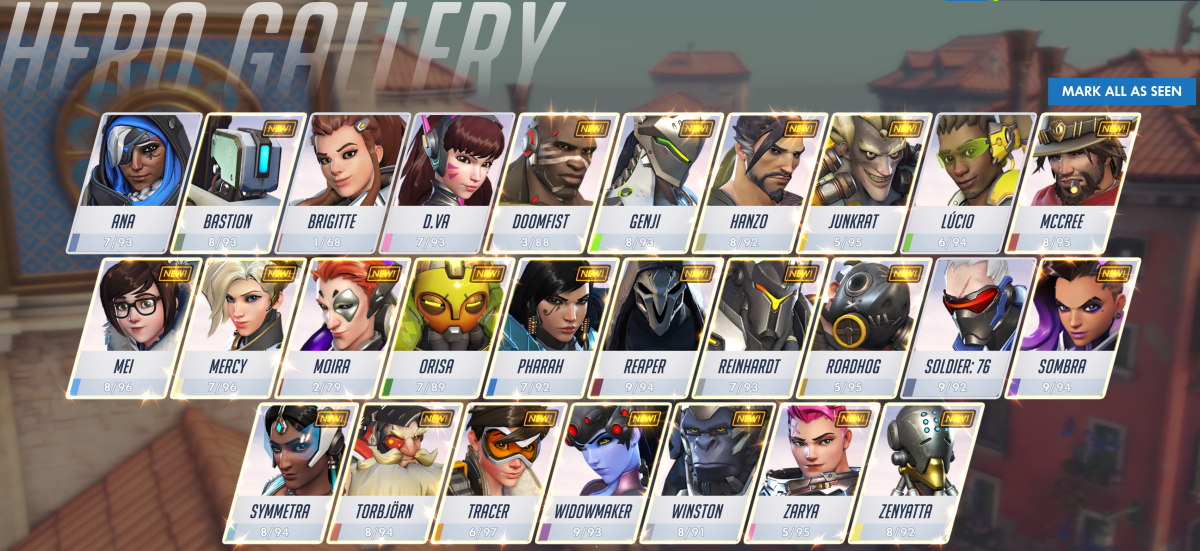
For those who don’t know (where have you been hiding), Overwatch is a shooter that is oriented around team play. Two teams of six on-line players choose from a roster of 27 characters spread across four roles: attack, defense, tank, and support. The team must work together to accomplish group goals in one of several game modes: Payload (move the item to points on the map), Point Capture (capture the flag), Point Capture and Payload Hybrid, or Control (king of the hill). The game modes ensure that the only way to win is to function as a unit. Lone wolf play results in a loss nearly every time.

Overwatch hero gallery

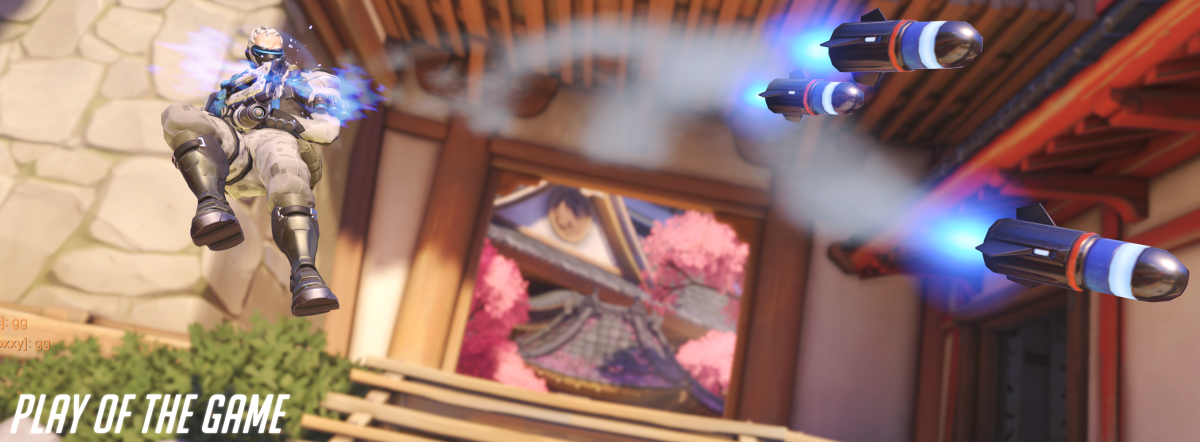
Like most team sports, there are plenty of occasions for individual glory. The game highlights those moments with “Play of the Game” recaps, individual performance medals, and an MVP vote at the end of every match. In Call of Duty, Doom, or Halo a single talented player can rack up enough kills in a team death-match round to virtually win by themselves. In Overwatch, you can’t win without the support of your teammates, period. Sure you can get oodles of eliminations, but you can’t make progress on the match’s goal. This group effort introduces all sorts of complex strategies and forces relationships between the players that are more akin to American Football than they are to most on-line shooters.

Overwatch play of the game

For example, several of the Battlefield games feature support roles in which the player can toss out health packs to heal injured team members. Call of Duty sometimes features a perk in which you can heal an injured player and these roles make a difference in the game’s outcome, but in Overwatch the support or “healer” class is critical. The match goals ensure that all of the characters, or heroes as they are called in-game, focus their firepower in a small area. Without a support person constantly bolstering everyone’s health points, players are zapped out faster than they can make it back into the battle. It is possible to win without a support member, but it’s a rare occurrence. When a group thinks they can go without a support player, it is fairly amusing to be on the opposing team in an overpowered, “bow before my might” sort of way. Guess what happens when the better armed players don’t protect the support players? When a character is killed in the game it is often quite a long trek to make it back to the goal. Loosing a healer can mean an entire team gets wiped.

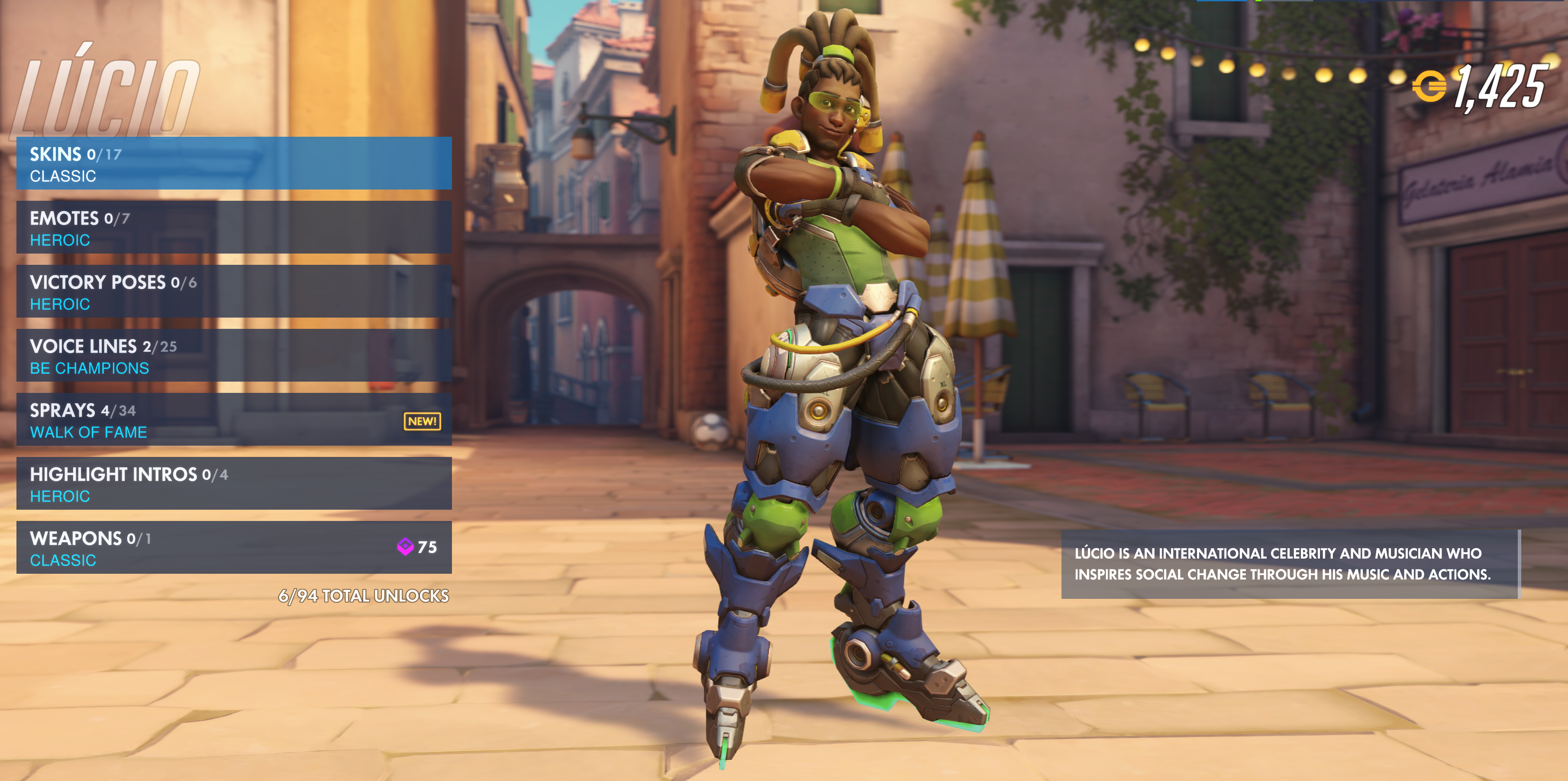
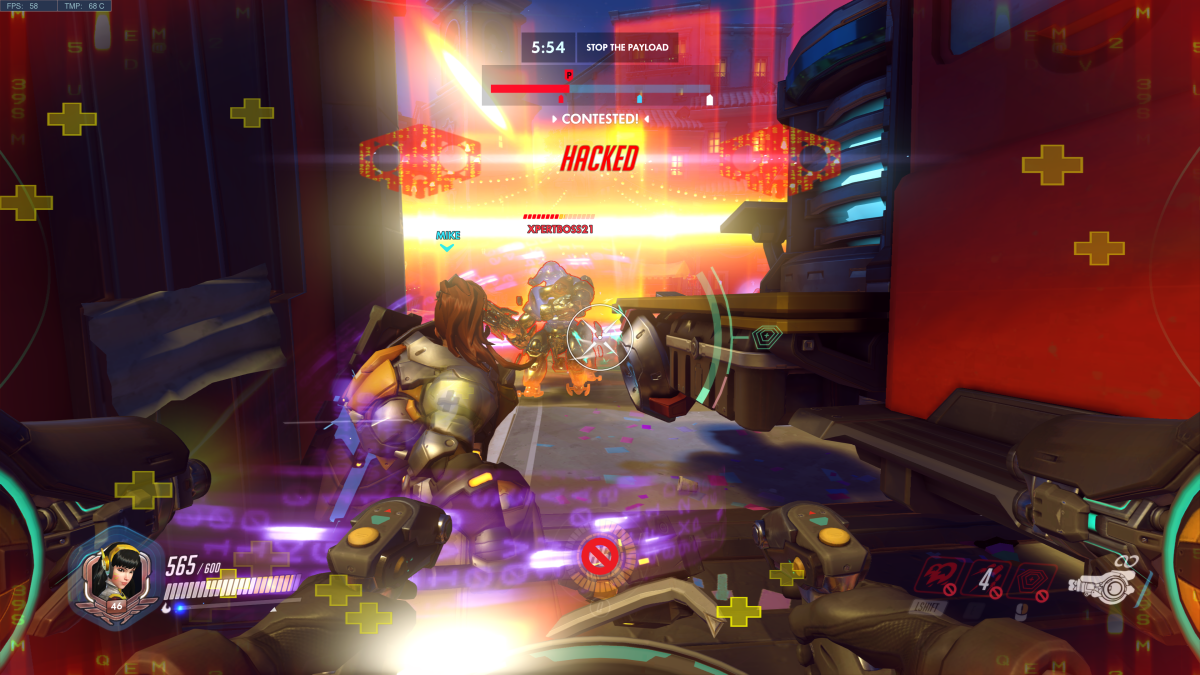
As you can tell from the paragraph above, a team’s hero composition matters almost as much as the skill of human pilots. Some pairs of heroes can form an almost unstoppable combination, a good Reinhardt and Diva with a decent Lucio backing them up can move a payload almost on their own; leaving the attack and defense players free to do damage behind the line of scrimmage. The high value placed on proper team selection can cause some interesting interactions due to human nature.

2018-06-15 (11)

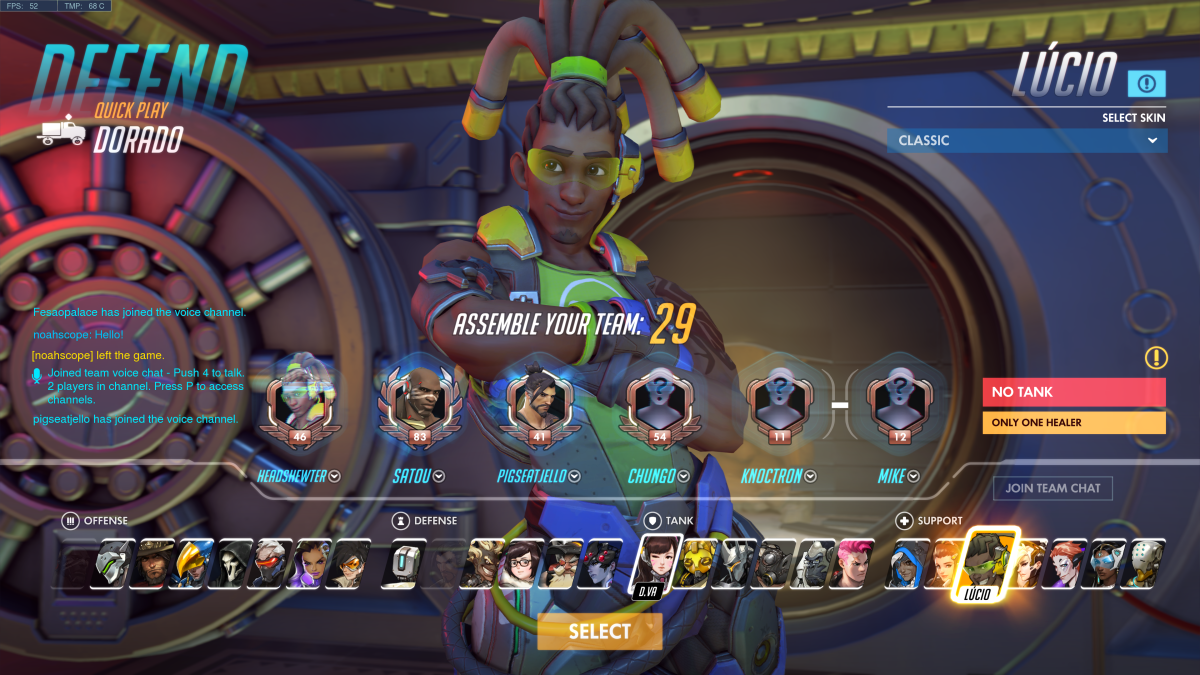
Many gamers like to master a single character or weapon system in any given game. I know people who started Call of Duty with the first assault rifle and have literally never tried anything else. Veterans of Overwatch know this mentality results in team weakness. You need to be flexible; if your team is getting wiped (all members killed) too fast to be effective, an attack player may need to switch to a healer to bolster the tanks for a while. Inflexibility in character choice can often lead to a loss. To make matters even more obvious, the game itself tells the group where it is week before a match begins. It prompts with messages like “No Healer, Only One Tank. and Low Team damage” in an attempt to help, but if the players don’t adapt a team can be doomed before the game even starts.

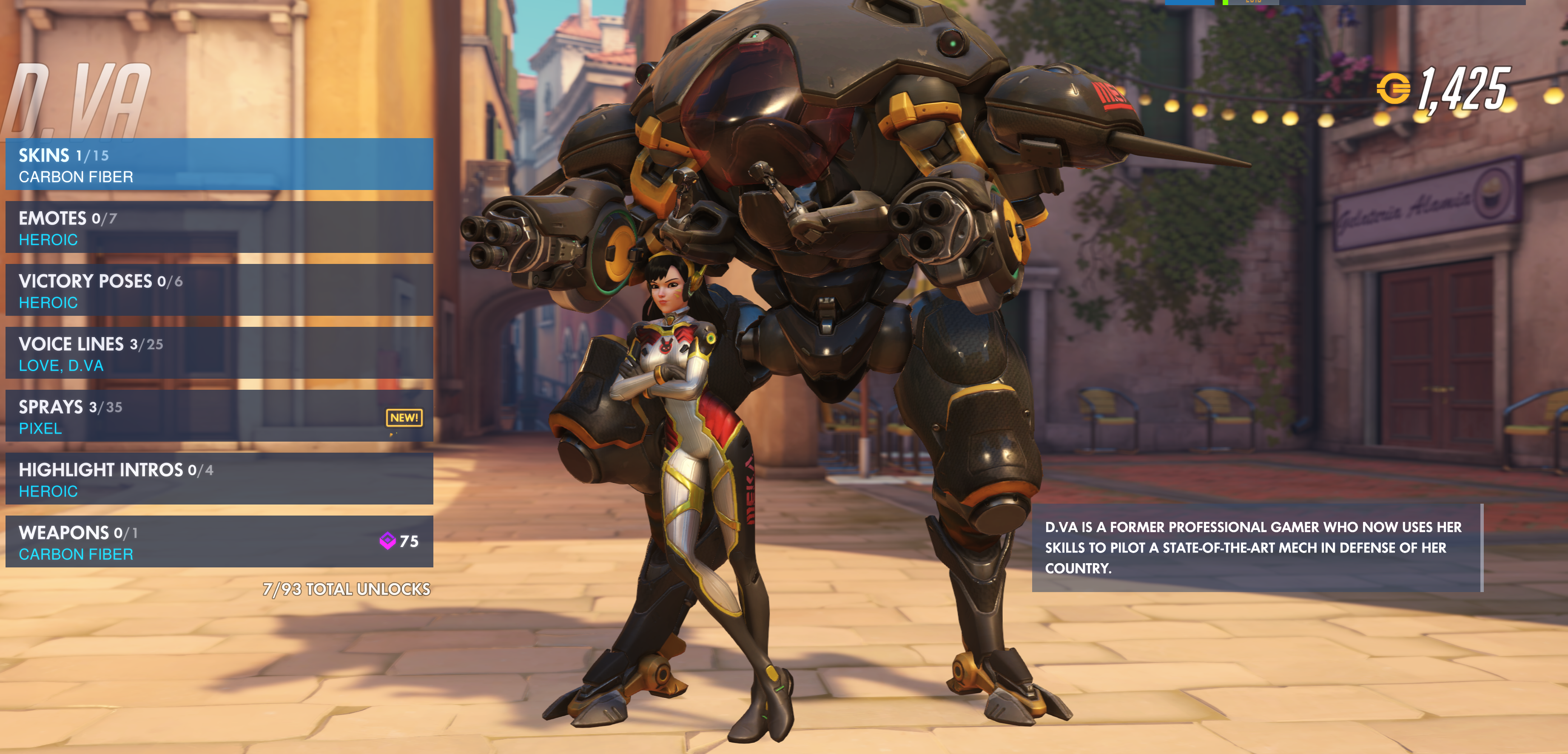
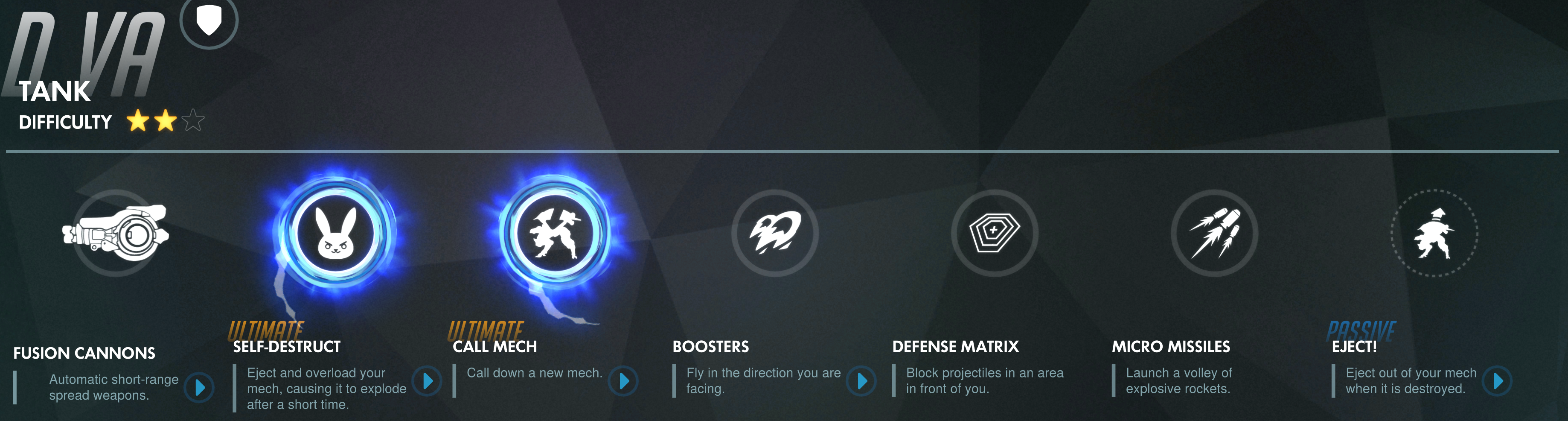
Each hero has a unique set of abilities, weapons, modes of locomotion, and a special power called an ultimate. Many of the weapons and special abilities operate on timers and the ultimate is charged by doing damage or healing team members. Team strategy and player success revolves around knowing when and where to activate these functions. For example, Diva’s ultimate makes her mech explode taking out any one in the vicinity. Everyone knows this which makes her a prime target; holding on to a charged ultimate is a waste if the player is eliminated, but so is deploying it to little or no effect. It’s also important to consider strategy; should the ultimate be deployed offensively or to clear an area? Characters with shields can set up pick plays with attack class players.

Each hero has a natural counter but that doesn’t mean the opposing team will select them at the start. That human nature I mentioned, to want to play your favorite (main) character gets in the way. Phara can fly which makes her a hard target to hit. Soldier 76’s automatic rifle is ideal for shooting her down but if your team doesn’t have one you’re not out of luck. Part of the game is the ability to change to a different character each time you are fragged. It’s actually a critical part of play and if players are not willing to swap to a more effective character, their team and therefore their rank, will suffer.

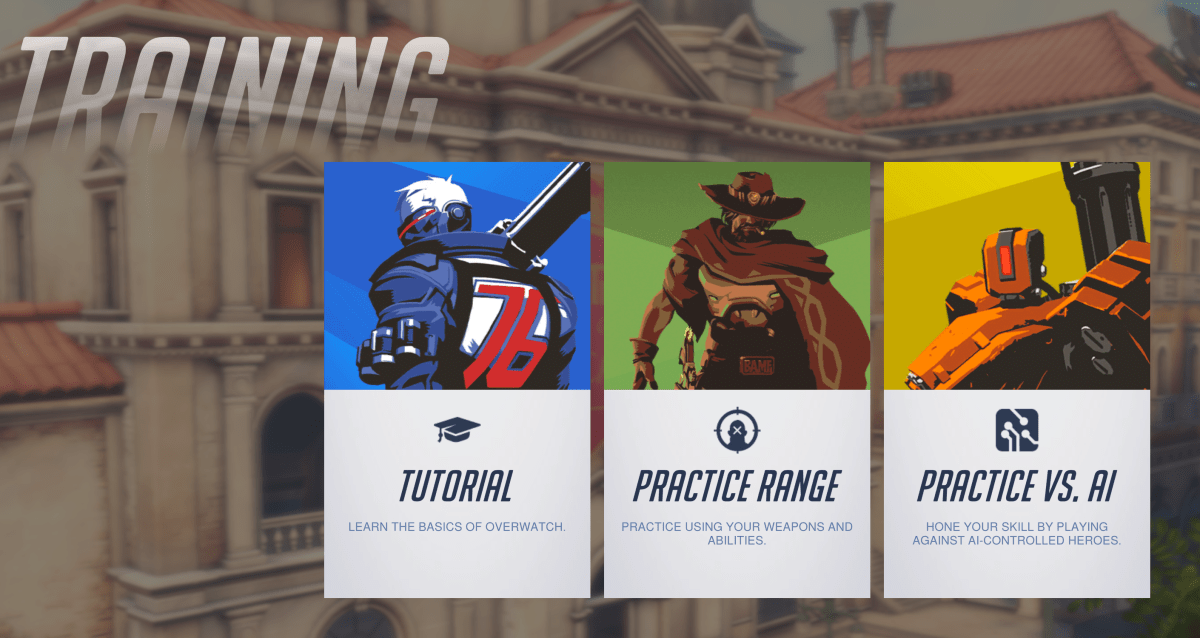
In addition to play aimed at teams, Overwatch has a tiered play path that lines up with real-world sports more than traditional video-games. New players start out in the training levels where teams of humans are pitted against teams of AI controlled heroes. There are 3 levels of difficulty in the AI modes and it is suggested that newbies remain in training until they can best the hardest most of the time.

Training

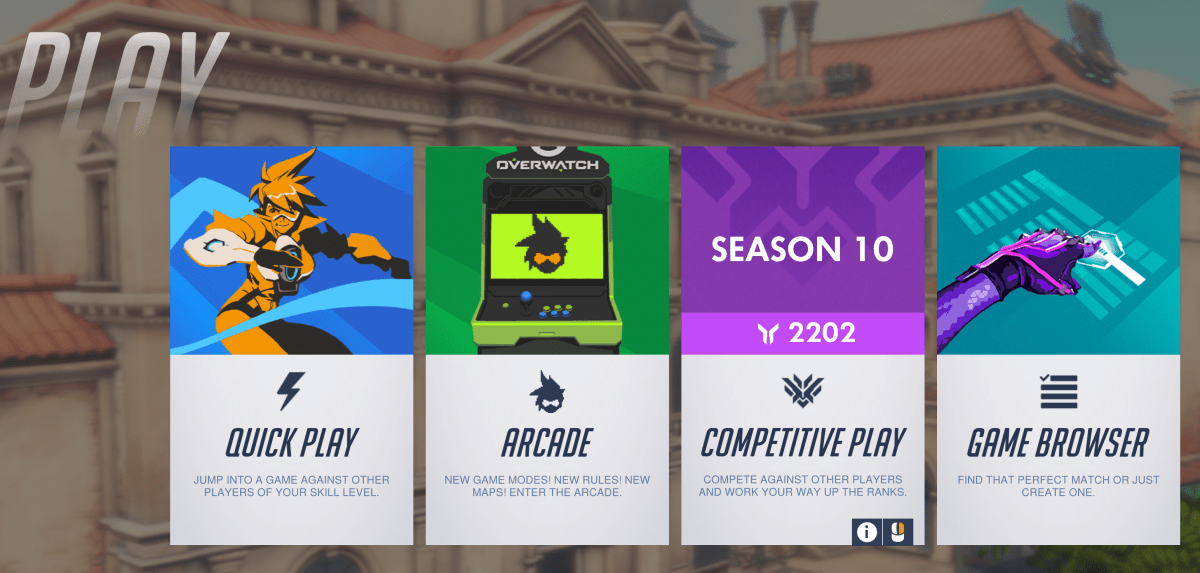
Once a player has mastered playing against AI, the next step is Quickplay. Their team will be matched against another group of human controlled characters to battle for the win. Quickplay is largely for fun and players occasionally get put on teams where the composition makes no sence (6 Hanzo’s). In this mode nothing is supposed to be on the line everyone is supposed to be here to have a good time; like recreational softball teams.

play

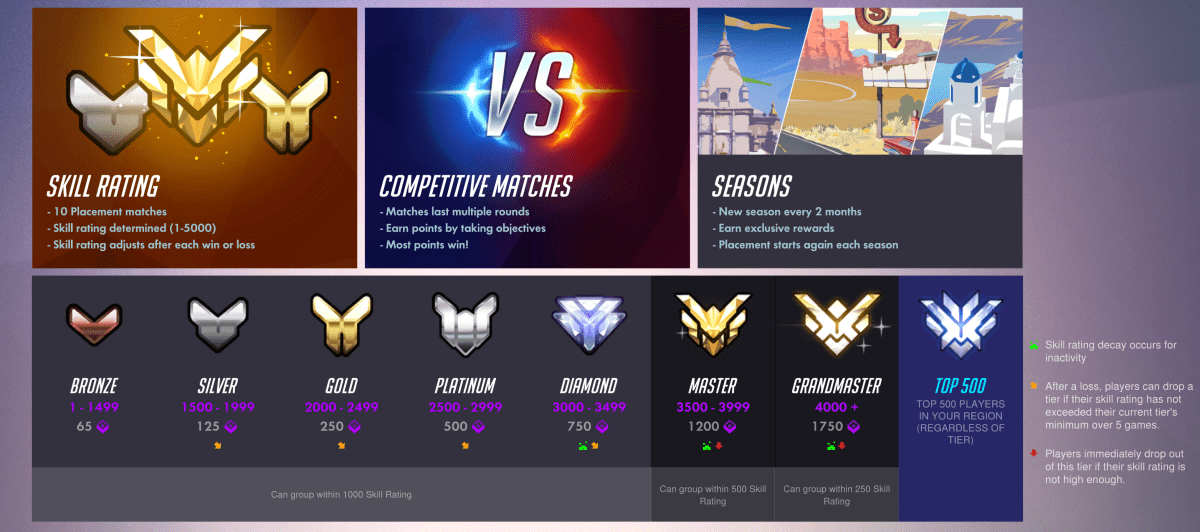
After cutting their teeth playing against humans in quickplay and the need to step up the challenge arises; many will jump in to competitive mode. In competitive mode, it’s play to win, stats are tracked and skill is ranked. The mode starts with 10 placement matches which will determine the starting skill rank: Bronze, Silver, Gold, Platinum, Diamond, Masters, Grandmasters, and top 500 are the levels to be placed into. The rank received is based both individual play and the number of matches won or lost. After ranking, the system will attempt to make teams of evenly matched players for future competative matches. When it can’t, an underdog bonus kicks in if the weaker team pulls off a win. In competative mode players are expected to communicate with each other and be willing to choose heroes that fit the team rather than just personal favorites.

Overwatch_Ranks

To place Gold in competitive mode I spent 35 hours in AI and Quickplay and reached a level of 41 before I attempted the placement matches. I mastered a character from each class (Soldier 76 , Bastion, Diva, and Lucieo) and was familiar with at least one extra hero in each category (Phara, Widomaker, Reinhardt,  and Anna) so that I could fill a spot on any given team with confidence. I also set my audio options to automatically join teamchat and enabled push to talk which I mapped to a button on my mouse. This setup works much like a walkie-talkie ensuring my teammates don’t have to listen to my frustration and only useful call-outs like enemy locations, weapons status, strategic plays, and requests for backup.

Gold isn’t what it used to be LOL but I’m pretty happy with my first attempt. To place above bronze you will need to be a “team player”. If you choose a support character, you need to fulfill that role. Playing Zenyatta and running on side paths to ambush, while satisfying, is not helping your raise team’s health points and will therefore result in a lower skill rank. Likewise, choosing an attack hero such as Soldier 76 and then hiding out behind your tank’s shield for most of the match will not meet the expectations of “Attack”. If your team’s support players are being taken out too fast your rank will suffer; you should be protecting them. Again, play your role.

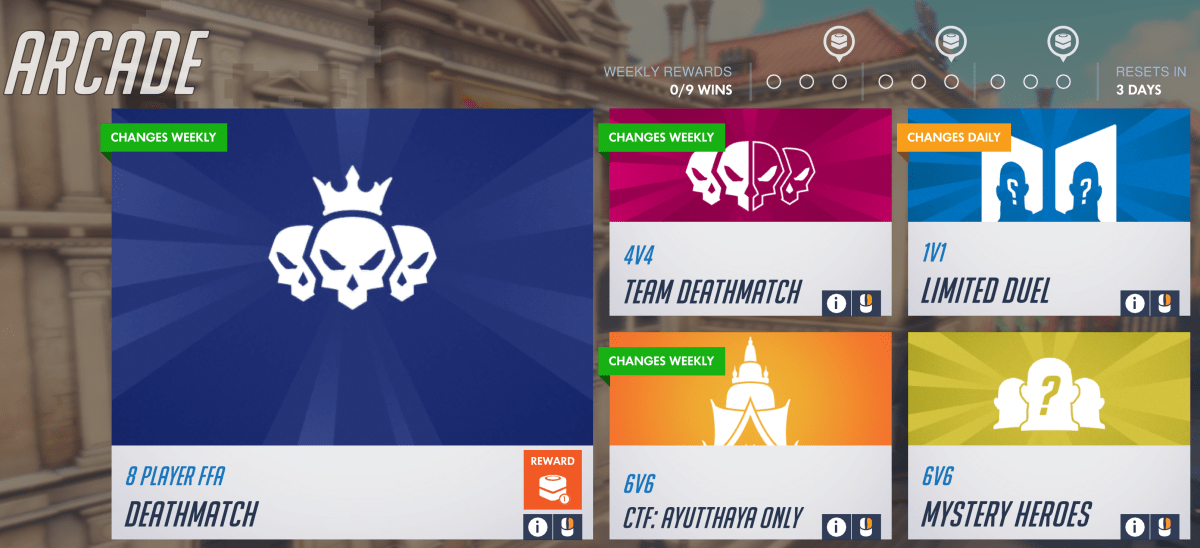
Players coming from traditional shooters where the K/D ratio is rewarded above all else often struggle with the team dynamics at first (I did). If you prefer Free-for-all and Team-Death-Match play, those modes are available under the arcade menu as are several others, some arcade types support competitive ranking and some do not. Competitive Free-For-All is interesting to say the least. Tanks like Diva with shields, missiles, dual shotguns and 600 health points are facing off against snipers with 150 health points and grappling hooks.

Arcade_Mode

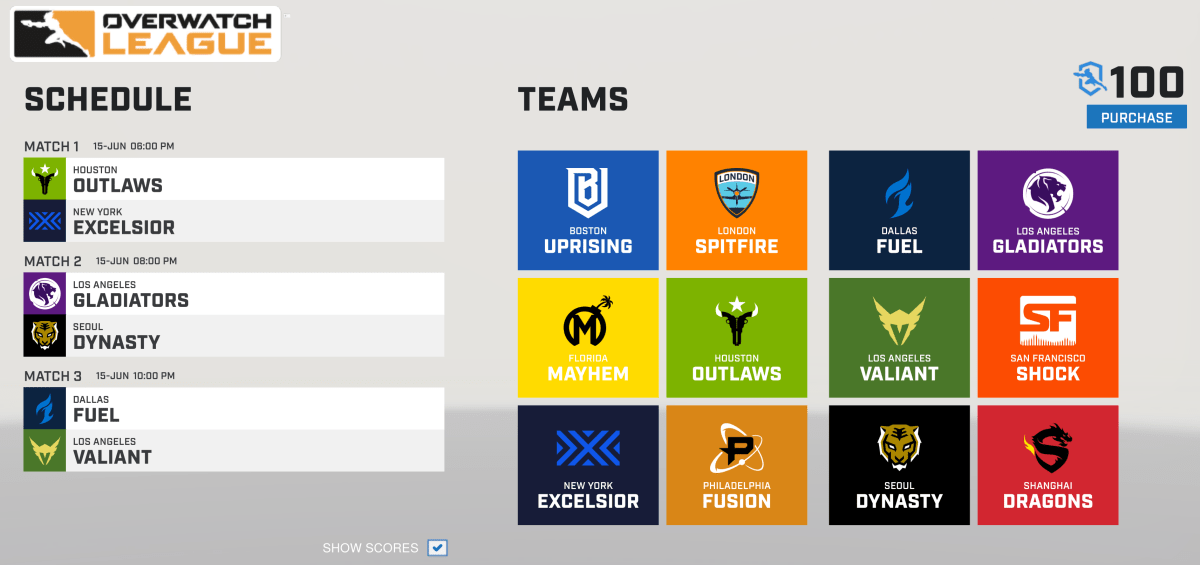
Besides the competitive game modes, Overwatch also offers a full E-Sports league in which city based teams of professional players, each of which earns a minimum of $50,000.00 per year, battle it out all they way to grand finals championship. The games take place in physical venues (you can purchase tickets), are televised and broadcasted on Twitch and in the Blizzard and Overwatch apps, have full announcer support and more. Visit https://overwatchleague.com/en-us/ for more information.

Each year there’s also a World Cup championship in which teams from around the world compete for fame and glory in the BlizCon stadium. There are also various other tournaments at conventions like PAX that are exciting to watch or participate in. To go with all the pro game-play is swag out the wazoo. Shirts, hoodies, art-work, cups, mugs, hats, pins, purses, jackets, and everything else you can think of are available both on-line and in many stores.

Teams

Wether you want to be a player or a fan or both, there’s a lot more going on in Overwatch than just shooting. If you’re a traditional sports fan wondering what all the hub-bub around e-sports is about, Overwatch is a great place to start. If you’re a gamer that’s played one too many deathmatches, this game might provide some new challenges. I’ve enjoyed playing and look forward to aiming for a platinum rank in the next season.

2018-06-15 (13)

Creative Journaling with the iPad: Part 3, Getting started with Microsoft OneNote

As I concluded in the previous article in this series, my preferred application for notes, brain-dumps, sketches, and even password management is OneNote. Microsoft has been perfecting it’s OneNote software for almost 15 years, and it shows. As a user of all compute devices, I appreciate that they make a version for Apple (iOS and Mac OSX), Android, Windows and the web. Even better, my notebooks will sync across all of them so I can work on whatever device is handy.

Goodnotes is oriented toward being a straight up digital replacement for spiral notebook(s) you create a new notebook for each topic. OneNote uses a hierarchical organization system. Notebooks -> Section Groups (not available in iOS) -> Sections -> Pages -> Sub-Pages is the grouping order. You can (and should) have multiple notebooks but if you’re careful with your  Sections you can easily fit everything into one.

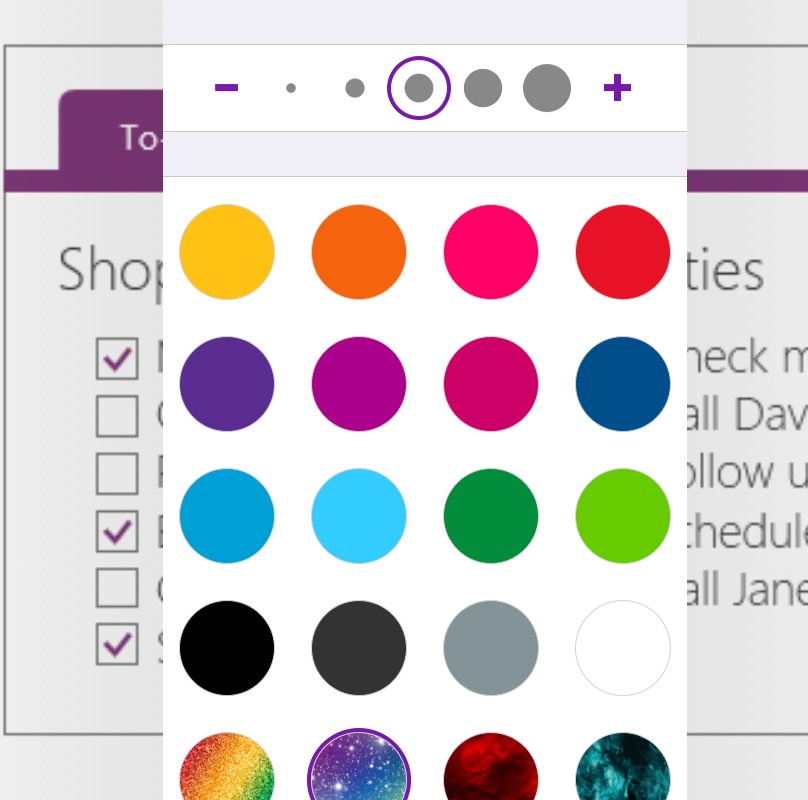
As of late, Microsoft has realized that creative types want the freedom of artistic expression to be a main feature of their journals. OneNote has always had drawing tools, lasso select, auto-shapes and more but now those features are up front and they’ve been enhanced with stickers, straight edge tools, a picture gallery and more.  Just look under the Draw tab for a ton of great features including glitter, star and wood grain inks, custom pens, and more. One of my favorites is the Ink to Shapes feature. Click the button and draw a standard sloppy circle. It will magically become a perfect circle.

InkOptions

Another recent edition is enhanced palm rejection. This means you can rest your hand on the screen while using the stylus, in the same way you would rest your hand on paper when drawing with a pencil. If you have an Apple pencil this feature is activated automatically. For those of us using capacitive (non-active) styluses, access the Drawing Mode menu and enable the feature along with selecting the way you hold your writing instrument.


Tip: It is important to be sure your hand is resting on the screen before you touch it with the stylus tip. 

Under the insert tab you’ll find options for adding pictures, files, audio recordings, math equations (yes, you read that right), and even stickers. For the most part, these options are how you get data from other software into OneNote on the iPad; some apps will also allow you to share data (photos for example).

Insert

The view tab has tools that let you add grids and rule lines to your pages; you can also change the background color here. One of the most useful functions on this page is password protection. Create a section for passwords and then put a password on that section. Make a page for each of your various accounts and you’ll have made a password manager that works on all of your devices for free. I also use the feature when sharing notebooks with people to keep them out of specific stuff.

Passwordprotection

Assuming that you want to get started with a notebook for your job, I suggest creating the following sections. You will of course need to add items for your specific profession, but these should apply to generic business.

  • Passwords – Password protect this section and then add a page for each of your accounts. Don’t forget to include links to the sites, documents, etc. and a good description so you can find them by searching. OneNote supports the iPad fingerprint reader.
  • People – Here you’ll keep tabs on the people who you interact with. People you manage, co-workers, vendors, contractors, and bosses; you’ll want to record details about them all in this section. What they like and don’t, personality traits, and information they provide about their lives can all be valuable later. Tip: insert hyperlinks to these “people pages” on pages in the other sections for quick reference.
  • Projects – Make a page for each project you’re involved with so that you don’t loose track.
  • Meetings – If everyone took good notes in meetings we could probably have a lot fewer of them.
  • Tasks – This is where I track all the little actions I have to do that are not part of a project. I need to pull a report on sever storage once a quarter and I’ve detailed how to do it along with the script I use in this section.
  • Instructions – Manuals, written instructions, and even videos off YouTube get posted in this section. Onenote will index all of this stuff (even the dialog from video and text in pics). This means that the next time you search for ” use postage” the manual will pop-up.
  • Ideas – Self explanatory, everybody gets ideas about how to do something better, easier, or faster; the trick is in remembering them at an appropriate time.
  • Issues – If you want to solve problems or have one you need help solving, track them here to ensure you don’t waste time repeating fixes or worse yet forget all together.
  • Work Log –  I insert a table with the following columns: Date, Description, Reason, Requested By, Attachments, and Notes. At the end of everyday I spend 10 minutes jotting down what I spent my time on.

Whether you use OneNote, Goodnotes, or one of the hundreds of other note taking apps available for the iPad, what’s important is that you use something. Like I’ve said in other articles, next to exercising, organizing your life and work is one of the most stress relieveing things you can do.  Once you have a system working it only takes a few minutes a day to stay on top of everything.

PowerShell: Find Windows File Shares

Quite a few businesses have server networks that were grown over time with servers being added to meet some demand or another – a’ la carte – rather than a designed network in which an architect planned the distribution of every platform and it’s associated servers. The organic distribution of systems often results in nobody knowing what’s out there in total. Sure, the admins know what’s on the systems that they take care of but who has the big picture?

Recently, I was asked how many windows file shares were on a network that I help support. As it turns out, the answer was that nobody knew. None of our existing tools had a mechanism that would help us investigate quickly and easily. I’m glad I paid attention in PowerShell class.

The code below will connect to a domain controller and locate all of the Windows Server computers. Then, it will scan each one for file shares using WMI (excluding admin and IPC shares) and report the results in a csv.

Import-Module ActiveDirectory

$servers = Get-ADComputer -Properties * -Filter {(OperatingSystem -like "*Windows Server*")}|Select DNSHostName -ExpandProperty DNSHostName

$filter = "Type = 0 And Description != 'Default Share' And " +
"Name != 'ADMIN$' And Name != 'IPC$'"

$servers |
ForEach-Object { Get-WmiObject -Computer $_ -Class Win32_Share -Filter $filter } |Select-Object @{n='Computer';e={$_.__SERVER}}, Name, Path, Description |
Export-Csv -Path $env:userprofile\documents\server_shares.csv -NoTypeInformation