Finally! iPad Gets True Handwriting Recognition

If you have been reading my blog for very long, then you will know that my biggest gripe with the iPad is it’s lack of handwriting recognition. Why on earth would Apple have invested so much into the design of the glorious Apple Pencil and leave out the thing it would be most useful for? Where is my dog supposed to sit while I write if I have to put a keyboard in may lap?

I use the handwriting recognition on my Surface and Galaxy Note every day. The iPad’s lack of what should be a basic function has kept me from even considering a purchase. My wife, on the other hand, has been happy to forgo handwriting and been satisfied with trying to type on a touch screen. Good thing, it means we always have a late model iPad in the house.

She excitedly woke me up this morning, “Honey, look what I found!” Then she opened iMessage, changed her keyboard, and used her Apple Pencil to hand-write me a text! “Woah,” I said. “They finally did it?”

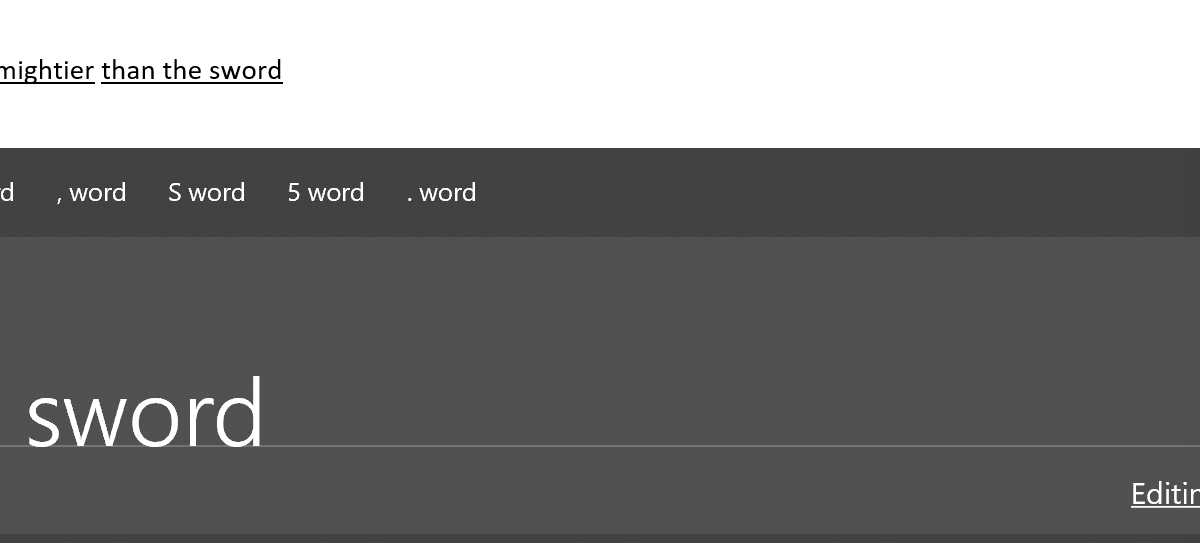
It turns out not exactly, but close enough. Apple had nothing to do with this particular piece of magic. An app named Selvy PenScript adds a handwriting recognition keyboard to your iOS device. I’ve spent the last couple of hours putting pen to screen and I’m impressed.

It isn’t quite as accurate as Microsoft’s version and there’s no floating option, but it gets the job done. It has one feature that I really like that Microsoft and Samsung don’t. You can change the color of the ink. Other than that , it’s a no nonsense handwriting tool. Now that it exists, I may even consider an iPad the next time I upgrade my tablet.
Universal Shoulder Buttons Improve Your Phone Gaming Experience

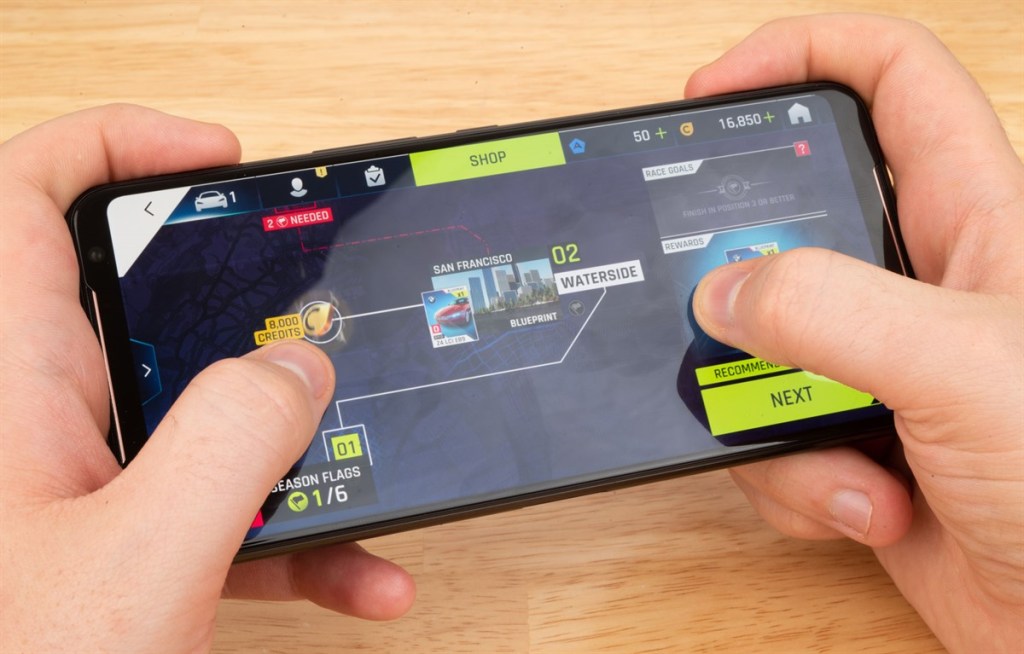
Playing a shooter like Fortnite or Call of Duty on your phone can be frustrating. Without physical “triggers” I find myself having to look at the screen to find the touch spots for aiming down the sites and firing. Each time that I do, I end up the one bleeding out on the ground.

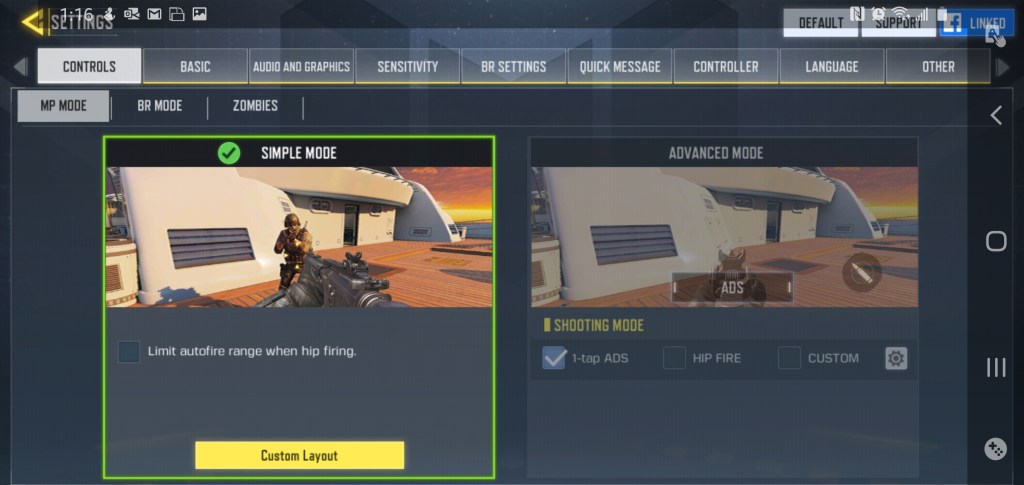
Some games have attempted to rectify this situation. Call of Duty Mobile for example, has an “auto-fire” mode in which your weapon fires at any target that lines up with the sights. Auto-fire does its job, some of the people that I play with prefer it. It makes the game feel less like a shooter and more like an arcade game, but that could be my years of Xbox showing through.

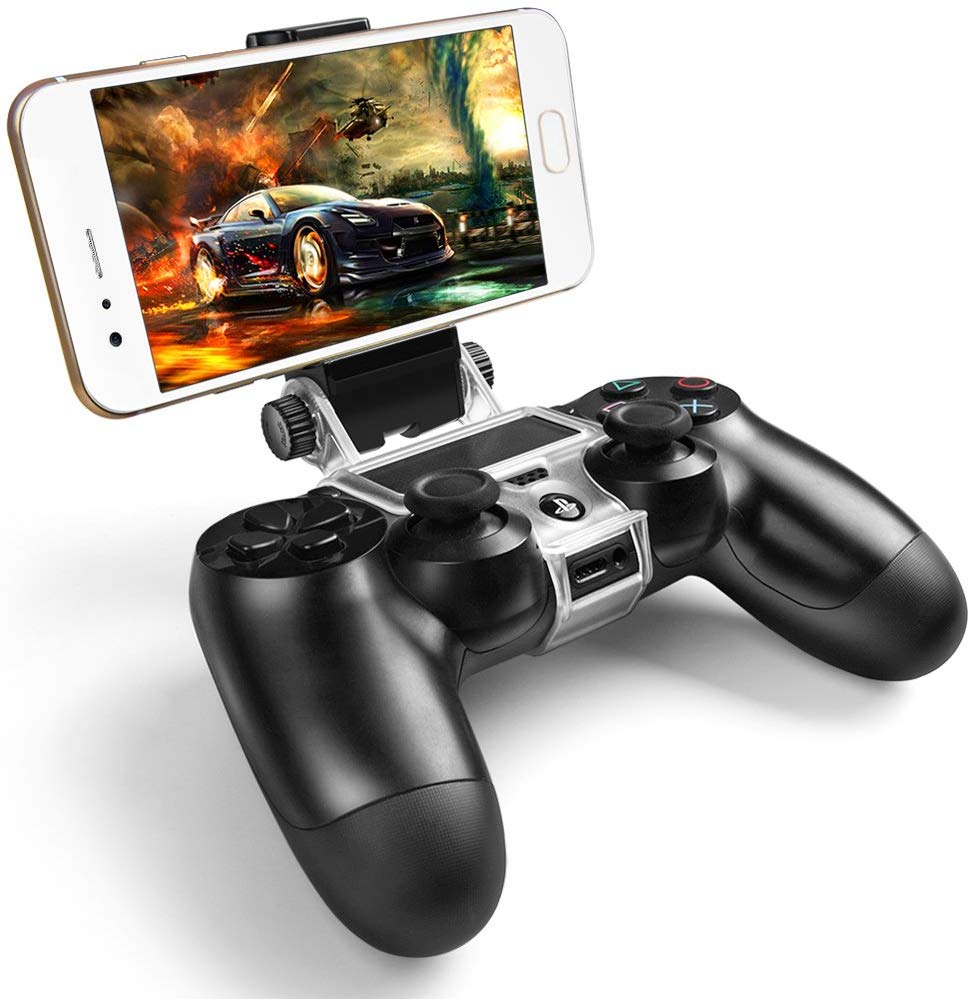
There are also many types of external controllers for your mobile phone. You can even pair a Bluetooth Xbox or PlayStation controller. Competitive shooters tend to force you play with other controller enabled players when you opt for physical controls. You can end up in a much smaller pool of players which makes finding games more difficult. You may also lose the ability to play with friends who don’t have controllers of their own.

There are a few phones on the market that have built-in shoulder buttons. They sound like a good idea and the one made by ASUS works well in the handful of games that support it. There’s no way I’m giving up my Galaxy Note and its pen though. How would I finish writing this article? It’s too bad that I can’t add a couple of buttons to my precious.

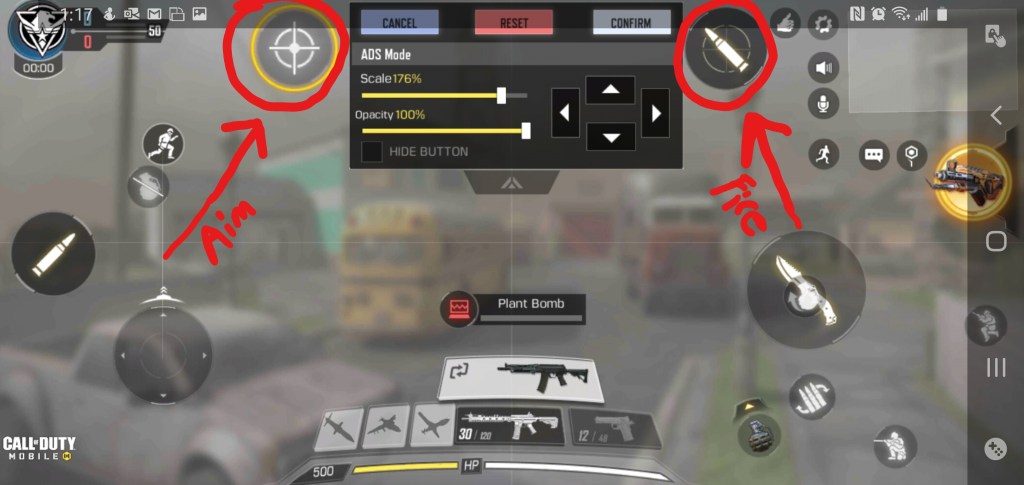
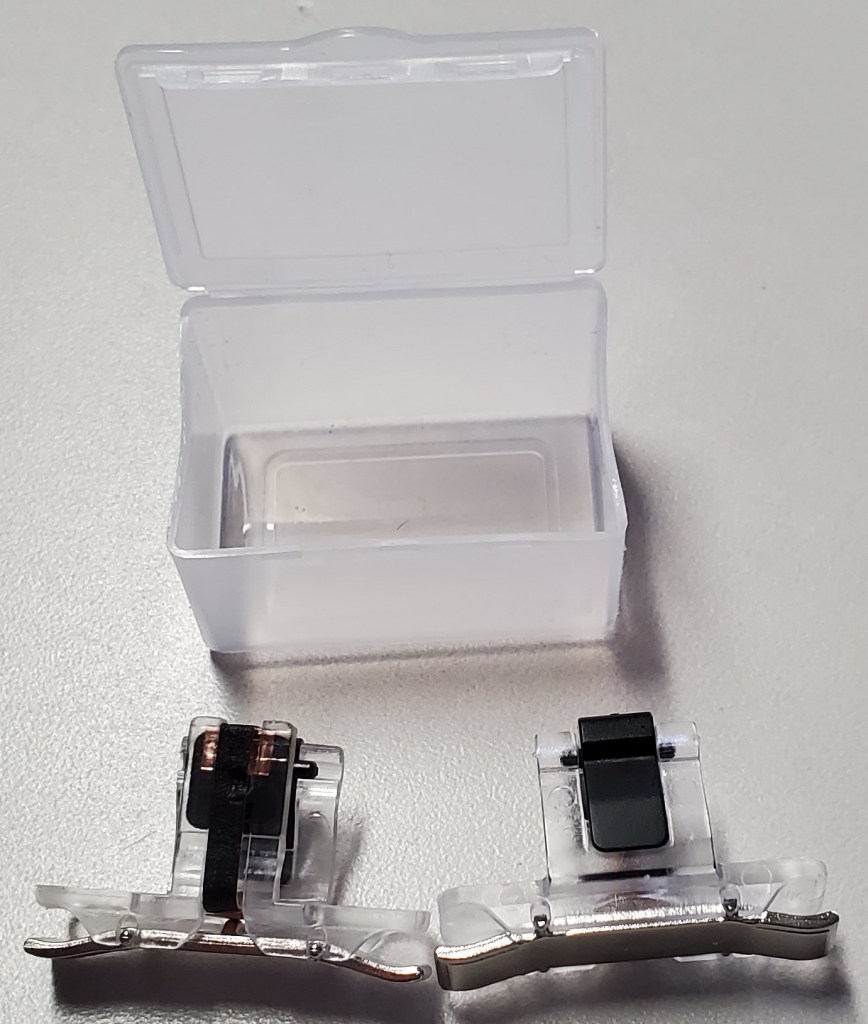
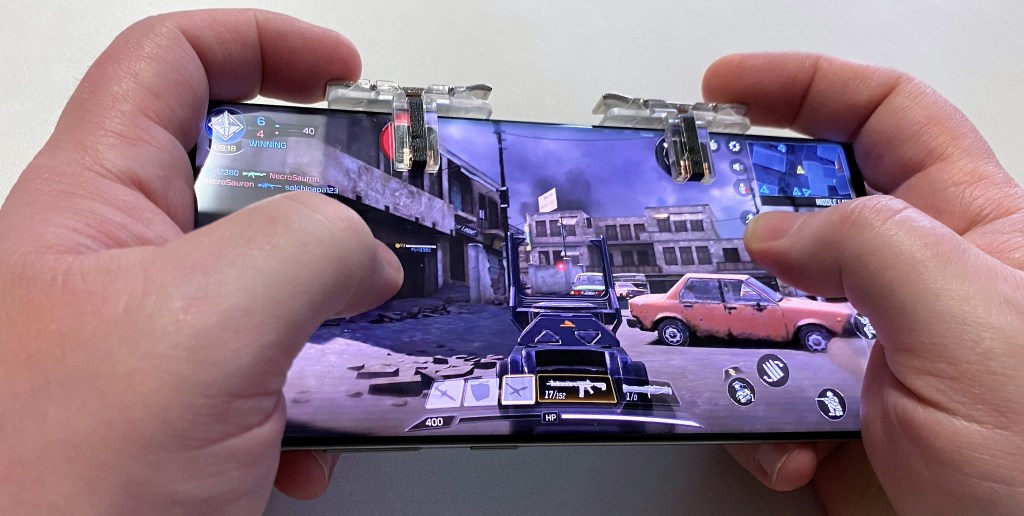
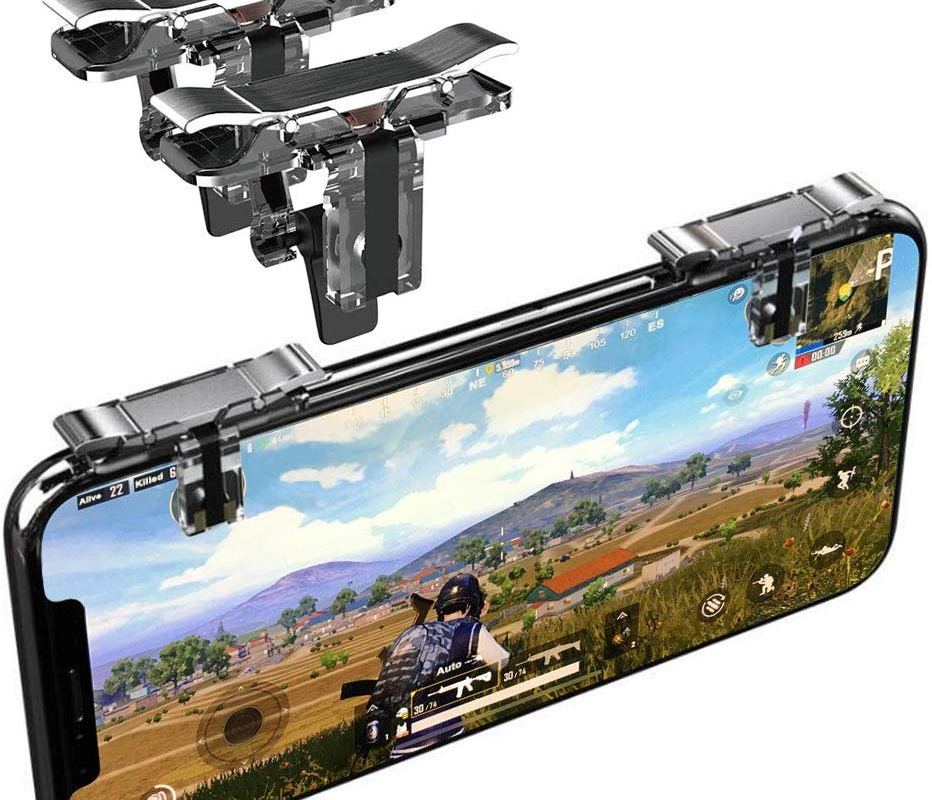
Apparently, some enterprising people had the same thought. There are several manufactures that are making universal shoulder buttons that you can slide onto any mobile. They function by tapping the screen with a small mesh pad when the trigger is depressed. Your game will need to allow a customized layout. The aim and fire controls need to be moved under the button’s pads.

I was skeptical, but you can get a set on Amazon for less than ten bucks and I like trying new stuff. They showed up the same day I ordered them (same day shipping rules) and I have been pleasantly surprised. These things are great. They fit in a tiny case that easily slips into a pocket when you’re not playing. The button press feels great on the set I got. They do block the screen a little. Each pad is a .5 centimeter square, but the trade off is well worth it from my point of view.

Since they are tapping the screen, you won’t be isolated in a controller only game queue. The advantage for me is in gripping my phone, I can hold it more like a PlayStation or Xbox controller. I also don’t have to constantly look at the screen to find the touch spots and can use the ADS and Fire functions simultaneously.

Some may consider these types of devices “cheating”, but they don’t have that big of an impact. On average, I got the same kills per game when using them versus not. As a developer, I must warn you, detecting and disabling these shoulder buttons would be simple. If they do start being counted as a cheat they may be outlawed in a future update for your game.

Office 365 All-in-One PowerShell Management Console

If you administrate an Office 365 tenant, you’ve undoubtedly discovered that PowerShell is a requirement rather than an option. Using PowerShell with Office 365 isn’t all that different from the on-premises version, but connecting to all the services can be challenging. Often, a task or project requires multiple modules to function.

With a little scripting knowledge we can connect to and manage all of the O365 services at once. I can’t tell you how many times I got half-way through a project only to realize that I didn’t have all the required cmdlets. Logging on to everything each time I use PowerShell saves time and frustration.

To make the code below work, install the PowerShell modules each service requires. Open an elevated PowerShell console (right click, run as administrator). Check the execution policy (Get-ExecutionPolicy), if it is restricted use the following command to change that: Set-ExeuctionPolicy -ExecutionPolicy Unrestricted . Then use the following commands to install all of the tools:

  • Install-Module AzureAD
    • Type A and press Enter (yes to all) when prompted.
  •  Install-Module MSOnline
    • Type A and press Enter (yes to all) when prompted.
  • Install-Module MicrosoftTeams
    • Type A and press Enter (yes to all) when prompted.
  • Install-Module Microsoft.SharePoint.Online.PowerShell
    • Type A and press Enter (yes to all) when prompted.

Copy the code below and save it as a PS1 file named Manage-O365.PS1 in your documents folder. Make a new desktop shortcut with the following path: C:\Windows\System32\WindowsPowerShell\v1.0\powershell.exe -NoExit “C:\Users\profile\Documents\Manage-O365.ps1” . When you double-click it you’ll be prompted for credentials and the Office 365 organization name. After entering them, a PowerShell console will launch and connect to O365 services. The window stays open until you are done with your tasks.

$UserCredential = Get-Credential
$OrgName = Read-Host "Enter the Name of your Office 365 Organization, Example: Techbloggingfool"
	$ExchangeOnline = New-PSSession -ConfigurationName Microsoft.Exchange -ConnectionUri https://outlook.office365.com/powershell-liveid/ -Credential $UserCredential -Authentication Basic -AllowRedirection
		Import-PSSession $ExchangeOnline
	Connect-MsolService -Credential $UserCredential
	Connect-AzureAD -Credential $UserCredential
	Connect-MicrosoftTeams -Credential $UserCredential
	Connect-SPOService -Url https://$OrgName-admin.sharepoint.com -Credential $UserCredential

Tip: Save these lines as a snippet in your favorite IDE (Visual Code, ISE, etc.) and you can easily insert them for Office 365 scripting projects.