Has the Pandemic Shown Us That We Don’t Need to Print?

I once worked with an individual that printed and filed his emails. All of them, even the SPAM. This person wore out a LaserJet printer about once per year. I asked about the endeavor while installing yet another new printer. It was a form of hoarding pure and simple, the printed copies were “in case the server crashed”. Even explaining the redundancy of the email platform, multiple distributed servers, RAID, backups, etc. wasn’t enough to deter them.

Printing has become an enormously wasteful habit propagated by people and businesses that refuse to modernize their routines. I recently stopped to get fuel at a major convenience store chain. The clerk asked if I needed a receipt, I replied that I did not. His cash register spit out two copies which he crumpled and tossed in a can under the counter.

I picked my car up from being serviced to find three full sheets of paper on the passenger seat. I asked the service manager if I needed to keep them. “Not really, all of your vehicle’s service records are in our system. You can get them anytime from the app on your mobile,” he answered. As my phone notified me of my emailed receipt, a clothing store cashier asked me to wait while she changed out the resister’s tape. One waitress explained that nearly half of their nightly trash dumps were comprised of receipts left on the tables.

They were all slaves to their software. POS (also stands for Point of Sale) applications that automatically vomit up streams of paper for each transaction. Hardly anyone wants or needs the paper trail anymore. Transactions are recorded by the vendor’s software and your bank, both of which can be accessed at any time. So what happens to all of these seemingly important pieces of paper? They fill trash cans, cabinets, and musty records rooms that nobody looks in.

Recently, I attended a business meeting where each of the twenty attendees were given a full-color copy of a thirty page report on the topic of trimming operating expenses. Not a single person used the paper version. They all read on their laptops, tablets, and phones. I brought up the irony and was rebuked; “what if someone forgot their device?”, asked the presenter standing in front of a wall-sized screen.

How many mountains worth of paper is printed each year by US companies? Twenty-six tons, not including magazines, news papers, or other printing based businesses. It’s not just the paper. Some forty percent of world-wide logging efforts are consumed by the industry. Printers are electrically and thermally inefficient. Ink and toner are made in toxic factories the world over. Telling people that their operating procedure needs to change, results in push-back and not much else. A defensive posture to protect our ego against feelings of wrong doing displaces rational thought for many of us. Soul crushing statistics seem to harden the armor rather than penetrate to the logic centers of people’s minds.

I like to find the silver linings in life. The Covid-19 pandemic is horrible beyond words. The amount of suffering and death it has caused are incomprehensible. Even still, if you look hard, there are positive outcomes to be had. I’ve been able to spend an unprecedented amount of time with my family while working from home. People and companies are learning that business is adaptable and there are alternatives to rush hour and high rises.

It is my hope that separating workers from their printers combined with the new stigma associated with handing objects to people will have an impact on printing. If you’ve been able to conduct your business without installing printers in your work force’s homes during the lock-down, you didn’t need to print that stuff in the first place.

When we return to our office buildings and places of business, take a good look at your printing practices. Does your POS software have an option to skip printing the receipt, is there an update that adds the feature? How are people using the paper trails they are generating, do they need to be printing those documents? Do your people know how to create and share a PDF of their work? It’s easy to do and has been free for a long time now.

When discussing the subject I often hear, “we have to print x”. So many times X turns out to be some antiquated process that nobody his examined in the last ten years. “We have to print checks”, have you looked in to digital banking services lately? In the rare cases where they can’t submit your payment as a digital transaction, the bank will print and send a check for you.

Did you have a printer company do the last cost analysis of printing in your company? LOL. Get an IT person that doesn’t like printers or an accountant that hates waste to tell you how much it really costs. It’s like eating out for lunch every day; we all know that it costs more than the ten dollars we budget for. I did a true analysis for an employer and showed them when including electricity, consumables, lost support time, and the lost productivity of physically dealing with paper, printing cost them almost two and a half million dollars per year. Furthermore, less than nineteen percent of that paper was still in existence at the end of each year.

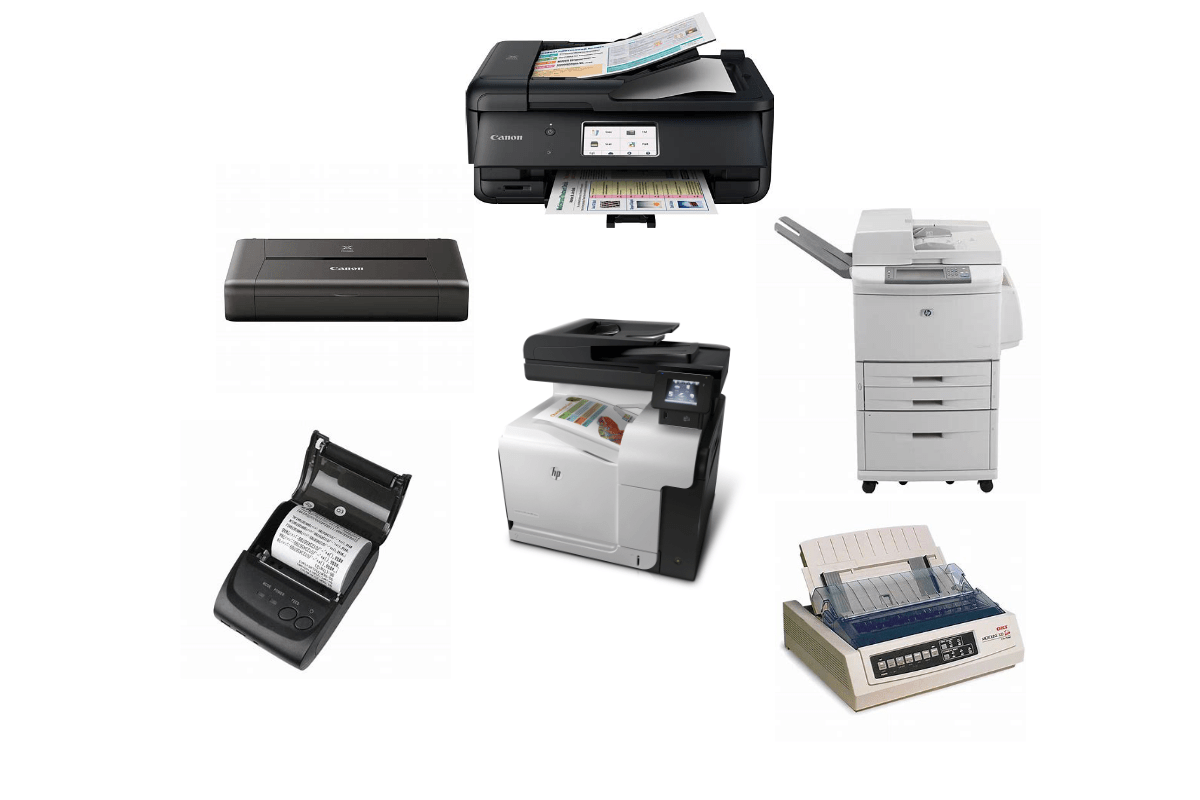
Consolidate your printers, make them inconvenient to access and people will only use them when they absolutely have to. Get rid of all individual printers. Do not make exceptions. There is no such thing as a secure print, once a file exists in the physical world you have lost control of it. Investigate the situations that require printing a little more thoroughly. Times have changed and a lot of that stuff can be taken care of electronically now.

Shifting all vehicles to electric and stopping our use of plastic are noble environmental goals. Both will take years and cost vast amounts of capital to accomplish. Drastically reducing how much your organization prints is something we can do right now and it increases your profit margin. Have your people look into how much less you have used your printers during the lock down and challenge your company to make that change permanent.
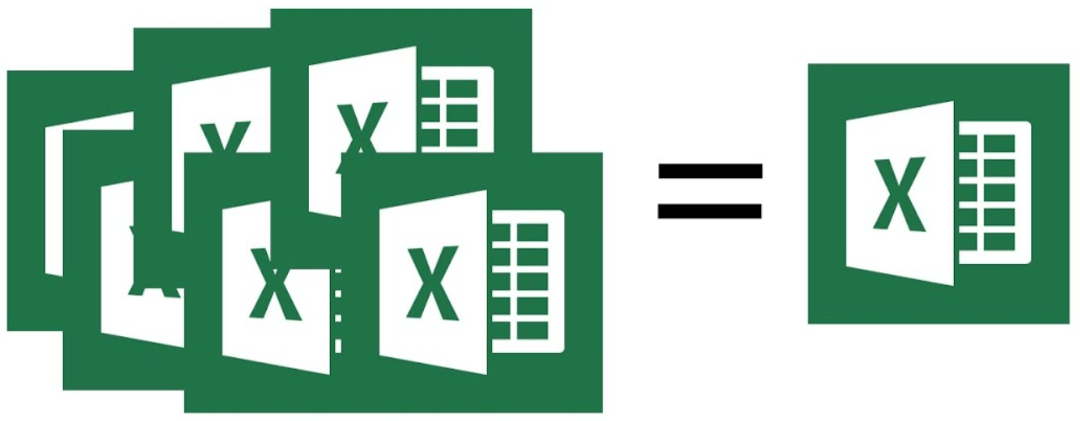

Merge Microsoft 365 Files That Have Been Split Between SharePoint and Personal Data Locations

In today’s cloud-based world it is easy to accidentally end up with files that are split across different locations. For example, if your company has files in SharePoint and SharePoint encounters an issue, your file editor (Word, Excel, etc.) may prompt you to “Save a Local Copy” as a precaution. If you save a local copy to your OneDrive or hard drive, the file you are working with now exists in two distinctly separate places. The problem can be compounded if multiple people have received the prompt to save a local copy.

Sometimes split data can occur when a worker wants to access a file from another system. They may email a copy of the shared file to themselves or use some other method that makes a distinct copy. Both SharePoint and OneDrive are accessible from any computer connected to the Internet. Typically all that is required is to open a browser and go to https://sharepoint.mycompany.com or https://onedrive.mycompany.com to access your files.

This situation can be very confusing in shared environments. If you and/or others continue to work on the file after it was saved to personal locations the edits will not be reflected in the shared version. Furthermore, if the file is closed and then re-opened from one of the many “Recent Files” lists available in Office applications, it may be inadvertently opened from the non-shared version again.

Tip:

In Microsoft’s cloud environment (Microsoft 365 / Office 365), it can be helpful to think of the names as being literal. “SharePoint” is where “shared” files belong. “OneDrive” is for “one” person and where your personal data belongs. That is not to say files in your OneDrive cannot be shared with others or that files in SharePoint cannot be locked to one person, both are possible, but not the main function of the software. For comparison, you can drive your commuter car on a racetrack, but you won’t be winning any races that way.

Resolution

There is no automatic way to correct files that have been split across multiple paths. It is up to the editor to understand where their data is being saved and make decisions accordingly. There are many strategies that could be employed to re-combine the separated data into a single shared file, one of the most effective is outlined below.

  1. Stop making changes to the shared or individual files; have everyone close them.
  2. Locate all the versions. Each person that has worked on the file after it was fractured should be contacted to see if they also have an individual version. If SharePoint encountered a technical problem and prompted to save a local copy, it likely prompted everyone that was in the file at that time. If a file was emailed to multiple recipients, each may have an individual copy they have worked on.
  3. Make a folder in the shared location named “Recovery Collection” and place a copy of each person’s file in that folder with their name appended to the title.
  4. Also place a copy of the original shared file in the Recovery Collection folder
  5. Merge the data from the individual file copies into the shared file copy. The operation chosen to merge the data will depend on the type of file, type of data, and how many changes have occurred.
  6. Rename the original shared file. Be sure that nobody is currently editing the original shared file and rename it (I suggest putting -old after the files name) then copy your updated shared file into the correct location so that people may begin using it instead of the original.
  7. Once you are certain the new shared file is correct and that everyone can use it, delete the recovery collection folder and the old copy of the shared file to reduce disk usage and future confusion. You should also instruct each person to delete their individual copies of the file(s) to prevent further confusion

Don’t Be Bored, Go Racing

In our new normal, one of the complaints that I hear most often is how bored people are when there’s nowhere to go. Shops, stores, movie theatres, and restaurants are all closed. Baseball and most other sports are on hold for who knows how long? A lot of our free time was spent “going”. Now that you have all of that time on your hands, what do you do with it?

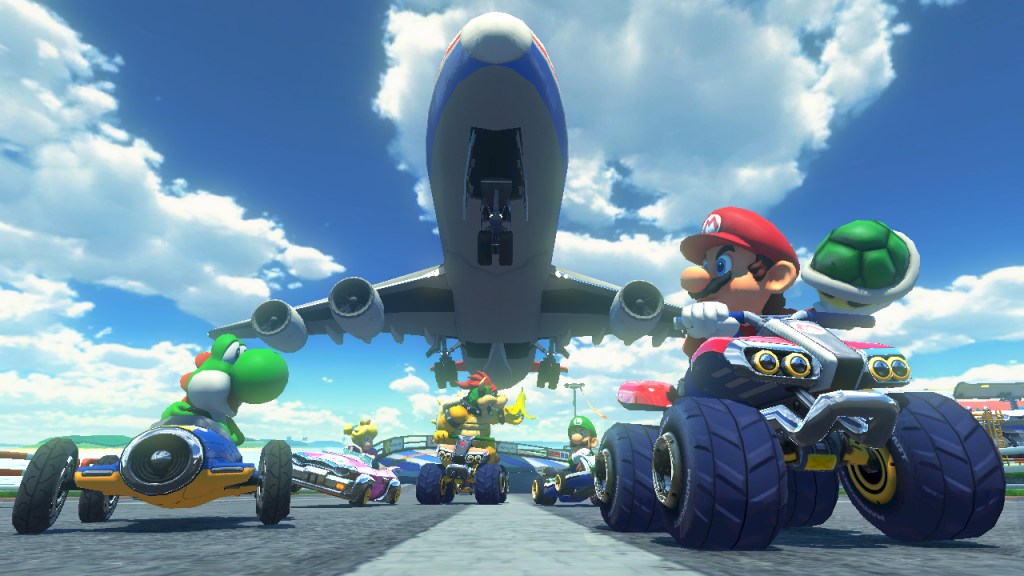
This is the perfect time to find a hobby. For years one of my favorite pastimes has been racing. While I have been lucky enough to own and drive some fantastic cars, I am not referring to racing real vehicles. I’m talking about digital racing, not in the form of Mario Kart or any other button masher, but racing simulations.

Racing isn’t about mashing the gas as hard as you can and hoping for the best. It’s an exercise of surgical precision, superb timing, and a personal relationship with Newton’s laws of motion. Driving is a ubiquitous skill for Americans, so perfecting it has a smaller learning curve than other simulated experiences. Racing simulations are available on nearly every type of computing device. Below are some of my favorites (pics link to the web sites).

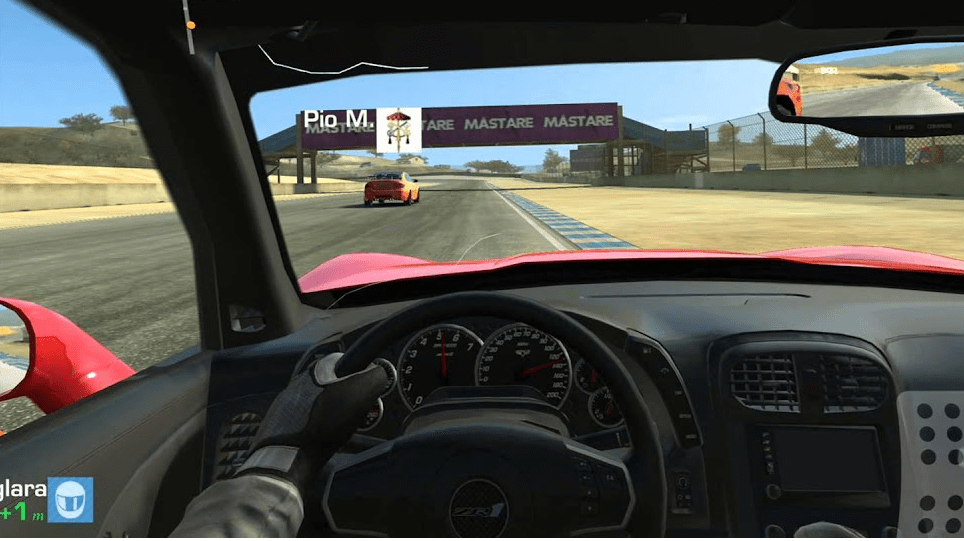
Real Racing 3 is an excellent simulation for Apple, Android, and Amazon mobile systems. I highly recommend the in-car view and tilt controls to get the most realistic experience.
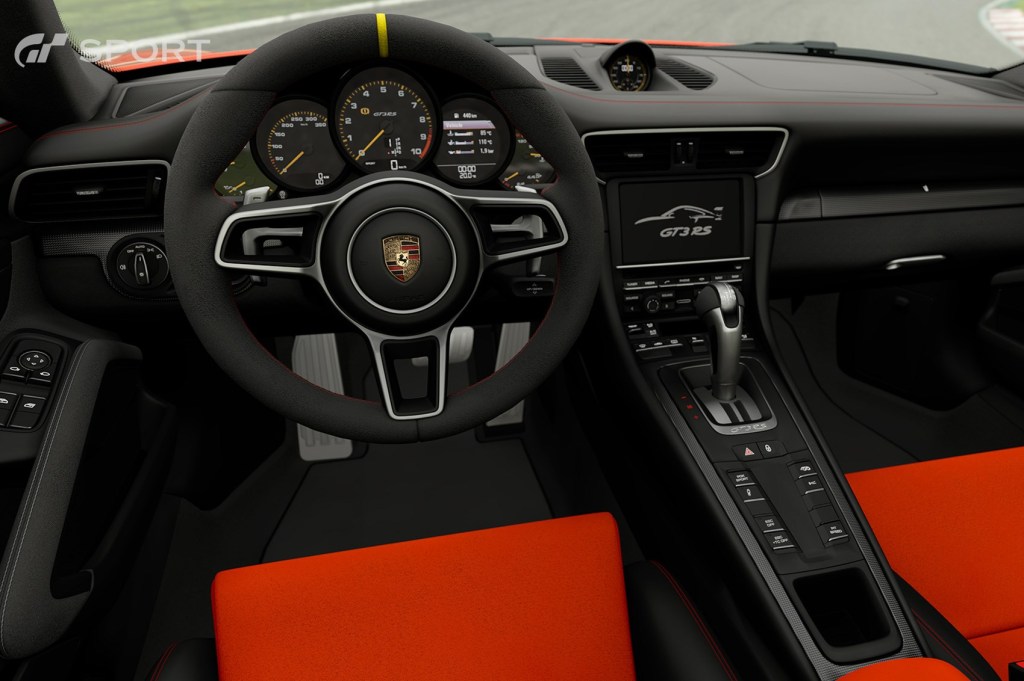
People have been burning up the track in Sony’s PlayStation exclusive Gran Turismo since 1997. Always a leader in innovation, GT was the first console game to support 3-D.
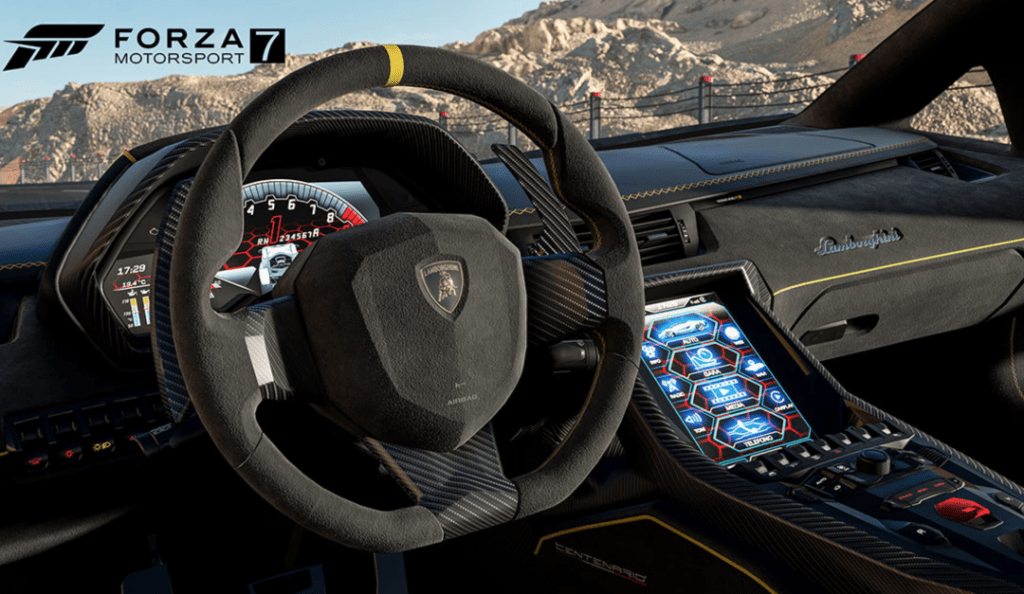
With cars so detailed you can almost smell the gasoline, the Forza series is the premiere Xbox exclusive racer.
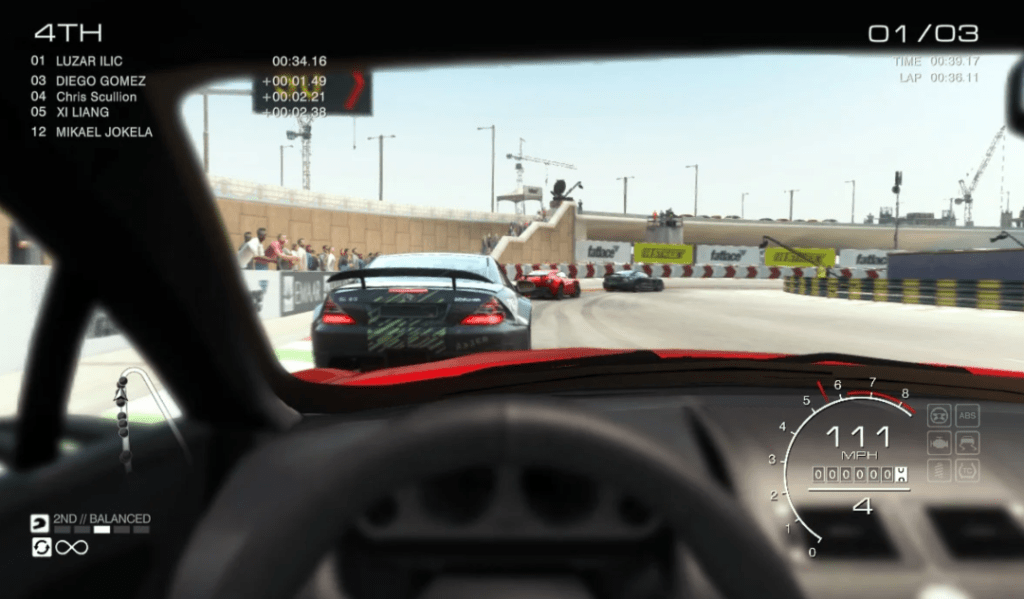
Get your race on anywhere with Grid AutoSport on the Nintendo Switch

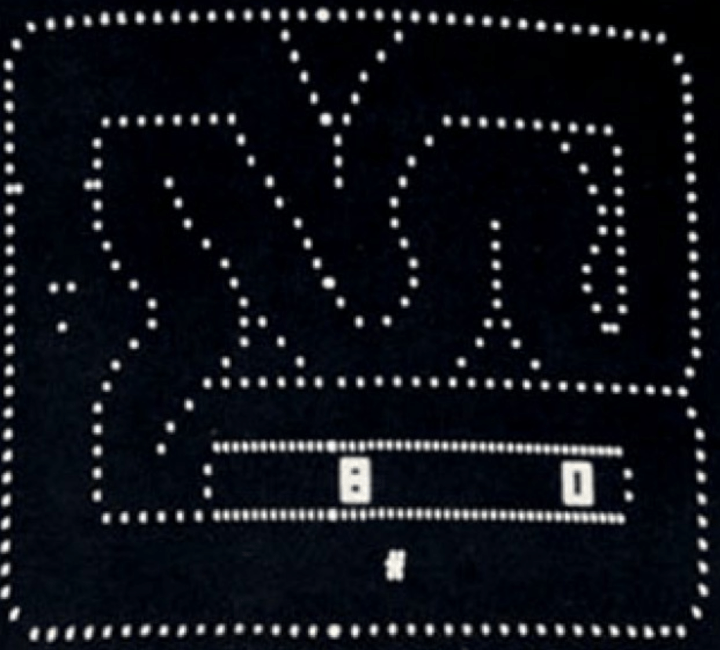
Racing games have been in development for nearly fifty years . Gran Trak 10 was released by Atari in 1974 and featured a steering wheel and pedals control interface. It wasn’t much to look at but was entertaining. People flocked to it in the arcades and bowling alleys of the time. This encouraged the investment and development we are able to experience today.

Gran Trak 10 is the Granddaddy of Racing Simulators. The arcade cabinet had a real wood steering wheel and pedal controls.

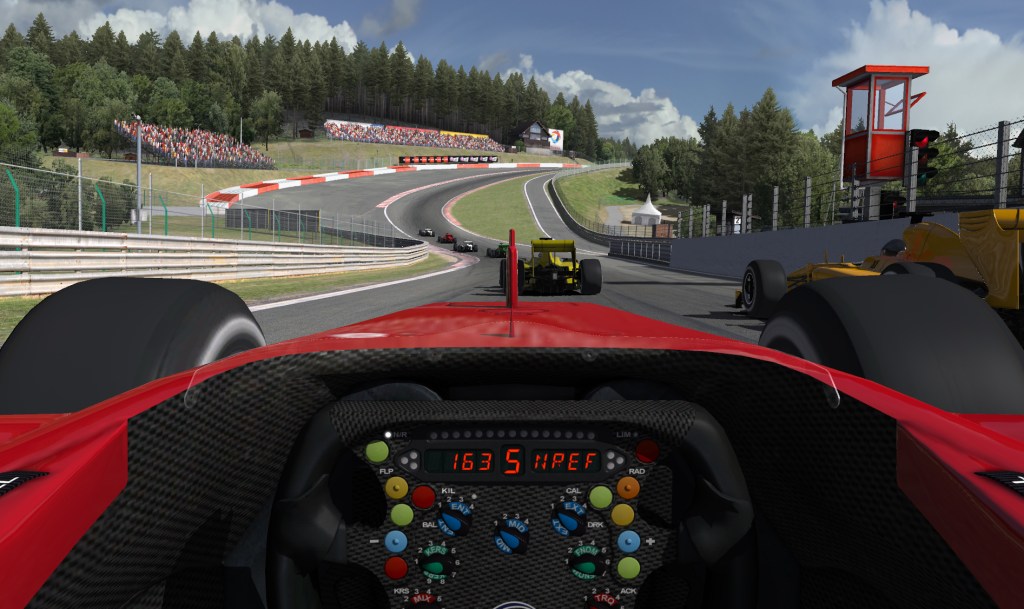
When you flip on ESPN and see a vehicle race during the Covid pandemic you are most likely watching an iRacing event. iRacing is a subscription based virtual experience that is renowned for its ability to accurately portray the minutia of racing a car or truck. From Trophy Trucks to F1, every type of race and track is available. Tire wear, fuel consumption, track degradation and weather conditions all occur as they would in the real world.

Race with the pros on iRacing.

iRacing supports Virtual Reality, motion simulators, advanced control kits, and nearly every other type of advanced equipment the sport has to offer. Make no bones about it, this is a sport; people spend thousands of hours practicing and honing their skills here. Spend the $6.50 for a one-month membership and see how you stack up.

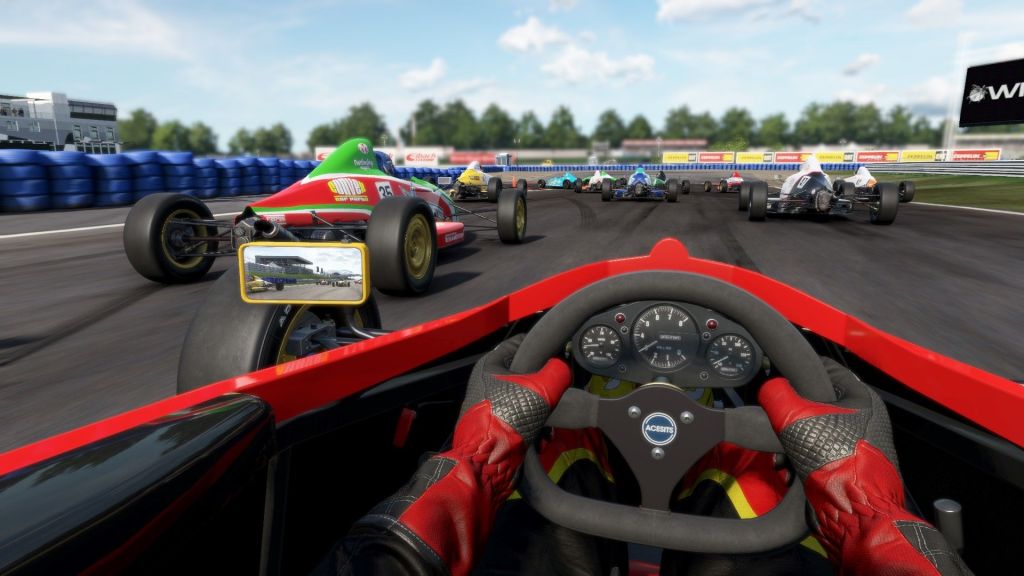
Project Cars 2 is the game I spend most of my time playing right now. It features almost every type of car and track laser modeled to the most exquisite detail. Day and night driving in the sun, rain, snow, and ice are all represented. There are pro events, on-line matchmaking, and everything in between. It’s available on the Xbox and PlayStation but really shines on a PC with a high end GPU.

Project Cars 2 has nailed PC racing simulation

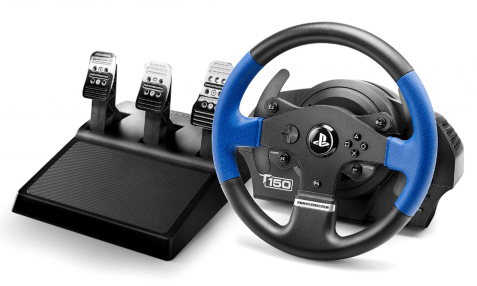
No article about racing simulations would be complete without mentioning the astounding amount of hardware designed to push the experience from something you see and hear, to something you feel as well. Most people start their rigs with a wheel and pedal set. From inexpensive spring loaded wheels to servo controlled force feedback sets, there’s an option for almost everyone. You can get gear shifters, hand brakes, gauge clusters, eye trackers, cockpit stands, and even full motion systems to take your racing to next level.

For me, nothing beats a force feedback wheel. Using small electric motors in combination with gears, or belts these wheels go far beyond the buzzing you get from gamepads. Pushing back on your hands in corners, the slip of traction loss, bumps in the road, a lot of driving is done through your sense of touch. A good kit to start with is the Thrustmaster TS150, designed for the PlayStation it is a little known fact that this wheel works great for PCs too; there’s a switch on the back and drivers available on their web site.

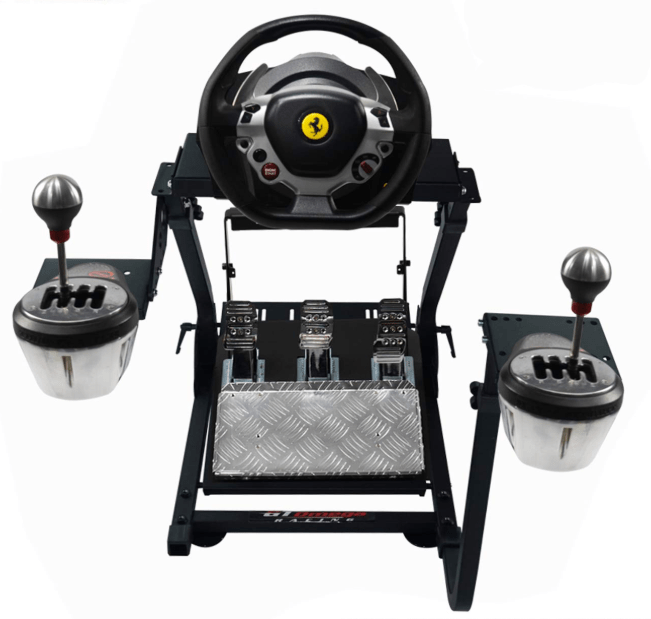
An excellent add-on for any driving kit, is a gear shift. Most of the wheel combos sold today come with a 3-pedal setup but don’t include a manual gear shift. You can add one from Logitech or Thrustmaster in a snap and be rowing your way through 6 gears in no time.

You can try to clamp your wheel and shifter to a desk and put the pedals underneath. They usually include clamps made for this purpose. You’ll have a hard time getting everything to line up where it would in a real car’s cockpit. Most of us end up getting a purpose made wheel stand. There are lots of makes and models, search Amazon to get an idea. The best ones let you mount the shifter on either side. When you run European races you can make your setup match the car.

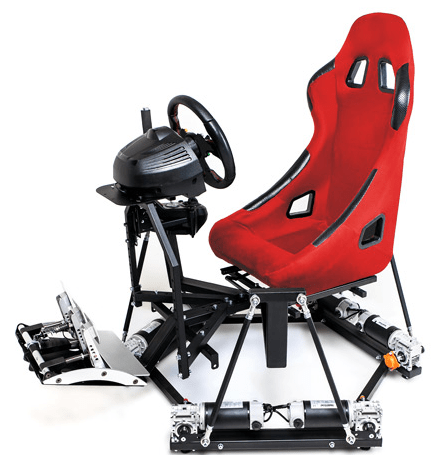
You might be tempted to think that after you’ve got a wheel, stand, pedals, a shifter, a seat, and a cockpit that you’ve reached the end of racing simulation hardware. Nope, you’re just in the beginning phases of the addiction. After you’ve had a the stand for a while, a lot of people make the jump to a full cockpit. If you’re going to dedicate that much space and money to your setup, you might as well go all in and get the motion simulation too.

With prices ranging from $800 to $10,000, or more, full motion cockpits are the apex of racing simulation. Working in conjunction with your force feedback wheel and VR headset the seat will lean and pitch to make you feel the torque of acceleration, throw you forward on hard braking, and push you to the sides in the corners. I haven’t purchased one of these yet, rest assured that if I do you’ll be able to read about it here. Now I that I’m done writing, I think I’ll go run a few laps.

My Favorite Monitor Under Five-Hundred Dollars

I recently decided that it was time to transition from using a forty-inch TV to an actual monitor. For the most part, I wanted to move past the sixty frames per second limitation that most TV based screens are stuck with. I would have loved to picked up a 4K Predator but couldn’t justify the two-thousand dollar price tag. I had a max budget of five-hundred dollars and hoped to spend less.

As with all of my technology purchases, I started by doing a ton of research. There are a lot of terms and specs wrapped around computer screens these days and I wanted to understand their meanings before making my choice. I’ve provided an overview of a few of the more important terms below.

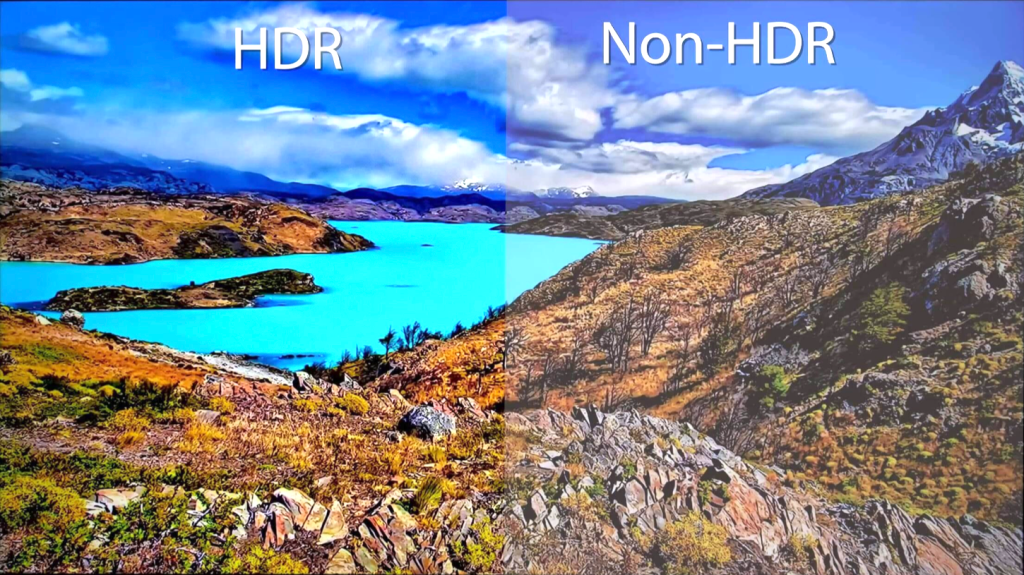
HDR stands for high dynamic range and is a feature that provides better contrast and colors to the content on your screen. Contrary to popular belief, it is not the same thing as the HDR that you find on cameras. CNET has an excellent write up on how the technology works. This particular feature can have a dramatic effect on how things look, but the media and screen must both support it. It’s great for games and videos, but doesn’t do anything for documents.

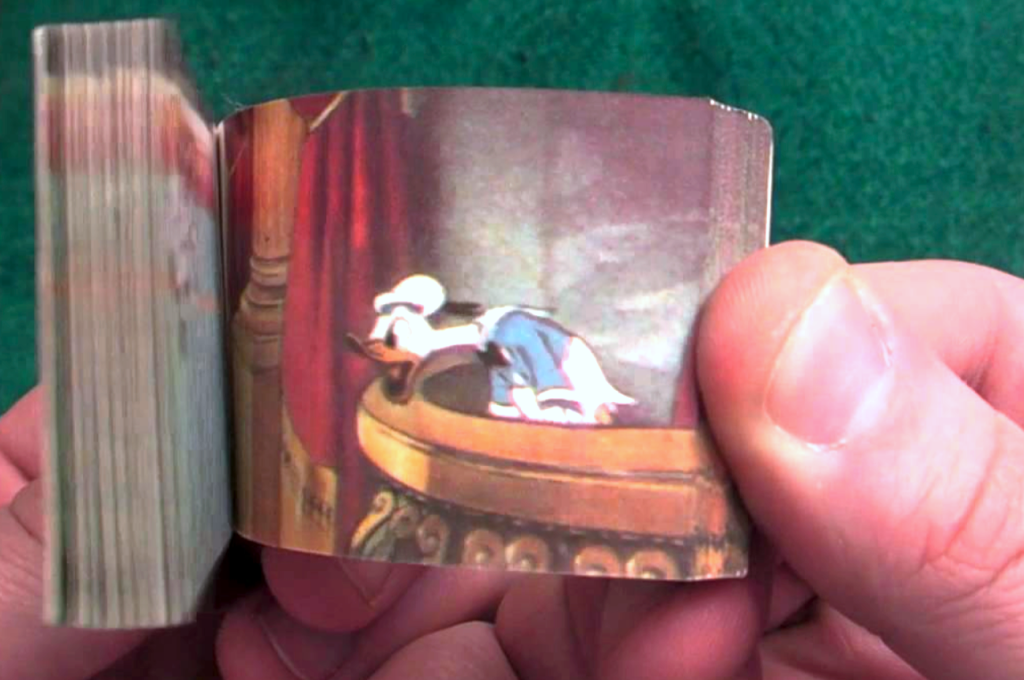
FPS is frames per second. Moving video is created just like those old flip books you drew in grade-school. Still images called frames are flashed on your screen so quickly they appear to be moving. The faster the frames flash by, the smoother the movements appear to be. Security cameras tend to run around 15 FPS, TV around 30 FPS, 60 FPS is the minimum most gamers shoot for, 120 is ideal for action video and games, 240 FPS is found only on high-end gaming monitors.

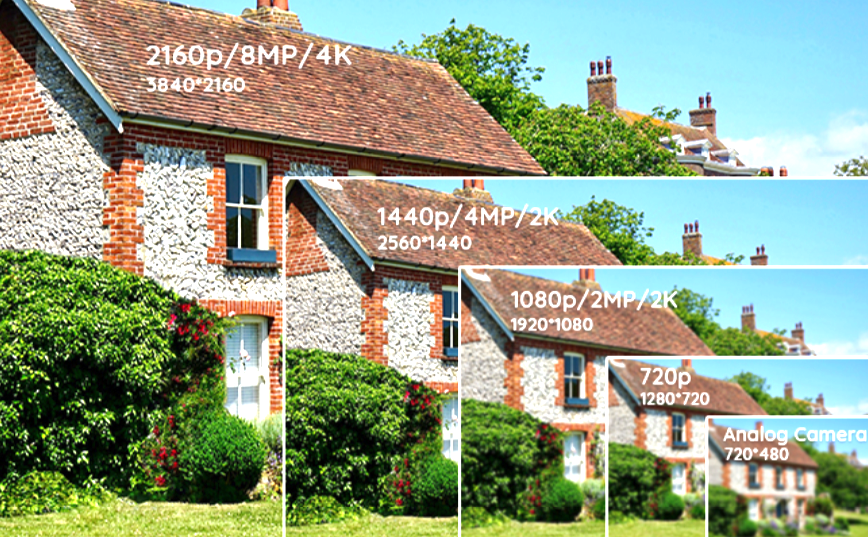
Resolution is an indication of how finely detailed a displayed image can be. Each frame of a video is composed from colored dots of light. Squeezing more dots onto the screen results in more detail being available. Resolution is measured in the number of dots aka pixels, that are available horizontally and vertically. 1080P is 1920 pixels wide by 1080 pixels tall and is comprised of 2,073,600 individual dots of light.

There is a never-ending debate around which is more important for gaming resolution, or frames per second. The choice is a personal one, but if you play competitive on-line games, higher FPS means you are less likely to loose track of your target. At 30 frames per second, a 180 degree flick-turn looks like you magically appear to be facing the opposite direction from the moment of execution. This happens because the movement is over with quicker than the next frame can be displayed. At 120 FPS you actually see your surroundings during a flick-turn. This can also be observed by quickly moving your mouse across your monitor; on lower FPS screens the mouse appears to blink as it moves.

There are of course many more terms, like response times (how fast the dots change color), contrast ratios, OSD (on screen display), etc. but my intent is not to write a book on monitor specifications. NewEgg has a glossary of these terms if you’d like to learn more: https://www.newegg.com/insider/guide-monitors-terms-need-know/.

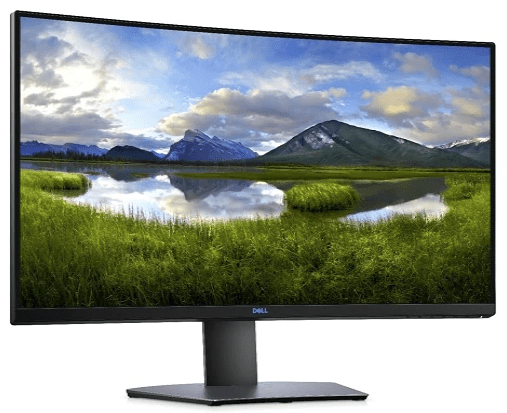
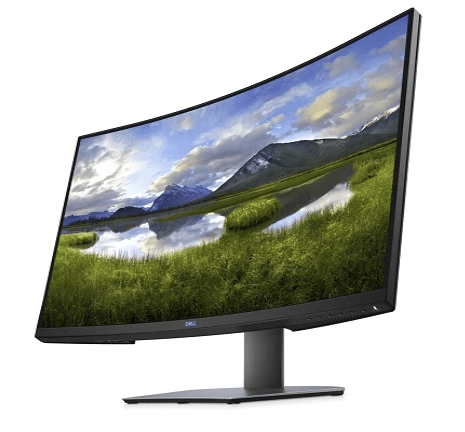
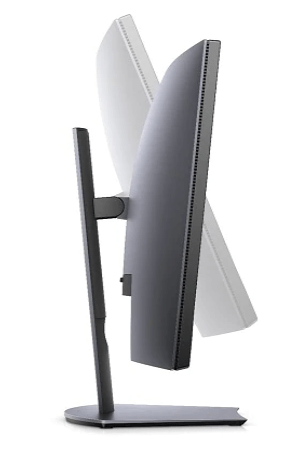
After all my research, talking to the industry people I know, and wandering around the local computer stores was complete, I ended up purchasing Dell’s S3220DGF. The 32 inch, curved, HDR screen is superb. I’ve never owned, or even used a better looking monitor. The colors are great and the blacks are fantastic. The screen is the perfect size to fill my entire field of vision when gaming. Text is easy to read when sitting a little farther back. My system is primarily used in a dark room so the non-bleeding edges are a big plus too.

The height, swivel, and tilt adjustable stand makes putting the screen in the perfect position a snap. The integrated USB 3.0 hub is a convenient place to plug-in my desktop accessories without having to drape cables down the back of my desk. I was also pleasantly surprised to find that all of the cables I needed including a display port and HDMI cable were in the box.

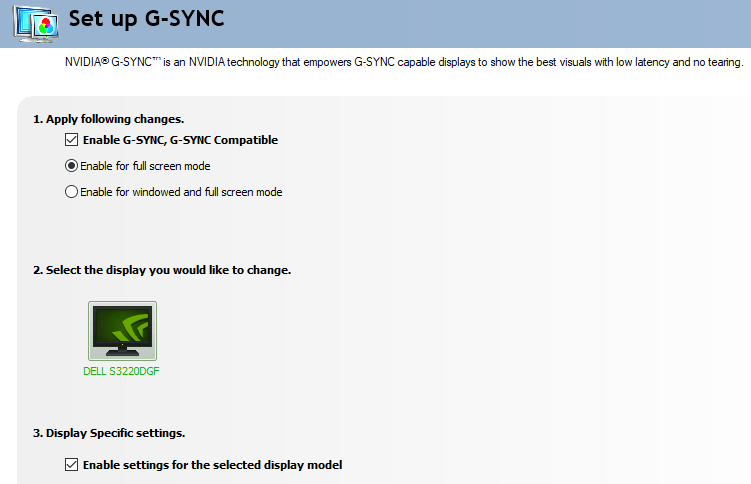
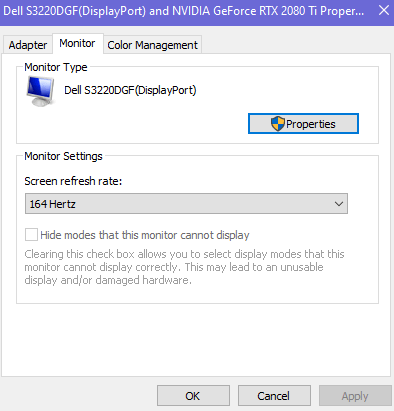
The monitor’s resolution is 2560 x 1440 aka 1440P and its fastest refresh rate is 165 FPS. This combination makes games like Destiny and Call of Duty look fantastic and run buttery smooth. In addition it supports AMD’s FreeSync technology which allows the refresh rate to dynamically match the media being displayed. If your game hits a particularly graphic intensive spot and the frames slow, your monitor will lower its refresh rate to match. This prevents tearing and choppy video. Despite the name, Nvidia GPU’s can use the FreeSync feature with this monitor.

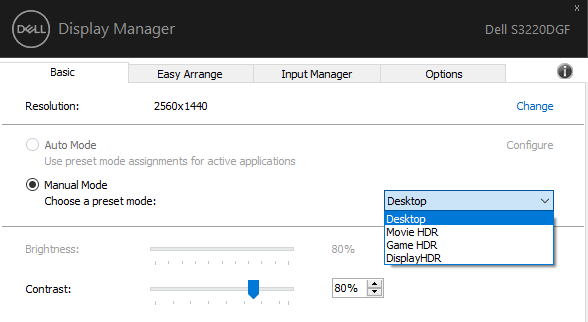
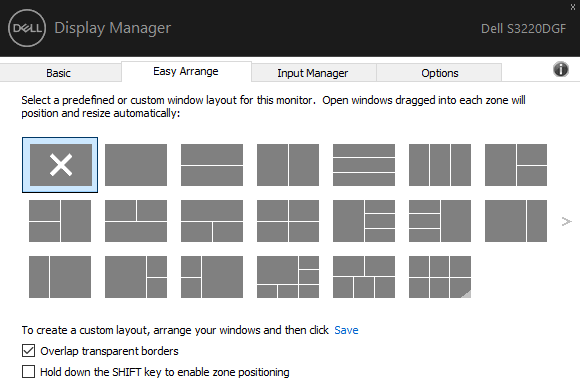
The OSD (on screen display) controls are easy to figure out, some of the other monitors that I tested had a joypad or touch interface which I preferred to the Dell’s individual buttons, but it obviously wasn’t a deal breaker. Besides the OSD and button controls, this monitor can be controlled by Dell’s Display Manager Software. In addition to editing settings like the brightness and contrast, the app lets you control and customize Window’s Snap Zones.

Modern Windows operating systems let you grab the title bar of an application’s window and drag it quickly against the side of your monitor to split the screen in half and select a window for the free side. Snapping windows is incredibly useful for multitasking and is a feature I use frequently. You can also snap a window by pressing the Windows key and an arrow key at the same time. My only gripe with snapping is that I wish there were more layouts.

The Display Manager software addresses my complaint by providing countless pre-configured layouts that are easily selectable. Besides the pre-made layouts you can also make your own. You don’t have to buy an expensive new screen to get this functionality. Microsoft’s Power Toys includes a feature named FancyZones that is similar, but not quite as easy to use and suffers from a few bugs.

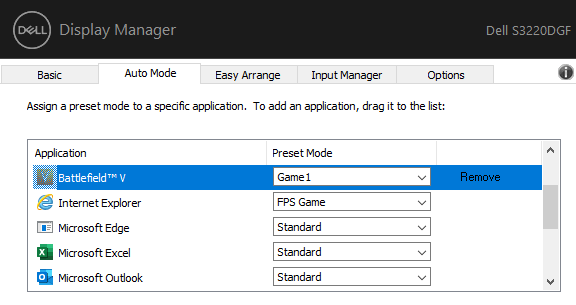
The monitor’s memory will store several different presets of brightness, contrast, color, black mode, refresh rates, and other settings which you can name. The Display Manager application will allow you map specific applications to those stored presets. This allows you to easily customize the screen for whatever you happen to be doing. I wasn’t aware the monitor was capable of this when I bought it, but it is a feature I use quite often.

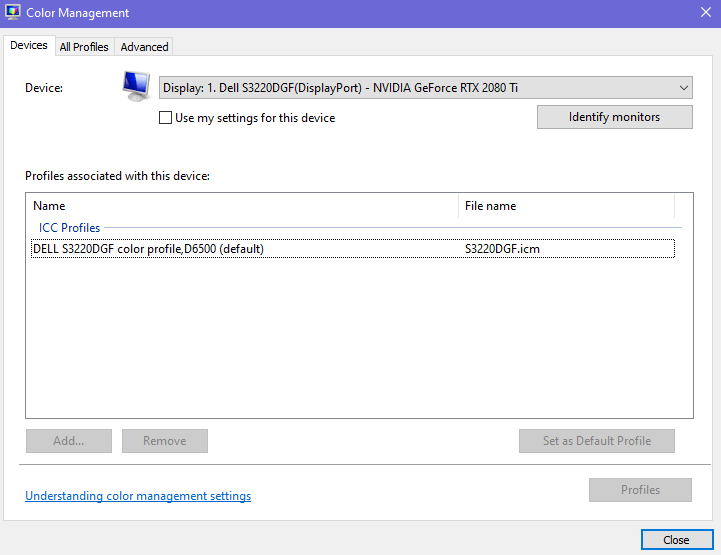
Most monitors that are connected to a Windows PC use the built-in generic driver and color profile. This works fine for 80% of use cases. However, if you edit photos or video having a tuned color profile and purpose made driver can help colors and contrast appear more realistic. This Dell S3220DGF comes with both.

I’ve owned the monitor for a couple of months and am very happy with my purchase. I found it on sale at Best Buy for $399.00 but it’s normal price is $449.00. I was concerned that I would miss 4k but the FPS is more important to me overall. I barley notice the difference in resolution. I also debated a flat screen versus a curved one. The curve really makes a difference on a screen this size that is only a few feet from my eyes. If you’re in the market for a new monitor, I recommend you take a look at the S3220DGF. That name just rolls of the tongue doesn’t it?