PowerShell: Rename Domain Computers from a List

I needed to rename a bunch of computers in a hurry. As usual I turned to PowerShell. The old and new names were provided to me in a CSV. The systems were spread over a wide area and throughout different departments so I would need to include connectivity testing and some simple reporting to keep track of the progress. I came up with the little gem below. I’m sure I’ll be pulling it out of the toolbox again.

To use this script you’ll need a CSV with at least two columns; one named “currentname”, and another called “newname”. You will have to run the operation from a system that can communicate (ping & WMI) with the workstations. The remote systems need to support remote PowerShell commands and you will require domain credentials with enough permissions to rename domain computers.

Once you have all of that, copy the code below and paste it into a file. Save it as “Rename-Computers.PS1” where you keep your scripts. When you run the script you’ll be prompted for the credentials to perform the rename with. Then an “open file” dialog box will pop so that you can browse to your CSV. Once you’ve selected your file, the script will ping each machine and if they reply, the command to rename will be issued. If they aren’t reachable, they’ll be added to a report.

At the end of the run, three text files will be in your documents folder. One shows the machines that were renamed. One has the systems that couldn’t be pinged. The other is an error log. The same information will be displayed in the PowerShell console as the script runs.

[System.Reflection.Assembly]::LoadWithPartialName('Microsoft.VisualBasic') | Out-Null
$DomainAdminCredentials = Get-Credential -Message "Enter Domain Admin Credentials to rename computers"

Function Get-FileName($initialDirectory)
{   
 [System.Reflection.Assembly]::LoadWithPartialName("System.windows.forms") |
 Out-Null

 $OpenFileDialog = New-Object System.Windows.Forms.OpenFileDialog
 $OpenFileDialog.initialDirectory = $initialDirectory
 $OpenFileDialog.filter = "csv files (*.csv)| *.csv"
 $OpenFileDialog.ShowDialog() | Out-Null
 $OpenFileDialog.filename
     }

$ComputerList = Get-FileName -initialDirectory $env:userprofile\documents
$computers = Import-CSV $ComputerList

$renamedcomputers = @() 
$unavailablecomputers = @()

Foreach ($computer in $computers){
$PingTest = Test-Connection -ComputerName $computer.CurrentName -Count 1 -quiet
If ($PingTest){
    Write-Host "Renaming $($computer.currentname) to $($computer.NewName)"
        Rename-Computer -ComputerName $Computer.CurrentName -NewName $Computer.NewName -DomainCredential $DomainAdminCredentials -Confirm:$false -Force
            $renamedcomputers += $computer.CurrentName
     
    }

Else{
        Write-Warning "Failed to connect to computer $($computer.currentname)"
            $unavailablecomputers += $computer.CurrentName

    }
}

$renamedcomputers | Out-File $env:userprofile\documents\renamedcomputers.txt
$unavailablecomputers | Out-File $env:userprofile\documents\unavailablecomputers.txt
$Error | Out-File $env:userprofile\documents\renamedcomputererrors.txt

The script is not currently set to reboot the computers which is required to complete the renaming process. To add a reboot insert a -Restart after -Force. Removing the -Force will give the user a chance to reject the rename.

Two Devices at the Same Time with Jabra 85t True Wireless Earbuds

I’ve been a fan of Bluetooth headphones since the beginning. When true wireless headphones first launched in 2015, I was lucky to get to try a pair of Bragi Dash at a tech show. They sounded horrible by today’s standards and if you turned your head too much you’d loose one. To have no cable or connector bouncing off your neck I was willing to overlook their shortcomings.

Fast forward a few years, we saw sweat and water proof headphones for running. Awesome, I got a pair of Jaybirds and ran hundreds of miles in them. Active noise canceling came out and I got a pair of Sony’s. ANC was awesome (the headset connectivity sucked). The whole time I have been waiting for just one feature. The ability to connect to my phone and laptop at the same time.

I’ve had a softphone on my laptop for years, but all of my music, podcasts, and books are on my phone. I’m sure many of you have experienced the frustration of having to take out your earbuds, to put on your phone headset and vice versa. That, or you just give up on listening to your earbuds at all and use a full size headset that can multi-link. The problem for me is that over the head cans give me a headache where the band rubs and make my ears hot.

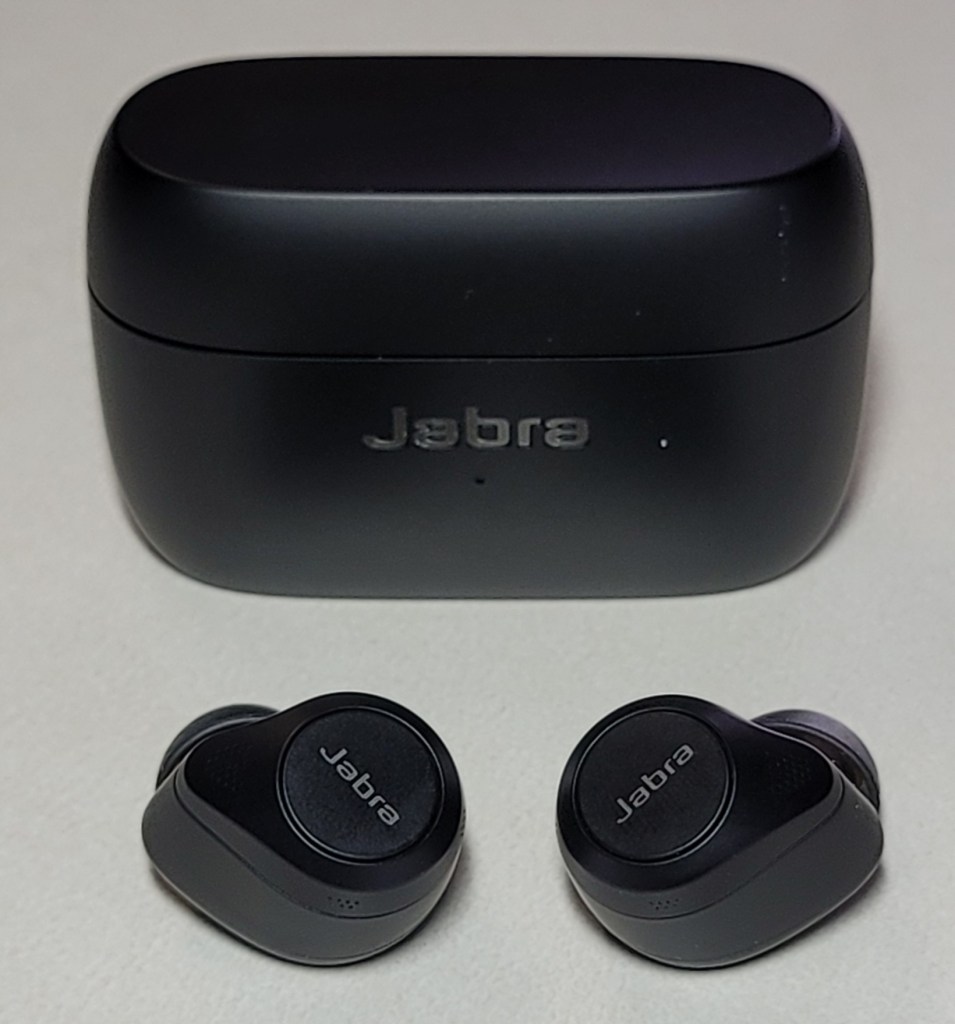
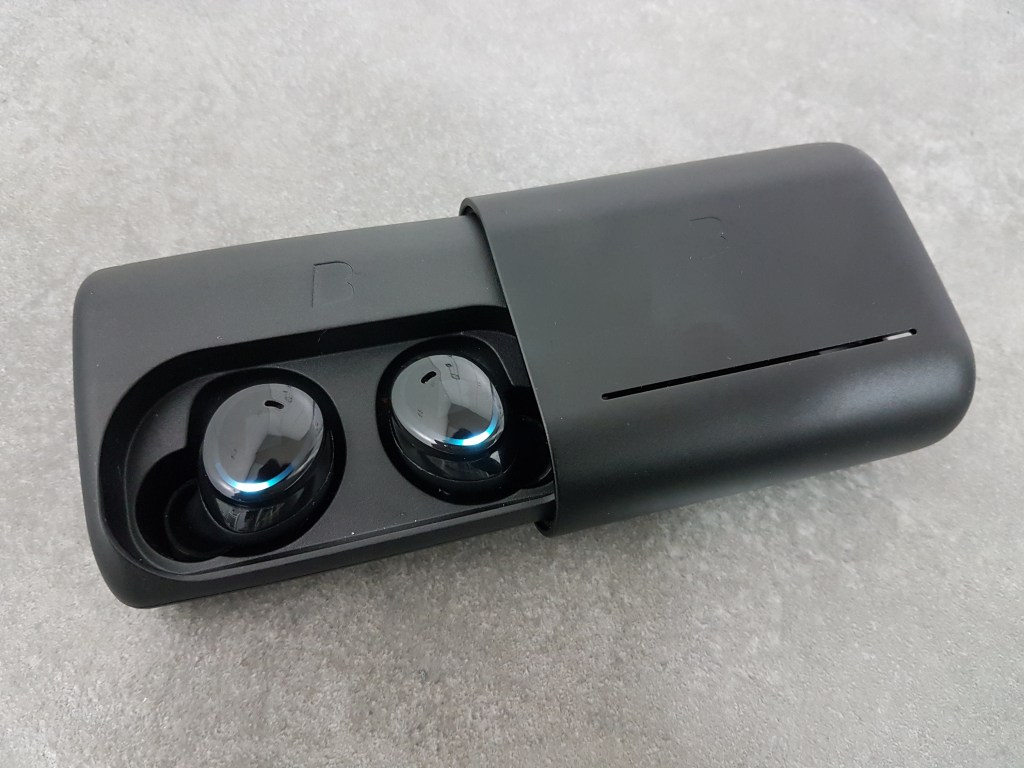
Jabra is the only brand of true wireless earbuds that support multi-link. l knew that they had enabled the feature on the 65t and 75t models, but I was holding out until the 85t set launched. I’m glad that I did. They are the best overall true wireless audio solution on the market. The multi-link works flawlessly, no buttons to push or waiting for software to move my connection. If I’m listening to a book on my mobile phone and my VoIP softphone rings on my laptop, I hear it and can immediately answer it. It will even pause my book if I pick up, via a setting in the app. Optionally, you can configure them to drop the Bluetooth connection to the device without the call to boost range and reliability. You can pair the 85ts with up to eight devices, but only connect to two at a time.

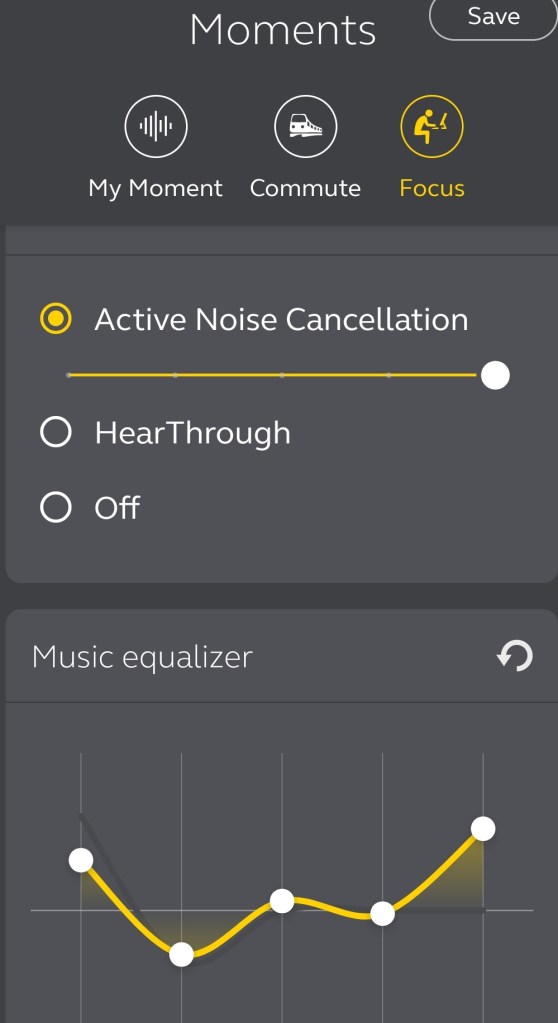
I’m not an audiophile by any means so sound quality isn’t the most important feature for me, but it still matters. I listen to all genres of music, tons of podcasts, and lots of audio books to help keep me focused on the task at hand and the 85ts sound great. I like them better than AirPod Pros, they seem to have a little more base. Like the Apple design, the Jabras are vented instead of sealed so the sound is open and there is no pressure build up. The app has a built-in EQ so you can tune the profile to your preference. If your phone supports the ACC codec, lag is almost non existent. Although I convinced myself I could detect a delay in some games, no one else in my house did. They get plenty loud for my taste, but do distort a little on max volume.

The active noise cancelling is spectacular, again I think that it edges out the ANC on the Apple set. There are eleven adjustable levels. On the highest setting you can sit in a car headed down the freeway and hear essentially nothing. I also find they’re adept at tuning out distracting noises and neighboring conversations at my office. They fall into the “works so well they could be dangerous” category of ANC. You should lower the setting when driving, running, biking, or doing activities where hearing the environment is a factor of safety. The app features ambient noise tracks like thunderstorms and crowded spaces that you can overlay on the ANC to create your ideal soundscape. There is an effective hear-through feature that you can configure to activate and mute your audio with a single button press, no need to remove an earbud every time that someone wants to chat.

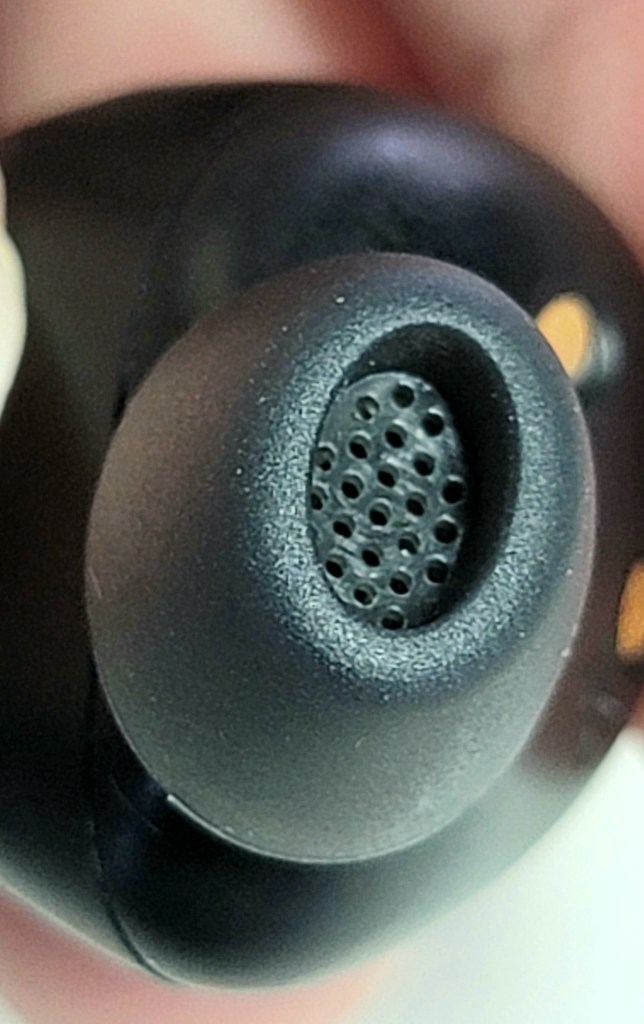
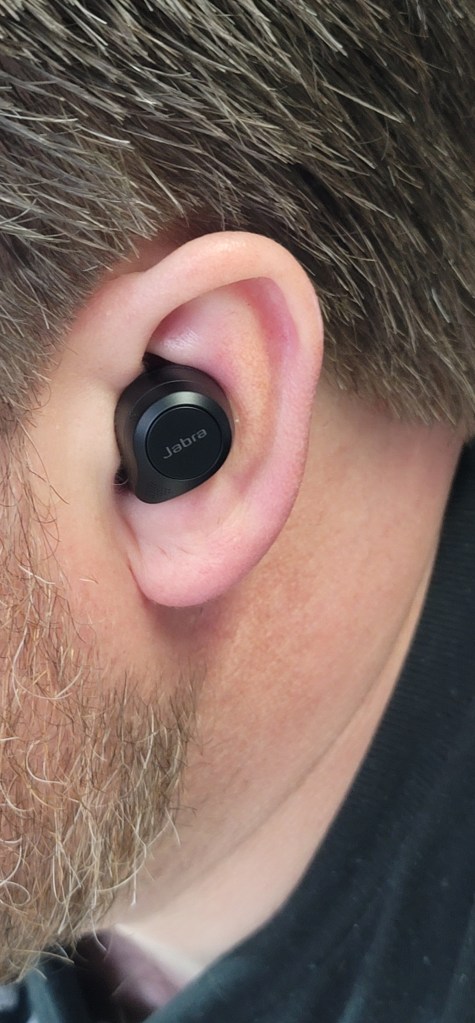
You’ll be using that hear-through feature plenty, the earbuds are some of the most comfortable I’ve ever owned. They do not press into your ear canal, which always seems to make my ears sore after a few hours. The tips are oval and align with the opening of the ear to form their seal. I find this design far more comfortable and am able to keep them in all day. The batteries last between five and six hours with ANC on, fifteen minutes in the case will give them another hour. The case supports wireless charging and easily fits in a jeans pocket. The app will show how much power is left in both earbuds and the case.

The call experience is flat-out the best that I have personally encountered on a pair of earbuds. According to Jabra, there are six microphones on each bud that help to filter out ambient nose around you and focus on your voice. In addition they have a feature they call sidetone which is often found on higher-end gaming headsets. The ability to hear your own voice during conversations keeps you from speaking too loudly. I’ve used them with Teams, Zoom, my VoIP softphone, and my mobile phone without issue or complaint. I’ve called my friends and family from random locations and about half of the time they could not tell I was using earbuds at all. The 85ts do not feature integration with VoIP software so the buttons may not control your experience; mute always works, functions like hold can be hit or miss.

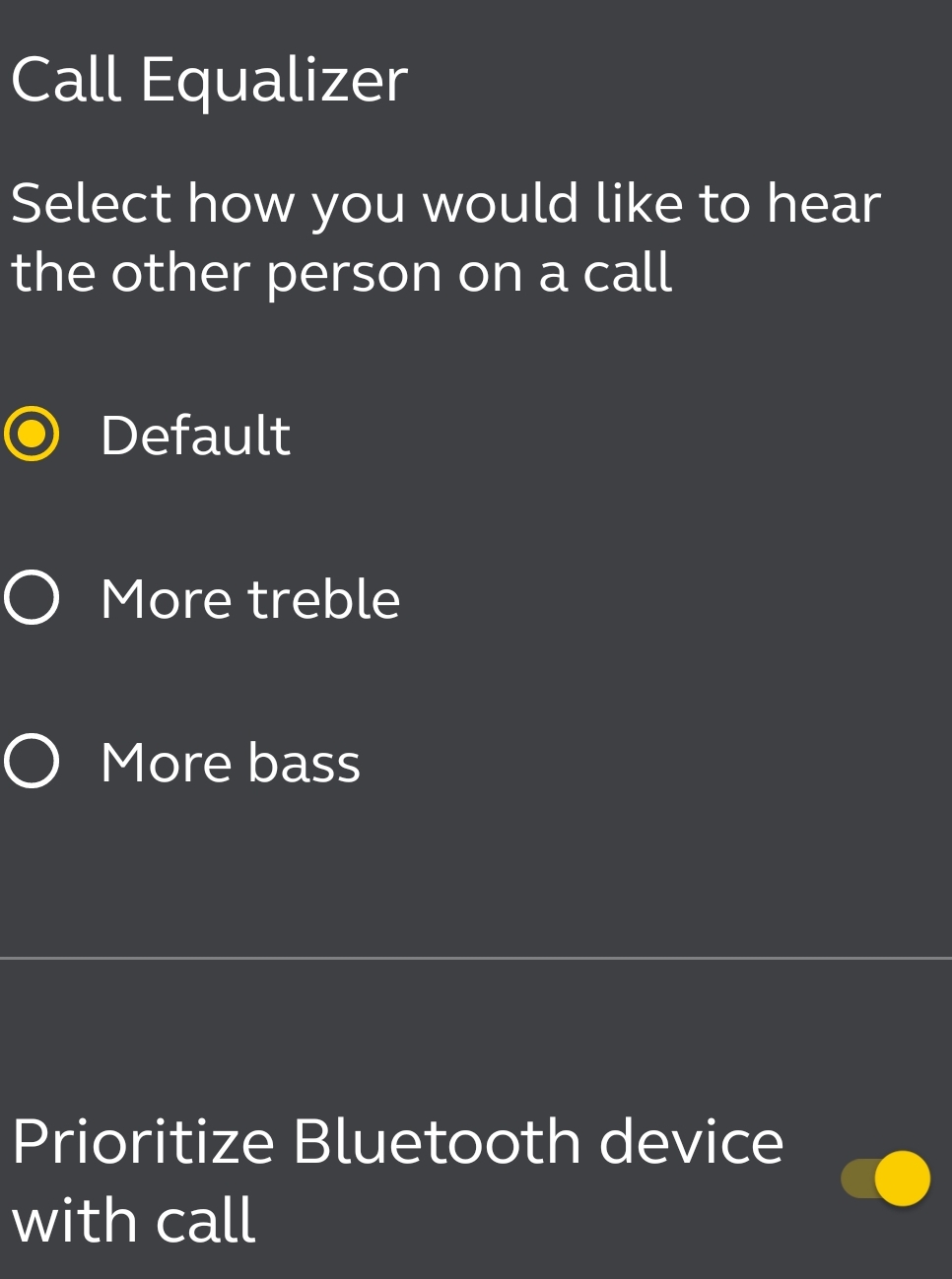
The mobile app is easy to use and allows for a surprising amount of customization. Each earbud has a single physical button and what happens when you press it is up to you. Configure options for single, double, and triple clicks on each bud. You can group preferences like ANC settings and EQ tunings into moments that can be selected with a single tap. There are also settings to control what happens when a call comes in and an option to show a map of where they were last used.

At two-hundred and thirty dollars, the Jabra 85t earbuds are certainly not cheap. The cost is not out of line when compared to other options of this caliber. They absolutely deserve a spot on the top shelf of true wireless earbuds. They’ve either been in my ears or in my pocket since the day I bought them and I’m sure that will be the case for quite some time.

TPM Security Processor Troubleshooting Guide

Status 

The first step of troubleshooting Trusted Platform Module (TPM) errors is to review the status of the security processor.  

Windows 10  

  • Go to Settings -> Update & Security -> Device Security -> Security Processor Details 
  • Or Type “TPM” in the search box and select Security Processor Details 
  • Or run Get-TPM in an administrator PowerShell console.  

Any detected issue should cause a message to a appear in the Status section. Refer to Security Processor troubleshooting (microsoft.com) for details and instructions to resolve each error message.  

Older Windows Versions 

  • Go to Run, type MMC and press enter. 
  • Select File -> Add Remove Snap-in 
  • Choose TPM Management and click Add. Select Local Computer 

Any detected issues should be listed in the Status row. Refer to Security Processor troubleshooting (microsoft.com) for details and instructions to resolve each error message. 

Event Logs 

TPM errors are recorded in the System Event Logs on Windows computers. Search the event logs for TPM errors with PowerShell: 

Get-WinEvent -FilterHashtable @{LogName=’System’} | Where-Object -Property Message -Match ‘TPM’ | fl 

Remediation 

No one solution will correct all TPM issues, but here are some of the most common and effective fixes listed in the order you should attempt them.  

Updates 

Many times, TPM errors can be corrected by applying updates to the operating system and system BIOS.  

The operating system should be updated with the Windows Update mechanism. Windows updates should be applied before any TPM or BIOS updates from the manufacturer.  

The procedure for updating the System BIOS is different across systems, but in general the manufactures update utility should be used. 

UEFI Discrepancy 

TPM 2.0 (check status) requires the system BIOS to be in a Native UEFI mode only. Disable any legacy functions, modes, or settings.  

Clear TPM 

TPM security processors include their own sealed storage. Occasionally that storage becomes corrupted. Clearing the TPM storage is done with the Security Process Details page or, the TPM MMC (see Status section). It can also be done via PowerShell (Clear-TPM in an admin console). 

  • You should backup a system before clearing the TPM. Data loss is possible in certain situations. 
  • Windows Hello will not function after clearing TPM storage and needs to be reconfigured. 

Reset Power 

Often a full power loss will restore TPM functionality to systems that cannot detect their TPM security processor. TPM is missing or not detected status messages from either the BIOS or Windows Status warrant the following procedure. It is important to remove all power and fully drain any capacitors or other power supply available to the TPM chip, a reboot or shutdown is not sufficient.  

  • Shutdown the system 
  • Unplug the Power Cable or Power Supply 
  • Remove any batteries from laptops. 
  • Disconnect any UPS or USB power.  
  • Hold down the Power button for a minimum of 30 seconds. 
  • Re-connect power cords, power supplies, UPS, or USB power. 
  • Power on the system and check the TPM status.   

Further Documentation 

If you are unable to resolve TPM issues after completing these steps you should contact your system’s or motherboard manufacturer’s technical support. There is likely a hardware issue that may require replacement. It is possible to disable the TPM function in your system BIOS. Be sure to decrypt disks and turn off features that require it (Windows Hello) first.

Couch Gaming Perfection with the Logitech Lightspeed G915TKL Keyboard and G502 Mouse

Recently, I purchased a gaming laptop with the intention of connecting it to my home theatre and answering the Call of Duty from my recliner. The laptop did exactly what I wanted, but it didn’t take long to learn I had overlooked something. I planned on running an extra Bluetooth keyboard and mouse that I had lying around, but they just didn’t cut it. Bluetooth dropped, there was too much lag, and they just didn’t feel like gaming equipment.

I tried using a wired keyboard and mouse, but that was also less than ideal. I had to use USB extension cables to reach, or I needed a really long HDMI cable. Either way, having a cable draped across the middle of my living room proved to be hazardous. My wife got tripped up one night and almost fell. Time to find a better solution.

I started researching wireless options for gaming. Most manufacturers have something to offer. Traditionally I’ve used Razer equipment with my gaming systems. Before I placed an order, I decided to go look around my local computer store. They had lots of options on display. I was surprised to discover that I preferred the look and feel of the Logitech gear over Razer this time. I picked up the ten keyless version of the G915 and the G502 mouse hoping that the TKL would give me enough space to use both on a lap desk.

Both devices use Logitech’s Lightspeed wireless technology. The company claims that it has less than one millisecond of lag. I don’t have the equipment to confirm or deny that at a technical level, but I can say there’s no noticeable lag of any kind. I’ve had zero issues with signal dropout and no missed clicks or keypresses. The only complaint I have about Lightspeed is that each piece of gear requires it’s own USB dongle. So if you are thinking about picking up a keyboard, headset, and mouse make sure that you have three free USB ports. You’ll also want to be sure to not loose the tiny receivers. Luckily each piece of equipment has onboard storage.

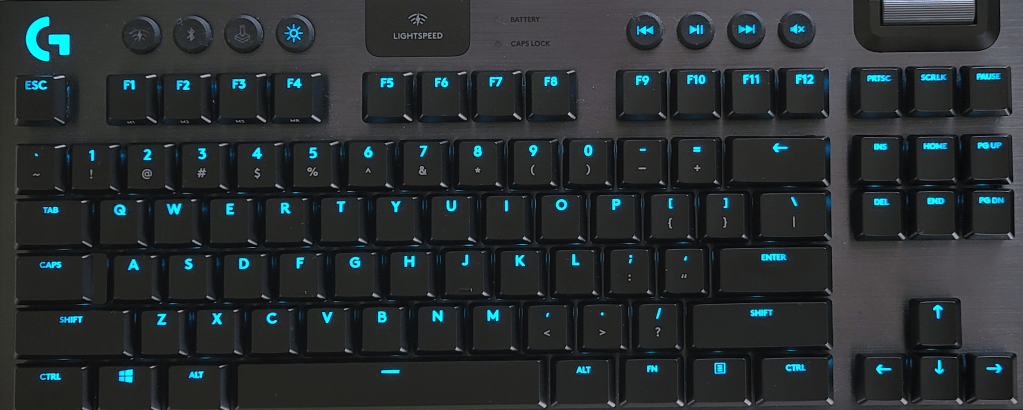
The G915TKL is 368 mm (15.2 in) wide, 150 mm (5.9 in) high, and 22 mm (0.9 in) thick. The chassis is aluminum and provides a flex free deck for the rigorous punishment gaming boards must endure. The keys are full RGB with several built-in patterns and effects. The software will also let you create schemes and some games provide their own. There are dedicated media control buttons and a clever volume control that is similar to a mouse’s scroll wheel. The volume control is extremely useful and more accessible than the one on my headset.

There are three choices of switch styles available: Tactile (brown), Linear (red), and clicky (cherry). You can also choose between carbon and white colors. I went with the tactile carbon combo. Normally I prefer a cherry switch, but I wanted to keep the sound down for use in the living room. The keys feel great and actuate about half way though their travel. They are spaced perfectly for my hands. The metal chassis is heavy enough for the keyboard to stay put and there are two levels of heights adjustment on the back edge. The TKL edition does not include a wrist rest, but my lap desk has a built-in one so this wasn’t an issue for me.

The batteries are rechargeable via micro USB and you can use both the keyboard and mouse while they are plugged in to your PC charging. The keyboard will last for around forty hours and the mouse for about 60, with the backlights on. You can use the keyboard and mouse with your Xbox or PlayStation on supported games. They both also support a secondary device connection over Bluetooth and can flip between them easily.

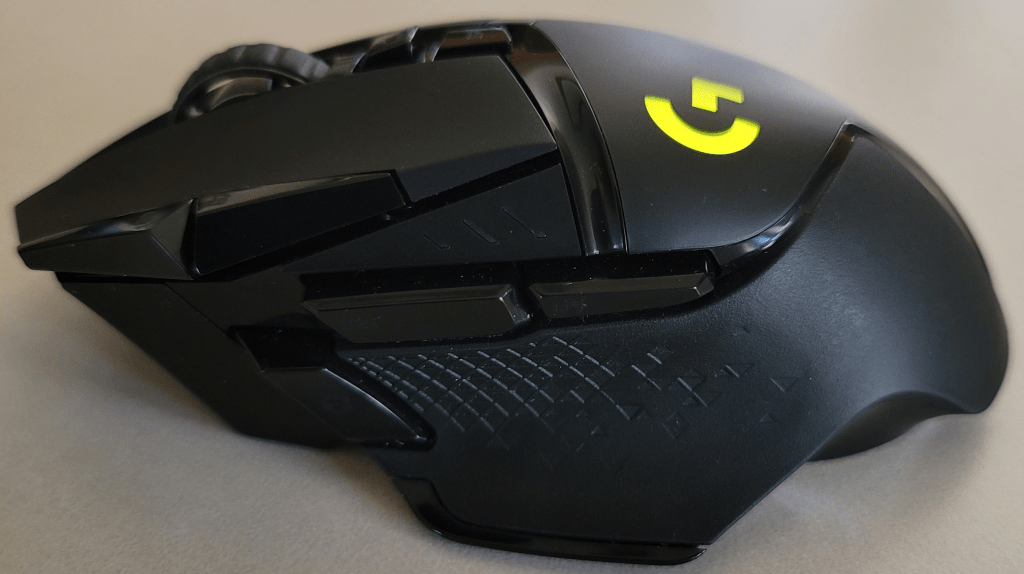
Speaking of the mouse, the G502 Lightspeed features user adjustable weights and a sensor that can track at 25,600 DPI. There’s a dedicated sniper button on the thumb rest that drops the sensitivity to a lower level while you keep it depressed. It also has Logitech’s famous scroll wheel that changes from click scroll to free scroll with the press of a button. If you have ever used an MX mouse, you know what I’m talking about.

The mouse is controlled by the same GHUB software as the keyboard, but requires it’s own USB chip. The RGB lighting is easy to manage. The eleven on-board buttons are fully customizable and support macros too. The mouse fits in my hand well with plenty of room for my fingers. The buttons are right where they should be and long enough that any size of hand should easily be able to find them. The mouse also supports wireless charging from an optional mouse pad. I don’t currently have the charge pad so I can’t comment on it.

Both the TKL keyboard and G502 mouse fit comfortably on my lap desk. I’m using a LapGear Home Office Pro that I picked up at BestBuy. It has an integrated mouse pad with a lip that keeps the mouse from falling off every time you move or need to get up. The mouse pad is a little small but if you crank up the sensitivity a little, it works well. It is really nice to be able to sit in my favorite chair and play all my favorite games. The Lightspeed tech works flawlessly from across my living room even with my non-Bluetooth friendly WAP sitting right next to it.