SMTP Authentication with Microsoft’s 365 Exchange On-line Suddenly Disrupted?

Microsoft has been engaged in the removal of Basic Authentication from their Exchange On-line systems for almost a year. The final cutoff is currently set for October of 2022. Some business applications and devices like scanners logon to the cloud with their own user account to deliver their messages. Older apps and machines that impersonate a Microsoft 365 user in this way may not support MFA (Multi-Factor Authentication), aka 2FA.

In preparation for decommissioning the basic logon protocol, Microsoft has begun modifying the SmtpClientAuthenticationDisabled attribute for Tenants and mailboxes they’ve deemed to not be using it anyway. According to their documentation, they will post a notification in the Message Center before making the changes to your organization’s subscription. We’ve received multiple reports of this change effecting established systems that are used every day with no message being seen in the Microsoft portal.

If you find that your apps, MFPs, or other non-Outlook email clients have suddenly stopped working, there are some useful PowerShell commands that will help you diagnose the situation. You can also re-enable SMTP authentication for either your entire Org or for individual mailboxes. Most of this information is outlined in another Microsoft Document.

To check the SMTP Authentication status of an Exchange On-line subscription, logon from a PowerShell session in your favorite terminal app. The instructions in this post assume that you have already installed the new EXO V2 PowerShell module.

To check settings for the organizational level, run the command below. An output of True means the authentication is disabled at the top level. This is not the whole story. Each mailbox can also have its own setting. The top-level only applies when a mailbox’s corresponding attribute is blank.

Get-TransportConfig | Format-List SmtpClientAuthenticationDisabled

If the mailbox SmtpClientAuthenticationDisabled attribute is set to a value other than $null (empty in the report you generate below), it overrides to top-level command. Use this one-liner to generate a report showing each account’s setting.

Get-CasMailbox | Select DisplayName, PrimarySmtpAddress, SmtpClientAuthenticationDisabled

To change the Organizational (default) level, execute the following line in your console. Change the value at the end from $true to $false to fit your desired outcome.

Set-TransportConfig -SmtpClientAuthenticationDisabled $true

To modify individual mailboxes, you’ll need the email address. The SmtpClientAuthenticationDisabled value can be set to $true (disable SMTP auth), $false (enable SMTP auth), or $null (use ORG level).

Set-CASMailbox -Identity xxx@xxxx.com -SmtpClientAuthenticationDisabled $true 

Use this simple script to modify all of your mailboxes at once, the same values apply here. Note: if you are at a larger company, you may need to add the ResulteSize Unlimited switch. As written, it will enable SMTP Authentication for all mailbox accounts.

$mailboxes = Get-CasMailbox|Select-Object PrimarySmtpAddress -ExpandProperty PrimarySmtpAddress

Foreach ($mailbox in $mailboxes){
    Set-CasMailbox -identity $mailbox -SmtpClientAuthenticationDisabled $false
    }
Multiple Systems with Office 365 Error 700003 and Sign-In Trouble

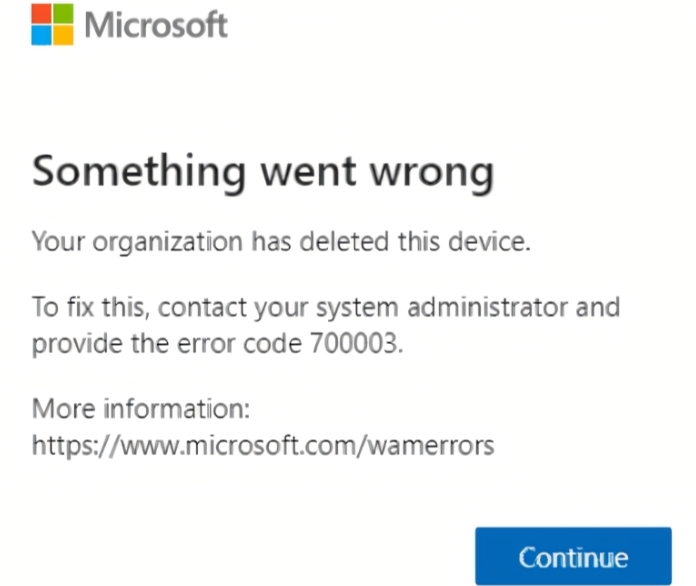
Typically, the 700003 error code indicates that the computer’s machine account cannot be found in Azure Active Directory.

Recentley I encountered a situation that had dozens of systems showing the error message. It was difficult to explain how that many system accounts could have been removed from Azure AD.

Eventually I traced the problem to some work another team was doing. They were reorganizing on-prem computer accounts into new organisational units. The Azure AD Connect configuration pointed at specific OUs and nobody had thought to add the new ones.

As the systems were moved to their new OUs they were marked for deletion by Azure AD Connect. The fix was to add the new organization units to ADC and force a sync.

I Assembled a Bitspower Titan X 2.0 Liquid Cooled Kit

After I had a positive experience upgrading a system from air cooling to an AIO block, I decided that my next build would be based on a custom loop. For those who are new to liquid cooling, an AIO block is a closed assembly that you install as a finished unit. A custom loop is created from individual pipes, pumps, reservoirs, and components that resemble a plumbing project in minature.

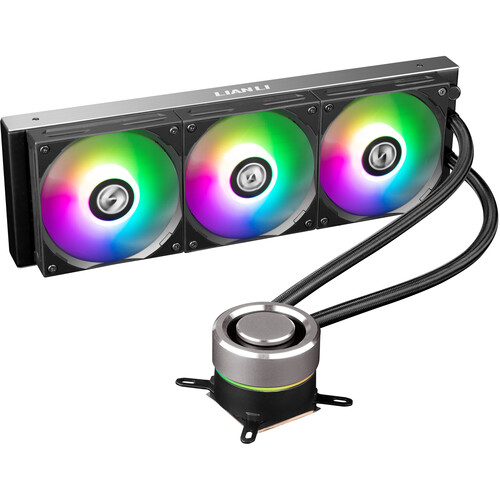
AlO is All-In-One, closed, fully assembled units.

Custom loops are often chosen for their aesthetics. There’s something mesmerizing about seeing liquid moving in and around electrical components. The drama can be heightened by adding RGB lighting effects. Beyond looks, liquid cooling can be more effective than air. I started researching and soon discovered that there was far more to designing a custom loop than just picking out some parts.

Lucky for me, I also found a company that was building so called bare-bones systems that featured a custom loop. I had never heard of Bitspower before. Their page indicated that their equipment was stocked at a chain store here in town. Intrigued by what I saw on-line and liking the idea of a starter-kit, I headed over to Microcenter take a look.

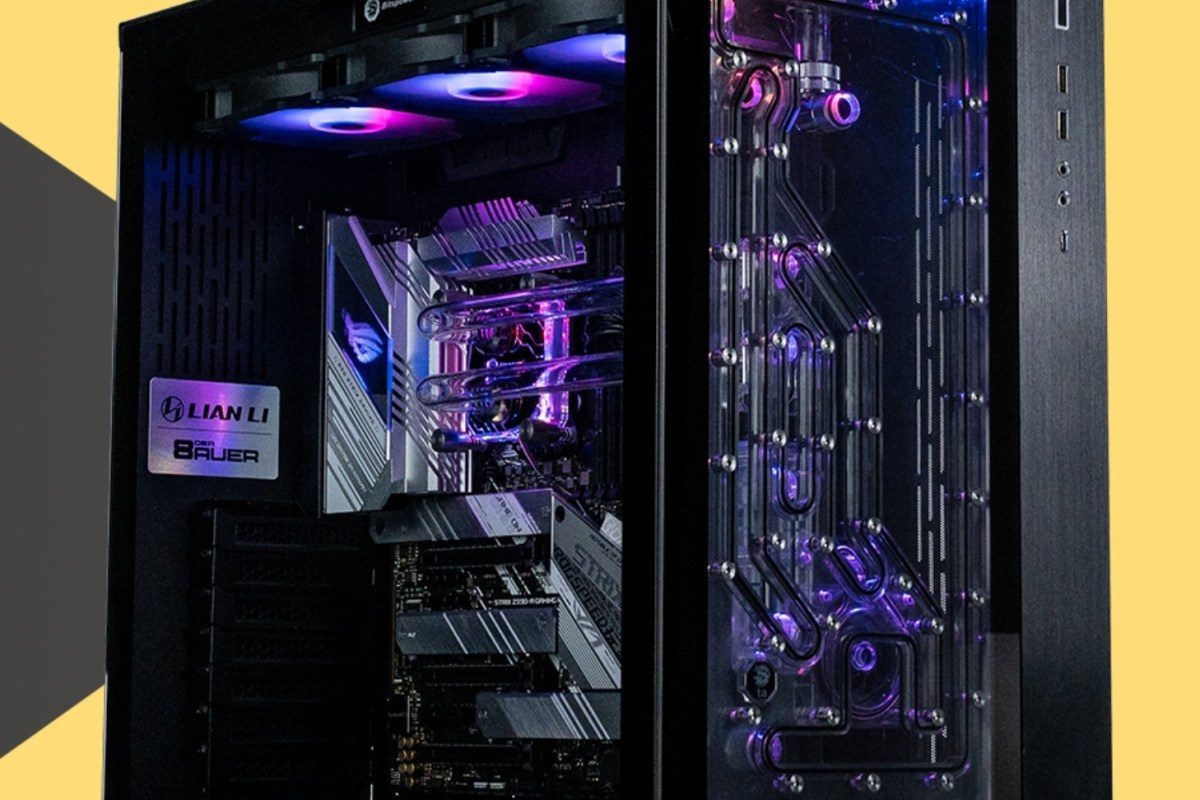
Bitspower makes some fantastic looking systems. 

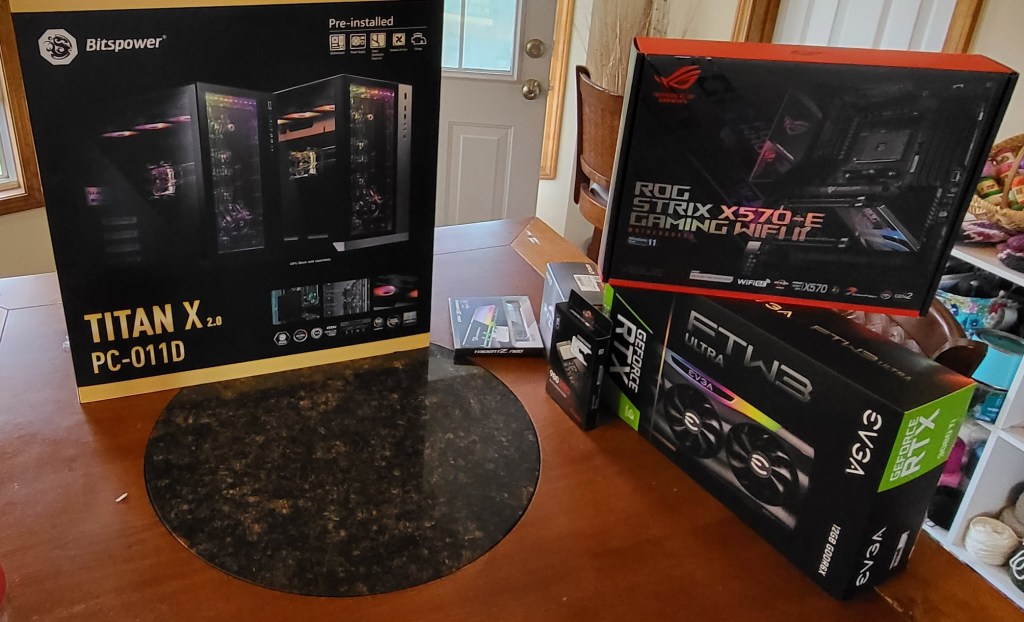
They had the Titan X 2.0 kit on-sale. The kit includes a pre-installed high-end gaming motherboard for your preferred CPU architecture, a pre-installed PSU, a boxed GPU of various caliber depending on the kit, and a partially installed custom loop. The reservoir, pump, power-supply, fans, motherboard, and associated parts and cables are all professionally installed at the factory in a top-tier case that comes in black, or white. You supply the CPU, memory, and storage.

They include the original component boxes, manuals, and left over parts in the kit.

I also picked up an AMD Ryzen 7, 32 GB of DDR5 GSKILL RGB RAM, and two 1TB Samsung 980SD Pro nVME drives. This system will be used exclusivey for gaming. I don’t intend to overclock it, at least not right out of the box. 

To keep the costs down, I decided against getting the optional graphics card loop components. The add-on kit for my GPU was $279.00. The GPU PCI 4 riser kit, would have added another $49.00. They can always be installed later.

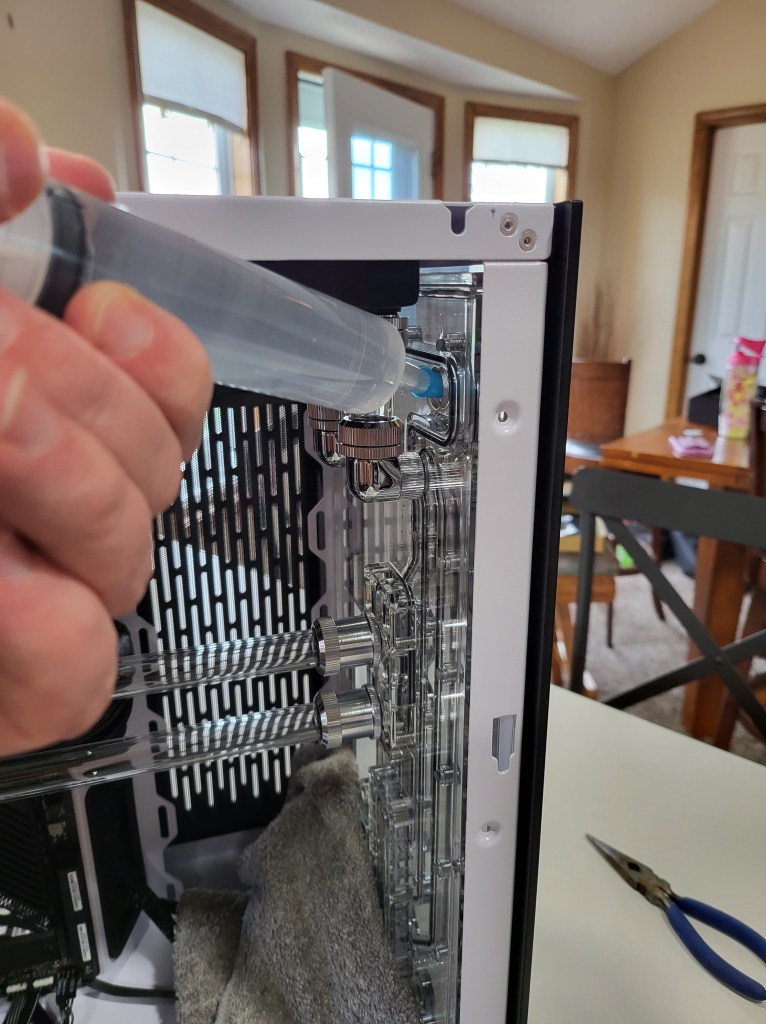
If you’re considering building a closed loop system, there are some specialty tools you need to have. The hole you fill the revivor through is rather small. It is also in an awkward to reach location. You will need a liquid syringe to fill it.

Injecting the coolant requires a syringe.

There isn’t one in the box. You get them on Amazon, many home stores, even pet stores. I recommend getting a brand new one to avoid introducing contaminates to the coolant. I chose to use distilled water in this build (not included). Most of the vendors make coolant. You should research other options too.

The other pieces of a-typical build equipment needed are a method to power the coolant pump while isolating it from the other components. Filling the reservoir without cycling the pump will result in huge air pockets.

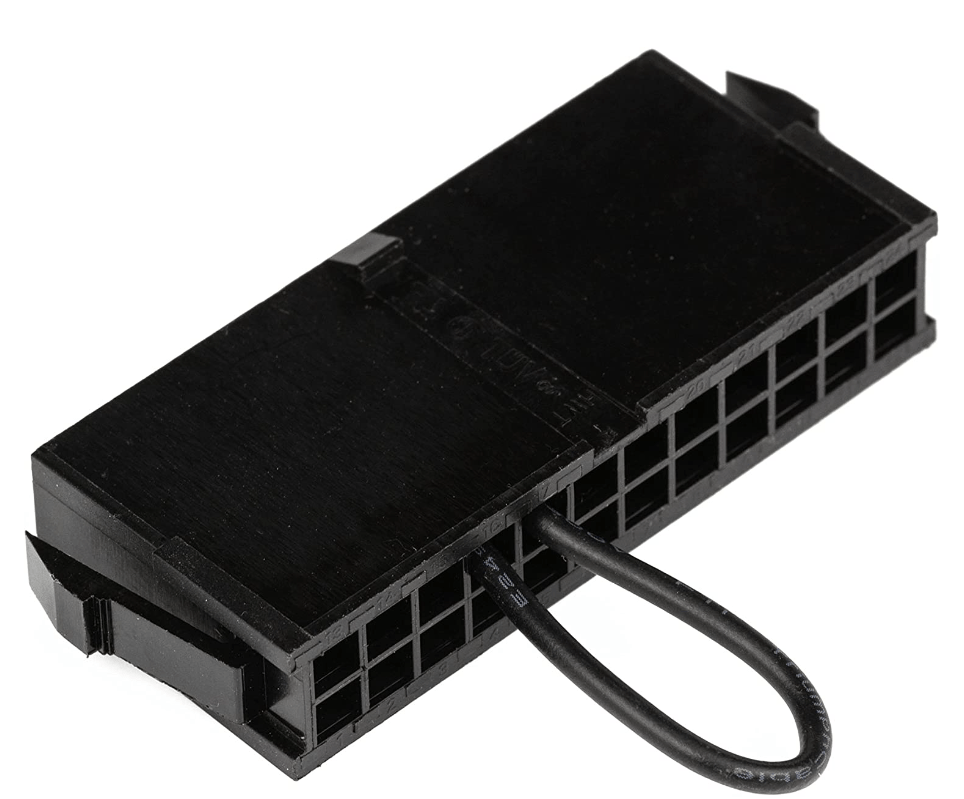
There are a couple of ways to go. One is to use the jumper bridge that ships with some gaming boards.  The motherboard power leads will plug into it and you use your PSU’s switch to cycle the pump. The other option is to use a power adapter that connects directly to your pump. Refer to your motherboard and cooling system installation guides for the details.

A PSU Jumper Bridge will let you disconnect the motherboard power while still powering the pump through a Molex adapter/lead. You may need to install the Molex lead yourself, it’s in the box. I used a 4-Pin fan adapter (not in the box) to connect the Molex PSU lead to the pump.

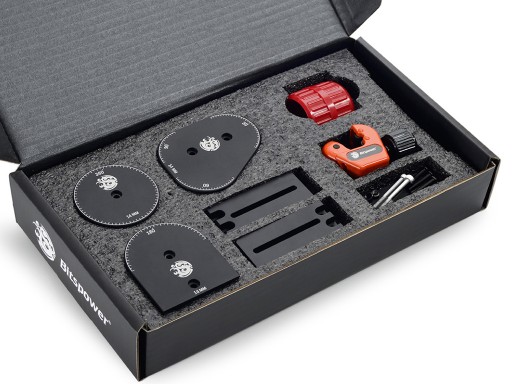
If you are building your own loop or need to modify the Titan kit you will also need a tube bending kit. Bitspower makes their own and there are several models available on Amazon. I did not need this tool. If you are sticking with the kit’s default layout for everything, you will not need one either.

Layout modifications require a tube-bending kit.

The rest of the assembly is straightforward. The instructions are short and written for experienced builders. Search Youtube for more help. The kit absolutely shortens the build time, but there are still advanced steps remaining. You’ll be installing the CPU, applying thermal paste, mounting the CPU water block, completing and filling the loop, and installing all the other components.

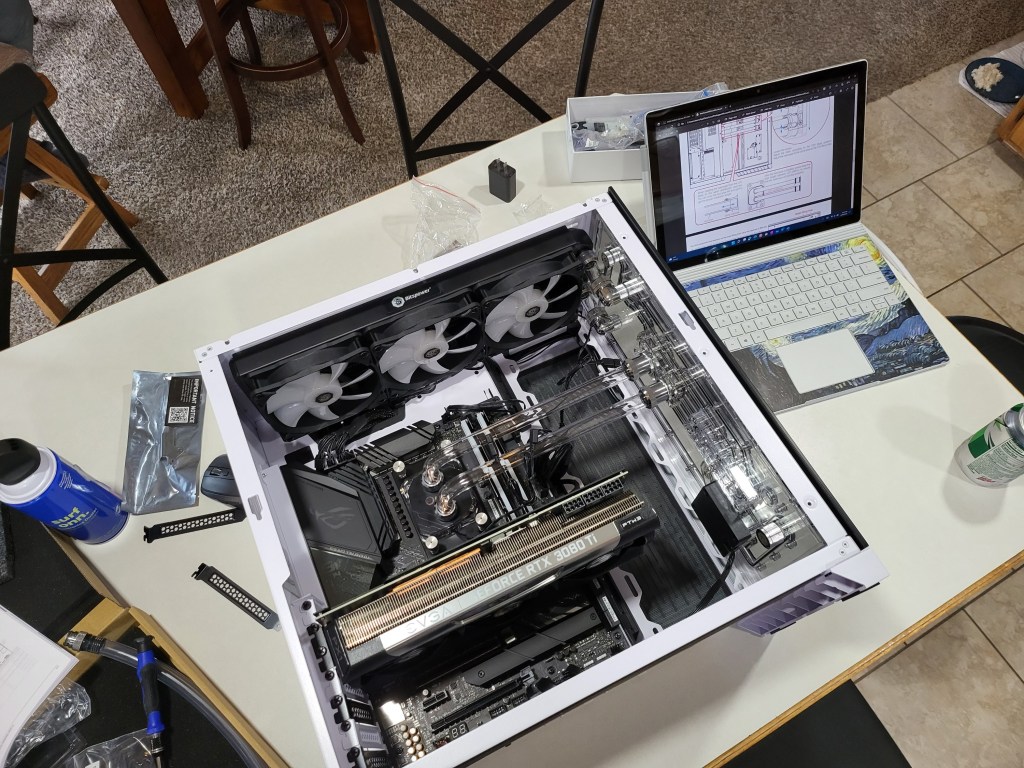
A clear build space with everything at-hand makes the assembly easier

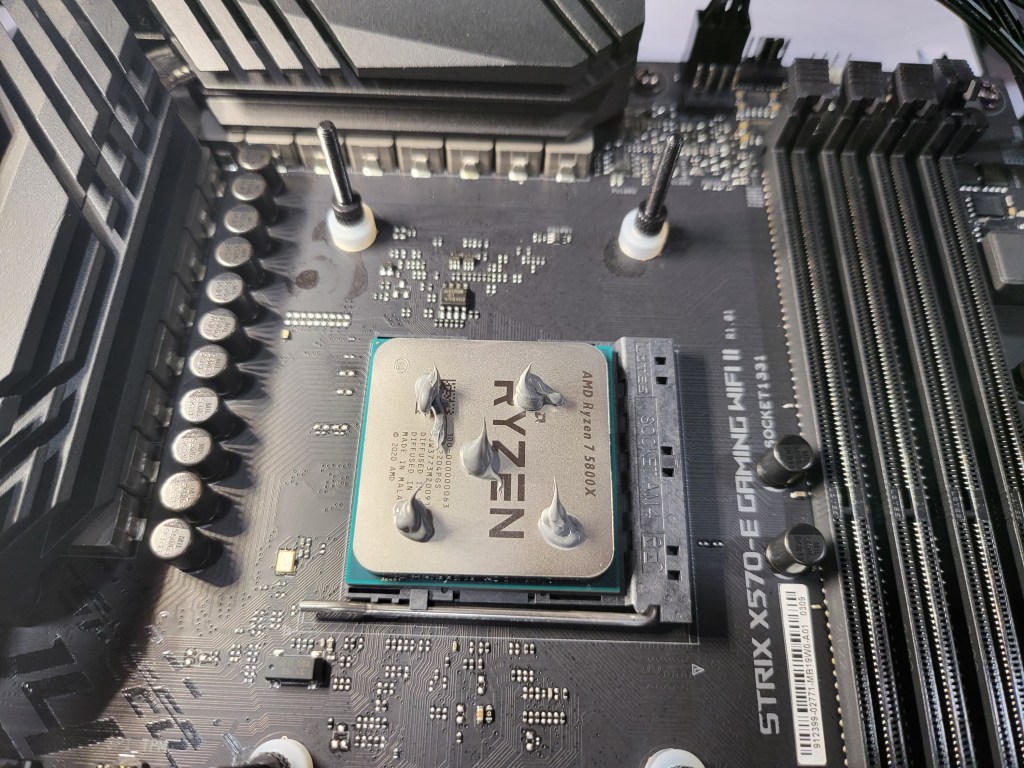
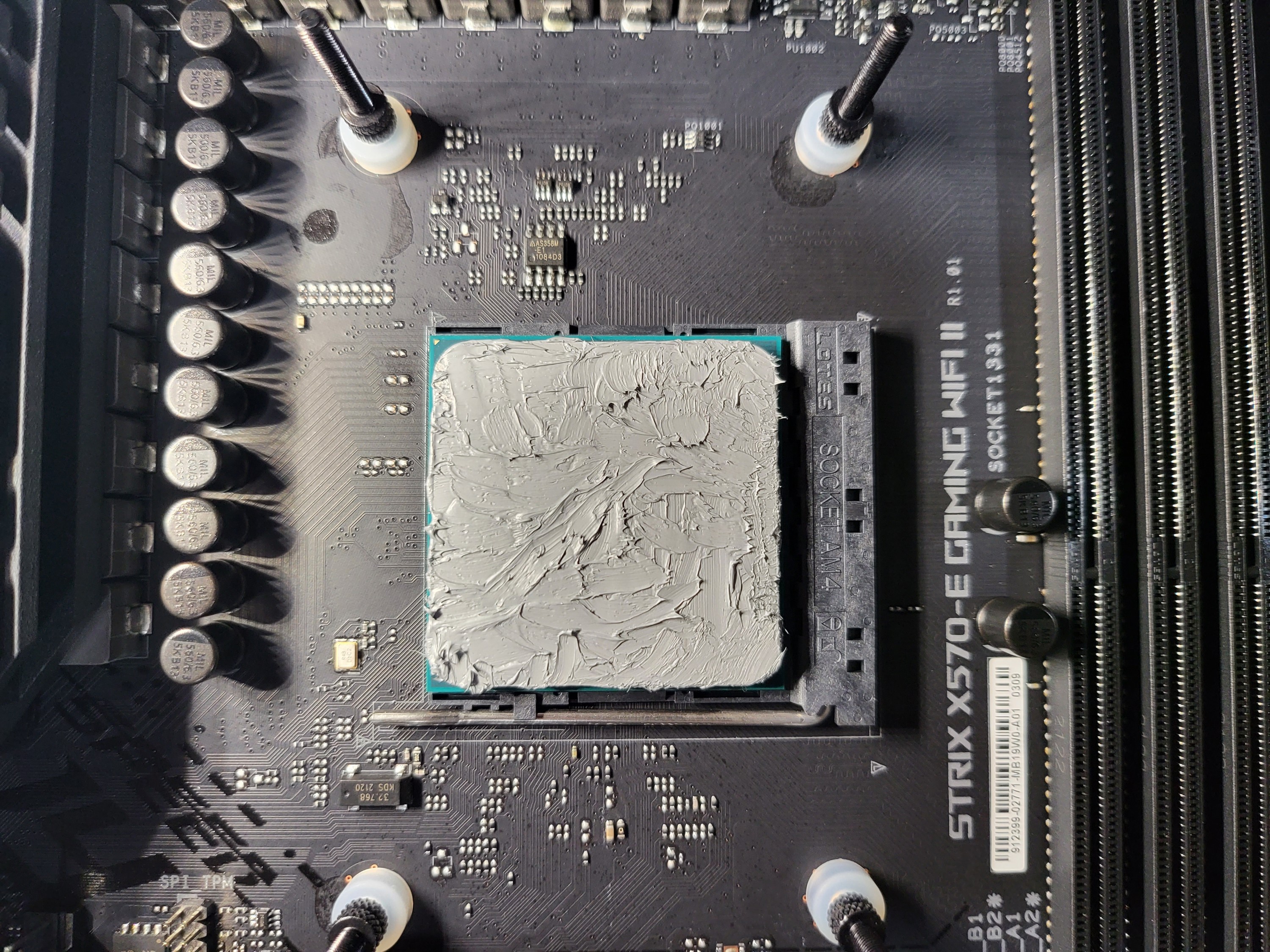
Disappointingly, the Titan kit does not include the thermal paste required to complete the project. I also reccomend adding a GPU support bracket. The case included is Lian Li, so I opted for their support bracket. Bitspower has their own brand of thermal paste. It was easy to apply and performs well, so far.

Bitspower’s paste includes a micro-spatula to ensure even application is easy to achieve.

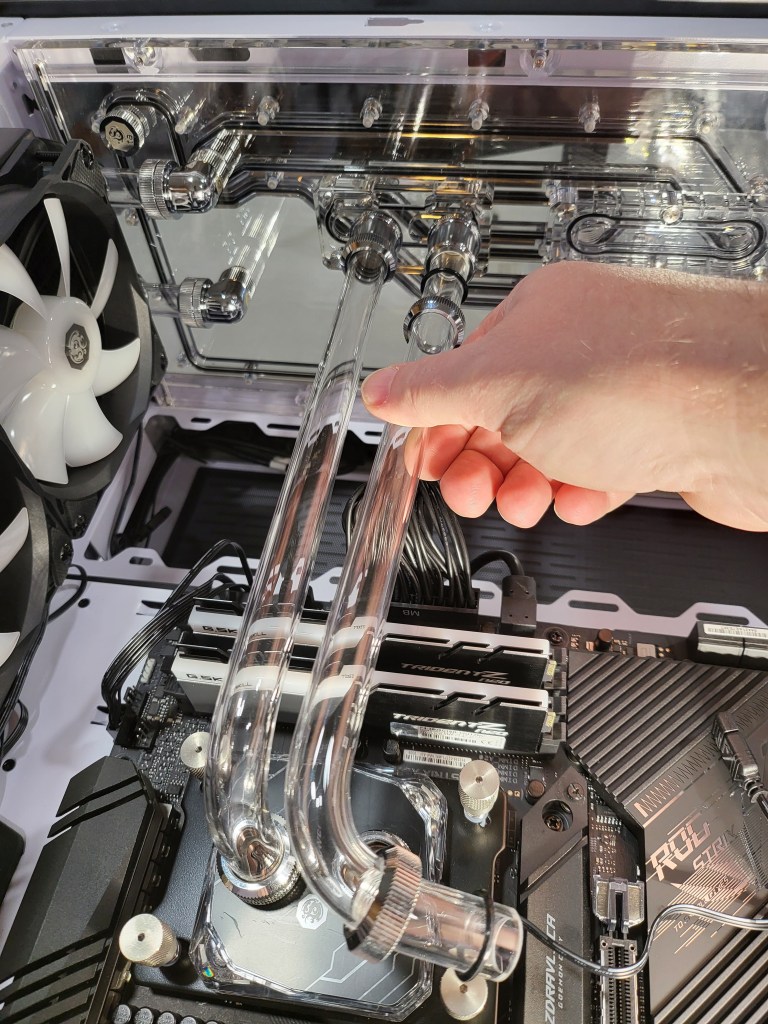
The tubes are already cut and shaped to fit. You will need to position the O-rings and caps on each end before making the connection. When connecting the tubing, be sure that the tube goes past the O-ring in the mounted end’s input. I was surprised at the amount of force I needed to apply to get them seated properly.

Take your time and get them mounted perfectley. Leaking would be bad.

When you are ready to fill the system with coolant, I recommend covering the area with towels. Make sure that the only device receiving power is the water pump. If something gets wet, do not panic. Just make sure that everything in completley dry before before powering up. Run the loop for 24 hours with only the pump powered, after you get it filled, to be confident.   

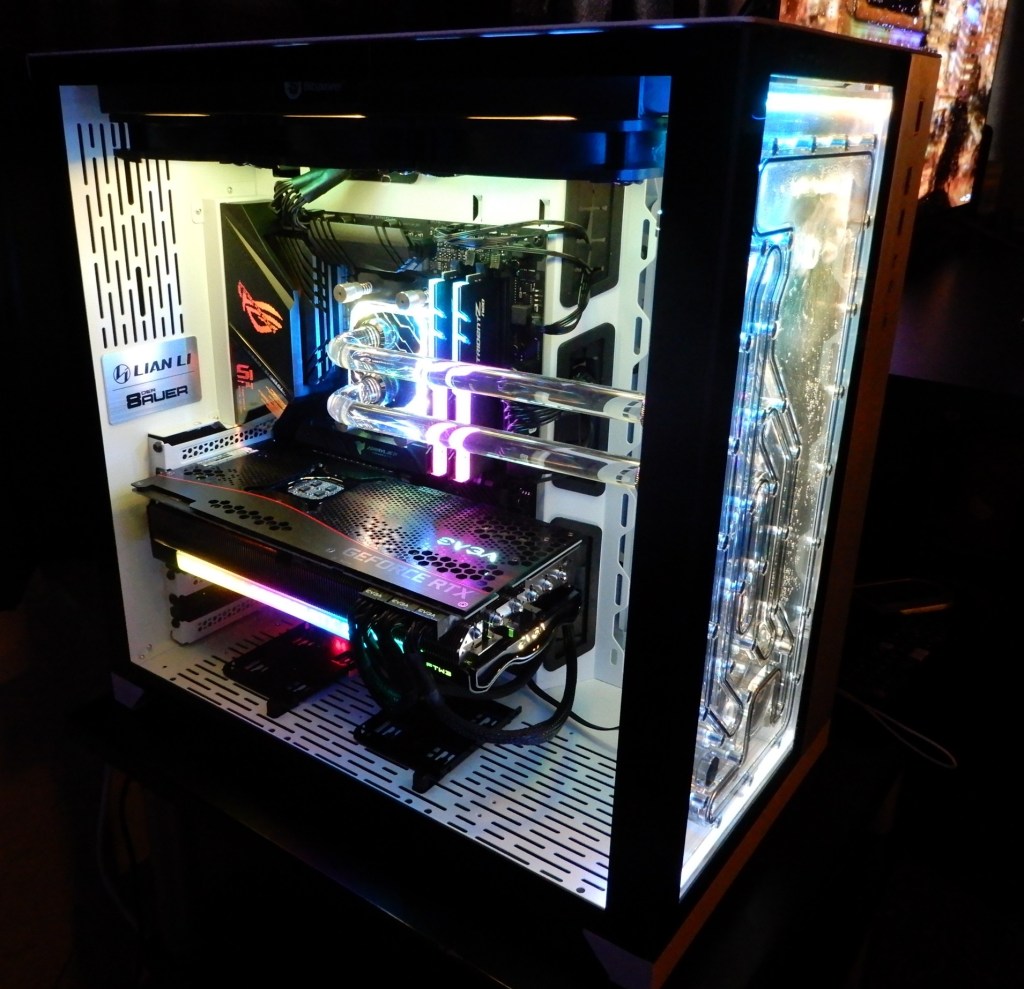
The Bitspower Titan X 2.0 AMD EVGA 3080 Ti kit fully assembled.