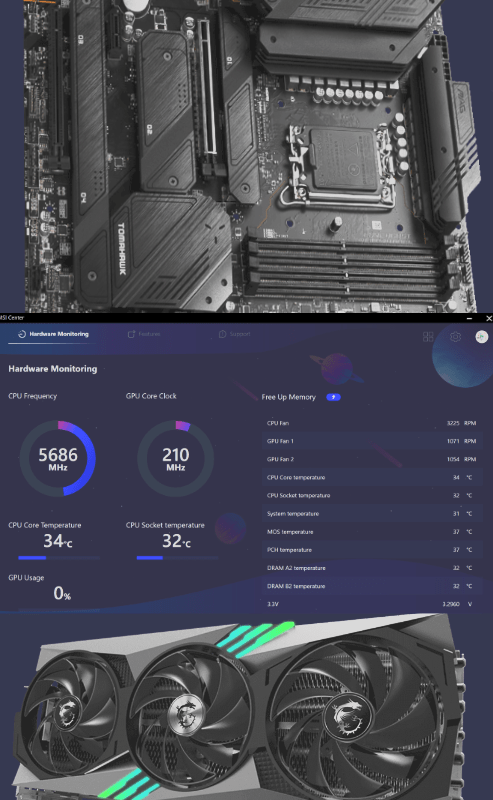
I got lucky and obtained a 4090 GPU in the second wave, just before their prices skyrocketed. The purchase was expensive for me. My entire entertainment budget was blown for several winter months.
I went with an MSI 4090 Gaming TRIO 24G. It was the most affordable, and in-stock option that included 3 decent fans and had some mild factory overclocking. I was running an MSI DDR4 motherboard at the time and assumed that the MSI Center software should be able to control its lighting and cooling systems natively.
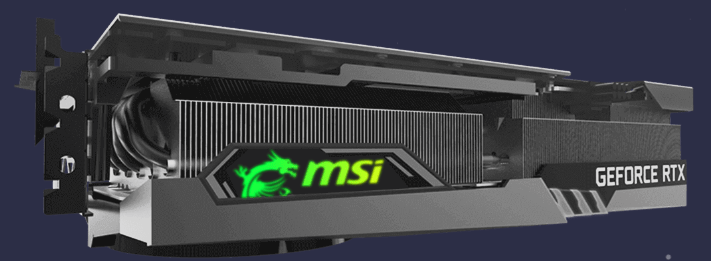
The software adapted to the new card like I thought it would. I ran it that way for almost a year. It had an i-7 Kaby Lake CPU, 270Z Chipset, 32 GB of DDR4 PCRAM, and a Samsung 980 Pro SSD. The components were being powered by a Corsair 1000-Watt power-supply and housed in a Thermaltake View 71 Full Tower case. A Lian-Li Galahad 360 AIO CPU cooler, and 6 SL case fans connected to Lian Li v 3 controllers and synced to the motherboard kept everything cool.
For the most part, the PCIe 4 platform and PCIe 5 card hybrid performed well. However, there were telltale signs of mismatched hardware generations showing up in odd places. For example, I could play Halo Infinite in 4K with everything on Ultra but if I didn’t enable V-Sync I heard a mild coil whine and suffered pretty serious screen tearing even though my monitor and cables are G-Sync rated and G-Sync is enabled.
I couldn’t get anywhere near the performance I had expected from my VR driving titles. In several other games like Hogwarts Legacy, I had to leave specific functions such as Volumetric Fog disabled, or the frame rate would tank. These signs combined with benchmarks and some good old-fashioned troubleshooting led me to understand that the previous PCIe-4 gen components were bottlenecking my super-expensive GPU.
Recently, I’ve finally saved up enough to upgrade the rest of my components to match the new GPU. I decided to stick with MSI when it came time to choose the new motherboard. I appreciate not having to run more software to control the GPU lighting and cooling features. I had also been impressed with the frequency and quality of their updates for the MSI Center software.

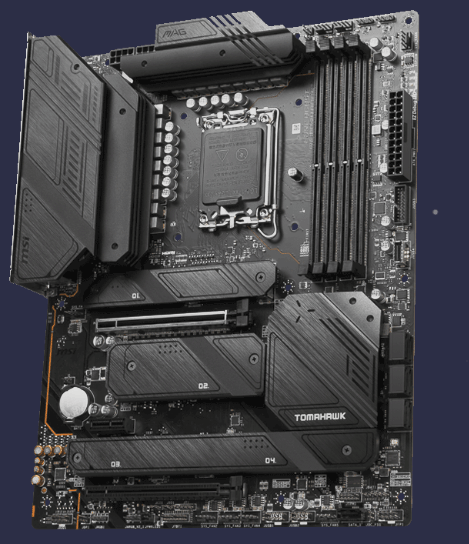
I ended up going with an MSI Tomahawk Z790 motherboard. I paired it with sixty-four gigs of GSKILL DDR5-6000 RAM. For storage, I opted for a Samsung 990 Pro. When it came to the CPU, I chose an i-9 14900K. Last, I installed a Thermaltake PCIe-5 1650 PSU just to be sure everything could run hard.
I spent four or five hours updating firmware for everything, installing Windows, all the drivers, all the control software (MSI Center, NVidia GeForce Experience, Lian-Li Connect, Samsung Magic Disk, etc.), and all the game launchers. Then I started on getting the games going. I couldn’t help myself and launched the first one, Halo Infinite, as soon as it finished installing.

Even with other games still in the process of downloading and installing I could visually tell that Halo was running better. I cranked up all the settings to Ultra and jumped into a Team Slayer match. There were no tears on the team presentation that plays just before a match starts and my system always suffered during that sequence, pre-upgrade. Best of all, no V-Sync was required. Yes, I know it is still checked in the screenshot above, but when I got around to unchecking the box, the coil whine was gone.
The entire game played smoother than I’ve ever seen it. Even at 4K with raytracing, HDR, and the post effects turned up to max, the game was pretty much flawless as far as graphical performance goes. My performance on the other hand, had some flaws. I lost several matches in a row. In my defense, I was distracted by trying to judge the outcome of all my efforts and expense.

It didn’t just look better and play smoother. It was better in every way. The iconic soundtrack had more depth and richness coming out of the same speakers that were connected prior to the upgrade. Even the controls seemed more responsive.
I’ve been up and running on the new build for about three months. In that time, MSI has released several features and updates for MSI Center. A BIOS upgrade, new drivers, an updated Xbox game bar widget, and more.
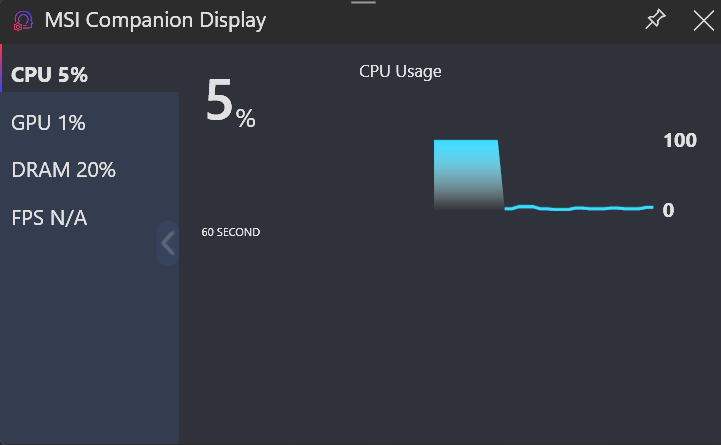
This is the fourth motherboard from MSI that I’ve installed into one of my personal systems. I’ve been impressed each time. The connections are well labeled, and everything plugs in securely. The metal re-enforced GPU slot on their gaming-class boards holds up to the beefy 4090’s weight.
The UEFI BI0S is simple to use but powerful. The Z790 automatically detected all of the components and booted on the first attempt. The EZ user interface makes basic.
overclocking and tuning a snap. Windows 11 detected the MSI motherboard and offered to install MSI Center automatically.
The MSI Center software allows for integration better than its predecessor, MSI Dragon Center, did. By supporting numerous plug-ins, the software is able to become the single-pane-of-glass dashboard and control center usually found on more mainstream manufactured PCs. A series of toggles is used to control which piece of software is in charge of a particular component.

For the most part, the plug-in solution works well. However, it is fairly easy to misconfigure the toggles and end up in a situation where something isn’t working properly. I’ve accidentally disabled my case fans by having both MSI Center and Lian-Li Connect toggled on to control them.
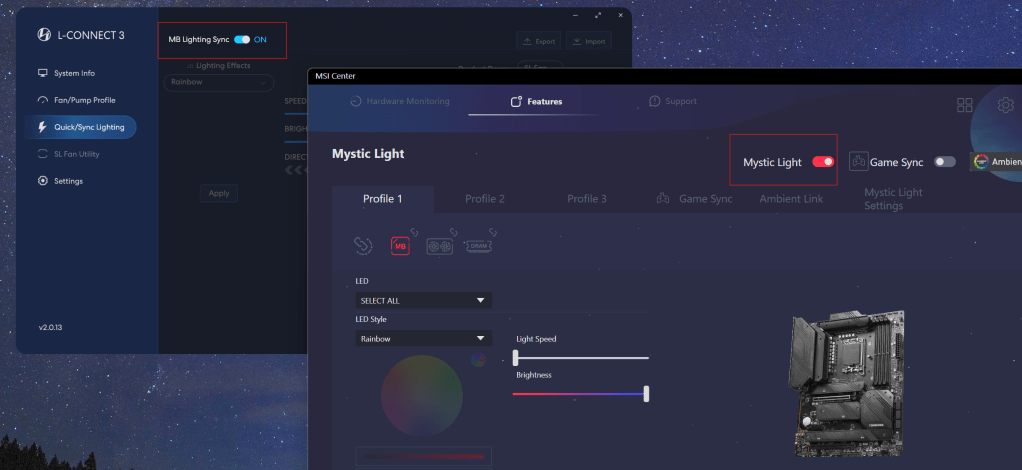
In the picture above you can see that both toggles must be on to allow Mystic Light control over the Lian-Li cooling gear’s lights. There’s no checking or error control, so if you don’t get them set correctly across the board, something doesn’t work. This is not an issue inherent to MSI software. It’s an industry wide issue as far as I can tell.
Toggles aside, the MSI components and software I’ve used over the last few years have been top-notch in quality and performance. I haven’t had to RMA a single MSI product yet (knock-on-wood). That’s saying something considering that I’ve got an eight-year-old MSI RX-480 graphics card that’s still going strong in an active gaming PC.

 techbloggingfool.com