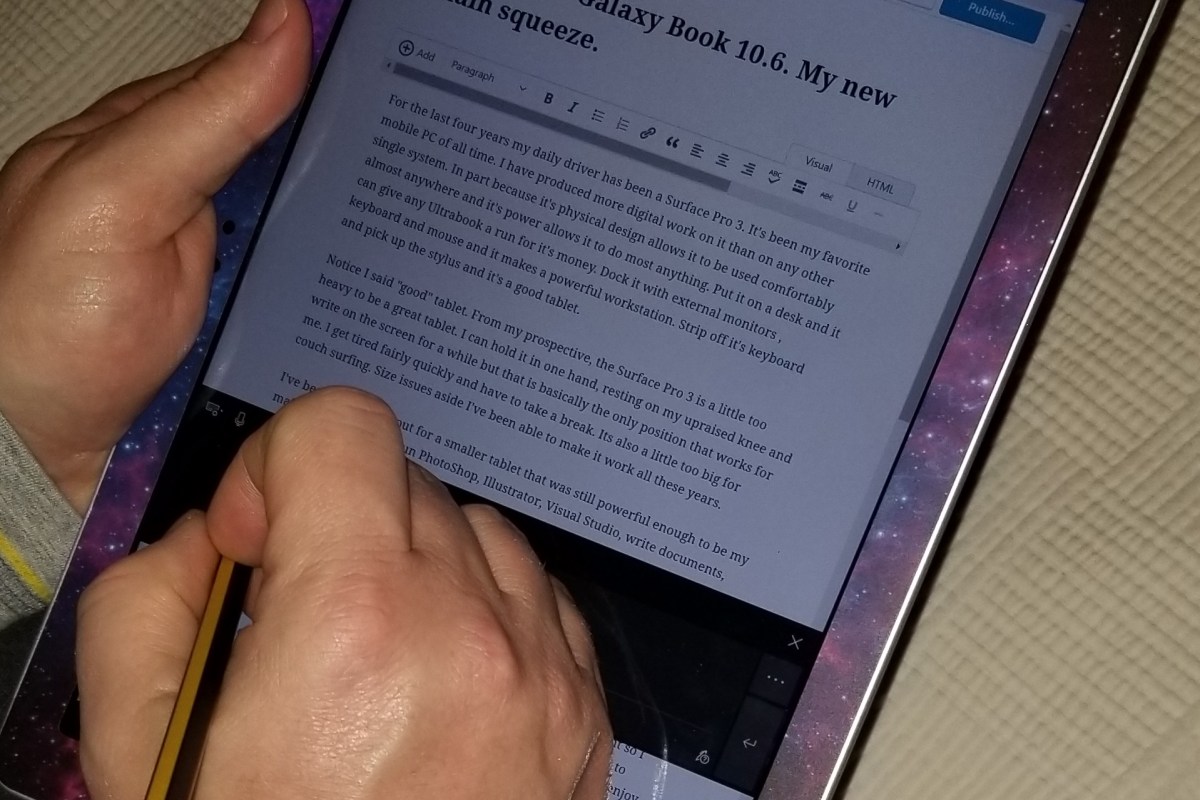
I frequently take my tablet to a park, museum, or other public space to get inspiration for my work. When I’m out with my Surface Go, I rarely have the keyboard attached. The Surface Pen is my primary input and control tool. Occasionally, someone will notice and ask how I am able to fully use my computer with just the pen. “What about selecting, copying, right-clicking, and all the other things you need a mouse for?” is an inevitable question during these conversations. Generally a statement like, “I can’t stand the way it feels,” also makes its way into the discussion.
The first thing most people need to address in order to be comfortable using their stylus, is the “feeling” of writing on a screen. There’s far less friction between glass and silicone than there is between paper and graphite. Some of us actually prefer the slicker strokes, but most people do not care for it, in the beginning at least. If you don’t like the slide, there are a few things that help. If your stylus has different tips, try them. Some are softer and offer more drag. They also change the contact patch size which further alters the experience.
Most Windows 10 based tablets allow you to adjust the pressure sensitivity of your stylus, which in turn changes how hard you end up pressing on the pen tip to write or draw. Setting your system to require more pressure will cause you to press harder and feel more drag. On Microsoft Surface devices you use the Surface app to change the setting. Samsung tablets have a Samsung Book app, most manufacturers have some type of settings app; look in your start menu.
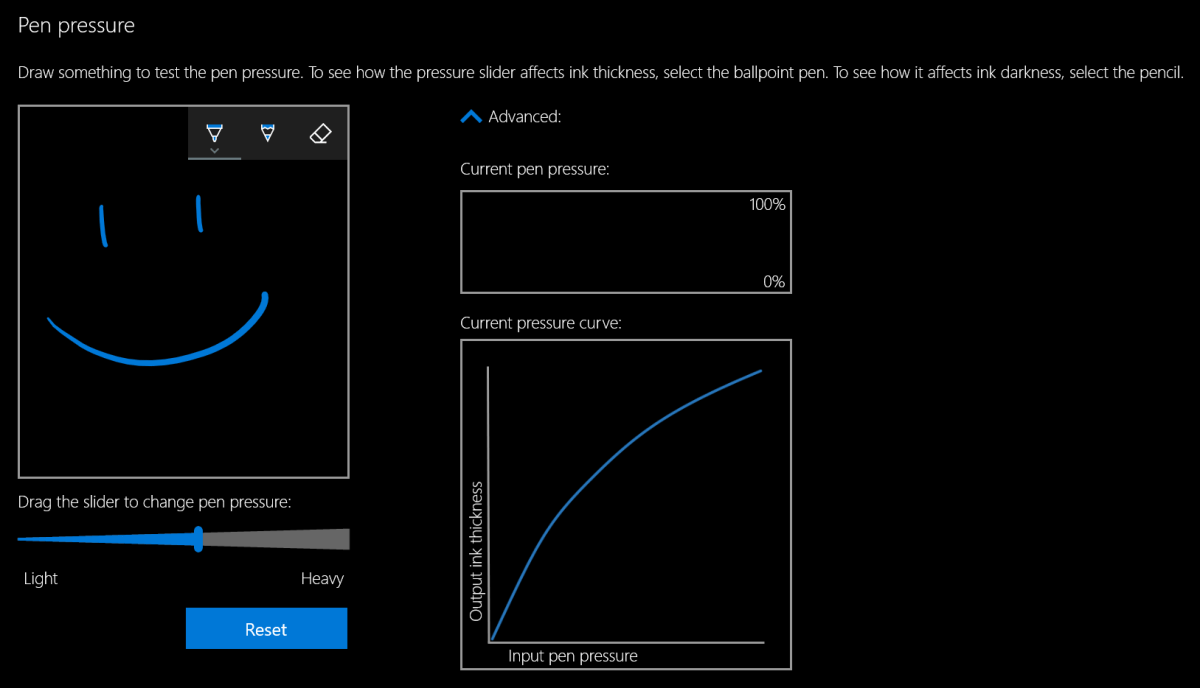
The last piece of advice I have to offer around the “feeling” of writing on your screen is to add a soft silicone screen protector. A significant part of the difference between drawing on a paper versus drawing on glass, is that the paper will slightly give way to the tip of your writing instrument. Silicone on silicone also results in more drag and lessens the likelihood of over-strokes occurring. Personally, I prefer the matte options because they also help reduce glare.
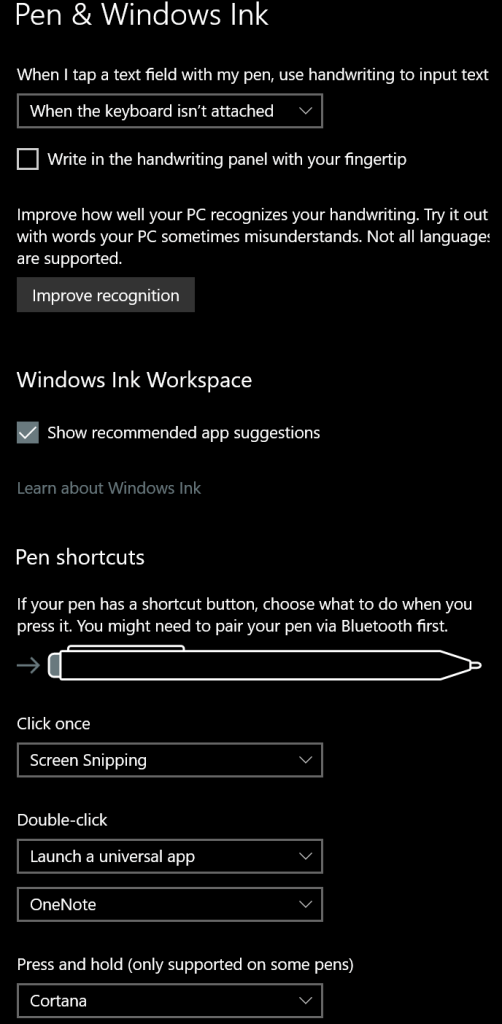
Once you have the physical issues addressed, you’ll need to spend some time with settings in both your operating system and applications. I suggest that you start off getting your windows profile all squared away. Lucky for you, I’ve written a detailed post about how to go about it. The 1809 update for Windows 10 caused me to change a few of my settings since writing that guide. You can see the updated configuration below.
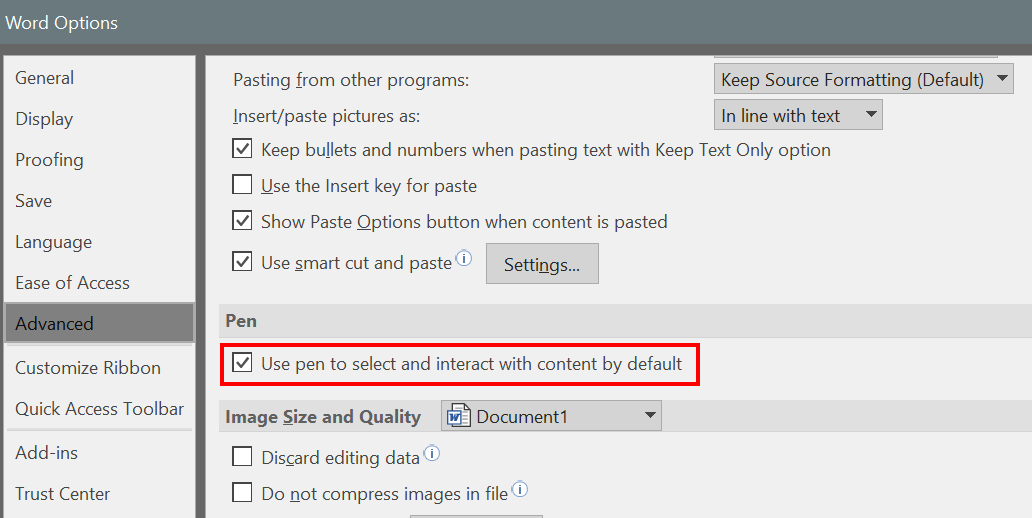
Great, so we’ve taken care of the way it feels to write on your screen and adjusted Windows to operate with a pen, we’re done right? Ha, don’t you wish…. Unfortunately, most applications also have specific settings that improve the stylus experience. Quite a few of the Microsoft Office programs, Word, Excel, PowerPoint, etc., have a setting in their advanced options that allows the pen to automatically select text. The function is turned off by default and I cannot fathom why Microsoft doesn’t turn it on for everyone. Checking this box will drastically improve the pen experience in these apps.
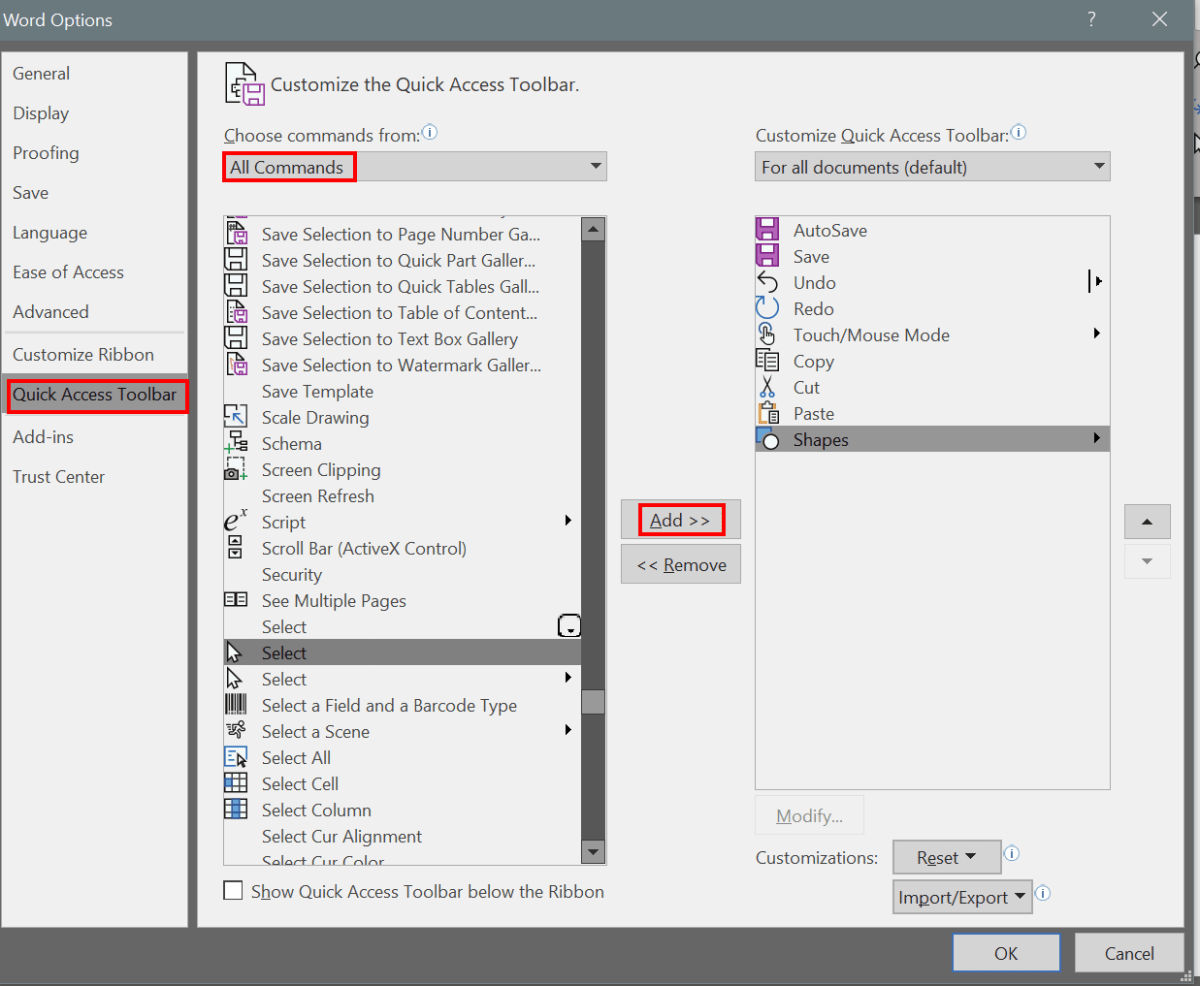
Whether you use a pen or a mouse, customizing the quick access toolbar in Microsoft Office applications adds efficiency to your workflow by reducing the amount of time you spend hunting for commands. The quick access toolbar is different for each application but can literally save you thousands of clicks and taps if you spend a little time setting them up.

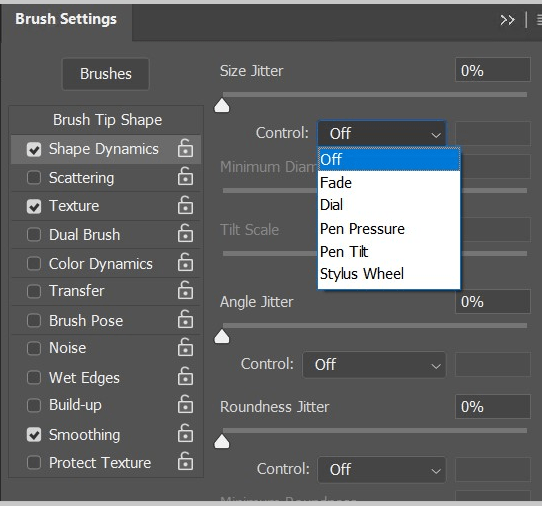
I wouldn’t want you to go away thinking that MS Office apps are the only ones that have specific pen settings that you may need to turn on or adjust. Of course purpose-built drawing and editing apps have all kinds of pen settings. I’ve even seen the options to use a pen show up in games. Take a few minutes to poke around in the menus of the software that you use, it’s almost always worth your time.
 techbloggingfool.com