OneNote for Microsoft 365 Adds Real-time Native Handwriting Recognition

I’ve been a OneNote user since the beginning. I’ve used Microsoft’s fantastic tool to organize my life, work, and to augment my memory. The software has previously featured an OCR engine that would allow for the conversion of selected handwriting to typed text. Not long after that feature was added, another option to search handwritten notes was included.

OneNote has included optical character recognition since the early days. Select some inked text and use the menu to convert it to typed data.

These features were game changers. They were the reason I switched from other note taking apps to permanently using OneNote. Eventually many OneNote users, me included, learned to disable automatic pen detection and to manually select Window’s text input panel to achieve real-time writing to text in their notes.
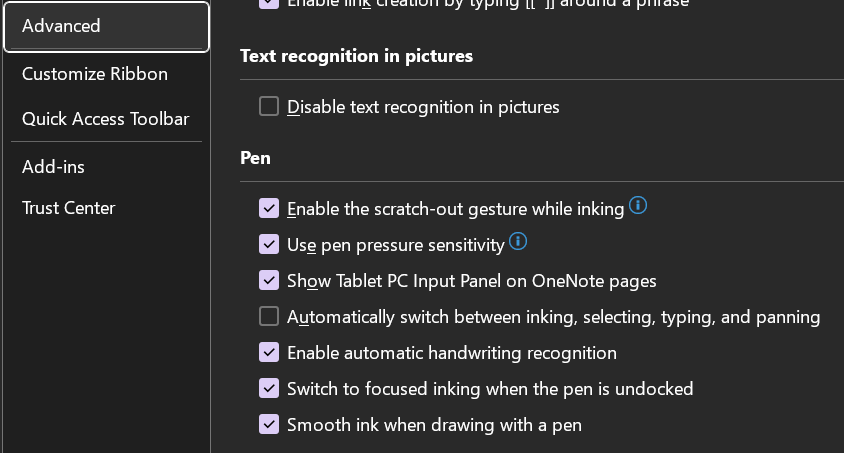
Disabling the advanced option to automatically switch the pen modes allows you manually select the Windows Input Panel and write in it. You will need to manually select draw mode to sketch in your notes.

Using the Window’s Ink Input Panel trick has been my go-to method of creating easily read and shared notes for the last several years. Documentation for my work projects usually consists of me copy-pasting the notes I took while working. Many of my coworkers and peers do the same. It’s a timesaver to be sure.

Today, I noticed there is another option for handwriting in OneNote available in the Draw tab. The icon is a white pen with the letter A on it. I first saw this icon in the iPad version of OneNote when they added it to induce Scribble (Apple’s Handwriting Recognition Tool). I am an Office Insider and am currently on Microsoft® OneNote® for Microsoft 365 MSO (Version 2308 Build 16.0.16731.20052) 64-bit. I am not sure if this is first version to include the new feature but suspect that it is. I have not been able to find any documentation on it as of yet.
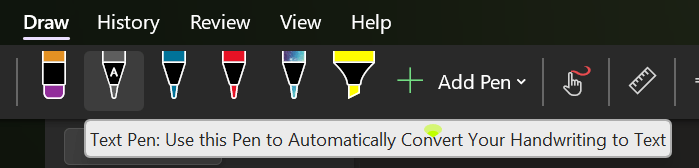
Tap on the screen to place the cursor, then select the A pen from the draw tab and write on the page. Your writing will be translated into typed text in real-time. The tool is more efficient and easier to use than the manual select method I mentioned above. It also allows for easy editing, draw a line through text to select it and the editing menu will hover over it.

I’m enjoying the new feature, I’m sure the help and documentation for it will be updated as soon as it hits the mainstream version of the software. Happy note taking.
Full OneNote Desktop Edition Back from the Grave?

I had converted over to to the OneNote Microsoft Store app a while back when Microsoft announced they were ending support for the full desktop edition. I’ve always been inclined to adapt to the ever changing technology world rather than constantly trying to swim upstream. I preferred some of the features that were in the full version but, I found workarounds and moved on.

Last week I needed to test an Outlook Plug-In which meant I had to download and install the desktop version of Office from my Microsoft 365 subscription. I noticed that it installed OneNote, but didn’t think much of it at the time. A few days later I opened it for a nostalgia kick. I was surprised to see that it had been updated. It had the new Feed feature, dark mode, and it was now named OneNote for Microsoft 365 rather than OneNote 2016.

Some research turned up several posts by mainstream blogs like The Verge and Endgaget confirming that Microsoft is not only bringing back the desktop app, but that they are merging the newer Windows 10 app features back into it. Over the next year or two they will update the desktop edition with new features and move to it rather than away from it. Eventually I located a Microsoft FAQ page that also points to the full version’s future.

The full version of OneNote has three features that are important to me, but remain missing from the app store edition. One is the ability to backup and store notebook files on local storage. Another was the ability to index handwriting, text in pictures and video, and audio from various media sources to make them all searchable. Finally, I really missed the customization options, I prefer my sections on the left and pages on the right. Microsoft has a page that runs down the differences in all of the versions here.

If like me, you have avoided the desktop edition due to Microsoft’s previous abandonment announcement, feel free to move back in. I already have.