Having a subscription to Microsoft’s Game Pass has expanded the number and type of games I play. I try titles from the subscription-based catalog that I probably would not have purchased individually. Banishers Ghosts of New Eden is one of those. I don’t typically enjoy games that feature ghosts as a main story element. This time, the game play video looked interesting and that was enough to convince me to try it.
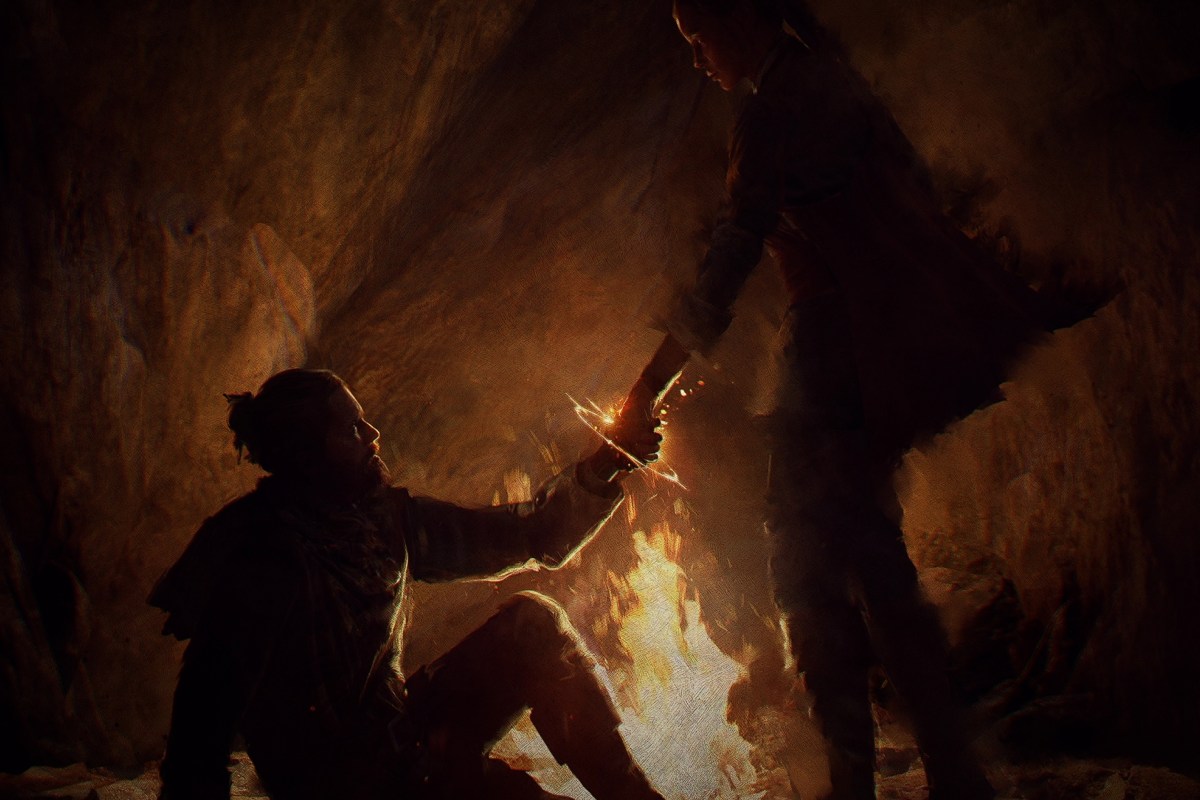
At its core, Banishers is an adventure RPG based on ghost hunting. It’s set in the sixteen nineties in and around a very haunted colonial North American town. The main characters Antea and Duarte have been summoned to address the situation. They are Banishers, a type of old-school ghost hunter, and their job is to rid the area of supernatural malfeasance.
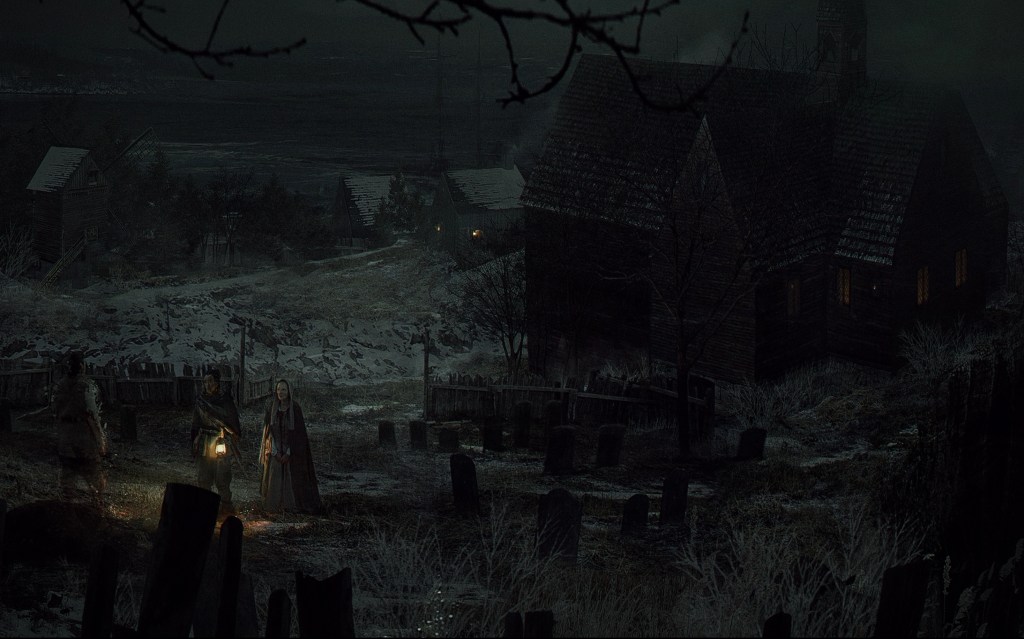
In part I chose to try Banishers because it looked like a game my spouse would enjoy watching. I was right. From the opening scene, this game is gorgeous. The environments are all so detailed. The weather is almost an NPC by its own right. Much of world is cold, wet, foggy, and just plain dreary. The color scheme and artistic slant lean toward realistic. The costume director deserves an industry award all their own.
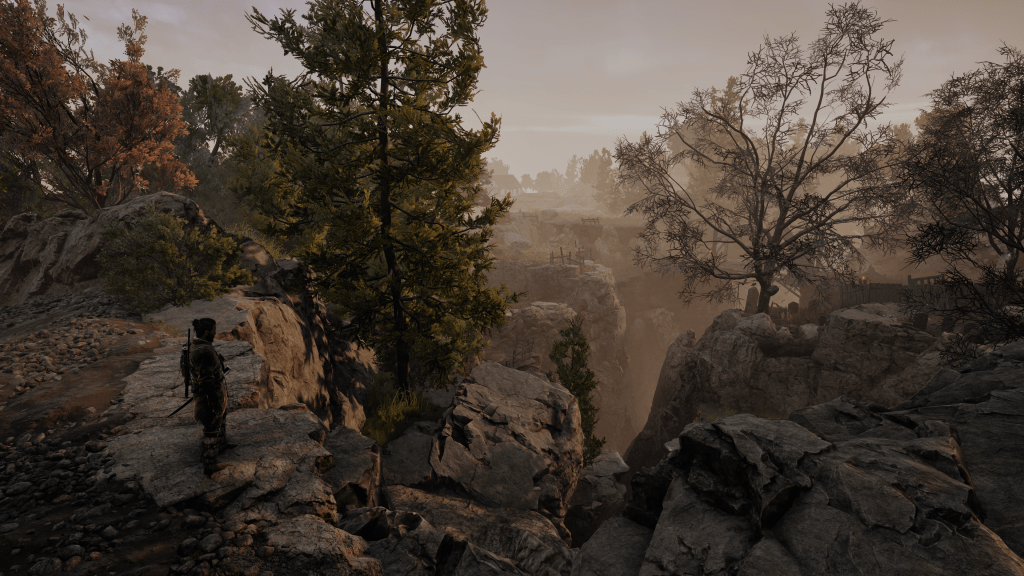
I have been impressed by the graphics. I play the game on my PC, Handheld PC, Xbox, and via Game pass streaming to my phone and laptop. It looks and plays great on all of them provided you tune the game for the hardware. In 4K ultra on an OLED screen the scenery is stunning. Remember how you used to stop and stare off the top of hills in The Witcher 3 or Uncharted? You’ll be doing it in this game too.
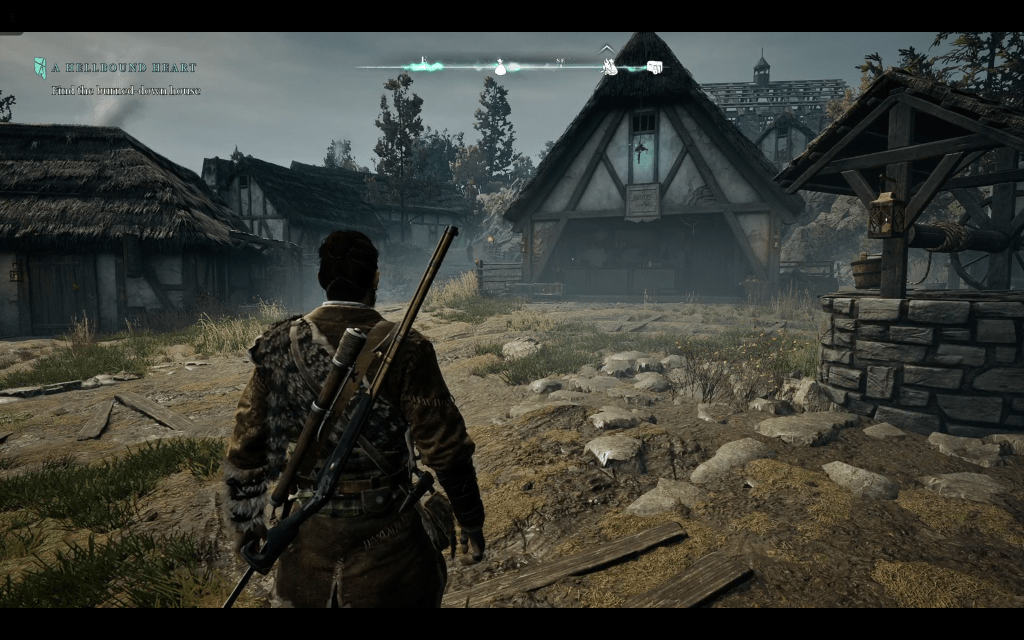
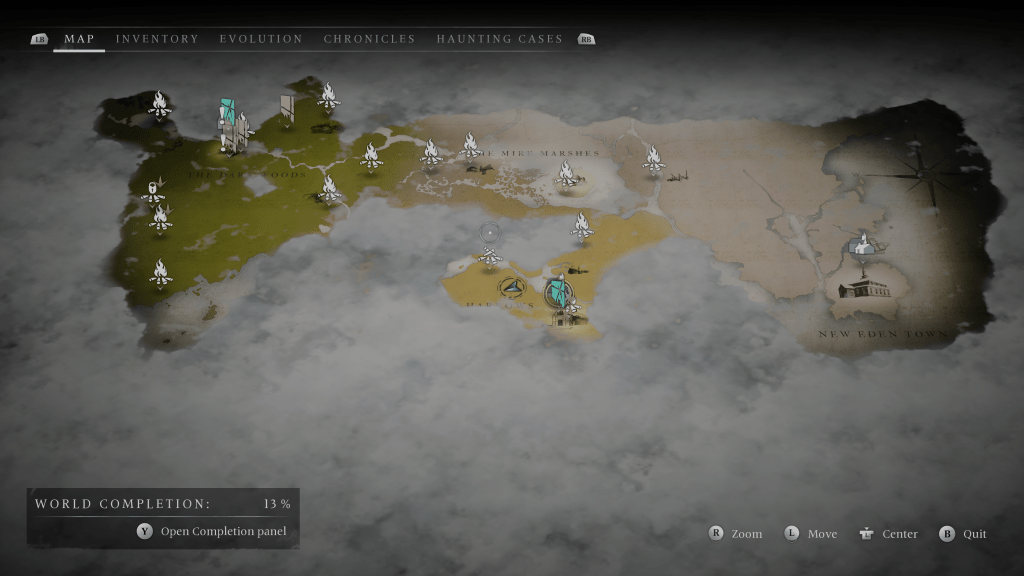
The world isn’t open, but it’s not on rails either. Traveling, navigating, maneuvering, looting, and unlocking will be familiar to anyone that has played the modern Tomb Raider series. Down to having campfires that you save, upgrade, and fast travel from sprinkled all over the map. The classic adventure game mobility methods are all featured. Rope climbing, mantling, sidling, ducking, jumping, grappling, and eventually fast traveling get you around the game’s world.
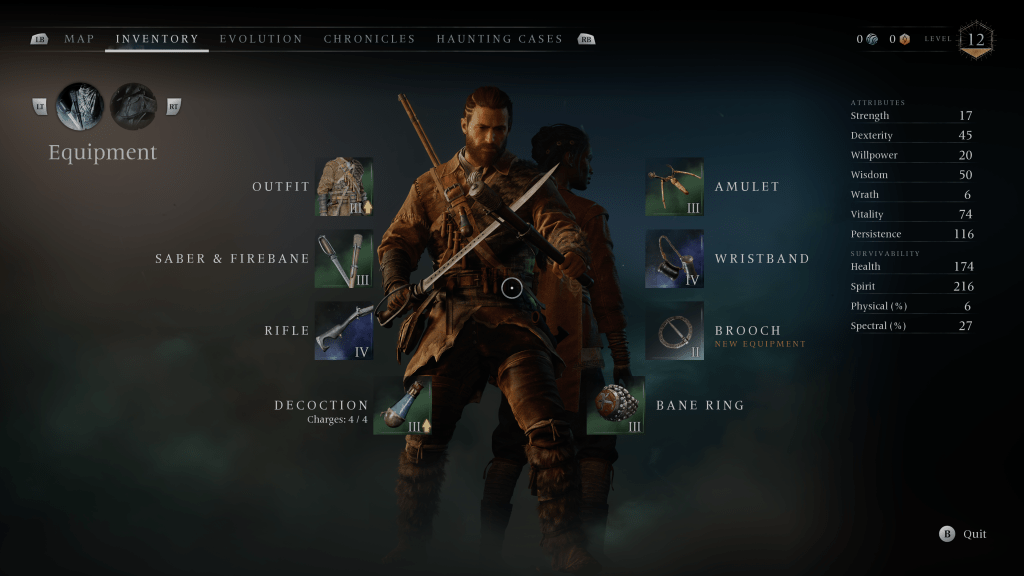
After a major event in the game’s early levels, you gain the ability to control both Antea and Duarte. You can swap between them with a button press to take advantage of their unique abilities. The game is played from the 3rd person view for the most part. Your main weapons are a saber (sword not light), a flint lock rifle, punching, and several types of magic attacks. The characters also feature ultimate attacks, linked combo attacks, and charge attacks.
The rifle is powerful when you hit weak spots and ammo is unlimited. Don’t get too excited though. The agonizingly slow reload will keep you from playing the game as a full-on shooter. If you focus resources on rifle related upgrades you can get close to blasting your way through, but not quite. Well play developers, well played.
The combat starts out easy and increases in difficulty as your characters and their gear rank up. There are several types of evil entities to do battle with on your journey. There are also mini bosses and bosses that must be conquered to unlock new map areas. On normal mode, the AI is quite challenging. Expect to die a few times in each new mini-boss area.
Normal mode and above makes the combat feel very souls like. Over ranked baddies with shields and multiple attackers that work together will have you fully engaged to keep up. I also tried a few fights on easy mode. They are still challenging and require strategic decisions, but I cleared areas without dying more often than not.
Frame perfect parries with your saber are the best defensive move in your arsenal. Generic blocking is moderately effective depending on your gear and the attacker. There isn’t any cover, but you can dodge.
Attacks and defensive moves have to be balanced to win against the more powerful enemy encounters. I often find myself backpedaling to shoot, then rushing in close in to do heavy damage with melee attacks. I customized my characters armor, weapons, and abilities to match this strategy. The terrain usually locks you into a fighting arena like God of War.
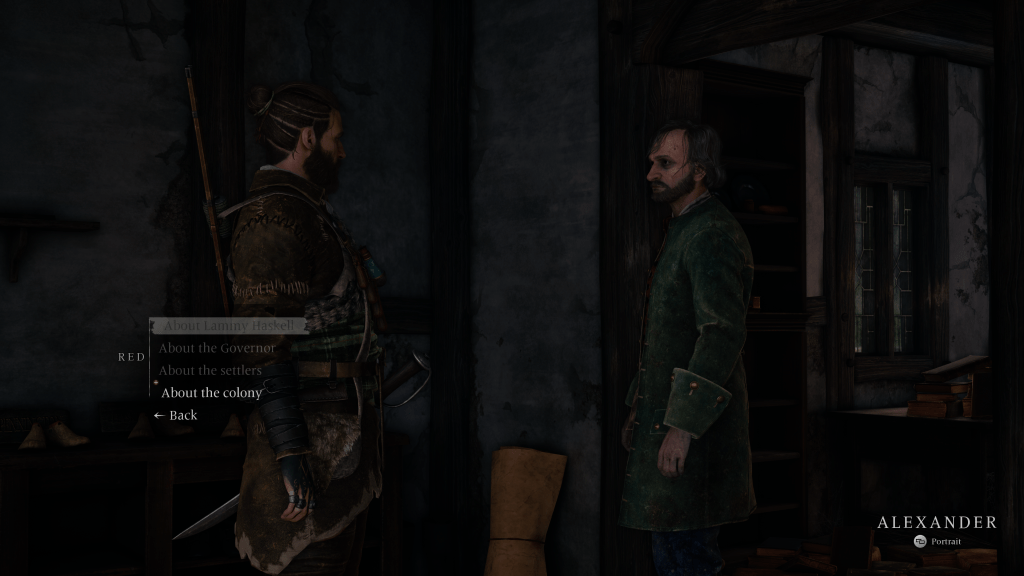
What makes Banishers so good to watch, and play is the combination of high production value and interesting combat. The theatrics are simply fantastic. The sets, actors, voices, and storytelling are all dazzling. The dialogue sounds like natural conversation from the time and place. Overheard conversations often provide subtle clues. Emotions are well conveyed by seamless in-game cinematic experiences and direct individual dialogue scenes. There are no loading screens.
You’ll meet and work with all types of characters as you progress through the game. The witches are some of my favorites. They are presented as wise naturalists rather than as villainous. Banisher’s story arcs are good at getting you to care about the character’s plights.
Even side quest characters have a tall enough story arch to invoke a mild sense of empathy. I’ve encountered stories based on cannibalism, mariticide and uxoricide, a mass murder caused by moral circumstances and more. I keep playing just to see what happens next, well past my bedtime on several occasions.
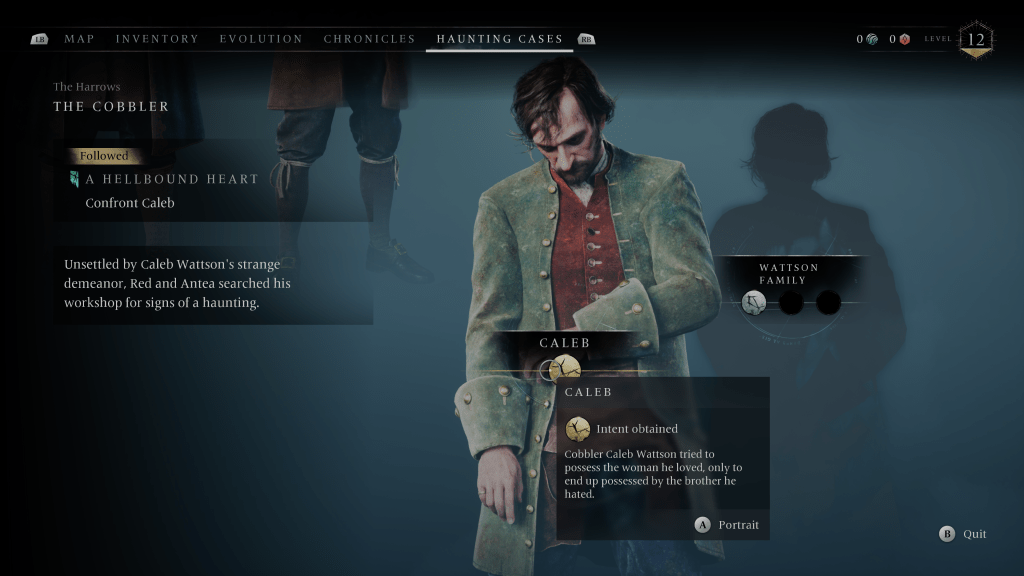
Side quests start when you talk to folks in each newly unlocked area to acquire work. If someone hires you, an investigation is started. You’ll be looking for clues and talking to NPCs to figure out who or what is causing the problem.
Some of the so called “haunting cases” are pretty grizzly murder mysteries in which multiple people were murdered. Others are accidents and everyone is innocent. It’s your job to figure out which. Along the way you will collect resources and battle supernatural creatures. Each quest features a moral decision at the end that has an effect on the game’s overall outcome.
I’ve been playing the game for about thirty hours. In that time, I’ve ranked up to a level twelve. I’ve upgraded all of my gear and weapons to mid-level. I have faced most types of enemies and mastered the combat as well as navigation. I’ve gotten a real feel for the game, and I can tell that I will play until I finish it. Banishers Ghosts of New England surprised me. I expected it to be a mediocre adventure game, but it is clearly top shelf.
I have learned so much about the Lenovo Legion Go handheld gaming PC over my time owning and using one. I’ve gone to great lengths to tune mine for everyday couch and mobile gaming. It has all my games installed and ready to go. It’s stable, games and power can be suspended and resumed mid play for convenience. Everything runs screaming fast and looks fantastic. Games and media sound so good, too!
Read on to discover the settings, tweaks, and modifications that I’ve used to get the most out of my Go. You won’t believe the difference these settings can make in your experience. As a bonus, most of them are free and easy.
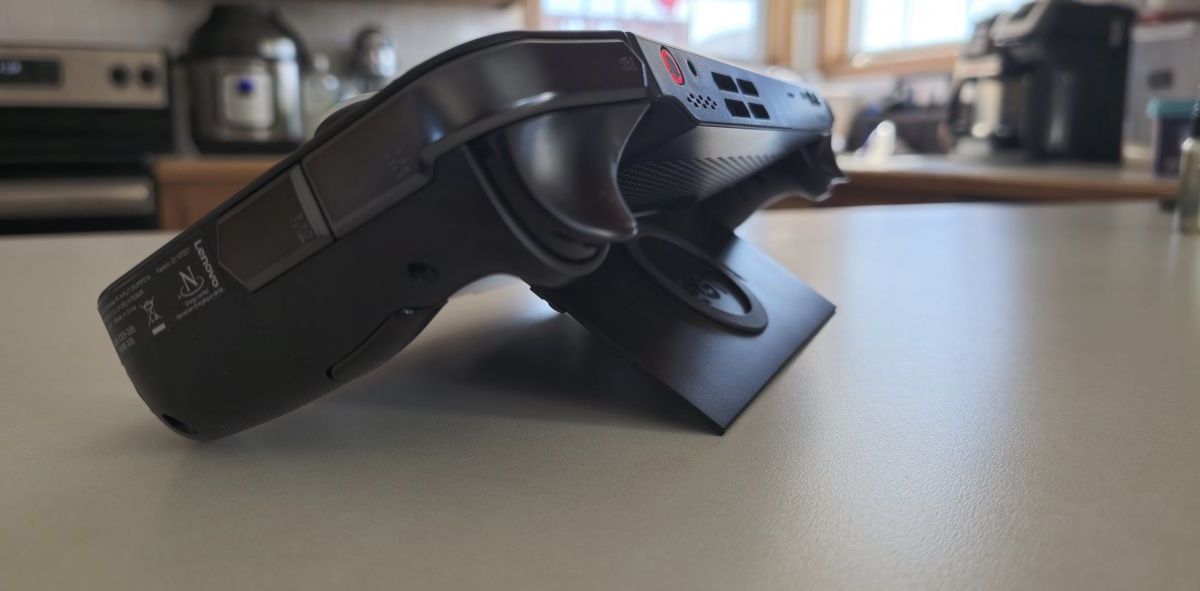
The first pain point with my precious handheld gaming PC. The speakers are subpar. Left at their default settings, they are high-pitched and struggle with power. Much of the potential volume is lost due to the speaker ports being on the top edge and angled away. Hold your hands up like rabbit ears behind the mesh while watching a video. You’ll be shocked by how much sound the speakers are really pumping out.
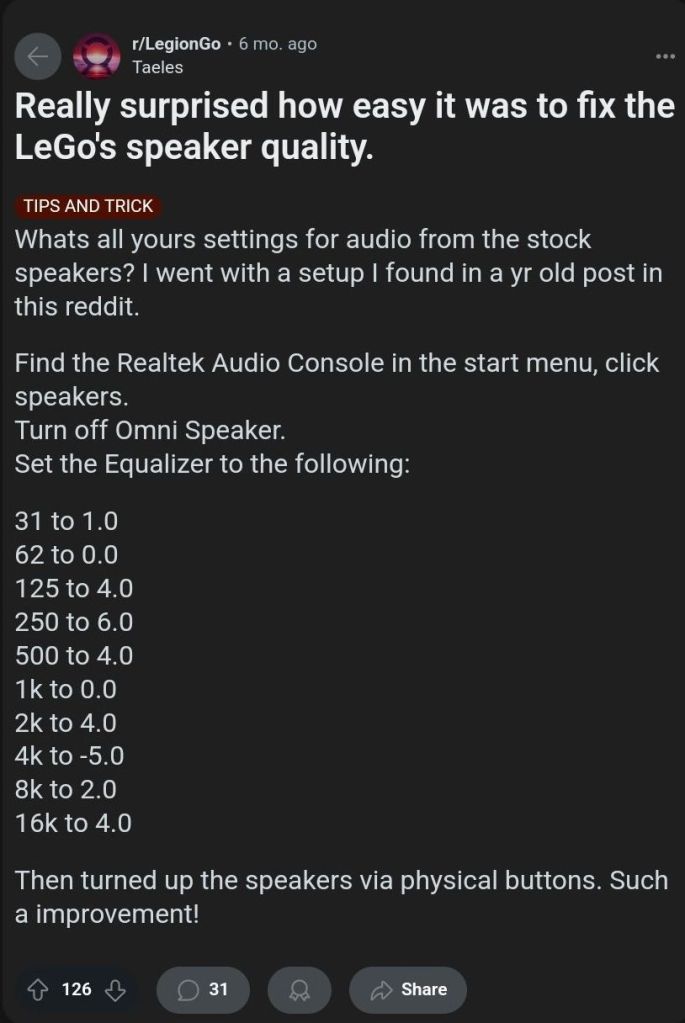
If you research the topic of poor sound, you’ll see there are several software workarounds that help considerably. The easy/free method is to use the Realtek Audio Console. Open it from the Start Menu to toggle off a feature called the “Omni Speaker”. Then use the same software to adjust the equalizer frequencies. Find this idea and lots of others at: https://www.reddit.com/r/LegionGo/
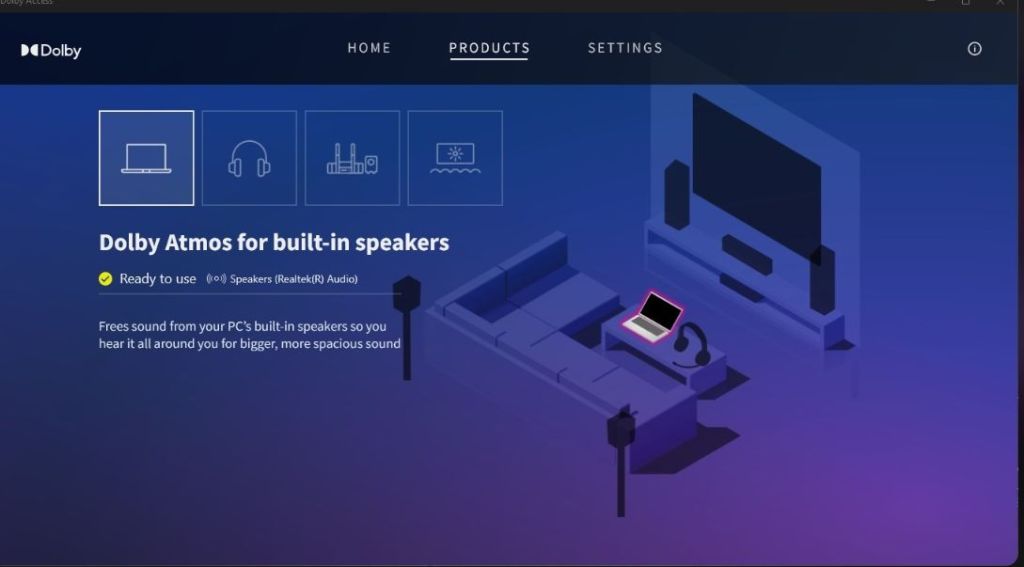
I used the equalizer changes above in conjunction with an app I already owned. Dolby Access is a Windows Store App that applies a Dolby Atmos surround sound effect to your PC’s sound system. The Go’s speakers sound so much better with the effect enabled. The dimensional soundscape achieved by applying some cheap software is surprising.
Dolby’s magic app features a gaming performance mode that increases the accuracy of sound location. This is especially important in competitive games. It works well. I don’t fully understand how they trick your hearing so well. Things that are supposed to be behind you, sound like it.
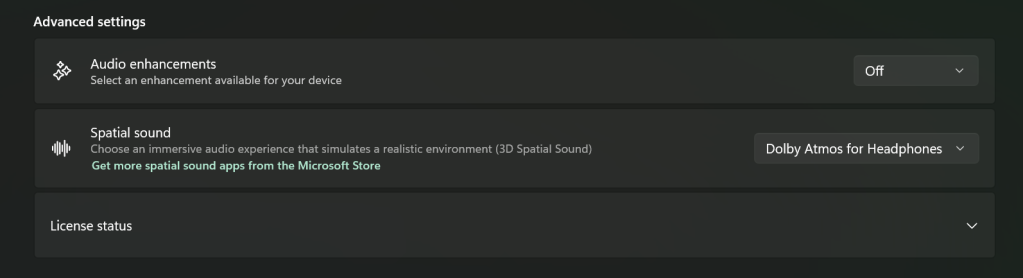
For Dolby Access, or any spatial sound app to be the most effective, disable Window’s sound enhancements. Go to Settings -> System -> Sound and click on the speakers. Advanced -> Audio enhancements toggle off.
If you don’t have or want to purchase Dolby Access, there are some open-source options out there. I haven’t tried it yet, but I’ve seen FXSound mentioned several times while doing my research. It gets a lot of recommendations and positive reviews and is donation-ware.
Update Everything
The Legion Go is a complex machine. Especially its software layer. The sheer number of places you must check for updates is astonishing. Here’s a rundown of everywhere you need to check. I try to do this at least once a week.
Windows Update
Accessed by going to Settings -> Windows Update
I like to open the advanced options and flip on the toggle to receive updates for all Microsoft products.
Microsoft App (MSIX packages) Updates
Open the Microsoft Store App (shopping bag icon in start menu). Then click on Downloads (menu on left) from there click the Get Updates.
Legion Space
Disks and Drivers. Open Legion Space ->Settings -> Scroll down -> Disks and Drivers -> Check for Updates.
Controller Firmware Updates. Go to Controllers in the menu, scroll the bottom menu left to More. Scroll to the bottom of More page and click the Controller Firmware Update button.
App Updates.
Game Launchers. Steam, Xbox, Ubisoft, and EA Desktop, all have client updates in each app’s settings menu
Game updates. Each game gets its own updates (usually handled by the launchers).
Other software.
Example: The emulator app Dolphin needs updated frequently.
Touch Screen
One quality of life upgrade was realized just by changing my bad habit of touching the screen too much. I had been using the touch screen to enter my PIN and to scroll. This was making my screen filthy. Every time I picked up the little machine to play something, it was covered in fingerprints and smudges.
There were two changes I made to drastically reduce how often I had to clean the screen. First, at the PIN prompt you can usually click the A button to get the on-screen number pad to open. Then you can use the buttons, D-pad, shoulders, and triggers to enter your PIN code just like on an Xbox.
Using the scroll wheel reduces fingerprints. Tapping and holding on the touch pad activates the right-click menu.
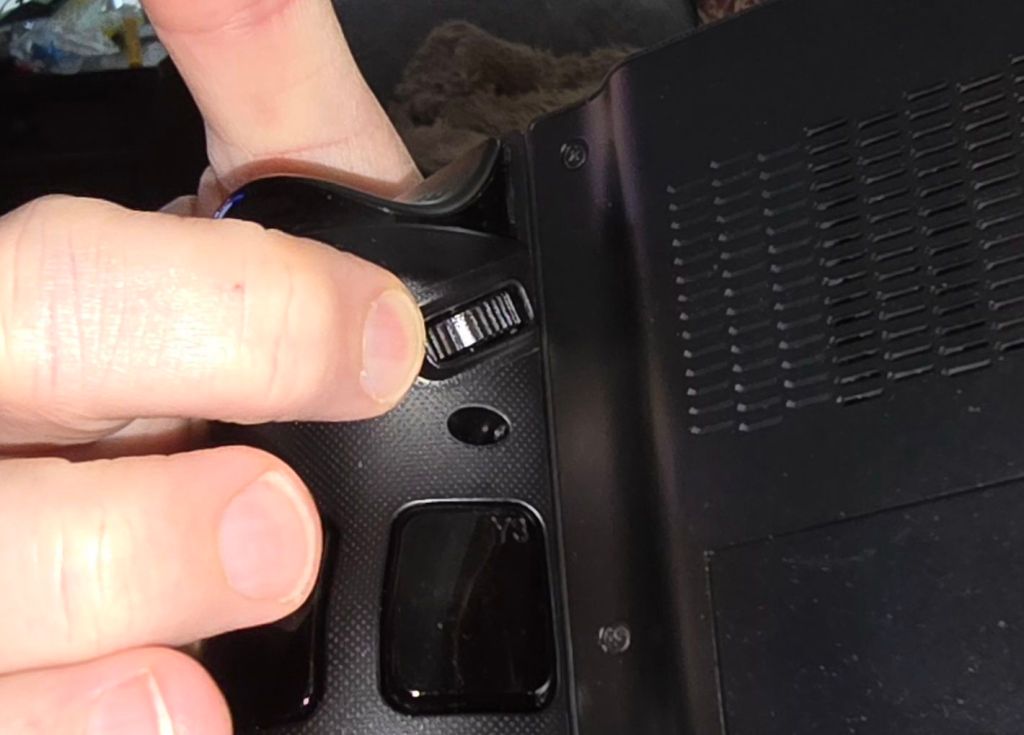
Second, the little wheel on the upper rear nook of the right controller is for scrolling. It works better and is more comfortable than touching the screen in most situations. The only trick is to remember that it’s back there.
Floating Keyboard
The OSK (On-Screen Keyboard) is huge the first time you try and enter text with it. It takes up the entire bottom half of the screen. This makes entering information into forms very difficult. The form either gets cut in half or squished to an illegible size when the keyboard opens. It’s a good thing there’s a built-in solution. You can resize and float the OSK in Windows.
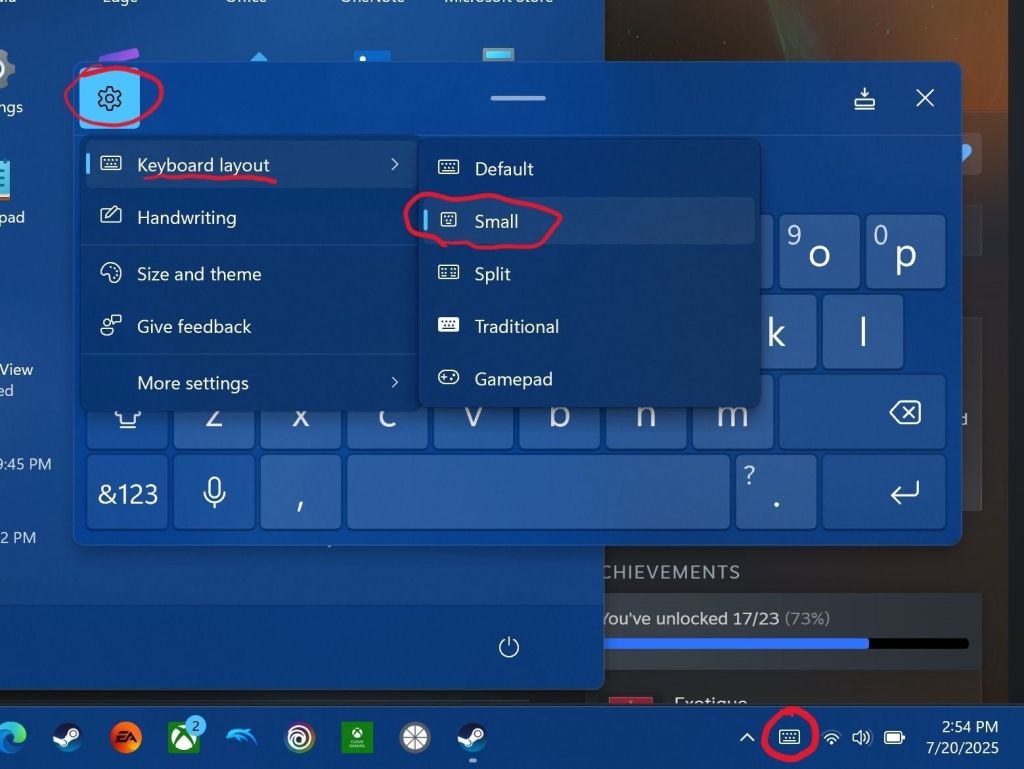
Open the keyboard by touching or clicking the icon for it near the clock on your taskbar. Click or tap on the settings gear in the upper left corner of the keyboard’s panel. Then select Keyboard Layout from the menu and click small. Now you can use the little dash at the top of the OSK to drag it out of your way!
The small floating keyboard layout is easy to drag at of your way. Clicking Size and theme in the Keyboard’s settings will let you change its color size, and key size.
Hibernation Is Better
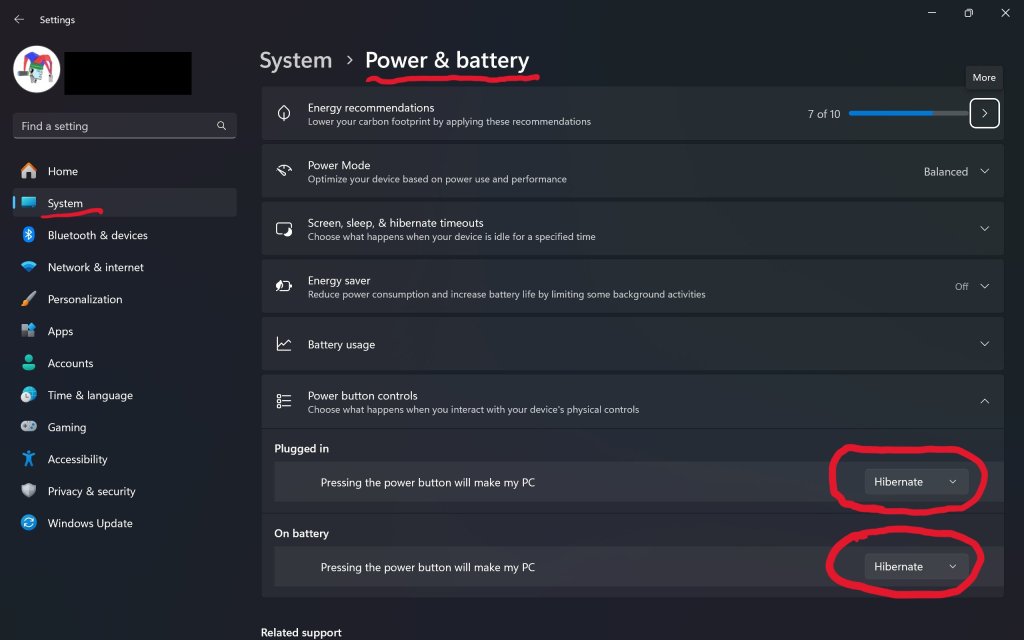
Batteries suck, but we’re stuck with them until some genius invents something else. For some unknown reason, the Go drains its battery in just a few hours of sleep mode. Do yourself a solid and change the power button’s function to hibernate instead of sleep.
There are two benefits hibernation has over sleep mode. The first is that your battery won’t be dead the next time you pick it up. Hibernation uses a lot less power over time than sleeping does.
The hibernation process exports everything in the computer’s memory to a save file on the hard drive. Then it powers down the RAM chips. This reduces power consumption. It also gives us our other benefit.
Go to Settings-> System-> Power & Battery to change what the power button does.
Everything running in RAM is saved to a file. This includes any game that is actively playing or paused when you pressed the power button. The LeGo can stay in hibernation for days with your game perfectly suspended in time.
The process takes a few seconds at most. In my opinion, hibernation makes the device more usable in real life situations. I play on my lunch break at work. Hibernating when my break is over means my battery and game will be ready to resume on the next day. You usually can’t do that with sleep mode.
Controllers and Buttons
The controllers on the Legion Go are a work of art. They are well constructed, feel great, and are tuned for a light touch. They disconnect from the main chassis like the Nintendo Switch’s do.
The placement of the menu and view buttons near the bottom of the left controller is a problem though. Those buttons are used in games heavily and stretching your thumb down to click them gets old. Especially in a game like Destiny 2 where you constantly need access to the character menu and maps.
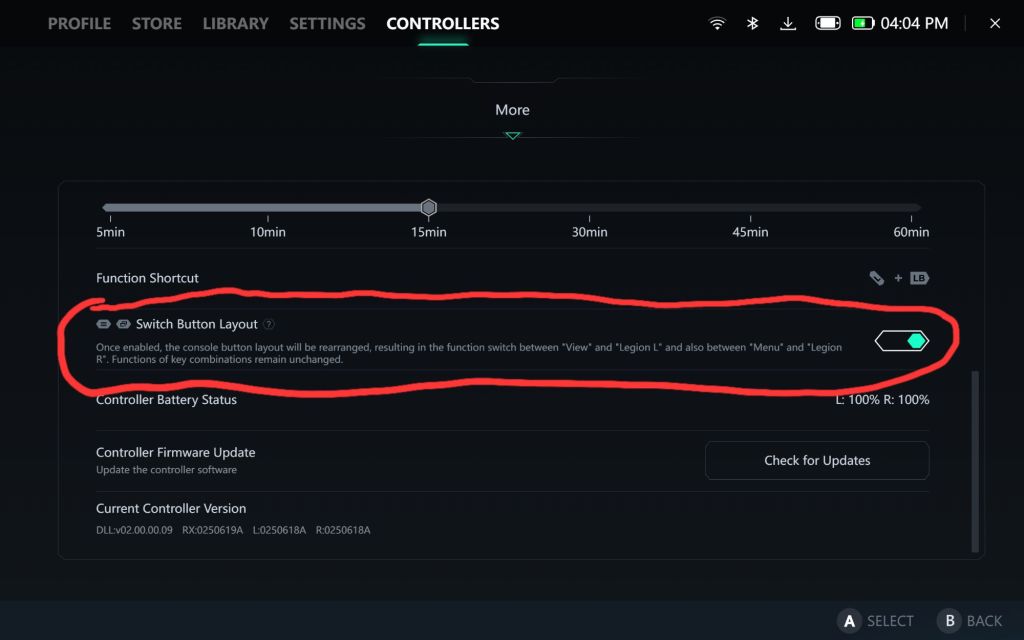
There is an option to swap their functions with the Legion Space and Quick Control menu buttons. Open Legion Space and go to Controllers, then scroll to More. Scroll down the page and flip the toggle to swap the buttons.
Your thumbs will thank you for flipping this toggle on.
My other tip about the controllers is to take the time and map the back buttons. I tie them to crouch/slide, melee, reload, and jump in almost every FPS game that I play. Back buttons allow you to keep both thumbs on the sticks while performing button actions. This can be a big advantage in some games.
To map them, open Legion Space. Go to Controllers in the top menu then click the Button Mapping button in the list at the bottom. Now click the top View/Edit Layout button. Finally, click the Rear-View choice at the bottom of the screen. Click on each button to pull up the mapping menu for it.
GPU Upscaling
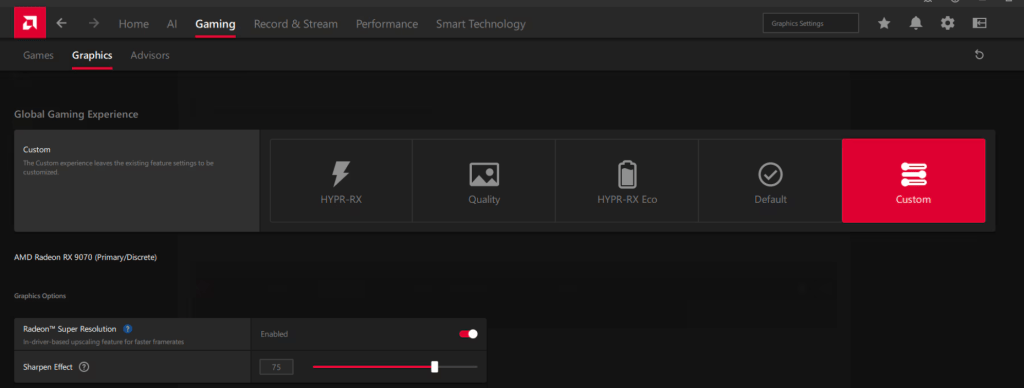
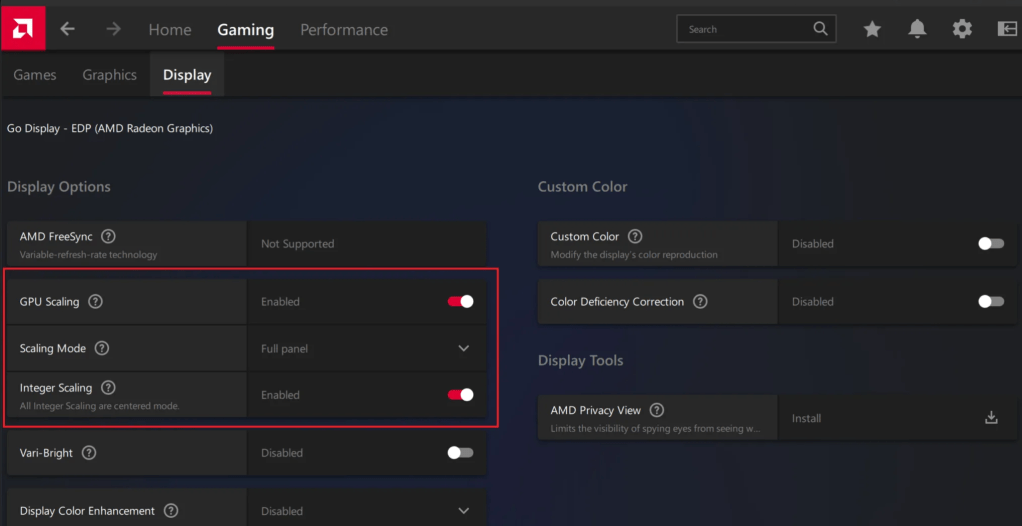
There are lots of tweaks and changes you can make to boost the performance of your Go in various games. One of the most potent is to setup the various upscale options for both on your GO and in your games. The Legion Go supports AMD’s Radeon Super Resolution and their FidelityFX (FSR 3) technologies. Taking advantage of them reduces the load on your GPU which usually translates to an increased frame rate.
AAA titles can run in the 60-110 FPS range with good fidelity once you learn to tune and upscale them. I haven’t written a comprehensive guide to upscale games yet, but the basics are easy. Open the AMD Adrenaline app and turn on the scaling options.
There’s also a switch for RSR in the Legion quick menu.
The details of scaling are a rabbit hole of advanced tweaks and changes. Things like algorithms, game resolution options, post-processing settings, and sharpening effects can alter your experience. YouTube and the sub-Reddit mentioned above are good places to start building knowledge if you want to go deep.
GPU scaling options are dependent on driver and software versions. If you don’t see the options, make sure your software is all updated.
Learning to upscale and tweak your games is probably the most impactful performance boost you can get on this system. If you’re not already familiar with scaling, try using 1600X1200 @ 144Hz as your display resolution. Then run your games at 800X600. If you can’t set the game’s resolution to 800×600, change the resolution scale to 50%. It amounts to the same thing.
If you are less than impressed with AMD’s GPU scaling abilities, there are also other options available. While doing research, I noticed that lots of people are mentioning the Steam App Lossless Scaling as a great alternate. The app is $6.99 in the Steam store: https://store.steampowered.com/app/993090/Lossless_Scaling/
BIOS/UEFI Tweaks
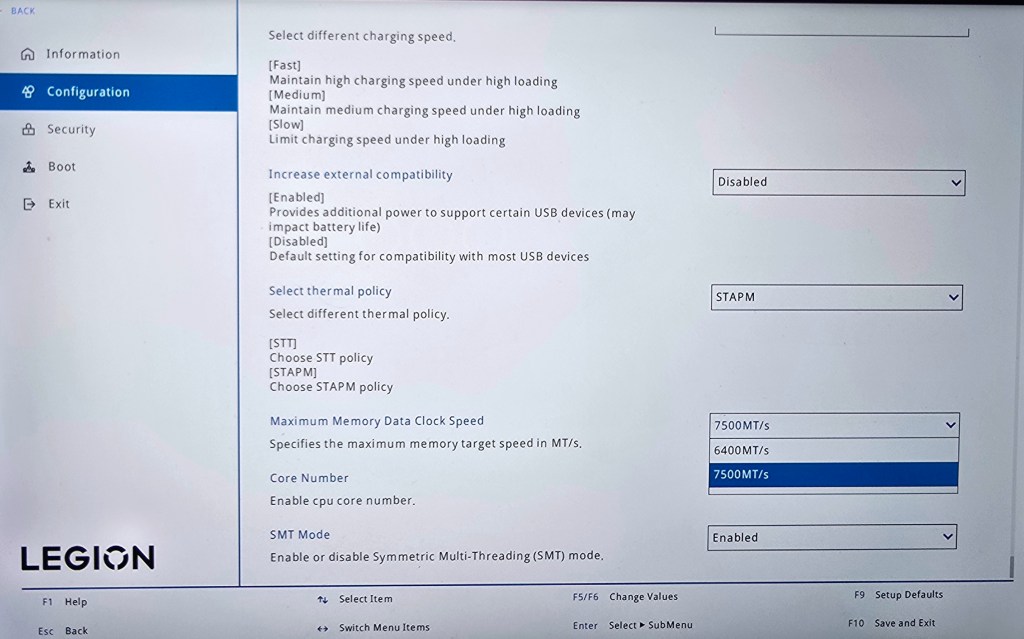
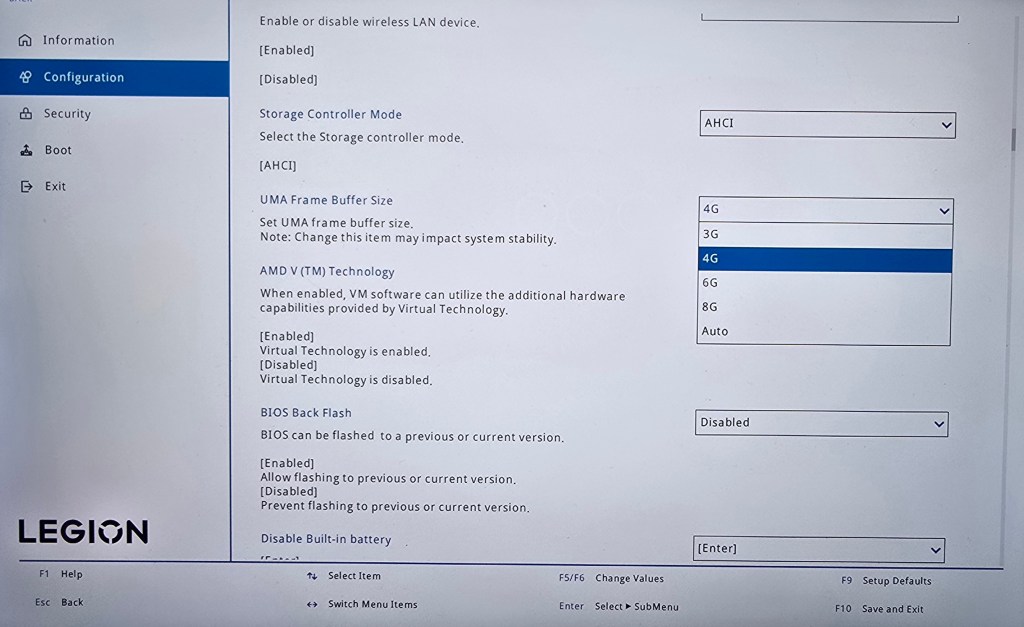
In the Legion Go’s BIOS there are two settings we can adjust that effect game performance. The first is how much of the system’s 16 Gigabytes of RAM is reserved to support the GPU. By default, 3 GB of VRAM is selected but this can slow some games down. I get better performance and game stability with 4 GB assigned to graphics processing. That leaves 12 GB for Windows and your game, which is plenty in most cases.
Shutdown -> Hold Power + Volume Up Overclock the RAMReserve 4GB VRAM
You can also overclock the RAM for an overall performance boost. Increasing the RAM’s speed will cause it to generate more heat. Excessive heat can impact CPU and GPU throttling. Consider the environment you play in.
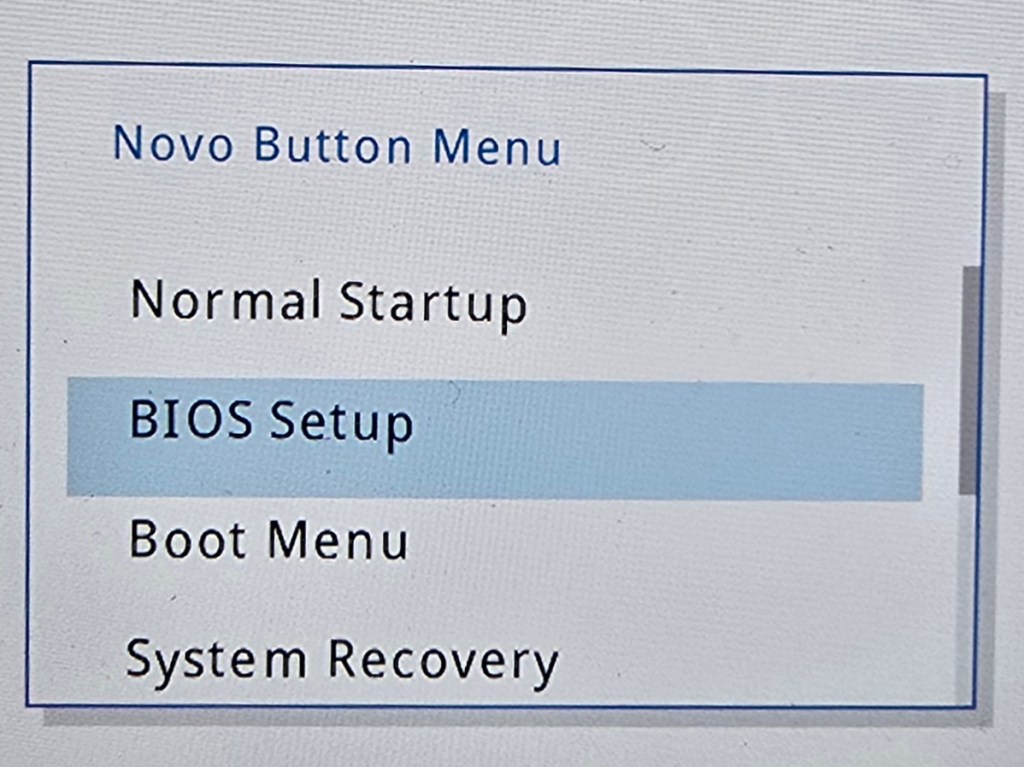
Before you make either change, verify you are on the newest version of the system firmware. You Boot to the UEFI control screen to make these changes by shutting down first. Then hold down the Power and Volume up buttons at the same time for a few seconds.
Optimize Windows 11 for Gaming
The Legion Go is running Windows 11 Home. The default security posture of Windows 11 is not optimized for gaming. Specifically, memory integrity and the Virtual Machine Platform features of Windows 11 can slow down some games.
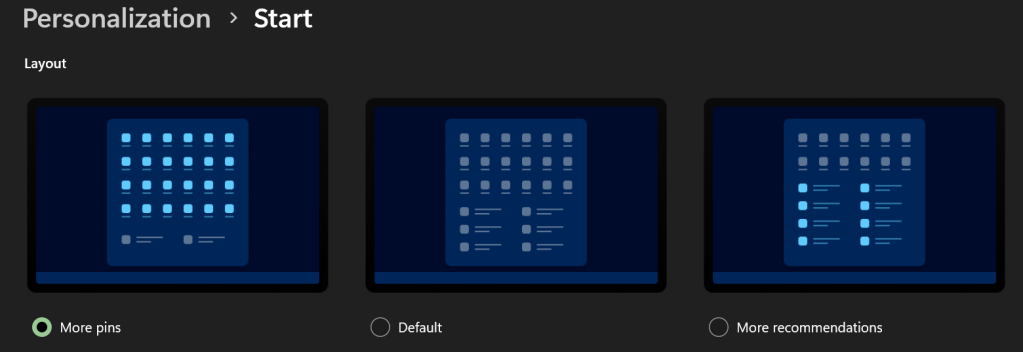
I like to PIN my games to Start. Go to Settings -> Personalization -> Start -> and select the option for more PINs if you do too.
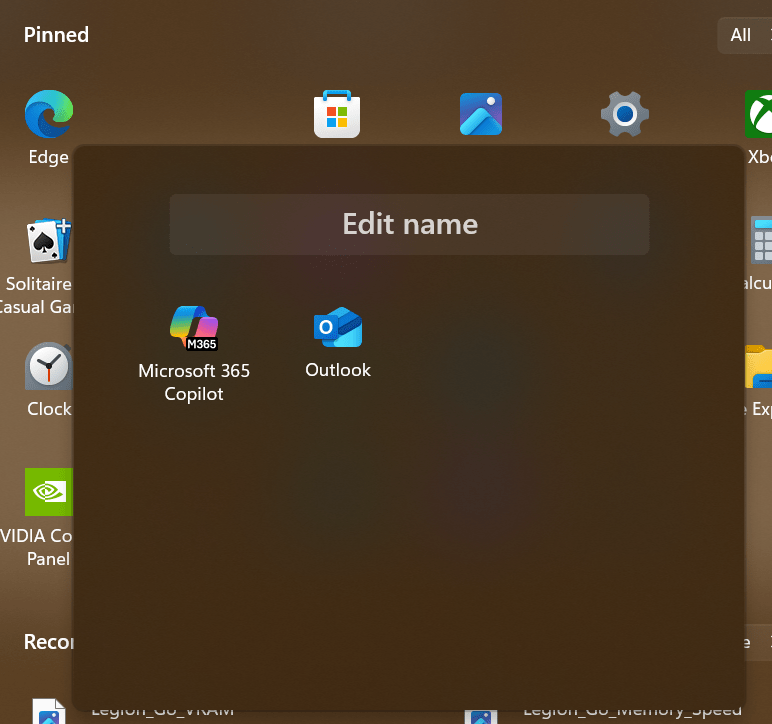
Make folders on the Start Menu. Dragging one icon onto another. Drag and drop icons as needed to add. Rename a folder by clicking into it. Right click on folders in the start menu to move them left or right.
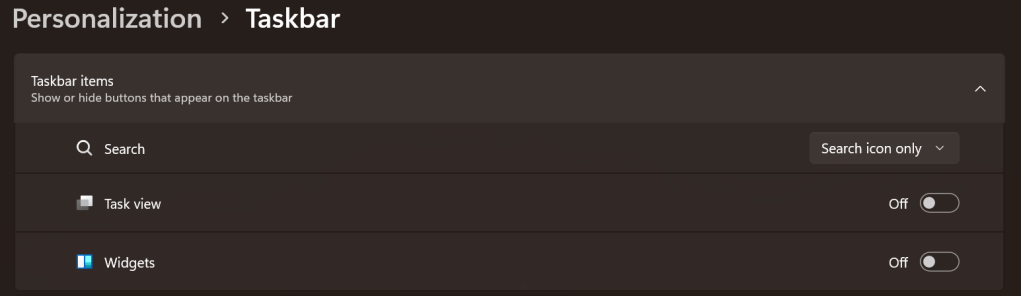
Maximize the task bar space. Settings -> Personalization -> Taskbar: Search -> Icon. Disable Task View. Disable Widgets.
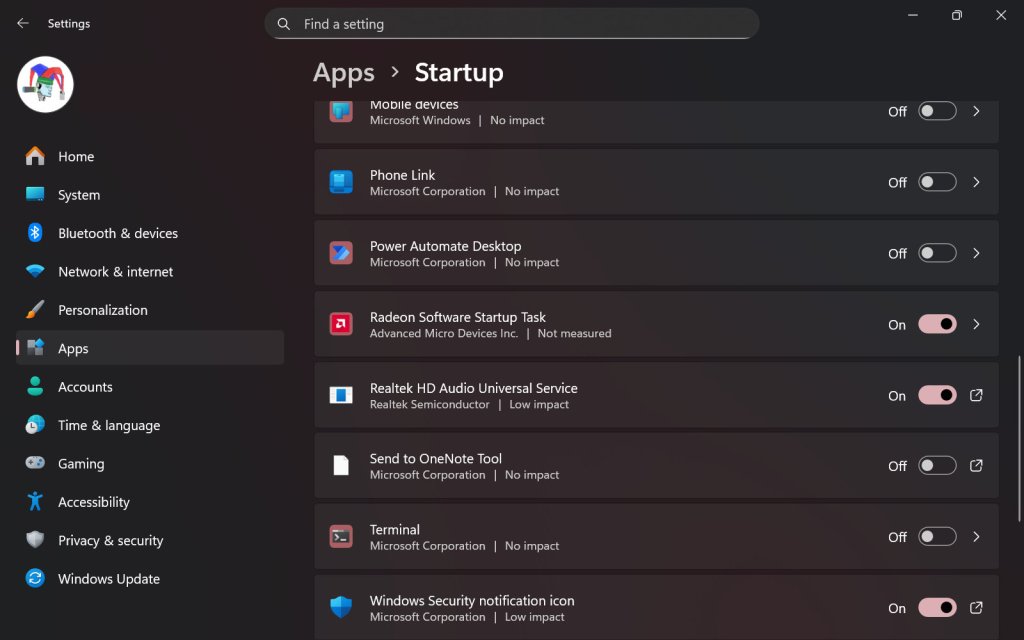
On my Legion Go, I disable most of the start-up apps. It helps conserve CPU cycles, RAM, and disk I/O for the games. Go to Settings-> Apps -> Startup. I only leave three apps toggled on. The Radeon Software Startup Task, Realtek HD Audio Universal Service, and the Windows Security notification icon.
SSD Swap
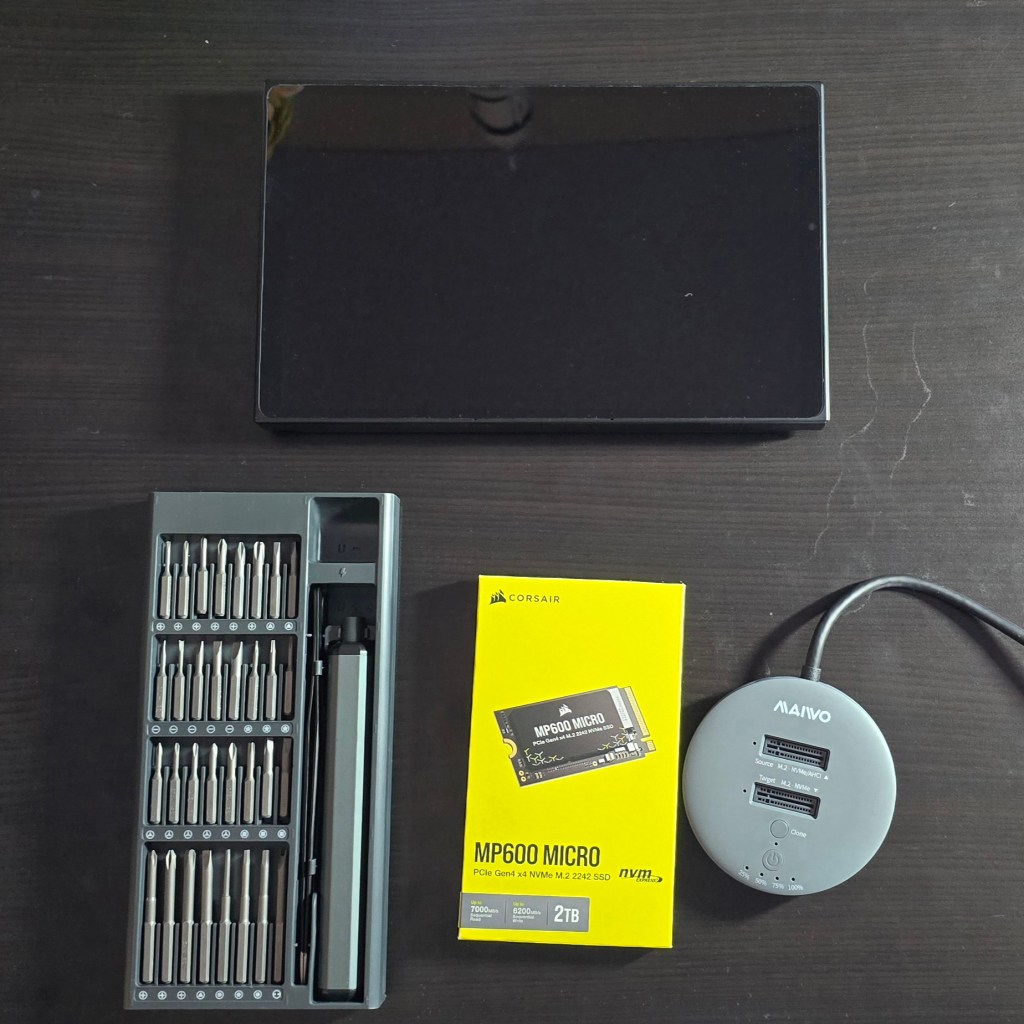
I replaced the factory storage with a much faster and higher-capacity unit from Corsair. The upgrade has had a major impact on daily life with the LeGo. Downloads, and loading times are much faster. I can store my entire active catalog of games. Everything feels snappy. Read I SSD Swapped My Lenovo Legion Go. It Was Worth It for the details and instructions.
Installing faster high high-capacity storage is a great upgrade.
The Legion Go is an excellent gaming computer right out of the box. Tweaks, changes, and upgrades like the ones above help make it even better. I use mine more than any other gaming system and that’s saying something.
So you’re the proud owner of a shiny new Surface Go, now what? Besides checking your email and surfing the web, what else can you do with the little powerhouse? Of course, you can install the ubiquitous PC applications, MS Office, Photoshop, and what have you. This article is more about doing things you may not know about or considered.
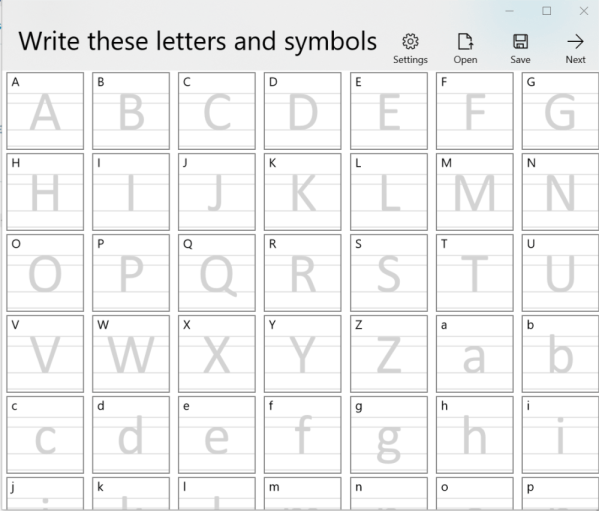
Have you ever wished there was a font that matched your handwriting? Mine is atrocious, I’m always surprised that a computer can read it. My spouse’s on the other hand, is quite elegant. If you write nicely like she does, Microsoft has just the app for you. Download the Microsoft Font maker from the Microsoft store and with a few simple steps your handwritings will be digitized and turned into a font that you can use anywhere.
It’s time to unleash your inner artist. The Surface pen is one of the most sophisticated digital marking instruments you can purchase. It works incredibly well on this tablet. I have several digital art systems, but the Surface Go is my current favorite. It’s light weight, responsiveness, and accuracy are ideal for drawing and painting anywhere. There are a plethora of different artistic apps in the store. If you’re just starting out I recommend Sketchbook. It’s a good balance of power and ease of use.
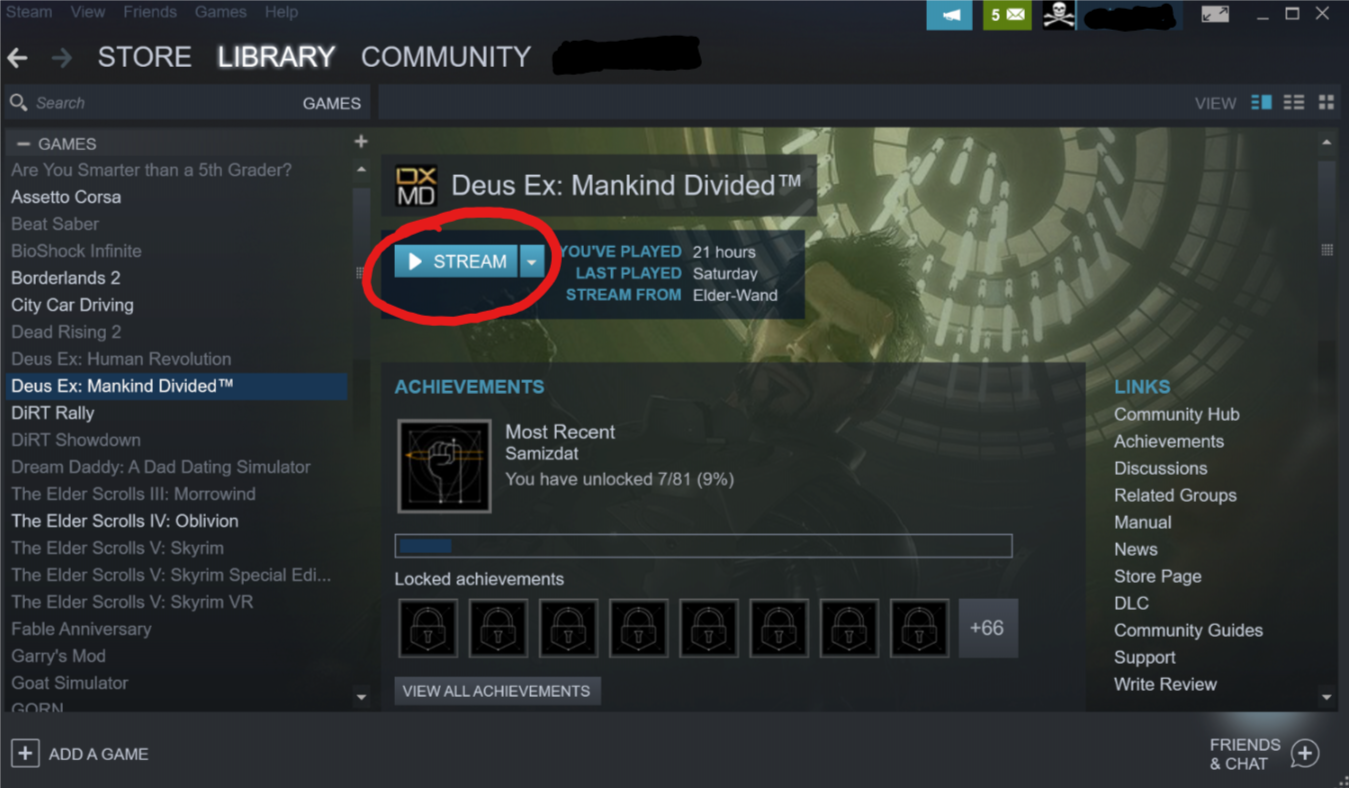
It seems like every time that I sit down to get my game on, one of my family members wants to watch a movie or something on the home entertainment system. You can use your Surface to play your Steam, Xbox, or Playstation games through their respective streaming services. For Playstation or Xbox games you’ll need to pair a Bluetooth controller. The Xbox app is pre-installed, open it and click the icon on the right hand menu that looks like an Xbox. Follow the prompts to get the service running. If you have a Playstation, download the Remote Play app and follow the on-screen instructions. To stream Steam games from your gaming rig, just install the Steam client app on your Surface and login with the same account. Select a game in your library and pick stream.
Most of the whiteboards in my office are old crusty things with the shadows of meetings past bleeding through. Skip the dying markers and eraser arm, use Microsoft’s Whiteboard app instead. Download it from the store and you’ll be collaborating in no time. Features like ink to shapes and ink to tables, help ensure that your art skills don’t derail your ideas. The “invite people” option works when you’re all in the same room or in different countries.
Hopefully I’ve given you some ideas to think about. The device’s diminutive size and power make it an excellent tool for data consumption and productivity. The Microsoft Store is full of applications that are useful, but don’t forget that if you convert from S mode, all windows software becomes available.
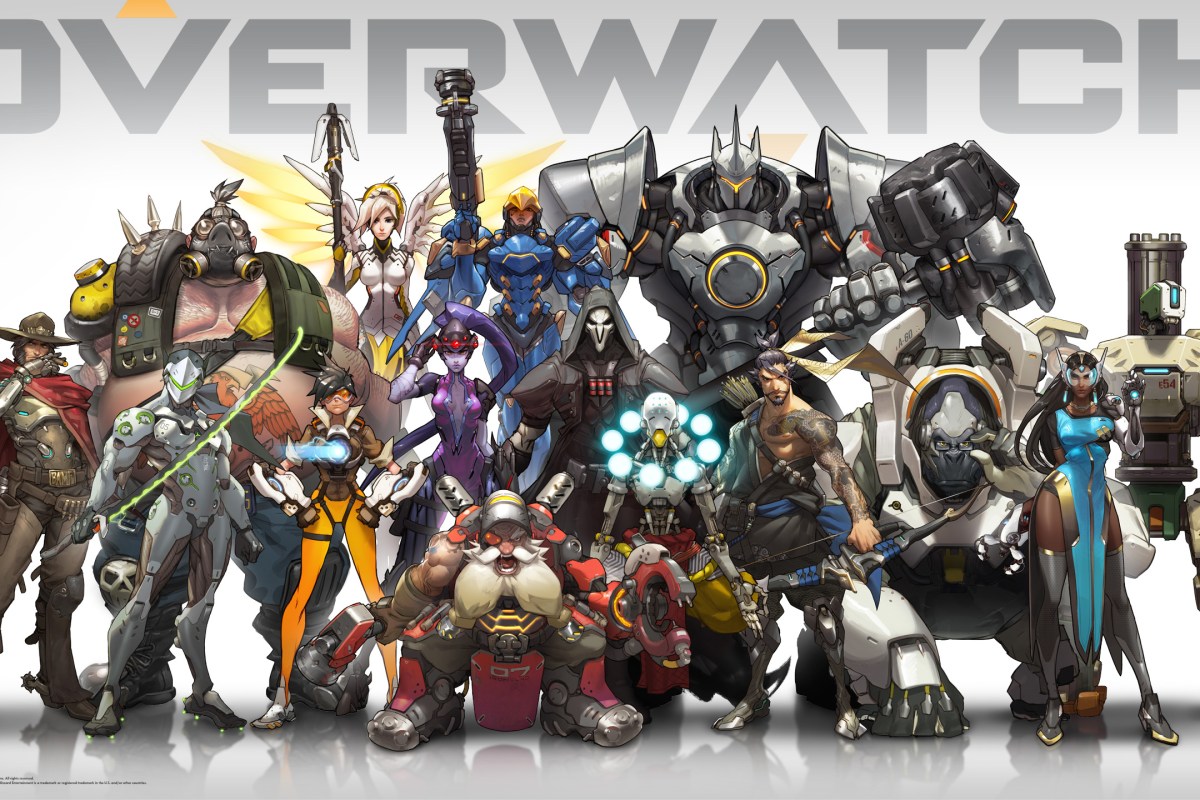
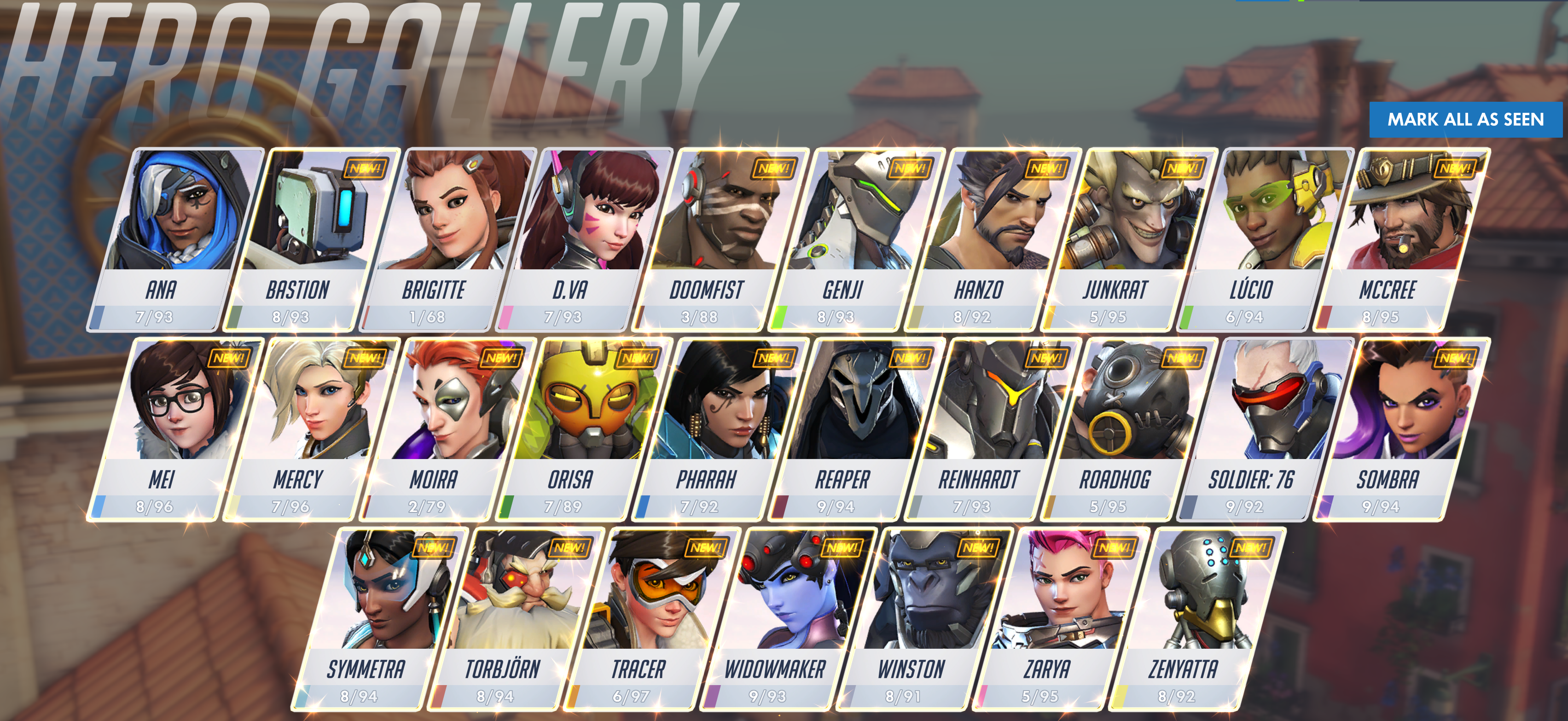
For those who don’t know (where have you been hiding), Overwatch is a shooter that is oriented around team play. Two teams of six on-line players choose from a roster of 27 characters spread across four roles: attack, defense, tank, and support. The team must work together to accomplish group goals in one of several game modes: Payload (move the item to points on the map), Point Capture (capture the flag), Point Capture and Payload Hybrid, or Control (king of the hill). The game modes ensure that the only way to win is to function as a unit. Lone wolf play results in a loss nearly every time.
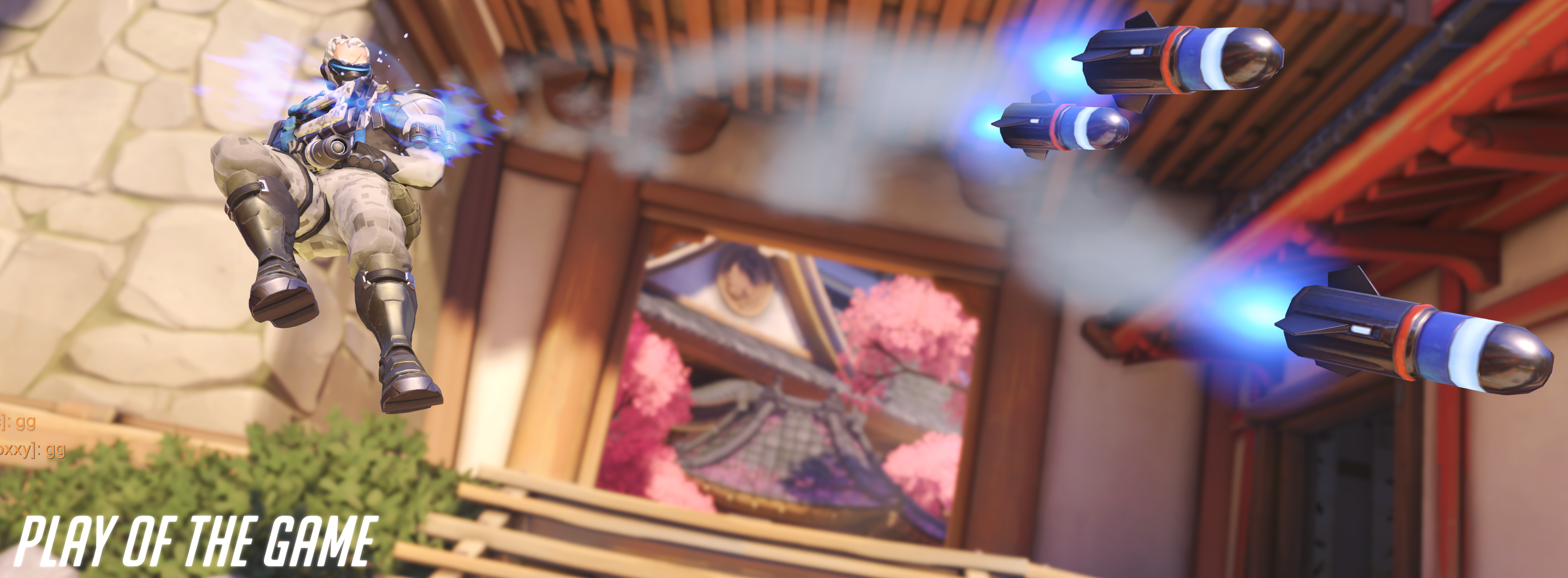
Like most team sports, there are plenty of occasions for individual glory. The game highlights those moments with “Play of the Game” recaps, individual performance medals, and an MVP vote at the end of every match. In Call of Duty, Doom, or Halo a single talented player can rack up enough kills in a team death-match round to virtually win by themselves. In Overwatch, you can’t win without the support of your teammates, period. Sure you can get oodles of eliminations, but you can’t make progress on the match’s goal. This group effort introduces all sorts of complex strategies and forces relationships between the players that are more akin to American Football than they are to most on-line shooters.
For example, several of the Battlefield games feature support roles in which the player can toss out health packs to heal injured team members. Call of Duty sometimes features a perk in which you can heal an injured player and these roles make a difference in the game’s outcome, but in Overwatch the support or “healer” class is critical. The match goals ensure that all of the characters, or heroes as they are called in-game, focus their firepower in a small area. Without a support person constantly bolstering everyone’s health points, players are zapped out faster than they can make it back into the battle. It is possible to win without a support member, but it’s a rare occurrence. When a group thinks they can go without a support player, it is fairly amusing to be on the opposing team in an overpowered, “bow before my might” sort of way. Guess what happens when the better armed players don’t protect the support players? When a character is killed in the game it is often quite a long trek to make it back to the goal. Loosing a healer can mean an entire team gets wiped.
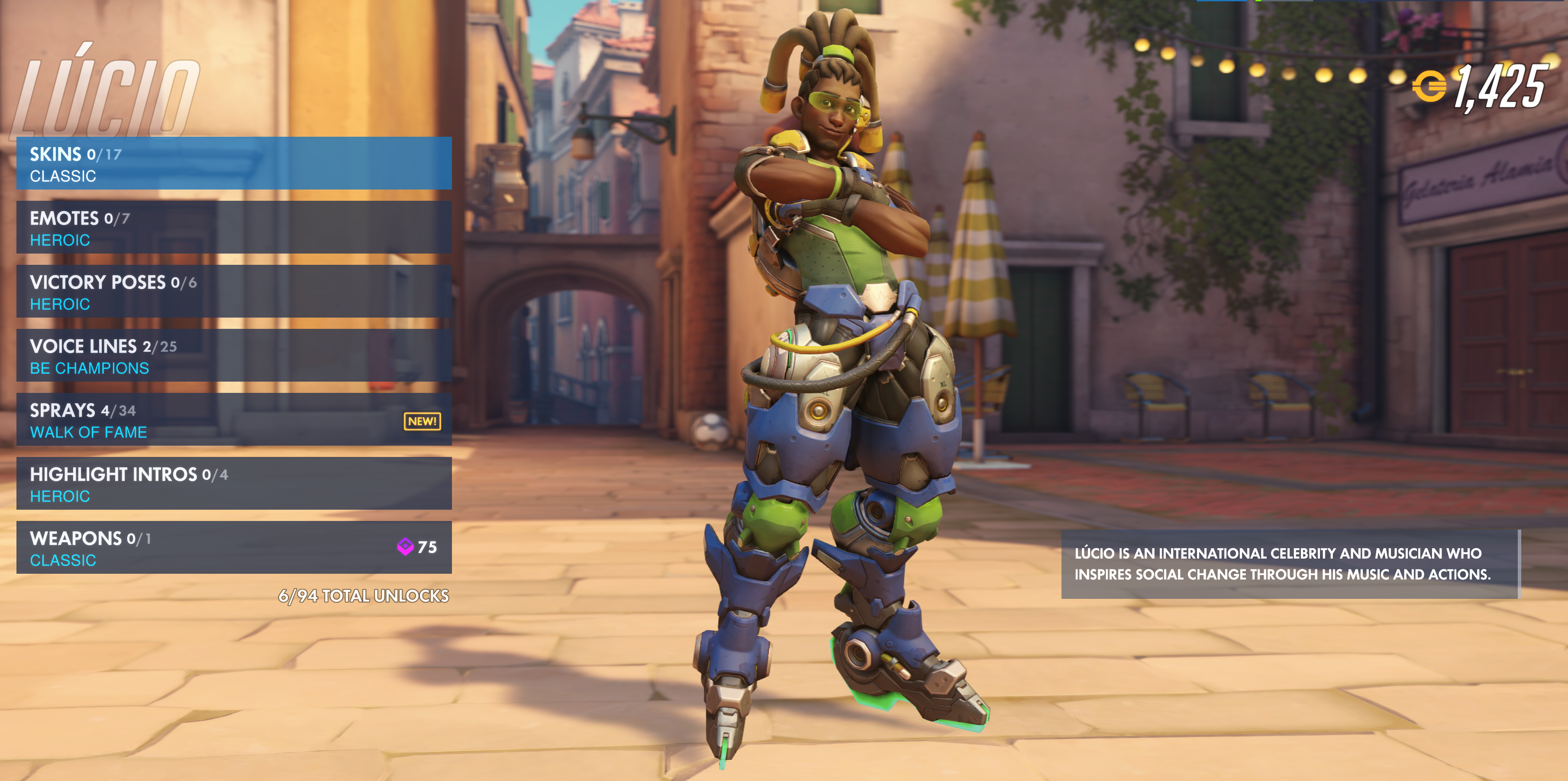
As you can tell from the paragraph above, a team’s hero composition matters almost as much as the skill of human pilots. Some pairs of heroes can form an almost unstoppable combination, a good Reinhardt and Diva with a decent Lucio backing them up can move a payload almost on their own; leaving the attack and defense players free to do damage behind the line of scrimmage. The high value placed on proper team selection can cause some interesting interactions due to human nature.
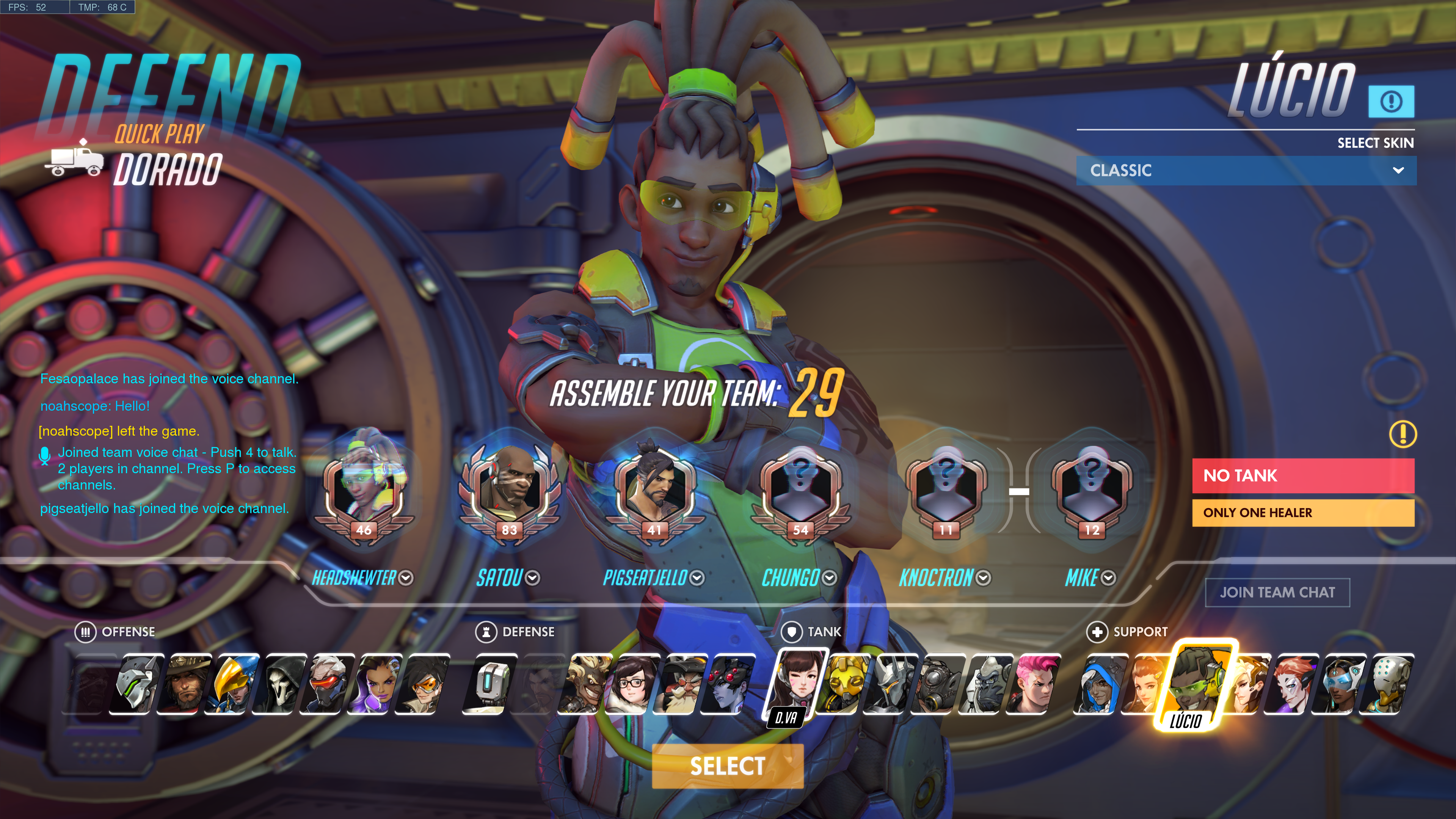
Many gamers like to master a single character or weapon system in any given game. I know people who started Call of Duty with the first assault rifle and have literally never tried anything else. Veterans of Overwatch know this mentality results in team weakness. You need to be flexible; if your team is getting wiped (all members killed) too fast to be effective, an attack player may need to switch to a healer to bolster the tanks for a while. Inflexibility in character choice can often lead to a loss. To make matters even more obvious, the game itself tells the group where it is week before a match begins. It prompts with messages like “No Healer, Only One Tank. and Low Team damage” in an attempt to help, but if the players don’t adapt a team can be doomed before the game even starts.
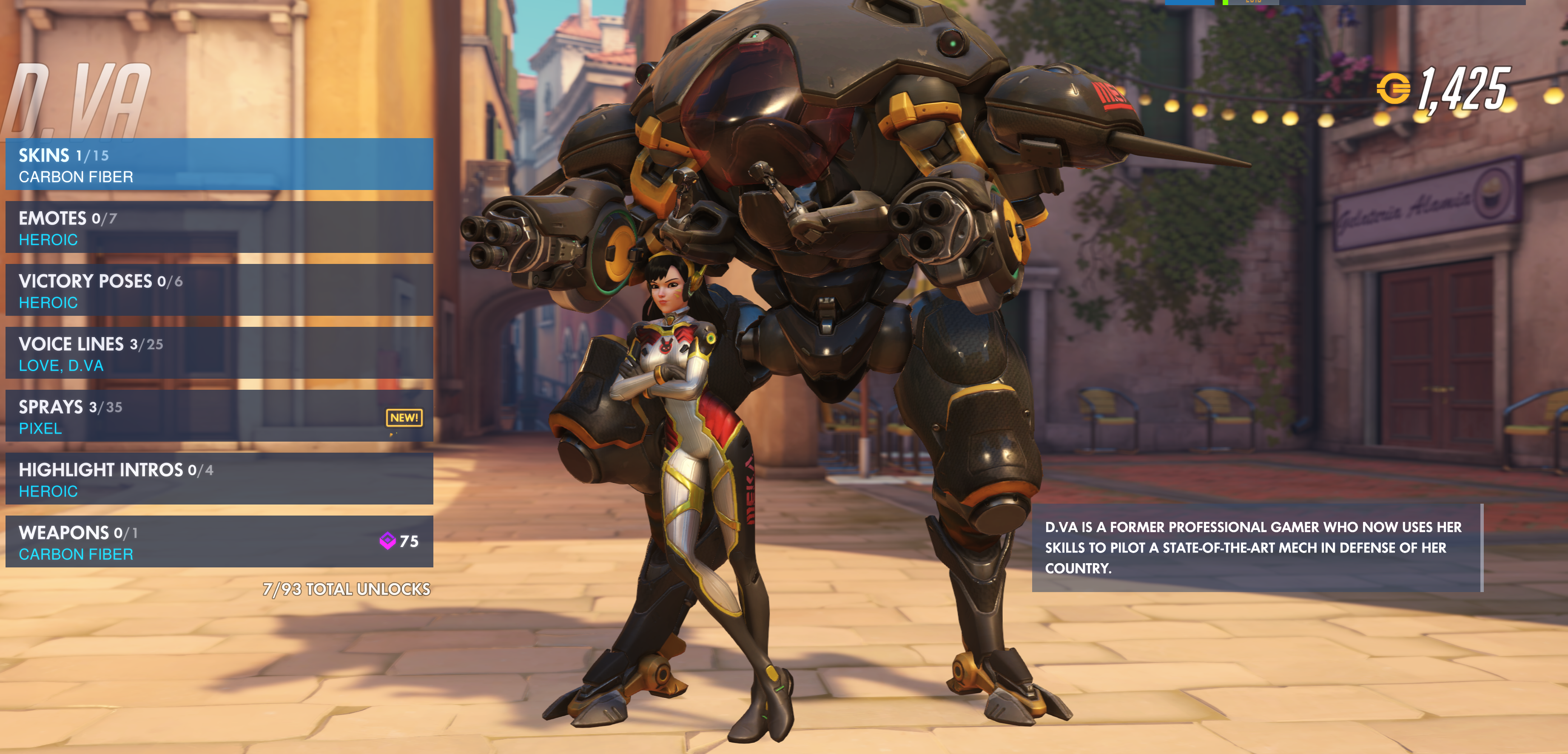
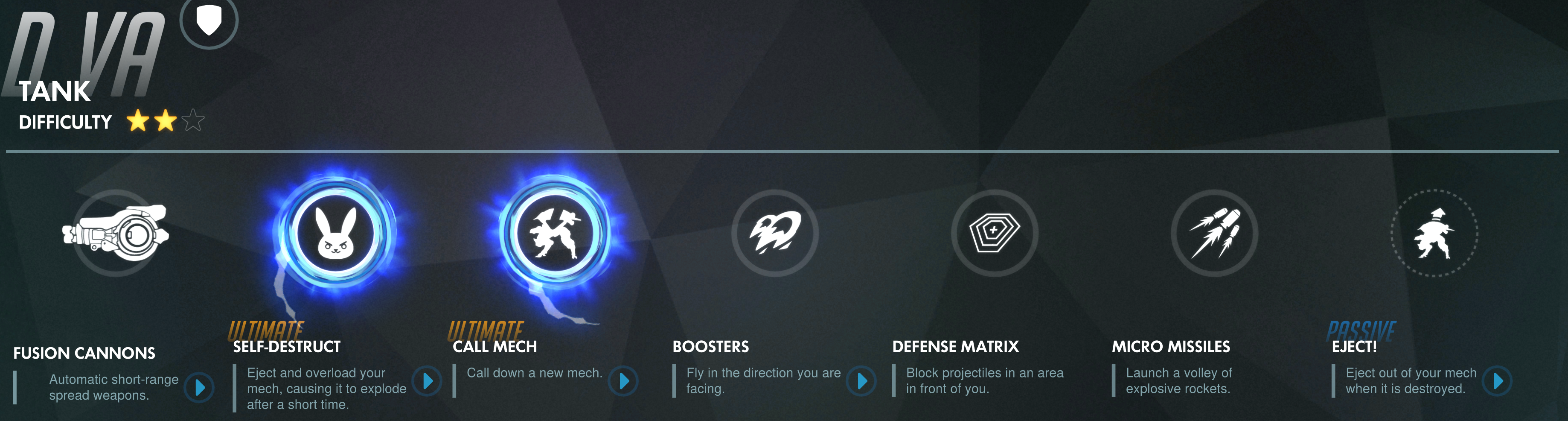
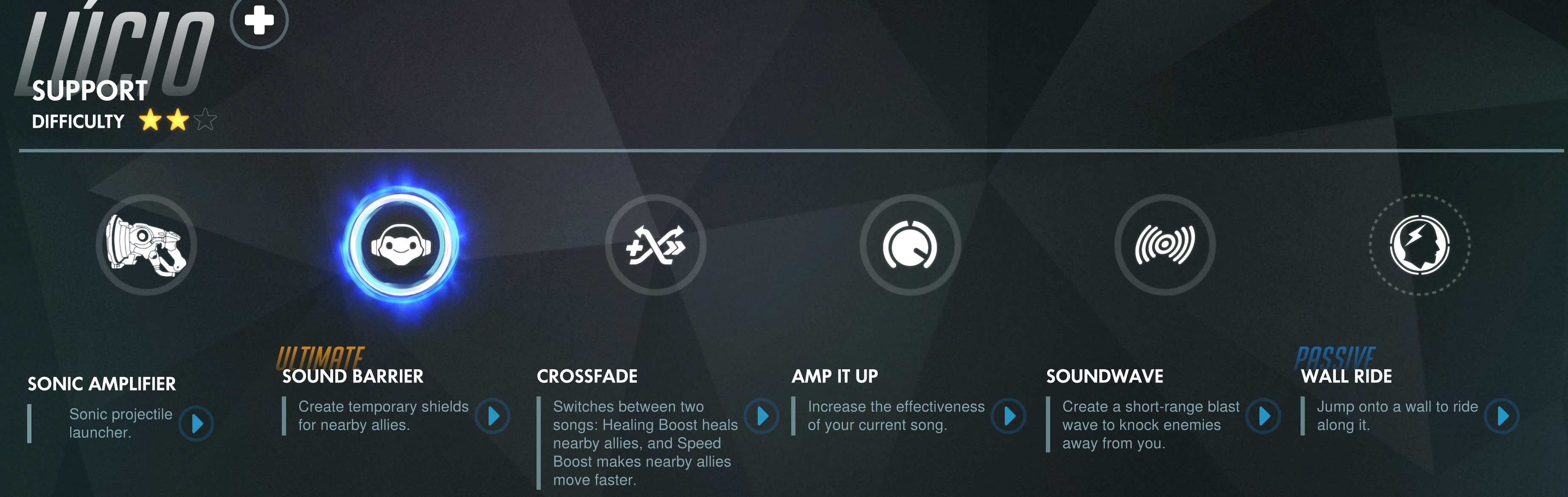
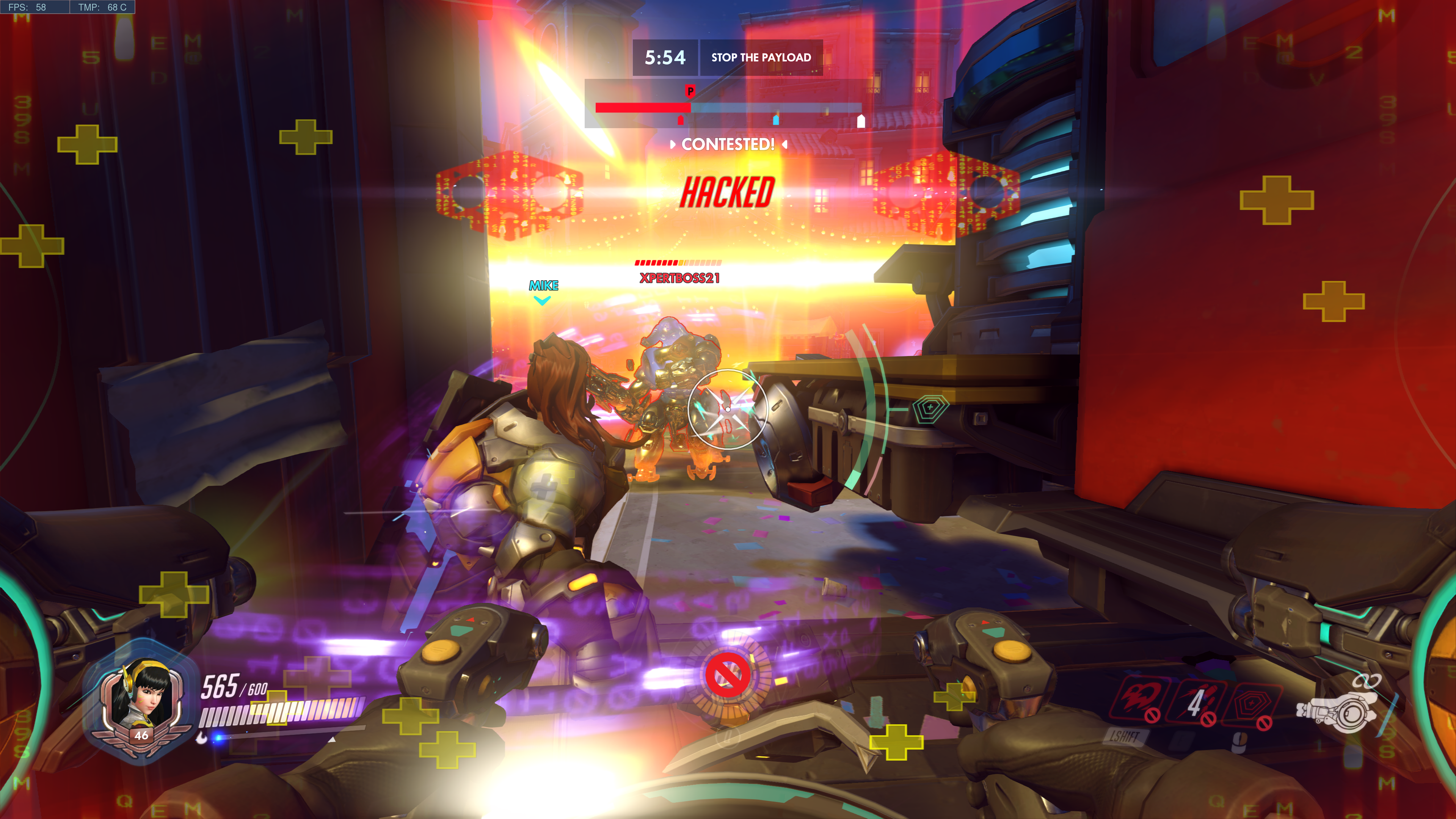
Each hero has a unique set of abilities, weapons, modes of locomotion, and a special power called an ultimate. Many of the weapons and special abilities operate on timers and the ultimate is charged by doing damage or healing team members. Team strategy and player success revolves around knowing when and where to activate these functions. For example, Diva’s ultimate makes her mech explode taking out any one in the vicinity. Everyone knows this which makes her a prime target; holding on to a charged ultimate is a waste if the player is eliminated, but so is deploying it to little or no effect. It’s also important to consider strategy; should the ultimate be deployed offensively or to clear an area? Characters with shields can set up pick plays with attack class players.
Each hero has a natural counter but that doesn’t mean the opposing team will select them at the start. That human nature I mentioned, to want to play your favorite (main) character gets in the way. Phara can fly which makes her a hard target to hit. Soldier 76’s automatic rifle is ideal for shooting her down but if your team doesn’t have one you’re not out of luck. Part of the game is the ability to change to a different character each time you are fragged. It’s actually a critical part of play and if players are not willing to swap to a more effective character, their team and therefore their rank, will suffer.
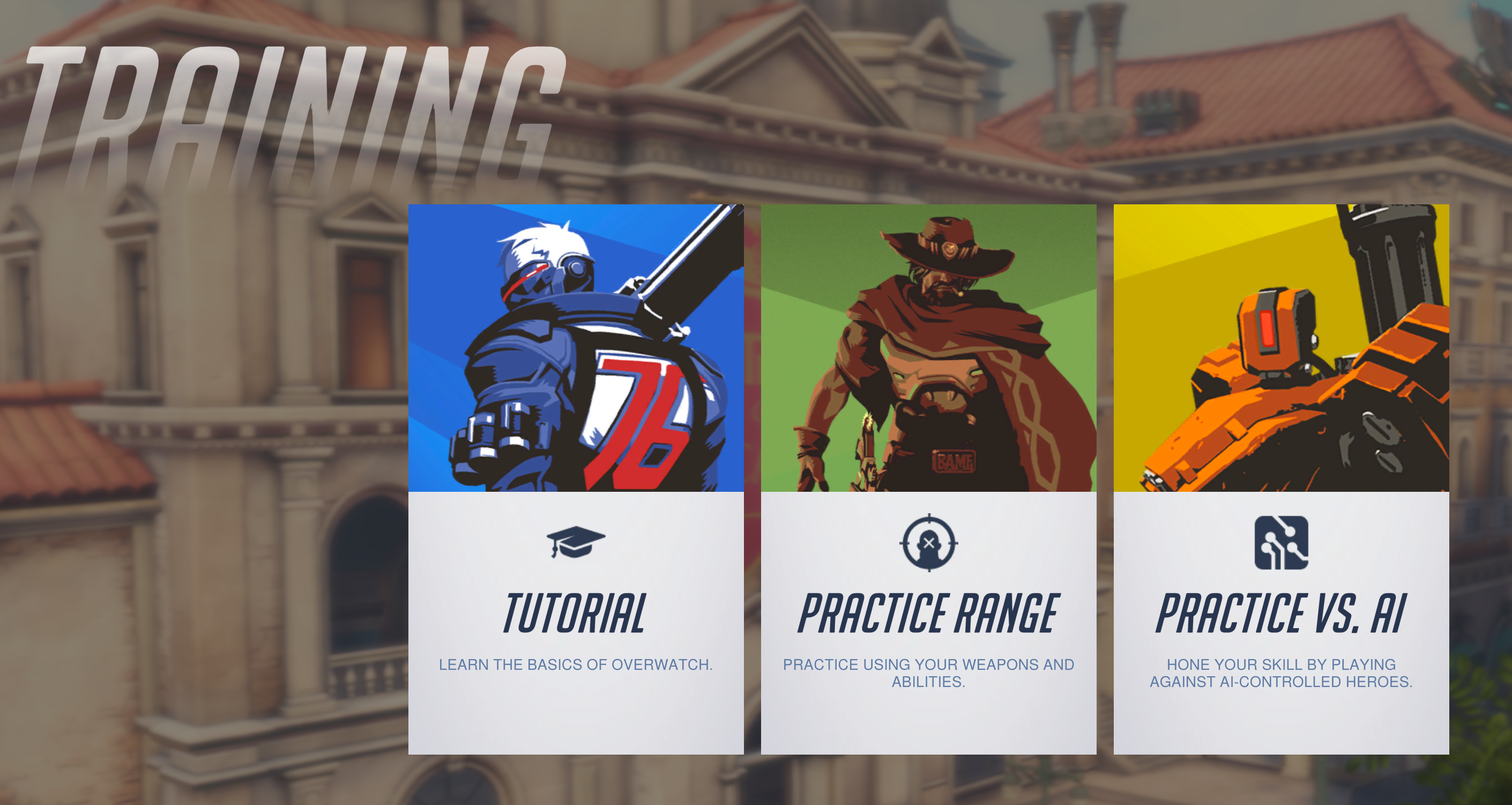
In addition to play aimed at teams, Overwatch has a tiered play path that lines up with real-world sports more than traditional video-games. New players start out in the training levels where teams of humans are pitted against teams of AI controlled heroes. There are 3 levels of difficulty in the AI modes and it is suggested that newbies remain in training until they can best the hardest most of the time.
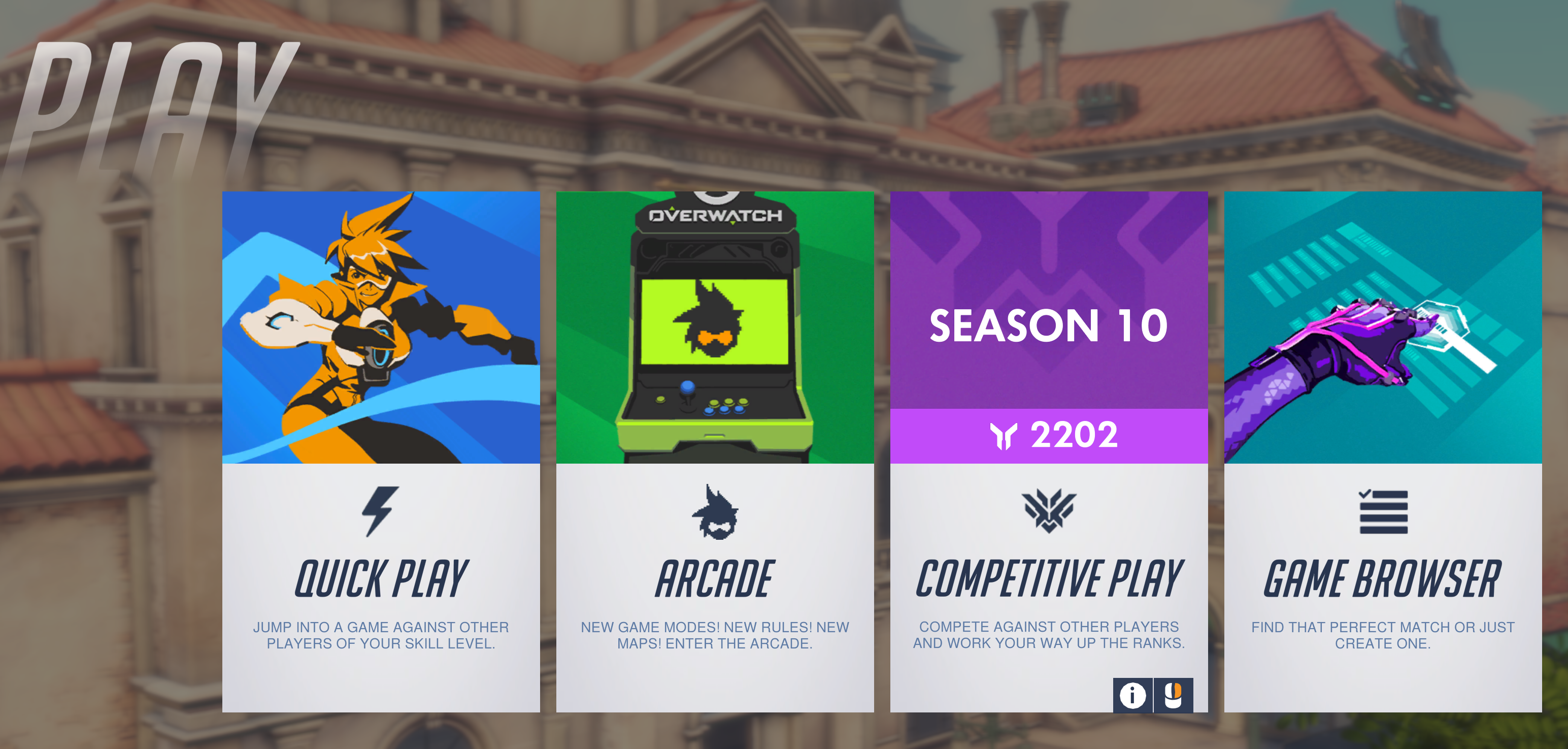
Once a player has mastered playing against AI, the next step is Quickplay. Their team will be matched against another group of human controlled characters to battle for the win. Quickplay is largely for fun and players occasionally get put on teams where the composition makes no sence (6 Hanzo’s). In this mode nothing is supposed to be on the line everyone is supposed to be here to have a good time; like recreational softball teams.
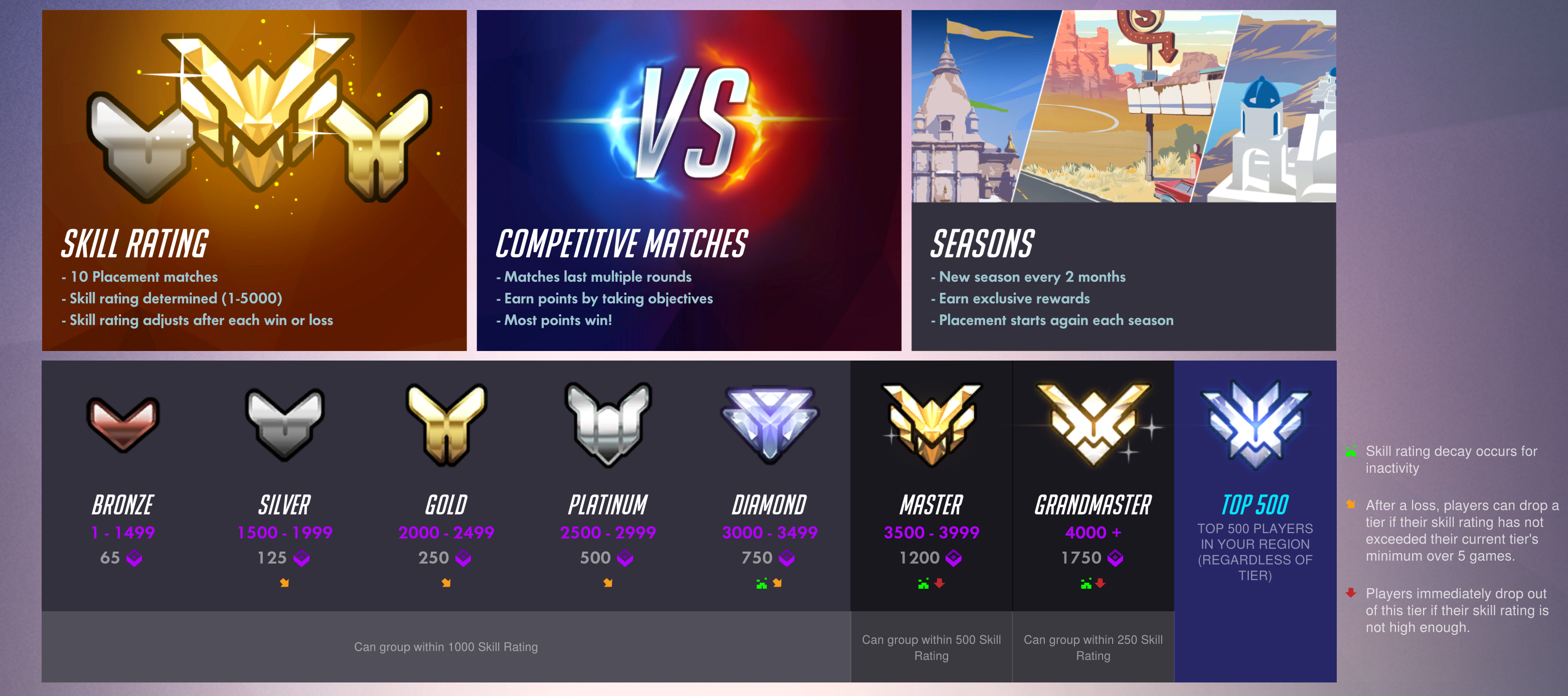
After cutting their teeth playing against humans in quickplay and the need to step up the challenge arises; many will jump in to competitive mode. In competitive mode, it’s play to win, stats are tracked and skill is ranked. The mode starts with 10 placement matches which will determine the starting skill rank: Bronze, Silver, Gold, Platinum, Diamond, Masters, Grandmasters, and top 500 are the levels to be placed into. The rank received is based both individual play and the number of matches won or lost. After ranking, the system will attempt to make teams of evenly matched players for future competative matches. When it can’t, an underdog bonus kicks in if the weaker team pulls off a win. In competative mode players are expected to communicate with each other and be willing to choose heroes that fit the team rather than just personal favorites.
To place Gold in competitive mode I spent 35 hours in AI and Quickplay and reached a level of 41 before I attempted the placement matches. I mastered a character from each class (Soldier 76 , Bastion, Diva, and Lucieo) and was familiar with at least one extra hero in each category (Phara, Widomaker, Reinhardt, and Anna) so that I could fill a spot on any given team with confidence. I also set my audio options to automatically join teamchat and enabled push to talk which I mapped to a button on my mouse. This setup works much like a walkie-talkie ensuring my teammates don’t have to listen to my frustration and only useful call-outs like enemy locations, weapons status, strategic plays, and requests for backup.
Gold isn’t what it used to be LOL but I’m pretty happy with my first attempt. To place above bronze you will need to be a “team player”. If you choose a support character, you need to fulfill that role. Playing Zenyatta and running on side paths to ambush, while satisfying, is not helping your raise team’s health points and will therefore result in a lower skill rank. Likewise, choosing an attack hero such as Soldier 76 and then hiding out behind your tank’s shield for most of the match will not meet the expectations of “Attack”. If your team’s support players are being taken out too fast your rank will suffer; you should be protecting them. Again, play your role.
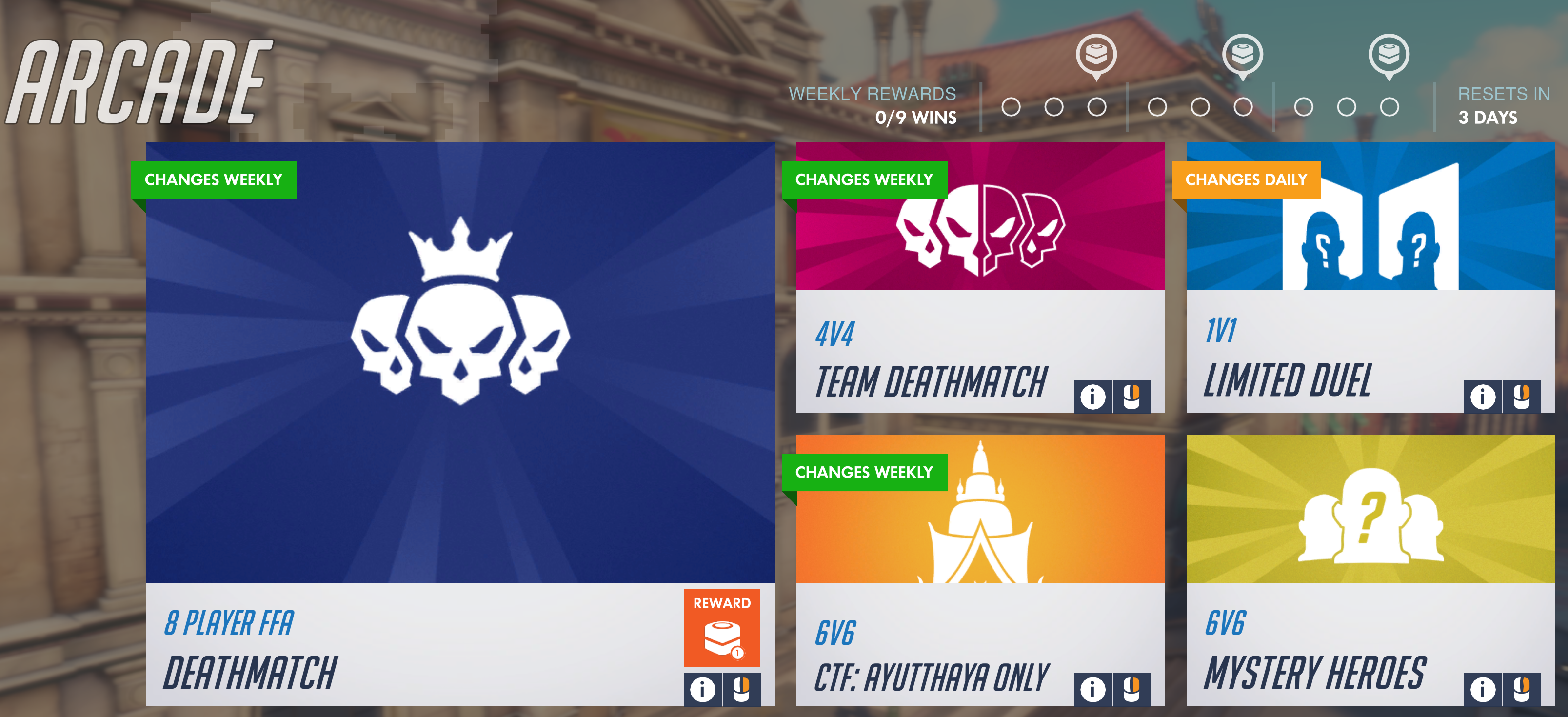
Players coming from traditional shooters where the K/D ratio is rewarded above all else often struggle with the team dynamics at first (I did). If you prefer Free-for-all and Team-Death-Match play, those modes are available under the arcade menu as are several others, some arcade types support competitive ranking and some do not. Competitive Free-For-All is interesting to say the least. Tanks like Diva with shields, missiles, dual shotguns and 600 health points are facing off against snipers with 150 health points and grappling hooks.
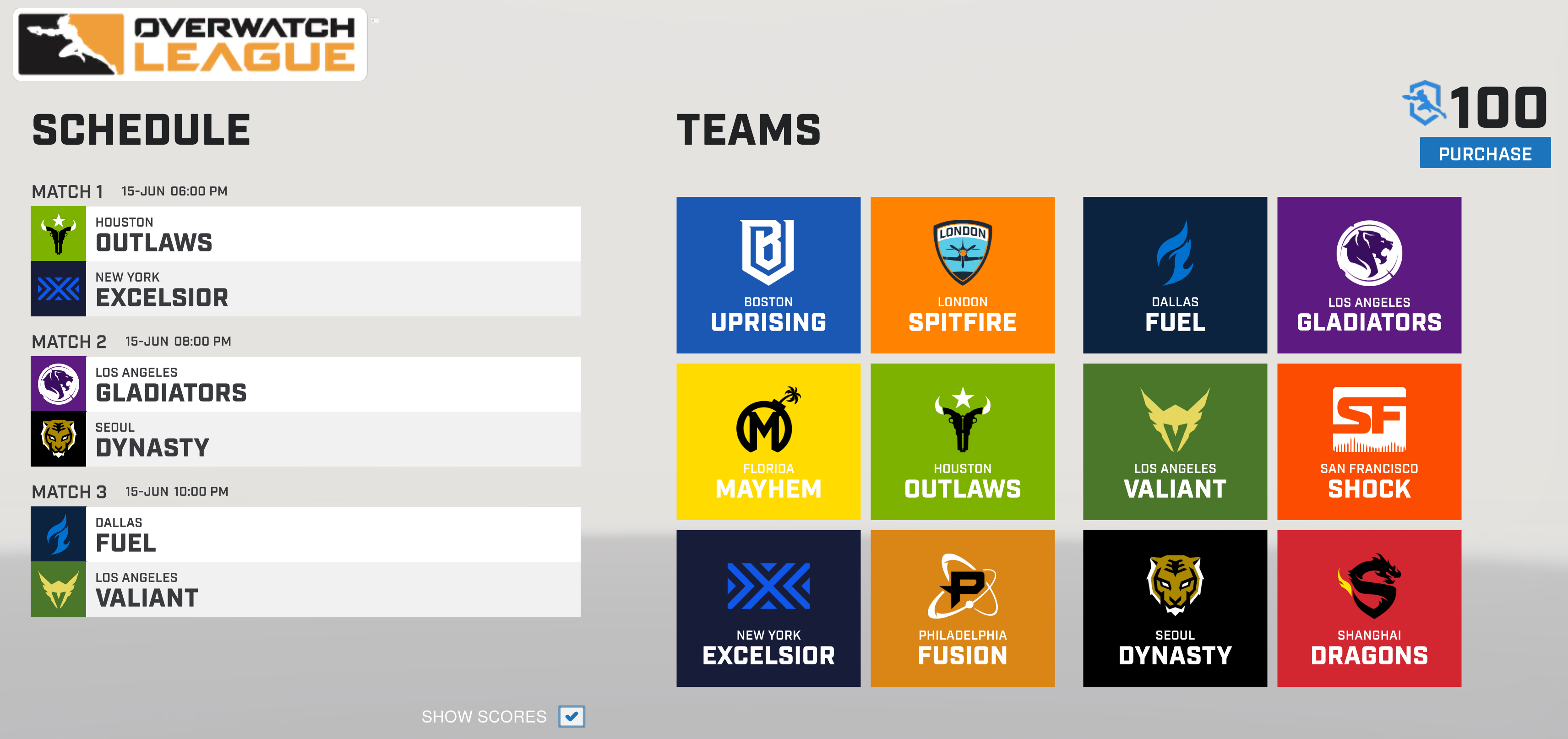
Besides the competitive game modes, Overwatch also offers a full E-Sports league in which city based teams of professional players, each of which earns a minimum of $50,000.00 per year, battle it out all they way to grand finals championship. The games take place in physical venues (you can purchase tickets), are televised and broadcasted on Twitch and in the Blizzard and Overwatch apps, have full announcer support and more. Visit https://overwatchleague.com/en-us/ for more information.
Each year there’s also a World Cup championship in which teams from around the world compete for fame and glory in the BlizCon stadium. There are also various other tournaments at conventions like PAX that are exciting to watch or participate in. To go with all the pro game-play is swag out the wazoo. Shirts, hoodies, art-work, cups, mugs, hats, pins, purses, jackets, and everything else you can think of are available both on-line and in many stores.
Wether you want to be a player or a fan or both, there’s a lot more going on in Overwatch than just shooting. If you’re a traditional sports fan wondering what all the hub-bub around e-sports is about, Overwatch is a great place to start. If you’re a gamer that’s played one too many deathmatches, this game might provide some new challenges. I’ve enjoyed playing and look forward to aiming for a platinum rank in the next season.




 techbloggingfool.com