I’m always going after an improved experience with any technology, but that espeically applys to displays. My current favorite is from Gigabyte. A company known for their PC gaming equipment.
The Aorus F048U is a 48 inch, 4K, HDR, 120 FPS, OLED computer monitor based around LG’s fantastic panel. It’s enclosed in a uber thin case with bezels so small they almost disappear. The panel is being backed up by some smart software and useful connection options.
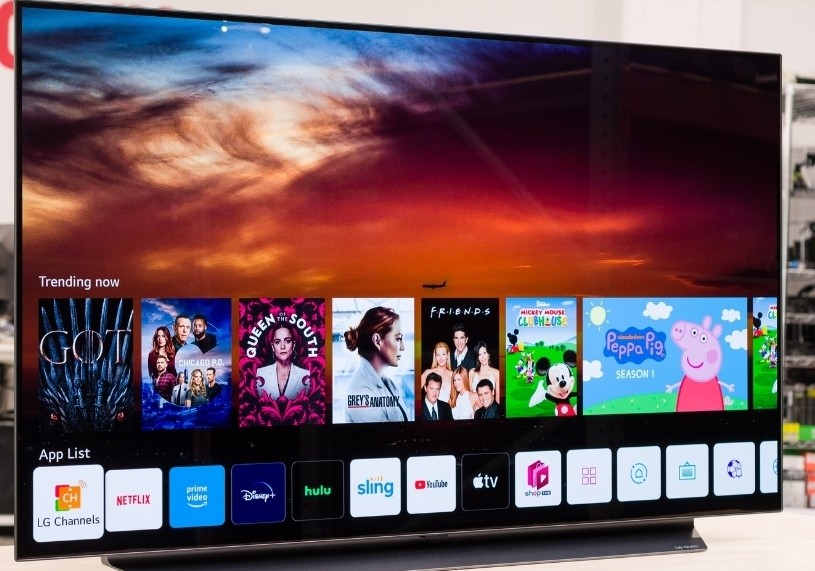
LG’s 48″ OLED TV is missing a Displayport connection.
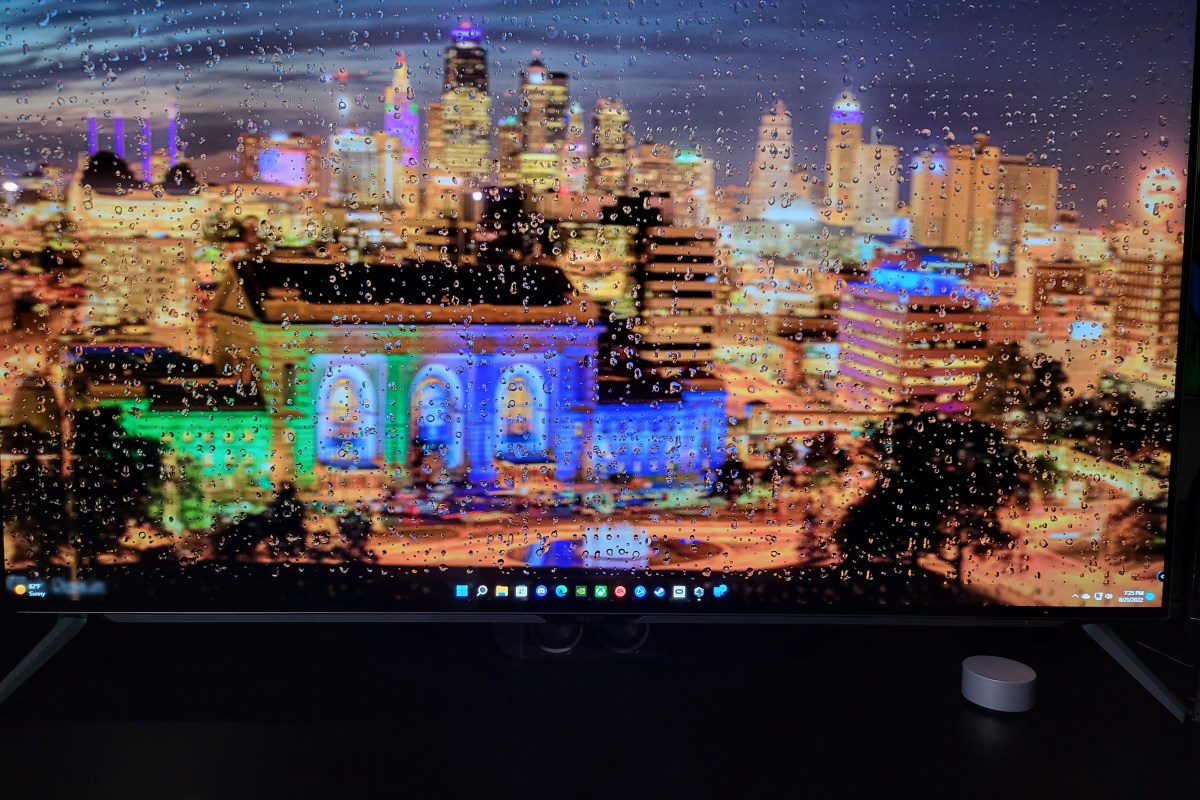
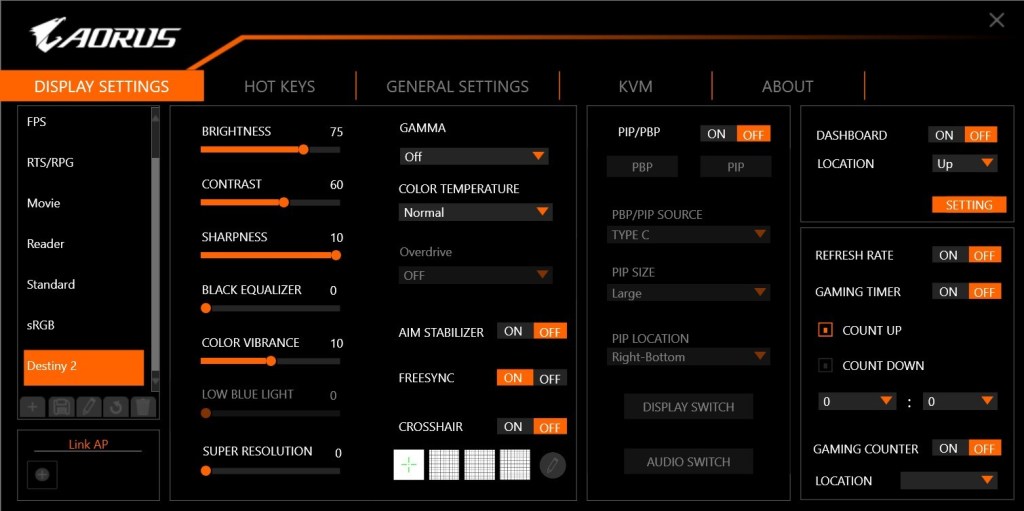
In it’s out of the box auto mode, the screen is breath taking. Think about the best Samsung or Apple mobile phone screen, streched to fill your full field of view.The pixel density is lower, but the colors and infinite contrast remain. If you put some time into mastering Gigabyte’s software, the results are even more impressive. Download the optional Window’s agent from their website at: https://www.gigabyte.com/Monitor/AORUS-FO48U/support#support-dl.
You can use the software to create profiles for any senario. For example, I noticed that Destiny 2 sufferers FPS lag on 180 snap turns. It turns out that Destiny 2 doesn’t like the monitor’s Black Stabilizer feature. I was easily able to configure a profile with that feature disabled.
Customize dozens of settings into profiles that match your activities.
People ask why I got the monitor when a 48 inch LG OLED TV is the same display panel, but also a Smart TV? LG’s OLED TV line is awesome, I have one. It can take input via HDMI 2.1.
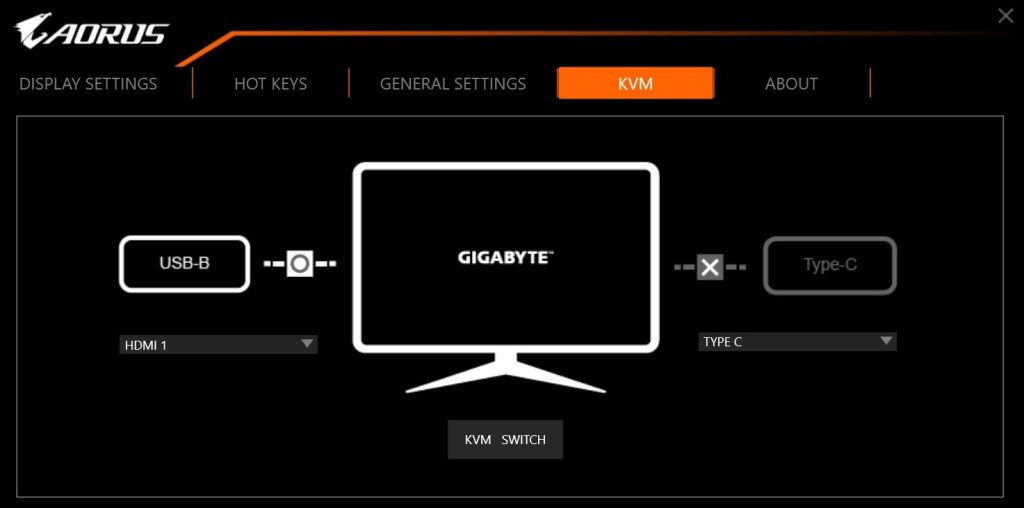
The monitor can display HDMI 2.1, Displayport 1.4, and USB C. What makes it’s input options unique even among monitors, is the integrated KVM. I hook my business laptop up to the USB C port, and my gaming PC up via Displayport. My keyboard and mouse are also connected to the monitor (USB) rather than either of the computers.
The built in KVM and USB C dock powers my laptop and connects to my accessories with a single cable.
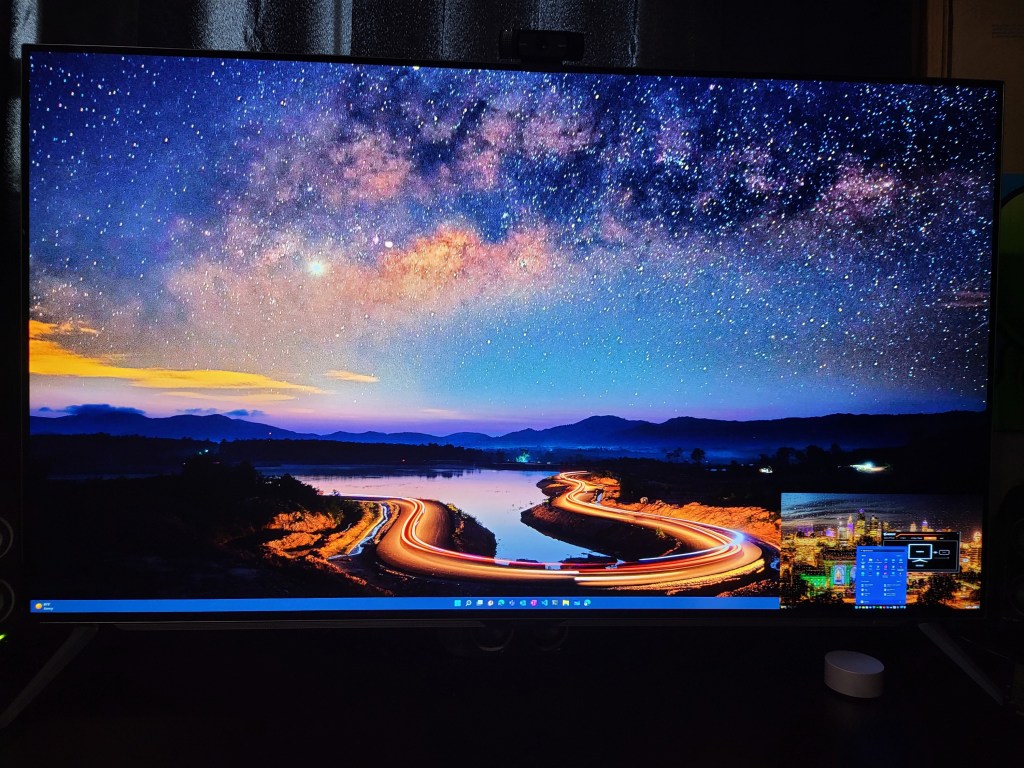
With a button on the remote, or on the monitor itself, I switch my controls and display between the two systems. I can operate each independently in full screen mode, or split the screen and use both computers at the same time. There’s also a picture in picture option for keeping an eye on the secondary system.
The main screen is my desktop, my laptop is in the PiP window in the lower right. The size and position can be adjusted.
If you are considering using an OLED panel of any kind as a monitor, there are some challenges to be aware of. The technology is suceptable to screen burn-in. The built-in management system adjusts attributes of the image output to automatically protect the screen. Don’t fight it, even if you don’t like the adjustments it decides on. Don’t unplug, crank up settings, or reboot it to “fix it”. The system will shift back to full awesome when it’s safe.
I’ve been using mine as both a gaming screen and business montior for several months. I work from home frequently and sometimes follow those eight hours with gaming sessions for hours more. I let the management system do what it needs to. I also use a live (moving) wallpaper with a screen saver set for five minutes and have had zero issues with burn-in so far.
There are monitors with far faster refresh rates, higher resolutions, and more inputs. For me, Gigabyte’s Aorus F048U superb KVM function combined with LG’s OLED panel performance make it the best overall and my favorite screen in the house.
I recently decided that it was time to transition from using a forty-inch TV to an actual monitor. For the most part, I wanted to move past the sixty frames per second limitation that most TV based screens are stuck with. I would have loved to picked up a 4K Predator but couldn’t justify the two-thousand dollar price tag. I had a max budget of five-hundred dollars and hoped to spend less.
As with all of my technology purchases, I started by doing a ton of research. There are a lot of terms and specs wrapped around computer screens these days and I wanted to understand their meanings before making my choice. I’ve provided an overview of a few of the more important terms below.
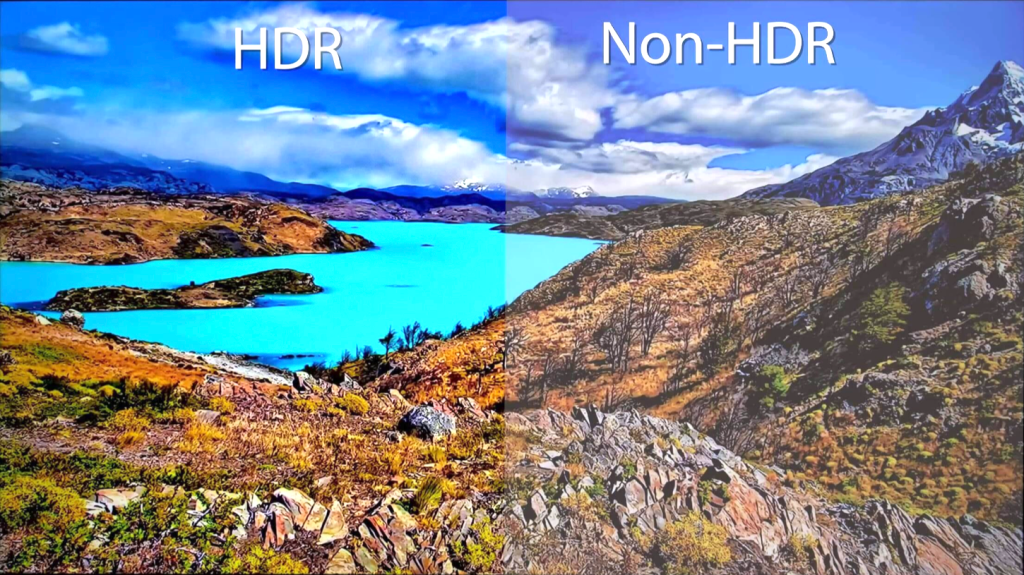
HDR stands for high dynamic range and is a feature that provides better contrast and colors to the content on your screen. Contrary to popular belief, it is not the same thing as the HDR that you find on cameras. CNET has an excellent write up on how the technology works. This particular feature can have a dramatic effect on how things look, but the media and screen must both support it. It’s great for games and videos, but doesn’t do anything for documents.
FPS is frames per second. Moving video is created just like those old flip books you drew in grade-school. Still images called frames are flashed on your screen so quickly they appear to be moving. The faster the frames flash by, the smoother the movements appear to be. Security cameras tend to run around 15 FPS, TV around 30 FPS, 60 FPS is the minimum most gamers shoot for, 120 is ideal for action video and games, 240 FPS is found only on high-end gaming monitors.
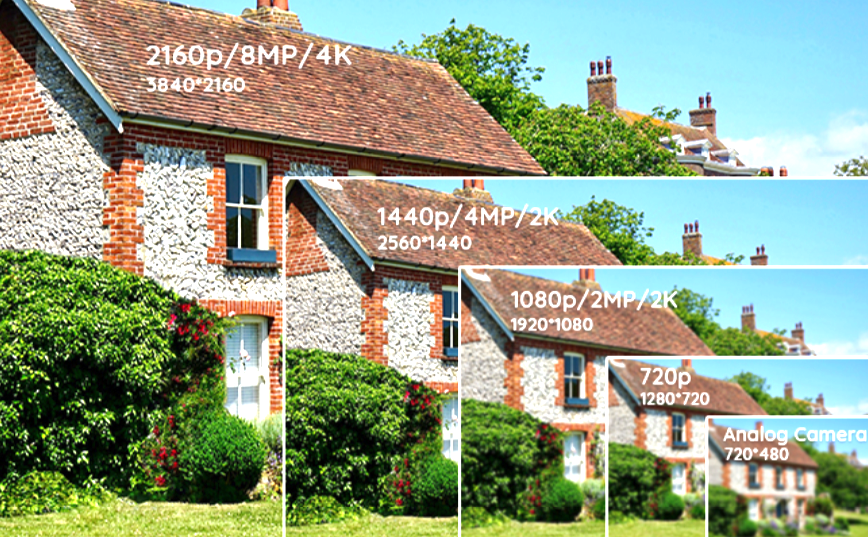
Resolution is an indication of how finely detailed a displayed image can be. Each frame of a video is composed from colored dots of light. Squeezing more dots onto the screen results in more detail being available. Resolution is measured in the number of dots aka pixels, that are available horizontally and vertically. 1080P is 1920 pixels wide by 1080 pixels tall and is comprised of 2,073,600 individual dots of light.
There is a never-ending debate around which is more important for gaming resolution, or frames per second. The choice is a personal one, but if you play competitive on-line games, higher FPS means you are less likely to loose track of your target. At 30 frames per second, a 180 degree flick-turn looks like you magically appear to be facing the opposite direction from the moment of execution. This happens because the movement is over with quicker than the next frame can be displayed. At 120 FPS you actually see your surroundings during a flick-turn. This can also be observed by quickly moving your mouse across your monitor; on lower FPS screens the mouse appears to blink as it moves.
There are of course many more terms, like response times (how fast the dots change color), contrast ratios, OSD (on screen display), etc. but my intent is not to write a book on monitor specifications. NewEgg has a glossary of these terms if you’d like to learn more: https://www.newegg.com/insider/guide-monitors-terms-need-know/.
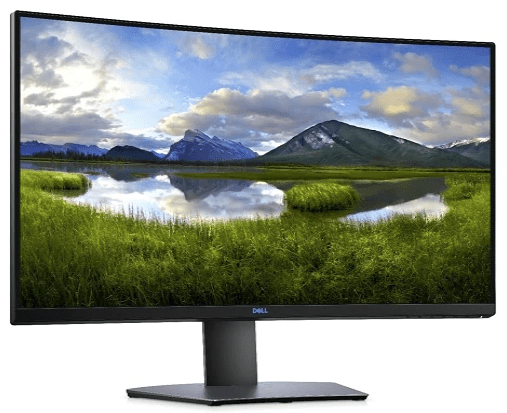
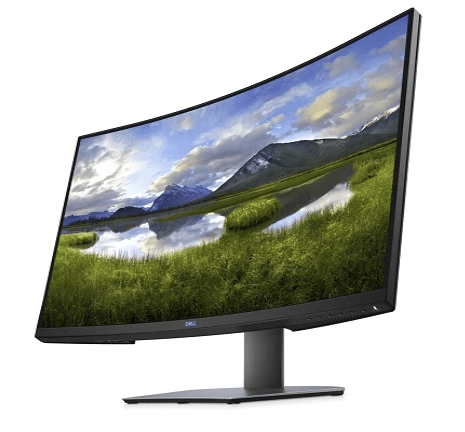
After all my research, talking to the industry people I know, and wandering around the local computer stores was complete, I ended up purchasing Dell’s S3220DGF. The 32 inch, curved, HDR screen is superb. I’ve never owned, or even used a better looking monitor. The colors are great and the blacks are fantastic. The screen is the perfect size to fill my entire field of vision when gaming. Text is easy to read when sitting a little farther back. My system is primarily used in a dark room so the non-bleeding edges are a big plus too.
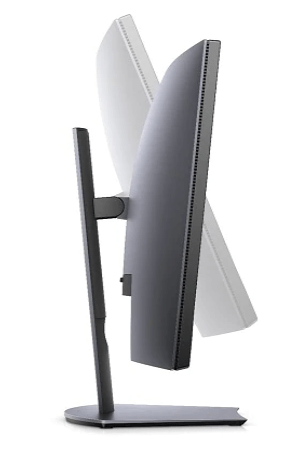
The height, swivel, and tilt adjustable stand makes putting the screen in the perfect position a snap. The integrated USB 3.0 hub is a convenient place to plug-in my desktop accessories without having to drape cables down the back of my desk. I was also pleasantly surprised to find that all of the cables I needed including a display port and HDMI cable were in the box.
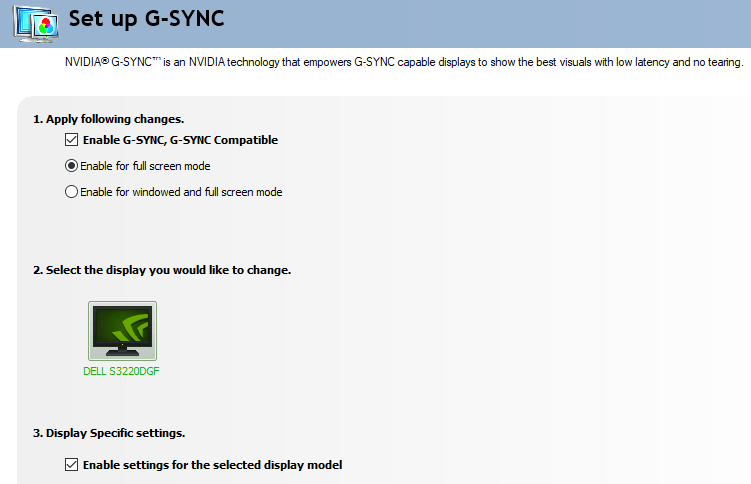
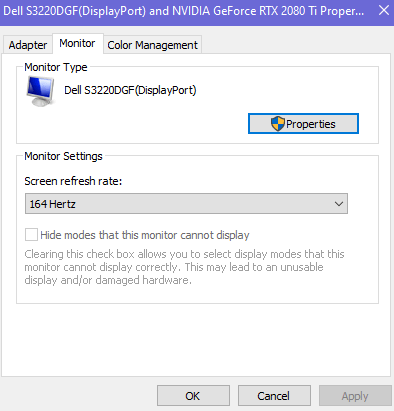
The monitor’s resolution is 2560 x 1440 aka 1440P and its fastest refresh rate is 165 FPS. This combination makes games like Destiny and Call of Duty look fantastic and run buttery smooth. In addition it supports AMD’s FreeSync technology which allows the refresh rate to dynamically match the media being displayed. If your game hits a particularly graphic intensive spot and the frames slow, your monitor will lower its refresh rate to match. This prevents tearing and choppy video. Despite the name, Nvidia GPU’s can use the FreeSync feature with this monitor.
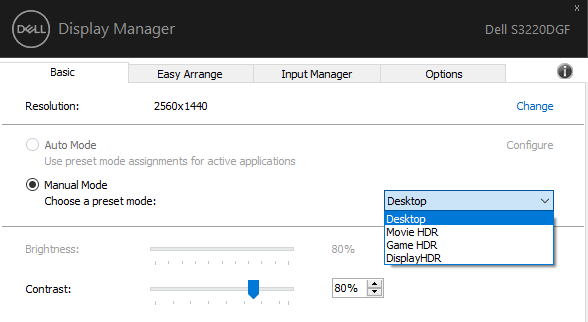
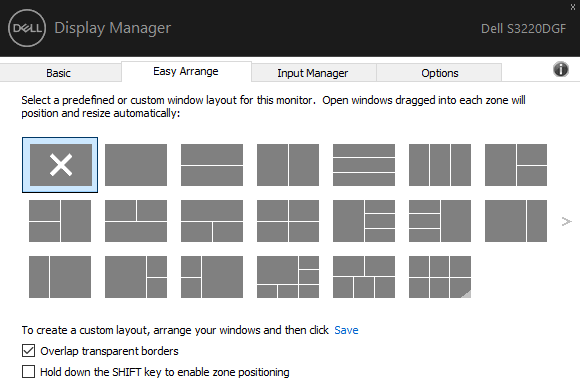
The OSD (on screen display) controls are easy to figure out, some of the other monitors that I tested had a joypad or touch interface which I preferred to the Dell’s individual buttons, but it obviously wasn’t a deal breaker. Besides the OSD and button controls, this monitor can be controlled by Dell’s Display Manager Software. In addition to editing settings like the brightness and contrast, the app lets you control and customize Window’s Snap Zones.
Modern Windows operating systems let you grab the title bar of an application’s window and drag it quickly against the side of your monitor to split the screen in half and select a window for the free side. Snapping windows is incredibly useful for multitasking and is a feature I use frequently. You can also snap a window by pressing the Windows key and an arrow key at the same time. My only gripe with snapping is that I wish there were more layouts.
The Display Manager software addresses my complaint by providing countless pre-configured layouts that are easily selectable. Besides the pre-made layouts you can also make your own. You don’t have to buy an expensive new screen to get this functionality. Microsoft’s Power Toys includes a feature named FancyZones that is similar, but not quite as easy to use and suffers from a few bugs.
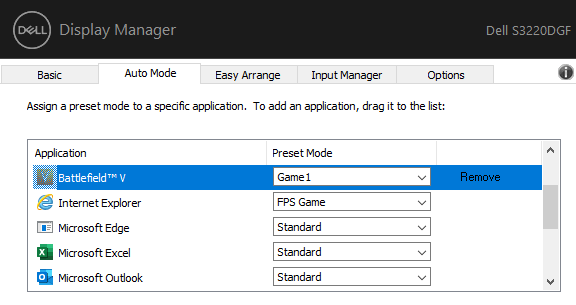
The monitor’s memory will store several different presets of brightness, contrast, color, black mode, refresh rates, and other settings which you can name. The Display Manager application will allow you map specific applications to those stored presets. This allows you to easily customize the screen for whatever you happen to be doing. I wasn’t aware the monitor was capable of this when I bought it, but it is a feature I use quite often.
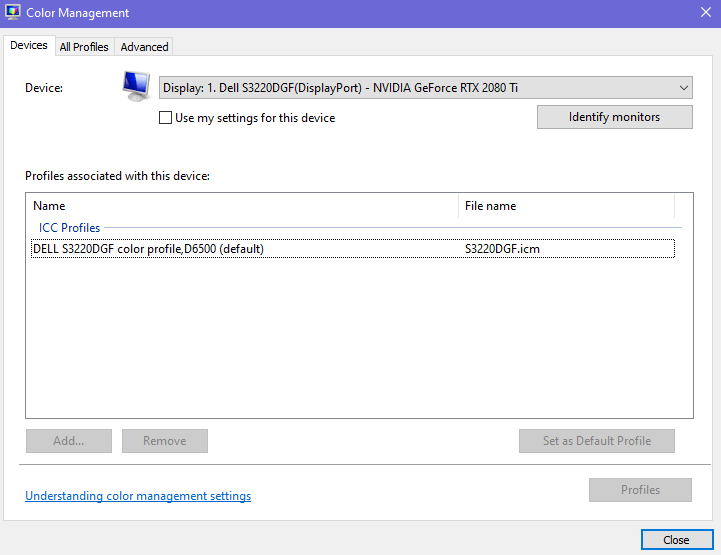
Most monitors that are connected to a Windows PC use the built-in generic driver and color profile. This works fine for 80% of use cases. However, if you edit photos or video having a tuned color profile and purpose made driver can help colors and contrast appear more realistic. This Dell S3220DGF comes with both.
I’ve owned the monitor for a couple of months and am very happy with my purchase. I found it on sale at Best Buy for $399.00 but it’s normal price is $449.00. I was concerned that I would miss 4k but the FPS is more important to me overall. I barley notice the difference in resolution. I also debated a flat screen versus a curved one. The curve really makes a difference on a screen this size that is only a few feet from my eyes. If you’re in the market for a new monitor, I recommend you take a look at the S3220DGF. That name just rolls of the tongue doesn’t it?

 techbloggingfool.com