I’ve been caught by an automatic service not starting after system reboots from things like patching. I’ve written several versions of the script below over the years. This is my most recent edition. You’ll need the Active Directory module installed on the system that executes the script.
The code will scan your entire AD for member systems with a Windows Server operating system. It will present you with a list to choose from. It will then test RPC (135) connectivity and scan the automatic services on those that are reachable. The script will report any servers that do not have a status of “running” along with any that were not reachable.
<#
.SYNOPSIS
Checks Acitive Directory Memeber Servers for Automatic Serices that are not currently running.
.DESCRIPTION
Dynamically generates list of Active Directory Servers.
Uses WMI to examine the status of all services set to automatically start on selected servers.
Filters common automatic services that do not stay started by default: mapsbroker, cdpsvc, gupdate, remoteregistry, sppsvc, wbiosrvc,
iphlpsvc, tiledatamodelsvc, clr_optimization, and Microsoft Edge Update are currently excluded from the report.
.INPUTS
Get-ServerAutoSerivcesStatus displays a gridview of selectable Active Directory memeber servers.
Shift+ and CTRL+ select are enabled.
CTRL+A to select all.
Criteria to filter.
.OUTPUTS
System.String. / Gridview Get-ServerAutoSerivcesStatus returns a string showing all status on selected servers running,
or a gridview of the servers and services that are not.
Get-ServerAutoSerivcesStatus also displays a string listing servers that did not respond on TCP 135 (RPC).
.EXAMPLE
PS> Get-ServerAutoSerivcesStatus.ps1
#>
$ErrorActionPreference = "SilentlyContinue"
$Servers = Get-ADComputer -Filter 'Operatingsystem -Like "*server*"' -Properties dnshostname|
Select-Object dnshostname -ExpandProperty dnshostname|
Out-GridView -Title "Select Servers To Enumerate AutoServices. CTRL+A to Select All" -PassThru
$Report = @()
$ErrorLog = @()
$ServersOnline = @()
Write-Host -ForegroundColor Yellow "Please wait, testing connectivity to selected servers....."
Foreach ($Server in $Servers) {
If ((Test-NetConnection -WarningAction SilentlyContinue -ComputerName $Server -Port 135).tcptestsucceeded){$Serversonline += $Server}
Else {$Errorlog += $Server}
}
ForEach ($Server in $ServersOnline) {
$Wmi = Get-WMIObject win32_service -ComputerName $Server -Filter 'State != "Running" AND StartMode = "Auto"'|
Select-Object @{n="ServerName"; e={$server}}, @{n="ServiceName";e={$_.name}},@{n="Status";e={$_.state}},@{n="Start Account";e={$_.startname}}
$Report += $Wmi | Write-Host
}
$Report | Where-Object {($_.ServiceName -notlike "mapsbroker") -and ($_.ServiceName -notlike "cdpsvc") -and ($_.ServiceName -notlike "gupdate") -and
($_.ServiceName -notlike "remoteregistry") -and ($_.ServiceName -notlike "sppsvc") -and ($_.ServiceName -notlike "wbiosrvc") -and ($_.ServiceName -notlike "iphlpsvc") -and
($_.ServiceName -notlike "tiledatamodelsvc") -and ($_.ServiceName -notlike "*clr_optimization*") -and ($_.ServiceName -notlike "Microsoft Edge Update") |
Select-Object @{n="Server";e={$server}}, @{n="Stopped Service";e={$_.displayname}
}
}
If ($Rerport -ne $null) {$Report | Out-GridView -Title "These automatic serivces are not running"}
Else {Write-Host -ForegroundColor Green "All Automatic Services on $($Serversonline.count) reachable servers are started."}
If ($ErrorLog -ne $null) {Write-Host -ForegroundColor Red "These $($ErrorLog.count) servers were not reachable via RPC (port 135)`n `n" ($ErrorLog -join ",`n")}
Else {Write-Host "No connection issues to selected servers detected."}
Pause
Exit
Running the script below requires the RSAT (Remote Server Administration Tools) be installed on the system you are running it from. The account used must have enough permissions to read from Active Directory and the selected server’s registries.
The script will read the machine accounts of AD joined servers looking for those with the word “server” in the operating system attribute. It will prompt the user to select any of those servers to scan. It will also prompt the user for a DNS name to search the certificates for.
The script will attempt to test connectivity to RPC (TCP 135) for each of the selected servers. It will then open the registry and search the computer account’s personal certificate store for the entered domain name. A report will be generated that shows pertinent details for each certificate that is found.
$Servers = Get-ADComputer -Filter 'Operatingsystem -Like "*server*"' -Properties dnshostname|
Select-Object dnshostname -ExpandProperty dnshostname|
Out-GridView -Title "Select Servers To Scan for Certificates. CTRL+A to Select All" -PassThru
$CertificateDomain = Read-Host "Enter public DNS host name of certificate to check; example: mydoamin.com"
$ServersOnline = @()
Foreach ($Server in $Servers) {
If ((Test-NetConnection -WarningAction SilentlyContinue -ComputerName $Server -Port 135).tcptestsucceeded){$Serversonline += $Server}
}
ForEach ($System in $ServersOnline){
Try {
Invoke-Command -ComputerName $System -ErrorAction Stop {
Get-ChildItem Cert:\LocalMachine\My|Select-Object DnsNameList, Subject, Issuer, NotAfter|Where-Object {$_.DnsNameList -like "*$CertificateDomain*"}}|
Format-List PSComputerName, DnsNameList, Subject, Issuer, @{N="Expires"; E={$_.NotAfter}}
}
Catch {Write-Host "No Public CA issued certificate for $CertificateDomain detected on $System"}
}
One of the challenges introduced during the remote work revolution has been user password changes. When your worker population is directly connecting to your network on a regular basis, Active Directory password policies do the job nicely. VPN password resets can be difficult master, but it’s nothing some training can’t overcome.
What happens when the remote worker solution is based on Microsoft’s Remote Desktop Services? If your people are connecting to full remote desktops, the answer is easy. Teach them to press CTRL-ALT-END. If you publish remote applications instead of desktops, two issues present themselves pretty early after the rollout. It is possible to overcome the challenges using only native OS functions.
The first problem we’ll need to address is the actual method a user will employ to change their password. Lucky for us, the RDWeb feature of the Remote Desktop Services Role includes this functionality; it just has to be enabled. Log on to a server that hosts the RDWeb site. If you aren’t sure, log on to any member of the RDS farm, open an elevated PowerShell console, and run the one-liner below.
Get-RDServer -Role "RDS-WEB-ACCESS"
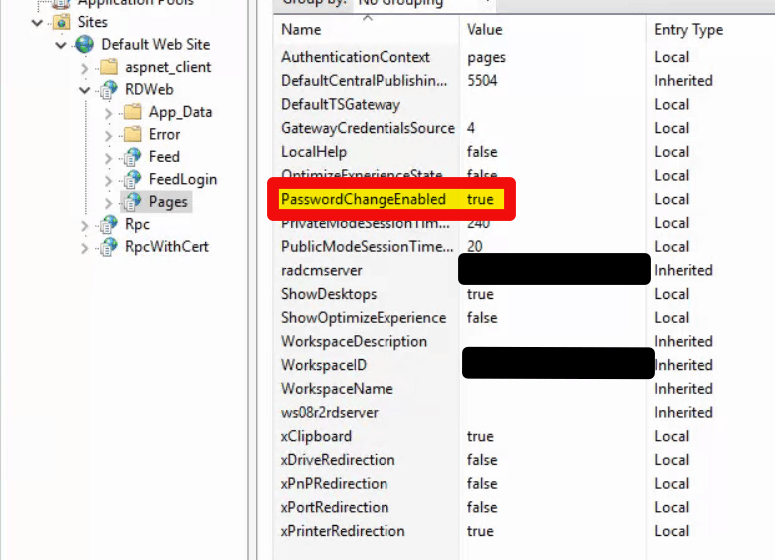
Open the IIS MMC on the RDWeb server. If you are load balancing, perform the following instructions on each RDWeb host to enable the hidden password reset page. First expand the chevrons until you get to RDWeb, then one more time and click Pages. Next double click “Application Settings” and set the “PasswordChangeEnabled” attribute to True. Restart IIS by opening an elevated PowerShell or CMD console and running IISRESET (add /Force to end sessions immediately).
Set the yellow attribute to true
Once completed, a hidden password reset page will be available at a variation of the URL you already use for RDWeb. The default for a US English server is https://yourdomain.com/RDWeb/Pages/en-US/password.aspx. All that is left is to address notification. There’s no prompt in a published application that effectively tells a user when their password is about to expire. We’ll use a PowerShell script to send an email with the relevant information like complexity rules and include a link to the reset page we just created.
Connectivity to SMTP is your responsibility. If you have an internal email relay server already established, then target the notification script at that by changing the $SMTPServer variable. You may also need to authenticate to your email server with a licensed account to send mail or configure an Office365 mail connector. The script can be modified to fit those situations but is not configured for it now.
Schedule the script below to run as a task from a server or workstation that is running RSAT for the appropriate version of Windows. Specifically, you’ll need the Active Directory PowerShell modules. Schedule the task with an appropriate service account, read-only access to Active Directory is required. Adjust the variables to fit your environment and needs.
#**Password_Expiration_RDS.ps1**
#Send password expiration password and link to reset for RDS Published Apps"
#Author: techbloggingfool.com
#Variables, populate with values for your environment and goals.
$DaysToWarn = 7
$SupportTeam = "Support at XXX-XXX-XXXX"
$From = "Password AutoBot <noreply@yourdomainname.com>"
$Subject = "Reminder - Your Domain user account password will expire soon"
$SMTPServer = "Your Email Server's FQDN Goes between these quote marks"
$MailDomain = "Your email domain name goes here"
$RDWebResetURL = "The URL to your RDS password reset page goes here"
function PreparePasswordPolicyMail ($ComplexityEnabled,$MaxPasswordAge,$MinPasswordAge,$MinPasswordLength,$PasswordHistoryCount)
{
$verbosemailBody = "<p class=MsoNormal> </p><p class=MsoNormal>Below is a summary of the requirements for your new password:</p>`r`n<ul>`r`n"
$verbosemailBody += "<li class=MsoNormal>Your password must be changed every <b>" + $MaxPasswordAge + "</b> days.</li>`r`n"
If ($ComplexityEnabled) {
$verbosemailBody += "<li class=MsoNormal>Your new password cannot contain any part of your name or username and must contain 3 of the 4 character types:<ul><li class=MsoNormal>Uppercase letters</li><li class=MsoNormal>Lowercase letters</li><li class=MsoNormal>Numbers</li><li class=MsoNormal>Symbols</li></ul>`r`n"
}
If ($MinPasswordLength -gt 0) {
$verbosemailBody += "<li class=MsoNormal>Your new password must be at least <b>" + $MinPasswordLength + "</b> characters long.</li>`r`n"
}
If ($PasswordHistoryCount -gt 0) {
$verbosemailBody += "<li class=MsoNormal>Your new password cannot be the same as the last <b>" + $PasswordHistoryCount + "</b> passwords that you have used.</li>`r`n"
}
If ($MinPasswordAge -eq 1) {
$verbosemailBody += "<li class=MsoNormal>You must wait <b>" + $MinPasswordAge + "</b> days before you can change your password again.</li>`r`n"
}
If ($MinPasswordAge -gt 1) {
$verbosemailBody += "<li class=MsoNormal>You must wait <b>" + $MinPasswordAge + "</b> days before you can change your password again.</li>`r`n"
}
$verbosemailBody += "</ul>`r`n"
return $verbosemailBody
}
#HTML Email Header and Footer Formatting
$header = '<html>
<head>
<meta http-equiv=Content-Type content="text/html; charset=windows-1252">
<style>
<!--
/* Font Definitions */
@font-face
{font-family:Wingdings;
panose-1:5 0 0 0 0 0 0 0 0 0;}
@font-face
{font-family:"Cambria Math";
panose-1:2 4 5 3 5 4 6 3 2 4;}
@font-face
{font-family:Calibri;
panose-1:2 15 5 2 2 2 4 3 2 4;}
/* Style Definitions */
p.MsoNormal, li.MsoNormal, div.MsoNormal
{margin:0in;
font-size:11.0pt;
font-family:"Calibri",sans-serif;}
@page WordSection1
{size:8.5in 11.0in;
margin:1.0in 1.0in 1.0in 1.0in;}
div.WordSection1
{page:WordSection1;}
/* List Definitions */
ol
{margin-bottom:0in;}
ul
{margin-bottom:0in;}
-->
</style>
</head>
<body lang=EN-US style=''word-wrap:break-word''>
<div class=WordSection1>
'
$footer = "</div>
</body>
</html>
"
#Import AD Module and obtain data from it
Import-Module ActiveDirectory -Verbose:$false
$domainPolicy = Get-ADDefaultDomainPasswordPolicy
$passwordexpirydefaultdomainpolicy = $domainPolicy.MaxPasswordAge.Days -ne 0
if($passwordexpirydefaultdomainpolicy)
{
$defaultdomainpolicyMaxPasswordAge = $domainPolicy.MaxPasswordAge.Days
if($verbose)
{
$defaultdomainpolicyverbosemailBody = PreparePasswordPolicyMail $PSOpolicy.ComplexityEnabled $PSOpolicy.MaxPasswordAge.Days $PSOpolicy.MinPasswordAge.Days $PSOpolicy.MinPasswordLength $PSOpolicy.PasswordHistoryCount
}
}
#Find accounts that are enabled and have expiring passwords
$users = Get-ADUser -filter {Enabled -eq $True -and PasswordNeverExpires -eq $False -and PasswordLastSet -gt 0} `
-Properties "Name", "UserPrincipalName", "msDS-UserPasswordExpiryTimeComputed", "mS-DS-ConsistencyGuid" `
| Where-Object {$_."ms-DS-ConsistencyGuid" -ne $null} | Select-Object -Property "Name", "UserPrincipalName", "SAMAccountName", `
@{Name = "PasswordExpiry"; Expression = {[datetime]::FromFileTime($_."msDS-UserPasswordExpiryTimeComputed").ToLongDateString() + " " + [datetime]::FromFileTime($_."msDS-UserPasswordExpiryTimeComputed").ToLongTimeString() }}
If ($null -eq $Users) {
Write-Error "No users found with the selected search criteria."
}
#check password expiration date and send email on match
foreach ($user in $users) {
$DaysRemaining = (New-TimeSpan -Start $(Get-Date) -End $user.PasswordExpiry).Days
if ($DaysRemaining -le $DaysToWarn) {
$EmailBody = $header
$EmailBody += "<p class=MsoNormal>Greetings $($user.Name),</p>`r`n"
$EmailBody += "<p class=MsoNormal> </p><p class=MsoNormal>This is an automated password expiration warning. Your password will expire in <b>$DaysRemaining</b> days on <b>$($User.PasswordExpiry)</b>.</p>`r`n"
$PSO= Get-ADUserResultantPasswordPolicy -Identity $user.SAMAccountName
if ($null -ne $PSO) {
$EmailBody += PreparePasswordPolicyMail $PSO.ComplexityEnabled $PSO.MaxPasswordAge.Days $PSO.MinPasswordAge.Days $PSO.MinPasswordLength $PSO.PasswordHistoryCount
}
else {
$EmailBody += PreparePasswordPolicyMail $domainPolicy.ComplexityEnabled $domainPolicy.MaxPasswordAge.Days $domainPolicy.MinPasswordAge.Days $domainPolicy.MinPasswordLength $domainPolicy.PasswordHistoryCount
}
$EmailBody += "<p class=MsoNormal> </p><p class=MsoNormal>Office workers, press the Ctrl+Alt+Delete keys on your keyboard and select ""Change a password"".</p>`r`n"
$EmailBody += "<p class=MsoNormal><b>Note:</b> If you are a remote worker, first connect to the VPN.</p>`r`n"
$EmailBody += "<p class=MsoNormal><b>Note:</b> Then go to ""$RDWebResetURL"" and reset your password.</p>`r`n"
$EmailBody += "<p class=MsoNormal><b>Note:</b> Finally, reboot your computer and reconnect to the VPN with your new password.</p>`r`n"
$EmailBody += "<p class=MsoNormal> </p><p class=MsoNormal>Please contact $SupportTeam if you need assistance changing your password.</p>`r`n"
$EmailBody += "<p class=MsoNormal> </p><p class=MsoNormal>DO NOT REPLY TO THIS EMAIL. This is an unattended mailbox.</p>`r`n"
$EmailBody += $footer
$Recipient = $user.SAMAccountName + '@' + $MailDomain
Send-MailMessage -To $Recipient -From $From -SmtpServer $SMTPServer -Subject $Subject -BodyAsHtml $EmailBody
Write-Verbose "Server: $SMTPServer`r`nFrom: $From`r`nTo: $Recipient`r`nSubject: $Subject`r`nBody:`r`n$EmailBody"
}
}
The task should be scheduled to run at least once per day. User’s will be able to reset their own passwords. The notification currently includes a line that suggests remote users should connect to the VPN, you may need to remove it if you utilize a different type of tunnel.
When you install anti-virus software on Windows 10 it registers itself with the Security Center and automatically turns off Windows Defender. This happens because Microsoft knows that running two AV packages at the same time causes problems like poor performance, application crashes, and even system failures.
Until recently, I assumed that installing anti-virus on Windows Servers worked the same way. The other day while investigating an application that was performing poorly I noticed events from Windows Defender scans. The sever in question was running Trend’s Worry Free Business suite.
It turns out that the server versions of the Windows operating systems do not have the Security Center feature. There’s no method for third-party security software to disable Windows Defender. Furthermore, it is enabled by default in all Windows Server 2016 and newer editions.
Microsoft’s documentation that explains Windows Defender compatibility in located here. The matrix at the bottom of the page shows how Defender is configured in each version. Microsoft and the vendors I checked with suggest running a single solution. Here are the official posts for Symantec and Trend.
Leaving Defender running on one or two physical machines is probably not the end of the world, but virtualized environments are another story. In high-density virtualized datacenters, the wasted resources could really add up, even if running both scanners isn’t causing more visible issues.
Most Administrators know that you can use a GPO to disable the ability to use USB storage devices on Windows computers. So you look up the instructions and implement the policy, but how do you know if it’s working?
I’m sure you made a test OU while you were working out the best option for your situation, but if you are disabling access for security reasons you’ll need a report. There are a few ways that you could go about getting the data. I like PowerShell. The code below will search your domain computers for USB storage. You should aware that savy users can use online tools to fool detection. As always, use at your own risk.
Back in the day, your network credentials were used to logon to your computer, get to your email server, and maybe to access some files or a printer. When you changed your password, if you changed it at all, it made sense to update it on the two or three systems that used it all at once and get it over with.
Now your password is synchronized to untold numbers of cloud platforms, on-premises application servers, VPNs, companion devices, and remote access solutions. Your password authenticates you to your computer and thanks to single sign on (SSO) it also logs you in to Zoom, Microsoft 365, your phone, and Salesforce. Single sign on usually involves an agent application that runs on your company directory servers and updates the other systems when a change is made to your account.
If you are like me you probably dread password change day and want to get it over with as quickly as possible. So you update your computer password when you are prompted and then preemptively logon to your other devices and apps and change them too. It seems prudent to update it everywhere, but our modern cloud connected networks are complicated. The agents that synchronize your password often encounter unresolvable conflicts between your company directory and the passwords that you manually updated. You may end up not being able to logon or lock-out your account.
I have a better experience and am less likely to end up calling the help desk when I wait for the sync agents to do their work. The next time that you are prompted to change your password try this. Only change it on the system that asked. Then wait for the other devices and software to require your new credentials. Some may take days, others may never ask.
Like the infamous CTRL+ALT+DEL, naming the alphanumeric strings we make up to authenticate our identities to our digital systems “passwords” was a mistake made long ago. It causes so much frustration to think of a single word that complies with the complexity requirements that many of us feel like we are losing at Scrabble. It’s no wonder that we forget them the next day. Here’s a tip, use phases like the lyrics from your favorite songs or quotes from movies. They are easier to remember and are actually more secure. Most password fields will allow at least 254 characters.