Ring Fit Adventure Exercise for Fun

I’ve been a fan of interactive workouts for quite some time. I have an elliptical machine and stationary bike, both of which will hold my tablet or phone. I play YouTube videos of people running and biking in exotic places to keep myself motivated. Treadmill TV is one of my favorite channels.

The Ring Fit was $69.00 at our local Walmart. If you have ever used a resistance ring in Pilates class, you will instantly recognize the Ring Fit hardware. You attach a Joycon to the ring and insert the other one into the included leg strap.
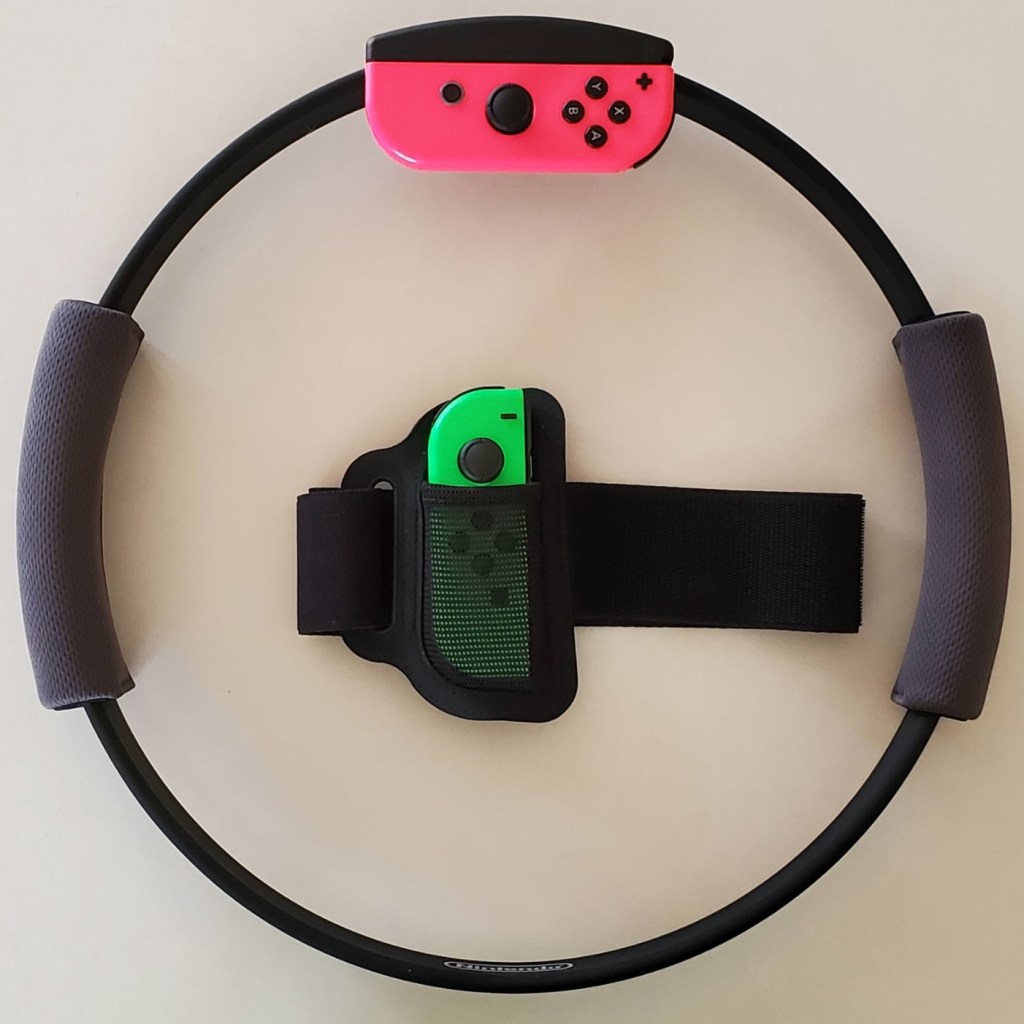
As the ring is stretched, pulled, rotated, raised and lowered, the changes in its shape and location are detected by the motion sensors. The same is true for the leg strap. The pitch, position, and angle of the controller strapped to your thigh is translated into movement. The design is pure genius, but it isn’t the hardware that makes the Ring Fit special.

The Adventure Ring Fit game is fantastic. The fitness aspect is dynamically tuned for each player. Calibration includes a strength test, accounts for age, and asks for workout preferences all of which are used to calculate difficulty. You can also manually select a difficulty level in the game’s menu.
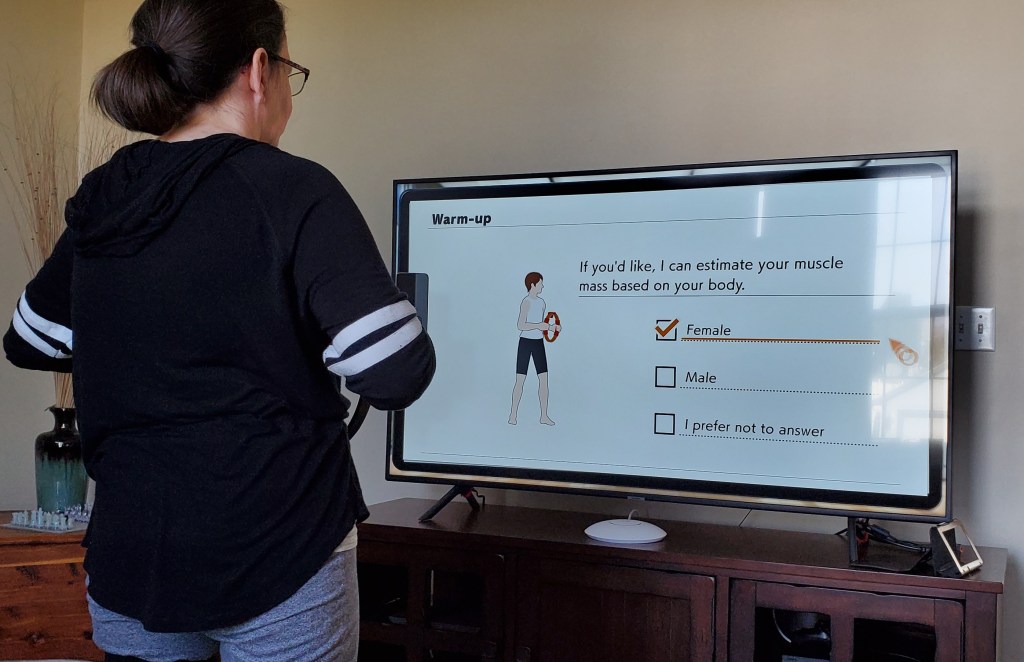
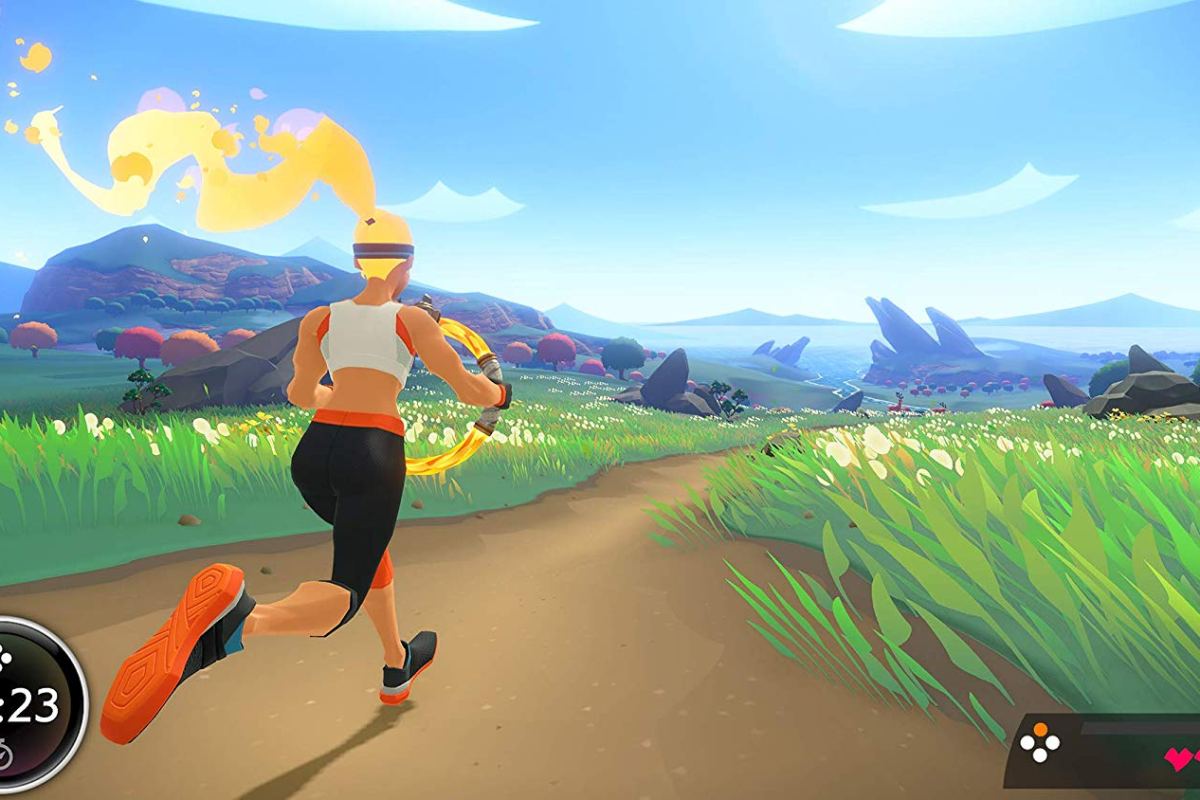
Once calibration is complete you select a character, choose its eye color then you’re off on an adventure. The ring is used as a weapon, or a shield with the game requiring specific exercise moves to accomplish various in-game tasks. You jog in place or high step to move your character through the world and over obstacles.

Boss battles are workouts that will have you doing squats, ab crunches, chair lifts, arm crunches, knee lifts, and more. The ring provides resistance and the haptic vibration marks the beginning and end of moves. The leg sensor detects if you are squatting low enough, holding a position long enough, or generally using the correct motion.
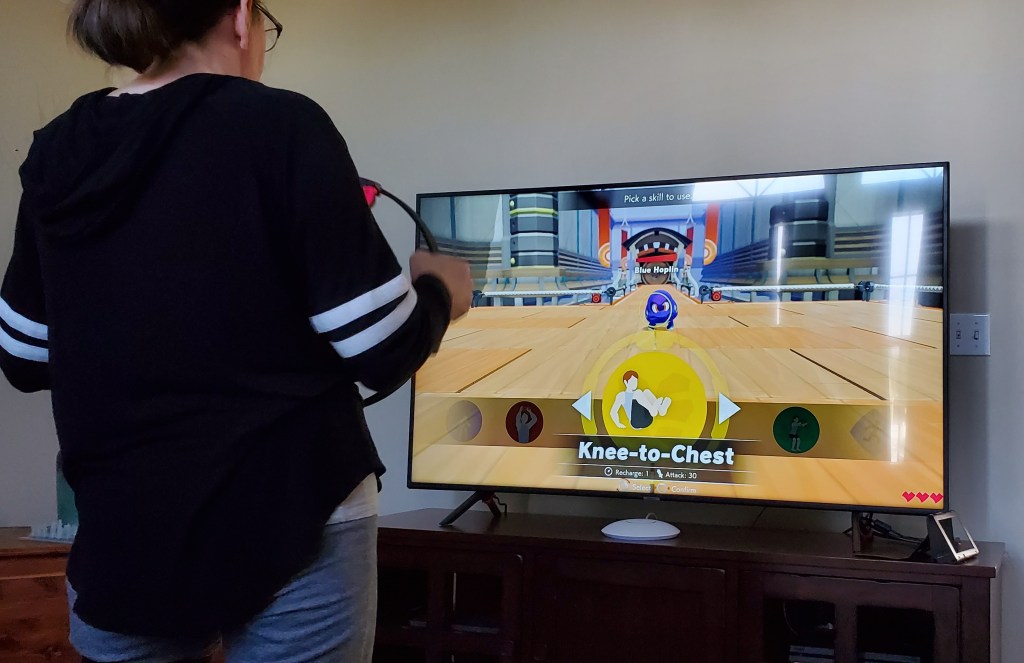
As you progress through the game you collect tokens and XP points that unlock new exercises and customization options for your character. I won’t spoil the game, except to say that it is fun. My entire family has been playing it everyday. My wife got up early to play this morning and she usually doesn’t like indoor exercise. We seem to be engaging in a friendly competition, trying to reach new levels and unlocks first.

On the first day, I set the difficulty to intense and played through the first boss fight. It took twenty minutes during which my heart reached one-hundred and thirty five beats per minute. I broke out in a pretty good sweat by the end. My muscles were feeling it the day after but it didn’t stop me from playing again.

Galaxy Note 10 Road Challenge, A Tech Blogger Goes to the Art Museum

Kansas City is fortunate enough to have a world renown art museum. I’ve always enjoyed my trips to the Nelson-Atkins Museum of Art, but haven’t been in quite some time. My family and I were on stay-cation and decided to visit some of our favorite pieces and see what was new.

This article is being written in its entirety on my Galaxy Note 10 Plus. I’ve written pieces on the super-phablet before, but this is the first time I will be doing so in real-time and without using a PC for post-editing. All pictures, videos, and text are products of the phone itself. I am using a combiniation of the S-Pen and my iClever keyboard for input.

In addition to writing a post about the art muesum, I will be keeping up with my employer’s emails and texts, will probably play a few games, and I’m sure somebody will call me at some point. I will not be using an extra battery or charging the Galaxy, if the battery dies the post will just end at that spot.

The Nelson-Atkins is in the Plaza area surrounded by many of the water fountains that our beautiful city is famous for. The large white building is itself a work of art. It sits in the middle of an expansive green park and is framed as the net of the world’s largest badmitton game. The giant shuttlecock that sits in the green field has become famous in it’s own right and adorns countless articles and videos about Kansas City.

Jeff Sonhouse, Return to Sender

The multiple colors, shades, and textures in this contemporary piece give the auto-focus a workout. The characters hair is made from matchsticks. In the photo below, the wide-angle lense captures an entire room in the contemporary section.

Several works by Andy Warhol hang in this room

This ultra- realistic statue of a security guard has been catching people by surprise for as long as I can remember. He stands in a dimly lit corner and there is no flash allowed, but the camera still captures great detail.

Don’t Touch the Art!

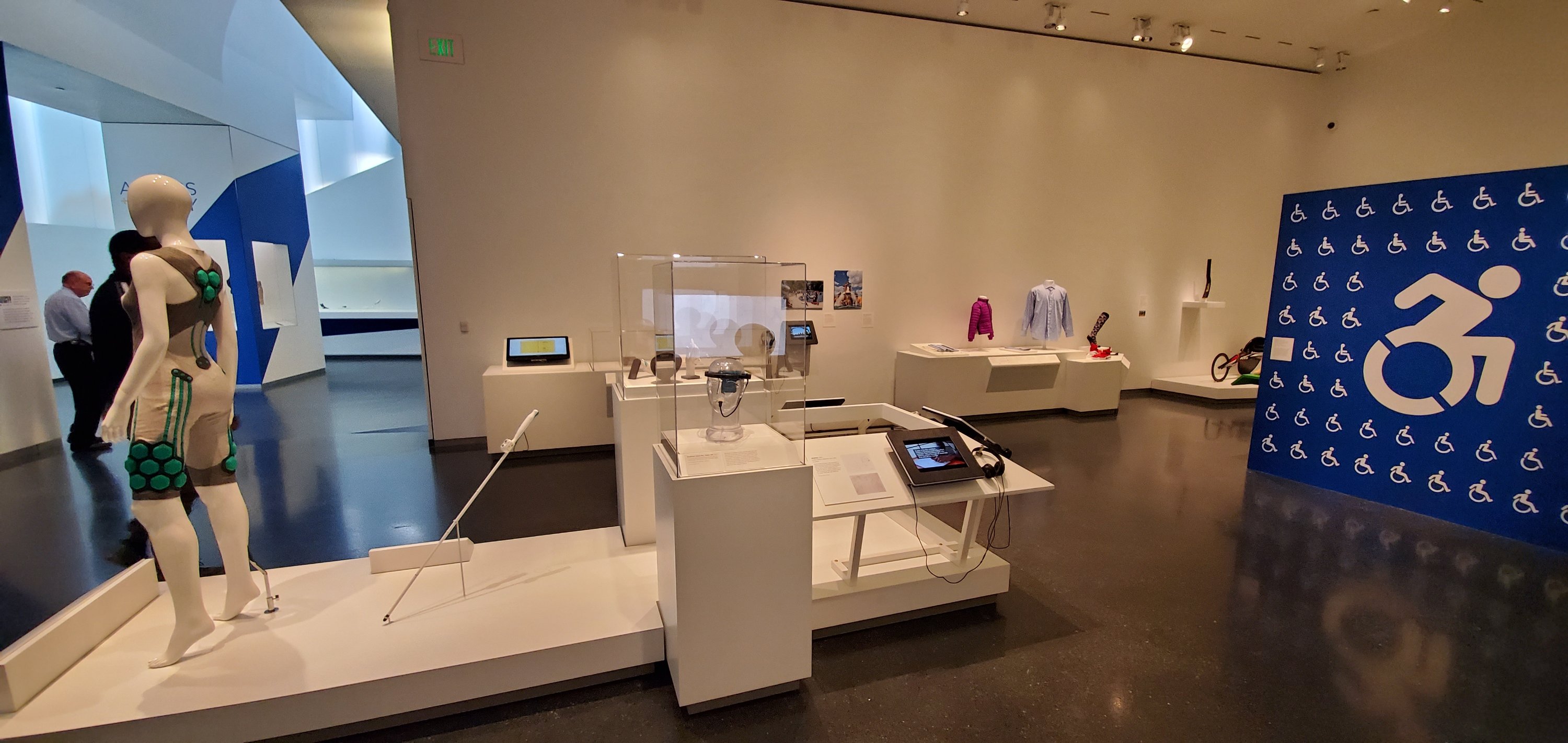
There’s an entire room dedicated to the technology that helps make the world more accessible to those of us who are differentley abled. 3D printed prosthetic limbs, cameras that turn vision into vibration, and watches that output in brail, are just some of the amazing devices on display. This exhibit is one of my favorites.

The Access + Ability Display

I’ve been fascinated by these suits of armour since I was a child. I cannot imagine wearing a metal outfit, nevermind trying to fight for your life in one. The room these items are in is actually quite dark. The camera’s automatic mode does an excellent job of adjusting to the different lighting situations presented by the museum.

Skyrim forever

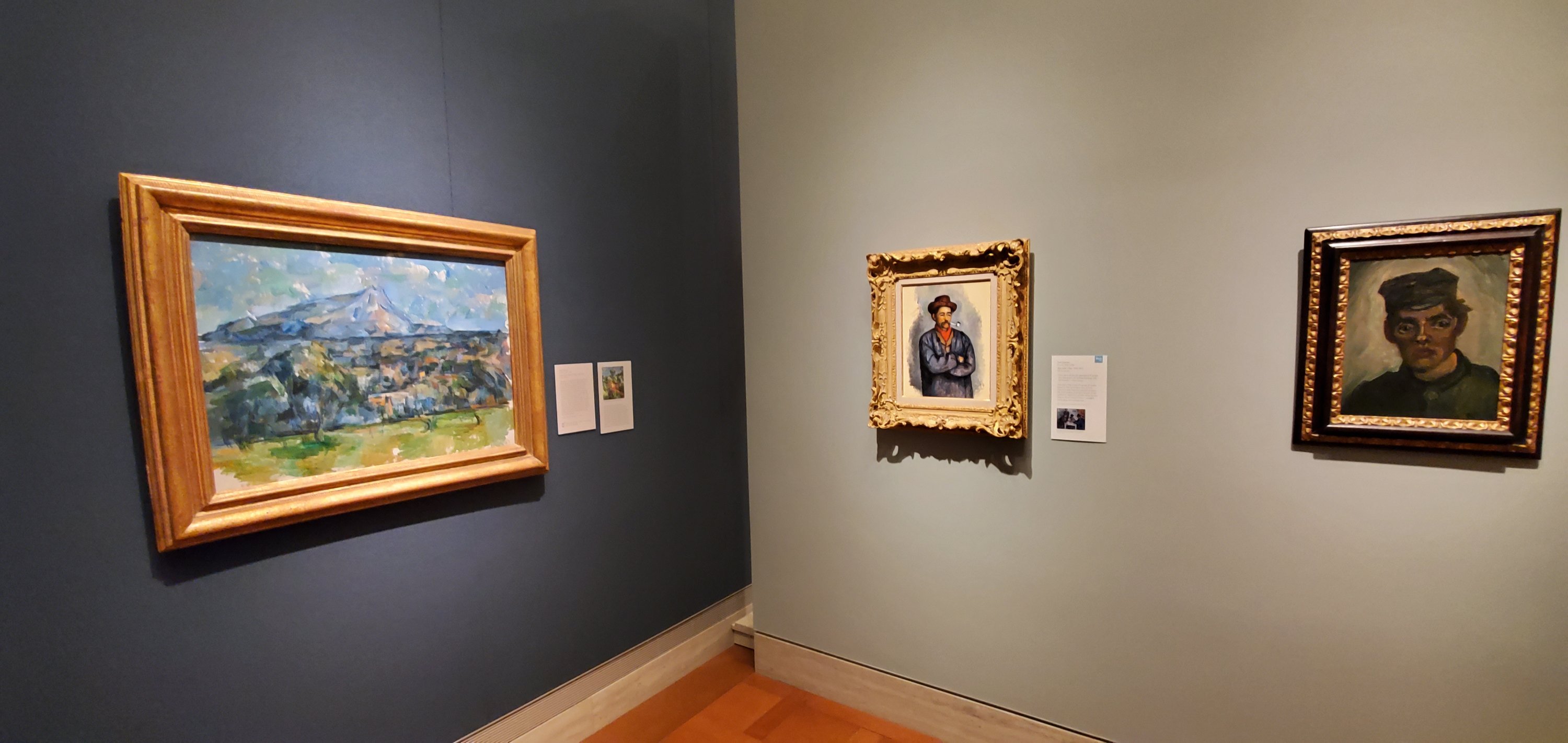
Impressionism is my personal favorite of the classical styles. Lucky for me, the Nelson-Atkins has an extensive collection. The masters are well represented some of the most famous works by: Monet, Van-Gogh, Cezan, and Renior hang here.

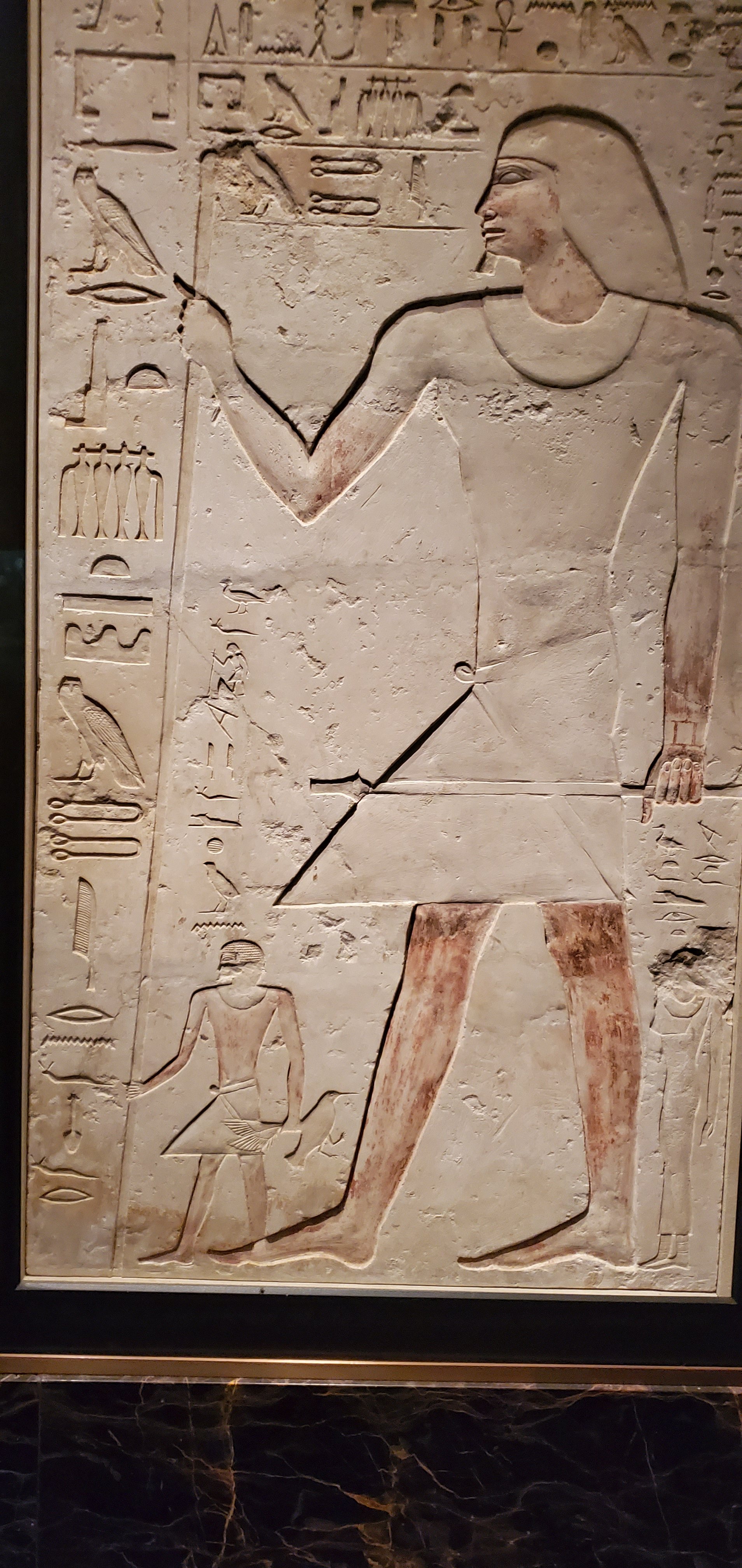
There’s an impressive collection of Egyptian art. Sculptures, stone tablets, even mummies, are displayed. Some items are behind glass, but many are out in the open. Security gaurds keep those who may be too tempted to touch something in check.

We had a great day at the Nelson-Atkins. If you’ve never been, or haven’t been for a while, I highly reccomend that you take the time to visit. Entry is free, parking is not. I used my GPS for an hour and a half, took twenty two pictures, answered two emails, sent three texts, had one short phone call, and composed this article. My battery still has 66% of its power left and that is almost as impressive as the works of art were.

Windows 10 OEM Images with Secure Boot and Office 365, Part 2

In part one of the series I described how to make and capture an image of a Windows 10 system while keeping the secure boot partition intact. We used the block copy based Clonezilla to create our image.

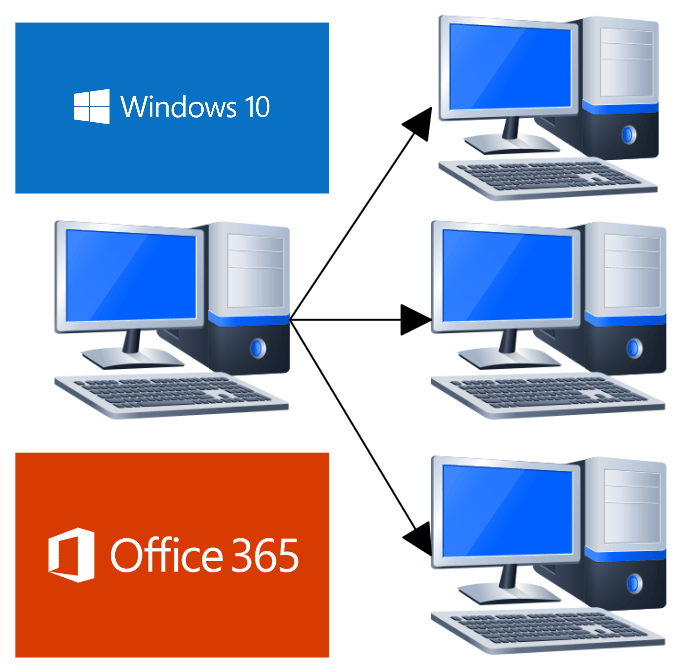
Block based copies or “clones” create a challenge when it comes to deploying “click to run” software such as Microsoft Office 365. O365 is generally installed by signing on to a web portal and clicking a link that installs and configures the software for you; hence the “click to run” moniker.

When using a component streaming solution like MDT, commands can be used that emulate the process of a user signing on to the portal and clicking the install link. Clone based deployment mechanisms have no such ability. You will need to use the Office Deployment Tool instead.

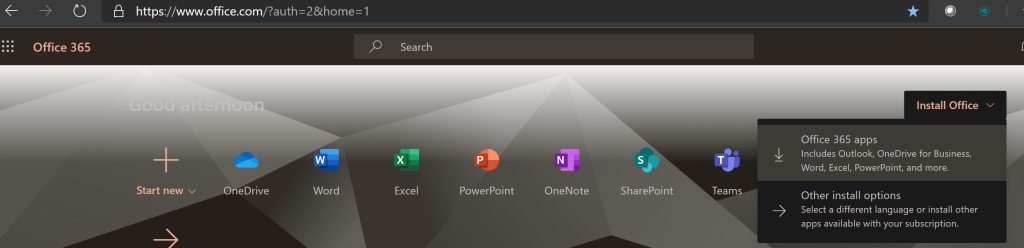
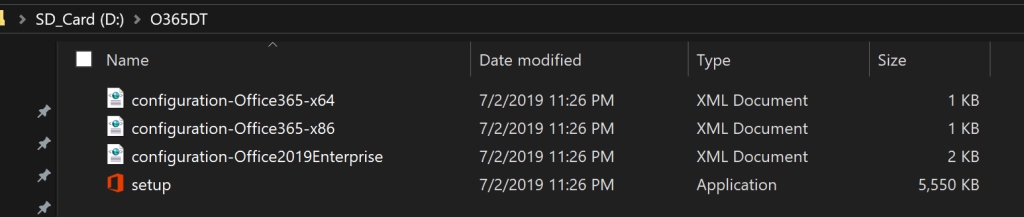
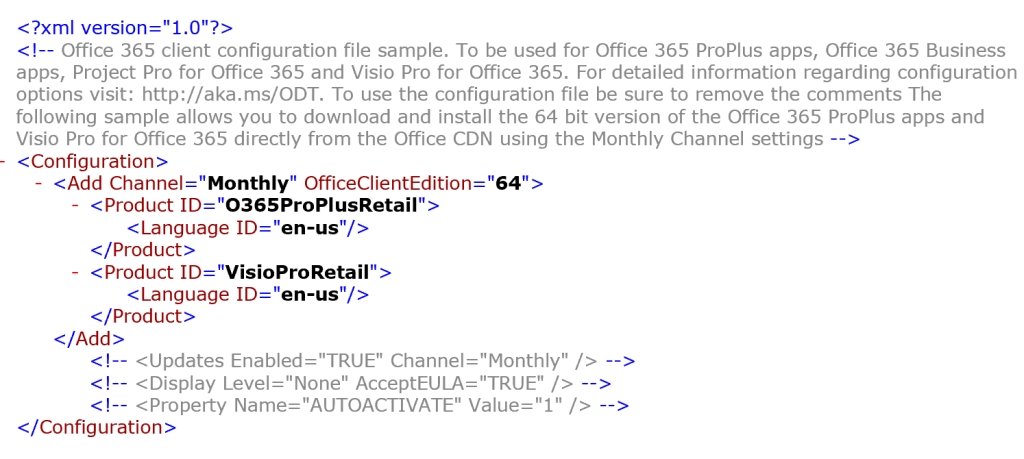
Download and run the Office Deployment Tool. You will find the application extracts four files to the folder that you choose, or create. Each of the XML files is a sample that will download, configure, and install a particular version Office. You can manually edit the files to reflect your requirements with most text editors.

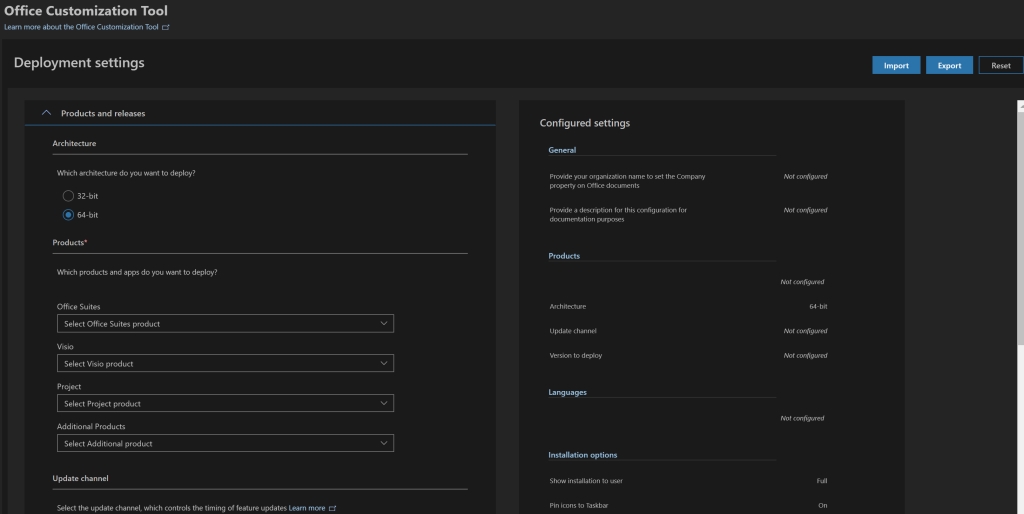
Personally, I find editing XML files tedious and time consuming, I prefer to do it the easy way and use Microsoft’s Office Customization Tool . The OCT is a web based GUI tool that will create your XML based on the options you select with your mouse. No XML editing or tagging required.

Once you have your XML file all that is left is to call it with the Setup.exe that was also deposited in your folder during the ODT extraction. Open and elevated CMD or PowerShell console, switch to that folder, and run : setup.exe /configure nameofxml.xml . Office will be downloaded and installed according to the preferences you configured in your file.

DO NOT OPEN OFFICE to test it, unless you plan on removing and re-installing it again. Office 365 click to run products attempt to activate immediately on launching. Even if you don’t provide credentials for the activation, the software will activate in demo mode. This will complicate your imaged system deployment.

Assuming that everything has gone according to plan, you are done after the install completes. Don’t forget to delete the Office Deployment Tool folder and files before running sysprep and capturing your image.

Our Favorite USB C Dock

My Surface Book 2 is my favorite laptop of all time (so far). It does everything I need and want except when it comes to connectivity. It only has two USB ports and a and single USB C connection.

As a technology consultant I often need to connect to customer’s random equipment. If I am going to be on location for an extended period; multiple monitors, a keyboard with a number pad, and a mouse are must haves. There’s no way to hook up all this gear to my Surface. I need a dock to extend the ports.

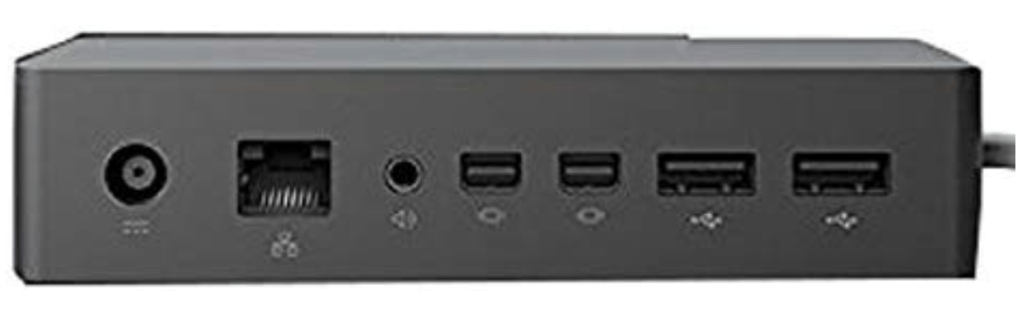
Microsoft makes a dock specifically for the Surface line, but I’m not a fan. It has mini-display ports for monitors and a few USB ports for everything else. I’m sure it works, but I would like more options. I was looking for every type of monitor connection, multiple USB ports, storage, power, and network connectivity in a single device.

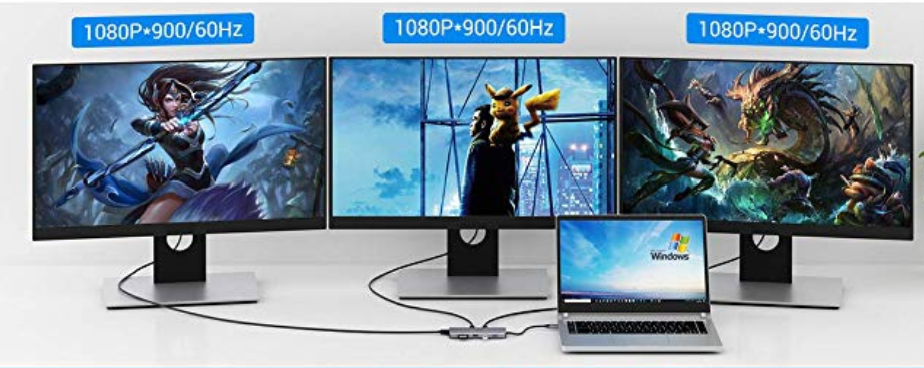
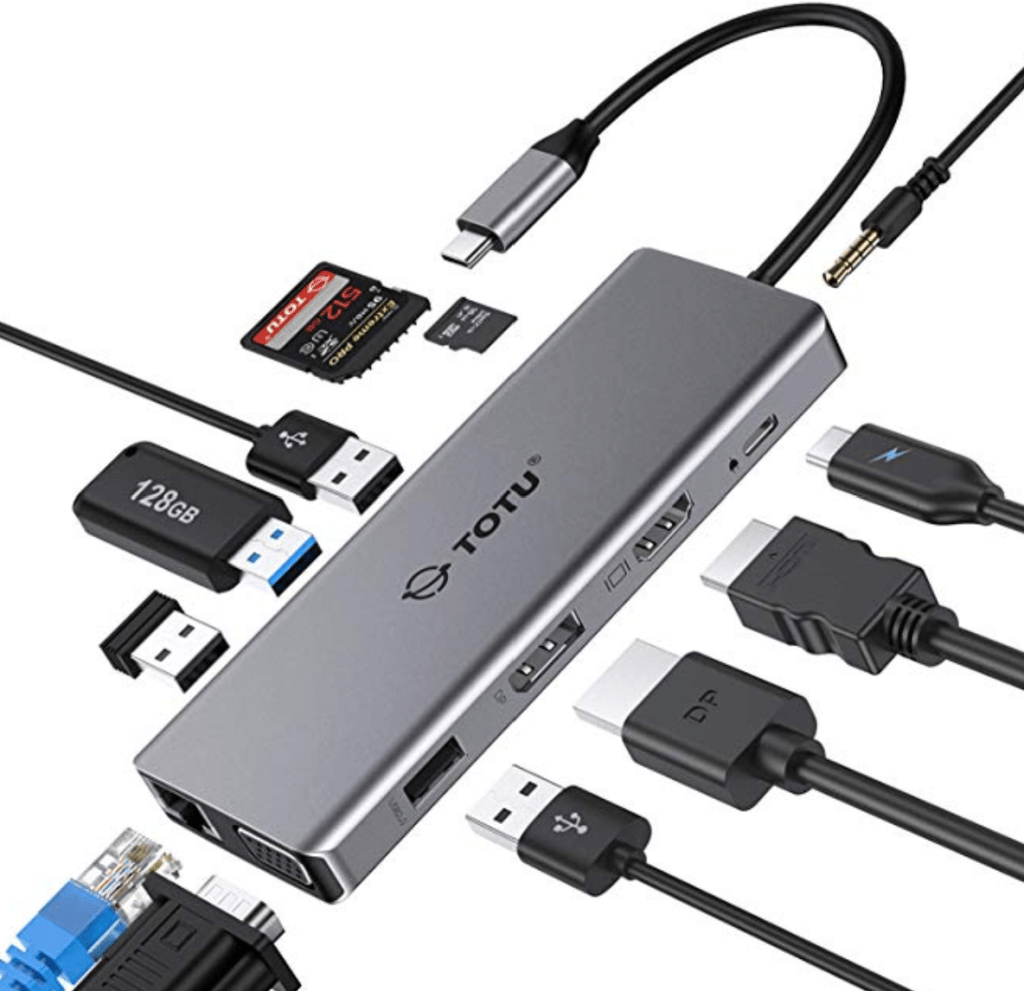
It took a lot of research, but eventually I found a solution. The TOTU USB C 12 – N – 1 Hub is available on Amazon for less than $80.00. It will connect to any kind of monitor: HDMI, VGA, and Display-Port are all available. There are both a full size and mini SD card reader. Plug your headphones into the 3.5 mm audio connector. Two USB 3.0 and two USB 2.0 connections will handle your keyboards, mice, and other accessories. A USB-C PD Power port will charge your supported device. Getting on-line with the Gigabit Ethernet connection is a breeze.

I assumed that the video ports would be Display-link but that is not the case. The video signal is passing through from my laptop’s GPU. This is a big advantage; Display-link works but often at slow frame rates which makes video choppy.

I’ve had the little dock for a few weeks and have used it almost every day since it arrived at my door. It works really well, doesn’t take up much space in my bag, and has a nice little carrying case. I didn’t expect it to also function as a Dex dock for my Galaxy Note, but it even does that. A few of my friends and family have ordered them after seeing mine and we all agree this thing is fantastic.

Add a Keyboard and Mouse to Your Android to Work from Anywhere

Since the beginning of my infatuation with technology and gadgets, I’ve dreamed of a computer that would fit in my pocket. Something that would always be with me, should inspiration or work come calling. In an attempt to realize this desire, I have owned nearly every type of portable computing device made. The TRS-80 Pocket, Palm Pilots, Windows CEs, Pocket PCs, Windows Mobiles, Blackberrys, Androids, and iOS devices. I’ve had multiple iterations of them all. I’m far from alone in this endeavor, the portable computing market easily out paces desktops and laptops.

Why do I and countless others keep spending untold fortunes to reach an aloof goal like portable computing? For me, I think it is a subconscious rebellion against sitting. I was the kid in class that was always in trouble for not staying still. I like to be moving and going more than resting. I don’t understand why we train our children to sit motionless for most of their childhood and then are surprised when many of them end up with sedentary lifestyle issues as adults? Do we need to sit in order to learn or work?

My desire to be on the move has often been constrained by my love of computers. Powerful computers that can do anything my restless, creative mind conceives of, have traditionally not been very mobile. I want something that I can pull out of my pocket and do whatever has popped into my head, wherever I happen to be. Powerful laptops are great, but require a backpack to haul around with you. Tablets have promise in the “Post PC” era, but they don’t fit in your pocket.

My Galaxy Note 10 Plus is more powerful than some laptops. Its battery and screen are big enough to work from. To be a full solution it would need a keyboard and mouse. The S-Pen is great and I use it everyday, but there are just some things you cannot do very well without a keyboard. For example, writing code with a pen is not a pleasant experience. I hopped on Amazon and did some research on portable keyboards and mice. There are a lot of manufacturers trying to solve this issue for the mobile crowd.

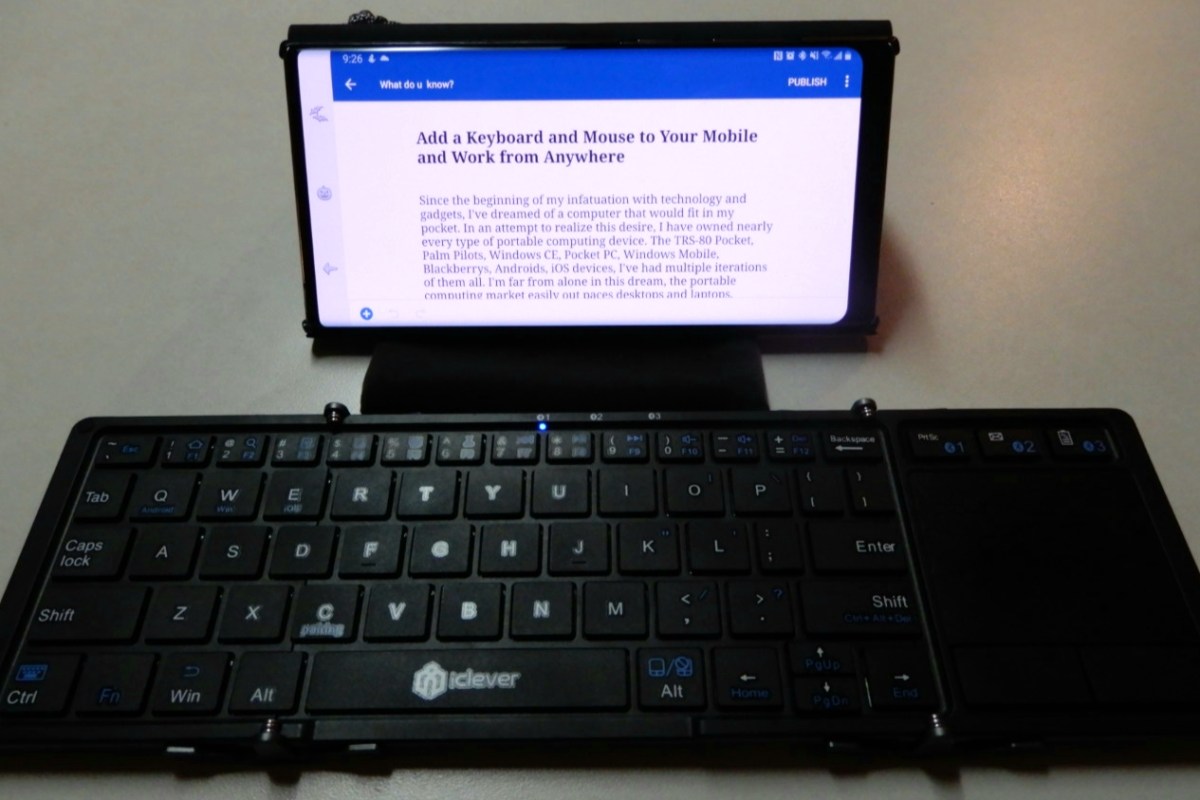
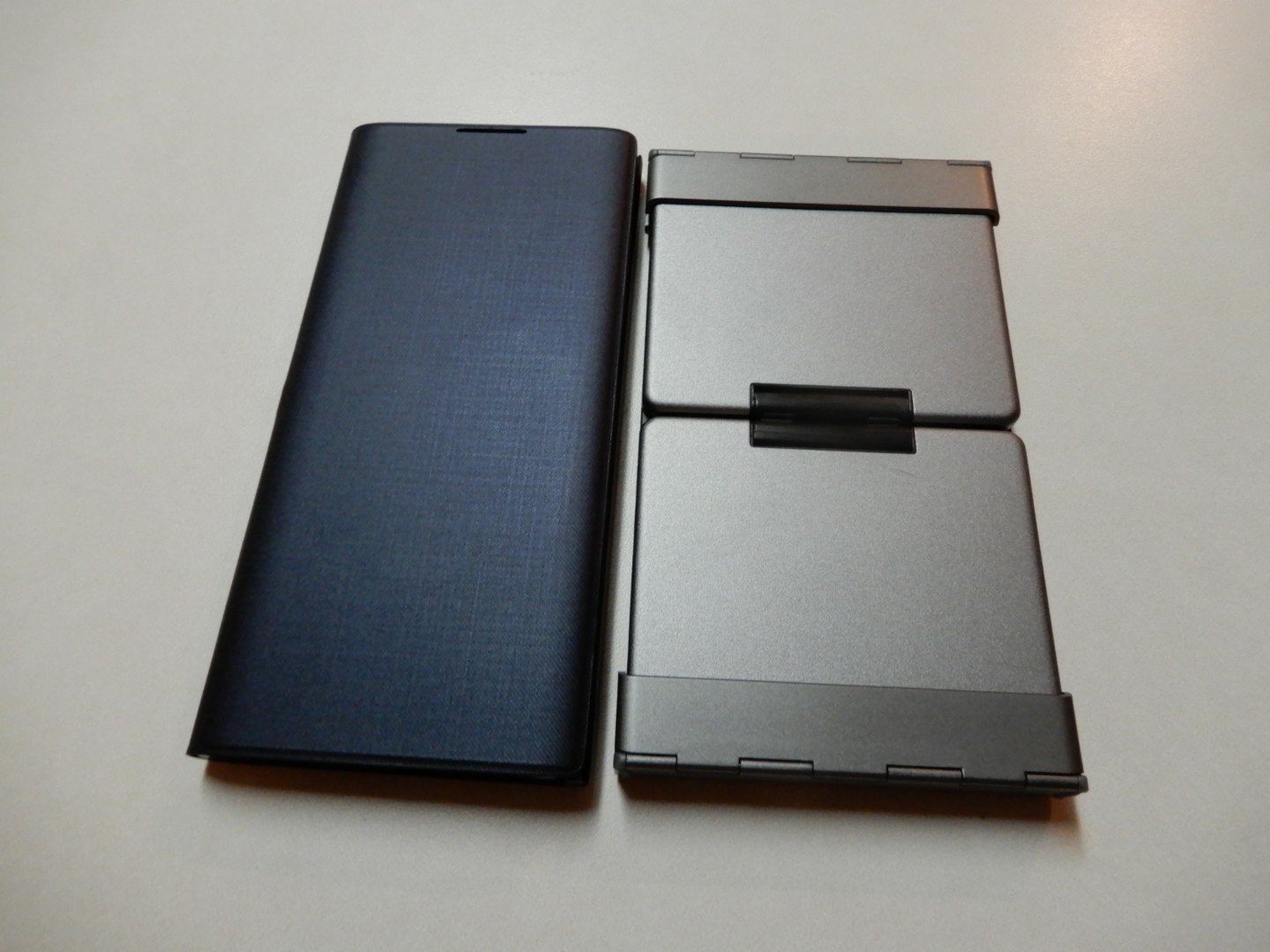
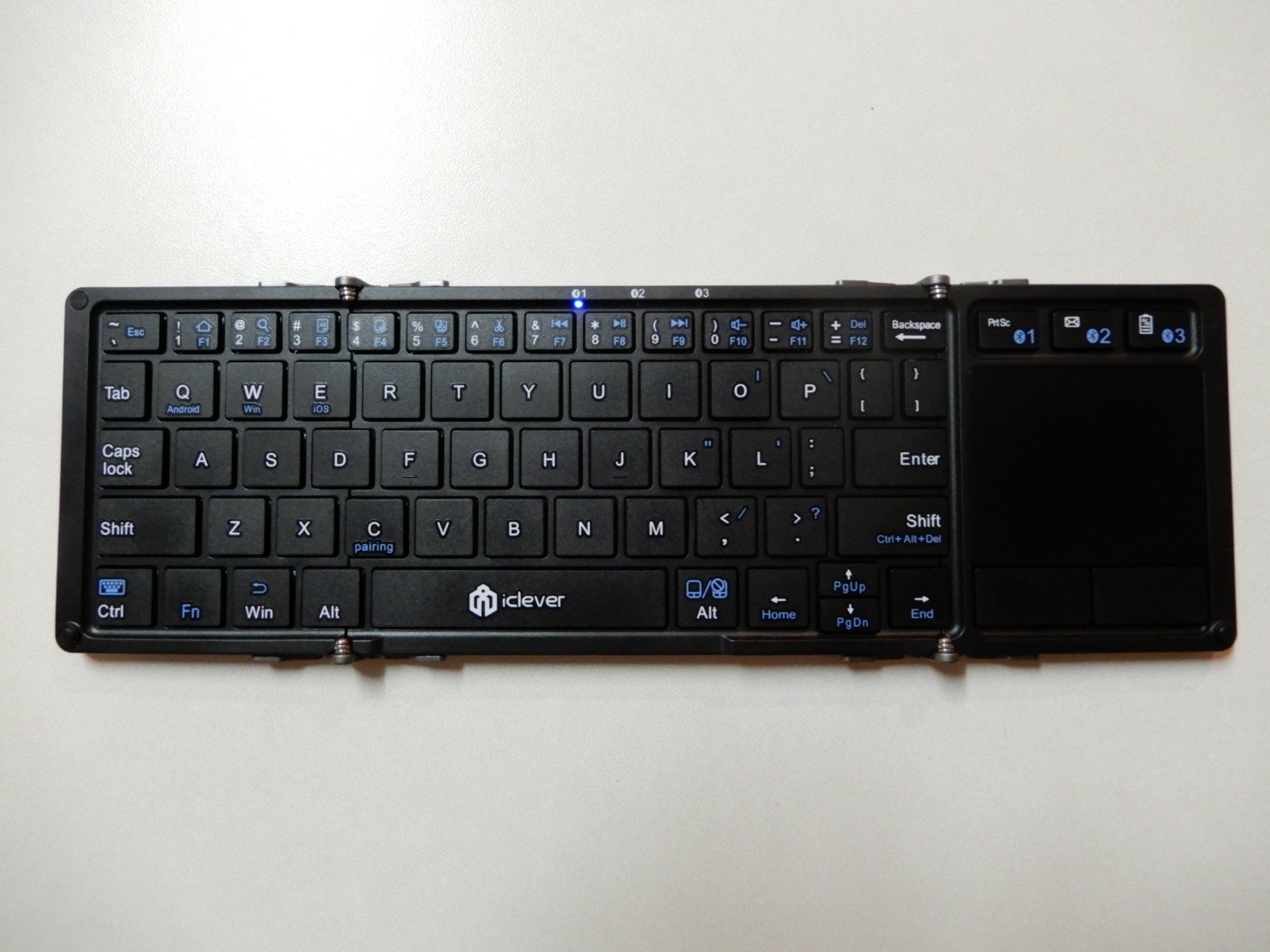
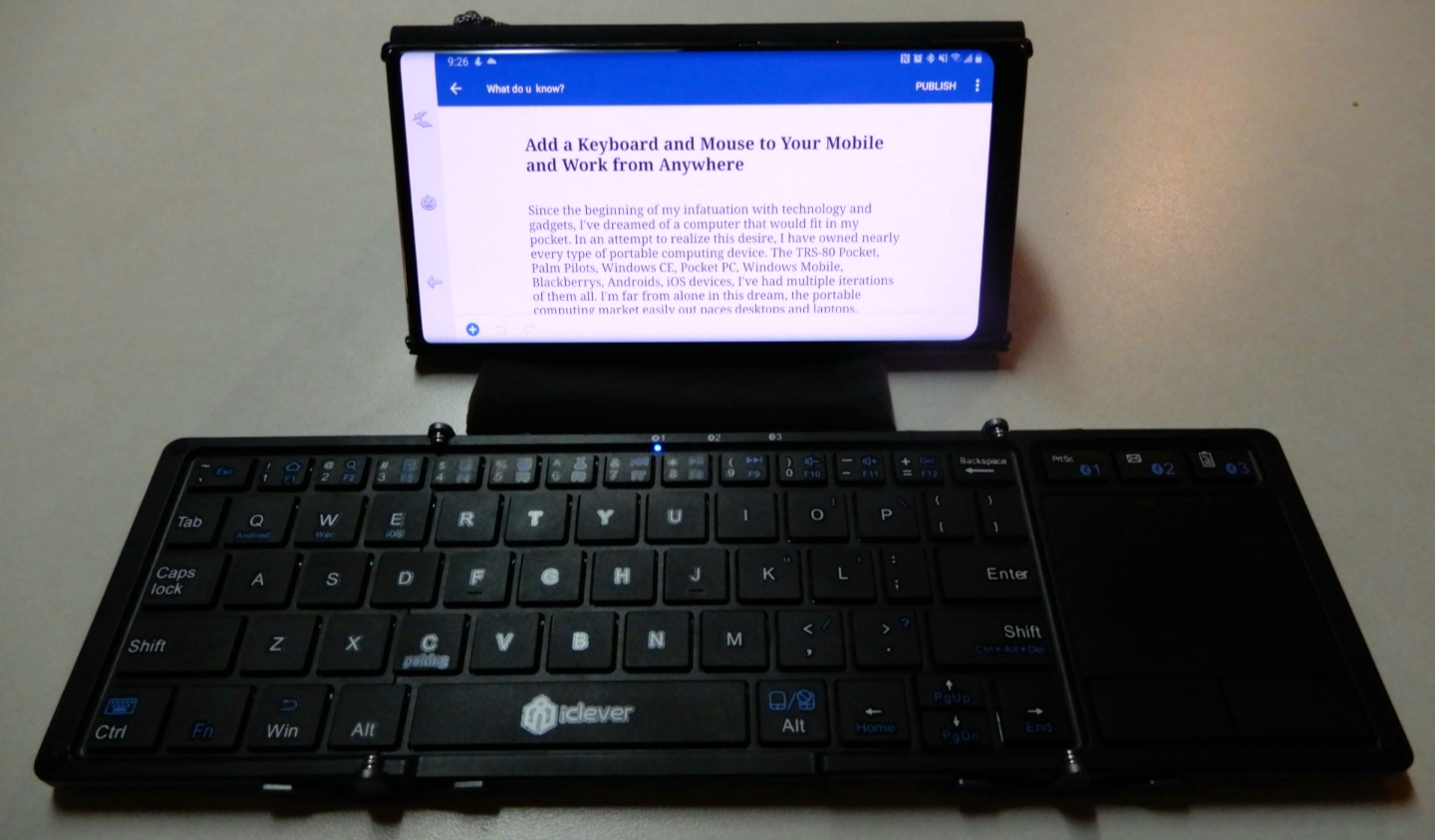
I chose the iClever IC-BK08 fold-able Keyboard and touch-pad. I am writing this article with the tri-fold device right now. When folded, it is about the same size as my Note 10 Plus. Open it up and you have a keyboard that is only 9% smaller than a full size laptop and includes a touch-pad. In addition it can connect to three devices simultaneously and change between them at the press of a button.

I find that I am able to type at full speed on the diminutive keyboard without much trouble. The only issues I’ve had so far are with some of the symbol keys. Typing an apostrophe requires pressing the FN key first, which is annoying but not insurmountable. To make a keyboard and touch-pad this small, something had to give.

The touch-pad is surprisingly excellent. It is better than some of the touch-pads I have run into on various laptops. There are two physical mouse buttons, but the pad is sensitive enough to pick up on taps accurately as well. The iClever powers on and connects to the last device you used it with as soon as you open it. Likewise, folding it shut turns it off.

I have been able to do my entire job from my phone now that I’ve added the keyboard and mouse. In the last few days I have: worked on multiple documents, edited photos and video, remoted into several systems, written two scripts, and finished a presentation. I never took my laptop out of my bag to do any of it.

Would I work this way all of the time? No, but that isn’t the point. I still have a high-end gaming PC. I still have a laptop, and I still have a desk at my office. The point is for my compute options to fit into whatever I am doing, rather than me making arrangements to fit my activities around my device’s abilities. Have you every tried to lug a laptop around Disney World?

When my family and I head out for vacation next week the only compute devices making the trip will be my phone, its Dex dock, and the iClever keyboard; all of which easily fit in my pockets. If my employer needs me to assist with a customer while we are out, I will be able to logon and help solve the problem. My family won’t need to head back to the hotel or finish the day without me while I sit in the car.

That is the dream realized for me. Being able to spend more time with the people I love while fulfilling my professional responsibility and pursuing my personal passions. Mobile computing tech is at an amazing stage of development and its only going to get better from here.