
The Microsoft Teams mobile client has been notorious for driving people mad with false unread notification badges. Android or Apple, it doesn’t matter. The problem has affected both over the years. Sometimes, it will clear up after an update or re-install, but the issue always seems to come back.
Recently, I found myself cursed with the red one taunting me from the edge of the chat icon. I searched through every message, rebooted, checked for updates, and cleared the app’s cache. No dice. My inability to make it go away was slowly driving me insane.

While poking around in the software’s menus, I came across Data and Storage section. I wasn’t aware that Team’s had built-in solutions for dealing with this situation. There are multiple options for dealing with issues in this menu. The first two options are clear app data and clear temp files. They are the same as Android’s app menu functions. Unfortunately, they didn’t help me.
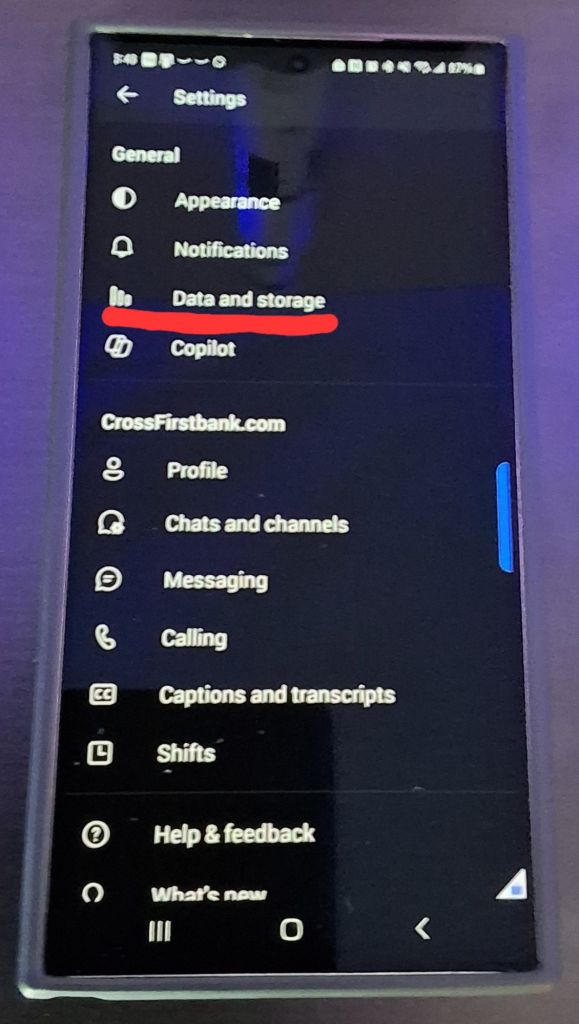
The third choice, reset database, is unique to the data and storage menu. Resetting the database has worked every time I have used it. In fact, it’s become the first thing I try when faced with a ghost notification.
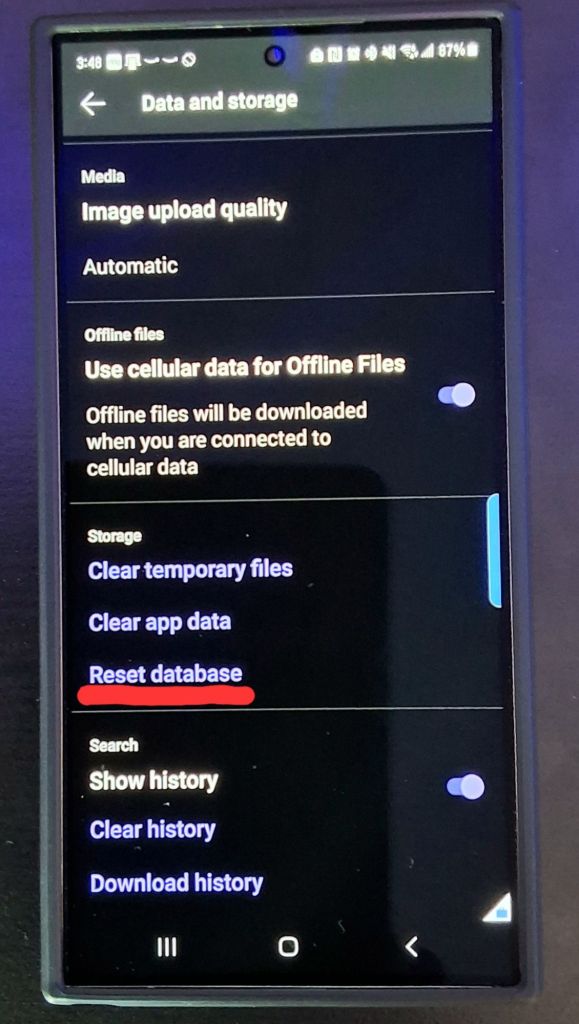
There doesn’t seem to be any downside to using the reset database option. I’ve done it several times now. The only noticeable side effect has been a short delay the next time you open Teams. It takes a minute or two to download the data it needs from your cloud account. The next time your phone suffers from a Teams ghost notification badge, try resetting the database.
 techbloggingfool.com
Thank you!
LikeLike
Oh my god it was driving the insane ! This worked like a charm, thank you !
LikeLike