Powershell: Real-Time Check of Domain Server’s Uptime

There are lots of methods available to server administrators for checking the last reboot time of Windows machines. One of the quickest and most useful continues to be provided via Microsoft’s super CLI, PowerShell.

$ErrorActionPreference = “SilentlyContinue”
$Servers = Get-ADComputer -Filter ‘Operatingsystem -Like “*server*”‘ -Properties dnshostname|
    Select-Object dnshostname -ExpandProperty dnshostname
Function CheckReboot {
    Foreach ($Server in $Servers) {
    Invoke-Command -ComputerName $Server {(Get-Date)-(gcim Win32_OperatingSystem).LastBootUpTime}|Select PSComputerName, Days, Hours,Minutes
    }
}

Those few lines will scan the Active Directory database for computer accounts with the word “server” in their names. Once located, the DNS name property of each matching record is stored in the variable $Servers.

The function named CheckReboot processes each DNS name stored in $Servers by sending it through a logic loop. The for each loop uses WMI to subtract the boot up time from the current time. Then, it displays a table showing the computer’s name, along with how many days, hours, and minutes each system has been running for.

You will need to run the script from an administrative  terminal session. If it doesn’t work for you, try adding a lime to import the Active Directory Powershell module and check your execution policy. The machine and account running the script also need remote access to WMI.
PowerShell – Get-ADUser in a Multi-Domain Forest

When I first started using PowerShell I was both amazed and frustrated. One of my first projects required that I generate a list of all the users in my company’s large Active Directory forest. I figured out the Get-ADuser part in no time but was disappointed to see the returns from my commands only listing the users from the domain I was currently logged in to. We had 20 plus child domains at the time. Where was the -alldomains parameter for the command?

Here’s what I came up with. Using the Get-ADForest cmdlet I could get a list of all the domains but it still wasn’t something I could plug into any Get-ADuser parameters. I figured out that I could also use Get-ADDomainController -DomainName to find a DC and that Get-ADuser had a -server paramater. I was soooo close. I just need to put them all together.

Import-Module ActiveDirectory
$domains = (Get-ADForest).domains
$dcs = ForEach ($domain in $domains) {Get-ADDomainController -DomainName $domain -Discover -Service PrimaryDC | Select -ExpandProperty hostname}

This string of commands (small script) results in the $domain variable containing a list of all the primary domain controllers in an AD Forest. Now we can use that variable with the -server parameter and get our list:

$AllUsersReport = ForEach ($dc in $dcs) {Get-ADUser -server $dc -properties *}
$AllUsersReport|Export-Csv - path c:\temp\allusersreport.csv -notypeinformation

We’ll end up with a nice CSV file conaining all the details of every user in our Forest. I have used the  top part (getting the domain controllers) in countless scripts since. For examaple:

Import-Module ActiveDirectory
$domains=(Get-ADForest).domains
$dcs = foreach ($domain in $domains) {Get-ADDomainController -DomainName $domain -Discover -Service PrimaryDC|select -ExpandProperty hostname}

$systems = foreach ($dc in $dcs) {Get-ADComputer -properties * -Filter {(OperatingSystem -like "*Windows*") -and (OperatingSystem -NotLike "*Server*")} -Server $domain |select DNSHostName, IPv4address, OperatingSystem, OperatingsystemServicePack, LastLogonDate
}
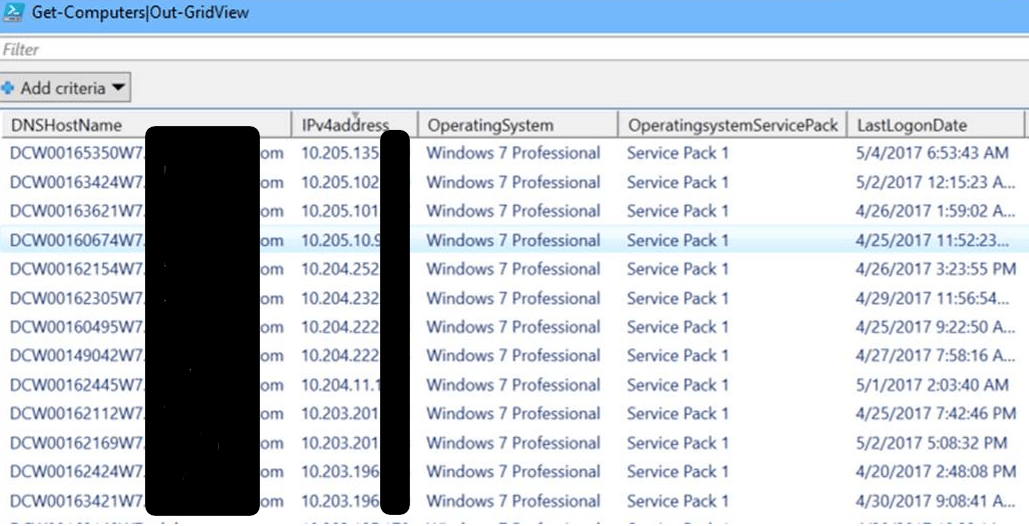
$systems|Out-GridView

The scirpt above will output a Grid of all the Windows workstation computers in your entire forest. A quick change of (OperatingSystem -NotLike “*Server*”) to (OperatingSystem -Like “*Server*) will output a grid of all your servers.

AllworkstationsReport