There are more IT shops using Microsoft’s Hyper-V than ever before. Thanks in part to Broadcom’s shenanigans with the licensing after they purchased VMware, more are considering making the change every day. One challenge that causes organizations to pause when considering Hyper-V is the apparent lack of centralized host management.
It’s true, Hyper-V doesn’t include a direct vCenter equivalent without purchasing System Center’s Virtual Machine Manager module. vSphere isn’t free either, but that’s a different subject. The Hyper-V Manager MMC works well enough. Most of us have figured out how to connect the console to any host. One host at a time, is slow and ineffective when the pressure is on.
At first glance, there does not seem to be a way to save the connections you make to those remote hosts. There’s no save option in the MMC itself. However, unbeknownst to most there is a file that you can manipulate to pre-configure the remote hosts that you manage. Follow the instructions below to setup your Hyper-V Manager console to manage all the servers in your environment at once.
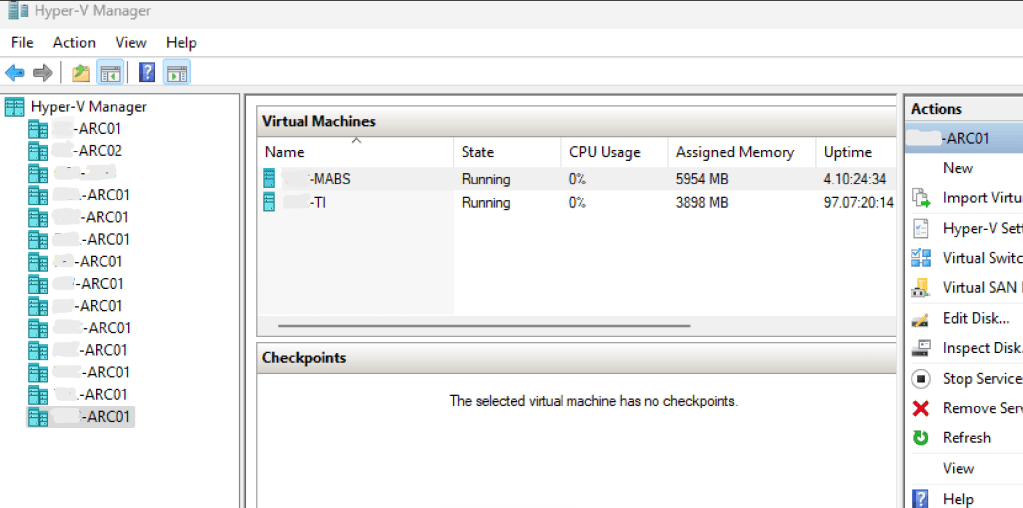
- Add the Hyper-V role to your computer or logon to the server you are going to manage Hyper-V from (Hyper-V Management Tools are the minimum requirements).
- Open the Hyper-V console and connect to a Hyper-V server at least once (builds the profile paths).
- Close the Hyper-V console (can’t make changes to the file with it open).
- Search for Notepad or use the start menu to locate it. Right click on it and choose to “Run as Administrator” enter your admin level credentials.
- In Notepad’s menu go to File, then Open, browse to: C:\Users\adminaccountname\AppData\Roaming\Microsoft\Windows\Hyper-V\Client\1.0\ (where adminaccountname = the admin level account you use to access Hyper-V systems)
- Open the file named virtmgmt.VMBrowser.txt
- Under the tag for “BrowserComputerNames” enter the names of the Hyper-V servers that you connect to between <value> and </value>. Each name should be separated by a semi-colon.
- Example: <setting name = “BrowserComputerNames” type=”System.String”>
<value>ServerName1.domain.com; ServerName2.domain.com; ServerName3.domain.com</value>
- Example: <setting name = “BrowserComputerNames” type=”System.String”>
- Save the virtmgmt.VMBrowser.txt file (you will not be able to save the changes if Notepad isn’t running with admin credentials).
Important TIPs:
Each time that you open the Hyper-V management console, it tests the connection to all the servers stored in the file via WMI. This connectivity test can take a while, especially if the device isn’t responding for some reason. If you interrupt the test before it completes, or if anything goes wrong it will stop. The console will remove any of the servers past the point of failure. Keep a copy of the file after you get it all configured or keep these instructions handy.
The instructions above assume that your Hyper-V hosts are member servers in Active Directory. If they are not, the process requires extra steps to handle authentication from the remote Hyper-V Manager console. See this post for those instructions.
 techbloggingfool.com