
For the last several months I’ve noticed that my Ethernet (wired) network connection will drop unexpectedly. Of course, it does this at the most inconvenient times. It dropped in one of the best Halo matches I’ve had in a while. One minute I was slaying with the Ghost on my way to a Killtrocity, and a Steaktacular team win. Next thing I know, I was staring at the “You’ve been disconnected” banner.
I’ve been meaning to dig in and see what could be done about the issue for a while now. Unfortunately, I’ve been distracted due to dealing with my CPU issues. You can read about that saga in Intel i-9 CPU Issues: From Failures to Fixes , good times. Getting booted out of that Halo match was the last straw though.
The first diagnostics tool I looked at was the Windows System Event Log. If you are having similar issues and are trying to follow along type “Event” into your Windows search bar. Open the app it finds and look under Windows Logs, then System to see the section I am referring to.
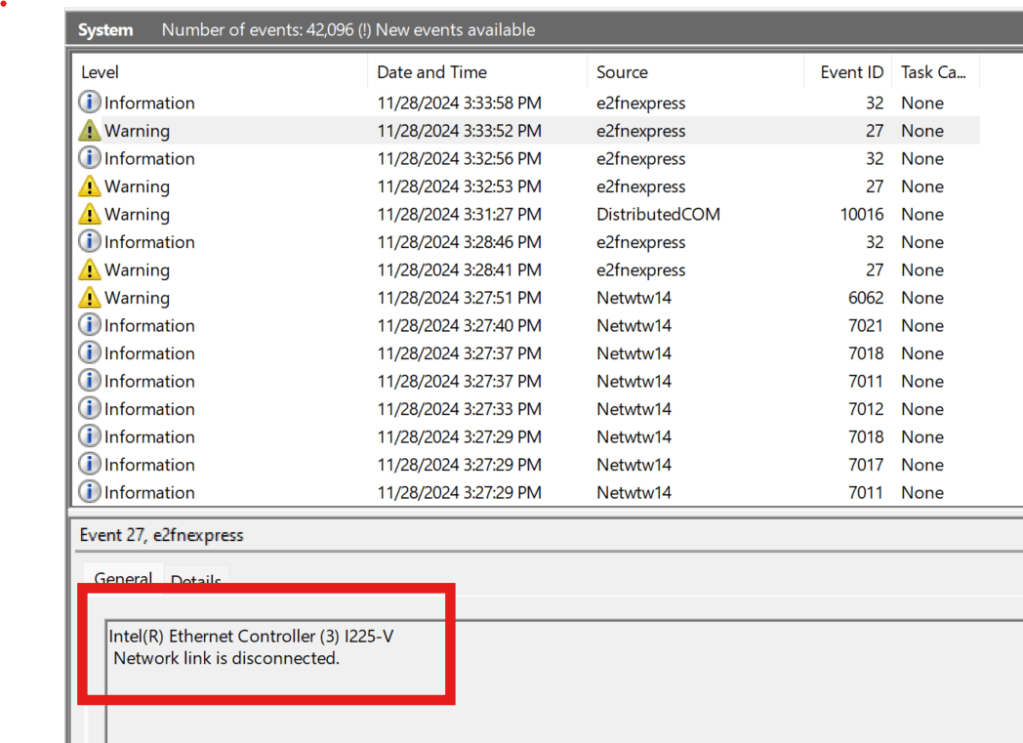
After I found the event 27 and read its description, “Network link is disconnected” I considered the situation. I had not unplugged my network cable, and I know my network is pretty solid. So rather than go down the network troubleshooting route, I decided to try a clean install of the driver.
This Intel Support Article for troubleshooting dropped connections contains a link to another set of instructions. They’re for preforming a clean driver installation, here is a direct link: https://www.intel.com/content/www/us/en/support/articles/000058304/ethernet-products.html . Following those steps was easy enough, but there wasn’t a link to the driver’s download page. I had to search for them. At the time of this writing, they are available here for modern Windows versions.
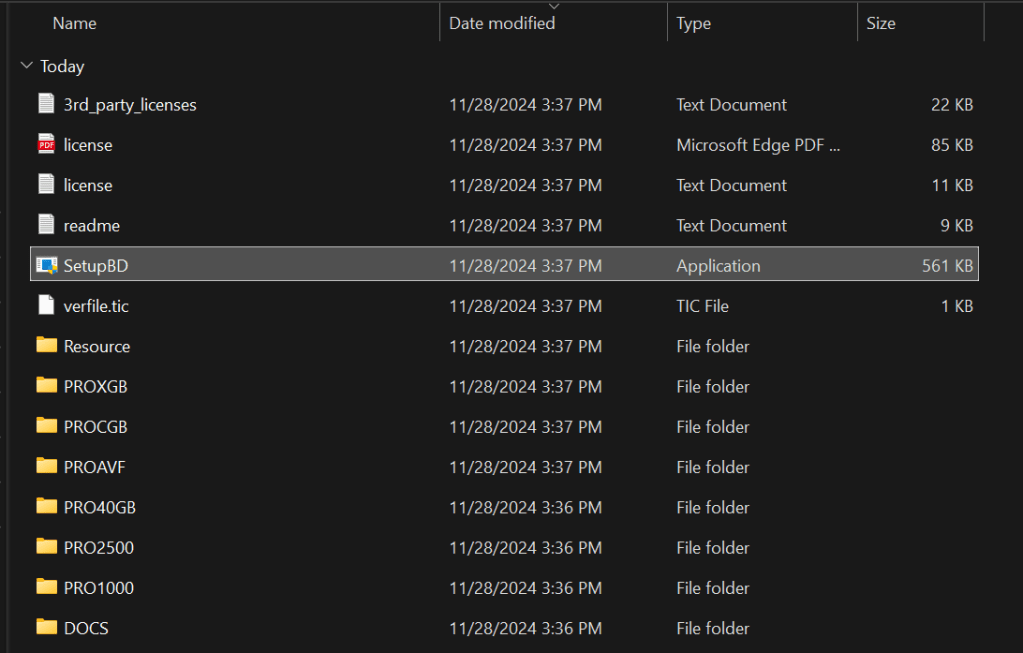
Once the zip file downloads, extract its contents (right click and choose extract). Then open the extracted folder and double click SetupBD.exe (image above) to start the new driver installation. Make sure that you have followed the Intel instructions to remove the old driver first. Click yes if you are prompted for administrator rights. Then click the OK button to start the installation.

The drivers only take a second to install. I suggest that you reboot your computer even though the installation doesn’t require it. I noticed that my original driver from 10/08/2023 stayed loaded in the device manager until I rebooted. The date changes to 2/20/24.
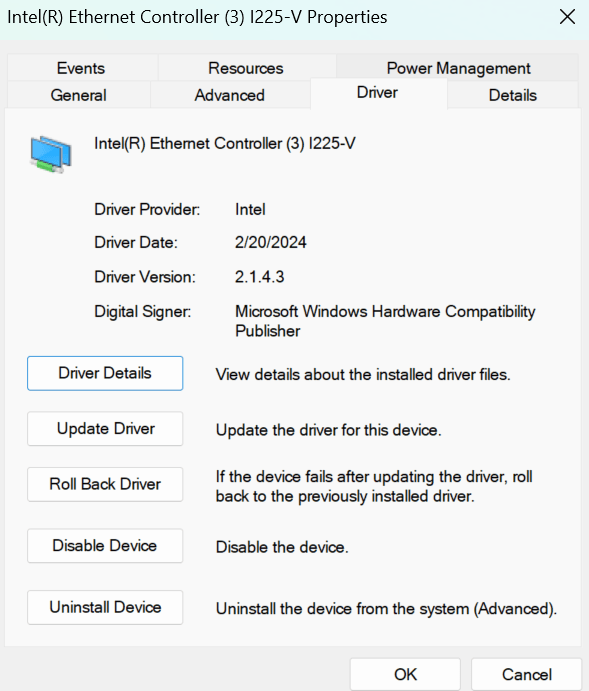
What I find most interesting is that I run the Intel Driver Support Assistant agent on my machine. It checks for Intel updates continuously. I also run MSI Center at startup and have it configured to install all updates. Windows Update is set to check for and install driver updates too. At no time did any of these tools recommend or install an updated driver for the wired network card.
Anyway, this probably isn’t a universal fix for all the network problems people have with this particular card. The Intel support document in the link above has several more “workarounds” for other various issues. So far, the clean install of the new driver seems to have fixed my issue. I haven’t randomly dropped since I completed the procedure and rebooted. It’s too early to call it 100%, I’ll update the post if it happens again.
 techbloggingfool.com