How To Get Teams Notifications from a Managed Android Work Profile on Your Smartwatch Without Exta Apps

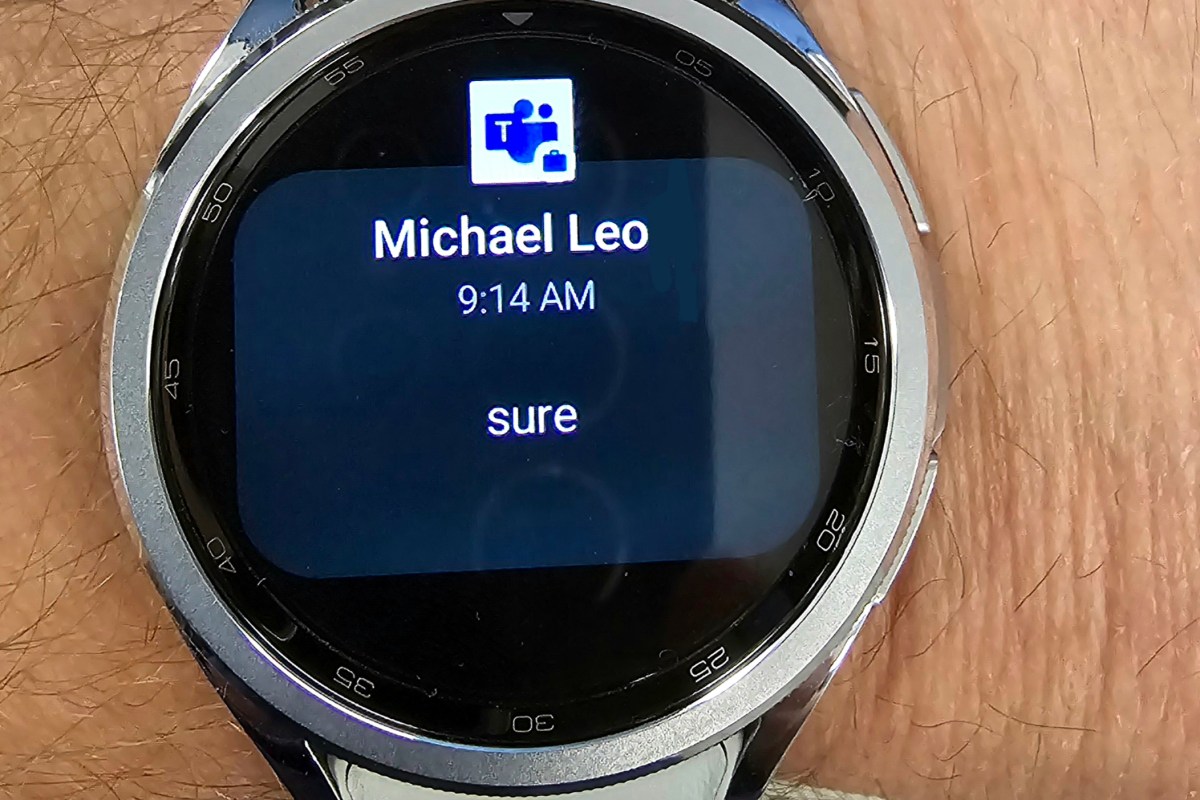
I recently noticed that my smart watch was not notifying me for messages. I know from experience that Android’s work profile function has contributed to challenges with work apps being able to notify personal companion devices like smartwatches and car infotainment systems.

If you are missing work notifications on your watch, try this.  Open the Wear app on your phone and tap Watch Settings. Then go to Notifications and tap App Notifications. Scroll down the list to find the app you wish to receive notifications from, for example, Teams or Outlook.
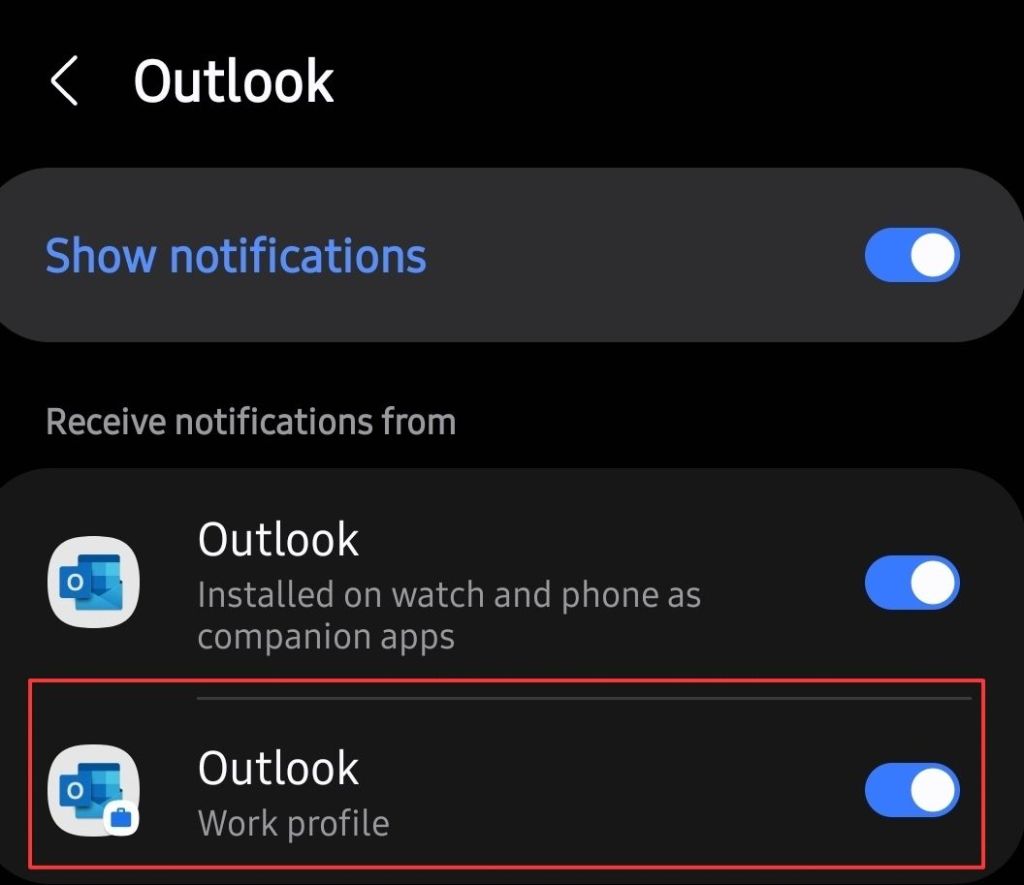
You should see a toggle to enable the work profile version’s notifications. Flip the toggle to on, that’s it. Assuming that your company isn’t blocking them, you should start receiving notifications immediately. I found this setting to be available for every work profile app installed on my device, and they were all off by default, except  Outlook. I hope it works for you as well as it did for me.
Fix Azure AD Join Invalid Client Error

Recently I encountered an error while trying to join a brand-new laptop to an Azure AD domain. Generally, the process is straight forward. Open Settings, go to Accounts, Add A Work or School account and choose the option to Join this Computer to Azure Active Directory.

The error (screenshot below) was “Invalid_Client” which made no sense. How could a Windows Pro laptop be an invalid client for Azure AD? Why was the error mentioning MDM? We didn’t enable MDM. After some research and testing, the problem was traced down to the Intune MDM registration URLs being populated.

The clue that points to the cause is the top paragraph in the error message rather than the error itself.

I am still not sure how the registration URLs became activated. It is possible that another administrator enabled the feature, but I suspect it was done by Microsoft. Probably the result of some mass action script that hit some customers it was not supposed to. The Endpoint Manager and Intune blades aren’t visible in your admin center if you haven’t subscribed to Intune, which makes discovering this setting more difficult.

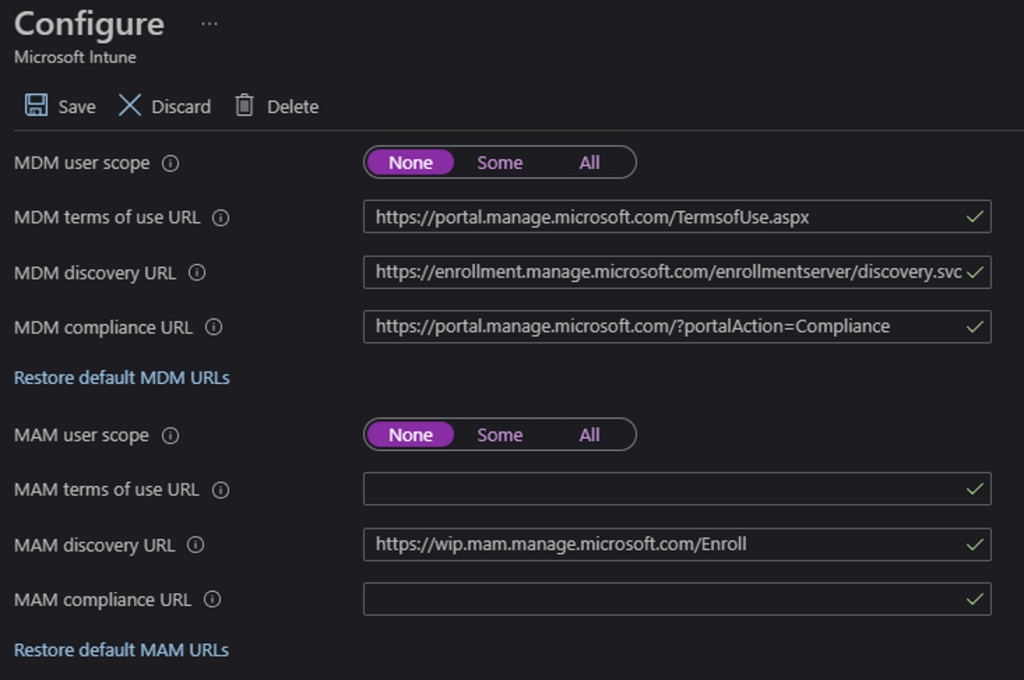
Login to your Azure AD portal and go to this URL: https://portal.azure.com/#blade/Microsoft_AAD_IAM/ActiveDirectoryMenuBlade/Mobility select Intune from the menu. Then set both control options to None and click Save. You’ll need to wait 15 – 30 minutes for the change to take effect after which you should be able to join systems to your Azure Active Directory again.

These URLS work like Exchange Autodiscover and allow new systems to enroll in MDM automatically.