PowerShell: Stop Outlook from Junking Legit Messages

Outlook often struggles with erroneous junk mail classifications. It seems that some messages can pass through the SMTP perimeter scanning and email authentication, but still end up in Outlook’s junk folder.

The internal workings of Outlook’s built-in message filters aren’t fully documented anywhere that I know of. This can lead to some perplexing situations. Last week my own company’s newsletter was being routed to the junk folder. This was out of the blue, the monthly messages had never been considered SPAM before?

I went to some drastic lengths trying to determine why an internal message was triggering Outlook’s junk filter. I enabled logging, reviewed mail traces, and all the rest to no avail. The only way I could get the message to stay in the inbox was to add the entire sending domain to the safe list.

To run the script below you need the Exchange Online Management module installed. You also need access to credentials with the appropriate permissions in Microsoft 365 and Exchange Online. If the script is going to be your permanent solution, I suggest adding it to your onboarding processes.

Import-Module ExchangeOnlineManagement
Connect-ExchangeOnline

$trustedDomain = ” sender domain.com”

$mailboxes = Get-Mailbox -ResultSize Unlimited

Foreach ($mailbox in $mailboxes) {
    $currentTrustedSenders = Get-MailboxJunkEmailConfiguration -Identity $mailbox.UserPrincipalName | Select-Object -ExpandProperty TrustedSendersAndDomains
    if ($currentTrustedSenders -notcontains $trustedDomain) {
        $newTrustedSenders = $currentTrustedSenders + $trustedDomain
        Set-MailboxJunkEmailConfiguration -Identity $mailbox.UserPrincipalName -TrustedSendersAndDomains $newTrustedSenders
        Write-Output “Added $trustedDomain to trusted senders list for $($mailbox.UserPrincipalName)”
    } else {
        Write-Output “$trustedDomain is already in the trusted senders list for $($mailbox.UserPrincipalName)”
    }
}

PowerShell: Report To Avoid Hidden Exchange Mailbox Quota Violations

There are two separate quotas for a Microsoft 365 mailbox. One is for the size of the mailbox. The other lesser-known limit is on the recoverable items database.

It is the recoverable items that frequently catch people off-guard. This quota isn’t shown in the admin portal dashboards. Furthermore, the limit is usually only an issue if you have a mailbox on legal hold.

These two things combine to make a frustrating situation. A user’s mailbox can stop due to a quota violation when it isn’t shown as being full on the portal. Here is a link to Microsoft’s documentation on the subject if you would like to know more.

Import-Module ExchangeOnlineManagement
Connect-ExchangeOnline
$Report = @()
$UserMailboxes = (Get-ExoMailbox -ResultSize unlimited -Filter {(RecipientType -eq ‘UserMailbox’)}).UserPrincipalName
Foreach ($Mailbox in $UserMailboxes){
    $MailboxTotalSize = [PSCustomObject]@{
        Name = $Mailbox
        Mailbox = Get-ExoMailboxStatistics -Identity $Mailbox | Select-Object TotalItemSize -ExpandProperty TotalItemSize
        RecoverableItems = Get-ExoMailboxFolderStatistics -Identity $Mailbox -FolderScope RecoverableItems | Select-Object Name,FolderAndSubfolderSize -ExpandProperty FolderAndSubfolderSize |Where-Object {$_.Name -like “*Recoverable*”}
    }
    $Report += $MailboxTotalSize
}
$Report |Export-Csv -Path
“C\Temp\MailboxTrueSizeReport.csv” -NoTypeInformation

I use the report to help prevent quota lockouts at my employer. You will need to run the script from a machine that has the Exchange Online Management Powershell module installed. Executing the script also requires an account with Exchange Online mailbox administrator permissions.

The output is an easy-to-read three-column report. The headers are Name (the user’s UPN), Mailbox, and RecoverableItems. The script takes around one hour per thousand mailboxes on average. This time can vary wildly,  the point is that it’s slow. Don’t let the computer running it go to sleep.

PowerShell: Backup and Repair/ Reset Windows Update.

Troubleshooting Windows update can be a fruitless waste of time. The update service is complicated and often intertwined with third-party management tools. Thanks to supply chain attacks, updates get super scrutinized by security tools. That extra level can cause interference issues. In short, the Windows update process breaks a lot for a lot of reasons.

From my point of view, the best way to fix Windows update in many cases is to reset it. To do that, we need to stop the services so that the files are not in use. Then we’ll need to delete them. We also need to delete all of the Windows update settings from the registry.

In organizations that are audited it is ideal to make backups before altering settings or files. This script makes copies of all the files and settings before any changes are made. The backup copies are named with a date value known as ticks which generates a new number on every run. This makes the script an easy one to schedule as a repeating task using various methods.

# This script executes the following actions:
# 1. Stops the Windows Services that access files in the SoftwareDistribution and CatRoot2 folders.
# 2. Appends the SoftwareDistribution and CatRoot2 folder names with a date stamp.
# The SoftwareDistribution folder contains the cache for downloaded and installed updates.
# The CatRoot2 folder contains the cache for downloaded and installed updates.
# These folder contain the cache for downloaded and installed updates. Refreshing them often clears
# patching issues.
# 3. Backs up, then removes the registry records under the key HKLM\SOFTWARE\Policies\Microsoft\Windows\WindowsUpdate\*
# The records will automatically repopulate when Windows Update is run or on the next GPO cycle.
# 4. Starts the services that were stopped.
# If at all possible you should immediately run Windows update on a system after executing this script.
# Before the next GPO cycle runs and the changes are reverted.
# This script backs up the SoftwareDistribution and CatRoot2 folders by renaming them with a date stamp.
# This script is intended to be run as a local administrator on the system that needs repaired.
$DateStamp = Get-Date |Select-Object Ticks -ExpandProperty Ticks
Write-Host -ForegroundColor Yellow "Stopping Services that access Windows Update's files."
Stop-Service "Windows Update" -Force -Confirm:$false
Stop-Service "Background Intelligent Transfer Service"
Stop-Service "Cryptographic Services"
Stop-Service "Windows Installer" -Force -Confirm:$false
Write-Host -ForegroundColor Yellow "Renaming C:\Windows\SoftwareDistribution to SoftwareDistribution.$DateStamp"
Rename-Item -Path "C:\Windows\SoftwareDistribution" -NewName "SoftwareDistribution.$DateStamp" -Force -ErrorAction SilentlyContinue
Write-Host -ForegroundColor Yellow "Renaming C:\Windows\System32\CatRoot2 to CatRoot2.$DateStamp"
Rename-Item -Path "C:\Windows\System32\CatRoot2" -NewName "CatRoot2.$DateStamp" -Force -ErrorAction SilentlyContinue
Write-Host -ForegroundColor Yellow "Renaming C:\Windows\System32\Catroot to Catroot.$DateStamp"
Write-Host -ForegroundColor Yellow "Resetting WindowsUpdate Registry Keys to Default"
# The registry keys will be recreated when Widows Update is run or on the next GPO cycle.
If (Get-ItemProperty -Path "HKLM:\SOFTWARE\Policies\Microsoft\Windows\WindowsUpdate" -ErrorAction SilentlyContinue) {
Write-Host -ForegroundColor Yellow "Backing up the Windows Update registry keys to $env:USERPROFILE\Downloads\widowsupdateregistrykeys.$DateStamp.txt"
Get-ItemProperty -Path "HKLM:\SOFTWARE\Policies\Microsoft\Windows\WindowsUpdate" | Out-File -FilePath $env:USERPROFILE\Downloads\widowsupdateregistrykeys.$DateStamp.txt
Remove-Item -Path "HKLM:\SOFTWARE\Policies\Microsoft\Windows\WindowsUpdate" -Recurse -Force
Write-Host -ForegroundColor Green "The Windows Update registry keys have been removed."
} Else {
Write-Host -ForegroundColor Green "The Windows Update registry keys do not exist."
}
Write-Host -ForegroundColor Green "Starting services that were previously stopped."
Start-Service "Windows Update"
Start-Service "Background Intelligent Transfer Service"
Start-Service "Cryptographic Services"
Start-Service "Windows Installer"
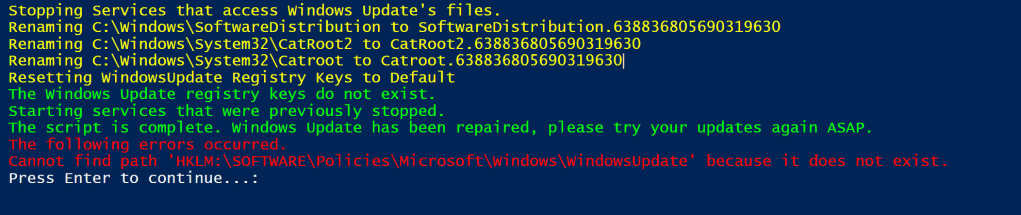
Write-Host -ForegroundColor Green "The script is complete. Windows Update has been repaired, please try your updates again ASAP."
Write-Host -ForegroundColor Red "The following errors occurred."
Write-Host -ForegroundColor Red $error
Pause
Exit
I tried to include some good feedback. Errors are displayed at the end.

I have relied on this script for a while. In its current form, it is intended to be run interactively in an admin PowerShell session. If you remove the write-host lines, the rest of the code makes a good function to add to the beginning of your patching processes.

Optimizing Email Branding with BIMI

Have you ever noticed that some of the people and companies that email you have different icons? Somehow rather than initials, they are represented by a custom avatar in your message list. Usually, it is their corporate logo.

BIMI which is an acronym for Brand Indicators for Message Identification is the protocol being used to achieve the effect. In a nutshell, the protocol requires that you make your email environment fully DMARC compliant. Once you’ve implemented SPF, DKIM, and DMARC you can setup BIMI by following the instructions on the group’s website https://bimigroup.org.

The BIMI group’s implementation guide will walk you through creating the appropriately sized logo image. That image has to be hosted on a publicly available website accessible via an HTTPS URL. You will eventually create a special DNS record that points to the image’s URL. It is this record that the email client applications use to download and display the custom sender icon.

Indeed, is using BIMI and their logo appears in my message list as a result.

Chances are that you have researched the topic and are already aware of this basic information. You’ve also probably discovered that Microsoft does not support BIMI at this time. It turns out there are a couple of workarounds Microsoft customers can use to send BIMI messages. They’re not free, or easy. However, if you really need the branding before MS fully supports BIMI there aren’t any other options.

Microsoft’s Dynamics 365 does support BIMI messages in certain situations. Dynamics 365 is the only way to send BIMI enabled email messages from a Microsoft environment right now. More information about the process is available @ https://learn.microsoft.com/en-us/dynamics365/customer-insights/journeys/bimi-support. Dynamics 365 is a subscription-based solution. There are demo licenses available, work with your CSP or VAR to obtain one.

Here’s the rub. Even if you send Dynamics 365 journey messages with a BIMI logo to Outlook users, the icons won’t be displayed. Outlook itself only supports sender images from Exchange/Outlook contacts at the moment. That leaves us with creating contacts that include the images we want to display for our Outlook users.

It is possible to use a combination of MS Graph and PowerShell to create 365 contacts. There are several scripts already out there that would serve as baseline code. Unfortunately, none of the ones I’ve examined include a procedure to manipulate the contact photos. Displaying branded logos in Outlook is a big undertaking. The effect would only work on Outlook accounts in your organization. So, consider the outcome beforehand.

According to Microsoft Learn, contact’s photos are a code accessible attribute. See this link for more information: https://learn.microsoft.com/en-us/graph/api/resources/profilephoto?view=graph-rest-1.0. We would need to bulk import or create Exchange Online contacts. The method is described (with examples) on Microsoft’s site see: https://learn.microsoft.com/en-us/purview/bulk-import-external-contacts. An import script would need to include a line to download and apply the photo using the “Update profilePhoto” method. I haven’t personally undertaken this task, but I’m confident that it should work. If you’ve already banged out a working solution, feel free to post a link in the comments. If I create a working script in the future, I’ll update this post.

Powershell: Real-Time Check of Domain Server’s Uptime

There are lots of methods available to server administrators for checking the last reboot time of Windows machines. One of the quickest and most useful continues to be provided via Microsoft’s super CLI, PowerShell.

$ErrorActionPreference = “SilentlyContinue”
$Servers = Get-ADComputer -Filter ‘Operatingsystem -Like “*server*”‘ -Properties dnshostname|
    Select-Object dnshostname -ExpandProperty dnshostname
Function CheckReboot {
    Foreach ($Server in $Servers) {
    Invoke-Command -ComputerName $Server {(Get-Date)-(gcim Win32_OperatingSystem).LastBootUpTime}|Select PSComputerName, Days, Hours,Minutes
    }
}

Those few lines will scan the Active Directory database for computer accounts with the word “server” in their names. Once located, the DNS name property of each matching record is stored in the variable $Servers.

The function named CheckReboot processes each DNS name stored in $Servers by sending it through a logic loop. The for each loop uses WMI to subtract the boot up time from the current time. Then, it displays a table showing the computer’s name, along with how many days, hours, and minutes each system has been running for.

You will need to run the script from an administrative  terminal session. If it doesn’t work for you, try adding a lime to import the Active Directory Powershell module and check your execution policy. The machine and account running the script also need remote access to WMI.

PowerShell: A Microsoft 365 Admin Roles Membership Report

Manually reviewing the membership roster for each of the dozens of RBAC roles in a Microsft 365 tenant is quite the undertaking. Since this is something I need to keep an eye on, I decided to automate a report. Run the script, then look in your documents folder for the report.

$UserCredential = Get-Credential
Connect-AzureAD -Credential $UserCredential

$AzureADRoles = @(Get-AzureADDirectoryRole)

foreach ($AzureADRole in $AzureADRoles) {

    Write-Verbose “Processing $($AzureADRole.DisplayName)”

    #Get the list of members for the role
    $RoleMembers = @(Get-AzureADDirectoryRoleMember -ObjectId $AzureADRole.ObjectId)

    #Loop through the list of members
    foreach ($RoleMember in $RoleMembers) {
        $ObjectProperties = [Ordered]@{
            “Role” = $AzureADRole.DisplayName
            “Display Name” = $RoleMember.DisplayName
            “Object Type” = $RoleMember.ObjectType
            “Account Enabled” = $RoleMember.AccountEnabled
            “User Principal Name” = $RoleMember.UserPrincipalName
            “Password Policies” = $RoleMember.PasswordPolicies
            “HomePage” = $RoleMember.HomePage
        }

        $RoleMemberObject = New-Object -TypeName PSObject -Property $ObjectProperties

        #Add the role member’s details to the array for the report data
        [void]$O365AdminGroupReport.Add($RoleMemberObject)
    }
}

$O365AdminGroupReport | Export-CSV -Path $env:userprofile\documents\0365AdminGroupReport.csv -NoClobber -NoTypeInformation

PowerShell Script to Check Active Directory Member Servers for Automatic Services’ Status

I’ve been caught by an automatic service not starting after system reboots from things like patching. I’ve written several versions of the script below over the years. This is my most recent edition. You’ll need the Active Directory module installed on the system that executes the script.

The code will scan your entire AD for member systems with a Windows Server operating system. It will present you with a list to choose from. It will then test RPC (135) connectivity and scan the automatic services on those that are reachable. The script will report any servers that do not have a status of “running” along with any that were not reachable.

   <#
        .SYNOPSIS
        Checks Acitive Directory Memeber Servers for Automatic Serices that are not currently running.
        .DESCRIPTION
        Dynamically generates list of Active Directory Servers.
        Uses WMI to examine the status of all services set to automatically start on selected servers.
        Filters common automatic services that do not stay started by default: mapsbroker, cdpsvc, gupdate, remoteregistry, sppsvc, wbiosrvc, 
        iphlpsvc, tiledatamodelsvc, clr_optimization, and Microsoft Edge Update are currently excluded from the report.
        .INPUTS
        Get-ServerAutoSerivcesStatus displays a gridview of selectable Active Directory memeber servers. 
        Shift+ and CTRL+ select are enabled.
        CTRL+A to select all.
        Criteria to filter.
        .OUTPUTS
        System.String. / Gridview Get-ServerAutoSerivcesStatus returns a string showing all status on selected servers running, 
        or a gridview of the servers and services that are not. 
        Get-ServerAutoSerivcesStatus also displays a string listing servers that did not respond on TCP 135 (RPC). 
        .EXAMPLE
        PS> Get-ServerAutoSerivcesStatus.ps1
    #>
$ErrorActionPreference = "SilentlyContinue"
$Servers = Get-ADComputer -Filter 'Operatingsystem -Like "*server*"' -Properties dnshostname|
    Select-Object dnshostname -ExpandProperty dnshostname|
    Out-GridView -Title "Select Servers To Enumerate AutoServices. CTRL+A to Select All" -PassThru
$Report = @()
$ErrorLog = @()
$ServersOnline = @()
Write-Host -ForegroundColor Yellow "Please wait, testing connectivity to selected servers....."
Foreach ($Server in $Servers) {
    If ((Test-NetConnection -WarningAction SilentlyContinue -ComputerName $Server -Port 135).tcptestsucceeded){$Serversonline += $Server}
    Else {$Errorlog += $Server}
    }
ForEach ($Server in $ServersOnline) {
    $Wmi = Get-WMIObject win32_service -ComputerName $Server -Filter 'State != "Running" AND StartMode = "Auto"'|
        Select-Object @{n="ServerName"; e={$server}}, @{n="ServiceName";e={$_.name}},@{n="Status";e={$_.state}},@{n="Start Account";e={$_.startname}}
    $Report += $Wmi | Write-Host
    }
$Report | Where-Object {($_.ServiceName -notlike "mapsbroker") -and ($_.ServiceName -notlike "cdpsvc") -and ($_.ServiceName -notlike "gupdate") -and 
    ($_.ServiceName -notlike "remoteregistry") -and ($_.ServiceName -notlike "sppsvc") -and ($_.ServiceName -notlike "wbiosrvc") -and ($_.ServiceName -notlike "iphlpsvc") -and
    ($_.ServiceName -notlike "tiledatamodelsvc") -and ($_.ServiceName -notlike "*clr_optimization*") -and ($_.ServiceName -notlike "Microsoft Edge Update") | 
    Select-Object @{n="Server";e={$server}}, @{n="Stopped Service";e={$_.displayname}
        }
    }
If ($Rerport -ne $null) {$Report | Out-GridView -Title "These automatic serivces are not running"}
    Else {Write-Host -ForegroundColor Green "All Automatic Services on $($Serversonline.count) reachable servers are started."}
If ($ErrorLog -ne $null) {Write-Host -ForegroundColor Red "These $($ErrorLog.count) servers were not reachable via RPC (port 135)`n `n" ($ErrorLog -join ",`n")}
    Else {Write-Host "No connection issues to selected servers detected."}
Pause
Exit

How I Diagnosed and Fixed a Lian-Li L-Connect 3 Fan Speed and RGB Control Failure After Updates

Many motherboard manufacturers are including RGB controllers on their wares now. MSI’s version is called Mystic Light, the control software runs as an add-on to the Motherboard’s MSI Center console. There are numerous PC hardware manufacturers. Custom PC builders frequently use components from each. For example, my motherboard is from MSI, but my power supply is made by Corsair.

The market situation and custom build scenes have led to a series of API’s being included in the various manufacturer’s software so that control bridges could be established. On my system, this allows MSI Center and it’s Mystic Light add-on to control the lighting connected directly to the motherboard along with my Lian-Li Galahad 360, and SL fans which are connected to a Lian-Li control box.

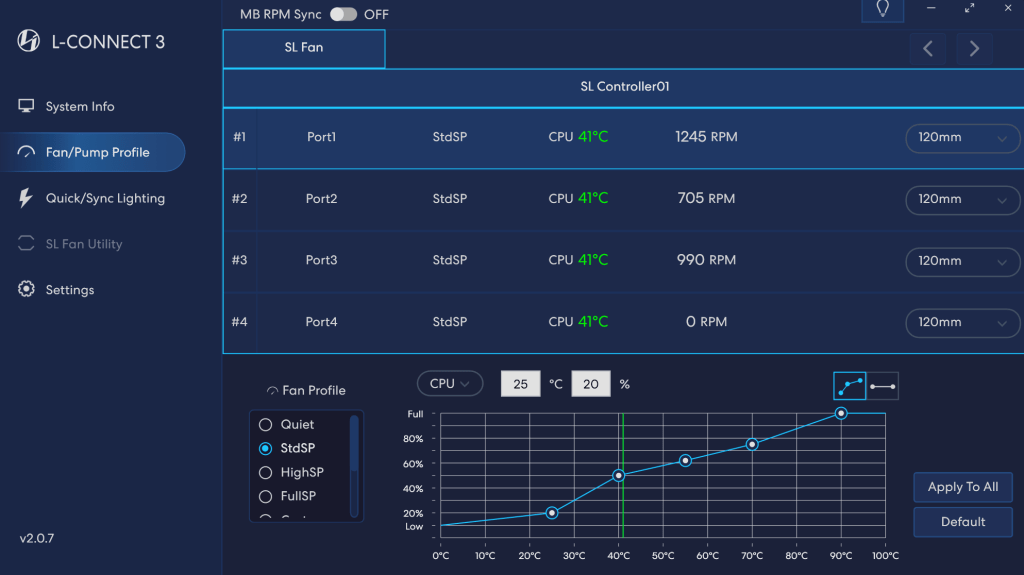
In my setup, I use Mystic Light to control all the RGB, but control the fans via L-Connect. The Lian Li software’s cooling options and programable curves are much more precise than those offered by MSI Center.

In a recent Windows update, Microsoft has also added its own take on a universal light controller protocol and software package they’re calling Dynamic Lighting. The option can be found under Settings and then under Personalization. Microsoft’s entry into the space seems to have spurred manufactures to update their software and firmware to either gain or block compatibility depending on their particular market strategy.

These are the default Microsoft Dynamic Lighting settings on my systems. In this configuration, MSI Center and L-Connect remain in control.

I use Logitech accessories. Their controller software, G-Hub, updated and added Dynamic Lighting compatibility. MSI Center’s Mystic Light add-on updated but does not seem to have gained any options in the Dynamic Lighting control screen. One of the three updates broke the Lian Li L-Connect software on my system. I am unable to tell which one for sure because they all applied around the same time. Read on to see how I found and fixed the issue.

You can turn Windows Dynamic Lighting on/off for individual G-Hub devices.

PowerShell: Find Remote Desktop Servers on A Domain

Remote Desktop Servers have a way of multiplying themselves like some kind of organic creature. Most administrators know how to deploy RDS and it is a good to solution for a variety of issues. The simple script below scans domain servers for the installed features.

$ErrorActionPreference = "SilentlyContinue"
$Servers = Get-ADComputer -Filter 'Operatingsystem -Like "*server*"' -Properties DnsHostName |
Select-Object dnshostname -ExpandProperty DnsHostN be ame
Foreach ($Server in $Servers){
Get-WMIObject -Class Win32_ServerFeature -ComputerName $Server -Property * |
Where-Object {$_.Name -like "Remote Desktop Services"} |
Select-Object PSComputerName
}

PowerShell Domain Joined Windows Servers Certificate Status

Running the script below requires the RSAT (Remote Server Administration Tools) be installed on the system you are running it from. The account used must have enough permissions to read from Active Directory and the selected server’s registries.

The script will read the machine accounts of AD joined servers looking for those with the word “server” in the operating system attribute. It will prompt the user to select any of those servers to scan. It will also prompt the user for a DNS name to search the certificates for.

The script will attempt to test connectivity to RPC (TCP 135) for each of the selected servers. It will then open the registry and search the computer account’s personal certificate store for the entered domain name. A report will be generated that shows pertinent details for each certificate that is found.

$Servers = Get-ADComputer -Filter 'Operatingsystem -Like "*server*"' -Properties dnshostname|

Select-Object dnshostname -ExpandProperty dnshostname|
Out-GridView -Title "Select Servers To Scan for Certificates. CTRL+A to Select All" -PassThru
$CertificateDomain = Read-Host "Enter public DNS host name of certificate to check; example: mydoamin.com"

$ServersOnline = @()

Foreach ($Server in $Servers) {
If ((Test-NetConnection -WarningAction SilentlyContinue -ComputerName $Server -Port 135).tcptestsucceeded){$Serversonline += $Server}
}

ForEach ($System in $ServersOnline){
Try {
Invoke-Command -ComputerName $System -ErrorAction Stop {
Get-ChildItem Cert:\LocalMachine\My|Select-Object DnsNameList, Subject, Issuer, NotAfter|Where-Object {$_.DnsNameList -like "*$CertificateDomain*"}}|
Format-List PSComputerName, DnsNameList, Subject, Issuer, @{N="Expires"; E={$_.NotAfter}}
}
Catch {Write-Host "No Public CA issued certificate for $CertificateDomain detected on $System"}
}

PowerShell; Report Mailbox and OneDrive Size per User

Microsoft’s 365 has a ton of built-in reports for almost every metric you can think of. I recently needed to show Exchange Online and OneDrive consumption in the same report for a migration project. I was surprised to find the data I needed was available in separate reporting functions, but not together.

I briefly considered using Power BI or Excel to extract the data from the two separate reports and combining the attributes into a new one. Ultimately, I decided PowerShell would be faster. The script below requires that the MS 365 modules be installed on the machine it is run from. This Microsoft article has instructions for installing them. https://learn.microsoft.com/en-us/microsoft-365/enterprise/connect-to-all-microsoft-365-services-in-a-single-windows-powershell-window?view=o365-worldwide

#Import Required Modules 
Import-Module ExchangeOnlineManagement
Import-Module Microsoft.Online.SharePoint.PowerShell

#Connect to the Tennant
Connect-ExchangeOnline
Connect-SpOService -Url https://URL to top level SharePoint Site 

#Retrieve Data
Get-Mailbox -ResultSize Unlimited | Select-Object DisplayName, UserPrincipalName, ForwardingSmtpAddress, DeliverToMailboxAndForward, 
    @{N="MailboxSize"; E={(Get-MailboxStatistics -Identity $_.UserPrincipalName | Select-Object TotalItemSize).TotalItemSize}}, 
    @{N="MailboxLastLogon"; E={(Get-MailboxStatistics -Identity $_.UserPrincipalName | Select-Object LastLogonTime).LastLogonTime}}, 
    @{N="OneDriveUsedGB"; E={(Get-SPOSite -IncludePersonalSite $true -Limit all -Filter "Owner -like '$($_.UserPrincipalName)'" | Select-Object   StorageUsageCurrent).StorageUsageCurrent/1024}} |
Export-Csv -Path $env:userprofile\Documents\365_Use_Report.csv -NoTypeInformation

PowerShell: Remove Offline Network Printers from all Workstations

If you have ever moved Windows print services to a new server, chances are that you have been left wondering what to do with the old stuff left over on the client computers. GPOs make deploying printers a snap, but when it comes to removing them, you are on your own.

Leaving the old printers installed can be confusing to people. In today’s world, printers are increasingly used as attack vectors to establish a beachhead inside corporate networks, leaving them could turn out to be a security risk. Plus, my dad taught me that no job is finished until you’ve cleaned up the mess you made doing it LOL.

If your workstation operating systems are new enough to be running PowerShell and WinRM is enabled, a script could be utilized to remove the old printers. First you will need to find the printers to be removed and store them in a variable. The Get-Printer cmdlet lists all the printers on a system and the Where-Object function will let us filter the properties that identify the specific printers we want to uninstall.

$OfflinePrinters = Get-Printer | Where {($_.Type -like "Connection") -and ($_.PrinterStatus -notlike "Normal")}|
Select Name -ExpandProperty Name

The line above will store the names of printers on the system you run it from that are connected via network and not online in the variable $OfflinePrinters. It should be noted that there is a potential to remove printers you use with this method. If you have a network printer installed from a location you are are not currently connected to, it will match the criteria. For example, if you have a network printer at home but are executing the script from your office the home printer will be deleted.

Next, we’ll loop through the printers in the variable and remove them. If you are concerned about the potential to remove printers you need, remove the -confirm $false and you’ll be prompted for each one.

Foreach ($OfflinePrinter in $OfflinePrinters) {
    Remove-Printer -Name $OfflinePrinter.Name -Confirm $false
}

Removing all the old printers from a single computer is well and good, but PowerShell’s true power comes from it’s ability to execute commands against all systems. With a few more lines of code we can search through your Active Directory domain and find all your workstations. Then we’ll use PowerShell’s Invoke-Command to execute our little printer removal tool on each one.

The script below will need to be run from a Domain Controller or from a system with RSAT installed. To use Invoke-Command, WinRM has to be enabled on your workstations to allow PowerShell Remoting. See Windows Remote Management – Win32 apps | Microsoft Docs


Function Remove-Printers {
    $OfflinePrinters = Get-Printer | Where-Object {($_.Type -like "Connection") -and ($_.PrinterStatus -notlike "Normal")}|
    Select-Object Name -ExpandProperty Name
Foreach ($OfflinePrinter in $OfflinePrinters) {
    Remove-Printer -Name $OfflinePrinter.Name -Confirm $false
    }
}
$Computers = Get-ADComputer -Filter ‘Operatingsystem -Notlike “*server*” -and enabled -eq “true”‘|
Select-Object dnshostname -ExpandProperty dnshostname

ForEach ($Computer in $Computers){
    Invoke-Command -ComputerName $Computer -ScriptBlock {Remove-Printers}
}

PowerShell: Find USB Storage Devices

Most Administrators know that you can use a GPO to disable the ability to use USB storage devices on Windows computers. So you look up the instructions and implement the policy, but how do you know if it’s working?

I’m sure you made a test OU while you were working out the best option for your situation, but if you are disabling access for security reasons you’ll need a report. There are a few ways that you could go about getting the data. I like PowerShell. The code below will search your domain computers for USB storage. You should aware that savy users can use online tools to fool detection. As always, use at your own risk.

# Author: kevin-trent@hotmail.com; https://techbloggingfool.com
# Get-UsbStorage.ps1
# Uses WMI to retrieve activley attached USB Storage devices from all domain workstations.
# Run from a Domain Controller or a computer with the RSAT tools installed that is a domain memeber.
# Requires WinRM be enabled on workstations. See https://docs.microsoft.com/en-us/windows/win32/winrm/portal

Import-Module ActiveDirectory

Function USBDisks {
$Computers = Get-ADComputer -Filter ‘Operatingsystem -Notlike “*server*” -and enabled -eq “true”‘ -Properties dnshostname|Select dnshostname -ExpandProperty dnshostname

Foreach ($Computer in $Computers)
{Get-WmiObject Win32_Volume -ComputerName $Computer|Where {($_.Drivetype -eq “2”) -and ($_.Capacity -ne $null)}|
Select @{n=”Computer”;e={$Computer}}, @{n=”Drive Letter”;e={$_.Caption}}, @{n=”Label”;e={$_.Label}}, @{n=”Capacity(GB)”; e={“{0:N2}” -f($_.Capacity/1GB)}}, @{n=”FreeSpace(GB)”; e={“{0:N2}” -f($_.FreeSpace/1GB)}}, @{n=”Pagefile Detected”; e={$_.PagefilePresent}}
}
}

$report = USBDisks|Sort-Object Computer
$report|Export-CSV $env:userprofile\documents\USBDisks.csv -NoTypeInformation

PowerShell Hyper-V Cluster VM Status

As an employee of an MSP, I am often tossed into the ring, so to speak. I’ve found that configuring Microsoft’s tools to see all of the virtual machines in a clustered Hyper-V environment consumes too much time in high-pressure situations. Depending on the version of Windows the hosts are running, you may not see the information you’re after, even when you take the time to set them up.

To save time and see the info most admins need I’ve come up with the simple script below. Run it from one of the clustered hosts and it will pop up a sortable, searchable, grid view for each host in the cluster. You will see the name, number of CPUs, assigned memory, IP addresses, on / off status, and uptime for each of the host’s VMs at a glance. Each pop-up table will be named for the host it represents.

$HyperVClusterNodes = Get-ClusterNode|Select Name -ExpandProperty Name
Foreach ($Node in $HyperVClusterNodes){
    Get-VM -ComputerName $Node|Get-VM -ComputerName $Node|Select Name,State,ProcessorCount,CPUUsage,@{Name="MemoryAssigned(MB)"; Expression={$_.MemoryAssigned/1MB}},@{Name="IPAddresses"; Expression={$_.NetworkAdapters.IPAddresses}},Uptime,Status|Out-GridView -Title "$Node"}

PowerShell – Create Bulk Active Directory Accounts and Add Them to A Group

Recently I was tasked with helping a company build out a solution for remote training classes. We chose Microsoft’s Remote Desktop Services as the platform. I needed to develop a method to create bulk accounts for the students and place those accounts into the AD security group that granted access to the remote app.

Most admins have probably come across the New-AdUser cmdlet at some point. Combining it with a For-Each loop and a sequential digit was easy enough. The most difficult piece to figure out was adding each newly minted user to the security group that allowed access to the remote application.

The secret sauce is the passthru switch. Using it prevented me from having to code some elaborate process to find each account and add them separately. Make sure you update the variables to match your environment and the script will need to be run on a domain controller or system with the AD management tools installed.

If you wanted to configure the script to be run by an end user to setup a new class, change the script’s variables to use read-host which will prompt the for the values. For example; $Password = Read-Host “Enter Password”.

#Must be run from DC or system with AD Admin Tools installed and joined to domain
#Creates sequencial bulk users with the same password
#Adds those users to the group specified in $group use the DN 
#Change the Path to the OU you want the accounts to be created in
#Edit the ChangePasswordAtLogon switch as appropriate, $true forces users to update password and $false does not
Import-Module ActiveDirectory 
 
#Variables
$OUPath = "OU=Training,OU=Users,DC=Domain,DC=local"
$BaseUsername = "Training"
$Password = "NewStudent!"
$Number = "20"
$ADGroup = "CN=RDS Training Class,OU=Training,DC=Domain,DC=local"
$Incremeant = 1..$number
foreach ($i in $Incremeant){
	$NewUser = New-AdUser -Name $BaseUsername$i -Path $OUPath -Enabled $True -ChangePasswordAtLogon $true
	-AccountPassword (ConvertTo-SecureString "$Password" -AsPlainText -force) -passThru 
	Add-ADGroupMember -Identity "$ADGroup" -Members $NewUser
}

PowerShell; Set Office 365 Passwords in Bulk

Recentley, I needed to set a new password for Office 365 users in bulk without Azure AD Connect. I needed to be sure that I didn’t give service accounts new passwords. In addition, this was for a multi-state organization and we wanted to set the new passwords one city at a time.

I was able to use PowerShell and the MsOnline module to meet all of the requirements. If you haven’t already, you’ll need to install the MsOnline module before running the code below. Open an elevated PowerShell console (Run as Administrator) and type Install-Module MsOnline; select Y (Yes) for any prompts.

$UserCredential = Get-Credential
       Connect-MsolService -Credential $UserCredential

$City = Read-Host "Enter city's name to set a new password for all users in that location"
$NewPassword = Read-Host "Enter new password for all user's in the specified city"

$O365_Users = Get-MsolUser -All| where {($_.city -eq $City) -and ($_.isLicensed -like "True")}|select UserPrincipalName
       foreach ($user in $O365_Users)
              {
                 Get-msoluser -UserPrincipalName $User.UserPrincipalName |set-msoluserpassword -newpassword $NewPassword -forcechangepassword $false
              }

When you run the script it will prompt you for your Office 365 admin credentials, the city, and the new password that you would like to specify. You can force a password change after the first logon by chainging $false to $true.

PowerShell; Find and List All Active Directroy Nested Sub-Groups with Get-ADNestedGroups

Recently I needed to reduce the licenses we were consuming with a particular cloud service. I was told that a couple of Active Directory groups served as the service’s ACL. All the accounts in question were disabled but the disabled status didn’t synchronize to the cloud service provider. I needed to remove all disabled user accounts from the ACLs in our AD. My first thought was, “I love it when I get the easy ones”. That should always be a sign that something isn’t going to be easy, LOL.

I immediately opened PowerShell, imported the AD Module and ran a recursive Get-ADGroupMemeber query on the two groups I was told about. I added all the returned objects to an array and then populated that array with the disabled user account’s SamAccountNames. I made another array and added the groups/sub-groups to it. Finally, I used nested foreach loops to remove each user from each of my two AD groups.


Import-Module ActiveDirectory

$allusers = @()
$group1 = Get-ADGroupMember -Identity "Name of Group 1" -Recursive
$group2 = Get-ADGroupMember -Identity "Name of Group 2" -Recursive
$allusers += $group1.SamAccountName
$allusers += $group2.SamAccountName

$users2remove = $allusers | % {Get-ADUser $_ |Select samaccountname, DistinguishedName, enabled|where enabled -ne "true"}

$removes = @()
$removes += $users2remove.samaccountname

$subgroups = @()
$subgroups1 = Get-ADGroupMember -Identity "Name of Parent Group1" |Where {$_.ObjectClass -eq "Group"}
$subgroups2 = Get-ADGroupMember -Identity "Name of Parent Group2"| Where {$_.ObjectClass -eq "Group"}

Foreach ($group in $subgroups) {
     Foreach ($remove in $removes) {
     Remove-ADGroupMember -Identity $group -Members $remove -Confirm:$false
     Write-Host "Disabled Account $remove removed from $group"
     }
}

I ran my script, watched the output, marveled at my own genius, and sent my boss a list of the users I had removed.  An hour or two later my manager pinged me to say that when he looks in the application’s portal he sees that most of the disabled users are gone but there are a couple hundred that still show up as having a license. Hmmmmm.

I reviewed my logic and found the problem. I didn’t do a recursive search on the sub-groups. I opened ADUC and looked, sure enough, there were a ton of nested sub-groups under the two I was told about and some of the users appeared to be in multiple groups. So even though I had removed them from the top-level they were still consuming a license through their membership in a nested group.

“Easy enough to fix”, my internal dialog told me. I just added the -recursive parameter to my sub-group searches and ran my script again.  Well, that didn’t work. After some trial and error, I was able to determine that the recursive parameter of the cmdlet does find all of the user objects no matter how deep they are. However, it only returns the first layer of group objects. Now what?

I needed my code to say, “if a group is returned run the search again” in a loop until no more groups were returned. I was disappointed that none of my Internet searches turned up working code. I ended up writing the function below. If you have landed on this page from similar circumstances, I hope it helps you out of your jam.


## Get-ADNestedGroups
## Author: Kevin Trent, https://whatdouknow.com, kevin-trent@hotmail.com
## Distribute freely but please leave author's information attached

function Get-ADNestedGroups {
[CmdletBinding()]
param (
[Parameter(Mandatory)]
[string]$Group
)

## Find all parent group objects
$members = Get-ADGroupMember -Identity $Group

## Array to hold each child group
$ChildGroups = @()

## Foreach loop to find all objects in child groups
## If any objects are groups we call the function again
## Will loop until no more groups are found
## Displays each group name on screen and adds to childgroups array

     Foreach ($member in $members){
          If ($member.objectClass -eq "Group"){
          $ChildGroups += $member.name|where {$_ -ne $null}
          Write-Host $member.name|where {$_ -ne $null}
          Get-ADNestedGroups -Group $member
          }
      }
#Outputs the contents of the childgroups array to text file
$ChildGroups|out-file $env:userprofile\documents\SubGroups.txt
}

P.S.

If you are trying to run the first script I started my story with; replace the subgroup arrary and variables with the function. Then change the subgroups variable in the nested foreach to childgroups.

PowerShell; Search all Domain Controller Event Logs for Keywords

Do you need to know the last time a user logged on, or who created an AD account? As long as you have audit logging enabled, the data you are after is in the event logs of your domain controllers. The problem is, if you have more than one domain controller (you should) the record that you need can be on any of them.

At my day job, we have quite a few DCs and I needed to know which admin created a particular AD account. There was no way I was going to logon to dozens of servers and search them one at a time. PowerShell to the rescue!

Import-Module ActiveDirectory

$keyword = Read-Host "Enter Keyword"
$eventid = Read-Host "Enter EventID"
$logname = Read-Host "Enter the name of log you want to search, application, security, etc."

$domains = (Get-ADForest).domains
$dcs = Foreach ($domain in $domains) {
     Get-ADDomainController -Filter *|Select Name -ExpandProperty Name|sort-
     object|get-unique
}
$events = ForEach ($dc in $dcs) {
     Get-EventLog  -ComputerName $dc -LogName $logname -InstanceId $eventid -
     Message *$keyword*|Select-Object -Property *
}
$events|out-file $env:usersprofile\documents\dc_log_search.txt

This short ‘n sweet bit of code will scan your domain and find all the domain controllers. Occasionally DCs run more than one role and show up multiple times in the output of this cmdlet so we drop the duplicate names.

Then it will prompt you for a keyword to search for. In the case of account data you’d enter the samaccount name. You could also enter the name of a workstation or server for example. Next it will ask you for an Event ID Number. Finally it will ask for the name of the log; application, security, system, etc. to search.

The script will loop through each DC and find the events you’ve described. Each matching record will be output to a text file named dc_log_search.txt in your documents folder. It wouldn’t take much effort to turn this data into an HTML report, email notification, or even an archival tool.

Free Exchange Distribution List Memebers Reporting Tool

As and Exchange Architect, I often get asked to report on who belongs to a particular distribution list. It is easy enough to open Outlook or ADUC and find the DL group and view the DL members. If your organization has Skype for Business you can also use it to view the membership of a DL. However, exporting information from these tools can be tricky.

PowerShell makes the export task easier if you know how to use it. A quick run of the get-distributiongroup cmdlet with a pipe to out-file, will get you what you want in a hurry. The problem is that we have few employees that are able to use PowerShell from the console but, there are requests to generate this type of report multiple times per day.

What we need is a graphical tool that anybody with enough AD permissions can use to get the data they need. Sure I could write something in C# but I don’t have the time to develop a full app. I know PowerShell already has everything I need to make the report because that’s what I use every time I get asked for it. What if I add a simple graphical interface to a PowerShell script so that my non PS coworkers can easily use it? In the words of Tim Allen; “It’s Tool Time”.

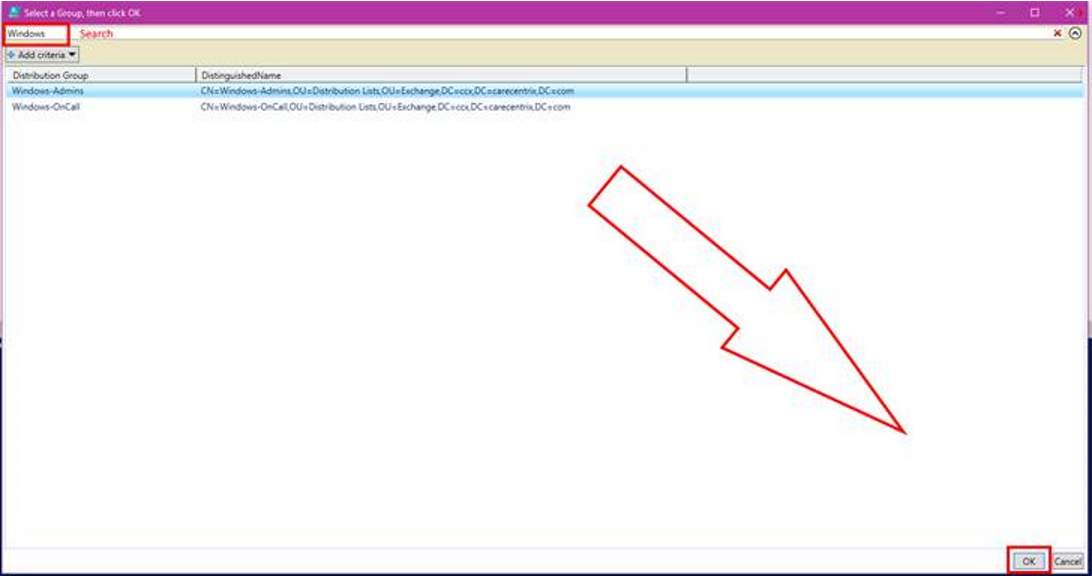
The script below uses the Grid View to display a list of all the Distribution Lists in your Exchange DL OU (you’ll need to input the correct OU path). The user then uses the grid view to sort, filter, or search for the DL they need data from. When they select it, an Excel Spreadsheet will pop up on the screen with the data.

Modern versions of Exchange Server store their DLs in AD as groups so there’s no need to install or load the Exchange PowerShell module to get the data we’re after. This also means we don’t need to give the people who use our tool any special permissions. We will be using the Active Directory module so you may need to install the RSAT depending on the version of Windows.

Import-Module ActiveDirectory
$groups = Get-ADGroup -Filter * -Searchbase "OU=Distribution Lists,OU=Exchange,DC=yourdomain,DC=com"|
Select @{n="Distribution Group"; e={$_.Name}}, DistinguishedName |Sort "Distribution Group"|
Out-GridView -Title "Select a Group, then click OK"  -PassThru
$accounts = Foreach ($group in $groups) {Get-ADGroupMember -Identity $group.DistinguishedName}
$report = Foreach ($account in $accounts) {Get-ADUser -Identity $account -Properties *|
select DisplayName, EmailAddress, TelephoneNumber, Department, City}
$report|Export-Csv -LiteralPath $env:userprofile\documents\dlgroupmemebers.csv -notypeinformation
Invoke-Item $env:userprofile\documents\dlgroupmemebers.csv

Make sure that you replace the Searchbase path with the Active Directory location for your Exchange distribution lists. After that, the instructions are easy. Save the file as a .ps1 and place it on the user’s hard drive.

The person using the tool will need to follow these directions:

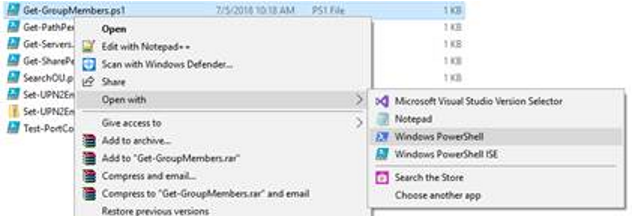
  • Right click on the script  –> Open With -> Windows PowerShell

open with powershell

  • Search for or scroll through and click the group or groups (to pick more than one use CTRL + Click).
  • Click the OK button at the bottom of the list.

Grid_View_Select.png

  • A file named groupmembers.csv will be created in the user’s default documents folder and will automatically open with the application associated to that file type (usually Excel).

From the point of view of the person running it, this is a once use app. In reality, its a simple PowerShell script. It wouldn’t take very much effort to convert this report to HTML, use it to cross-referrence mailboxes and other accounts, find the memebers managers, or anything esle you may need. Enjoy.

Powershell; Folder Report with File Count and Size

I was recently asked what tool would be best to report the number of items in, and the size of, every folder in a particular file share. As an IT Architect I have numerous tools at my disposal that would be able to acquire the data my business partner needed. A few lines of PowerShell was the easiest to implement.

If you’ve used PowerShell for long you already known that Get-ChildItem is the cmdlet to retrieve things under a parent. Files, Folders, Items, you can list them all with GCI. Open PowerShell and type GCI then press enter, depending on your PowerShell profile settings, you should see a list of all your user profile sub folders. This cmdlet will form the basis of our report script.

gci

Of course, the full solution is a little more complicated than that. To generate a useful report we’ll use the Get-ChildItem command to get a list of folders in our path. Then we’ll loop through each folder with the same command again to get a list of the files.

We’ll build an array that contains the count and length (size) properties of each file. Finally we’ll export that array to a csv file in your documents folder. With a little more effort you could generate an HTML report and upload it to a web page or embed it in an email. See some of my other articles for how.

# Get-FileReport.ps1
#Author: Kevin Trent, Whatdouknow.com
#Right click .ps1 file and Open with PowerShell
#Enter Filepath or share path.

$location = Read-Host "Enter Top Level File Path"
$folders = Get-ChildItem -Path $location -Recurse -Directory

$array = @()

foreach ($folder in $folders)
{
$foldername = $folder.FullName

# Find files in sub-folders
$files = Get-ChildItem $foldername -Attributes !Directory

# Calculate size in MB for files
$size = $Null
$files | ForEach-Object -Process {
$size += $_.Length
}

$sizeinmb = [math]::Round(($size / 1mb), 1)

# Add pscustomobjects to array
$array += [pscustomobject]@{
Folder = $foldername
Count = $files.count
'Size(MB)' = $sizeinmb
}
}

# Generate Report Results in your Documents Folder
$array|Export-Csv -Path $env:USERPROFILE\documents\file_report.csv -NoTypeInformation