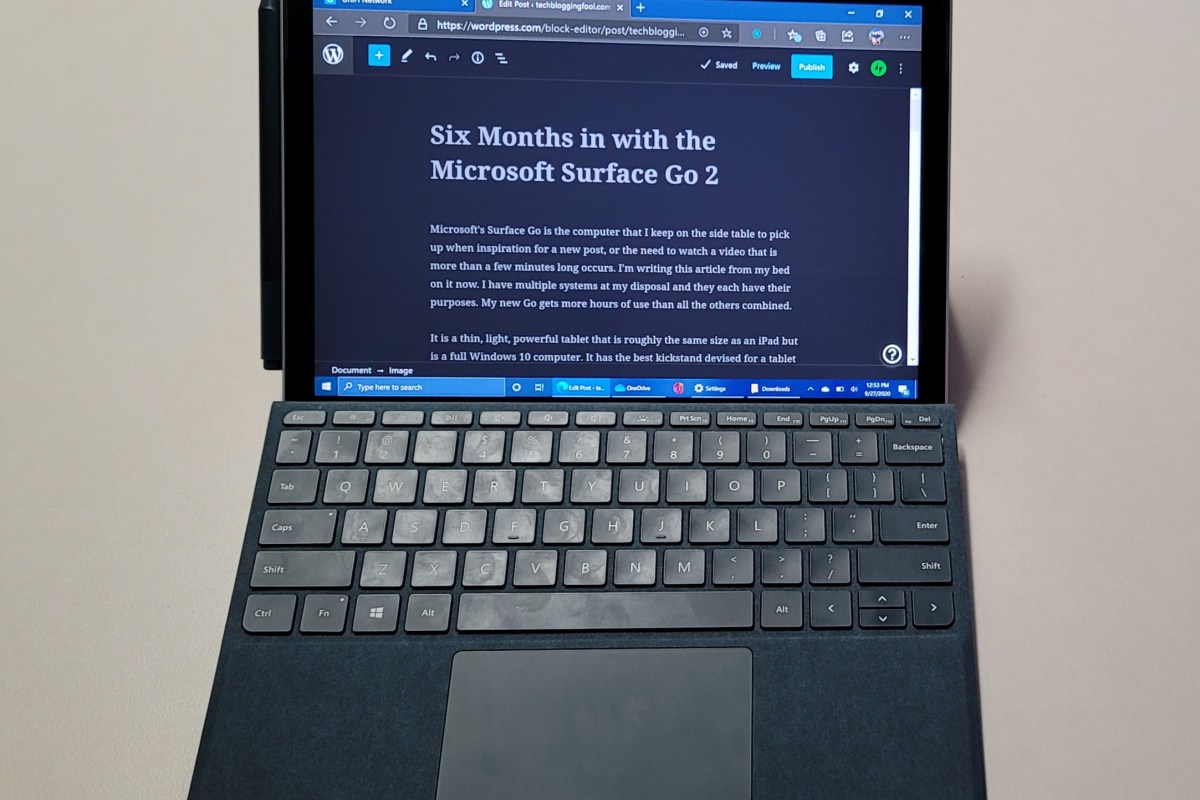
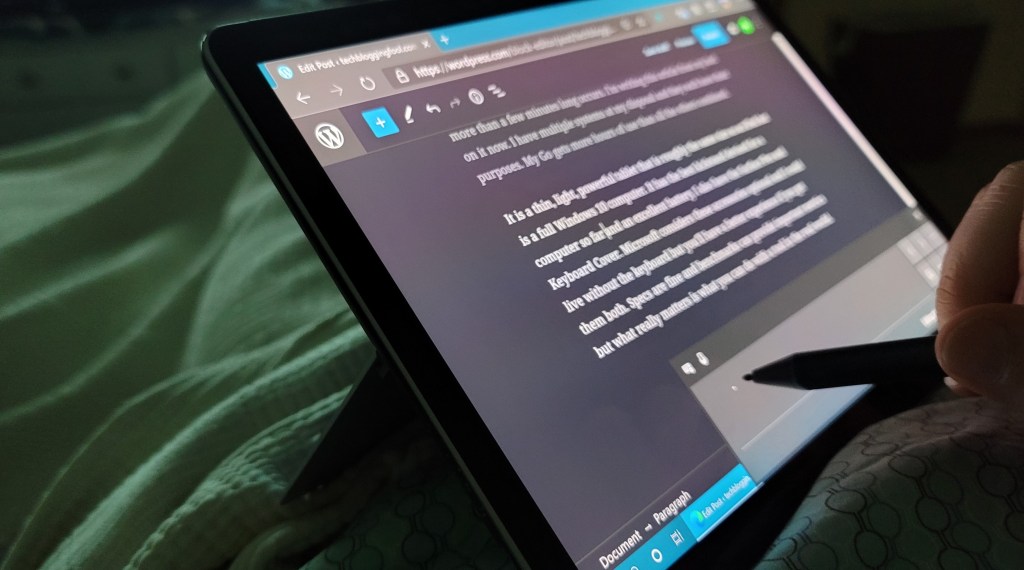
Microsoft’s Surface Go is the computer that I keep on the side table to pick up when inspiration for a new post, or the need to watch a video that is more than a few minutes long occurs. I’m writing this article from my bed on it now. I have multiple systems at my disposal and they each have their purposes. My new Go gets more hours of use than all the others combined.
It is a thin, light, powerful tablet that is roughly the same size as an iPad but is a full Windows 10 computer. It has the best kickstand devised for a tablet so far and an excellent battery. I also have the Surface Pen and the keyboard cover. Microsoft considers these accessories optional and I could live without the keyboard, but you’ll have a better experience if you get them both. Specs are fine and benchmarks can provide important metrics but what really matters is what you can do with a tool in the real world.
Almost every morning before I climb out of bed I grab my Go off the nightstand and check Outlook, Teams, the weather, and my company’s line of business apps to see if there are any emergencies and wrap my head around the day’s work. I don’t have to type any passwords. I just click the power button and the Windows Hello camera recognizes me, even in the darkened room with my crazy bed-head. I pull the pen off it’s magnetic spot and answer or fix anything that requires immediate attention. This is easy because all of the apps are open at once and I’m already on the VPN. If I didn’t hit snooze too many times, I usually check the news before I head to the gym where the Go server as a perfect video screen on the machines.
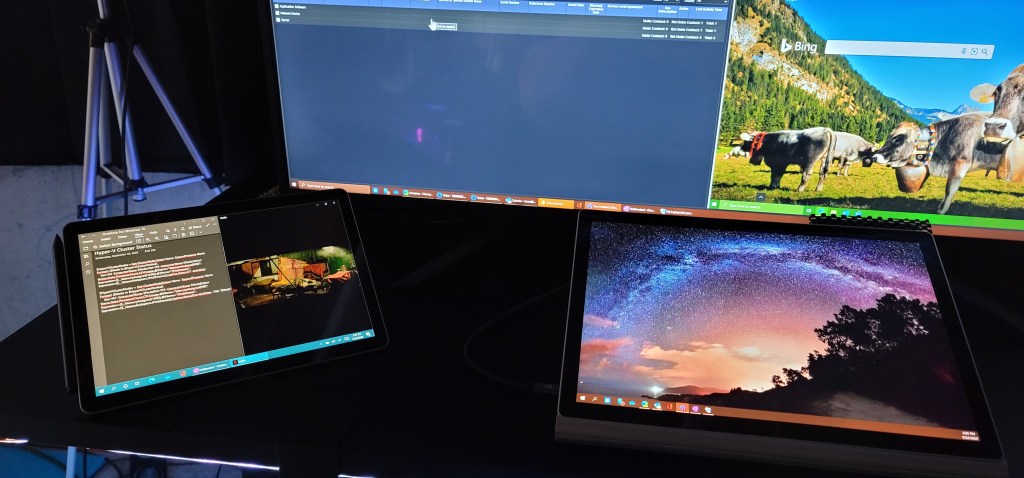
Once I’m at work, the Go becomes my Notebook. OneNote is always open. I’m in countless meetings and conversations with people about important things, there’s no way I would remember all of this stuff. I usually have the screen split between OneNote and one of the video apps that I subscribe to. This thing has great speakers. I also usually have Grapholite running because diagraming applications and networks is often the quickest way to understand them. Truth be told, I have done all of my work from the Go when the need arises. I have all of my utilities, printers, connections, and data available. My USB C dock and charger let me use the Go as a full workstation when I need to.
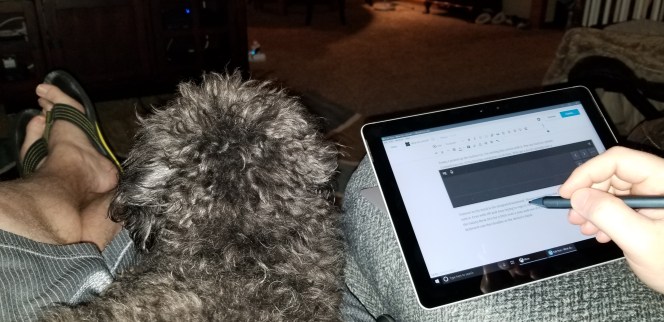
After work I usually sit in my favorite chair and watch Netflix in a small window that I mark to always stay on top. That kickstand comes into play again. The little Surface will balance on the arm of my recliner right under my writing hand and is so ridiculously comfortable. I check social media, message my friends and family, and work on my blog. Because I’m signed into Xbox live, Steam, BattleNet, and Origin I can see if any of my friends are up for a game.
Teams video meetings, Zoom meetings, Web-ex, and GoTo Meetings oh my; I’ve used my Surface Go 2 in all of them. Have you tried to split-screen Zoom on an iPad yet? The video drops as soon as the app isn’t filling then entire screen. It is fairly amusing when people try to do something else during a meeting and can’t figure out what happened. Even the one-thousand plus dollar iPad Pro can’t support multiple users or multitasking during a video call. The $399.00 Surface Go does both with ease.
The Surface Go 2 has a slightly larger screen at ten and a half inches versus the first generation’s ten inch panel. The second gen Go also features a faster processor, larger battery, WiFi 6, and Bluetooth 5.0. If you already own a first generation tablet the upgrades are not going to blow you away, but they are notable in everyday use. The first time around I went with eight gigs of ram and one-hundred twenty-eight gigabytes of storage. Now that cloud storage and SD cards are more affordable, I chose four gigabytes of RAM and sixty-four gigs of storage. There haven’t been any ill effects of that decision so far.
The Surface Go 2 is perfect for writers, students, meetings, and armchair engineers. I would have loved to have something like this in my college days. My backpack would have been much lighter. As an IT worker it is invaluable to have all of my tools everywhere I am. If you travel and find yourself packing a laptop and iPad this will cut your load in half. If your point-of-sale platform runs on Windows, the Go would let your floor employees access it without re-tooling for Android or iOS. Who couldn’t find a use for a powerful Windows computer that is smaller and weighs less than an average magazine?
 techbloggingfool.com