Fix Microsoft Word Missing Mobile View on Galaxy Note

I’ve been an avid mobile writer for quite some time. I’m writing this post with my S-Pen on my new Note. A problem that I first experienced on my Galaxy Note 8, followed me to my new device. The mobile edition of Microsoft Word has a layout called “Mobile View” that reflows the document you are working with to be easily readable on a phone.

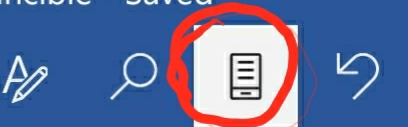
Without the mobile view, it is nearly impossible to read or edit Word files on a phone. Starting with my Note 8, the button that turns mobile view on or off would randomly disappear. I searched Google and read countless posts that never helped. I reinstalled the app, reset my phone and everything in between.

I was disappointed that even a new device didn’t solve the problem. I was also more determined then ever to resolve the issue. After a lot of troubleshooting I have found the problem.

It’s being caused by the Note’s impossibly high screen resolution. Word Mobile assumes that tablet devices don’t need the mobile view feature. It makes the device type determination by the display’s resolution on launch.

If your display is running higher than 1080 when you open Word, the full ribbon is displayed and it doesn’t have the mobile view button.
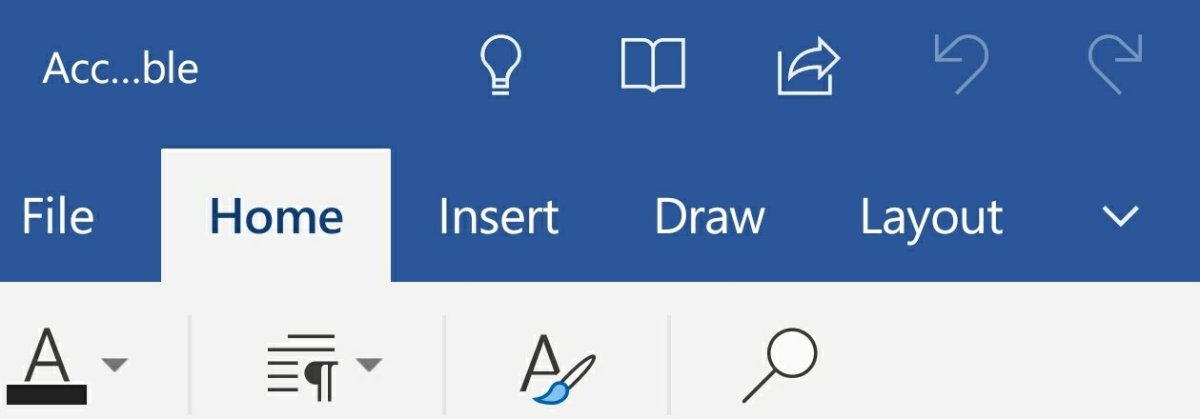
Close Word. Go to Settings -> Display -> Screen Resolution and choose 1080P or lower.
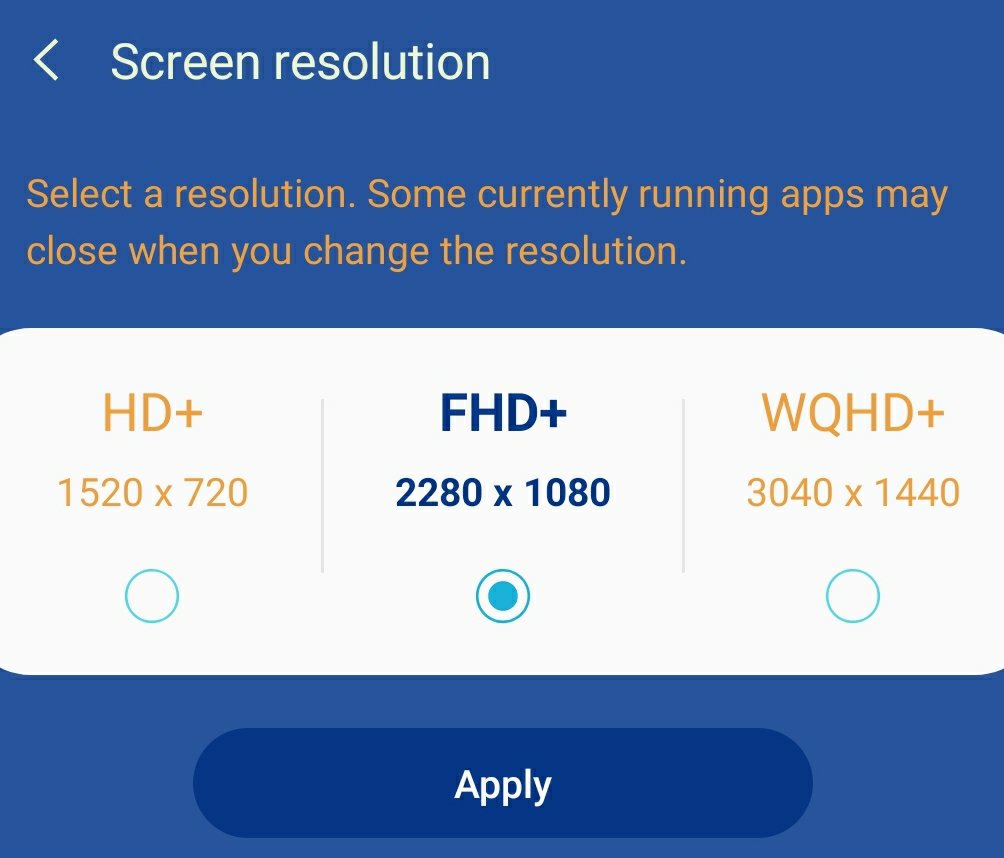
Then open Word and the mobile ribbon will be displayed along with the all important button. After Word has opened you can raise the resolution and retain the mobile view until Word is closed.

Finally! My frustration with Word Mobile is over.

PowerShell; Set Office 365 Passwords in Bulk

Recentley, I needed to set a new password for Office 365 users in bulk without Azure AD Connect. I needed to be sure that I didn’t give service accounts new passwords. In addition, this was for a multi-state organization and we wanted to set the new passwords one city at a time.

I was able to use PowerShell and the MsOnline module to meet all of the requirements. If you haven’t already, you’ll need to install the MsOnline module before running the code below. Open an elevated PowerShell console (Run as Administrator) and type Install-Module MsOnline; select Y (Yes) for any prompts.

$UserCredential = Get-Credential
       Connect-MsolService -Credential $UserCredential

$City = Read-Host "Enter city's name to set a new password for all users in that location"
$NewPassword = Read-Host "Enter new password for all user's in the specified city"

$O365_Users = Get-MsolUser -All| where {($_.city -eq $City) -and ($_.isLicensed -like "True")}|select UserPrincipalName
       foreach ($user in $O365_Users)
              {
                 Get-msoluser -UserPrincipalName $User.UserPrincipalName |set-msoluserpassword -newpassword $NewPassword -forcechangepassword $false
              }

When you run the script it will prompt you for your Office 365 admin credentials, the city, and the new password that you would like to specify. You can force a password change after the first logon by chainging $false to $true.

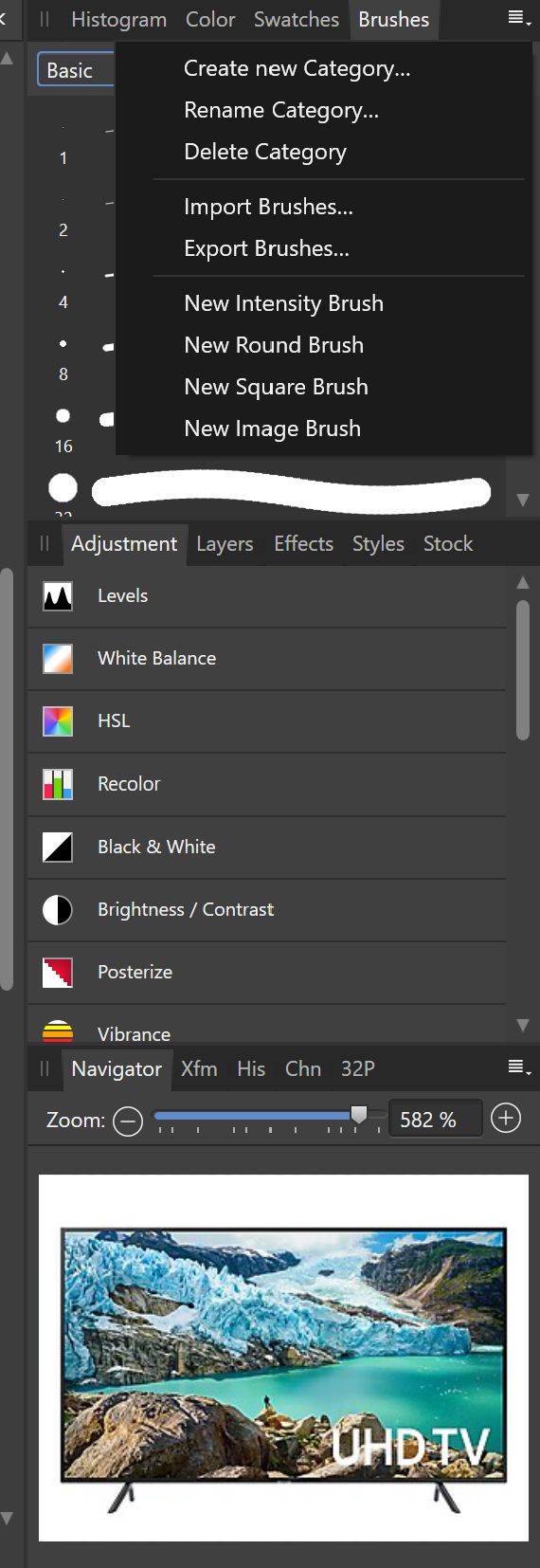
Photoshop and Lightroom Too Expensive? Try Affinity Photo and Darktable Instead

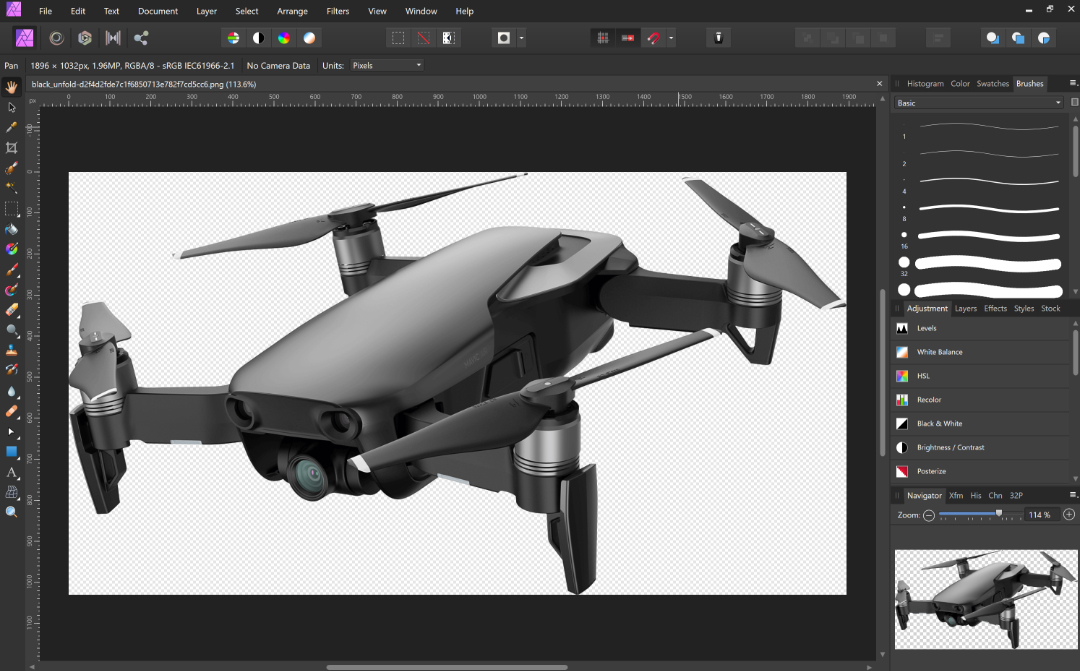
I’ve been editing pictures on computers since the beginning of digital photography. I started with one of the first consumer grade digital cameras, the Casio QV-11 and never went back to film. I’ve used countless photo editing apps but nothing compared to Adobe’s Photoshop.

Adobe changed to their current subscription only model in 2013 and I signed up. I paid sixty dollars a month for access to all of Adobe’s software and one-hundred gigabytes of cloud storage. For a while the cost seemed justified. Eventually, I started thinking about its cost compared to how often I used it and decided I needed to find an alternative.

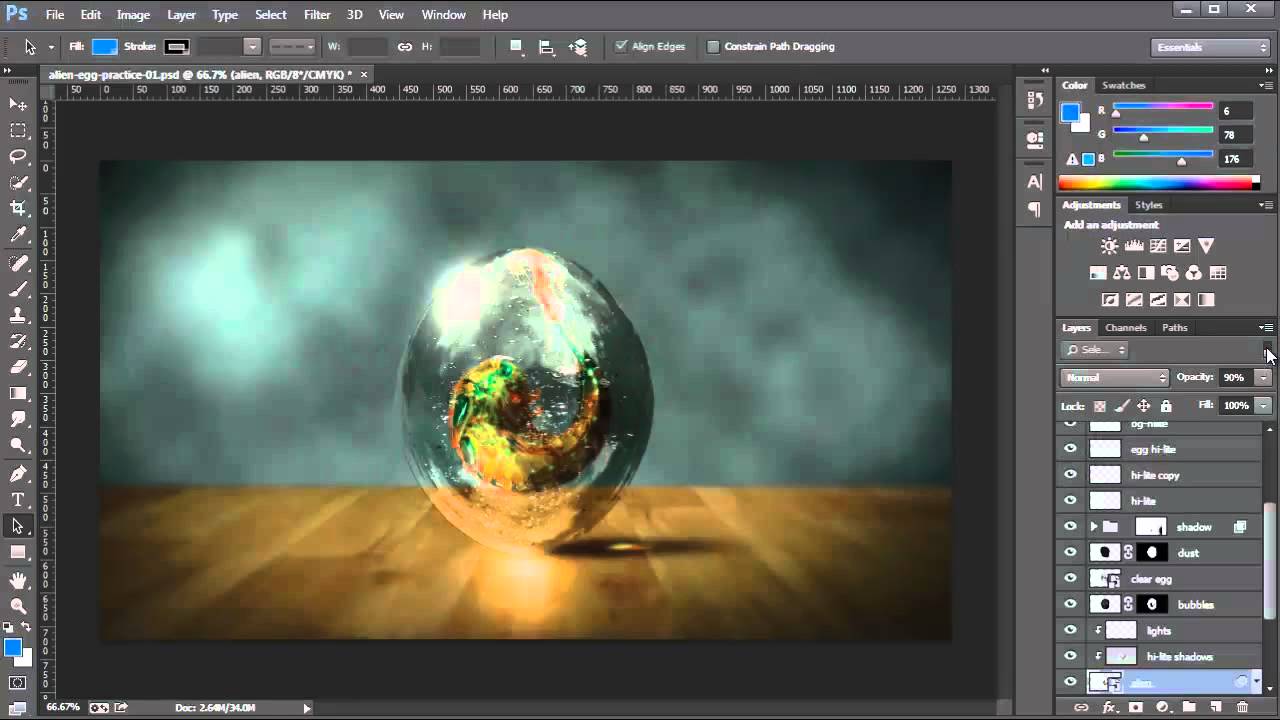
Photoshop

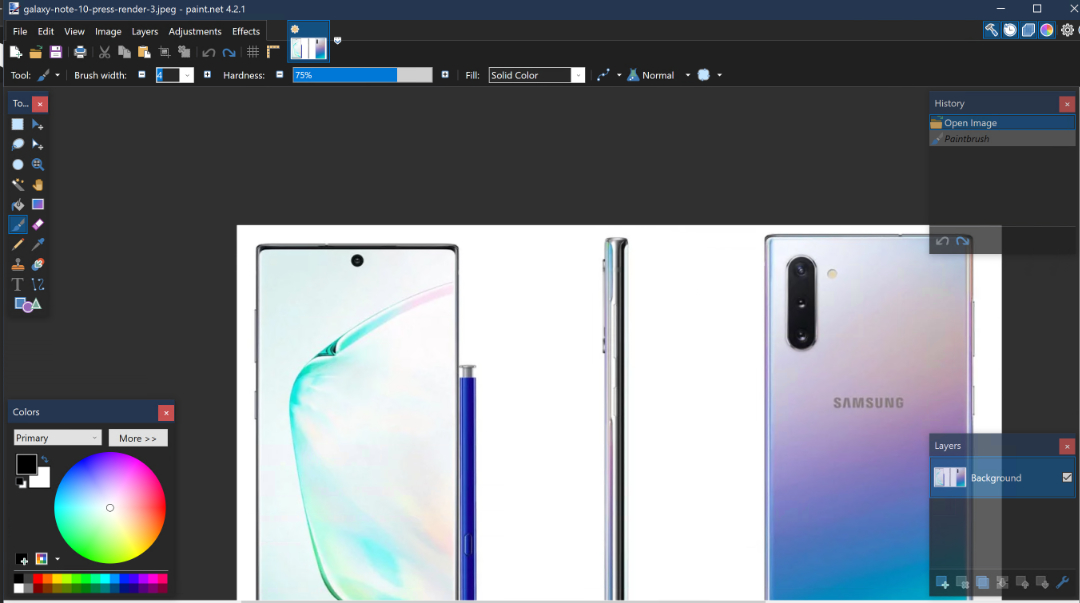
I began testing alternative applications to see if any had improved enough, or if there were any new offerings that could replace Photoshop for my needs. Paint.Net and GIMP are great, but they lack true digital pen support, advanced brushes, batch processing, and some of the other tools that I’ve come to rely on. My goal wasn’t to find free software, but if it was I would probably be using Paint.Net (can still download free from the web site).

Paint.Net

I had looked at Serif’s Affinity Photo in the Microsoft Store before. It was coincidentally on-sale so I purchased and installed it. I launched the new software with a skeptical mindset. How could a forty-dollar app compete with a powerhouse like Photoshop? The skepticism didn’t last long.

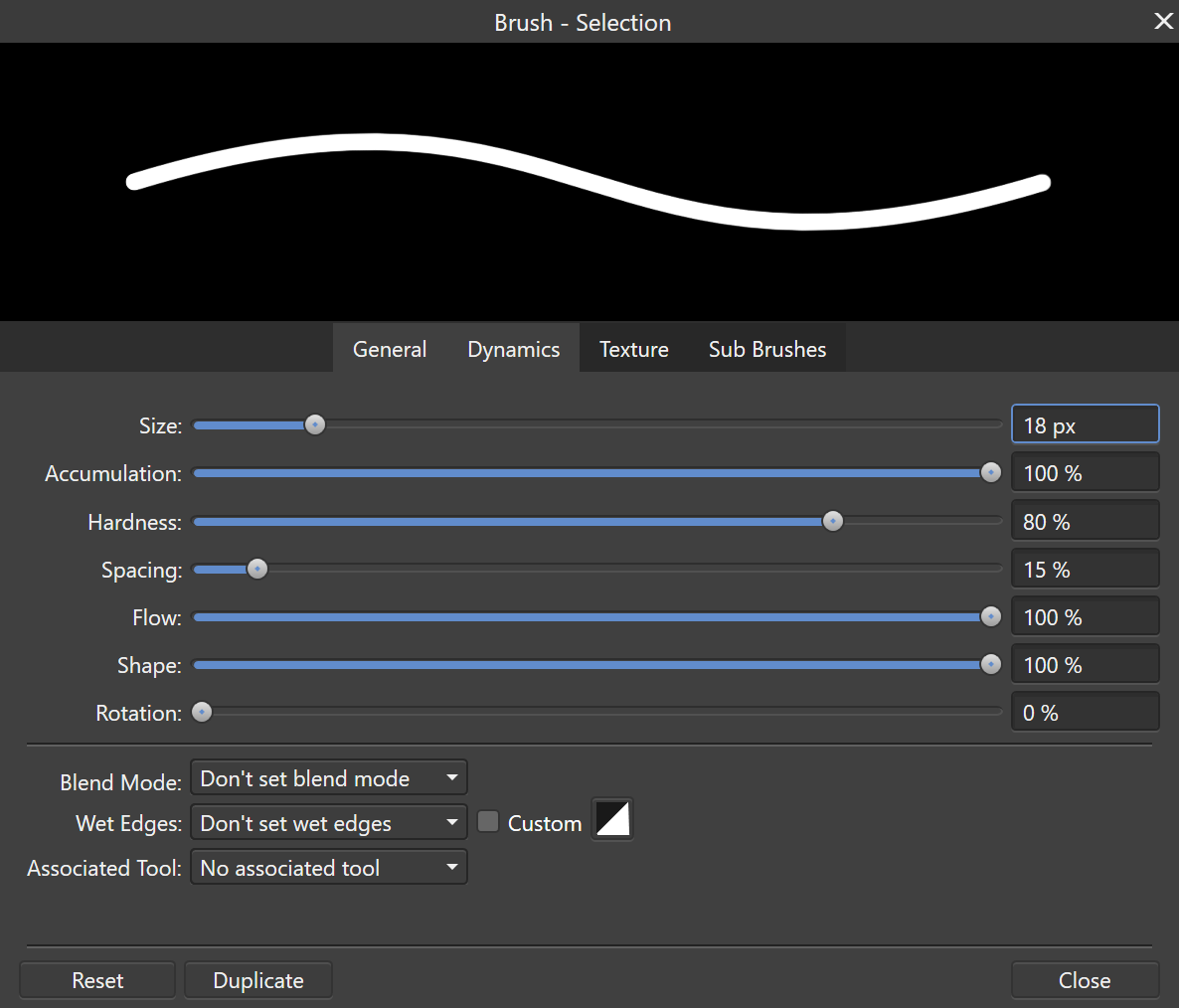
What sets Photoshop apart from other photo editing software is the number of options, customizations, plug-ins, brush packs, and the ecosystem around it. While Affinity is not on the same scale as Adobe, it does have many of these features. Places like Frankentoon make custom brush packs for Affinity. All of the tool panes can be customized to your liking. Lots of Photoshop plug-ins can be imported into Affinity.

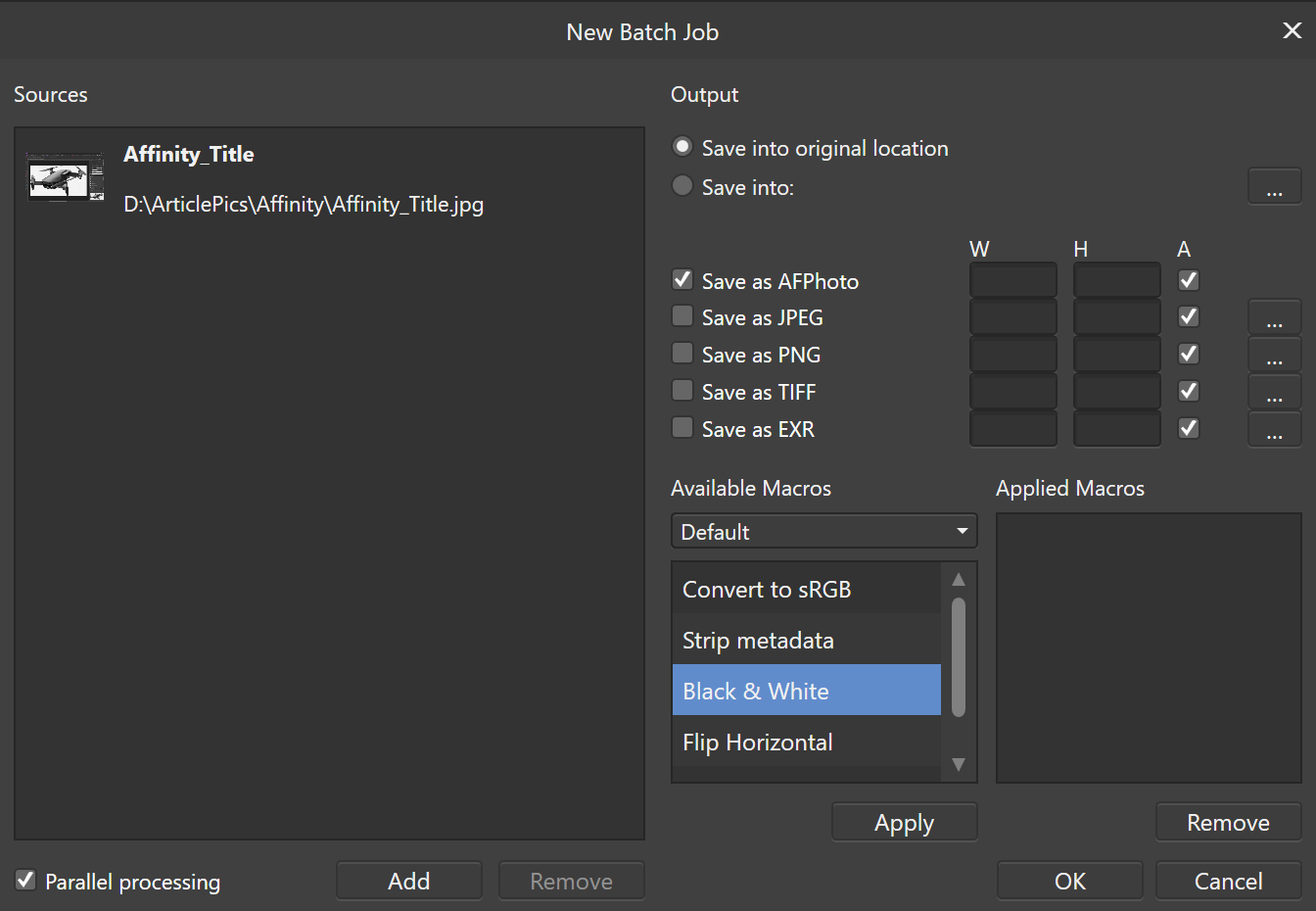
You can process jobs in batches, create your own custom brushes, export your work into almost any format you can think of, and more. Affinity Photo supports the Surface Dial and other digital tools, it even allows you to select from multiple GPUs. For me the only Photoshop feature I use on a regular basis that was missing from Affinity Photo was Lightroom.

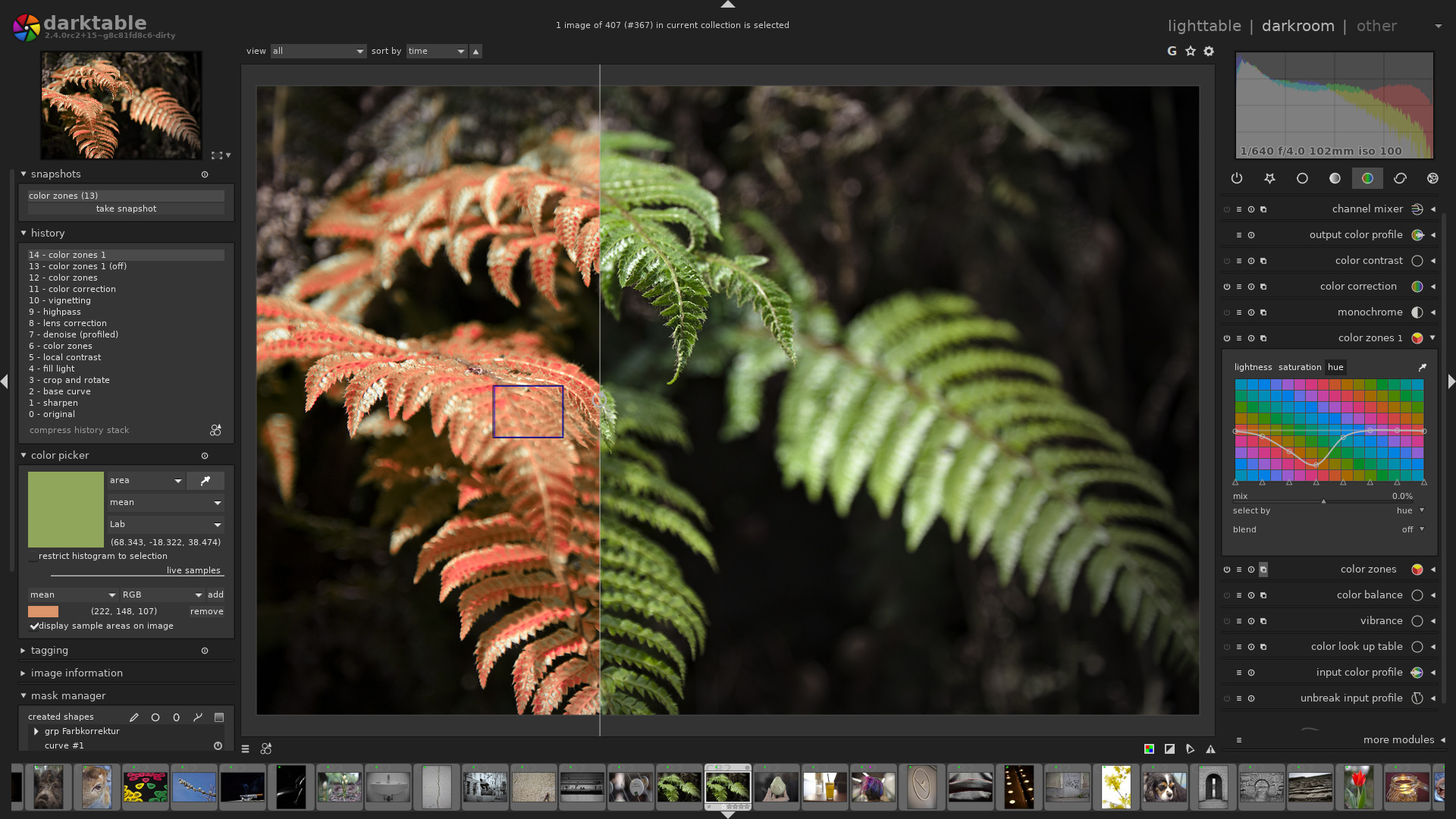
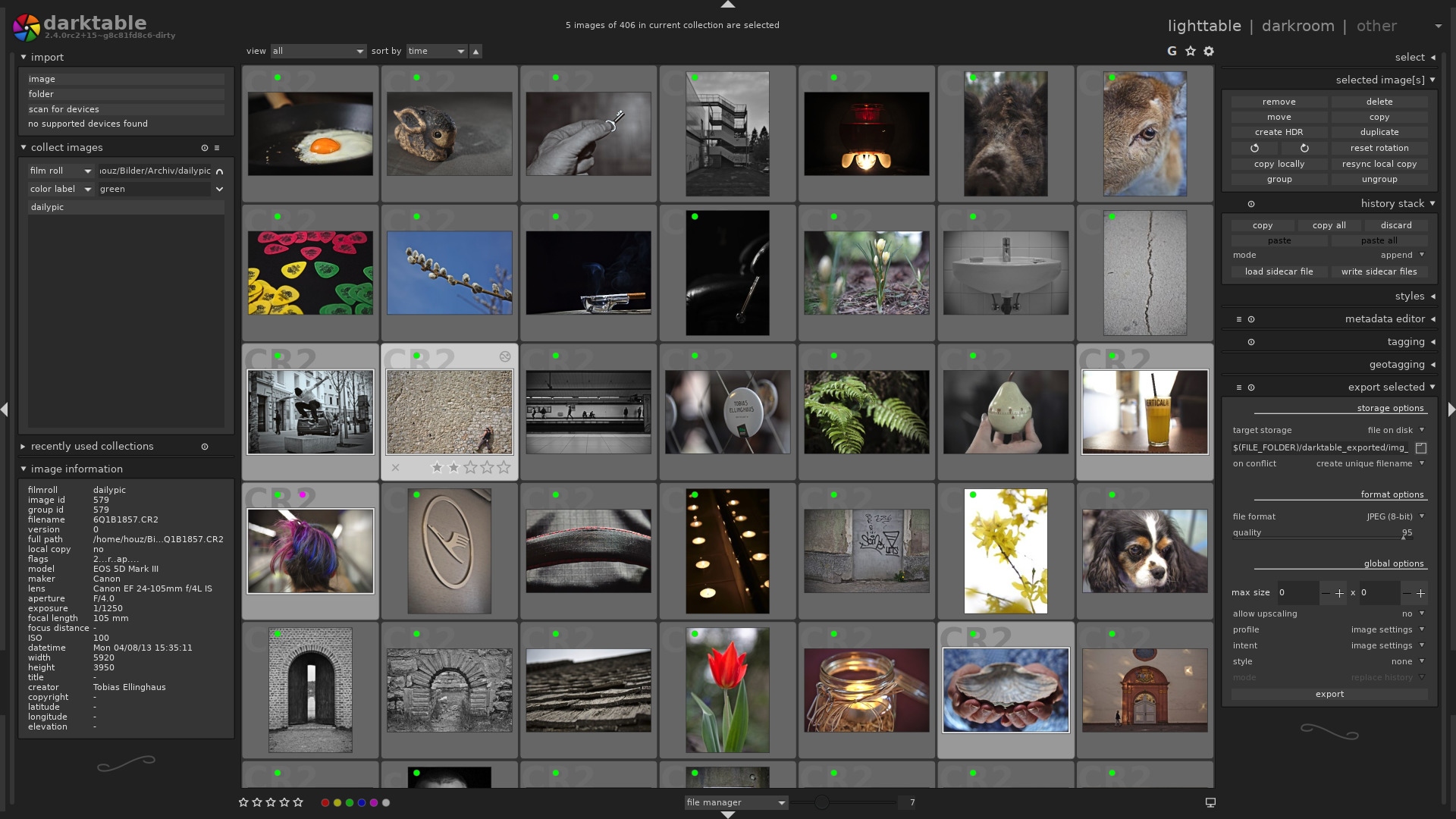
I was able to find the perfect open-source replacement. Darktable runs on Windows, Linux, and Mac OS. It costs nothing, and works great for my needs. There’s both a lightroom for pursuing your photo collections and a darkroom for adjusting images.

Photoshop is still the king of photo editing solutions. Its high-price can be prohibitive for average use cases. If you’re a power-user like myself, give Affinity Photo and Darktable a try (both have trial editions). I bet you’ll be shocked at how easily you can transition into these apps.

Visio too Expensive? Try Grapholite Instead

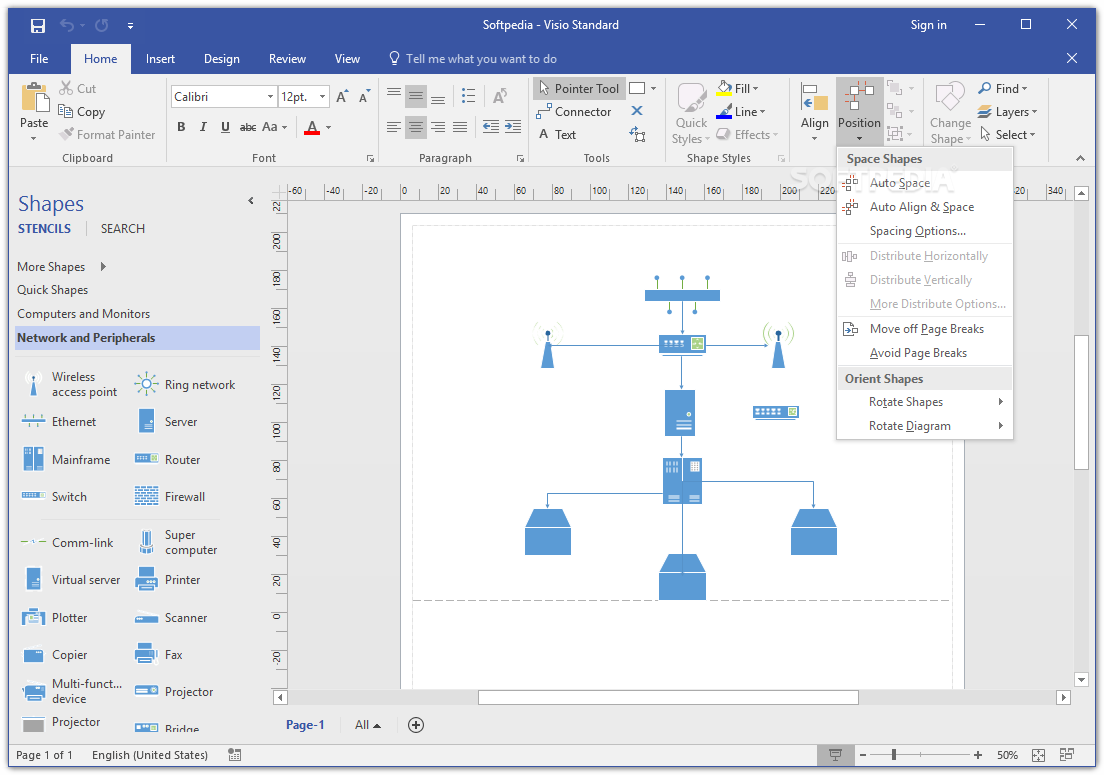
Microsoft’s Visio has been the de facto diagraming application for almost two decades. I’ve used it to draw networks, floor plans, swim lanes, org charts, and countless random things for as long as I can remember. It is a truly great application. In my opinion its only flaw is the price tag.

At two-hundred and fifty dollars for the standard edition and almost six hundred for the professional version, it is just to pricey to justify for anyone that doesn’t need to decigram on a regular basis. Even as an IT professional that uses it frequently, I find the cost prohibitive.

Over the years I have tried numerous alternatives: OpenDraw, Google Drawings, and Dia to name a few. None of them were able to do the job for me. Don’t get me wrong, the applications work, they always missed some feature or function I needed to complete my work.

Earlier this year I purchased a new laptop, I was using it to write some documentation for a job. I needed to add a technical drawing to my document, but I didn’t have Visio on my personal computer. I didn’t want to fork over a few hundred dollars so, I opened the Windows store and found Grapholite.

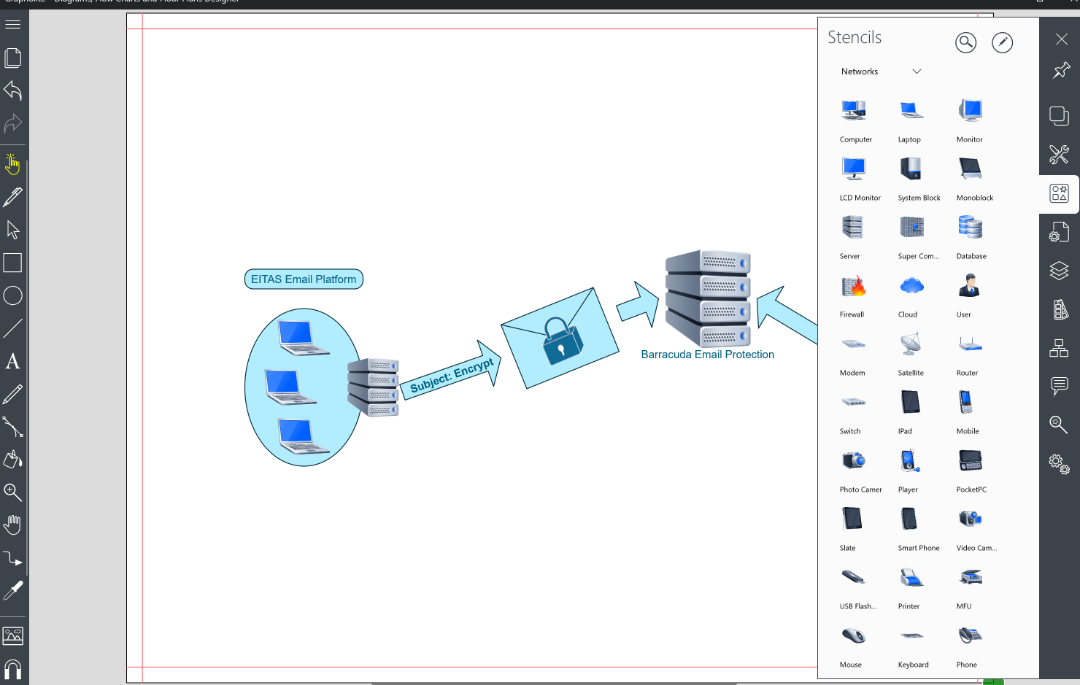
Grapholite is available for Windows, Android, and iOS. I was able to install the software and create the drawing I needed without issue. The software is intuitive and specifically designed for touch screens. All the main features I use in Visio are available in Grapholite. Grouping, layers, auto-connectors, import pictures, a wide array of stencils, themes, and snap grids are all available in easy to use side bars.

To be honest, I didn’t expect the software to work as well as it does. It cost less than $30.00, I was shocked to find myself preferring it over Visio for basic diagraming. It seems like everytime that I use the software I find a new feature. For example; just the other day I learned it could export drawings to a VDX (Visio Drawing File Format).

Don’t get me wrong, there are still things Visio does that Grapholite has no way of accomplishing; dynamic data graphics, auto-discover, and importable stencil packs are all missing. I still haven’t installed Visio on any of my personal systems. I find Grapholite easily does the job. If your diagraming needs don’t involve advance shape data, or complex coding, it will probably do the job for you too.

Exchange Global Address List Synchronization

If your company has more than one Exchange environment or you are in the process of migrating, you will inevitably discover that the email platform does not have a native method for synchronizing contact information between multiple installations. When administrators first run into this situation the first thoughts are something along the lines of, “That’s ridiculous!” followed by, “Now what?”.

Run a Web search for GAL Sync and you will find a plethora of commercial tools made to do the job. I have personal experience with a couple of them and for the most part they work well. The issue is sticker shock. If you administrate a large environment, some of these tools can exceed six figures by the time you’ve purchased everything that you need.

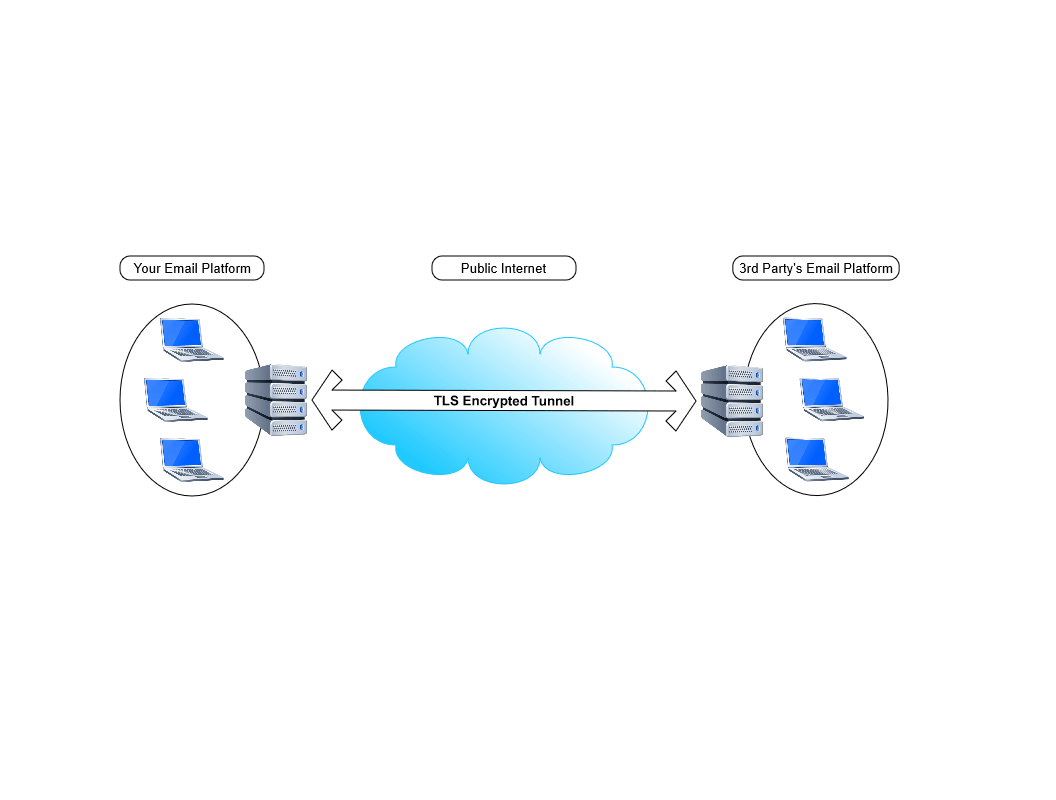
Before you plunk down a giant wad of cash, consider doing it yourself with a little PowerShell know how. The last article on my blog described how to use Exchange to securely transfer files between organizations. If you use that technique to send contact data in the form of a CSV, it can be easily imported into AD on other domains.

Setup the Exchange File Transfer technique as described in this blog post. Now we’ll need to adjust the sending script to send Exchange contact data that can be imported into AD.

For true synchronization, you’ll need to run the sending and receiving process on all of the AD / Exchange environments involved. However, in most of the cases I’ve personally run into, only the Headquarters environment needed to have contact data for all the locations and companies.

#Author: Kevin-Trent@Hotmail.com 2019
# Export-ExchangeContactData.ps1
#This script will scan your Exchange Mailbox users and capture each person's Displayname and PrimarySmtpAddress. 
#The data will be put into a csv and e-mailed as an atttachment. 
#The Companyname variable below is used to name the files we send. The SMTP server is the fqdn of an SMTP relay to send the emails from.
#This script should be scheduled to run on an Exchange server once a day.

$UserCredential = Get-Credential
$Session = New-PSSession -ConfigurationName Microsoft.Exchange -ConnectionUri http://exchangeserver.mydomain.com/PowerShell/ -Authentication Kerberos -Credential $UserCredential
Import-PSSession $Session

Import-Module ActiveDirectory

#Variables:
$companyname = "MyCompany"
$smtpserver = "MyMailServer"
$reportname = $companyname+"-"+(get-date -f MM-dd-yyyy)

#Retrieve and format data. Add Properties in select line as needed.
Get-Mailbox -IgnoreDefaultScope -ResultSize Unlimited | 
Select Displayname,PrimarySmtpAddress | 
Export-CSV c:\temp\$reportname".csv" -NoTypeInformation

#Email the report:
Send-MailMessage -SmtpServer $smtpserver -To mailbox@mydomain.com -From mailbox2@mydomain.com -Subject "Contacts from $companyname" -Body "Please see the attached file $senderdomain" -Attachments C:\Temp\$reportname.csv
Start-Sleep -Seconds 60
Remove-Item -Path c:\temp\$reportname".csv"

Now all that is needed is an import of the contact data into Active Directory. Again, a few lines of PowerShell code will do the job.

#Author: Kevin-Trent@hotmail.com
#Import-Contacts.ps1
#Imports CSV data as AD contacts into the OU that you specifiy.
#Add Properties to match the data you've exported from the other exchange server. 

Import-Module ActiveDirectory
$Path = \\Server\Share\FileName

Import-Csv $Path | foreach{New-ADObject -Type Contact -Name $_.DisplayName -OtherAttributes @{'displayName'=$_.DisplayName;'mail'=$_.PrimaryEmailAddress} -Path "OU=$ou1,OU=$ou2,DC=$dc1,DC=$dc2,DC=$dc3"}

The Best 3rd Generation (2018) iPad Pro Case

A while back, I got my wife a twelve inch iPad Pro. She adores it. I have a difficult time writing about it because she rarely leaves it where I can get my hands on it.

I could go on and on about the machine’s positive attributes. It is unbelievably thin and lite weight. The battery lasts seemingly forever. In fact, the iPad’s biggest flaw only becomes evident when somebody pulls out a Microsoft Surface Pro next to you.

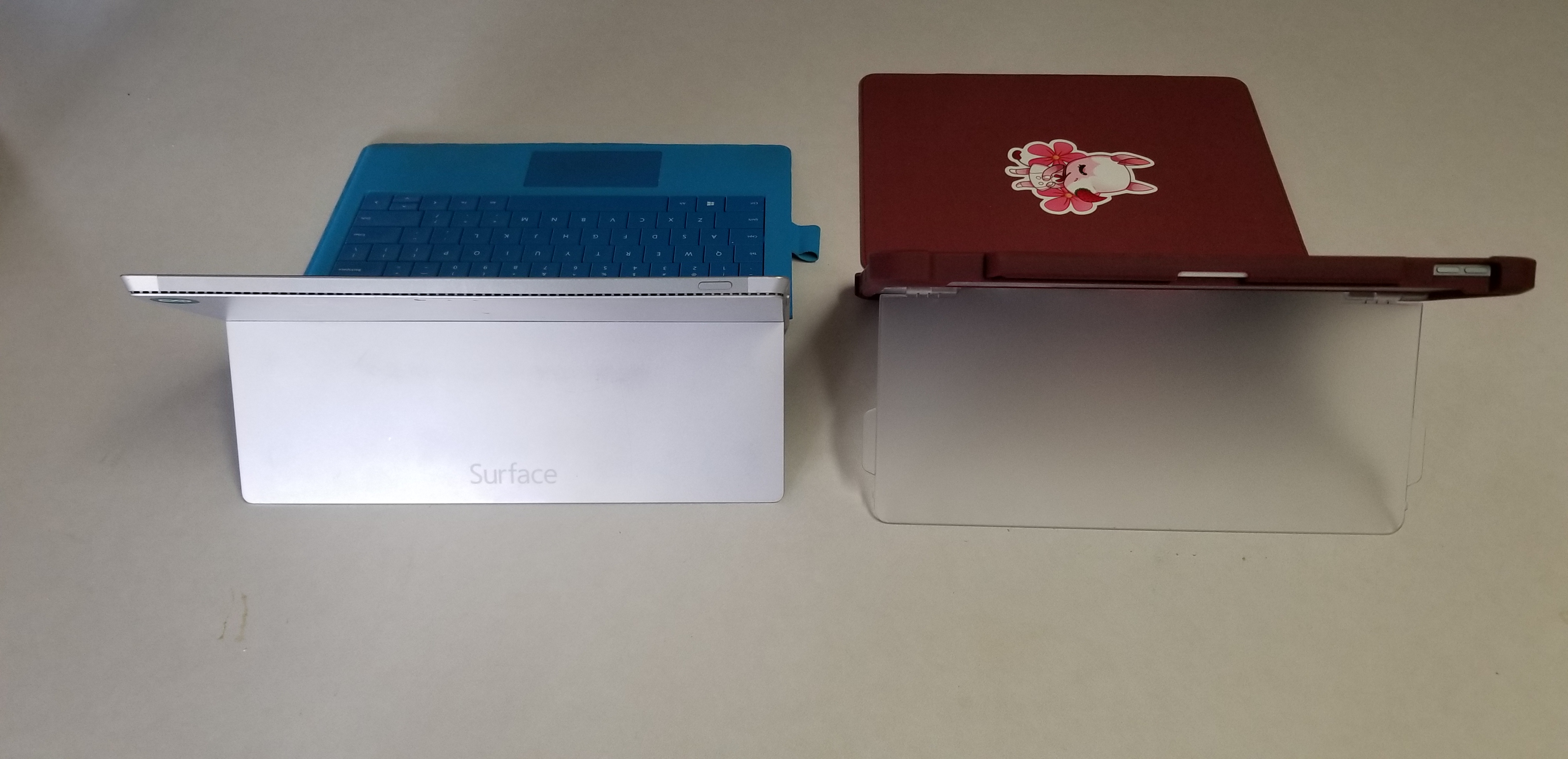
The Surface Pro’s kickstand creates instant feelings of jealousy for anyone that has spent much time drawing or writing on the iPad. It allows for the perfect angle in any situation. Why didn’t Apple include such a glorious feature on their premiere device?

Maxjoy’s iPAD pro case adds the infinitely adjustable kickstand that you’ve been missing. It hold the tablet in any angle you choose and is not dependant on slots, gears, or other clunky mechanisms to do so.

20190801_073240

In addition the case offers corner protection, an optional screen cover, and a place for your iPad pencil to live. The case is thick enough to be protective but not bulky. I like that that cover can be removed when not needed or folded back under the kickstand to keep it from digging into your legs while typing or drawing on the screen.

20190728_182051

It comes in multiple colors and sizes for the 11″ or 12.9″ 3rd Gen iPad Pro. We got ours on Amazon. If you’ve been looking for a great case for your iPad Pro, I highly recommend this one. Especially for the 12.9″ model, there aren’t very many choices out there for the larger tablet.

20190801_073443