The Techbloggingfool Nice Gift List

Tis the time of year when all mankind comes together to bring the world peace and happiness, through discount shopping. There’s a lot of technology out in the world today. Some of it is nice and some is naughty. Here’s our list of tech items you probably know about but may not have yet.

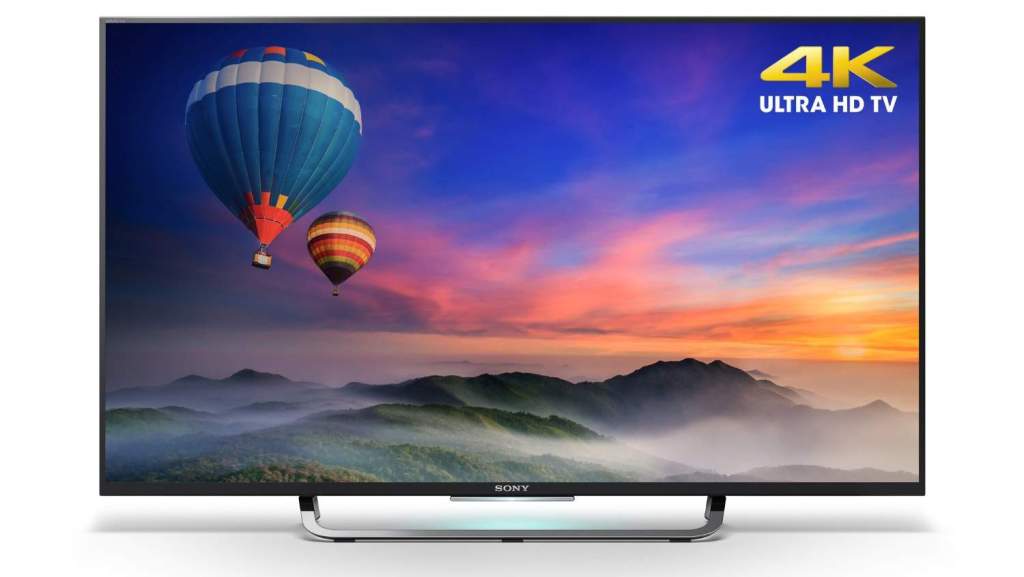
4K TV’s time has come. We have crossed the point where not having one means you are missing out. Netflix, Hulu, Amazon Video, YouTube, many gaming consoles, and computers can all take advantage of the format. My cable provider even broadcast’s some sporting events and shows in 4K. If you’ve been holding out for the ideal moment to upgrade, this is it. 65 inch 4K screens are available from multiple vendors for less than $500.00 and smaller screens are under $200.00.
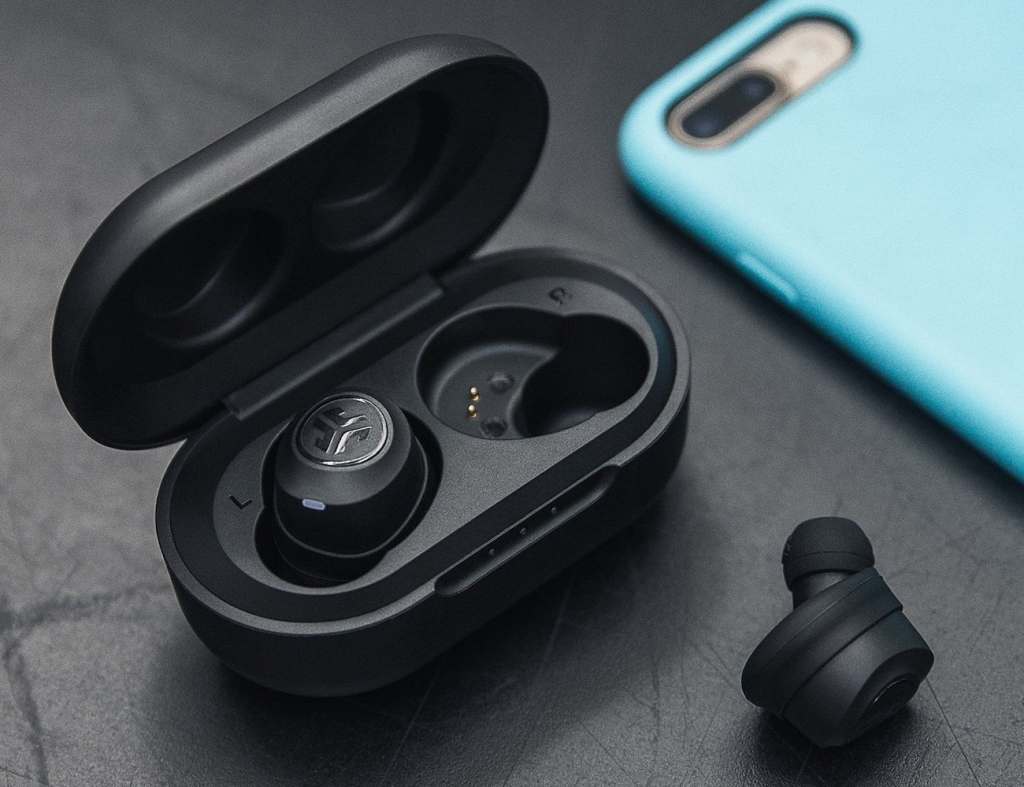
True wireless earbuds are a godsend for office and blue collar workers everywhere. If you wear headphones to stay focused and block out the world, then you have probably run into these situations: drug your phone off something, gotten a headache from the headband, been mistaken for princess Leia in a video chat, been cord yanked, or gone to a meeting with headphone hair. Personally I like the true-wireless buds that feature active noise cancelling, but no matter your flavor they are all at the lowest prices we’ve seen.
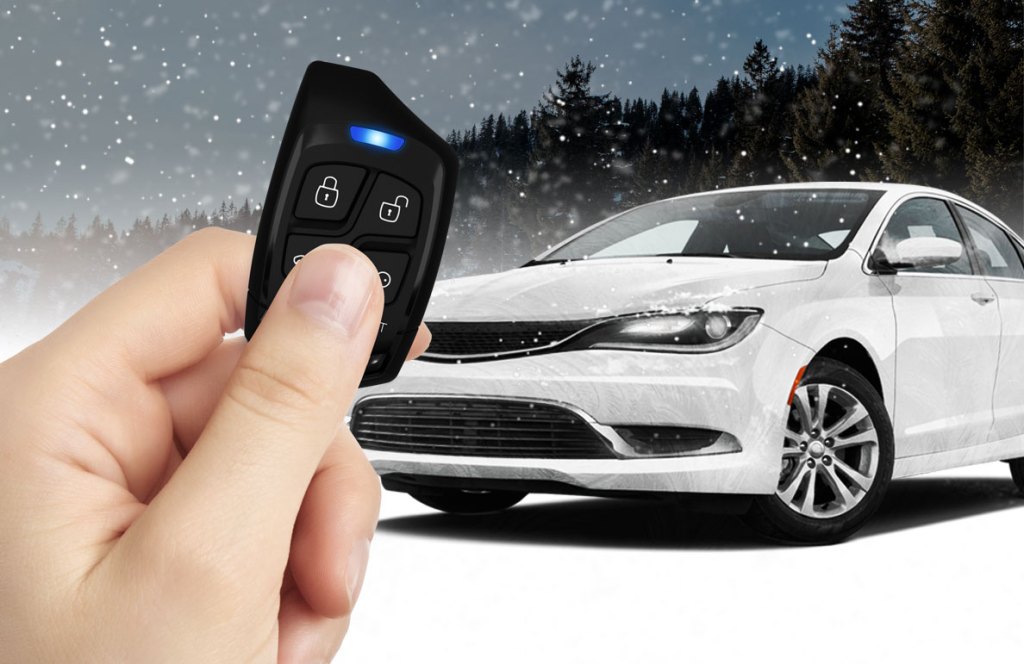
Remote start for your vehicle is an easy add-on. Best-Buy will install it into any automobile for less than $300.00. If you’re more a of a do-it-yourself type of person, you can find kits on Amazon. Most are under $200.00 and the one I put on my truck took less than an hour to install. It required no tools, or skills, of any kind, I just had to plug-in a few wires. Scraping snow and ice off your windshield and freezing to death for the first twenty minutes of your commute is so passe’.
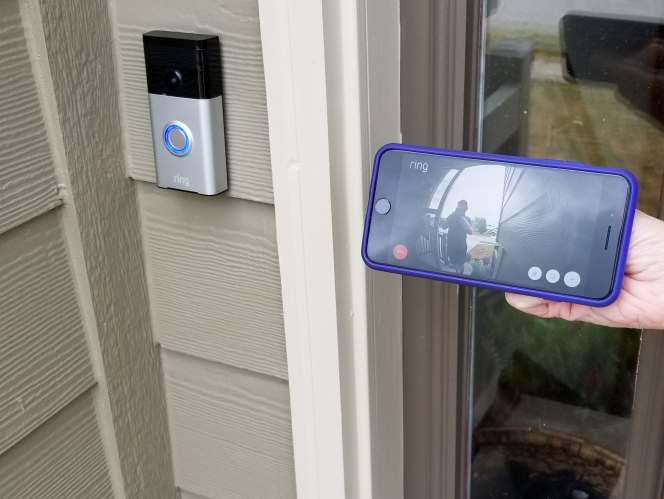
I can’t say enough about video doorbells. They are so useful in so many situations that they should be standard equipment on all homes. The ability to see who is at your door no matter where you are is a game changer. They improve security and more importantly let you chase off solicitors without getting off the couch. All of the major brands are available in easy self-install kits that require very little expertise. Follow the video instructions and you’ll have yours installed in no-time.
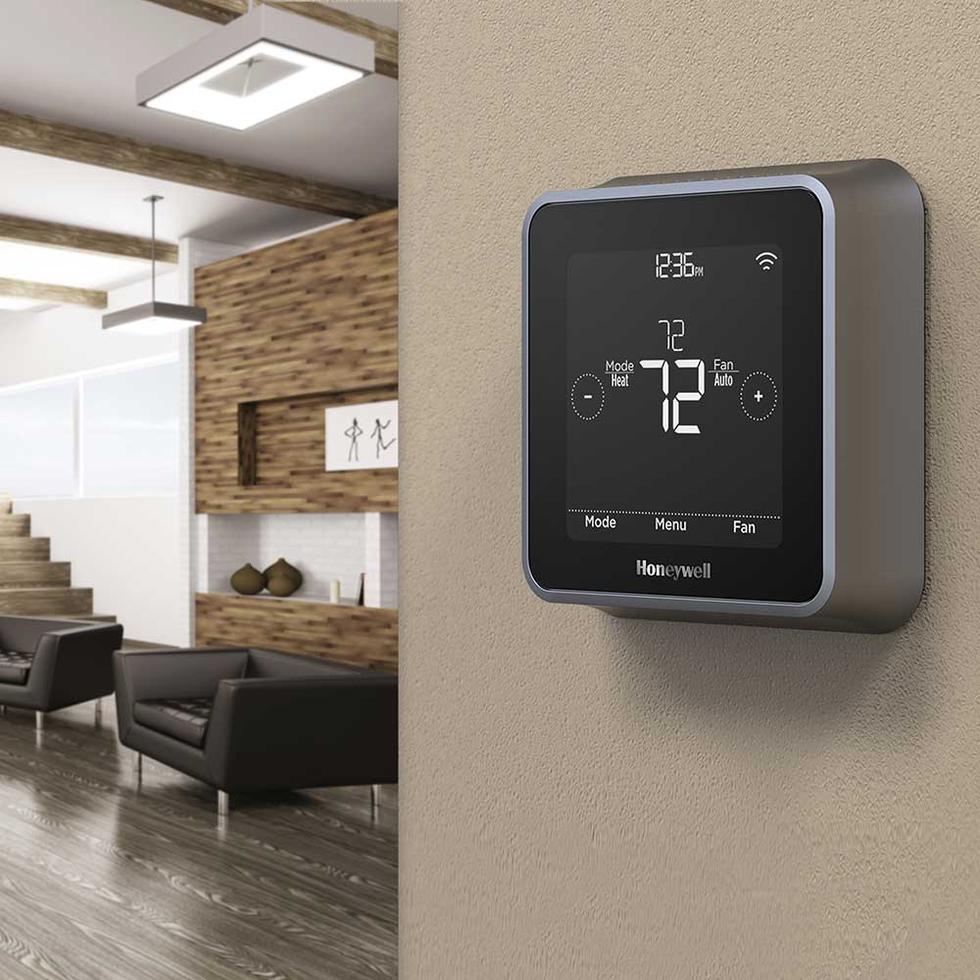
Smart thermostats save money, keep your home a more consistent temperature, and they look cool. They are available in easy to install kits that require basic home improvement skills. If you can use a screw driver and understand how sheet-rock anchors work, installing one will be a cinch.
In addition to devices, there are some subscription services that can make great gifts for people. Of course you know about Netflix, Amazon, and the new Disney Plus. Have you heard of the Xbox game pass? It gives you access to an ever increasing library of games (more than 300) on the Xbox and PC (Ultimate Pass). There’s an exploit for their $1.00 per month introductory price that will let you purchase up to three years worth of the service at the discounted rate.

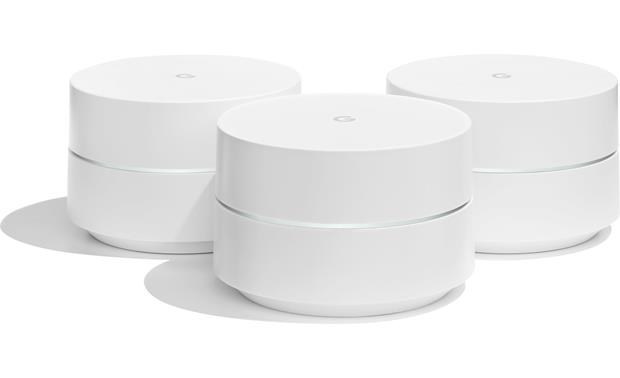
Mesh wireless networks have been available for quite a while but until recently they required professional installation. Now major manufacturers have engineered solutions that you can setup with an app on your smartphone. If you can connect your phone to a new WiFi network, you can install equipment that will drench your property in full strength signal happiness. Many of the networks are smart and will automatically load balance your devices to keep them all running at full speed.
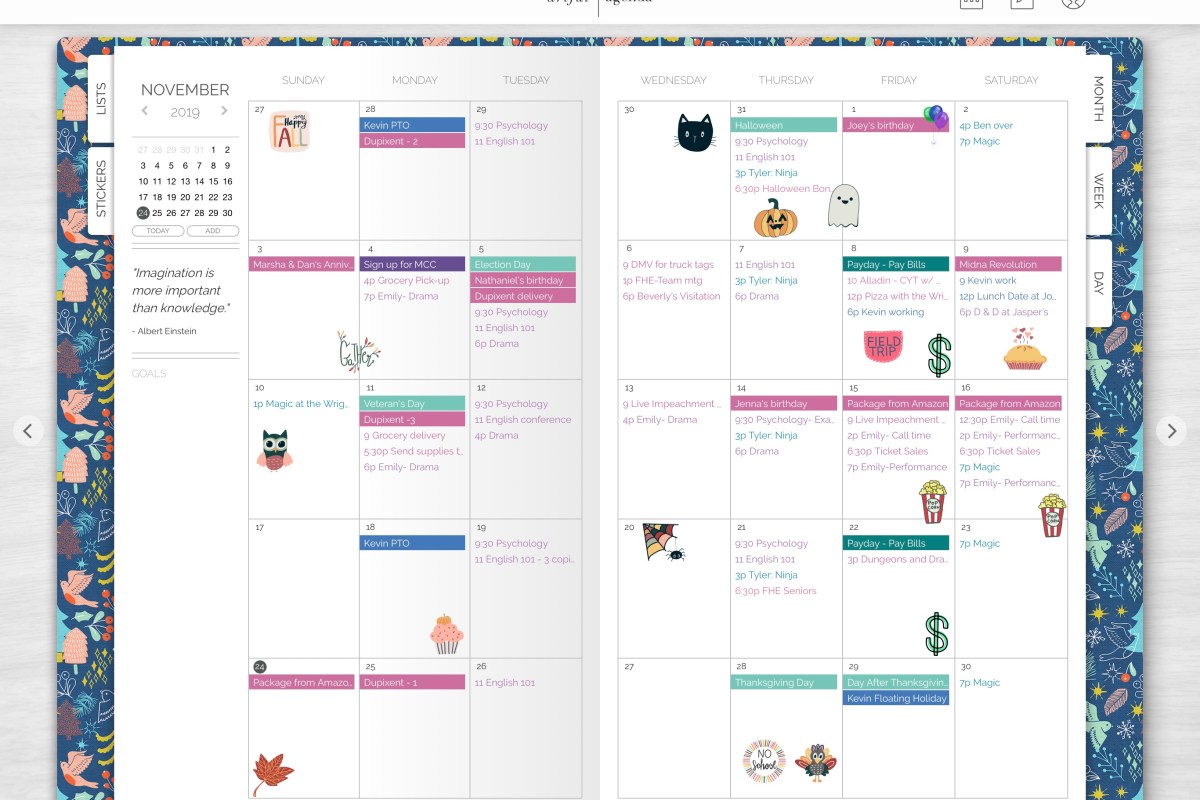
Paper and Digital Planners Meet with Artful Agenda

Many of my co-workers, friends, and family continue to use paper planners and post it notes, for impromptu meetings and interactions. They tend to use Outlook or Gmail only for items that were derived via email. When I ask why, I get variations of “paper is easier”, and “paper looks nicer”. Which I agree with. However, there’s no searching paper, you can’t back paper up, and there’s no sharing.

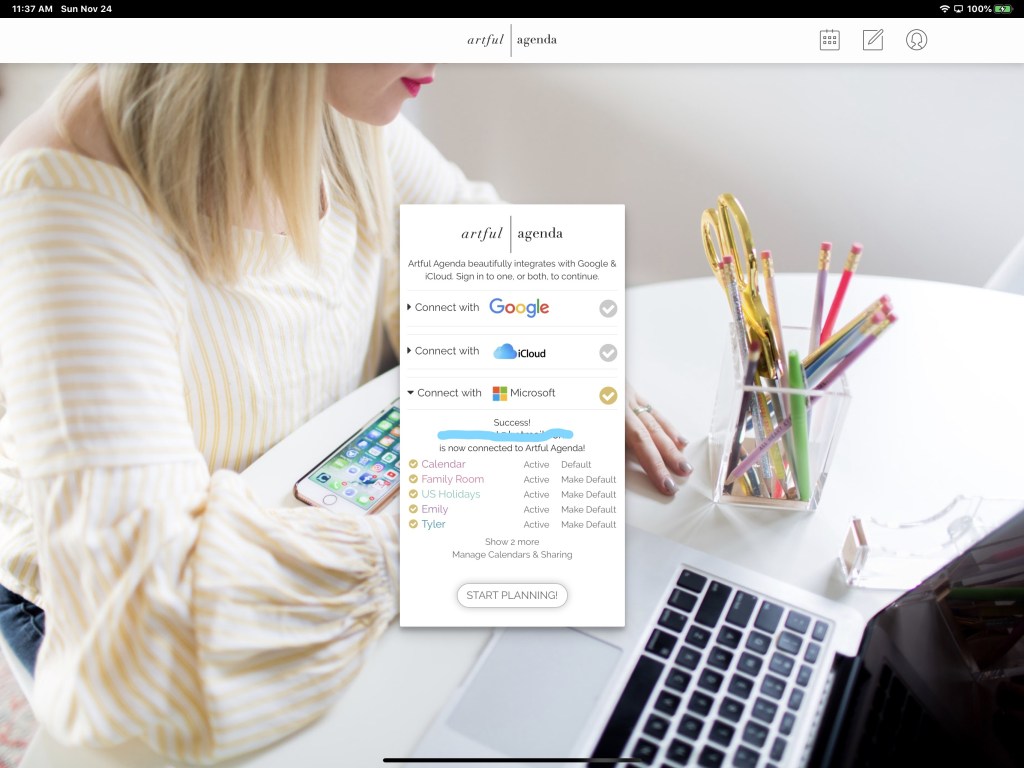
Artful Agenda strives to combine the best of both worlds. Connect it to your Google, Microsoft, or iCloud calendar and use its paper like layout and whimsical forms to manage your appointments.

The data you enter is saved to your cloud calendar and accessible through all the normal means your service provides. Artful Agenda is available as an App in your device’s app store and as a web site. The web site currently has more functionality and its layouts are more like paper.

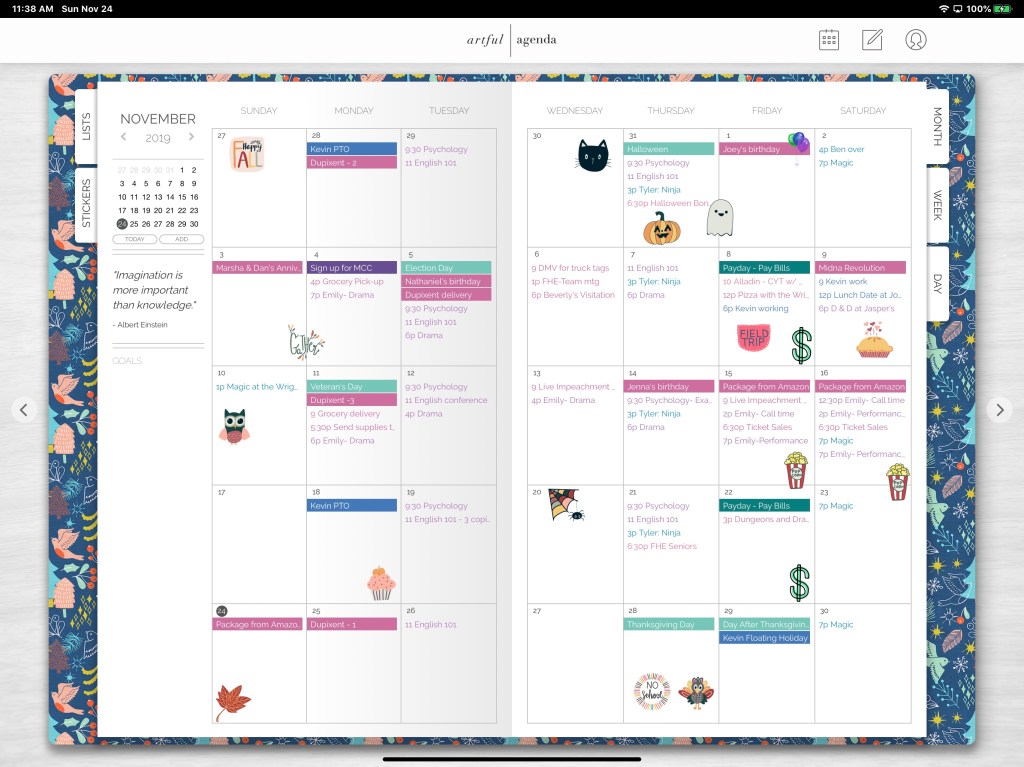
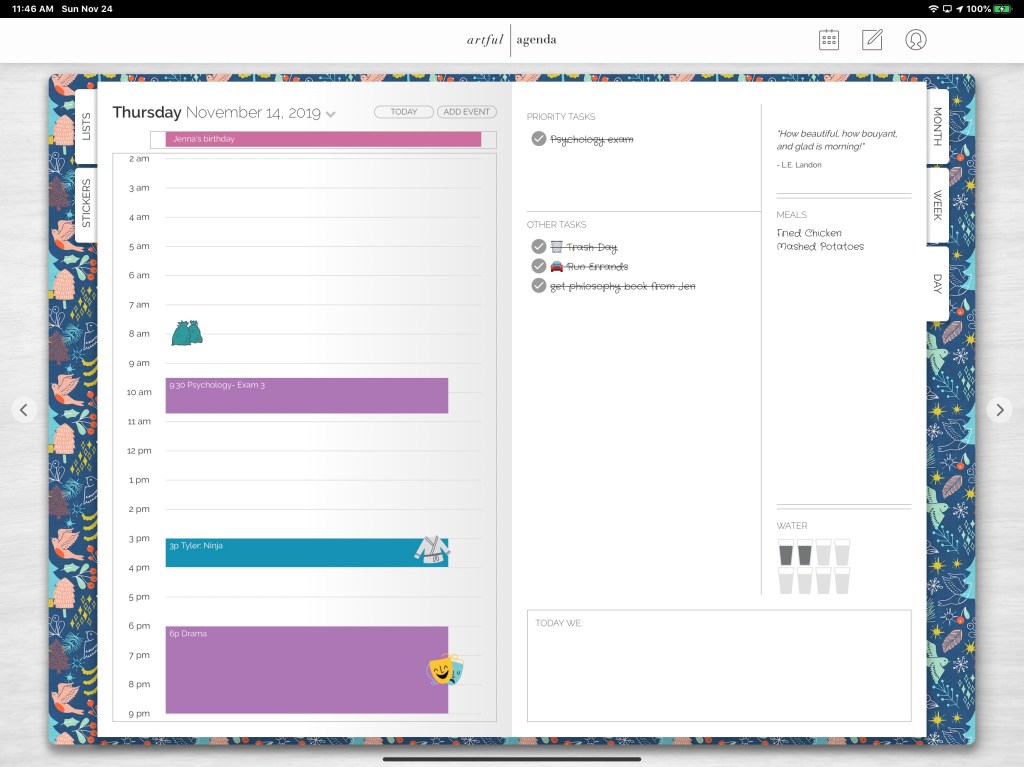
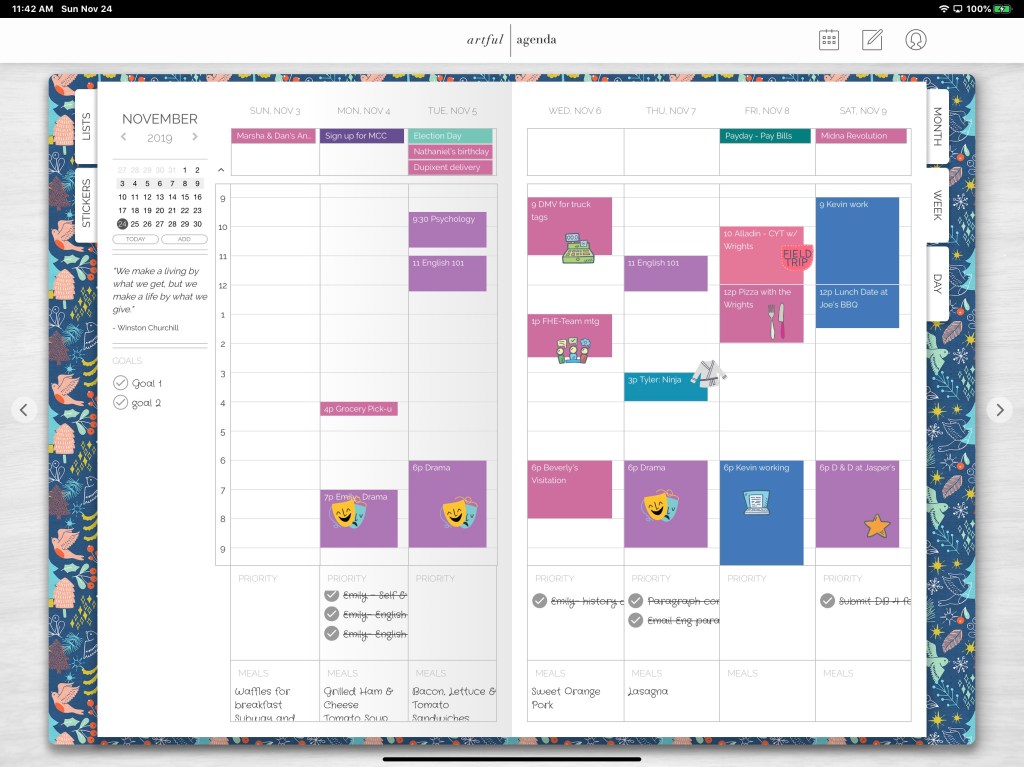
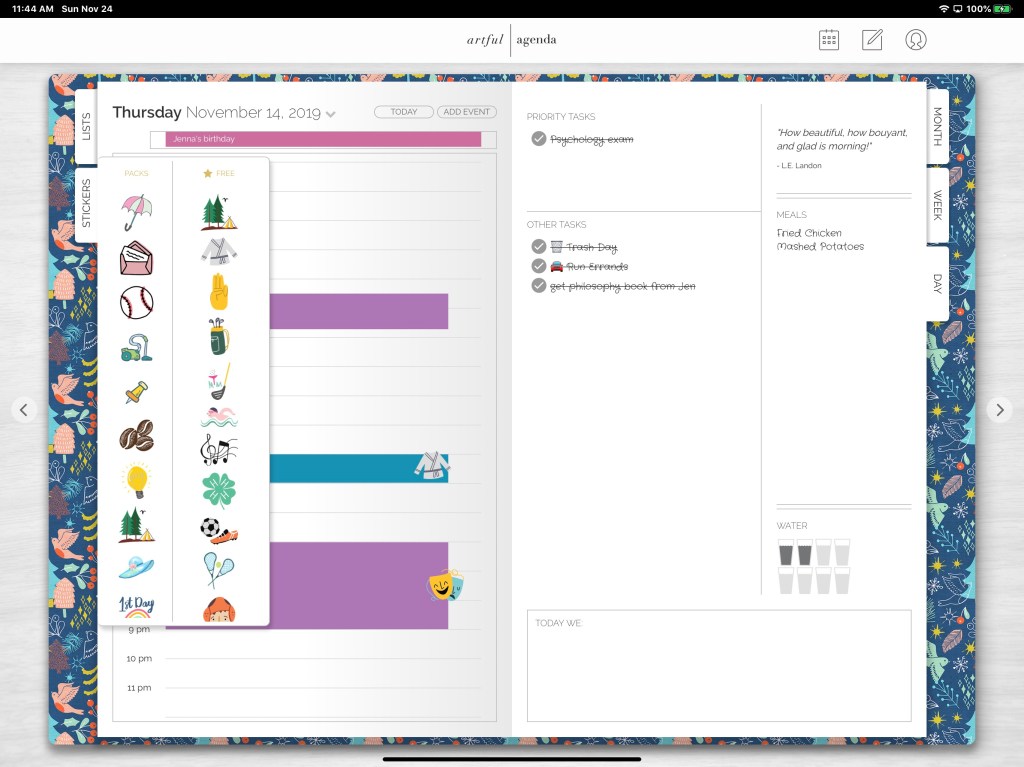
Month, Day and Week views are accessed from tabs as they would be in a paper planner.

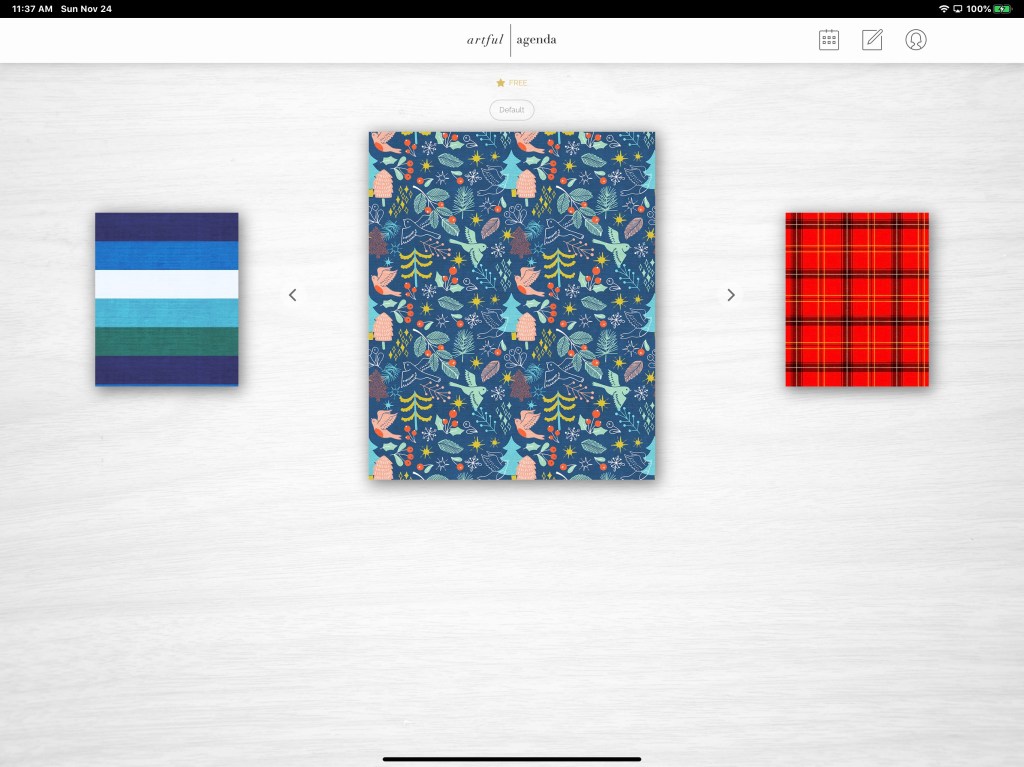
Each calendar gets its own cover, colors, and handwriting styles.

The included stickers make visually identifying your appointments a breeze and add artistic flare.

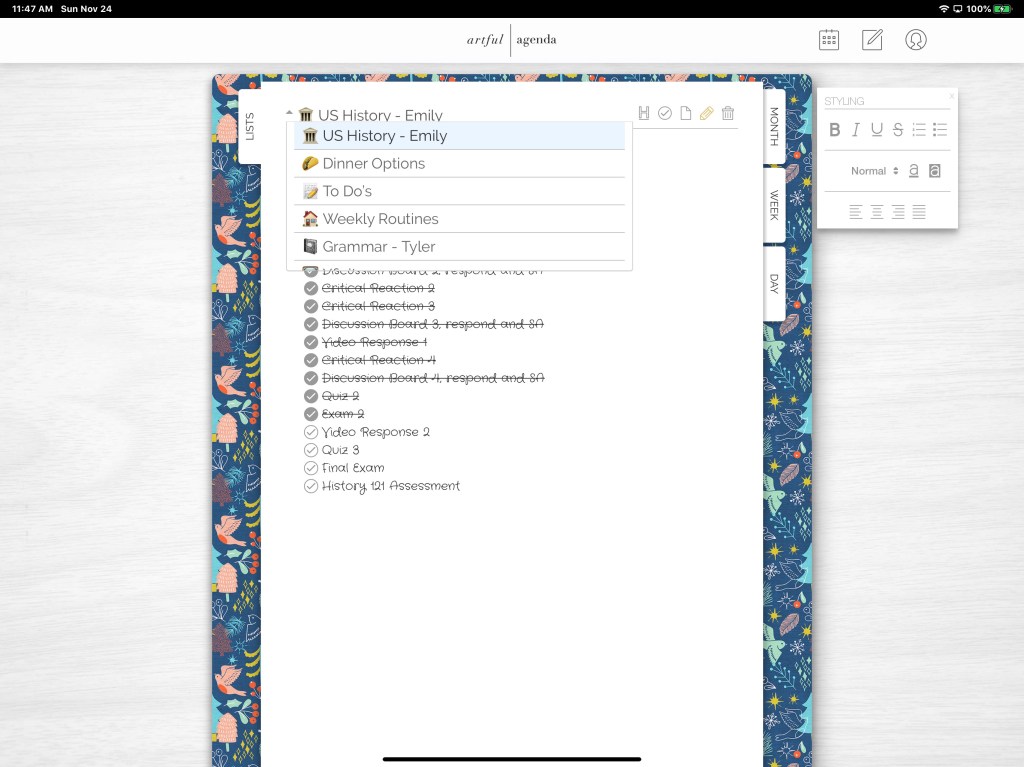
In addition to appointments you can also make custom lists, manage tasks, and takes notes.

If you have wished that Outlook or Gmail worked and looked more like a paper planner, give Artful Agenda a try. There’s a free trial after which a $3.99 monthly or $34.99 yearly subscription will keep you artfully plugging away.

Automate Workstation Backups and Replace Re-directed Folders with Microsoft’s OneDrive

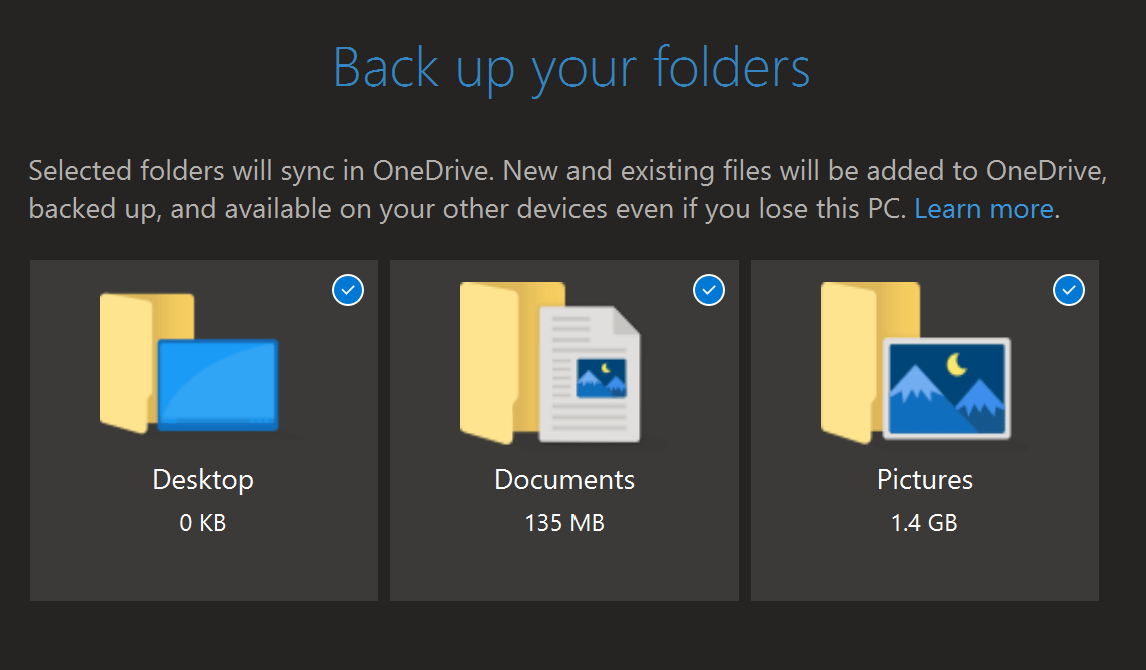
Each Office 365 user license includes one-terabyte of space in Microsoft’s cloud storage service, OneDrive. File sharing, versioning, offline synchronization, and mobile device apps are just some of the available features. Recent versions of the OneDrive software also includes the ability to backup key desktop folders automatically.

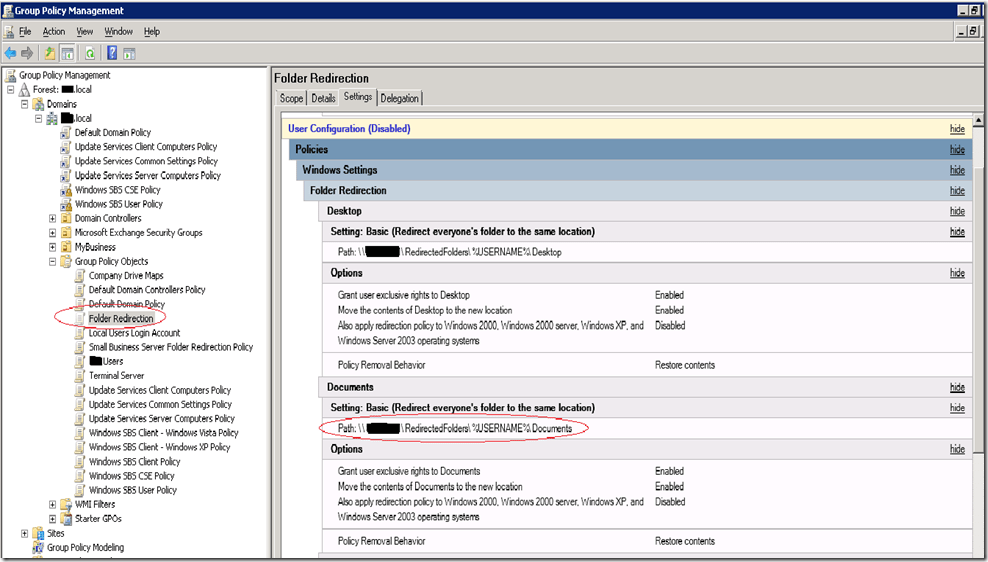
One of the biggest headaches suffered by IT staff is caused by worrying about the countless files stored on laptops and desktops. As with all IT conundrums, there are multiple solutions. One of the most common is to use a GPO to redirect user’s files to shared folders and back those up.

Folder redirection is a successful technique that has saved an untold number of office workers from certain doom, myself included. The files stored on the server are made available to every machine you log on to. If you lose a file, your IT people can restore it for you.

There are a few problems with redirection that present themselves over time. Without careful pruning and a lot of thought around policies, the shares will balloon quickly. If quotas weren’t enforced from the start, convincing management after the fact can be challenging. Getting your user population to clean up after themselves almost never works.

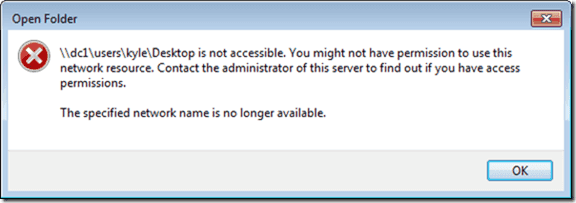
Then there are the dreaded permissions issues. If you’ve ever administrated an environment with folder redirection you probably just shook your head in sympathy. Where do they come from? Who knows? Suddenly random users will be unable to access their files. After it happens once, you can bet it will again.

For most environments, replacing folder redirection with OneDrive’s Backup is a Win Win. It can reduce storage costs and backup times while adding modern features your users will appreciate. Of course no solution is one-size-fits-all, so evaluate your options carefully before proceeding.

A limitation of OneDrive Backup is that the files must be located on the profile’s Desktop, Documents, or Pictures libraries. Therefore, if you are using re-directed folders, the first step is to disable them. Generally, excluding the user from the redirection GPO and updating their policies will cause the files to be copied back to the original folders. If you run into issues, a robocopy script configured to move the files might help.

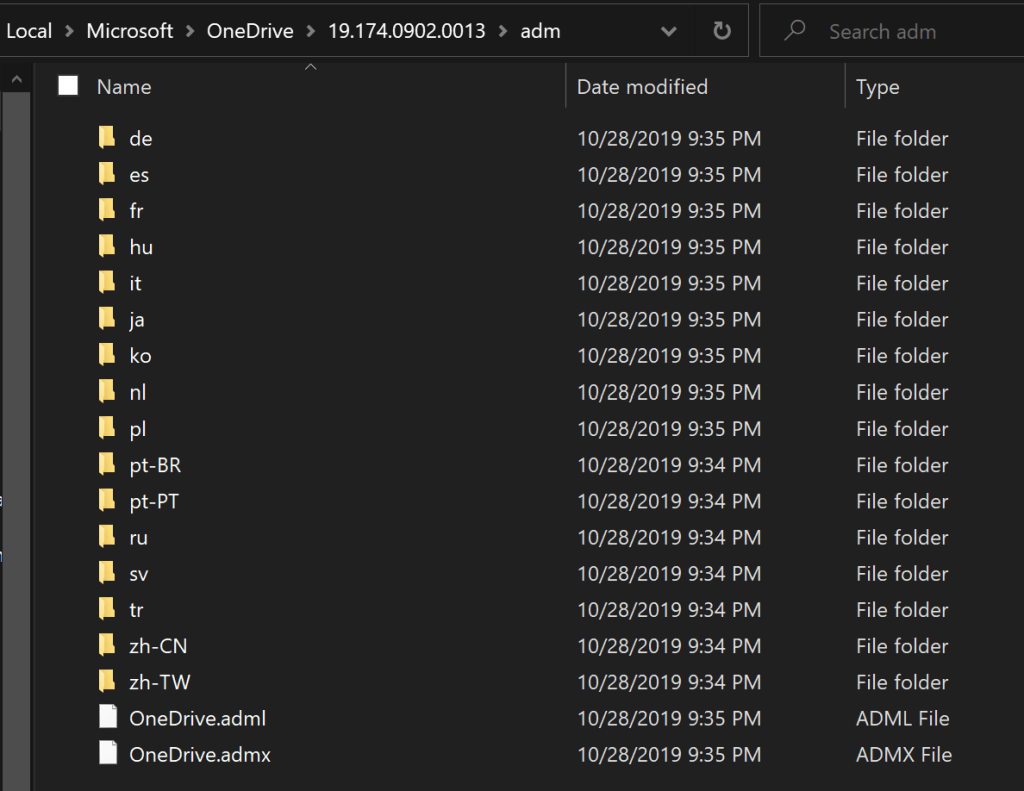
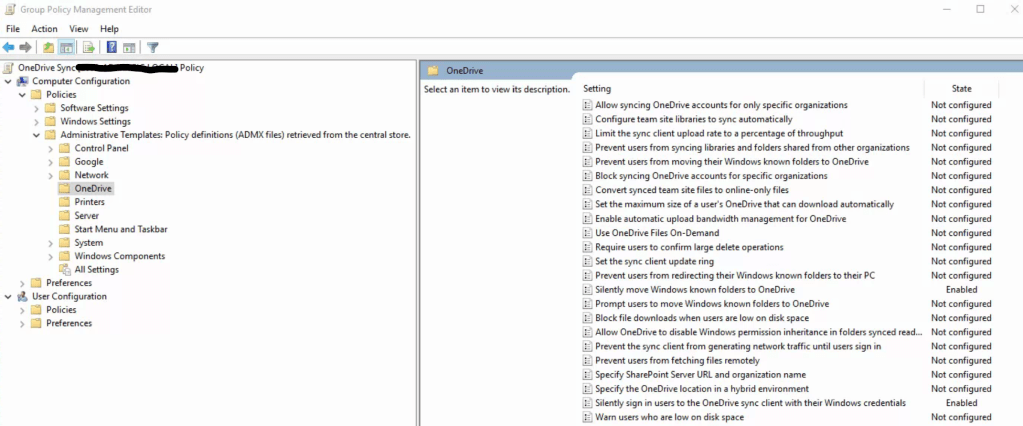
To configure OneDrive via group policy objects, you will need to copy the OneDrive administrative templates to your GPO Central Store. The templates can be found on any system that has the OneDrive client installed and are located at %LocalAppData%\Microsoft\OneDrive\ look for a folder named for the OneDrive build number, then a sub-folder named adm. The files you need are: OneDrive.adml and OneDrive.admx.

Typically the GPO Central Store is located in the SYSVOL directory of a domain controller. The location can be customized, this Microsoft support document should help you locate or create the folder. Place copies of the template files into the Central Store and wait a few minutes for replication to occur, or force one.

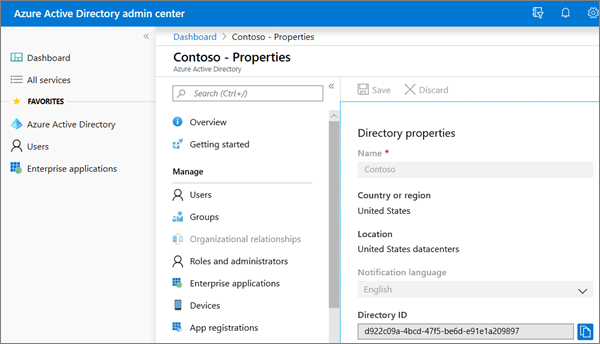
Before we can edit the GPO, you will need your Office 365 Tenant ID. It can be found in the Azure AD admin portal on the properties page and is labeled Directory ID.

These policies will be machine based. To selectively apply them create separate Active Directory Organizational Units for the systems that will and will not, use OneDrive Backup. Link the GPO accordingly.

There are a lot of options to configure in the OneDrive GPO template, but only two of them are required to automate the backup process and replace re-directed folders. “Silently sign in users to the OneDrive sync client with their Window’s credentials” will use the Office 365 tenant ID. “Silently move Windows known folders to OneDrive, is the aspirin that will cure your workstation files headache.

With these two options configured and enabled, your user’s files will follow them between systems, be backed up, and gain all the advanced features OneDrive offers. These are by no means the only options you should enable, each admin’s situation will be different. I could write a book describing the rest of the policy configurations. Thankfully Microsoft has documented this entire process and all the options for us; https://docs.microsoft.com/en-us/onedrive/use-group-policy

Work From the Road Like a Boss

In a previous post I wrote about the ins and outs of working from home. It has been one of my most popular posts. Now that I am an Senior Systems Engineer for a Managed Services Provider I find myself in many different situations. I am constantly needing to work from the road, literally. I’ve had to pull over at a gas station or a McDonald’s on more than one occasion.

In addition to parking lots, I also end up in clinics, numerous types of offices, manufacturing facilities, mechanic’s bays, and pretty much any other environment you can imagine being in your average city. Through trial and tribulation, I’ve filled my bag with the gear that allows me to be successful, no matter the location.

The most important item in a road warrior’s bag is their laptop. You want to choose your’s carefully. For example, if you work from it all day, a twelve inch screen will probably be a hindrance regardless of how little the laptop weighs. If you spend time in professional settings, a gaming system that resembles a Tie-Fighter might be inappropriate. Battery life isn’t as important as it used to be now that most systems will hit the four hour mark.

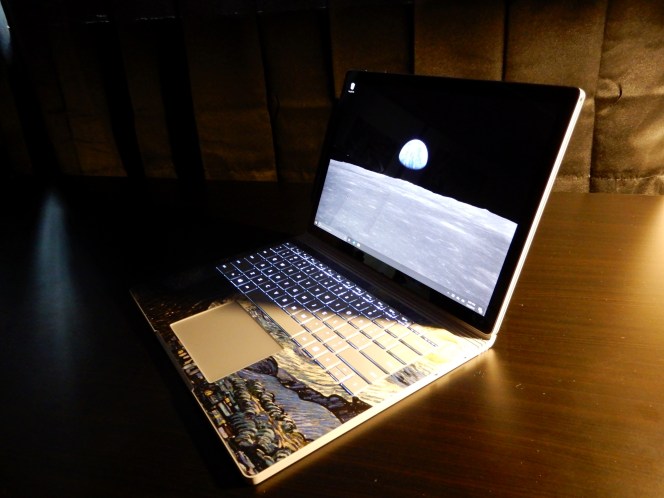
My weapon of choice is the Surface Book 2. I find that with a few key accessories, it adapts to any situation. From drawing out plans during a presentation from the tablet, to running three monitors while managing an entire company’s infrastructure, and even some gaming on down time, the Surface Book does it all.

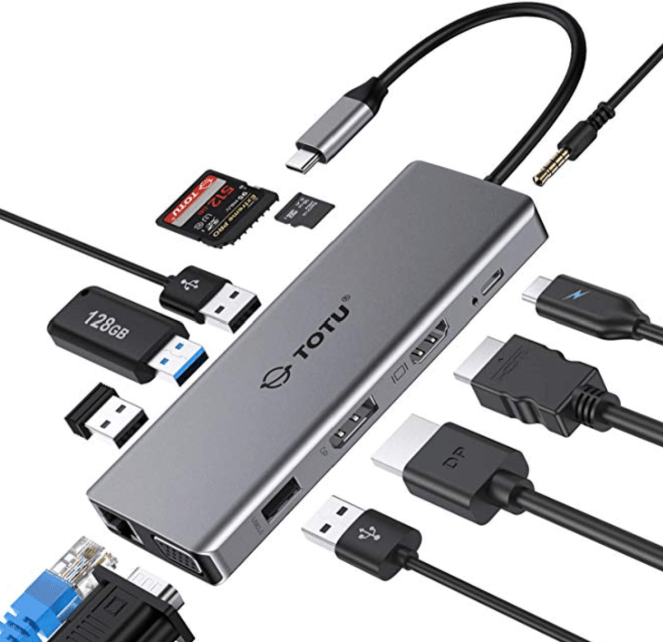
I mentioned that adaption requires some accessories. I find that a portable docking station is a necessity. With the right one, you can connect to any type of equipment you may need no matter what it is. I carry the TOTU USB C 12 – N – 1 Hub . Three monitors, a keyboard, mouse, network connection, power, and SD card all at once are no problem for this little gem.

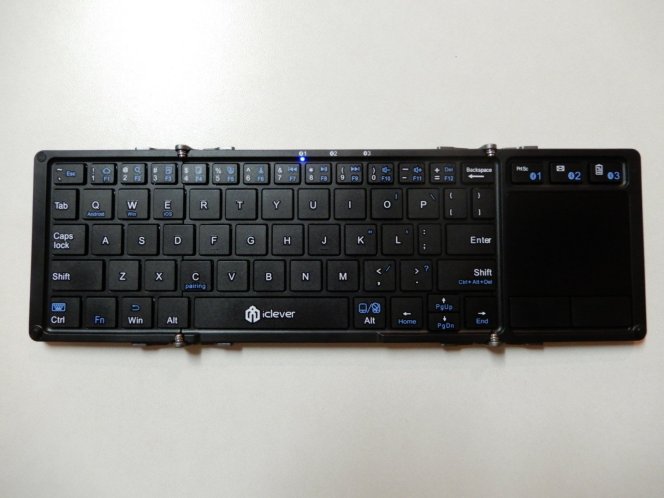
When it comes to connecting to other people’s equipment; I’ve never been a big fan of using random keyboards and mice. You never know which button doesn’t work, when the batteries will die, or where they’ve been. I avoid the jank and carry my own. The iClever IC-BK08 folds up to the size of a phone, connects to three Bluetooth devices at once, as well as anything with a USB port, and includes a great little touch-pad.

Monitors, monitors everywhere and not a screen to use. How do you take an extra screen on the road ? There are several ways. If you carry a tablet in your bag there are apps that will turn it into a wireless monitor. You can also purchase purpose built portable monitors.

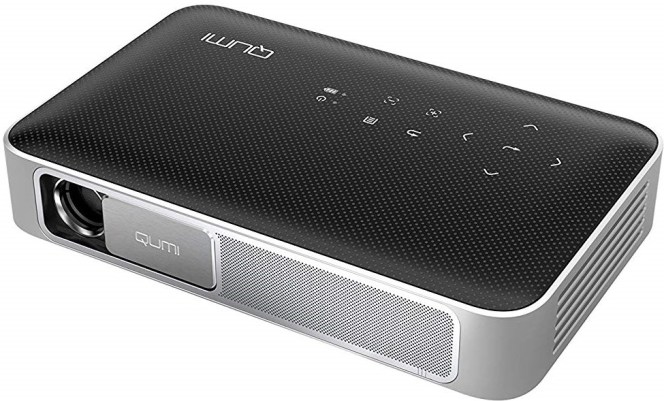
I have tried both of those options, but have landed on something that is more useful than either. I carry a Vivitek QUMI Q38-BK mini projector. It’s small, battery powered, displays in 1080P HD, and is bright enough to use almost anywhere. A few days ago, I propped up a white binder, pointed my projector at it and had an instant second screen. I’ve also given full presentations to customers with it. It runs Android so you can install your favorite apps on it. It supports Wi-Fi, Bluetooth, AirPlay, Mira-cast, HDMI, and USB connections.

Cables are the key to connectivity. I have a one of each type of USB cable: 2.0, 3.0, C, Micro, A, B (printer), and Mini in my bag. I also carry two ten foot CAT 6 network cables, a USB to serial port adapter, a Cisco serial console cable, a 3 foot HDMI cable, a Display Port to HDMI adapter, an extra PC power cord, and a lightning cable.

In addition to all of that you will also find a 5 port mini switch, a 1.5 terabyte USB hard drive, a Bluetooth mouse, a pair of over-the-ear headphones with mic, a Voyager Pro wireless headset for phone calls and conferences, and a Nintendo Switch.

After reading all of this you might be asking yourself, “Does he actually use all of that?” The answer is “Yes, all of the time”. I don’t bother carrying things that I rarely use in my bag. Those things live with the junk in my trunk. Sorry, it was too easy.

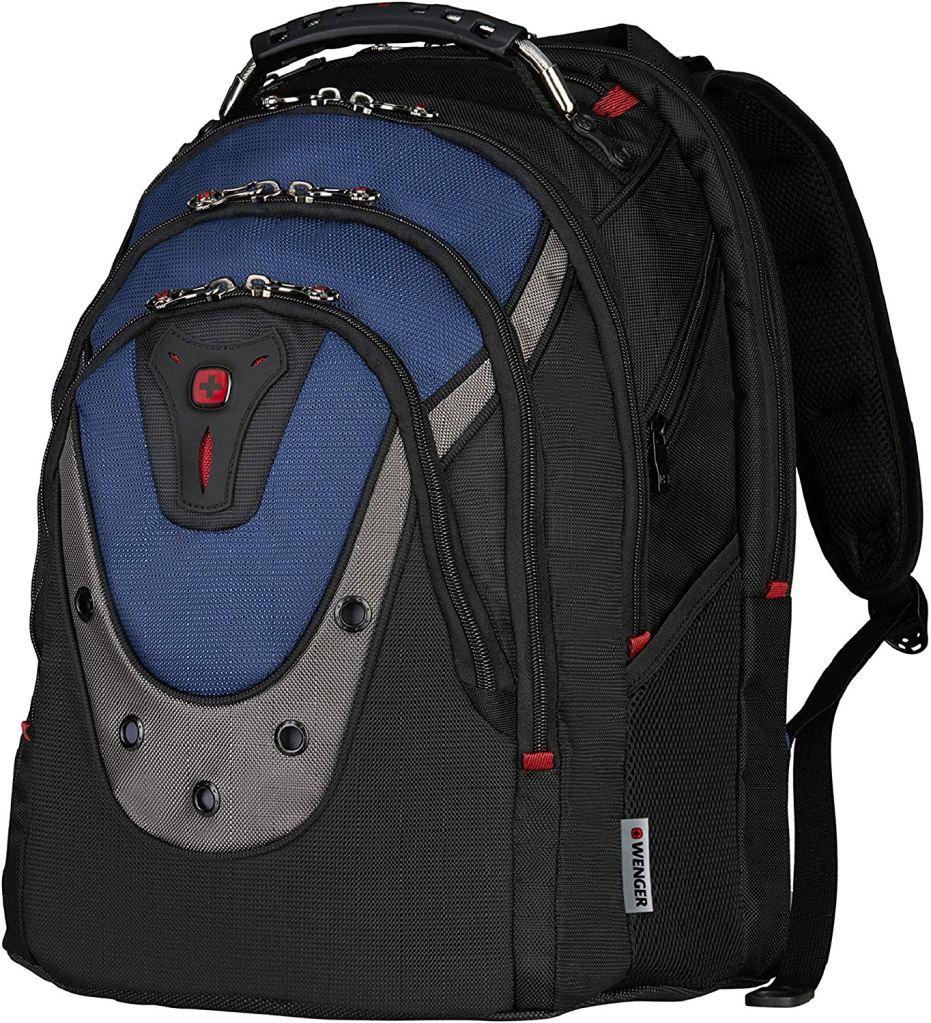
Speaking of bags, the one you choose is as important as the gear it will carry. If you are going to stuff this much stuff into a bag of your own you will want sturdy straps, a reinforced handle, and lots of pockets to keep everything organized in. I use the Wenger Ibex 17″ Laptop Bag because it has all of those features and then some.