
Over time you can end up sharing lots of files with people via OneDrive. It is easy to forget who has access. Microsoft has included a report utility in OneDrive Online that will export a list of all the shared files and who has access to them.
- Find the OneDrive icon in your system tray (next to clock) right click on the icon and then select View Online from the menu.
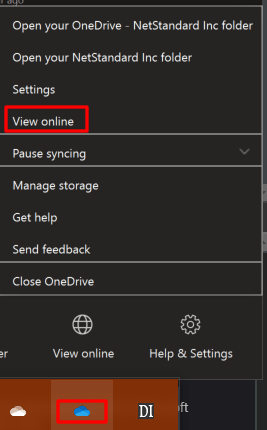
- OneDrive will launch in your default web browser.
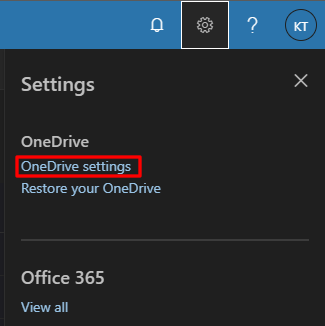
- In the OneDrive Title Bar click the settings icon (gear on the left)

- Click OneDrive Settings in the menu.
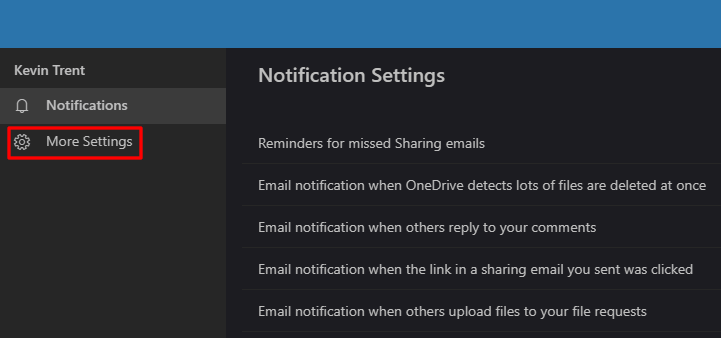
- Click More Settings in the menu on the left.
- Click Run Sharing Report in the menu on the right.
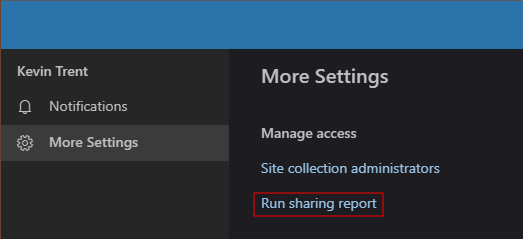
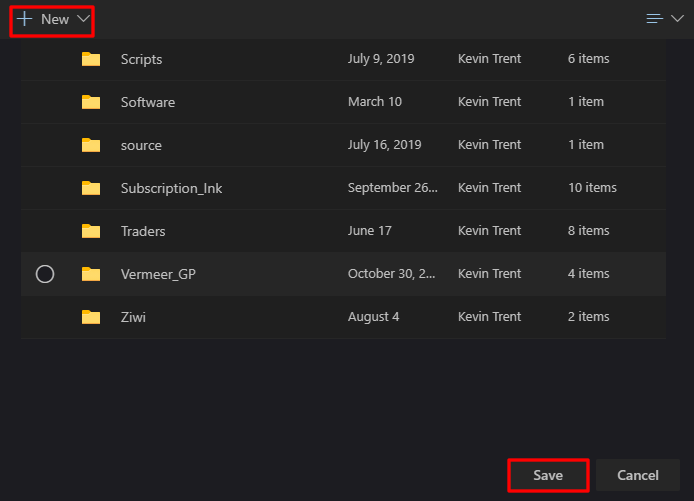
- Choose or create a folder to save the report in.
- The report will be in a CSV format that will open in Excel. You will receive an email notification when the report is ready to view.
 techbloggingfool.com
One thought on “OneDrive Sharing Report”