PowerShell: Worried about Ransomware? Prepare for Application Lock Down by Finding the Software and Services You Use Now

With all of the ransomware attacks that are making the headlines this year, many businesses are looking to improve their security posture. One of the methods security professionals find most effective is to use software that controls what applications any networked computer is able to run. If an employee can’t open the bad actor’s malware package, then the attack can’t happen.

VMware’s Carbon-Black, Microsoft’s Windows AppLocker, and Trend’s Apex One all operate by allowing only a list of approved applications to run on any given system. A key step in deploying tools of this nature is to have a full understanding of the applications and services that are installed and running on your systems now. Some of these tools include discovery mechanisms that will help you locate the data. What do you do if your chosen tool lacks this feature?

Application Control Solutions

PowerShell can get the data we need. First up is to list the applications running on your workstations. We’ll scan in the registry keys that record what software is installed on the systems that are part of your Windows domain. You’ll need to run the code below from a domain controller, or a system that has RSAT installed and is a member of the domain.

Installed Application Inventory:

Import-Module ActiveDirectory 
$Computers = Get-ADComputer -Filter 'Operatingsystem -Notlike "server" -and enabled -eq "true"' -Properties dnshostname|Select dnshostname -ExpandProperty dnshostname 
Foreach ($computer in $computers){$PingTest = Test-Connection -    ComputerName $computer -Count 1 -Quiet 
If ($PingTest) { $computers += $computer } 
Else {Write-Warning "Failed to connect to server '$Computer'."} } 
$report = @() 
ForEach ($computer in $computers) { $report += Invoke-Command -ComputerName $computer -Command {Get-ItemProperty HKLM:\Software\Wow6432Node\Microsoft\Windows\CurrentVersion\Uninstall*,HKLM:\SOFTWARE\Microsoft\Windows\CurrentVersion\Uninstall* | 
Select-Object @{n="Application"; e={$_.DisplayName}}, @{n="Version"; e={$_.DisplayVersion}}, HelpLink, Publisher, InstallDate | 
Sort-Object Application} } $report | Format-Table -AutoSize $report |select -Property * -ExcludeProperty RunspaceID, PSShowComputerName|
Export-Csv -Path $env:userprofile\documents\windows_computers_softwareinventory.csv -NoTypeInformation

Programs that automatically execute and keep running once you’ve booted your computer are called services. Most of the application control methods will automatically approve Microsoft services. However, other program packages also use services to enable their functions. Hackers know this and are starting to hide their tools by running them as a service. The code below will find and list all of the non-Microsoft services running on your computers. Again, you’ll need to run the script from a domain controller, or a system that has RSAT installed and is a member of the domain.

Non Microsoft Services:

Import-Module ActiveDirectory
 Function InstalledServices {
 $Computers = Get-ADComputer -Filter * -Properties dnshostname|Select dnshostname -ExpandProperty dnshostname
 Foreach ($Computer in $Computers)
 {Get-WMIObject win32_service -ComputerName $Computer|
 Select @{n="Computer";e={$Computer}}, @{n="Service";e={$_.Name}}, @{n="State";e={$_.State}}, @{n="Exe_Path";e={$_.PathName}}|Where Exe_Path -notlike "c:\windows*"
     }
 }
 $report = InstalledServices|Sort-Object Computer
 $report|Export-CSV $env:userprofile\documents\InstalledServicesReport.csv -NoTypeInformation 

Locking down computer networks is almost always a painful experience for both the administrators and users. Knowing what apps your people need to do their jobs and ensuring they aren’t entangled in your security efforts will help soften the blows.
View Microsoft Project Files without Microsoft Project

Microsoft Project is the king of planning software. I’ve been using it for more than a decade but my current employer uses a different tool for the job which isn’t a problem on it’s own, I’m flexible.

The issue arises when a client sends me their plan in an mpp file. There is no Project Viewer application anymore. In the recent past this meant I would need to ask my customer to export their project to different format such as Excel or a PDF. Often this resulted in multiple communications, explaing the why and how.

I’ve had some success in finding alternatives for other popular software like Visio and PhotoShop in the Microsoft Store so I decided to try my luck. I installed and removed quite a few apps on my test VM, but eventually I found a suitable solution.

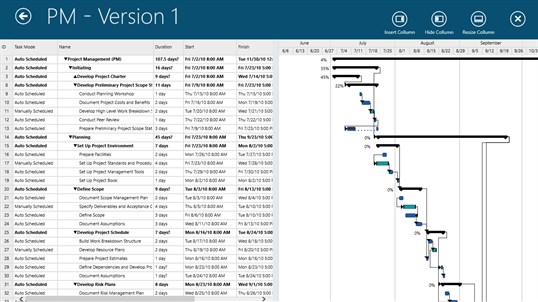
Seavus Project Viewer does exactly what its name implies. Not only will it open Microsoft Project files, but it supports the most popular views.  Gnatt charts, task sheets, and resource are all available. I tested the app with multiple complex Project files and was satisfied with the results.

Samsung Note’s Synch with OneNote Feature is Here, Sort Of

During the announcement event for the Galaxy Note 20 one of the features I was most interested in was the ability to synchronize Samsung Notes with OneNote. Samsung Notes has the screen off memo function that OneNote can’t match. The problem is, when I’ve used it to jot down something quick that information ends up isolated from the rest of my repository.

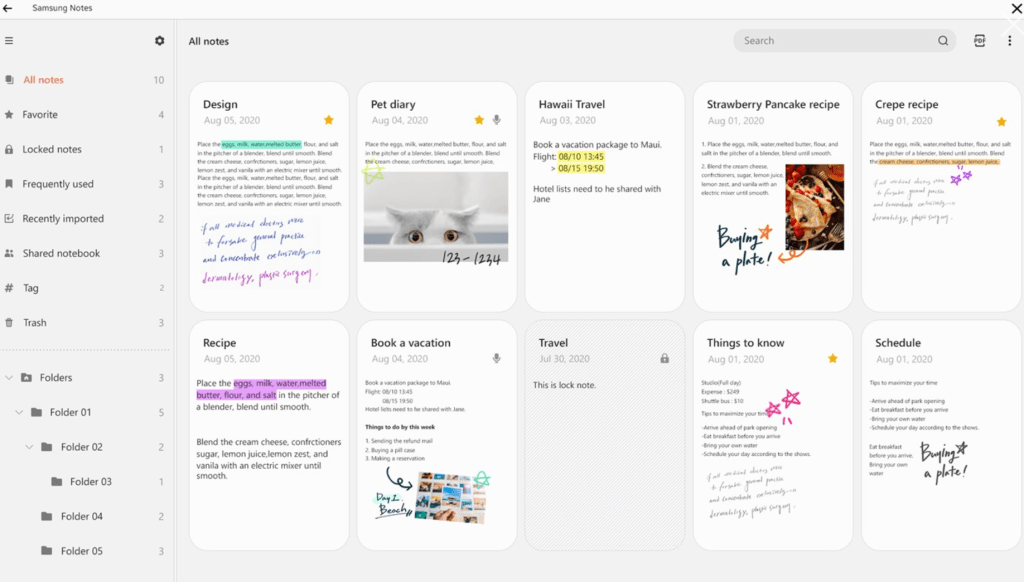
For the longest time Samsung’s solution was to install their Note app on your PC. The PC version of Samsung Notes is a decent experience but lacks the integrations with other Office software that OneNote enjoys. There’s also no easy method to migrate from OneNote to Samsung Notes, both reasons kept me from using the software.

Samsung Notes for the PC is in the Microsoft App Store.

Now, the newest version of Samsung Notes on your Galaxy will synchronize to your Microsoft 365 account. The synched data can only be viewed in the Outlook web client at the moment. However, if you have selected to be an Office Insider you can see that Microsoft is building the framework for the OneNote feed to show Samsung Notes, it already appears as a non-functioning option.

UPDATE: The synchronized notes are viewable in OneNote now. See my newest post on this subject for more information. https://techbloggingfool.com/2020/12/29/samsung-notes-synch-with-onenote-feature-is-here-now-more-functional/

The first thing you’ll need to do is to upgrade both apps. Open the Galaxy Store app on your mobile and tap the hamburger menu, then tap updates and install the newest version of, well, everything. The same goes for your PC, open the Windows Store and click the … menu in the upper right. Choose Downloads and Updates then click the Get Updates button and install everything.

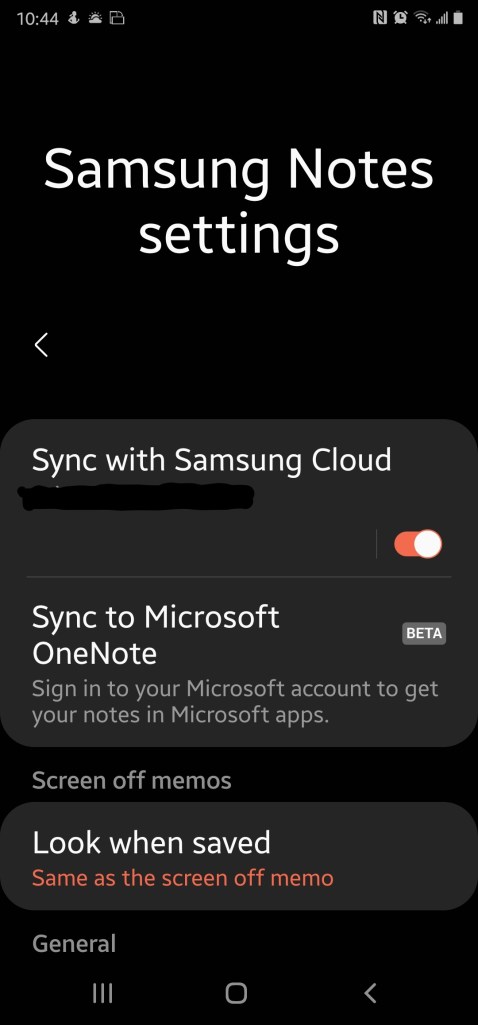
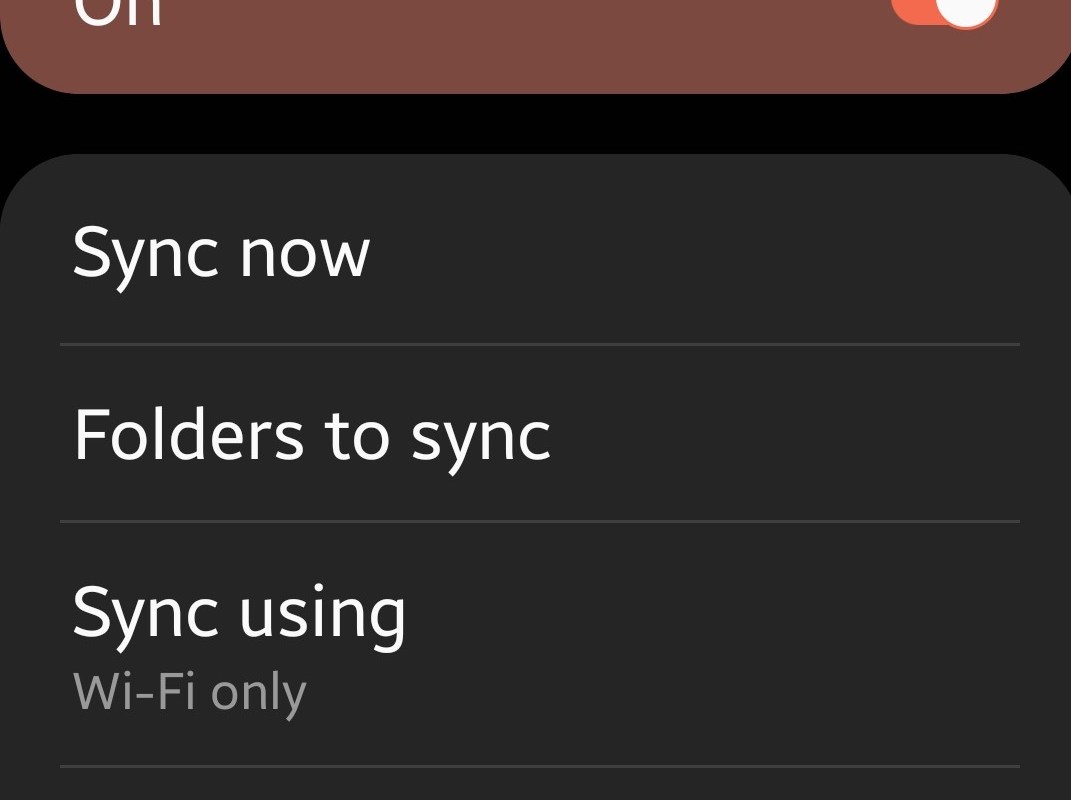
Now configure the Samsung Notes app on your mobile device. Open it and hit the options icon again. You should now see “Sync to Microsoft OneNote Beta”, toggle it on and sign in with the Microsoft Account you want to share notes with. You’ll also need to select the folders who’s notes you to sync. I recommend tapping the sync now button just for good measure.

Sync to Microsoft OneNote Beta is available in the newest edition of Samsung Notes.

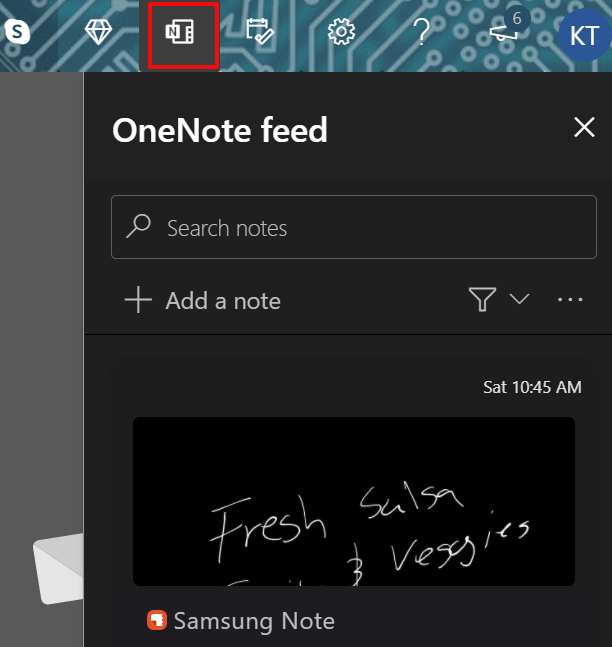
To see the synchronized notes, sign-in to Outlook.com with the same account that you configured in Samsung Notes. In the upper right, click the OneNote feed icon. The OneNote Feed pane will slide open from the right. Click a note to see more of it and to get an option to copy it to the clipboard. Right now I find that copying a Samsung Note in this manner and pasting it to a blank OneNote page is the optimal way to use the tool.

The OneNote Feed in the Outlook Web App will show your Samsung Notes after the first sync.

We know that Microsoft and Samsung have plans to enhance this feature in the near future. The Note Feed is present in the insider edition of the Windows 10 OneNote app and Samsung Notes is an option in it although it doesn’t work yet. Hopefully they’ll get to a point where the Samsung Notes become pages in OneNote but we’ll have to wait and see.

Fix Oculus Quest 2 Fan Noise

I was so excited when my Oculus Quest 2 arrived this afternoon. I booted it up, went through the setup and upgrade and prepared to play my first game. While I was waiting for the game to load I noticed a buzz or whining noise that my IT brain immediately identified as a fan.

Sometimes when you first boot up new equipment it takes a bit for everything to settle, so I played a game for a couple of hours. The noise got worse not better. I hopped on the web and started searching. There are numerous complaints on Reddit, the Oculus Forums, there are even YouTube videos of the issue. The advice on nearly all of them was the same, send the unit back for replacement. Really? I just got it and I already have to send it back? Before I boxed it back up, I decided to see if I could fix it on my own.

I was able to get the sound on mine to completely stop! I removed the face pad and the noise stopped immediately. I snapped the face pad back down tight and buzz never came back. To remove the face pad just gently pull it away from the body of the headset. You’ll hear a couple of light snaps as it disconnects, especially near the top where the strap connects. Reseat the face pad and make sure it is snapped down tight all the way around. I hope this works for you as well as it did for me. Watch for a full review of the new Quest in a few days.

Partycade; All of the Arcade Action, None of the Floor Space

I have quite the man cave chiseled out of my basement. There’s office space, a gym, and a nice place to sit and play games or watch the TV. I’ve always wanted a classic arcade cabinet like Pac-Man, but there’s literally nowhere to put one.

One late night while flipping channels, something on HSN caught my eye. The sales people were demonstrating an arcade cabinet that looked like it had a full-size screen and controls. What made it stand out wasn’t the game they were playing, the cabinet was hanging on a wall!

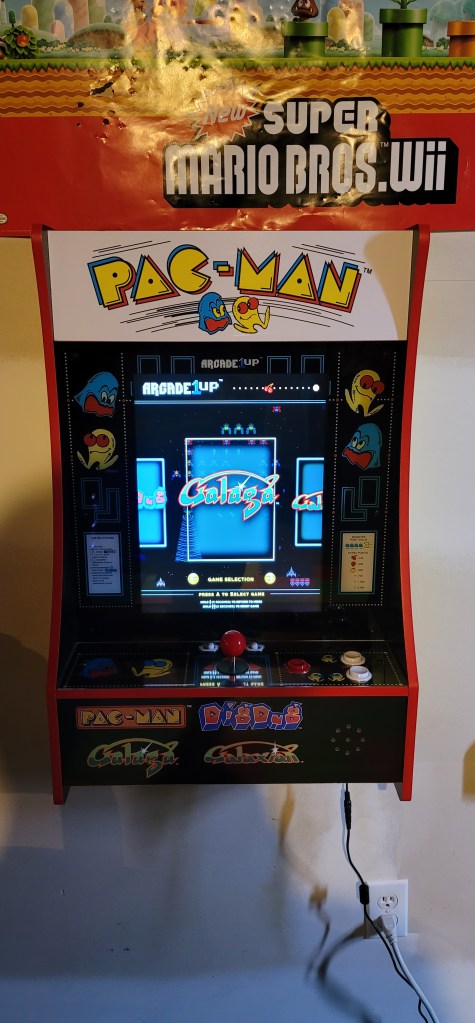
The Arcade1Up Partycade is an HSN exclusive, which explains why I had never seen this marvel before. At the time of this writing there are two models available each is $199.00 and plays four games. The sales person was doing an excellent job of making it sound like they were about to sell out of the Pac-Man / Galaga unit that I needed in my life. I couldn’t find the HSN account, so I woke my wife up at one in the morning to help me make the order.

I’m so used to Amazon Prime that I was shocked my order took almost three weeks to show up. The Partycade has three configuration options. Mount it on a wall, hang it on a door, or stand it on a table. The hardware for each option is included. I mounted mine on the wall, it’s more or less the same process as hanging a heavy picture. I recommend a stud finder. The other tip I’ll share is to consider whether you will stand or sit while playing. The screen is not tilted at an angle like a traditional cabinet, so doing both can be tricky if you don’t get the height just right.

You need to mount the hanging bar into studs. A stud finder makes the job easier.

I’m sure what you really want to know is what it’s like to play. In an 80’s word, rad it’s totally rad man. Every time that I play it, I’m instantly a kid bumming around in the mall’s arcade again. The seventeen inch LCD is mounted in portrait and looks great, although you’ll wish it tilted back. It just isn’t possible in this form-factor. The control stick feels just like I remember and the buttons click just right. There’s a volume rocker for the fantastic speaker system and a power switch. All that’s missing is a coin slot.

The cabinet art is fantastic.

The unit I have plays Pac-Man, Galaga, Galaxian, and Dig-Dug. There’s a carousel menu to launch the games from. If you leave the unit powered on it will randomly select a game and play its screen saver mode. The games themselves are the real thing as far as I can tell. MAME ROMs are often glitchy altered copies but these play just like the machines in the back of the pizza shop.

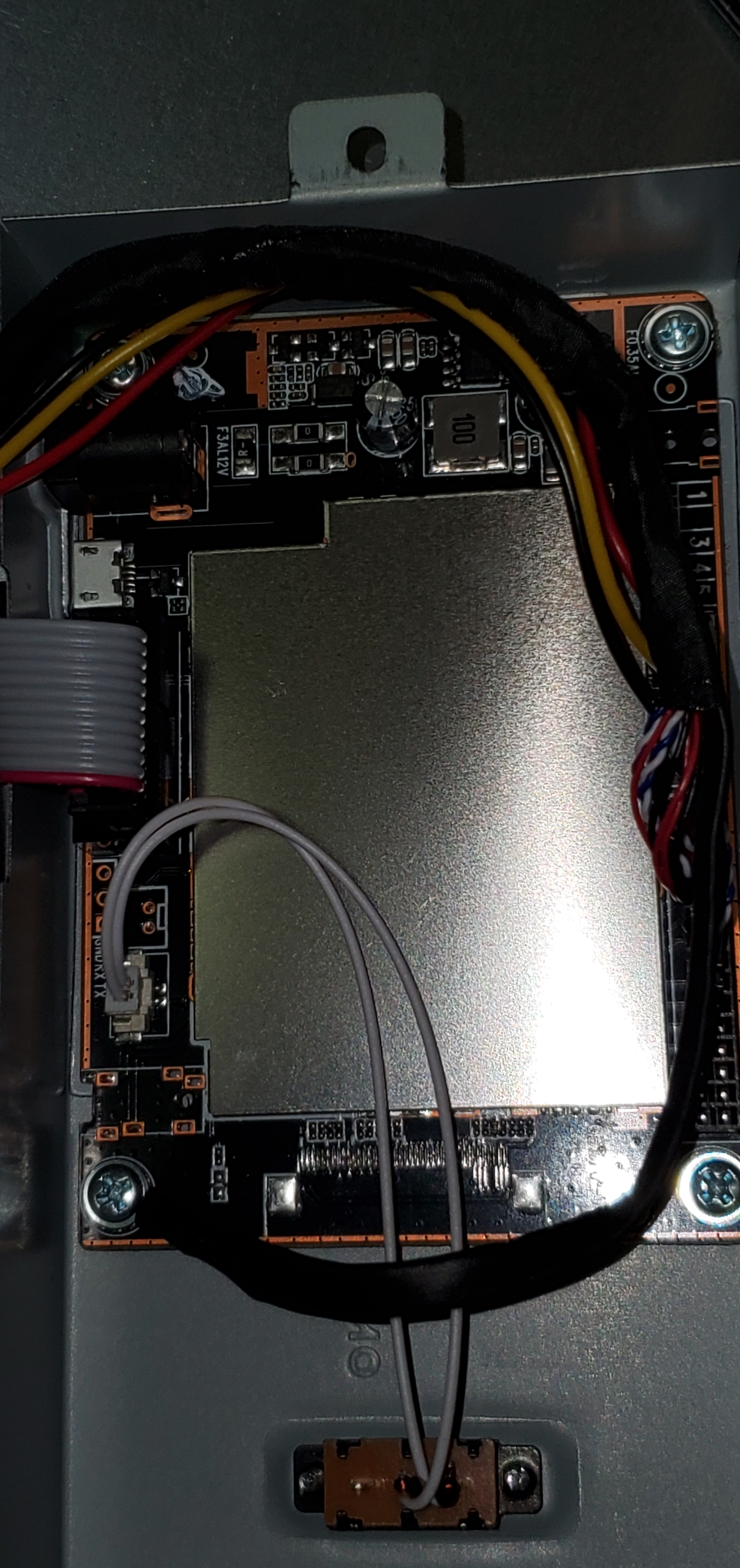
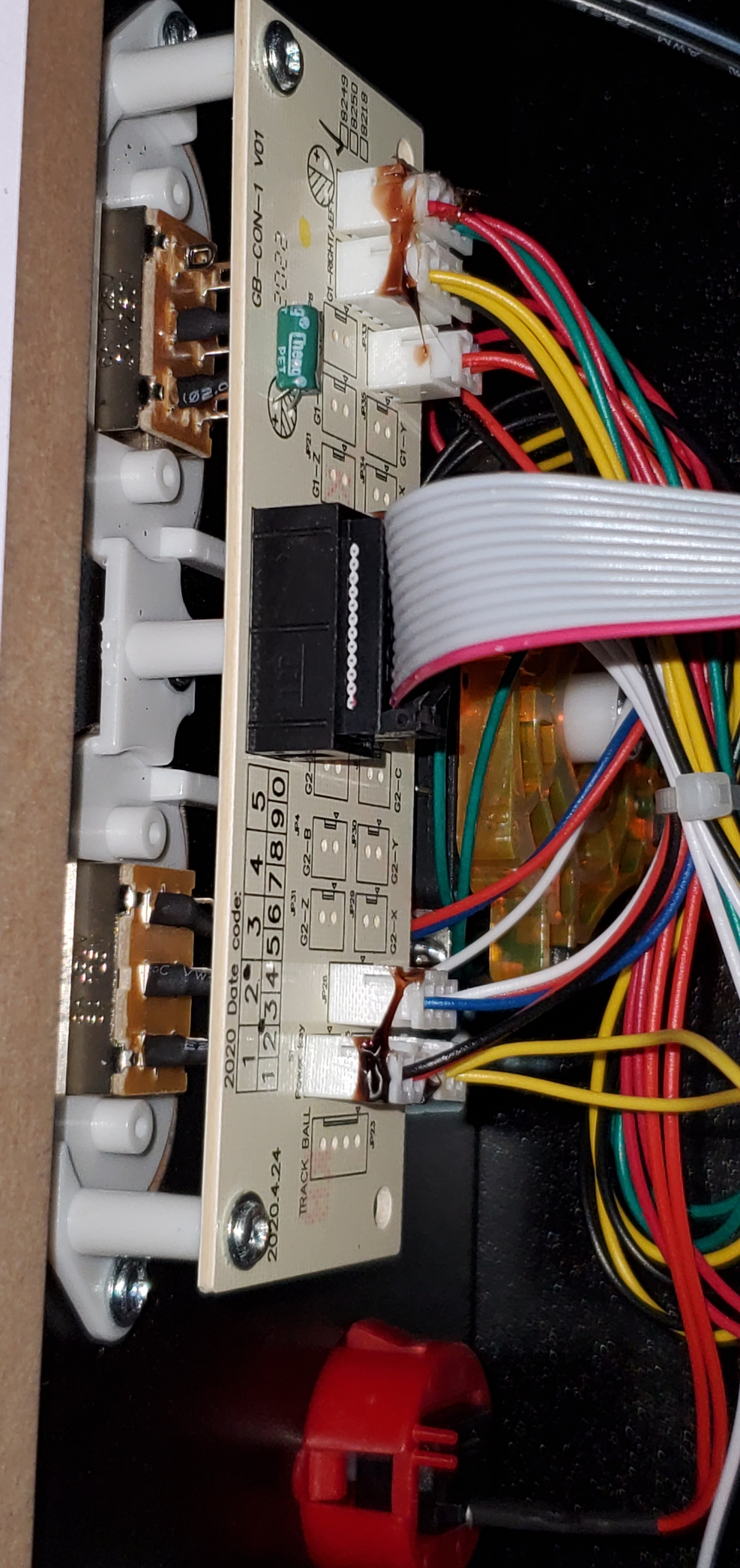
The Partycade is also surprisingly mod friendly. I haven’t had a lot of luck getting the board to run other ROMs yet, but taking apart the case is just a few philips-head screws. The PCB is housed inside a heat shield that is easily accessible and would be simple to replace with a Rasberrypie. The monitor, button, and joystick connections are all off-the-shelf. It wouldn’t take more than an afternoon to convert this into a full MAME cabinet. Several people on-line have already accomplished it. It already plays the two games I care about most, so I’ll leave mine stock for now.

It actually makes a great piece of wall art that fits well with my gamer motif. I find myself walking over to play a game in between conference calls, or while I’m mulling over a problem I’ve been asked to solve. I’ve already got a spot picked out to hang the Centipede model. I’m hoping somebody gets it for me for Christmas hint hint.

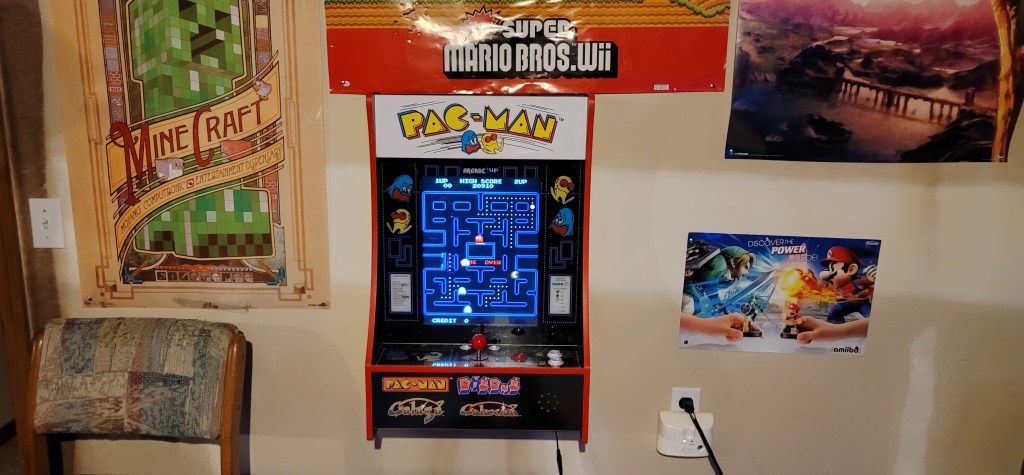
Along with some posters, the Partycade turns a unfinished basement wall into something interesting.

PowerShell: List Domain Workstations that Synchronize Offline Files

Once upon a time in an IT shop far, far away I thought that Windows offline files was a fantastic feature. Who remembers when it used to be called the briefcase? Now with DFS, SharePoint, Folder Redirection, and other modern file services taking over from standard file shares, the technology is dated and often causes conflicts.

Recently I was tasked with disabling all offline files for a large organization. If I didn’t care how much pain I caused the end users or the helpdesk, I could have just flipped a few settings in a GPO and moved on. I knew that just turning them off would cause trouble because the offline database is easily corrupted. When this happens the clients end up with files on them that have not synchronized with the sever.

I needed a way to identify which workstations had been configured to use offline files. I opened my browser and ran some searches. I came up empty. I’d have to come up with my own solution. I guessed that WMI would have the info I needed and I was right; win32_OfflineFilesCache would give me the status. A little PowerShell magic let me find every workstation on the domain, check for offline files, and output everything to a CSV report.

Import-Module ActiveDirectory


Function OfflineFilesStatus {

$Computers = Get-ADComputer -Filter 'Operatingsystem -Notlike "*server*" -and enabled -eq "true"' -Properties dnshostname|Select dnshostname -ExpandProperty dnshostname

Foreach ($Computer in $Computers)
{Get-WMIObject win32_OfflineFilesCache -ComputerName $Computer|
Select @{n="Computer";e={$Computer}}, @{n="Enabled";e={$_.Enabled}}, @{n="Active";e={$_.Active}}
    }
}
 
$report = OfflineFilesStatus|Sort-Object Computer
$report|Export-CSV C:\Temp\OfflineFilesStatusReport.csv -NoTypeInformation