Night Eye – Dark Mode for Most Browsers on All Sites

I spend all day everyday and way too many nights looking at screens. For some cosmically ironic reason my eyes are very light sensitive. Nothing gives me a headache faster than bright white light. Over the years I’ve tried everything to reduce the strain on my peepers. I crank the brightness down as low as possible. I’ve tried every type of sunglasses, computer glasses, and monitor shade on the market. I turn off the overheads and have blackout curtains in my home office.

Dark mode has been a Godsend for people in my situation. The only problem with it is that it isn’t being deployed fast enough. All modern browsers can support dark mode (a dark background with light text), but for the effect to work the site has to be coded in a certain way. You can imagine how anxious web developers are to re-write millions upon millions of sites, pages, and tools.
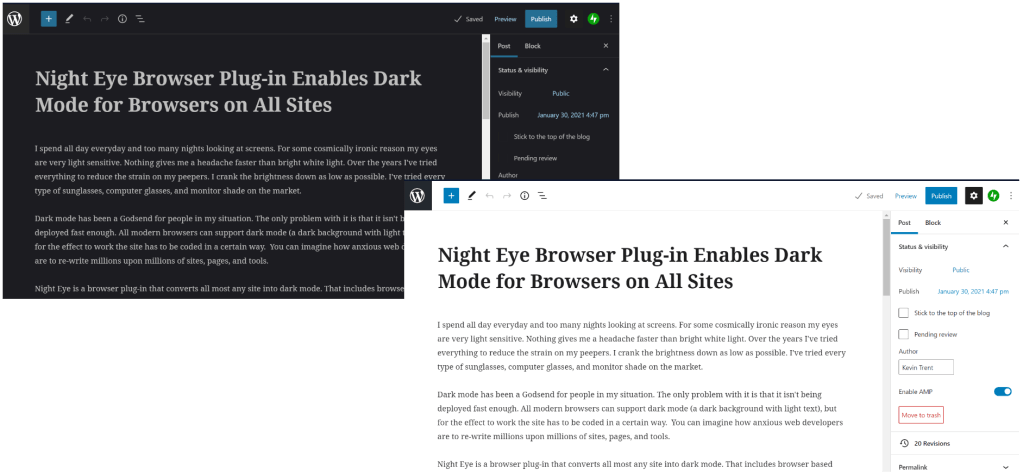
Editing this page in dark mode versus normal.

Night Eye is a browser plug-in that converts almost any site into dark mode. That includes browser based applications like the WordPress editor I am using right now. There are several other dark mode browser extensions available and I tried several of them before I settled on Night Eye. One of them really slowed my browser down and another was sending way too much data to an IP in China. Here’s a friendly tech tip, always run a network sniffer after you install an extension!

Night Eye is a paid application, which I actually prefer. The last thing I need in my browser is more tracking and adds. You can choose between several yearly subscription options, or the Pro license. Run the demo of Pro mode for ninety days after which it will drop into free forever mode that will continue working on any five sites you choose. I started out with the $9.99 subscription and upgraded to the pro license after a couple of years. I’ve emailed their support a few times and they’ve always solved my problem.

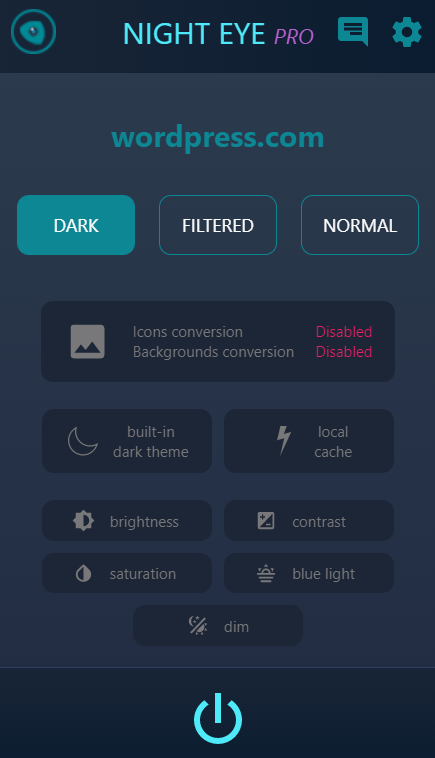
It couldn’t be any easier to use. Open the extension store in whatever browser and search for Night Eye. Install it and turn it on by clicking its icon in your browser’s toolbar. That’s it. If you don’t know how to get into your browser’s extension store just head over to their site and click the matching icon on their homepage. They will send you to the right spot. There are a handful of settings you can adjust to your preferences, but you probably don’t need to. There’s also a whitelist (no pun intended) for anything you don’t want converted.
Night Eye is the Frank’s Red Hot of browser extensions, “I put that sh*t on every thing”. When I have to work on someone else’s system and open their web browser, the experience is jarring. Now if we can just convince building managers that we don’t need double forty inch tube lights in every square foot of every office drop-ceiling on Earth, I might finally be able to stop wearing sunglasses indoors. Thanks Night Eye!


A No Spoilers Look at Immortals Fenyx Rising

Many times when a new release is a mashup of other titles the results are abysmal. The ideas they borrow from more popular games are not implemented well and don’t form a cohesive experience. When they switch between the borrowed elements it can feel like you have changed games in the middle of play.

Immortals Fenyx Rising’s “design by committee” shows through in places. The title is a dead giveaway for the boardroom meetings that inspired the compromises. However, in this case Ubisoft seems to have limited their group decisions to mostly superficial matters.

The game itself is great. The world it takes place in is reminiscent of Breath of the Wild. You climb statues to reveal new sections of the incredibly large map. While you’re up there, a little maneuver reminiscent of Assassins’ Creed has you mark interesting locations on your map. Speaking of interesting locations, you will find Vaults that are similar to BoTW’s shrines, chests of loot, challenge quests, and collectible resources scattered everywhere. So much so, that I can’t imagine anybody but a professional having the time to 100% complete everything.

The combat system reminds me of the God of War series more than anything else. You are armed with a sword for quick strikes, an ax for heavier blows, and a bow for ranged engagements. Dodges and parries are available for defense. The weapons and armors feature unlockable upgrades and powerful combinations that make engaging multiple enemies easier. Eventually you’ll earn a sidekick that will fight along with you and other power ups that greatly enhance your lethality.

The enemies span the full gambit of evil creatures from Greek mythology. Gorgons, Harpies, Minotaur, Cyclops, and zombie soldiers will do their best to stop you from reaching your goals. There are also enraged bears, wild boar, and some crazy chickens thrown in for good measure. The fighting starts out simple and increases in difficulty as you improve your character’s abilities. Boss fights can be very challenging especially if you haven’t mastered all the abilities you have unlocked at the time.

The game is fully voice acted. A large part of its charm comes from the amusing banter of the narrators and NPCs. The story is fairly straight forward. You play Feynx, a lowly shield barer who is the only chance of restoring order to the Golden Isle before Mount Olympus is over run. The character creation system features a choice between male or female along with the usual face shape, hair styles, etc. You will unlock more options as you play. Your character’s look can be edited during play and micro transactions provide custom skins for almost everything.

The game’s graphics fall squarely on the cartoon side of things which keeps the play family friendly. I’m playing the game on a Switch. It runs fine and looks good on the small screen although text can be hard to read. When blown up to a big screen TV the graphics are a little on the blurry side but still playable. The pictures above are of the Switch on my TV. I haven’t noticed any serious lagging so far. I’ve also played the game on a friend’s PC, which of course looks much better. The game is available for Xbox, PlayStation, PC and the Switch. According to Ubisoft, if you sign into their cloud you should be able to transfer your saves between the various platforms, but I personally haven’t tried to yet.

Add Wi-Fi 6 to your UniFi Network

The sixth generation of wireless networking, technically named 802.11ax, has been available for around a year. However, mainstream devices are just now starting to take advantage of the upgraded capabilities. Wi-Fi 6 access points can be difficult to obtain, I was able to order one for my UniFi system straight from the manufacturer’s online store. Amazon, BestBuy, and other vendors were continually sold out.

Before we get into the particulars of how to install the equipment, a word on why you might want to. Fifth generation wireless networks also known as 802.11ac have a maximum speed of 866 megabits per second. 802.11ax devices can reach 1200 megabits per second. In my case, I stream Steam VR games from my PC to my Oculus Quest 2 and the extra bandwidth will let me crank the graphics to their max.

UniFi 6 Lite Packaging

I ordered the Unifi 6 Lite access point and am blogging the experience of adding the unit to my network as I do it in real-time. My entire network is based on the UniFi system; the controller, router, switches, and access points. If your topology incorporates another vendor’s products your experience may be different. The 6 Lite unit does not include a PoE injector, if your network switch does not support power over ethernet you will need to purchase a separate adapter.

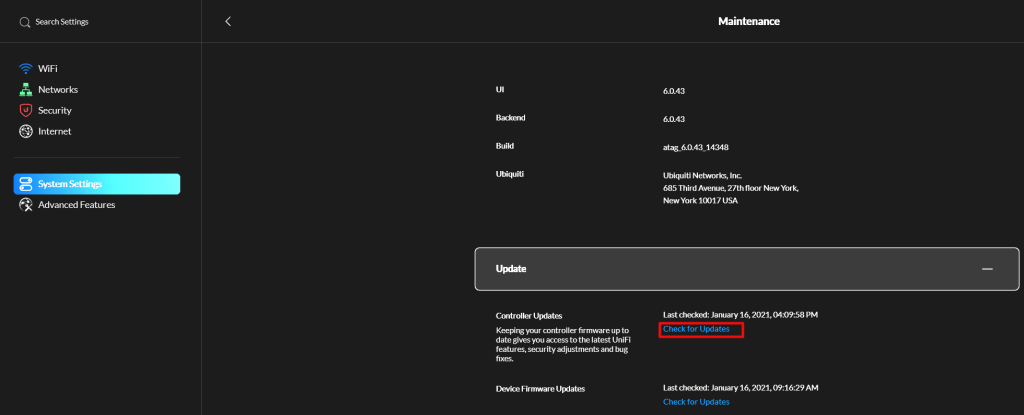
Anytime I start a project like this the first thing I do is make sure that all the software is up to date. At the time of this writing 6.0.43 is the newest edition of the Windows UniFi Controller software. Go to System Settings -> Maintenance -> Update and use the link to check for updates.

Update your UniFi Controller Software before installing the new WAP.

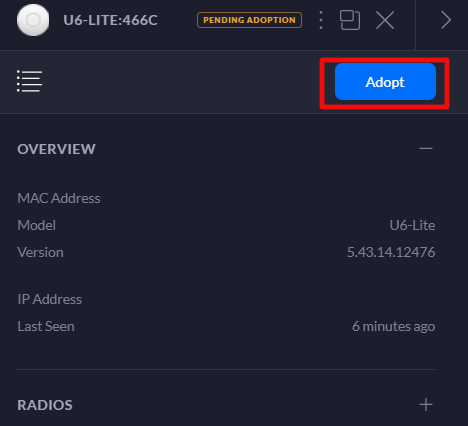
Unbox the unit and connect it to a PoE switch port using a suitable RJ-45 connection. Logon to your UniFi controller. The WAP should power on as indicated by the ring light on top flashing, then the unit will be detected by the controller, look in the devices section to locate it. Click on the device and then select Adopt in its pop-out panel. This process can take several minutes so be patient.

Before adding the new WAP to any of your AP Groups or creating one just for it, you’ll want to upgrade the firmware. While still in the Devices section of the controller, hover your mouse over the newly adopted access point and a menu will appear at the far left. Press the upgrade button and then click Confirm. Again, the process can take several minutes.

Upgrade the WAP firmware.

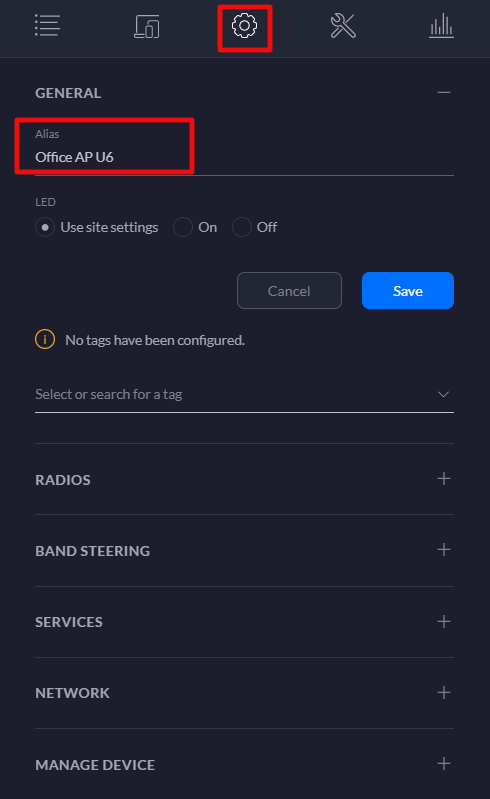
While still in the Devices section of the controller, click on the device after its firmware upgrade has completed to access its pop-out panel. Click the settings (gear) icon and name the device something appropriate for your network. You can also adjust any other settings that may be required for your environment in this panel. Save and Apply the changes.

Name your Wireless Access Point so that you can easily locate it in the controller and to make logs / events easier to understand.

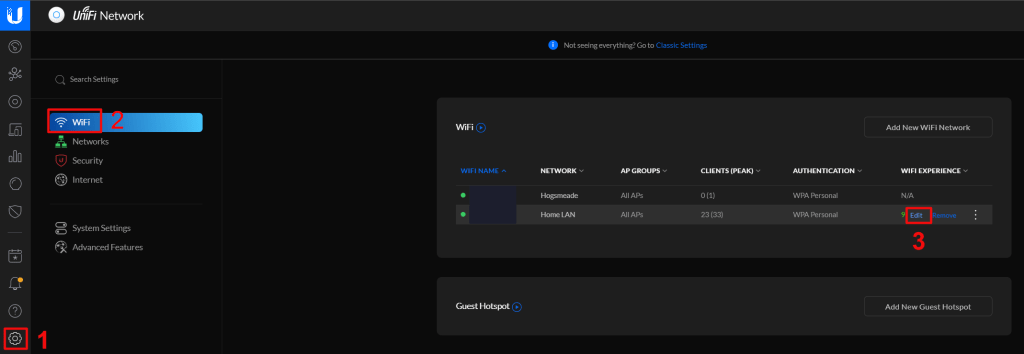
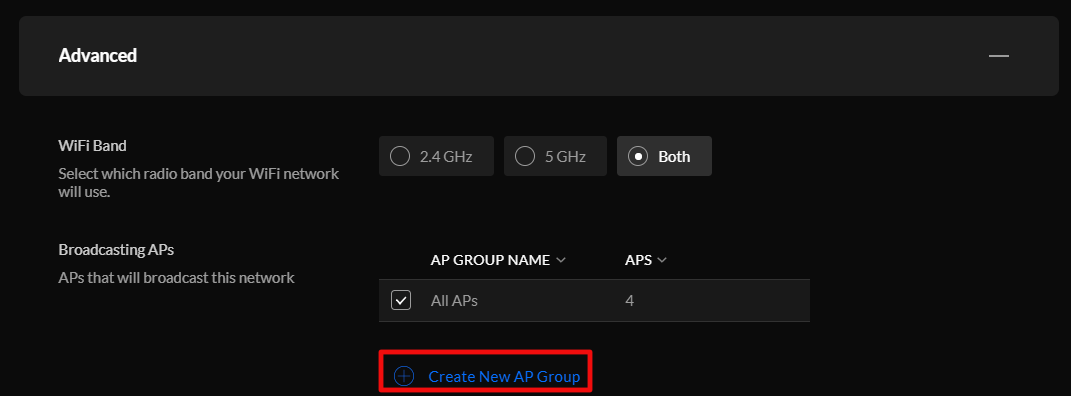
In my case, I am adding the UniFi 6 unit into the same AP group as the rest of my access points and will let the controller decide what clients should connect to it. So, my project is complete at this point. You could also create a separate AP group for the new WAP and add it to a stand-alone WLAN (Wireless LAN / SSID) to enable manual selection of the Wi-Fi 6 network. While logged on to the controller click the settings (gear) icon in the menu on the left. Then go to Wi-Fi. Hover your mouse over your WLAN (SSID) and click the Edit button when it appears.

Edit WLAN settings to access the AP Group function

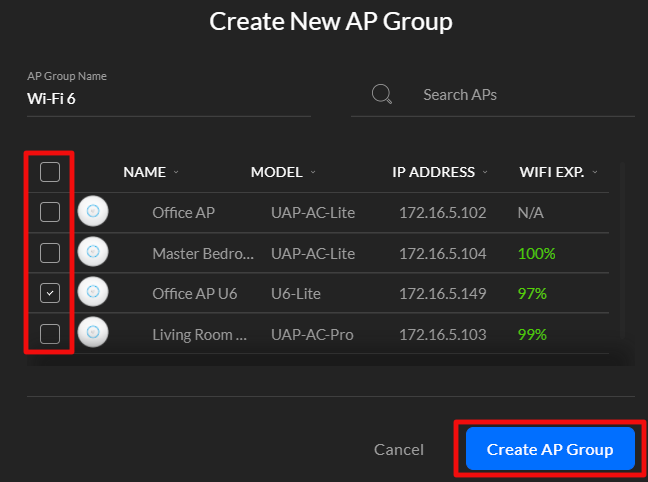
Use the Advanced menu to access the AP Groups. To isolate your Wi-Fi 6 unit into its own SSID you will need to create two new groups. Click the New Group button and select the devices that compose your current SSID, leaving the new unit unselect. Name this new group something appropriate (suggest same as SSID) and the click the create group button. Now create another group that contains only your Wi-Fi 6 WAP and name it. Select the first group you created to bind it to your current SSID. Save and apply the changes.

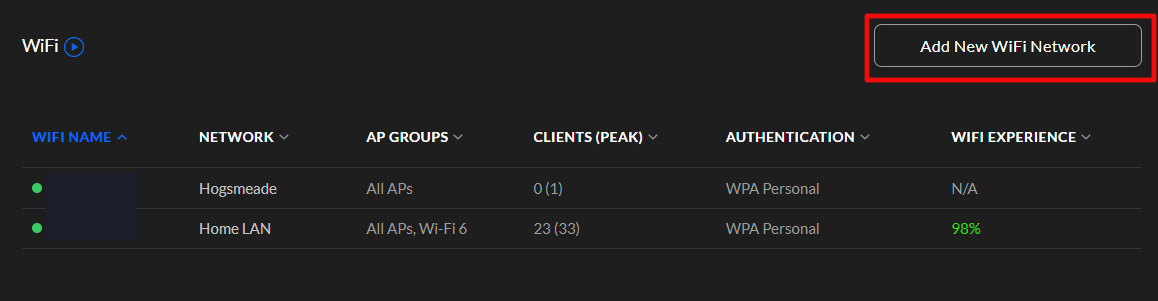
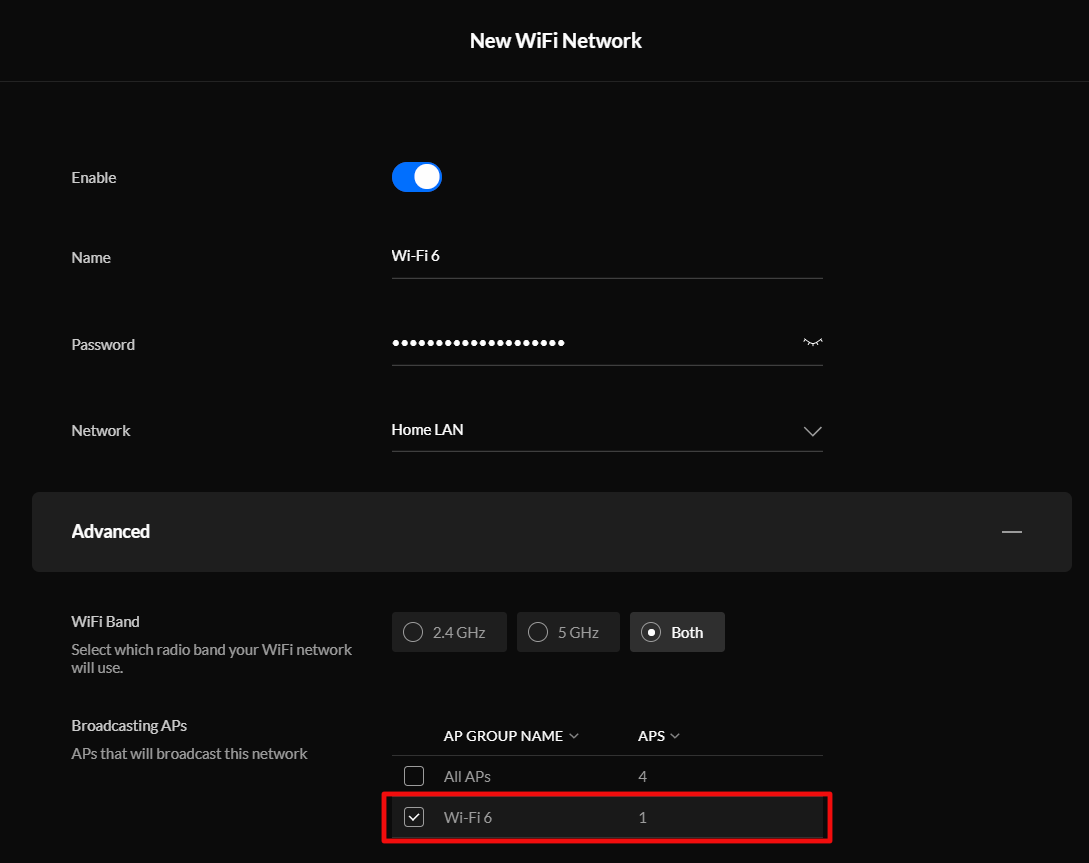
Now create a new WLAN from the Wi-Fi settings screen and choose the Wi-Fi 6 AP group after you have configured all the SSID settings. Devices that you manually join to this new SSID will be connected to Wi-Fi 6 access point. If you add new Wi-Fi 6 access points you can add them to this group using the same method.

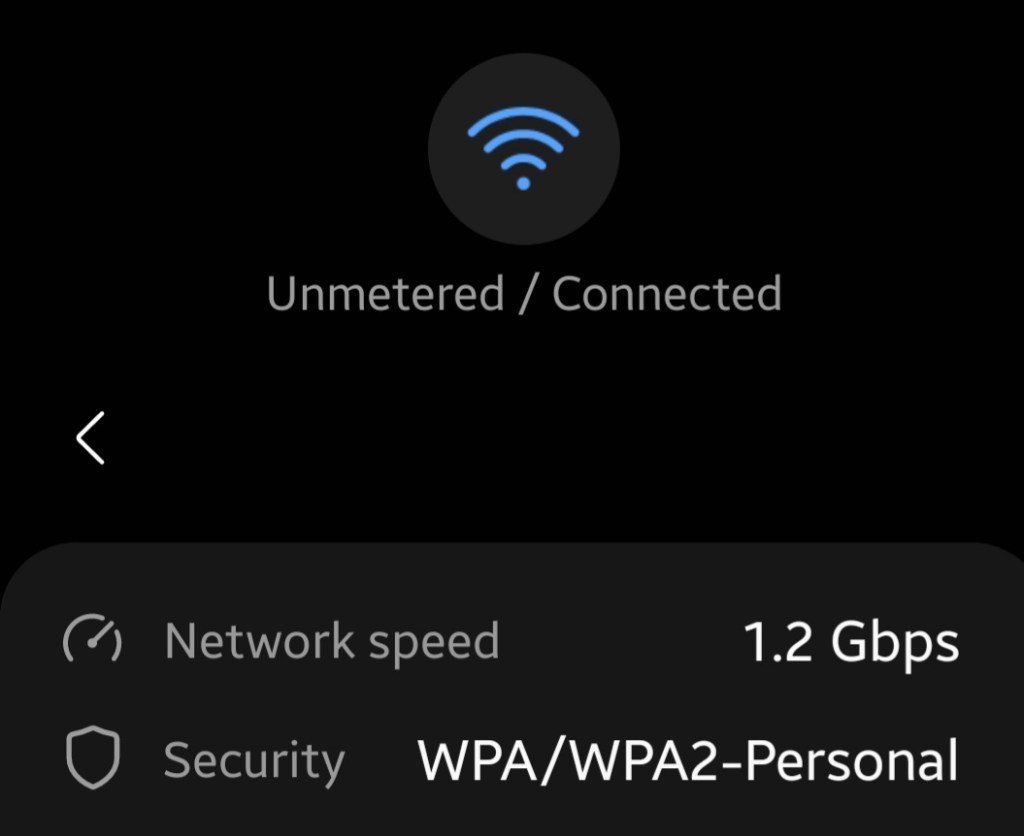
Once you have provisioned your Wi-Fi 6 access point and bound it to a wireless network connect a device to it and prepare to be astonished. On Windows systems and notification pops up to inform you that you’re using a more advanced network. On Android devices a little number 6 appears next to the wireless connection symbol. Checking the properties of the connection should show that you have 1.2 Gb/s of bandwidth available.

Mimecast Email Security Firm Compromised

Mimecast, a popular Email Security and Archival platform, posted on its blog Tuesday that a certificate it uses to encrypt traffic between itself and Microsoft was hijacked. Details are sketchy at this point, but the company is estimating approximately ten percent of its more than 36,000 customers use the corrupted connection.

The suggested action is to delete the connection that uses the corrupted certificate if it is present in your organization. According to their post, they have already contacted those customers who are at risk. You can read the full post on the Mimecast site at Important Update from Mimecast | Mimecast Blog.

Of course speculation is running wild with this sophisticated attack coming on the heels of the SolarWinds debacle. Rumors are already suggesting this event was perpetuated by the same group of Russian hackers that infiltrated the monitoring company’s customer base. Techbloggingfool.com could find no substantial evidence or official channel to back this hypotheses at this time.

Understand Employee Utilization with Microsoft 365 Usage Reports

A question that I am often asked after a Microsoft 365 implementation is, “How do I know what people are doing with it ?” Microsoft’s ever evolving cloud platform has recently added an improved reporting feature that is easy to use and very informative.

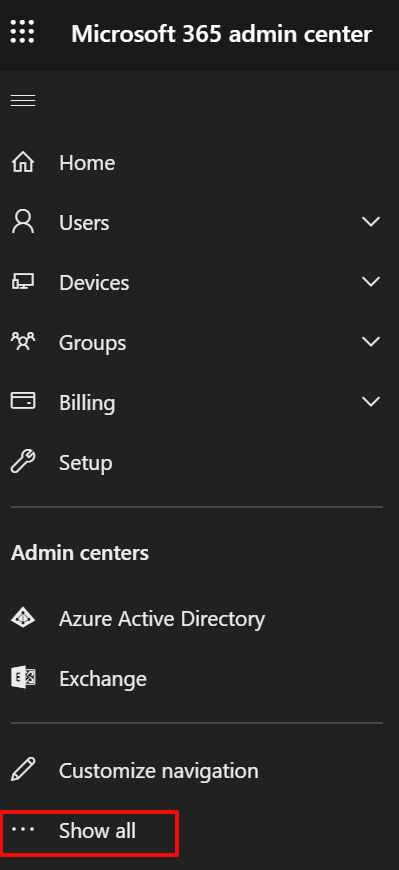
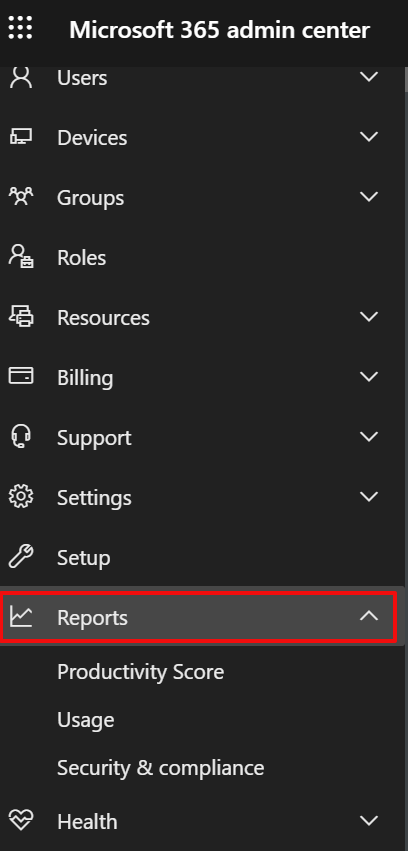
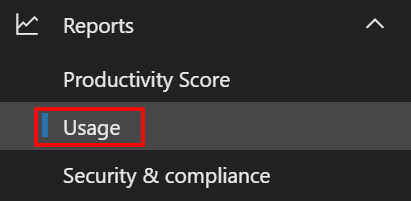
Logon to the Microsoft 365 admin portal with your global administration account by going to https://portal.microsoft.com/ and entering your credentials when prompted. In the menu on the left click the option at the bottom to “Show all”, click the drop down next to Reports, then click on Usage.

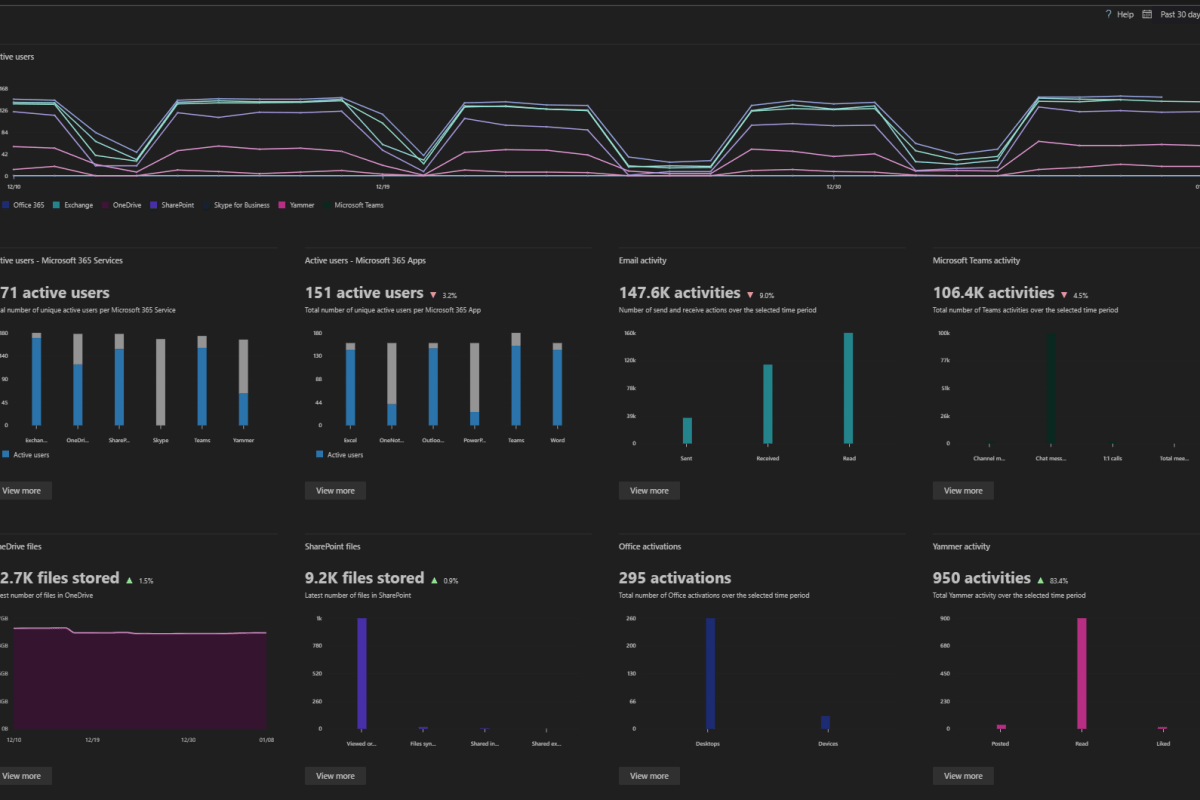
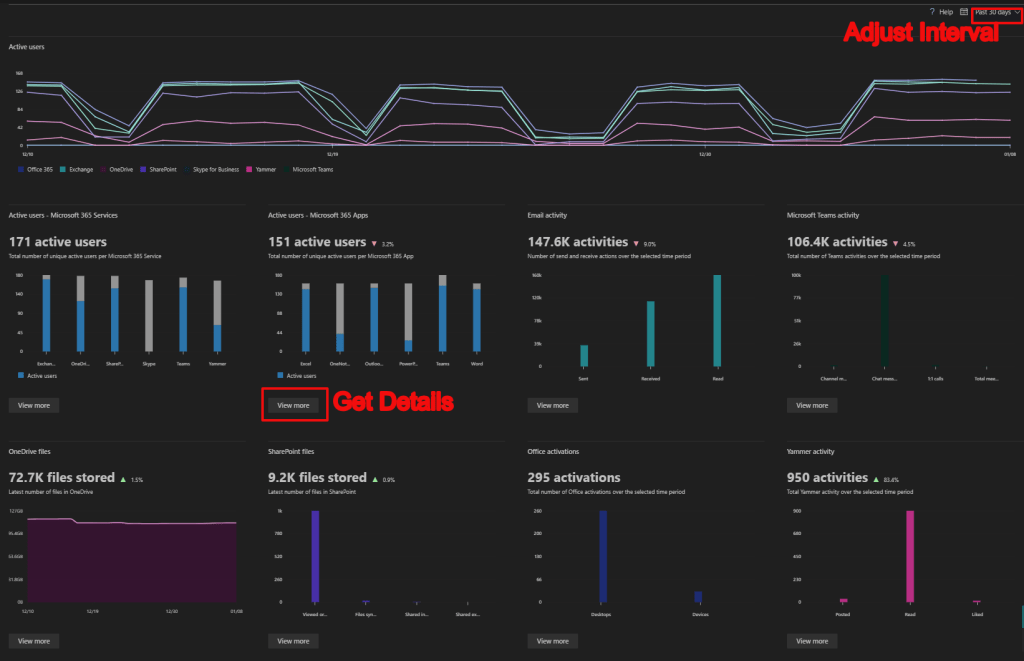
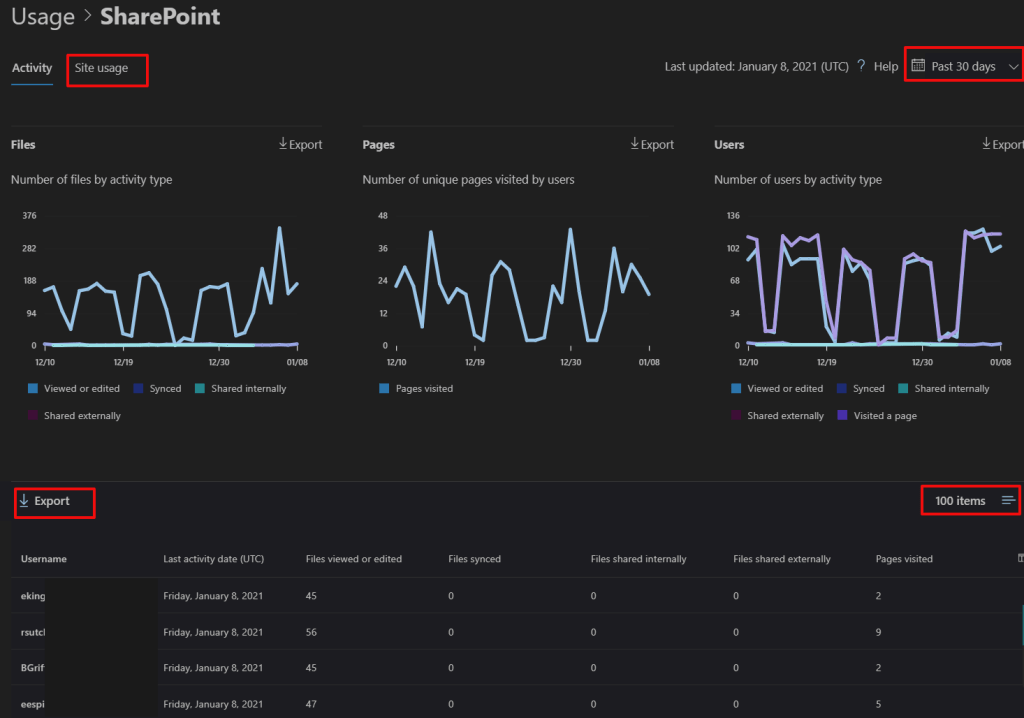
Once you have located the reporting feature using it is straight forward. There’s a drop down in the upper-right corner that changes the number of days worth of data you are viewing. The “View More” buttons on each section drill into more detailed views of each product like SharePoint or OneDrive. Some of the widgets also feature an export button to create a report that you can share with non-administrators.

There is a surprising amount of detail for each piece of Microsoft 365. You can see who is sharing data from their OneDrive and how many files they store there, along with what is in your SharePoint sites and how often they are accessed. You can even see which of the Office application are used most often.

I’ve been able to use the reporting facility to answer a lot of questions for the tenants that I support. I’m sure that you and your business will find the data useful as well.

Adobe will Actively Block Flash Content from Running Beginning January 12th of 2021

It has been widely publicized that the death of Flash was coming in December of 2020, the major browsers are removing support for it. While working on a Flash related issue I ran across Adobe’s EOL page that suggests a more extreme measure than I had assumed. The Flash Player itself has a timebomb in it that will prevent it from working after 1/12/2020. The news caught me and several of my fellow engineers off guard.

The official Adobe EOL page is at Adobe Flash Player End of Life and clearly says; “To help secure users’ systems, Adobe will block Flash content from running in Flash Player beginning January 12, 2021.” My first instinct was to turn off Flash updates, but according to an article published by ZDNET Adobe anticipated attempts to avoid the software’s demise. The kill switch was written into the Flash player code base long ago, updates are only modifying the warning message.

Microsoft will also be releasing an update to remove all traces of Flash from Windows systems. The update will be optional at first, then upgraded to recommended at some unknown date. The update will be permanent and can not be undone. For more details see their post on the subject at Update on Adobe Flash Player End of Support – Microsoft Edge Blog (windows.com).

Both Adobe and Microsoft will be removing download links (many are already gone) for the older versions of Flash player software from their sites. All of the major browsers and even many of the secondary options have removed, or are removing support for Flash. This effort to end a piece of software’s use is the most aggressive that I can personally recall.

What can do if your organization still uses an app that requires Flash? Adobe has left one option available, Enterprise Enablement as outlined on page 28 (PDF page 33) of the Adobe Flash Player Administration Guide allows for the use of custom mms.cfg files to allow certain sites to still run Flash content. VMware’s document on the subject outlines how to use the files to allow its Flash based management console to continue working. Given that browsers and operating systems are also removing support, it is unclear how long a workaround of this nature will continue to function.

The bottom line is that Flash is being killed off completely. Much in the same manner as SHA1 certificates, it isn’t being left up to individual choice. The tech companies Adobe, Apple, Microsoft, Google, and others have banded together on this and we need to plan for the full demise of Flash Player.

PowerShell: GUI Active Directory Group Membership Reporting Tool for Auditors and Security Teams

Security and auditing efforts often increase the workload of your network administrators. The frequent requests to look up information can interrupt the admin’s own workflow. The auditor’s and security team member’s requests are legitimately required. However, those groups are often unable to retrieve the data themselves due to a lack of access to, or knowledge of, the administrative management toolsets.

One of the requests I get most often is to provide a report showing the membership of various active directory groups. Generally, any account in an AD domain has enough permission to view the membership of groups, although administrators can adjust who can see the roster. Teaching your auditors and security department to use the Active Directory Users and Computers console is not out of the question, but it lacks good reporting facilities.

When I get tickets requesting the data I lean on PowerShell to create the reports. One afternoon I thought that if I could make a script simple enough to operate, I could turn it over to the people making the requests. They could get the information they needed without waiting on my availability. Below is the script I came up with. It uses PowerShell’s Grid View to show a list of all the groups for the person to select from and then exports a report with the most commonly requested information.

Import-Module ActiveDirectory
$groups = Get-ADGroup -Filter * -Searchbase "OU=Groups,OU=NCRA,DC=ccx,DC=carecentrix,DC=com"|
    Select-Object @{n="Group"; e={$_.Name}}, DistinguishedName |Sort-Object "Group"|
    Out-GridView -Title "Select a Group, then click OK"  -PassThru
$accounts = Foreach ($group in $groups) {Get-ADGroupMember -Identity $group.DistinguishedName -Recursive}
$report = Foreach ($account in $accounts) {Get-ADUser -Identity $account -Properties *|
    Select-Object DisplayName, SamAccountName, EmailAddress, EmployeeID, TelephoneNumber, Created, Department, City}
$report|Export-Csv -LiteralPath $env:userprofile\documents\groupmemebers.csv -notypeinformation
Invoke-Item $env:userprofile\documents\groupmemebers.csv

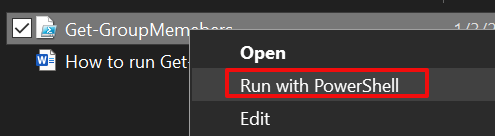
Copy the code and paste it into Notepad, save the file as Get-GroupMembers.ps1. Right click on the file you saved and choose the option Run with PowerShell.

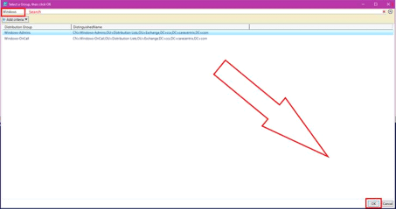
The Grid View will display all of the groups in the Active Directory forest. Use the search mechanism, or scroll through the groups and select the one you want to create a report for. Use CTRL + Click to select more than one group for your report. Then click the Ok button in the bottom right corner.

A report showing the Name, Logon Account, Email Address, Employee ID, Telephone Number, Created, Department, and City for each of the members of the group or groups you selected will be saved in your documents folder and opened on your screen.

To run this script you will need to have the Remote Server Administration Tools for Active Directory installed on the system you are running it from. The RSAT tools install the required Active Directory PowerShell module. You could also run the script from a domain controller.