Hyper-V NAT: Remote Access to Windows and Linux Virtual Machines

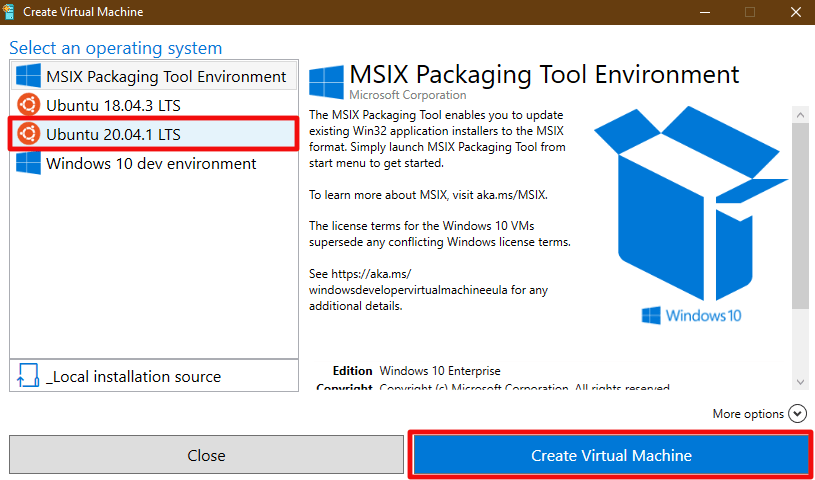
I’ve written several posts on creating Hyper-V virtual machines on Windows 10. One of my most popular covers how to create a Linux VM with sound. Inevitably, somebody will follow up with a question along the lines of, “How do I access XRDP (Linux RDP Server) from other machines on my network?”

One might be tempted to think the answer to this question is just a simple firewall rule. It isn’t. After the Windows 10 1607 update, Hyper-V started including a default virtual switch that uses NAT to allow your virtual machines access to the same network resources that your host machine can reach. This default switch makes the Quick Create function extremely useful. With a couple of button clicks, you can deploy a VM that has full outbound (Internet) network access. No network chops required.

Your newly deployed VM will be running on its own network segment that uses NAT to reach the host network’s resources. It is fantastic when you are trying to go from your VM out to the world. Getting traffic to go in from your host network(s) to your VM is another matter. Since the VM is running in its own network, there’s no path for traffic to reach it. The NAT is handled on your Windows host system so your router won’t be much help either.

Like all technical problems there are multiple ways to address this challenge. For example, if all the machines you intend to access the VM from are running Windows 10 Pro +, or Windows Server 2012 + you could configure the Hyper-V manager to access the host remotely. I’ve written those instructions here. You could also create an external virtual switch that would allow your VMs to use the same network your host system is attached to. In this post I’ll create a new NAT virtual switch and forward the traffic to the VMs.

Windows 10 has built-in port forwarding and NAT mapping. Normally you would need a few lines of PowerShell to forward the packets to your VM, but there’s a problem. The Hyper-V default switch’s NAT is not exposed to the OS. If you open PowerShell and run Get-NetNat you will probably see no return (assuming you haven’t configured other NAT mappings). We need to create a virtual switch that uses NAT and allows us to control it. Microsoft has not included this functionality in the GUI, but it can be done.
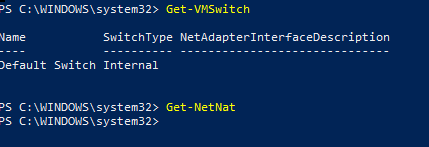
First we need to create a new Hyper-V switch. In an elevated PowerShell console run:

New-VMSwitch –SwitchName “HyperVNAT” –SwitchType Internal

If you look in the Windows network adapter console, or list them with PowerShell (Get-NetAdapter), you will see that a new NIC has been created with the name you specified between the “” marks in the command above. It can’t access anything because it isn’t configured. First we need to give the switch adapter an IP address. This address will be the gateway for all the VMs that are attached to this virtual switch.
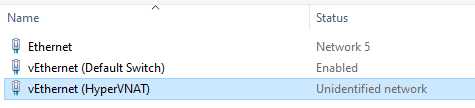
New-NetIPAddress –IPAddress 172.16.41.1 -PrefixLength 24 -InterfaceAlias "vEthernet (HyperVNAT)"
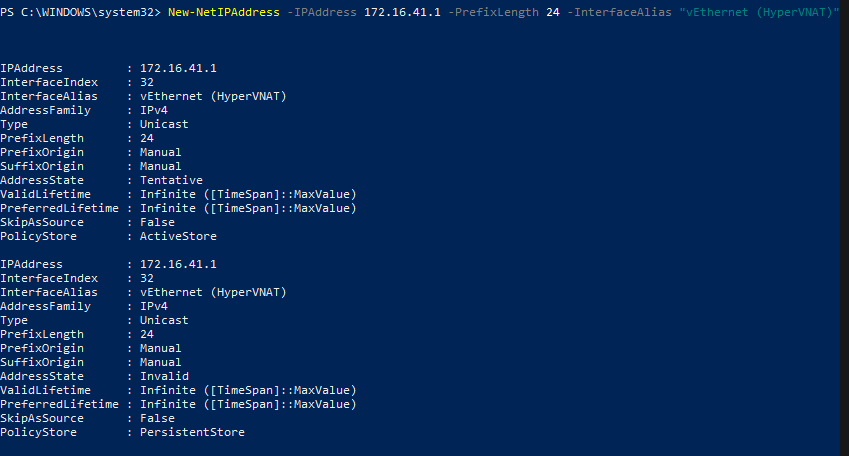
Now we need to create a NAT rule for our new network:

New-NetNat –Name HyperVNATNetwork –InternalIPInterfaceAddressPrefix 172.16.41.0/24
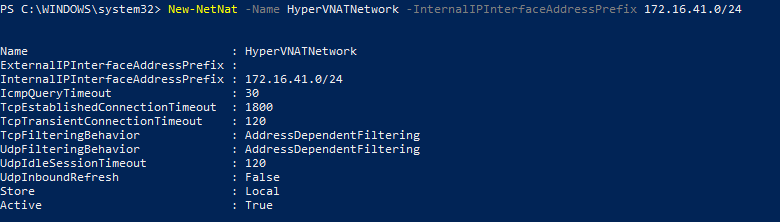
The built-in default virtual switch includes a DHCP function that automatically assigns IP addresses to the attached VMs. Our new virtual switch does not. You will need to manually assign your VM an IP address in the same subnet. If you followed my example, the useable addresses are 172.16.41.2 – 172.16.41.254 the subnet is 255.255.255.0, and the gateway is 172.16.41.1. You’ll also need to configure DNS if you plan on surfing the web or accessing named resources, 8.8.8.8 is Google’s public DNS server.

There are numerous ways to configure the IP information for a computer. They all differ according to the operating system. Generally, somewhere in the settings of your OS should be the network options. Set the IPv4 interface to manual (not automatic or DHCP) and enter the correct numbers for each. Below I’ve configured an Ubuntu Linux machine for the network we’re creating in this post.
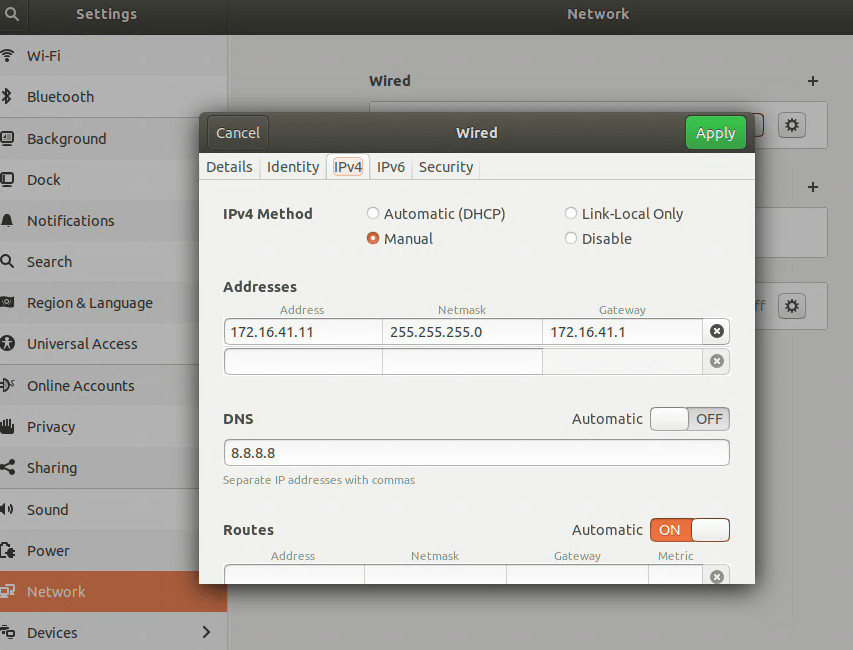
It is always a good idea to reboot after changing an IP address.

Now the VM should be able to use our new virtual switch to access the outside world. Also, when we run Get-NetNat on the host in PowerShell you’ll see information returned. You should be able to open a web browser on your VM and hit your favorite sites or check your email. We’ve done all of this and basically ended up where we started LOL. The key difference is that the NAT rules can be controlled now.

The problem we started out to solve was to allow XRDP access to a Linux VM on our Windows 10 host from other computers on our network. Add a NAT mapping to forward a custom port (3391) from our host to our VM as XRDP (3389) by using the PowerShell command below. Note: Do not forward 3389 to 3389 unless you do not use RDP on your host system.

Add-NetNatStaticMapping -NatName "HyperVNATNetwork" -Protocol TCP -ExternalIPAddress 0.0.0.0/24 -ExternalPort 3391 -InternalIPAddress 172.16.41.11 -InternalPort 3389

If your Windows Firewall is enabled (should be) you’ll need to create a rule to allow the forwarding port, 3391.

New-NetFirewallRule -DisplayName "HyperVRDPNat" -Direction Inbound -LocalPort 3391 -Protocol TCP -Action Allow

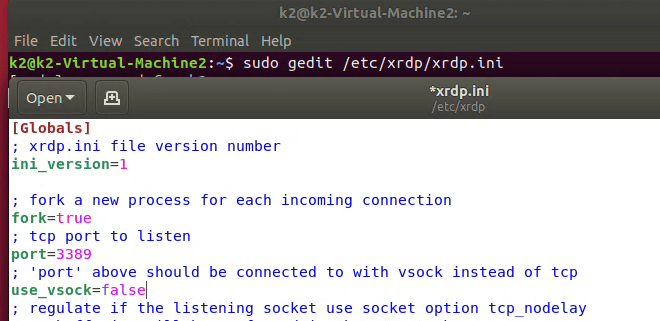
Depending on how XRDP was installed and configured on your Linux machine, you may also have to edit the XRDP.INI file. If XRDP is configured for vsock, it is not listening on the traditional RDP port. Vsock is only accessible via the Hyper-V management console’s enhanced session function.

sudo gedit /etc/xrdp/xrdp.ini

Depending on the distro, you may need to use nano or vim to make sudo changes to the xrdp.ini file. Change the line use_vsock=true to use_vsock=false. Make sure there is a port=3389 line that is not commented out (;) and save the file. Reboot the VM.

Note: chaining this setting will mean that to connect to an enhanced session, you will always need to manually open an RDP connection. Right clicking on the VM in the Hyper-V Management console and choosing connect will only open a basic session if vsock is disabled.
You should now be able to connect to RDP via the Windows 10 host’s IP (not the VM’s) address to port 3391 (X.X.X.X:3391) from any machine that is able to reach your Windows 10 host computer. If you want to access the VM from the Internet you would need to forward the custom port (3391) from your external firewall to your Windows 10 host system.

This technique was demonstrated in Windows 10, but it would work for Windows Server and a Windows Docker Container as well. You can find more details about the NAT abilities built into Windows at Set up a NAT network | Microsoft Docs .
Troubleshoot and Control Outlook Notifications for Shared Objects

If there’s one thing Outlook really likes to do, it is to make sure that you are notified. Sometimes it can be a little overbearing, especially if you are a member of very many shared mailboxes, a room delegate, or have full access to another individual’s mailbox. You will get all of those notifications too.

Often the solution is to reduce the number of Exchange objects that a person has access to, but how do you find out what those are? The easiest way is to use PowerShell. The little script below will prompt you for your Global or Exchange administrator credentials for Microsoft 365. Then it will prompt you for the email address of the user account you are working with. It will use those pieces of information to connect to Exchange online and generate a list of all the objects that person has full access to. Note: this does not include share permissions assigned by a user in Outlook.

$UserCredential = Get-Credential
$ExchangeOnline = New-PSSession -ConfigurationName Microsoft.Exchange -ConnectionUri https://outlook.office365.com/powershell-liveid/ -Credential $UserCredential -Authentication Basic -AllowRedirection
        Import-PSSession $ExchangeOnline
$useraddress = Read-Host "Enter the User's Email address"
Get-Mailbox -ResultSize:Unlimited | Get-MailboxPermission |Select-Object Identity,User,AccessRights | Where-Object {​​​​​​​($_.user -like $useraddress)}​​​​​​​
pause

Once you have the list of Exchange objects you’ll want to investigate each and decide if the user really needs the level of access they have. Full access or delegation results in notifications. If the number of objects can not be reduced to a satisfactory level, there is another strategy available in Outlook itself. You will need to disable the general alerts function and then create alert rules for the specific objects that matter.

In Outlook, go to File -> Options -> Mail and then uncheck the box for “Display a Desktop Alert”. This will do what you think, disable all Outlook notification pop-ups.

Now we’ll need to build rules for the alerts that we still want to see. Use the chevron at the far right of the Outlook ribbon to expand it. Then click the drop down for rules. Click “Manage Rules and Alerts”.

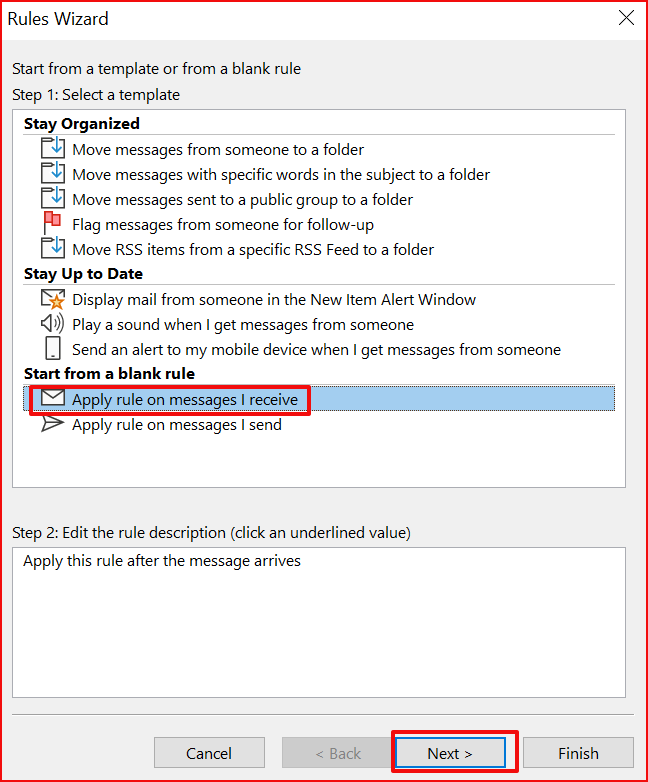
In the rules wizard select “Apply a Rule on Messages I receive” then click the Next button. Now select the most appropriate condition, often I use “through the specified account”, click on the word specified and pick the account you are creating a rule for. You may find another option more useful. From people or group is a good one too. You can actually select as many conditions as you like for the rule.

On the next screen scroll down and check the box for “display a desktop alert”. Then click Next, you probably don’t need any exceptions. When you click Finish your rule is done. You can use a series of rules like this to customize all the notifications that Outlook displays.

The Brydge 12.9 Pro+ iPad Keyboard

What do you get your wife who has everything for Valentine’s Day? Sure you could go with the standard flowers or candy and my wife would be more than happy with that choice. However, I’ve noticed that she’s been borrowing my Surface Go more and more lately. Mostly due to needing a keyboard and trackpad to edit my blog posts and our children’s research papers. So what’s a tech blogging fool of a husband supposed to do?

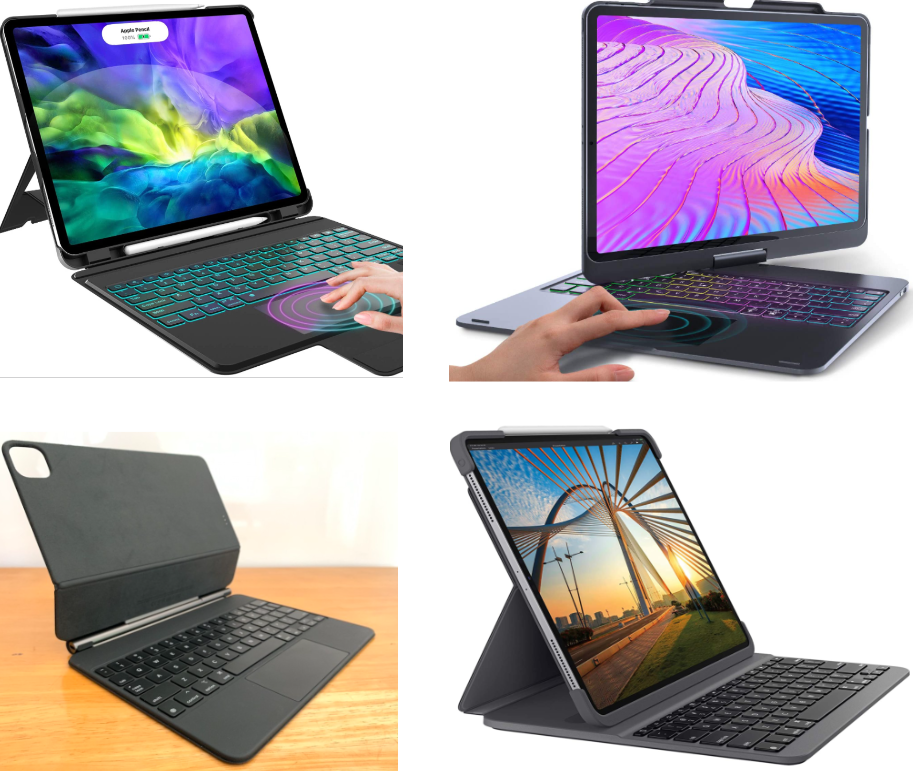
I hopped online and spent a few hours doing research on the various keyboard options that are available for the iPad Pro. I had previously purchased the Apple Folio keyboard for her when she got the iPad but neither of us liked it. The keys weren’t great, the case sucked, it was too expensive and so on. We took it back to the store. Now Apple has come out with the Magic keyboard. For $350 it had better be the best keyboard on Earth. There are also contenders from Logitech, Brydge, and a host of no-name options from Amazon.

The new Logitech with the touchpad looks great, but it doesn’t work with the third generation iPad Pro so it was out. I never have the greatest of luck with knock off stuff and too many of the reviews I looked at for the cheap options on Amazon included scary words like “bent my iPad” and “couldn’t get the case off” so, nope. That left the Magic Keyboard and the Brydge.

My local BestBuy had both options in stock so I masked up and headed into town. The store was mostly empty so they were happy to let me stand there and play with both keyboards. The Magic keyboard is not magic. It isn’t worth the asking price, it has too many flaws that I suspect were intentionally introduced to protect the MacBook product line. Chief among them are the angle of the screen, lack of plam rests, and missing function buttons. What is the point of having a keyboard if won’t sit on your lap and you keep having to tap the screen? The keyboard itself felt and worked well and so did the track pad, but seriously it just isn’t good enough.

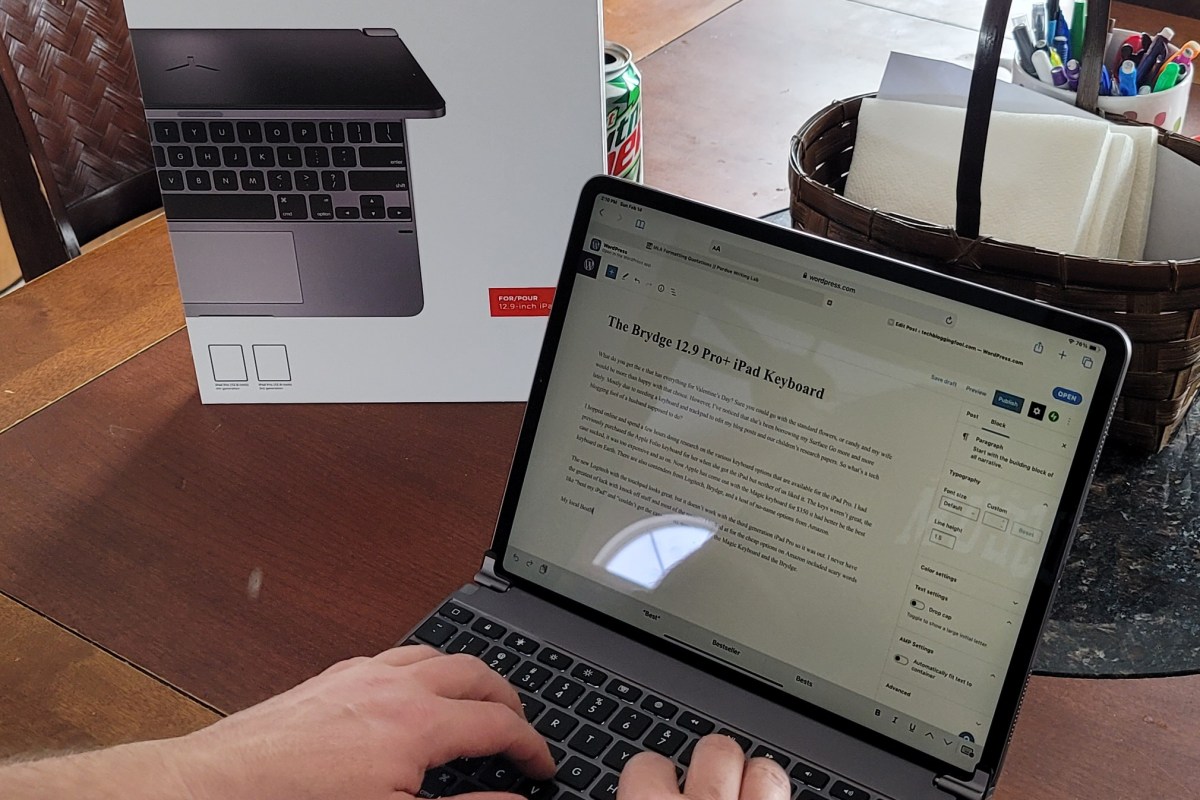
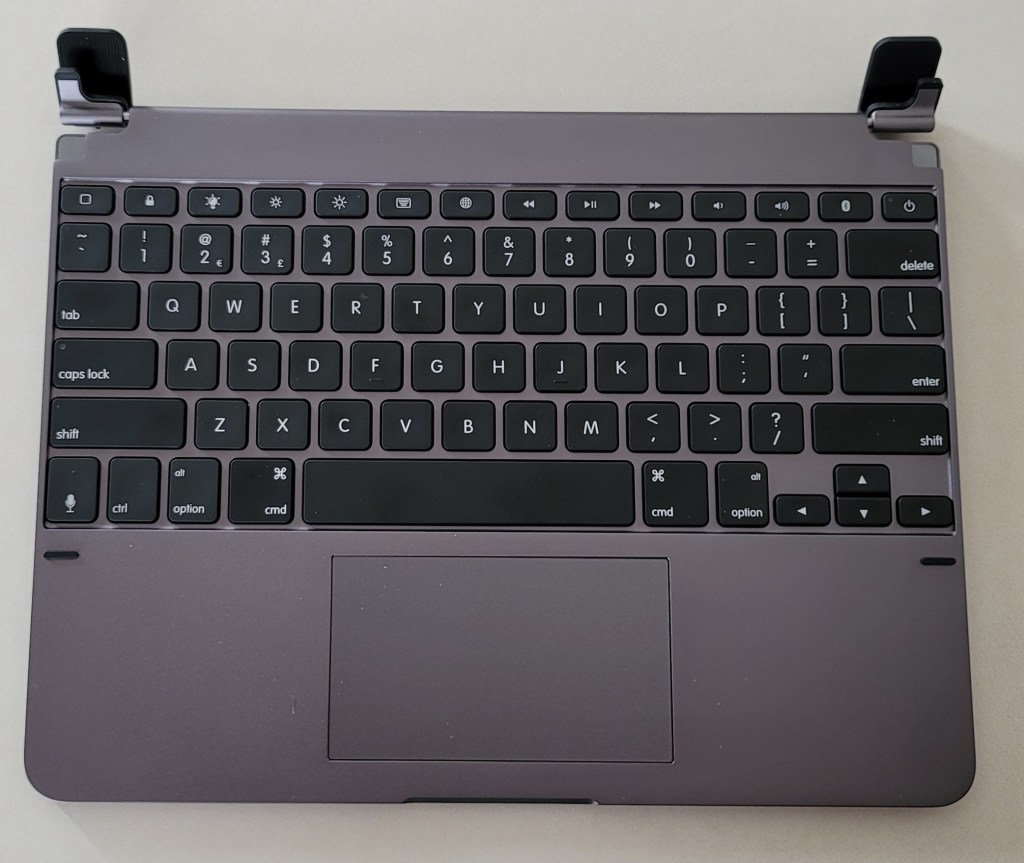
I picked up the Brydge. I’m writing this post with it now. Is it perfect? No. Is it good enough? Yep. The biggest issue I’ve had with it so far is that my meaty man hands tend to brush the trackpad when I get typing too fast and the cursor jumps somewhere unexpected. It isn’t a deal breaker, I’m already learning where to hold my hands to make it stop, I just need to position my wrists a little more outward. The chicklet keys are well spaced, have good travel and are backlit (only white). They feel great to type with.

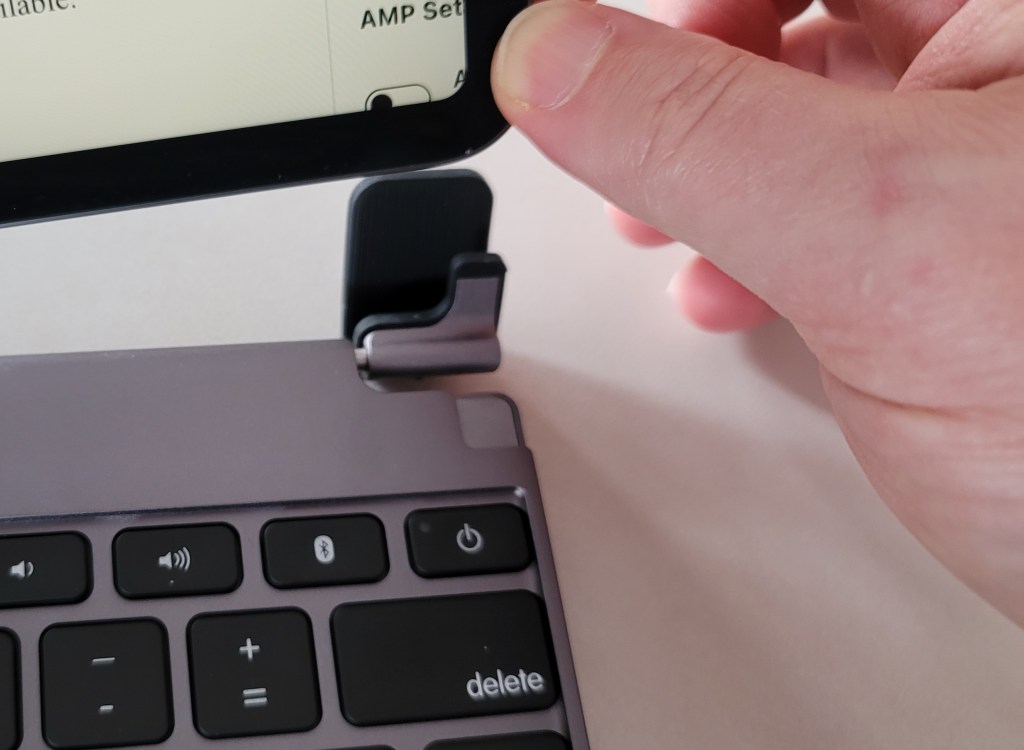
The keyboard’s chassis is made of metal and is heavy enough to to offset the iPad’s pull forward. So when the tablet is mounted to the keyboard the entire contraption sits well balanced on your lap, like a laptop should. The tablet slides down into the foam padded hinges and is held in place with friction. The hinges will securely hold the screen at any angle you like. The row of function buttons keeps you from having to reach up to tap the screen for every little thing. Search, access the Home Screen, control screen brightness, control volume, manage media playback, access Siri, and more all with dedicated buttons.

No chance of bending the iPad, but it is held tightly.

The trackpad is spacious and centered between the palm rests where it should be. It doesn’t support all of the gestures that are available on the Apple device. You can scroll left, right, up, and down with two fingers. I also mapped the app switcher to a three finger tap. Scrolling is fairly smooth on Facebook and the web but not as fluid as Apple’s touchpad. Like me, you may need to adjust were you place your palms on the generous wrist rest to avoid accidental taps.

We’ve only had the Brydge keyboard for a few hours, but I can already tell its going to be with us for the long haul. At $229.00 it is the most expensive keyboard in our house but, it isn’t the best. It does its job well enough and most importantly, my wife is happy with it. If you’re looking to add a keyboard to your third generation iPad Pro, I think it is probably the best option available.

Accidental MFA Bypass in Fortinet Devices

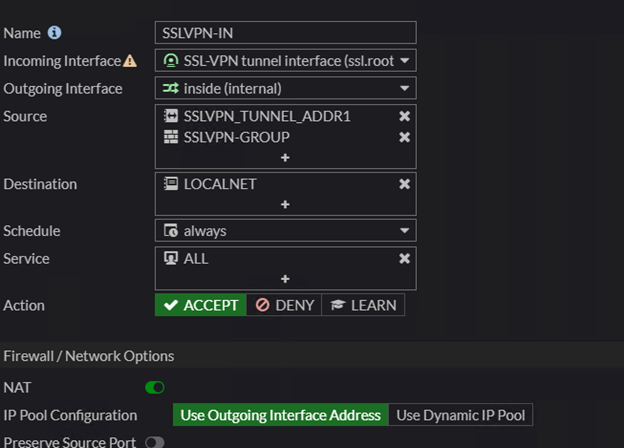
Due to a misunderstanding of a poorly designed form it is easy to allow LDAP to bypass Fortitokens or other MFA technologies when implemented on Fortigate VPNs. In a Fortigate VPN configuration, you create an inbound rule to allow VPN tunnel access. That rule specifies the source objects and groups that have access to the tunnel.

Typical Fortigate Inbound Rule

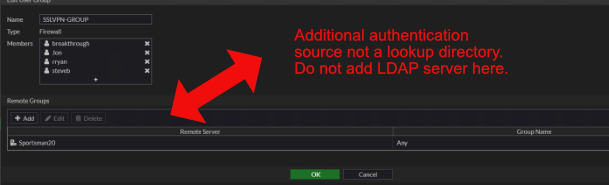
In the example above you see that a firewall group named SSLVPN-GROUP is allowed to use the tunnel. The bypass arises because the form that controls that group does not make it clear that adding an object to the remote groups section is an additional accepted authentication source.

I assume that some engineers are interpreting the remote groups section as a directory lookup for users placed into the members section of the firewall group. The bypass occurs due to Linux and Window’s interpretation of character case. If the user enters their credentials in a case that matches the way it appears in the member’s section of the firewall group, they will be prompted for their MFA token.

However, if the user enters their credentials in the client using a case that is different (all caps, mixed case, etc.) then the credentials will not match a member of the group. The Firewall group will then proceed to check the remote groups, in our example this would be an LDAP server. The credentials will match (Windows doesn’t consider case in usernames) and the user will be logged in without MFA.

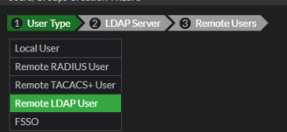
LDAP directory lookups are accomplished by selecting the protocol and then the LDAP server object when adding new users to the Firewall group, not by including it as a Remote Group.

If you have Fortigate VPN devices in your environment, I suggest that you ask your network engineer to check for this situation. I’ve run into the misconfiguration quite a few times in the field. I’ve submitted a feature request to Fortigate to have the “Remote Groups” section on the form more clearly defined.

PowerShell: Automate UniFi Controller Software Updates on Windows

The Windows software based controller for your UniFi wireless network is more useful when run as a Windows service. Running the controller as a service allows it to start automatically when your computer reboots, among other things. If you haven’t already configured it to run as a service, see these instructions on the UniFi support site UniFi – Run the Controller as a Windows Service – Ubiquiti Support and Help Center.

The downside of running the controller software as a service is that updates become considerably more painful to accomplish. You have to uninstall the service, install the update, and then re-install the service by issuing a series of commands each time. It isn’t difficult. just annoying.

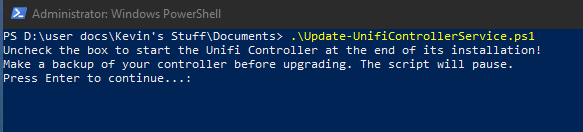
I wrote the script below to automate most of the process. Copy the code and paste it into notepad. Save the file as Update-UnifiControllerService.PS1 in your documents folder, or wherever makes sense to you. The next time your controller console prompts to download a software update, do so. Then open an elevated PowerShell console (as administrator) and run the script by typing .\Update-UnifiControllerService.ps1 then press Enter.

# Author: Techbloggingfool, https://techbloggingfool.com
# Update-UnifiControllerService.ps1
# This script assumes that you have already configured the UniFi controller to run as a service and are upgrading it with a new version that you have already downloaded to your hard drive or another location Windows Explorer can reach.
# Directions to configure the Windows Unifi Controller to run as a Windows service the first time can be found here: https://help.ui.com/hc/en-us/articles/205144550-UniFi-Run-the-controller-as-a-Windows-service

Write-Host "Uncheck the box to start the Unifi Controller at the end of its installation!"
Write-Host "Make a backup of your controller before upgrading. The script will pause."
Pause

#Stop the Unifi Service
Stop-Service -Name UniFi

#Loading VisualBasic interactions to create GUI
[System.Reflection.Assembly]::LoadWithPartialName('Microsoft.VisualBasic') | Out-Null


Function Get-FileName($initialDirectory)
{   
 [System.Reflection.Assembly]::LoadWithPartialName("System.windows.forms") |
 Out-Null

 $OpenFileDialog = New-Object System.Windows.Forms.OpenFileDialog
 $OpenFileDialog.initialDirectory = $initialDirectory
 $OpenFileDialog.filter = "EXE files (*.exe)| *.exe"
 $OpenFileDialog.ShowDialog() | Out-Null
 $OpenFileDialog.filename
} #end function Get-FileName

#Use the Get-FileName function to find the UniFi Controller Upgrade file
$controller_exe = Get-FileName -initialDirectory $env.userprofile\downloads

#change to the unifi user directory
cd $env:userprofile
cd 'Ubiquiti Unifi'

#execute the java command to remove the existing service
java -jar lib\ace.jar uninstallsvc

# install the upgrade
Write-Host "Please complete the Unifi Installation. Uncheck the box to start the Unifi Controller at the end"
& $controller_exe
Pause

#execute the java command to create the windows service
java -jar lib\ace.jar installsvc

#start the new service
Start-Service -Name UniFi
Get-Service -Name UniFi
Pause
Exit

You will need to run PowerShell as an administrator to start and stop the services.

Right-click on the Start button and pick Windows PowerShell (Admin) from the menu. CD\ to the folder you saved the script in.

The script will pause and ask you to make a backup of your controller.

Logon to the UniFi web interface and click the gear icon at the bottom left to go to settings. Click System Settings in the menu and then expand Backup / Restore. Click the Download Backup link and save the file to your PC.

Always a good idea to backup your controller before you upgrade it.

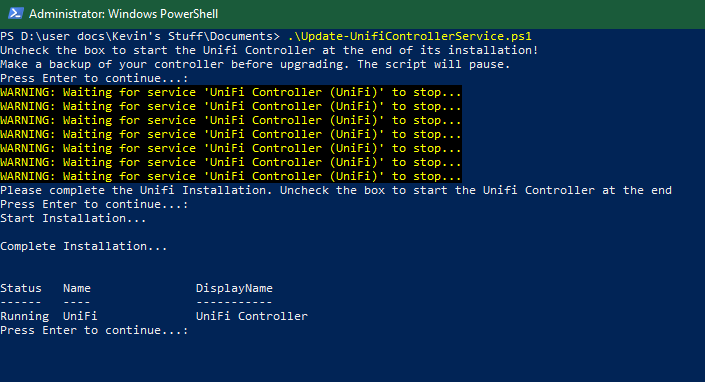
Return to the script (click it on your task bar) and press enter to continue. The script will stop the running UniFi service and open an explorer window. Locate the downloaded update file and click the Open button.

Locate the update file and click Open.

The update installer does not have command line options so you will need to use its GUI to complete the installation. The script will pause and open the installer. Click the Install button.

Click Yes when asked if you want to upgrade.

Click the Yes button when asked if you have made a backup.

Uncheck the box to start the controller and click the Finish button.

Now return to the script (click it on your task bar) and press Enter to continue. The service will be installed and started. The script will pause one more time to show you that the service is running. When you press Enter, you are done. The upgrade has been completed, close the PowerShell window. Anytime an update is available, download it and repeat the process.