Full OneNote Desktop Edition Back from the Grave?

I had converted over to to the OneNote Microsoft Store app a while back when Microsoft announced they were ending support for the full desktop edition. I’ve always been inclined to adapt to the ever changing technology world rather than constantly trying to swim upstream. I preferred some of the features that were in the full version but, I found workarounds and moved on.

Last week I needed to test an Outlook Plug-In which meant I had to download and install the desktop version of Office from my Microsoft 365 subscription. I noticed that it installed OneNote, but didn’t think much of it at the time. A few days later I opened it for a nostalgia kick. I was surprised to see that it had been updated. It had the new Feed feature, dark mode, and it was now named OneNote for Microsoft 365 rather than OneNote 2016.

Some research turned up several posts by mainstream blogs like The Verge and Endgaget confirming that Microsoft is not only bringing back the desktop app, but that they are merging the newer Windows 10 app features back into it. Over the next year or two they will update the desktop edition with new features and move to it rather than away from it. Eventually I located a Microsoft FAQ page that also points to the full version’s future.

The full version of OneNote has three features that are important to me, but remain missing from the app store edition. One is the ability to backup and store notebook files on local storage. Another was the ability to index handwriting, text in pictures and video, and audio from various media sources to make them all searchable. Finally, I really missed the customization options, I prefer my sections on the left and pages on the right. Microsoft has a page that runs down the differences in all of the versions here.

If like me, you have avoided the desktop edition due to Microsoft’s previous abandonment announcement, feel free to move back in. I already have.

Fix Nvidia RTX 30 Series HDMI HD Audio Drop Out

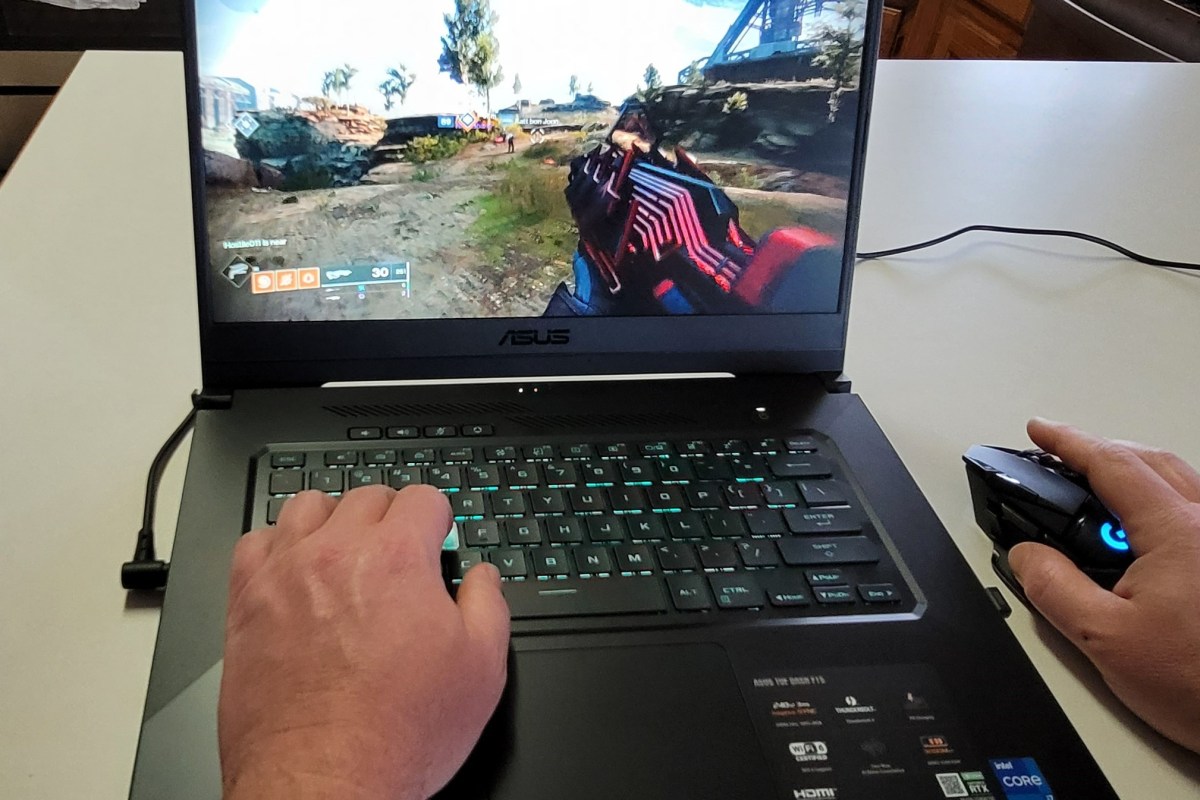
I’ve written several articles about my recent foray into laptop gaming. I purchased an ASUS TUF gaming laptop, Logitech Keyboard and Mouse, and Logitech Headphones to use with my big screen in the living room. Everything has been working well until a week or so ago.

I noticed that when my laptop was connected to my home theatre system via the HDMI port, audio would drop out for 1 or 2 seconds every minute or so. It happened in games, movies, YouTube, and everything else. It was slowly driving me insane.

I tried every possible setting and trick I knew of to fix it. I swapped out cables and changed the Nvidia HD Audio driver to the standard Windows driver, I adjusted from various versions of surround sound to stereo. I even switched to the TV’s internal speakers. Nothing worked. I strongly suspected it was a driver problem because my headset and laptop speakers worked fine. The issue only occurred when using the HDMI port but video through it was great.

Today I installed the previous Nvidia driver package (466.27) and the problem is fixed. Once I corrected the problem and understood the cause, I was able to find a thread on Nvidia’s forum where other people are having the same issue with the 466.47 driver. That forum is at Stuttering sound driver 466.47 | NVIDIA GeForce Forums. You can download the 466.27 version of Nvidia’s driver from NVIDIA DRIVERS GeForce Game Ready Driver WHQL, just run the file and it will remove the new version automatically.

Couch Gaming Perfection with The Logitech G935 Headset

A short time ago I jumped into laptop gaming, in part so that I could easily enjoy playing in my living room. Right after I purchased my new ASUS laptop I found out that the Bluetooth keyboard and mouse I was planning on using wouldn’t cut it. Logitech’s Lightspeed gear saved the day. I had not planned on running any multiplayer games in the living room. So I skipped audio gear.

That plan lasted two whole weeks. I really enjoy playing on my big screen while sitting in my recliner. The kids are busy on the weekends nowadays so I have more time to play upstairs than I thought. I needed a wireless headset that didn’t lag, sounded great, and whose signal could reach across my living room.

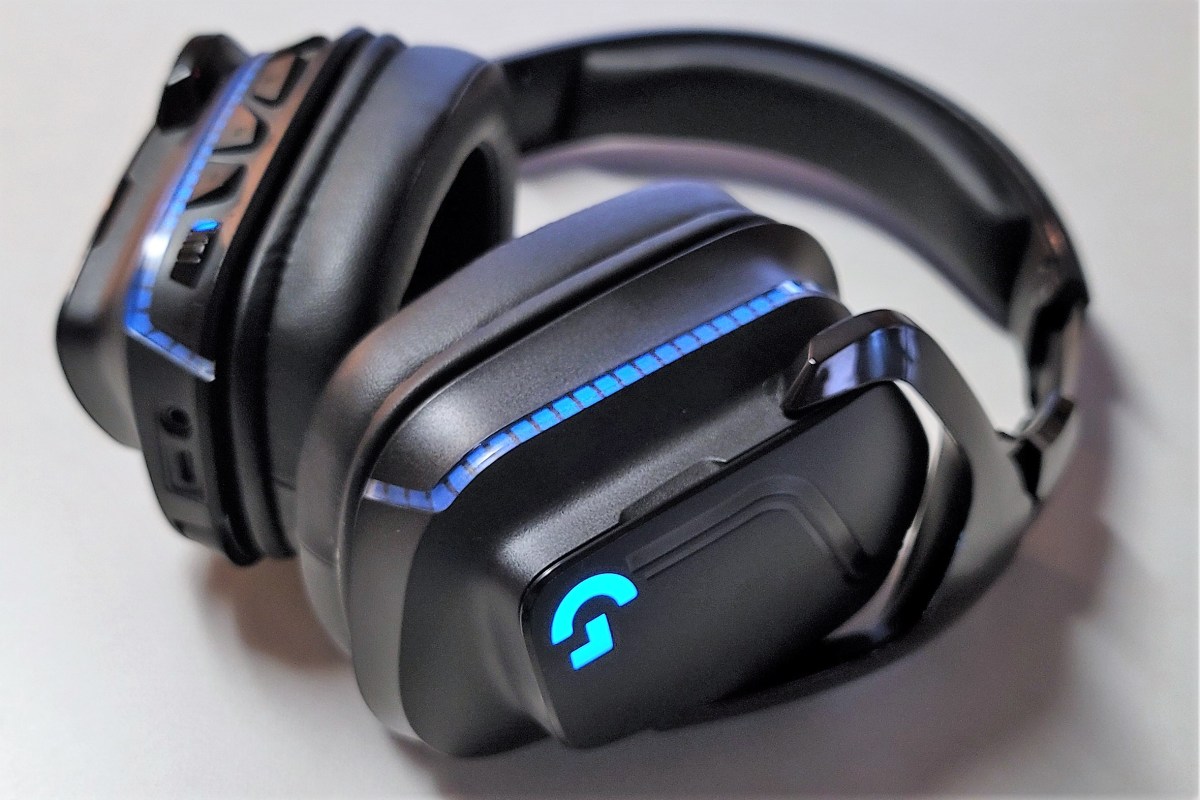
I was impressed with the Logitech keyboard and mouse, so I picked up the matching G935 headphones. I lucked out, the local BestBuy had them on-sale for $99.00. As with the keyboard and mouse, the build quality of the headset was apparent as soon as I removed it from the packaging. The band that connects the earphones is metal, the articulation points are sturdy, and the plastic is dense. One of the earphone’s covers conceals the USB dongle and the other provides access to the rechargeable battery. The removable covers are attached via magnets that hold them fast.

Magnetic covers and a stowaway microphone

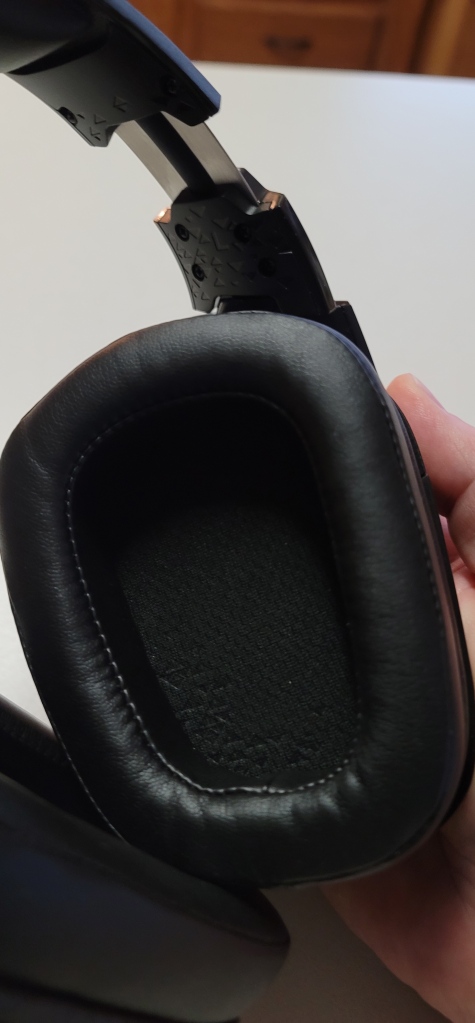
Each earphone easily covers my entire ear and I don’t feel the speaker grill rubbing anywhere. Each cup features a strip of RGB lights on the back. The colors and effects of the lights can be controlled from the GHUB software. The left earphone contains a boom mic that you pull down to activate or stow to mute. The end of the boom can be extended and is flexible so that you can put the microphone in the perfect position to fit your face.

The 50mm drivers work with DTS X:Headphone 7.1 surround sound, and the GHUB EQ to bring the soundscape of your games from the background to front and center. A lot of the headphones I’ve used over the years trade nuance for volume. The bass thunders but you miss the tinkle of a bullet casing bouncing off the concreate. DTS really balances things out. The explosions still rattle your head, but you don’t loose the foot steps in the grass behind you.

Deep padded ear cups prevent rubbing

The wireless signal easily reaches across my living room. I’ve made it down the hall to my kitchen while still chatting with my buddies and nobody noticed. The headset also includes USB and 3.5mm connections. The battery life is advertised at 12 hours with the lights off and 8 with them on. I don’t have gaming sessions that last that long IRL so I will probably never find out if those times are true LOL. The ability to swap the battery out should alleviate any longevity issues you might have.

Everything about the G935 isn’t lollipops and honeysuckle. There is a fly in the ointment. If your system doesn’t have any true USB 2.0 ports, you will find that you are not able to use the wireless dongle out of the box. When you connect it, the headset will pair and you’ll hear the confirmation beep. The GHUB software will forever show “setting up” and no matter what sound you create on your system you will never hear it.

For whatever reason, Logitech’s own driver is not compatible with the G935 over USB 3.0. Yes I know they are backwards compatible with 2.0 but in this case it doesn’t matter. If you only have USB 3.0 ports, you will need to use the device manager to change the driver to Microsoft’s. Trust me, I’ve tried everything including an external USB 2.0 hub, removing / reinstalling the GHUB software, multiple versions of the GHUB driver, and even opened a ticket with Logitech support. The only option to use the wireless dongle on USB 3.0 systems is to change out the driver. Research leads me to believe this isn’t just a Logitech issue, it seems to affect many wireless gaming headsets that use a USB dongle.

Onboard controls and lighting

The good news is that swapping the driver works and doesn’t affect the headset’s performance minus one thing. To change any settings like lights, the EQ, etc. you will either need to use the onboard buttons, or connect the headset to a system with a USB 2.0 port. If you dig through the Logitech support pages you will eventually find this one, that specifically calls out the USB 2.0 requirement. On their support page you should also find the instructions for changing out the driver. I’ve written better ones below.

Change to Microsoft drivers:

  • Connect the USB dongle and turn on the headset.
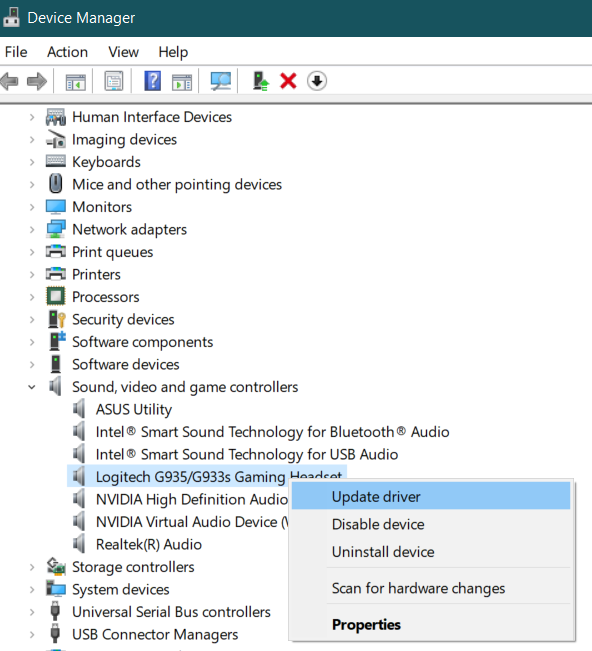
  • Go to Device Manager (Right-click Start button, click Device Manager).
  • Scroll down to and expand Sound, video and game controllers.
  • Right-click on the Logitech G935/G933 Gaming Headset and click Update Drivers
  • Click Browse My Computer for Drivers.
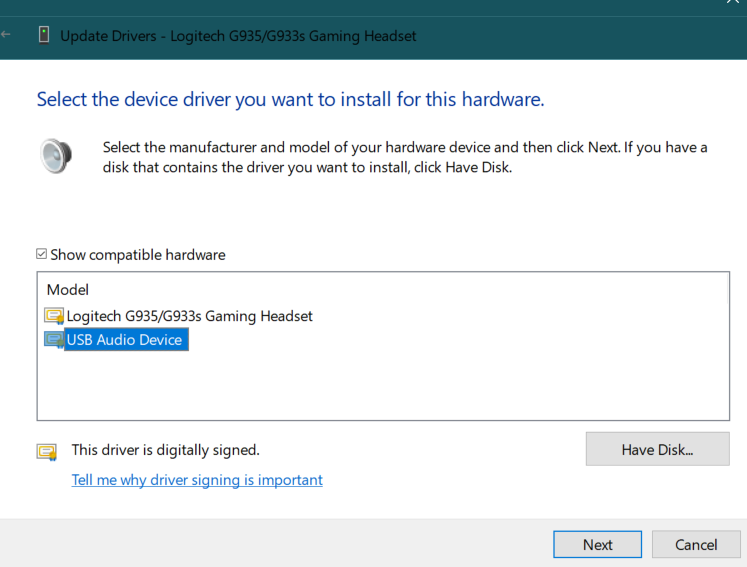
  • Click Let me pick from a list of available drivers on my computer.
  • Click the USB Audio Device in the list.
  • Click the Next button.
  • Click the Close button.
  • The headset should immediately start working.

If you can live with the driver issue, the headset is fantastic. Like the keyboard and mouse, I like the Logitech better than Razer Kraken I have hooked up to my desktop. The driver thing is really annoying though, every time the GHUB software updates it re-installs the Logitech driver and you have to repeat the process above. Given the specifics of this problem, I don’t see it ever being fixed. I’m personally able to tolerate the problem and will keep the headset, but you should consider the situation carefully if your system only has USB 3.0 ports.

Understanding Send As with Signatures from Exchange Shared Mailboxes

Normally when an account is given full permissions to a shared mailbox, the shared mailbox is auto-mapped to the delegate account’s Outlook profile. The shared mailbox is added to a linked attribute in Active Directory. Linked attributes describe a relationship between objects and are often paired as ForwardLinks and BackLinks. In the case of Exchange shared mailboxes, the user DN is added to msExchDelegateListLink and the shared mailbox is added to msExchDelegateListBL.

Auto-mapped shared mailboxes are opened as a function of the forward linked attribute (msExchDelegateListLink) in combination with the Autodiscover feature. When the Autodiscover XML is examined (Test E-Mail Autoconfiguration) the auto-mapped mailbox appears in the XML tab in the AlternativeMailbox tag.

<AlternativeMailbox>
<Type>Delegate</Type>
<DisplayName>Sales</DisplayName>
<LegacyDN>/o=contoso/ou=Exchange Administrative Group (FYDIBOHF23SPDLT)/cn=Recipients/cn=Sales</LegacyDN>
<Server>ServerName</Server>
</AlternativeMailbox>

Mailboxes opened in this manner (shared, archive, public, etc.) are not natively part of the Outlook profile and therefore are not processed by Outlook’s account creation routine. As a result, the auto-mapped shared mailbox does not acquire a signatures folder in the file system. By default, Outlook creates signature folders for all accounts that go through the creation process at C:\user\username\appdata\roaming\microsoft\signatures.

To add a signature to messages sent from shared mailboxes in Outlook we need the software to treat them as if they were a regular user account. This goal can be accomplished by disabling the auto-mapping for the delegates that access the shared mailbox and manually connecting Outlook to it. Unfortunately, this cannot be accomplished through the Exchange Control Panel or the Microsoft 365 Portal. It is easiest to disable automapping with PowerShell.

Before we learn the PowerShell code, it is important to understand that modifying the permissions, or membership of a shared mailbox with the Exchange Control Panel, or the Microsoft 365 Portal will re-enable the auto-mapping feature for all delegate accounts. The various GUI management tools for Exchange do not expose the attribute for auto-mapping. As a result, the attribute is always returned to its default state ($true) when these tools submit their commands.

The default enabled state of the auto-mapping feature imposed by the Exchange GUI tools causes the workaround to potentially malfunction for any or all member accounts. The issue occurs because Outlook will connect to a particular resource only once and the first connection wins. If the first successful connection to the shared mailbox is the auto-mapped AlterativeMailbox, the signature folder created by the work around will not be mapped to Outlook’s send function.

If a shared mailbox is mistakenly modified using one of the Exchange GUI management tools, each delegate must be removed and re-added using the PowerShell method (below) with the auto-map feature disabled. If a delegate user’s Outlook has already connected to the AlternativeMailbox, their signature for the shared mailbox will not function for up to four hours after the correction with PowerShell has been executed. The auto-mapped shared mailbox must be disconnected from the user’s Outlook profile by the Exchange Mailbox Agent before the explicit connection created by the workaround will be guaranteed to connect first.

To establish the workaround and enable Outlook signatures from shared mailboxes, create a shared mailbox. Once the shared mailbox is established use the Add-MailBoxPermission cmdlet to add the delegate’s accounts.

Add-MailboxPermission -Identity “Shared Mailbox Name” -User “Delegate User ID” -AccessRights FullAccess  -AutoMapping $false

(replace “Shared Mailbox Name” and “Delegate User ID” with the actual values, leave the “” in place)

If you are applying this technique to an existing shared mailbox, or if you are correcting a mailbox that was modified with one of the Exchange GUI tools, you will need to remove and re-add all the delegate members with PowerShell. This small script automates the process.

$FixAutoMapping = Get-MailboxPermission “Shared Mailbox Name” | where {$_.AccessRights -eq "FullAccess" -and $_.IsInherited -eq $false}
$FixAutoMapping | Remove-MailboxPermission
$FixAutoMapping | ForEach {Add-MailboxPermission -Identity $_.Identity -User $_.User -AccessRights:FullAccess -AutoMapping $false}

 (replace “Shared Mailbox Name” with the actual name, leave the “” in place)

Once the shared mailbox and its membership (auto-mapping disabled) have been established or corrected, all that it left is to access it with Outlook as if it were a separate account. You will use the delegate’s credentials to logon. Open Outlook, go to File -> Add Account, enter the shared mailbox’s primary email address, enter the delegate user’s email address and password when prompted for credentials.
Oculus Air Link Setup on Unify Networks

Until now, wirelessly streaming games to the Oculus Quest 2 has been limited to using development drivers in combination with specialized software like Virtual Desktop. I’ve written step by step guide to getting that option working here. Now, Facebook has enabled Oculus Air Link which allows streaming of Oculus Store apps too. It was a little tricky to get working on my network so I decided to share what I’ve learned.

Your desktop system must be connected to your network with at least 1Gbps. Your desktop system needs to have at least one USB-C port to connect your Quest with. I’ve heard that a USB-3 port with an adapter works but have not tried it. Your wireless network must support AC or AX (Wi-Fi 5 or Wi-Fi 6) and be capable of sustaining 800 Mbps in the area you intend on playing in. You must have at least WPA2 security enabled on the wireless network. If you don’t meet these requirements you should not proceed.

Assuming your gear all checks out, you’ll need to install the Oculus app on your desktop if you haven’t already. Download it from Setup Your Oculus: Quest, Quest 2, Link, Rift S & Rift | Oculus once you’ve downloaded and installed the software, complete the basic setup by connecting your Quest to your PC via the USB-C cable that came with it and following the wizard.

Your Quest will need to have at least software version 28 installed. In the Quest, go to Settings then About. There’s not much you can do to get the new version if you don’t already have it. Facebook pushes it out slowly like an Android mobile update. You just have to wait for it.

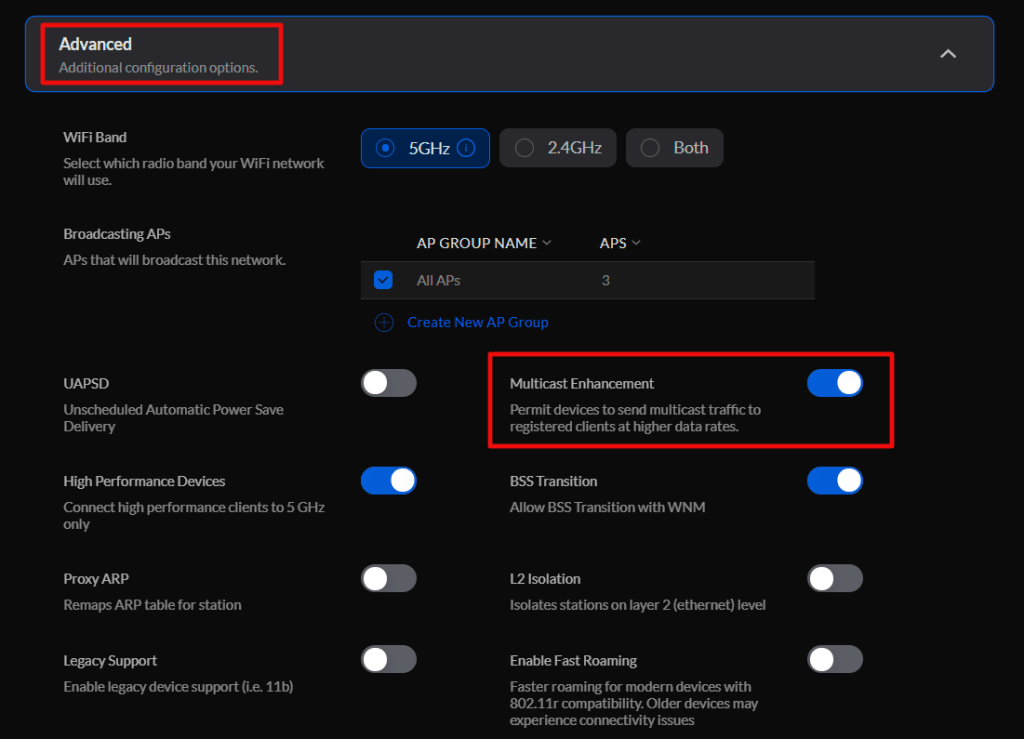
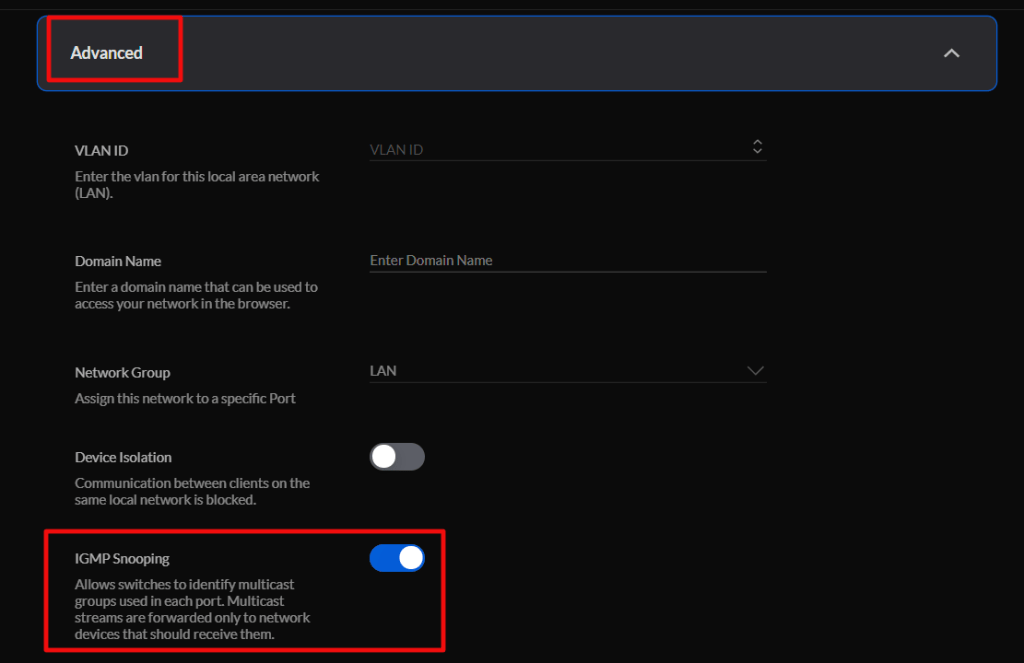
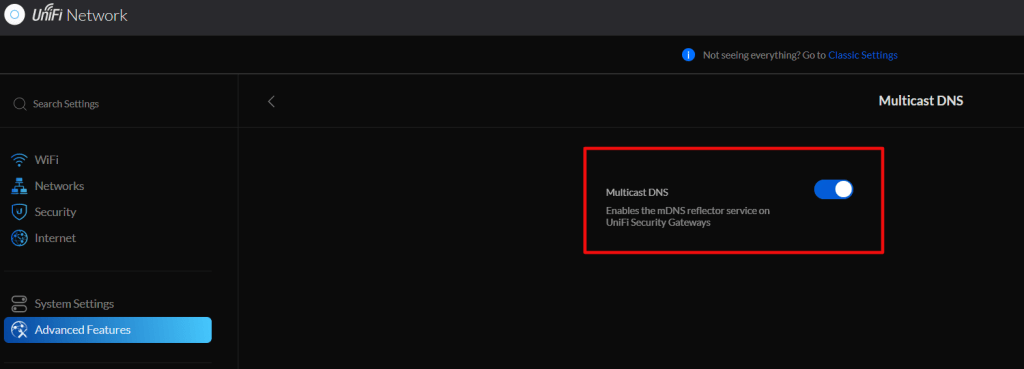
If your network is a mesh topology, the access points can not be wirelessly uplinked. Each one needs to be cabled. Air link is a multicast protocol, your network will need to have Multicast DNS, Multicast IGMP, and IGMP Snooping enabled. These settings are in different places depending on the brand of network gear you are using.

On Unify networks, enable Multicast Enhancement in the advanced settings for the WLAN you will connect your headset to.

Enable IGMP Snooping in the advanced settings for the network your WLAN is connected to.

Finally, turn on Multicast DNS in the Advanced Gateway settings under the Advanced Features menu.

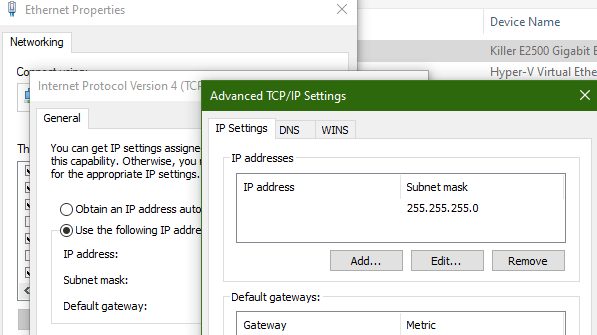
The PC running the Oculus desktop software can not have more than one IP address assigned to the network adapter that is on the same network as the Quest. This causes the Launch button to be greyed out, the Quest will pair but multicast will not function properly. Check the advanced IP settings for your network card and ensure that only one address is listed there.

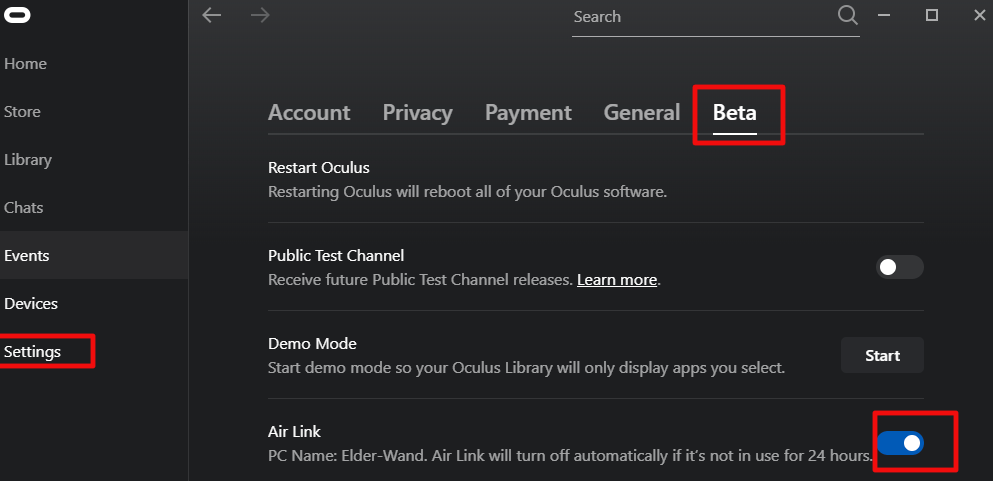
Now enable the Air Link option in the Oculus desktop software under Settings -> Beta.

All that is left is to put on your headset and go to the Settings menu. Then go to Experimental Features and turn on the slider for Air Link. Now go to the Quick Action menu in Settings and select the Air Link button at the far right. The first time you run Air Link you will need to pair your headset with your computer. Then tap the Launch button. After a few moments the Oculus Desktop Home should load and work just like it does from a link cable or Rift.

Xbox Game Pass Ultimate Cloud Streaming on PC

I jumped on the Xbox Game Pass Ultimate bandwagon at the very beginning. The service started out strong and has only gotten stronger. When they added game streaming to Android devices I knew that I had picked a winner. I had just started playing The Outer Worlds on my Xbox and the ability to play the same game with synchronized saves from my phone was fantastic. My Xbox and TV are in demand from my family so being able to play on something else was a big advantage.

Like the Switch, my phone’s screen could be a little small for a game that was designed to play on a TV or PC screen. The text was difficult to read and distant objects were a challenge to make out. It wasn’t a big enough problem to keep me from playing. I’ve played more of The Outer Worlds on my phone than on my Xbox. I don’t have a current Android tablet and wouldn’t purchase one just for game streaming. Instead, I gazed longingly at my Surface Go 2 and wondered how long it would be before I could use the service with it. I had already been streaming Steam games to it so I knew it would be perfect for Xbox games too.

It took a lot longer than I expected, but I got the invitation to participate in the cloud stream to PC beta a few days ago and have been putting to use. Like I thought, it is difficult to imagine a more perfect system for this experience than the Surface Go 2. It’s screen size, Wi-Fi 6, excellent speakers, and most of all it’s kick stand, make it a fabulous game streaming platform. Just pair an Xbox controller and you’re ready to get your game on anywhere there’s a good Wi-Fi signal.

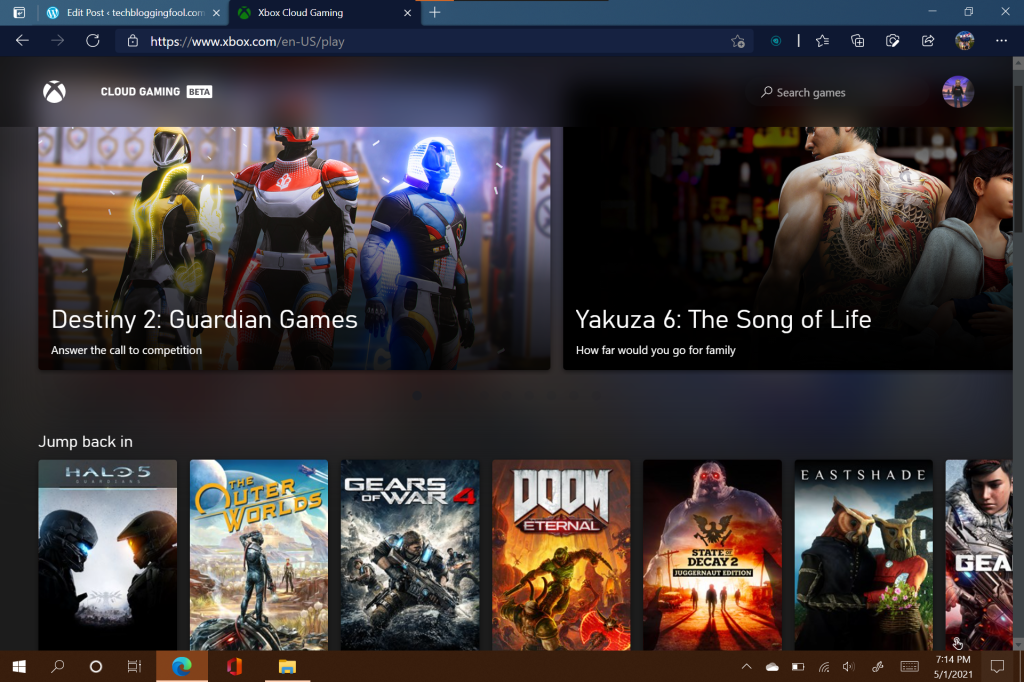
As for the service, it does not disappoint. It runs from any HTML5 web browser. There’s no software to install, or configure, just go to https://xbox.com/play and sign in with your Xbox account. As with the Android streaming option, you’ll need fast Wi-Fi or 5G Internet and a Bluetooth Xbox controller. There is not currently any support for keyboard and mouse controls. A list of the cloud stream games will be presented, click the one you want to play. That’s it.

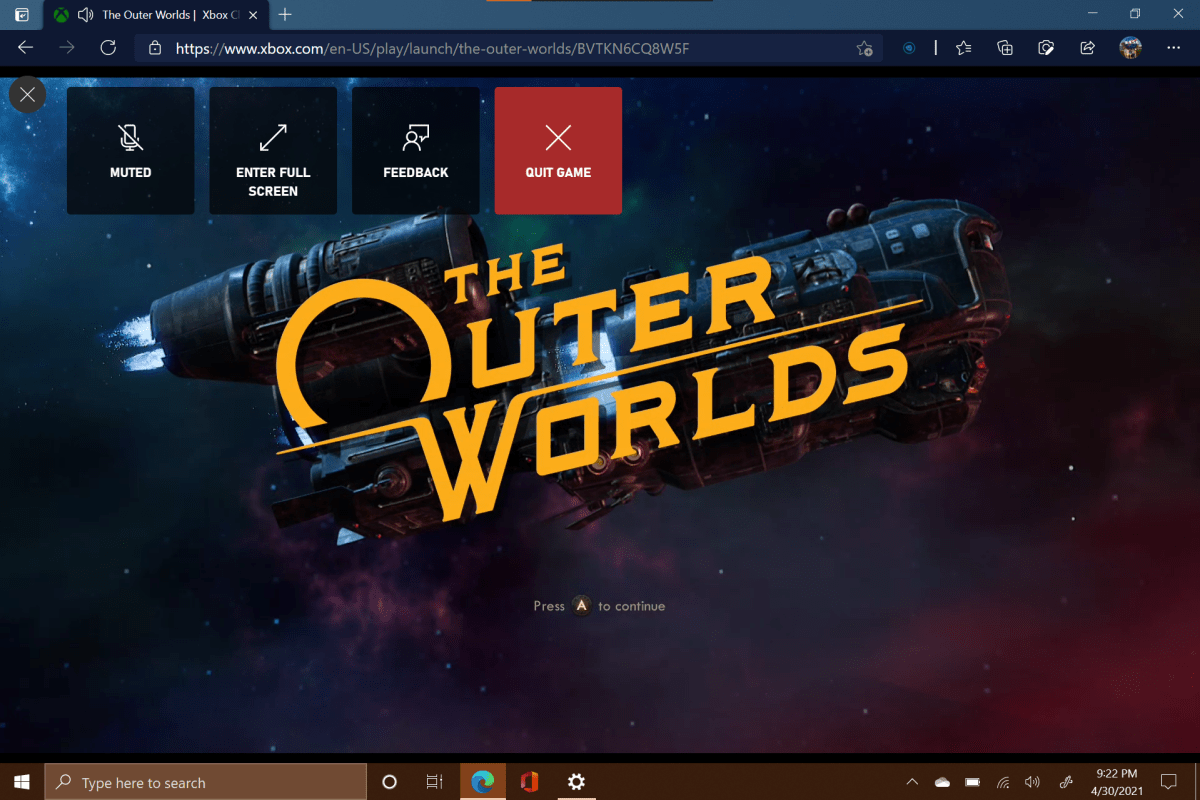
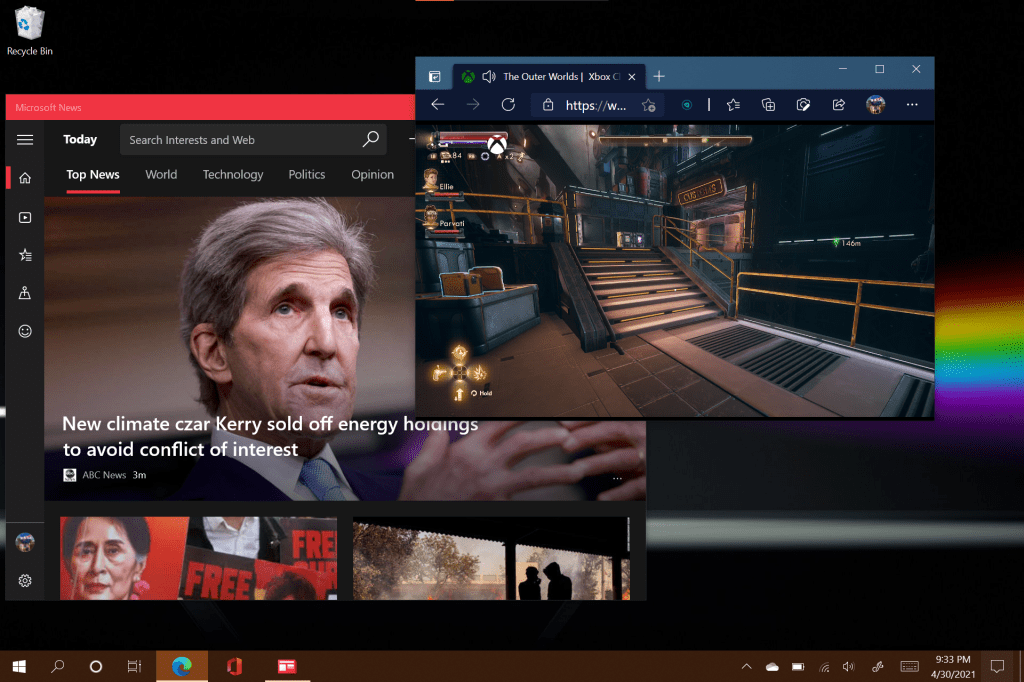
I picked up The Outer Worlds right where I had left off. It looked great, I was surprised that the service adapted to full screen with no artifacts or other visual issues. It was awesome in full screen, but I really enjoyed being able to drop down into a window once in a while so that I could keep an eye on my email.

Playing in a window can be useful.

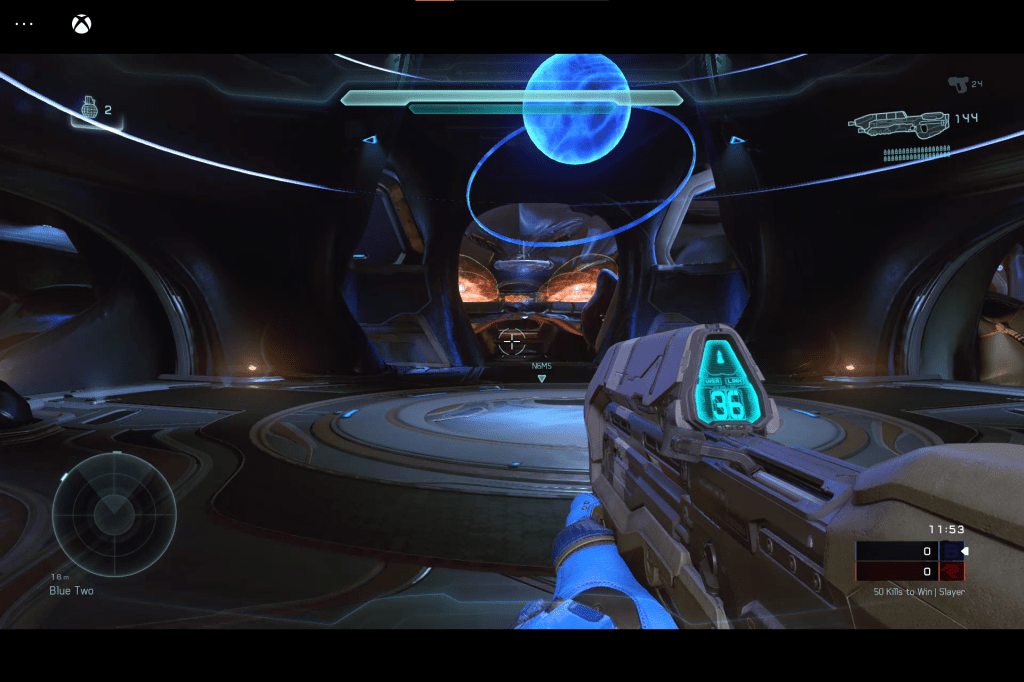
Game play was smooth. There’s no counter, but I would guess it is between thirty and sixty FPS, depending on the game and scene. There is a barley detectable input lag even on a 1.2 Gigabit connection with less than a twenty millisecond ping. It is difficult to put into words. The lag doesn’t inhibit solo game play, but you do have to adapt to it. I am able to play Doom Eternal with almost zero issues. When I try Halo PvP matches I get slaughtered even though I usually come in near the top of the leaderboard on my actual Xbox. I feel like if I practiced enough in the streaming edition that I could make it to the middle, but I doubt that I’ll ever be winning any matches that way.

The input lag is hard to adjust for in FPS multiplayer matches.

Are streaming services the future of all gaming? I think the industry really wants them to be. Who wouldn’t want a completely pirate proof way to distribute their work? From what I know of gamers, games, and network technology, I think streaming will eventually capture a large portion of the casual market, but it will struggle to overtake local media for competitive players. Its a nice option to have when your main console or system is busy though.