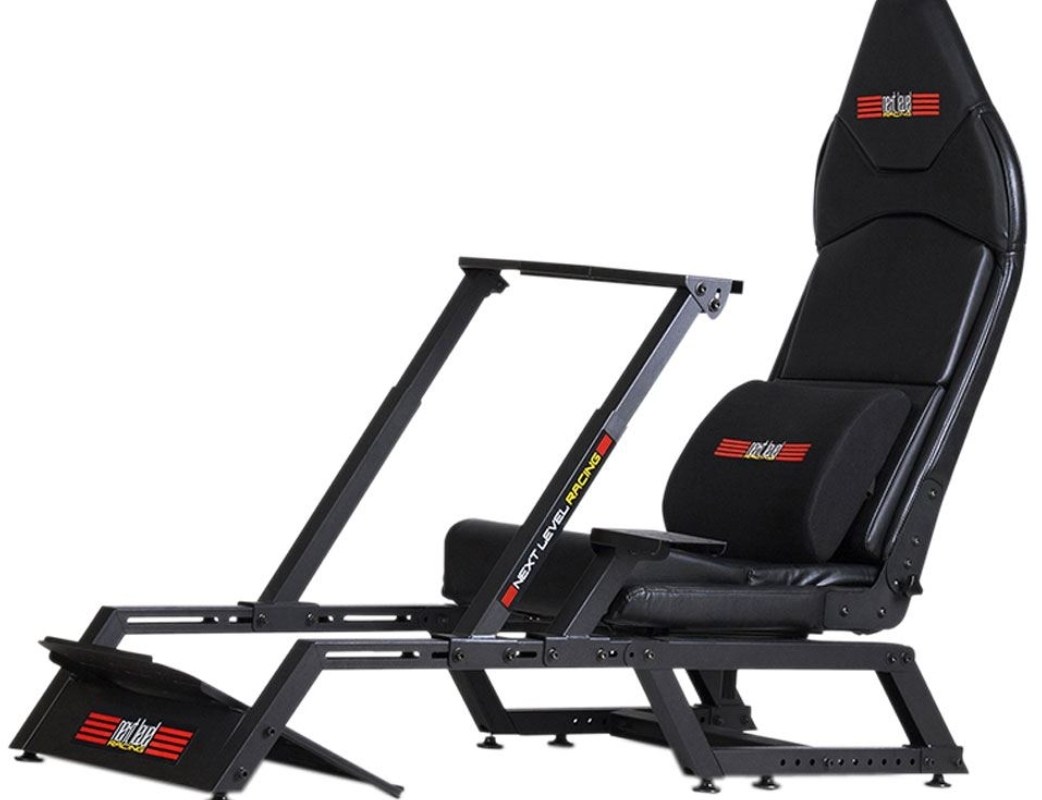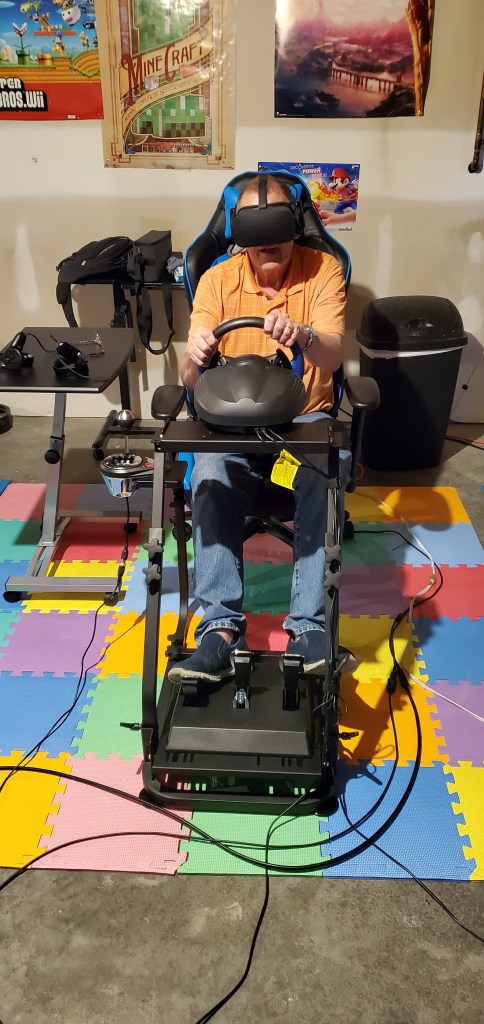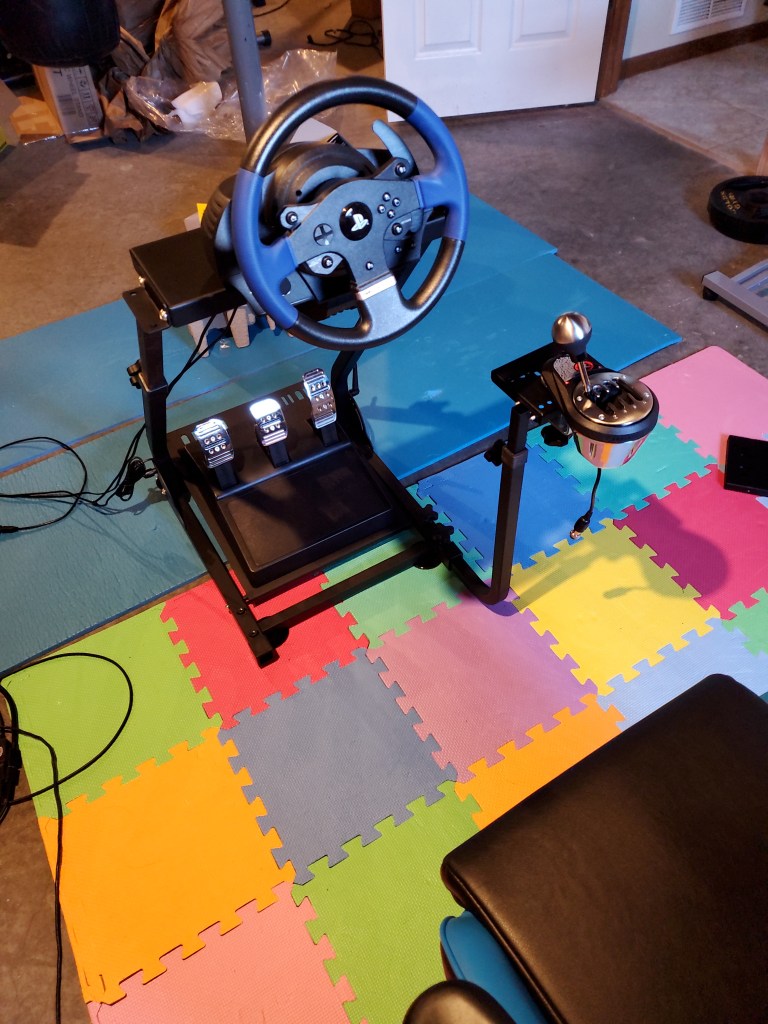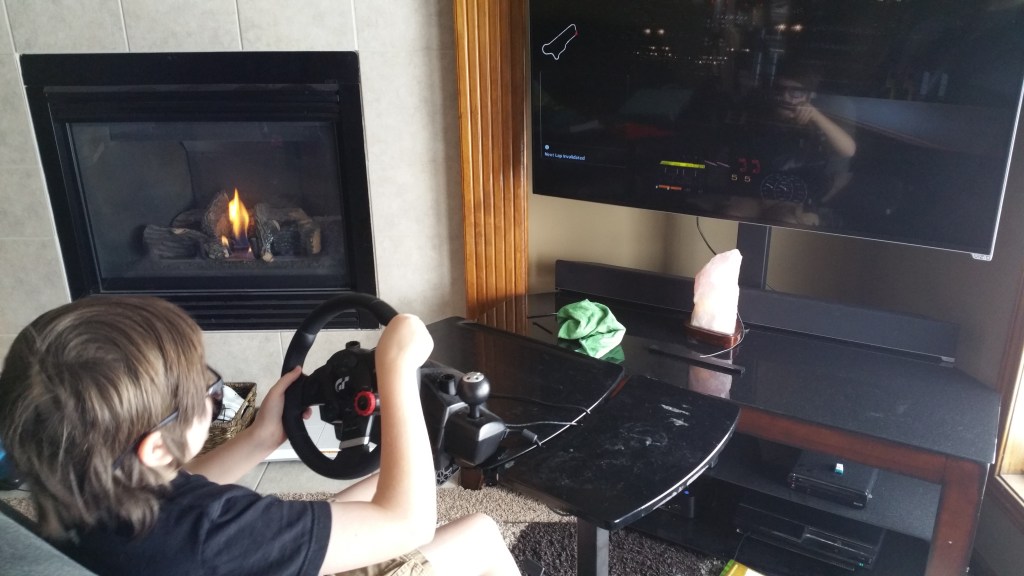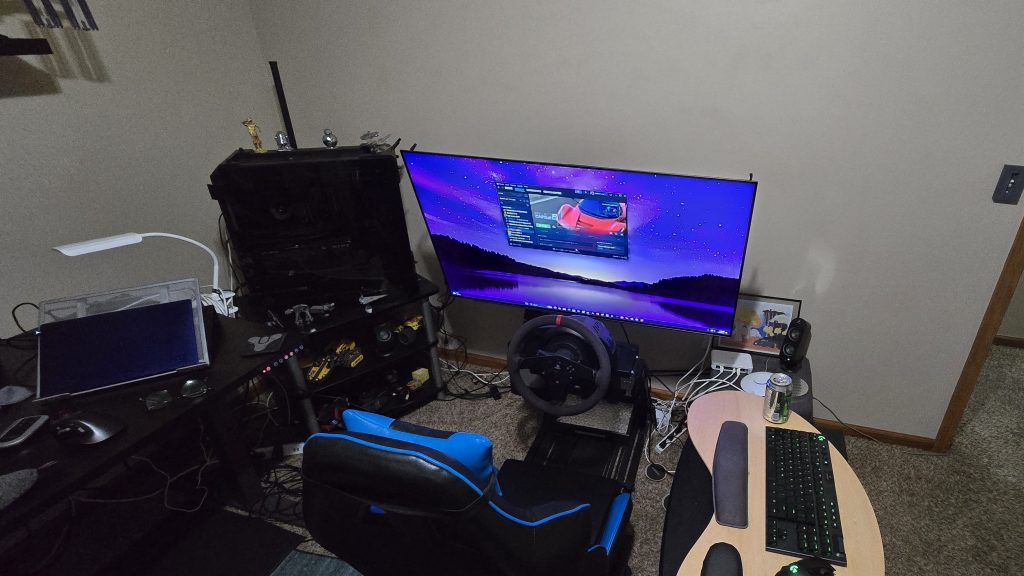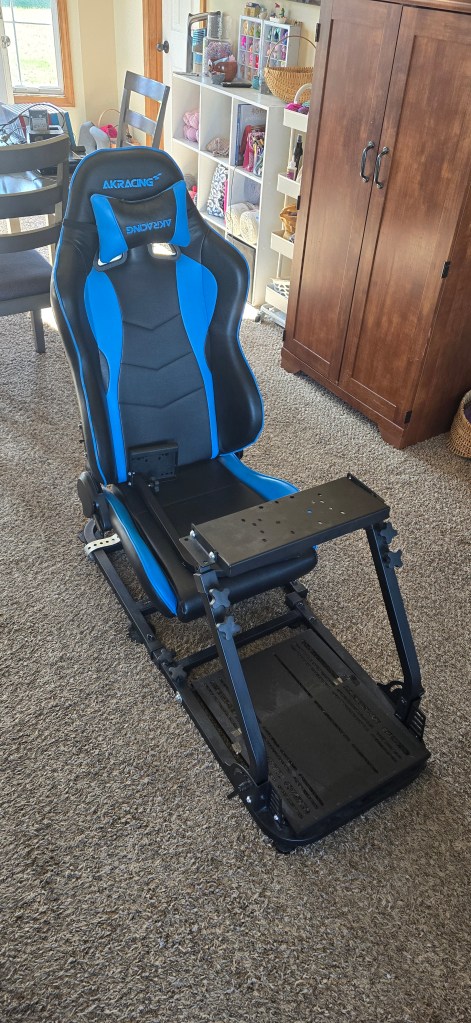
I have steadily upgraded my driving simulation cockpit over the years. I started out by mounting my wheel to a table. Then I upgraded to a folding wheel stand. Eventually I combined several parts into a makeshift simulator. I used this last set up for almost two years. It had a decent seat on one metal frame and the controls mounted on another. I parked it in front of a wall-mounted screen and called it good enough.
My dad testing out my first cockpit frameTS150 based cockpit with gaming chair, first manual setupLogitech wheel mounted to table connected to Xbox 360
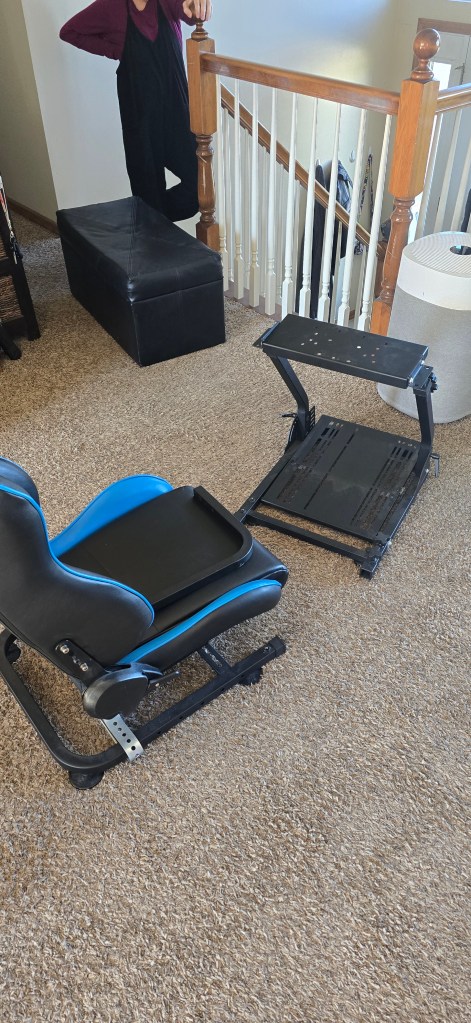
The DIY simulator worked. I used it for more than a year. But… there were problems. It wasn’t very comfortable for one. The chair and wheel being on separate frames meant they didn’t line up perfectly. They weren’t quite the correct height for each other either. The wall mounted screen made achieving the ideal distance between it and the wheel a problem.
A DIY simulator built from a gaming style office chair on a floor stand, an Amazon office chair cockpit, and a wall mounted screen.
Being too aggressive on the pedals caused the two units to slide away from each other mid race. That was always fun. Oh, and there wasn’t anywhere to mount the gear shift. I was stuck using just the paddles. I had plans to fix the problems. While listing out the stuff I would need, I reconsidered. It was going to take a lot of time and effort to fix all of the issues. Not to mention materials.
Frames together as close as I can get themFrames apart
I eventually convinced myself that I was spending enough time with the hobby to justify investing in a better setup. I had some specific requirements in mind. I wanted something that was stiff enough to not flex, move, or shake. It needed to be as small as possible since it had to fit in the spare bedroom, aka my office. Comfort and good ergonomics were high on the list too.
The solution I ended up with would also need to be very adjustable. Besides driving, I am also a MechWarrior player and space combat fan. I plan to take up fighter-jet combat and Microsoft Flight Simulator games when I have mastered my current genres. Who knows? Maybe I’ll want to give World of Tanks a shot sometime too.
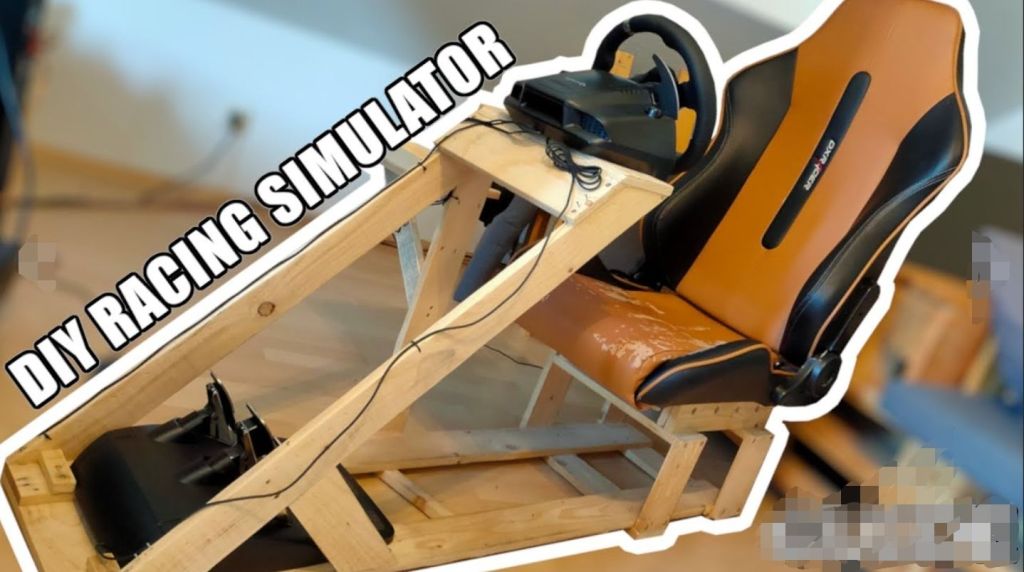
I started researching options. There are so many choices! There are plans to build your own from PVC, wood, and even metal. Extreme builds use the shells and interiors of real vehicles. There are also vendors like NLR, Sim Lab, PX1, and others that manufacture ready to race products.
DIY is a popular option.
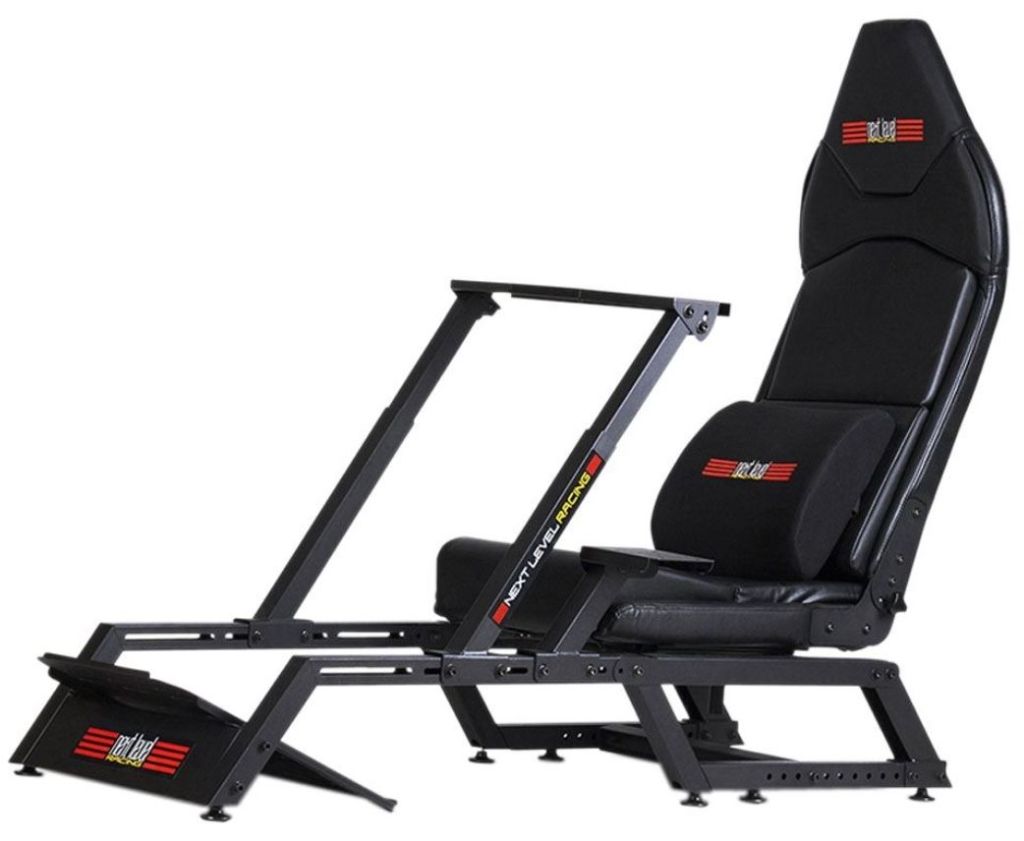
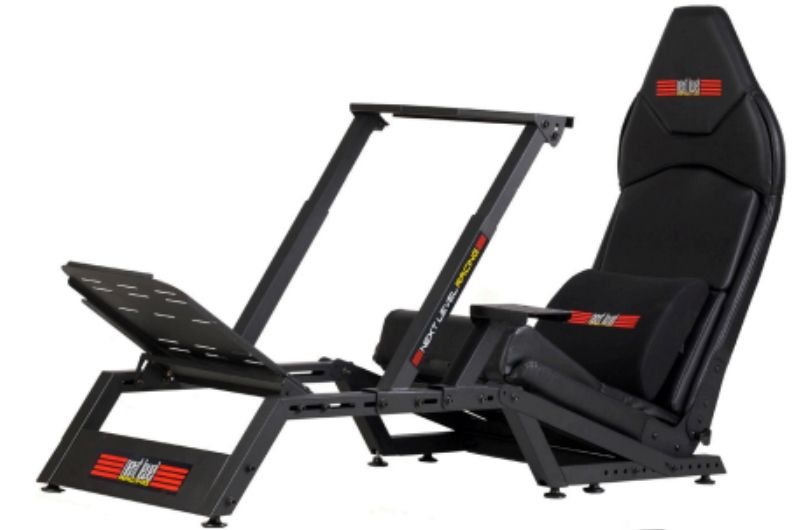
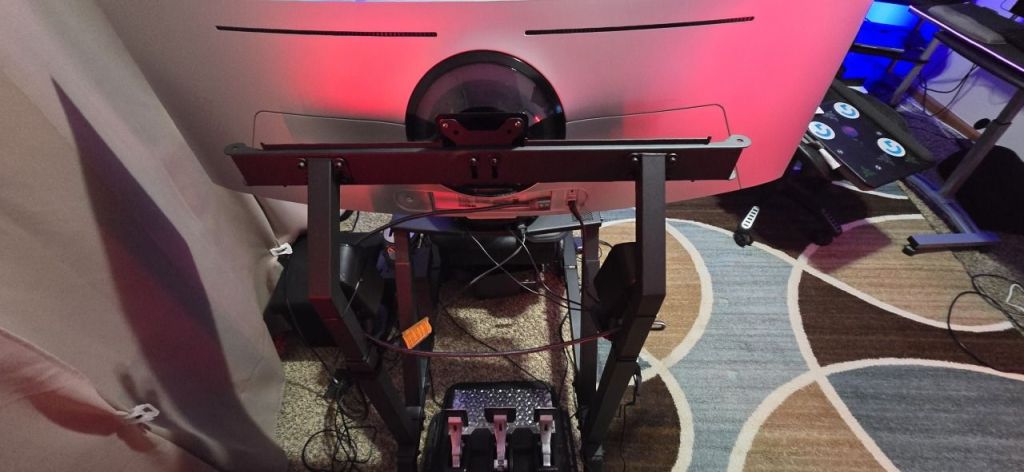
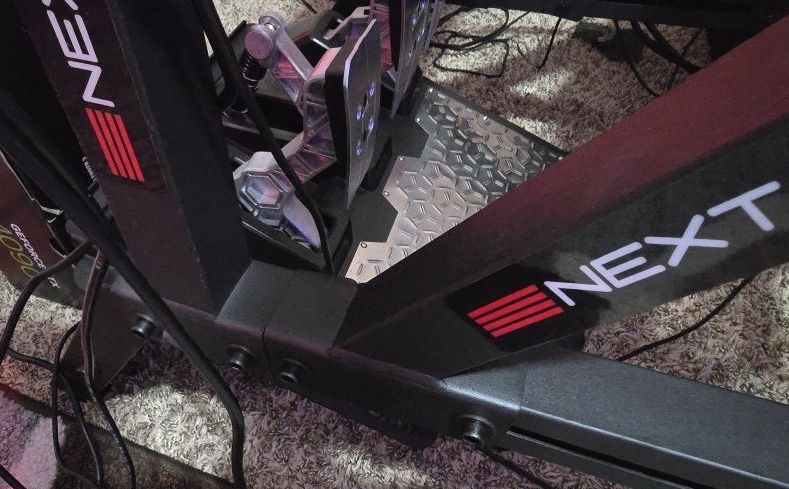
In the end, I went with Next Level Racing’s NLR-S010 model. I chose it because it is a medium weight, super adaptable, multi-role frame. It can adjust between the upright seating position of GT/sports cars and the zero-G position of a formula driver. It takes up less floor space than many other cockpits. NLR also sells a bolt-on kit that transforms the unit into a fighter jet / mech cockpit.
GT / Sports Car PositionF1 / Fighter jet
I bought the F-GT, the HOTAS mounting kit, and the optional monitor stand. The unit includes a built-in seat. I already had the PC, monitor, wheel, pedals, and speakers.
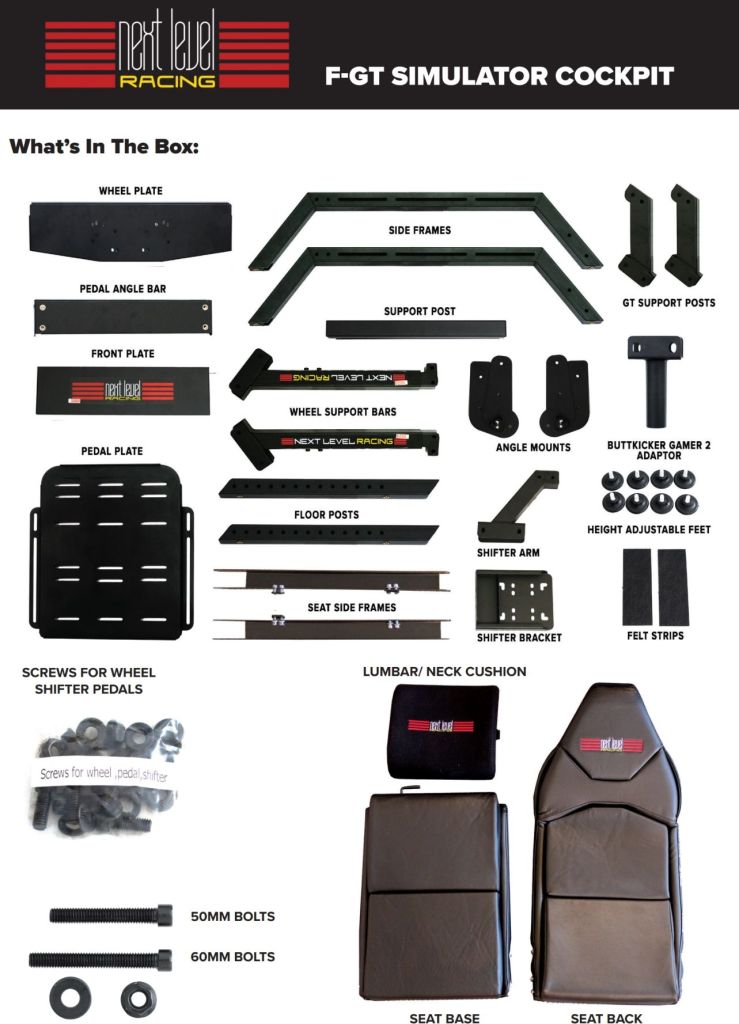
The frame is built from all metal parts. You are responsible for all of the assembling. I highly recommend securing some assistance. You are also going to be ahead of the game if you acquire a drill with both screw driver and allen key bits. I also suggest a good wrench set.
The instructions are pretty straightforward. We didn’t have any issues putting the frame together. We didn’t screw anything down past finger tight until we had a chance to position everything to fit me.
The parts
I went through with the power tools and cranked everything as tight as it would go to lock the setup in. It took two of us ( experienced build team ) about four hours to assemble the frame and get my electronics bolted on. Everything was ready for the first run in five hours. You can speed assembly up if each person has a drill with the oposing bit. For example, one with a socket wrench and the other with the allen key.
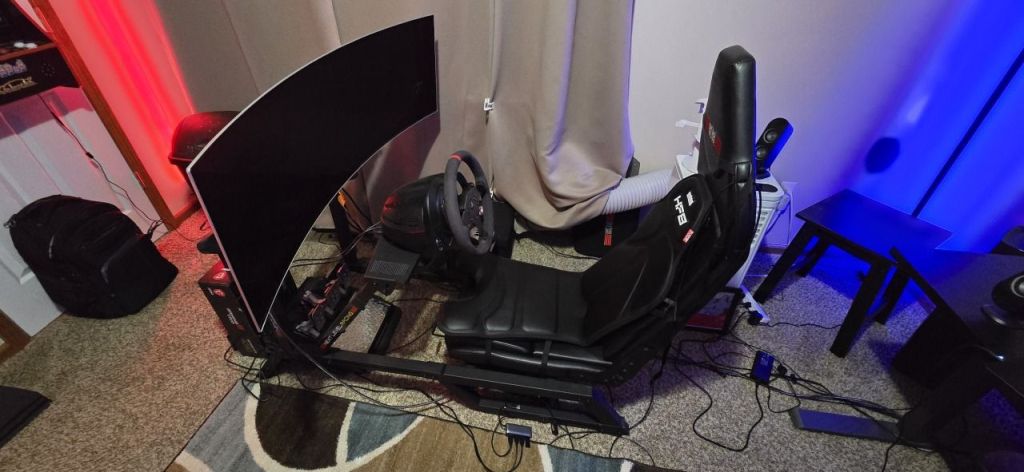
On that first run, I was astonished by how much my sense of immersion was improved. It was obvious right off the bat. Almost every driving setup I have used to date moved in some unwanted way. The NLR-S010 didn’t. No twisting, sliding, or shaking was detected.
Comfort was also exponentially improved over any of my previous setups. The seat and wheel were realistically positioned relative to each other. The angles and locations of the controls and screen were as they would be in many real-world vehicles.
The seat is not as bolstered or as cushioned as I would like, but it does the job. It is rail mounted and can move forward or back.
The unit fits me well. I am five feet and nine inches tall. If I were much taller, this cockpit would be too tight. This is especially true if you purchase the integrated monitor stand like I did. The stand takes up space on the frame that would otherwise be used to increase the distance between the wheel and driver.
The optional monitor stand fills the mounting rail.
The F-GT is smaller than other full cockpits, but it is still a big piece of furniture. You need a dedicated space about the size of a couch for this thing to live in. I went with a 49″ ultrawide monitor instead of a three-screen setup to save even more space. It’s still huge.
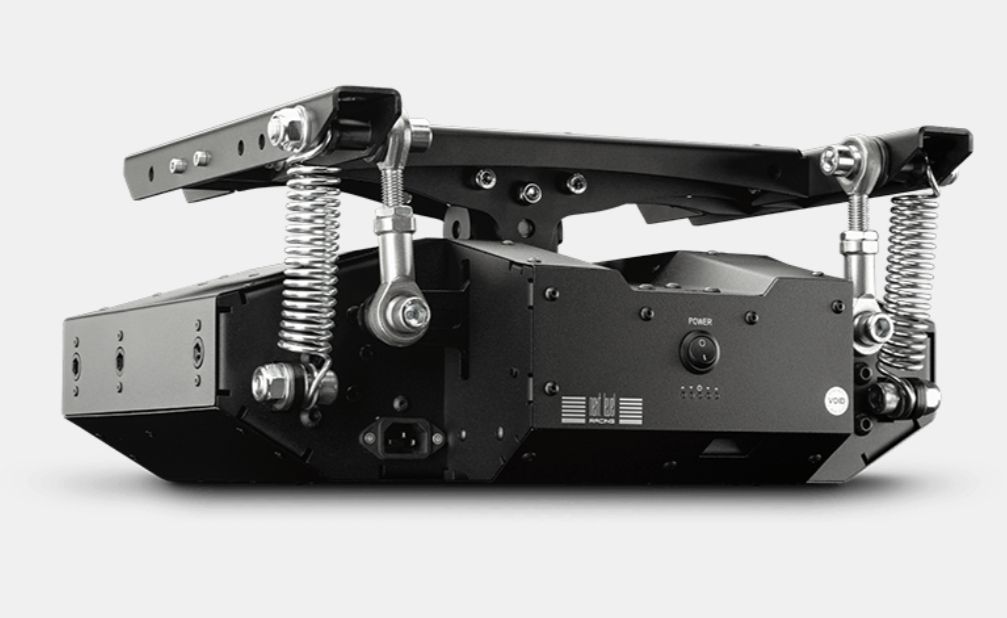
Supposedly, this thing is compatible with Next Level Racing’s motion modules. I don’t know if I’ll ever take it that far. I did pick up one of their H8A haptic chair add-ons. It uses a bunch of vibrating pads sown into a chair cushion to further simulate a car. There will be a full review of it published soon.
The NLR-S010 is compatible with the v3 motion platform.
I’ve had the F-GT set up for several months and have spent a lot of hours in the seat. I practiced for and raced in the Logitech racing series in Forza Motorsport. I had a lot of fun learning to drive that McLaren to the edge of my abilities. I’m happy with my purchase. I expect to be using this thing for the next several years.
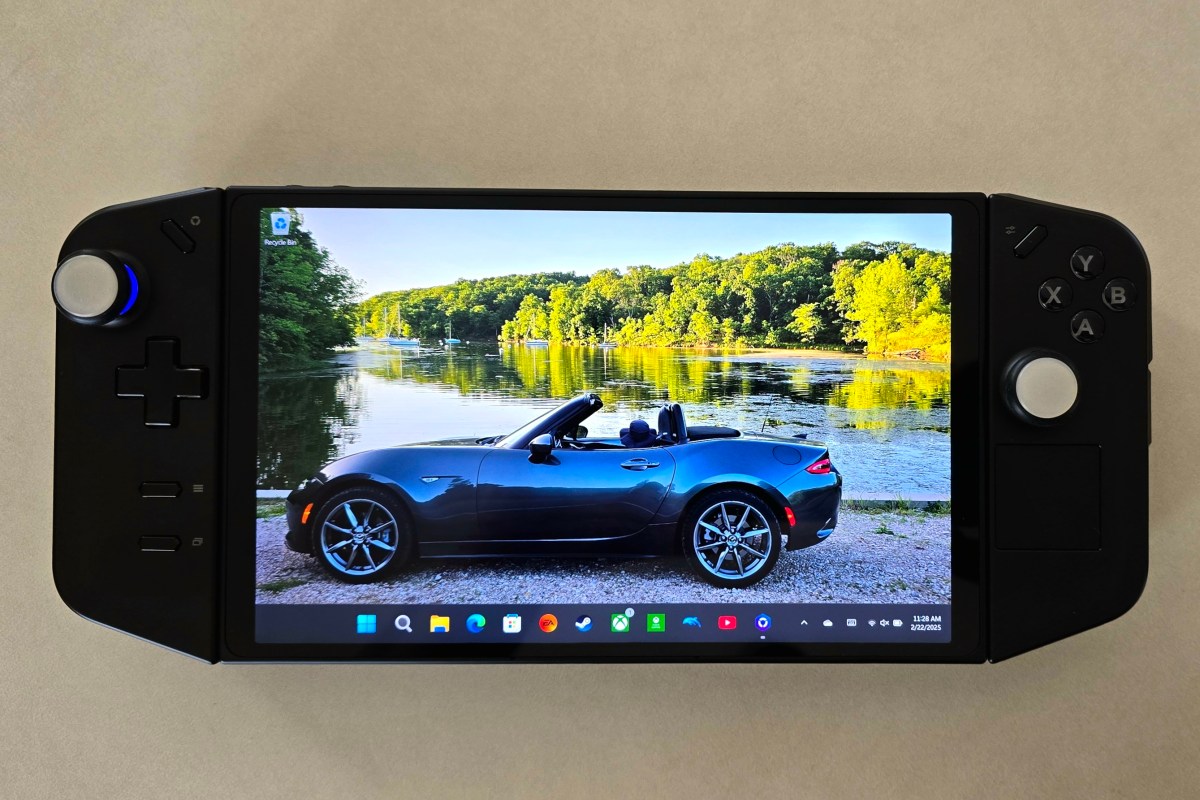
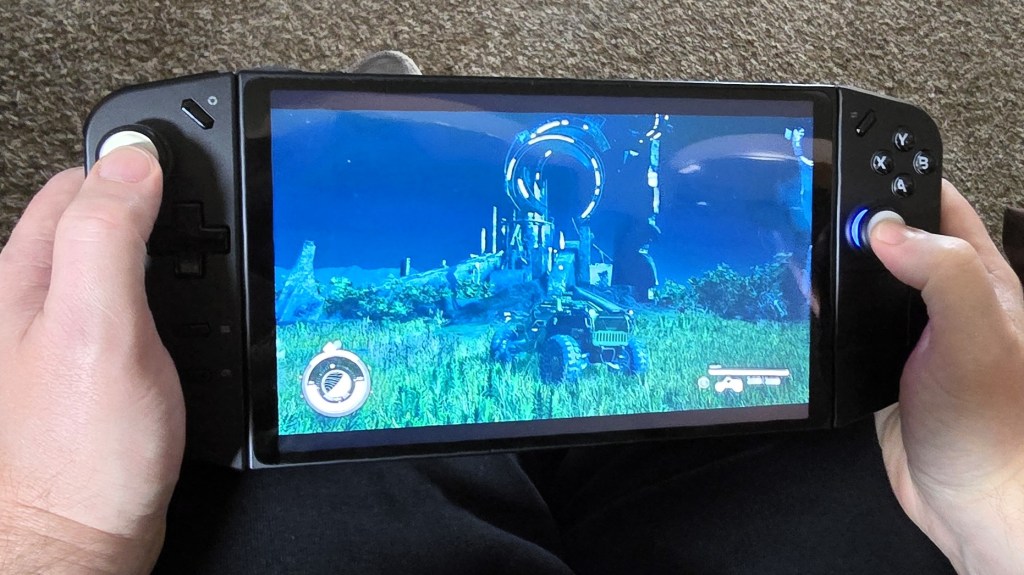
When the Legion Go launched, I was really interested in it. On paper, it fixed the minor annoyances I had with my ASUS ROG Ally. It wasn’t quite enough of an upgrade to justify purchasing one.
Lucky me, my partner got me one for Christmas, and I’ve been playing it ever since. I’ve played Call of Duty Black Ops 6, Halo Infinite, and Project Cars 2&3. I’ve also played Microsoft Flight Simulator, SIMS 4, Marvel Rivals, and various emulators on the handheld.
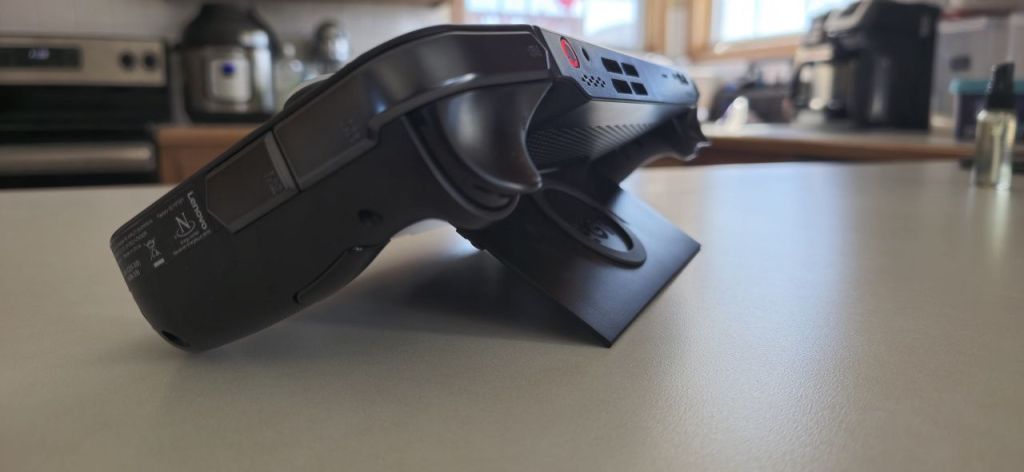
The built-in kickstand is something I use a lot.
I can’t say enough about the AMD Ryzen Z1 Extreme APU. The powerhouse chip runs games from this generation at 1900×1200 and nearly 100 FPS. You’ll need to enable AMD FSR on the device and configure your game to use it to get that performance.
An AMD APU shares RAM between the GPU and CPU. You can adjust the amount of DDR memory that each function is assigned from the available pool. Most games will work on 4GB of Video RAM and 4GB of System RAM as other similar handhelds have proven time and again.
The Go has 16GB, so you can assign 8GB to the CPU and 8GB to GPU. This lets you run more graphical processes. This means higher textures, more shadows, and better post processing without losing frame speed.
In addition to the memory advantage it has over similar systems, the Go has a small built-in touch-pad. It’s located on the lower portion of the right controller. The little pad is not unlike those found on Valve’s Steam Deck, but it lacks the advanced pressure sensing.
I use the mouse function constantly when navigating game menus. It’s a bar setting kind of feature. I think manufacturers should include one on all handheld game systems released in the future.
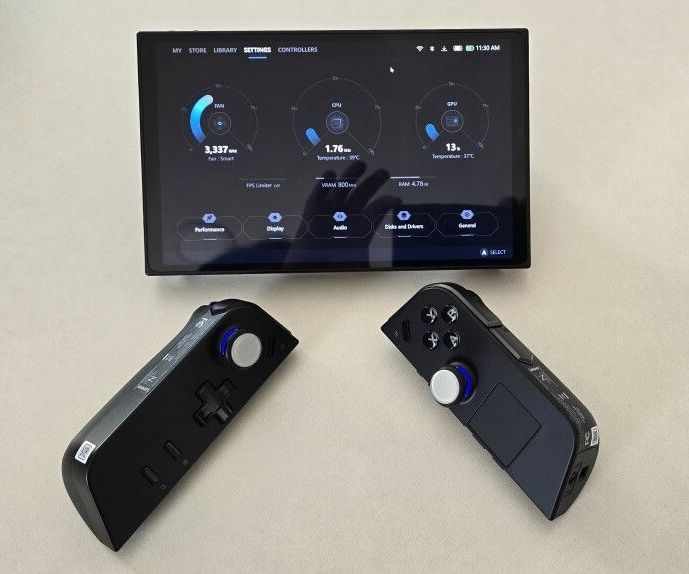
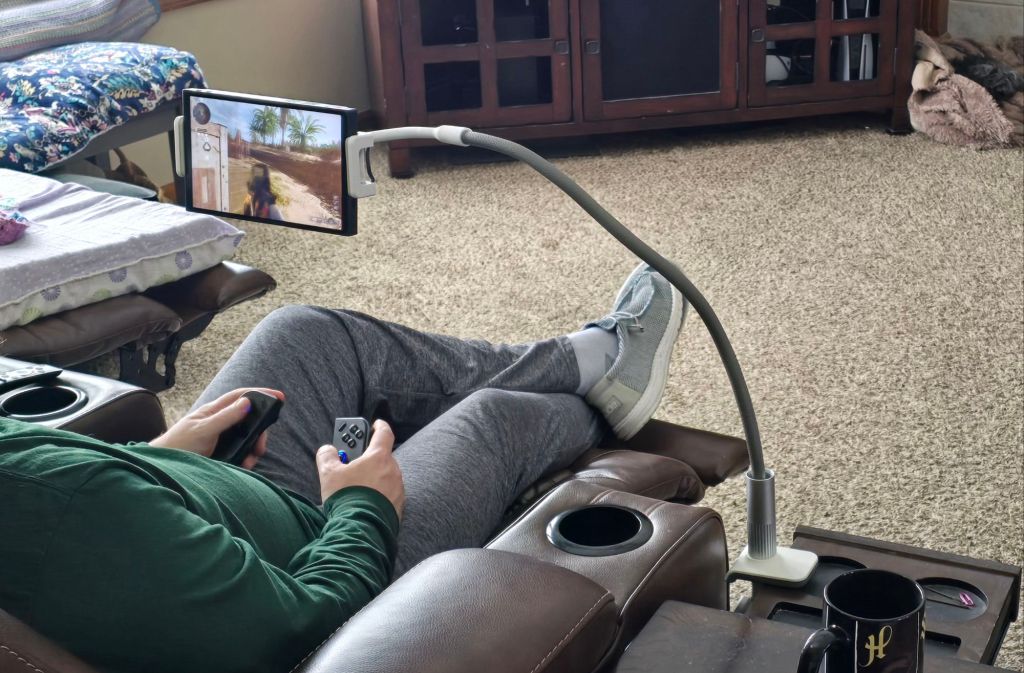
Speaking of controllers, the Go’s are removable a la’ the Nintendo Switch. I can not overstate how much of an advantage in ergonomics this design is. I have a “gooseneck mount” that I put the display in. It holds my screen in the perfect position, even in bed. Then, I remove the controllers and am able to keep my arms and hands in natural positions instead of crossing my body.
Removable controllers are a big ergonomic advantage.
You might think that I’ve run out of upgraded features to describe, but the Lenovo engineers were working overtime on this thing. Pop the right controller off and flip the FPS switch on the bottom. Set it in the included slider stand, and it becomes a pistol grip mouse. This function takes some getting used to, but is quite effective once you master it.
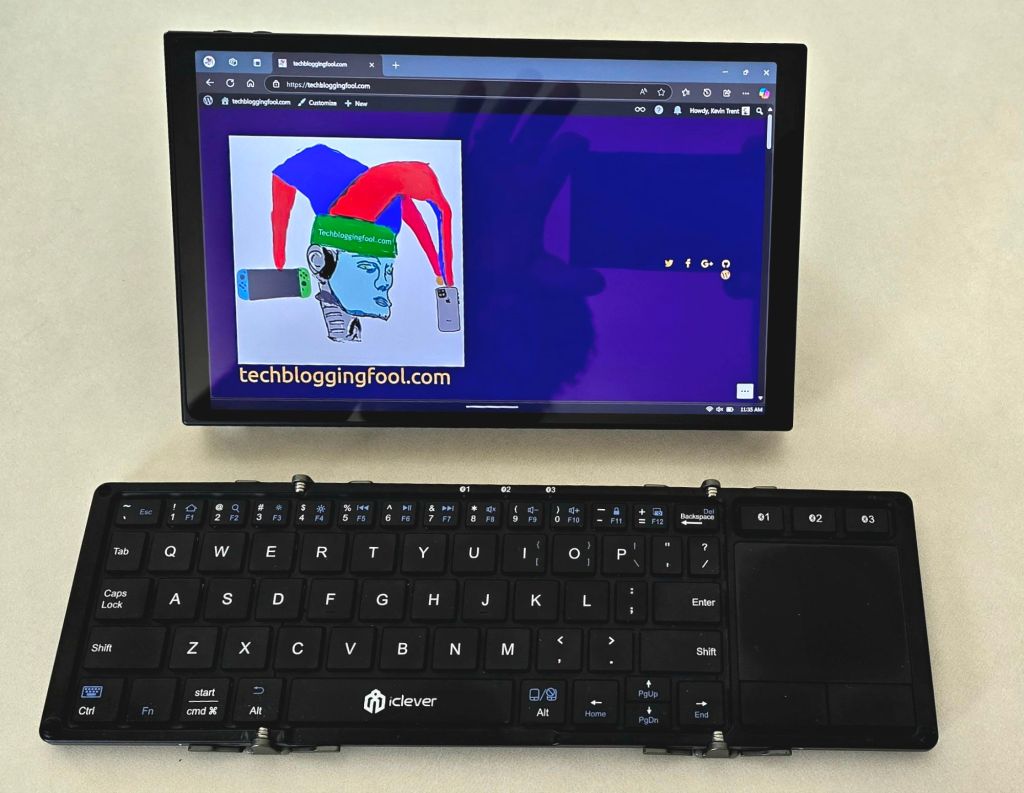
In addition to the gaming prowess, the Legion Go is a surprisingly capable laptop replacement. Remove the controllers, open the built-in stand, and pair a Bluetooth mouse and keyboard. The experience is similar to other 2-N-1 tablets. All beit on a slightly smaller screen than most. I’ve written docs, worked on spreadsheets, and remoted into all kinds of systems this way.
The Go makes a great portable computer if you add a keyboard and mouse.
The Legion Go can play most modern AAA titles like Starfield, Black Ops 6, Halo Infinite, and Forza Horizons 5 in 1900×1200 at around on one hundred frames per second. After you tune the game for the device. I frequently win online matches on my lunch break at work using it.
Beyond the normal future device wishes of better battery, lighter, and more powerful, there’s nothing to complain about. My Legion Go is the perfect form factor for this type of device, given the available technology. I’ve been extremely happy with it. Does anybody want to buy a used Ally Z1 Extreme?
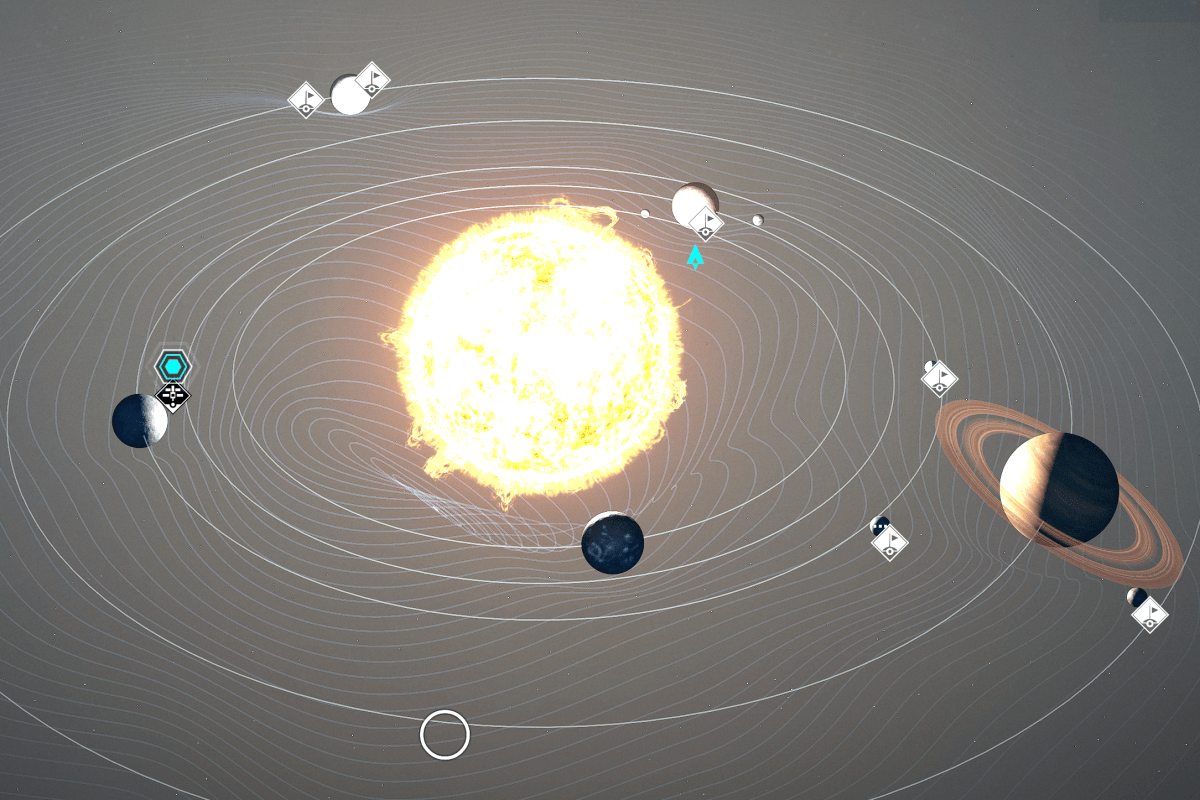
When Starfield first launched, it received more negative press than anyone expected. The game was difficult to run even on powerful gaming PC hardware. There were glitches galore. Worse, thanks in part to out of balance weapons and armor, Bethesda’s version of a space adventure seemed mundane. Reviews at the time said other titles in the genre did it better. Obsidian’s Outer Worlds was often named as an example of one.
Another top-tier space based adventure RPG.
Bethesda has long since released multiple fixes and enhancements for Starfield along with its first DLC. There have also been multiple driver updates for NVIDIA and AMD graphics cards since the game’s launch. The Xbox has also had several major updates.
I find that this is the ideal time to start a campaign in long play games like this. The developers usually have most of the bugs ironed out by the time the first DLC drops. Starfield has finally matured to that sweet spot. So, I fired it up and built a new character a few months ago.
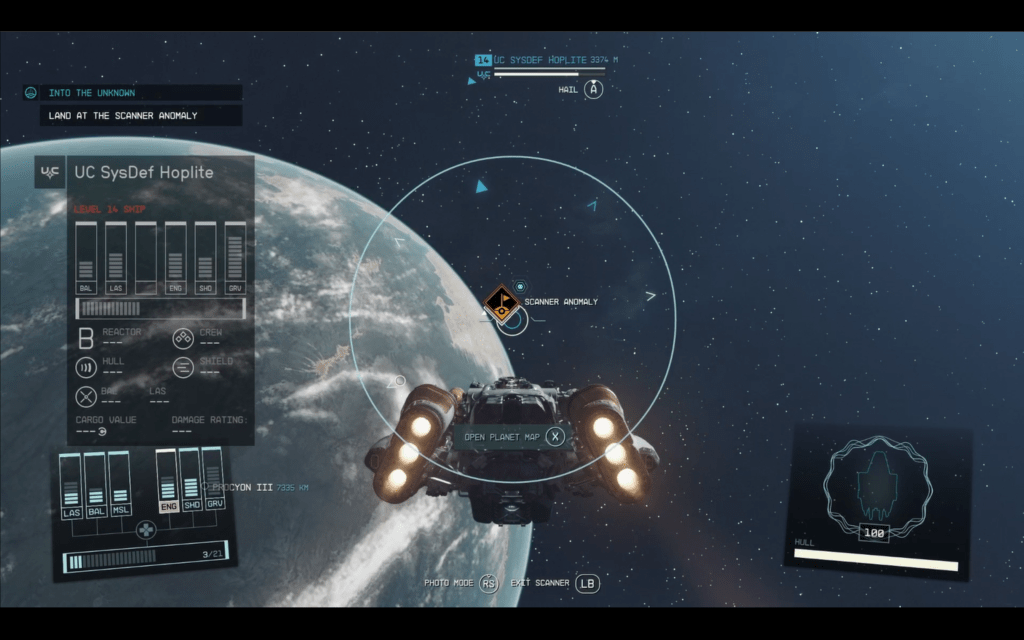
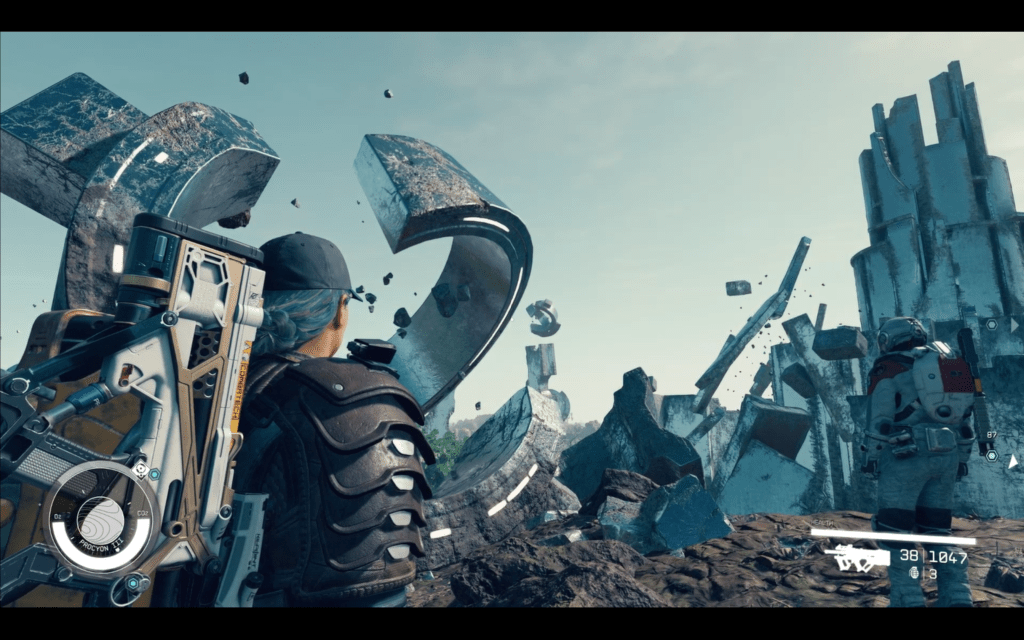
Bethesda put a lot into the “space” part of this adventure.
The game looks great, and play has been much smoother this time around. I play on almost every type of device out there. I have my Xbox/X connected to an 82-inch 4K, QLED Samsung TV. At that size, the graphics hold up well. From a normal viewing distance of about eight feet, everything looks great. The edges of objects become fuzzy when you get within three or four feet. The graphics fidelity continues to get worse the closer you get. It’s not bad for a console. Especially considering how huge and graphically detailed Starfield is.
I’ve also been playing on a handheld (Z1 Extreme), my desktop (i9/4090), and via streaming to all kinds of devices. No matter how you choose to play, the game performs. The frame rate stays stable for the most part. Only during intense combat on under-powered hardware like the Go do I notice a lot of lag. The dynamic settings are your best bet when starting out. If you have a monster gaming card and are able to run 4K Ultra, Starfield is breathtaking. The textures are so good, especially on OLED monitors.
Sitting on the couch and playing Starfield while hanging out with my family is a perfect afternoon.
Speaking of monitors, I’ve got the 82 inch TV mentioned above. Then my gaming PC has both a 49-inch 32:10 OLED ultrawide curved screen and a 48-inch OLED flat panel. My tablet has an 11 inch OLED , and the Lenovo Go is an 8 inch LCD. I’ve seen this title on lots of screens. For this game, up close to the curved ultrawide offers the best experience, in my opinion. Something about the landscape filling most of your field of view really adds to Starfield’s aurora.
The game plays like living in a space opera adventure movie in the most detailed ways. Everyone talks in this game, everyone. There are more than a quarter of a million lines of voiced dialog. Some of it occurs in NPC conversations that are surprisingly deep and complex if you stop to listen. A few of those deep conversations launch side-quests.
Starfield is good at slow rolling you into playing all night. You start out intending to do something quick. Next thing you know, it is two in the morning. You can tell it’s from the same group that gave us the Elder Scrolls. It has the same brilliant pacing and variety of play types.
Some reviews I’ve read see the similarity with other titles from the publisher as a negative factor. I think the “New IP” marketing message distorted people’s expectations. Early advertising implied that Starfield would be a completely different experience from the Bethesda titles that came before it. Many were disappointed when it turned out to be “Skyrim in space”, but I think that’s the point.
Of course, the “Old-West” is in space too.
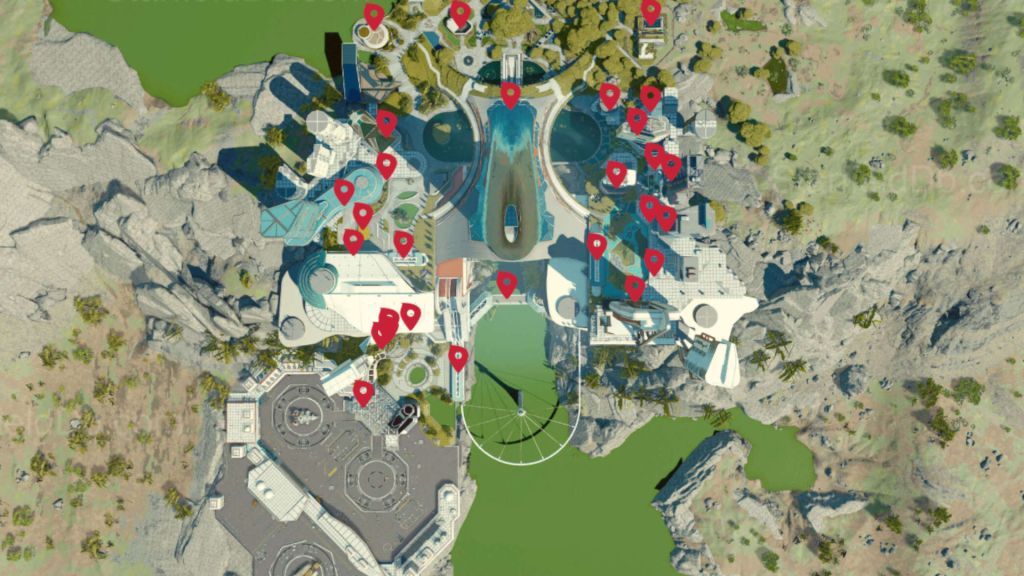
Once of my favorite aspects of Starfield is its ability to be both massive and intricate at the same time. Pull up the map, and you can zoom in and out of multiple solar systems that are light years apart. All that vastness of galaxies and yet, you will eventually know your way around New Atlantis is like your real-life neighborhood. I know Ryujin Tower as well as my real-life employer’s corporate building at this point.
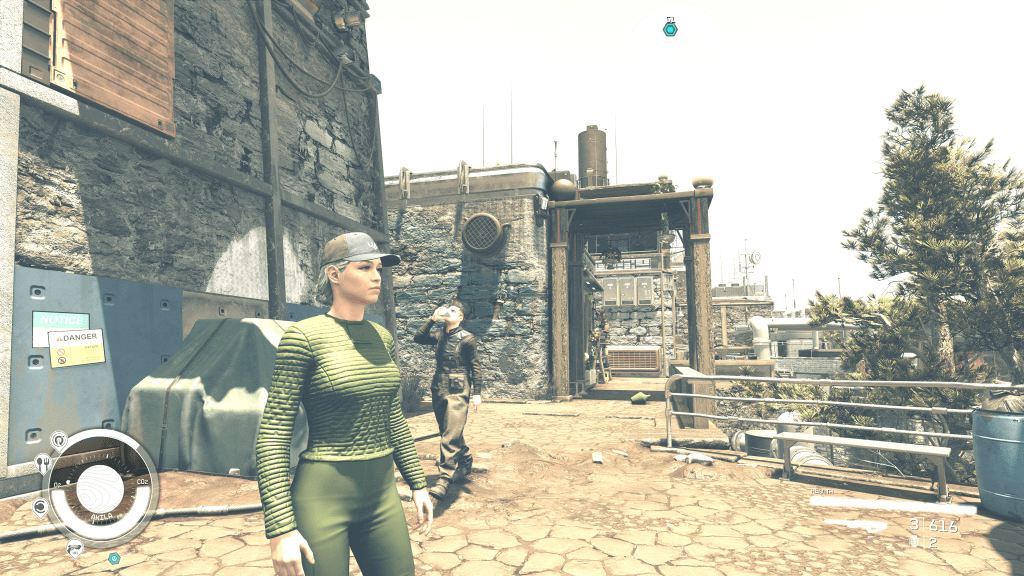
Some of the cities are large and take a long time to fully explore. New Atlantis is one of those.
The Bethesda formula works well in the space adventure genre. The game’s quests and side quests cover the whole field of mission types and dungeon crawls. Everything from raiding bases and hunting monsters, to dogfights in space are covered. I’ve run into assassination jobs, military attack missions, detective puzzle stories, and more. Just when I think I’ve encountered every possible type of mission, something new and clever happens.
Some encounters with a random NPC can end up leading to complex story-based missions that take hours to complete. Other missions are one and done quick XP boosts that are over before your fingers are fully warmed up. There’s a good balance of action and idle life moments. Once you get into a session it’s easy to stay in for a few hours. You’ll barely realize how much time has passed in the real world.
There are some fantastic locations to explore, and the story is engaging enough to keep you following the mission list.
My favorite thing about Bethesda games still rings true in Starfield. You don’t have to fully participate in every aspect of the game to live a life in their worlds. The game requires you to use the tools, but you can focus on the things you enjoy most. Progress through the missions and quests isn’t directly tied to a specific solution.
For example, I don’t always get a lot out of the building, crafting, and collecting often featured in role-playing games. Starfield doesn’t force building or crafting as much as other RPGs do. Bethesda lets you choose how to acquire the ships, weaponry, and other goods you’ll need. I prefer to grind for credits and buy my gear. My character is a merc, to be sure.
I’ve chosen a life of combat and conquest. I spend my rank points on gun skills and put my money into my ship’s firepower.
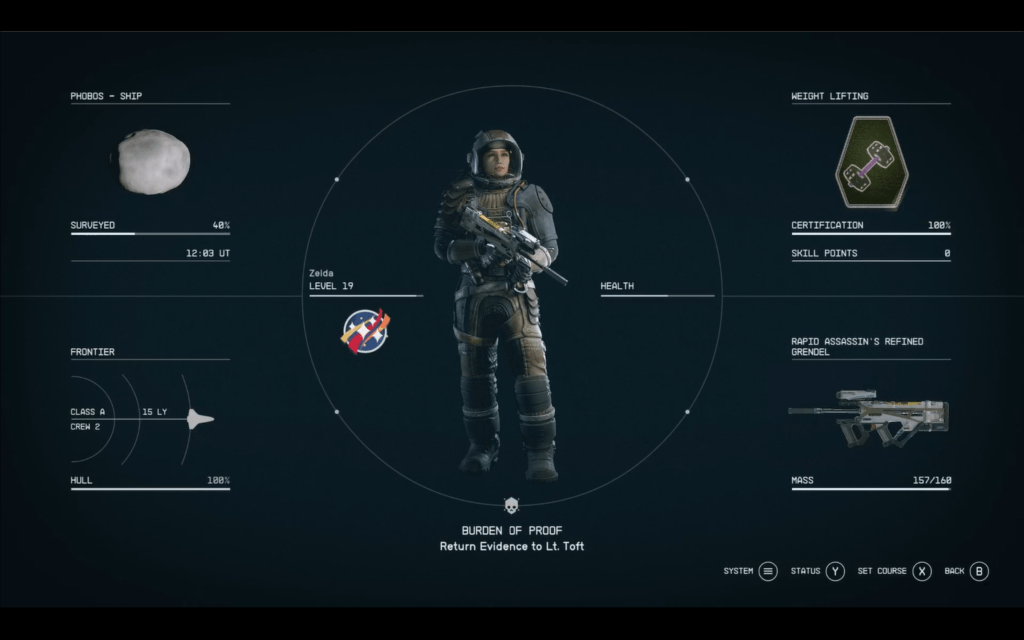
I’m about forty hours into this Starfield run. In that time, I’ve mastered the game’s combat mechanics for the character and ship. Fights in space or on the ground don’t make me sweat anymore. I have completed a little more than half of the main story. I’ve finished most of the Ryujin corporate faction missions. I’ve also turned in a lot of bounties and finished whole side-story arcs. I’m a level 20, with an upgraded ship and enough guns to blast my way out of anything.
The missions and quests are just fantastic. Some have numerous characters and locations; others are quick and ferocious.
This far in and the game still feels like it will take a year to finish. I haven’t even completed the main story line yet. There are whole categories of skills that I haven’t spent a single point on. Multiple quest lines that I thought were almost over are still going. Some players and publications have critiqued the amount of content, but as a relative newbie it seems almost overwhelming.
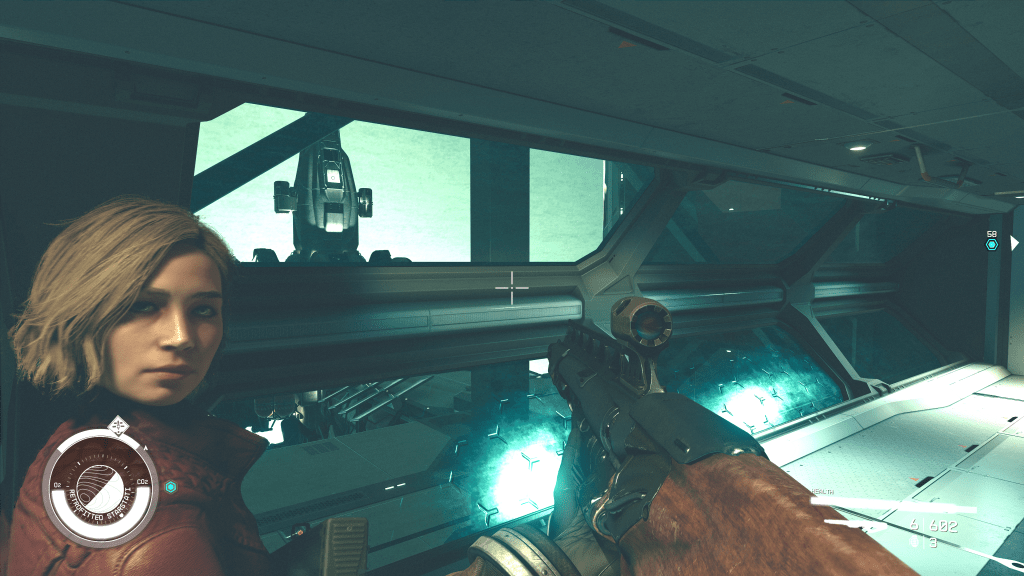
The combat is spectacular both in space and on the ground. There are numerous weapon types for you to master. Your character has a thruster-pack to jump-jet away, or hover and rain death from above with. You can upgrade your companion’s firepower and armor, and they’ll do real damage on your behalf. If you invest money and time into your weapons load out, you can build a character capable of extreme violence.
I not very effective at talking my way out of situations.
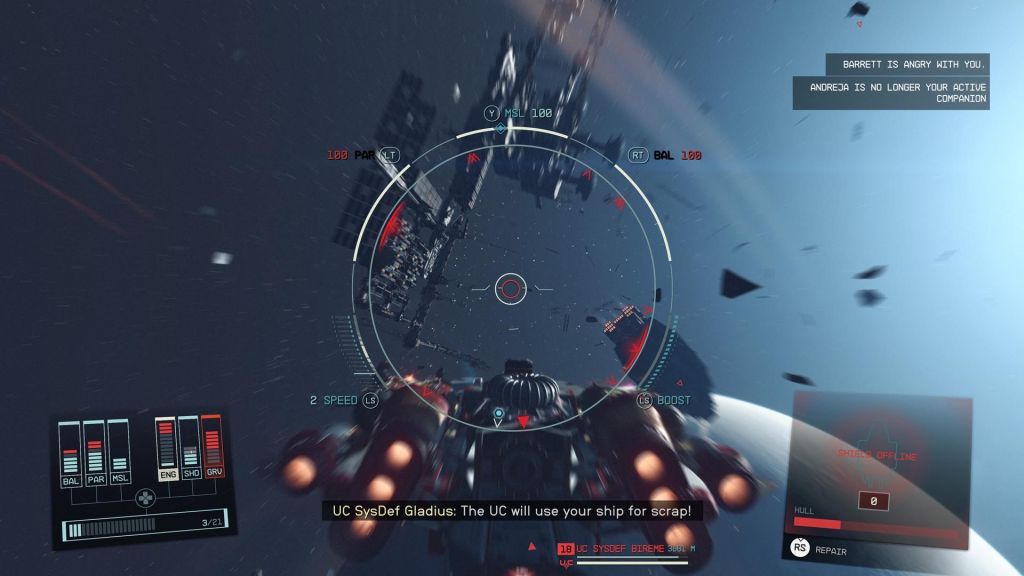
Space battles vary from single ship encounters to multi-planet hopping chases. You can hail, disable and board, or fully destroy the opposition. Ship building is great in this title. Your options are limited by the resources you can get your hands on, and that’s about it. The flight controls are fairly simple. Much like Star Trek’s Enterprise, you can focus your ships’ energy where you need it during engagements. Boosting weapons over sheilds, or put everything into the engines and run. The choice is yours to make most of the time.
Space battles can be intense. Unlock the targeting skill to make them easier to win.
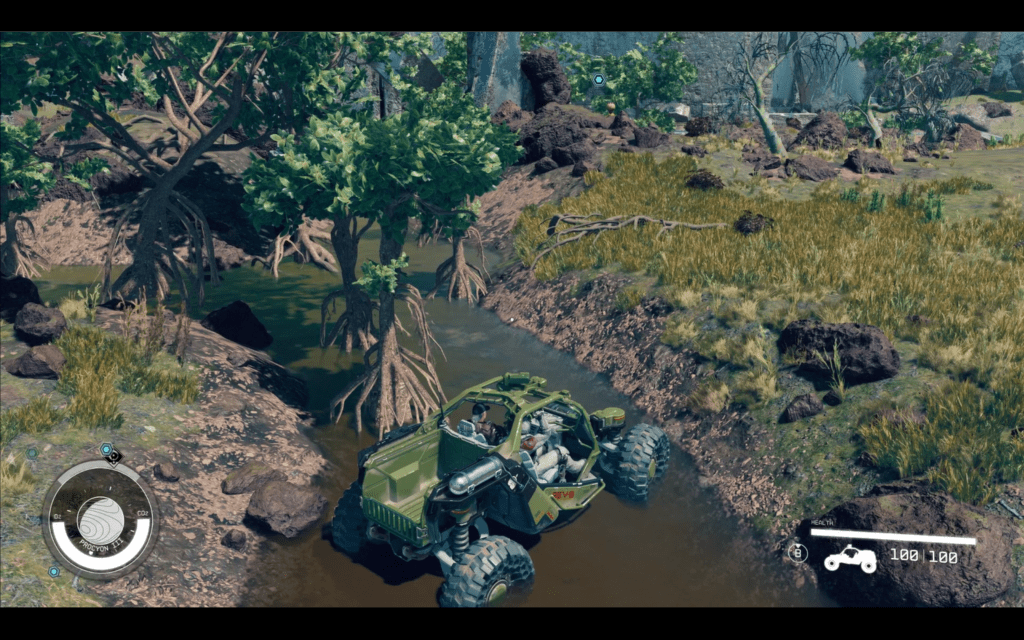
Then there’s your ground transportation. The addition of the REV-8 ground vehicle is most welcome. The off-road machine features jet pack hover/jumping of its own. It also has a turbo boost and a canon. The canon requires accuracy to be effective, but once you get it dialed in, watch out baddies. I’ve devastated entire enemy strongholds with my REV-8. It reminds me of the Mako from Mass-Effect in a lot of ways. The jumping feature is extremely useful and can be cheesed to great effect if you like to play that way.
The ground vehicle wasn’t available at launch. Many feel that it should have been there from the start.
Besides the new car, there have been a lot of other “quality of life” upgrades since the original launch version. Decorating your ship’s interior and vastly improved city maps were huge. You can visit Bethesda’s site and read the patch notes if you want to puruse the full list. Even though the DLC has launched, there have still been patches and updates. The game is still being actively invested in by Microsoft and Bethesda.
I don’t have anything overly negative to report on when it comes to Starfield. It’s a fun way to pass a few hours while staying at home. The story isn’t the best sci-fi story I’ve ever encountered, but it is good. It’s more than good enough to anchor a game like this. The character development is over the top. There are so many NPCs to interact with that it’s easy to lose track.
Another epic game that had a bad launch.
In my opinion, Starfield got a bum rap at launch in much the same way that Cyberpunk 2077 did. The hype machine was setting the bar for success way up high. I think both titles were launched prematurely by business leaders who were money blinded. Lucky for us, both games also ultimately got wrangled into something many of us consider to be masterpieces.
I’ve been a Halo player since the beginning of the game. Like a lot of entertainment franchises, some of the titles stand out more than the others. The current version “Halo Infinite” was initially well received When it launched at the end of 2021. It added unique power ups like a grapple that proved to be very popular.
After the popular launch, there was an extended period where very little content was released. The game fell out of favor, and the player pool contracted. That all changed when the winter update dropped in November of 2022. 343 has steadily released stellar updates ever since.
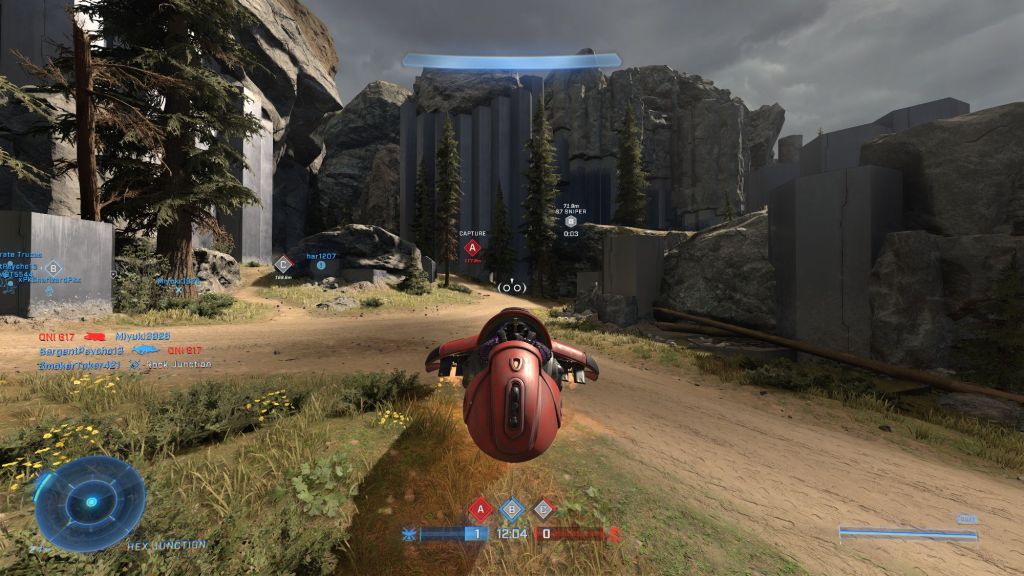
The Ghost can turn a losing team’s fortune around or extend a winning team’s lead when acquired by a skilled pilot.
The addition of retro Halo 3 maps and game types was especially well received by the player community. There’s nothing like a shot of nostalgia from a game that you strived to conquer long ago. The old maps have been remastered, and they’re never looked better. Another nice touch is that the modern versions of power weapons appear exactly where the originals did.
The 343-dev team also released the long-awaited Firefight mode in December of 2023. Waves of ever more powerful AI enemies attack your squad. Firefight encourages teamwork over competitiveness. Winning without working together is almost impossible.
In Firefight, the enemies get stronger, faster, and use better tactics in each wave.
In what’s reported to be the final major update for Halo Infinite, the game’s creators added yet another new feature in June of 2024. The Match Composer lets players choose the game types they want to cycle through during their session. There are more than eighty game types in the Quickplay list alone. Once you find your favorites, the custom lists you create are saved to your profile.
The match composer lets you build custom play lists for each category of multiplayer games.
Halo’s famous built-in editor and creativity tool is called the Forge. This mode allows everything from mild modifications on existing maps to full custom game creation. Publish your design to the community or share it just with your friends. Think Mario Maker with guns, tanks, and aircraft.
The Forge is a powerful game editing tool.
At ten dollars per cycle, the base Halo Infinite Battle Pass is one of the least expensive options around. Used for unlocking character, weapon, and vehicle customizations, the Battle Pass isn’t required, the unlocked items are cosmetic only. Plus, you can earn some unlocks in the free-to play edition. It takes a lot longer to be sure though.
There’s a lot of customizations to unlock.
The multi-player part of the game is free to play, so anyone with an Xbox or PC can join the lists and test their metal. Expecting to dominate based on your skills in other FPS titles is a mistake in my personal opinion.
Halo hits a little different than CoD and Battlefield. Multi-kills are rare, and one-shot kills even more so in Halo. Protracted up close battles are frequent thanks to a lower ammo capacity in the weapons. Two kills per clip is rare in most of the guns. Power weapons spawn with very limited ammo capacities.
Shields, power slides, jumping, and dashing combine to make evasive maneuvers effective. Your target has a good chance of escaping if you don’t land every shot and have to reload. Perhaps the biggest difference from the more popular CoD style games is that all players have the same loadouts. There’s no strategic choice advantage when it comes to weapons and maps. You can’t choose your auto shotgun with the drum mag and laser sight because you know the next map in the rotation is tight.
You usually have a chance at counter attacking your assailant. Pulling off a reversal earns you a medal.
If you haven’t played Halo Infinite lately, there is almost certainly something new going on since the last time you queued up. If you have never tried the game, there’s a lot of content available and plenty of players in the lobby. There’s even an AI training mode to help teach you the ropes and let you practice with the weapons. The game features Easy Anti-Cheat to help keep things fair. Most multi-player games start in two – five minutes.
The major updates for this iteration of Halo are over, but 343 has committed to multi-player enhancements for the time being. 343 is remaining tight lipped on what “enhancements” means in this context.
It can be difficult for couples to find a video game that both parties can really enjoy. People like different things when it comes to digital entertainment. My spouse really enjoys cozy games and titles like Zelda, Pokémon, Animal Crossing, and Star Dew Valley. I tend to prefer FPS and racing titles with some overlap on the adventure stuff.
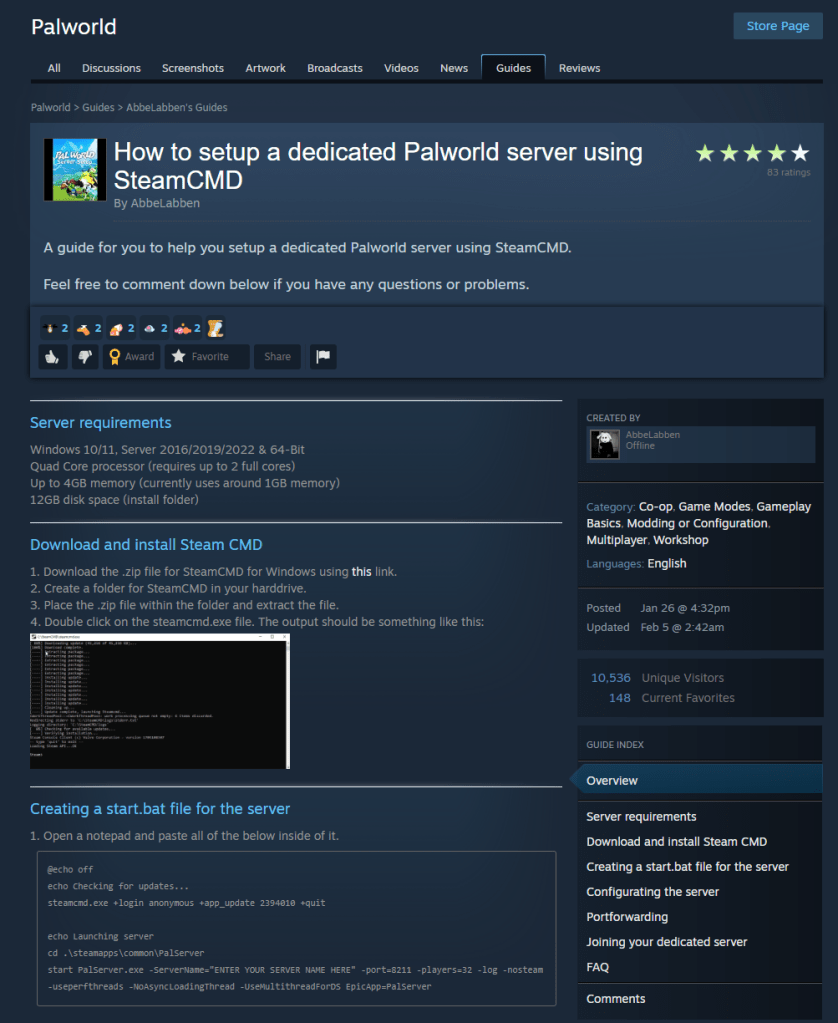
When a co-worker mentioned that he and his wife were really enjoying Palword, my spouse and I decided to try it as well. I followed this guide provided by Pocketpair and set up a private multiplayer server using the free SteamCMD server software.
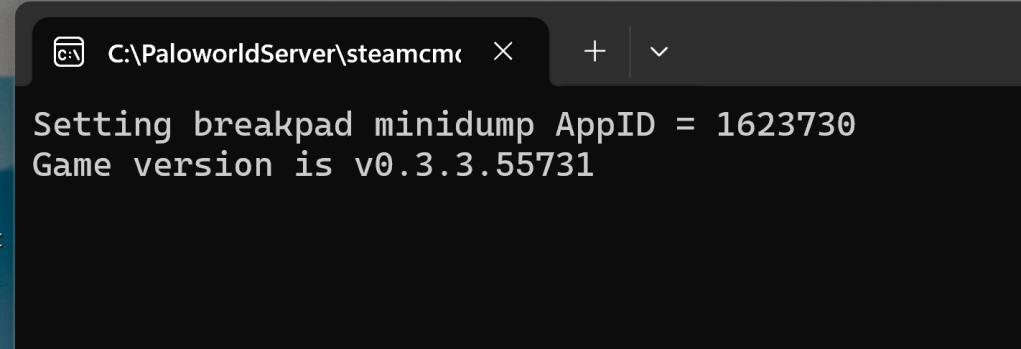
The Palword SteamCMD dedicated server runs in an CMD Terminal after you get it going on Windows.
Having your own server means not needing to worry about competition. We could also make our own backups, and it meant we had full control over the game world’s settings. We find that it encourages us to play more since it is always available. As a tech, I like that server performance is guaranteed by my own network and hardware #1mspings.
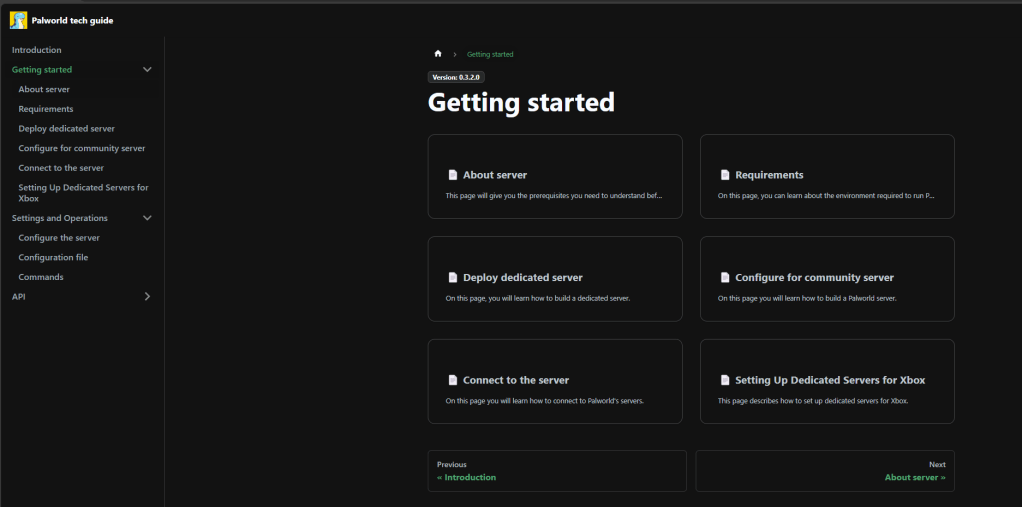
The official Palworld server guide is thoughtfully laid out and easy to follow. There are also several videos on YouTube that show the setup.
During the server setup, I followed the instructions linked to in the picture above. I also used this post in the Steam forums as a reference because it provided some more detailed information and tips regarding a shortcut to easily start and stop the server.
I opted not to fill in the public IP address in my setup. I will use a VPN if I want to play when not on my home network. I made this decision in-part because requiring a password on the server has a sort of bug, or this beta game lacks a necessary feature. Depending on how you look at it. You need a keyboard to enter the password in the server connect menu and there’s no on-screen keyboard available in-game yet.
The keyboard situation gets annoying on consoles such as the Steam Deck or ROG Ally. It is possible to enter the password on the handhelds, as they both have methods to force an on-screen keyboard to open. The process is clunky due to input window focus challenges, keep trying the overlay’s OSK it eventually works. There are apparently more places where a keyboard is required, but I have not personally encountered any yet.
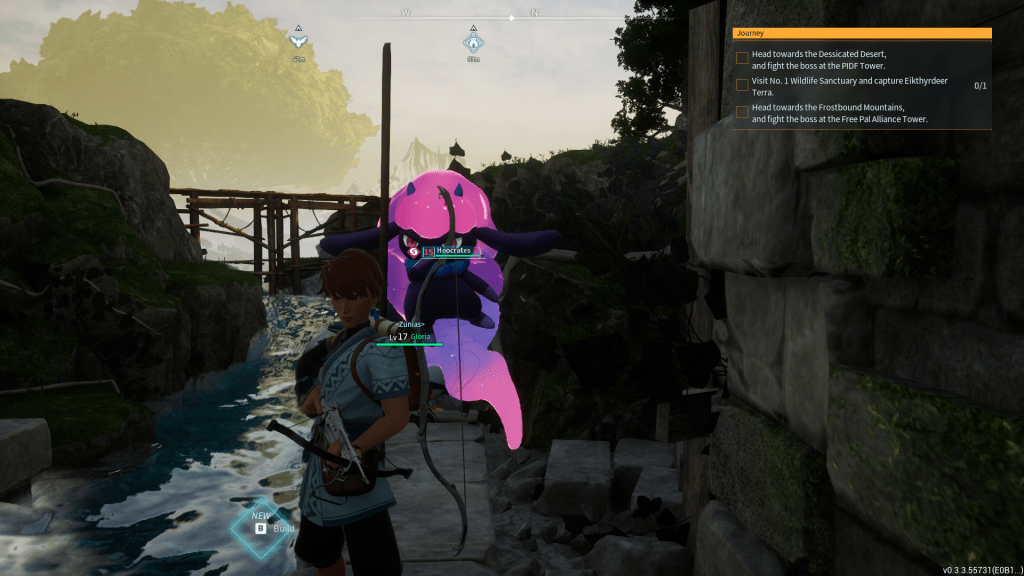
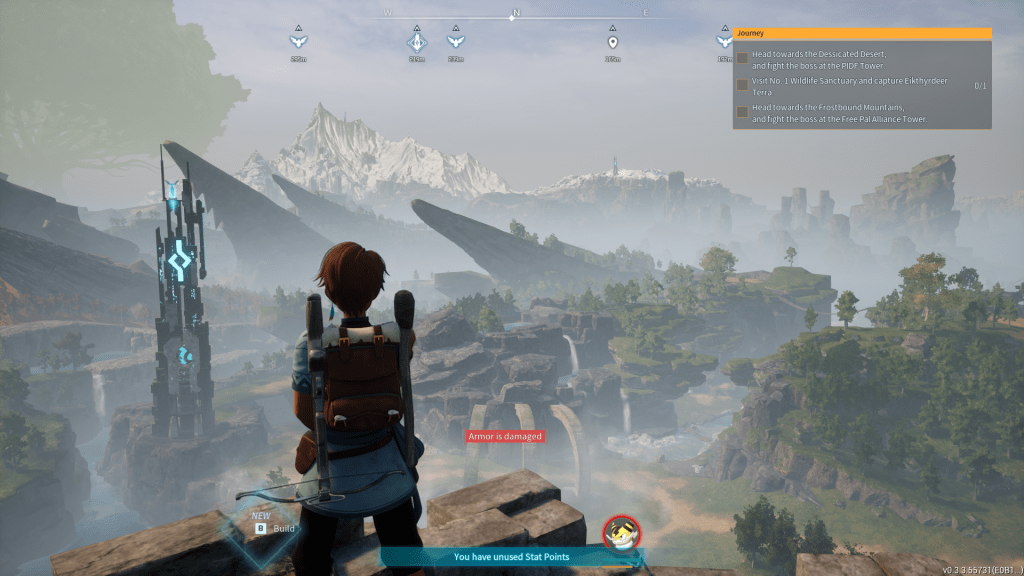
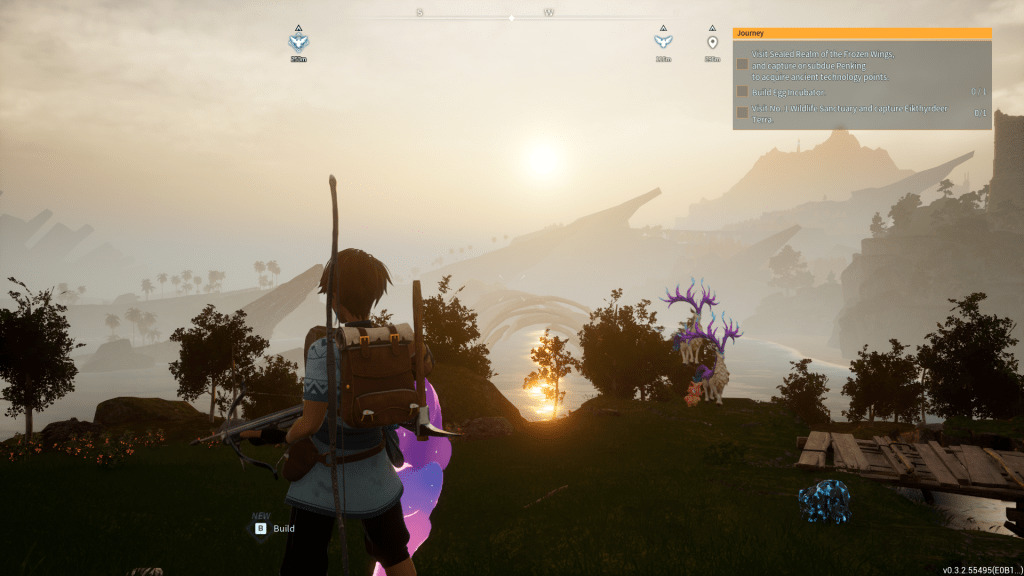
The terrain and scenery vary greatly throughout the game world.
To play the game on the same system that you host it on use 127.0.0.1 as the IP address of the server to join. Speaking of clients, if you want to setup an Xbox private server using this same method you can. The change to make the server Xbox compatible is covered in both of the guides linked to above. Each server can host PC players, or Xbox players but not both together (yet). It is possible to host more than one game server on a single computer if it has enough physical resources (CPU, MEM Storage). You’ll need to change the port for each server that you run in the .ini files (instructions in linked the guides above).
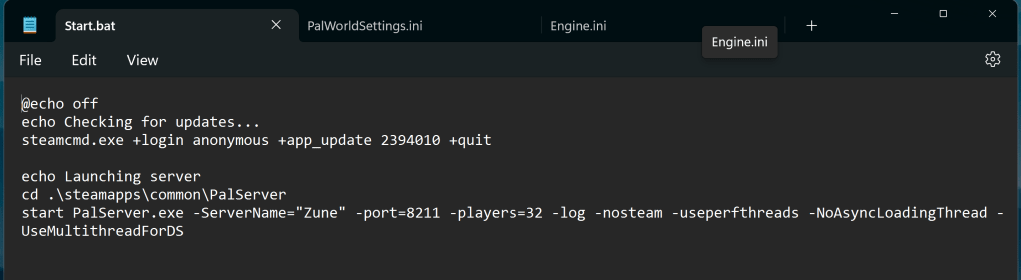
The SteamCMD server and the game world you play in are controlled via a series of text files with obvious names like Start.bat and Palworldsettings.ini.
I had to increase the server’s tick-rate to 60 to help cut down on the rubber banding that seemed to occur really badly during pal fights. There’s still some of the snapback stuff happening when my spouse and I both fight lots of enemies and their pals in the same area. I may increase the tick-rate to 80 in the near future. See this GitHub readme for instructions on how to adjust the parameter. This change increases the computer resources used by the game world server.
Our gaming pc is using an AMD Ryzen 7 CPU, A 3080 TI GPU, and has 32 GB of DDR4 Ram. It’s able to simultaneously host the server and stream a copy of the game via Steam Link to the Apple TV in our living room (where my partner plays) in 4K at 40-60FPS over a professionally managed 1Gbps cabled network.
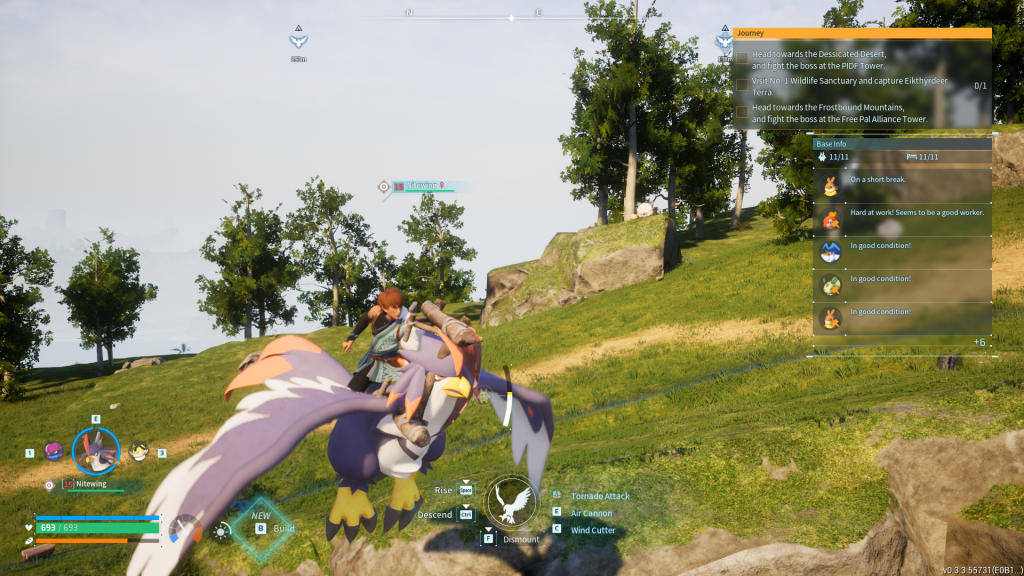
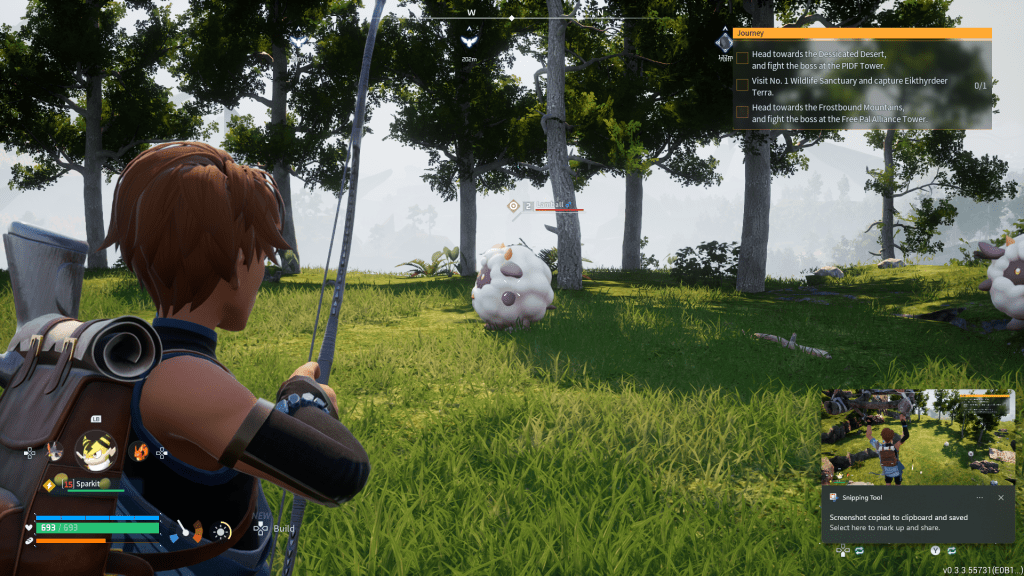
The task list to ride a flying Pal is long. I was a level 15 when I accomplished the entire chain of resource gathering, unlocking, ranking up, and building. It’s worth the trouble IMO.
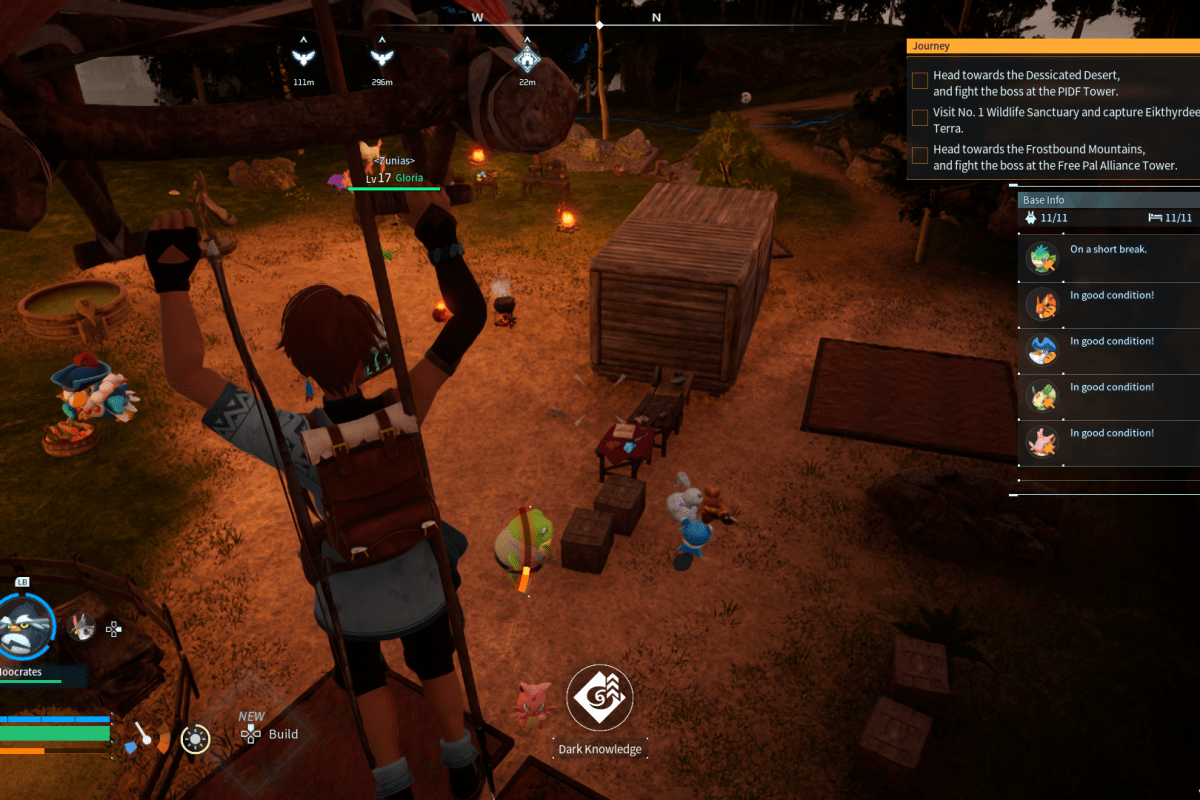
I’ve seen Palworld described as Pokémon with guns, but that isn’t a very fair description in my opinion. The game is really a mashup of all your favorite adventures. Don’t get me wrong, there are Pokémon-like creatures called pals and guns galore, eventually. I’m pretty salty about being almost 20 hours in, having ammo, but still no GUNS.
There are also towers to unlock regions, a hang glider, chests that take keys, cooking, and climbing ala Breath of the Wild and Tears of the Kingdom. The typical survival RPG hallmarks of gathering, building, upgrading, repairing, farming, potion making, and inventory management are cornerstones of the Palworld experience, too.
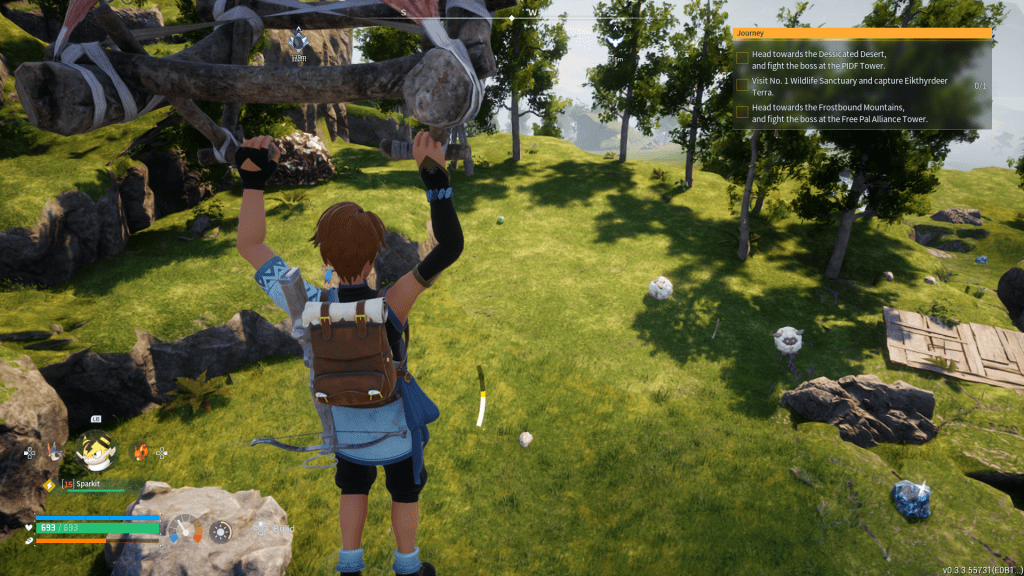
You get a hang glider early game. It takes stamina to glide, consider spending skill points on increasing yours if you like to travel fast.
The game starts you out in a pretty lush environment. I recommend collecting wood and stone as soon as you can. Follow the yellow text prompts in the upper right corner of your screen. It’s a good idea to build a campfire and or shelter as quickly as possible. You can freeze to death on your first night without something to keep you warm.
During the beginning, focus on establishing your first base. Capturing and learning to use your Pals is normal for Pokémon players like my wife but was a new experience for me. I still struggle with which one to call for a strategic advantage over any given enemy in a dual, or fight.
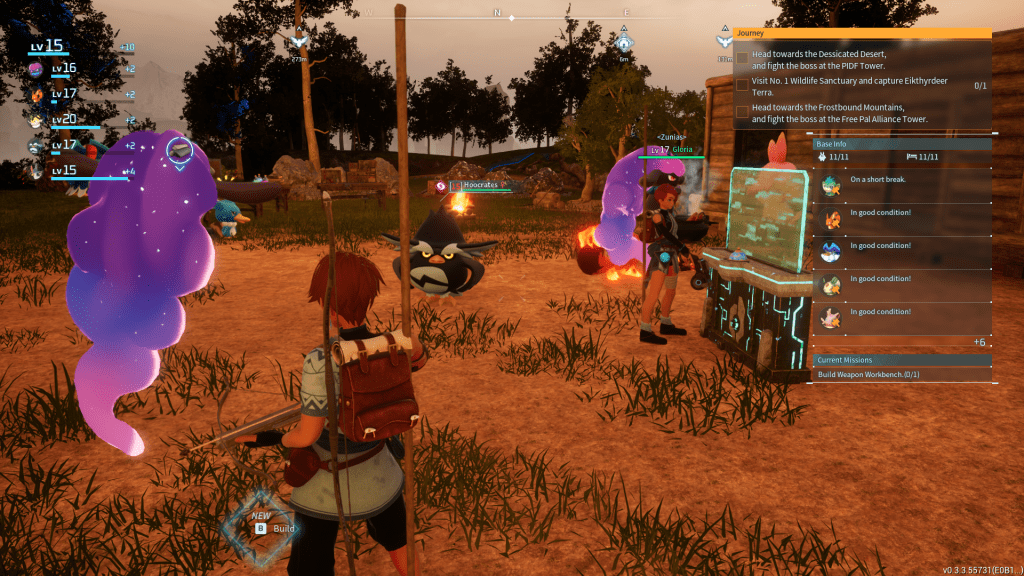
We built our first base close the starting point. A campfire and cabin with beds should be at the top your build list. You need them to survive the night.
Acquiring technology points and otherwise ranking up is the goal. In classic RPG fashion you start hemmed into a particular geographical area by the strength of enemies in adjacent zones. If you want to explore, you are forced to evolve.
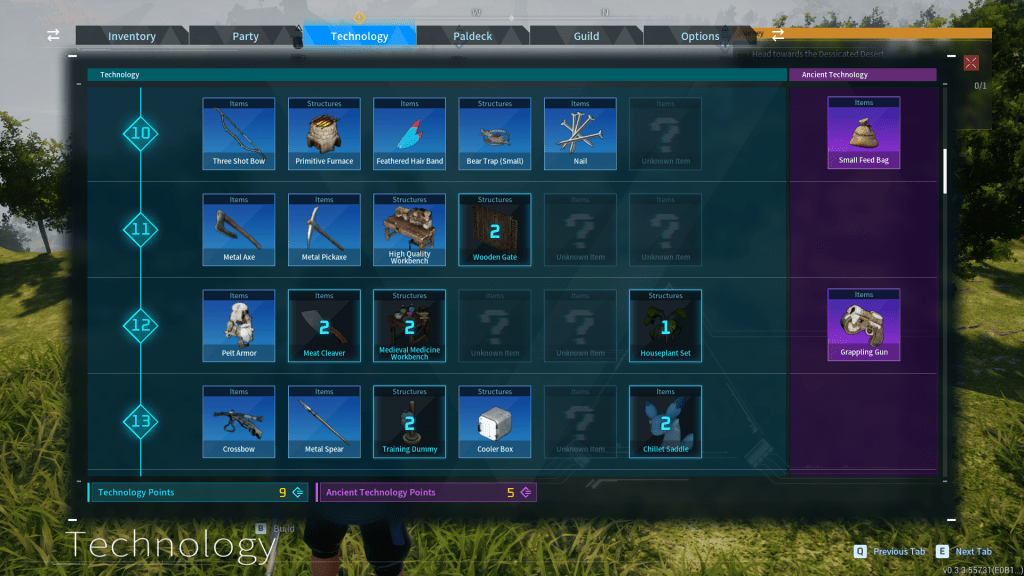
Technology Points and Ancient Technology points unlock plans and recipes for ever more powerful gear, better building selections, food, and industrious machinery (aka GUNS!).
We defeated the first tower-boss on our second try at level 14 with two players. Each of us with 5 pals that could do 100 damage or above, bows, spears, and axes. We each went through more than 100 arrows each, in both attempts.
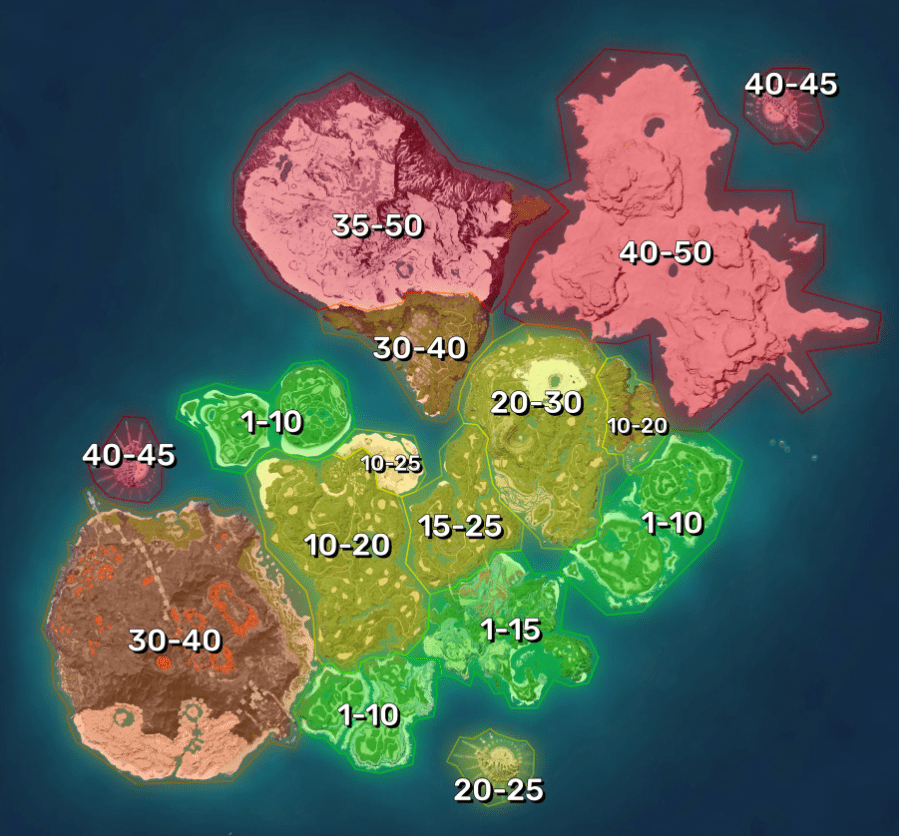
This map gives you an idea of enemy ranks in the various zones.
We have the difficulty set on normal and have left the “lose your stuff on death” penalty turned on. I won’t go into details past that on strategy. The information was provided to give newbies an idea of how high they should rank up before venturing out into the expansive world at large.
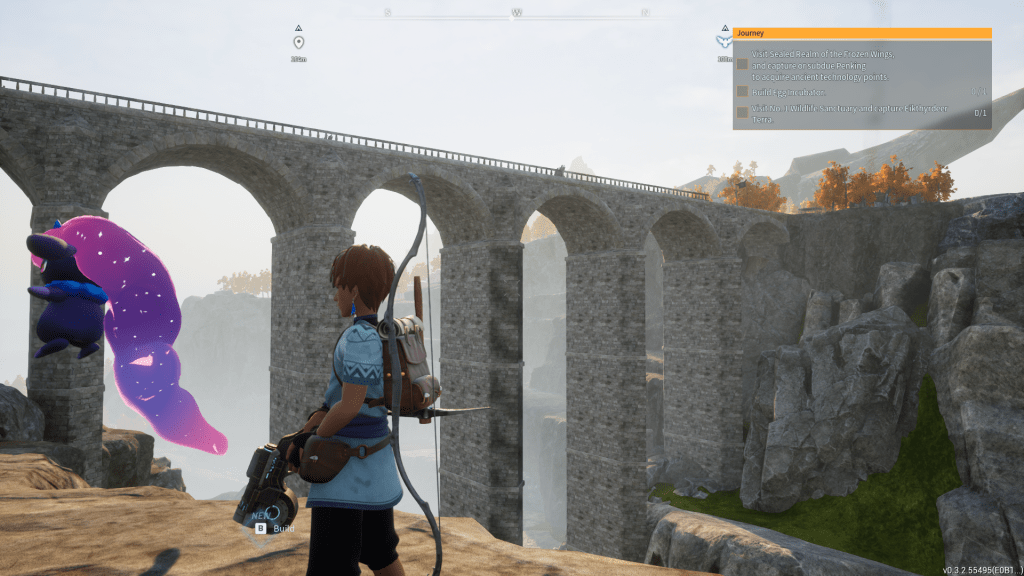
Exploring the vast open game world reveals all kinds of interesting things.
The combat is a combination of 3rd person melee and ranged weapons like bows, crossbows, spears, and axes for a very long time. I’m a level 15 player at about 19 hours in and have only encountered guns in NPC raider’s hands. Apparently, they aren’t an option for players until Level 20, after which you are able to unlock the ability to craft a weapons workbench.
The combat is smooth and interactive as far as character control is concerned. Jumping, dodging, running, sliding, and ducking are combined with throwing, shooting, swinging and stabbing in fast paced action when there are multiple combatants.
You can build a bow early game. The aiming controls are smooth and accurate. TIP: Hold your draw until you hear the “full power ding” and shoot for the head to inflict maximum damage to your prey.
There are shields, armor, health potions, firepower, food, damage to your gear, damage to your pal team, with stamina and health for everyone to manage durring battle. Your fingers will get a workout and so will your brain. The game supports both keyboard and mouse or controllers. Though you should have a keyboard handy for the buggy spots.
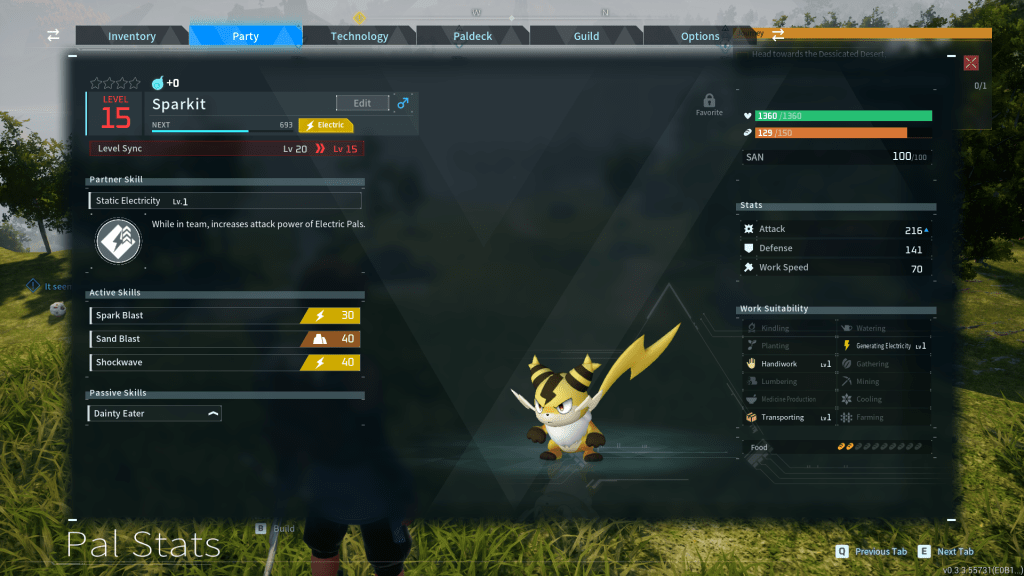
Your Pals fight with and for you. Choosing your Pal team loadout is as important as choosing the weapons your character is wielding. Each category of Pal will have attributes that make it a better or worse fighter against other types of Pals. Each individual Pal on your team can be ranked up, accessorized with weapons, trained with new combat techniques, and more. Some can be ridden, or flown, and others will act as your personal bodyguard. Mastering all their abilities will take some time.
Each member of your Pal team is a fully rankable character with all its own stats.
Murdering and harvesting the cute little pals for their organs, meat, and bodily fluids is required. You also end up enslaving the creatures to work on your bases building your empire. I only mention it because this type of play almost certainly bothers some people. If you have an aversion to these types of actions you should steer clear of Palworld. There’s not really anyway to progress in the game without slaughtering the Pals by the hundreds, possibly thousands.
There are areas where the game shows that it is still a pre-release title. The afore mentioned rubber banding issue, quite a few graphical glitches, and the possibility of your data getting wiped out (see the warning at the start of the game) to name but a few. There are also several spots you get trapped in which will force you to reset a ‘la Sackboy.
Another example, you can tell they don’t quite have enemy strength dialed in. The displayed rank doesn’t always match the experience. You may encounter a level 23 zone guardian that is easy to defeat then lose your next battle to a random level 11 Pal. It is by no means a game breaking issue, just something to be aware of.
“We’re heading to the snowcapped mountains in the distance next babe!”
The open world is large and there are many types of environments to explore. Each new zone is unlocked by defeating the boss in that area’s tower. The tower bosses are what drives the need to rank your character and team up. In addition, your bases will l be randomly raided by the other factions of NPCs that inhabit the game.
We’ve had a great time playing this title. There’s plenty of farming, organizing, building, and the like for her. I enjoy the combat and strategizing. We both really enjoy the exploration and Pal collecting. The game has a good combination of activities that players can accomplish alone and those that require teamwork. If you’re looking for something to play with your significant other, or a group of your friends, Palworld might be a good option for you.
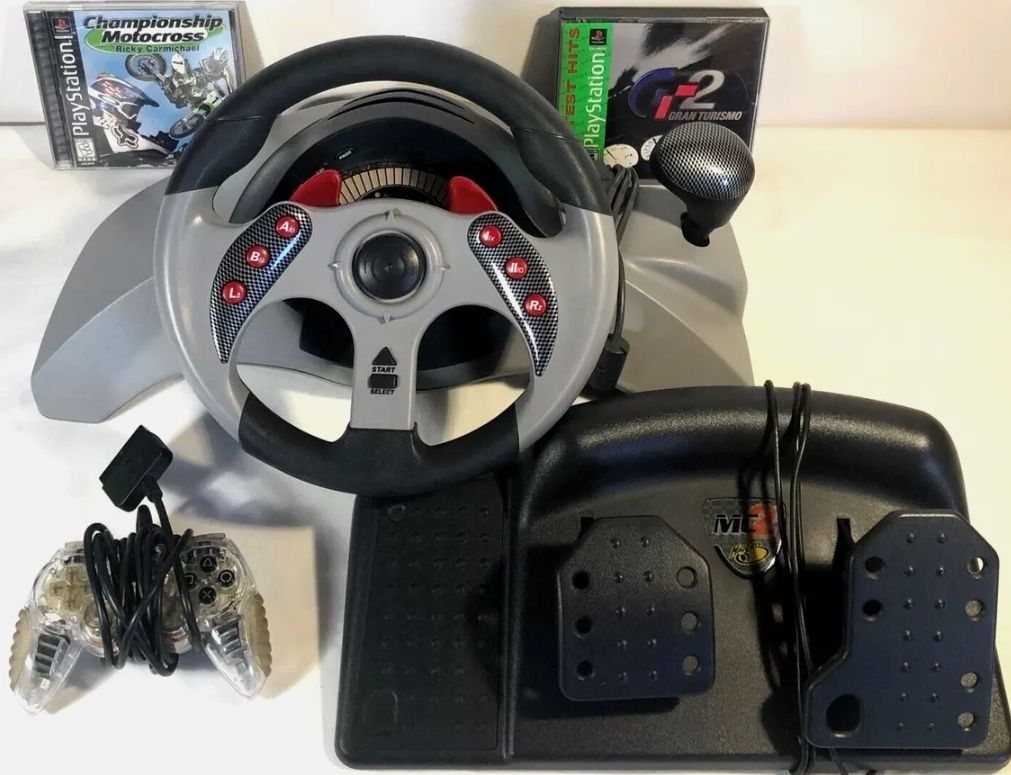
I’ve been racing with wheel and pedal sets on PC, Xbox, and Playstation systems for as long as I can remember. I started out with simple spring based wheel and pedal sets from the likes of Mad Catz. Eventually, I worked my way up to advanced force feedback based wheels that use embedded motors to simulate some of the physical experiences of driving.
During my early years with the hobby, I had not devoted much attention to the pedals. I was always more focused on the graphics, wheel, and display. I used the basic gas and brake set that came with the wheel and decided that was good enough.
Spring-loaded wheels were all the rage in the PS2/360 era.
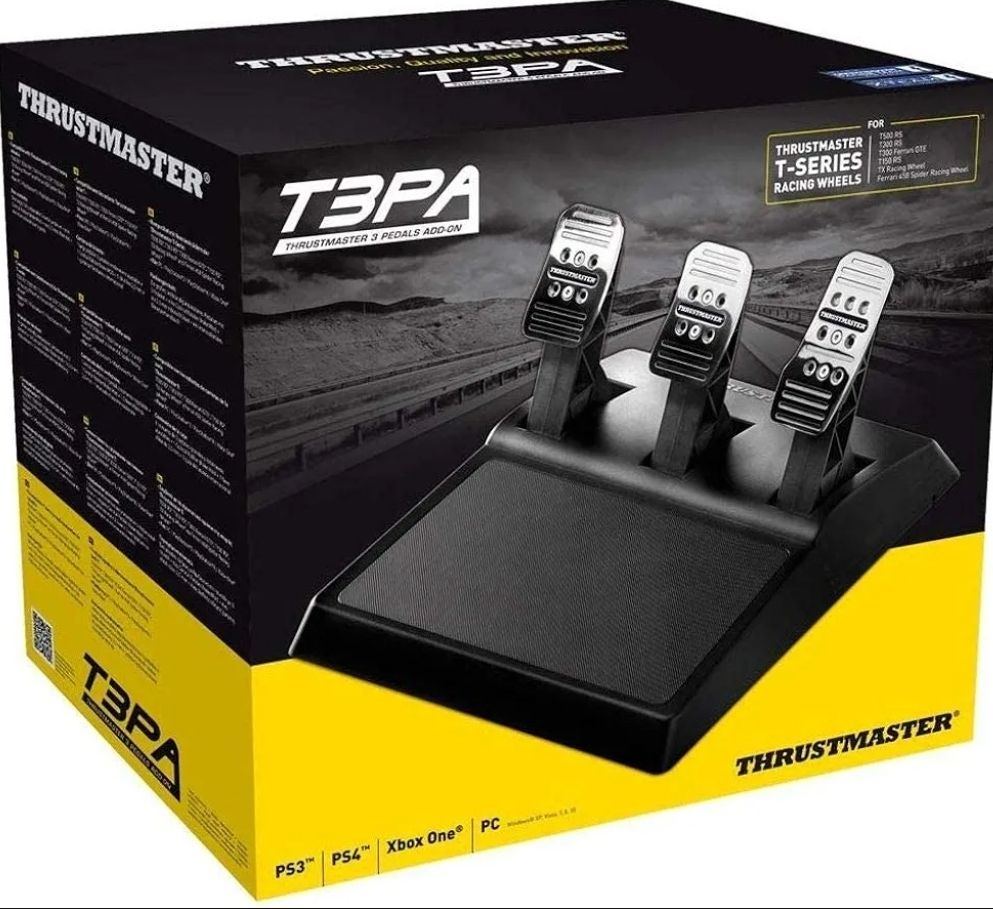
A few years back, the gas pedal snapped on the Logitech setup I had been using at the time. I purchased a set of Thrustmaster T3PA pedals because they used the same connecter. Also, the addition of a clutch pedal would be a big upgrade. I’ve preferred them up over those included with my various wheels ever since. Until recently, that is.
The T3PA was a significant upgrade.
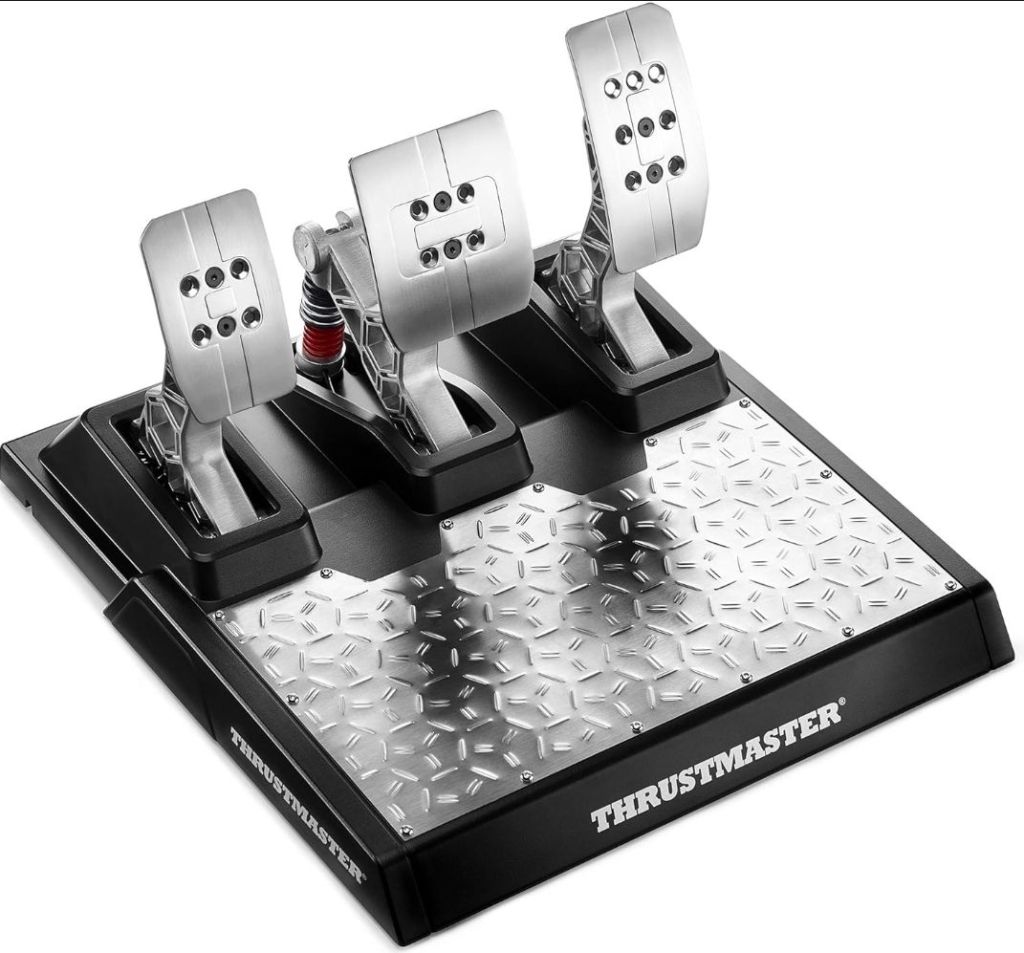
My lovely wife had decided the best Father’s Day gift would be a trip to our local computer and electronics store to pick out a new toy for my inner child. While we were wandering around the store, we eventually found ourselves in the sim-racing section. It was there that I discovered the T-LCM pedal set. It was the first time I had run into loadcell based pedals in a brick-and-mortar store. It was also the first time I had seen the tech offered for less than three hundred dollars.
Loadcell sensors measure the amount of pressure being applied at any given time in near real time. They’re far more accurate and faster than the more common potentiometer sensors. The older tech measures the distance the pedal’s shaft travels, and the software translates that to pedal pressure.
The upgraded censor allows engineers to design pedals that are focused on replicating the real-car experience. Potentiometer based pedal designs are forced to consider shaft travel over other attributes. On the Thrustmaster T-LCM model, the loadcell is utilized by the brake. Combined with some adjustable spring sets, the feeling of braking is closer to meat-space vehicles.
It took me about two hours to get the T3PAs removed and the new set installed and ready to drive. In that time, I updated the firmware on my TS-300 wheel because it was required. The installation steps also included downloading the tuning software to adjust the sensor’s sensitivity . Then, it was on to the hard part mapping the new pedals to the controls of my various driving games.
In each of the driving games I play, there is a particular car and track that I use to test new setups of my computer hardware and software. I loaded one of these benchmarks, Project Cars 2’s Azure Coast in the 2004 Porsche Carrera GT and hit the road.
I could tell by the time I had turned into the first corner that the new load cell technology was worth the cost and time. I won’t go as far as saying that braking feels exactly as it would in any particular car. I will say that it feels like a realistically generic brake system.
The improvement in car control due to the more nuanced feel of the braking was immediate for me. I beat my personal best lap time for the track and car in my first test run. The brake engages and applies stopping power in a manner that is more like the real thing. The adjustable resistance provided by the various spring sets lets you adjust the feeling to match your expectations.
The Microcenter store we had purchased the new set from had them priced at a reasonable $249.00. I happen to know that the store will price-match Amazon, so I checked. Sure enough, Amazon had them for $201.00. At that price I think these make sense as an upgrade to my sim-racing setup. If you’re looking to inch closer to a more realistic driving experience, you might want to check them out too.
If you are a Halo Infinite PC player, you may have noticed that you are unable to launch the game after recent updates. The game crashes during the shader complication. When the progress bar gets to about 45% it hangs and then exits. I tried all the classic tricks to get the game working. I cleared the shader cache, repaired and even reinstalled the game, nothing worked.
The fix that eventually worked for me was to roll back the driver to the previous 555.85 version. Download the file (link: https://www.nvidia.com/download/driverResults.aspx/224750/en-us/) and run it. It will remove 555.99 on its own. I assume that rolling back the driver via Windows device manager would also work.
Comments on Steam, Reddit, and Microsoft’s sites indicate that both the 343-dev team and Nvidia are aware of the issue and working toward a permanent fix.
I traded in my Galaxy Fold 3 for the S24 Ultra five months ago. I did it for the cameras and I’m still happy with my decision. They’re fantastic. The whole phone is.
None of the pictures in this article are using filters or editing. The camera was in my hand and on full auto mode.
The cameras take stunning photos. There’s nothing to nitpick. If you become adept at using Samsung’s camera applications and understand some photography basics about framing and lighting, the results are masterful.
Notice how clear the reflection in the side mirror is.
Photogs love to dig into the metrics and compare numbers. I’m more into the astatic value of the pictures than I am the camera’s technical performance. To my eye, Samsung is the best for this generation of mobiles. The images are crisp, focus is fast, and auto mode is ready for those fleeting moments no matter the situation. Samsung has been perfecting mobile photography for decades and their experience shows in the results.
Like a lot of people, I’ve completely transitioned to taking all pictures on my phone. One trick I’ve learned is to set up the voice trigger. No matter how careful you are, moving your hand to tap the screen can mess up your shots. Even the most careful tap can cause the lenses to jitter.
Use the gear icon in the camera app to access settings. Show palm is an interesting option but it doesn’t work as well as Voice commands.
There’s a lot to like besides the camera system. The battery and power management algorithms are equally impressive. I’ve been able to limit charging to eighty percent of the battery’s available capacity and still make it through an average office worker’s day. Limiting lithium batteries from reaching their full charge capacity increases their useful lifespan.
Try adaptive if you can’t live on eighty percent.
Samsung’s stylus is still great. I’ve written, sketched, and scribbled pages and pages with mine already. Including this entire article. Coming from the Fold 3, I had forgotten how convenient pop out pens and the ability to write on the powered off screen truly are.
One review that I had read before purchasing the S24U said the speakers were of poor quality and down firing only. I’m not sure that person actually had access to the phone when they reviewed it. It gets ridiculously loud and sounds great in my opinion. It has both top and bottom speakers.
Dolby Atmos, a custom EQ, and adaptive sound let you tune your audio experience to fit your ears.
The Snapdragon 8 Gen 3 processor is blazing! In fact, the phone can get physically hot if you push it hard. Mine hasn’t overheated, but it would be uncomfortable to hold sometimes if not for my case. The performance is worth a few scorched fingertips if you ask me.
Speaking of performance, this thing is a gaming phenomenon. AAA titles like Call of Duty Mobile and Grid feel like the full console versions. Some mobile games support ray tracing and super smooth 120 FPS, and the S24U is all about it. Game Pass Ultimate streaming works well.
Don’t forget to use the built-in gaming options to tune your experience.
Business apps like OneNote, Outlook, and Excel are quicker to get into than they are on my high-performance laptop. There’s plenty of RAM for browser tabs and multiple background apps. I find that I rarely need to take my laptop to meetings with me. I’m just as productive from the Ultra at notes, plans, sketches, and even light presentations.
I ended up with a case that I found on Amazon. It has a built-in camera cover that slides open and shut. It also features a wallet that easily holds my ID, bank card, and some cash. The back of the wallet makes a perfect stand for watching streams and playing games with a controller.
The side-effect of this style of case (wallet on back) is that it doesn’t work with wireless charging. It does however work fine with Tap to Pay, and it fits in my car’s phone holder.
The TONGATE case is available in multiple colors and costs $25.99 on Amazon.
The Meta Quest 3 headset has been limited to a ninety-hertz refresh rate while connected to a gaming PC via link cable. The previous generation Quest 2 had started that way but was eventually upgraded to one hundred and twenty hertz. That left many of us early adopters wondering if, or when the Quest 3 might enjoy the same upgrade.
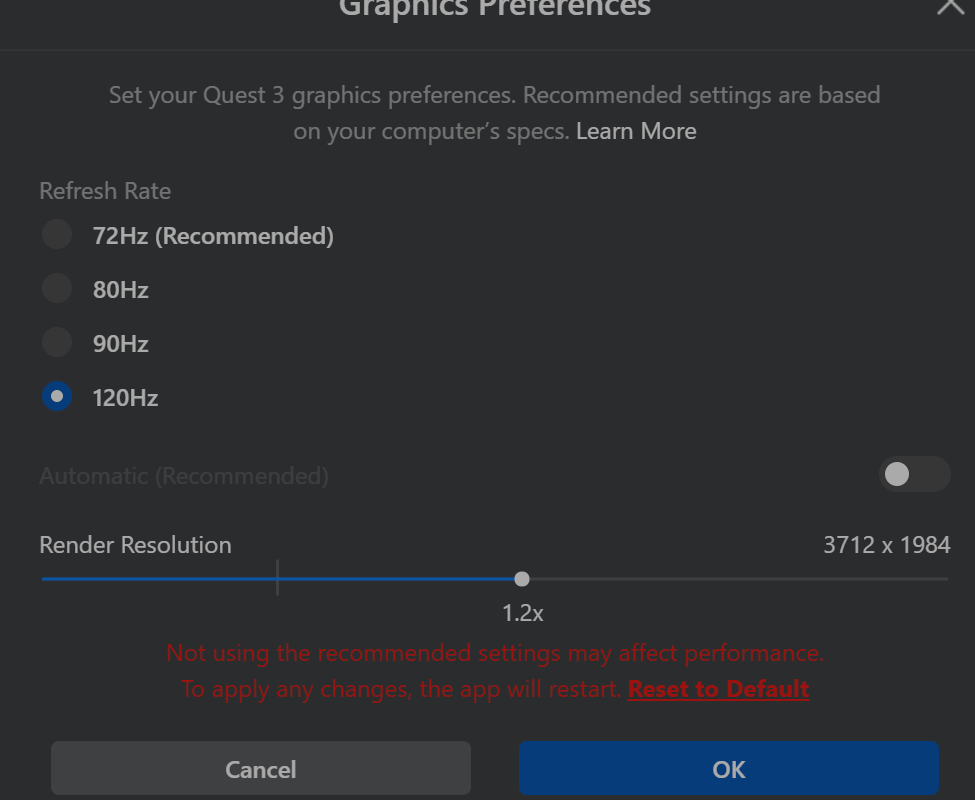
That day has come. Upgrade your Meta Quest 3 and the Oculus apps on your gaming PC to the latest version. Then connect your headset with a supported USB 3 Gen1 Type 2 cable and you can select 120Hz as an option in the Oculus device settings. Project Cars 2 in VR has never felt so smooth.
I booted up my ASUS ROG Ally to play some Doom Eternal last night and was confronted with an error message. The message said that the Vulkan initialization had failed. I rebooted and tried again but no dice.
Vulkan is a 3D graphics API similar to Microsoft’s Direct3D and Apple’s Metal APIs. It forms the bridge between the game or app you are using and the GPU in your system. Several mainstream games have adapted it due to lower licensing costs and improved scalability over the older OpenGL.
All of the games installed on my Ally that didn’t use Vulkan worked fine. Those that did, crashed with various errors. My assumption was that some type of software issue was the culprit. I opened up Settings -> Apps -> Installed Apps and sorted by date installed. Sure enough, there was a new piece of software that had installed just a few days ago with Vulkan in the title.
I uninstalled the OpenCL, OpenGL, and Vulkan Compatibility Pack and all my Vulkan games started working normally. I can only guess that something in Microsoft’s Compatibility Pack is not compatible with the Ally’s GPU drivers. I have several gaming systems, but the others have NVidia GPUs. None of them had this particular piece of software installed.
Cyberpunk 2077’s Night City seems like it would be a perfect location to hang out in using virtual reality. In-fact, the whole game looks like it would be fantastic in 3D at a realistic scale. I bet the futuristic theme would also lend itself well to the immersive nature of VR.
Luckily, there are few ways to get the PC version of the game to play using main-stream virtual reality headsets. Luke Ross’s REAL VR mod is one popular method. I’ve decided to experiment with the free option from the people that make VORP X.
VORP X is a well-known piece of software that enables many PC games to be played in VR even if they don’t natively support it. If you don’t already know about them, check out their site @:https://www.vorpx.com/. The team at VORP X has made a standalone mod for Cyberpunk 2077 and that is what I’ll be working with throughout this article.
According to everything that I’ve read on the subject, you’ll need a very powerful gaming PC to have a satisfactory play experience using this method. I’m running a 4090, Intel 12700K, 980 Pros, and 32GB of DDR4. The headset I’m using is a Meta Quest 3.
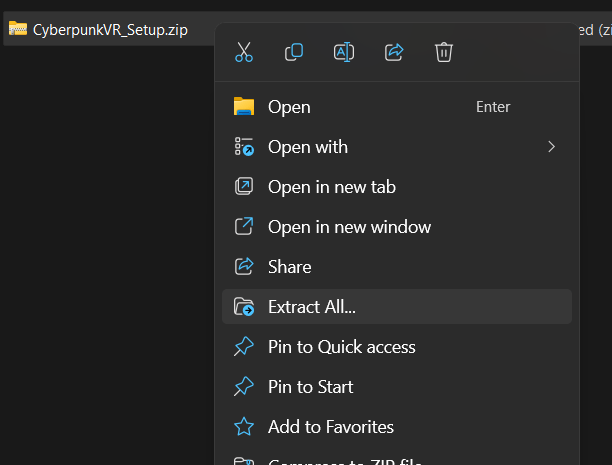
To install the VR mod, download it from the VORP X download page. Then right click on the downloaded file and choose the option to Extract All. Double click on the extracted CyberpunkVR_Setup.exe to start the installation.
You may be prompted that an unknown application is requesting to make changes to your system. This prompt is generated because the alpha code we are downloading from VORP X is not properly signed by a publicly certified certificate.
Proceed at your own risk. If you want to use the VR mod. the only choice is to click yes and/or allow. There can be more than one prompt depending on the security configuration of your gaming PC and network.
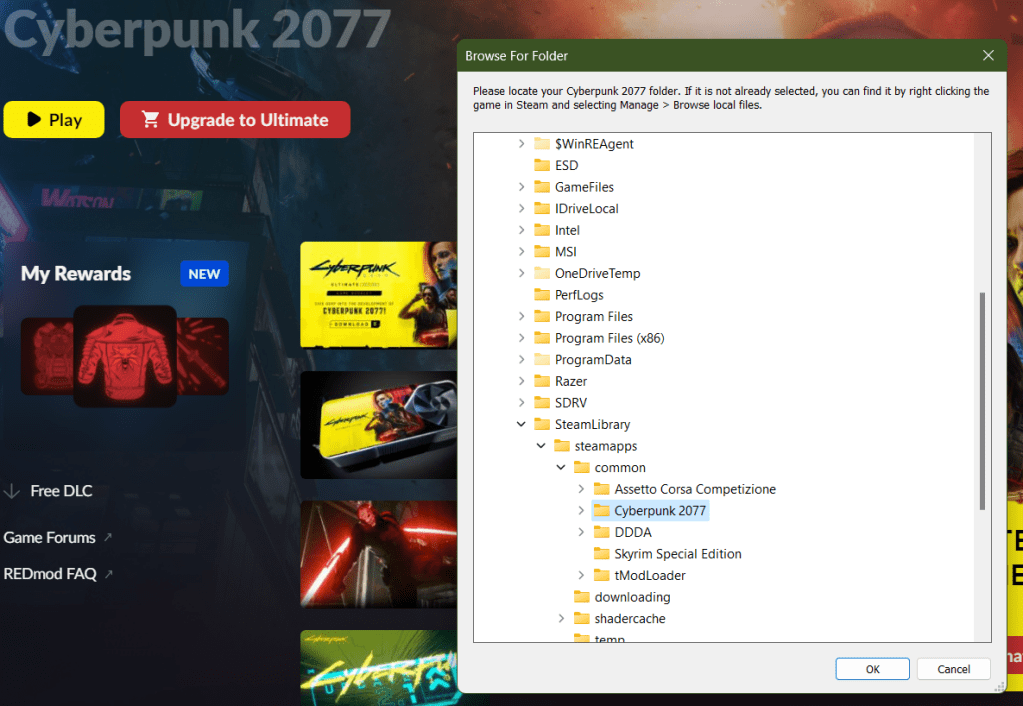
After the prompt, you will need to locate the installation files for Cyberpunk 2077. The installer attempts to find them for you and was successful in my case. If it doesn’t locate yours use the “manage files” function of the launcher to see the path.
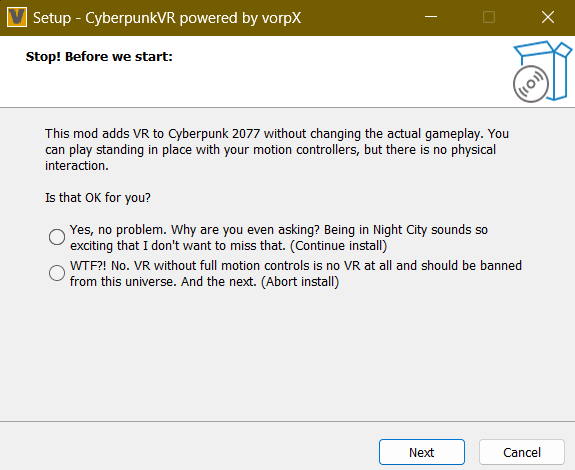
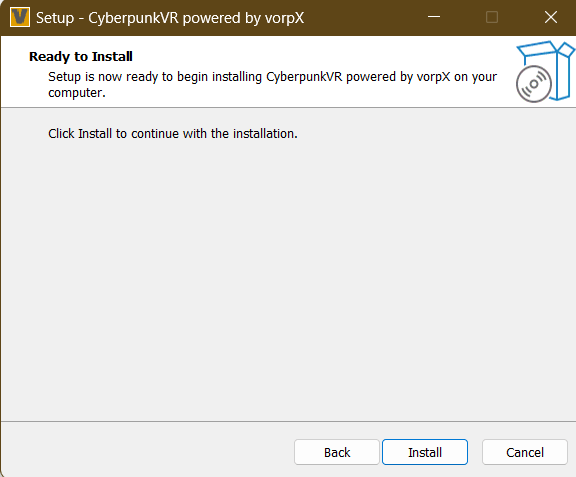
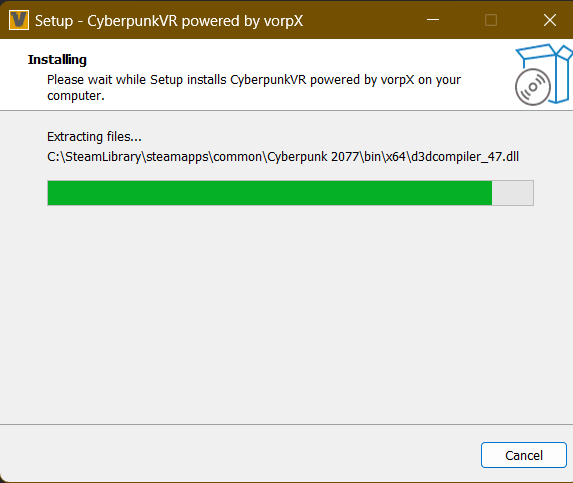
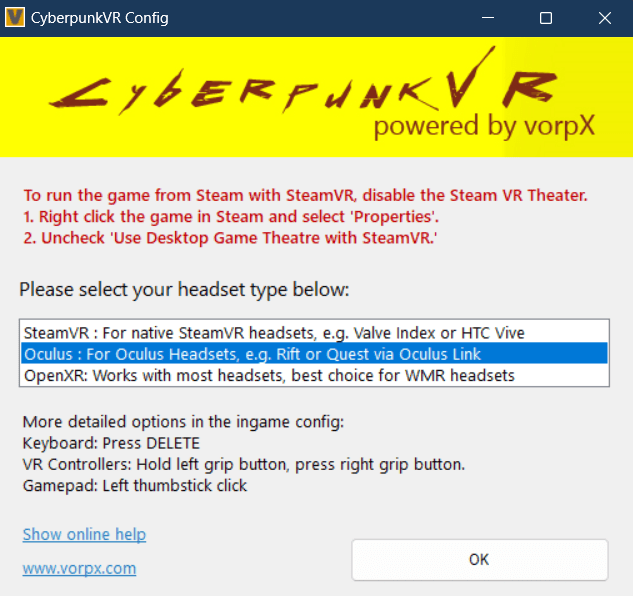
When you locate the install folder and click ok, there will be a message to tell you that the mod does not support motion controls (it does some now). Select yes, then click the next button. Accept the license agreement and then click Next. Finally click Install.
To play Cyberpunk in VR, put on your headset and enable Oculus Link (Air and Cable link both work). Once you are in the Oculus Desktop environment, show the game library (click the library button on the tool bar) and you should see Cyberpunk 2077 as an available title. Point at it and press A to start the game.
You can use the Quest controllers along with some basic gestures for aiming down site and using your sword, among others, but there really aren’t enough buttons to get the job done. I preferred using my Xbox controller paired to my PC to play. A tutorial explaining the controls is displayed every time you start the game. Press the A button on your controller to skip it.
The world is presented in 3D VR but appears almost like it is on a giant wall-sized curved monitor that you are standing really close to. If you turn your head to quickly, the tracking fails to keep up and you see the edges of the display. Don’t get me wrong the effect is functional and the game plays fine this way, it just isn’t a typical VR AAA experience. What do you expect for free?
I was able to achieve a stable frame rate with good looking graphics running on high with ray tracing disabled. I was averaging right at seventy frames per second with this config, but I expect anyone playing on a system with a less powerful GPU will need to turn down graphics options in the game’s settings menu, first thing. Or risk being made nauseous.
Overall, it was fun to see Night City at scale and in 3D. The people watching in down-town alone is worth the thirty minutes of effort and zero dollars it took to make this work. I don’t think VR will be anyone’s primary play mode just yet, but you can tell the Devs are serious about getting there.
It took me around one hundred and fifteen hours to finish the game. When I considered myself done, I had technically completed just over 90% of the challenges. My rank was 37. I had finished all the main and side quests. My clothing was comprised of legendary and fully upgraded items. My broom was fully upgraded, and my room of requirement was fully populated with every type of plant, potion, station, and animal.
At my character’s level 37, I could two-shot most Trolls if the first hit was Petrificus Totalus. I fully upgraded the binding spell along with the stealth Disillusionment charm as fast as the game would allow. The sneak attack that is possible when the two spells are used in conjunction was invaluable throughout the entire game. I used the combo for clearing bandit camps, spider’s nests, and troll lairs galore. The strategy works best once you are able to run while under Disillusionment.
Overall Hogwarts Legacy was a fantastic adventure game. If you are a Harry Potter fan in general, then roaming the castle in all its 4K glory on a high-end PC or console is an epic experience all on its own. Even if you don’t play the rest of the game, it is worth the cost to be able to dig into every nook and cranny of the famous castle and its grounds.
Taken as a whole, the game’s main story was interesting and easy to follow. The plot twists weren’t unexpected, but at least they made sense in the story’s context. The characters were fairly well developed. There were lots of enemy form factors to master, each with their own strengths and weaknesses.
I was surprised by the number of mini games like broom racing, bowling with a magical twist, puzzles (Merlin Trials), shape matching, some simple math problems. The list goes on and on. The game is also a collector’s paradise, clothing, wands, brooms, animals and plants, potions, money, upgrades, and more are found all over the place.
The story lines in most of the side-quests aligned with the main branch in the end. There weren’t any major plot holes or open-ended story lines left dangling once I’d finished all the quests. If you are considering playing the game all the way though, you should be aware that the difficulty increases significantly once you travel to the southern portion of the map.
The scenery was beautiful. The mountains, streams, towns, buildings and various environments were all well-crafted, kept in decent scale to each other, and the color palette was realistic. The NPCs had varying snippets and there were enough of them to make the world feel populated.
The shops and shopkeepers were interesting. The currency system was easy to understand, and it didn’t take much effort to earn enough to be successful. A tip for those just getting started, capturing and selling animals to Brood and Peck in Hogsmeade is one of the fastest ways I found to amass a fortune.
The broom racing was fun, easy to do as a form of transportation, but difficult to master for racing. The combat was well designed. It offered a lot of strategic options once I got used to the complicated control scheme. There are some great power moves that feel exhilarating to pull off in a fight. The difficulty settings can be changed on the fly and affect more than just the number of enemies.
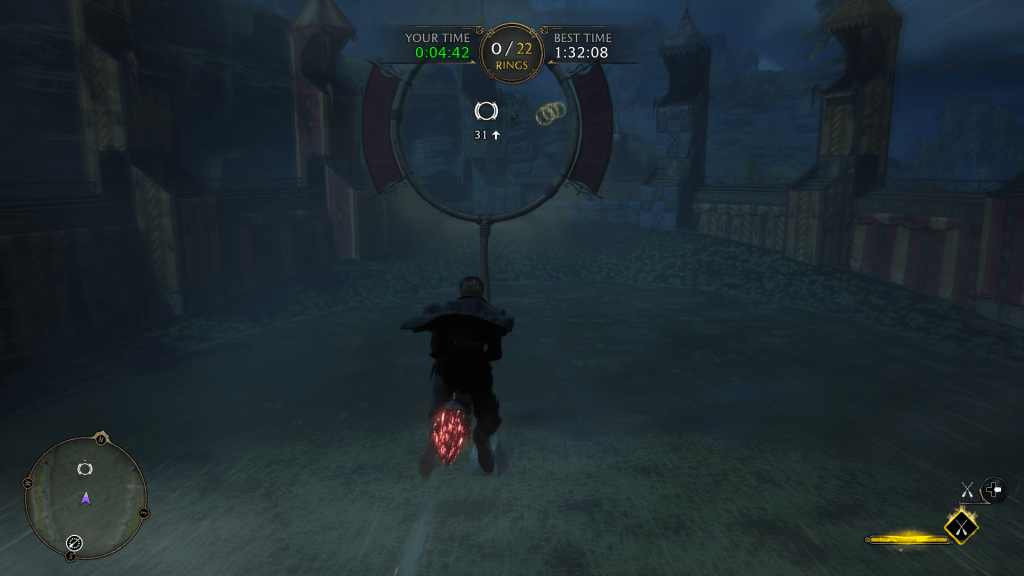
Anytime you spend more than a hundred hours with a game there are bound to be some gripes. Hogwarts Legacy had relatively few from my point of view. Most of them were minor things like quest glitches that eventually got fixed. There are a few quality-of-life issues. My biggest complaints are against the lock picking and load-out controls. Neither was a big enough problem to “break” the game.
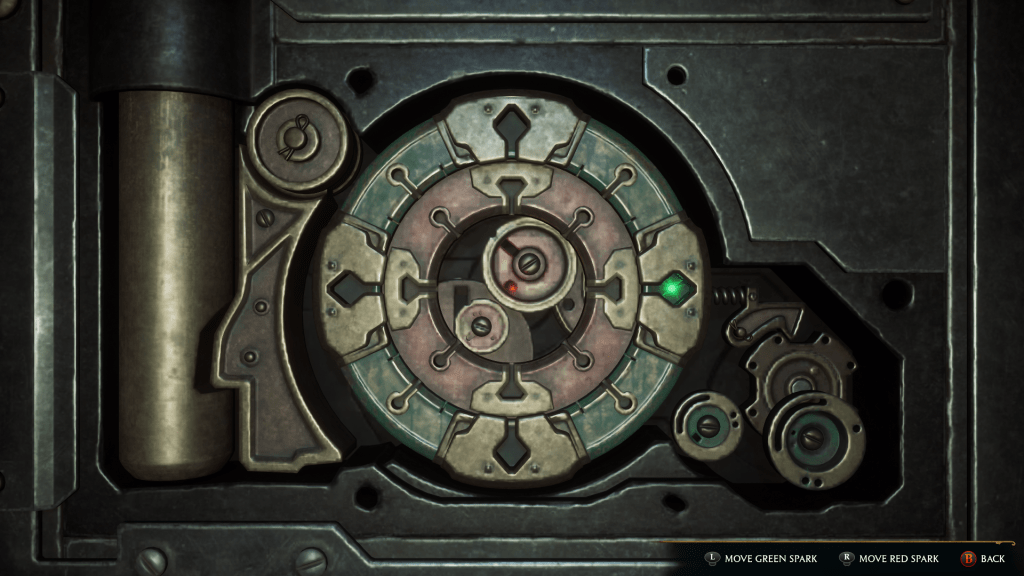
Opening locked rooms and chests was boring, I tried not to sigh every time I had to do it. The process seemed like something that got added during a committee meeting rather than being carefully planned. More of a “RPGs always have lock picking.” rather than, “How do locks work in the magic world we are making?” situation. I cast a spell to open the lock. Then I have to manually open it? If I have to align the lock’s mechanisms, then what did the spell do? I think they should have added a skill tree item to allow skipping the mini game.
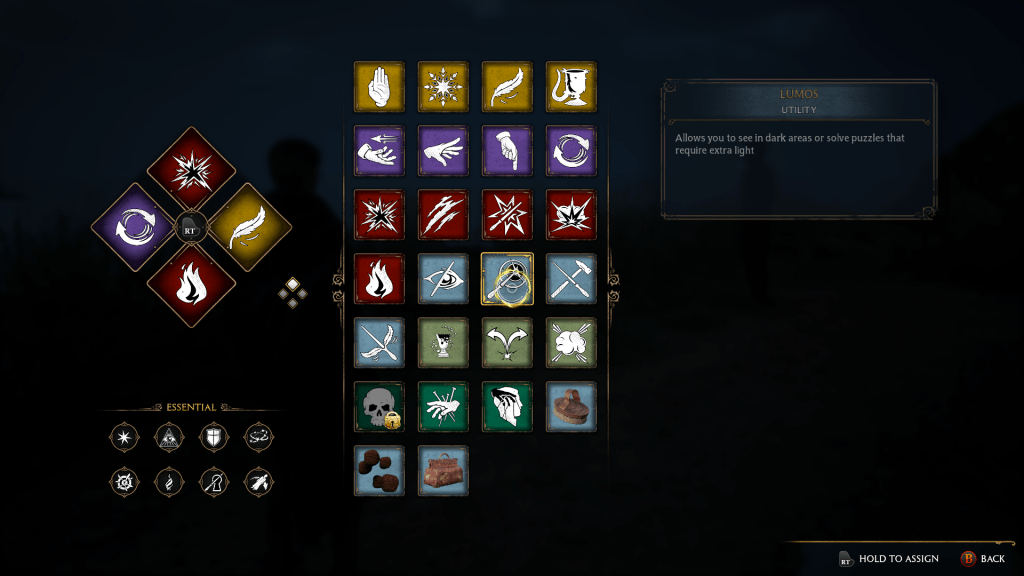
The load-out management for controlling which spells are equipped can be irritating. There aren’t enough slots to create a build for each type of mission you encounter. This means that you are stuck constantly breaking immersion to enter the menu system and change out the spells for a given task. If they would have added a shift button to the system and given you four more groups for spells, it would have been almost perfect in my opinion.
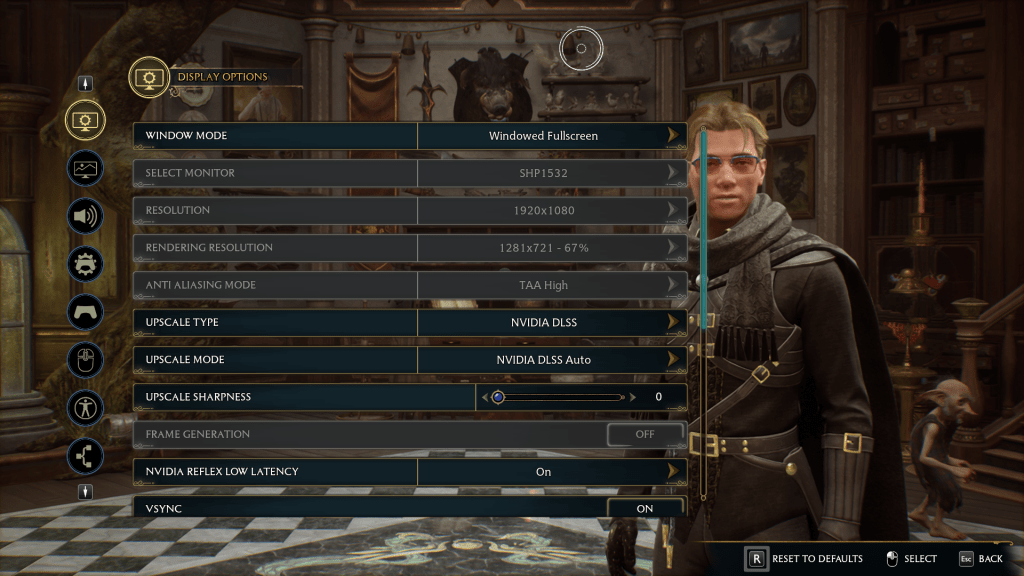
In the early days, the game was a mess as far as performance was concerned. I was experiencing tearing, dropped frames, and general poor performance trying to run 1080P/120/High on a 3080Ti and Ryzen 7. Patches to video drivers, the game itself, and Windows 11 eventually got everything running reliably and smooth with top notch visuals.
I used NVIDIA’s hardware scaling to get the best balance between FPS and appearance on the desktop and laptop gaming systems. On the Steam Deck and Ally, i let the respective devices configure themselves except for mapping a few buttons. Speaking of mapping, putting Revelio and dodging on the back paddles saved my hands from a lot of wear and tear.
I played most of the game on that PC with a 3080 Ti, 32 GB RAM, and a liquid cooled AMD Ryzen 7 5800X. I have also played the game on a higher-end PC with a 4090 and Intel i-7 12700k, an i-7 3070 laptop, as well as, on a Steam Deck, and ASUS ROG Ally Z1 Extreme. No matter the hardware, I was able to tune the game to look and play fantastically after the first round of patches had dropped.
As for control options I tried a keyboard and mouse, the Steam Deck and Ally’s built-in controllers, and a Gen 2 Xbox Elite controller. I preferred controllers to the keyboard and mouse for this title. The combat’s lock-on targeting, and the flight controls felt better on the sticks than they did on the WASD keys.
I had a good time playing the game and stuck with it all the way to the end. You don’t have to be a Harry Potter fan to enjoy Hogwarts Legacy, but it probably helps if you are. You don’t have to be an accomplished RPG gamer to play either, but it probably helps if you are. I’ve recommended it to friends and family and the feedback from those that have played has been positive for the most part. I think Portkey Games deserves the accolades and awards it has received from the industry for this title.
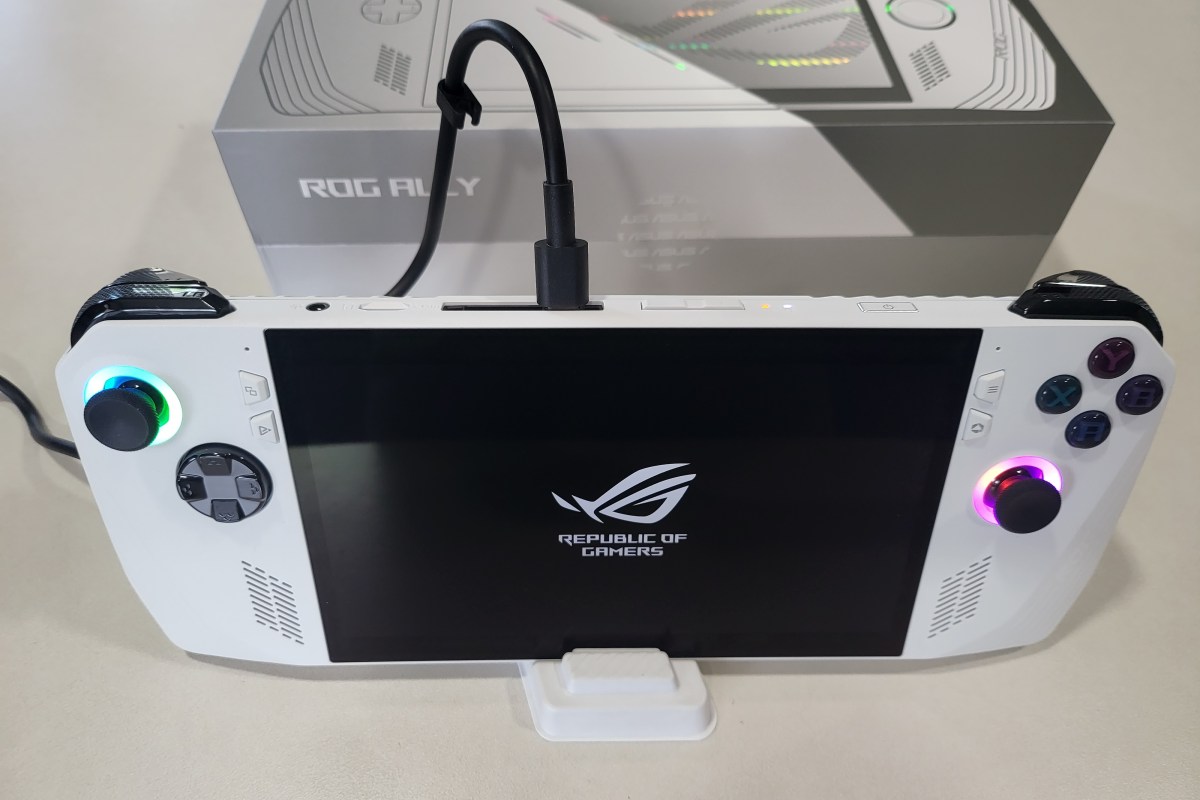
I have written several articles about the ROG Ally and its abilities. The Nintendo Switch sized gaming PC makes playing on the couch, in bed, or on the go a comfortable and fun experience. It is the device I play on most because of its combination of portability and performance.
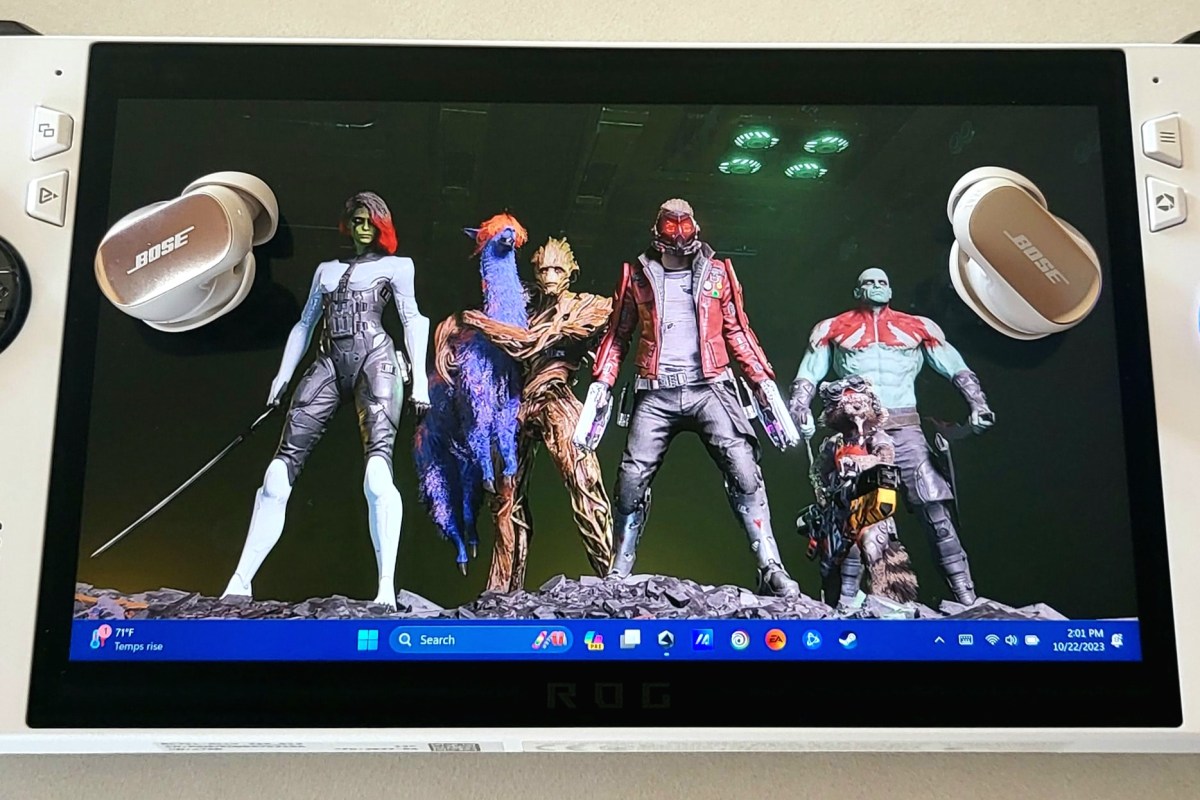
I recently upgraded my earbuds to the new Bose Quiet Comfort Ultras. ANC earbuds make it easy to escape the noises of the world when you want to. As one might expect, the Bose active nose canceling feature of their flagship earbuds is exceptional. While they cannot achieve total silence in loud environments, they certainly make almost any noise tolerable.
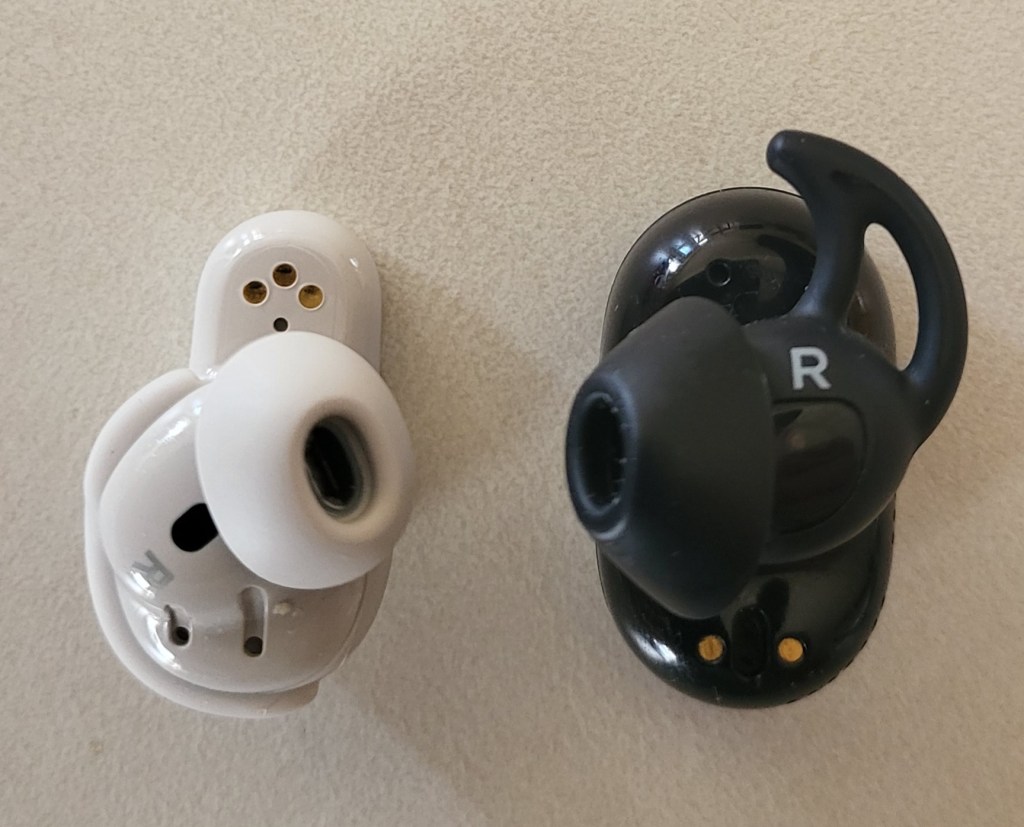
The new QC Ultras are smaller and lighter than previous Quiet Comfort earbuds. They also feature a a new method to achieve a secure comfortable fit. I find the new tips and fins to be a welcome upgrade over my original QC earbuds. The Ultras stay in my ears while walking, running, and while I’m chewing, or talking. So far, they don’t seem to leave sore spots where they make contact.
The pointed fin tips on the old style frequently made my ears sore where they touched.
The original QC earbuds are the black ones.
My favorite feature is the immersive audio. The QC Ultras use Bose magic to make any type of audio source sound like you are listening to it on a hi-fi stereo speaker setup and sitting right in the sweet spot. When I first read about the function, I was skeptical. Now that I’ve experienced it for myself, I am impressed. The wide sound stage and auto ANC combine to great effect.
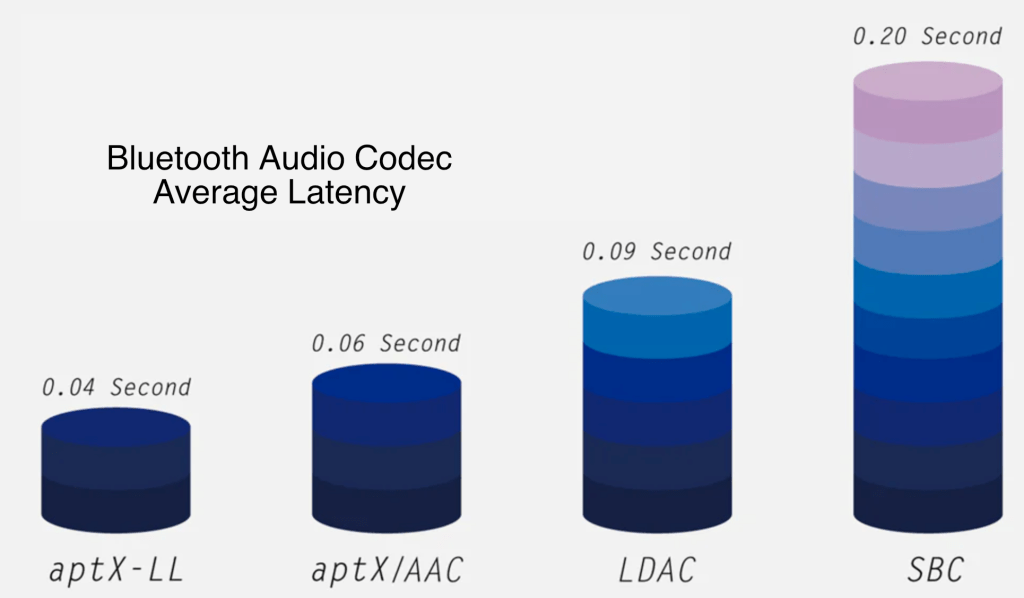
The most important reason for me upgrading to the new earbuds was their low latency support. I have struggled to play games with BT headphones and earbuds since the beginning. I just can’t get over the audio lag that almost all of them suffer from.
Pulling the trigger to take a shot and not hearing the sound until after the next round is chambered, is distracting. Hearing footsteps coming up behind you, knowing it is too late to do anything about them is frustrating. Watching cutscenes that play like old voiced-over karate films is annoying.
The QC Ultra earbuds completely solve these issues. When paired with my phone there is no detectable lag in any of the games I have tested so far. There’s also no lag in video streams or video calls, people’s lip movements and sounds stay in sync on both.
This lack of lag on my phone got me wondering what the performance would be like if I paired the earbuds with my Ally. It has literally been years since I’ve bothered using Bluetooth audio with a PC for anything but Teams and Zoom. The lag was just insufferable.
I was pleased to discover that I could not detect any lag while playing PC games with the Ultra earbuds. I tried several modern and older games along with a couple of emulators, and they all worked perfectly. The earbud’s mics were great for game chat, too.
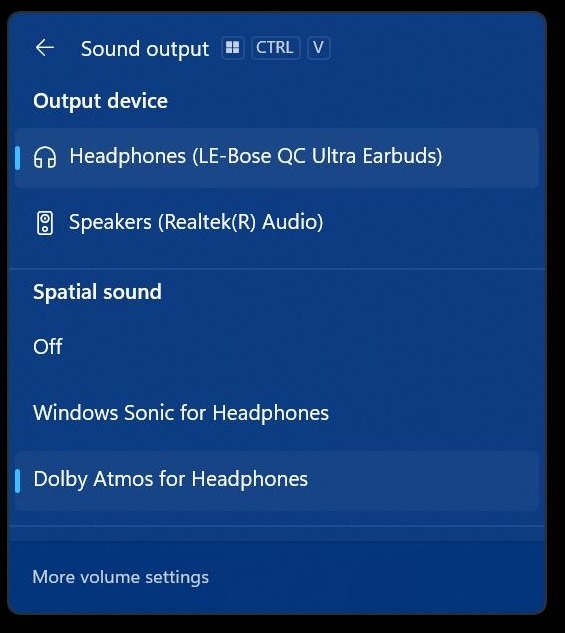
I have the Dolby Atmos for Headphones, DTS for Headphones, and Windows Sonic for headphones, audio apps for Windows. All of the virtual surround sound drivers worked with the QC Ultras and did not introduce any detectable lag.
Dolby Atoms is a licensed app you can purchase from the Microsoft Store. It is not included with the earbuds.
I’ve paired the QC Ultra Earbuds with my wife’s Steam Deck and I’ve also paired them with my Meta Quest 3. I got fantastic results with both. The Bose Music app for your phone lets you add multiple devices and switch between them, but they only connect to one thing at a time.
I upgraded to get a better experience from the advertised low latency. Bose delivered on that promise. Audio sites are giving the new earbuds high marks overall, subtracting a few points due to the lack of multi-point and wireless charging. If you’ve been looking for BT earbuds specifically for gaming, I’m not sure you can do better right now.
Battlefield 2042 is a fantastic game if you enjoy first person shooters. The graphics are jaw dropping, especially if your system is strong enough to crank the settings past medium. The environments are very realistic looking and feature the franchise’s trademark destructive elements. Numerous game types with anywhere from twenty-four to one-hundred and twenty-eight players keeps the action fresh.
However, the more ambitious a game is, the more likely bugs are. That’s just the nature of computer software in general. More lines of code equals more chances for failure. Battlefield 2042 is no exception. It was ridiculed at launch for being too buggy to play at all for some people. Thankfully the vast majority of issues have been patched out at this point.
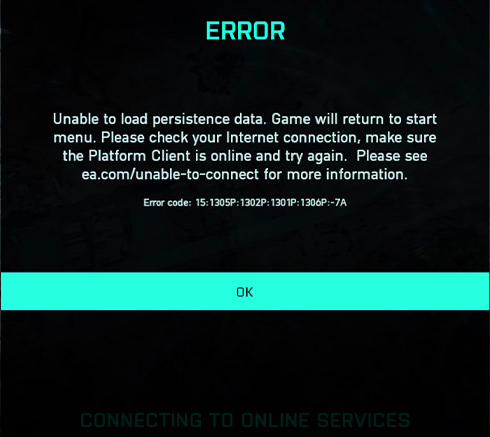
Unfortunately, one issue still frequently haunts all of the PCs my family and friends play the game on. That is the “Unable to Load Persistence” message with error codes that vary depending on where in the launch process the failure occurred. The message itself means your computer did not connect to the Battlefield servers correctly. The problem is more prevalent after updates in my experience.
There are lots of posts on Reddit and various blogs that suggest everything from closing overlays to re-installing the game, but they rarely work for me. WindowsCentral has a good example. I’ve discovered a simple process that works to fix the issue about ninety-five percent of the time.
Close the game.
Type “Services” in your Windows search bar and open the app it finds.
Sort the list of services by clicking the top of the name column.
Scroll through the list, right-click on the EABackgroundService and stop it. Continue if this service is not listed on your system.
Right-click on the EasyAntiCheat service and stop it too.
Open Windows Explorer and paste/type “%USERPROFILE%\Documents\Battlefield 2042\Cache” in the address bar or browse to that location.
Select all the files by pressing CTRL+A then hold down Shift and press the Delete key (Shift + Del) to permanently delete all of the files. Click yes if prompted.
Close the Windows you have open and start the game again.
I hope this fix works as well for you as it usually does for me. Feel free to post your results in the comments or let us know if you have something that works better for you.
If you can’t tell from my most recent articles, I’ve got an ASUS ROG Ally. While setting it up and evaluating its capability, I randomly decided to install Halo Infinite. I thought a few rounds of Team Slayer would be a fun way to put the little machine through its paces.
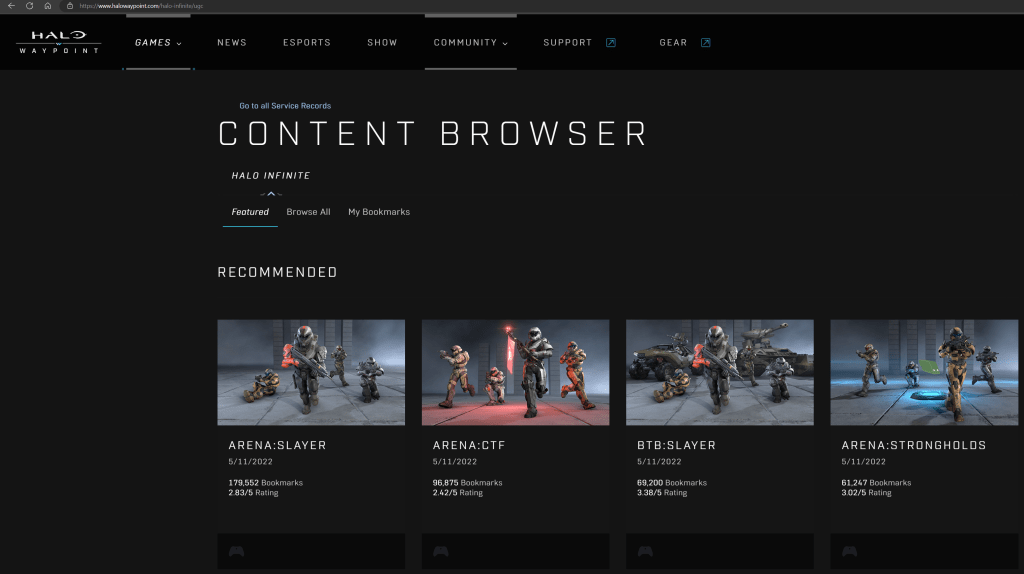
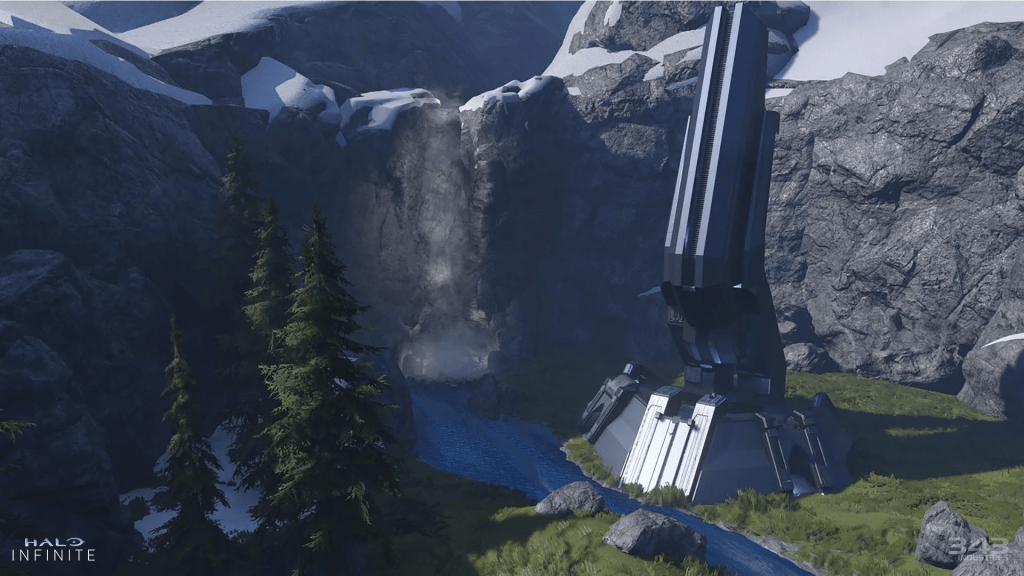
The first match I joined was on a map I had never previously encountered. So were the second and third round’s maps. Like a lot of people, I hadn’t played much Halo for the last few months. They added a lot of new content while I was away. Check out the news section of Halo’s Waypoint site for all the latest info.
Halo Waypoint’s Content Browser is the place to see all the content without installing the game.
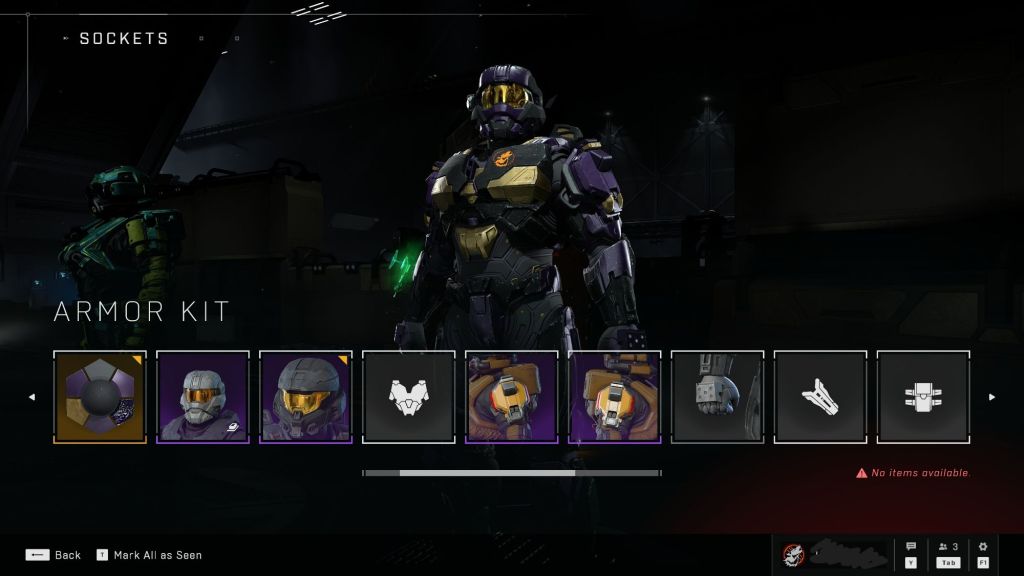
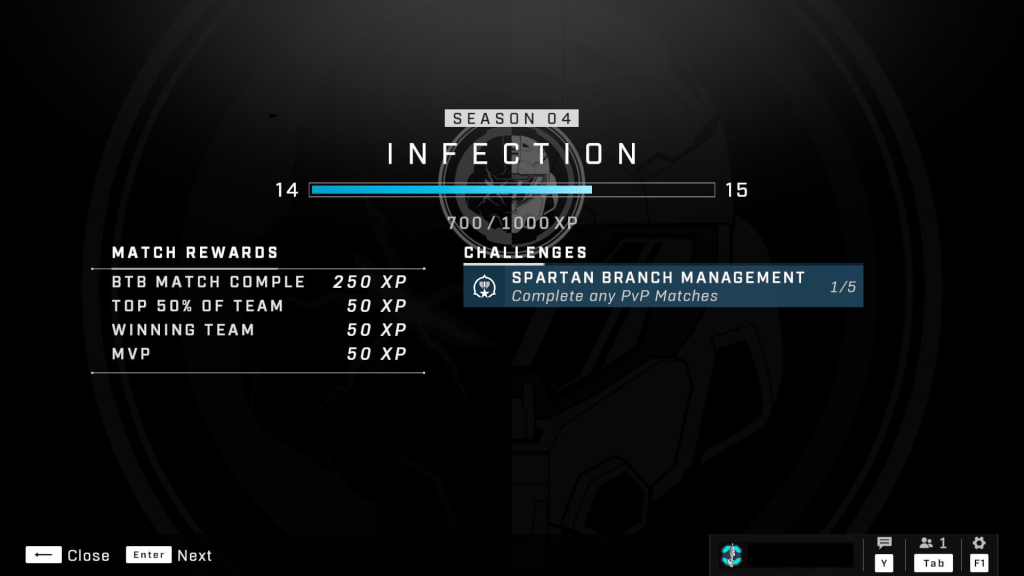
In addition to interesting new map content, customizations seem to be unlocking faster than when I last played. The slow rolling of play-based unlocks has long been a complaint against 343’s stewardship of the iconic franchise. This time around, I was able to unlock several armor pieces, weapon charms, and color packs in a four-hour session without purchasing the premium battle pass.
Custom armor unlocks are much faster in season 4.
It took me a while to find my rhythm and get my head to play Halo instead of Call of Duty. Halo’s time to kill is longer. Emptying a full clip without getting a kill is not a rare occurrence in this game. Multi-kills almost always require reloading in between targets. Shields, agility, and speed, mean that your opponent has a fifty-fifty chance of escape, or a reverse attack after you have opened fire. This type of play encourages extended one-on-one battles that can be intense, especially if both combatants are skilled Halo enthusiasts.
I think a lot of the negative vibes you see on-line stem from players whose FPS experience is rooted in other titles. They dominate at their preferred games and are expecting to drop into Halo and win, but the time to kill throws their rhythm off. They fire what would be an appropriate amount to frag their target in most FPS games and move to the next, only to have their efforts reversed.
The top of the scoreboard is challenging to reach after being away. Be patient with yourself if you have taken a long break.
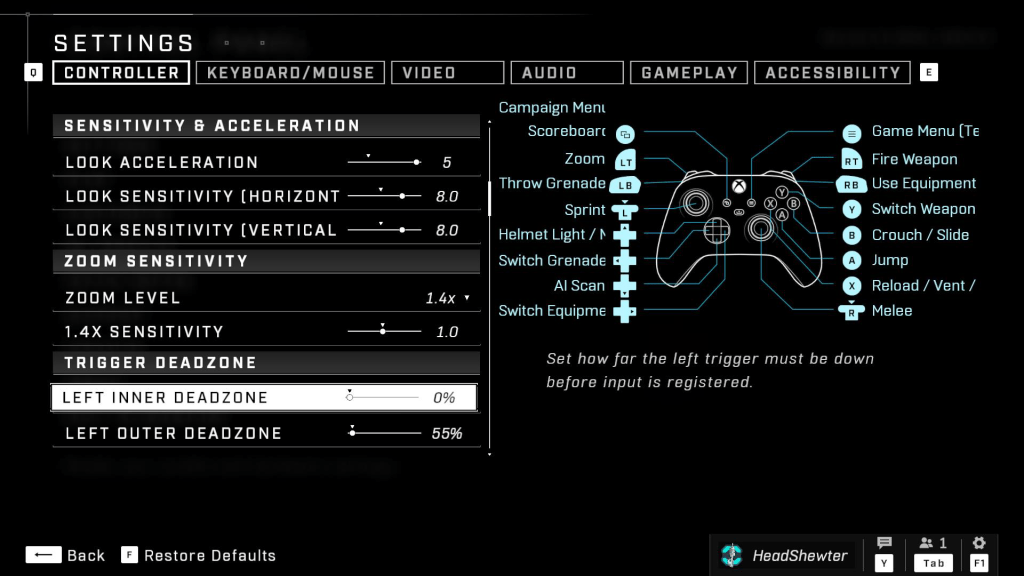
Some tips for those playing on an Ally. I set both joystick dead zones to zero. I also turn up all the look sensitivities to the middle of their scales. I make these changes in Halo’s settings menu. In the Ally’s controller profiles menu (auto-mode), I map the rear buttons to sprint and melee.
Adjusting the deadzones smoothed out the Ally’s controls.
I am impressed with how the ASUS ROG Ally handles the game’s demanding graphics. Plugged-in, set to max performance mode, with Halo at 1080P-low settings, the Ally held a steady 94 fps. The smaller screen translates to a high DPI for that resolution, and the game looks great. The Ally is a marvelous machine for playing on the couch, or in the car, or anywhere.
Snagging an S7 sniper rifle off the map’s spawn point and decimating the other team with it is still one of my favorite feels in all of gaming. The complex new maps provide plenty of ambush and crossfire zones. The new armor customizations and updates seem to have pulled people back into the matchmaking queues. Getting into a game is taking less than a minute on average.
Time between matches is shorter than ever thanks to the new content drawing in players.
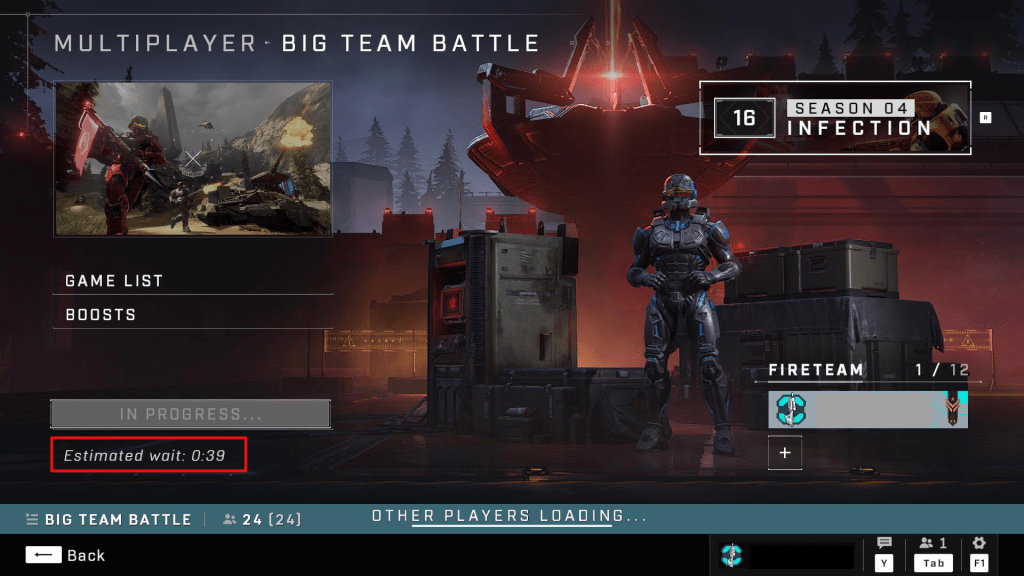
343 has also introduced a new play list. Squad Battles features some of Halo 3’s most popular maps that have been completely remastered for modern graphics and sound. In addition to the maps the new playlist also returns 8v8 matchmaking.
Classic Big Team Battles can be found in the new Squad Battles playlist.
I personally feel that Halo Infinite is one of the best Halo titles to date. The variety of game types, graphics that run on most systems, free-to-play unlocks, and new content make it one of the top FPS titles available on the market today. If you haven’t played, or stepped away for a while, consider giving Season 4 a chance.
I like my ROG Ally so much that I filled its 512GB SSD in a matter of days. Today’s games are huge, many titles are over the 100GB mark, some even pass 200 GB. Lucky for me ASUS fully supports the end user swapping out the disk, they even provide a step by step guide on their website. Of course as with any guide you see on-line you are proceeding at your own risk.
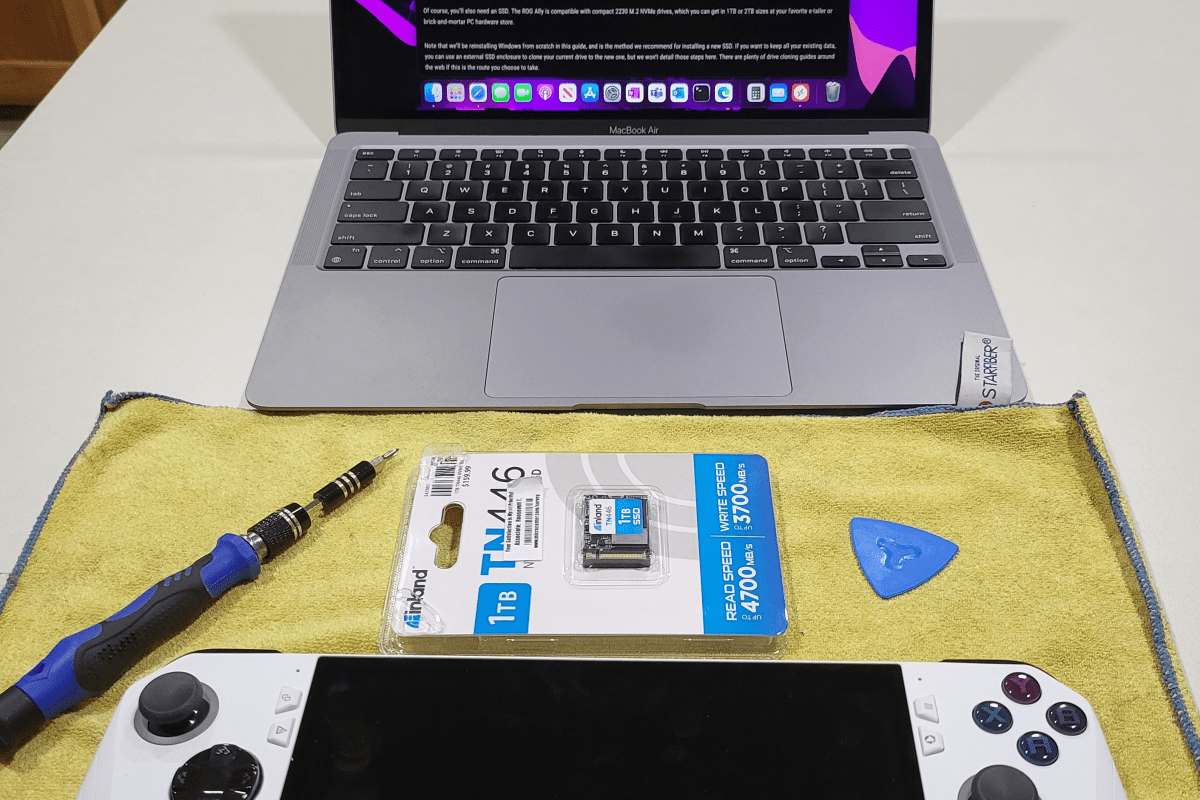
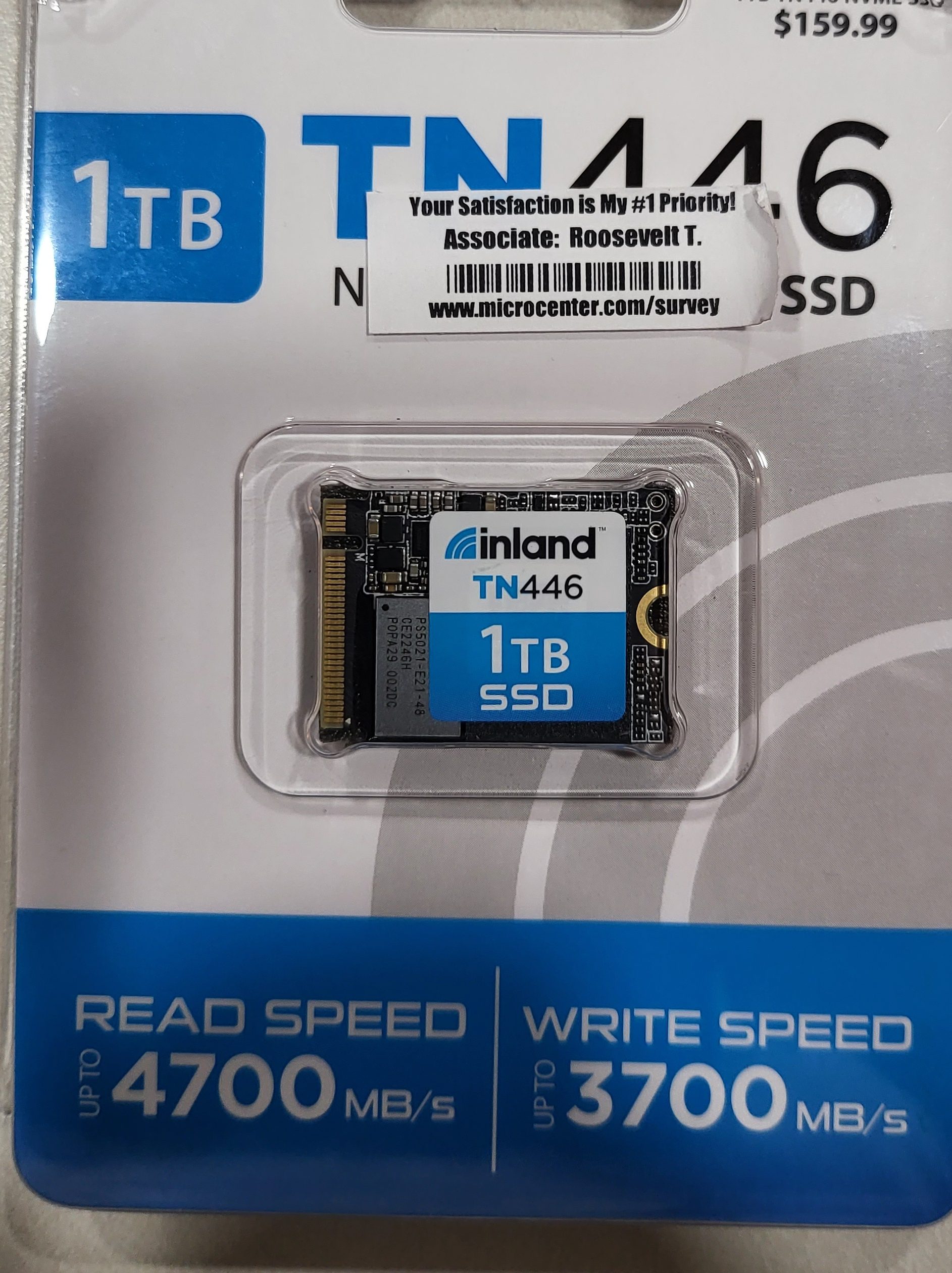
I picked up an Inland 1TB M.2 2230 SSD at my local Microcenter store for $109.00 on sale. I would have preferred to go with 2 TB but those are hard to find and I didn’t want to wait any longer. If you are not familiar, the 2230 designates the length (short in this case) of the disk. Make sure you are getting the compact size SSD, regular or long disks will not fit in the case.
Only the compact nVME disks will fit.
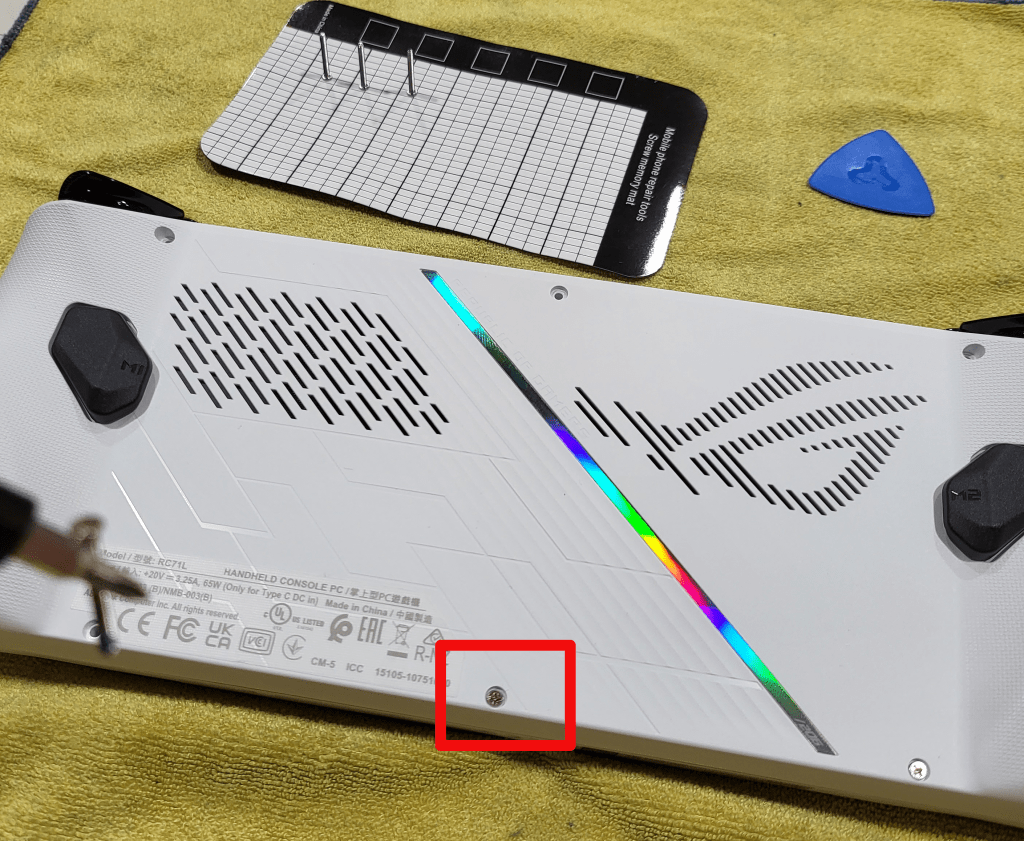
I just followed the ASUS guide carefully. I suggest that you watch the embedded YouTube video. One of their technicians goes through the entire process step by step. With the Ally lying face down, top edge of the device (exhaust ports) away from your body, on a soft surface in front of you, the middle screw in the bottom row is captive. It will not fully unscrew from the case. Instead, it will make a clicking sound and assist in splitting the case halves apart when it is fully unscrewed. The other five screws are all fully removable.
The highlighted screw does not come all the way out.
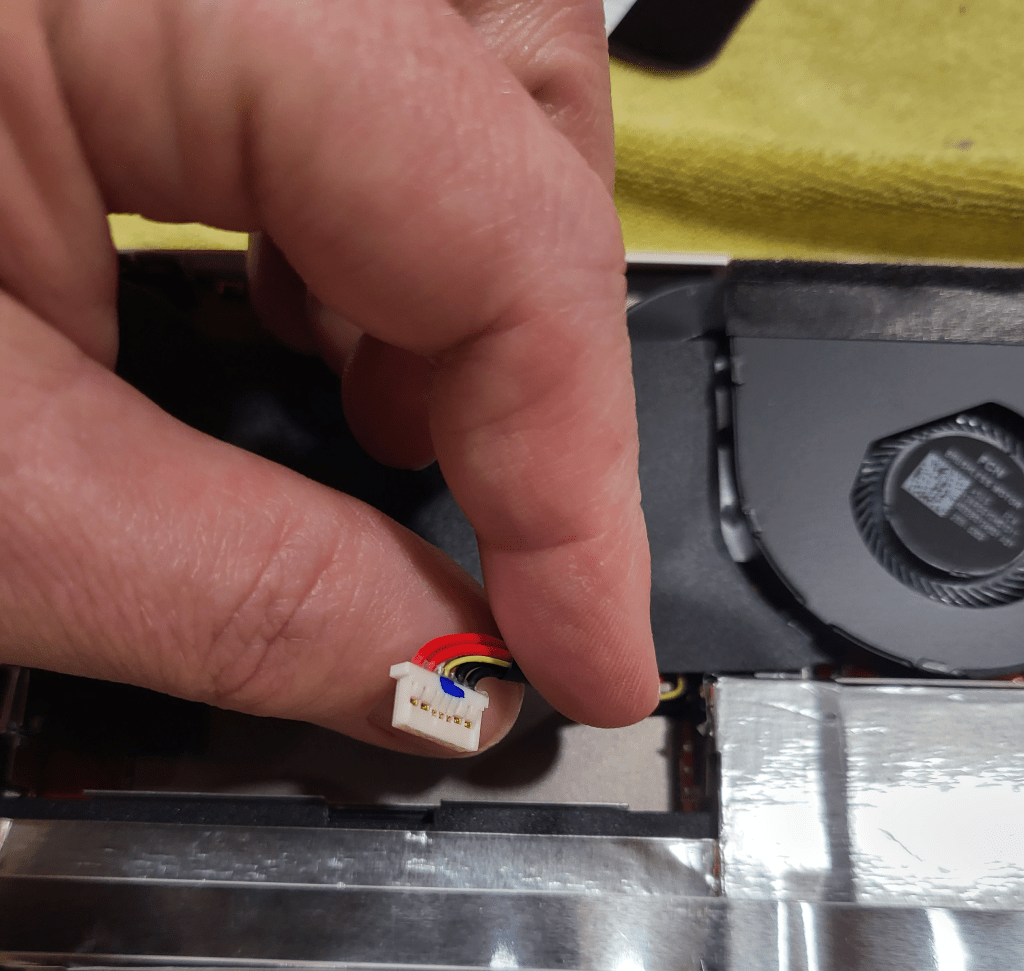
Once you have removed the screws and un-screwed the captive screw to its limit, use a guitar pick or other plastic pry tool (old credit card, old driver’s license) to slide between the halves of the shell and pop the clips. Go slow and undo one clip at a time to avoid breakage. Once the shell is open, disconnect the battery by removing its connector lead.
Remove the battery’s lead to prevent accidental discharge from frying you components.
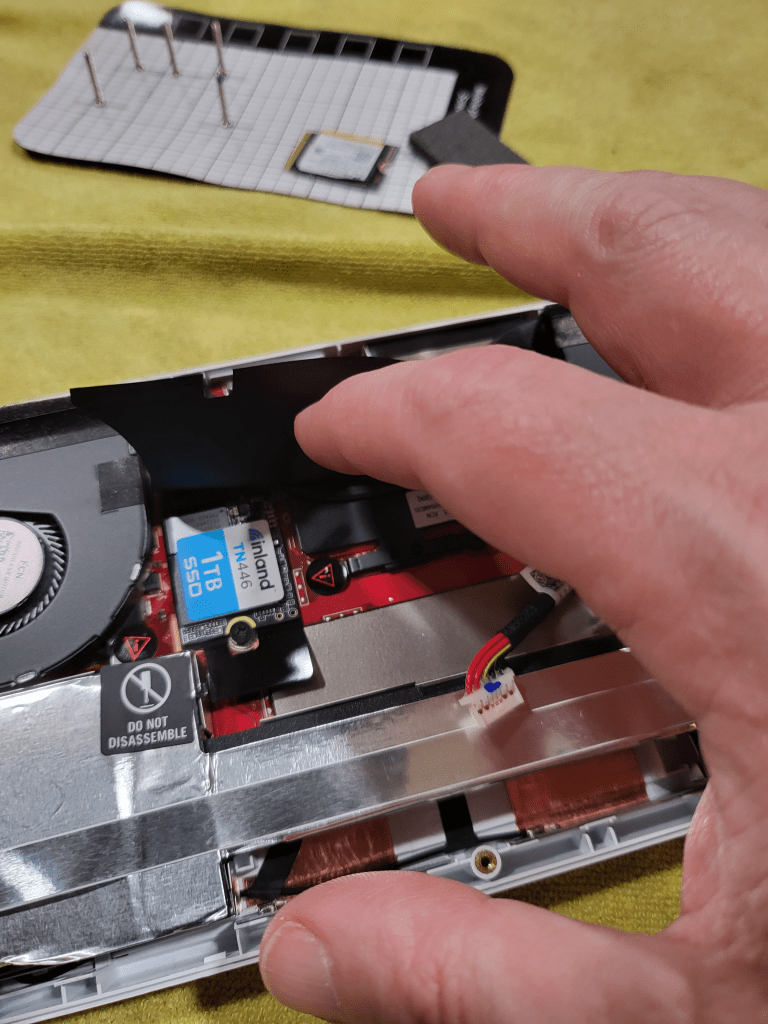
Carefully lift the large rectangular black plastic flap to reveal the SSD slot and drive. Remove the SSD retaining screw and gently slide the disk toward you. If you have trouble breaking the SSD loose, gently lift up on the plastic tab underneath the drive slot. Install the new disk, being careful to replace the screw and battery connector. Re-assemble the case by aligning the two halves and snapping them back together. Finally, screw everything back together by returning each screw to its original location.
The drive is under a protective flap.
Now comes the tricky part, booting into the BIOS. This isn’t tricky because the process is difficult, it’s actually very easy. Just press the volume down and power buttons at the same time. The tricky part is that there’s some mysterious timing required to get the BIOS to load and I can’t describe it. I think you need to let go of the Power button and keep the volume button down as soon as you see the screen light up, but I can’t promise that was it. In any case keep pressing these two buttons until you see the normal start up screen followed by the UEFI BIOS.
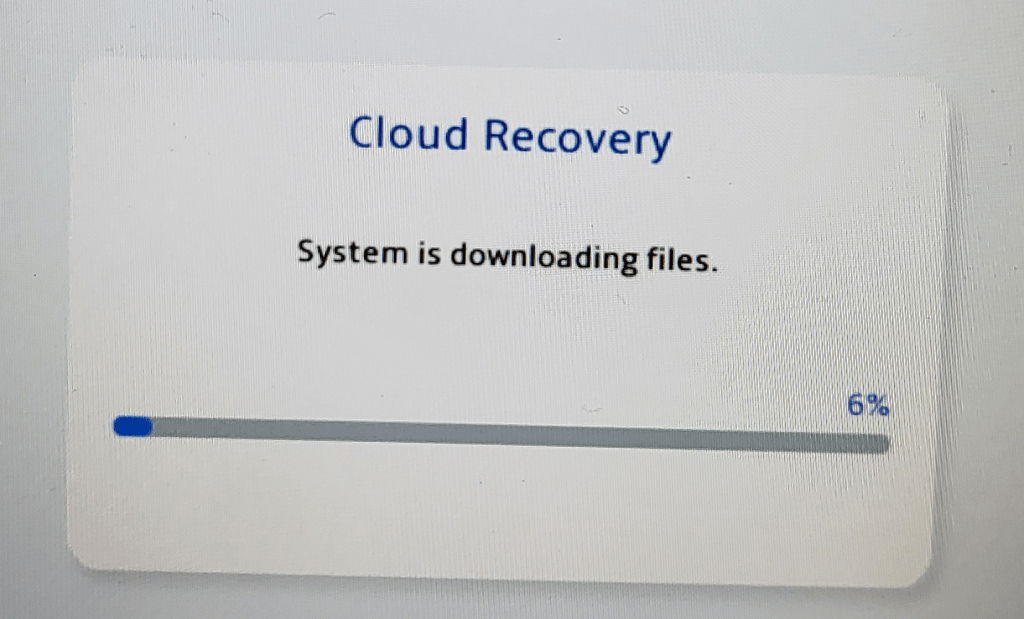
Once you get the BIOS to load, hit the Y button to enter advance mode and use the D-pad to navigate to advanced. Hit A to start the first option (ASUS Cloud Recovery). Read and agree to the EULAs for ASUS and Windows, then connect to your WiFi and download the files. I had to do this twice for the download to actually start.
If you don’t see this screen you didn’t complete all the steps to start the download, try again. I had to boot to the BIOS and tell it to download twice before it worked.
The system will now automatically download and install Windows 11, Armory Crate, and all the drivers and software that came on it out of the box. It will reboot several times. Mine took about 3.75 hours from the time I started until Windows was fully loaded and I had installed all the latest updates for everything.
I cannot stress how important it is that you update everything, not just Windows updates. Many of the tools and software like Armory Crate, My ASUS, the Microsoft Store, any of your game launchers, etc. will all have their own updates. Open the application and look in the help menu if it isn’t immediately obvious where to download updates. This system offers a much better playing experience when it is fully updated than it does when you first unpack it.
I’ve been a fan of handheld electronic and video games for as long as I can remember. Over the years I’ve had lots of LCD Games, GameBoys, Game Gears, Vitas, and various Android based gaming devices. Heck, there’s even a Steam Deck in my household that’s been here since launch day.
I pre-ordered the ASUS ROG Ally right after the first reviews were released. My spouse has the Steam Deck and I’ve spent a lot of time with it. Most recently, I spent the better part of a weekend getting the EA edition of SIMS4 running on it after EA ended support for their Origin launcher. That experience led me to think that Windows may ultimately be an easier path for gaming overall.
Publishers are loathe to unify their frameworks and launchers. How many of them are there now, anyway? EA Desktop, Steam, BattleNet, Ubisoft Connect, Xbox, Epic Games, COG Galaxy, the list goes on and on. The studios and publishers seem to believe that their particular launcher gives them some kind of edge in the market. Sure, they’ll release some of their stuff on other launchers as a form of advertisement. The premium titles often remain locked.
The Steam Deck’s Linux-based operating system does not run most of these launchers natively. There can be a lot of setup to get them running in the Proton emulation layer. In addition, there are several games that use various anti-cheat mechanisms like Ricochet and Easy Anti-Cheat that simply do not function properly on the Linux OS (yet).
Enter the Ally. ASUS’s handheld features a similar form as the famous Steam Deck, but packs in even more power. The Ally can process data at up to 8.6 teraflops compared to the Steam Deck’s 1.6. The performance that the diminutive PC is capable of is frankly astonishing. The Ally runs AAA titles like Halo Infinite, Destiny 2, The Witcher 3, and Call of Duty Modern Warfare II at 1080P on low, at nearly 100 frames per second.
ASUS also wisely chose Microsoft’s Windows 11 and some clever add-ons for it’s operating system. This choice ensures maximum compatibility with all of your titles no matter which launcher they require.
Windows 11 is not customized for the Ally like Steam OS has been for the Steam Deck, but it effectively does not matter in my opinion. Steam OS is limited to playing games that have been specifically written for it, or those that work with its Proton emulation layer.
Those limitations can be extremely frustrating to deal with if you aren’t into engineering tech workarounds. The amount of work that went into getting SIMS4 to run properly on the Deck was immense.
It took less than 15 minutes to install SIMS4 on my Ally. No modifications of any kind were needed. The game just worked. I might recommend a Steam Deck to some of my engineering minded co-workers, but I’ll point my normal friends and family to the Ally every time. After my experiences with both, I can honestly say “Windows is the way”.
For as long as I have been using the Moonlight app to stream games from my PC to various screens, it has exhibited an annoying issue. Occasionally, the stream freezes on the client device but continues playing on the host. I usually end up having to restart both systems to reconnect.
The problem was worse in some games than in others. Hogwarts Leagacy really triggered the issue on my setup a lot. Destiny 2 suffered from the drop as well. There were no error messages in any log file that I was able to locate. It happened often enough that I mentioned the problem in my first article about Moonlight. Not often enough for me to give up on samestream technology.
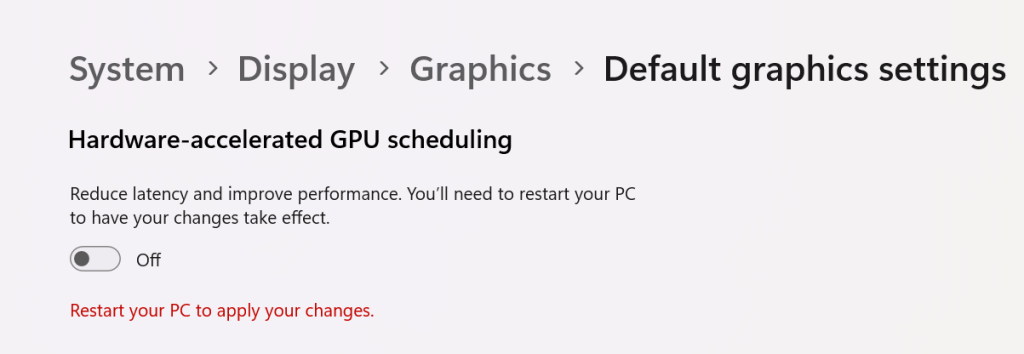
Searching online led me to this Redditt Moonlight Freezes Up. The answer to my issue was in the comments. I turned off the hardware GPU scheduling feature found in Windows 10 and Windows 11 on the host system and on any Windows PC clients. Disabling this feature configures the operating system and CPU to manage VRAM. When the feature is turned on, the task is offloaded to your graphics card. Which can boost overall system performance if you have the free cores.
Go to Settings -> System -> Display -> Graphics and click Change Default Graphics Settings. Then disable Hardware-accelerated GPU scheduling by sliding the toggle to the off position. You will need to restart your computer for the change to take effect.
Disable HAGS
The other possible solution is to use the famous Display Driver Uninstaller utility to uninstall your current driver completely. Then, download and install what many consider to be NVIDIA’S best driver release ever, version 472.12.
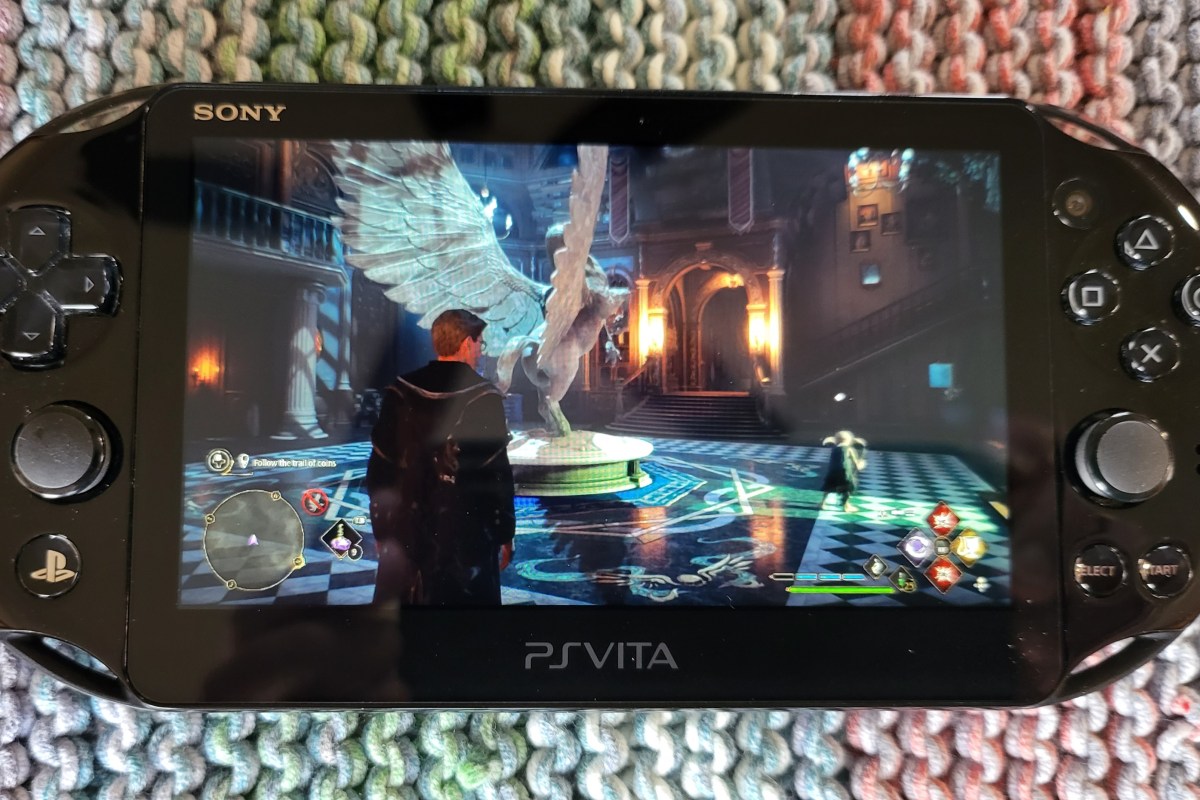
I’ve had a PlayStation Vita (2000 model) sitting in my junk drawer collecting dust for a long time. I had just completed a post on setting up Moonlight game streaming a few weeks ago. While doing the research for that post, I discovered that the online gaming community had created a custom port of the Moonlight software that runs on a jailbroken PS Vita.
Generally, I don’t tend to jailbreak my stuff. However, Sony has absolutely abandoned the Vita line of devices, which means there’s nothing to lose. The last time I went through the jailbreaking process, it was extremely technical and required some advanced knowledge to accomplish. To my surprise, it was very easy to accomplish this time around. Anyone with patience and the right guide should be able to pull it off.
Retro Game Corp’s guide got me through the process.
I’m not going to write a full step-by-step guide. There’s plenty of them out there already. This is the one I used, and I commend the author for including all the steps. If you are thinking about jailbreaking your Vita, you should consider the process permanent. You should also be aware that occasionally, the process fails and can brick your device.
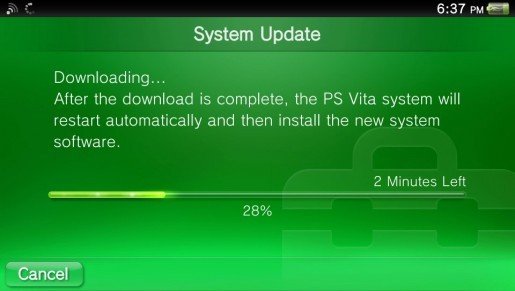
More or less, you need to upgrade the firmware to version 3.74. Next, you’ll want to factory reset the Vita (look in Settings -> System -> Format). Then, you connect to Wi-Fi and sign in or create a temporary PSN account.
Update the Vita’s Firmware before jailbreaking.
The easy part is the hack itself. Just visit jailbreak.psp2.dev in the Vita’s web browser and click the button to proceed. Follow the on-screen instructions and reboot when prompted. Eventually you will end up installing a custom hacked copy of the 3.65 firmware via an automated process that takes care of everything for you.
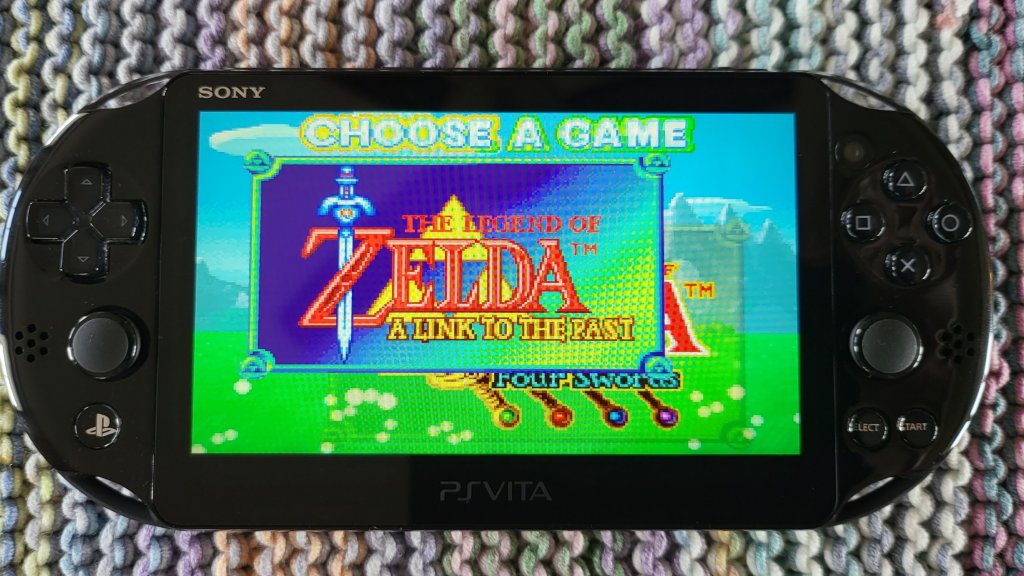
Emulators to play backups of your old game cartridges are in VitaDeploy.
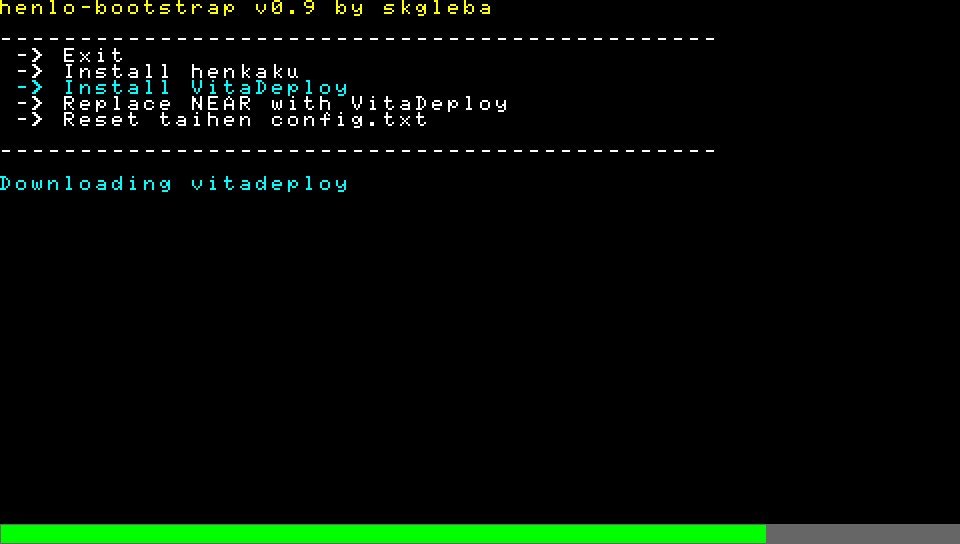
Once you’ve completed the custom firmware replacement and installed the software mentioned in the guide, adding emulators for GameBoy, GameBoy Advanced, NES, SNES, PS1, PS2, and more is as easy as browsing an Appstore and picking them. Again, this is all covered in the guide I linked to above. You’ll need your own ROM files and, in some cases, will need to locate the BIOS of the various consoles in order to play emulated games.
Vita Deploy is an app store for homebrew.
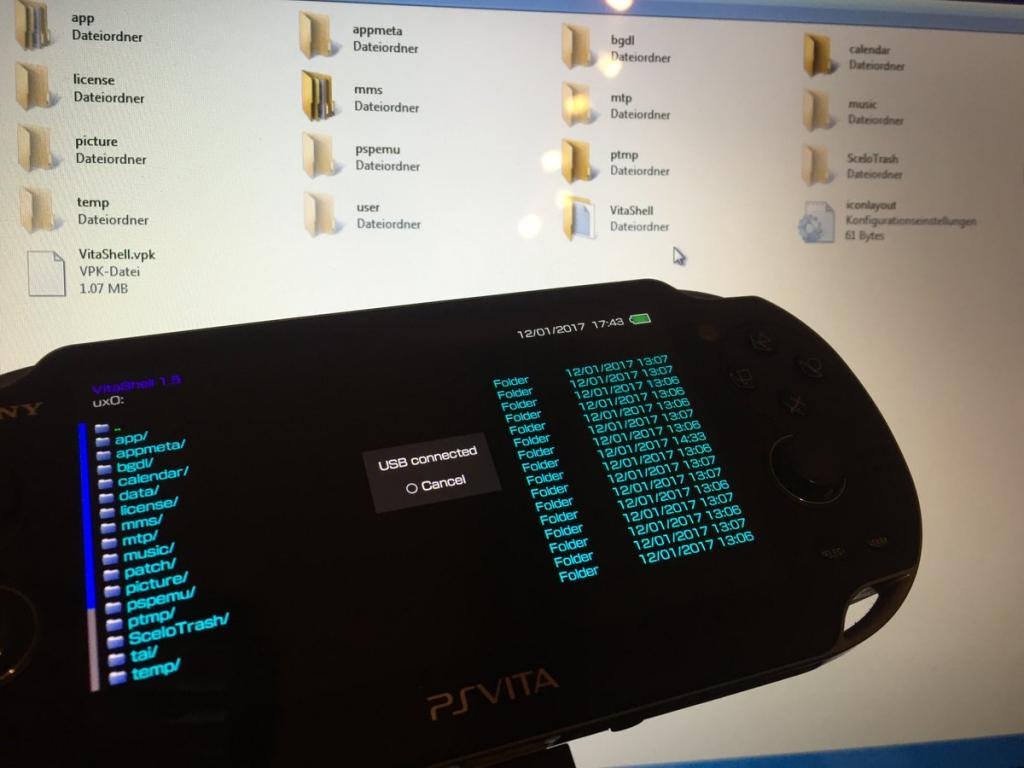
When it comes time to move files from your PC to the Vita, don’t spend time trying to get the old Content Manager software working. It doesn’t work on modern operating systems. Open the VitaShell app and connect the Vita to your PC via USB. Then click the select button to enable your PC to use the Vita as a USB drive.
Pressing select in the Vitashell app starts USB mode to mount the Vita as a drive in Windows Explorer.
The version of Moonlight currently in VitaDeploy is .92 and has an issue pairing with the Gamestream host. Download version .93 from github @ https://github.com/xyzz/vita-moonlight/releases/download/0.9.3/moonlight.vpk . Use VitaShell, Windows Explorer, and a USB cable to move it to your device. Then, find the .vpk file in VitaShell and open it to install the software. Aftwards, it works like any other moonlight client. The menus are text only and navigated with the D-pad.
The Vita doesn’t have clickable sticks, so you will need to be creative mapping controls in the games that you stream from your PC. I move aim and fire to the RB and LB (Vita’s shoulder buttons), and the controls that were previously RB and LB to the LT and RT which are default mapped to the Vita’s back touchpad. This works for most games like Destiny 2 and Cyberpunk 2077.
The client software is not without issue. Occasionally, it locks up or crashes for no apparent reason. Sometimes, the screen seems to be over saturated with white. When bad stuff happens, you can usually end and resume the session to recover and continue playing. Generally, it happens to me at the start of a session if it happens at all. Other than that, games look and perform well.
I’ll leave you with some hard-won tips for using the Moonlight app itself. Holding the select button and tapping up or down on the D-pad will cycle through various telemetry screens. Tapping the upper left corner of the Vita’s touchscreen will open the menu for pausing, quiting, or changing the game.
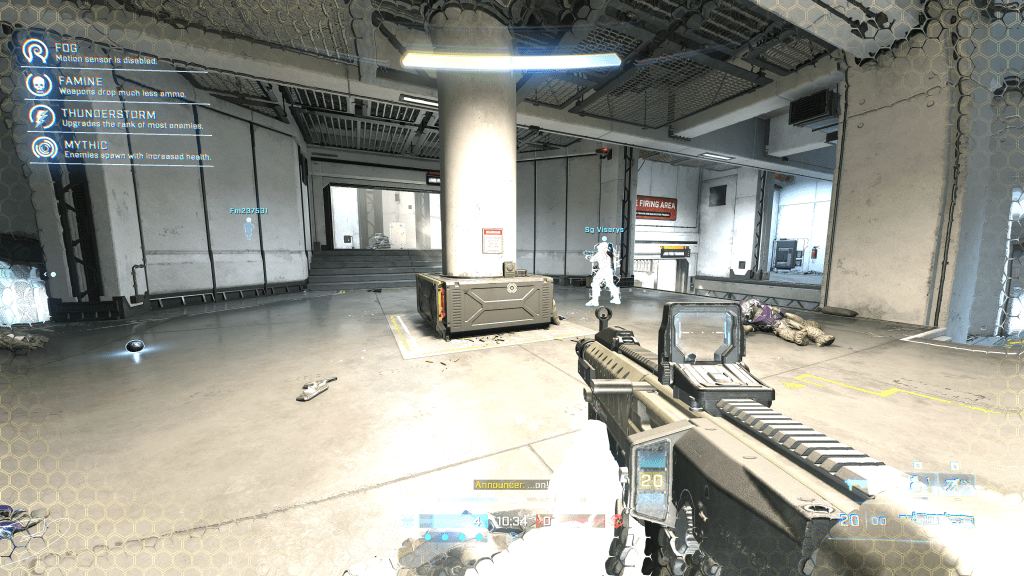
Valve’s Steam Deck has been evolving at a rapid pace. At launch, there were just a handful of games that were certified for the Linux-based system. Proton, the software bridge that runs Windows titles on the device’s Linux operating system, worked for some games. Not so much for others.
Fast forward and we now see numerous titles certified to run on the Steam Deck. Proton has been updated and improved in countless ways over the last few months. More games are auto recognized and run without issue or complex setup. There are still struggles with games that feature anti-cheat solutions like Destiny 2. As in, most competative multiplayer games require that you abandon SteamOS and install Windows.
The Story
The problem that kicked this post off for me was EA recently ending support for the Origin game launcher. Steam Deck players with EA’s games (like SIMS4, the $1000 + monster I can’t afford to re-purchase) were using the Origin launcher running in Proton to access EA’s catalog. It was a clunky install process, but it worked. The key was that you downloaded and used a controller template. The magical template mapped the Deck’s sticks, trackpads, and buttons to the keyboard and mouse inputs the game needs. Without this functionality, you would need an external keyboard and mouse to play.
I started up the Origin launcher and was presented with a forced update to EA’s Desktop App (their new launcher). I clicked ok and was surprised to see the update install and the game launch. It even played and saved. Stuff went south when I exited. When I tried to open the game again, nothing worked.
I edited the Orgin shortcut in Steam to point at the new EA Desktop (EADESKTOP.EXE) and forced it to the Proton Experimental mode. This let the game start up far enough to sign-in to the new EA desktop app but when you tried to open SIMS 4 it errored out saying that it was “missing services”.
Next I tried installing the new EA Desktop separately, as an app in Steam and got it running. I attempted to copy that installations’s files (including the services folder) over the same directory in the recently upgraded SIMS 4’s location. I had hopes that I could avoid re-installing and dealing with the saved games.
It was close, but no joy. The game wouldn’t get out of the startup screen, the green diamond spins forever. I’m used to dealing with SIMS4 and tried all the tricks. I even cleared the options.ini and deleted the Proton files. Nothing helped.
Eventually, I re-installed SIMS 4 using a pristine, working installation of EA Desktop. I opened SIMS 4 and played through long enough to save. I overwrote that save location with the save folder structure from the failed upgrade’s save folder. All of this lets the game play in Desktop mode. Without the fancy controller template that makes it possible to play the game on the go. If you open the game from Game mode it never fully launches, displays various errors about your video card, etc.
Eventually, I was able to get the game to run in Desktop mode with the controller template from the previously working Origin install. Read on for step by step instructions. Other wise, this tale has a happy ending. The game plays using the controls built into the Steam Deck. There’s no extra interpretive layer like Lutris slowing it down or breaking on-line functionality (item downloads).
Runs like a champ but is an uphill climb to get there.
Step By Step
Warning: This process is complex, tedious, and requires interacting with data that may not be backed up. Variations in software may result in your experience and results being different than mine. Proceed at your own risk.
Step one is to install all updates in both game mode and Desktop mode. I highly recommend connecting an external mouse, keyboard, and monitor if possible. If not, pressing the Steam button + X opens the on-screen keyboard in Desktop Mode. To visit desktop mode; Steam button-> Power-> Switch to Desktop-> Wait for the initialization.
When desktop mode (a full KDE Linux GUI Shell) loads, open the Discover application from the icon that looks like a blue shopping bag, then click the updates button. Use the Update All button in the upper right. Reboot the Steam Deck then check for updates again. Continue until there are none left. Always check for updates is the golden rule of PC gaming.
Desktop mode can be configured to update automatically. Look in the Settings application in the start menu.
In Desktop mode, open Steam (usually running in task tray) and go to the Library. Make sure you are showing all software and search for “Proton”, install Proton Experimental if it isn’t already.
Open the web browser and visit EA’s site to download the new EA Desktop installer (for Windows). https://www.ea.com/ea-app. Once that download completes, return to the Steam Library. Use the menu at the bottom to Add A Game and choose Add a Non-Steam Game from the menu.
Browse to the /home/deck/downloads folder, set the file type selector to All Files and click the file EAappInstaller.exe
Choose Open, then on the next screen verify the EAAPPINSTALLER.EXE is still selected and click the Add Selected Programs button.
Now back in the Steam Library, find the app you just added in the list of software (check filters if you don’t see it) and select it once. Click the COG icon on the right of the title screen and go to Properties. Rename the shortcut to EA Desktop (do not change the paths yet).
Go to the Compatibility menu and check the box to Force the use of a specific Steam Play compatibility tool and set the drop down to Proton Experimental.
Click the small X in the right hand corner of the Properties screen to close it and click the Play button in Steam on your EA Desktop shortcut. It should open and begin the installation of EA Desktop. Take the default settings and Next, Next, Finish your way to the end. When it opens, sign-in with your EA account user name and password.
Wait for the EA Desktop App to fully install and sign-in. Be sure that it is operating normally (touch-screen controls mouse if pads don’t) then close it. Make sure you click the stop button in Steam to fully exit the application. You should not see the Red EA App icon next to your clock. If you do, the app is still running. Reboot your Deck to force it to close.
Next we will be altering the path of the shortcut to point at the EA Desktop App instead of the installer. I recommend locating the file in the Dolphin Explorer before trying to edit Steam. Open it from the Folder icon on the task bar or look in the Start Menu. Browse to /home/deck/.local/share/Steam/steamapps/compatdata and sort the files by Modified date. Go into the newest folder, it should be your EA Desktop App install. The folder name will be a long series of numbers mine is 3622285163, but I think they are randomly generated (screen shot below).
Open the newest number folder and continue to pfx/drive_c/Program Files/Electronic Arts/EA Desktop/EA Desktop/EADesktop.exe do not open the file, just verify that its there and note your app ID number. Copy the path if you are able to (external keyboard and mouse).
Now still in Desktop Mode, open Steam and go to the Properties of the EA Desktop App again. Use the browse button and make your way to the EADesktop.exe we located above. Selecting the exe should automatically update the Start In folder, if not set it to the same folder.
Now close the Shortcut screen with the X in the right corner and Play the EA Desktop App from Steam. The EA Desktop App (not the installer) should open and sign-in (assuming you saved your username and password). Use the EA App to Install SIMS 4 just like you would on any other system.
Even if your are upgrading from Origin and already have the SIMS 4 installed, you still need to re-install it from this working version of the EA Desktop App. I tried multiple ways to get the system to recognize the already installed game without success (see story section above). I got a little further each time and could probably make it work, but I would be concerned about stability and future updates or modifications.
When the download and install finishes, open/play SIMS 4 from inside the EA Desktop App. You need to play the game through basic character creation and picking your first house before you can save which we need to do once. Again, I am assuming that you have connected an external mouse and keyboard. We don’t have a template loaded for the Deck’s controls yet. Once you get far enough to save the game hit escape and open the options menu. Set the graphics options to your liking close that window, then and save the game (this creates the folder structure we need, do not skip).
Medium settings seem to work well.
Close SIMS 4.
If you are using this guide to install EA Desktop and SIMS 4 for the first time you can skip down to configuring the controller template.
If you are upgrading from a failed forced update we have some file work to do. Make sure the EA Desktop App is fully closed (should not see app tray EA icon). Open Dolphin Explorer and find your original install folder ID.
If you still have the Origin shortcut in Steam, go to its properties and copy the path to the folder ID number (/home/deck/.local/share/Steam/steamapps/compatdata/2796509174/), you can paste it in Dolphin’s address bar and go straight to the location. If the paste trick gives you trouble just note the folder ID number and browse to it. Then continue on to pfx/drive_c/users/steamuser/My Documents/Electronic Arts/ you should see a SIMS 4 folder. That is where your saved game and downloaded items are located. Right click on the SIMS 4 folder and copy it.
Paste the folder into the corresponding location for your new working SIMS 4 installation. I like to rename the existing SIMS 4 folder to (blank install) and keep it just in-case I need a base line later. Open the EA Desktop App from Steam and start the game. You should be able to resume playing where you left off.
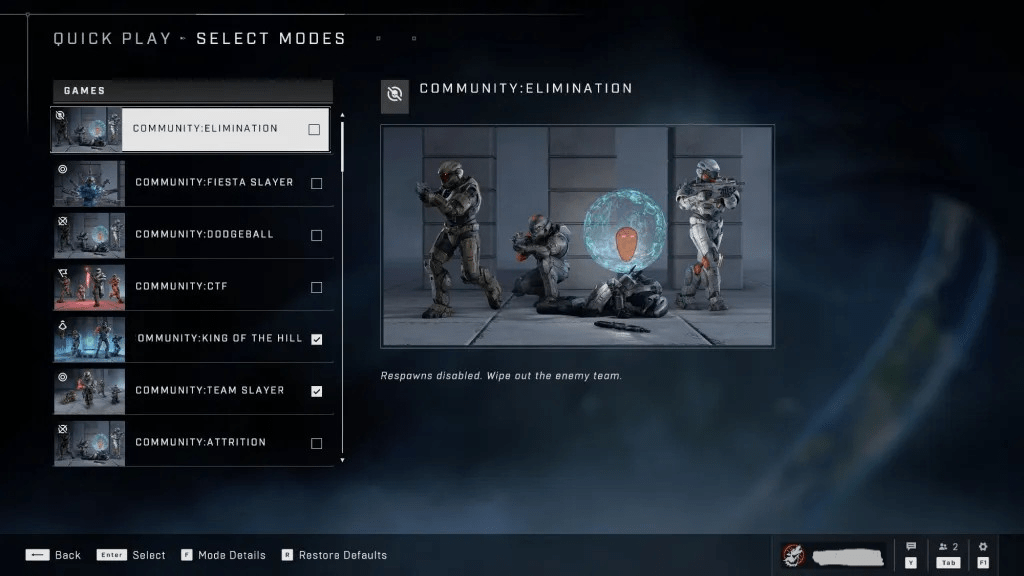
At this point you should have a fully functioning install of SIMS 4 and the same technique should allow you install basically any other EA Game. You will always use the shortcut to open EA Desktop and start the game from there.
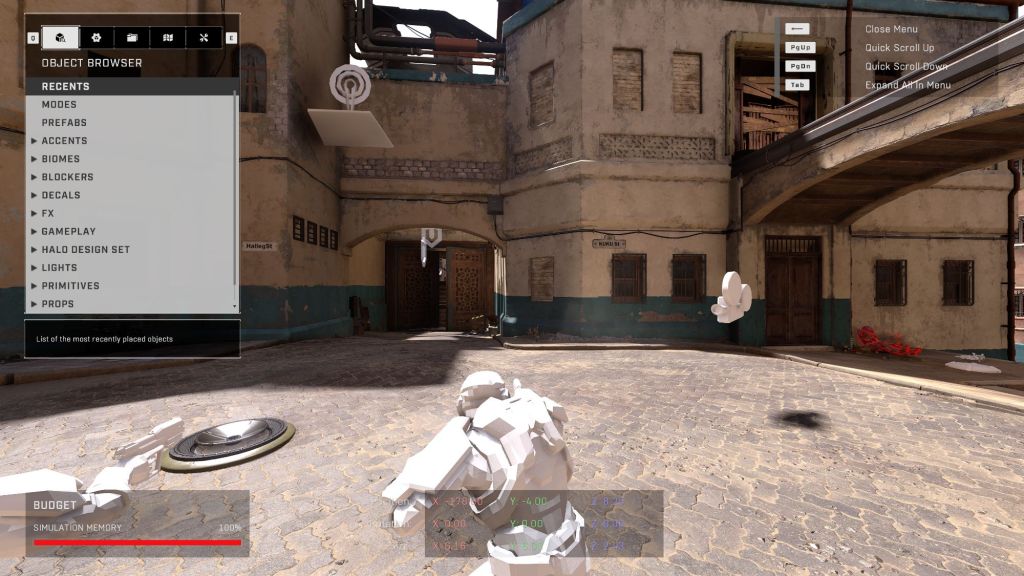
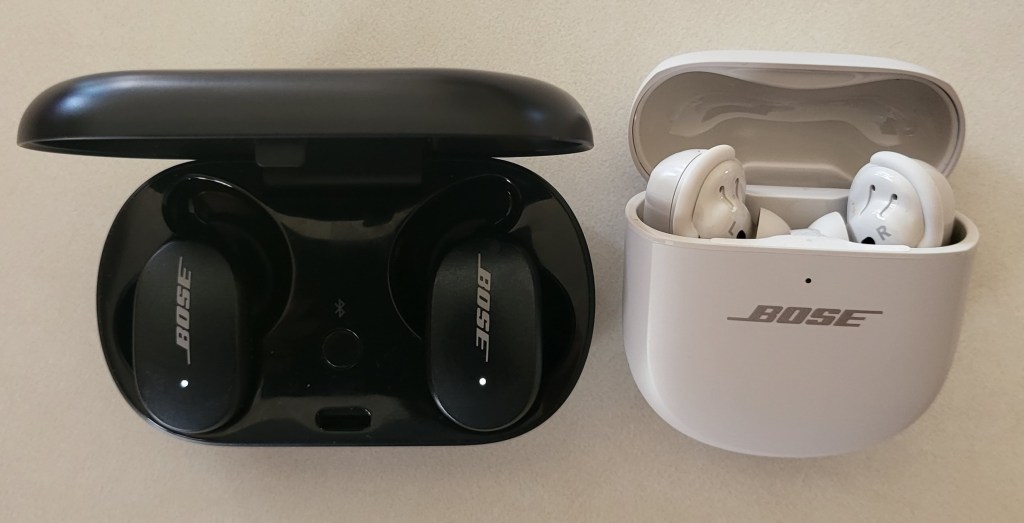
Desktop Controller Template:
To setup the controls in Desktop mode is relatively easy. In Desktop Mode, Open Steam and click the COG for EA Desktop App. Go to Manage -> Controller Layout. Use the menu to Edit your layout. This can be very, very tedious to do manually due to the sheer number of controls used by SIMS and PC games like it. Fortunately there are plenty of community templates to get you started.
This layout will be used by all EA Games. Keep that in mind while choosing or creating it.
If you are coming from a previously working Origin installation, you can export those controls you loved, as a template. From there you can import them to the new EA Desktop App. Use the COG next to Edit Layout to access the Export function they’ll show up in the search menu for other games after you’ve saved them.
Delete the old failed install folder using Dolphin to free up several gigabytes of space after you have verified your save games are working from new location. That’s as far as I have taken the project. The game runs, and my thousand plus hours of save files are there. If you enter cheat codes in SIMS 4, keep a Bluetooth keyboard handy when you first start the game. I have not found a workaround for this. The on-screen keyboard is not able to enter text into the game’s cheat box. If you know of a fix please hit me up in the comments.
I suspect it is possible to create some type of shortcut directly to the games themselves and use the launch options to ensure EA is running but I haven’t gotten that far. Hopefully the fancy things in Proton Experimental that let this technique work will make their way to the Game Mode run times in the near future. Even if they don’t, the game is fully playable and portable this way.