The Fifth Generation iPad Mini

We are a house divided, the females are all Apple everything. The males are Android and Windows. The newest edition of the iPad mini is almost good enough to change that balance. It’s everything a tech geek wants in a tablet. Light, powerful, thin, with stylus support, and an excellent display.

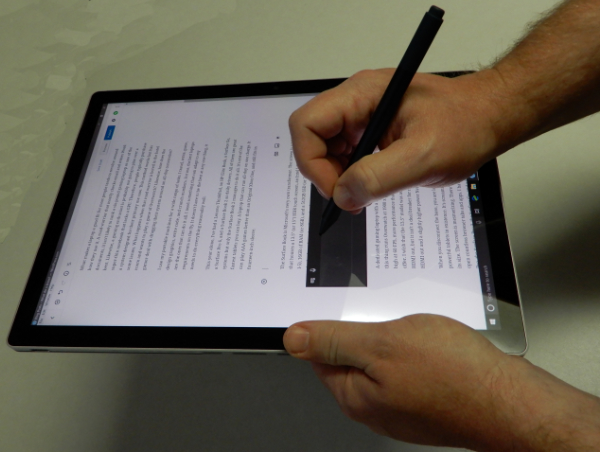
A lot of people dismiss the Mini with a ” same as my phone” shrug. They’re missing out. There are lots of times between working and being out that call for an in-between screen. Sitting on the couch surfing, writing with a stylus, and reading in bed are examples of times when an iPad is too big and a phone is too small.

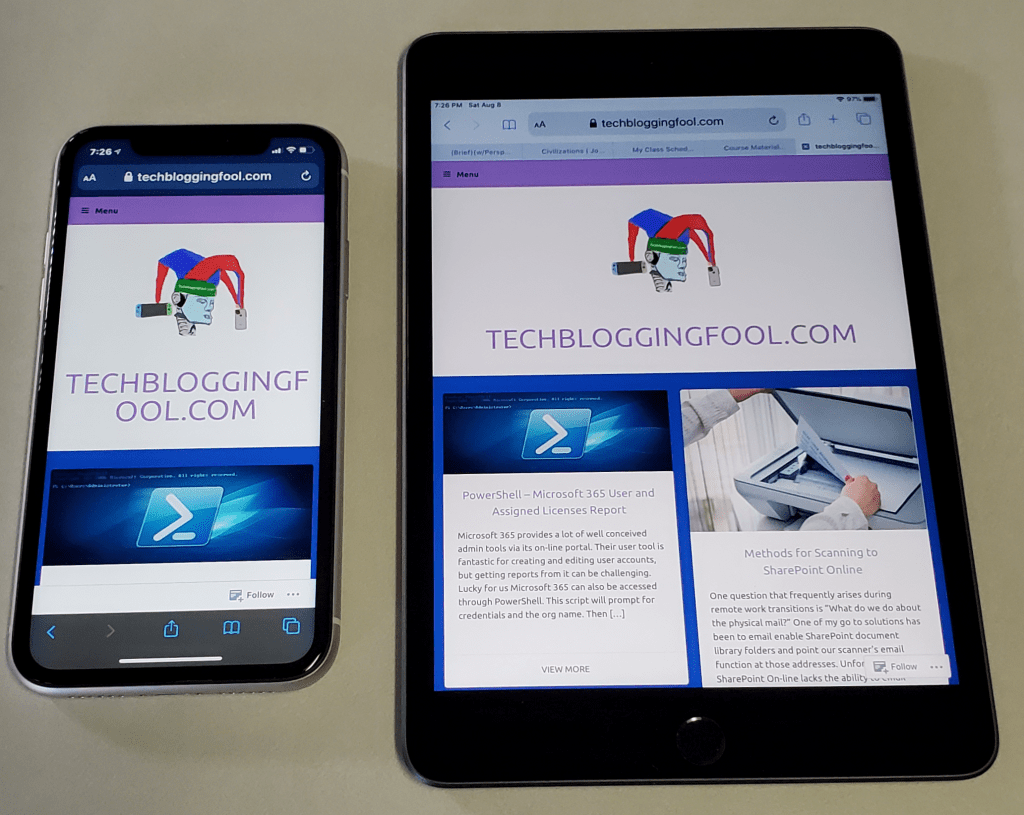
The iPad Mini provides far more screen space than the iPhone 11

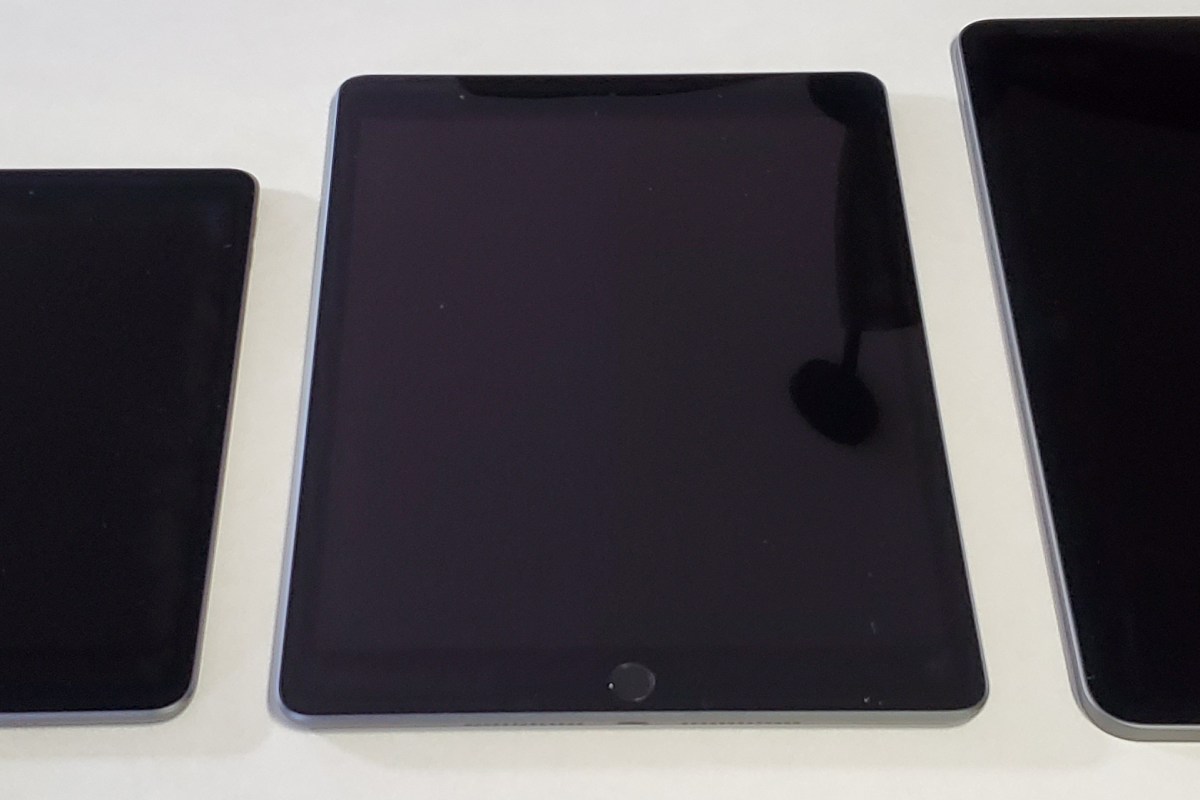
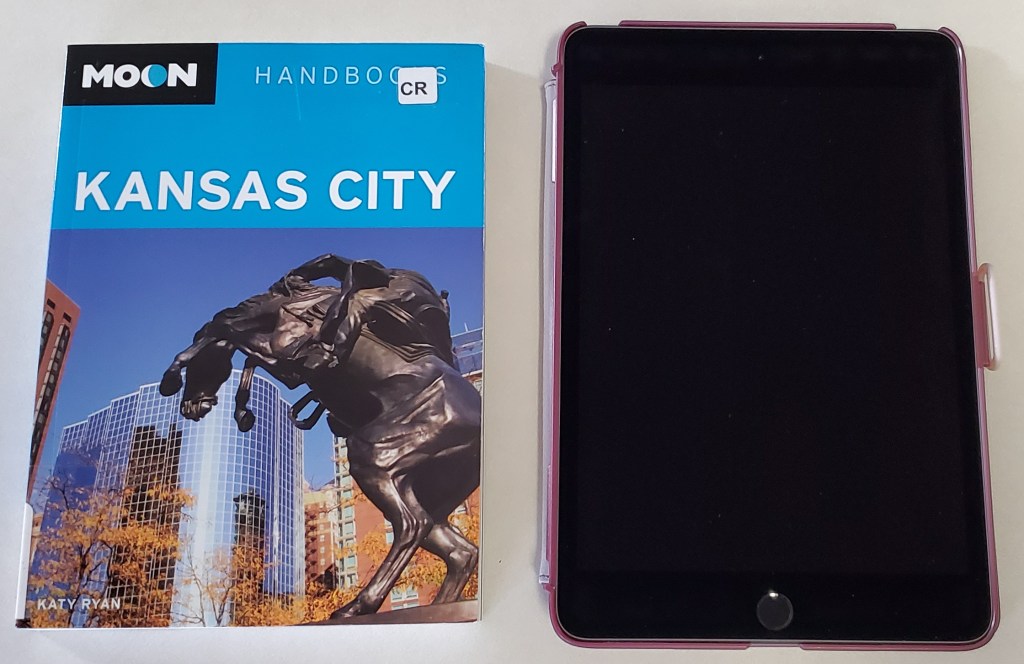
The newest Mini is 8.0 inches (203.2 mm) tall, 5.3 inches (134.8 mm) wide, 0.24 inch (6.1 mm) thick, and weighs 0.68 pound (308.2 grams). There’s something about eight inch devices that makes them the perfect size to read on. Maybe its because they’re the same size as an average paperback book?

As a dedicated Windows user, I wish Microsoft’s OS would scale well on an eight inch system. I have a Dell Venue 8 Pro and while the operating system and many Microsoft apps shrink to fit, most third-party software doesn’t. Apple has a leg up on Microsoft or even Google in this regard. Their tight control of the App Store means that they are able to ensure usability for all of their form factors. Every app that I have tried so far looks great on the 2048-by-1536 resolution at 326 pixels per inch screen.

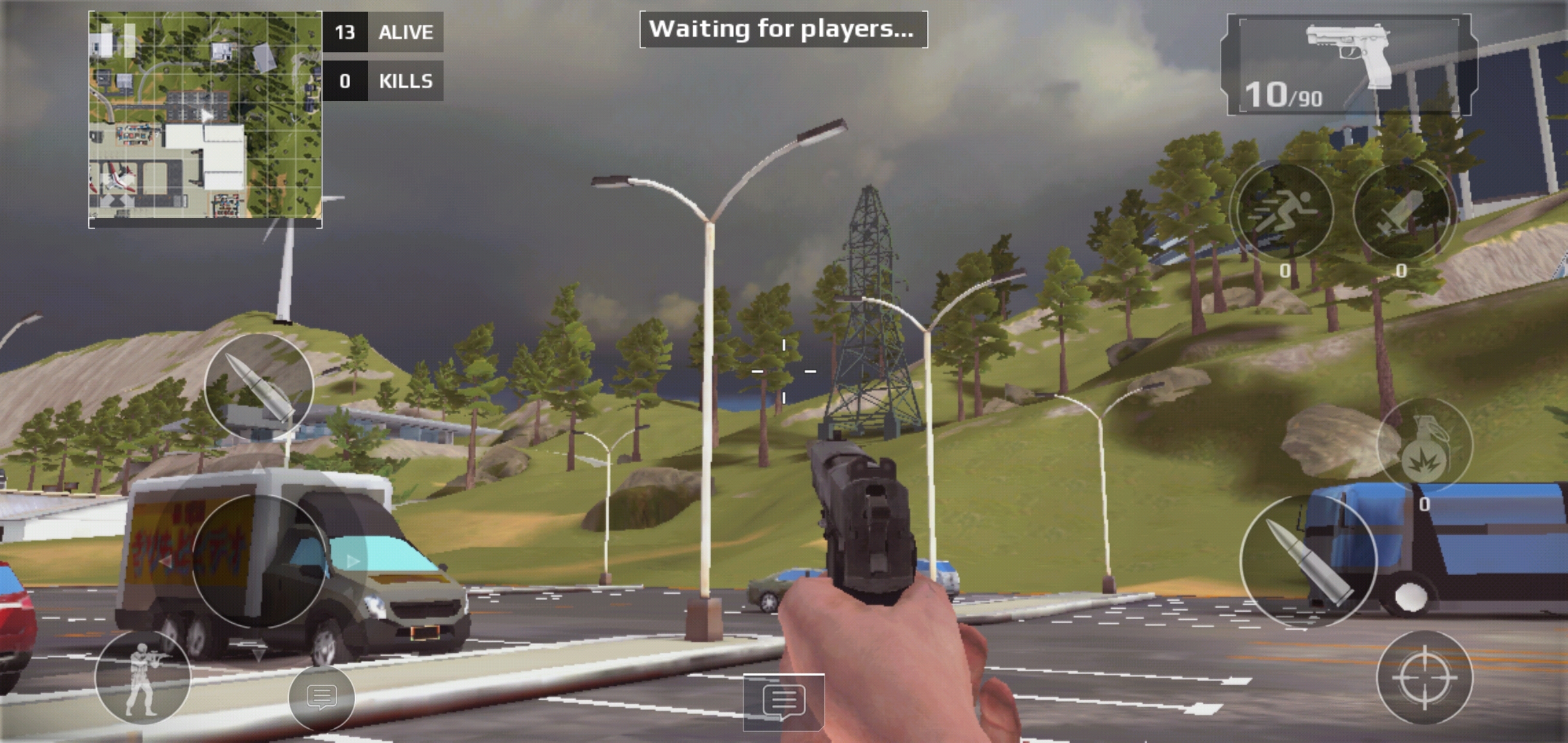
The fifth generation iPad Mini is fast, really fast. The A12 Bionic chip means pages load in the blink of an eye. Multitasking is a breeze. I like to play Netflix or YouTube on the side while I write or browse in the larger section. Even the most taxing games like Call of Duty Mobile run stutter free. At everyday tasks like checking email, or reading the news it is faster than an average laptop.

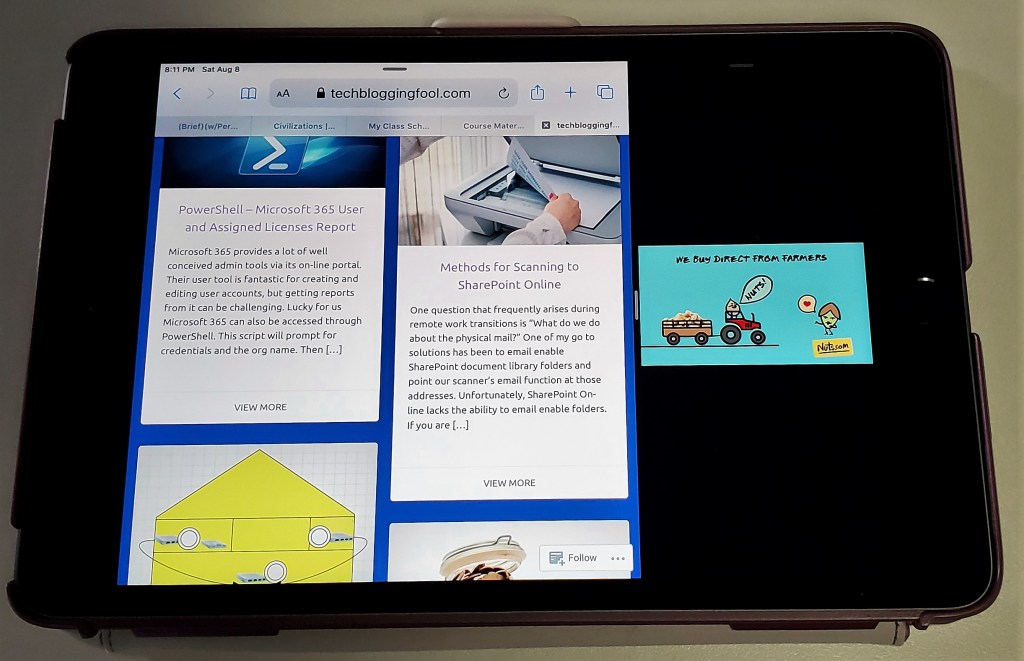
The Mini is more than powerful enough for multitasking

As always, my biggest gripe with the Apple tablets is that there is no native support for handwriting. At least now there are some really well done third party apps that fill the gap. See my review of Selvy PenScript for an excellent example. You can also pair a Bluetooth keyboard for input duties, Logitech makes one specifically for the Mini.

If you are in Apple’s ecosystem and spend much of your time in the digital world the new iPad Mini will be a welcome addition to your compute devices. It is just the right size for kicking back in your favorite chair and doing whatever on.

A Full Function Smart Scale for Thirty Dollars

We’ve had an old fashioned white scale on our bathroom floor for as long as I can remember. You know the kind, tap it to turn it on and wait for it to zero out. Then step on and read the number. No body fat percentage, no BMI, just your weight.

I had looked at smart scales a while back, but didn’t think they were worth the couple of hundred dollars most of them cost back then. Scales aren’t something I think about much, so this is a rare example of technology that slipped my mind. I never gave it another thought, until recently, that is.

I have been making an effort to get in better shape as of late. Part of that endeavor is tracking my calorie intake and weight. One morning while keying in the numbers yet again, my sleepy brain wondered if there was a scale that would sync up with my phone.

A cup of coffee and a few web searches later I was pleased to learn that smart scales were far more affordable and that some would sync with my health app. Not only that, but they could measure a lot more than just your weight thanks to electrical impedance.

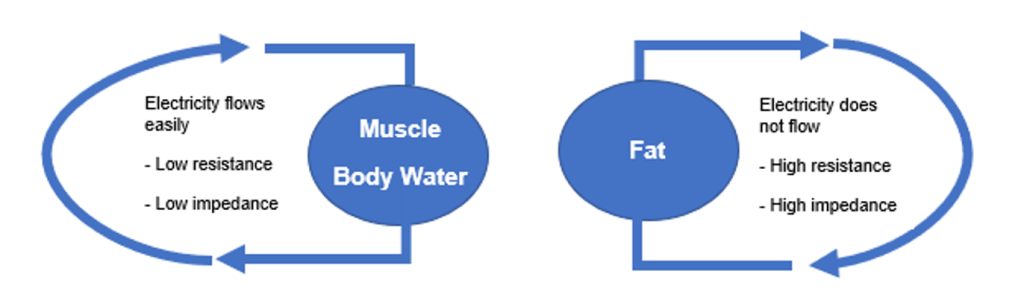
The various structures and tissues in your body all pass electricity through them at different rates. Body Fat impedes, or slows the electron stream more than bone for example. Smart scales pass a series of small electrical currents up through one foot and out through the other. The software on the linked mobile devices analyses the times the pules took and calculates your body’s composition. This process is known as BIA Bioelectrical Impedance Analysis.

The current is small and generally harmless. Most of us don’t notice it at all. However, if you have a pacemaker, defibrillator, or other sensitive electronic implant you should avoid smart scales. Most of the manufactures also warn against using the devices if you are pregnant.

I had some specific requirements that I hoped to fulfill when I started looking for a smart scale. For it to be useful it needed to sync with both the Samsung and Apple Health apps. We needed it to easily connect to multiple Android and Apple devices. Quick and accurate measurements were also important.

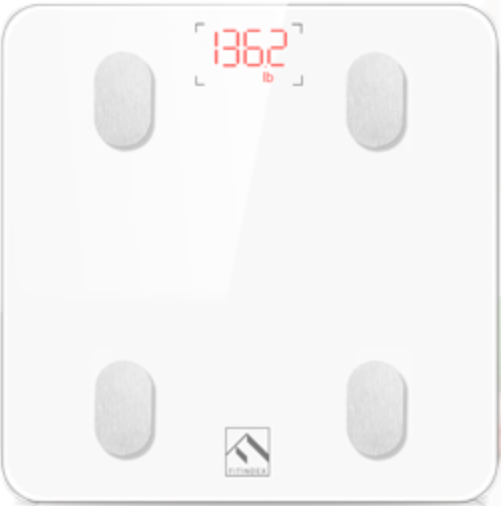
After some research, I ended up ordering the FITINDEX Bluetooth Body Fat Scale from Amazon. It’s $29.99 on Prime and on paper does everything I was after and then some. Some of the comments lead me to think device switching might be problematic. Other purchasers seemed to be having trouble with the batteries.

We’ve had the unit for a couple of weeks now and I’m impressed. Install and setup the FITINDEX app from your device’s app store, turn on Bluetooth and step on the scale. It’s that easy. As long as the person using the scale has the app open and Bluetooth on when they mount up, user switching is a seamless experience even between Android and Apple. I’ve put both standard and rechargeable batteries in ours without issues.

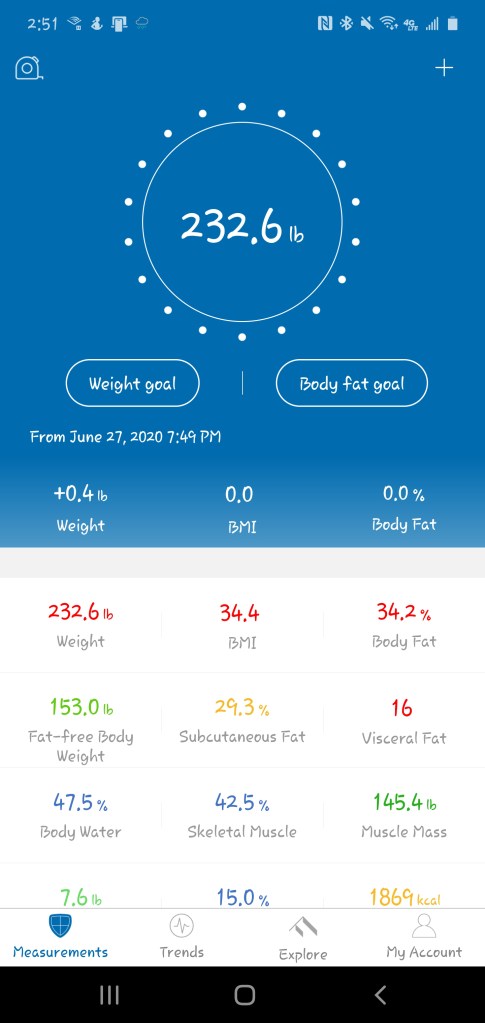
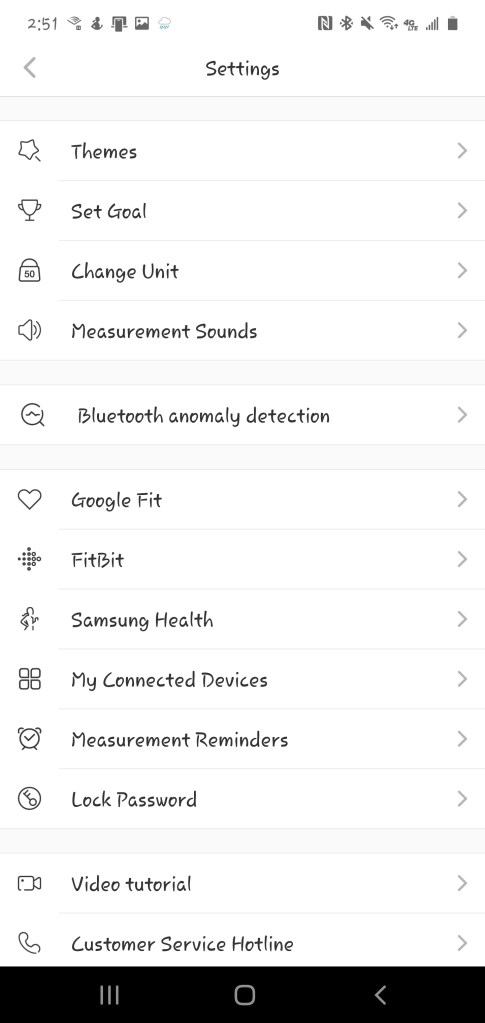
I compared the numbers this device provided against my last check-up from my doctor’s office and some from a friend’s smart-scale. The FITINDEX was accurate according to the comparisons. It calculates: weight, BMI, body fat percentage, water percentage, bone mass, muscle mass, and several other compositional components. The data can be synchronized with the Fitbit, Google Fit, Samsung Health, or Apple Health apps automatically, by selecting the appropriate option in the FITINDEX app’s settings.

The FITINDEX app itself is superb. It tracks trends and goals, supports themes, and is generally pleasant to use. It color codes your results in red, yellow, green for easy interpretation. This usability surprised me more than any other aspect of my new scale. My experience has usually been that in-expensive hardware comes with atrocious software.

If you’re still rocking an old-fashioned scale that only shows your weight, or you’re getting on the fitness train, the FITINDEX is an exceptional piece of equipment given its price.

My Favorite Monitor Under Five-Hundred Dollars

I recently decided that it was time to transition from using a forty-inch TV to an actual monitor. For the most part, I wanted to move past the sixty frames per second limitation that most TV based screens are stuck with. I would have loved to picked up a 4K Predator but couldn’t justify the two-thousand dollar price tag. I had a max budget of five-hundred dollars and hoped to spend less.

As with all of my technology purchases, I started by doing a ton of research. There are a lot of terms and specs wrapped around computer screens these days and I wanted to understand their meanings before making my choice. I’ve provided an overview of a few of the more important terms below.

HDR stands for high dynamic range and is a feature that provides better contrast and colors to the content on your screen. Contrary to popular belief, it is not the same thing as the HDR that you find on cameras. CNET has an excellent write up on how the technology works. This particular feature can have a dramatic effect on how things look, but the media and screen must both support it. It’s great for games and videos, but doesn’t do anything for documents.

FPS is frames per second. Moving video is created just like those old flip books you drew in grade-school. Still images called frames are flashed on your screen so quickly they appear to be moving. The faster the frames flash by, the smoother the movements appear to be. Security cameras tend to run around 15 FPS, TV around 30 FPS, 60 FPS is the minimum most gamers shoot for, 120 is ideal for action video and games, 240 FPS is found only on high-end gaming monitors.

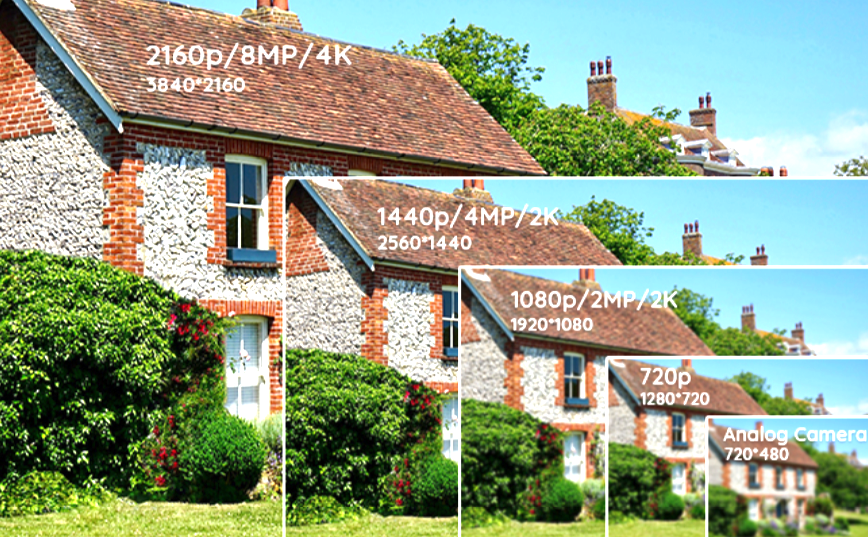
Resolution is an indication of how finely detailed a displayed image can be. Each frame of a video is composed from colored dots of light. Squeezing more dots onto the screen results in more detail being available. Resolution is measured in the number of dots aka pixels, that are available horizontally and vertically. 1080P is 1920 pixels wide by 1080 pixels tall and is comprised of 2,073,600 individual dots of light.

There is a never-ending debate around which is more important for gaming resolution, or frames per second. The choice is a personal one, but if you play competitive on-line games, higher FPS means you are less likely to loose track of your target. At 30 frames per second, a 180 degree flick-turn looks like you magically appear to be facing the opposite direction from the moment of execution. This happens because the movement is over with quicker than the next frame can be displayed. At 120 FPS you actually see your surroundings during a flick-turn. This can also be observed by quickly moving your mouse across your monitor; on lower FPS screens the mouse appears to blink as it moves.

There are of course many more terms, like response times (how fast the dots change color), contrast ratios, OSD (on screen display), etc. but my intent is not to write a book on monitor specifications. NewEgg has a glossary of these terms if you’d like to learn more: https://www.newegg.com/insider/guide-monitors-terms-need-know/.

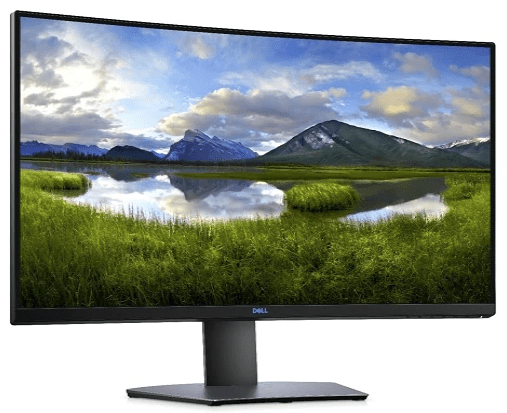
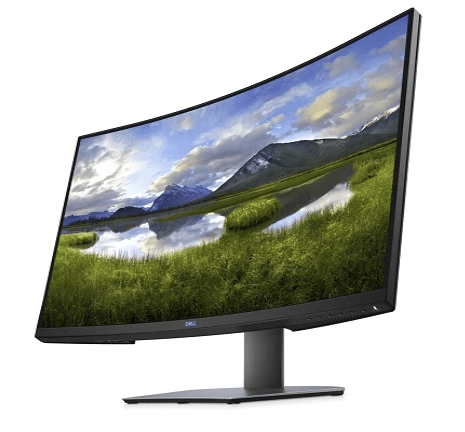
After all my research, talking to the industry people I know, and wandering around the local computer stores was complete, I ended up purchasing Dell’s S3220DGF. The 32 inch, curved, HDR screen is superb. I’ve never owned, or even used a better looking monitor. The colors are great and the blacks are fantastic. The screen is the perfect size to fill my entire field of vision when gaming. Text is easy to read when sitting a little farther back. My system is primarily used in a dark room so the non-bleeding edges are a big plus too.

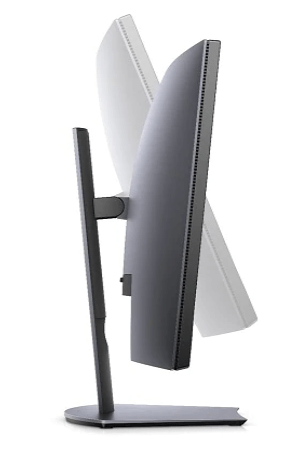
The height, swivel, and tilt adjustable stand makes putting the screen in the perfect position a snap. The integrated USB 3.0 hub is a convenient place to plug-in my desktop accessories without having to drape cables down the back of my desk. I was also pleasantly surprised to find that all of the cables I needed including a display port and HDMI cable were in the box.

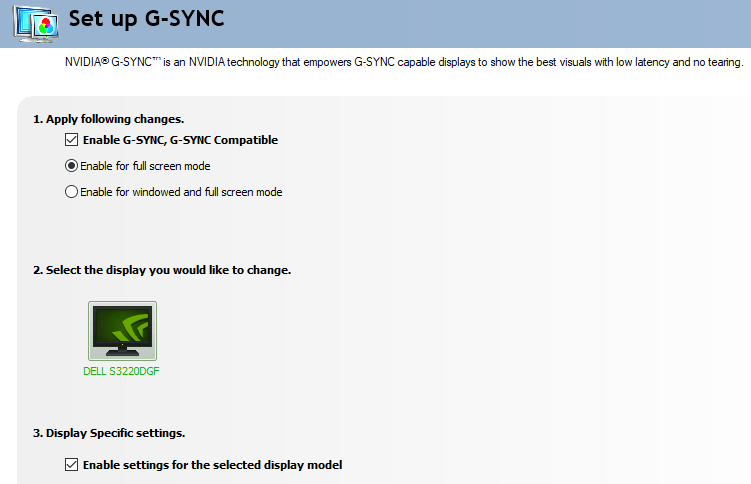
The monitor’s resolution is 2560 x 1440 aka 1440P and its fastest refresh rate is 165 FPS. This combination makes games like Destiny and Call of Duty look fantastic and run buttery smooth. In addition it supports AMD’s FreeSync technology which allows the refresh rate to dynamically match the media being displayed. If your game hits a particularly graphic intensive spot and the frames slow, your monitor will lower its refresh rate to match. This prevents tearing and choppy video. Despite the name, Nvidia GPU’s can use the FreeSync feature with this monitor.

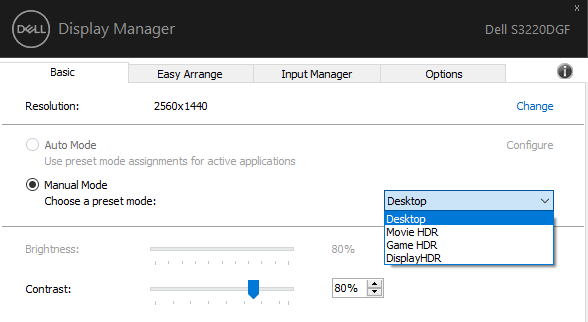
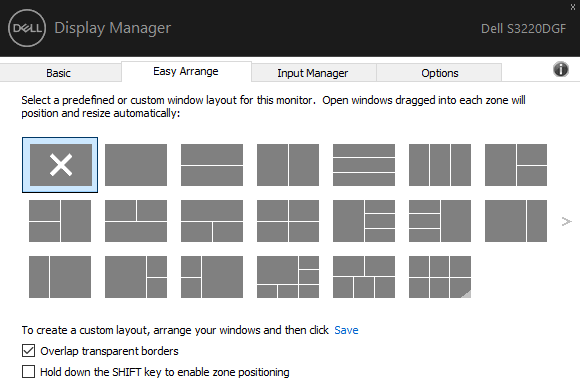
The OSD (on screen display) controls are easy to figure out, some of the other monitors that I tested had a joypad or touch interface which I preferred to the Dell’s individual buttons, but it obviously wasn’t a deal breaker. Besides the OSD and button controls, this monitor can be controlled by Dell’s Display Manager Software. In addition to editing settings like the brightness and contrast, the app lets you control and customize Window’s Snap Zones.

Modern Windows operating systems let you grab the title bar of an application’s window and drag it quickly against the side of your monitor to split the screen in half and select a window for the free side. Snapping windows is incredibly useful for multitasking and is a feature I use frequently. You can also snap a window by pressing the Windows key and an arrow key at the same time. My only gripe with snapping is that I wish there were more layouts.
The Display Manager software addresses my complaint by providing countless pre-configured layouts that are easily selectable. Besides the pre-made layouts you can also make your own. You don’t have to buy an expensive new screen to get this functionality. Microsoft’s Power Toys includes a feature named FancyZones that is similar, but not quite as easy to use and suffers from a few bugs.

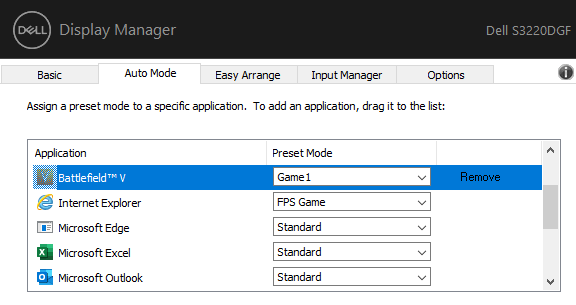
The monitor’s memory will store several different presets of brightness, contrast, color, black mode, refresh rates, and other settings which you can name. The Display Manager application will allow you map specific applications to those stored presets. This allows you to easily customize the screen for whatever you happen to be doing. I wasn’t aware the monitor was capable of this when I bought it, but it is a feature I use quite often.

Most monitors that are connected to a Windows PC use the built-in generic driver and color profile. This works fine for 80% of use cases. However, if you edit photos or video having a tuned color profile and purpose made driver can help colors and contrast appear more realistic. This Dell S3220DGF comes with both.

I’ve owned the monitor for a couple of months and am very happy with my purchase. I found it on sale at Best Buy for $399.00 but it’s normal price is $449.00. I was concerned that I would miss 4k but the FPS is more important to me overall. I barley notice the difference in resolution. I also debated a flat screen versus a curved one. The curve really makes a difference on a screen this size that is only a few feet from my eyes. If you’re in the market for a new monitor, I recommend you take a look at the S3220DGF. That name just rolls of the tongue doesn’t it?

My Favorite Network Edge Device for Home and Small Business

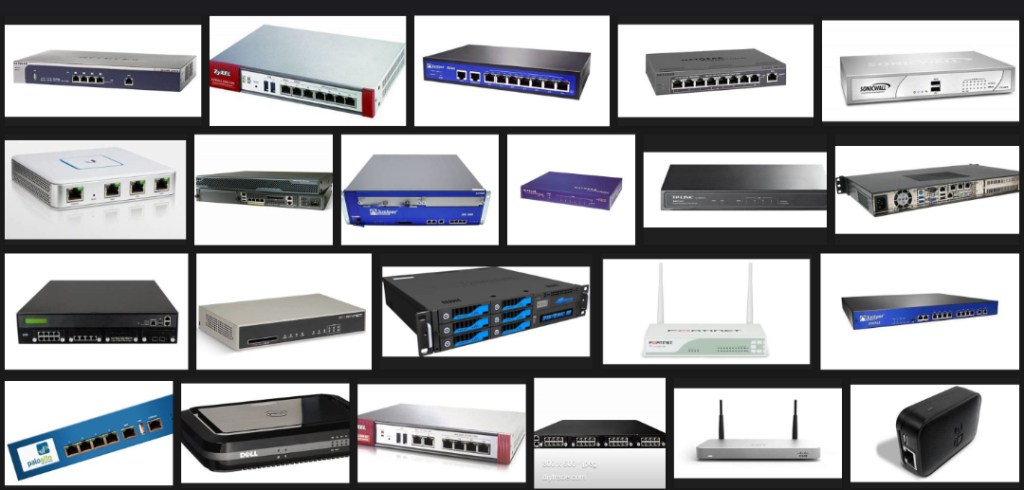
Network Edge Devices act as the brains for a computer network. They combine functions like Routing, Firewall, VPN hosting, Network Load Balancing, DNS, DHCP, Intrusion Detection & Prevention, and Data Classification into a single device. Network edge systems offer a single pane of glass to monitor and control your entire network from.

Throughout my IT career, I have encountered countless models of these devices. From Enterprise equipment like Cisco, NetScaler, and Fortinet, to SOHO grade systems like Netgear, Linksys, and ASUS; I’ve worked with them all. Overall, they provide the same basic functionality. From the point of view of a small business or home administrator, their biggest differences lie in how much technical expertise is required to configure them.

The majority of edge devices take a two prong approach to management by providing a graphical “easy mode” interface and an advanced command line for the more experienced. Unfortunately, there are major gaps in the intuitive operation of these systems, especially if the manufacturer was first involved in the enterprise market. They tend to do things like providing a button to set up a VPN that does not configure the firewall rules or authentication systems that are required for a VPN to work.

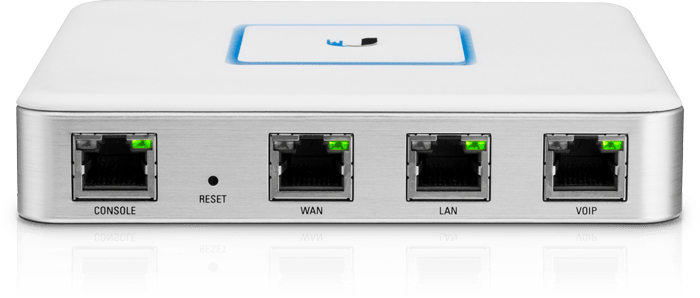
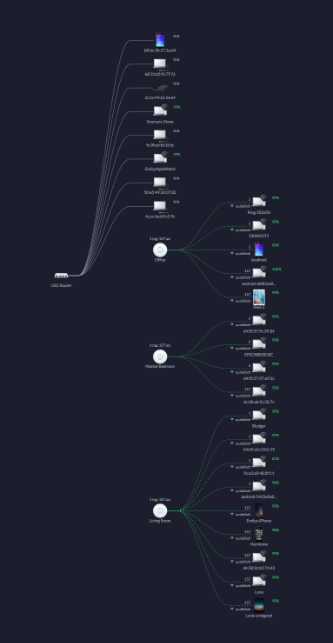
Out of all the edge devices that I’ve worked with, Ubiquiti’s Unified Security Gateway is my favorite. The unit is the perfect balance between ease of use and robust functionality. Ubiquiti’s Unifi series of products are the very definition of software defined networking. The entire line is managed by a single piece of software. Install the controller on your Windows, Mac, or Linux PC, or run it on a cloud key, go through an automated adoption process and you will immediately understand your network topology like never before.

Setup is simple and guided by the software. Once you have the system up and running you can forget about it. I have an advanced network in my home. My previous network edge struggled to deal with multiple Xbox, PlayStation, and Switch on-line gaming sessions. I had to constantly futz with it to keep things running. Other than to review usage reports, I haven’t needed to touch my USG since they day I installed it.

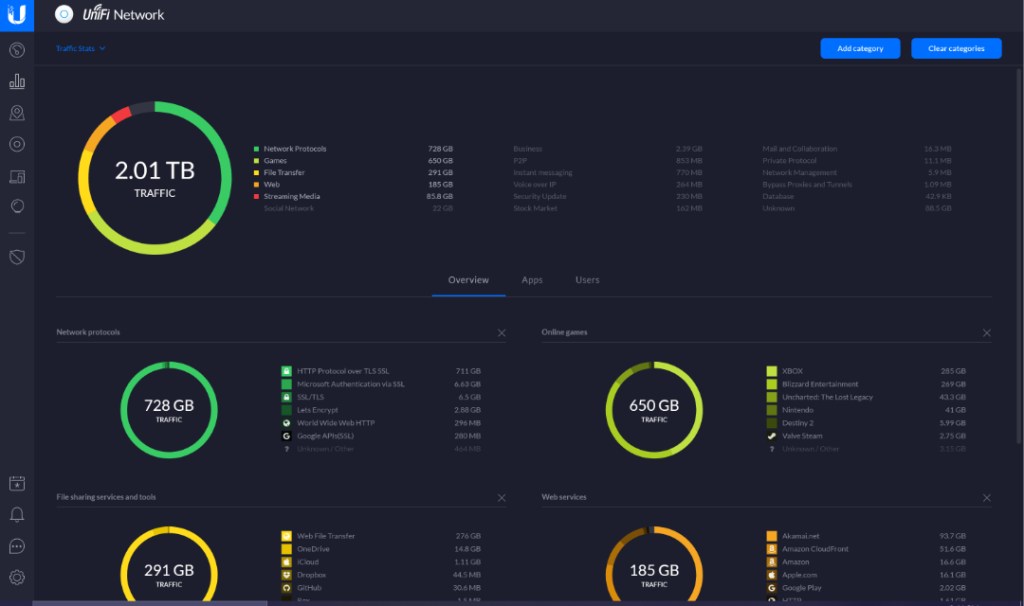
Speaking of usage reports, they are fantastic. Check the box to enable DPI and the USG will automatically classify all of your internet traffic and present it on an easy to read dashboard. Beyond the dashboard you can easily schedule emailed reports.

Easy to use reports show how your data is being used.
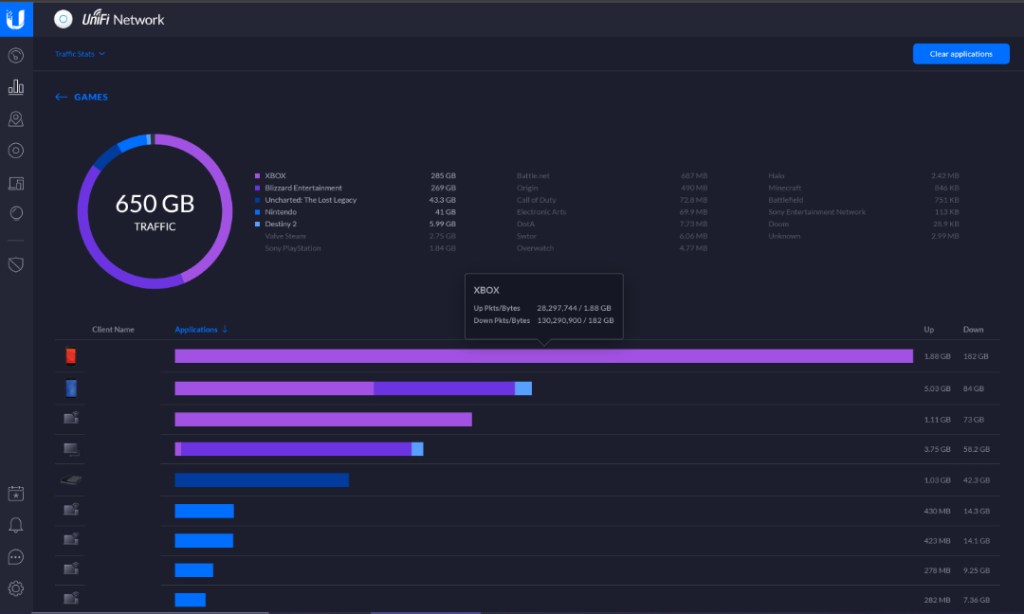
Drill down in each category to see specific details

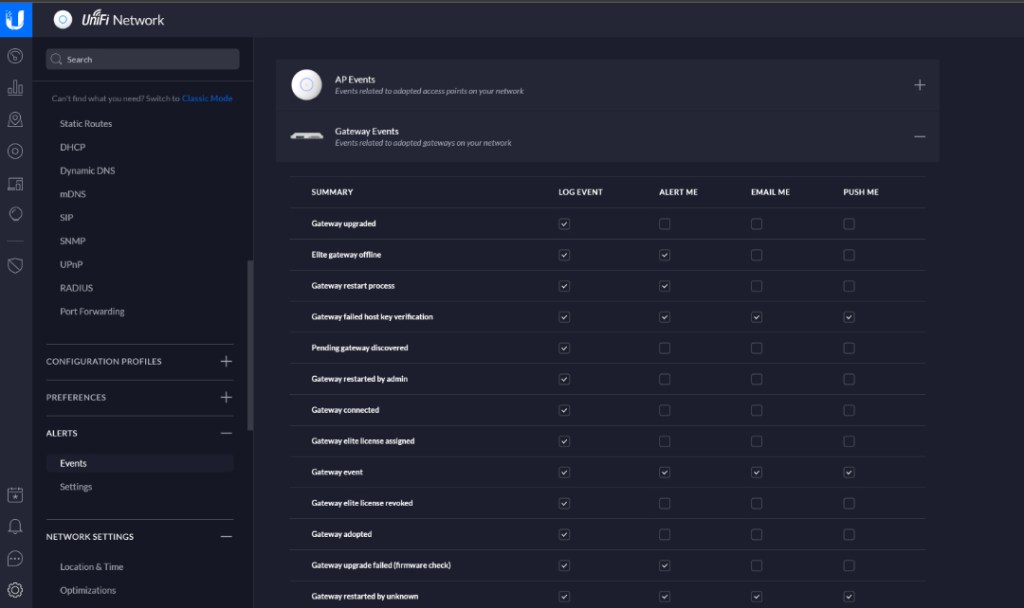
Sign up for a free cloud account and you will be able to securely mange your network from your mobile with the Unify App or from any computer with a web browser. With the mobile app and cloud account configured you can also have your controller push notifications to you.

With extremely advanced options like the ability to support dual internet connections, host your own VPN, and Intrusion detection it is hard to believe the USG retails for $130.00, lifetime updates and tech support included. I’ve been extremely impressed by the unit and have recommended it to all my friends, family, and colleagues.

Dell G3 15, The Most Bang for Your Gaming Laptop Buck

This winter, it was time to help my son find a new laptop. He needed a well balanced system that could do most everything well. He’s a student with a focus on technology, he writes code, edits graphics, produces video and music, and spends a lot of time on-line. He’s also an avid gamer that likes to stream on Twitch.

His system would need a screen on the larger side to accommodate multiple windows, but it still needed to be portable for school. The keyboard needed a true number pad for coding, crisp clicks and a back-light for gaming were also a must. He also needed a lot of connectivity options for robots, musical devices, microphones, headsets, cameras, and the other equipment his endeavors required.

Whatever system we chose would also need an exceptional GPU. With a budget of eight-hundred dollars, I knew we would have to make concessions somewhere. Often, when shopping for laptops that include a powerful GPU, the other components are also top of the line, weather you need them to be or not. I was hoping to trade CPU and RAM for video performance to stay in budget, but wasn’t having much luck at first. If a system had an Nvidia Ti GPU it also had an I-7 CPU and 16 gigs of RAM we didn’t need. Due to this, most of the laptops that had the features we were after came in closer to the fifteen-hundred dollar price point.

I knew that Alienware was Dell’s gaming line and had looked at several of their systems. I did not know at the time, that Dell also marketed another line of gaming systems known as the G series. I ran across them in a Best Buy and was intrigued. They were less expensive than the Alienware models but still included some of the features we were looking for. I also appreciated that they looked like a normal laptop rather than something that fell off a stealth bomber. After some research, we ended up with a Dell G3 15.6″ system.

I was able to find the unit on-sale for less than our budget. It has an Nvidia 1660 Ti with 6GB of video RAM. The card can run Destiny 2 at 1440P 60FPS on high, or at 120 FPS + at 1080P. It easily handles AutoCAD, Photoshop, and Illustrator duties as well. The laptop has USB-C with direct GPU (Displayport 1.4) pass-though and an integrated HDMI port. The heat pipe based, dual fan cooling system is able to keep up even when pushing VR games on an Oculus. In short, this is an unbelievable card to find in a “budget” gaming system. It easily out-preforms the Nvida 1050 in my Surface Book 2.

The 9th Gen Intel 9300H I-5 CPU keeps up with everything my son asks the system to do. At first I was concerned that the eight gigabytes of DDR-2666 RAM might not be enough for all the multi-tasking requirements my kid has, but I needn’t have worried. Windows 10’s superb memory management combined with the page/swap file being located on a high-speed SSD means he can open as many apps as he likes without noticeable degradation.

With 2 USB 2.0, 1 USB SS 3.0, 1 USB-C, a 3.5 mm headphone/mic jack, an RJ-45 network port, HDMI Out, A/C Wi-Fi, and Bluetooth all included, there are plenty of connection options for all of his extra equipment. He frequently has his Yeti mic, an external camera, and his drawing monitor all connected and still has ports left over.

He’s had the system for a little over two months now and has really put it through its paces. I’ve been impressed with the results. Especially when you consider the price. Dell has the laptop for around $1200.00 right now, but it you shop around it can be found for much less. Pay attention to the specs, there is an older generation of the G3 system that has a much weaker GPU and slower processor that is still being sold on-line.

What You Need to Know to Start 3D Printing

Just a few years ago 3D printers were expensive and required a high level of specialized knowledge to operate. Today, the fantastic machines have gone mainstream. They are both more affordable and easier to use, but there are still a few things you need to know before you jump in.

Like every other machine, 3D printers are available in numerous makes, models, and styles. Choosing one can be overwhelmingly difficult when you don’t know what to look for. There are actually only a few key differences to understand and the rest is creature comforts. You can get a 3D printer with a built-in Laser Engraver, or one that interfaces with your smart-home, but those features are personal choices.

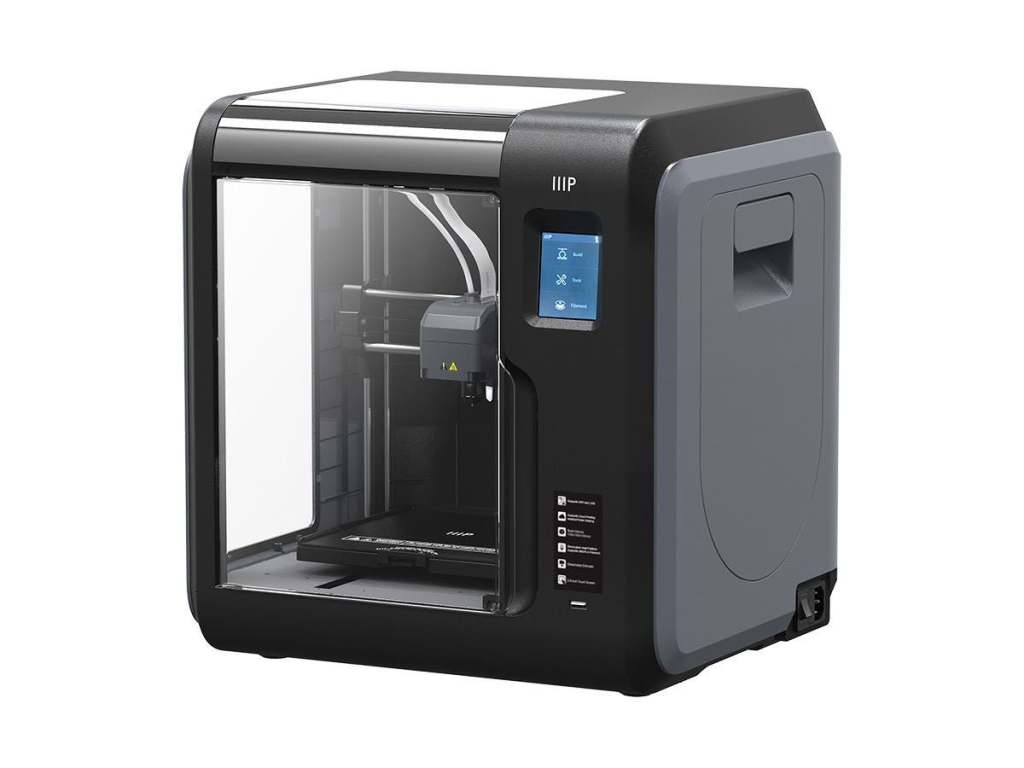
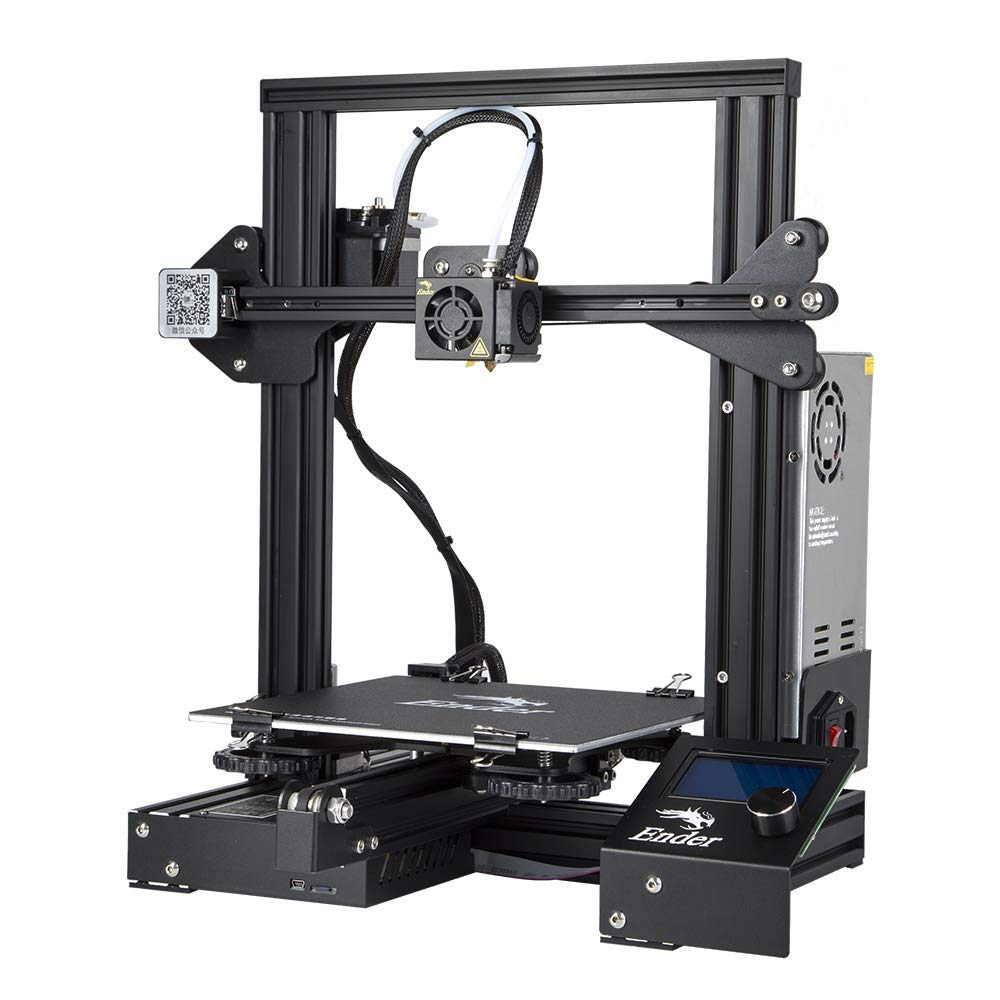
The first thing for consideration is what type of chasis you’ll need. More or less there are two choices, enclosed or open. 3D printing involves heating plastic to a liquid state and depositing thin layers on top of each other to build an object. Enclosed frames keep a more consistent temperature inside the unit which results in a higher degree of precision. If you’re planning on prototyping intricate machinery or printing extremely detailed models, the extra cost of an enclosed body may be justified. If 3D printing is a curiosity, open designs are much less expensive and still achieve impressive results.

The Monoprice MP Voxel is fully enclosed

The layers of plastic, called slices, are stacked on your printer’s bed, or deck. Some printers are equipped with Self-Leveling beds. Imagine layers of warm gooey plastic precisely stacked on each other and waiting to dry and you will understand why the surface must be perfectly level in all directions. If you intend to move your printer from place to place, a self leveling unit will be a necessity.

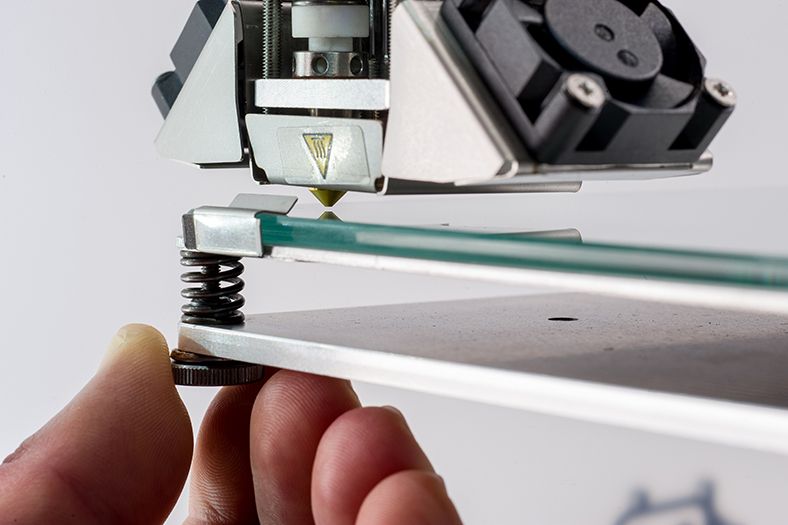
Manually leveling a bed is tedious and can be frustrating. You must adjust each corner independently to achieve a perfectly flat surface. Moving one post, effects the others. Each time the printer is moved, or jostled the leveling has to be redone. However, if your printer will live on a dedicated stand, or table, the manual option can save considerable cost.

Manually leveling each corner is time consuming

Some printers have multiple nozzles and allow you to print with mixed materials. For example, two or more colors of plastic, or soft and hard formulas. Switching spools in the middle of a print can be problematic, but unless you have specific requirements for multiple materials you probably don’t need this option. I tend to print everything in white and paint it to get the refined look I am after.

My family uses an open framed Creality Ender 3 Pro. It is a great middle of the road printer that can be found for around $250.00. There are plenty of upgrades available, ours has an upgraded power-supply (gets hotter) and a larger spring assisted leveling bed. We’ve printed sculptures, parts for home machines, toys, and cases just to name a few items. It has handled everything beautifully.

The Ender-3D-Pro is an affordable open chassis printer

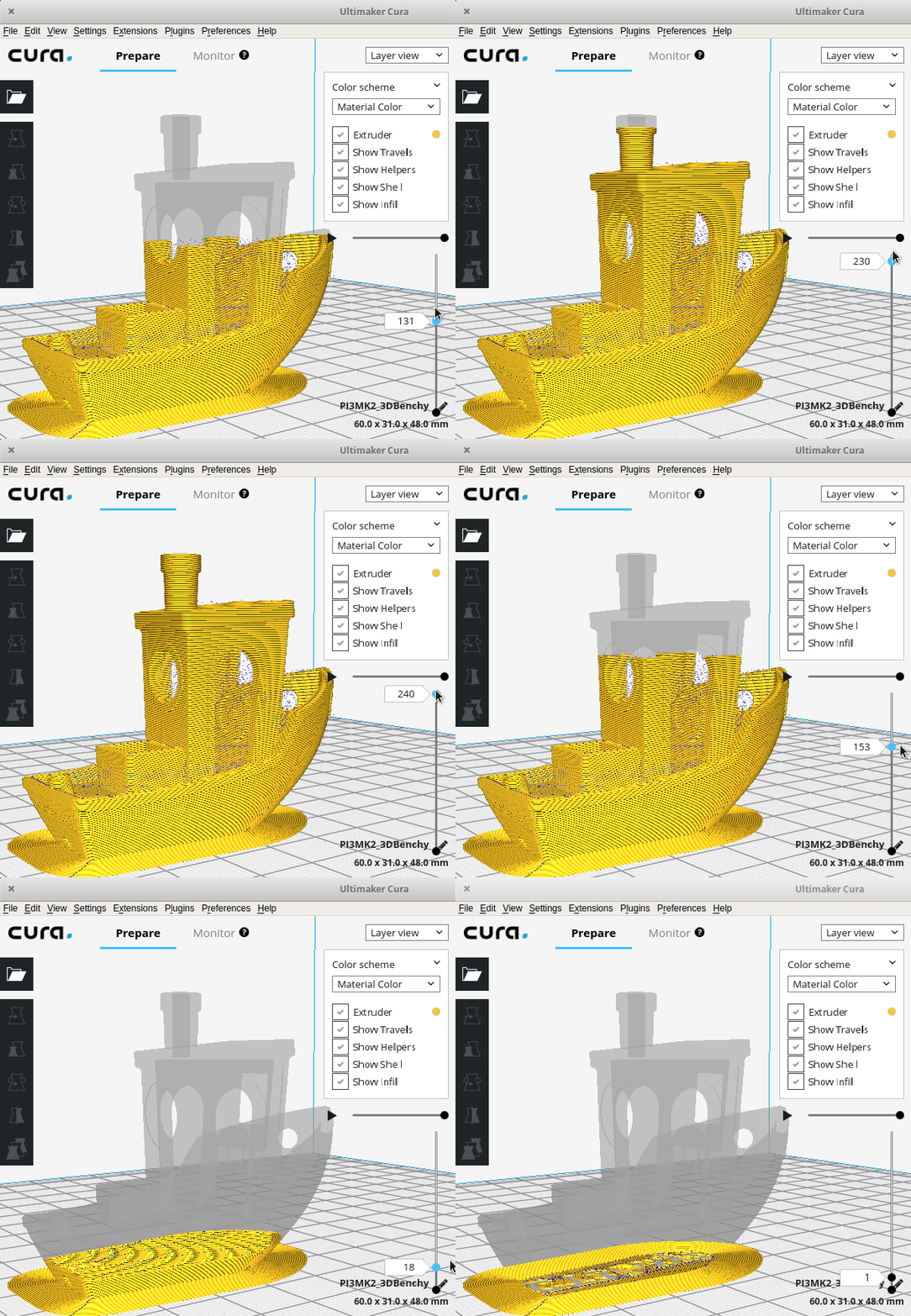
Once you’ve chosen your printer, you will need to decide on software. There are two different major pieces of software you will need to be successful. First up is a slicer app. The slicer software functions much like a printer driver for your run of the mill office printer. It converts your 3D object to instructions your printer will use to lay each sliced layer down in the correct location and order.

Cura slicing a 3D boat, the black lines are the layers that will be printed

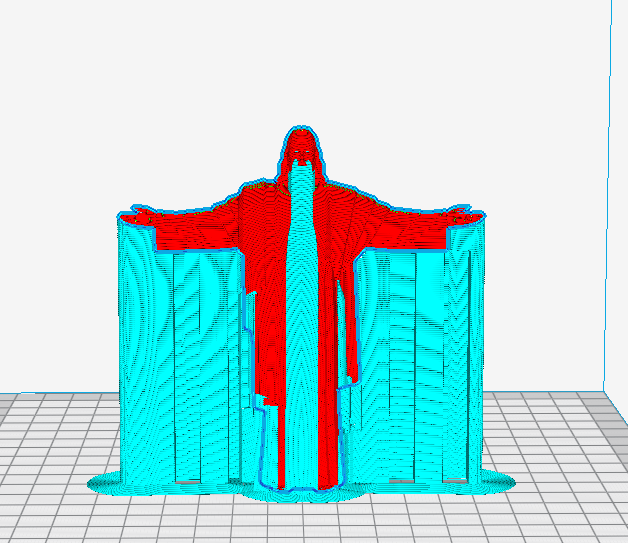
Good slicer software will also take care of things like building supports for overhangs in your piece. Think about a statue with an outstretched gooey plastic arm and gravity to understand why supports are important. Rarely will you want to print truly solid works (geek humor). Slicer software packages can be told to automatically honeycomb the internal structure of solid objects to save plastic, energy, weight, and time.

Notice the blue supports to keep the statue from drooping or breaking while drying

A quick on-line search will show you there are quite a few different slicer programs available. Many are free, some are extremely expensive. I’ve tested quite a few of these applications, Cura’s Utilimaker is the one I stick with. It is relatively easy to use and there’s a large community of people using it. Finding video help and instruction is a cinch. It is completely free for personal use and supports more brands and models of printers that some of the others.

To create and manipulate three-dimensional objects on a computer you will need some type of CAD software. It stands for Computer Aided Drafting, Computer Aided Drawing, or Computer Aided Design, depending on who you ask. Haven’t acronyms outlived their usefulness yet? Whatever it stands for, one of the most famous CAD applications is AutoCAD.

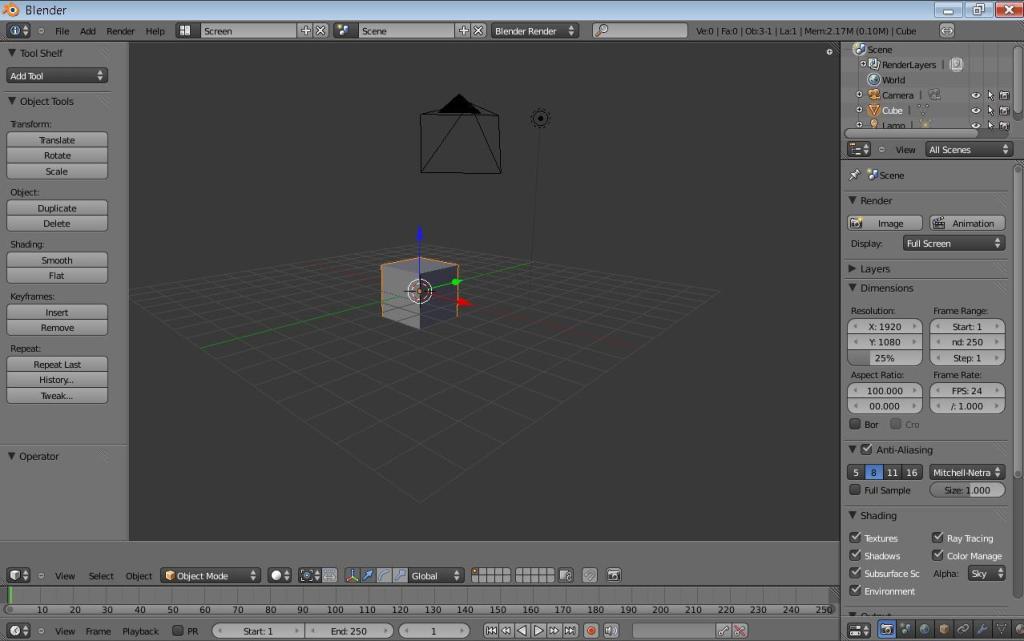
Blender is Open-source CAD software used by many 3D printing hobbyists

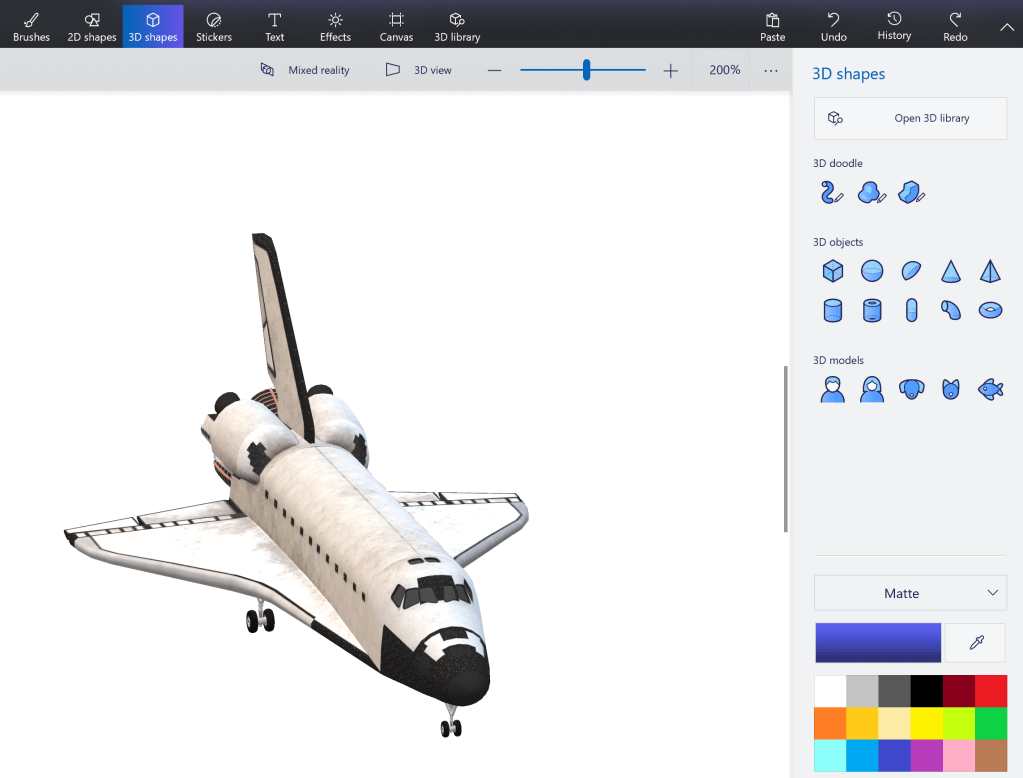
AutoCAD is the eight-hundred pound gorilla of CAD software, but at $1600.00 per year, is cost prohibitive unless you are a student or work for a non-profit. Microsoft includes 3D Paint with Windows 10 and it is a great way to get started using CAD software. Eventfully you will outgrow it and need something else. I like Blender, it is opensource (aka free for personal use) and very advanced. Blender is popular with the 3D printing community, so getting help is just a YouTube search away. It also detects if you’re a new user and will run you through a tutorial to learn the basics.

Microsoft 3D Print is included with Windows 10

Great, you’ve got your printer and your software so you are ready to go right? Technically you are ready to print but getting your newly minted thing off the printer and finishing it to match the idea in your head is another matter. There are some miscellaneous things you’ll want to pick up to have a good outcome.

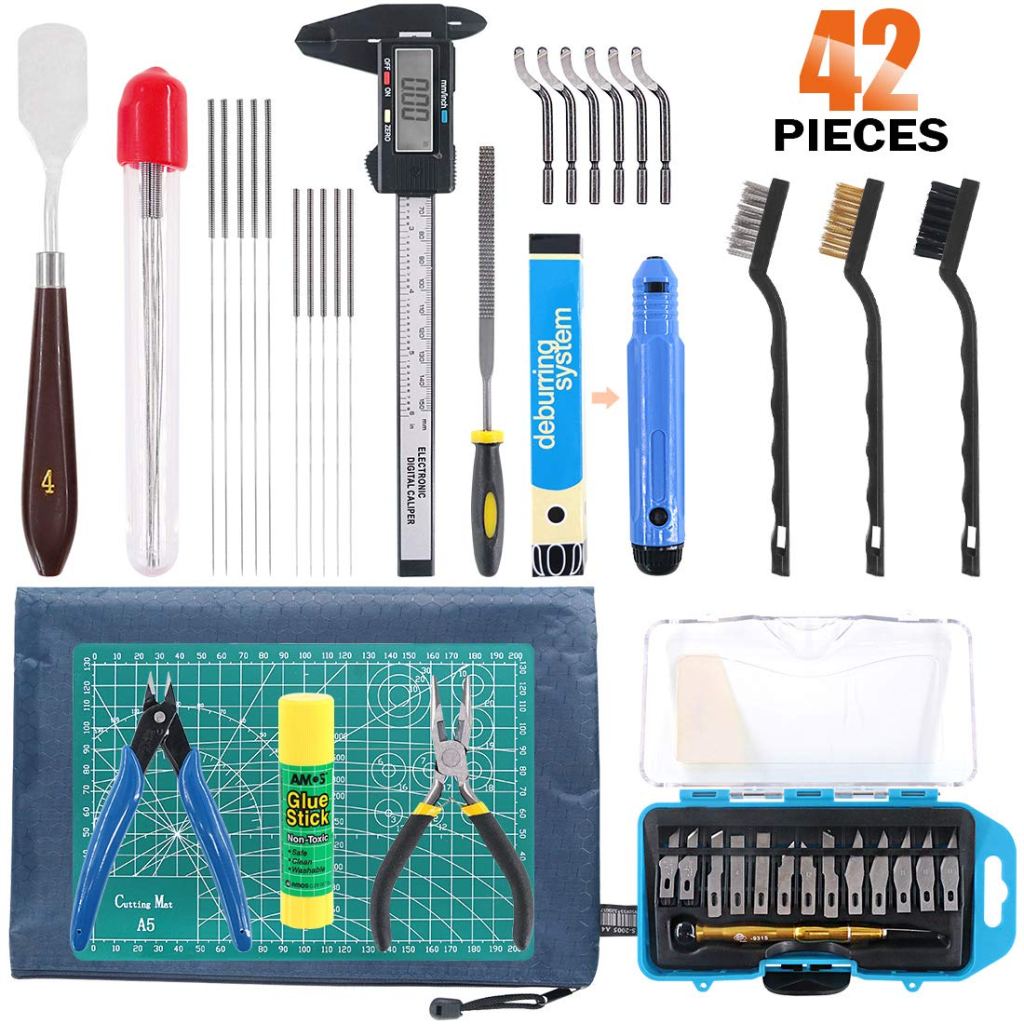
There are tool sets specifically made for 3D printers and they are great, but you can also purchase or use some generic tools you may already have. You’ll want a nice sharp knife to trim your pieces and free them from the supports, I like exacto-knives. Varying grits of sandpaper are also a must-have. A sheet-rock spatula is a great tool to separate your creations from the printer deck, they occasionally get stuck.

A purpose made 3D printing tool kit

3D printing without a Dremel is like painting your house with a tooth-brush. Sure, you can make it work but, do you really want to? A few years ago my mother got my kids those 3D pens that you’ve seen on TV. They spit out hot plastic much like your printer does. The idea is that you can hold your hand steady enough to build 3D objects, good luck with that. The funny thing is, they are a great tool for 3D printing. I use them to weld sections together. If you don’t have one, you’ll need some plastic glue.

That leaves paint, paint-brushes, paint thinner, a pallet, and lots of painters tape. Spray-Paint and Airbrushing are also excellent ways to add flair to your pieces. Visit your local art store, they’ll have stencils, stickers, and everything else you need to get the final look you’re after.

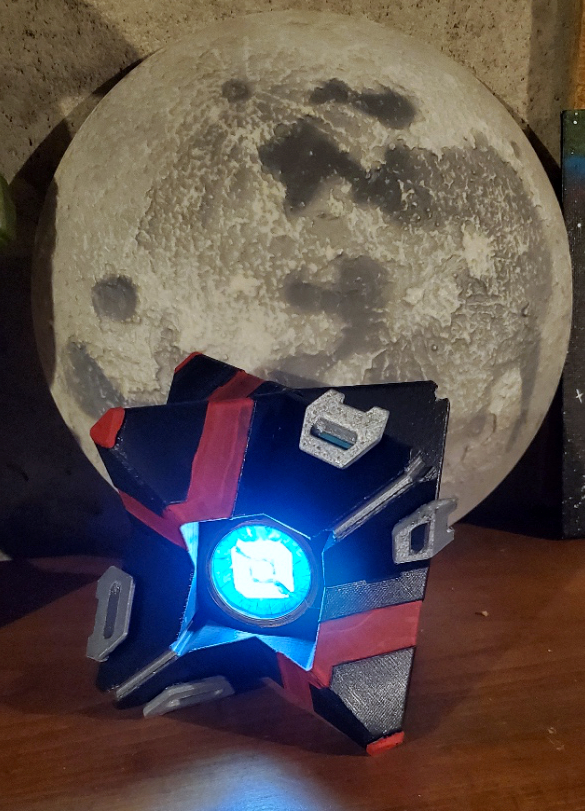
A Battle Hardened Ghost Shell from the game Destiny

Instant Pot the Ultimate Cooking Appliance?

My obsession with gadgets and gizmos is not relegated to computers, electronics, and video games. I enjoy engineered devices of all types, including all the weird doodads that people dream up to make cooking less of a chore. Toaster ovens, crock-pots, and air fryers, oh-my; the counters and cabinets in our home are full of the things.

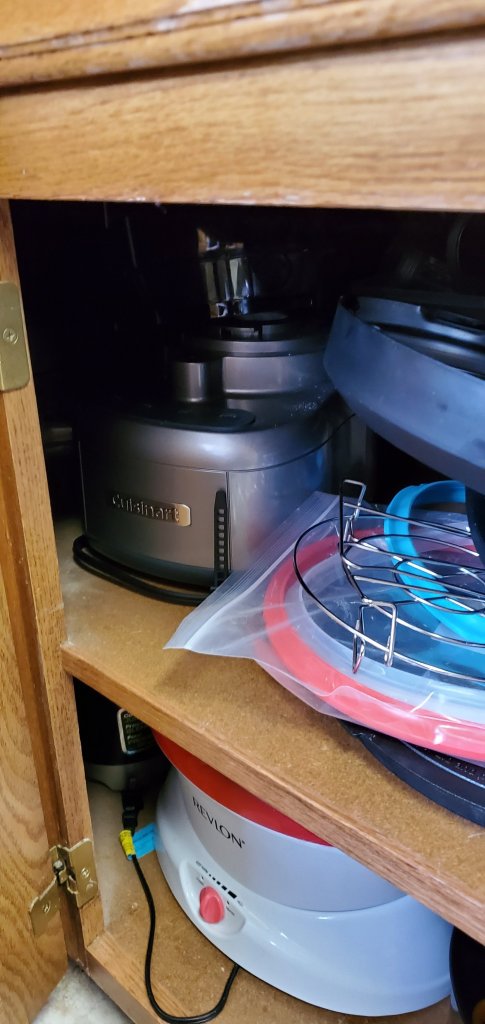
Unsurprisingly, only a handful of the stuff ever gets used. Most of it seems to forever be in-front of the item you want at any given moment. You need spelunking gear and will pull a muscle in your shoulder trying to extract that Panini-press in the back. When my spouse received an Instant Pot as a gift I was simultaneously excited to experiment with it and loathed having to find it a home.

I had assumed that an Instant Pot was more or less a crock-pot with some electronics bolted on. Here’s a tip: do not hop on any of the Instant Pot Facebook groups and refer to it as a fancy crock-pot. The so called “Pot Heads” don’t like it and for good reason. This is one of the most versatile kitchen appliances I’ve used. It has managed to replace several other appliances that find themselves in the “Sell on Facebook” pile in my garage.

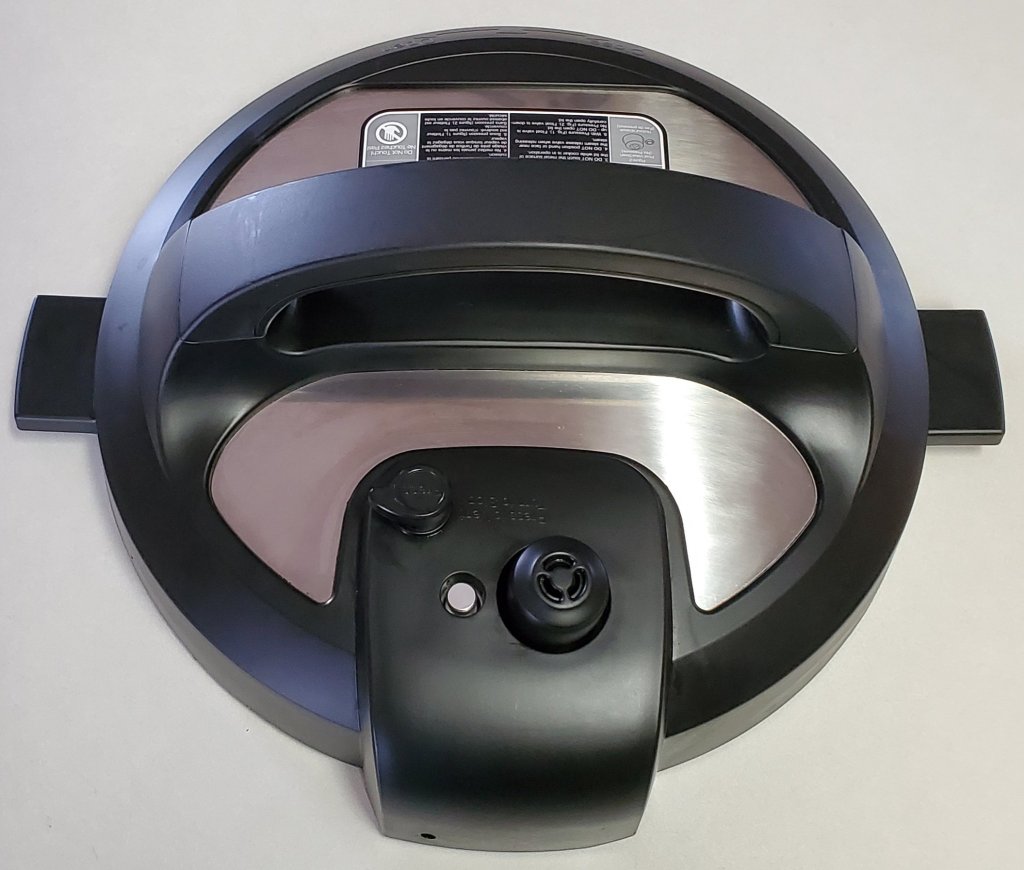
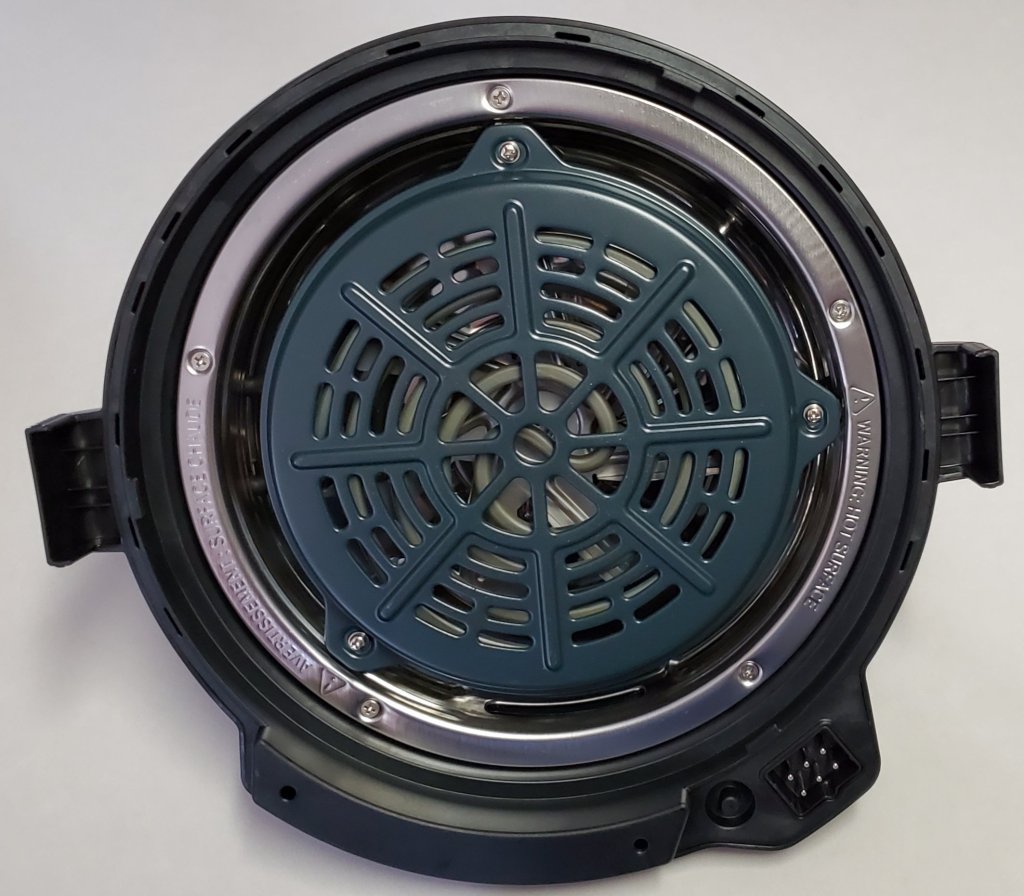
An Instant Pot combines several seldom used cooking tools into a single contraption that is more than the sum of its parts. You get eleven devices in one, it’s a: pressure cooker, saute pan, crock-pot, steamer, sous-vide, air fryer, roaster, oven, broiler, dehydrator, and a food warmer. The unit has a powerful heating element in the base and two different lids.

The pressure-cooker lid forms an air tight seal over the pot to handle all the water-based and slow-cooking duties. It has an automatic steam release valve built-in. The entire thing is dishwasher safe and the silicone seals are easily replaceable.

The air-fryer lid contains an additional heating element along with a high-powered fan. Pizza rolls take more than twenty minutes to bake in the oven, on top of ten minutes spent preheating. They come out crunchy on one side and mushy on the other, because I’m too lazy to flip them all. The same rolls take eight minutes from start to finish in the Instant Pot and turn out golden-brown-delicious every time.

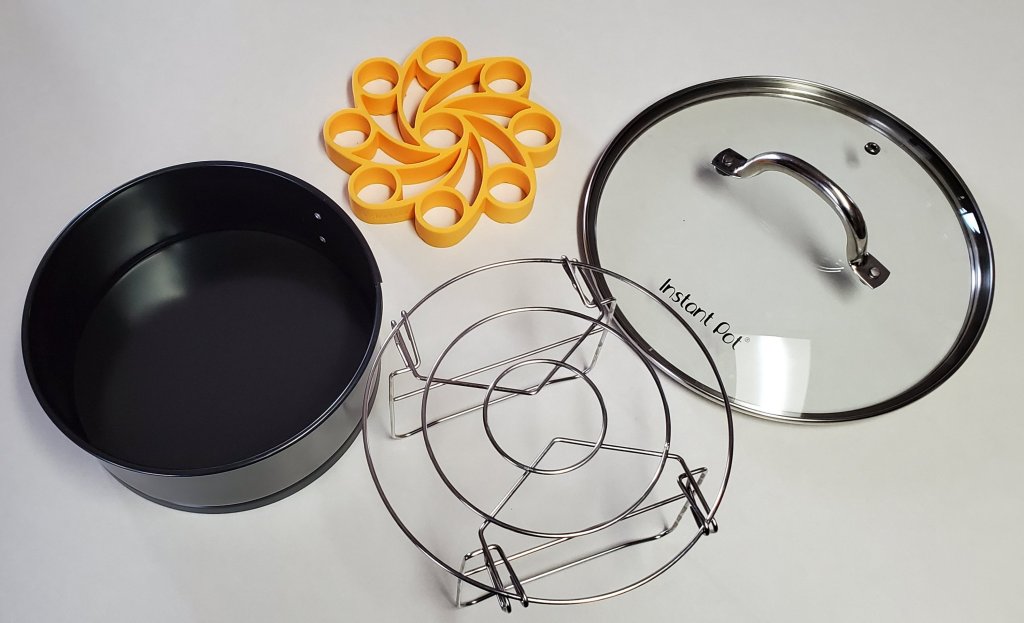
The previously mentioned Facebook groups are full of recipes and tips. For example, I recently learned that the pot’s handle makes a stand for the lid. There are plenty of first and third party accessories that expand your pot’s capabilities. We ended up purchasing the clear lid.

Man I wish these things would have been around when I was in college! If you’re considering an Instant Pot of your own, do some research. There are several different models available, mine is the eight quart duo-crisp combo.

Virtual Reality For Everyone with the Oculus Quest

Almost everyone agrees that virtual reality represents the future of entertainment and education. Many predict it will serve as the primary interface between the world we were given and those we create displacing monitors, phones, and televisions. Before V/R can assume this role, there are several hurdles it must overcome.

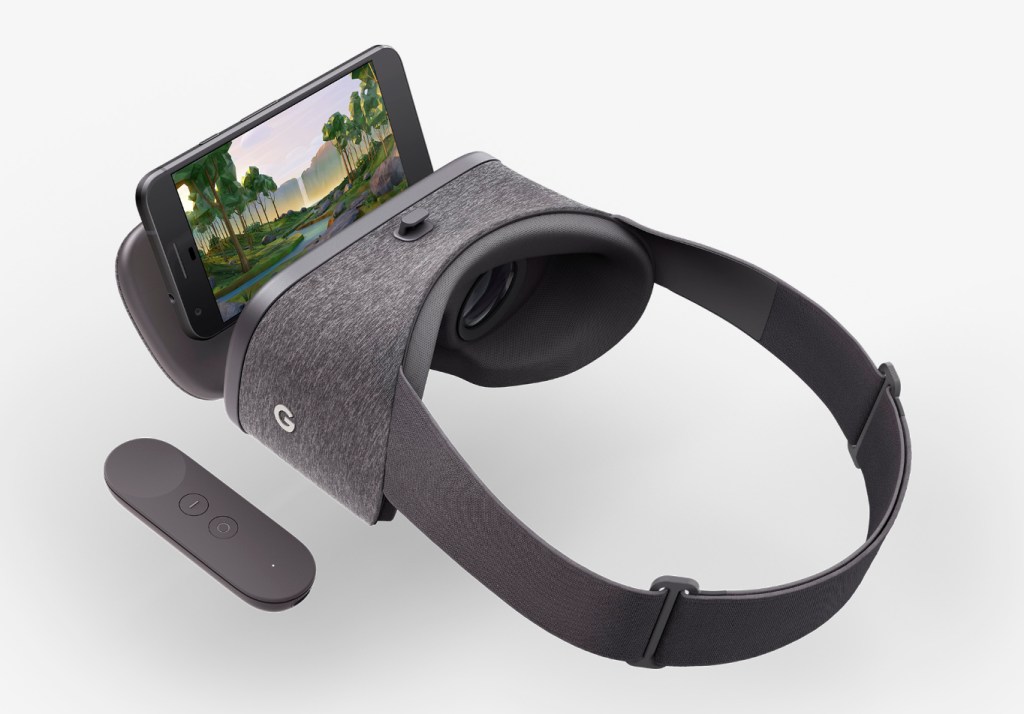
Chief among the obstacles of virtual reality’s wide-scale adoption are the cord and high-end PC that are required to experience it. Google Cardboard and the many phone based V/R sets like it, attempted to bring tether free immersion to fruition and were successful in many regards. They gave us a taste of what could be and sold in numbers sufficient to warrant the capital investment required for innovation.

In my opinion, Facebook’s marketing of the Quest as, “just like the Rift, without the cord” has hurt initial sales. I think they’ve made the same mistake that Nintendo made with the Wii U. I personally looked at the Quest multiple times and decided it didn’t offer enough difference from the Rift to justify purchasing it. My lovely wife got me one for Christmas. Now I understand how wrong I was.

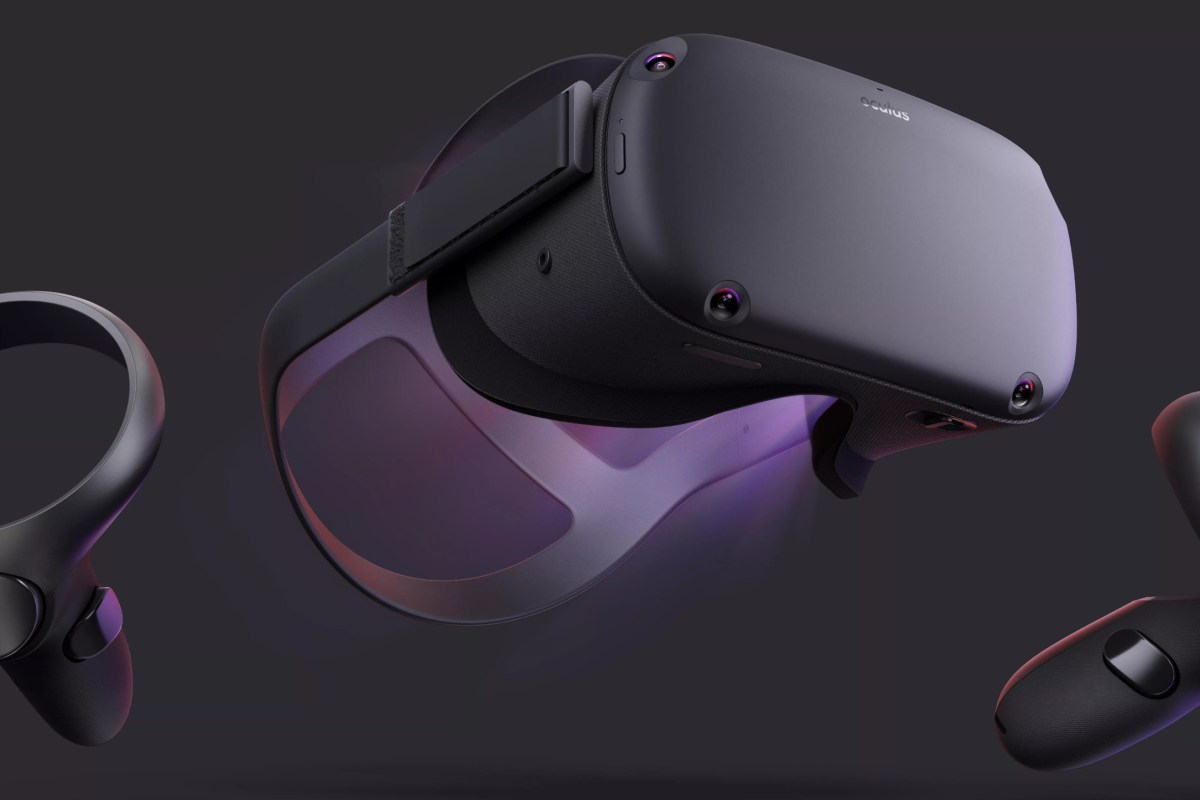
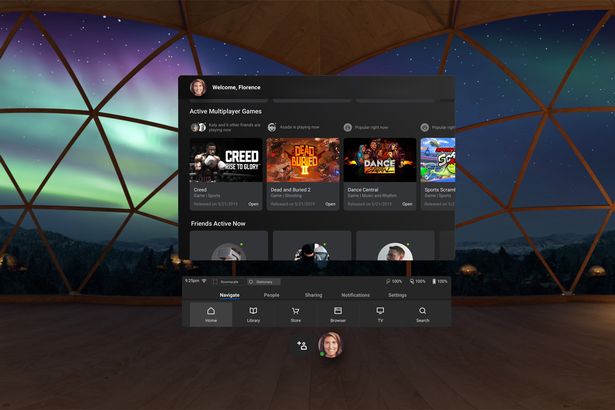
Facebook’s Oculus Quest hit the streets in May of 2019. The headset is physically similar to the other Oculus offerings, but is fully self contained. No computer and no cord. Just slide the goggles down over your eyes, pick up the controllers, and you’re in. The Quest does for V/R what the Wii did for gaming consoles. Within a few minutes of gearing up, anyone, including your grandparents, can easily navigate their way to an untold number of adventures, entertainment options, and venues.

The experiences that are available cover almost every conceivable genre. I’ve hung out in Adam Savage’s (Mythbusters) workshop and watched him build a sheath for his priceless sword. I took a guided tour of the British Museum and went shark diving off the coast of South Africa. I watch Netflix in my own personal theater with a view of snow capped mountains. I attended a basketball game and chatted with my fellow fans. Virtual Reality is so much more than games.

Don’t get me wrong, there are plenty of games to play. Adventure, Shooters, RPG, Cards, Strategy, and more are represented. Some are of poor quality, some are nothing short of amazing. Nothing quite compares to being in your game. Developers are really starting to understand how to deliver V/R experiences that blow meat-space options away.

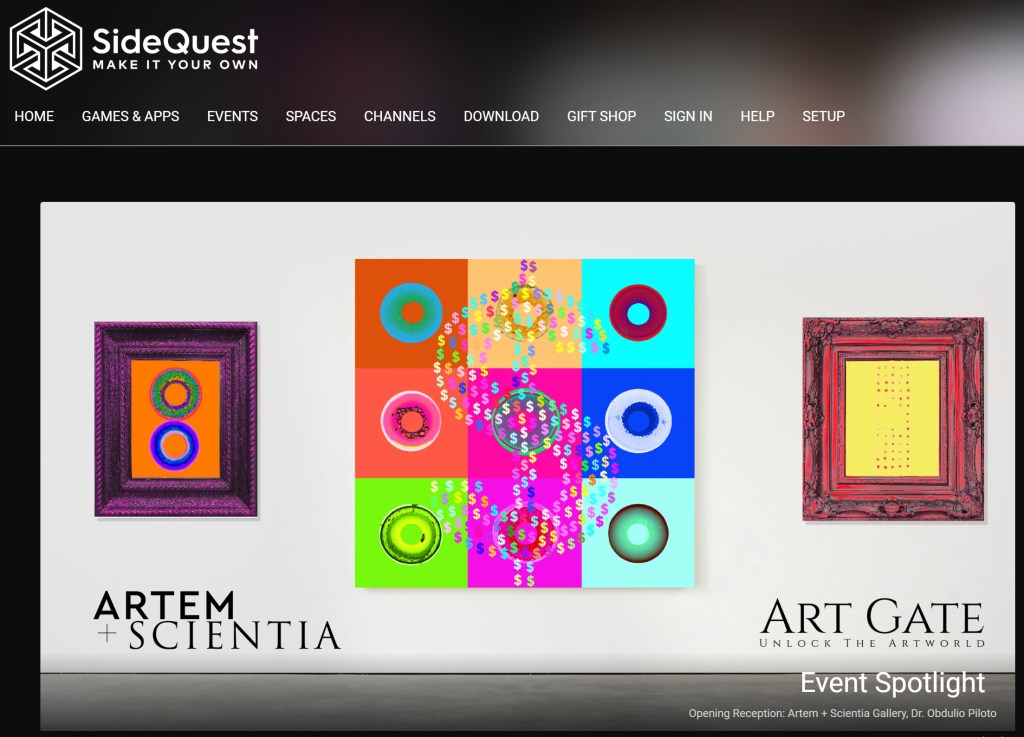
One major difference of the Quest is that like an iPhone, it is locked to the Oculus App Store. This makes it easier to use, but limits choice. With a little tech know-how you can enable the option to side-load software and there is an underground app store for those that choose take the chance. Checkout SideQuest if you’re interested in that sort of thing.

Besides SideQuest, you can also gain access to more games through a Quest Link compatible cable. If you have a strong gaming PC, use it to access the full V/R experience including Steam V/R and Oculus games that don’t nativity support the Quest. For a list of supported cables and GPU’s see https://support.oculus.com/444256562873335/.

Directly comparing the Quest to the Rift or Hive is a misnomer. It wasn’t created to compete with, or replace them, yet. Sit in a chair and watch a movie on your Rift and you’ll soon be annoyed by the cable draped across your lap and sitting in your computer chair instead of your recliner. How would you provide an entire classroom of students with full gaming PCs and all that goes with them, so their teacher could take them on a tour of the International Space Station? The Quest was made to simplify V/R and make it portable, it does both of those things well. I look forward to seeing what the world does with this technology now that it is here.

An Inexpensive, Easy to Use, All Seeing, Security Camera

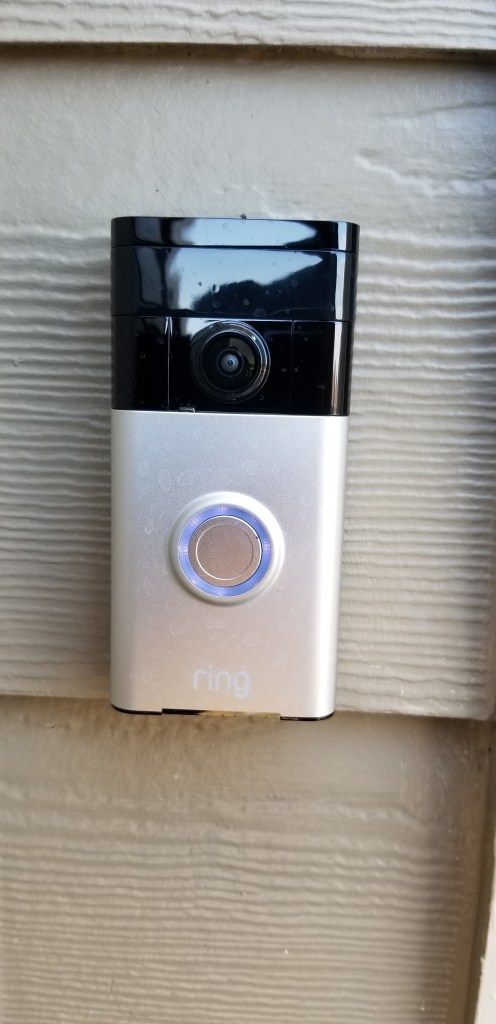
There has long been a Ring doorbell keeping watch over the front door of our home. The tireless sentry has become an indispensable part of our lives. Being able to see who, or what is on our porch from wherever we might be is a superpower we won’t be giving up, ever. I’ve written before that door cameras should be standard equipment for any residence and I still feel that way.

No matter if you choose Ring, Nest, or some other brand, all doorbell cameras suffer from a similar issue. Seeing a small section of your front porch 24/7, is the gateway drug for a full fledged security camera addiction. In “Knock, Knock, Anybody Home” you can watch a strange man ring our doorbell. When we don’t answer, he grabs a ladder out of the back of a truck and heads up our driveway, out of the Ring’s view! It’s incidents like these that drive the urge to survey your property at all hours of the day or night.

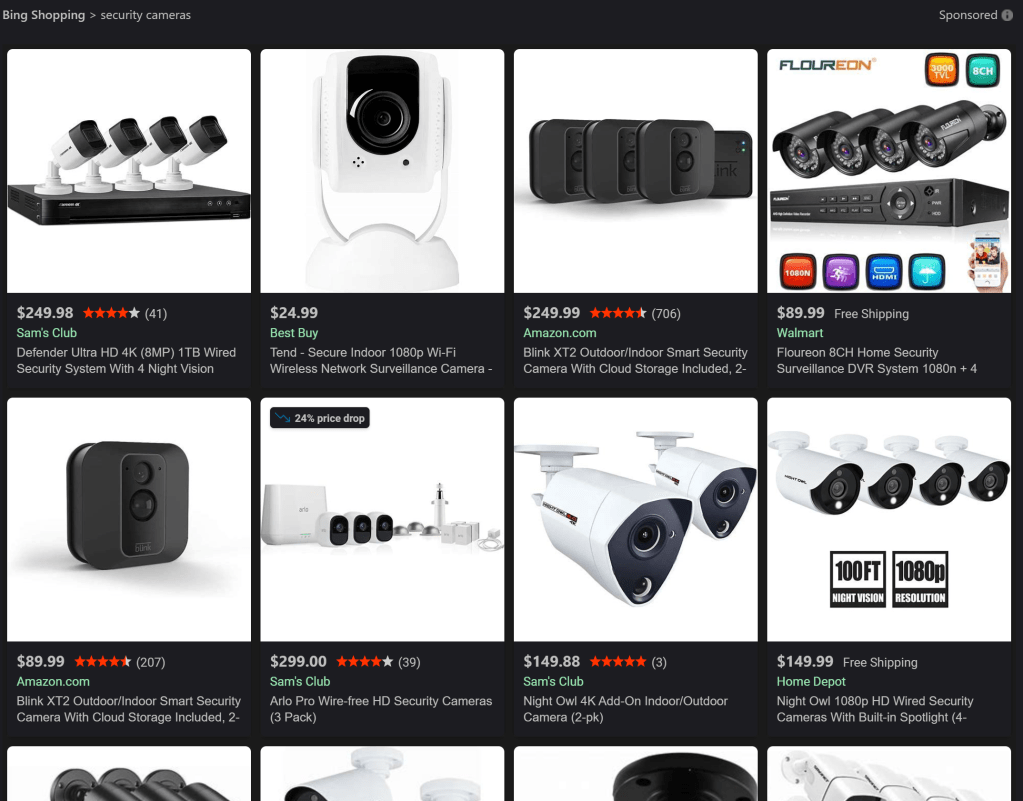
Searching the Internet for security cameras is like going to a restaurant who’s menu is too long. Do you want NVR, ONVIF, IP, or BNC? What do all of the acronyms even mean? More or less, the major choice boils down to those that stream to your phone, or the multi-camera systems that you see in businesses. Most of us are going to be more comfortable with the kind that work with our home network and stream to our mobile devices.

Once you’ve chosen streaming cameras, you will be very tempted to install the version that matches your doorbell. There’s nothing wrong with that decision, they will work well together. I wanted some features that didn’t seem to be available from Ring’s security cameras. Specifically, I wanted to be able to pan, tilt, and zoom the camera remotely. I needed to be able to track someone, or something anywhere on our section of the street, not just the front yard.

One might think that deciding on a PTZ IP Cam rated for outdoor use would limit the choices to a handful of options, that isn’t the case. The market for these things is huge. You end up left on the ole, “Most bang for the buck” quest. You’ll be choosing between options like: wired or Wi-Fi, optical or digital zoom, flood lights or night vision, recording or streaming, and on and on, forever.

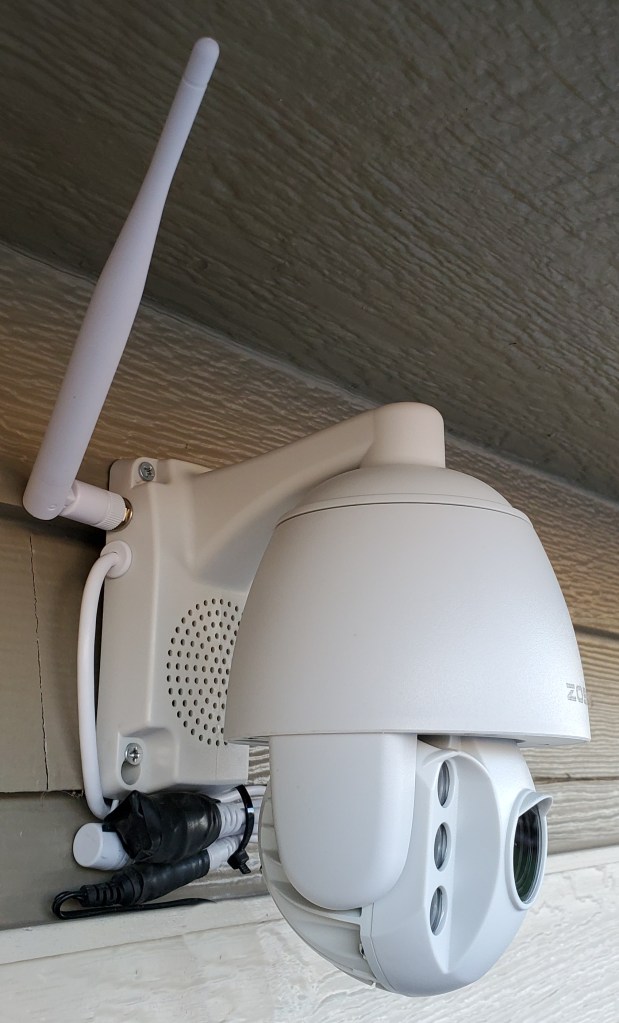
I was lucky and stumbled across a unit that has all of the options in one device. The Zosi ZPTZ-B220W-W has a 5X optical zoom, digital zoom, pans 355°, tilts 90°, infra-red night vision, flood lights, two-way audio, SD card recording, motion detection, and will connect to a wired or Wi-Fi network. It’s all in a weather proof case that screw mounts to any flat surface in almost any orientation. The list price on Zosi’s site is $129.00, but I purchased mine on Amazon for $99.00.

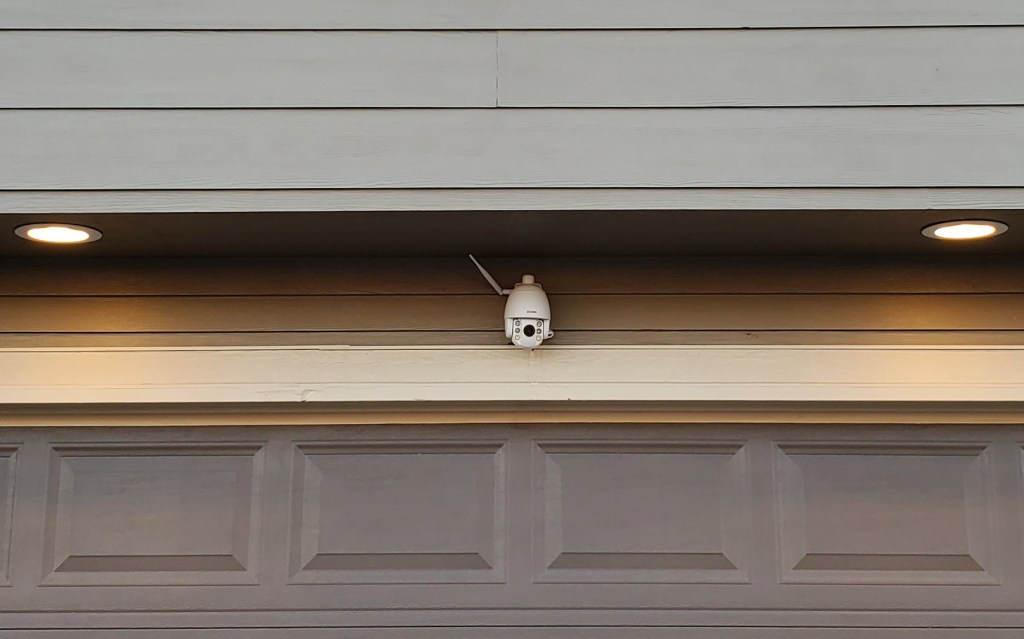
Installing the camera was pretty straight forward. I marked and drilled four pilot holes into the siding under the garage’s eve. Then drove the included screws through the mounting bracket’s holes. I plugged the power supply into the same ceiling outlet that my garage door opener uses. All-in it took about two and a half hours to finish the project. Amazon offered the camera with professional installation for $179.00, but I’m a full member of the ISECDISCI clan (If Someone Else Can Do It So Can I).

The camera’s configuration is handled by the app that you install on your phone, tablet, or PC. To setup the connection, I just needed to scan the QR code on the back of the unit. If only I had known that before I climbed down the ladder and put it up! Once you get the app connected to the camera, the rest of the configuration is down to your personal choices.

My family and friends have all been very impressed with how well this thing works. The 1080P video is clear, the zoom allows me to see details of far away objects; I.E. read the license plates of passing cars. The night vision reaches all the way across the street and the flood lights illuminate the entire driveway. Day or night, I can see what is going on all the way to the end of my block.

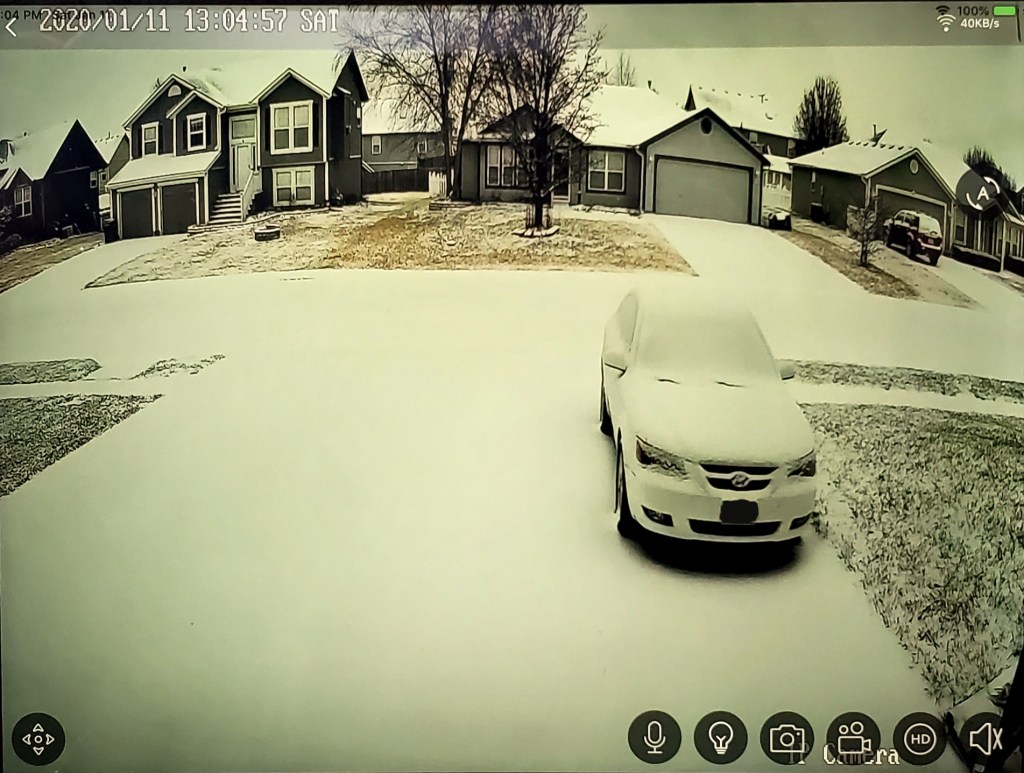
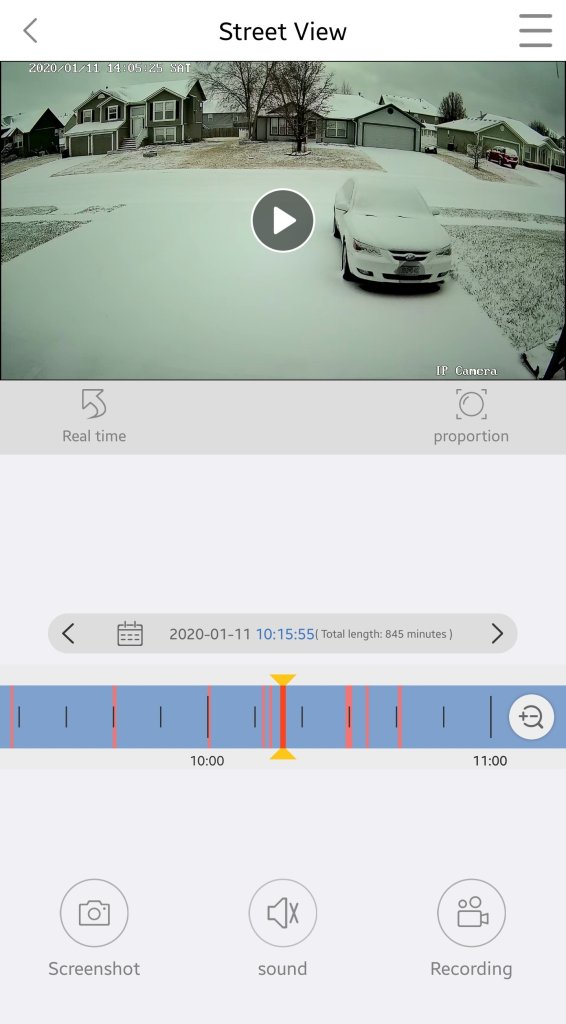
Adjustable motion detection sensitivity and intelligent lighting allows the camera to pickup and record moving objects with precision. If you program the unit to record 24/7 and enable motion detection, it will flag motion events in the playback timeline by coloring them red. This makes finding a specific event incredibly easy. There’s also an alarm function, if the camera detects motion it will play one of several alarm tones through its built-in speaker.

Cloud storage is available for a small fee from the app, but an SD card has been working well for us so far. Our testing shows around 0.33 GB per hour is consumed. A 32 GB card will record around 3.5 days worth of continuous video. For those of you who don’t like multiple trips up ladders, put the card in before you mount the camera.

My wife has installed the app on an old iPad and leaves it running on a stand next to her seat in our living-room. She calls it her window and really enjoys being able to glance at the screen to get an unobstructed view of the neighborhood, sunset, and weather. Every once and a while we screen cast the iPad to our big screen TV to watch the snow or rain. We also use it from bed to keep an eye out for our departing and arriving teenagers. More than once I’ve pulled it up to see what that noise in the middle of the night was.

Whether you go with the cameras that match your video doorbell, or purchase a standalone solution you’ll almost undoubtedly enjoy the benefits of remote surveillance. Now if someone would just write an app to coordinate my security cameras with my drone. Imagine if motion detection triggered my drone to go inspect interesting items, hmm.

Galaxy Note 10 Road Challenge, A Tech Blogger Goes to the Art Museum

Kansas City is fortunate enough to have a world renown art museum. I’ve always enjoyed my trips to the Nelson-Atkins Museum of Art, but haven’t been in quite some time. My family and I were on stay-cation and decided to visit some of our favorite pieces and see what was new.

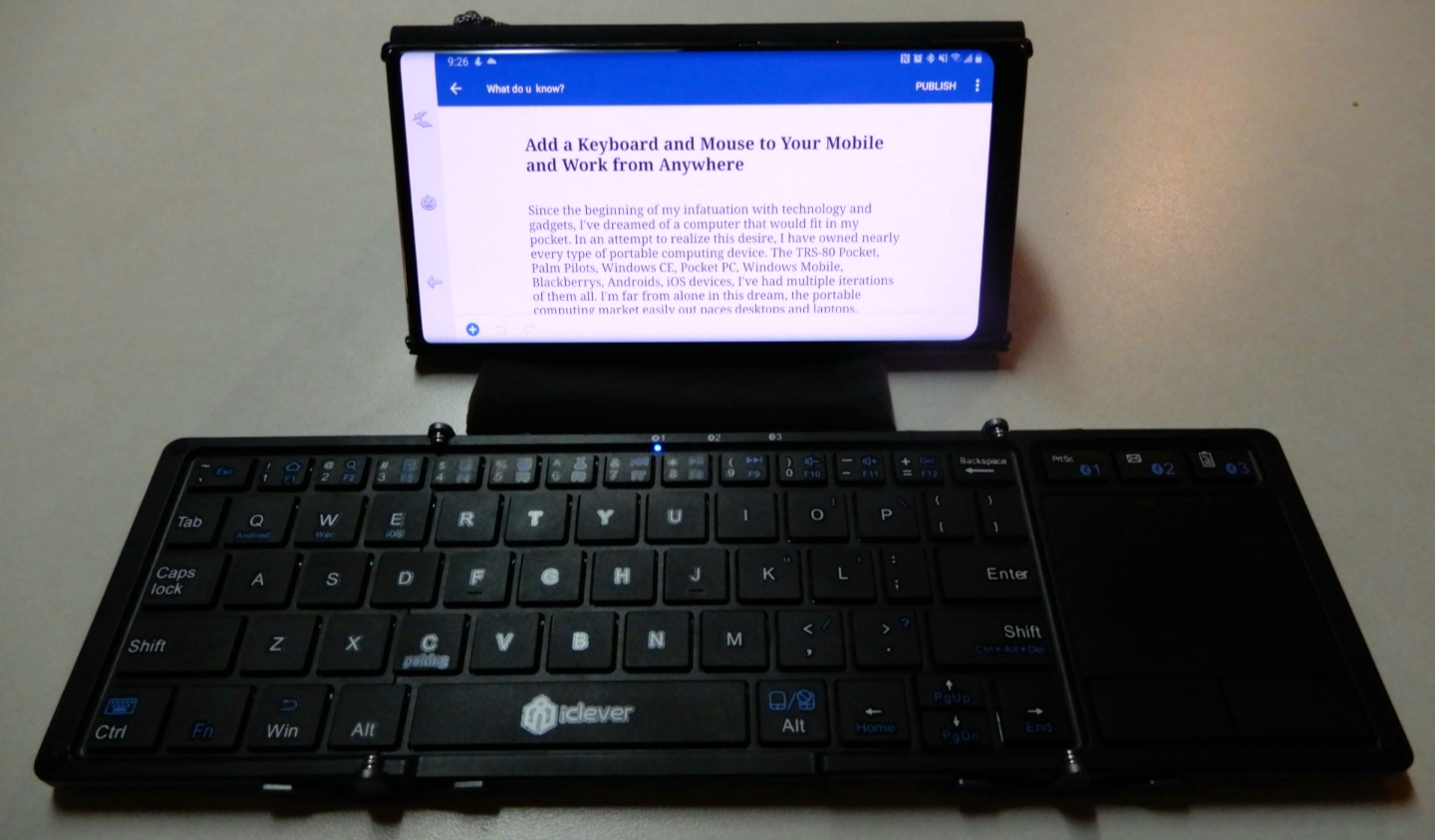
This article is being written in its entirety on my Galaxy Note 10 Plus. I’ve written pieces on the super-phablet before, but this is the first time I will be doing so in real-time and without using a PC for post-editing. All pictures, videos, and text are products of the phone itself. I am using a combiniation of the S-Pen and my iClever keyboard for input.

In addition to writing a post about the art muesum, I will be keeping up with my employer’s emails and texts, will probably play a few games, and I’m sure somebody will call me at some point. I will not be using an extra battery or charging the Galaxy, if the battery dies the post will just end at that spot.

The Nelson-Atkins is in the Plaza area surrounded by many of the water fountains that our beautiful city is famous for. The large white building is itself a work of art. It sits in the middle of an expansive green park and is framed as the net of the world’s largest badmitton game. The giant shuttlecock that sits in the green field has become famous in it’s own right and adorns countless articles and videos about Kansas City.

Jeff Sonhouse, Return to Sender

The multiple colors, shades, and textures in this contemporary piece give the auto-focus a workout. The characters hair is made from matchsticks. In the photo below, the wide-angle lense captures an entire room in the contemporary section.

Several works by Andy Warhol hang in this room

This ultra- realistic statue of a security guard has been catching people by surprise for as long as I can remember. He stands in a dimly lit corner and there is no flash allowed, but the camera still captures great detail.

Don’t Touch the Art!

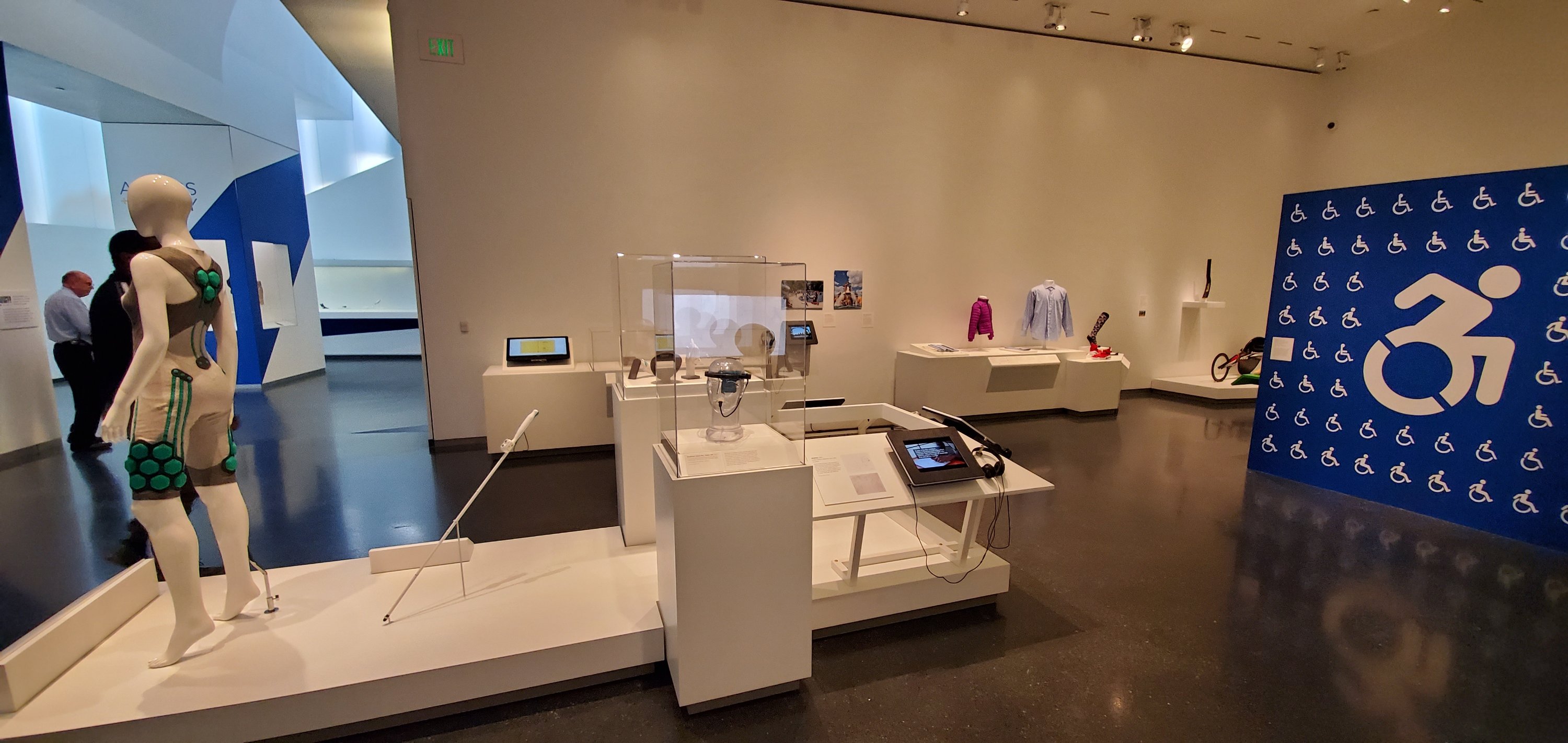
There’s an entire room dedicated to the technology that helps make the world more accessible to those of us who are differentley abled. 3D printed prosthetic limbs, cameras that turn vision into vibration, and watches that output in brail, are just some of the amazing devices on display. This exhibit is one of my favorites.

The Access + Ability Display

I’ve been fascinated by these suits of armour since I was a child. I cannot imagine wearing a metal outfit, nevermind trying to fight for your life in one. The room these items are in is actually quite dark. The camera’s automatic mode does an excellent job of adjusting to the different lighting situations presented by the museum.

Skyrim forever

Impressionism is my personal favorite of the classical styles. Lucky for me, the Nelson-Atkins has an extensive collection. The masters are well represented some of the most famous works by: Monet, Van-Gogh, Cezan, and Renior hang here.

There’s an impressive collection of Egyptian art. Sculptures, stone tablets, even mummies, are displayed. Some items are behind glass, but many are out in the open. Security gaurds keep those who may be too tempted to touch something in check.

We had a great day at the Nelson-Atkins. If you’ve never been, or haven’t been for a while, I highly reccomend that you take the time to visit. Entry is free, parking is not. I used my GPS for an hour and a half, took twenty two pictures, answered two emails, sent three texts, had one short phone call, and composed this article. My battery still has 66% of its power left and that is almost as impressive as the works of art were.

Our Favorite USB C Dock

My Surface Book 2 is my favorite laptop of all time (so far). It does everything I need and want except when it comes to connectivity. It only has two USB ports and a and single USB C connection.

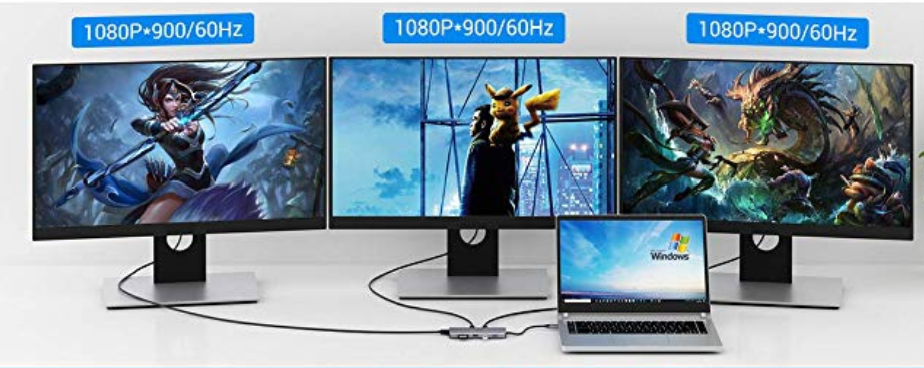
As a technology consultant I often need to connect to customer’s random equipment. If I am going to be on location for an extended period; multiple monitors, a keyboard with a number pad, and a mouse are must haves. There’s no way to hook up all this gear to my Surface. I need a dock to extend the ports.

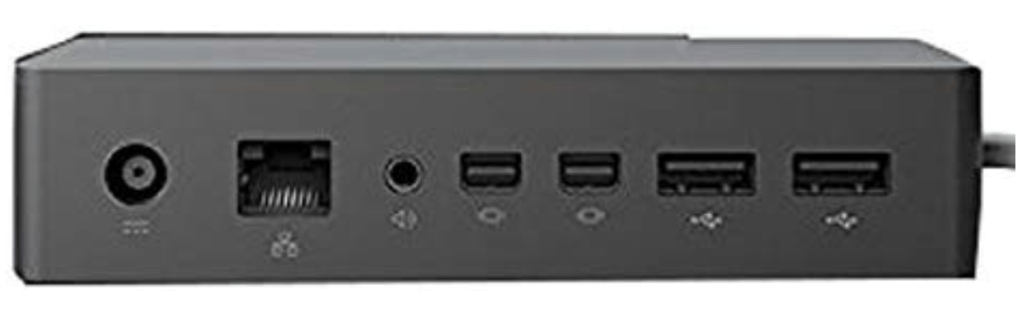
Microsoft makes a dock specifically for the Surface line, but I’m not a fan. It has mini-display ports for monitors and a few USB ports for everything else. I’m sure it works, but I would like more options. I was looking for every type of monitor connection, multiple USB ports, storage, power, and network connectivity in a single device.

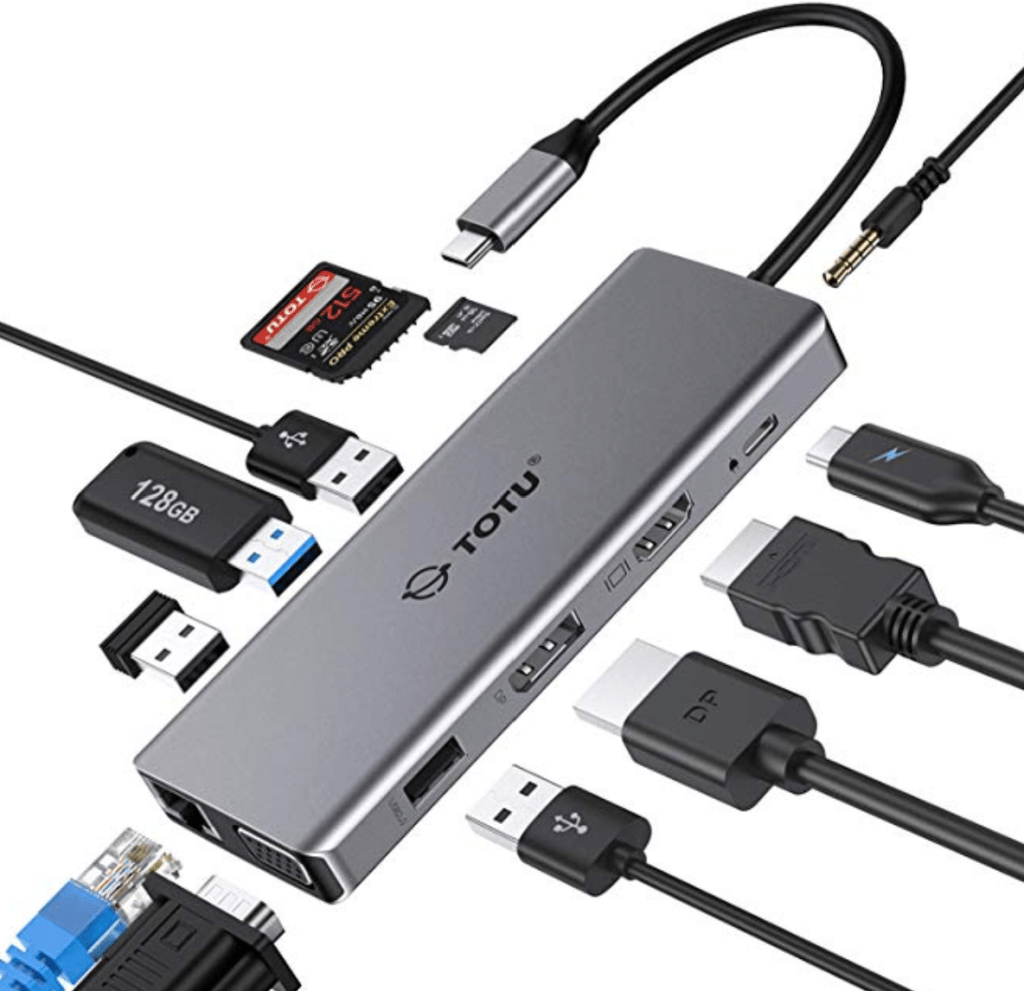
It took a lot of research, but eventually I found a solution. The TOTU USB C 12 – N – 1 Hub is available on Amazon for less than $80.00. It will connect to any kind of monitor: HDMI, VGA, and Display-Port are all available. There are both a full size and mini SD card reader. Plug your headphones into the 3.5 mm audio connector. Two USB 3.0 and two USB 2.0 connections will handle your keyboards, mice, and other accessories. A USB-C PD Power port will charge your supported device. Getting on-line with the Gigabit Ethernet connection is a breeze.

I assumed that the video ports would be Display-link but that is not the case. The video signal is passing through from my laptop’s GPU. This is a big advantage; Display-link works but often at slow frame rates which makes video choppy.

I’ve had the little dock for a few weeks and have used it almost every day since it arrived at my door. It works really well, doesn’t take up much space in my bag, and has a nice little carrying case. I didn’t expect it to also function as a Dex dock for my Galaxy Note, but it even does that. A few of my friends and family have ordered them after seeing mine and we all agree this thing is fantastic.

Is that a Projector in Your Pocket? Are Portable Big Screens a Reality Yet?

You know me, I’m a gadget geek. You only have to read my blog’s “Gear I Own” section to see how bad my addiction is. It’s not something new, I’ve been this way since I was a kid. The devices I write about are not review units on-loan from their manufacturers, they’re mine forever, or at least until I sell them on.

One piece of tech gear that has always intrigued me is a portable mini projector. What could be better than a big-screen you could take and use anywhere? I first remember seeing one in a Brookstone store at my local mall several years ago and almost reflex bought it. My wife pointed out that I didn’t have an actual use-case for one. Her logic stopped me cold. Beyond playing with it for a few hours, what purpose would having one serve?

After gazing at them longingly in the stores and messing around with the display units, I discovered they had some severe weaknesses. First and foremost, they weren’t bright enough to use anywhere but in a very darkened room. The first-generation devices also required some complicated cables and accessories to hook up your source device up with. Still though, a big-screen that fit in your pocket was an extremely alluring thought that would not go away.

I kept dreaming of having an extra screen with me everywhere I went, being able to hook up my laptop, phone, or gaming consoles at home or on the road. Fast forward a few years, I had gotten back into computer consulting and ran into a situation where I was trying to explain a complex distributed computing environment to a customer. I wanted to show some examples, but there wasn’t a shared screen in sight. We ended up hunching over my laptop, but the experience wasn’t ideal. Ha, take that wife! I have a reason to get one!

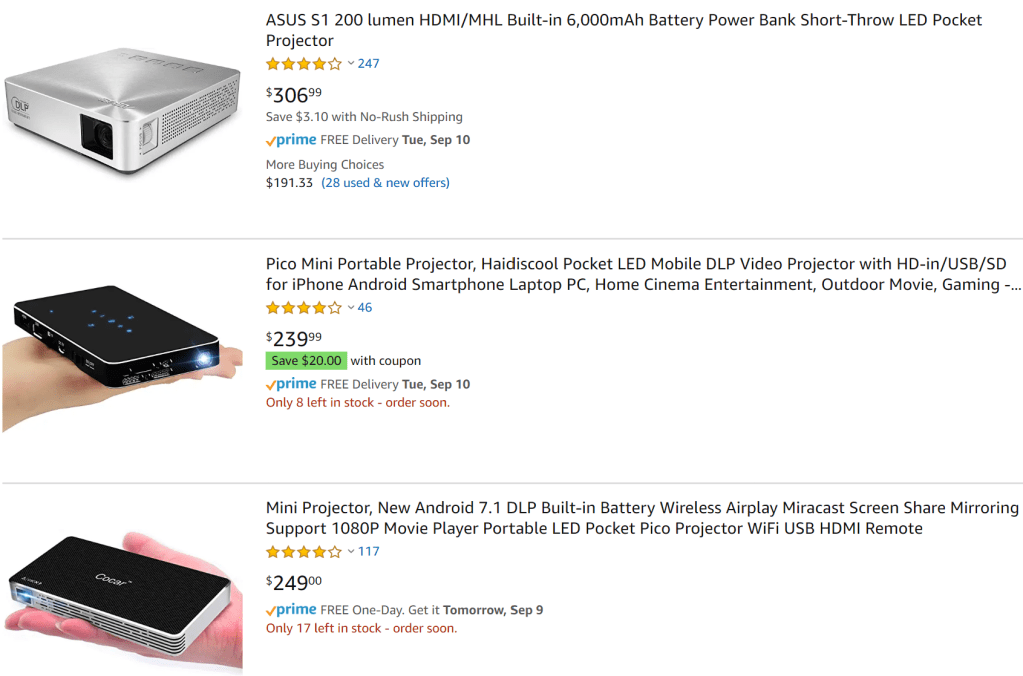
Now that I have my excuse, err reason, I had to brush up on the latest options. A quick search of Amazon returns an unbelievable number of devices. I can’t believe the market is big enough to support this level of manufacturing, I don’t know anyone that has one of these things, but judging by the number available, they sell like smart phones. How do I decide? They range in price from fifty bucks to over a thousand.

The tech is all over the place on specs, options, sizes, and functionality. I spend a fair amount of time breaking it all down to filter out the fluff. The features that matter are: Brightness (measured in ANSI Lumens), the native resolution (this one is tricky), connection options (wireless is nice), the size, battery’s runtime, and the operating system. These specs vary widely and are confused by all kinds of useless marketing terms so pay attention to the details.

Most of the devices under two-hundred dollars are rated for fifty lumens. They aren’t bright enough to compete with a standard light bulb. If you’re not going to use your projector in a nearly dark environment, then you need to shoot for at least one-hundred, and more is better. The claimed resolution is obscured in the marketing materials by the mis-leading term “supported resolution”. The supported resolution means essentially nothing. The native resolution gives you an idea of how sharp the text and graphics you project will be. Higher is better, I would shoot for 720P as a minimum. Most of the inexpensive devices, even those marketed as HD, are only 480P (technically the lowest end of HD).

The more connection options a projector has, the more useful it will be. At a minimum you are going to want one that has an HDMI port. Most modern video sources: laptops, gaming consoles, tablets and phones, can support HDMI. Some (Tablets, Phones) will require and adapter. Wireless options are the a great feature. There are two basic types of wireless, Miracast works with most Windows 8 and newer devices as well as, most Android tablets and phones. AirPlay is the Apple flavor of wireless. Personally, I needed both.

The size and battery are personal choices, go for the options that best fit your requirements. Some of these devices can also act as a portable battery pack to charge your other gear. As for the operating system, I wanted one that ran full Android. An OS that includes an App store, the ability to view documents off an SD card, run Netflix and Amazon Video, and be easily upgradable were important to me.

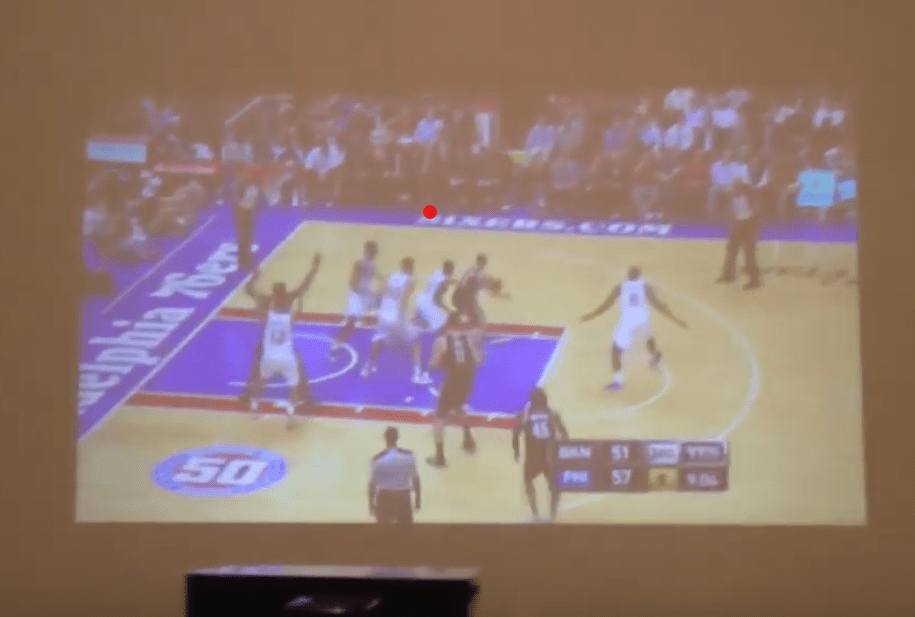
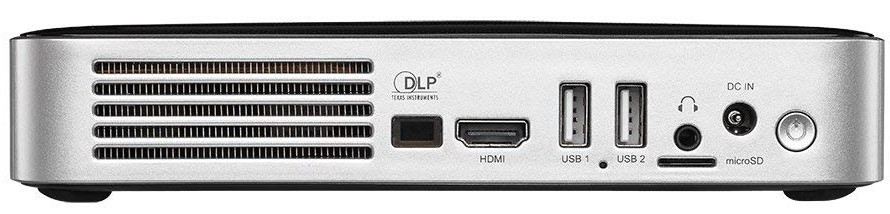
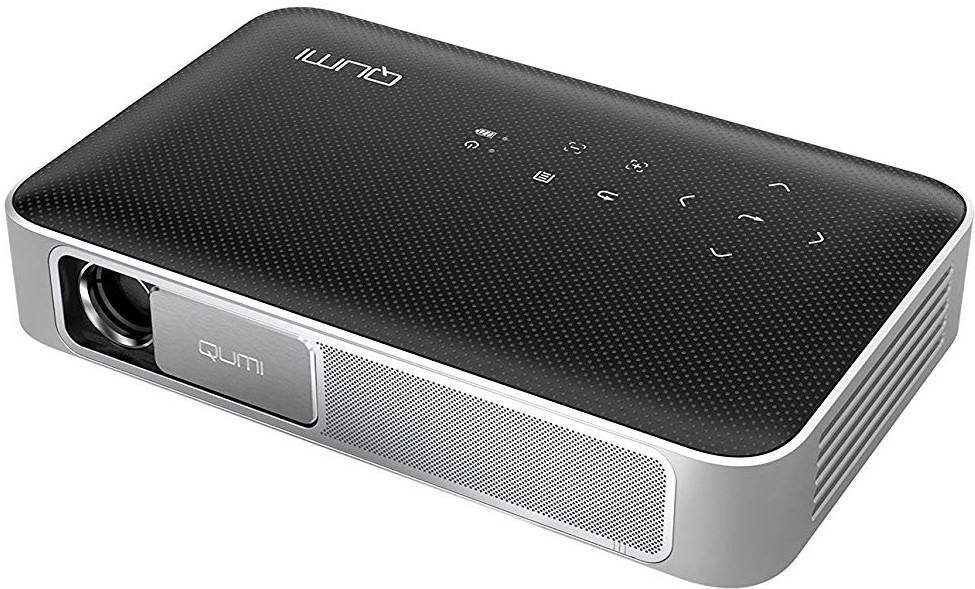
After hours of research, I ended up with a Vivitek QUMI Q38-BK. It’s rated for 600 ANSI Lumens, has a native resolution of 1900 x 1200, runs full Android, and has a battery rated for 2.5 hours. The projector has HDMI, supports both Miracast and Airplay, and will join a Wi-Fi network. It also has a micro SD card slot, two USB ports, and a 3.5mm audio jack. I especially like the built-in lens cover. It’s not pocket-sized but it easily fits in the front pocket of my laptop bag and only weighs a couple of pounds.

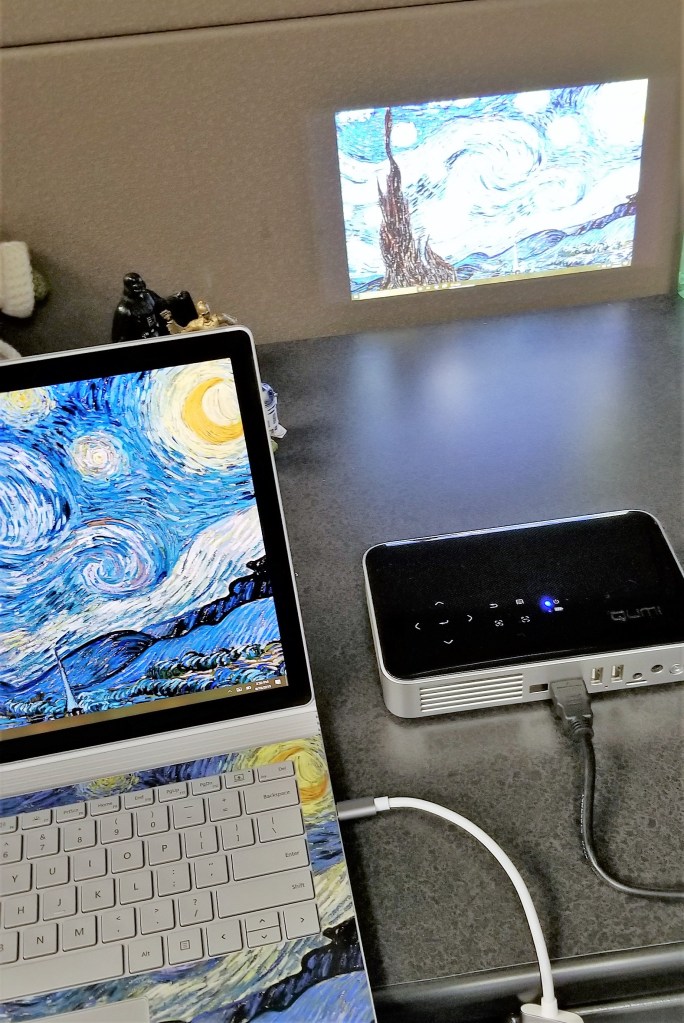
After reading all of this you are probably left wondering, does it live up to the expectation of having a big screen everywhere that I go? The anwser is, yes. The experience and usability are better than I thought they would be. The unit I purchased is bright enough to use in a normally lit office space and will connect to almost anything. I find myself using it several times per week.

I’ve used it for impromptu team-meetings, tossing my screen up on the wall behind our cubes. Gotten it out at people’s houses to show them pictures and vids. Used it as a big-screen monitor for my laptop while working at a customer’s location. Hooked it up to my Switch so a group of friends could play Mario Kart at happy hour. I even projected the Star Tracker app from my mobile phone onto the side of the house during a family telescoping session.

Now that I’ve had it for a few months and found that I use it often, I will probably always have a similar device in my kit. I can’t imagine how I got along without one all this time.

One Week in with the Galaxy Note 10

I got my Galaxy Note 10+ on launch day. I am coming from my beloved Galaxy Note 8, aka my favorite portable device ever. The 8 had no issues and still did everything I asked of it well. To be honest, before I saw the 10 in person, I had already decided to skip it.

I happened to be in Best Buy on launch-day and fell in love with the massive screen on the 10+. I gave in and picked one up. In a word, this thing is awesome. Every time that I pull it out of my pocket, I feel like pulling a He-Man and shouting “I have the power,” at the top of my lungs while pointing the S-Pen to the sky. Samsung should make that the default sound for removing the pen from its slot.

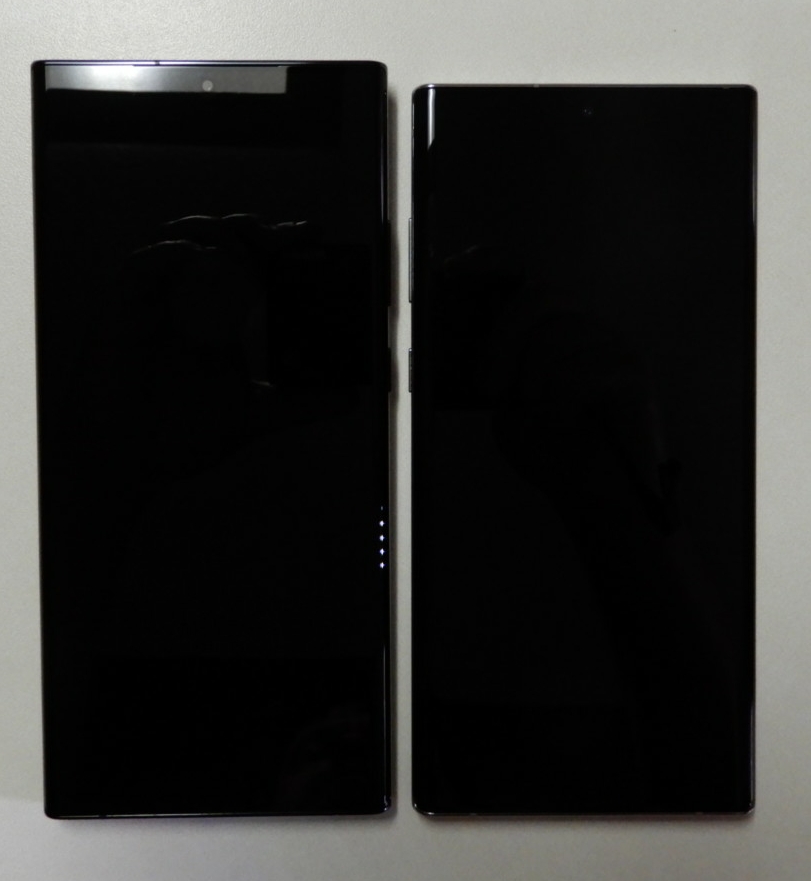
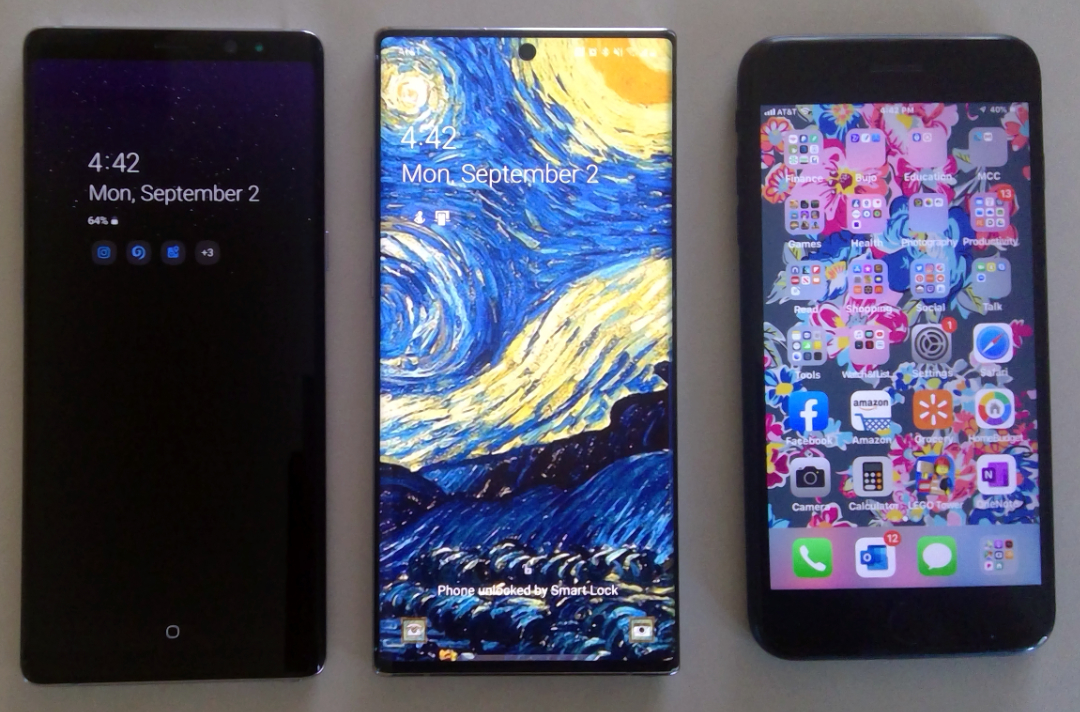
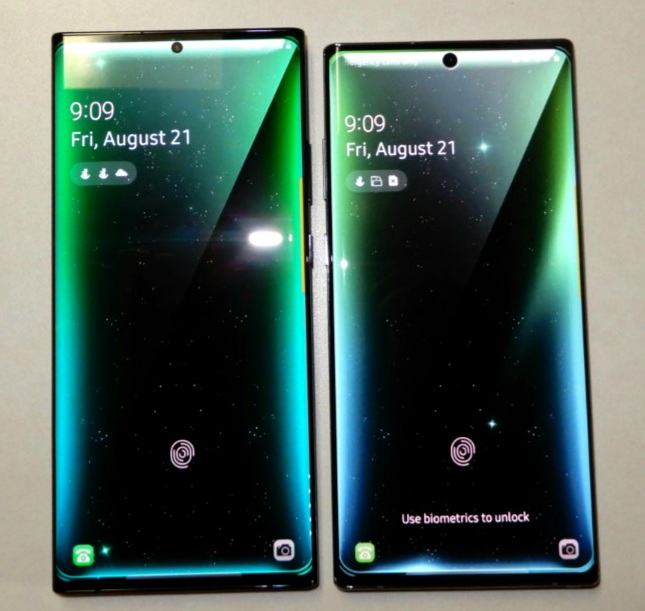
The screen is noticeably larger than the previous Note, or my wife’s iPhone+, but the footprint of the chassis is barley larger than either and it isn’t noticeably heavier. The display stretches from edge to edge and thanks to the punch-hole camera, from top to bottom. Various reviews either praise or hate the punch hole personally, I like it. It gets rid of the notch and is less likely to break than a pop-up.


Note8_Note10_iPhone7Plus

The in-display fingerprint reader has been another point of contention amongst reviewers. Again, I personally love this change. I’ve had zero issues with it scanning my fingers so far but, maybe my fingerprints are somehow easier to detect than other peoples’? In any case, not having to reach around to the back of the device is a huge improvement from my point of view.

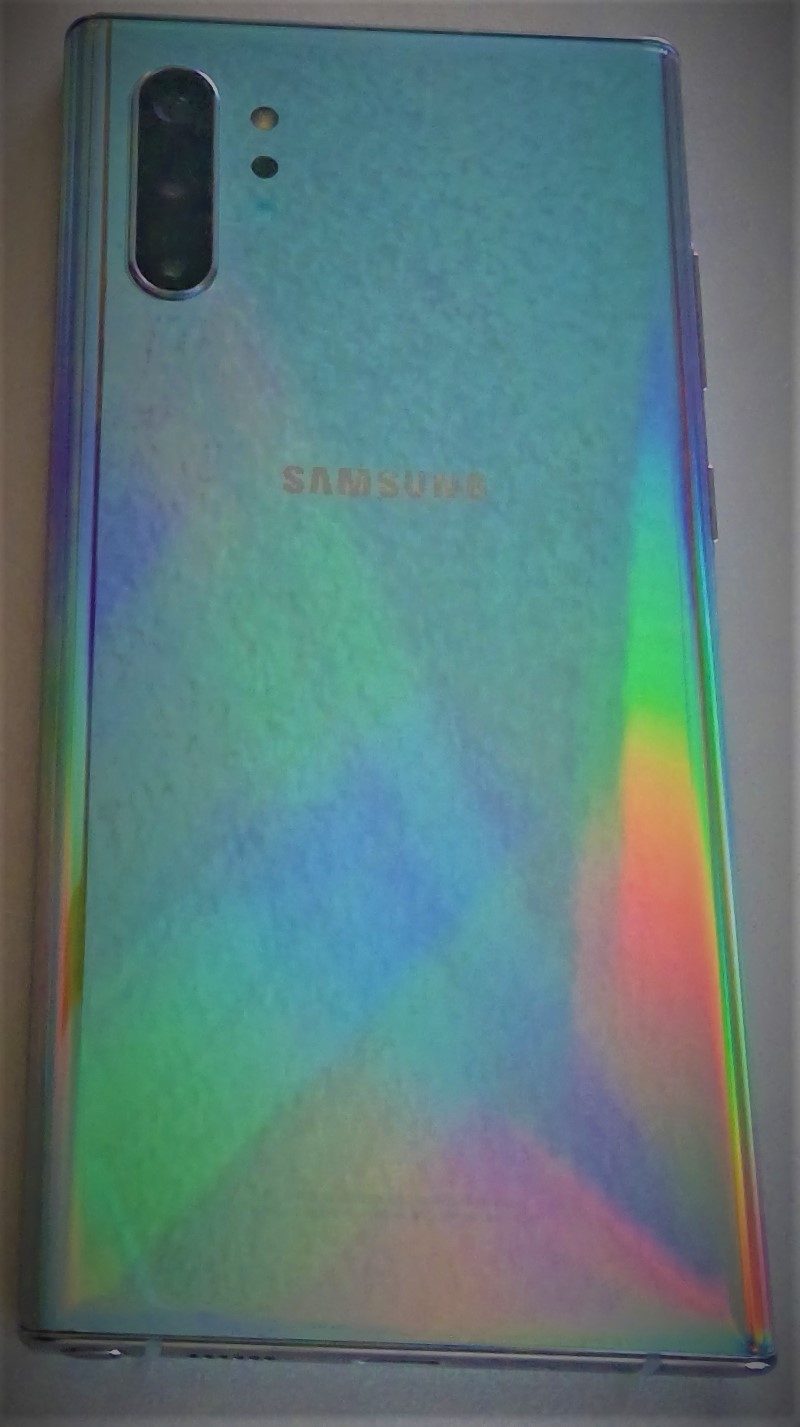
Speaking of the back of the device. Samsung chose to remove the heart-rate and blood-oxygen sensors. I will miss them, but not enough to switch back to my old phone. To be honest, my smart-watch does this job and I rarely used the phone’s sensors anyway. I’m guessing Samsung assumed this was the case for most of us by now.  

On the subject of removals, the headphone jack has also met it’s demise. I think the media in general, is alwasy looking for an emotional reaction and has settled on the headphone jack as their issue de’jour. I switched to bluetooth headphones long ago and hadn’t used my 3.5mm jack in years. If you still need wired headphones, the adapters are everywhere, get one and be happy. 

Note10_Back

The cameras (there are five) are fantastic. I know that the big publications have requirements to find the flaws in everything, but they’re reaching on the negative points of this camera system. The pictures are just awesome. The ability to edit them in real-time with precision is ridiculously futuristic. I especially appreciate the Pro mode, it gives you DSLR-ish controls like ISO, manual focus, and adjustable exposure times. 

The wide angle can capture an entire room. Two true telephoto lenses are something I never thought that we would see in a phone with a flat back. I’ve had all the gimmick camera phones like the Lumia 1020, trying to get a camera that could replace my point and shoot. They worked but putting up with the big bump on the back was a high price to pay. The multi-camera setups are a much better solution. I’ve taken quite a few pics but haven’t put the cameras through the ringer yet so check back for more on this subject.

Wide_Angle

In my day job, as a consultant, I am constantly using my Galaxy Note. Whether it be to jot down meeting notes or reply to emails when I’m out in the field; I need a battery that can last through a full day of use. The Note 8 could struggle in this regard. I always kept a battery pack in my bag and had to resort to it on several occasions.

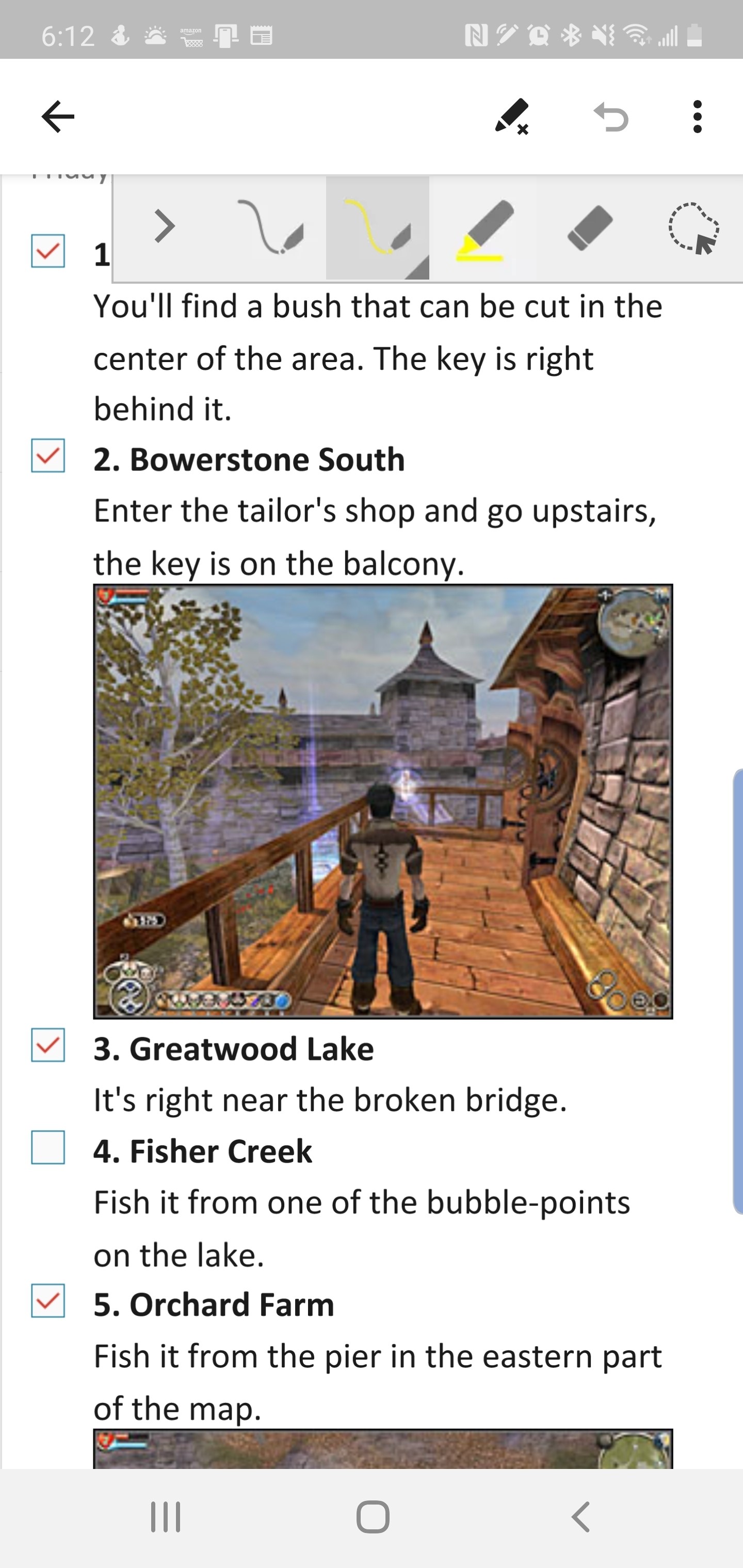
Just a few days ago I used my Note 10+ to document (notes, diagrams, video, and pictures) an entire multi-building network and computer infrastructure. When I got in my vehicle to head back to the office, I was shocked to see my battery still had 54% left. I had been at it for more than 4 hours, the 8 would have been in dire need of a recharge.

OneNote_ScreenShot

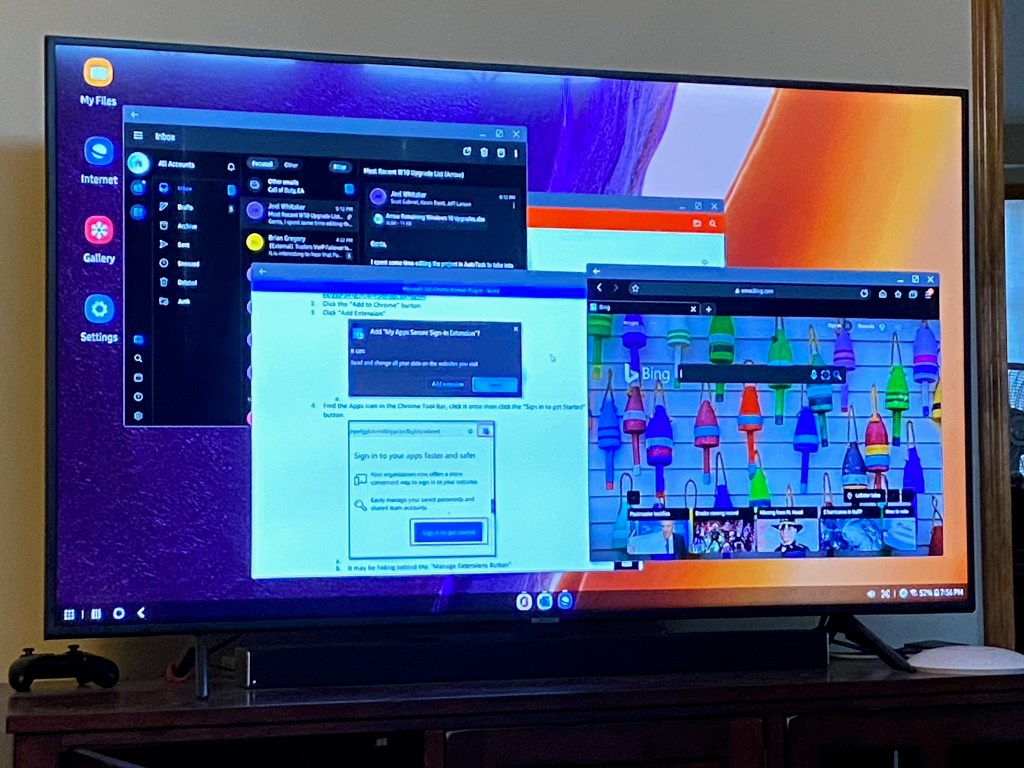
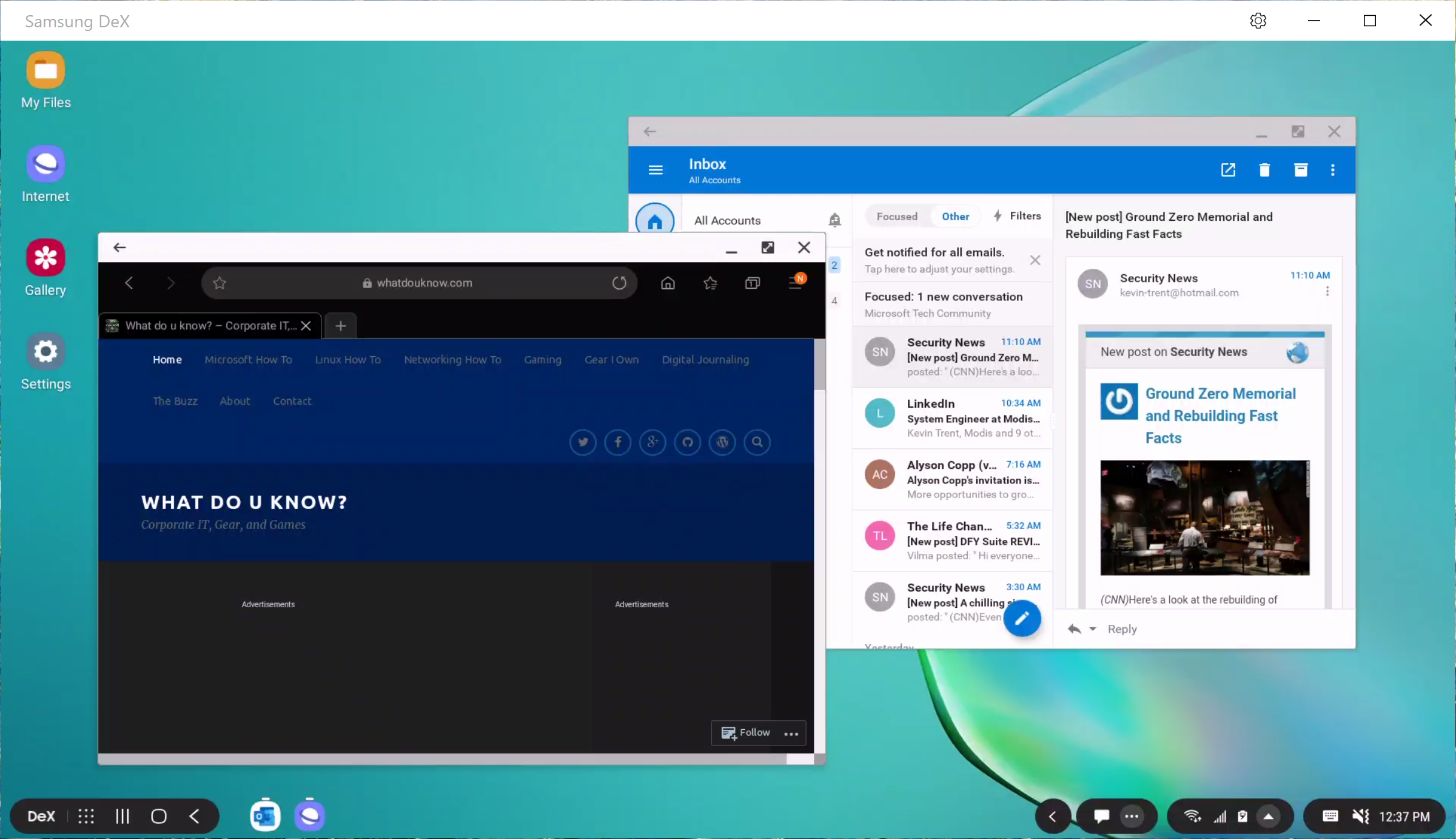
I’ve always been a fan of Dex mode on the Samsung devices. It has enabled me to travel without lugging a laptop on the plane many times. It also allows my phone to act as an extra computer when my main system is engaged in other tasks. For example, if my main computer is processing video, I check my email, update documents, and chat with my co-workers from Dex mode. You just need a Dex compatible dock, keyboard, mouse, and monitor.
Dex_Mode

The Note 10 has a new Dex mode trick. You can link your phone to your Windows or Mac computer via a USB-C cable (one in box) and use Dex mode with your PC or Laptop’s screen and input devices. This still works in the example I gave above. You are only remotley controlling Dex, so your main computer’s resrouces (CPU, Memory, etc.) are free for other tasks.

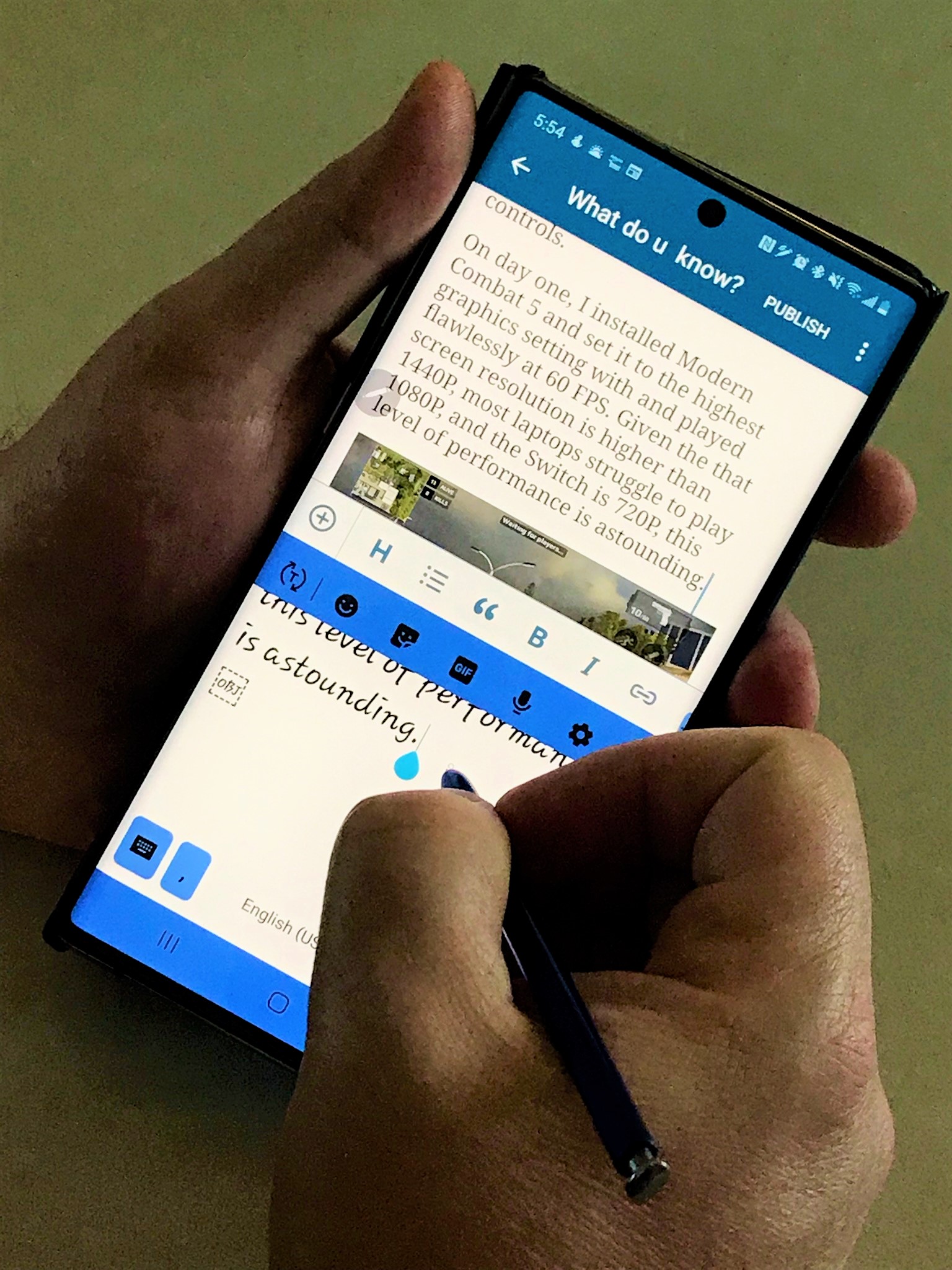
Finally we can talk about my favorite part of the phone. The S-Pen is stellar, as usual. I’ve written pages and pages of text with it already, including this post. I’ve edited photos and videos, and used it as a mouse when remote controlling systems. The new gesture features turn the S-Pen into a Wii-Mote and aren’t overly impressive to me yet, but I can see developers taking advantage of the option in games. 

Writing

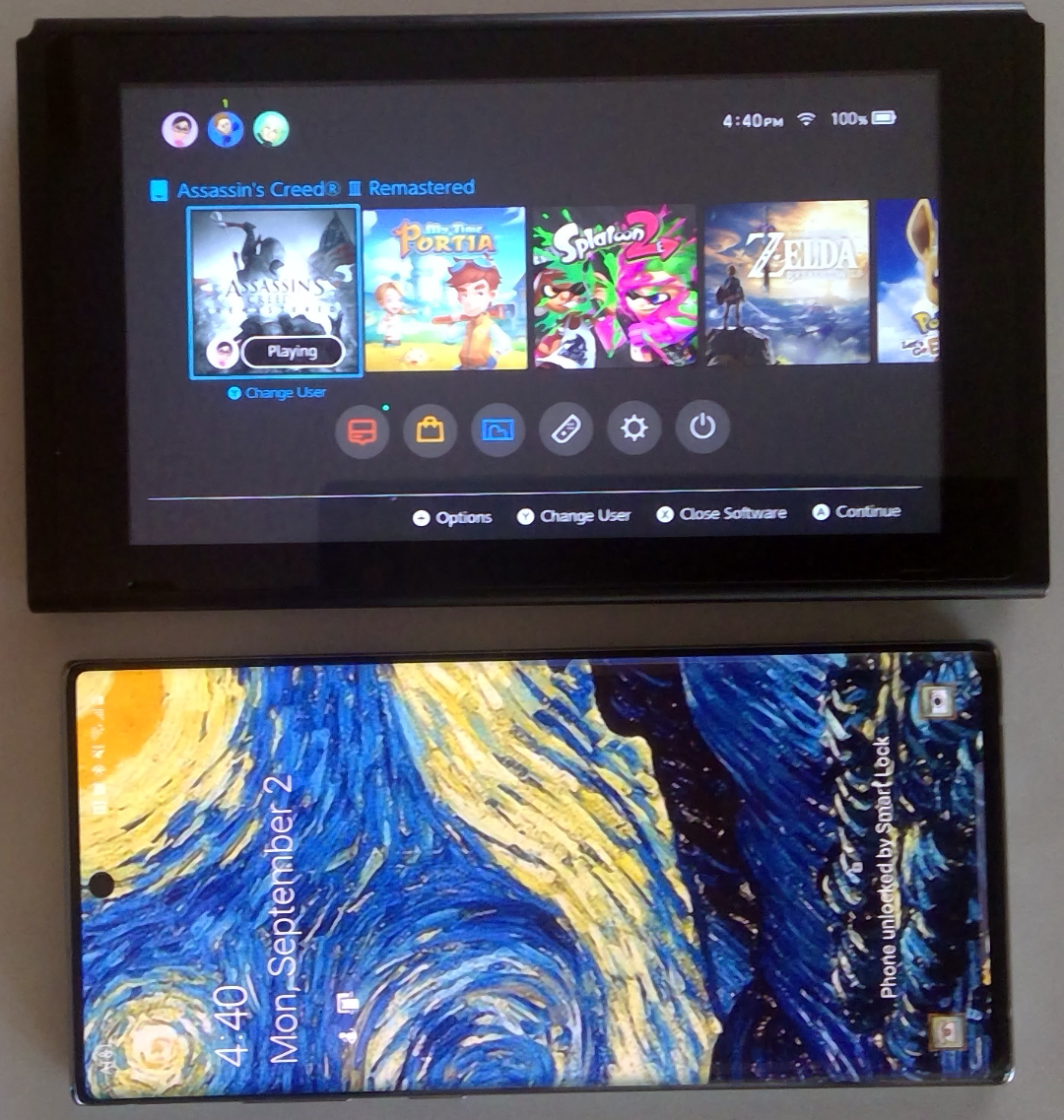
Phones can’t be all work and no play. The Note 10+ is a gaming monster. With twelve gigabytes of RAM and a vapor-chamber cooled processor it has power to spare. The phone’s screen size rivals the one on the Nintendo Switch which really helps with immersion and makes it more comfortable to hold for dual thumb controls. 

Note_VS_Switch

On day one, I installed Modern Combat 5 and set it to the highest graphics setting with and played flawlessly at 60 FPS. Given the that screen resolution is higher than 1440P, most laptops struggle to play 1080P, and the Switch is 720P, this level of performance is astounding.  

MC5_ScreenShot

I look forward to spending the next couple of years with this phone in my pocket. I’m sure it will serve me well. 

The Best 3rd Generation (2018) iPad Pro Case

A while back, I got my wife a twelve inch iPad Pro. She adores it. I have a difficult time writing about it because she rarely leaves it where I can get my hands on it.

I could go on and on about the machine’s positive attributes. It is unbelievably thin and lite weight. The battery lasts seemingly forever. In fact, the iPad’s biggest flaw only becomes evident when somebody pulls out a Microsoft Surface Pro next to you.

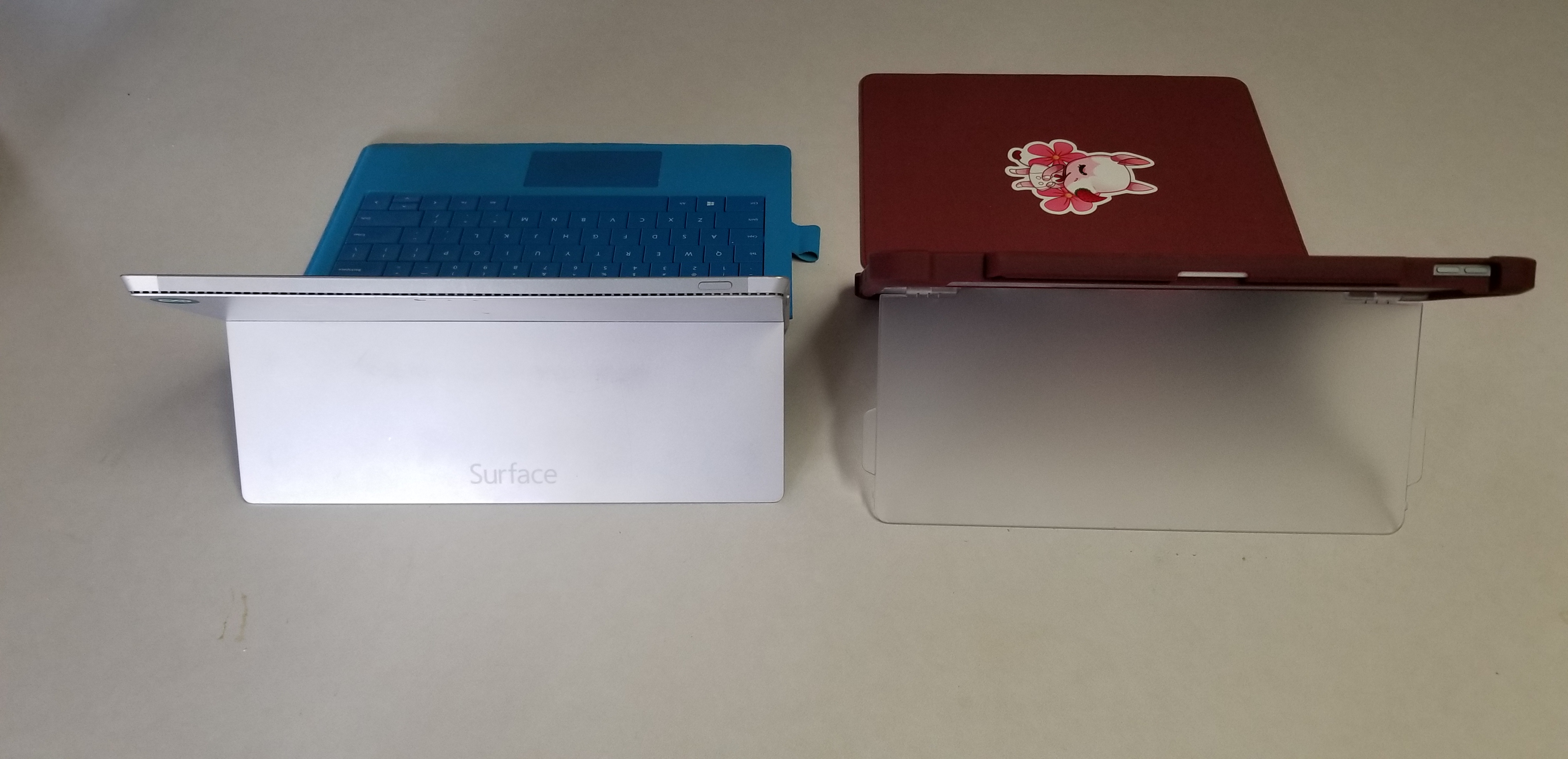
The Surface Pro’s kickstand creates instant feelings of jealousy for anyone that has spent much time drawing or writing on the iPad. It allows for the perfect angle in any situation. Why didn’t Apple include such a glorious feature on their premiere device?

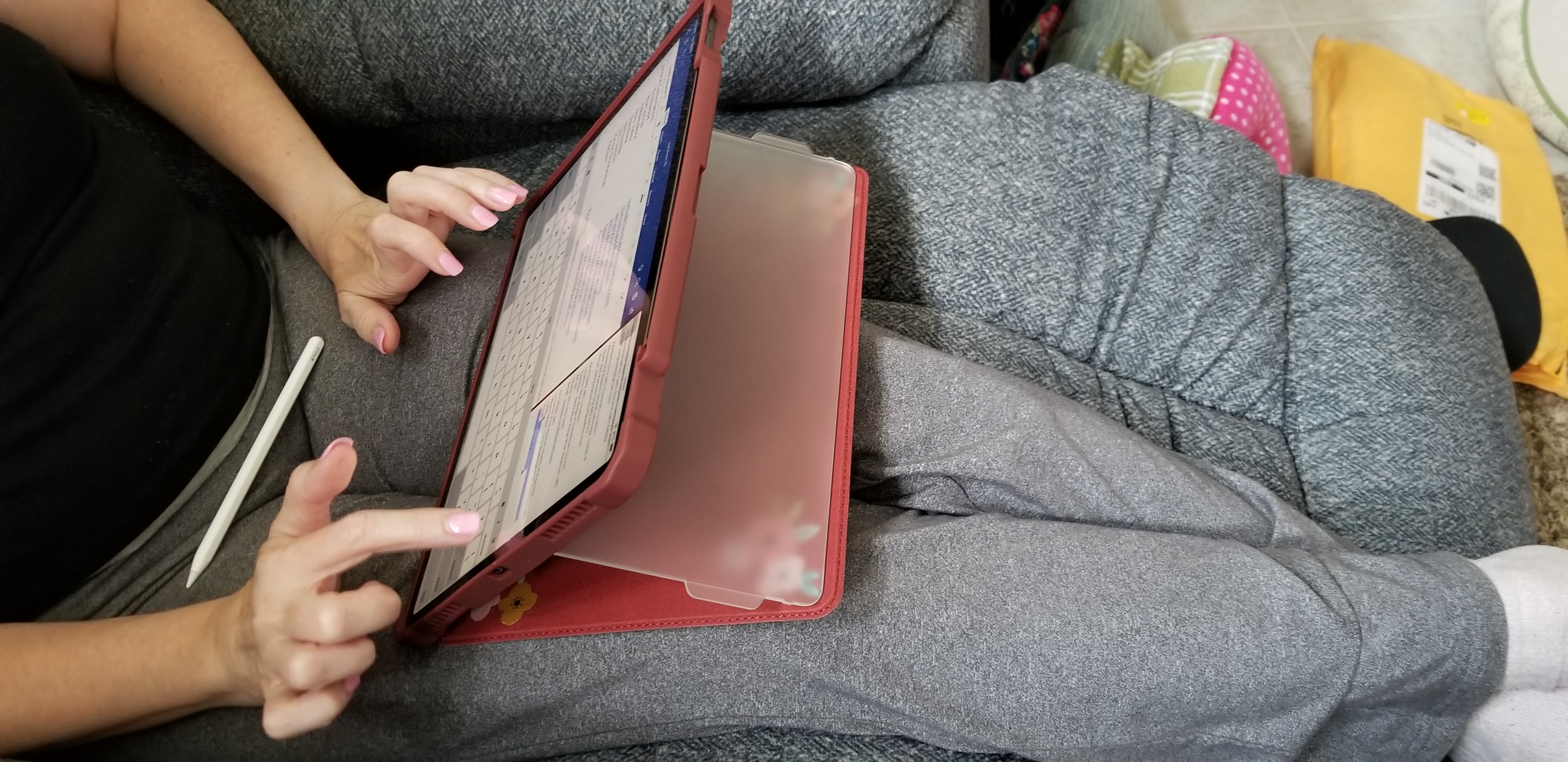
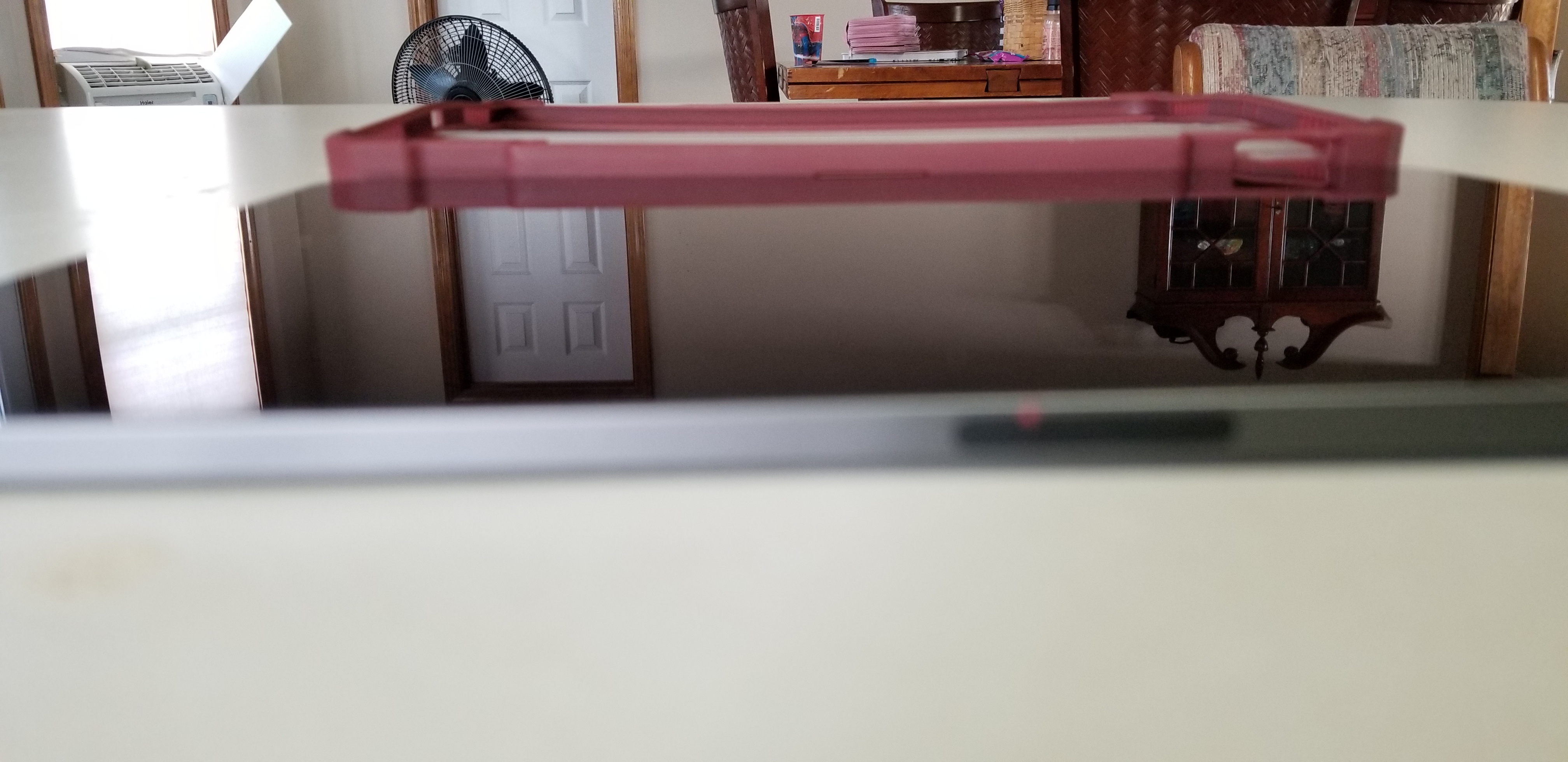
Maxjoy’s iPAD pro case adds the infinitely adjustable kickstand that you’ve been missing. It hold the tablet in any angle you choose and is not dependant on slots, gears, or other clunky mechanisms to do so.

20190801_073240

In addition the case offers corner protection, an optional screen cover, and a place for your iPad pencil to live. The case is thick enough to be protective but not bulky. I like that that cover can be removed when not needed or folded back under the kickstand to keep it from digging into your legs while typing or drawing on the screen.

20190728_182051

It comes in multiple colors and sizes for the 11″ or 12.9″ 3rd Gen iPad Pro. We got ours on Amazon. If you’ve been looking for a great case for your iPad Pro, I highly recommend this one. Especially for the 12.9″ model, there aren’t very many choices out there for the larger tablet.

20190801_073443

A Year with the DJI Mavic Air

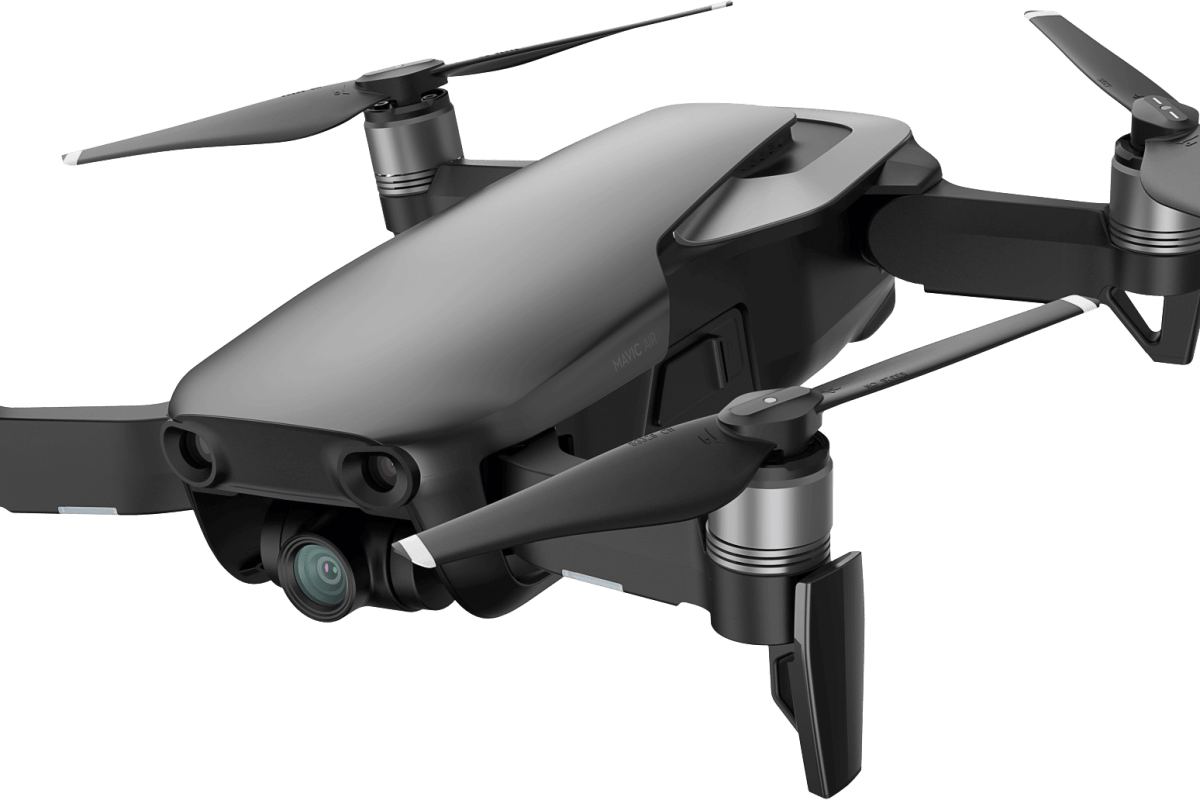
I began my journey with quadcopters several years ago. I started out with in-expensive micro drones and gradually progressed up to a DJI Mavic Air. I’m an accomplished pilot now and have captured thousands of pictures and countless hours of video. You can read about my experience in a previous post here.

I’ve had the Mavic Air for a year and I’m more impressed with it now, than I was the day I bought it. One of the most surprising aspects of the powerful little flyer is how durable it is. Even after a year of being hauled around in backpacks, laptop bags, car trunks and plane luggage, there isn’t a mark on it. I’m still using the original props! I can ‘t think of any other flying vehicle that I’ve owned that didn’t need at least, new props a few weeks or months in.

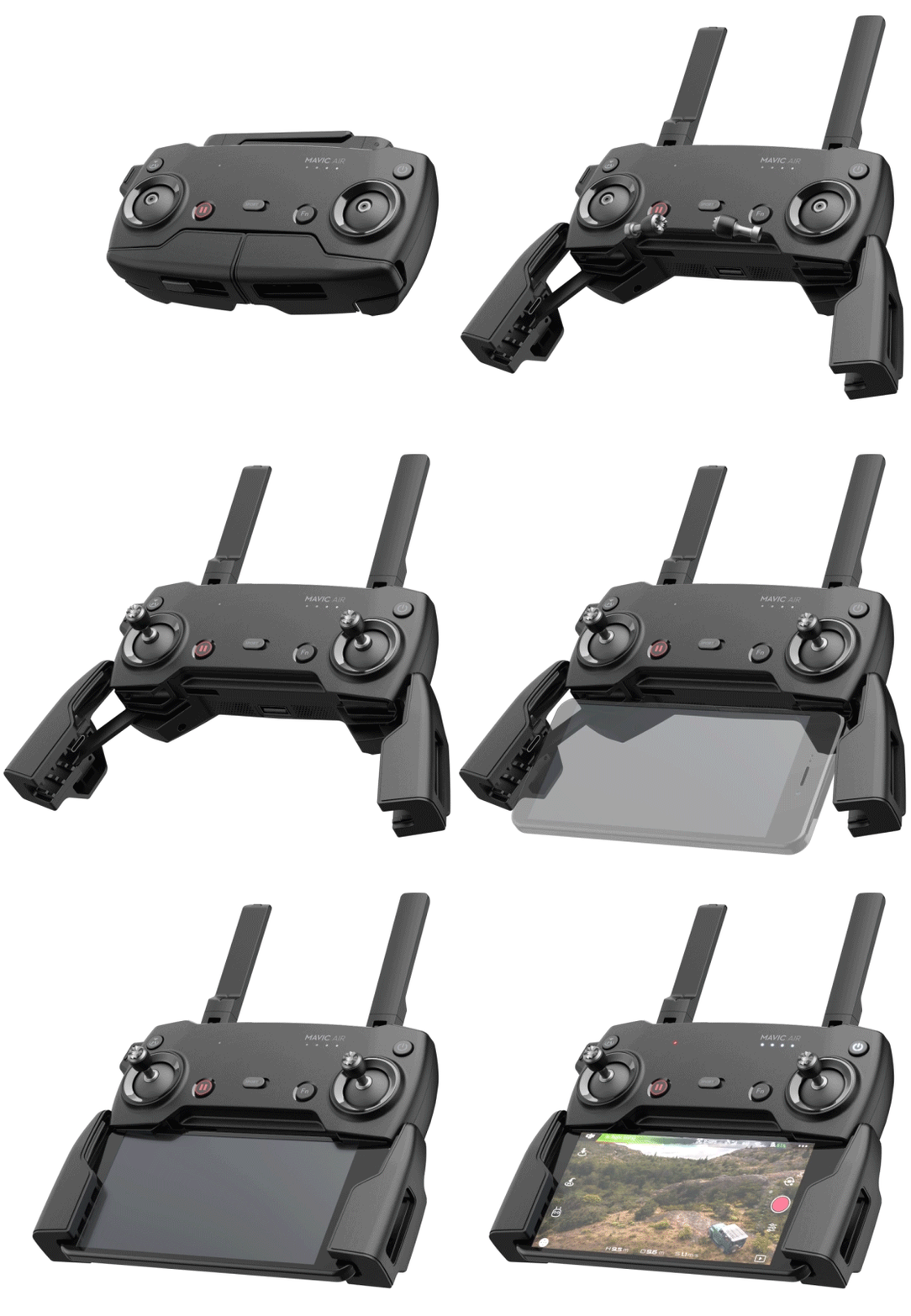
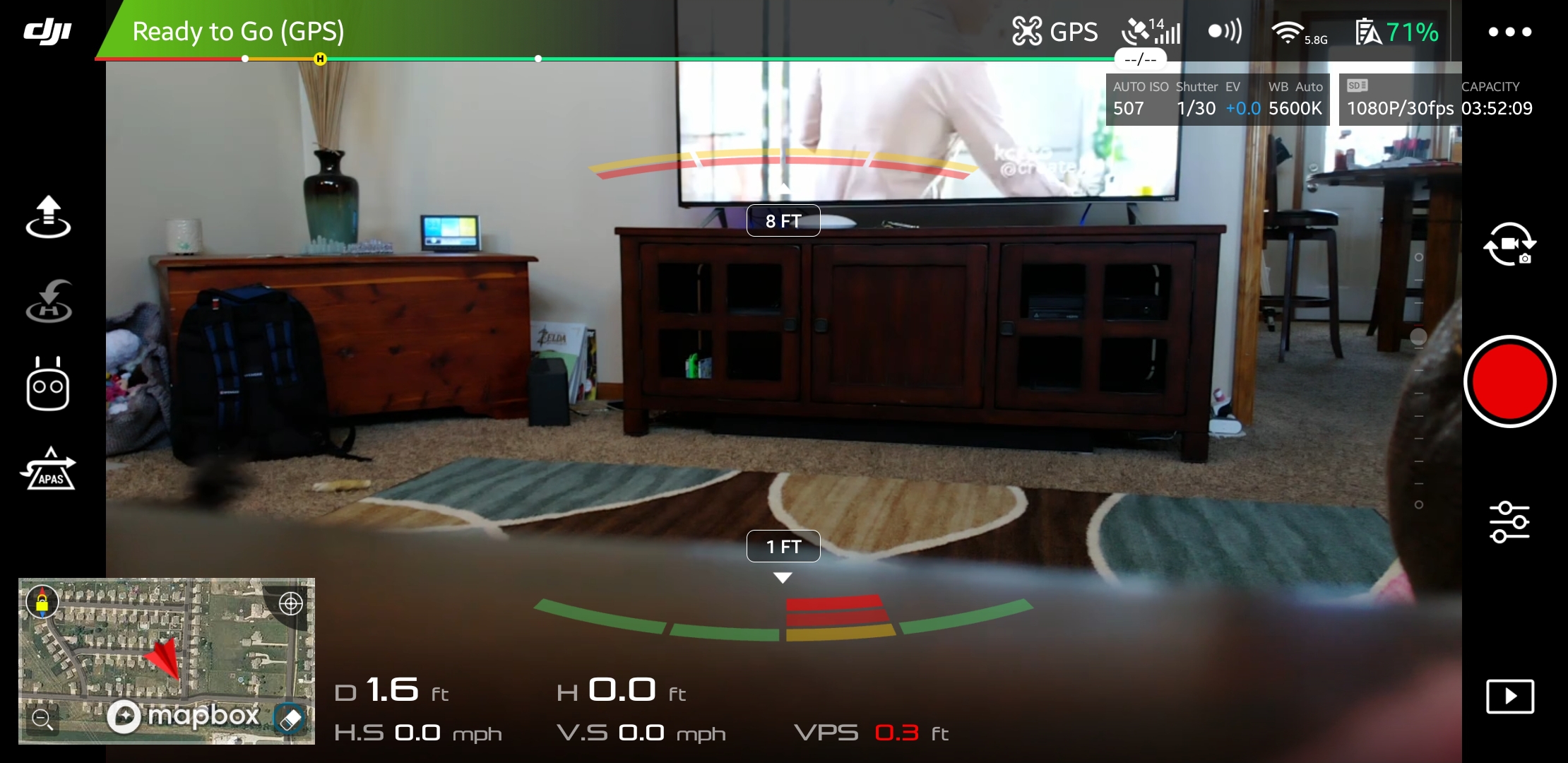
There have been several major software updates for the Mavic Air since I unboxed it. The updates can catch you off guard; you’ll boot up to catch some video of your dog only to be hit with the firmware required message. Thankfully they’ve added a feature to update later. The phone app can hang on the unzipping of files during big updates, but you just need to close and restart it. The software has been noticeably improved. The user interface has remained largely the same but multiple bugs have been corrected. I can’t remember the last time the app froze or crashed during flight, which was a frequent occurrence at the start.

The AI has been in school for the last few months, it now flies the drone better than I do. Object avoidance, pre-programmed dramatic shots, follow me, return to home, and TapFly are all improved. My use of the quadcopter has evolved from that of a flying toy to a camera platform, so I find myself using these automated functions much more frequently.

You might be wondering what a drone could be used for besides taking pictures. They’re surprisingly versatile machines; here are a few of the cases I’ve encountered so far:

  • Lost pet locator
  • Sky surveys of friend’s homes and property
  • Examining roofs for hail damage and lost toys
  • Chasing off various unwanted creatures: stray dogs & cats, racoons, opossums, bats, it’s a long list
  • Getting close to dangerous things: Fire, Fireworks, Wildlife, Guns, Bees, Wasps, etc. the FPS view makes you feel like you’re there in the action

While looking back through the photos and videos for this article, I can’t help but smile. I’ve got some fantastic shots that would be impossible to get without the little machine. Quadcopters are not just for aerial pictures and videos. They’re great for anywhere that a human doesn’t easily fit, or places that would be too dangerous to be in, they make great tripods too.

Now that I’ve had a great camera drone for a year, I can’t imagine not having one. Especially a compact unit like the Mavic Air. I carry it with me almost everywhere since it folds up and fits in my laptop bag. I was a little skeptical about how much I would use it when I first purchased it and was concerned that it would be a waste of a considerable amount of money. Luckily, it turns out that my instinct to get one was justified. I consider it to be one of my favorite gadgets and look forward to all the things I’ll be doing with it in the future.

The Surface Book 2. A laptop that Adapts to You.

I’ve had a laptop in one form or another since the late nineteen-eighties. Sufficed to say, I’ve had a lot of them. Some of my favorites have been various models of the Sony VAIO, Dell XPS, MacBook Air, and the Microsoft Surface line. I’ve had huge, almost suitcase sized machines, miniscule eight point nine inch netbooks, and everything in between.

What makes a laptop a good fit for most people tends to revolve around how they use it. A road-warrior that mostly checks email and writes Word documents, it isn’t likely to rank a six-pound gaming laptop as one of the best. Likewise, a gaming enthusiast is probably not going to pine over a super-thin notebook that lacks a GPU. Therefore, people typically purchase a system designed for their primary use case. This method works but has some issues. What happens when that road warrior is bored in the hotel room and wants to play a game of Overwatch? Likewise, how does the gamer deal with dragging their system around an all-day convention?

I use my portable machines for a wide range of tasks. I travel, write, game, design graphics, write code, and crunch numbers. For me, the best laptops are the ones that can do it all. I need something that can adapt to my requirements on the fly. It doesn’t have to be the best at any one thing, it needs to do everything reasonably well.

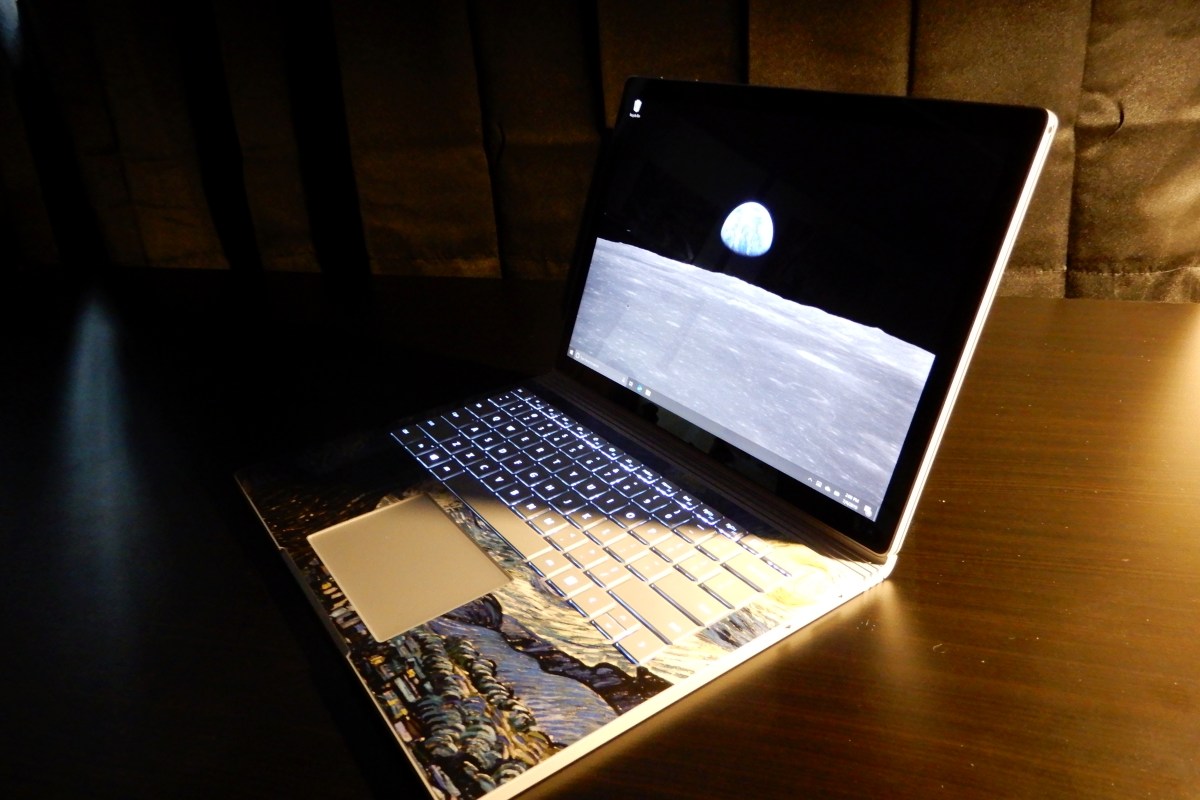
This year alone, I’ve had a Lenovo ThinkPad, an HP Elite Book, a Surface Go, a Surface Pro 6, and a Surface Book 2 as daily drivers. All of them are great systems but only the Surface Book 2 manages to do it all. It’s one of the fastest tablets you can buy. A laptop that can run all-day on one charge. It can play AAA games better than an Original Xbox One, and still fits in fourteen-inch sleeve.

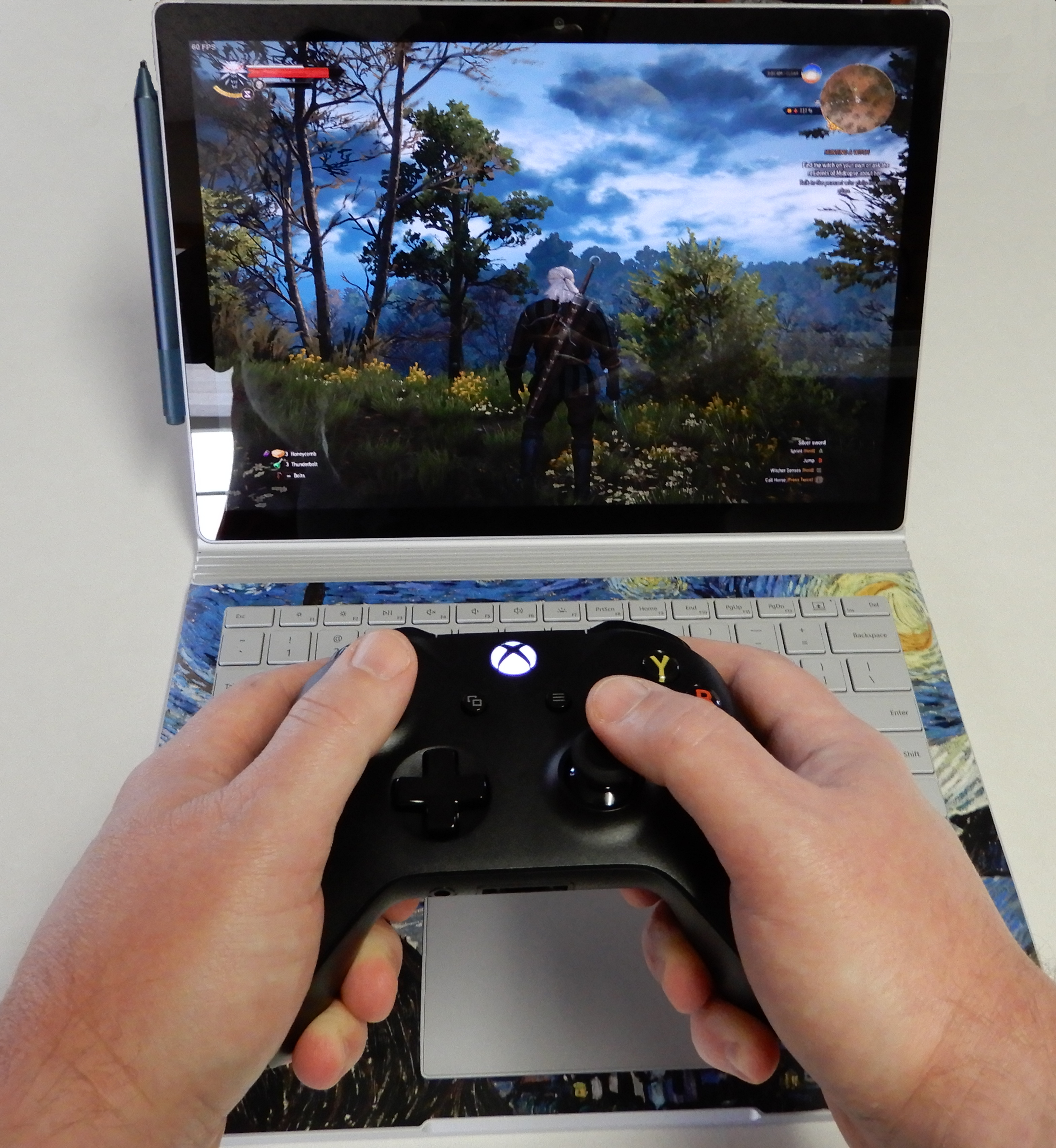
Pair an Xbox One S Controller for easy gaming

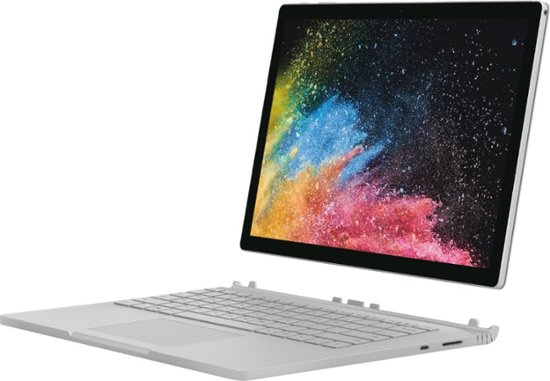
The Surface Book is Microsoft’s very own transformer. The screen is a tablet that houses a 13.5″ (or 15″) HDR touch screen, an Intel I-7 Quad Core CPU (or I-5), 16GB of RAM (or 8GB), and a 512GB SSD (or 256GB, 1 TB). The base has the keyboard, trackpad, another battery and an Nvidia 1050 GPU (or 1060).

The two halves attach and detach via an electromagnetic hinge. When the tablet is docked to the base the system is a high-end laptop capable of almost any job. Play games, edit video, get into some serious diagrams, the GPU handles it all. The system is well balanced and feels like a single unit unlike some other two-in-one devices.

A dedicated gaming laptop with a more powerful GPU will game better, but this thing runs Overwatch at 1900 x 1200 in full screen with everything on high at 60 FPS, more performance than the original Xbox One or PS4 can offer. I wish that the 13.5″ model was available with thunderbolt and/or HDMI out, but it isn’t a deal breaker for me. The 15” model is available with HDMI out and a slightly higher power Nvidia 1060 GPU.

When you disconnect the base, you are left holding one of the most powerful tablets in existence. It’s screaming fast and ridiculously light for its size. The screen is mesmerizing. There’s plenty of storage and memory to open countless browser tabs and apps. I have owned the original Surface Pro, the Surface Pro 3, the Surface Go, and a Surface Pro 6; the tablet on the Surface Book is the best that Microsoft makes for writing, taking notes, drawing, and most non-keyboard tasks.

When the tablet is separated from the base it has no ports of its own. Only wirelessly connected peripherals (except headphones) are available. The battery life is shorter than most tablets and there’s no built-in kickstand. None of that matters once you start using it. The speed of the full Intel CPU and available memory means that this tablet runs Windows 10 and all your apps and full desktop software just as fast as your desktop does. The lack of the stand and re-enforcements required for it, means the tablet is lighter than a Surface Pro even though the screen is larger.

If you’re looking for a portable system that can do it all you would be hard pressed to do better than a Surface Book 2. Other 2-n-1 tablets and laptops are either good tablets and mediocre laptops or vice versa. A very select few systems are excellent at both roles.

4K HDR TVs Can Be Good Monitors

A while back, I added an Nvidia 2080 Ti to my gamming computer. I had been using a 40″ 4K TV as a monitor but it was an older model that lacked HDR. Time for an upgrade! Read on to find out what I chose and why.

A colleague is lucky enough to have a 4K ASUS Predator and it is fantastic, but out of my price range. If at all possible, I need a screen that can serve as a computer monitor, a screen for my consoles, and possibly a TV. I know that is asking for a lot, but I have a lot of stuff and not a lot of space.

Most monitors will support multiple types of connections but can have a difficult time downsizing their resolutions. Many “TV” screens have slower pixel response times and extra signal processing that introduces lag, but they handle multiple sources and resolutions more effectively.

Is a dedicated monitor going to have a better picture? Absolutely. When hooking a computer up to a TV, you lose a little quality and even with game modes and the like. Televisions are just slower. However, if you want to hook up your Nintendo Switch to a 4K HDR gaming monitor you will probably be disappointed with the results. So it comes down to a trade off, performance versus flexibility. Cost is probably in there too LOL.

I limit the screen size to 40″ because anything bigger is too large to be on a desk three feet in front of my face. The 40″ size running 4K means that I can open multiple “full size” windows and do not need multiple monitors. Games take my full field of vision without requiring me to turn my head to see the edges.

The trick to using a TV as a monitor is to turn the “Sharpness” setting down as far as it will go and to carefully adjust the brightness and contrast. If you get the balance right, you can get a decent picture without ghosting (blurry text). Some smart TVs will detect that you’ve hooked a computer up to them and make the changes automatically.

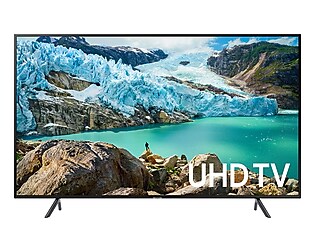
I was able to talk my local electronics store into connecting a few of their TVs up to a laptop so that I could get an idea of how they would perform as a monitor. That experience, combined with research on-line, led me to choose the Samsung RU7100. It’s game mode reduces lag by disabling most of the signal processing features. It’s smart functions include Apple Air Play and my cable provider’s app.

I’ve had the screen up and running for almost a month now and am very happy with my choice. I flip between my computer, iPad, Cable TV, and game consoles effortlessly. The picture looks great no matter what source is selected. I’ve received multiple compliments on it from both my techie and non-techie visitors. Many of them are surprised to learn its a four hundred dollar TV and not something much more expensive.

Six Months In with the Microsoft Surface Go

The Microsoft Surface Go has been my personal daily driver for more than half of a year now. How’s it holding up after all this time? I haven’t replaced it yet and that’s saying something.

I’m the type of person that acts on any excuse to get new gear. When I can walk into my local tech store without immediately wanting to purchase a new system, I know that what I have fits me really well. That’s the case with the Surface Go. It isn’t the most powerful, doesn’t have the best battery, and there are less expensive options, but the Go is a nearly perfect for my requirements.

The diminutive size means that when I’m on call, I don’t have to lug a full laptop bag around. I have a small slip case that fits the Go and a phone; that’s all I need to do my job from anywhere. It runs all the applications, network connections, communications and security software that I require to administrate a sizable corporate network. The Go spends its nights plugged in on my bedside table. It is ready in seconds should an after hours emergency arise.

20190324_121803


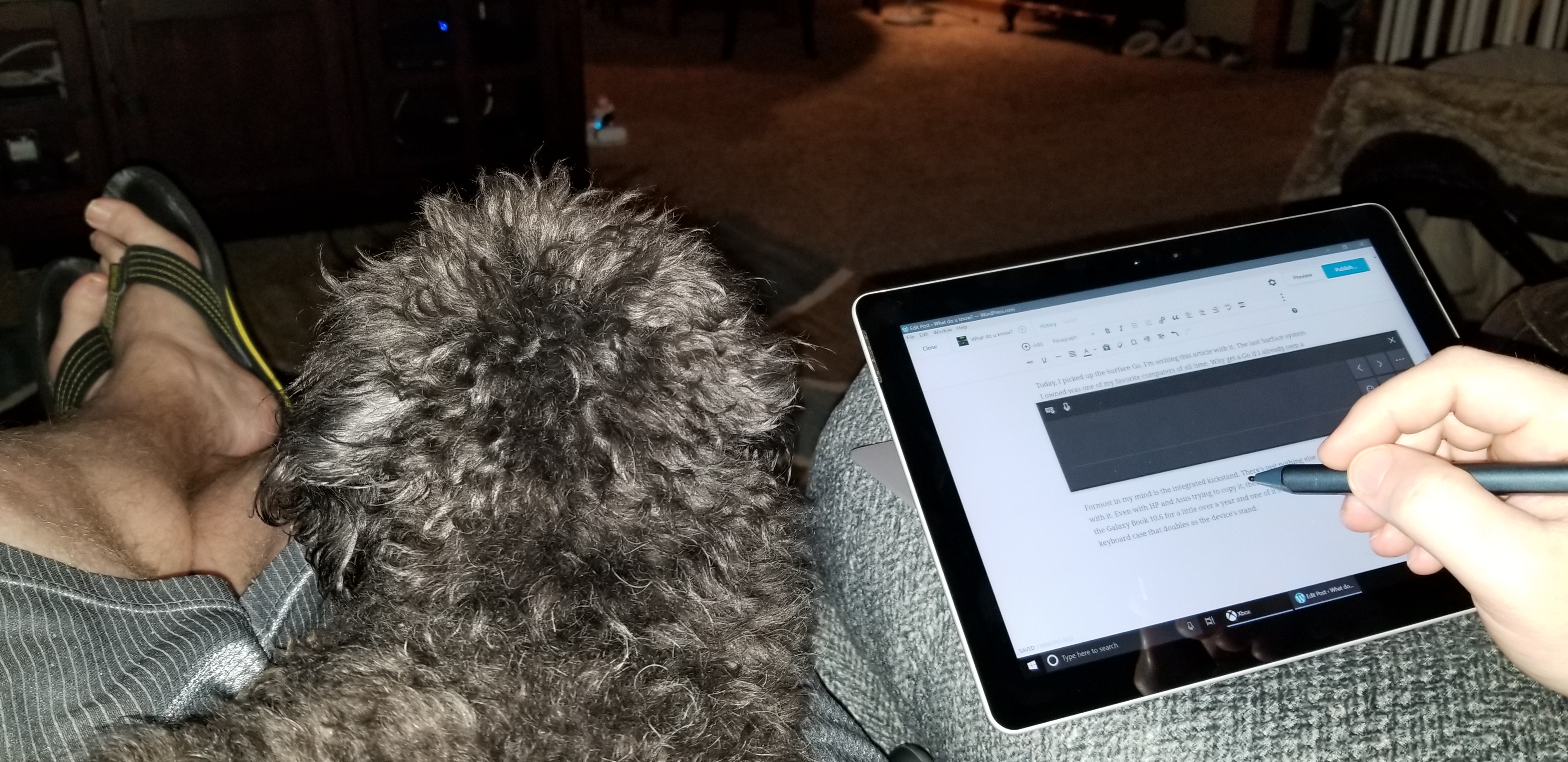
In addition to being an excellent device for my work life it also fits into my personal world. I’m writing this article on it from the comfort of my bed while an old movie plays in the background. A few minutes ago, I had cast its screen to the bedroom TV so that my wife and I could pick out some new floor mats together. Before I call it quits for the night I plan on streaming a Steam game from my gaming rig downstairs.

I have typed thousands of pages of text and countless lines of code with the keyboard. It still looks just like it did when I took it out of the box. I wipe it down with a wet-wipe every once in a while, other than that it has been maintenance free. It’s also the perfect size.

20190324_120124

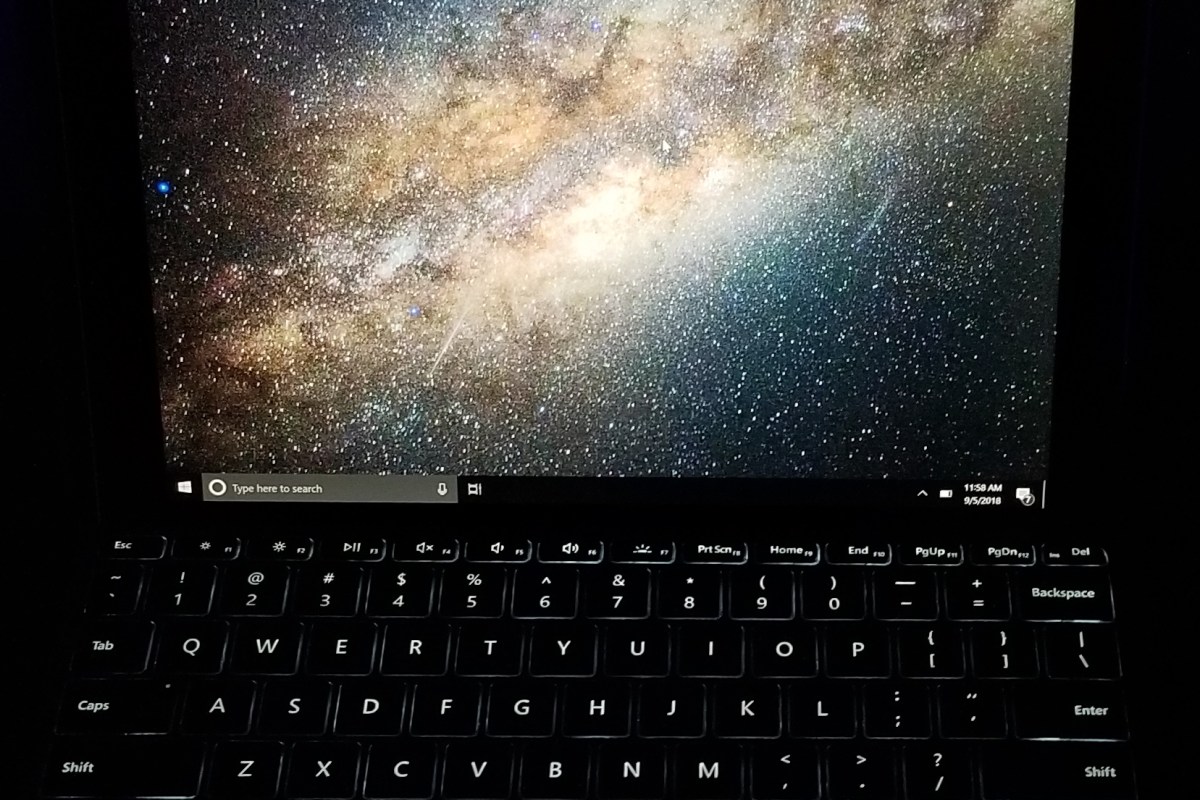
Don’t get me wrong, the keyboard is small and feels cramped when compared to a full-size model. However, I have never used a keyboard as small as this one that does the job so well. The tactile feed back and key travel are great. The backlight is perfect and Microsoft’s fold and stick option for rigidity works spectacularly well. I have several options for attaching other keyboards but never bother doing so.

I have drug my Surface Pen across the Go’s screen for miles. I have scribbled numerous pages with it including portions of this very post. I’ve edited photos, created custom works of art, and whiteboarded complex ideas. The more that I use the instrument, the more I like it. I have said as much in other articles, but if I had to choose between the keyboard and the pen, I would go with the pen. The on-screen keyboard is surprisingly good.

20180901_200524

The little guy is tough too. My Go is sporting a skin from Decal Girl, but I don’t put it in a case or use a screen protector.  It’s traveled from coast to coast, been tossed on chairs, desks, beds, and counters. I’ve dropped it on the plane, my car, and the floor. So far there isn’t a scratch on it.

Microsoft has released the Surface Go LTE edition with built-in wireless access and there are rumors that another iteration is on the way. The device has proven to be very popular, several of my friends and business acquaintances have them now. I excpect the line to continue into the future.

After using the Go every day for more than six months I’m still impressed by it. Out of all the compute systems at my disposal it gets used the most by far. If you’re in the market for a portable computer I highly reccomend it. You would be hard pressed to find a system that truly competes with it’s versatility in its size class. The iPad pro can’t run Visual Studio, end of story.


Get Cookin’ with the Third Generation Apple iPad Pro

We recently acquired the new iPad Pro 12.9 and it’s updated stylus. Right off the bat, I’ll say the new system is a massive upgrade, even from the relatively new 2018 iPad 9.7. The new premiere iPad is faster, slimmer, its battery lasts longer, obviously it  has more screen space, not to mention the improvements in the Apple pencil. These advances come with a hefty price tag, is it worth the cost?

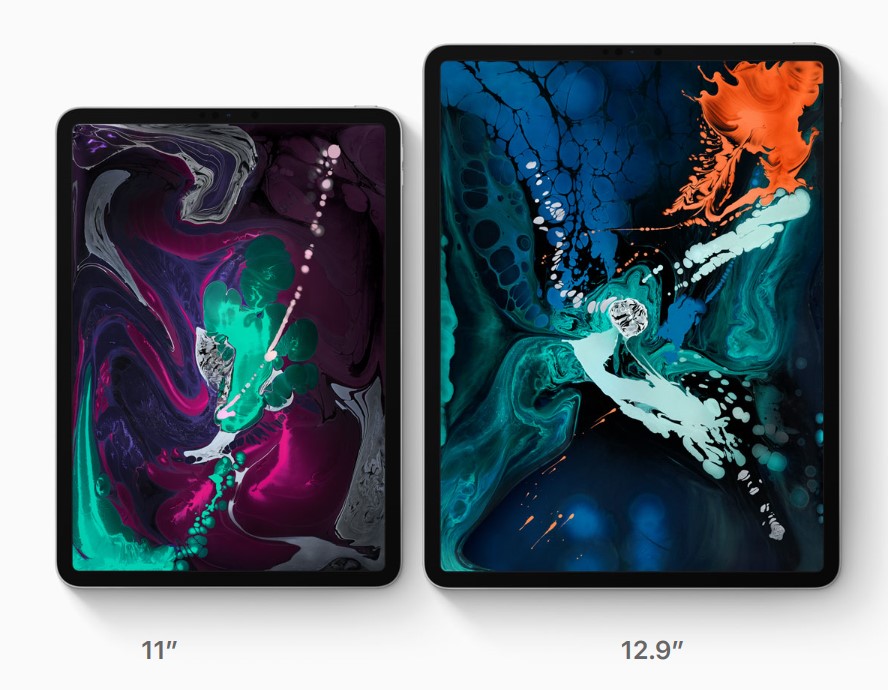
Lisa was coming from the afore-mentioned iPad 9.7 and we decided that she would be best served by the smaller eleven inch model of the Pro. She wanted something that would fit in a bag and be with her throughout her day. We headed to our local Apple store to pick it up.

Once we got to the store we found the iPad table and immediately began questioning our predetermined choice. The the twelve point nine-inch screen on the bigger model draws your line of sight to it like a magnet when you see it in person. We found ourselves on the struggle bus to decision town, again.

11_and_12-9_side_by_side

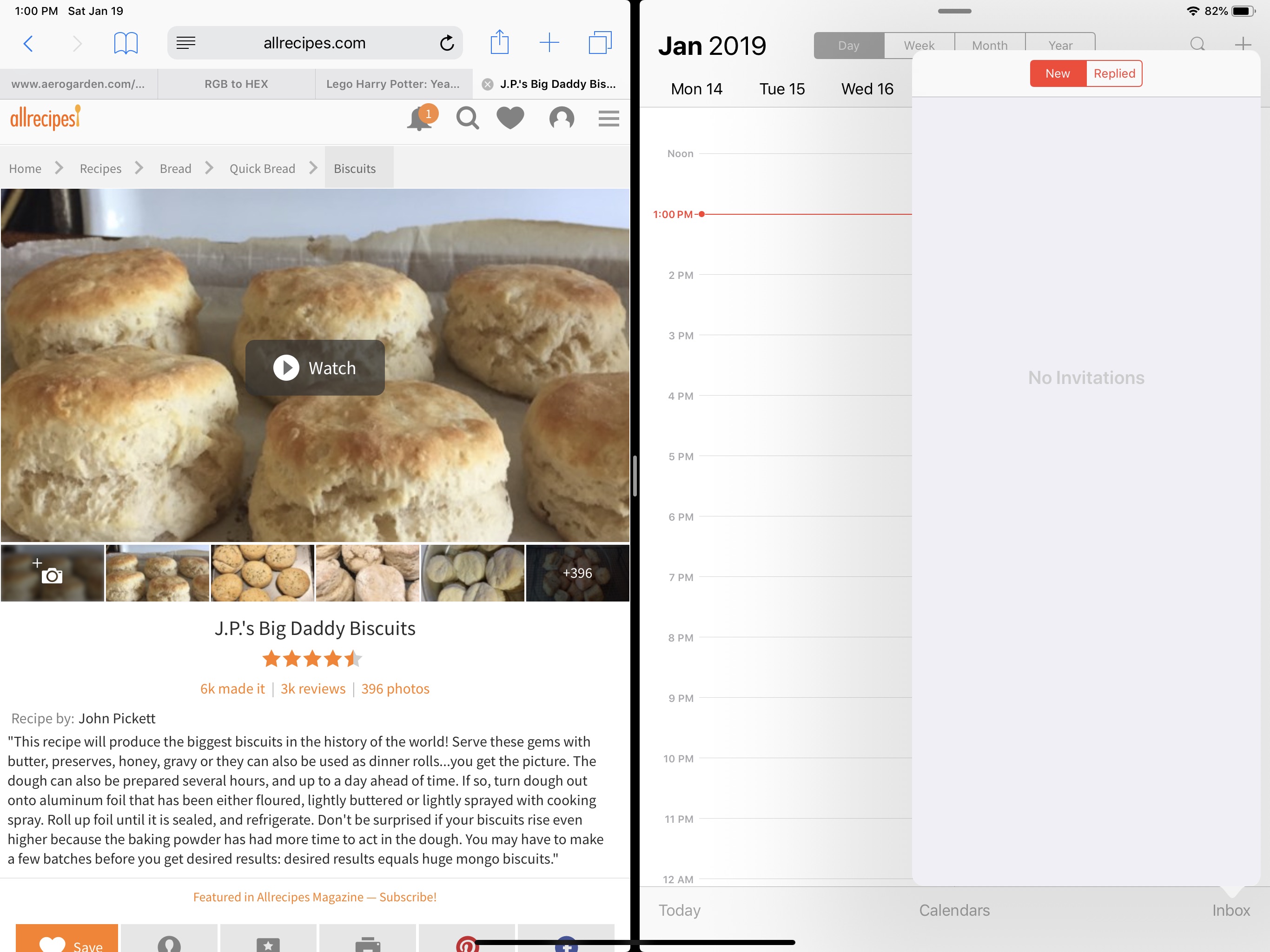
In the end, we reasoned that the twelve point nine-inch model still weighed less than a pound and a half (1.3 lbs) and thanks to the smaller bezel, its physical dimensions were manageable. What really sealed the deal was splitting the screen and realizing that each of the two halves was the size of an iPad mini.

ipad_split_screen
Two iPad mini sized windows make screen splitting truly useful.

We’ve traveled all over the place with it and I can honestly say that you probably won’t notice the difference when it comes to holding it on your lap or carrying it. The only place there has been a slight issue was fitting it on an airplane’s seat table when the person in front was reclined, but even that was doable with minimal effort. Your eyes will be much happier and that outweighs any slight inconvenience you may encounter, in my opinion.

The performance of the third generation devices is spectacular. It’s hard to believe that something this thin and light can be so powerful. Apps open instantly, games run stutter free, even running two apps and streaming a video doesn’t slow it down. The iPad 9.7 suffered from lag when using the pencil to lasso objects in various artistic software, but there isn’t a hint of hesitation here.

ipad_3way

Speaking of the pencil, it’s been re-engineered as well. The most talked about benefit is the magnetic charging. I can’t overstate what a huge deal this is. Not only is it convenient, but the chances of a broken stylus are drastically reduced. For me, the shape and material changes are nearly as important. The second generation instrument feels better in your hand and the flat edge gives your thumb a natural place to rest. They haven’t gone so far as to add buttons, but the double tap feature is a good start. It lets you switch tools without having to click on a toolbar first and is a real time saver.

pencil

The Surface Pen is still my favorite digital stylus. Apple’s lack of native handwriting recognition is just embarrassing at this point. A few developers have taken it upon themselves to add the feature into their individual applications, but this is no substitute for the operating system level version found in Windows and certain Android devices.

Add the keyboard folio case and the iPad Pro becomes something you could replace your laptop with. Microsoft’s Office apps have nearly reached parity with their desktop counterparts and Adobe has announced it will publish the full version of Photoshop to the App Store in 2019. If your business software is iOS friendly, or if your company provides access to some type of VDI environment, you should be all set to ditch the boat anchor you’ve been lugging around all of these years.

To answer the question we started with, the upgrade from the standard to pro iPad is worth the cost if you use your device as a productivity tool. It’s power combined with the new accessories make it something you can easily work from. If you mostly shop on Amazon and watch Netflix, save the almost one-thousand dollars and stick with the original.


AeroGarden, The Future of Food has Arrived

I never thought that I would consider a garden to be one of my favorite tech gadgets. When I first saw my wife’s AeroGarden l thought something along the lines of, “That’s dumb, I can setup a grow light and some small pots for a few bucks”. I freely admit my initial impression was a big mistake. Do you remember that seen in Back to the Future II when future Marty grabs some fruit from a garden that popped down out of the ceiling?

back-future-part-ii_2

The AeroGarden is that thing, a personal hydroponic garden system. If I were so inclined, I could make a mount to lower it out of the attic through the ceiling and match the movie perfectly. Water and liquid plant food are stored in a resovior and a pump circulates the solution through the plant’s roots on a scheduled basis.  Each seed pod contains a vegetable, herb, or flower marked with the height of the plant, a greenhouse dome, and enough solid growing medium for the roots to take off in.

pod_dirt

All the farmer needs to do is add the water and food as directed and place the pods in the holes. Tall stuff goes in back, short stuff up front. You pop the little plastic domes on top of each pod to keep the temperature up while the seedlings germiniate and you’re off to the races. Within a few days you’ll have baby plants all over the place.

pod_growing

The full spectrum LED lights are mounted on a stalk that allows them to be raised as your plants grow. The model of your unit determines the size of plants that you can grow. The larger farms can handle up to twenty-four plants and have motorized light panels that can raise up to thirty-six inches. The smallest hold two plants and go to twelve inches.


Lights on the front of our unit tell us when to add water and food but some are app enabled. The lights stay on for fifteen hour cycles and we’ve found that purposefully timing it so the lights are on in the evening makes a nice night-light in our kitchen. Our system came as a kit that included six different herbs and the plant food. We had seedlings in four days. I intend on writing a follow up post once we’re able to havest something, so check back later.