Fix Word Error When Changing Options “The server drafts location you entered for offline editing is not valid…”

I write a lot of documents in Word. You can imagine my frustration this morning when confronted with an error while trying to change a simple option for pen usage. After fiddling about with it for several minutes, I determined that any change of options resulted in the frustrating error.

The error message appears both in a pop-up dialog box and in the Microsoft Office Alerts section of the event viewer. It reads ” The server drafts location you entered for offline editing is not valid or you do not have permission to access that location. Specify a location on your local computer.” What? This is my home computer. I’m not connected to a server.

My first thought was to specify a location and continue on my merry way, but no joy. You cannot edit the field in question because it also causes the error. My next action was to run a repair on Office by going to Settings -> Apps -> Selecting the Office app and then Modify. This didn’t work either.

I found a few other people suggesting various fixes on-line including adding a string value registry key named “Location” with a valid path for the value (example, C:\users\username\documents\) in HKEY_CURRENT_USER\Software\Microsoft\Office\Common\Offline\Options. This workaround did in fact allow the settings to change, but I was not satisfied with this solution. It seems unlikely that Microsoft intends for users to edit the registry on every computer with Word installed on it. Something else was causing this problem.

Eventually I traced the problem down to a OneDrive failure that had occurred on my system a while back. I had previously configured OneDrive to sync files to a D drive. That drive became problematic, so I unlinked my PC from OneDrive synching and removed the disk. Then I re-enabled OneDrive pointing it at the default location on C.

I had not noticed that the Documents library in Windows Explorer remained pointed at the previous location on the D drive, so was the Pictures library. This was the true cause of the error message. Microsoft 365 products save to OneDrive by default. I reset the libraries by right clicking on them, going to the location tab, and clicking the “Restore Default” button. This generates an error, just click ignore.

If you are experiencing this error and the traditional fixes haven’t worked. Try checking the location of your document libraries and ensure they are fully accessible.

PowerShell: Report On-Premises Active Directory Accounts that are Synchronized with Azure AD Connect

Organizations that subscribe to Microsoft 365 and also have on-premises IT infrastructure, tend to synchronize accounts from their local Active Directory database(s) to the cloud. Hybrid accounts (synchronized) simplify things like user login and password management.

In the Microsoft 365 portal, you can discern which accounts have been synched from the local Active Directory by their icon. Unfortunately, the on-premises Active Directory database does not have an attribute that indicates when an account has been synched with the cloud. This can lead to confusion.

Azure AD Connect, the tool used to perform the synchronization, has numerous options and features. So many that it can become difficult to tell which accounts have been hybridized and which have not. An administrator may be left attempting to compare the accounts in each database manually.

I was assigned this task for an AD database with more than two-hundred accounts. It wasn’t feasible to compare them one by one. Lucky for me, my PowerShell skills were up to the task. Run the script below, from a system that has both the Active Directory and Azure AD PowerShell modules installed. The report it outputs will show you which on-premises accounts are synchronized to the cloud.

Import-Module ActiveDirectory
Connect-AzureAD

Get-ADUser -Filter {Enabled -EQ $True} -Properties *  | 
    Select-Object DisplayName, SamAccountName, UserPrincipalName, LastLogonDate,           
    @{N="AzureADSynced"; E={(Get-AzureADUser -ObjectID $_.UserPrincipalName |
    Select-Object -Property DirSyncEnabled).DirsyncEnabled}} | 
Export-Csv $env:userprofile\documents\On-Prem_CloudSynced_Accounts.csv

Hyper-V Failover Cluster Troubleshooting and Recovery Part 1, Start with the Logs

When designed and implemented correctly, Windows failover clusters can be one of the most resilient server architectures available for your datacenter. Unfortunately, this does not translate into their never having issues. When they do suffer some type of trouble; diagnostics and recovery can be challenging due to the complexity of clusters resources.

I generally start the troubleshooting process by having Windows test and report the status of all the components. Generating the report is much faster than logging into each component individually and the report frequently points directly to the cause of an outage. To get started, open an elevated PowerShell console on any of the cluster node servers and run the following.

Get-Cluster | Test-Cluster

The one-liner should start a cluster validation report. The default CVR process is not invasive, no systems will be rebooted or otherwise heavily impacted. Invasive disk tests are skipped in the default report (at the time of this writing). If you didn’t redirect the output, the results will be located @ %SystemRoot%\Cluster\Reports. Three files are generated in the folder.

Please check official Microsoft documentation yourself. Microsoft has been known to change a PowerShell cmdlet’s default functions as a result of updates and upgrades, link below.

Open the .htm file in a web browser and look for items that do not report success. Click their links to see more information about the alert. Resolve any issues and reboot the cluster nodes or affected hardware, if you know it is safe to do so.

Rebooting a cluster node or other components can cause, or make a cluster failure worse. Hardware failure, data loss, and/or the interruption of services from multiple IT assets and business IT processes can, and does, occur. If you are not comfortable with, or are not authorized for these types decisions; stop-here and find someone that is.

To make this decision you should be fully confident in all aspects of the underpinning network, data-storage platforms, machine-level hardware, the operating systems of all involved equipment and their configurations and interactions. You should also know how to restore the cluster, and anything hosted on it, from backups.

Any action you take, is of course at your own risk. The idea of this article is to get you pointed in the right direction. Things like deciding what to do, and the results of any action, or inaction, are on you!

Standard cluster events populate the event viewer and you should review them. One of the easiest ways, is to open the failover cluster management console and look for cluster events on the dashboard.

Those that mention any malfunction of the Failover Cluster Database, but do not have a corresponding all clear message further down the log stream, are one indication of a possible cluster failure.

In addition to the Cluster Validation Report and events, Windows clusters also include node-level logging facilities. To generate them we need to switch back over to an elevated PowerShell console.

Get-ClusterLog

Running the cmdlet will export the running log for each of the nodes to a file. These reports can take much longer to compile than the CVR did, the reason for checking them, is that these logs will often compile even when the cluster, or its components, have suffered a major failure. The files created by the cmdlet will also be located @ C:\Windows\Cluster\Reports, assuming you did not specify a destination.

If you run Get-ClusterLog without specifying a time span, the resulting files can be very large. Hundreds of megabytes, or hundreds of gigabytes are not uncommon, depending on the cluster’s number of nodes, number of roles, and logging level configuration. You may actually struggle to open the files depending on your computer and its available software options.

Get-ClusterLog -Timespan 5 would pull logs for the last 5 minutes.

As for what to do with the files. Alas, that too is out of scope for a blog post. A good place to start is by searching them for key words like “error”. If you’ve gotten this far and haven’t found a solution, you might consider contacting a professional with Hyper-V Cluster experience, or opening a support ticket with Microsoft’s Hyper-V support team.

This may also be a good point to restore the host’s Windows session state backups or the hosts themselves. Either restoration option should let you restore the cluster to a working state. The catch is that restoration itself, is an expert-level decision and action. A decision with whole separate sets of requirements and consequences that you need to fully understand before deciding on.

If you don’t have backups, or the restore didn’t work, you’re going to want to stay tuned for my next post in this series.

Further Reading:

IT Life Hack: Run WhoIs and Other Windows Sysinternals CLI Tools in Windows Terminal

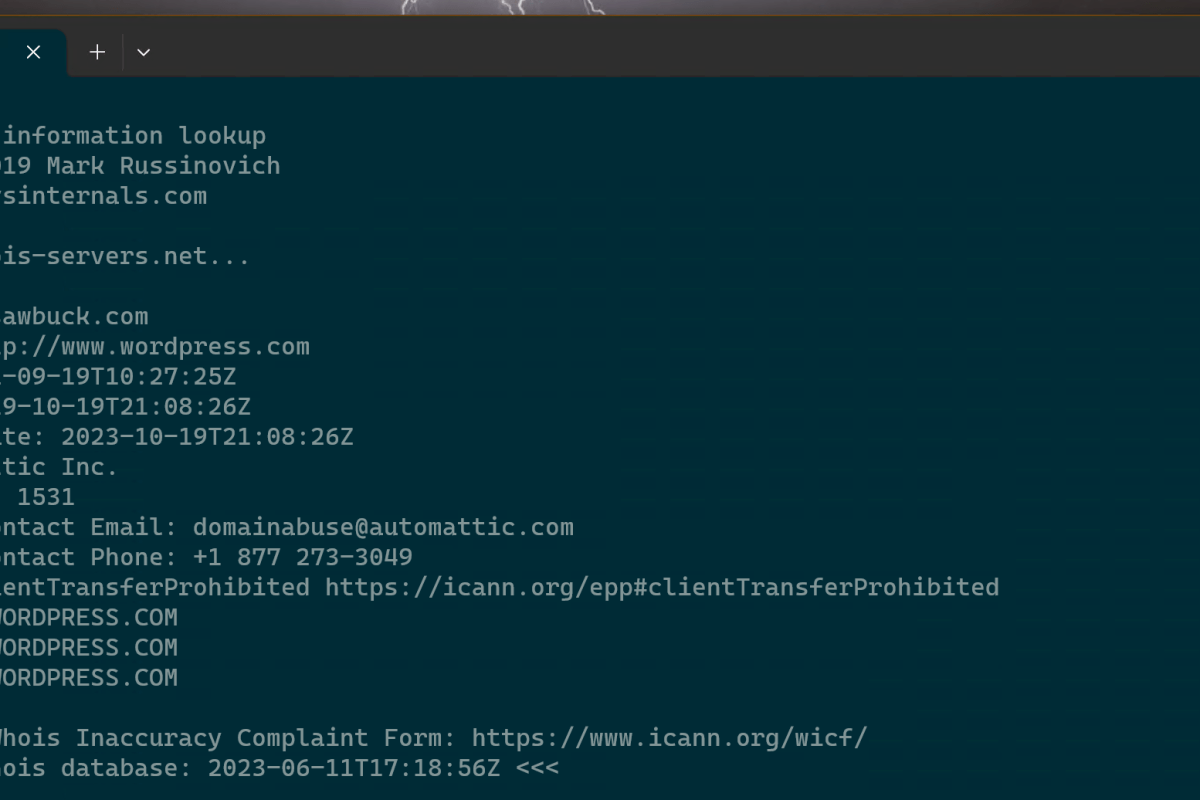
If you work in IT long enough, you will eventually need to create or edit public DNS records for  something. This means you need to find the public DNS servers first. Whols is the online database that contains the information you are after.

The good news is that WhoIs is publicly accessible via a number of websites. The bad news is that most of them require you to accept tracking cookies or run a gauntlet of captcha tests.  Some make you suffer through Ad hell to get the information you need.

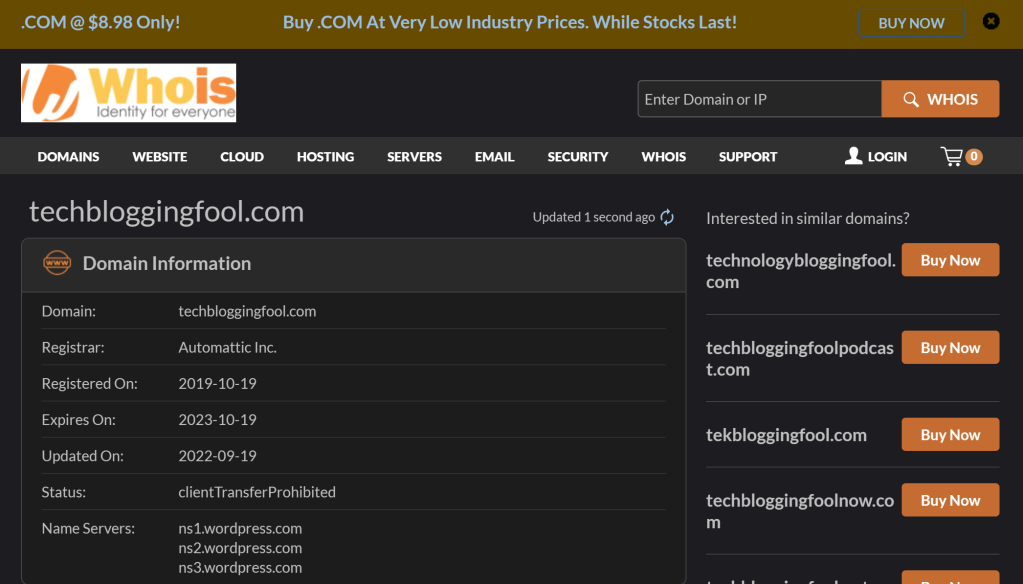
My usual whois site. https://www.whois.com/whois is relatively painless, but the CLI is still faster and easier, in my opinion.

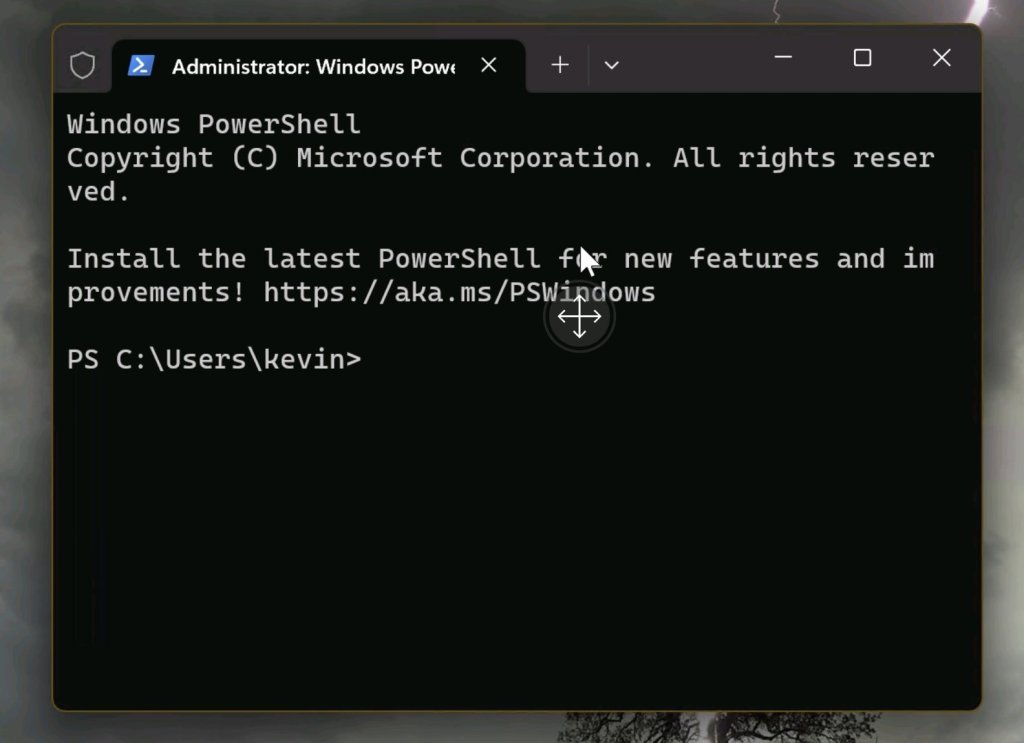
Microsoft’s Terminal application for Windows 10 and 11 is extremely versatile. 10 users need to get Microsoft’s Windows TerminaI app from the Microsoft Store. It’s the default Terminal in 11. Much like the famous Putty, it allows for custom saved connection profiles. It also rus multiple CLI consoles like SSH, PowerShell, Telnet, and CMD in tabs that make flipping through open sessions easy.

Windows Terminal is a Tab based multi-protocol text terminal that features customization.

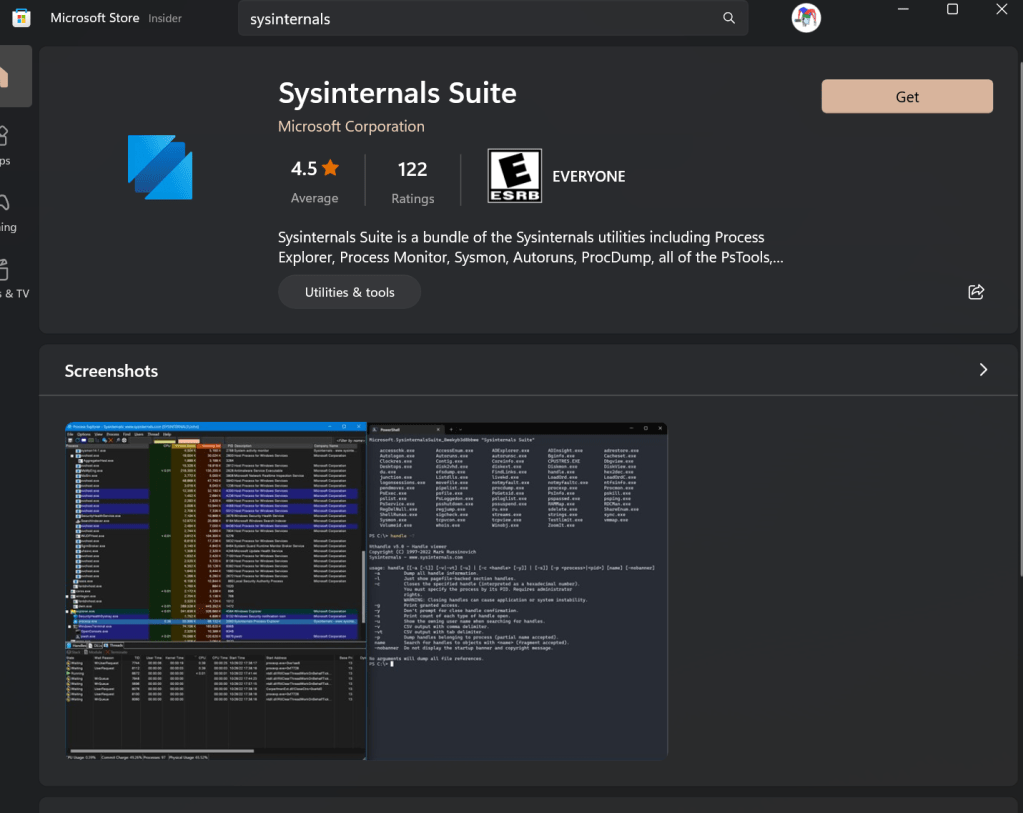
SysInternals has provided a CMD based WhoIs client for years. You can install the free SystInternels suite from the Microsft App Store. It is also possible to download and install each individual tool. There are even Linux versions for some of them. See the Sysinternals section of Microsoft’s site for all the options.

They’ve been essential tools to debug Windows for decades.

It’s easy to combine the two and create a time-saving WhoIS CLI that is faster and easier to use than a website. More or less, the process is to create a CMD profile that points to the folder that Sysinternals installs into. To get started, make sure both the Sysinternals Suite and Windows Terminal are installed. Click the Get button in their respective links above. 

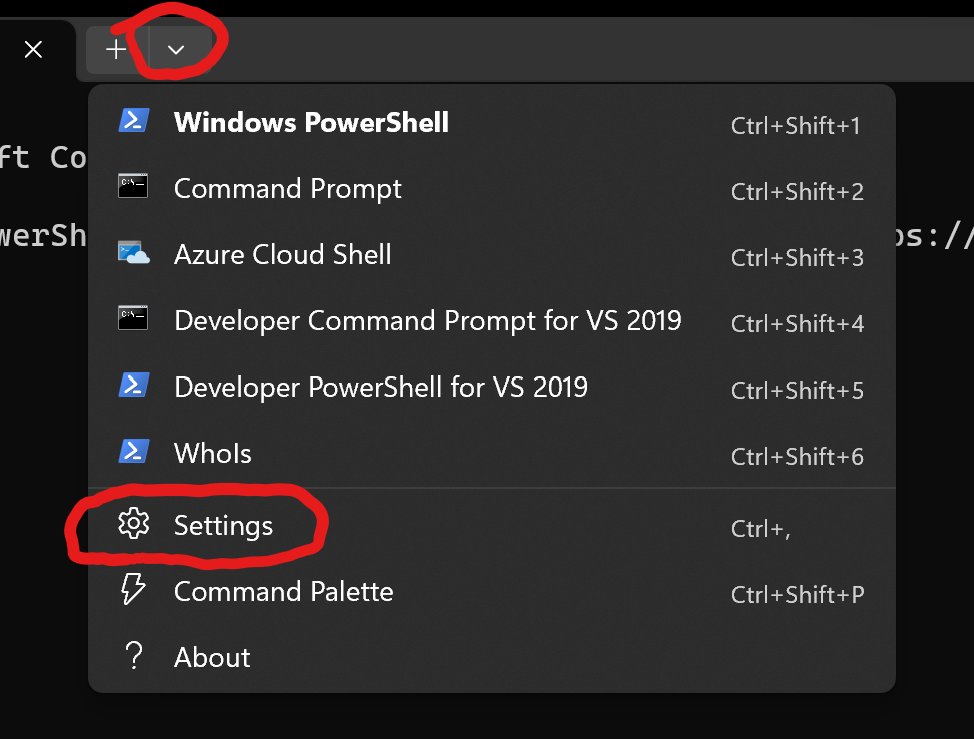
Now open Windows Terminal and click the drop down to the right of the last tab.  Go to settings.

Add new connections and customize your experience from settings.

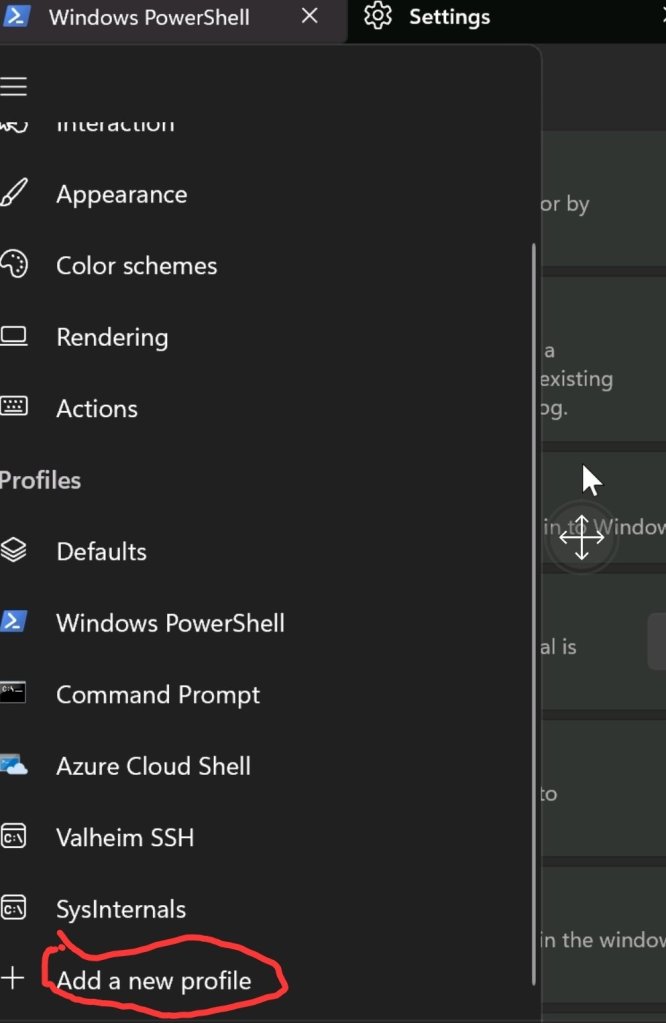
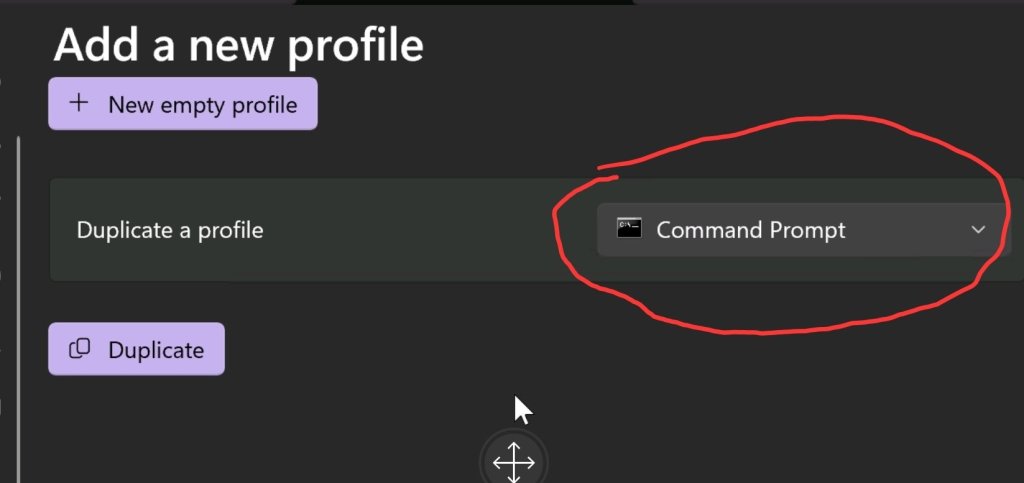
Add a new profile by the clicking menu button  followed by the ” add new profile” button.  Pick the option to copy a current profile and select CMD from the drop-down. 

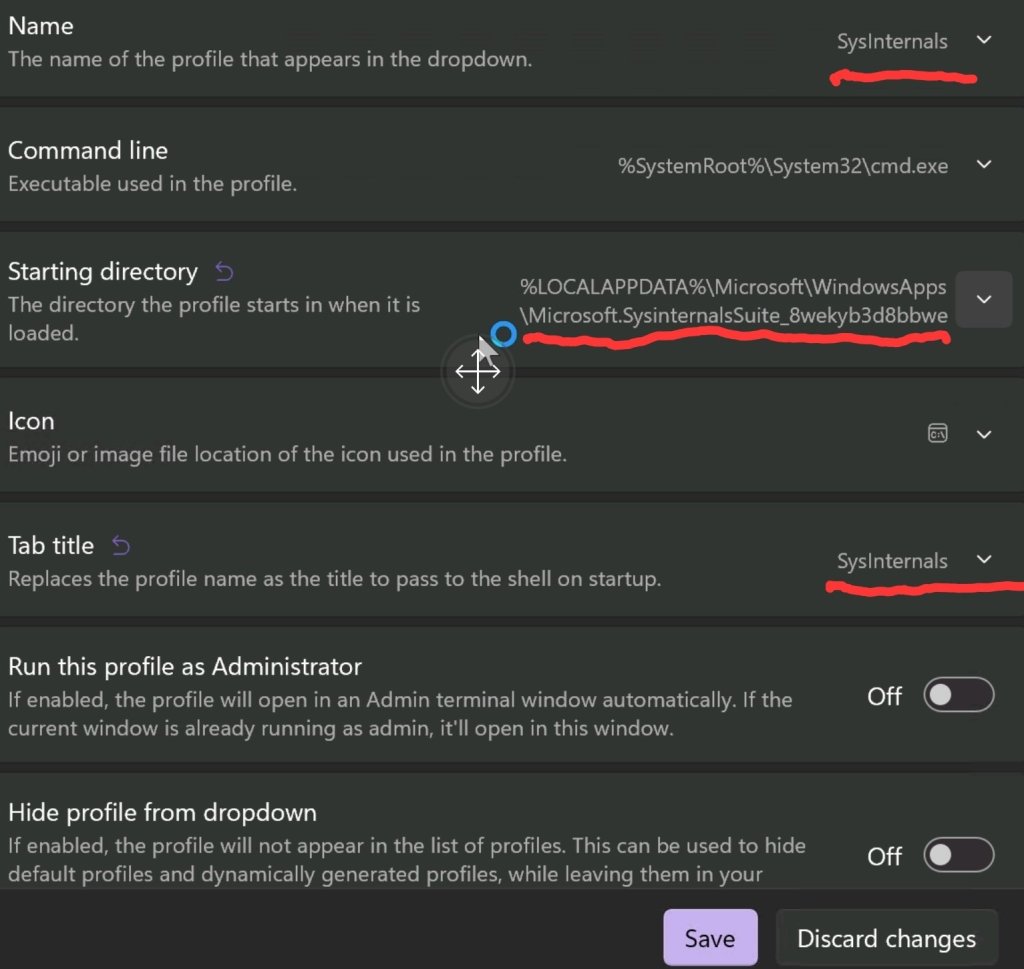
Adjust the fields outlined in red to match the picture below. Use the drop-down at the end of each attribute. If you installed Windows Terminal from the app, the path should be: %LOCALAPPDATA%\Microsoft\WindowsApps\Microsoft.SysinternalsSuite_8wekyb3d8bbwe. Otherwise, you created the path during installation. 

Change the underlined options.

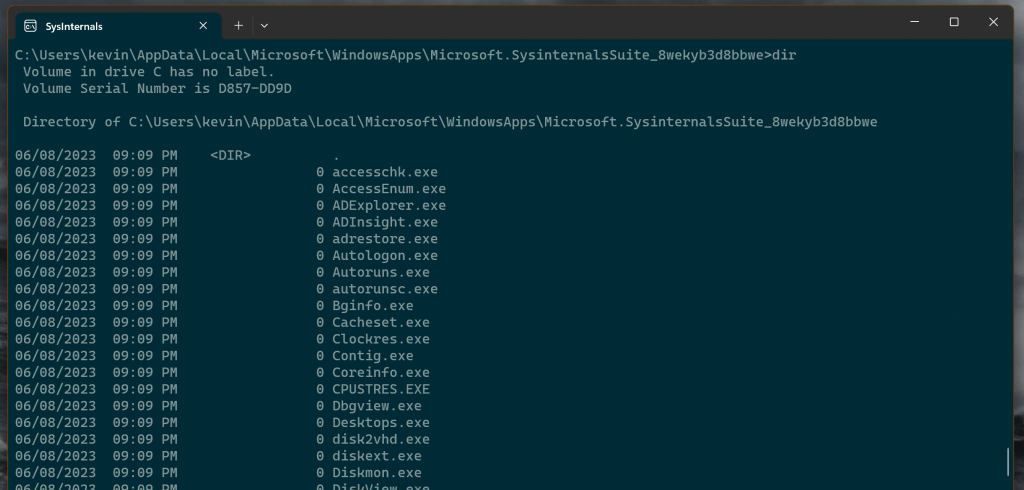
Save your changes and exit the menus. Now you should have a “SysInternals” tab available in the tab drop down menu. Open it and type whois followed by the domain name or IP address you are attempting to identify. All the other CLI tools in the SysInternals Suite work in the same manner (assuming you installed them). Type the name of the command followed by any attributes. List them by running a dir cmd, enjoy.

DIR will list all the Sysinternals tools that are available.

Solved Internal Email Forwarded To Outlook Junk

A colleague got me involved in an interesting case recently. When one Microsoft 365 user emailed another, the message was automatically forwarded to the recipient’s Junk folder. Both mailboxes were in the same tenant and had primary email addresses in the same domain. Since the messages were from an internal sender to an internal recipient, none of the email perimeter protection mechanisms should have been engaged.

I verified nothing was flagging or scoring the messages. Exchange’s message trace system showed the email being delivered to the recipient’s inbox. There were no flags or indicators of re-direction in the message’s header. To me this indicates the issue was happening after the message reached the recipient’s mailbox.

To make a long story short, I opened OneNote and jotted down a list of everything I could think of that had the ability to direct a message to the junk folder. On that list I included “native phone apps”. I decided this was the next thing to check. I logged on to the Microsoft 365 Azure Active Directory Admin Console and checked the sign-in logs for the user. Sure enough, I could see that the Samsung Mail App was authenticating on a regular basis.

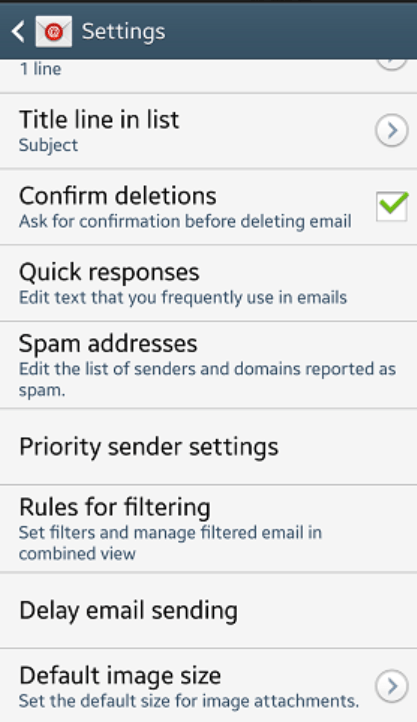
The Samsung Email app has its own SPAM and rules engine just like Outlook does. Open the app, click the menu button, then settings, scroll down and you will find SPAM settings. Lo-and-behold, the sender’s email address was in the blocked list.

If you’re struggling to understand how your messages are moving around when there are no rules in Outlook and your security systems aren’t interfering, check for native phone apps. There are more of these out there than you might think. Smartwatches, phones, tablets, even smart cars have native email apps capable of their own rules and settings. These application’s actions are not always immediately evident in message logs and tracing.

PowerShell: Restore Soft Deleted Exchange On-line Mailbox To New Microsoft 365 User

Recently, I encountered a situation in which a Microsoft 365 account had been deleted. Then, a new account with the same name was created and synchronized from the local domain. The user’s local profile and other software were linked to the new account and everything was working. The only issue was the mailbox missing all of its content.

Believe it or not, this isn’t an uncommon situation in my line of work. I looked online for a script and found lots of examples. Much to my surprise, I struggled to get any of them to work. Rather than try to troubleshoot and fix one , I opted to write my own. While writing it, I believe I discovered the issue. Exchange Online does not except the ExchangeGUID as a name/value pair. It has to be plain text.

Below is what I came up with. You will need to have the Exchange Online PowerShell Module installed on your computer. Open an Admin PowerShell Session and run the one-liner below to install it. You may also be prompted to update PowerShell itself if your computer has fallen behind in updates.

Install-Module ExchangeOnlineManagement

Save and run the script below. First, it will prompt for the tenant’s modern authentication global admin credentials. Next, it will prompt you for the account your are working with’s identity. You should be able to use the first and last name, UPN, or alias address. The script will use that data to locate the Exchange GUID for the source and target mailboxes. Finally, it will create and run a mailbox restore request and show the status.

# Restore Soft Deleted Mailbox to a new Matching Account in Exchange Online
# Assumes the Alias for both accounts is the same

#Sign in to Microsoft 365 Exchange.
#Requires Microsoft Exchang Online PowerShell 
$GlobalAdminUPN = Read-Host "Enter Global Admin UPN account"
Connect-ExchangeOnline -UserPrincipalName $GlobalAdminUPN

#Aquire the ExchangeGUID attribute for the source and target mailboxes
$UserAlisas = Read-Host "Enter mailbox identifier"
$SourceMailboxGuid = [string](Get-Mailbox -SoftDeletedMailbox $UserAlisas).ExchangeGuid
$TargetMailboxGuid = [string](Get-Mailbox -Identity $UserAlisas).ExchangeGuid

#Restore Softdeleted mailbox over the new Account's mailbox

New-MailboxRestoreRequest -SourceMailbox $SourceMailboxGuid -TargetMailbox $TargetMailboxGuid -AllowLegacyDNMismatch

#Check the restore job status
Get-MailboxRestoreRequest | Get-MailboxRestoreRequestStatistics

Microsoft’s 365 Conditional Access (Geo-fencing) is Malfunctioning

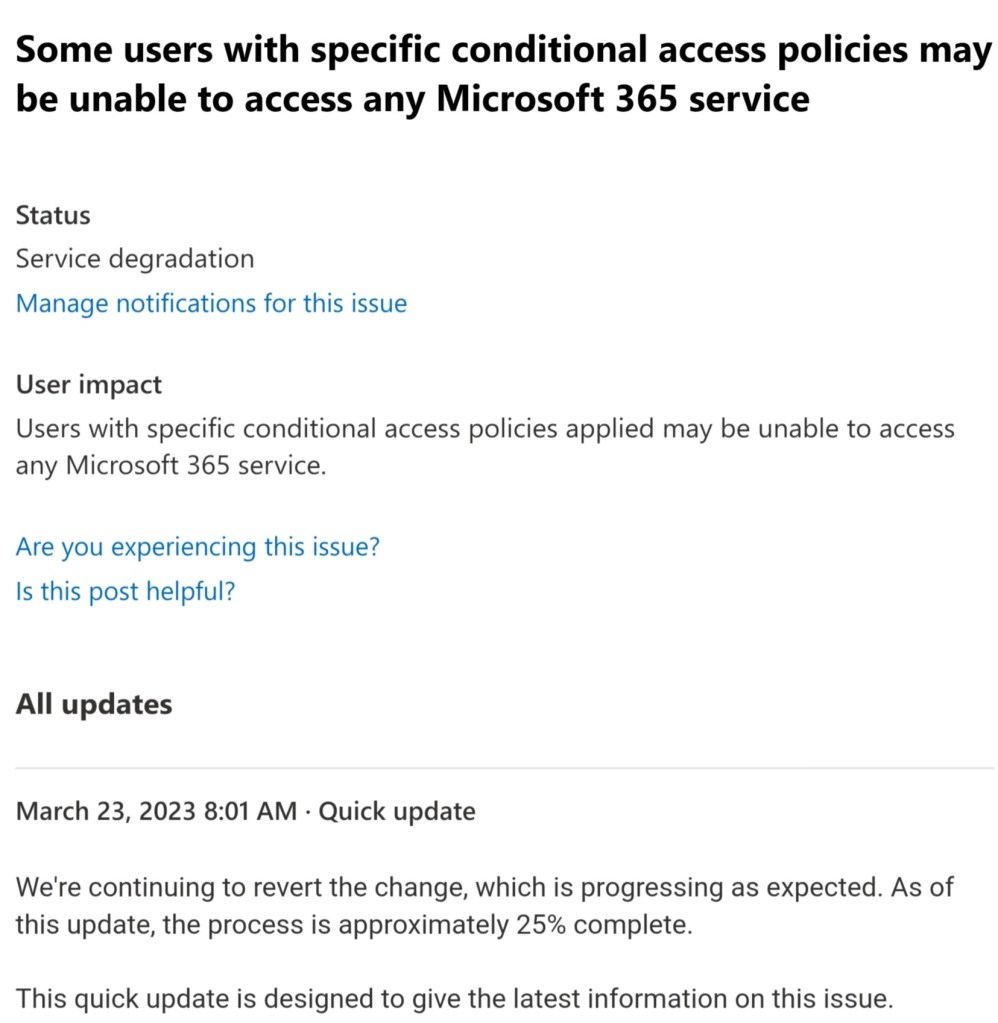
If your organization utilizes conditional access rules (aka Geo-fencing), you may be experiencing issues accessing the platform this morning. If you suspect this outage is impacting your productivity, contact your IT support.

At the time of this post, Microsoft was estimating that the recovery process is 25% completed. You can access status reports by visiting the Health section of your Microsoft 365 admin portal.

Microsoft 365 Family Subscribers Have Less than a Year to Add Their Custom Email Domain

I’m not sure that I ever knew the Home/Family version of Microsoft 365 supported custom domain names. I was changing some settings in Outlook and ran into a notification. It was a warning that the ability to add custom domain name to your Priemium Microsoft account would expire on November 30th of 2023. Not one to miss out on features I am paying for, I decided to dig a little deeper. You can review the notification message yourself here. https://support.microsoft.com/en-us/office/changes-to-microsoft-365-email-features-and-storage-e888d746-61e5-49e3-9bd1-94b88e9be988

If you reading about this feature for the first time like I did, here’s what to know. If you have, or are willing to buy, a custom domain name from GoDaddy.com you can use it for email with your Microsoft 365 subscription. According to the official instructions, public DNS records for the domain must be hosted with GoDaddy.

I already had a domain name from GoDaddy and was able to use it without issue. The process was more complicated than it would have been if had I purchased a brand new domain name from GoDaddy through Outlook. I had to manipulate DNS records manually to make my domain work. It is my understanding that part of the process is automated if you purchase the name though Outlook.com.

Whether you already own a domain or are purchasing one, the setup starts with logging into what is commonly called OWA (Outlook Web Access) aka your Outlook.com account https://outlook.live.com will get you there.

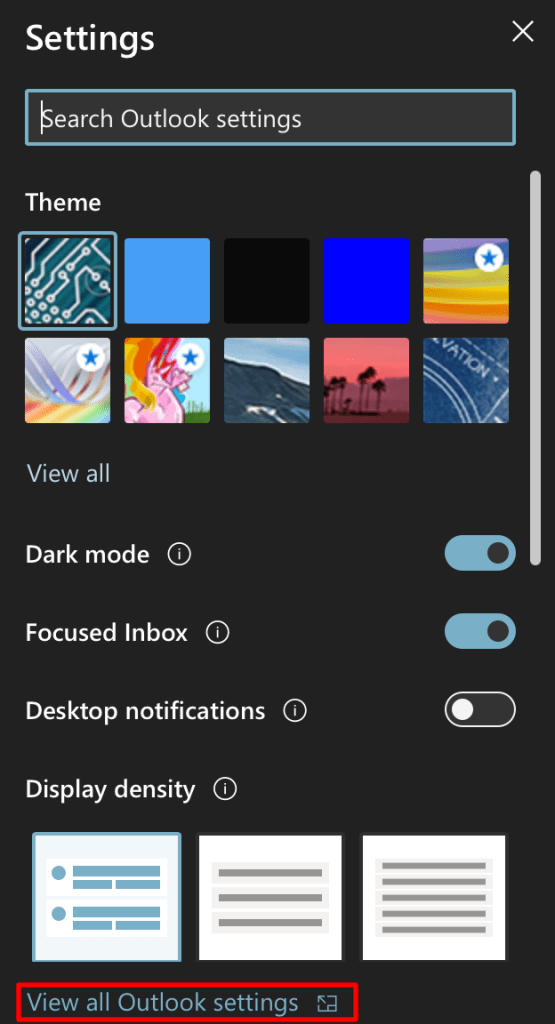
Click on the Gear icon (settings) in the upper right hand corner.

In the pane that opens click View all Outlook Settings at the bottom.

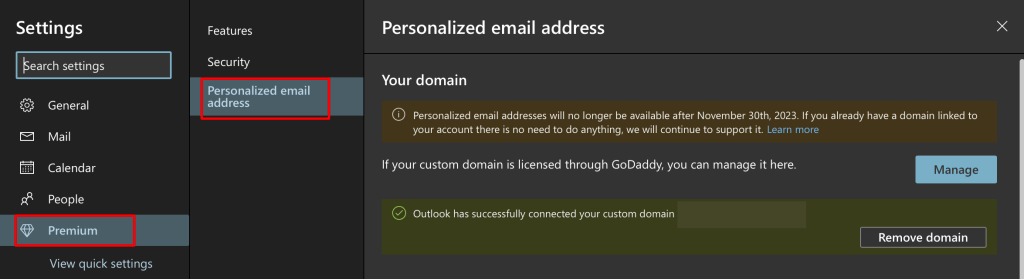
Now click Premium, then Personalized email address.

You can read the notification, use the Manage button to sign-in to your GoDaddy account, or set one up if you don’t already have it. Microsoft’s own documentation on the setup, questions, and troubleshooting is where you should turn for the rest of the configuration. They’ve made the process fairly simple, it took me about forty-five minutes to get my custom email addresses fully working on the Internet. If you complete the setup process before the deadline, your custom email address will not stop working.

Fix Microsoft 365 Configured External Mail Forwarding But Still Failing

There are plenty of online guides that explain how to configure Exchange Online to allow external mail forwarding. This isn’t another one, try Microsoft’s own guide if that is what you are looking for. We’re talking about a situation I recently encountered in which mail forwarding was correctly configured (via the linked doc), but still not working.

The problem turned out to be a guest account that contained an email address that matched the forwarding target’s address. I deleted the guest account and replaced it with a mail contact. Everything worked normally afterward.

You may be wondering why I didn’t just configure forwarding to point at the guest account instead of deleting it. That is because there’s no option to do so as far as I can tell. Exchange Online’s people picker does not seem to recognize guest accounts.

The existence of the guest account prevented me from creating a mail contact because another Azure AD object contained the same address. You can’t have multiple objects with the same SMTP address in the same tenant space. Except when you manually enter and SMTP address in the forwarding target of a mailbox?

Fix Azure AD Join Invalid Client Error

Recently I encountered an error while trying to join a brand-new laptop to an Azure AD domain. Generally, the process is straight forward. Open Settings, go to Accounts, Add A Work or School account and choose the option to Join this Computer to Azure Active Directory.

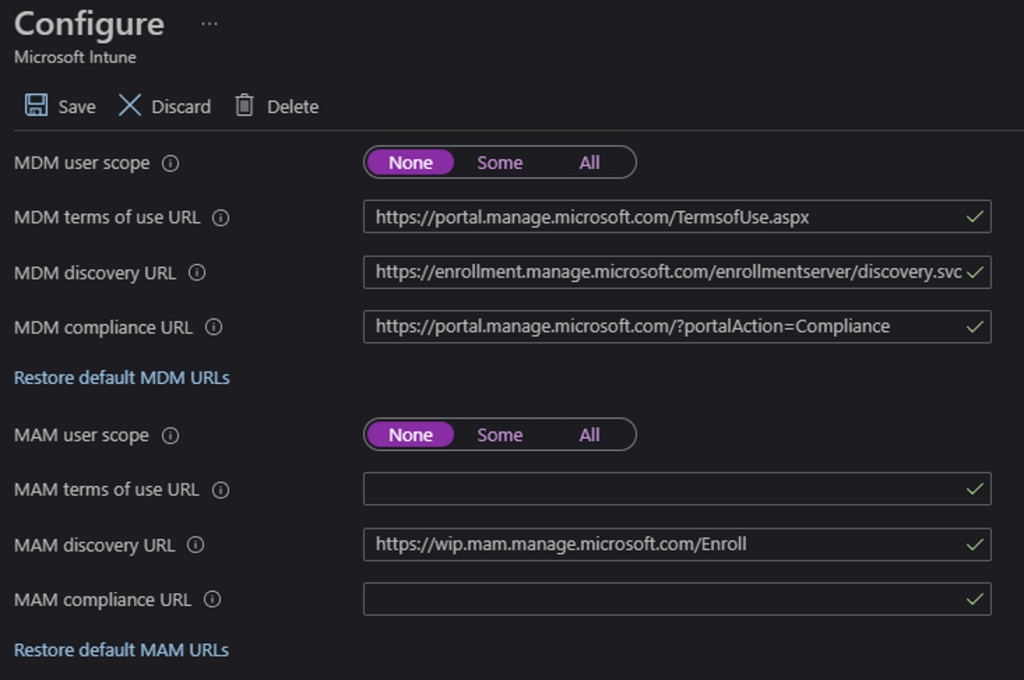
The error (screenshot below) was “Invalid_Client” which made no sense. How could a Windows Pro laptop be an invalid client for Azure AD? Why was the error mentioning MDM? We didn’t enable MDM. After some research and testing, the problem was traced down to the Intune MDM registration URLs being populated.

The clue that points to the cause is the top paragraph in the error message rather than the error itself.

I am still not sure how the registration URLs became activated. It is possible that another administrator enabled the feature, but I suspect it was done by Microsoft. Probably the result of some mass action script that hit some customers it was not supposed to. The Endpoint Manager and Intune blades aren’t visible in your admin center if you haven’t subscribed to Intune, which makes discovering this setting more difficult.

Login to your Azure AD portal and go to this URL: https://portal.azure.com/#blade/Microsoft_AAD_IAM/ActiveDirectoryMenuBlade/Mobility select Intune from the menu. Then set both control options to None and click Save. You’ll need to wait 15 – 30 minutes for the change to take effect after which you should be able to join systems to your Azure Active Directory again.

These URLS work like Exchange Autodiscover and allow new systems to enroll in MDM automatically.

Installing Android Apps on Windows 11 Is A Thing Now

One of the features promised during the Windows 11 run-up was that it would be able to natively run Android applications. The Windows Subsystem for Android fulfills that promise. The WSA is officially out of preview.

Before you start installing the new feature there are some of those pesky requirements to contemplate. At the bare minimum you’ll need 8 gigs of RAM, an SSD storage device, and i-3 or Ryzen 3000 series CPU. However, like all things PC, the minimum specs will probably leave you unsatisfied with the performance. 16GB and an i-5 or Ryzen 5000 series will let Android apps run like they do on your phone or tablet.

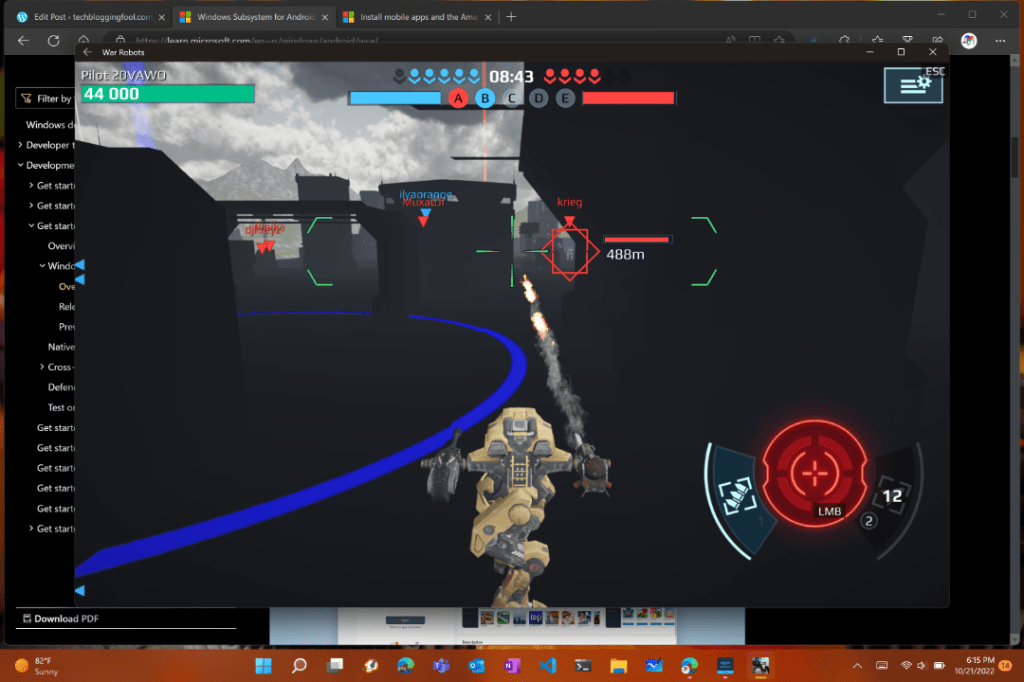
I have an i-7, 16GB, an SSD, and discrete GPU in my laptop. I tested out several apps, they all ran fine. I was able to play War Robots, a 3-D mech warrior clone, without lagging or other issues. Even on-line matches worked well. It should be noted that not all apps are supported, and some will suffer from re-sizing issues depending on how they were coded.

If on-line shooters work in WSA, most other apps should too.

You should also be aware that the Amazon App store is the only supported option for installing apps at the moment. If you are so inclined, there are a few posts on-line that explain how to hack the system into running other famous app stores along with getting direct APK files to install and run.

Installing the Windows Subsystem for Android is a simple matter. Open the Windows App store and install the Amazon App store. Yes, I know that sounds weird but nonetheless it is correct. If you have issues, make sure that the virtualization features of your processor are enabled. These settings are accessed in the UEFI BIOS. Microsoft has published this handy document that has links to most manufacturers’ instructions. Typically, the options are enabled by default in my experience.

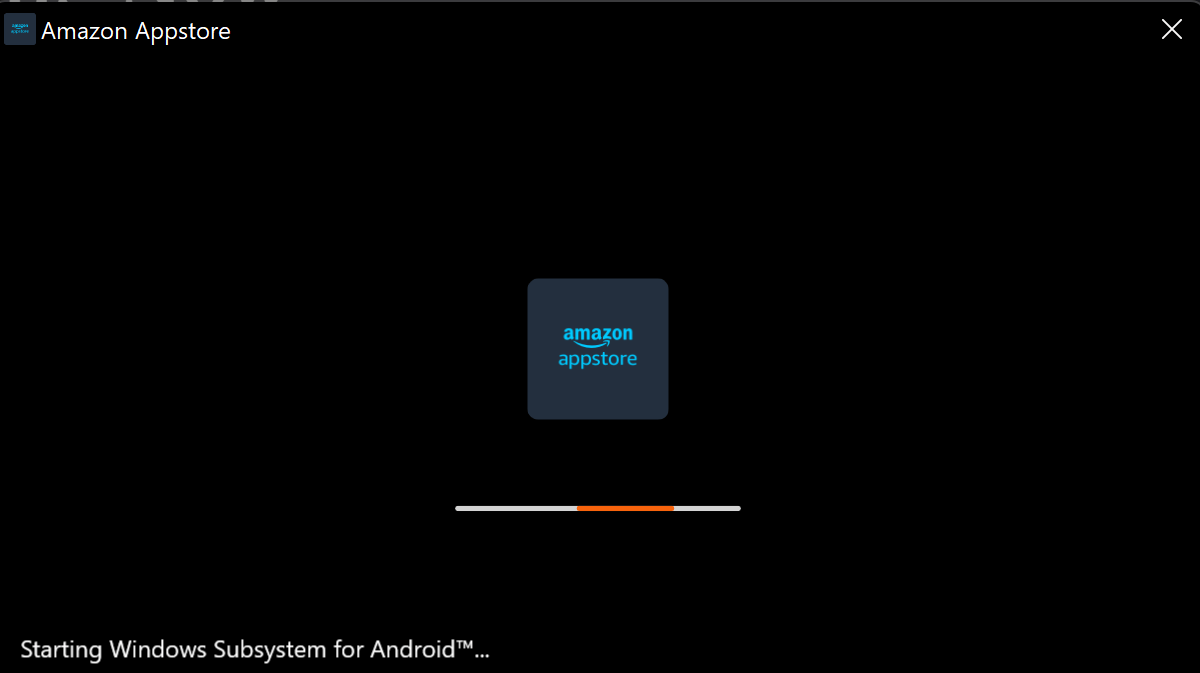
Installing the Amazon Appstore triggers the Windows Subsystem for Android installation.

I’ve already found the feature useful for testing Android apps and playing a few Android games. Outside of development and techs playing around, I’m not so sure the feature will catch on. The Amazon Appstore is missing some key apps. I had hoped to install the Microsoft Authenticator app for some end user documentation efforts but found that it isn’t available. If Microsoft can secure support for Google Play store the mass appeal will be stronger. It remains to be seen if that’s in the cards.

SMTP Authentication with Microsoft’s 365 Exchange On-line Suddenly Disrupted?

Microsoft has been engaged in the removal of Basic Authentication from their Exchange On-line systems for almost a year. The final cutoff is currently set for October of 2022. Some business applications and devices like scanners logon to the cloud with their own user account to deliver their messages. Older apps and machines that impersonate a Microsoft 365 user in this way may not support MFA (Multi-Factor Authentication), aka 2FA.

In preparation for decommissioning the basic logon protocol, Microsoft has begun modifying the SmtpClientAuthenticationDisabled attribute for Tenants and mailboxes they’ve deemed to not be using it anyway. According to their documentation, they will post a notification in the Message Center before making the changes to your organization’s subscription. We’ve received multiple reports of this change effecting established systems that are used every day with no message being seen in the Microsoft portal.

If you find that your apps, MFPs, or other non-Outlook email clients have suddenly stopped working, there are some useful PowerShell commands that will help you diagnose the situation. You can also re-enable SMTP authentication for either your entire Org or for individual mailboxes. Most of this information is outlined in another Microsoft Document.

To check the SMTP Authentication status of an Exchange On-line subscription, logon from a PowerShell session in your favorite terminal app. The instructions in this post assume that you have already installed the new EXO V2 PowerShell module.

To check settings for the organizational level, run the command below. An output of True means the authentication is disabled at the top level. This is not the whole story. Each mailbox can also have its own setting. The top-level only applies when a mailbox’s corresponding attribute is blank.

Get-TransportConfig | Format-List SmtpClientAuthenticationDisabled

If the mailbox SmtpClientAuthenticationDisabled attribute is set to a value other than $null (empty in the report you generate below), it overrides to top-level command. Use this one-liner to generate a report showing each account’s setting.

Get-CasMailbox | Select DisplayName, PrimarySmtpAddress, SmtpClientAuthenticationDisabled

To change the Organizational (default) level, execute the following line in your console. Change the value at the end from $true to $false to fit your desired outcome.

Set-TransportConfig -SmtpClientAuthenticationDisabled $true

To modify individual mailboxes, you’ll need the email address. The SmtpClientAuthenticationDisabled value can be set to $true (disable SMTP auth), $false (enable SMTP auth), or $null (use ORG level).

Set-CASMailbox -Identity xxx@xxxx.com -SmtpClientAuthenticationDisabled $true 

Use this simple script to modify all of your mailboxes at once, the same values apply here. Note: if you are at a larger company, you may need to add the ResulteSize Unlimited switch. As written, it will enable SMTP Authentication for all mailbox accounts.

$mailboxes = Get-CasMailbox|Select-Object PrimarySmtpAddress -ExpandProperty PrimarySmtpAddress

Foreach ($mailbox in $mailboxes){
    Set-CasMailbox -identity $mailbox -SmtpClientAuthenticationDisabled $false
    }

Multiple Systems with Office 365 Error 700003 and Sign-In Trouble

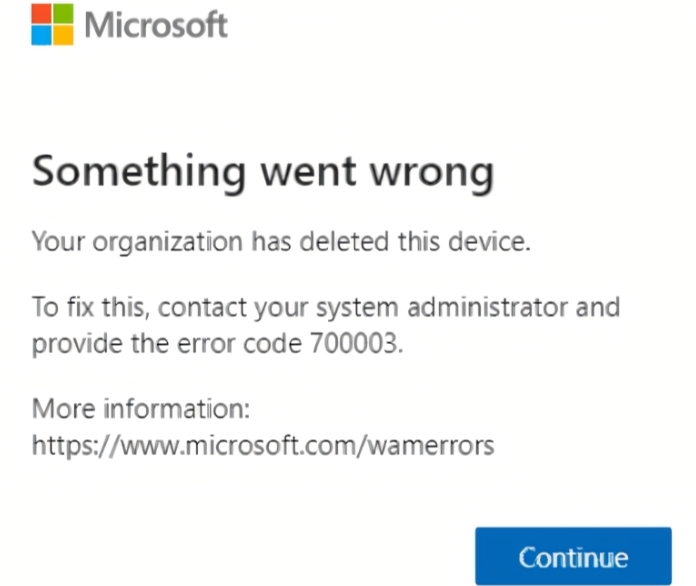
Typically, the 700003 error code indicates that the computer’s machine account cannot be found in Azure Active Directory.

Recentley I encountered a situation that had dozens of systems showing the error message. It was difficult to explain how that many system accounts could have been removed from Azure AD.

Eventually I traced the problem to some work another team was doing. They were reorganizing on-prem computer accounts into new organisational units. The Azure AD Connect configuration pointed at specific OUs and nobody had thought to add the new ones.

As the systems were moved to their new OUs they were marked for deletion by Azure AD Connect. The fix was to add the new organization units to ADC and force a sync.

Enable RDS Remote App Self-Service Password Reset and Notifications

One of the challenges introduced during the remote work revolution has been user password changes. When your worker population is directly connecting to your network on a regular basis, Active Directory password policies do the job nicely. VPN password resets can be difficult master, but it’s nothing some training can’t overcome.

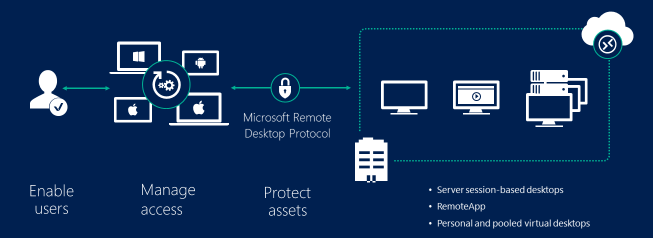
What happens when the remote worker solution is based on Microsoft’s Remote Desktop Services? If your people are connecting to full remote desktops, the answer is easy. Teach them to press CTRL-ALT-END. If you publish remote applications instead of desktops, two issues present themselves pretty early after the rollout. It is possible to overcome the challenges using only native OS functions.

The first problem we’ll need to address is the actual method a user will employ to change their password. Lucky for us, the RDWeb feature of the Remote Desktop Services Role includes this functionality; it just has to be enabled. Log on to a server that hosts the RDWeb site. If you aren’t sure, log on to any member of the RDS farm, open an elevated PowerShell console, and run the one-liner below.

Get-RDServer -Role "RDS-WEB-ACCESS"

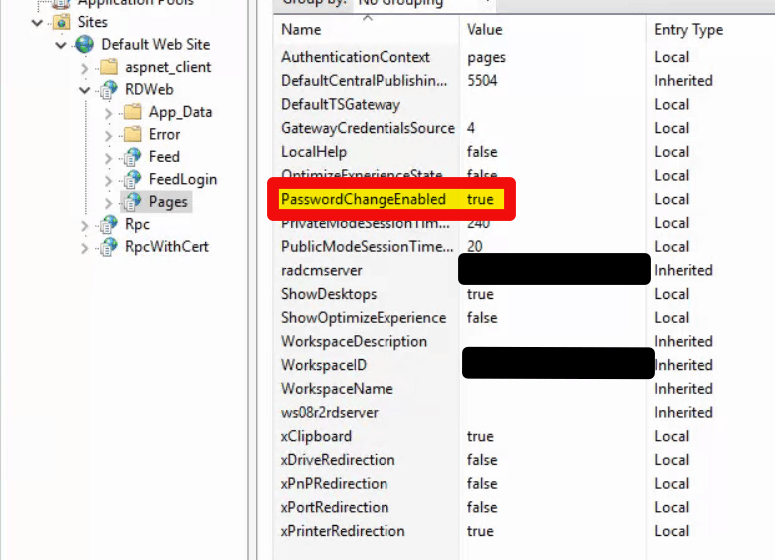
Open the IIS MMC on the RDWeb server. If you are load balancing, perform the following instructions on each RDWeb host to enable the hidden password reset page. First expand the chevrons until you get to RDWeb, then one more time and click Pages. Next double click “Application Settings” and set the “PasswordChangeEnabled” attribute to True. Restart IIS by opening an elevated PowerShell or CMD console and running IISRESET (add /Force to end sessions immediately).

Set the yellow attribute to true

Once completed, a hidden password reset page will be available at a variation of the URL you already use for RDWeb. The default for a US English server is https://yourdomain.com/RDWeb/Pages/en-US/password.aspx. All that is left is to address notification. There’s no prompt in a published application that effectively tells a user when their password is about to expire. We’ll use a PowerShell script to send an email with the relevant information like complexity rules and include a link to the reset page we just created.

Connectivity to SMTP is your responsibility. If you have an internal email relay server already established, then target the notification script at that by changing the $SMTPServer variable. You may also need to authenticate to your email server with a licensed account to send mail or configure an Office365 mail connector. The script can be modified to fit those situations but is not configured for it now.

Schedule the script below to run as a task from a server or workstation that is running RSAT for the appropriate version of Windows. Specifically, you’ll need the Active Directory PowerShell modules. Schedule the task with an appropriate service account, read-only access to Active Directory is required. Adjust the variables to fit your environment and needs.

#**Password_Expiration_RDS.ps1**
#Send password expiration password and link to reset for RDS Published Apps"
#Author: techbloggingfool.com

#Variables, populate with values for your environment and goals. 
$DaysToWarn = 7
$SupportTeam = "Support at XXX-XXX-XXXX"
$From = "Password AutoBot <noreply@yourdomainname.com>"
$Subject = "Reminder - Your Domain user account password will expire soon"
$SMTPServer = "Your Email Server's FQDN Goes between these quote marks"
$MailDomain = "Your email domain name goes here"
$RDWebResetURL = "The URL to your RDS password reset page goes here" 

function PreparePasswordPolicyMail ($ComplexityEnabled,$MaxPasswordAge,$MinPasswordAge,$MinPasswordLength,$PasswordHistoryCount)            
{            
    $verbosemailBody = "<p class=MsoNormal>&nbsp;</p><p class=MsoNormal>Below is a summary of the requirements for your new password:</p>`r`n<ul>`r`n"            
    $verbosemailBody += "<li class=MsoNormal>Your password must be changed every <b>" + $MaxPasswordAge + "</b> days.</li>`r`n"            
    If ($ComplexityEnabled) {
        $verbosemailBody += "<li class=MsoNormal>Your new password cannot contain any part of your name or username and must contain 3 of the 4 character types:<ul><li class=MsoNormal>Uppercase letters</li><li class=MsoNormal>Lowercase letters</li><li class=MsoNormal>Numbers</li><li class=MsoNormal>Symbols</li></ul>`r`n"
    }
    If ($MinPasswordLength -gt 0) {
        $verbosemailBody += "<li class=MsoNormal>Your new password must be at least <b>" + $MinPasswordLength + "</b> characters long.</li>`r`n"
    }
    If ($PasswordHistoryCount -gt 0) {
        $verbosemailBody += "<li class=MsoNormal>Your new password cannot be the same as the last <b>" + $PasswordHistoryCount + "</b> passwords that you have used.</li>`r`n"
    }
    If ($MinPasswordAge -eq 1) {
        $verbosemailBody += "<li class=MsoNormal>You must wait <b>" + $MinPasswordAge + "</b> days before you can change your password again.</li>`r`n"
    }
    If ($MinPasswordAge -gt 1) {
        $verbosemailBody += "<li class=MsoNormal>You must wait <b>" + $MinPasswordAge + "</b> days before you can change your password again.</li>`r`n"
    }
    $verbosemailBody += "</ul>`r`n"
    return $verbosemailBody            
}  

#HTML Email Header and Footer Formatting
$header = '<html>

<head>
<meta http-equiv=Content-Type content="text/html; charset=windows-1252">
<style>
<!--
 /* Font Definitions */
 @font-face
	{font-family:Wingdings;
	panose-1:5 0 0 0 0 0 0 0 0 0;}
@font-face
	{font-family:"Cambria Math";
	panose-1:2 4 5 3 5 4 6 3 2 4;}
@font-face
	{font-family:Calibri;
	panose-1:2 15 5 2 2 2 4 3 2 4;}
 /* Style Definitions */
 p.MsoNormal, li.MsoNormal, div.MsoNormal
	{margin:0in;
	font-size:11.0pt;
	font-family:"Calibri",sans-serif;}
@page WordSection1
	{size:8.5in 11.0in;
	margin:1.0in 1.0in 1.0in 1.0in;}
div.WordSection1
	{page:WordSection1;}
 /* List Definitions */
 ol
	{margin-bottom:0in;}
ul
	{margin-bottom:0in;}
-->
</style>

</head>

<body lang=EN-US style=''word-wrap:break-word''>

<div class=WordSection1>
'

$footer = "</div>

</body>

</html>
"
#Import AD Module and obtain data from it
Import-Module ActiveDirectory -Verbose:$false

$domainPolicy = Get-ADDefaultDomainPasswordPolicy            
$passwordexpirydefaultdomainpolicy = $domainPolicy.MaxPasswordAge.Days -ne 0            
            
if($passwordexpirydefaultdomainpolicy)            
{            
    $defaultdomainpolicyMaxPasswordAge = $domainPolicy.MaxPasswordAge.Days            
    if($verbose)            
    {            
        $defaultdomainpolicyverbosemailBody = PreparePasswordPolicyMail $PSOpolicy.ComplexityEnabled $PSOpolicy.MaxPasswordAge.Days $PSOpolicy.MinPasswordAge.Days $PSOpolicy.MinPasswordLength $PSOpolicy.PasswordHistoryCount            
    }            
} 

#Find accounts that are enabled and have expiring passwords
$users = Get-ADUser -filter {Enabled -eq $True -and PasswordNeverExpires -eq $False -and PasswordLastSet -gt 0} `
 -Properties "Name", "UserPrincipalName", "msDS-UserPasswordExpiryTimeComputed", "mS-DS-ConsistencyGuid" `
 | Where-Object {$_."ms-DS-ConsistencyGuid" -ne $null} | Select-Object -Property "Name", "UserPrincipalName", "SAMAccountName", `
 @{Name = "PasswordExpiry"; Expression = {[datetime]::FromFileTime($_."msDS-UserPasswordExpiryTimeComputed").ToLongDateString() + " " + [datetime]::FromFileTime($_."msDS-UserPasswordExpiryTimeComputed").ToLongTimeString() }}

If ($null -eq $Users) {
    Write-Error "No users found with the selected search criteria."
}
#check password expiration date and send email on match
foreach ($user in $users) {

    $DaysRemaining = (New-TimeSpan -Start $(Get-Date) -End $user.PasswordExpiry).Days

    if ($DaysRemaining -le $DaysToWarn) {

        $EmailBody = $header
        $EmailBody += "<p class=MsoNormal>Greetings $($user.Name),</p>`r`n"
        $EmailBody += "<p class=MsoNormal>&nbsp;</p><p class=MsoNormal>This is an automated password expiration warning.&nbsp; Your password will expire in <b>$DaysRemaining</b> days on <b>$($User.PasswordExpiry)</b>.</p>`r`n"

        $PSO= Get-ADUserResultantPasswordPolicy -Identity $user.SAMAccountName            
        if ($null -ne $PSO) {
            $EmailBody += PreparePasswordPolicyMail $PSO.ComplexityEnabled $PSO.MaxPasswordAge.Days $PSO.MinPasswordAge.Days $PSO.MinPasswordLength $PSO.PasswordHistoryCount            
        }
        else {
            $EmailBody += PreparePasswordPolicyMail $domainPolicy.ComplexityEnabled $domainPolicy.MaxPasswordAge.Days $domainPolicy.MinPasswordAge.Days $domainPolicy.MinPasswordLength $domainPolicy.PasswordHistoryCount            
        }
        
        $EmailBody += "<p class=MsoNormal>&nbsp;</p><p class=MsoNormal>Office workers, press the Ctrl+Alt+Delete keys on your keyboard and select ""Change a password"".</p>`r`n"
        $EmailBody += "<p class=MsoNormal><b>Note:</b> If you are a remote worker, first connect to the VPN.</p>`r`n"
        $EmailBody += "<p class=MsoNormal><b>Note:</b> Then go to ""$RDWebResetURL"" and reset your password.</p>`r`n"
        $EmailBody += "<p class=MsoNormal><b>Note:</b> Finally, reboot your computer and reconnect to the VPN with your new password.</p>`r`n"
        $EmailBody += "<p class=MsoNormal>&nbsp;</p><p class=MsoNormal>Please contact $SupportTeam if you need assistance changing your password.</p>`r`n"
        $EmailBody += "<p class=MsoNormal>&nbsp;</p><p class=MsoNormal>DO NOT REPLY TO THIS EMAIL. This is an unattended mailbox.</p>`r`n"
        $EmailBody += $footer
         
        $Recipient = $user.SAMAccountName + '@' + $MailDomain
        Send-MailMessage -To $Recipient -From $From -SmtpServer $SMTPServer -Subject $Subject -BodyAsHtml $EmailBody

        Write-Verbose "Server: $SMTPServer`r`nFrom: $From`r`nTo: $Recipient`r`nSubject: $Subject`r`nBody:`r`n$EmailBody"
    }
}

The task should be scheduled to run at least once per day. User’s will be able to reset their own passwords. The notification currently includes a line that suggests remote users should connect to the VPN, you may need to remove it if you utilize a different type of tunnel.

Allow RDS Shadowing without Domain Admin Rights

Microsoft’s Remote Desktop Services have taken center stage in the technology spotlight as of late. If your organization did not have an RDS platform before the work from home revolution, it probably does now.  The effort to build so many of them in such a short time reminded me of Y2K remeditation efforts.

The shadowing function built-in to RDS allows one remote user to view and interact with another’s session. A form of remote control. Starting with the 2012 edition, Microsoft made changes to the RDS role that required Domain Administrator rights to use shadowing.

The feature is quite popular with the help desk, training staff, and onboarding teams. Today’s need to help users with RDS desktops and remote apps is greater than ever. However, making that many people domain administrators is nightmare fuel for your average system admin.

As with many of the limitations found in Microsoft’s products, this one can be overcome, just not via the GUI controls. MS has a programmatic class and method to control these permissions named “Win32_TSPermissionsSetting AddAccount.” 

Unfortunately, this solution is not perfect. Shadowing a session still requires local administrator rights on the session host. Still, local admin rights on single systems is better than domain admin rights. So, create a group for your shadow users in AD, like “Domain\RDS Shadow”. Then, add that group to each session host’s local administrator group.

Once that is done, open an elevated CMD prompt on each session host. Special Note: normally you can run almost any CMD in a PowerShell console and it will execute correctly. This is one of the few cases where that is not true. It has to be CMD prompt, unless recent patches have changed the outcome.

In the CMD console run (replace Domain\RDS_Shadow with your domain and group names):

wmic /namespace:\root\CIMV2\TerminalServices PATH Win32_TSPermissionsSetting WHERE (TerminalName=”RDP-Tcp”) CALL AddAccount “Domain\RDS_Shadow”,2 

Now, users who are members of the RDS Shadow group will be able to RDP to a session host and shadow another person’s session.

The shadowing session can take a long time to initialize, and all you see is a black screen while the output stream is mirrored. Be patient; if you didn’t receive an error, it eventually works.

PowerShell: List all non-system Service Accounts in A Windows Domain

During a recent security exercise, I needed to validate all of the admin created service accounts in use on a customer’s Windows domain. The only problem was the total lack of trust in the documentation. In order to check them, I would first have to find the service accounts across dozens of customer environments.

Surely Microsoft included a method to acquire the data I needed? I mean, it’s their recommendation to review the accounts in the first place. So, I’ll just fire up the domain service account console. Yeah, right, you are on your own.

Some of my co-workers had resorted to logging on to each server one at a time, but I had way too many for a manual search. Of all the skills that I have invested my time into learning, none have paid off like knowing PowerShell. Run the script below from a DC or system with the RSAT AD modules installed. Use a Domain Admin account in an elevated PowerShell console. It will find all of the Windows servers in the domain and list the services that are automatically starting with a named account.

$ErrorActionPreference = "SilentlyContinue"
 
Import-Module ActiveDirectory 

$domains = (Get-ADForest).domains
$dcs = Foreach ($domain in $domains) {
    Get-ADDomainController -DomainName $domain -Discover -Service PrimaryDC
}
$servers = Foreach ($dc in $dcs) {
    Get-ADComputer -Properties * -Filter {(OperatingSystem -like "*Windows Server*")}| Select-Object DNSHostName -ExpandProperty DNSHostName
}

Foreach ($Server in $Servers) { 
    Get-WmiObject -Class win32_service -ComputerName $Server -Property SystemName, Name, StartMode, StartName, State | 
    Select-Object SystemName, Name, StartMode, StartName, State | 
    Where-Object {($_.startmode -like "auto") -and ($_.startname -NotLike "*NT Auth*") -and ($_.startname -Notlike "*Local*") -and ($_.startname -Notlike $null)} |
    Format-Table -AutoSize
}

My Experience with Installing Windows 11 On Stuff

In the beginning, there was so much confusion around Microsoft’s new OS requirements that even many professionals had to tune out the noise. Now that 11 has actually landed, the requirements aren’t too difficult to grasp, right? TPM 2.0 and an eighth gen or newer CPU are the big ones.

If you are okay with accepting some risk, then you can bend the rules and load the new version on pretty much anything. Side doors are always an intriguing option for inquisitive people. They almost always come with some grave side effects, and Microsoft doesn’t disappoint.

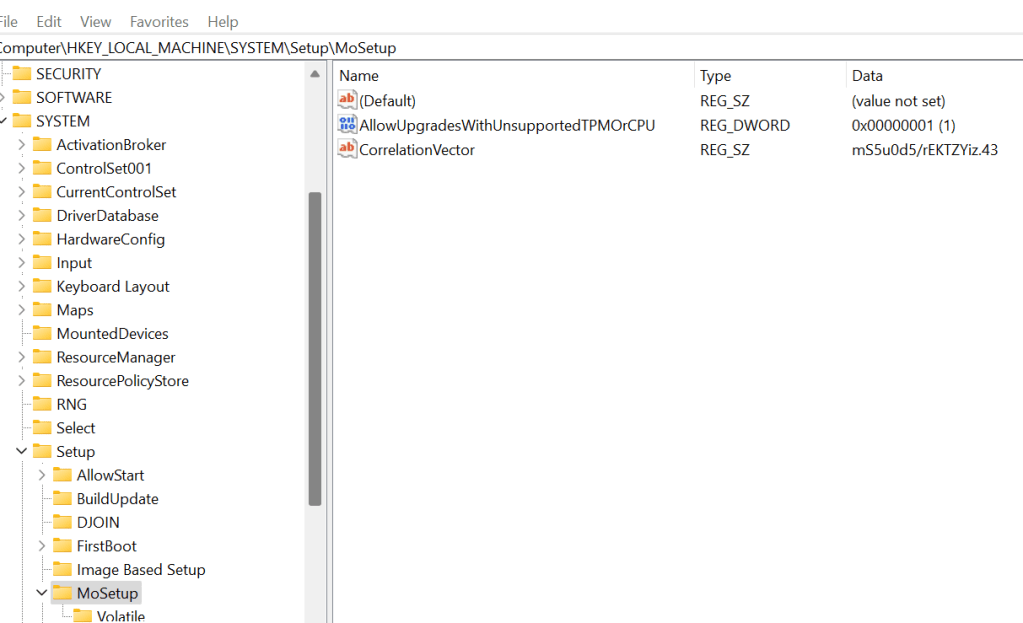
If you edit the registry of most computers from the Windows 7 era (already running 10), the TPM and CPU checks can be bypassed. This allows the Windows 11 upgrade to be intiatied by mounting the ISO and running setup. You will be accepting an agreement that states you are proceeding at your own peril and that future updates may be withheld. I followed The Verge’s three step guide the first time: read it @ https://www.theverge.com/22715331/how-to-install-windows-11-unsupported-cpu-intel-amd-registry-regedit

Tip: if the key/folder doesn’t exist, then just create it yourself.

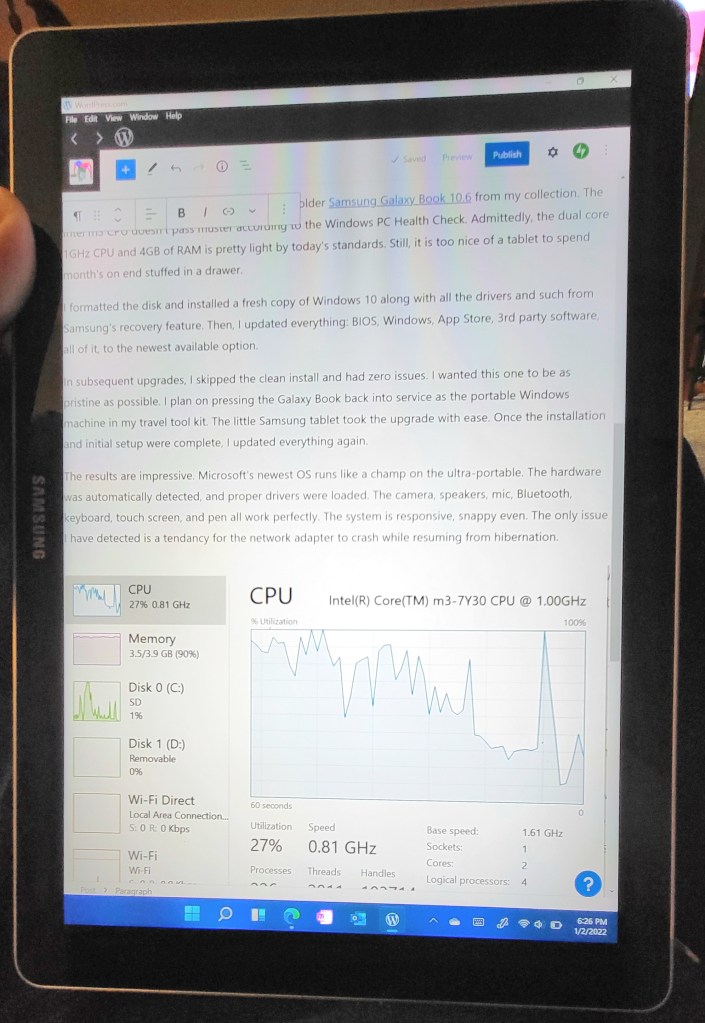
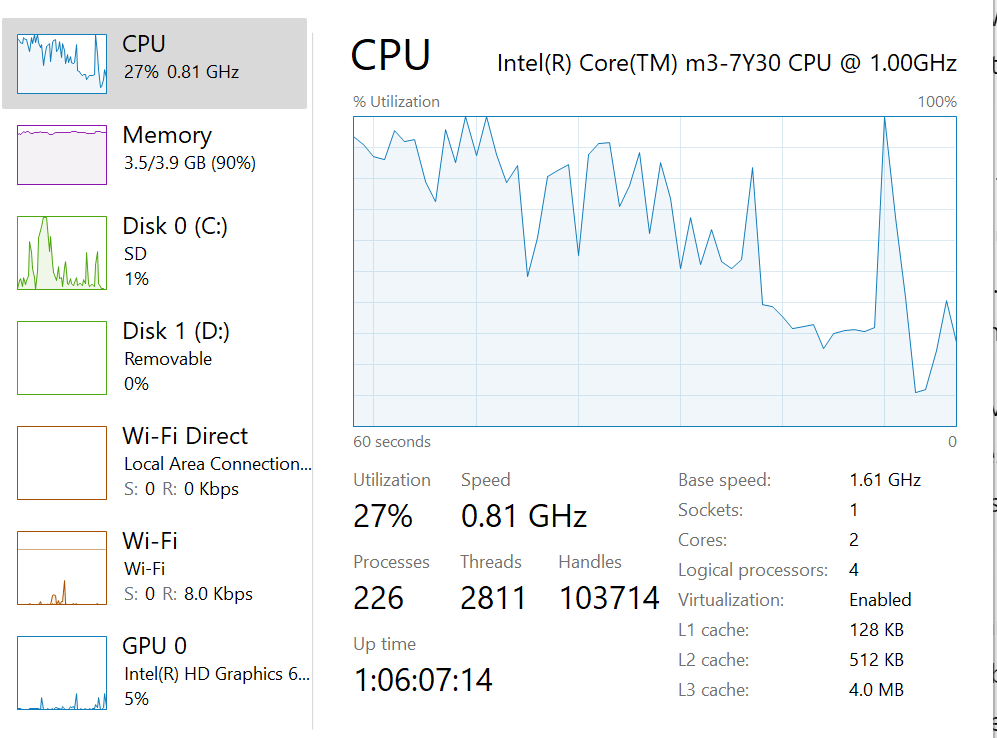
The first thing I used the technique on was an older Samsung Galaxy Book 10.6. The Intel m3 CPU doesn’t pass muster according to the Windows PC Health Check. Admittedly, the dual core 1GHz CPU and 4GB of RAM are pretty light by today’s standards. 

I formatted the disk and installed a fresh copy of Windows 10 along with all the drivers and such from Samsung’s recovery feature. Then, I updated everything: BIOS, Windows, App Store, 3rd party software, all of it, to the newest available option.

In subsequent upgrades, I skipped the clean install and had zero issues. I wanted this one to be as pristine as possible. I plan on pressing the Galaxy Book back into service as the portable Windows machine in my travel tool kit. The little Samsung tablet took the upgrade with ease. Once the installation and initial setup were complete, I updated everything again.

The results are impressive. Microsoft’s newest OS runs like a champ on the ultra-portable. The hardware was automatically detected, and proper drivers were loaded. The camera, speakers, mic, Bluetooth, keyboard, touch screen, and pen all work perfectly. The system is responsive, snappy even. The only issue I have detected is a tendancy for the network adapter to crash while resuming from hibernation.

I proceeded to upgrade a Dell G3 laptop, Lenovo gaming laptop, an HP Elite Book, a Dell Venue tablet, a Surface 3,  Surface Go, Surface Go 2, Surface Book 2, and multiple custom built gaming desktop systems of both Intel and AMD architectures. In all of that, the network resume glitch is the only issue I have personally encountered.

Here’s the thing: I have encountered that glitch on three different systems. Both wireless and wired nics have been affected. I’ve tried everything I know but have not been able to resolve the problem without resorting to disabling hibernation. Incidentally, disabling the network adapter in the device manager and then turning it back can sometimes help.

Given how draconian Microsoft has been in the media about the requirements, I was pleasantly surprised. My experience to date has been that any system or software compatible with Windows 10 is also compatible with Windows 11. Or, at least, it can be if you are willing to jump through Microsoft’s hoops.

PowerShell: Remove Offline Network Printers from all Workstations

If you have ever moved Windows print services to a new server, chances are that you have been left wondering what to do with the old stuff left over on the client computers. GPOs make deploying printers a snap, but when it comes to removing them, you are on your own.

Leaving the old printers installed can be confusing to people. In today’s world, printers are increasingly used as attack vectors to establish a beachhead inside corporate networks, leaving them could turn out to be a security risk. Plus, my dad taught me that no job is finished until you’ve cleaned up the mess you made doing it LOL.

If your workstation operating systems are new enough to be running PowerShell and WinRM is enabled, a script could be utilized to remove the old printers. First you will need to find the printers to be removed and store them in a variable. The Get-Printer cmdlet lists all the printers on a system and the Where-Object function will let us filter the properties that identify the specific printers we want to uninstall.

$OfflinePrinters = Get-Printer | Where {($_.Type -like "Connection") -and ($_.PrinterStatus -notlike "Normal")}|
Select Name -ExpandProperty Name

The line above will store the names of printers on the system you run it from that are connected via network and not online in the variable $OfflinePrinters. It should be noted that there is a potential to remove printers you use with this method. If you have a network printer installed from a location you are are not currently connected to, it will match the criteria. For example, if you have a network printer at home but are executing the script from your office the home printer will be deleted.

Next, we’ll loop through the printers in the variable and remove them. If you are concerned about the potential to remove printers you need, remove the -confirm $false and you’ll be prompted for each one.

Foreach ($OfflinePrinter in $OfflinePrinters) {
    Remove-Printer -Name $OfflinePrinter.Name -Confirm $false
}

Removing all the old printers from a single computer is well and good, but PowerShell’s true power comes from it’s ability to execute commands against all systems. With a few more lines of code we can search through your Active Directory domain and find all your workstations. Then we’ll use PowerShell’s Invoke-Command to execute our little printer removal tool on each one.

The script below will need to be run from a Domain Controller or from a system with RSAT installed. To use Invoke-Command, WinRM has to be enabled on your workstations to allow PowerShell Remoting. See Windows Remote Management – Win32 apps | Microsoft Docs


Function Remove-Printers {
    $OfflinePrinters = Get-Printer | Where-Object {($_.Type -like "Connection") -and ($_.PrinterStatus -notlike "Normal")}|
    Select-Object Name -ExpandProperty Name
Foreach ($OfflinePrinter in $OfflinePrinters) {
    Remove-Printer -Name $OfflinePrinter.Name -Confirm $false
    }
}
$Computers = Get-ADComputer -Filter ‘Operatingsystem -Notlike “*server*” -and enabled -eq “true”‘|
Select-Object dnshostname -ExpandProperty dnshostname

ForEach ($Computer in $Computers){
    Invoke-Command -ComputerName $Computer -ScriptBlock {Remove-Printers}
}

Merge PST Files In Outlook

You can use Outlook 2007 and newer to merge PST files. This process is useful if you have acquired somebody else’s mailbox export, or have numerous archive files that are difficult to deal with. You can not select a source PST that is in use by Outlook so you must close it first. If you are consolidating into a single new PST file, create it before you continue with the steps below. The target PST file needs to be mounted in the Outlook profile or it will not show up as an option in the import dialog.

  • Open Outlook, right click on the Source PST file and close it
  • Click File -> Open / Export
  • Click Import / Export
  • Click Import from another program or file -> Next
  • Click Outlook Data File (.pst) -> Next
  • Browse to and select the source PST file (the one you are moving data from)
  • Make sure the “Do not import duplicates” option is selected.
  • Click Next
  • Be sure the “Include subfolders” check box is selected.
  • Select the radio button labeled “Import items into the same folder in:”
  • Choose the Target Outlook Data File from the drop down menu.
  • Click Finish

Understanding Send As with Signatures from Exchange Shared Mailboxes

Normally when an account is given full permissions to a shared mailbox, the shared mailbox is auto-mapped to the delegate account’s Outlook profile. The shared mailbox is added to a linked attribute in Active Directory. Linked attributes describe a relationship between objects and are often paired as ForwardLinks and BackLinks. In the case of Exchange shared mailboxes, the user DN is added to msExchDelegateListLink and the shared mailbox is added to msExchDelegateListBL.

Auto-mapped shared mailboxes are opened as a function of the forward linked attribute (msExchDelegateListLink) in combination with the Autodiscover feature. When the Autodiscover XML is examined (Test E-Mail Autoconfiguration) the auto-mapped mailbox appears in the XML tab in the AlternativeMailbox tag.

<AlternativeMailbox>
<Type>Delegate</Type>
<DisplayName>Sales</DisplayName>
<LegacyDN>/o=contoso/ou=Exchange Administrative Group (FYDIBOHF23SPDLT)/cn=Recipients/cn=Sales</LegacyDN>
<Server>ServerName</Server>
</AlternativeMailbox>

Mailboxes opened in this manner (shared, archive, public, etc.) are not natively part of the Outlook profile and therefore are not processed by Outlook’s account creation routine. As a result, the auto-mapped shared mailbox does not acquire a signatures folder in the file system. By default, Outlook creates signature folders for all accounts that go through the creation process at C:\user\username\appdata\roaming\microsoft\signatures.

To add a signature to messages sent from shared mailboxes in Outlook we need the software to treat them as if they were a regular user account. This goal can be accomplished by disabling the auto-mapping for the delegates that access the shared mailbox and manually connecting Outlook to it. Unfortunately, this cannot be accomplished through the Exchange Control Panel or the Microsoft 365 Portal. It is easiest to disable automapping with PowerShell.

Before we learn the PowerShell code, it is important to understand that modifying the permissions, or membership of a shared mailbox with the Exchange Control Panel, or the Microsoft 365 Portal will re-enable the auto-mapping feature for all delegate accounts. The various GUI management tools for Exchange do not expose the attribute for auto-mapping. As a result, the attribute is always returned to its default state ($true) when these tools submit their commands.

The default enabled state of the auto-mapping feature imposed by the Exchange GUI tools causes the workaround to potentially malfunction for any or all member accounts. The issue occurs because Outlook will connect to a particular resource only once and the first connection wins. If the first successful connection to the shared mailbox is the auto-mapped AlterativeMailbox, the signature folder created by the work around will not be mapped to Outlook’s send function.

If a shared mailbox is mistakenly modified using one of the Exchange GUI management tools, each delegate must be removed and re-added using the PowerShell method (below) with the auto-map feature disabled. If a delegate user’s Outlook has already connected to the AlternativeMailbox, their signature for the shared mailbox will not function for up to four hours after the correction with PowerShell has been executed. The auto-mapped shared mailbox must be disconnected from the user’s Outlook profile by the Exchange Mailbox Agent before the explicit connection created by the workaround will be guaranteed to connect first.

To establish the workaround and enable Outlook signatures from shared mailboxes, create a shared mailbox. Once the shared mailbox is established use the Add-MailBoxPermission cmdlet to add the delegate’s accounts.

Add-MailboxPermission -Identity “Shared Mailbox Name” -User “Delegate User ID” -AccessRights FullAccess  -AutoMapping $false

(replace “Shared Mailbox Name” and “Delegate User ID” with the actual values, leave the “” in place)

If you are applying this technique to an existing shared mailbox, or if you are correcting a mailbox that was modified with one of the Exchange GUI tools, you will need to remove and re-add all the delegate members with PowerShell. This small script automates the process.

$FixAutoMapping = Get-MailboxPermission “Shared Mailbox Name” | where {$_.AccessRights -eq "FullAccess" -and $_.IsInherited -eq $false}
$FixAutoMapping | Remove-MailboxPermission
$FixAutoMapping | ForEach {Add-MailboxPermission -Identity $_.Identity -User $_.User -AccessRights:FullAccess -AutoMapping $false}

 (replace “Shared Mailbox Name” with the actual name, leave the “” in place)

Once the shared mailbox and its membership (auto-mapping disabled) have been established or corrected, all that it left is to access it with Outlook as if it were a separate account. You will use the delegate’s credentials to logon. Open Outlook, go to File -> Add Account, enter the shared mailbox’s primary email address, enter the delegate user’s email address and password when prompted for credentials.