Kolab Groupware Mail Routing Configuration

In the previous Kolab article we installed our messaging and collaboration server on a Windows hosted Hyper-V VM. Now we’ll set it up to function as a live email server.

Firewalls

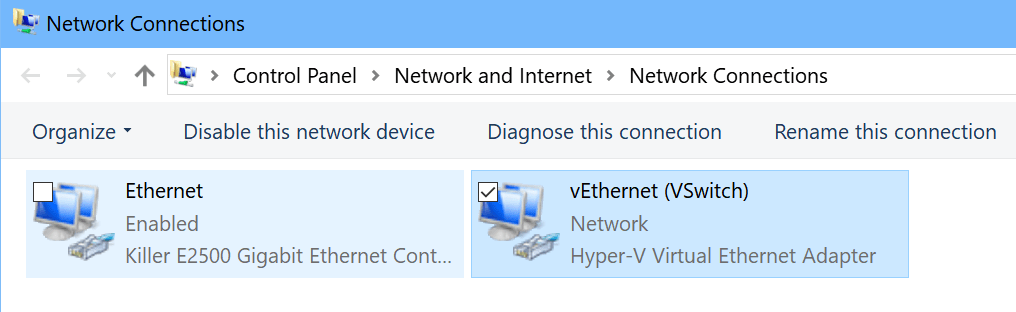
People often assume that because our Linux VM is hosted on a Windows computer that we will need to adjust or turn off the Windows firewall (or Symantec, McAfee, Avast, etc.) but this is not the case. When we created our V-switch the VM received its own network interface that is separate from the host computer’s interface. You can view it in the Network Connections control panel. This NIC is not tied to any of the software firewalls you may have installed on your Windows host system. The only firewalls that will be in play are your gateway device (router, cable modem, etc.) and the software firewall on your Linux VM. We’ve already allowed the required ports on the Linux firewall.
Network_Connections

If your network is protected by a physical firewall of some type (it should be), you will need to forward the following ports from it to your Kolab server: TCP 25, TCP 110, TCP 143, and TCP 587. If you’re not sure what your Kolab server’s IP address is, the easiest way to obtain it is by running the command ifconfig (just like ipconfig) from its terminal.  Unless you have customized your NIC, the eth0 interface is likely the one in use.

ifconfig

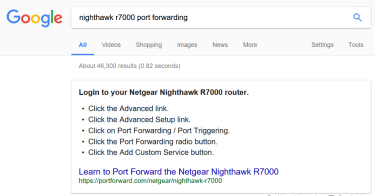
Precise instructions for forwarding the ports from your physical firewall is outside of the scope of this document. There are too many variations and types of firewall devices for me to document the process. Most of them involve logging on to the Admin console (usually a web page or app); locating the forwarding tab, and entering the correct ports in the box (or selecting them from a drop-down list) along with the destination IP address. If you are having trouble; google “The name/model of your firewall, Port Forwarding” and you’ll probably find step by step instructions.
googlerouterconfig

Inbound Email Routing

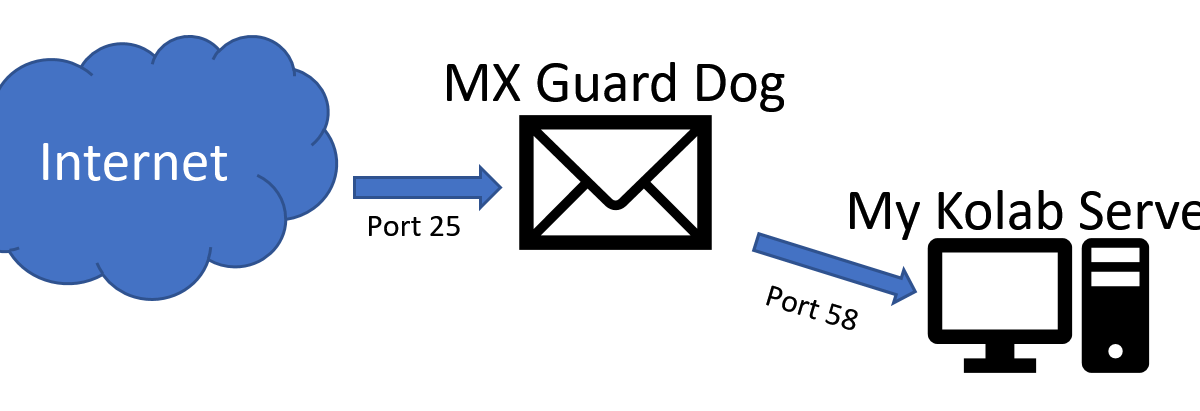
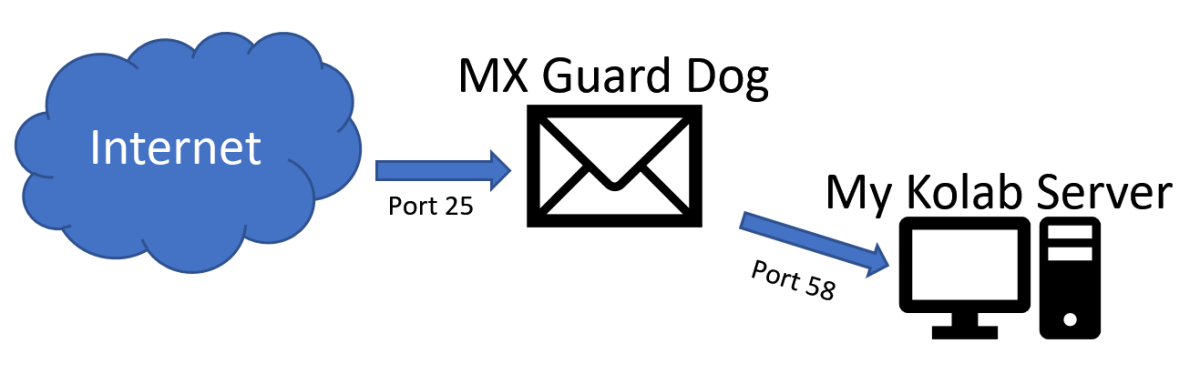
To route email from the Internet to our Kolab server we’ll need to configure our domain namespace to identify it as a post office. This process can be tricky, especially if you are attempting it on a residential Internet connection. Many ISPs do not allow SMTP (email protocol) hosting via residential connections and block incoming requests on port 25 (standard SMTP port). Evading detection usually involves a man in the middle service of some kind. My anti-SPAM service, mxgaurddog.com provides this function for me. My public MX records (next paragraph) points at their servers and they deliver the mail to my server on a non-standard port directly to its IP. This also serves as a very effective way of preventing various types of attacks against my domain.  If you try something similar you will need to add your custom port to the firewall on your Linux VM (refer to the previous article for examples of how to do this).

MX records (Mail Exchanger) are what the internet uses to direct mail to the server(s) that are responsible for receiving messages for a given domain name (it identifies your post offices address). Again, precise instructions are not possible because ISPs, Domain Providers, and DNS servers can all be quite different from one another. The general process involves configuring a host record on your domain registrar’s DNS servers that targets your network’s public IP address. You can obtain the public IP address assigned to your network by visiting www.ipchicken.com from any system connected to your network. For example; if your public IP was 192.51.124.7 and your domain was mydomain.com. You would create an A (host) record for kolab.mydomain.com pointed at 192.51.124.7 and an MX record that points at the host kolab.mydomain.com. If you google “Your domain name provider, setup MX record” you will probably find step by step instructions.

If you are using a “man in the middle” service like MX Guard Dog your MX record will point at their systems and they will target your network’s public IP address. Your chosen service will provide you with exact configuration instructions.
Emailalternateport

Your ISP may provide you with a “leased” public IP address. This means the address can or will change over time. If you have a leased address you will need to logon to your domain name registrar’s site and update the IP address for your mail host when it changes or use a service that does it for you. NoIP.com is one of the most popular; https://www.noip.com/.

Outbound Email Routing

If you are setting up your Kolab server on a network with a business class Internet connection you should be all set to send email assuming you have allowed the correct ports out of your firewall(s). Many business class firewalls allow all outbound traffic and sending email is simply a matter of our Kolab server asking DNS for the recipient’s MX record and then sending the message to the specified address. If you company guards its outbound ports you will need to allow port 25 (SMTP) and port 53 (DNS) from the Kolab server to the internet.

If your business class connection has a dedicated perimeter SMTP relay, uses a service that provides egress for email (ProofPoint, Office 365, etc.), or if you are attempting to setup your Kolab server on a residential network, you will need to configure Kolab to use a “Smart Host relay”.

Residential ISPs do not usually allow an email server to send mail. Smart hosts act as a man in the middle for outbound mail. This service is usually very expensive to pay for. Sending mail also allows you send SPAM and we all hate that. To prevent it, a collection of blacklists on the Internet (Google it) stop servers connected to dynamically assigned IP addresses from sending mail.  However, most ISPs provide you with an email account and if you are not trying to send mass mail campaigns you can use the smart host feature to connect to that account and send mail.

To configure Kolab to use a SmartHost you will need to edit the main.cf file.

  • Open a Terminal session on your Kolab server and give it root access (sudo -i)
  • Type: gedit /ect/postfix/main.cf
  • Add the following entries to the end of the file (edit to fit your requirements):
    • relayhost = [my SmartHost FQDN]:587 (or specified port)
    • smtp_sasl_auth_enable = yes
    • smtp_sasl_security_options = noanonymous
    • smtp_sasl_password_maps = hash:/etc/postfix/sasl_passwd
    • smtp_tls_key_file = /etc/pki/tls/private/localhost.pem
    • smtp_use_tls = yes
    • smtp_tls_security_level = encrypt
    • smtp_tls_note_starttls_offer = yes
  • Now we need to edit the password file to conatin our username and password
    • gedit /etc/postfix/sasl_passwd
    • [my smarthost FQDN]:587 (must match relayhost) Myusername:MyPassword
  • Run the postmap command
    • Type: postmap /etc/postfix/sasl_passwd
  • Restart the Postfix server
    • Type: service postfix restart

Now our Kolab server is configured to send and receive email. In the next article we’ll discuss user and mailbox configuration.

PowerShell: Retrive a user’s AD Account and Exchange Mailbox info in Last Name first directories

If your Global Address List (GAL) or AD environment is configured for Last Name, First Name; it can be frustrating when trying to script bulk user actions when your datasource is First name first. If you’re just talking about a one time operation it isn’t too difficult to paste the names into Excel columns and sort them out that way. However, if you are trying to create an interactive script or are running some sort of automated process, trying send everything to Excel first is difficult and resource intensive.

There are plenty of articles on-line that suggest various methods of dealing with this issue but when I tried, lots of them just didn’t work. So, I wrote my own. At my day job I publish an internal blog called PowerShell Friday. I use it to share my PowerShell knowledge with my fellow administrators. The code below is from that blog. It isn’t extremely useful on its own, but I’ve used the techniques it demonstrates in countless scripts and applications. Since it was written as a learning exercise; each line is commented. It demonstratrates the following methods:

  • PowerShell Remoting – specifically to Microsoft Exchange Server
  • Custom credentials prompt – Adds text to the default dialog box
  • PowerShell Functions
  • PowerShell text manipulation
#Get-EmailAddress - Conversts Last Name, First Name to AD Logon Account and looks up email addresses.
#Get Exchange Admin Credentials and Connect to Exchange
$UserCredential = Get-Credential -Message "Credentials are required to access Active Directory and Microsoft Exchange, use the detected username or enter a different account." -UserName ($env:userdomain +'\'+ $env:username) #creates a pop up authentication box to get your username and password
$Session = New-PSSession -ConfigurationName Microsoft.Exchange -ConnectionUri http://FQDNOFYOUREXCHANGESERVER/PowerShell/ -Authentication Kerberos -Credential $UserCredential #starts remote Exchange Management Shell with the credentials you entered above.
Import-PSSession $Session #imports the Exchange session from Exchange into your PowerShell so you can use its commands in your script.
Import-Module ActiveDirectory #imports the ActiveDirectory commands from your local machine, you need the RSTAT tools installed for this to work.
Set-ADServerSettings -ViewEntireForest $true #tell Exchange to scan the full AD forest, child domains, etc.
function Get-ADAccount #creates a function the code gets placed between a { and a } called a "script block"
{
PARAM (
[string]$FnameFirst = $(Read-Host "Enter the employees first and last names"))# prompts the user to enter a name and stores it as text in a variable named $fnamfirst.
$NameSplit = $FnameFirst -Split '\s+' #splits the text into two seperate objects
$LnameFirst = $NameSplit[1]+ ", " +$NameSplit[0] #reverses the order of the name (our AD is last name first) and adds a comman between. In PowerShell the first number is 0 not 1.
Get-ADUser -Filter "DisplayName -like '$($LnameFirst)*'"|select SamAccountName -ExpandProperty SamAccountName #uses AD lookup the name and then select the SamAccountName.
}
function Get-EmailAddress
{
$userlogon = Get-ADAccount #runs the Get-ADaccount function above to get the SamAccount (AD logon) and store it as a variable.
Get-Mailbox -Identity $userlogon|select emailaddresses -ExpandProperty emailaddresses #uses Exchange to find the users mailbox and select the emailaddresses field then expands it to show them all.
}
Get-EmailAddress #executes the the Function Get-EmailAddresses to show the results.

Line 13 is where the magic happens. We  take the First Name, Last Name and reverse it, adding a comma between them. Now our user name will match the displayname property in our backwards Active Directory tree and we can find it using a filtered Get-ADUser query.

If you need to do this with a list of usernames instead of an interactive prompt just change the $fnamefirst variable to your datasource.

$FnameFirst = Get-Content myfile.txt
#or
$FnameFirst = Import-CSV -path c:\path\to\my\file.csv |select firstnamecolumn, lastnamecolumn -expandproperty firstnamecolumn,  lastnamecolumn -notypeinformation


How to Install a Kolab Linux groupware server on a Hyper-V virtual machine

Kolab is a full featured messaging and collaboration (aka Groupware) server that rivals Microsoft’s Exchange Server and IBM’s Lotus Notes in both functionality and features. It can run on most versions of Debian Linux. It can be installed on single server or distributed among many. It supports load balancing, LDAP directories, shared calendars, shared mailboxes, sharing files, notes, tasks, resource scheduling, and has an easy to use web based admin console. You can even use Outlook as its client. It has a robust web interface and IMAP support for mobile devices. Can it replace Microsoft Exchange in your orgainziation? There’s only one way to find out. We’ll explore Kolab and its abilites in several documents over the next few weeks. First up, is how do you go about installing it.

One might ask, why am I installing this Linux app on a Windows virtual machine? The anwser is: I wanted to demo it for my company but didn’t want to wait for the VMware server team to spin up a server for it. If you have an old laptop or desktop you may prefer to load the Linux OS directly onto it. You can also dual boot a system between Windows and Linux but this requires you to choose one OS or the other whereas a VM will allow both systems to run simultaneously, sharing the hardware. Since our Kolab VM will not require many resources, a virtual machine will not drastically impact my computer’s performance.

Windows 10 Professional allows me to use the built-in Hyper-V but if you have a non-pro version of a Microsoft OS you can still run VMs; you’ll need something like VirtualBox to make it possible. Use the links below for detailed information on setting up your chosen hypervisor.

Once you have your hypervisor up and running, download the ISO for the Linux operating system of your choice. You can download CentOS (my choice) from here: http://isoredirect.centos.org/centos/7/isos/x86_64/CentOS-7-x86_64-Everything-1611.iso .

Create a Hyper-V VM

The instructions that follow are for creating a VM in Hyper-V but the process is much the same regardless of the hypervisor you are using; the menus will, of course, be in different places, but the concepts are the same.

  1. Use the “New VM” menu option in your hypervisor to start its creation wizard.
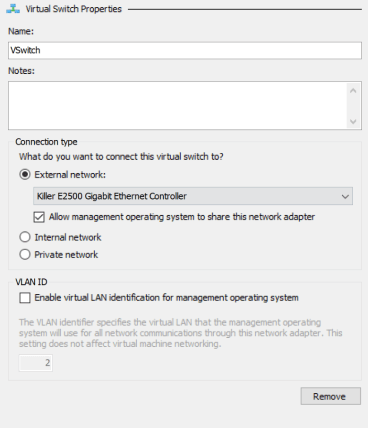
  2. Create a V Switch so that your VM can use your network.
    1. Virtual Switch Manager -> Create Virtual Switch -> External (name it Vswitch).
    2. Vswitch
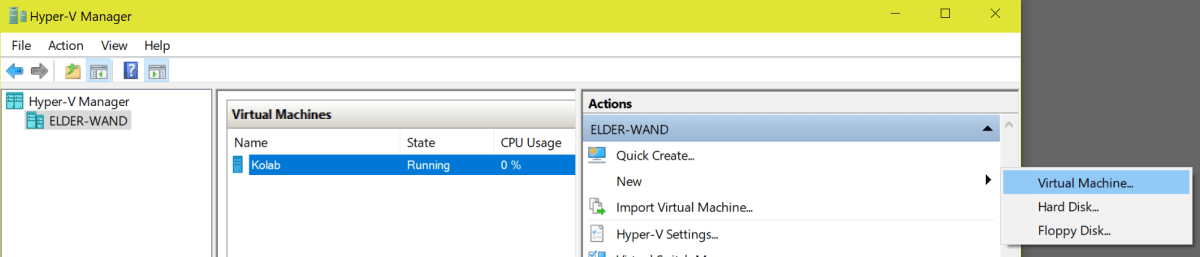
  3. Open the Hyper-V Manager and select New -> Virtual Machine
    1. NewVM
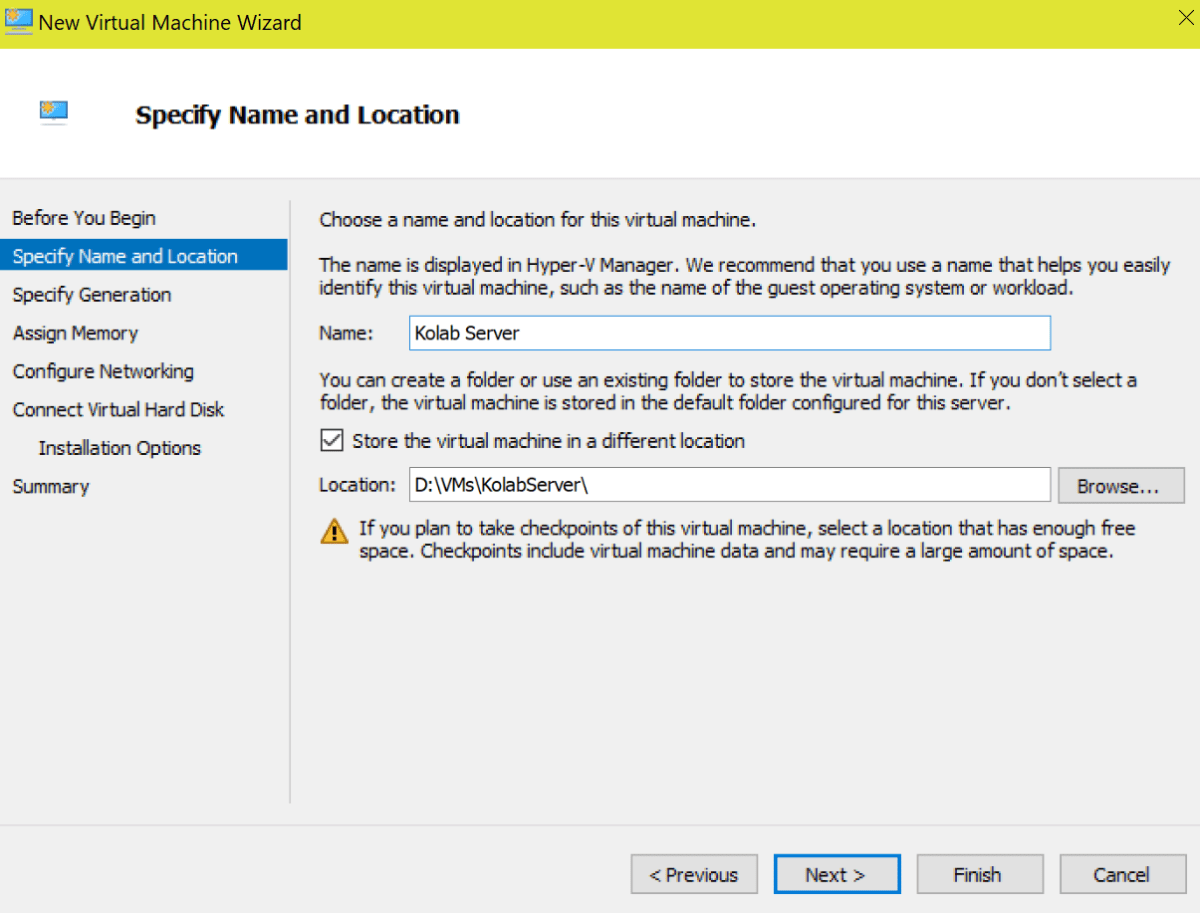
  4. Name your VM something logical and choose where to store the files. Pick a disk that has plenty of room. You can see I’ve chosen my D drive because it is large and mostly empty. Choosing a drive sperate from my OS partition will also help to limit the performance impact my VM(s) will have on my overall system performance.
    1. FileLocation
  5. On the next page select Generation 1 (few Linux operation systems support UEFI).
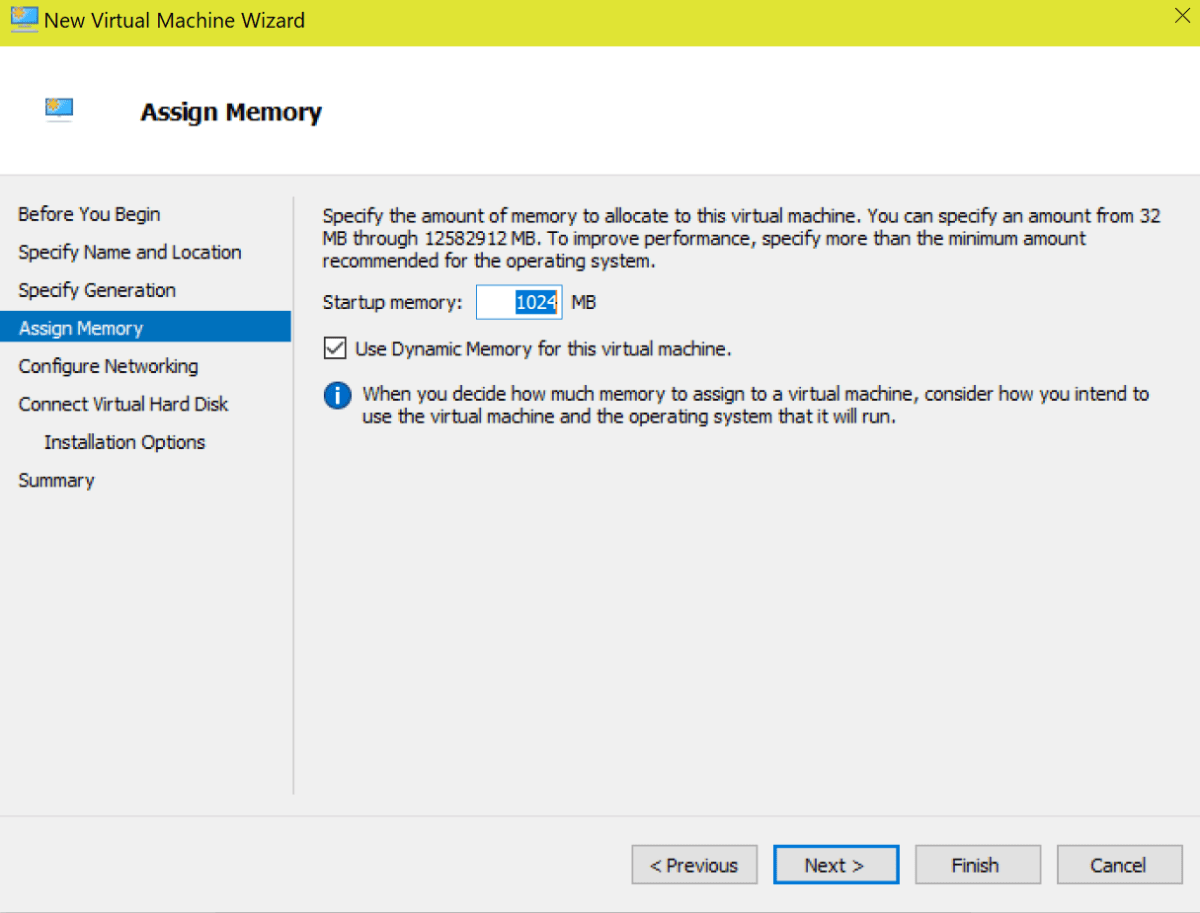
  6. Assign memory to your VM. More memory will make your VM perform better at the cost of lowering the performance of the Windows host machine. It’s a balancing act but the default 1GB is a good place to start. Leaving the Dynamic option selected will allow Windows to provide more memory to the VM if it is available.
    1. vmmemory
  7. Configure your network by selecting the virtual switch that you created in step one.
    1. VMNetworking
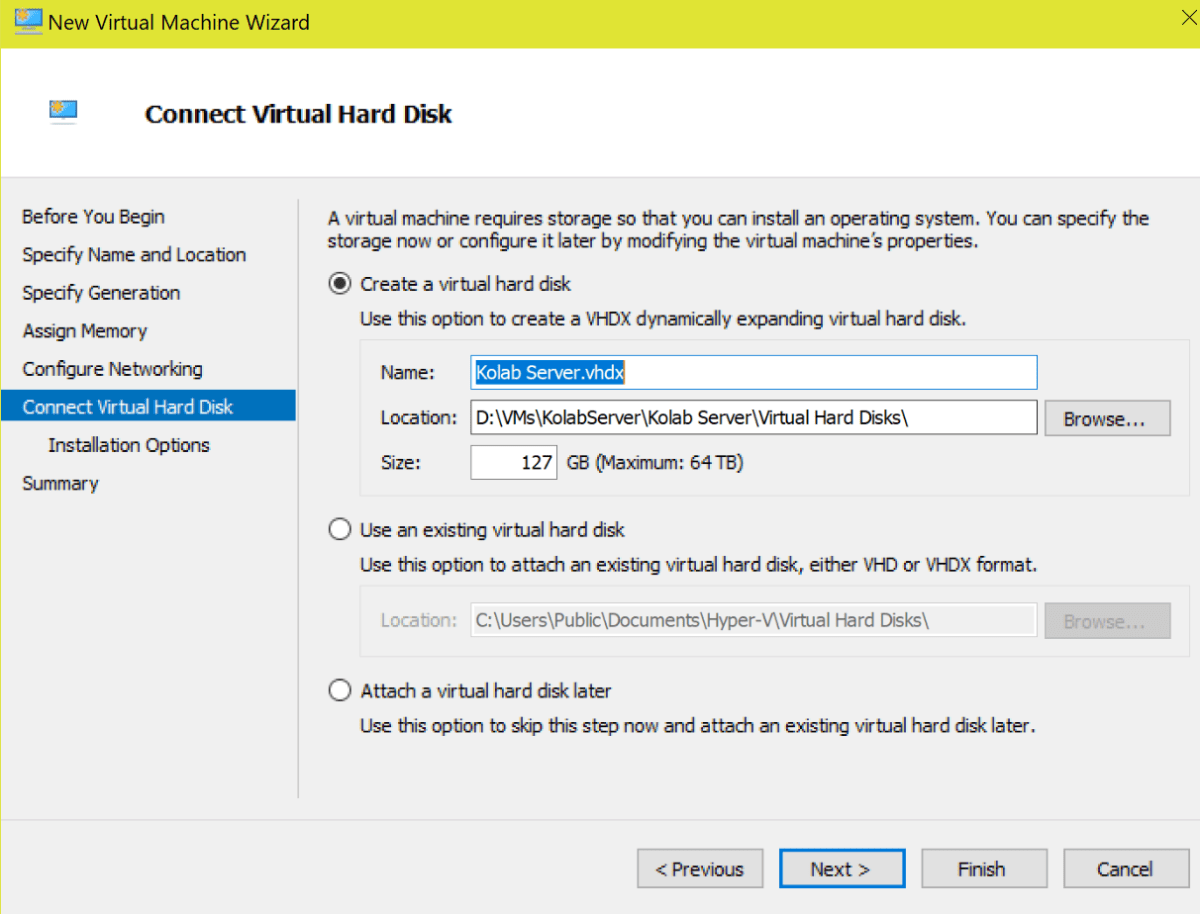
  8. Storage is essentially a file (.vhdx) on your hard drive that will be used for the VM. Do not assign more space than you can afford to spare. Hyper-V / VirtualBox will create a file large enough to store your virtual machine and will allow it to grow to the maximum size you have entered.
    1. vmharddrive
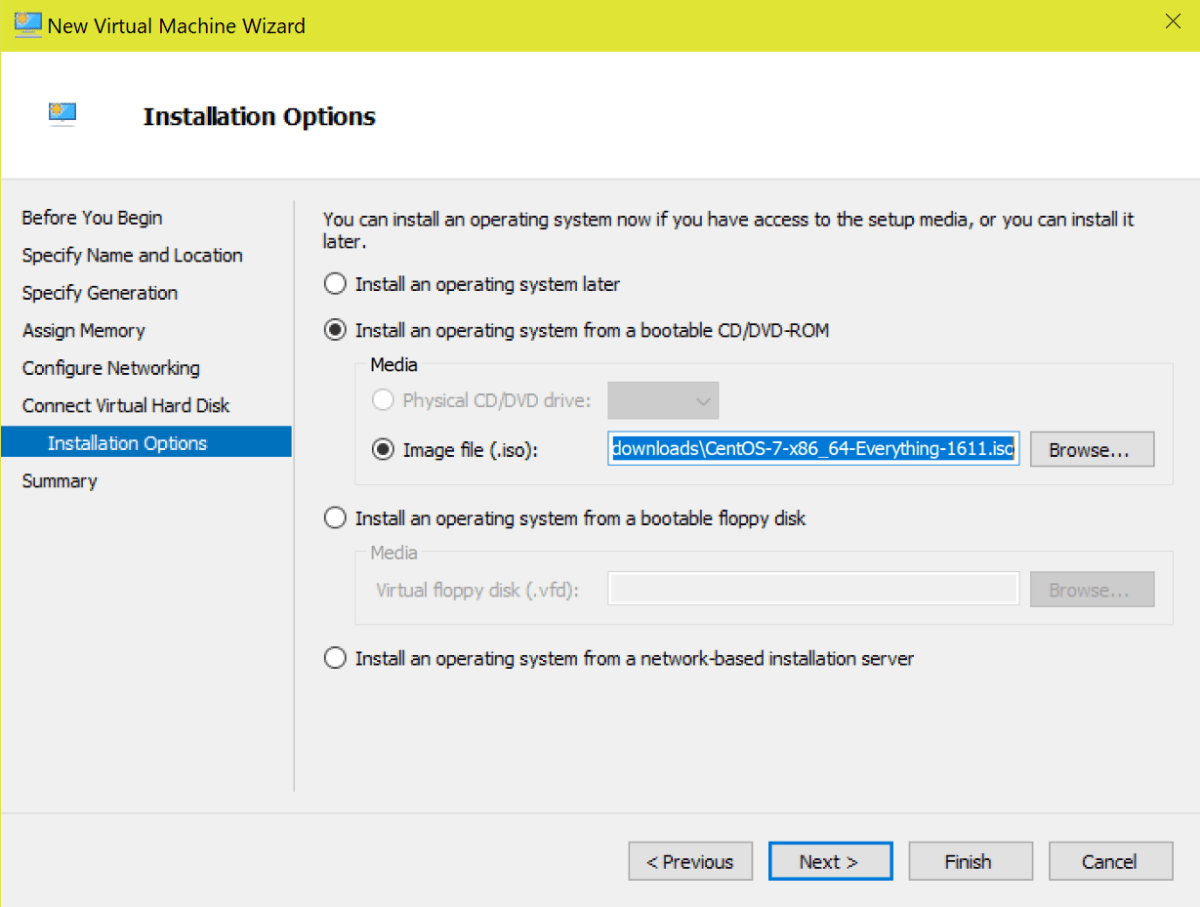
  9. Specify the location of your Linux ISO on the next screen.
    1. VMIso
  10. When you click on the Finish button your VM will be created in Hyper-V but the OS is not installed. To start the installation right click on the VM and start it. Then right click again and choose Connect. This will open a window that displays your VM screen and will allow you to interact with the server.


Linux OS Configuration

The first time you connect to your server it will boot from the ISO you selected during the creation wizard. Each Linux installation is slightly different and not in the scope of this document. For a Kolab server there are some configuration options you need to consider regardless of the distribution you are installing.

  • You might be tempted to select the Email role if your chosen Linux distribution has one. Don’t. It will probably install Sendmail and that will cause issues when we try to install Kolab. I recommend the generic server role or application server role.
  • I recommend choosing to install the GUI (GNOME Desktop) if possible.
  • Your server’s hostname needs to be an FQDN that is resolvable (in DNS) on your network or the Kolab services will fail to talk to each other. For example, my primary SMTP domain is whatdouknow.com our hostname is kolab.whatdouknow.com. Names like localhost, localdomain, etc. will not work correctly. If you don’t run your own DNS server you can use a hosts file on the VM itself. Sudo gedit etc/hosts will open the file for editing.
  • If you have set your Vswitch as I suggested above your VM will get an IP from the same DHCP server that your host computer did. You will need to reserve this address in that DHCP server for this machine or set a static address manually.
  • If you are installing CentOS 7, this is an excellent guide: http://www.tutorialspoint.com/articles/centos-7-step-by-step-installation-quick-guide
  • Once you have completed the installation you will need to update it. The GUI tools for most Linux installations usually include a software updating application. If yours doesn’t then: sudo apt-get update and sudo apt-get upgrade should do the trick (you’ll need both commands).

Kolab Prerequisites

Now that we have our Linux VM up and running it is time to install Kolab but there are quite a few pre-requisites we’ll need to configure first.

  • Open a Terminal and give the session root access by typing: sudo -i then press enter.
  • Kolab doesn’t support SELinux yet (advanced security module) depending on your Linux distro, you might need to disable it.
    • gedit /etc/selinux/config (use vim /etc/selinux/config if you chose not to install a GUI)
    • change the line SELINUX= from enabled to disabled and save the file.
  • Open the firewall ports that Kolab needs to function by pasting the following script into the terminal session.
    • for s in ssh http https pop3s imaps smtp ldap ldaps
      do
      firewall-cmd –permanent –add-service=$s
      done
      for p in 110/tcp 143/tcp 587/tcp
      do
      firewall-cmd –permanent –add-port=$p
      done
  • Restart the firewall so the settings take effect.
    • firewall-cmd –reload
  • Now we’ll need to install the Kolab repository so that we can download and install the packages.
  • Change to the following directory: cd /etc/yum.repos.d/ and run the following command to add the kolab repository.
  • Retrieve the GPG key by running:
  • Install the yum-plugin-priorities package.
    • yum install yum-plugin-priorities
      • This command is going to prompt you for (Y/N) at least twice so don’t walk away.
  • Finally, we need to set some service priorities.
    • for f in /etc/yum.repos.d/Kolab*.repo; do echo “priority = 60” >> $f; done

Kolab Setup

Now it’s time to install and configure Kolab.

  • Install command
    • yum -y install kolab

Next we’ll launch a text based wizard and answer its questions. It will ask for five passwords so have your generator handy. To be sure that all the prerequisite changes have taken effect, I recommend rebooting your Kolab VM before continuing.

  • Open a terminal session and give it root access
    • (sudo -i)
  • At the prompt
    • setup-kolab
  • Enter and confirm the application’s administrator password
  • Enter and confirm the LDAP administrator password
  • Enter the user the service will run under
    • pressing enter will select “nobody”
  • Enter the group the service will run under
    • pressing enter will select “nobody”
  • Enter and confirm the Cyrus administrator password
  • Enter and confirm the Kolab service password
  • When prompted for the MySQL installation
    • choose option 1 and
    • enter (the preset password is blank)
  • Enter the time zone UTC in Country/City format example; USA/Chicago would be the CST.
  • Enter and confirm the password for the Roundcube webmail interface.

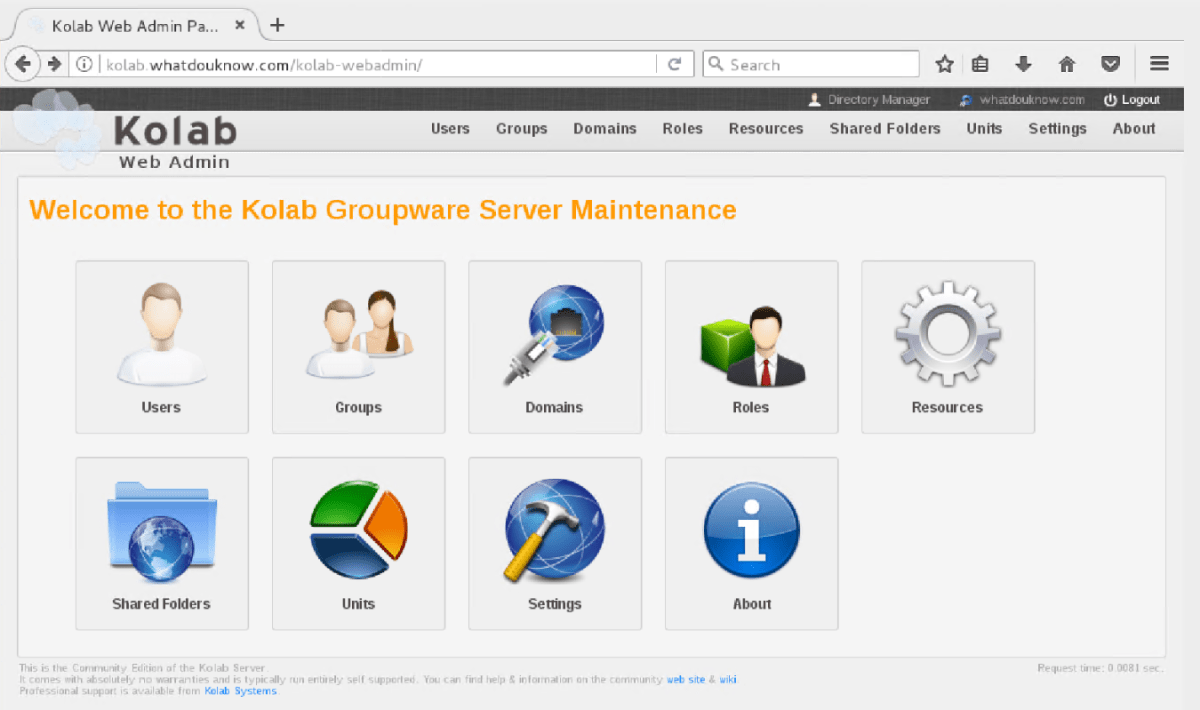
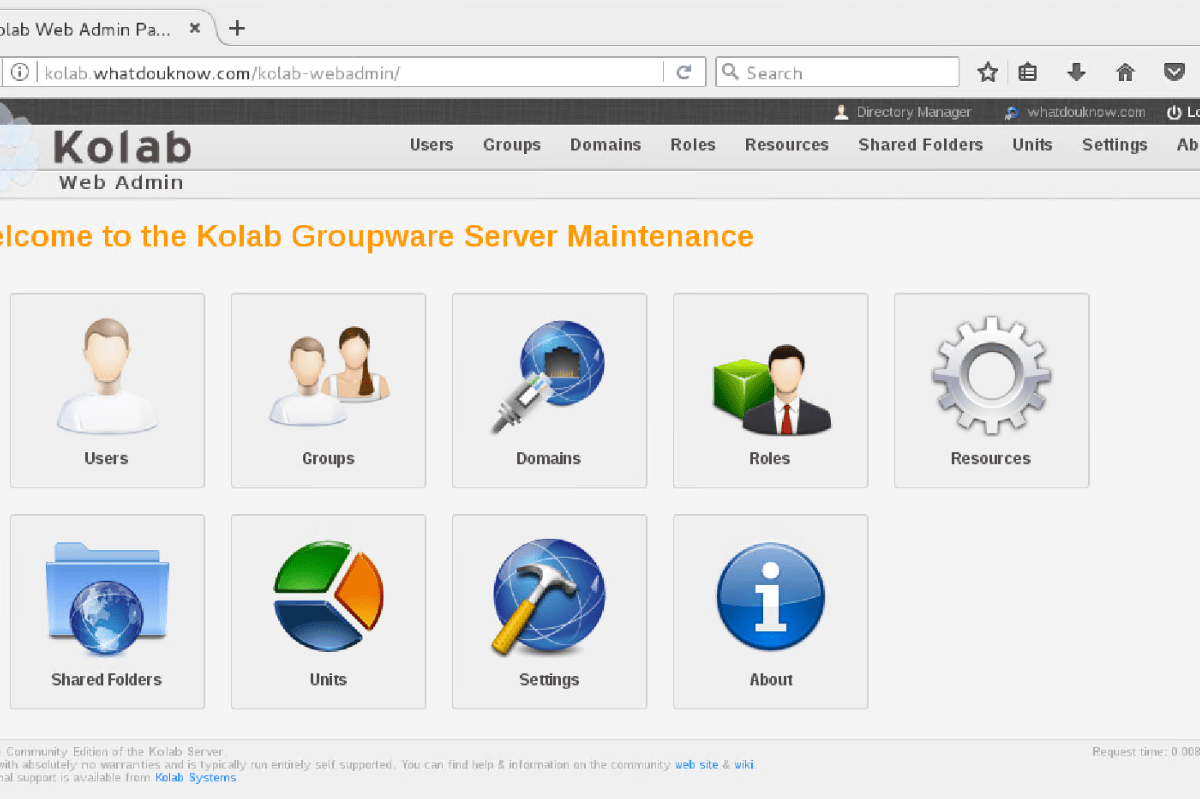
Congradulations you have installed Kolab. You should be able to launch a web browser that has network access to your server; if you installed a GUI the one on your server will work fine. Open the URL http://yourhostname.yourdomain.com/kolab-webadmin and logon with cn=Directory Manager and the password you configured for it. You will be presented with the Admin control page if everything went according to plan.

kolab-webadmin

Retry

If everything didn’t go to plan you can run setup-kolab again but there 2 things you need to do first or you will get error messages.

  • Clear the LDAP server configuration.
    • remove-ds.pl -i slapd-$HOSTNAME -a (replace hostname with the name of your system)

  • If the databases were created you will need to drop them.
    • MySQL (password is blank)
    • Show Databases; (the ; is part of the command)
    • Drop Database kolab;
    • Drop Database roundcube;
    • quit;
  • Reboot your server before running setup-kolab again.

In the next article in this series we will examine how to get Kolab setup and running including routing mail, configuring users, setup clients, configure sharing of all types, and more.


Nikon A900 Point and Shoot Camera Review

The family camera is always an important purchase. To me, no gadget is more important than the one that augments my memory of time spent with loved ones. For a lot of us the most critical piece of our smartphone is the camera. For this reason, a perusal of iPhone and Android reviews will tell you more about the camera than any other component.

I’m by no means a photography expert but I’ve been taking pictures as a hobby since I was child. Smartphone cameras have changed the way we document life; they’re always with us, easy to use, and do a decent job of capturing moments on the fly. That said, I think we’ve all been disappointed by their limitations at one point or another. I’m curious to hear how many of you use only a smartphone for photography and video (sound off in the comments). I know it’s a pretty popular option these days; I just can’t seem to do it. I even bought the Nokia 1080 thinking it was the holy grail, it got closer than any phone before or since but I still ended up packing a full size unit for vacations and family gatherings.

I’ve owned every conceivable type and brand of camera at one point or another. I hopped  on the digital train at the first stop and haven’t looked back. The Casio QV-10 is still one of my favorite devices of all time. When it came time to upgrade this summer; I had a very specific list of requirements I needed my future device to meet.

  1. Portability – Full body DSLR’s are truly amazing pieces of equipment but taking one on a hike up the side of a mountain can be a chore to say the least. Even toting one around Disney for a day is too much.
  2. Zoom – Not getting a shot because the subject is too far away just plain sucks.
  3. Quick First Shot – Not getting a picture because your camera is still booting up is frustrating.
  4. View Finder Flexibility – Some of the digital camera’s I’ve owned took great pictures but framing the shots was an exercise in futility.
  5. Budget – I was willing to invest $450.00

With these requirements in mind I started the research. I’ve always been a “do it myself” type of person so rather than heading to one of the many excellent camera blogs, I started on the manufacturer’s sites. With my list in hand, I had found my top 4 contenders in a few hours. If you’re interested in the specification sheets use the links below.

Once I had narrowed down the field; I went to find the cameras at stores. I try not to purchase a device that’s going to be with me long term without getting my hands on it first so I headed to my local electronics stores. I’m glad I made the effort. I decided on the Nikon after seeing the screen. It’s swing out and tilt function lets you get shots the others simply can’t. The screen extends out from the frame 2″ and can be tilted to almost any angle up or down, it can even flip over to “selfie mode”. On paper, the other cameras offered some superior specs such as raw file support and built-in GPS but for me those things are rarely used features.


I’ve owned the camera for just about 6 months. It has been on two family vacations, countless day excursions, and kids events galore. I am pleased with my selection. It is small enough to fit in a jeans or cargo shorts pocket but with a 35X optical zoom and less than 1.5 second boot time (faster than taking a pic with my iPhone 7) you never miss a shot. The 4K video is jaw dropping on my TV but I usually shoot in 1080P to keep from filling up the SD Card. The battery can be charged either by plugging in a USB cable or by removing the battery and putting it in a stand-alone charger (this is a nice feature, I have two batteries for it now).

One of the features I considered to be a gimmick has actually proven to be very useful. That is the ablitliy to connect the camera to your smartphone. It supports NFC so if your phone is new enough, just touching the two devices is enough to pair them. If not; it is fairly simple to download the app and do the normal bluetooth pairing procedure that all BT devices use.

Once you have you camera and phone paired, the software will allow you to download pictures (can be automatic) for easy upload to social media. It sets the clock and can tag pictures with your location. You can even remotely contole the camera which makes getting in shots yourself much easier than setting a timer does. Selecting the remote photography or high resolution download options will cause the camera to connect with your phone over a private WiFi network (nothing to setup). This increases the range to around 300 ft vs. the 30 you get from bluetooth.  I find myself using the app far more than I originally anticipated.


The camera meets my requirements so well that I am hard pressed to come up with someting negative to write about it. Of course there are people who will want more of the options you’d get in a DSLR; manual focus, lens attachments, etc. but in my opinion thats not what this class of camera is used for and that stuff just gets in the way.

In case you’re wondering what that zoom can do, here’s a picture of the moon. Its not cropped and there are no filters or any editing. I was holding the camera in my hand and it was set to auto. For more examples; look at the home page in the Wallpaper Shots feed.

DSCN0627

PowerShell – Exchange Storage Report

Most Exchange administrators have probably experienced the nightmare that is caused when the storage for the transaction logs or a DB runs out of room. By some hidden law of corporate IT the problem will undoubtedly occur just after you fall asleep and right when the CEO is trying to conclude a multimillion dollar transaction that requires a confirmation email.  There are plenty of articles out there that will help you get the problem resolved; one of the most common tricks is to run a “fake” backup to truncate the transaction logs and free up some room. Another easy trick is to compress the log drive (an option in Windows Explorer). I’ll trust that you can search for these options and decide whether to use them or not on your own (they both have drawbacks). There are some more advanced ways and I plan on writing about a couple of them in the future.

This post is more about helping you stay out of the “no space” pickle in the first place. In larger organizations Exchange can be spread across multiple servers in multiple sites with multiple storage systems in play. Relying on the storage teams to give you head up is risky. Windows applications that use distributed storage models like Exchange DAGs can be tricky for monitoring tools to cope with. My current employer’s Exchange footprint is a worldwide stretched DAG solution and each location uses different hardware, different storage platforms, etc. I created this report to compensate for what the tools weren’t showing the administrators. We haven’t had a storage problem since.

First we’ll need to get a list of all our Exchange servers, which we can do with Get-ExchangeServer cmdlet. We need the FQDN of each server but if you do Get-ExchangeServer|Select FQDN you will get a list of servers in a column with FQDN at the top and that’s no good for our next command. We just need to expand the column property to remove the column name.

$Servers = Get-ExchangeServer|Select fqdn -ExpandProperty fqdn

Next we’ll run that list of servers though a loop and ask WMI to get the drive information we’re after. If we didn’t do any formatting we’d get back the data in bytes; it isn’t very easy to read that way. We’ll use hash tables to do calculate Gigabytes and percentages.

$report = ForEach ($server in $servers)
{
 Get-WmiObject Win32_Volume -Filter "DriveType = 3" -ComputerName $server|`
 Where-Object {"Label -ne 'System Reserved'"}|Sort-Object Freespace|`
 FT -Property @{Name="Mount Point";Expression={$_.Caption}},`
 @{Name="Capacity(GB)";Expression={[math]::Round(($_.Capacity/1GB),2)}},`
 @{Name="FreeSpace(GB)";Expression={[math]::Round(($_.Freespace/1GB),2)}},`
 @{Name="% Available";Expression={[math]::Round(($_.Freespace/$_.Capacity)`
* 100)}} -GroupBy SystemName -AutoSize
}

I’ve noticed that when running this script that some older version of Powershell on Exchange 2007 / 2010 don’t like the ` marks which just mean to continue to the next line. If this happens to you just remove the backtiks and paste the command in a single line. I only have them here because it looks nicer on the page.

I choose to email the report to all the Exchange Admins as a text attachment because it works on everything; you could easily output it to HTML, Excel, or whatever format you like. To email an attachment you need a file to attach; we’ll use the out-file command to send our $report to a text file.

$report|out-file C:\Path\To\File.txt`​
Send-MailMessage -SmtpServer nameofyourexchangeserver`
-To recipient@mydomain.com -From sender@mydomain.com`
-Subject "Exchange Storage Report" -Body "Please see the attached file"`
-Attachments C:\path\to\file.txt

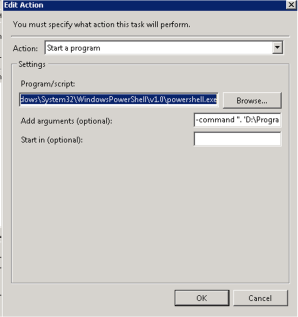
You’ll want to run this from an Exchange server using the task scheduler. This way , the task scheduler will handle authentication , accessing the Exchange Management Shell, and the actual scheduling itself. You can do all of this in PowerShell itself of course, I just find it to be more work that way. Scheduling a task for Exchange is a little different than others. You set the time and credentials as normal but the action is different. You’ll need to specify the path to Powershell and in the arguments call EMS and pass it your script. like this (change the paths to match your environment):

C:\Windows\System32\WindowsPowerShell\v1.0\powershell.exe
-command “. ‘D:\Program Files\Microsoft\Exchange Server\V14\bin\RemoteExchange.ps1’; Connect-ExchangeServer -auto; C:\scripts\Exchange-Storage.ps1”

Task Scheduler
The punctuation is very important.

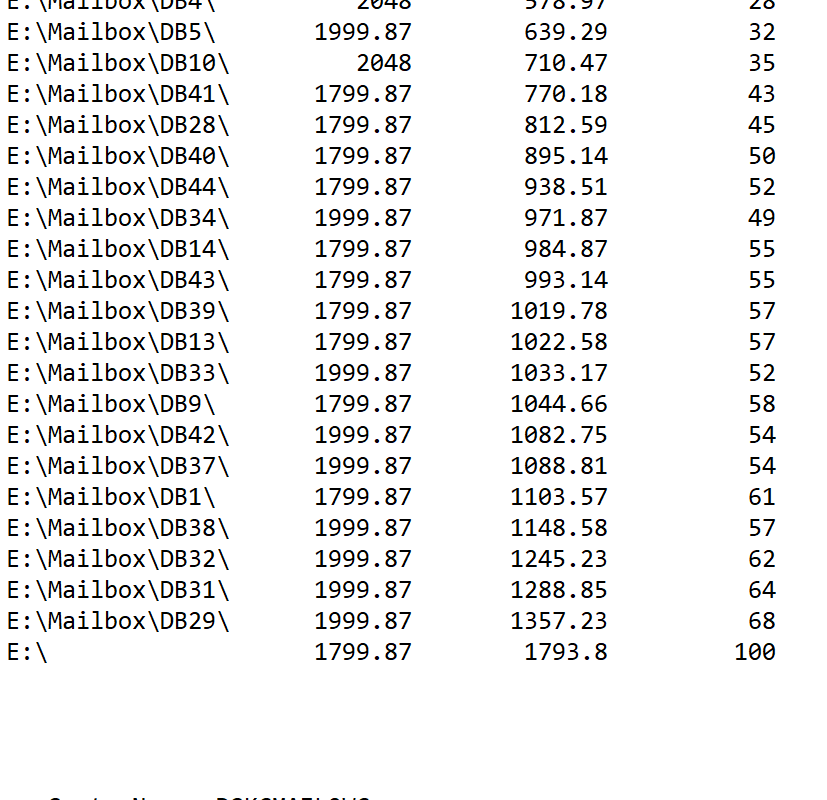
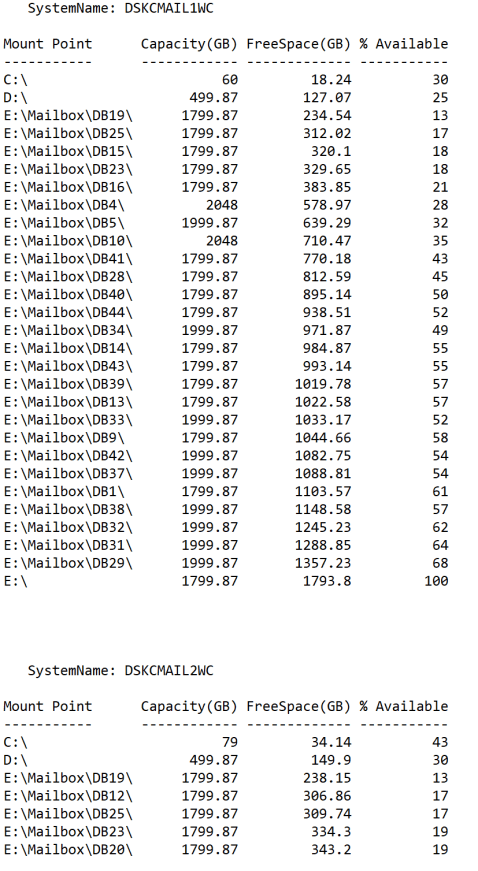
Once you have it all working your report will look like this:

Exchange_Storage

PowerShell – Get-ADUser in a Multi-Domain Forest

When I first started using PowerShell I was both amazed and frustrated. One of my first projects required that I generate a list of all the users in my company’s large Active Directory forest. I figured out the Get-ADuser part in no time but was disappointed to see the returns from my commands only listing the users from the domain I was currently logged in to. We had 20 plus child domains at the time. Where was the -alldomains parameter for the command?

Here’s what I came up with. Using the Get-ADForest cmdlet I could get a list of all the domains but it still wasn’t something I could plug into any Get-ADuser parameters. I figured out that I could also use Get-ADDomainController -DomainName to find a DC and that Get-ADuser had a -server paramater. I was soooo close. I just need to put them all together.

Import-Module ActiveDirectory
$domains = (Get-ADForest).domains
$dcs = ForEach ($domain in $domains) {Get-ADDomainController -DomainName $domain -Discover -Service PrimaryDC | Select -ExpandProperty hostname}

This string of commands (small script) results in the $domain variable containing a list of all the primary domain controllers in an AD Forest. Now we can use that variable with the -server parameter and get our list:

$AllUsersReport = ForEach ($dc in $dcs) {Get-ADUser -server $dc -properties *}
$AllUsersReport|Export-Csv - path c:\temp\allusersreport.csv -notypeinformation

We’ll end up with a nice CSV file conaining all the details of every user in our Forest. I have used the  top part (getting the domain controllers) in countless scripts since. For examaple:

Import-Module ActiveDirectory
$domains=(Get-ADForest).domains
$dcs = foreach ($domain in $domains) {Get-ADDomainController -DomainName $domain -Discover -Service PrimaryDC|select -ExpandProperty hostname}

$systems = foreach ($dc in $dcs) {Get-ADComputer -properties * -Filter {(OperatingSystem -like "*Windows*") -and (OperatingSystem -NotLike "*Server*")} -Server $domain |select DNSHostName, IPv4address, OperatingSystem, OperatingsystemServicePack, LastLogonDate
}
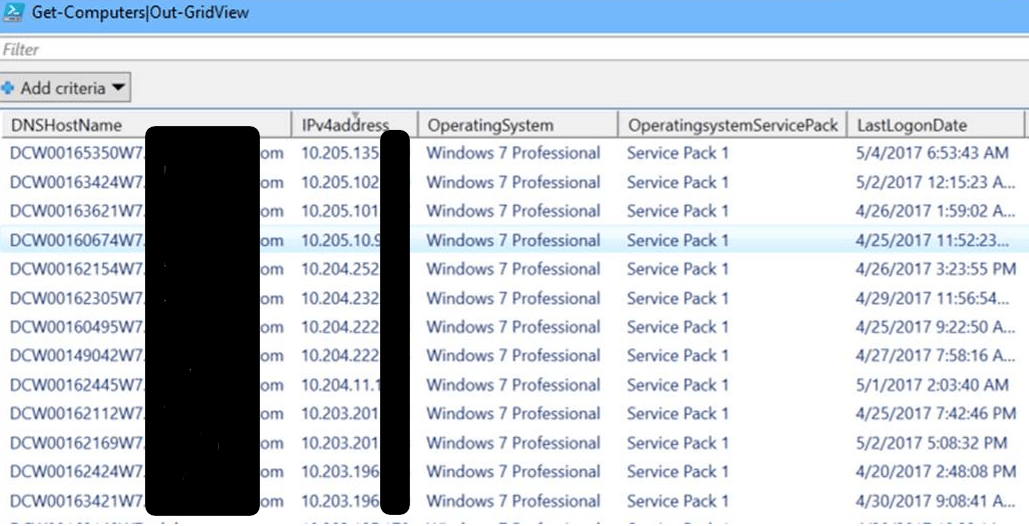
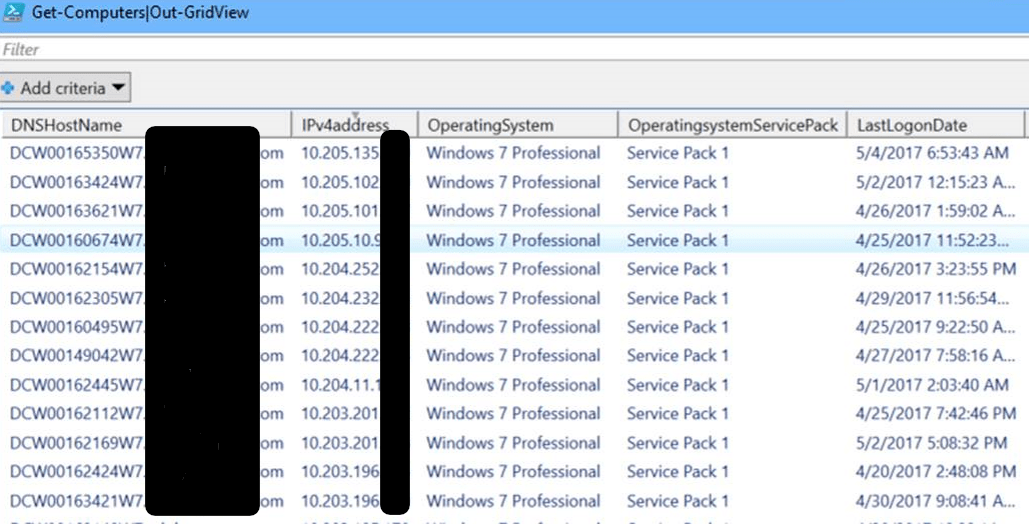
$systems|Out-GridView

The scirpt above will output a Grid of all the Windows workstation computers in your entire forest. A quick change of (OperatingSystem -NotLike “*Server*”) to (OperatingSystem -Like “*Server*) will output a grid of all your servers.

AllworkstationsReport