Network Speed Boost Part 1; Upgrade your Router

Today’s high-speed internet has become a utility that needs to be distributed throughout your home to countless devices. Not so long ago, this was relatively easy to accomplish. More or less, you only needed to connect the combo modem / router / firewall from your Internet provider to your computer(s) and the rest of the setup was automatic.

For many, this default installation still serves well. If you have a handful of mostly wireless systems that need basic Internet service, there’s not much reason to invest your time and money in to a customized solution. Those of us that have multiple gaming consoles, tablets, laptops, phones, robot vacuum cleaners, smart refrigerators, smart TVs, and smart cars could probably use a network with more performance, tuning, and features than the default method allows for.

So you’ve decided it’s time to upgrade to a more advanced network. Where do you start? Believe it or not, your ISP did not send you cutting edge equipment. Like most for-profit corporations, the bottom line matters. They gave you the most cost-effective solution. High end providers like Google Fiber and Verizon FIOS tend to use better equipment; if you have this type of service consider leaving it alone. The rest of us poor souls are going to dive in to our network hardware to see what can be improved. A future post in this series will focus on Wi-Fi;  we are looking at the cabled equipment in this one. Nothing makes wireless slower than having a lethargic cabled network feeding it.

Computers talk to each other by exchanging digital letters we call packets. Each packet has address info, a body, and timing information.  There are essentially two types of packets flying around on your network. One type we call Layer 2 are like letters that are destined for a neighbor; you don’t need the post office because their house is just across the street. The other kind are called Layer 3 packets, they are intended for systems on other networks (like the Internet). These Layer 3 packets need help to get where they are going, they ask your router for directions. The speed at which your router is able to direct the packets has an impact on network performance. The more devices you have connected to your network, the faster you router needs to be.

One way to tell if your router is suffering from poor performance is to run a speed test form a system connected to it via cable. A slower than expected test result can be a symptom of congestion. Congestion, in this case, means that your router isn’t keeping up. There are of course other causes of poor performance. If you suspect something else is causing the slow down; try disconnecting everything connected to your network and then reconnect each item one at a time running a speed test after each. If a drastic slow down occurs after a particular device is tested, it may be the bottleneck.

You’ve decided to upgrade your router but how do you figure out what to get? Like all technical hardware, routers have specifications to help you understand their performance. Unfortunately, marketing guru’s know we’re looking for specs and jumble the pot with all kinds of jargon and made up specs that simply don’t matter. What does matter? It comes down to CPU speed, RAM, Storage, and the type of software they are utilizing. Most of the other specifications are either meaningless or equal across all routers.

The ASUS RT-AC66U’s is a relatively high performance residential unit that you can get at most brick and mortar electronics stores. It has a Broadcom BCM4706 CPU that runs at 600MHz, 128 megabytes of storage, 256 megabytes of RAM, and runs a Linux-based operating system. The fastest home router ASUS sells (RT-AC5300) uses a BMC4709 running at 1.4 GHz, has 128MB of storage, and 512MB of RAM. Nearly twice as powerful but also double the cost.

Routers don’t calculate your finances or play games and can get away with a slower CPU, but 600MHz is paltry ; the first Iphone was faster. 1.4 GHz is better but still slow compared to a decent smart phone. Don’t get me wrong, either of theses units are an improvement over the router your ISP gave you but I prefer another option.

I run router software on an old PC. Why? Currently I’ve got an Intel Dual Core 2.4 Ghz CPU, 4 gigabytes of RAM, and 256 gigabytes of storage. I bought the refurbished PC from my local electronics store for $99.00 which is less than a third of the cost you’ll pay for the RT-AC5300. The software I use is pfsence. It is a commercial class Router and Firewall package that is open source (aka free). Pfsence is just one of many choices; this wikipedia page has a list of the most popular options with links to the downloads and instructions.

What’s the catch? Why doesn’t everyone run a router this way if it is both less expensive and faster? The perception is that the combo units (WiFi and router in one) are easier to set up and use. This is true but high performance is rarely easy. If you’re willing to spend some time and effort you can set up a stand-alone router capable of crushing anything you could purchase at an electronics store. Every device connected to my home network reaches it’s max speed; there’s no congestion. My whole family is often on different devices watching video, playing on-line games, and surfing Facebook simultaneously. None of them lag.

If you’re not interested in setting up a PC router from scratch or purchasing new hardware you can still give your network a speed boost by replacing the software on your current device. The software your router shipped with can be replaced with something custom that takes full advantage of the hardware you have available. Two of the most popular firemware replacements are DD-WRT and Tomato. This wikipedia page lists most of the options and has links to their downloads and instructions.

I’m working on a guide for custom configuring pfsence but their web site has execellent documentation. DD-WRT and Tomato are very popular and have lots of bloggers that have covered their setup procedures. In the next article in this series we’ll take a look at how to speed up your WiFi.
 

Color code Outlook email; Conditional Formatting 

I recieve more email in a day than I could possibly read. My job doesn’t allow for things falling through the cracks just because I’m busy. I use Outlook’s conditional formatting feature to make important messages stand out from the ocean of junk.
Conditional formatting will change the color and / or font of an email in your message list based on parameters you specify. You can easily change emails from your boss to red, team members blue, the big project to large yellow, etc.. Personally, I assign each project I’m involved with a color. This makes it easy to find relevant information quickly. 

  1. Open Outlook. 
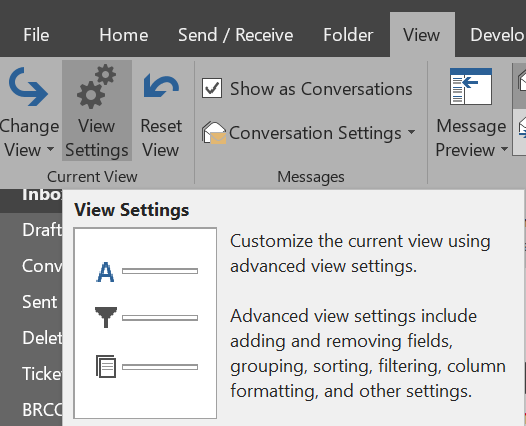
  2. In the ribbon click View and then the View Settings button. 
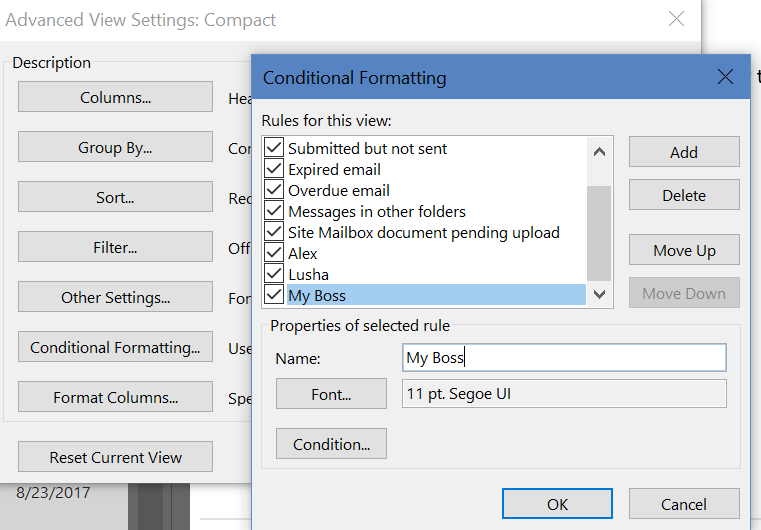
  3. Click the Conditional Formatting button. 
  4. Select Add to start a new rule and assign an appropriate name.
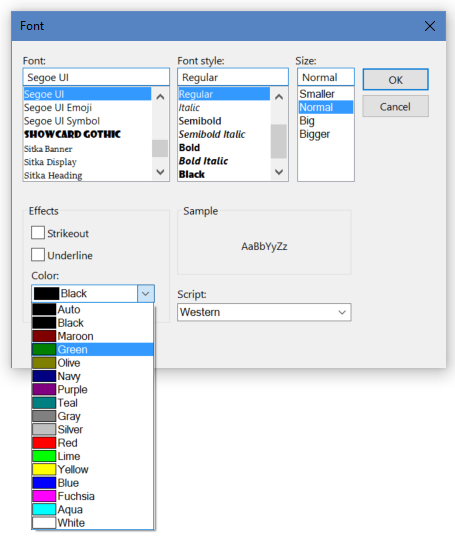
  5. Use the Font button to choose the text effects your rule should trigger.
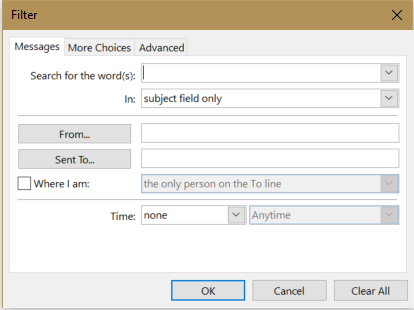
  6. The Condition button presents a list of filters to trigger your font change with. Choose the message sender, subject, keywords, and more. The three tabs across the top provide advanced options. 

Good organization of your inbox can be the difference between drowning in email or sailing through your workload. Spend a couple of hours upfront to automate as much as possible. You won’t regret it. 

PowerShell Hash Tables; Combine data from multiple modules.

If you use PowerShell long enough you will inevitably need to combine data from more than one module into a report. As an example, My co-worker ran into a situation where she needed to show mailbox sizes by city. Exchange doesn’t have the city but we know Active Directory does. How do you combine the information from the Exchange Module with the information from the Active Directory Module?

SQL, SharePoint, Lync, pretty much all MS server products have a module at this point. The examples below are Exchange and AD but you can use the technique to combine data into a report from any or all of them. First get the data you need from the Exchange module; Get-MailboxStatistics youremailaddress|fl totalitemsize should do the trick.

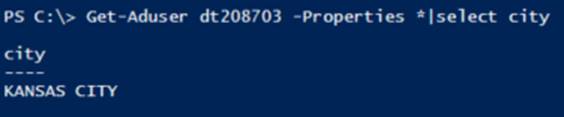
We know that Active Directory has our address in it. 

How in the world do we combine the data? There are lots of ways to do this programmatically but one of the easiest is to use a hash table. 

What’s a hash table? In the simplest terms it is an array (a spot in memory) that stores key/value pairs. In our case we going to store a key (the name of our column) and a value (the results of another command) in the array and then display only the results. It sound complicated but trust me; it is easy once you get the hang of it.
The trick with hash tables in PowerShell is to get the syntax right. @{ <name> = <value>; [<name> = <value> ] is the formula. I know it looks complicated but if we plug in the data we’re looking for in, it will make more sense.
Get-MailboxStatistics dt208703|fl totalitemsize,@{Name=”City”;expression={(Get-ADUser -Identity dt208703 -Properties city).city}} see that comma between our first command and the @ that starts our hash table? You need a comma separator for each new hash table in your command. English teachers may be trying to get rid of the comma in written language but if you forget them in programming you’ll be sorry.

So what’s up with the ().city in our hash table? The syntax didn’t say anything about that. Turns out it is just some formatting. Who remembers grade school math; what does (3×2)+6 mean? For those of us that are a little rusty, it means multiply 3 and 2 and add 6 to the answer; the () mean do this first. Same thing in programming languages (they’re all just subsets of Algebra). So do this first (Get-ADuser –Identity dt208703 –properties city) and then display only the value named city. 

Samsung’s Galaxy Note 8; Best screen writing ever? 

Full disclosure, I am now and always have been a pen computing fan. Who remembers Graffiti on Palm Pilots and the first Windows XP tablet edition PCs? From the Apple Newton to the first Pocket PC, I’ve owned them all. Something about writing with a stylus connects to my brain in a way that keyboards cannot duplicate. 

I freely admit keyboarding is faster and more accurate. I also agree that learning to use a stylus can be more than a little frustrating. Samsung’s pen experience is on a level by itself. I am writing this article with it in the superb WordPress mobile app. I may never type again. 

Traditionally one of the highest hurdles for stylus input methods to jump has been a lack of friction between the instrument and the glass screen. Samsung has chosen to trade the tips of the S-pen with softer, replacable rubberized nibs. This improvement along with the Note’s vast compute resources have created an experience that rivals paper. I took an online typing test using the S-Pen and was able to hit 26 words per minute which is much faster than my thumbs at 19 wpm. Writing was more accurate as well. 

Speaking of compute resources, this thing is smokin’ fast! With it’s 8 core 64 bit CPU and 6 GB of RAM the unit crushes every task I throw at it. Apps open quickly, multiple windows do not lag and I haven’t had to manually close anything. I just checked and there are 23 apps open in the background while I’m writing this and I didn’t notice a single slowdown. 

Holding the note in my hand to write, reminds me of the little notebooks reporters and cops use (on TV). The narrow and tall form factor allows your hand to fully grip the phone and the buttons line up just under your fingers. Clearly Samsung’s engineers gave some serious thought to the balance and shapes. 

The handwriting interface on the device has also been improved. Gone are the rigid input boxes and specific character strokes most people associate with writing on a computer. The keyboard section of the screen is an empty page with a few simple controls. 

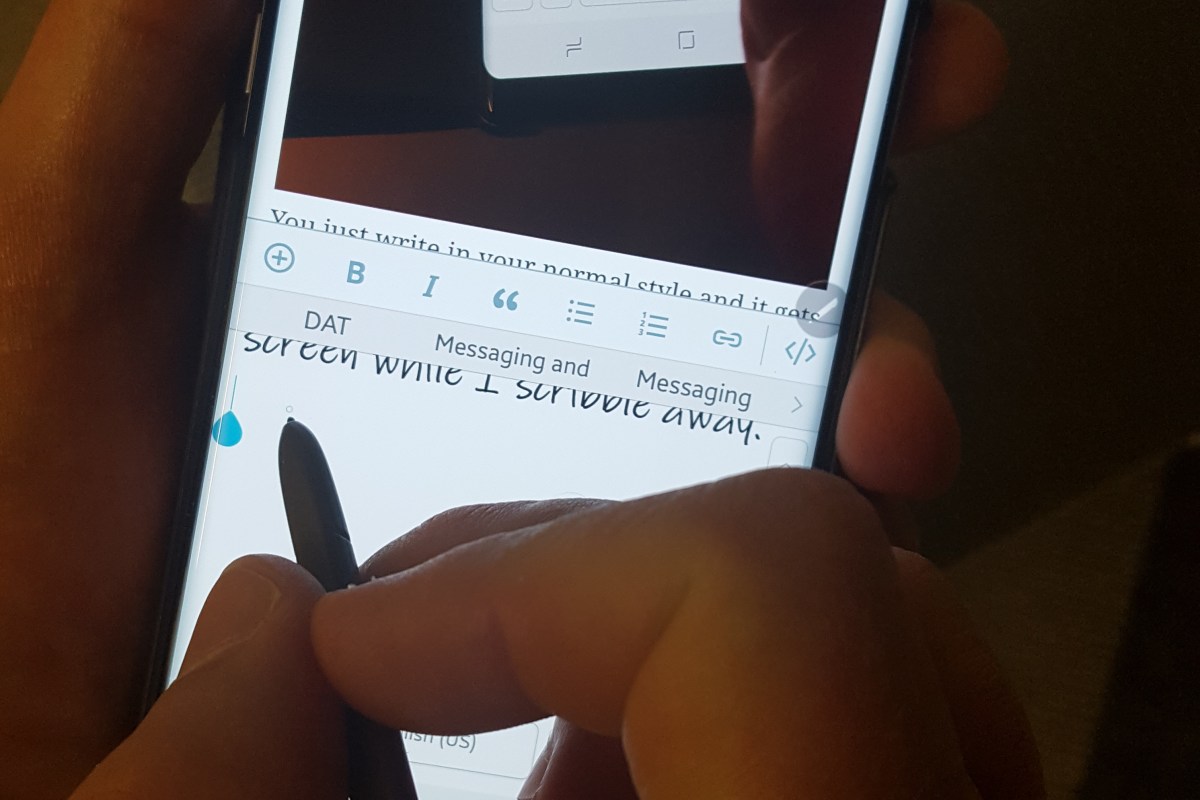
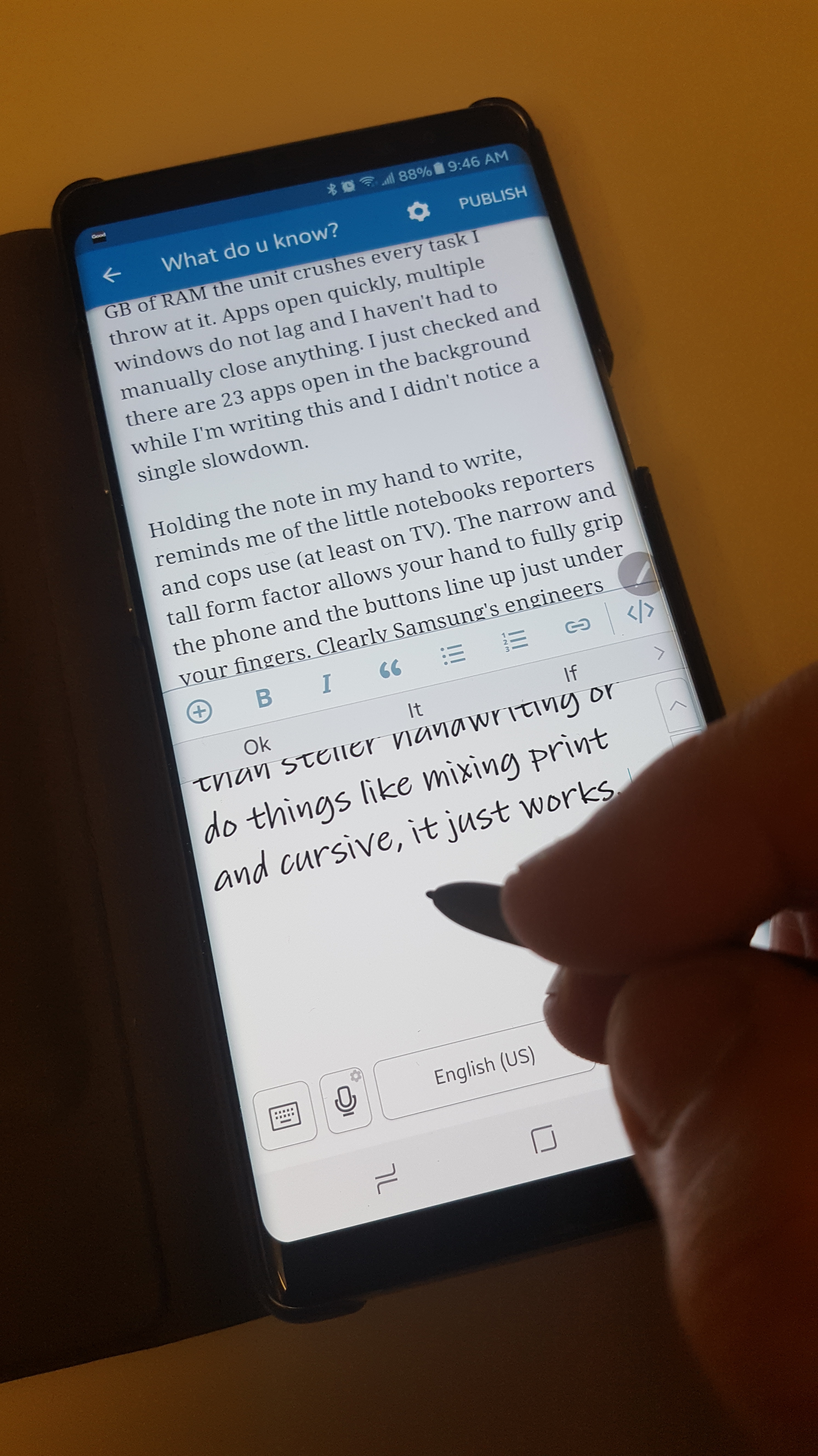
You just write in your normal style and it gets turned into typed text. Even if you have less than steller handwriting or do things like mixing print and cursive, it just works. I’ve switched over to my other hand and it still recognizes the words. Above all, the Note 8 totally ignores my hand resting on the screen while I scribble away. 

In my opinion, Samsung’s Galaxy Note 8 is the best on-screen writing experience you can get right now. Even over full tablets like the Surface Pro (which I also have), the limiting factor for them being the ackward size and weight. 

Maybe now that I’ve published a glowing review, Samsung will tell me how to disable the infamous Bixby Button.  

Automatically Organise your Outlook Inbox in folders by years

Wow, people’s mailboxes are a mess. Who has time to read and sort the thousands of mostly irrelevant messages that have built up in there over the years? We can’t just delete the stuff because as soon as you commit to saying good-bye the laws of corporate Karma will cause an executive to ask for one of the messages you just dumped. 

What’s a busy person supposed to do? I get Outlook to put all my mail into folders by year, only leaving the current year’s mail sitting in my inbox. It’s easy to setup and really helps. 

1. Open Outlook.

2. Create folders for each year under your Inbox. I personally create a folder named Archive and then folders for each year under it.

3. In the Outlook Ribbon click on Rules -> Manage Rules and Alerts.

4. Click the New Rule button.

5. Choose “Apply rule on messages I receive”.

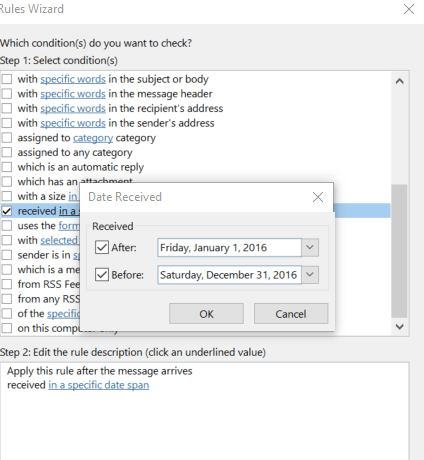
6. Select the box next to “received in a specific date range”.

7. In the Step 2 window (lower); click on the underlined words “in a specific date span”. 

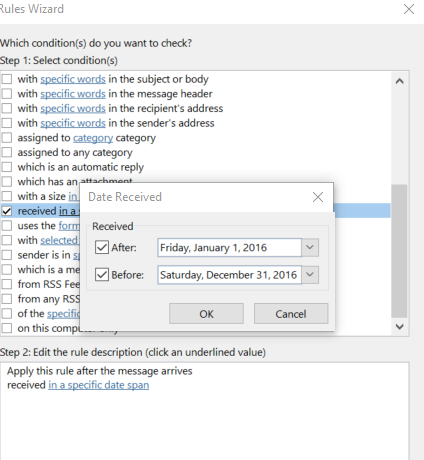
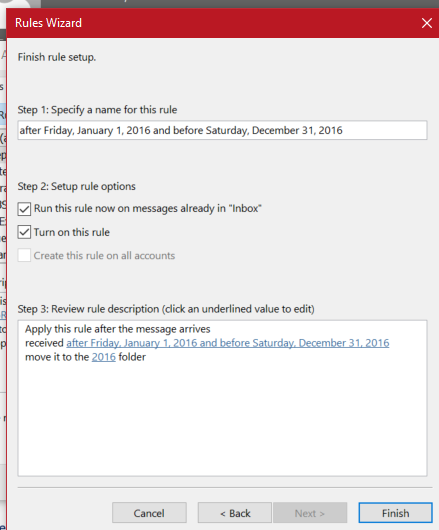
8. Use the pop up to enter the start date (Jan 1st of the year you are building the rule for) and the after date (Dec 31 of the same year).  

9. Click Next and select the check box for “Move it to the specified folder”. 

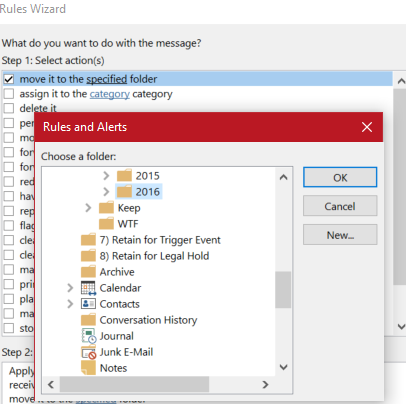
10. Click the word specified and browse to the year’s folder to select it. 


11. Click Next to add any exceptions. 

12. Click Next again and check the “Run this rule now…..” check box. 

Repeat the process to create rules for each year. Your inbox will be cleaner, your Outlook will respond quicker, and your email administrator will get off your back. 

A gamer family’s trip to PAX South 2017

My wife and I were trying to figure out something cool to do for a family trip. We’d already done Yellowstone, the mountains, the ocean, Disney, you know all the great American family trips…… We were looking for something more personal to us. I mentioned that I had always wanted to go to a game expo like E3 but that you had to be a professional to attend. She asked a question I had just never thought of, “Are there any Expos open to the public,  around?”; “Well Duuuuuuh, of course there are. PAX has been around for quite a while, attracts attention from big vendors, has all the “gamer culture”, I felt like I should have thought of this a long time ago.

Google enlightens me to the fact that PAX has expanded since the last time I looked into it. Now they have a venue in Texas when it is freezing here and nice and toasty warm there. I have always wanted to take my wife to San Antonio anyway. Just like that our family’s next trip was chosen. I left the details to whatdouknow’s highly trusted logistics engineer (aka my wife).

San Antonio River-Walk Bridge
One of the many San Antonio River-Walk Bridges.

We wanted a hotel next to the action but it had to be quiet, too. My wife searches and comes up with a few candidates. We settle on the Spring Hill Suites in San Antonio. It’s walking distance from the Arena but not directly on the River Walk. It has a heated pool, free Wi-Fi, free breakfast, and the reviews look decent.

Here’s a travel trip from somebody who’s always on a budget and has years of practice. Find your hotel room on one of the big advertised sites like Trivago, Travelocity, or Expedia because they make it easy to search lots of hotels and rooms very quickly. Before you book the room; see if the hotel you like has their own on-line presence. More often than not, the hotel’s site will be less expensive than the search conglomerate’s.

We book our room and talk about transportation on the ground. We decide that our plans don’t require renting a car, our hotel is walking distance from the convention and the River Walk. We’re going to try Uber as a family for the first time. Great, the trip is all planned now we just need to wait until time to go.

San Antonio Zoo Landscaping
The San Antonio Zoo is very nice

PAX South is always in January and held in San Antonio Texas. Winter rolled around and it was finally time to head to the airport. We landed after an uneventful flight and my wife launched the Uber app. She told the app we needed a car big enough for 4 and their luggage. This is our fist time using Uber, ever. We hang around in the loading  slash smoking zone waiting for our car and trying to dodge the clouds of stink for twenty minutes when a Toyota Prius rolls up. Hmmm, not what I imaged when we requested seating for 4 and luggage but we all eventually squeeze in. It’s a good thing these people are my family, LOL

Everyone was impressed when we got to the hotel. It was possible to see the convention center from it. The building looked nice and well maintained. The pool was great, it was out on a back-deck next to the sidewalk so you could people watch while you swam. The small bar / kitchen served breakfast, beer and wine, and had a simple room service menu at night. There’s was a small convenience store and the usual vending machines. The rooms were comfortable and the TV had plenty of HDMI hookups for all our gear. All the room’s in this hotel are divided by a half-wall and the restroom into two separate spaces.  If you ever make the trip I highly recommend the Hotel. It’s about a 5 block walk to the convention center and 4 blocks to the River-Walk. If you want closer to the action, the River-Walk Marriott is connected to the venue.

San Antonio’s Spring Hill Suites

This slideshow requires JavaScript.

We got up the next morning, had breakfast in the hotel lobby (which was excellent) and then headed to the convention center. The sidewalks were a stream of people marching to PAX. Once we passed through security we were directed to the mother of all lines. Someone had brought inflatable dice and we played the largest game of “Keep It Up” I’ve ever seen.

They opened the doors and the crowd streamed in. The main expo floor is huge, you literally cannot see from one side or end to the other. It is packed with booths from every type of video, electronic, board, and tabletop game you’ve ever played. There are retail booths, demo booths, the Nintendo Switch is playable (it hadn’t been released yet). In a word it is Rad!

There’s so much to see and do here; concerts, shows, meet and greets with gaming celebrities and YouTube stars. There are several gaming libraries where you can play every game on every console ever made. A sea of late-model gaming rigs awaits hundreds of simeltaneous players for numerous tournaments. There’s a console tournament section. Open games that you can just step up and play and this is all just in the main hall.

The convention center has an enormous number of side rooms, each of which has something different going on. One is stuffed full of musical instruments, electric guitars, and drums waiting for anybody that would like to come play. In a lower level common area there’s a bean bag oasis were people crash and play Mario Kart 7 in open games on their 3DS consoles. I won’t spoil it all, part of the fun is discovering everything yourself.

I didn’t expect the sheer amount of competition. There were professional tournaments with thousands of dollars and big name sponsors and there were friendly tournaments that anybody could play in.

Not only is PAX fun; the city of San Antonio is too. We have walked all over this burg. Our smart watches tell us we’re clocking an average of 13 miles per day. The River-Walk is lined with places to eat, the Alamo, bars, and an upscale mall. The city has a magnificent Zoo that is an Uber or Lyft away.

My kids count this as their favorite vacation to date. Considering some of the places we’ve been, that is saying something. If you’re looking for something to do and your family likes games, PAX is worth your attention. We had a blast and I’m sure we’ll go back sometime. Tickets are on sale for PAX South 2018 now http://south.paxsite.com/, they sell out every year.

Make a Windows 10 Theme from your personal pictures

Chances are that after a few years of carrying around a camera with you near constantly, you’ve probably racked up a stack of epic pictures that you’d rather stare at instead of the usual melting clock wallpaper fair. Windows 10 makes setting up your own custom theme using your pictures ridiculously easy.

First you’ll need to separate out all your favorite pics. Copy and paste them in to a  folder anywhere on your hard disk. As a beginner’s tip; I suggest that you choose pictures with a wide-angle (large area) view. They tend to look better as background pics than those that are of tight spaces.

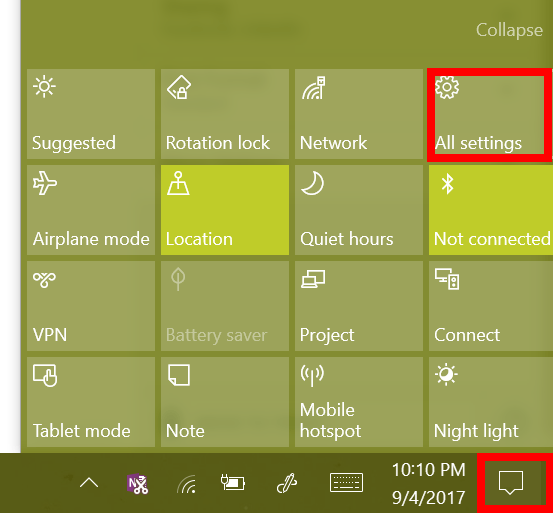
Now that you have your pictures all picked out. Open your notifications pain and click the All Settings button. allsettings

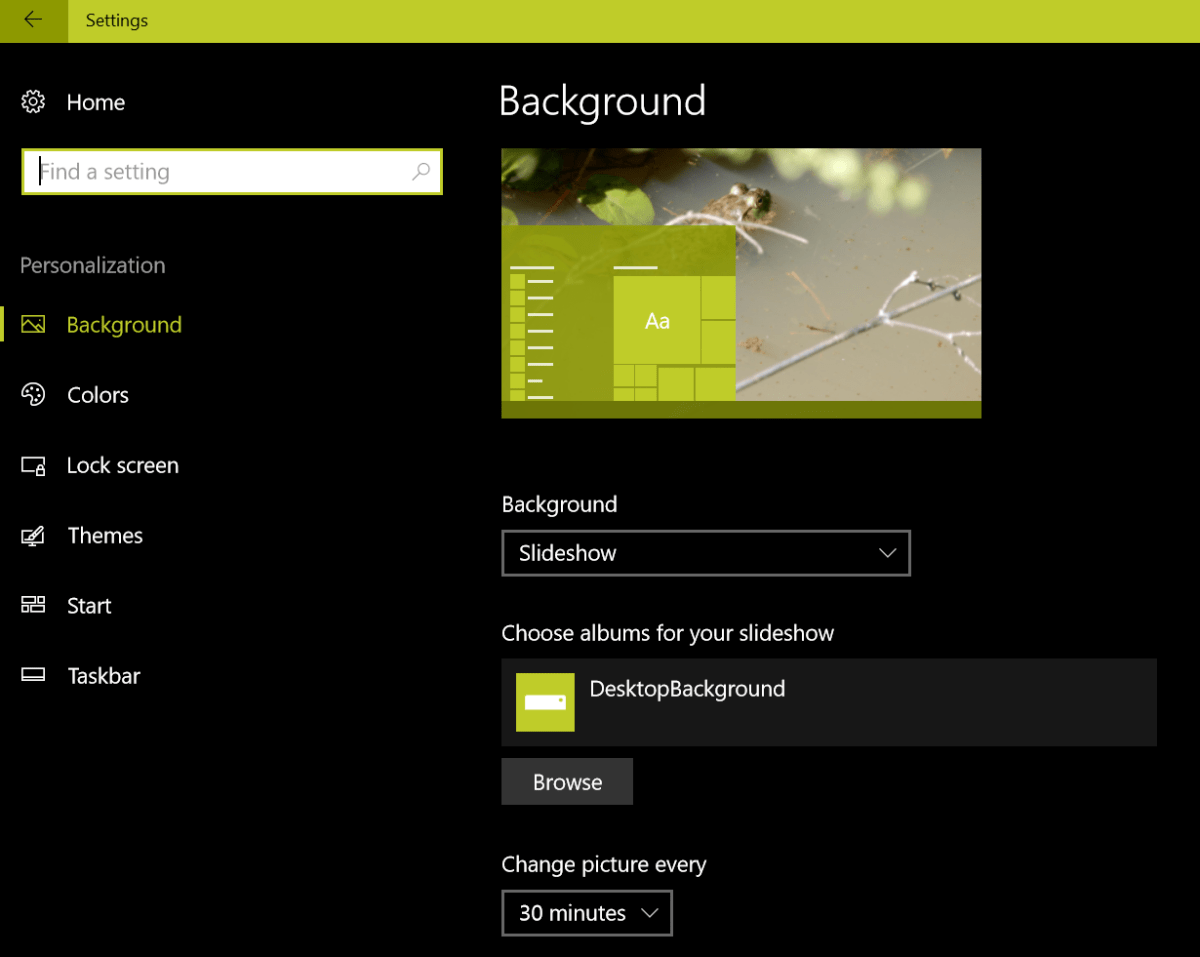
Choose Personalization from the menu and then click on Background in the menu on the left. Choose Slideshow in the drop down box in the center. Now use the browse button to locate the folder you saved all of your epic pictures in. Basically you want your screen to look like mine does below but with your folder’s name.

Background

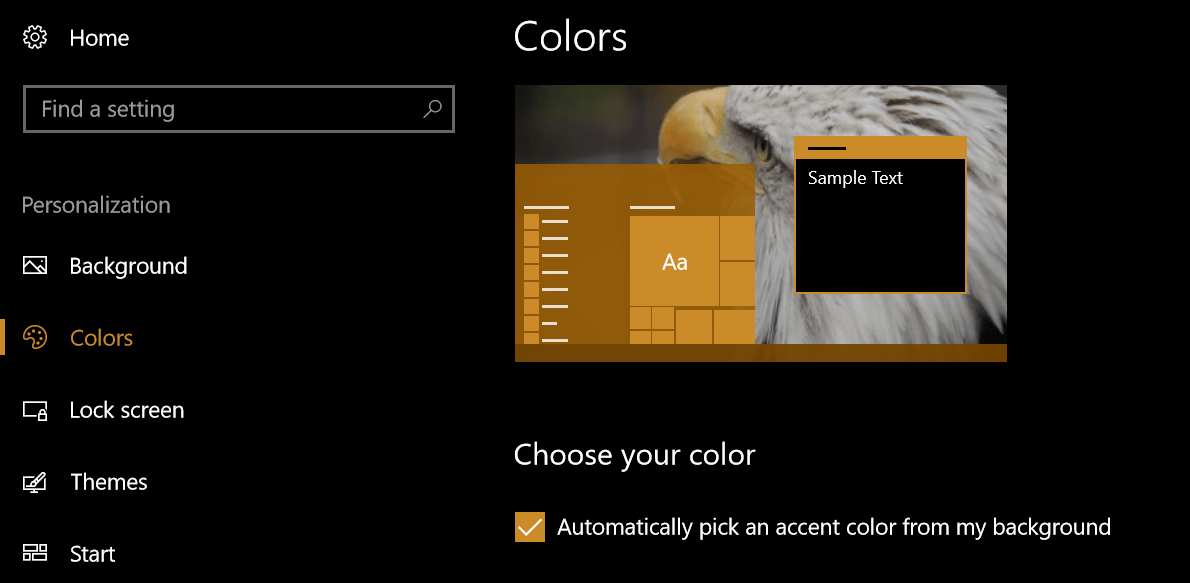
Now pick colors from the menu on the left and check the box that says to automatically pick a color from your image.

Colors

That’s it. Your background will now cycle through all the pictures in your folder and the task bar and window colors will change to match the selected picture. It’s one of my favorite features in Microsoft’s new OS. If you haven’t already upgraded, you should think about it.


Gaming Keyboards: Razer vs. Redragon, its closer than it should be.

My Son and I are both PC gamers . Almost any night after our chores are done you can find us racing, shooting, flying, or exploring in some on-line world or another. When you spend that kind of time on a keyboard, your equipment choice matters. I type all day in my day job, my side job, and my hobby. I’ve racked up some serious keyboard XP.

I was willing to spend up to $200.00 for a great keyboard. That’s a lot of my total fun money budget so it has to be awesome to be worth the capital. The problem is, my kid needs a new board too. I need two new gaming boards for $200.00. I want real mechanical keys, multi-color backlights, comfort, and proven performance. For both. I need to feel a keyboard not just look at. I have done my homework; my short list:

  • Corsair’s K series
  • Razer’s Blackwidow
  • Logitech’s G series

So we hop in the car and head off to the local tech stores. I lured my teenage, been a gamer his whole life, son to go on the trip with me because his expertise on the subject surpasses my own.

I am standing in the keyboard isle running my fingers over the keys of a Logitech when my son tells me I need to ” try this one, Dad!”.  It looks menacing and aggressive sitting on the shelf. An expansive hunk of black. I’m in love as soon as I push down the first key. I heard my son mumble something about “Green Switches” and was instantly looking for this thing’s price tag.  Razer BlackWidow Chroma V.2, $179.99!!!  Ouch, almost my entire budget; there’s no way I’m getting two of them.

Unfortunately for my son, I am already planning my excuses for getting this awesome piece of tech and stiffing him until next time. Just as I am about to let fly with my pathetic reasoning for selfishness. My angelic son pipes up saying that I am “such a good dad “, I deserve to have the keyboard and he will be happy to wait. A quick price check from my mobile shows I can get it a few bucks cheaper on-line but this store does price matching and that means I can “HAVE IT NOW!” I can deal with the inner guilt later. I make my purchase and we head home.

While I am clearing out the old gear to make room for the new hotness my son mentions there’s another keyboard he’s been scoping out that we might still be able to swing. “You found a mechanical gaming keyboard for $30.00 ?”, I’m mentally picturing a POS. He spins his screen around and shows me an Amazon page listing Red Dragon keyboards. They look great. He proceeds to tell me that he researched this brand after hearing how good they are supposed be on Youtube.  Their Amazon reviews are very positive and I can get both of the keyboards I wanted; I order the RGB Kumara.

Now that we know why I have two mechanical gaming keyboards, we can get on with the reviews and comparison.

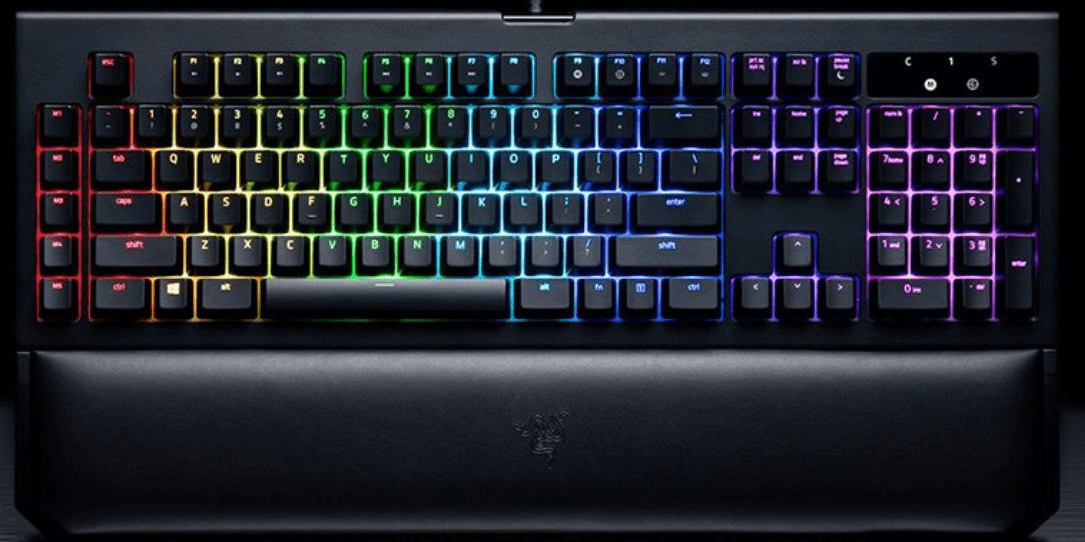
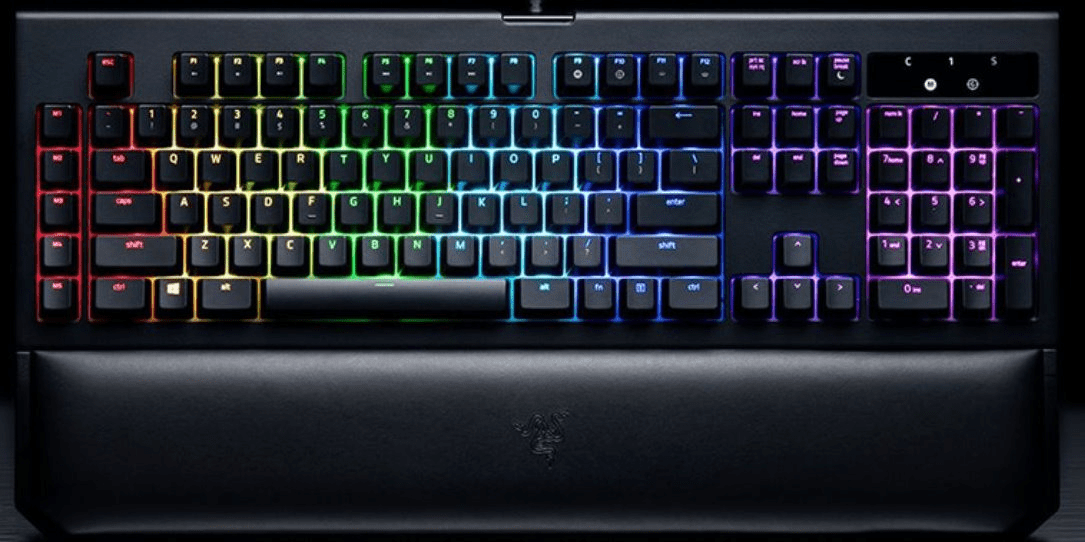
Razer BlackWidow Chroma V.2

razeraromuv2

For me, what matters most are the feelings of each key click and a layout that fits my hands. You would be hard pressed if forced to argue there’s a better key click out there than Razer’s Green Switches. The precision of the key travel, punctuated by a perfectly satisfying click is extremely gratifying.  The keys are spaced perfectly and the slightly indented caps conform to my finger tips like they were custom fit. They fit so well I became suscpitious that people with large hands might experience issues. I had my 6’4″ buddy try them out. He thought the fit was great too.

We’ve all seen backlit keyboards by now. Even multi-color RGB units are common place in any store that caters to the gamer crowd. Razer is taking lighting to the next level. Their Chroma system treats each of the keys as a pixel in active graphic displays that are impressive in a dark room. Furthermore the keyboard can become an output accessory in several games. While playing Overwatch my keys will match my character’s color scheme and my ability keys will highlight when they can be fire in the game.

Watch whatdouknow’s game editor put the BWCv2 through its paces in the short video clip below.

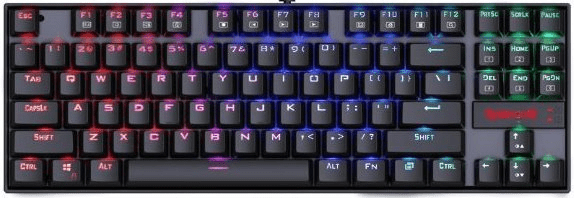
Redragon K552-RGB KUMARA RGB

RDKvnwaRGB

Redragon (no, I didn’t spell it wrong) claims their switches are just like Green Switches and you know what? I have to give it to them. They have a great mechanical feel, good sound, and look good too. The keyboard is stout, it feels well made. Overall I’m impressed; there are plenty of built-in lighting effects, the Winlock function is nice, and it plays well.

Is is as good as the Razer? In a word, No. The Razer feels just a little better, its clicks are more confidence endusing, the application and integration with games are superb and its fit and finish is a step above the competition.

Watch our gameing editior take the Redragon through its paces.

The Redragon is no slouch; if I were on a tighter budget or just played causually I would get it in a heartbeat and be very happy with it. Razer just edges them out in the end but like the title of the article says “Its closer than it should be”.

Kolab Groupware Private and Shared Mailbox Setup with Client Configuration

Now that we have our groupware server up and routing mail; we’ll need to configure some mailboxes for the mail to be delivered to. There are several types to choose from but we’ll stick to a standard user mailbox and a shared mailbox; two of the most common. The others work the same way you’ll just use different drop-downs and end up with different options.

CONFIGURE USER MAILBOXES

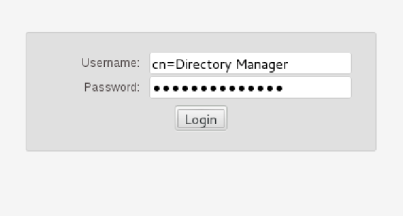
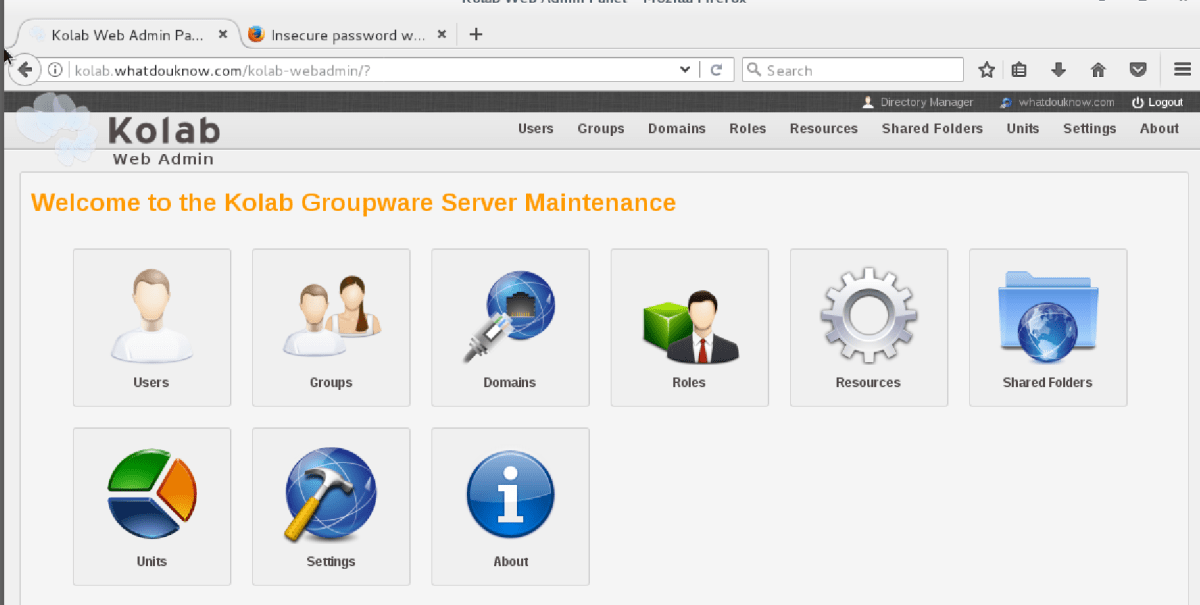
  1. Logon to the Kolab Web Admin panel in a browser that has access to your virtual machine. If you installed a GUI on your Linux server, its built-in browser will work.
    • kolabadminlogon
    • kolabwebadmin
  2. Click on the Users icon.
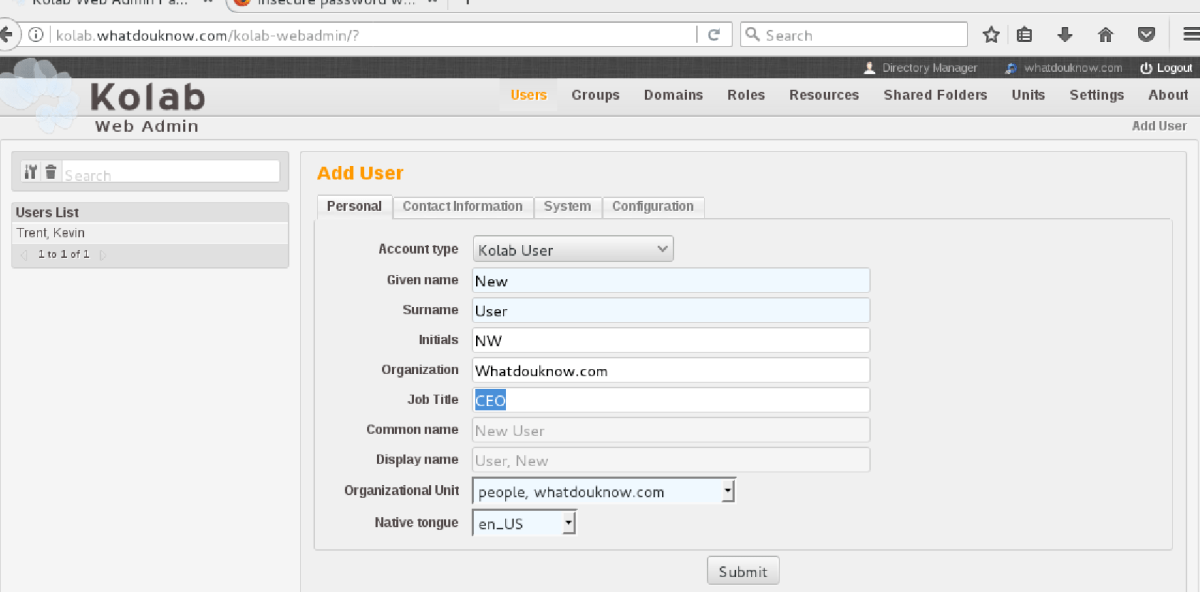
    • Selecting Kolab User from the drop-down box will present a tabbed form that allows you to configure a standard user mailbox including the LDAP account.
    • Complete all the fields on all the tabs then click Submit.
    • Kolabnewuserform
  3. Create at least two user accounts so you can test your server.

Explore the Web-Mail Interface

  1. Open the web browser and go to https://youserverfqdn.com/roundcubemail/
    • You’ll be presented with a very nice web mail interface.
  2. Compose a message from user A to user B and send it.

I like to use two different browsers to log on as both users at the same time. The system will prevent two logons from the same client IP.

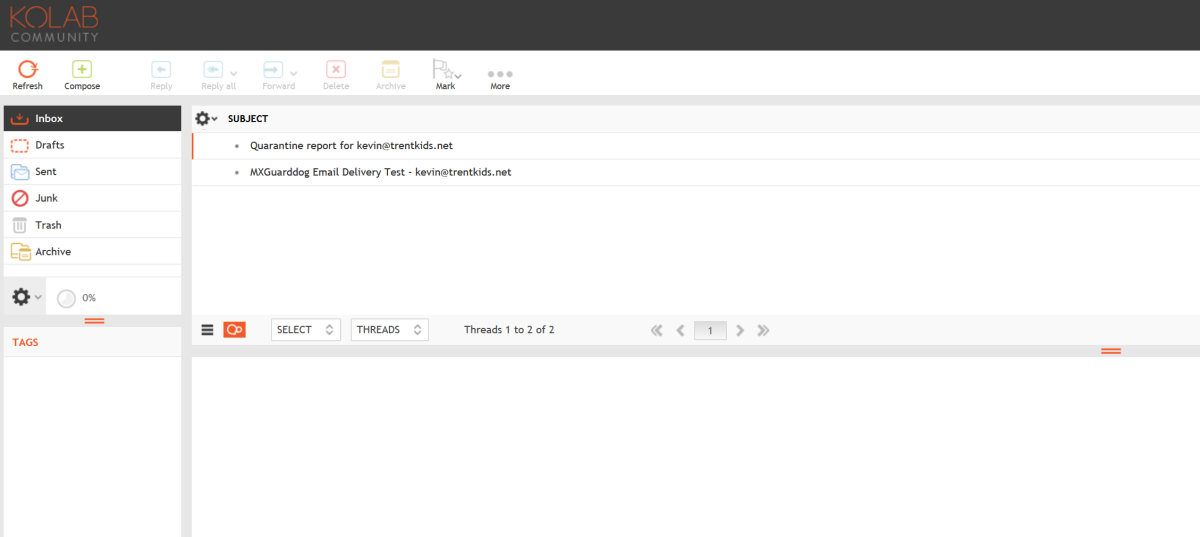
Kolabwebclient

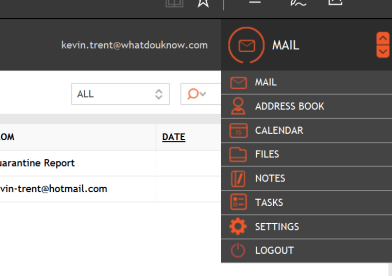
Switch between Email, Calendar, Contacts with the icon in the upper right. kolabclientpanes

Settings

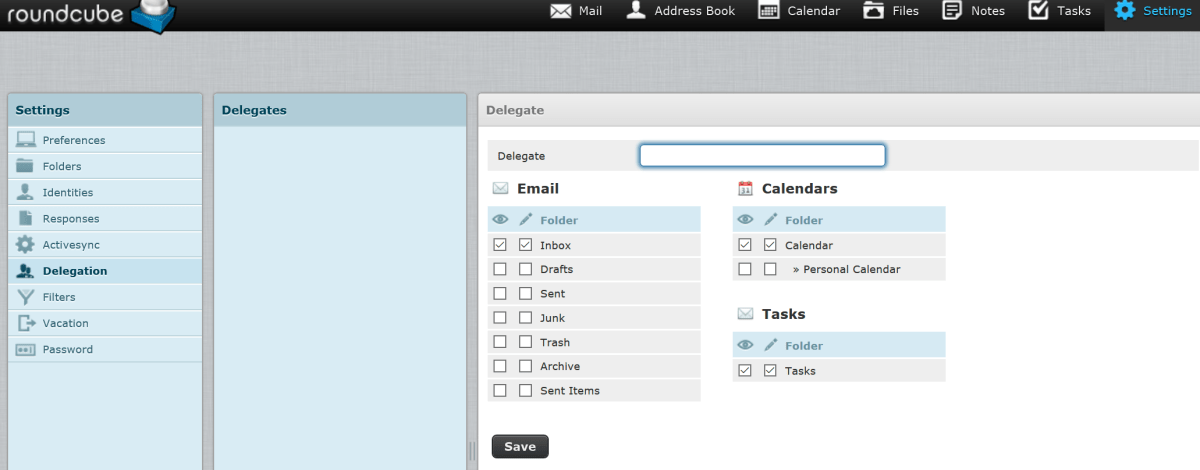
Look in the settings menu system to personalize, delegate and control your mailbox. This web client is very robust and customizable.

kolabclientdelegation

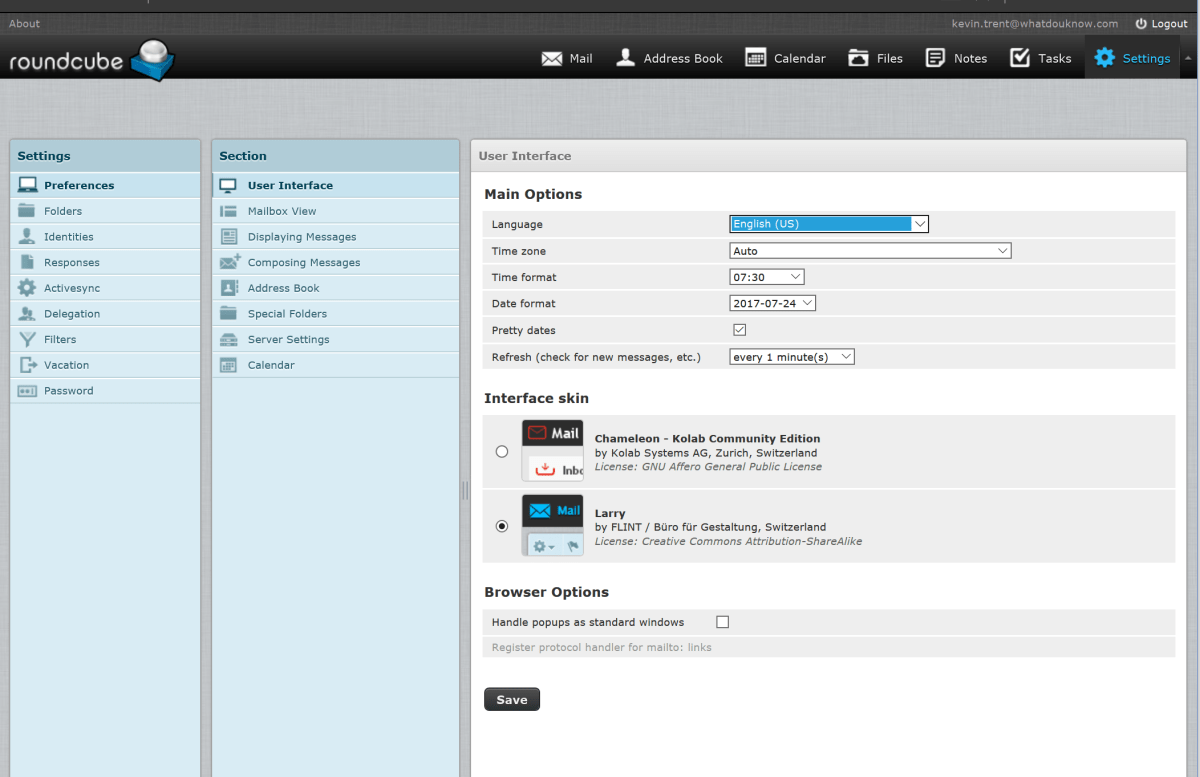
The menus are intuitive and self-explanatory. Each menu has sub-menu’s for the selected category. For example under Preferences you can control how things look and feel.

kolabclientui.png

Other Clients

See the Kolab documentation for configuring other clients. Your choices are: Microsoft Outlook; Mozilla Thunder Bird, or Kontact the vendor’s client software. Its IMAP protocol is accessible by a wide range of apps and clients across all devices. https://docs.kolab.org/client-configuration/

Create a Shared Mailbox

  • Open the Web Admin Console
  • Click the Shared Folder Icon.
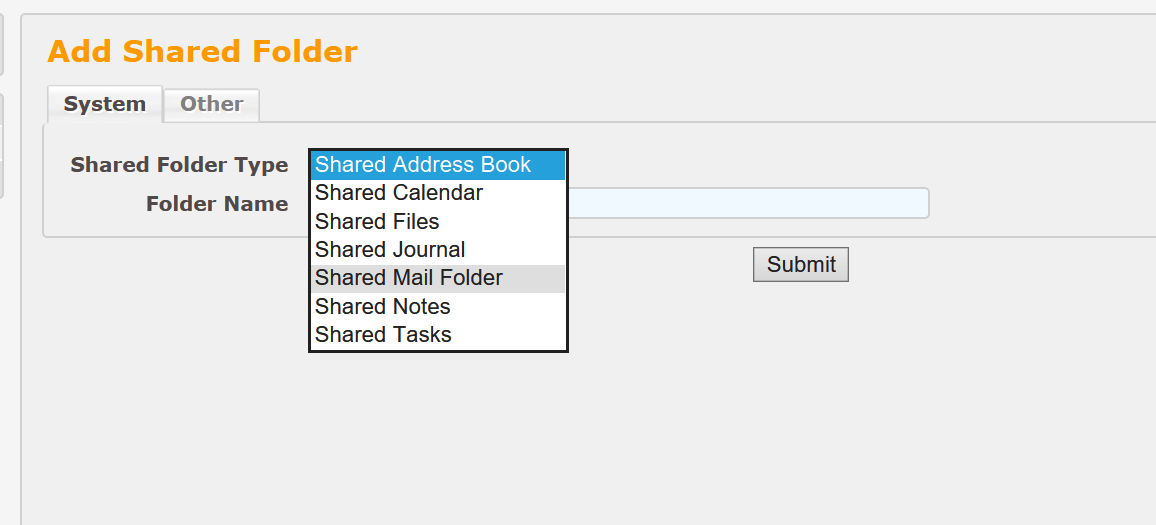
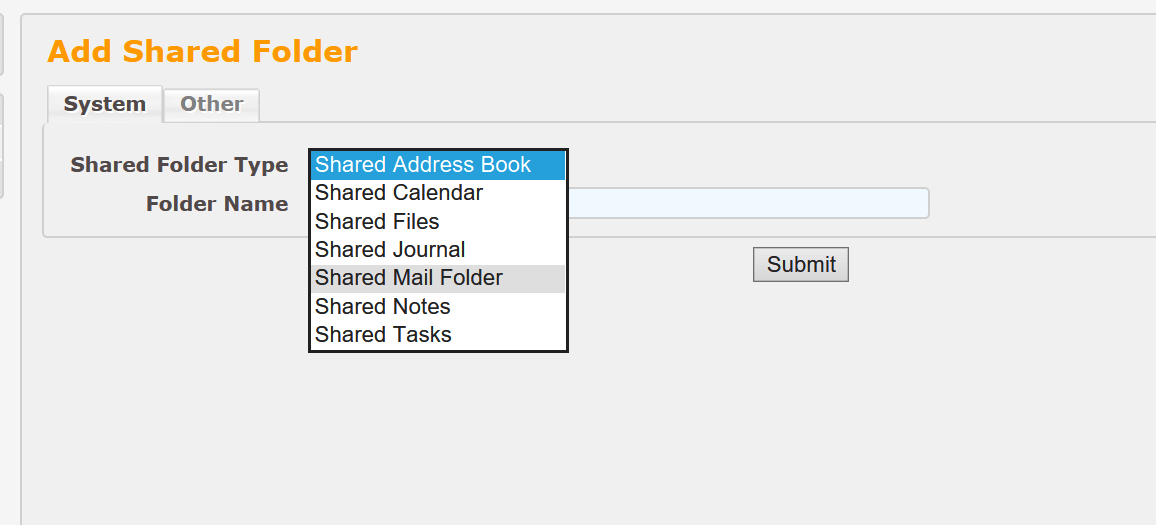
  • Select Shared Mail Folder from the drop down and click the Submit button.
    • kolabsharedmailbox
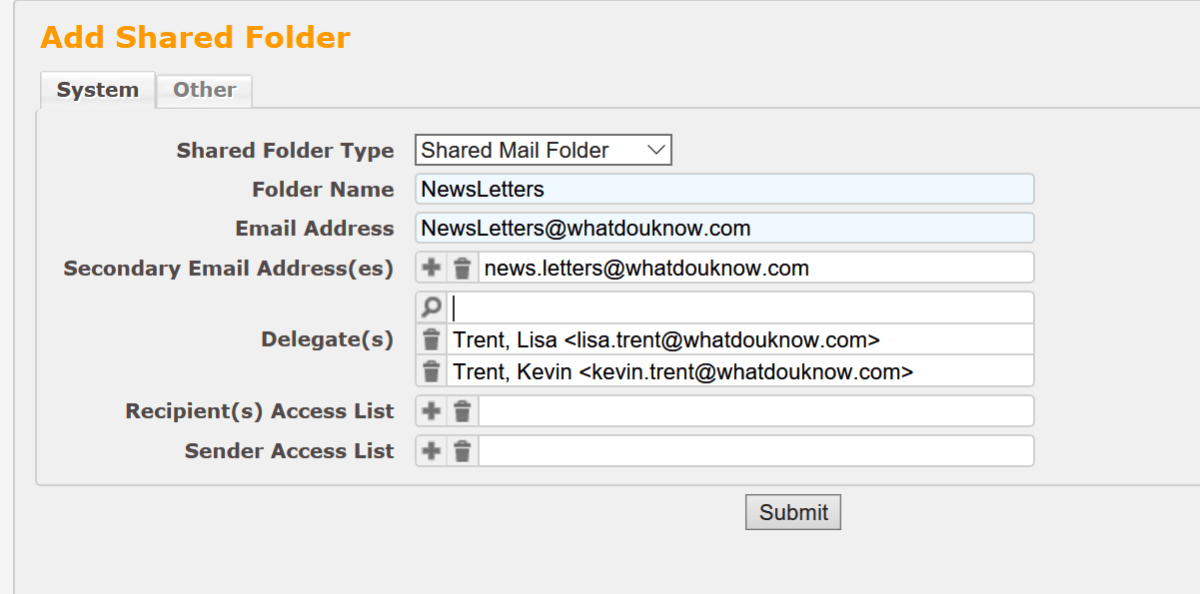
  • Fill out the form and click Submit.
  • kolabsharedmailboxform

To Use/Open the shared folder

  1. Open the Web client.
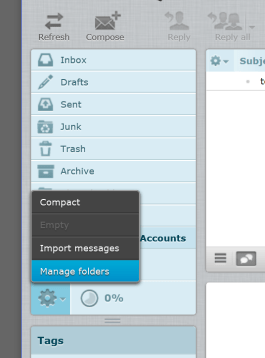
  2. Click the gear setting at the bottom of your folder list and click manage folders.
    • kolabclientmanagefolders
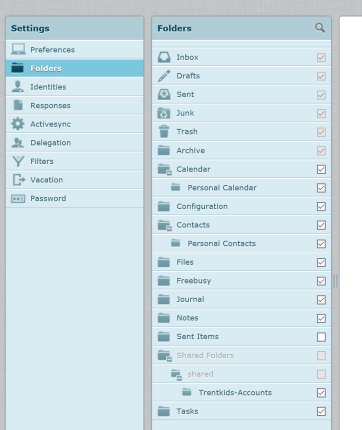
  3. Select Folders and check the Shared Folder’s box in the list.
    • kolabclientsharedfolders

Now that you can route mail to mailboxes you are able to implemeant and access it via several client types you should be ready to expand your system. If you’re setting this up for a small company or POC with 40 or fewer users, you’ll just need to setup some type of backup/restore (snapshotting the VM works just fine) and you should be ready to run. Start expanding your users, groups, and shared resources.