We received the new patching directives from upper management. We would need to avoid interruptions to the nearly 24/7 business operations while achieving one-hundred percent compliance. No exceptions would be issued, for any reason. All Windows servers were to be patched and rebooted every thirty days, period. If automation couldn’t do it reliably, we would abandon the automation. IT staff would have to patch the servers manually. Even if it took an entire team on a bridge call in the wee hours of the morning.
We distilled the final details from meetings and discussions with the business leaders. Sixty-minutes of total downtime was the stated goal for patching and rebooting 240 Windows servers spread across half a dozen on-site datacenters in cities across the western half of the USA. There were large chain based colo-datacenters near the HQ city, a DR site, and a large VM presence in Microsoft’s Azure cloud. The hub and spoke network design was all linked with low-bandwidth MPLS. Each local link had a monthly transfer limit that we hovered close too already.
We had been struggling to get the commercial patching utilities we had available to meet any of our goals. I took over running patches so that I could start wrapping my head around the issues we were facing. It turned out that there were lots of minor issues adding up to cause big problems. There had been two different MSP patching tools installed and partially/incorrectly removed. There were GPOs that pointed some of the servers to a WSUS deployment that had been decommissioned years ago. Several firewalls were blocking ports that were supposed to be open. To top it all off, our AV and EDR tools weren’t configured with the proper exclusions.
Patching with PowerShell is often more difficult than people expect. Providing remote programmatic access to the patching mechanisms of an operating system is problematic from a security standpoint. Microsoft locks the Windows PowerShell update mechanisms down. The cmdlets for managing Windows Update do not accept remote sessions of any kind. Microsoft’s position on remote patching means that developing a job or agent is the only viable solution. I could write my own, but I knew there were already good 3rd party patching modules available.
My research turned up a couple of promising candidates. The well-known PSWindowsUpdate topped most people’s lists for the type of script I had in mind. I also read good things about TechTarget’s patching module as well. In the end, I chose PSWindowsUpdate. I picked it because it is well documented on numerous tech blogs and forums. It’s free, or most of it is, and it is mature. The first version was launched in 2011 and there have been steady updates since.
The first step of my plan was to create a series of tools that I knew we would need. The update module could download and install patches well enough. It had some reporting and monitoring options as well. I wasn’t able to get some of the features to work in our environment due to the extra security we had implemented. I also knew that PSWindowsUpdate wouldn’t be able to do anything about the numerous issues that had been blocking our efforts in general. I decided that I would need to work around those problems quickly to achieve compliance and worry about permanently fixing the root cause problems down the road.
The first tool I made for the project completely repaired and reset each server’s Windows Update mechanism. The script bypassed problems from bad policies and old patching agents by resetting the registry and clearing all the caches. It was key to achieving success in the final automation. I scheduled it to run ten minutes prior to the patch install job. Then the patching script could trigger Windows Update to download/install over the Internet. The timing was also important. I needed to clear the GPOs, agents, and other issues and start patching before they had a chance to reassert their broken configurations. You can read about or get a copy of the Windows Update reset script from another post on my blog at PowerShell: Backup and Repair/ Reset Windows Update.
The next tool I made, let us review the patch installation status of our entire fleet in near real-time. Testing had shown that having each server download its patches from the Internet took way longer than anyone expected. The server and the network layers were both very busy at night. They were running backups and replication. There were nightly file transfers, reports being generated, and things of that nature. We would need a way to verify if patches were still installing or not without interrupting those processes.
#This script requires the Active Directory PowerShell Module. #As long as the Trusted Installer is running, patches are still installing and server is not ready for reboot.#Save the script as a *.ps1 file. $ErrorActionPreference = "SilentlyContinue"$Servers = Get-ADComputer -Filter 'Operatingsystem -Like "*server*"' -Properties dnshostname| Select-Object dnshostname -ExpandProperty dnshostnameFunction CheckStatus { ForEach ($Server in $Servers){ $PatchingStatus = Invoke-Command -ComputerName $Server {Get-Service -Name TrustedInstaller} If (($PatchingStatus | Select-Object -ExpandProperty Status)-contains "Running"){ Return "Running"} } }CheckStatusPause
I needed a few other simple reports too. An important one was a quick tool to run interactively after the reboot task should have completed for each layer. I caught multiple servers that had not been rebooting correctly using this little script. One of them hadn’t been restarted in almost two years.
$ErrorActionPreference = "SilentlyContinue"$Servers = Get-ADComputer -Filter 'Operatingsystem -Like "*server*"' -Properties dnshostname | Select-Object dnshostname -ExpandProperty dnshostnameFunction CheckReboot { Foreach ($Server in $Servers) { Invoke-Command -ComputerName $Server {(Get-Date)-(gcim Win32_OperatingSystem).LastBootUpTime} | Select PSComputerName,Days,Hours,Minutes }}CheckReboot
Of course, I also needed a full patch report that showed the status of each patch installed and each server’s reboot time. I scheduled this report to run the next afternoon. It takes several hours to gather all of the data and generate the report.
$ErrorActionPreference = "SilentlyContinue"$Servers = Get-ADComputer -Filter 'Operatingsystem -Like "*server*"' -Properties dnshostname| Select-Object dnshostname -ExpandProperty dnshostname$AfterPatchReport = Foreach ($Server in $Servers){ $Report = Invoke-Command -ComputerName $Server {Get-WUHistory -MaxDate (Get-Date).AddDays(-5)} $LastReboot = Invoke-Command -ComputerName $Server {(gcim Win32_OperatingSystem -Computer $Server).LastBootUpTime} Write-Output $Report | Format-Table -Property ComputerName, KB, Result, Date, Title Write-Output "$Server Last Boot Time: $LastReboot" }$AfterPatchReport | Out-File $env:userprofile\Documents\PatchReport.txt
I also needed a report that verified the automatic services on each of the 240 servers were running. I’ve written a separate blog post about the script that I used for that. You can read it here: PowerShell Script to Check Active Directory Member Servers for Automatic Services’ Status.
That just left the patching script itself. As of the date of publishing, you can execute the script below from an administrative terminal on any Windows server that is a member of your Active Directory domain. Use an administrative account with enough privileges to patch the servers in your environment. The system you run from also needs to have the MS-ADUC PowerShell Modules installed.
WARNING: This script will reboot all of the selected servers at once, immediately after the last one has finished installing its patches. If you continue with this reboot method, you should exclude a domain controller and DHCP server from the process. The patching script below automates domain server discovery. It downloads and installs PSWindowsUpdate from the online PowerShell Gallery. The script will also automatically approve the installation of the NuGet package manager. As with all scripts on Techbloggingfool.com that you may copy and run in your environment, you are making the decision to proceed. You accept all the risks and outcomes of doing so as your own.
- Discovers Windows server names by querying Active Directory.
- Parameters Allow you to select all Windows Domain Servers or to choose from an interactive GUI check list.
- Tests port 135 (RPC) connectivity to each discovered DNS name and ads the servers that pass to the patch installation group’s array.
- Those that fail the RPC test are added to the error log.
- Checks for a specific version of NuGet and the PSWindowsUpdate Module on each server.
- Installs or updates the components if needed.
- Downloads and installs all available updates detected via Microsoft Windows Update.
- Skips the update reboot.
- All Servers are rebooted at once after the last one finishes installing.
- Checks to see if the Windows Trusted Installer service is running on any server every five minutes.
- All servers are rebooted as a group when the last server finishes installing its last patch.
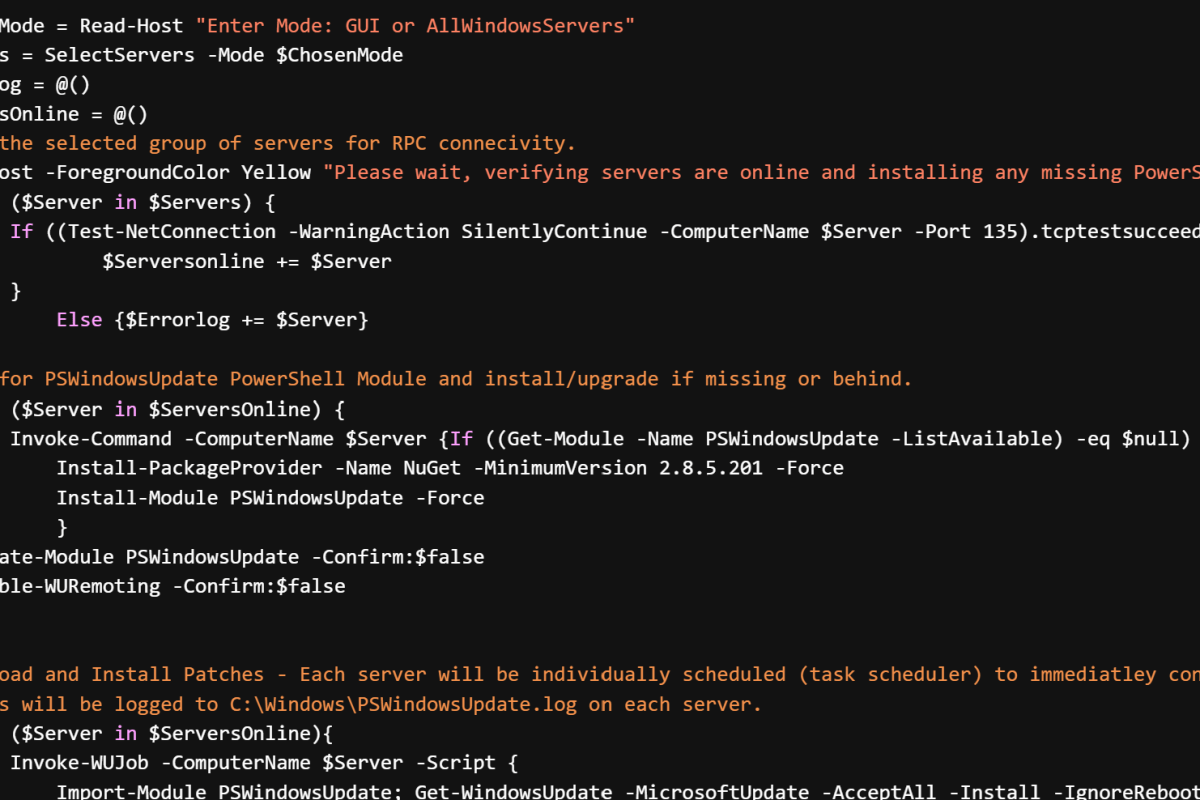
# Use the function to select which groups of servers will be patched.Function SelectServers { param( [Parameter(Mandatory=$true)] [ValidateSet("GUI", "AllWindowsServers")] [string]$Mode) If ($Mode -eq "GUI"){ Import-Module ActiveDirectory Get-ADComputer -Filter 'Operatingsystem -Like "*server*"' -Properties DNSHostname| Select-Object DNSHostname -ExpandProperty DNSHostname | Sort-Object | Out-GridView -Title "Select Servers To Install all Microsoft Windows Updates. CTRL+A to Select All" -PassThru} If ($Mode -eq "AllWindowsServers"){ Import-Module ActiveDirectory Get-ADComputer -Filter 'Operatingsystem -Like "*server*"' -Properties DNSHostname | Select-Object DNSHostname -ExpandProperty DNSHostname | Sort-Object}}$ChosenMode = Read-Host "Enter Mode: GUI or AllWindowsServers"$Servers = SelectServers -Mode $ChosenMode$ErrorLog = @()$ServersOnline = @()# Test the selected group of servers for RPC connecivity.Write-Host -ForegroundColor Yellow "Please wait, verifying servers are online and installing any missing PowerShell components."Foreach ($Server in $Servers) { If ((Test-NetConnection -WarningAction SilentlyContinue -ComputerName $Server -Port 135).tcptestsucceeded){ $Serversonline += $Server } Else {$Errorlog += $Server} }# Test for PSWindowsUpdate PowerShell Module and install/upgrade if missing or behind.Foreach ($Server in $ServersOnline) { Invoke-Command -ComputerName $Server {If ((Get-Module -Name PSWindowsUpdate -ListAvailable) -eq $null) { Install-PackageProvider -Name NuGet -MinimumVersion 2.8.5.201 -Force Install-Module PSWindowsUpdate -Force } Update-Module PSWindowsUpdate -Confirm:$false Enable-WURemoting -Confirm:$false }} # Download and Install Patches - Each server will be individually scheduled (task scheduler) to immediatley connect to #MicrosoftUpdate and download / install all available updates skipping the reboot. #Results will be logged to C:\Windows\PSWindowsUpdate.log on each server. Foreach ($Server in $ServersOnline){ Invoke-WUJob -ComputerName $Server -Script { Import-Module PSWindowsUpdate; Get-WindowsUpdate -MicrosoftUpdate -AcceptAll -Install -IgnoreReboot |Out- File C:\Windows\PSWindowsUpdate.log } -RunNow:$true -Confirm:$false -Verbose -ErrorAction Ignore}# Check patch installation status and monitor for completion on all servers.Function CheckStatus { ForEach ($Server in $ServersOnline){ $PatchingStatus = Invoke-Command -ComputerName $Server {Get-Service -Name TrustedInstaller} If (($PatchingStatus | Select-Object -ExpandProperty Status)-contains "Running"){ Return "Running" } } }While ((CheckStatus)-like "*Running") { Write-Host "Windows Modules Installer Service detected running on one or more selected servers. Patches are installing. Checking status again in 300 seconds." Start-Sleep -Seconds 300 } Write-Host "Windows Modules Installer Service detected as stopped on all selected servers. Patching is complete." $Continue = Read-Host -Prompt "Continue with reboot of selected servers (n will exit, y will reboot selected immediatley)? [y/n]" If ($Continue -eq 'n') { Exit}ForEach ($Server in $ServersOnline) { Invoke-Command -ComputerName $Server { Restart-Computer -Confirm:$false }}
Using the methods and code in the scripts above, I was able to fully automate the patching of Windows servers for the entire enterprise. We achieved a 100% patch success rate on the third run. All automatic runs afterward were successful until the company was acquired. I haven’t run the scripts in a production environment for quite some time, but they all still worked in my test lab just before I published this article.