PowerShell – Create Bulk Active Directory Accounts and Add Them to A Group

Recently I was tasked with helping a company build out a solution for remote training classes. We chose Microsoft’s Remote Desktop Services as the platform. I needed to develop a method to create bulk accounts for the students and place those accounts into the AD security group that granted access to the remote app.

Most admins have probably come across the New-AdUser cmdlet at some point. Combining it with a For-Each loop and a sequential digit was easy enough. The most difficult piece to figure out was adding each newly minted user to the security group that allowed access to the remote application.

The secret sauce is the passthru switch. Using it prevented me from having to code some elaborate process to find each account and add them separately. Make sure you update the variables to match your environment and the script will need to be run on a domain controller or system with the AD management tools installed.

If you wanted to configure the script to be run by an end user to setup a new class, change the script’s variables to use read-host which will prompt the for the values. For example; $Password = Read-Host “Enter Password”.

#Must be run from DC or system with AD Admin Tools installed and joined to domain
#Creates sequencial bulk users with the same password
#Adds those users to the group specified in $group use the DN 
#Change the Path to the OU you want the accounts to be created in
#Edit the ChangePasswordAtLogon switch as appropriate, $true forces users to update password and $false does not
Import-Module ActiveDirectory 
 
#Variables
$OUPath = "OU=Training,OU=Users,DC=Domain,DC=local"
$BaseUsername = "Training"
$Password = "NewStudent!"
$Number = "20"
$ADGroup = "CN=RDS Training Class,OU=Training,DC=Domain,DC=local"
$Incremeant = 1..$number
foreach ($i in $Incremeant){
	$NewUser = New-AdUser -Name $BaseUsername$i -Path $OUPath -Enabled $True -ChangePasswordAtLogon $true
	-AccountPassword (ConvertTo-SecureString "$Password" -AsPlainText -force) -passThru 
	Add-ADGroupMember -Identity "$ADGroup" -Members $NewUser
}

Split-Screen any or all of Your Monitors with Free Microsoft Software

Hold down the Windows + Arrow key and you can snap a particular application to the edges of your screen and split it in half vertically or horizontally. Snap Zones is a useful feature, but it has some problems that keep it from being more popular. You can’t control the size of the split, it is half and half. Getting new windows from an app to open in the same zone is next to impossible.

FancyZones fixes this. It is part of Microsoft’s PowerToys for Windows 10 application. Download it from:  https://github.com/microsoft/PowerToys/releases/download/v0.18.2/PowerToysSetup-0.18.2-x64.msi.

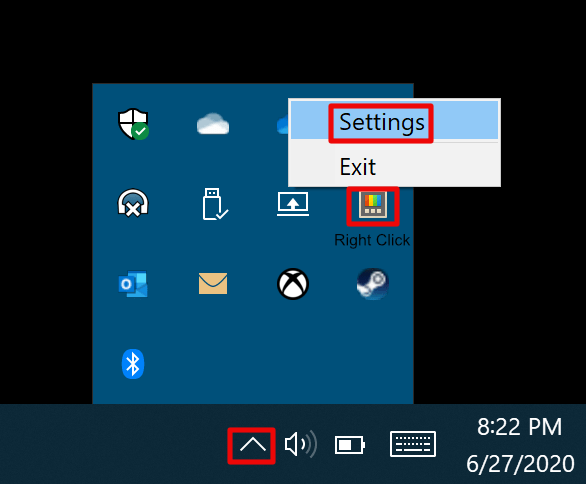
Open PowerToy’s settings menu from the Task Tray

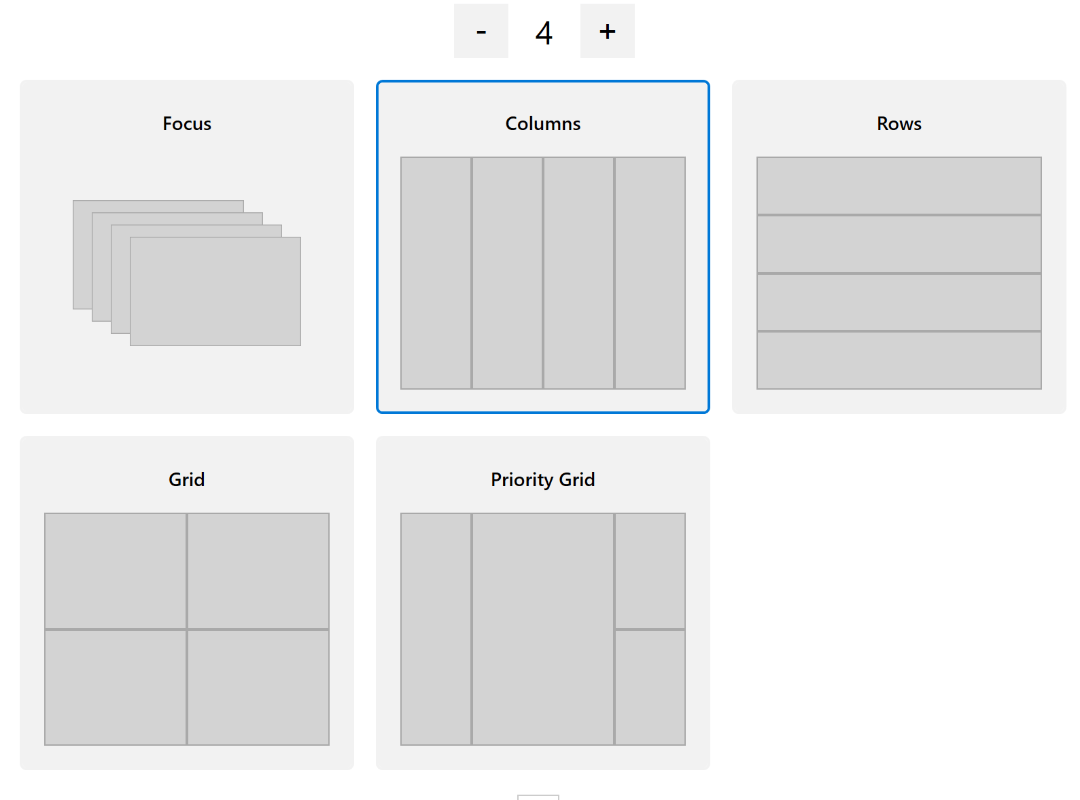
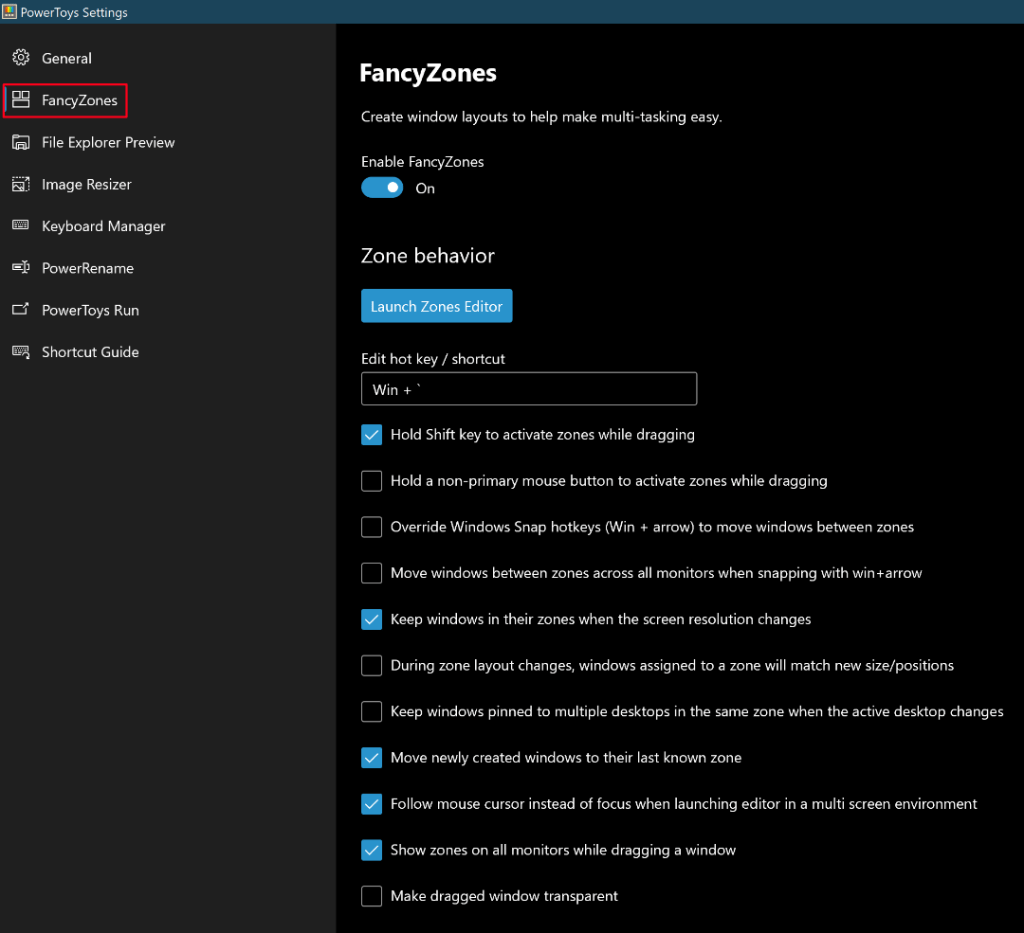
Once you have the app open, the FancyZones section controls its settings. I split my screen into a Grid of 4 and have each app open further windows in the same zone. This makes my workflow simpler, all my windows for a particular application are in one zone, so I don’t struggle to find them. My Outlook is in one zone, my Teams and Zoom are in another. My company’s app has its own zone and so does my web browser. The effect is like each app having its own monitor.

My main monitor is divided into 4 snap zones but you can have as few or as many as you like.

FancyZones isn’t limited to grids, you can cascade the zones, have irregularly shaped zones,  there are a bunch of pre-configured layouts or you can design your own. If you have multiple monitors and want to apply custom zones to them, click the blank area of a screen once to focus on it then press the Windows + ` keys at the same time. Choose the layout you want for that monitor. Repeat the process for each screen you want to use FancyZones on.

The FancyZone settings I find most useful.

When you hold down the shift key and drag a window by it’s title bar, the available zones will highlight. Drop your window into the preferred zone and it will stay/open there until you move it. With Web Apps, you may need to move the tab for pop ups to the correct zone and close / re-open them once.
Merge Microsoft 365 Files That Have Been Split Between SharePoint and Personal Data Locations

In today’s cloud-based world it is easy to accidentally end up with files that are split across different locations. For example, if your company has files in SharePoint and SharePoint encounters an issue, your file editor (Word, Excel, etc.) may prompt you to “Save a Local Copy” as a precaution. If you save a local copy to your OneDrive or hard drive, the file you are working with now exists in two distinctly separate places. The problem can be compounded if multiple people have received the prompt to save a local copy.

Sometimes split data can occur when a worker wants to access a file from another system. They may email a copy of the shared file to themselves or use some other method that makes a distinct copy. Both SharePoint and OneDrive are accessible from any computer connected to the Internet. Typically all that is required is to open a browser and go to https://sharepoint.mycompany.com or https://onedrive.mycompany.com to access your files.

This situation can be very confusing in shared environments. If you and/or others continue to work on the file after it was saved to personal locations the edits will not be reflected in the shared version. Furthermore, if the file is closed and then re-opened from one of the many “Recent Files” lists available in Office applications, it may be inadvertently opened from the non-shared version again.

Tip:

In Microsoft’s cloud environment (Microsoft 365 / Office 365), it can be helpful to think of the names as being literal. “SharePoint” is where “shared” files belong. “OneDrive” is for “one” person and where your personal data belongs. That is not to say files in your OneDrive cannot be shared with others or that files in SharePoint cannot be locked to one person, both are possible, but not the main function of the software. For comparison, you can drive your commuter car on a racetrack, but you won’t be winning any races that way.

Resolution

There is no automatic way to correct files that have been split across multiple paths. It is up to the editor to understand where their data is being saved and make decisions accordingly. There are many strategies that could be employed to re-combine the separated data into a single shared file, one of the most effective is outlined below.

  1. Stop making changes to the shared or individual files; have everyone close them.
  2. Locate all the versions. Each person that has worked on the file after it was fractured should be contacted to see if they also have an individual version. If SharePoint encountered a technical problem and prompted to save a local copy, it likely prompted everyone that was in the file at that time. If a file was emailed to multiple recipients, each may have an individual copy they have worked on.
  3. Make a folder in the shared location named “Recovery Collection” and place a copy of each person’s file in that folder with their name appended to the title.
  4. Also place a copy of the original shared file in the Recovery Collection folder
  5. Merge the data from the individual file copies into the shared file copy. The operation chosen to merge the data will depend on the type of file, type of data, and how many changes have occurred.
  6. Rename the original shared file. Be sure that nobody is currently editing the original shared file and rename it (I suggest putting -old after the files name) then copy your updated shared file into the correct location so that people may begin using it instead of the original.
  7. Once you are certain the new shared file is correct and that everyone can use it, delete the recovery collection folder and the old copy of the shared file to reduce disk usage and future confusion. You should also instruct each person to delete their individual copies of the file(s) to prevent further confusion

Remove a Message from All Office 365 Mailboxes

Nefarious characters are using the pandemic as a weapon. They’re sending emails to your employees with subjects and content that make them think it is important news or instructions. If your email is hosted by Office 365 the following script will permanently delete a message by subject from all mailboxes.

Paste the text below into your favorite text editor and save it with the .ps1 extension. When you are ready to run it, right click on the file and choose “Run with PowerShell”. Enter your Office 365 credentials and the subject of the message when prompted.

# RemoveMessage-Office365Mailboxes
#
Write-Host "This script will permanently delete a message from all Office 365 mailboxes. Use with caution!"
Pause
$MessageSubject = Read-Host "Enter Subject of the Message to be Deleted"
$UserCredential = Get-Credential
	$ExchangeOnline = New-PSSession -ConfigurationName Microsoft.Exchange -ConnectionUri https://outlook.office365.com/powershell-liveid/ -Credential $UserCredential -Authentication Basic -AllowRedirection
	Import-PSSession $ExchangeOnline
$mailboxusers = Get-Mailbox -ResultSize Unlimited

Foreach ($user in $mailboxusers)
	{
		Search-Mailbox -Identity $user.alias -SearchQuery 'Subject:$MessageSubject' -DeleteContent -Force
	}
	

Configure Hyper-V for Remote GUI and Console Management

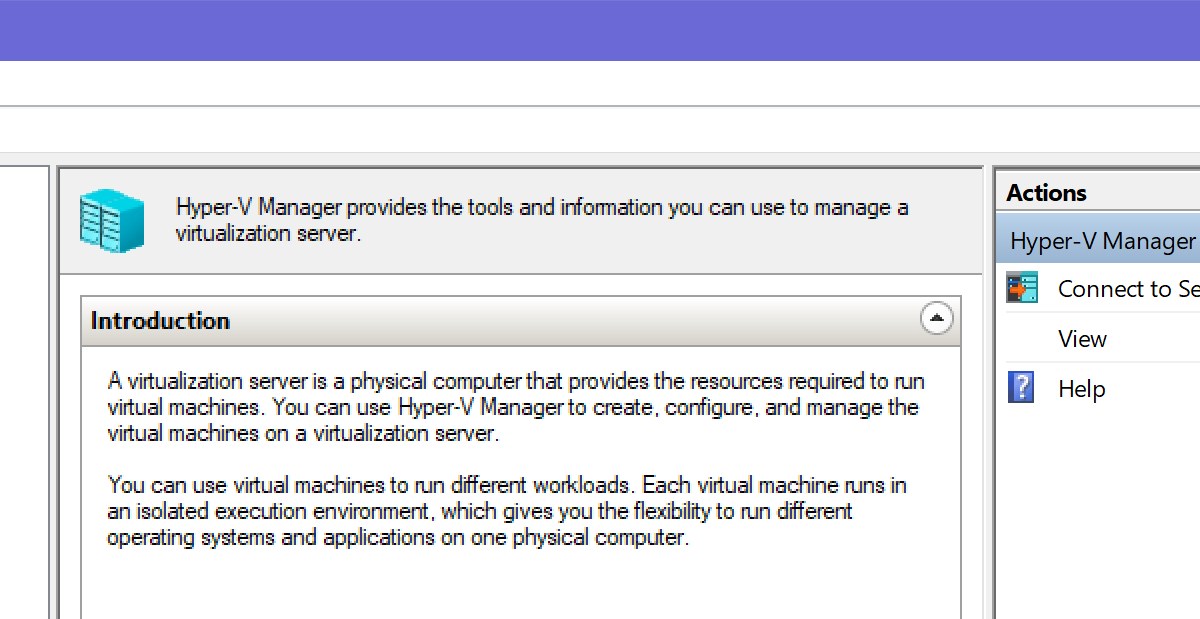
If you administrate a Hyper-V environment that has been deployed on Windows Core Edition Hosts, or if you’re required to manage multiple Hyper-V clusters remote management will make life easier for you. Configuring the option to use the GUI Hyper-V Manager application installed on your workstation to control remote servers is a straight forward process that only takes a few minutes.

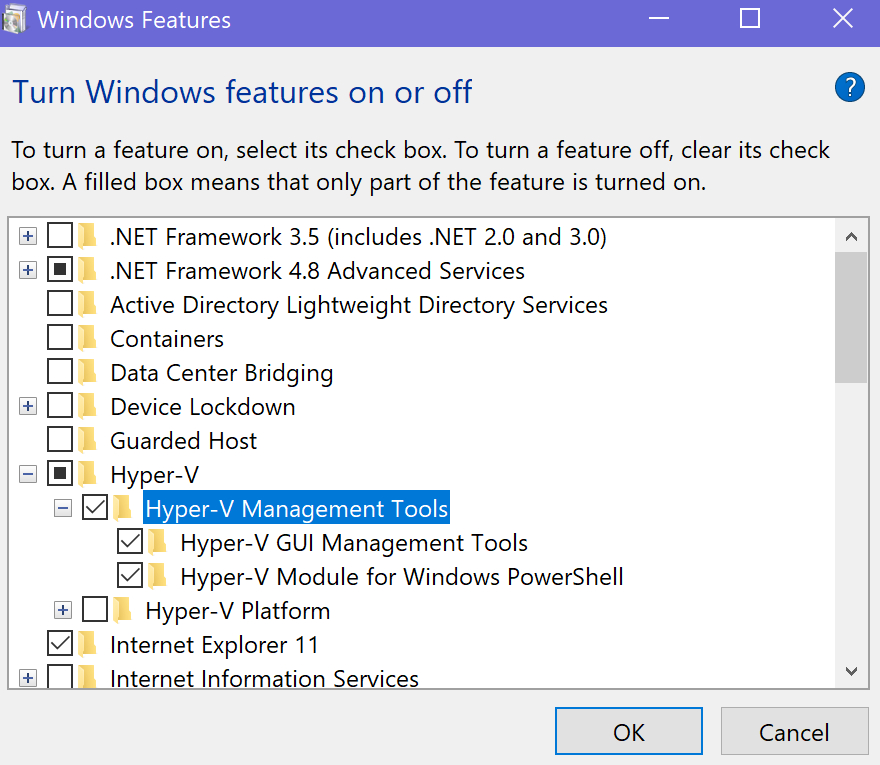
The first step is to install the Hyper-V Management Tools. Right-click on the Windows Start button and select Apps and Features. Toward the bottom of the screen click on Programs and Features. On the left, click Turn Windows Features On or Off. Scroll through the list until you locate Hyper-V, expand it, select Hyper-V Management Tools, then click the OK button.

Now we’ll need to configure the Hyper-V hosts to allow the remote management connections. If you intend to control a multi-host cluster perform the following steps on each node. First open an elevated PowerShell console and run:
Enable-PSRemoting -Force -SkipNetworkProfileCheck

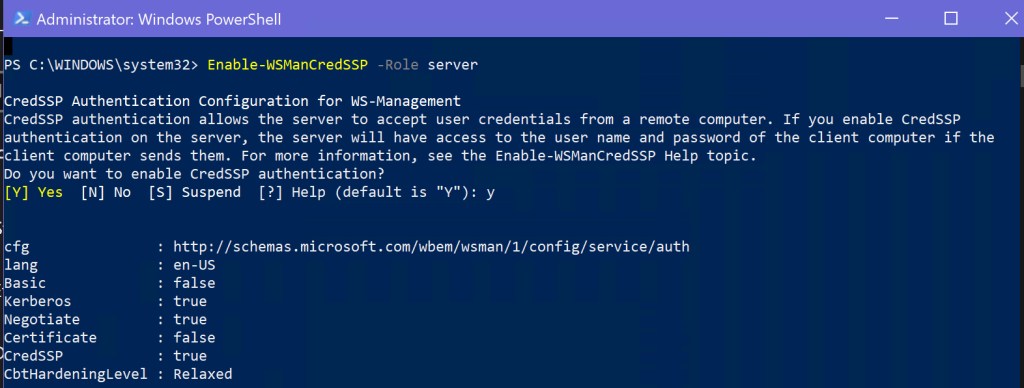
If your workstation is on a different domain than the Hyper-V host(s), you will need to configure CredSSP delegation. Note: the Hyper-V Manager for Windows 8.1 and earlier is only capable of connecting to hosts on the same domain as the workstation itself. In the PowerShell Console you opened on the host run:
Enable-WSManCredSSP -Role server

Now you’ll need to configure your workstation to send delegated credentials. Open an elevated PowerShell console and run:
Set-Item WSMan:\localhost\Client\TrustedHosts -Value “fqdn-of-hyper-v-host”
Depending on the current configuration of your workstation, you may have to respond with a “Y” to multiple prompts to complete this process.

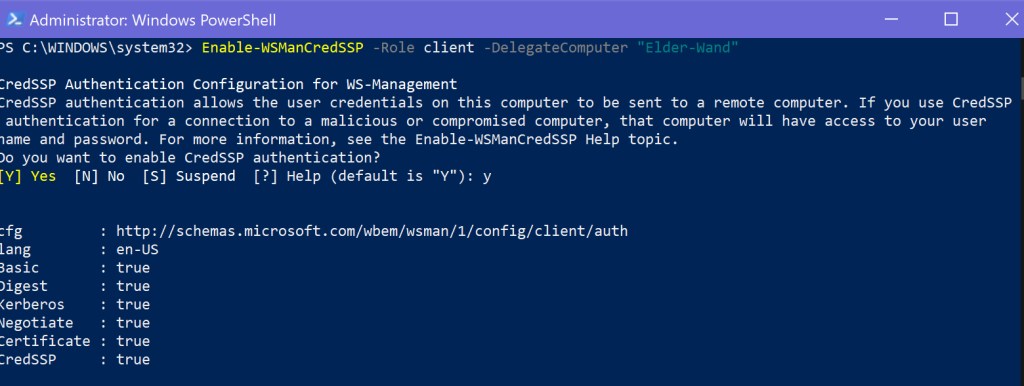
Now configure your workstation as a CredSSP client. In the same PowerShell console run:
Enable-WSManCredSSP -Role client -DelegateComputer “fqdn-of-hyper-v-host”
Depending on the current configuration of your workstation, you may have to respond with a “Y” to multiple prompts to complete this process.

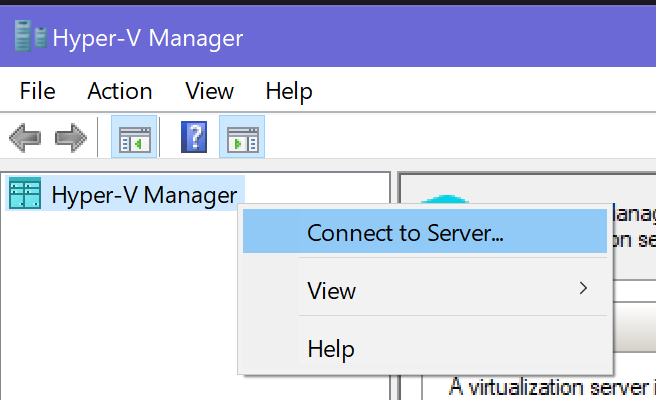
The configuration is done. Now all that is left is to connect the Hyper-V Manager. Open it from your workstation’s start menu and right-click on the Hyper-V Manager header in the left menu. Then click Connect To Server.

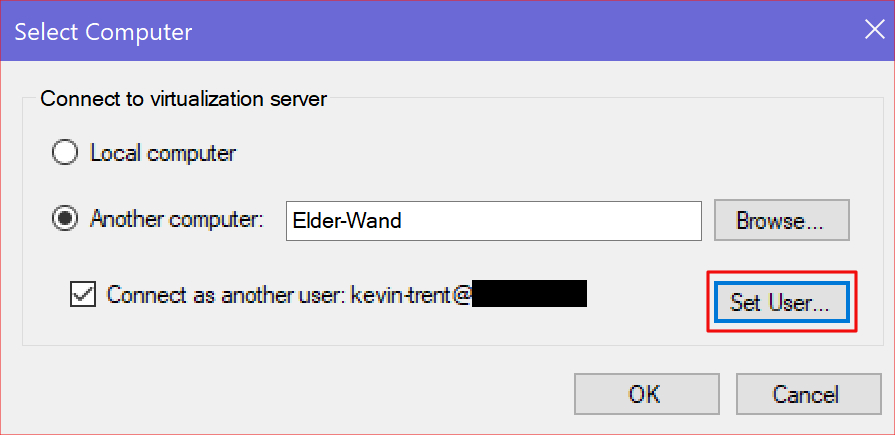
Enter the name of the Hyper-V host you wish to connect to and then use the Set-User button to specify your credentials. Click the OK button.

PowerShell – Combine Data from Multiple Modules

If you use PowerShell long enough you will inevitably need to combine data from more than one module, method, or object into a report of some kind. As an example, I ran into a situation where I needed to show mailbox sizes by city. Exchange doesn’t have the city attribute, but we know Active Directory does.

First we will get the mailbox size from the Exchange module; Get-MailboxStatistics user@domain.com|FL TotalItemSize should do the trick.

We know that Azure Active Directory has our address in it; Get-MsolUser -UserPrincipalName user@domain.com|Select City -ExpandProperty City will show the city name to us.

I’ve witnessed people resorting to complicated procedures to combine the output from two different modules. Copying and pasting the data from each module into Excel seems to be very popular. There are many problems that can occur with these types of solutions. The best way to accomplish our goal is to use a construct called a Hash Table.

What’s a hash table? In the simplest terms it is an array (a spot in memory) that stores key/value pairs. In our case, we are going to store a key (the name of our column) and a value (the results of a command) in the array. It sounds complicated, but is actually quite simple once you get the hang of it. The trick with hash tables in PowerShell is to get the syntax right. @{Name = “Name of Column”; {Expression = {Value, or Command}}  is the formula.

To create the hash table from our example the command is: Get-MailboxStatistics user@domain.org|FL TotalItemSize,  @{Name = “City”; Expression={Get-MsolUser -UserPrincipalName user@domain.org|Select City -ExpandProperty City}} We get the mailbox size and then insert a hash table that contains the city. The comma in between TotalItemSize and the @ symbol that starts our hash table is what tells PowerShell this is a new column of output.

Keep in mind this technique works with any number of PowerShell modules. SQL, SharePoint, Lync, Teams, most Microsoft server products and even many third party Windows based programs have a PowerShell module at this point.

Office 365 All-in-One PowerShell Management Console

If you administrate an Office 365 tenant, you’ve undoubtedly discovered that PowerShell is a requirement rather than an option. Using PowerShell with Office 365 isn’t all that different from the on-premises version, but connecting to all the services can be challenging. Often, a task or project requires multiple modules to function.

With a little scripting knowledge we can connect to and manage all of the O365 services at once. I can’t tell you how many times I got half-way through a project only to realize that I didn’t have all the required cmdlets. Logging on to everything each time I use PowerShell saves time and frustration.

To make the code below work, install the PowerShell modules each service requires. Open an elevated PowerShell console (right click, run as administrator). Check the execution policy (Get-ExecutionPolicy), if it is restricted use the following command to change that: Set-ExeuctionPolicy -ExecutionPolicy Unrestricted . Then use the following commands to install all of the tools:

  • Install-Module AzureAD
    • Type A and press Enter (yes to all) when prompted.
  •  Install-Module MSOnline
    • Type A and press Enter (yes to all) when prompted.
  • Install-Module MicrosoftTeams
    • Type A and press Enter (yes to all) when prompted.
  • Install-Module Microsoft.SharePoint.Online.PowerShell
    • Type A and press Enter (yes to all) when prompted.

Copy the code below and save it as a PS1 file named Manage-O365.PS1 in your documents folder. Make a new desktop shortcut with the following path: C:\Windows\System32\WindowsPowerShell\v1.0\powershell.exe -NoExit “C:\Users\profile\Documents\Manage-O365.ps1” . When you double-click it you’ll be prompted for credentials and the Office 365 organization name. After entering them, a PowerShell console will launch and connect to O365 services. The window stays open until you are done with your tasks.

$UserCredential = Get-Credential
$OrgName = Read-Host "Enter the Name of your Office 365 Organization, Example: Techbloggingfool"
	$ExchangeOnline = New-PSSession -ConfigurationName Microsoft.Exchange -ConnectionUri https://outlook.office365.com/powershell-liveid/ -Credential $UserCredential -Authentication Basic -AllowRedirection
		Import-PSSession $ExchangeOnline
	Connect-MsolService -Credential $UserCredential
	Connect-AzureAD -Credential $UserCredential
	Connect-MicrosoftTeams -Credential $UserCredential
	Connect-SPOService -Url https://$OrgName-admin.sharepoint.com -Credential $UserCredential

Tip: Save these lines as a snippet in your favorite IDE (Visual Code, ISE, etc.) and you can easily insert them for Office 365 scripting projects.

Automate Workstation Backups and Replace Re-directed Folders with Microsoft’s OneDrive

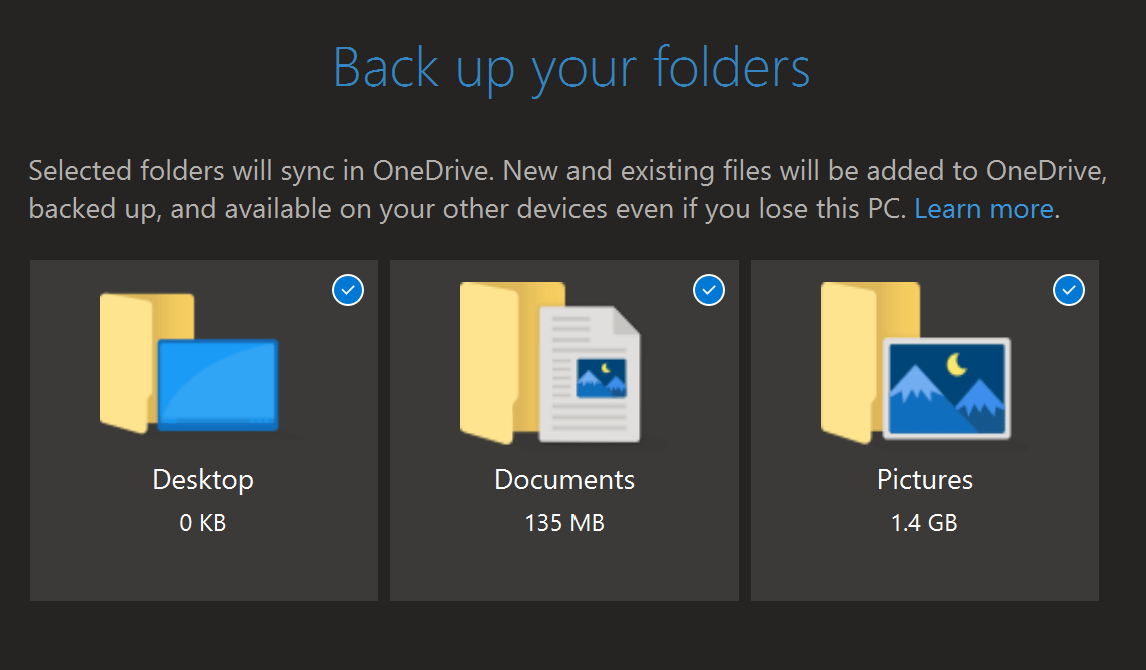
Each Office 365 user license includes one-terabyte of space in Microsoft’s cloud storage service, OneDrive. File sharing, versioning, offline synchronization, and mobile device apps are just some of the available features. Recent versions of the OneDrive software also includes the ability to backup key desktop folders automatically.

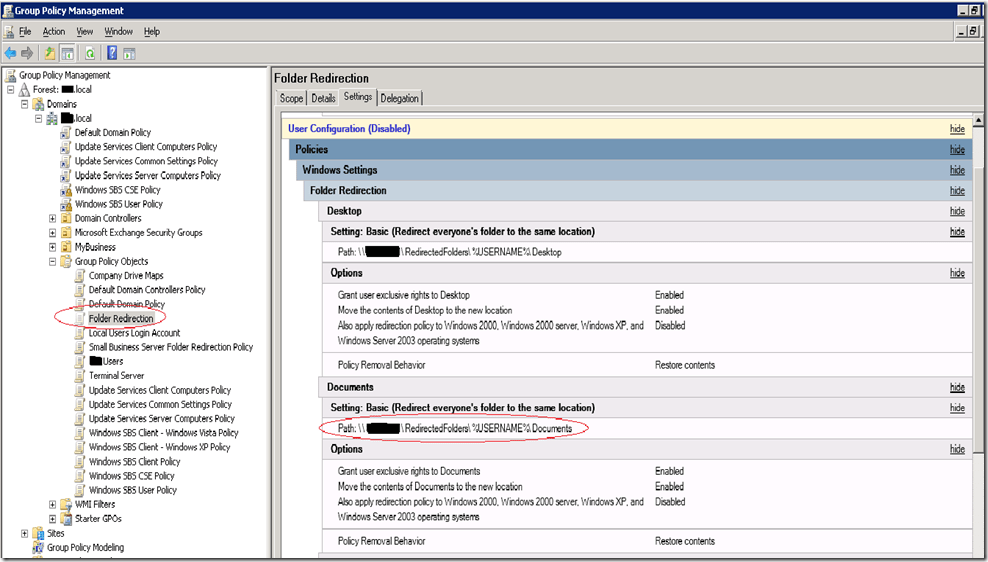
One of the biggest headaches suffered by IT staff is caused by worrying about the countless files stored on laptops and desktops. As with all IT conundrums, there are multiple solutions. One of the most common is to use a GPO to redirect user’s files to shared folders and back those up.

Folder redirection is a successful technique that has saved an untold number of office workers from certain doom, myself included. The files stored on the server are made available to every machine you log on to. If you lose a file, your IT people can restore it for you.

There are a few problems with redirection that present themselves over time. Without careful pruning and a lot of thought around policies, the shares will balloon quickly. If quotas weren’t enforced from the start, convincing management after the fact can be challenging. Getting your user population to clean up after themselves almost never works.

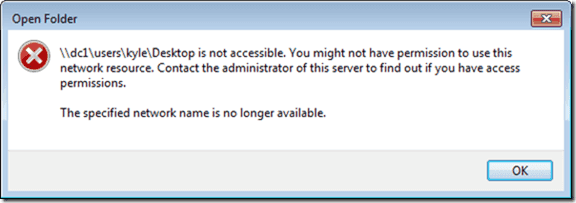
Then there are the dreaded permissions issues. If you’ve ever administrated an environment with folder redirection you probably just shook your head in sympathy. Where do they come from? Who knows? Suddenly random users will be unable to access their files. After it happens once, you can bet it will again.

For most environments, replacing folder redirection with OneDrive’s Backup is a Win Win. It can reduce storage costs and backup times while adding modern features your users will appreciate. Of course no solution is one-size-fits-all, so evaluate your options carefully before proceeding.

A limitation of OneDrive Backup is that the files must be located on the profile’s Desktop, Documents, or Pictures libraries. Therefore, if you are using re-directed folders, the first step is to disable them. Generally, excluding the user from the redirection GPO and updating their policies will cause the files to be copied back to the original folders. If you run into issues, a robocopy script configured to move the files might help.

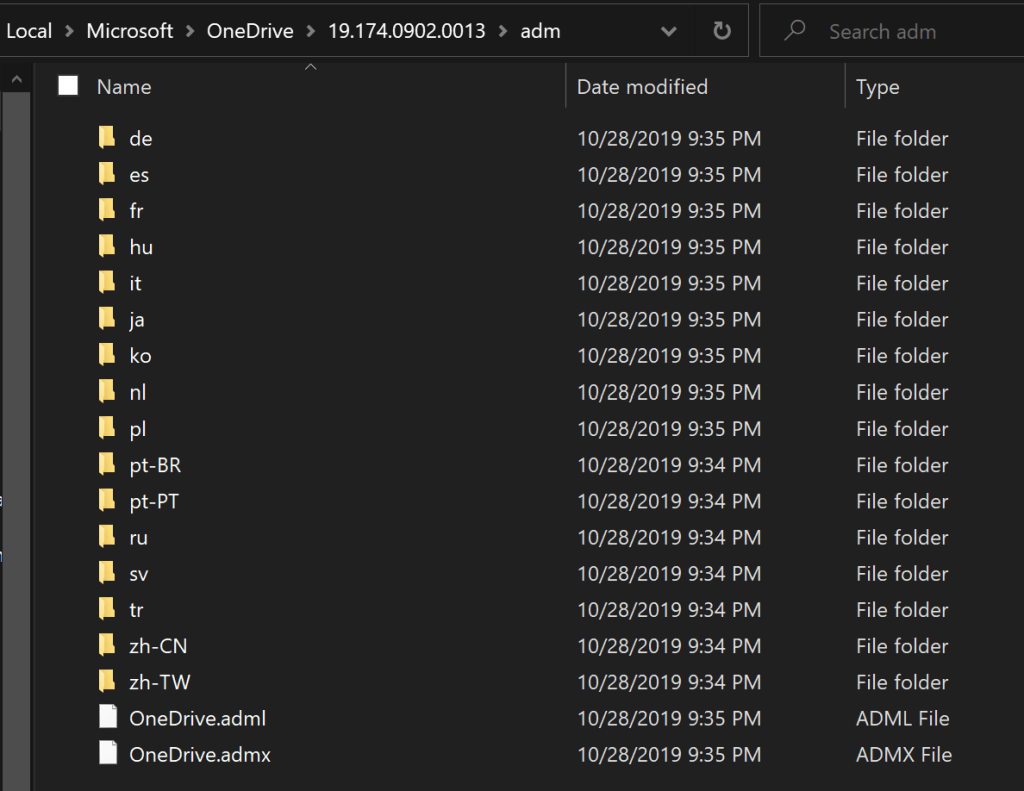
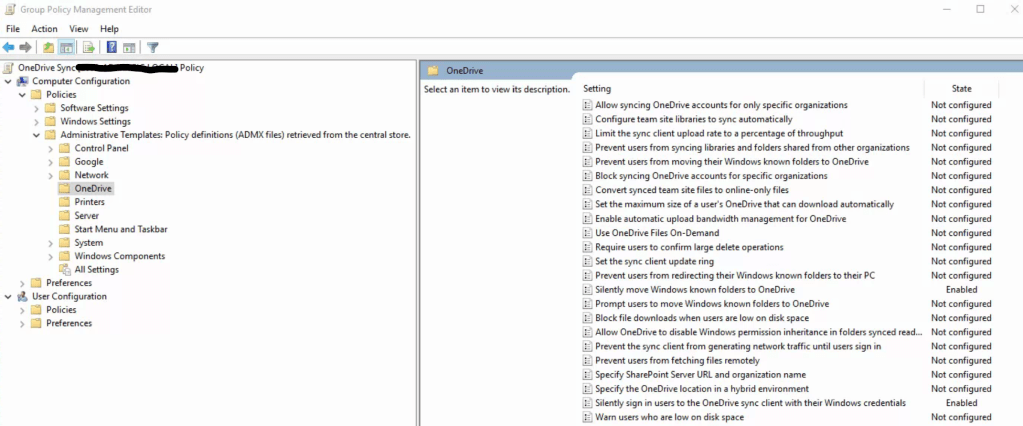
To configure OneDrive via group policy objects, you will need to copy the OneDrive administrative templates to your GPO Central Store. The templates can be found on any system that has the OneDrive client installed and are located at %LocalAppData%\Microsoft\OneDrive\ look for a folder named for the OneDrive build number, then a sub-folder named adm. The files you need are: OneDrive.adml and OneDrive.admx.

Typically the GPO Central Store is located in the SYSVOL directory of a domain controller. The location can be customized, this Microsoft support document should help you locate or create the folder. Place copies of the template files into the Central Store and wait a few minutes for replication to occur, or force one.

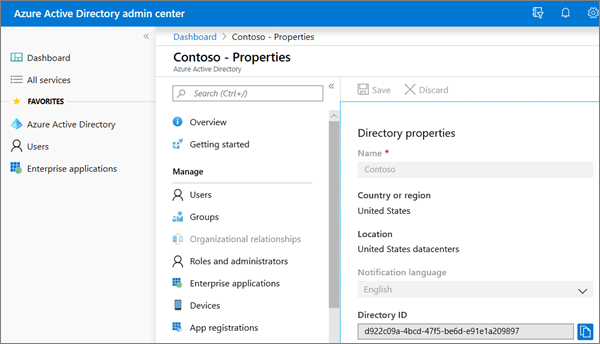
Before we can edit the GPO, you will need your Office 365 Tenant ID. It can be found in the Azure AD admin portal on the properties page and is labeled Directory ID.

These policies will be machine based. To selectively apply them create separate Active Directory Organizational Units for the systems that will and will not, use OneDrive Backup. Link the GPO accordingly.

There are a lot of options to configure in the OneDrive GPO template, but only two of them are required to automate the backup process and replace re-directed folders. “Silently sign in users to the OneDrive sync client with their Window’s credentials” will use the Office 365 tenant ID. “Silently move Windows known folders to OneDrive, is the aspirin that will cure your workstation files headache.

With these two options configured and enabled, your user’s files will follow them between systems, be backed up, and gain all the advanced features OneDrive offers. These are by no means the only options you should enable, each admin’s situation will be different. I could write a book describing the rest of the policy configurations. Thankfully Microsoft has documented this entire process and all the options for us; https://docs.microsoft.com/en-us/onedrive/use-group-policy

Windows 10 OEM Images with Secure Boot and Office 365, Part 2

In part one of the series I described how to make and capture an image of a Windows 10 system while keeping the secure boot partition intact. We used the block copy based Clonezilla to create our image.

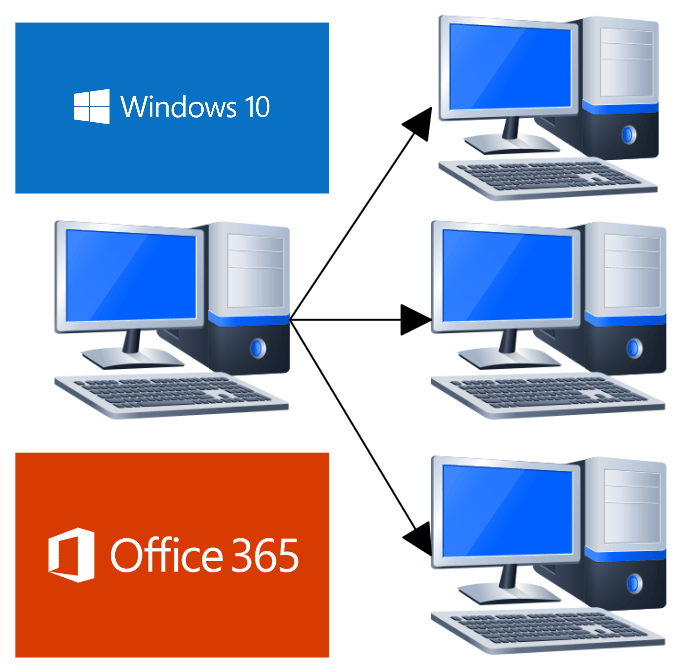
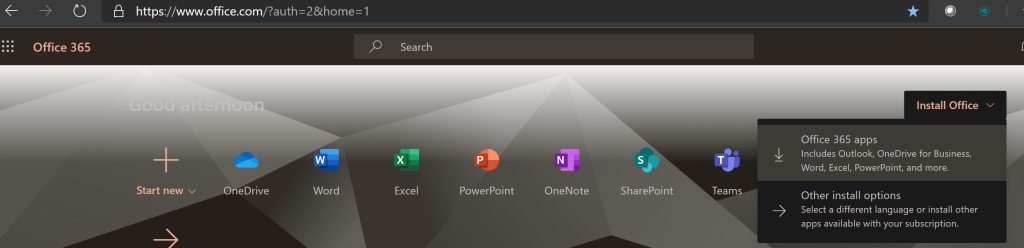
Block based copies or “clones” create a challenge when it comes to deploying “click to run” software such as Microsoft Office 365. O365 is generally installed by signing on to a web portal and clicking a link that installs and configures the software for you; hence the “click to run” moniker.

When using a component streaming solution like MDT, commands can be used that emulate the process of a user signing on to the portal and clicking the install link. Clone based deployment mechanisms have no such ability. You will need to use the Office Deployment Tool instead.

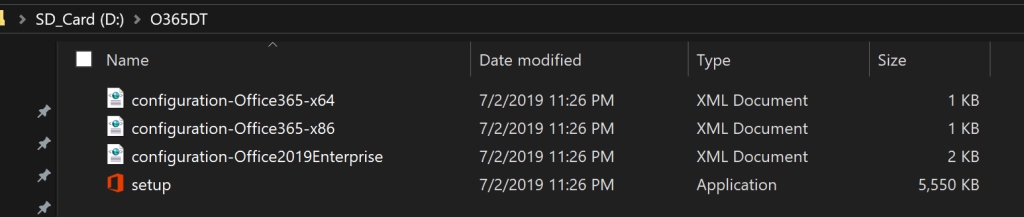
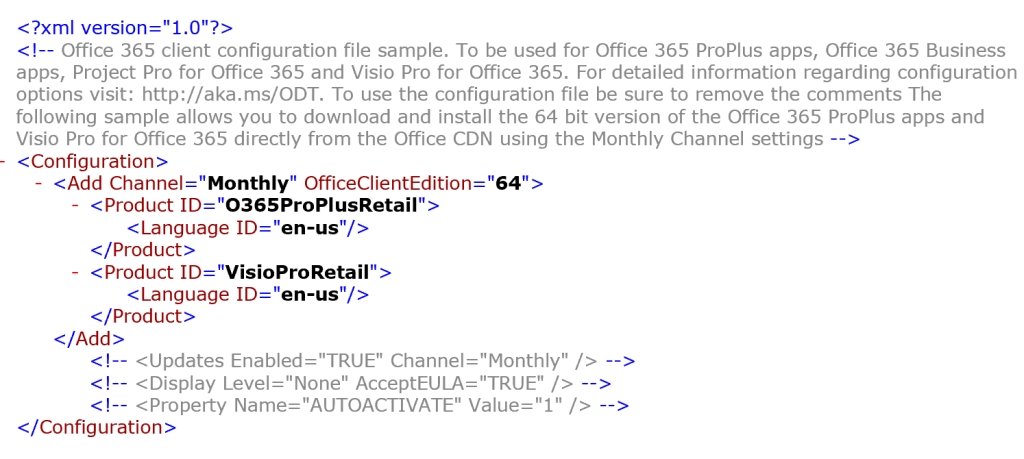
Download and run the Office Deployment Tool. You will find the application extracts four files to the folder that you choose, or create. Each of the XML files is a sample that will download, configure, and install a particular version Office. You can manually edit the files to reflect your requirements with most text editors.

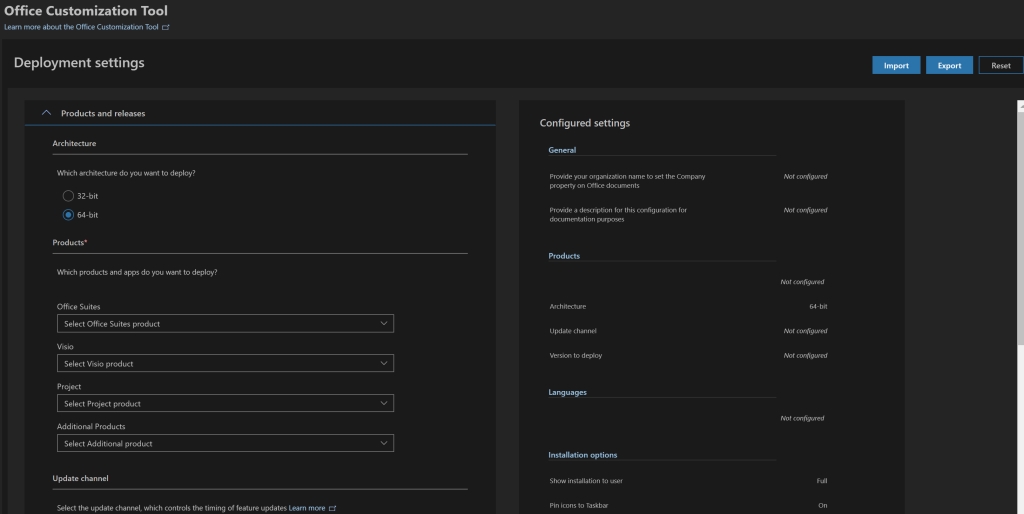
Personally, I find editing XML files tedious and time consuming, I prefer to do it the easy way and use Microsoft’s Office Customization Tool . The OCT is a web based GUI tool that will create your XML based on the options you select with your mouse. No XML editing or tagging required.

Once you have your XML file all that is left is to call it with the Setup.exe that was also deposited in your folder during the ODT extraction. Open and elevated CMD or PowerShell console, switch to that folder, and run : setup.exe /configure nameofxml.xml . Office will be downloaded and installed according to the preferences you configured in your file.

DO NOT OPEN OFFICE to test it, unless you plan on removing and re-installing it again. Office 365 click to run products attempt to activate immediately on launching. Even if you don’t provide credentials for the activation, the software will activate in demo mode. This will complicate your imaged system deployment.

Assuming that everything has gone according to plan, you are done after the install completes. Don’t forget to delete the Office Deployment Tool folder and files before running sysprep and capturing your image.

Windows 10 OEM Images with Secure Boot and Office 365, Part 1

One of my employer’s customers is upgrading their entire network. The job includes replacing all the company’s workstations with brand new Windows 10 units. They have a lot of software which requires a lot of configuration. While discussing the project, my teammate and I decided that a golden image was the way to go. We wanted each system to be exactly the same to cutdown on errors and enable identical user experiences across the organization.

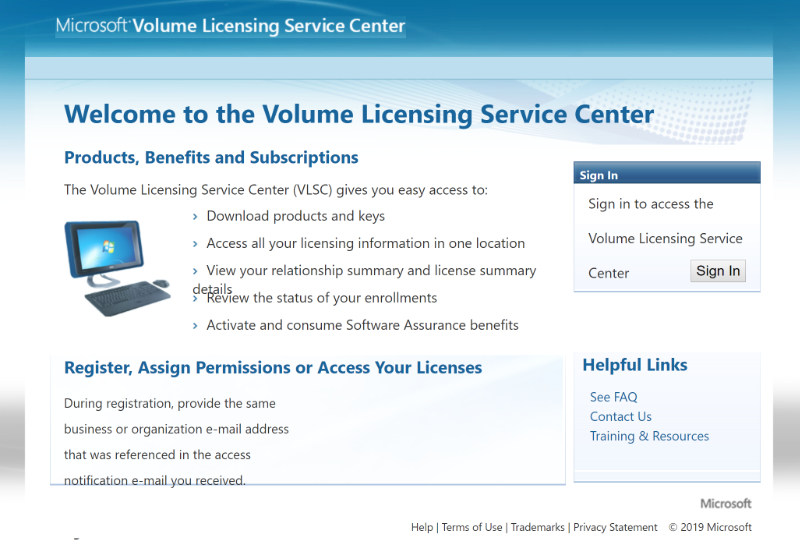
The first hurdle on the track to golden image nirvana is licensing. Microsoft has changed things up since the last time I tried cloning. I’m not a lawyer or a licensing expert and you should not take my writing as advice. The research I did and my interpretation of Microsoft’s imaging rights documentation , led me to believe that you cannot use a pre-installed OEM edition of Windows 10 in any type of golden image project. The process requires at least one Volume License.

Once you’ve gotten the licensing straightened out, the next hurdle is the sheer number of techniques and software available. There are two main types of image deployment. The first and most popular are dumb clones like those made by Norton Ghost and Achronis. The other types use a workflow to assemble the components of your deployment on demand. Microsoft’s own MDT solution falls into this camp.

For our project, clones would suffice. We were deploying desktops that were comprised of identical hardware and each needed the same software as they would all be used for the same tasks. There are quite a few choices for cloning applications, including the afore mentioned Achronis, Windows Backup, and AOEMI Backupper. We settled on CloneZilla because it is open source and works well with Windows 10.

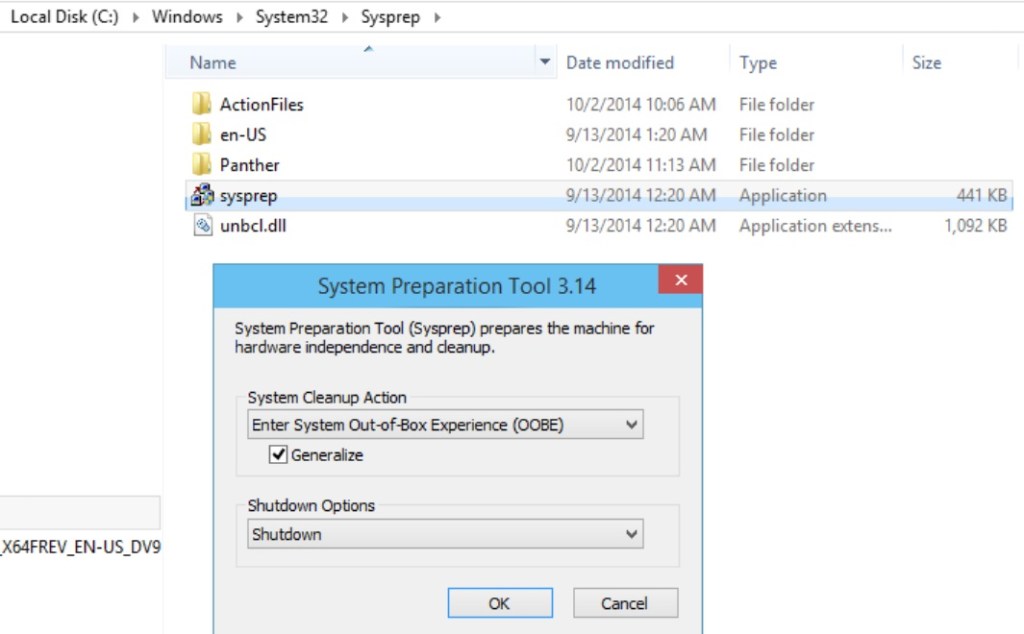
We booted up our bench PC and spent a lot of time installing all the software and configuring everything just right. Then we launched sysprep (C:\Windows\System32\Sysprep\) and selected the generalize and OOB settings. The sysprep utility tells Windows to create new unique identifier, called a SID. It also configures Windows to run the out of box setup experience the next time it is booted. Contrary to popular belief, this step is not optional. Duplicate SIDs cause all kinds of issues on a network.

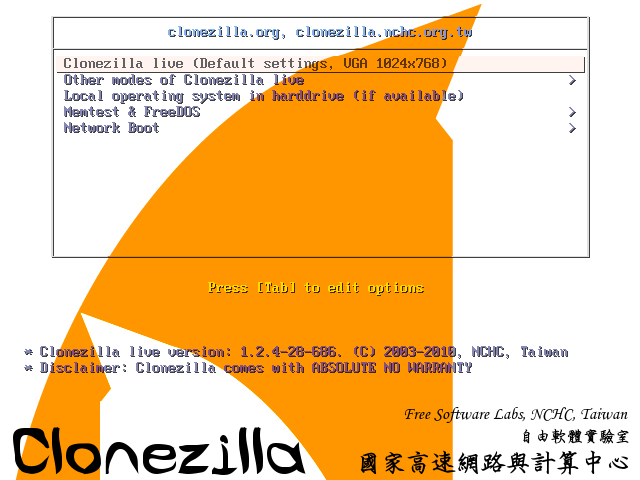
We created a Clonezilla live disk and booted the system from it. Within a few minutes we had captured our image. I won’t bore you to tears by making you read these steps. They are well documented on the clonezilla.org web site. I used the Rufus method of creating a live boot disk because I was already familiar with the process. Once we had our image, we used the same live disk to deploy it onto one of the workstations for a test.

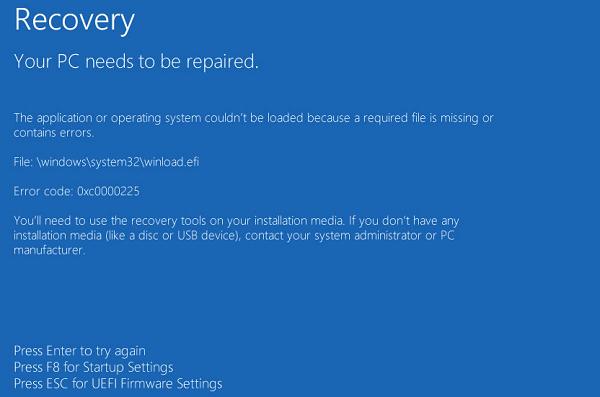
We prepared to celebrate our success and hit the power button on our test rig as soon as the imaging process was complete. Well @!#*, blue screen. Not only did the test system show a BSOD, so did the source machine when we powered it back on to diagnose the issue! To make a long story and several hours of analysis short, we traced the problem to a security feature named secure boot.

Secure boot is a security standard created by the PC industry to ensure that a system is starting up with OEM certified software. Essentially the protocol was built to thwart root kits and it works, a little too well in our case. There are several posts on-line that indicate the fix for this issue is to run some commands that delete and then recreate the secure boot keys database for each machine. Who wants to do that? Having to do this on each computer would largely negate the benefits of making the image in the first place.

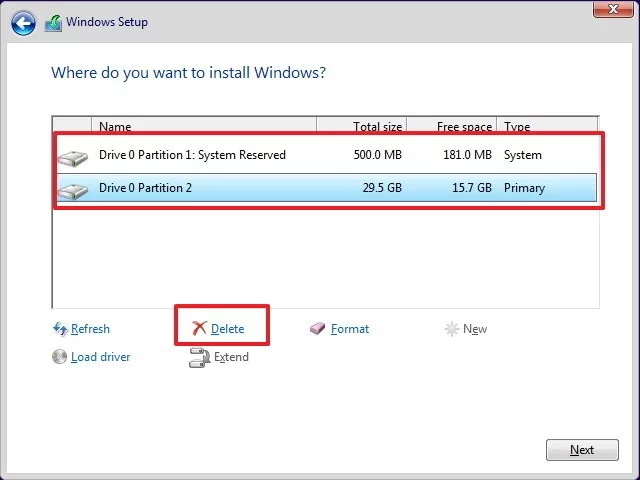
With some research and experimentation, we were able to come up with a work around. Disable secure boot in the source system’s BIOS. Then install a fresh copy of Windows. Be sure to delete all of the existing disk partitions and create new ones during the installation wizard.

We found that using the standard Windows 10 ISO from Microsoft’s download site allowed the systems to activate using their OEM keys, stored in the UEFI BIOS. If yours don’t activate, you can run the following command in an elevated PowerShell session to retrieve the key and enter it manually: ((Get-WmiObject -query `select * from SoftwareLicensingService’).OA3xOriginalProductKey) .

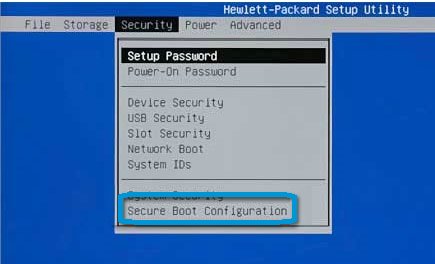
The process to turn off the secure boot function is a little different for each manufacturer. On the HP systems that we were working with, it shows up in the security menu. Other systems place the option in the boot menu. Turning it off will probably generate a warning message of some kind. Don’t worry, we’ll be turning it back on after the image is captured.

Once Windows is up, download and install all of the manufacturer’s drivers and software. Install any of the applications that you want to include on your image. Get all the configurations set just right, and sysprep the system. Now capture your image with your chosen imaging solution.

You will be able to enable Secure Boot on the source system after the image capture process is complete. You will also be able to deploy your image to the other machines, without disabling secure boot first. Secure Boot will function normally on all the systems after the image has been applied. If you need to understand the technical details around why this method works, read Microsoft’s documentation on the subject. Step 3 of the boot sequence is the key to our success, we haven’t introduced any foreign boot agents or drivers.

In part two of this series we’ll discuss how to pre-install the Office 365 edition of Microsoft Office on to an image and a few tweaks that you might find useful.

PowerShell; Set Office 365 Passwords in Bulk

Recentley, I needed to set a new password for Office 365 users in bulk without Azure AD Connect. I needed to be sure that I didn’t give service accounts new passwords. In addition, this was for a multi-state organization and we wanted to set the new passwords one city at a time.

I was able to use PowerShell and the MsOnline module to meet all of the requirements. If you haven’t already, you’ll need to install the MsOnline module before running the code below. Open an elevated PowerShell console (Run as Administrator) and type Install-Module MsOnline; select Y (Yes) for any prompts.

$UserCredential = Get-Credential
       Connect-MsolService -Credential $UserCredential

$City = Read-Host "Enter city's name to set a new password for all users in that location"
$NewPassword = Read-Host "Enter new password for all user's in the specified city"

$O365_Users = Get-MsolUser -All| where {($_.city -eq $City) -and ($_.isLicensed -like "True")}|select UserPrincipalName
       foreach ($user in $O365_Users)
              {
                 Get-msoluser -UserPrincipalName $User.UserPrincipalName |set-msoluserpassword -newpassword $NewPassword -forcechangepassword $false
              }

When you run the script it will prompt you for your Office 365 admin credentials, the city, and the new password that you would like to specify. You can force a password change after the first logon by chainging $false to $true.

Exchange Global Address List Synchronization

If your company has more than one Exchange environment or you are in the process of migrating, you will inevitably discover that the email platform does not have a native method for synchronizing contact information between multiple installations. When administrators first run into this situation the first thoughts are something along the lines of, “That’s ridiculous!” followed by, “Now what?”.

Run a Web search for GAL Sync and you will find a plethora of commercial tools made to do the job. I have personal experience with a couple of them and for the most part they work well. The issue is sticker shock. If you administrate a large environment, some of these tools can exceed six figures by the time you’ve purchased everything that you need.

Before you plunk down a giant wad of cash, consider doing it yourself with a little PowerShell know how. The last article on my blog described how to use Exchange to securely transfer files between organizations. If you use that technique to send contact data in the form of a CSV, it can be easily imported into AD on other domains.

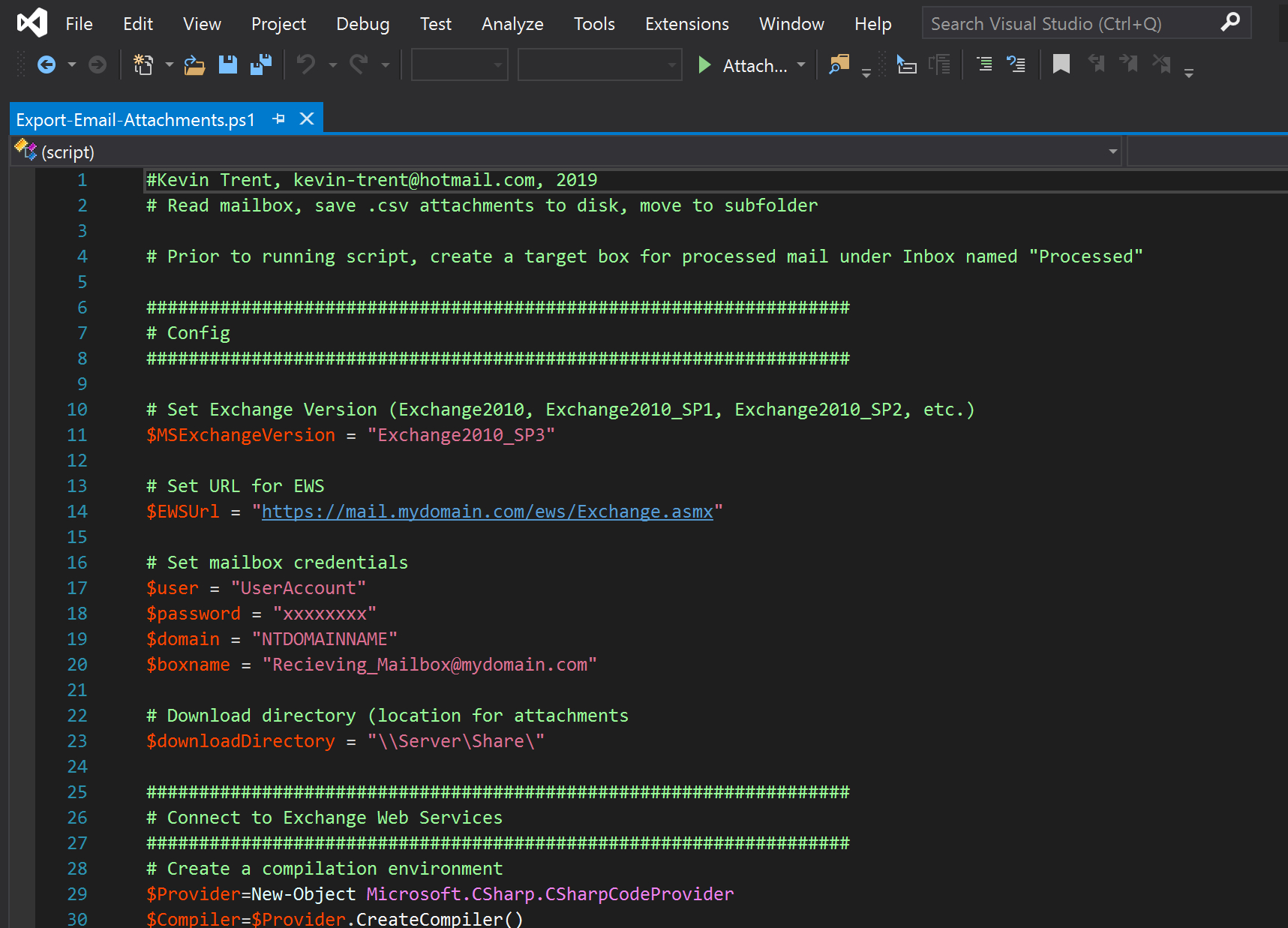
Setup the Exchange File Transfer technique as described in this blog post. Now we’ll need to adjust the sending script to send Exchange contact data that can be imported into AD.

For true synchronization, you’ll need to run the sending and receiving process on all of the AD / Exchange environments involved. However, in most of the cases I’ve personally run into, only the Headquarters environment needed to have contact data for all the locations and companies.

#Author: Kevin-Trent@Hotmail.com 2019
# Export-ExchangeContactData.ps1
#This script will scan your Exchange Mailbox users and capture each person's Displayname and PrimarySmtpAddress. 
#The data will be put into a csv and e-mailed as an atttachment. 
#The Companyname variable below is used to name the files we send. The SMTP server is the fqdn of an SMTP relay to send the emails from.
#This script should be scheduled to run on an Exchange server once a day.

$UserCredential = Get-Credential
$Session = New-PSSession -ConfigurationName Microsoft.Exchange -ConnectionUri http://exchangeserver.mydomain.com/PowerShell/ -Authentication Kerberos -Credential $UserCredential
Import-PSSession $Session

Import-Module ActiveDirectory

#Variables:
$companyname = "MyCompany"
$smtpserver = "MyMailServer"
$reportname = $companyname+"-"+(get-date -f MM-dd-yyyy)

#Retrieve and format data. Add Properties in select line as needed.
Get-Mailbox -IgnoreDefaultScope -ResultSize Unlimited | 
Select Displayname,PrimarySmtpAddress | 
Export-CSV c:\temp\$reportname".csv" -NoTypeInformation

#Email the report:
Send-MailMessage -SmtpServer $smtpserver -To mailbox@mydomain.com -From mailbox2@mydomain.com -Subject "Contacts from $companyname" -Body "Please see the attached file $senderdomain" -Attachments C:\Temp\$reportname.csv
Start-Sleep -Seconds 60
Remove-Item -Path c:\temp\$reportname".csv"

Now all that is needed is an import of the contact data into Active Directory. Again, a few lines of PowerShell code will do the job.

#Author: Kevin-Trent@hotmail.com
#Import-Contacts.ps1
#Imports CSV data as AD contacts into the OU that you specifiy.
#Add Properties to match the data you've exported from the other exchange server. 

Import-Module ActiveDirectory
$Path = \\Server\Share\FileName

Import-Csv $Path | foreach{New-ADObject -Type Contact -Name $_.DisplayName -OtherAttributes @{'displayName'=$_.DisplayName;'mail'=$_.PrimaryEmailAddress} -Path "OU=$ou1,OU=$ou2,DC=$dc1,DC=$dc2,DC=$dc3"}

Manage Teamwork Like A Boss

Often, the most difficult aspect of managing a team of employees is keeping on top of all the work. Making sure that nothing is being neglected while ensuring the load is properly distributed, is challenging. When you have a good system all worked out it is difficult. Without one, you’re toast.

There are literally thousands of work management systems on the market. How are you supposed to figure out which one you should be using? Like any project, start with a list of requirements. What do you need to track? Do you want notifications? Do you need access from mobile devices? Chief among your concerns should be user adoption. You can have the most expensive software in the world or the cheapest, both have the same value if your employees won’t use it.

The Outlook task list has been highly efficient people’s secret for years. I know because I am one. Drag an email to the task icon, toss in some categories, set a due date, and boom you’re organized. It’s one of the first things that I setup at a new gig. Being able to insert pics, videos, files, and notes, along with tracking dates, progress, and importance make it an invaluable tool. If you have an on-premises Exchange server, or Office 365 you can even sync your task list with your favorite mobile devices.

If only we could make this tool work for a whole team? Chances are, if your employer has an Exchange sever, they probably have SharePoint too. With a little know how, we can use these products together to manage our team’s work load. Outlook is a ubiquitous communications application, so adoption should not be an issue.

You’ll need a few things before you start creating the group task list.

  • You will need a SharePoint Team site and enough permissions to add an app to it or, you SharePoint site admin’s help.
  • A list of the categories your team will assign their work to. Project, Maintenance, Automation, Planning, Presentation, are some examples of categories.
  • A list of your team’s user names or a group that they all belong to.

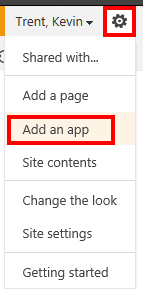
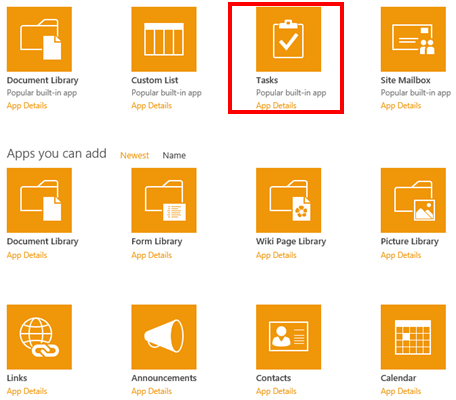
Once you have all of your lists, the first thing is to add the Task App to your SharePoint team site. Logon with an account that has enough permissions to add an app. In the upper right of the browser will be a gear icon, click it and choose “Add an app”. Then click the icon for tasks and enter a name. This is the name your team will see in Outlook so choose carefully.

If you check the properties of your new task list (use the SharePoint ribbon), you should see that the column names match the field names of the Outlook task list. Look closely and you may notice an important one that is missing; SharePoint does not have a “categories” column. Most teams and managers will probably want to organize their work by categories; fear not, we just need to add the missing column.

Select the List tab in the ribbon and then click the list settings button.

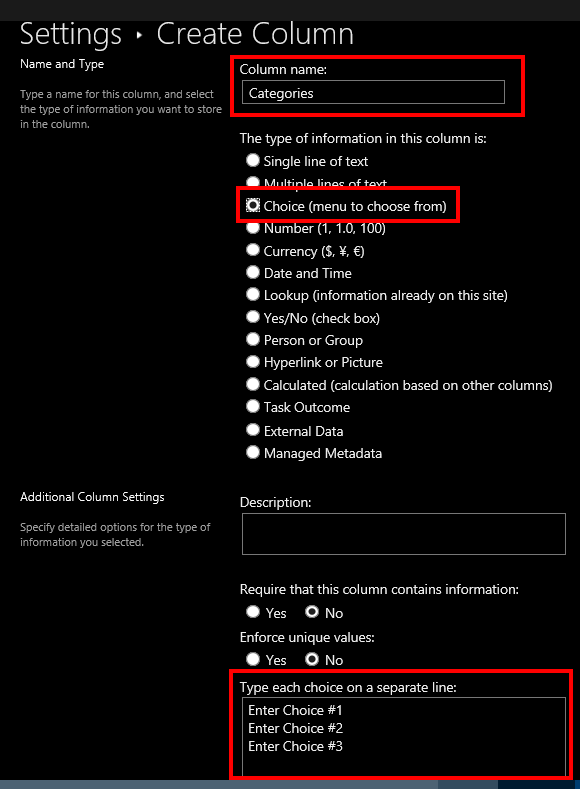
About half way down the page select the Create Column link. Name the new column Categories, set the type to choice, and enter you desired categories into the choice list’s box. Copy the categories you’ve create when you are finished and send them to your team. They will need to create the same categories in their Outlook tasks list in order for the syncronization to work.

Now go back to the list settings page and under Permissions and Management, click on the “Permissions for this list” link. Make sure that each memeber of your team has at least “Edit” permissions. That’s it for setting up the SharePoint side. Email your team a list of the categories you created and a link to the task list.

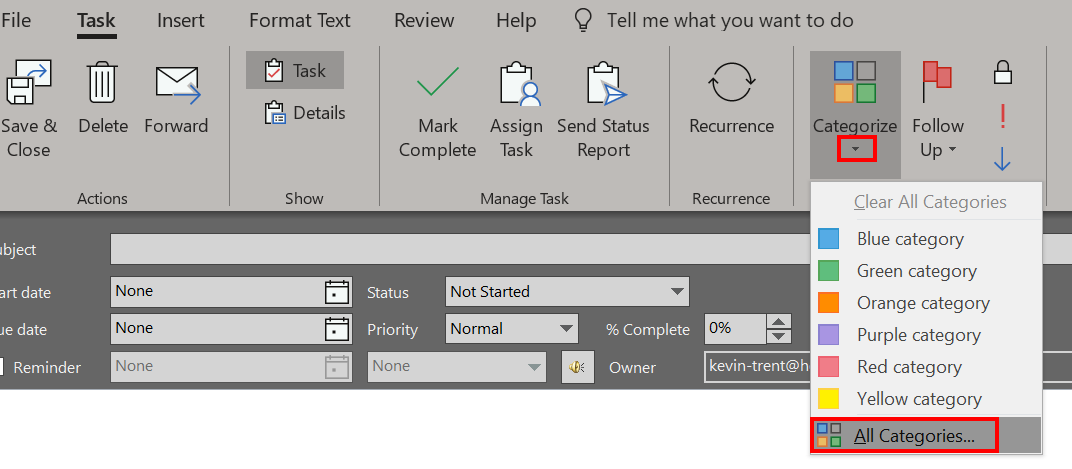
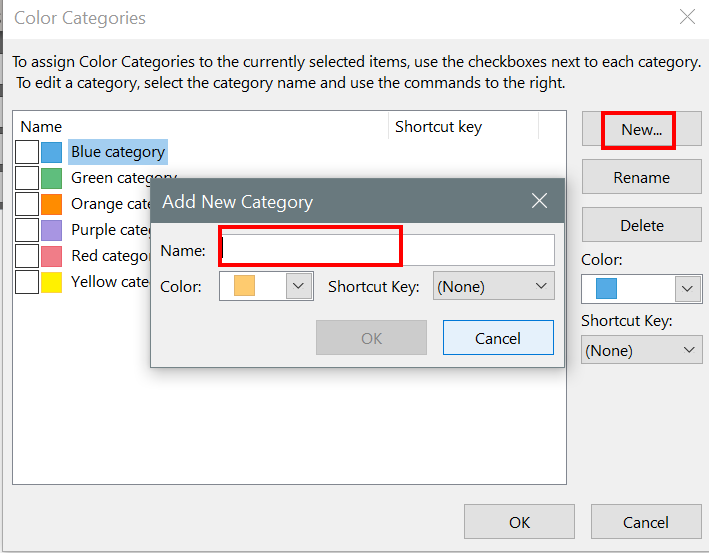
Once they get their email, they will need to open Outlook and create matching categories. The process varies a little in all of the different versions of Outlook, but in general, you create a new task and click the drop down under the categories button in the ribbon. Followed by clicking All Categories.


Now each team member needs to link the SharePoint task list to their Outlook. If your organization blocks the creation of PST files you may need to talk to your IT department and ask them to adjust the GPO to allow Shareing PST files, this can be done through an ADMX template or through the registry.

Once you get the PST situation squared away, each memeber on your team will need to visit the task list in their browser and then use the “Connect to Outlook” button in the list’s ribbon. If this button is greyed out, there are several SharePoint settings that could be the cause. Ask your SharePoint administrator to give you a hand. If you are the SharePoint administrator, try reverting to classic Exchange integration (google it), or enabling data export for the site/list.

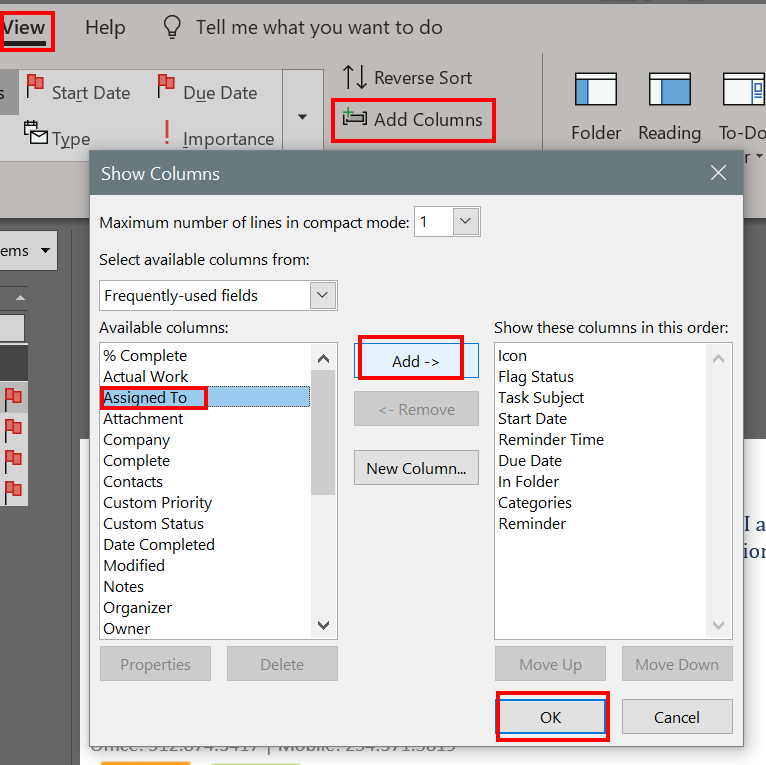
After you have everybody setup, you and your employees can manage team tasks from either the SharePoint site or from their Outlook tasks. All of the features will work as they always have including reminders. Be sure to “Assign” tasks to the appropriate team member so that you can tell who is working on what. You will find that sorting by category and the assigned to colums are very useful.

Add colums to your Outlook tasks to adjust the information you see, for example the afore mentioned “assigned to” column is not displayed in Outlook by default.

Both Outlook and SharePoint have numerous views, filters, and rule capabilites. You will undoubtadley be surprised with how effective a solution this setup can be. Especially given that it probably didn’t cost you anything to implemeant. If your team wants to sync their tasks with their mobile devices they can either run the SharePoint client for their particular device or use Activesync. Using activesync will require that they copy their team tasks to their personal mailbox task list.

PowerShell; Find and List All Active Directroy Nested Sub-Groups with Get-ADNestedGroups

Recently I needed to reduce the licenses we were consuming with a particular cloud service. I was told that a couple of Active Directory groups served as the service’s ACL. All the accounts in question were disabled but the disabled status didn’t synchronize to the cloud service provider. I needed to remove all disabled user accounts from the ACLs in our AD. My first thought was, “I love it when I get the easy ones”. That should always be a sign that something isn’t going to be easy, LOL.

I immediately opened PowerShell, imported the AD Module and ran a recursive Get-ADGroupMemeber query on the two groups I was told about. I added all the returned objects to an array and then populated that array with the disabled user account’s SamAccountNames. I made another array and added the groups/sub-groups to it. Finally, I used nested foreach loops to remove each user from each of my two AD groups.


Import-Module ActiveDirectory

$allusers = @()
$group1 = Get-ADGroupMember -Identity "Name of Group 1" -Recursive
$group2 = Get-ADGroupMember -Identity "Name of Group 2" -Recursive
$allusers += $group1.SamAccountName
$allusers += $group2.SamAccountName

$users2remove = $allusers | % {Get-ADUser $_ |Select samaccountname, DistinguishedName, enabled|where enabled -ne "true"}

$removes = @()
$removes += $users2remove.samaccountname

$subgroups = @()
$subgroups1 = Get-ADGroupMember -Identity "Name of Parent Group1" |Where {$_.ObjectClass -eq "Group"}
$subgroups2 = Get-ADGroupMember -Identity "Name of Parent Group2"| Where {$_.ObjectClass -eq "Group"}

Foreach ($group in $subgroups) {
     Foreach ($remove in $removes) {
     Remove-ADGroupMember -Identity $group -Members $remove -Confirm:$false
     Write-Host "Disabled Account $remove removed from $group"
     }
}

I ran my script, watched the output, marveled at my own genius, and sent my boss a list of the users I had removed.  An hour or two later my manager pinged me to say that when he looks in the application’s portal he sees that most of the disabled users are gone but there are a couple hundred that still show up as having a license. Hmmmmm.

I reviewed my logic and found the problem. I didn’t do a recursive search on the sub-groups. I opened ADUC and looked, sure enough, there were a ton of nested sub-groups under the two I was told about and some of the users appeared to be in multiple groups. So even though I had removed them from the top-level they were still consuming a license through their membership in a nested group.

“Easy enough to fix”, my internal dialog told me. I just added the -recursive parameter to my sub-group searches and ran my script again.  Well, that didn’t work. After some trial and error, I was able to determine that the recursive parameter of the cmdlet does find all of the user objects no matter how deep they are. However, it only returns the first layer of group objects. Now what?

I needed my code to say, “if a group is returned run the search again” in a loop until no more groups were returned. I was disappointed that none of my Internet searches turned up working code. I ended up writing the function below. If you have landed on this page from similar circumstances, I hope it helps you out of your jam.


## Get-ADNestedGroups
## Author: Kevin Trent, https://whatdouknow.com, kevin-trent@hotmail.com
## Distribute freely but please leave author's information attached

function Get-ADNestedGroups {
[CmdletBinding()]
param (
[Parameter(Mandatory)]
[string]$Group
)

## Find all parent group objects
$members = Get-ADGroupMember -Identity $Group

## Array to hold each child group
$ChildGroups = @()

## Foreach loop to find all objects in child groups
## If any objects are groups we call the function again
## Will loop until no more groups are found
## Displays each group name on screen and adds to childgroups array

     Foreach ($member in $members){
          If ($member.objectClass -eq "Group"){
          $ChildGroups += $member.name|where {$_ -ne $null}
          Write-Host $member.name|where {$_ -ne $null}
          Get-ADNestedGroups -Group $member
          }
      }
#Outputs the contents of the childgroups array to text file
$ChildGroups|out-file $env:userprofile\documents\SubGroups.txt
}

P.S.

If you are trying to run the first script I started my story with; replace the subgroup arrary and variables with the function. Then change the subgroups variable in the nested foreach to childgroups.

PowerShell; Search all Domain Controller Event Logs for Keywords

Do you need to know the last time a user logged on, or who created an AD account? As long as you have audit logging enabled, the data you are after is in the event logs of your domain controllers. The problem is, if you have more than one domain controller (you should) the record that you need can be on any of them.

At my day job, we have quite a few DCs and I needed to know which admin created a particular AD account. There was no way I was going to logon to dozens of servers and search them one at a time. PowerShell to the rescue!

Import-Module ActiveDirectory

$keyword = Read-Host "Enter Keyword"
$eventid = Read-Host "Enter EventID"
$logname = Read-Host "Enter the name of log you want to search, application, security, etc."

$domains = (Get-ADForest).domains
$dcs = Foreach ($domain in $domains) {
     Get-ADDomainController -Filter *|Select Name -ExpandProperty Name|sort-
     object|get-unique
}
$events = ForEach ($dc in $dcs) {
     Get-EventLog  -ComputerName $dc -LogName $logname -InstanceId $eventid -
     Message *$keyword*|Select-Object -Property *
}
$events|out-file $env:usersprofile\documents\dc_log_search.txt

This short ‘n sweet bit of code will scan your domain and find all the domain controllers. Occasionally DCs run more than one role and show up multiple times in the output of this cmdlet so we drop the duplicate names.

Then it will prompt you for a keyword to search for. In the case of account data you’d enter the samaccount name. You could also enter the name of a workstation or server for example. Next it will ask you for an Event ID Number. Finally it will ask for the name of the log; application, security, system, etc. to search.

The script will loop through each DC and find the events you’ve described. Each matching record will be output to a text file named dc_log_search.txt in your documents folder. It wouldn’t take much effort to turn this data into an HTML report, email notification, or even an archival tool.

Free Exchange Distribution List Memebers Reporting Tool

As and Exchange Architect, I often get asked to report on who belongs to a particular distribution list. It is easy enough to open Outlook or ADUC and find the DL group and view the DL members. If your organization has Skype for Business you can also use it to view the membership of a DL. However, exporting information from these tools can be tricky.

PowerShell makes the export task easier if you know how to use it. A quick run of the get-distributiongroup cmdlet with a pipe to out-file, will get you what you want in a hurry. The problem is that we have few employees that are able to use PowerShell from the console but, there are requests to generate this type of report multiple times per day.

What we need is a graphical tool that anybody with enough AD permissions can use to get the data they need. Sure I could write something in C# but I don’t have the time to develop a full app. I know PowerShell already has everything I need to make the report because that’s what I use every time I get asked for it. What if I add a simple graphical interface to a PowerShell script so that my non PS coworkers can easily use it? In the words of Tim Allen; “It’s Tool Time”.

The script below uses the Grid View to display a list of all the Distribution Lists in your Exchange DL OU (you’ll need to input the correct OU path). The user then uses the grid view to sort, filter, or search for the DL they need data from. When they select it, an Excel Spreadsheet will pop up on the screen with the data.

Modern versions of Exchange Server store their DLs in AD as groups so there’s no need to install or load the Exchange PowerShell module to get the data we’re after. This also means we don’t need to give the people who use our tool any special permissions. We will be using the Active Directory module so you may need to install the RSAT depending on the version of Windows.

Import-Module ActiveDirectory
$groups = Get-ADGroup -Filter * -Searchbase "OU=Distribution Lists,OU=Exchange,DC=yourdomain,DC=com"|
Select @{n="Distribution Group"; e={$_.Name}}, DistinguishedName |Sort "Distribution Group"|
Out-GridView -Title "Select a Group, then click OK"  -PassThru
$accounts = Foreach ($group in $groups) {Get-ADGroupMember -Identity $group.DistinguishedName}
$report = Foreach ($account in $accounts) {Get-ADUser -Identity $account -Properties *|
select DisplayName, EmailAddress, TelephoneNumber, Department, City}
$report|Export-Csv -LiteralPath $env:userprofile\documents\dlgroupmemebers.csv -notypeinformation
Invoke-Item $env:userprofile\documents\dlgroupmemebers.csv

Make sure that you replace the Searchbase path with the Active Directory location for your Exchange distribution lists. After that, the instructions are easy. Save the file as a .ps1 and place it on the user’s hard drive.

The person using the tool will need to follow these directions:

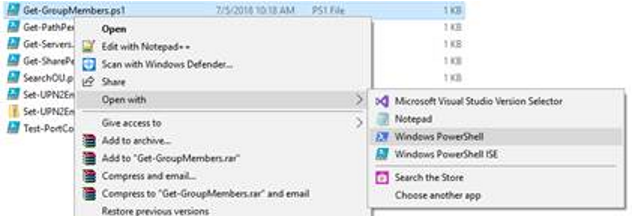
  • Right click on the script  –> Open With -> Windows PowerShell

open with powershell

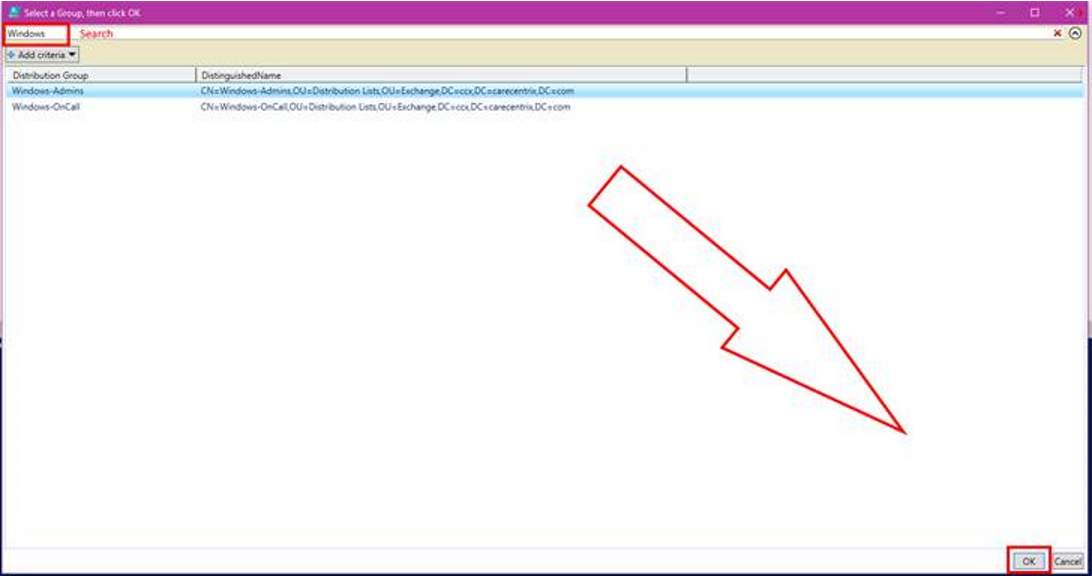
  • Search for or scroll through and click the group or groups (to pick more than one use CTRL + Click).
  • Click the OK button at the bottom of the list.

Grid_View_Select.png

  • A file named groupmembers.csv will be created in the user’s default documents folder and will automatically open with the application associated to that file type (usually Excel).

From the point of view of the person running it, this is a once use app. In reality, its a simple PowerShell script. It wouldn’t take very much effort to convert this report to HTML, use it to cross-referrence mailboxes and other accounts, find the memebers managers, or anything esle you may need. Enjoy.

Powershell; Folder Report with File Count and Size

I was recently asked what tool would be best to report the number of items in, and the size of, every folder in a particular file share. As an IT Architect I have numerous tools at my disposal that would be able to acquire the data my business partner needed. A few lines of PowerShell was the easiest to implement.

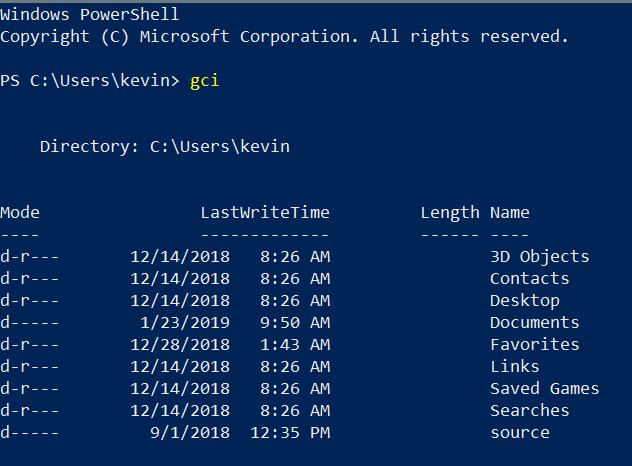
If you’ve used PowerShell for long you already known that Get-ChildItem is the cmdlet to retrieve things under a parent. Files, Folders, Items, you can list them all with GCI. Open PowerShell and type GCI then press enter, depending on your PowerShell profile settings, you should see a list of all your user profile sub folders. This cmdlet will form the basis of our report script.

gci

Of course, the full solution is a little more complicated than that. To generate a useful report we’ll use the Get-ChildItem command to get a list of folders in our path. Then we’ll loop through each folder with the same command again to get a list of the files.

We’ll build an array that contains the count and length (size) properties of each file. Finally we’ll export that array to a csv file in your documents folder. With a little more effort you could generate an HTML report and upload it to a web page or embed it in an email. See some of my other articles for how.

# Get-FileReport.ps1
#Author: Kevin Trent, Whatdouknow.com
#Right click .ps1 file and Open with PowerShell
#Enter Filepath or share path.

$location = Read-Host "Enter Top Level File Path"
$folders = Get-ChildItem -Path $location -Recurse -Directory

$array = @()

foreach ($folder in $folders)
{
$foldername = $folder.FullName

# Find files in sub-folders
$files = Get-ChildItem $foldername -Attributes !Directory

# Calculate size in MB for files
$size = $Null
$files | ForEach-Object -Process {
$size += $_.Length
}

$sizeinmb = [math]::Round(($size / 1mb), 1)

# Add pscustomobjects to array
$array += [pscustomobject]@{
Folder = $foldername
Count = $files.count
'Size(MB)' = $sizeinmb
}
}

# Generate Report Results in your Documents Folder
$array|Export-Csv -Path $env:USERPROFILE\documents\file_report.csv -NoTypeInformation


Fix Surface Go Brightness Control

I love my Surface Go, I’ve written multiple articles about it. I also spend more time on the “Go” than I do any of my other computer systems. I rarely leave home without it. The only issue I have with tablet is that the graphics driver occasionally flakes out and looses the ability to control the brightness.

The problem seems to be worse when the system is resumed from sleep and is especially bad if the brightness is set to manual vs. automatic. The control is not completely broken on my unit. If I select a setting say, 75%, it will eventually get brighter but can take up to an hour before it does.

I’ve tried to manually install the generic Intel drivers but Windows Update just replaces them eventually. They didn’t fully work anyway. I’ve also made sure I’m on the latest updates from Microsoft, I have my system in the fast ring even. Still no luck.

I’ve finally found a fix that worked for me. Maybe it will work for you as well. I used the device manager to switch my drivers to the “Microsoft Basic Display Adapter” rebooted and then changed the driver back to the “Intel HD Graphics 615 driver” and rebooted again. Its been several days now and I am able to change my brightness instantly.

Here’s how to do it.

  • Right click on your start button and click Device Manager
  • Right click on the Intel HD Graphics Driver and pick Update Driver from the menu.
    • Update-Driver
  • Click the second option “Browse my computer….”
  • Click the second option again “Let me pick…..”
    • Let-Me-Pick
  • Choose “Microsoft Basic Display Adapter” and click Next
    • Basic Display Adapter
  • Your screen will flicker and you may hear some beeps.
  • Click the close button.
  • Reboot your computer.
  • Repeat the process above but select the “Intel HD Graphics 615 driver”
    • Intel_Drivers
  • Reboot again