I Assembled a Bitspower Titan X 2.0 Liquid Cooled Kit

After I had a positive experience upgrading a system from air cooling to an AIO block, I decided that my next build would be based on a custom loop. For those who are new to liquid cooling, an AIO block is a closed assembly that you install as a finished unit. A custom loop is created from individual pipes, pumps, reservoirs, and components that resemble a plumbing project in minature.
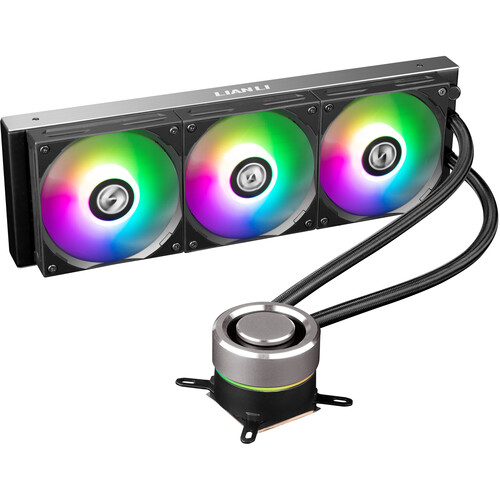
AlO is All-In-One, closed, fully assembled units.

Custom loops are often chosen for their aesthetics. There’s something mesmerizing about seeing liquid moving in and around electrical components. The drama can be heightened by adding RGB lighting effects. Beyond looks, liquid cooling can be more effective than air. I started researching and soon discovered that there was far more to designing a custom loop than just picking out some parts.

Lucky for me, I also found a company that was building so called bare-bones systems that featured a custom loop. I had never heard of Bitspower before. Their page indicated that their equipment was stocked at a chain store here in town. Intrigued by what I saw on-line and liking the idea of a starter-kit, I headed over to Microcenter take a look.

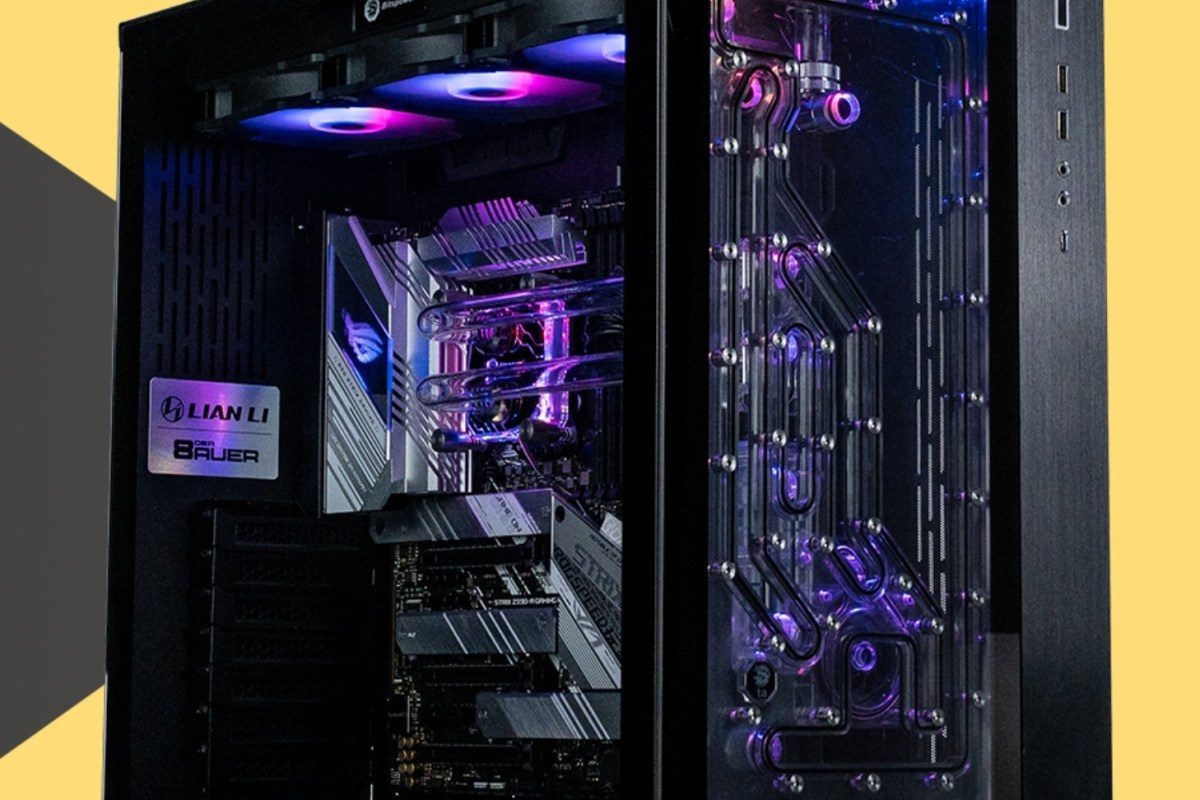
Bitspower makes some fantastic looking systems. 

They had the Titan X 2.0 kit on-sale. The kit includes a pre-installed high-end gaming motherboard for your preferred CPU architecture, a pre-installed PSU, a boxed GPU of various caliber depending on the kit, and a partially installed custom loop. The reservoir, pump, power-supply, fans, motherboard, and associated parts and cables are all professionally installed at the factory in a top-tier case that comes in black, or white. You supply the CPU, memory, and storage.
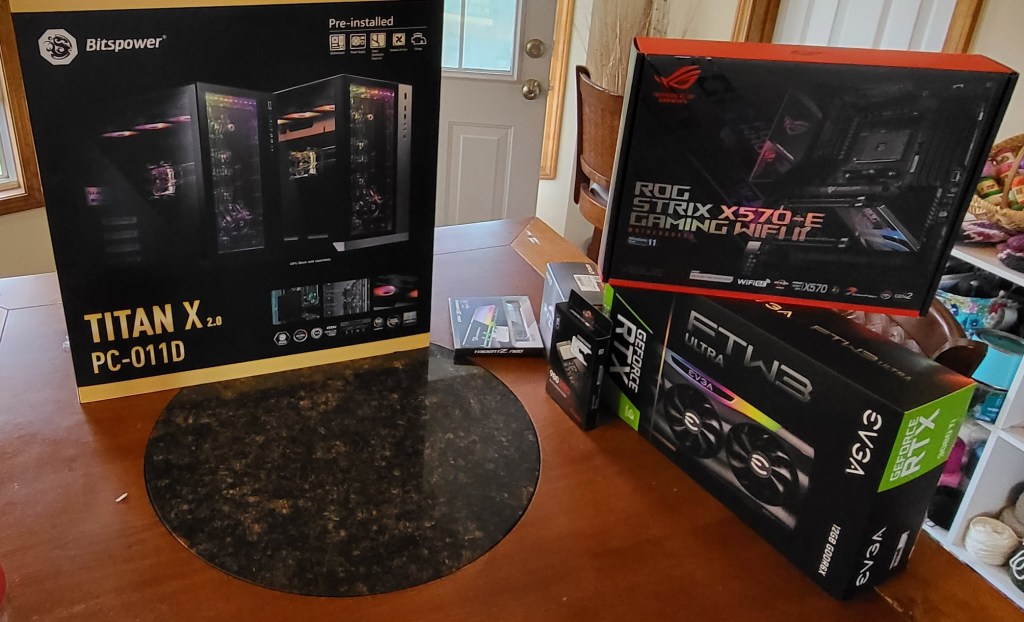
They include the original component boxes, manuals, and left over parts in the kit.

I also picked up an AMD Ryzen 7, 32 GB of DDR5 GSKILL RGB RAM, and two 1TB Samsung 980SD Pro nVME drives. This system will be used exclusivey for gaming. I don’t intend to overclock it, at least not right out of the box. 

To keep the costs down, I decided against getting the optional graphics card loop components. The add-on kit for my GPU was $279.00. The GPU PCI 4 riser kit, would have added another $49.00. They can always be installed later.

If you’re considering building a closed loop system, there are some specialty tools you need to have. The hole you fill the revivor through is rather small. It is also in an awkward to reach location. You will need a liquid syringe to fill it.
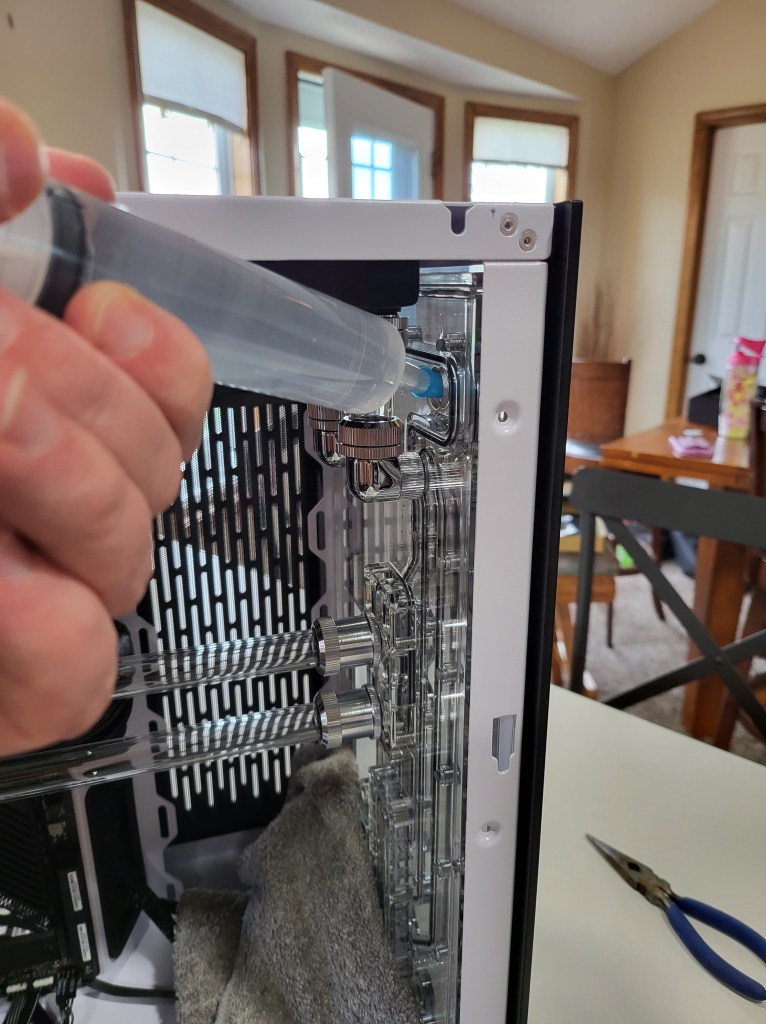
Injecting the coolant requires a syringe.

There isn’t one in the box. You get them on Amazon, many home stores, even pet stores. I recommend getting a brand new one to avoid introducing contaminates to the coolant. I chose to use distilled water in this build (not included). Most of the vendors make coolant. You should research other options too.

The other pieces of a-typical build equipment needed are a method to power the coolant pump while isolating it from the other components. Filling the reservoir without cycling the pump will result in huge air pockets.

There are a couple of ways to go. One is to use the jumper bridge that ships with some gaming boards.  The motherboard power leads will plug into it and you use your PSU’s switch to cycle the pump. The other option is to use a power adapter that connects directly to your pump. Refer to your motherboard and cooling system installation guides for the details.
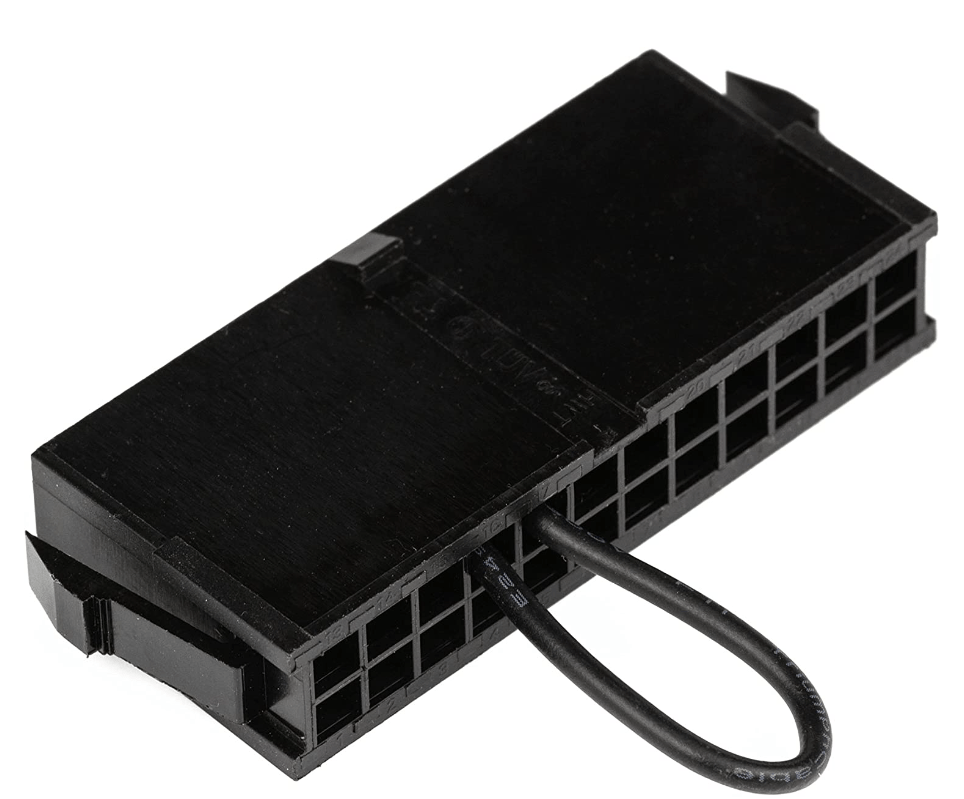
A PSU Jumper Bridge will let you disconnect the motherboard power while still powering the pump through a Molex adapter/lead. You may need to install the Molex lead yourself, it’s in the box. I used a 4-Pin fan adapter (not in the box) to connect the Molex PSU lead to the pump.

If you are building your own loop or need to modify the Titan kit you will also need a tube bending kit. Bitspower makes their own and there are several models available on Amazon. I did not need this tool. If you are sticking with the kit’s default layout for everything, you will not need one either.
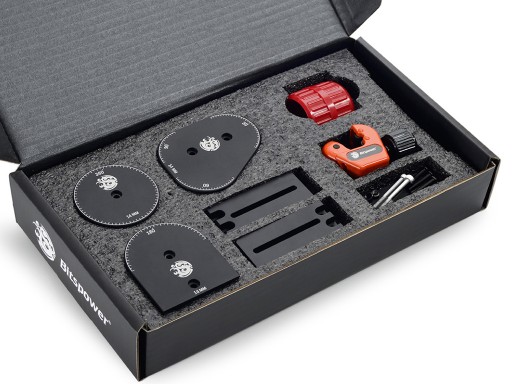
Layout modifications require a tube-bending kit.

The rest of the assembly is straightforward. The instructions are short and written for experienced builders. Search Youtube for more help. The kit absolutely shortens the build time, but there are still advanced steps remaining. You’ll be installing the CPU, applying thermal paste, mounting the CPU water block, completing and filling the loop, and installing all the other components.
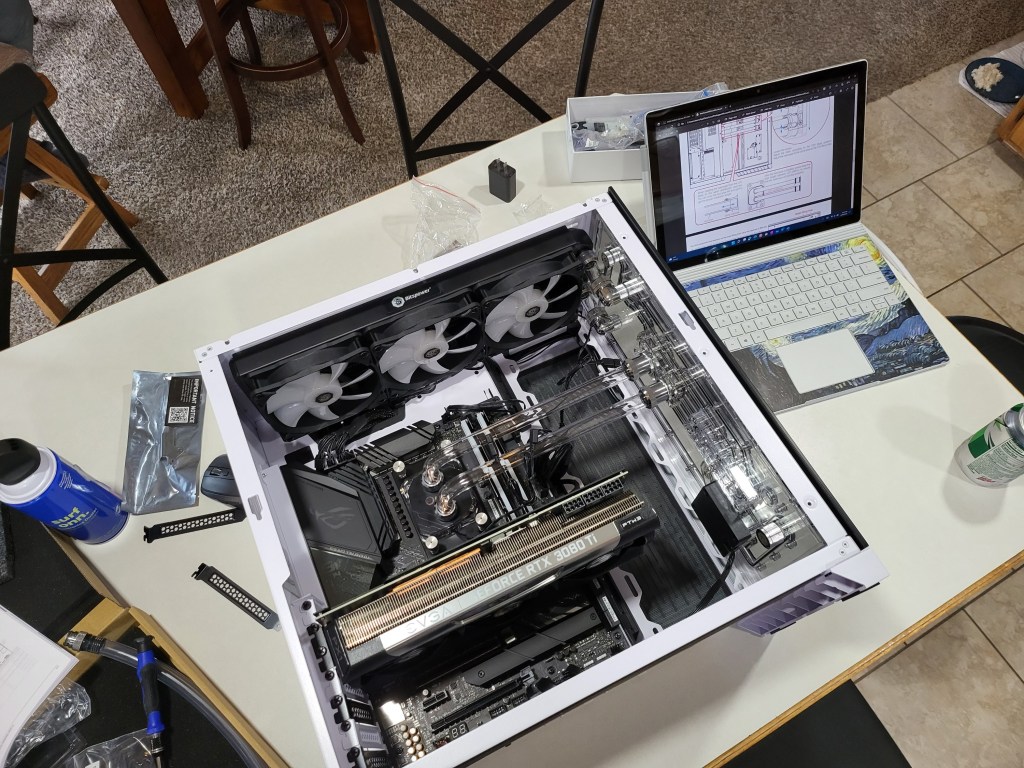
A clear build space with everything at-hand makes the assembly easier

Disappointingly, the Titan kit does not include the thermal paste required to complete the project. I also reccomend adding a GPU support bracket. The case included is Lian Li, so I opted for their support bracket. Bitspower has their own brand of thermal paste. It was easy to apply and performs well, so far.
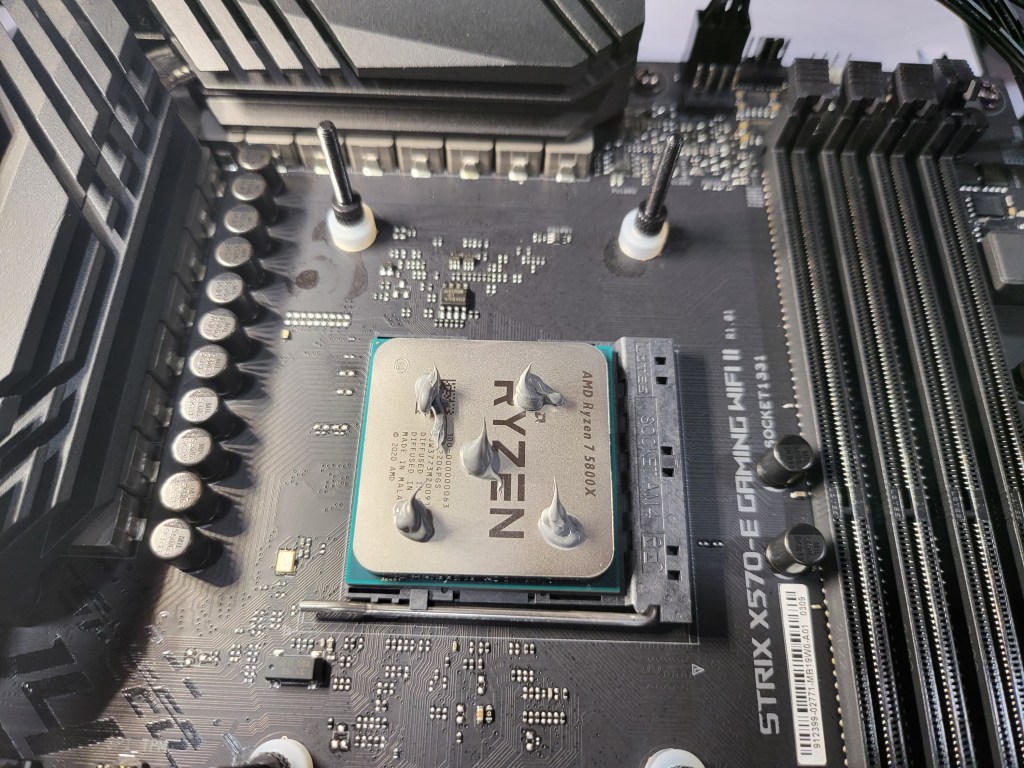
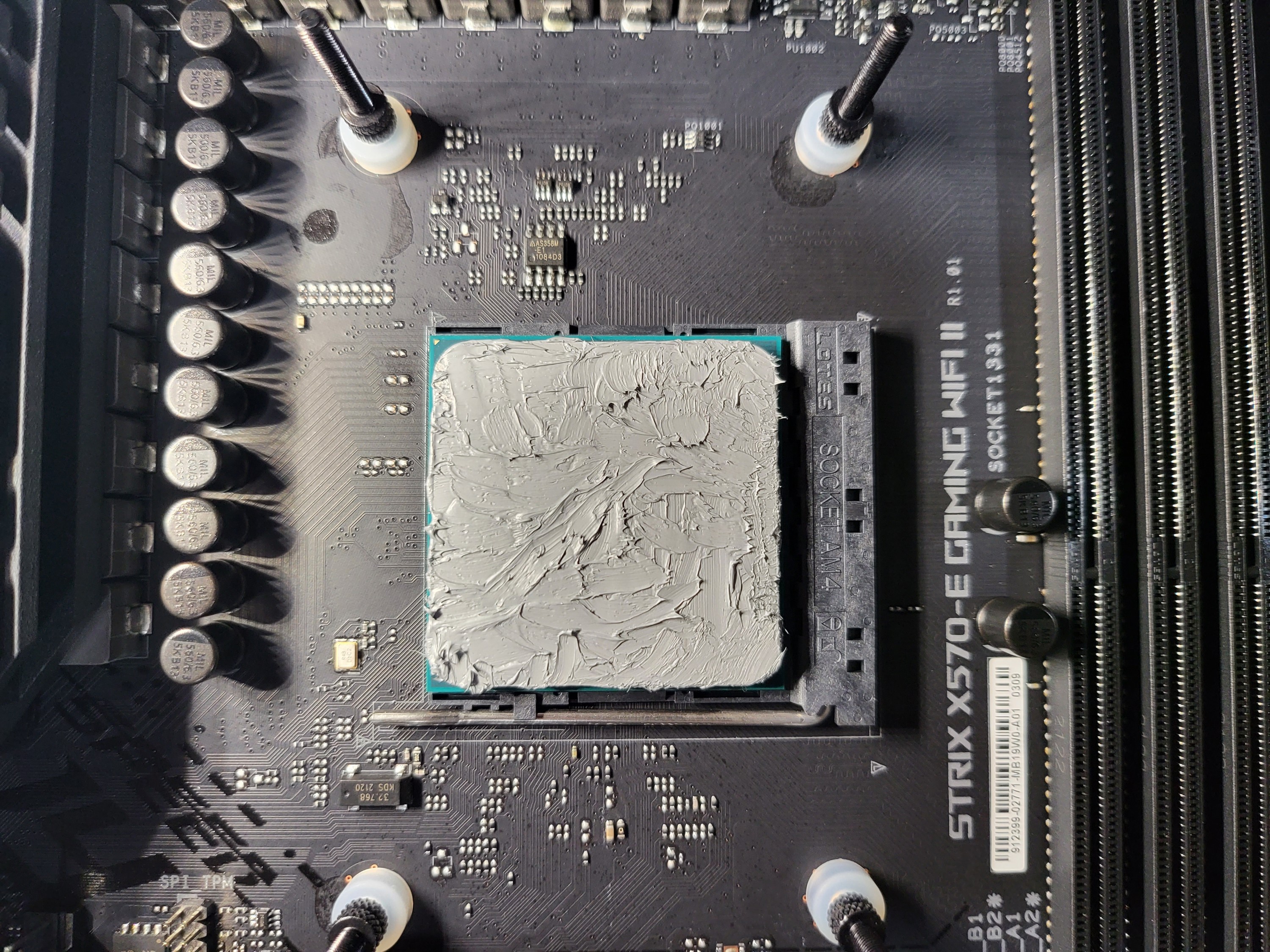
Bitspower’s paste includes a micro-spatula to ensure even application is easy to achieve.

The tubes are already cut and shaped to fit. You will need to position the O-rings and caps on each end before making the connection. When connecting the tubing, be sure that the tube goes past the O-ring in the mounted end’s input. I was surprised at the amount of force I needed to apply to get them seated properly.
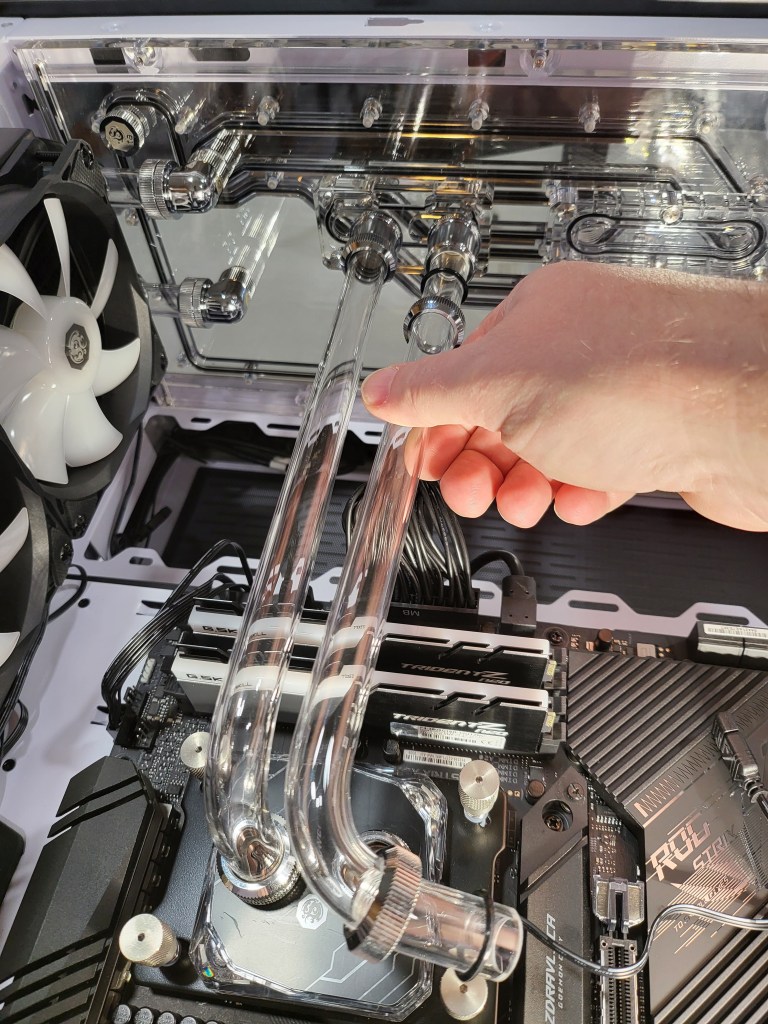
Take your time and get them mounted perfectley. Leaking would be bad.

When you are ready to fill the system with coolant, I recommend covering the area with towels. Make sure that the only device receiving power is the water pump. If something gets wet, do not panic. Just make sure that everything in completley dry before before powering up. Run the loop for 24 hours with only the pump powered, after you get it filled, to be confident.   
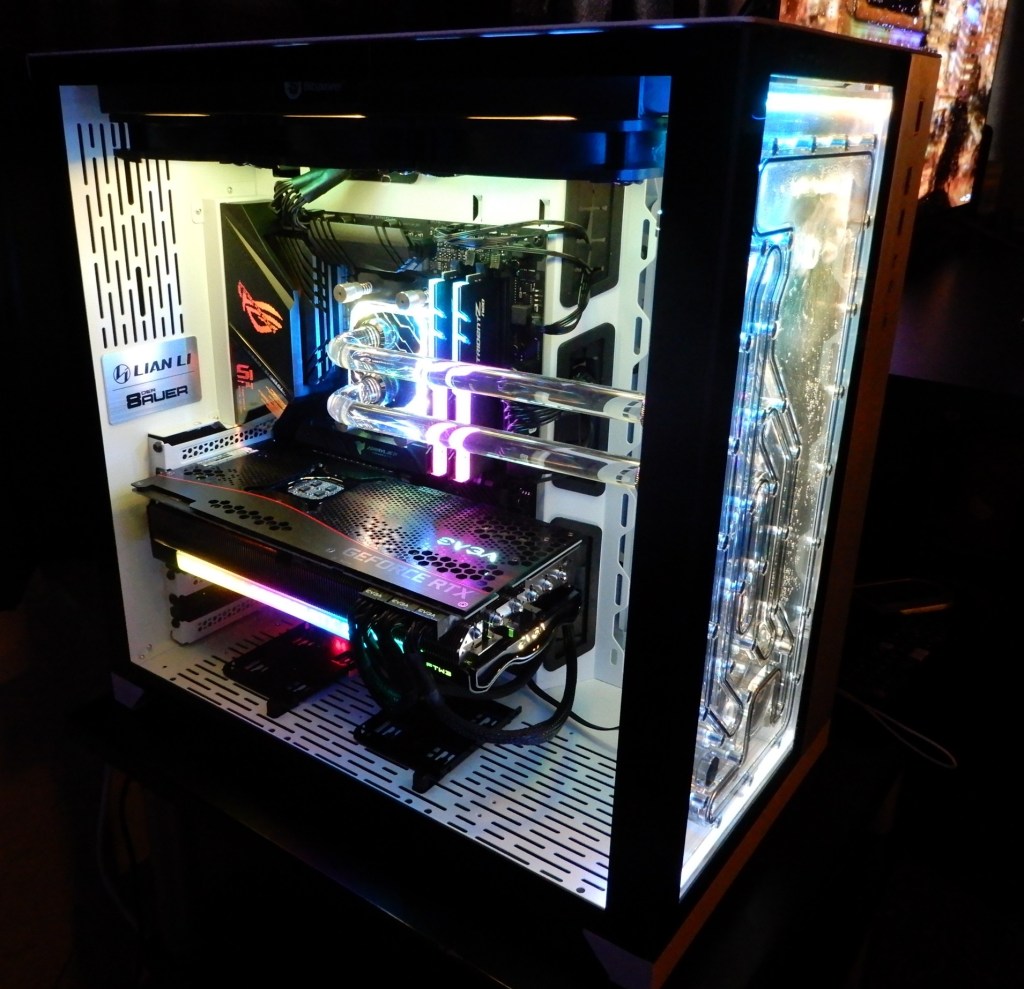
The Bitspower Titan X 2.0 AMD EVGA 3080 Ti kit fully assembled.

Master All Streaming Services with a Single App on All Screens

We all knew that à la carte streaming was going to end up as a hot mess. After Disney proved people would pay another fee for specific content, it was game-on for everyone. Cord-cutters would need multiple subscriptions to watch their favorite shows.

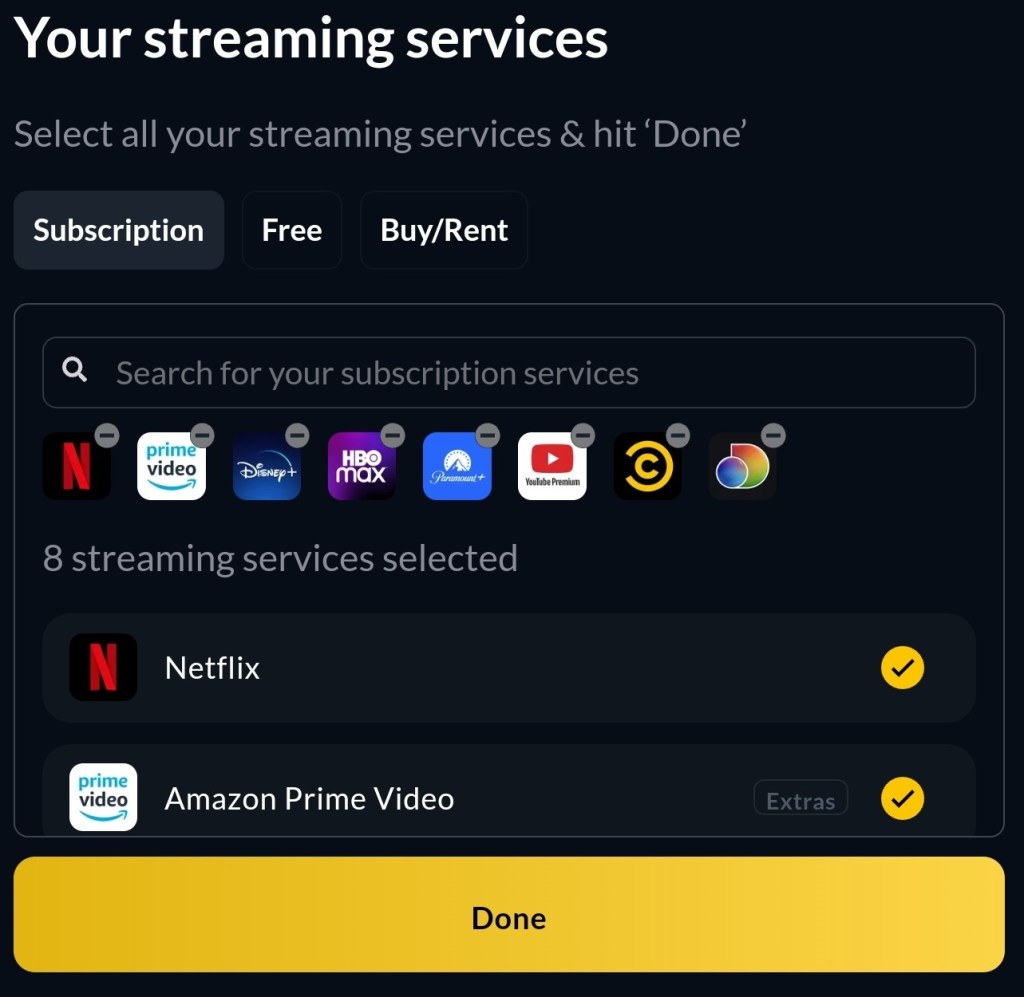
I searched online for a universal streaming guide and discovered a new service called Justwatch.  Justwatch is a free service / app if you don’t mind banner ads. It is $2.49 per month for the “Pro” version without them.

You install their app on all of your screens. Samsung, Apple, Android, Google, LG, Amazon/FireTV, Windows, they all have it in their app store. Sign in with your Justwatch account and add the streaming services you subscribe to, by picking them from the list.

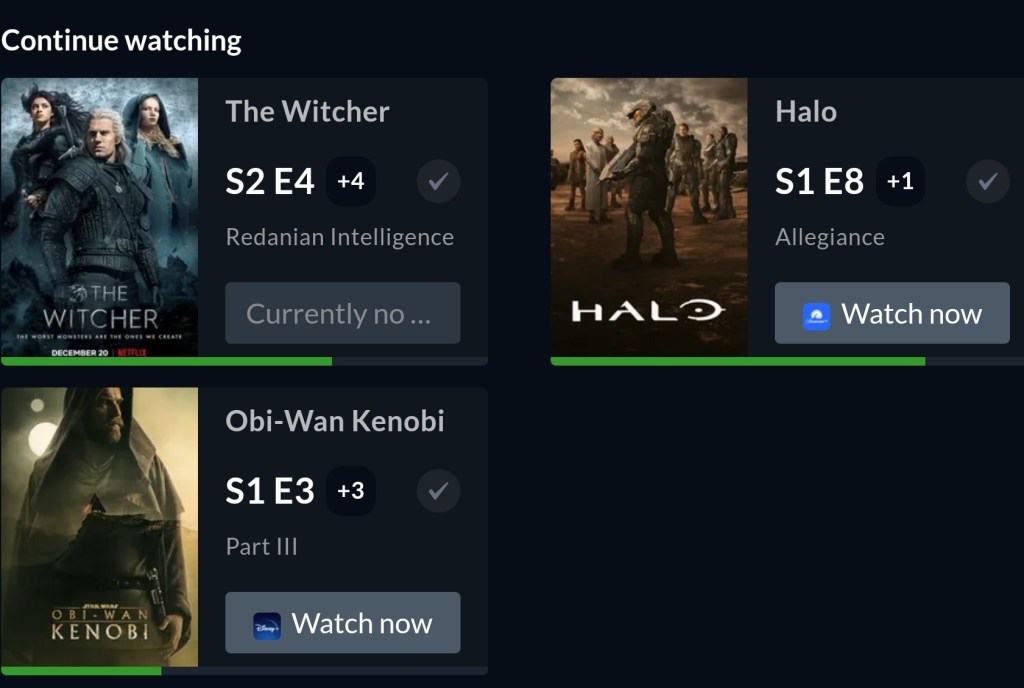
Search for the shows you watch and add them to your watchlist. Tell the app which episode you are on. That’s it. Open the app on whatever device and go to your Watchlist, click the show you feel like watching and Justwatch will magic it open in the correct streaming app. 

The Watchlist tracks and opens all of your content across your subscriptions

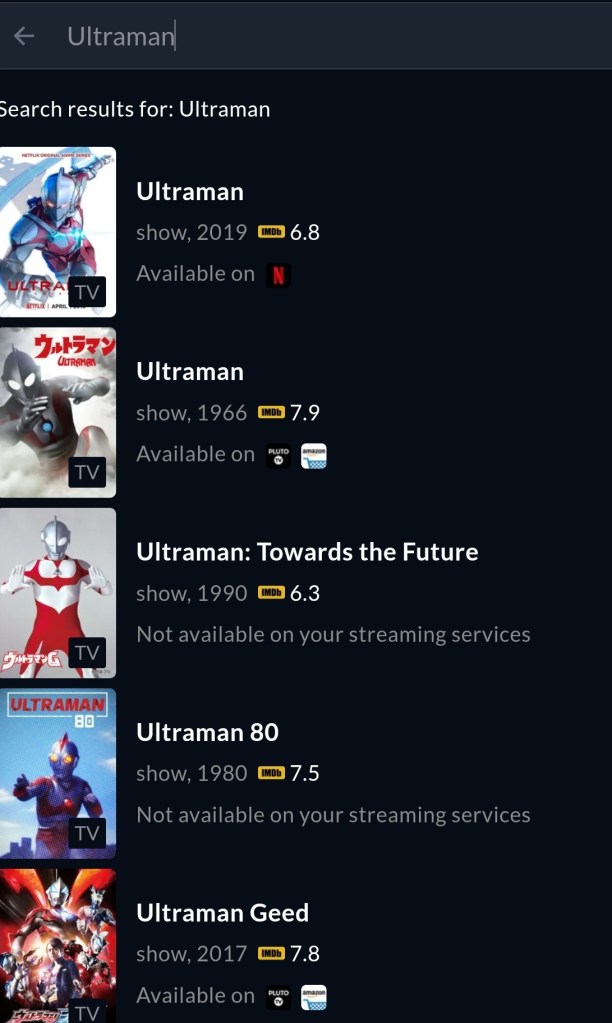
Search for any show or movie and see which of your services it is available on, or see the best price to get access. The software also makes reccomendactions, shows new and popular content, and includes ratings info.

Finding specific content is a simple search

We’ve been using Justwatch for about a week. So far, it has been very useful. The interface is simple. Linking up all your TVs, Tablets, PCs, Phones, and Consoles to use the same content guide is a cord-cutting game changer.


APEX Legends Mobile Nailed It

Like a lot of people, I picked up APEX Legends after playing the Titanfall games. Besides the super shooting mechanics that I was already attuned to, the game had an innovative revive and respawn mechanism that lowered the bar of entry into the Battle Royal genre.

The original APEX Legends game features fantastic performance on the PC, Xbox, and Playstation. It’s free to play. Good luck trying not to drop cash to unlock characters, skins, and the like. The mobile edition is much the same in regards to cost.  Free to play, but you’ll be pushed to purchase a Battle Pass and other unlocks. You can earn in-game curencey just from playing, but it is pretty slow going.

The Switch version of the game plays well with some stipulations. To make the full port of the original game work on the handheld’s hardware required sacrifices. To start with, the frame rate is capped at 30. In addition the resolution, processing effects, and textures are all low enough to look noticeably degraded.

The Nintendo Switch Plays the original game.

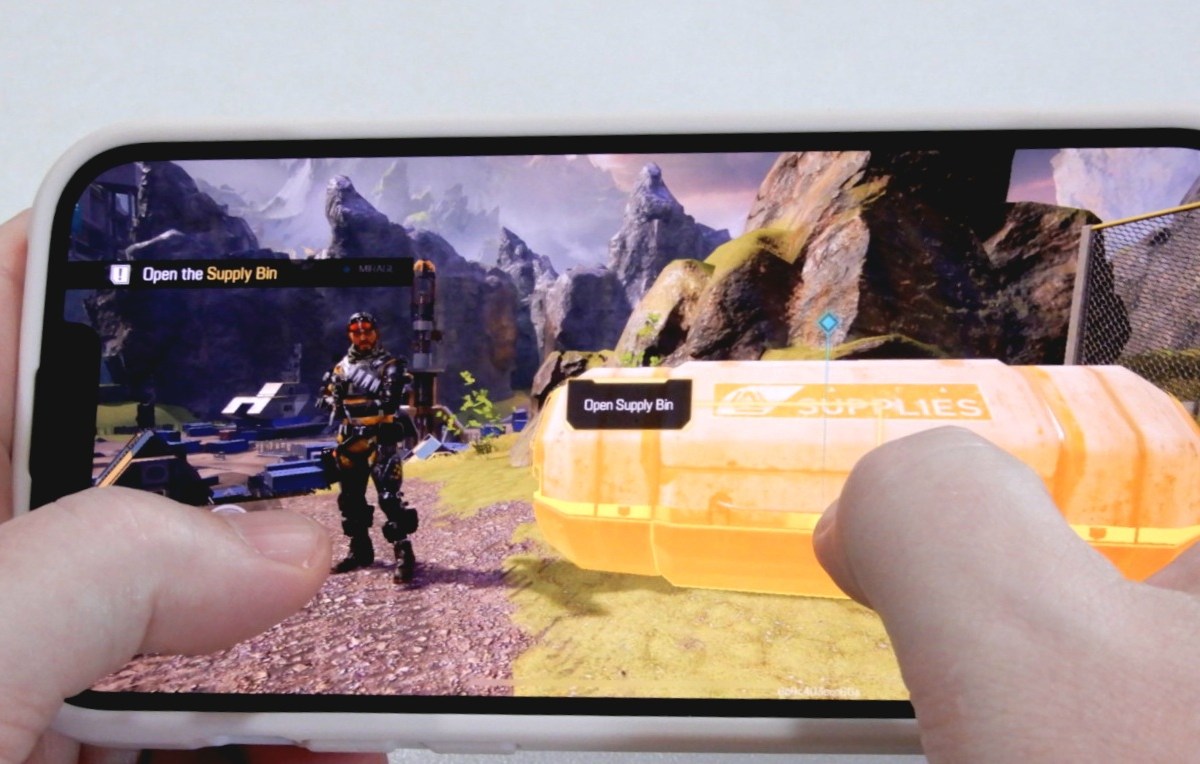
APEX Legends Mobile was built for mobile devices from the ground up. It features graphics that are some of the best I have seen in any AAA mobile title. The developers have included options to allow players to tune the game to favor looks, or performance.

On Android devices of any kind, the frame rate is capped at 60 FPS. Rumor has it this is a temporary situation and that an update will raise the limit to match the 90 FPS enjoyed by some Apple devices. Other than that, the Apple and Android versions are the same.

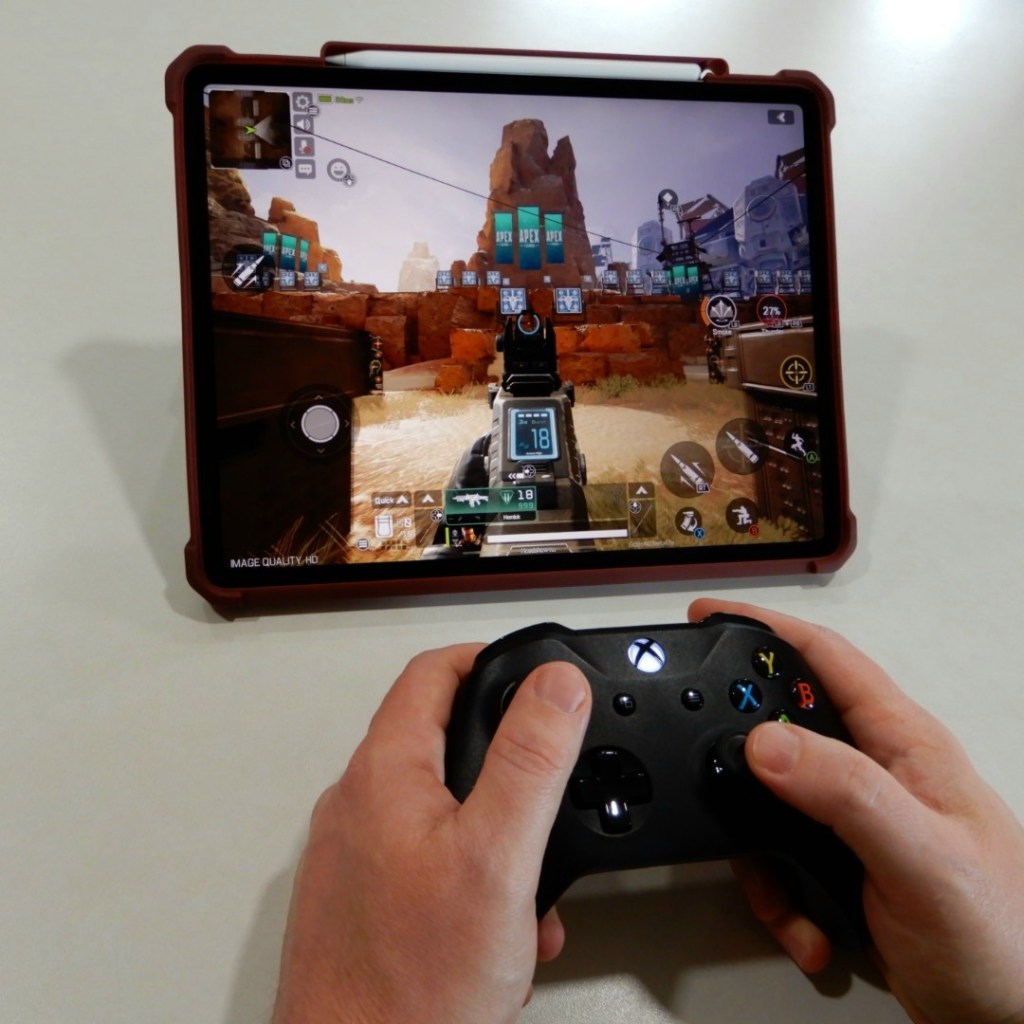
Speaking of Apple devices, playing on the 12.9″ iPad Pro with the graphics cranked to their max is an epic experience. On the big screen with an Xbox controller in my hand and my noise cancelling earbuds in, the immersion was comparable to a home system.

The 12.9″ iPad Pro experience could replace a console.

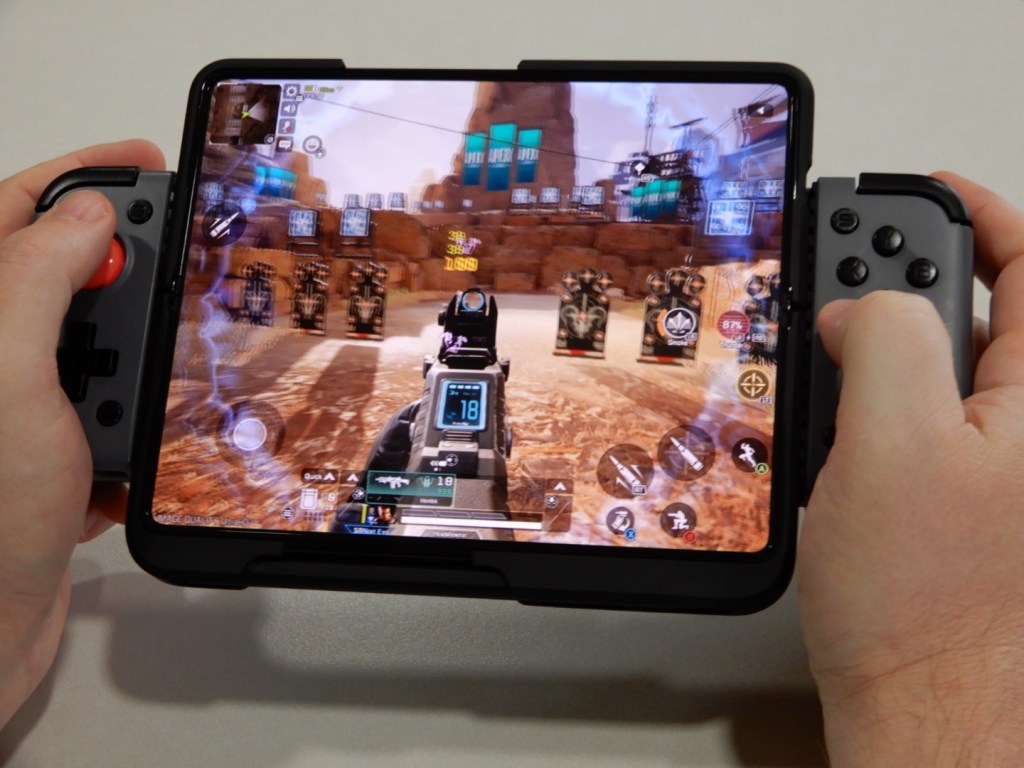
APEX Legends Mobile on the Galaxy Fold 3 combined with the Gamesir X2 Bluetooth controller, and ANC earbuds is flat-out the best mobile gaming experience I’ve had to-date. The game and controller are also fantastic when paired with the iPhone 13 Pro Max. For me, the Fold’s screen size edges out the iPhone’s faster refresh rate.

APEX Legends Mobile is Phenominal on Android and Apple.

In the Battle Royal mode called “Prime Time” Teams of three Legends choose a landing spot on the classic World’s Edge map and scavenge for the all important first weapon. The trios continue killing and looting everything in sight until the map’s force feild contracts and drives the groups closer together. Each turn of the screw ratchets up the frequency and ferocity of the skirmishes until only one team is left standing.

The mobile edition also features a Team Death Match mode that is not available on the consoles or PC. You can choose between base spawn or a random spawn point.  TDM

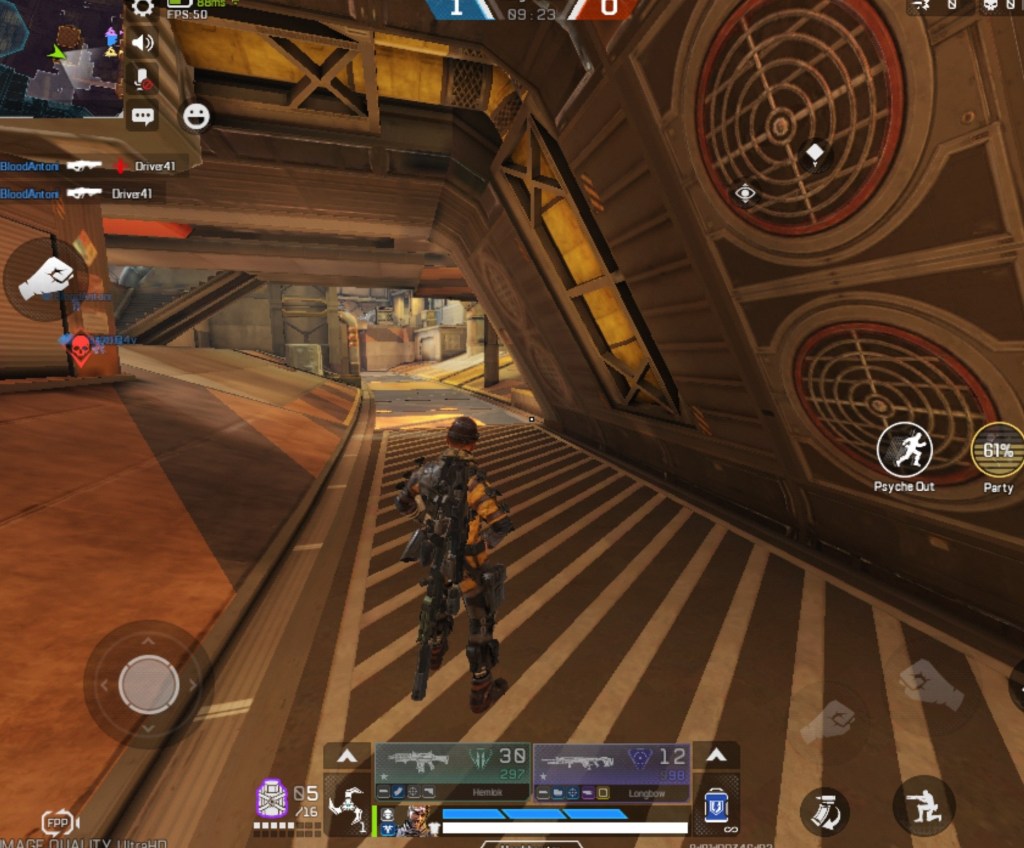
Third person views are new.

In a move I haven’t seen since the original CoD MW, a third person view is supported in all modes. Matchmaking is based on the view. Selecting TPP (third person player) puts you in a TPP queue, likewise for FPP.

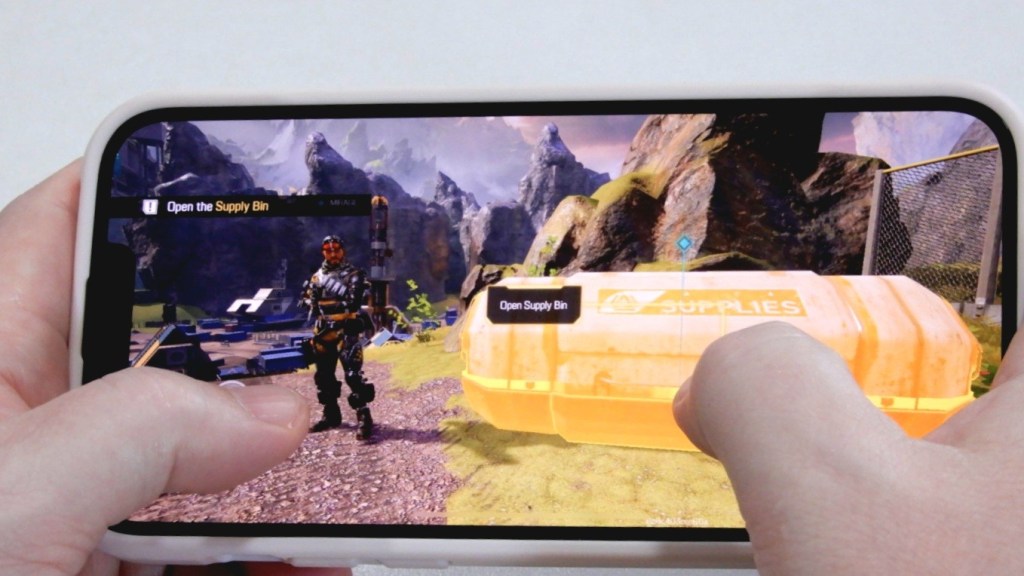
I assumed that the touch-screen controls would be atrocious, but was happily surprised to find they are serviceable. Like other popular mobile shooters, the numerous control icons are confusing at first. I suggest taking advantage of the customization option to maximize your screen realestate.

The game really shines when you use a controller. Not all controllers are supported at this point. I was able to play with my Xbox and Gamesir X2 Bluetooth controller. I’ve read that the Razer Kishi also works. The controller only functions in-game. You still need to use the touchscreen for menus.

Which Digital Handwriting System Is The Best?

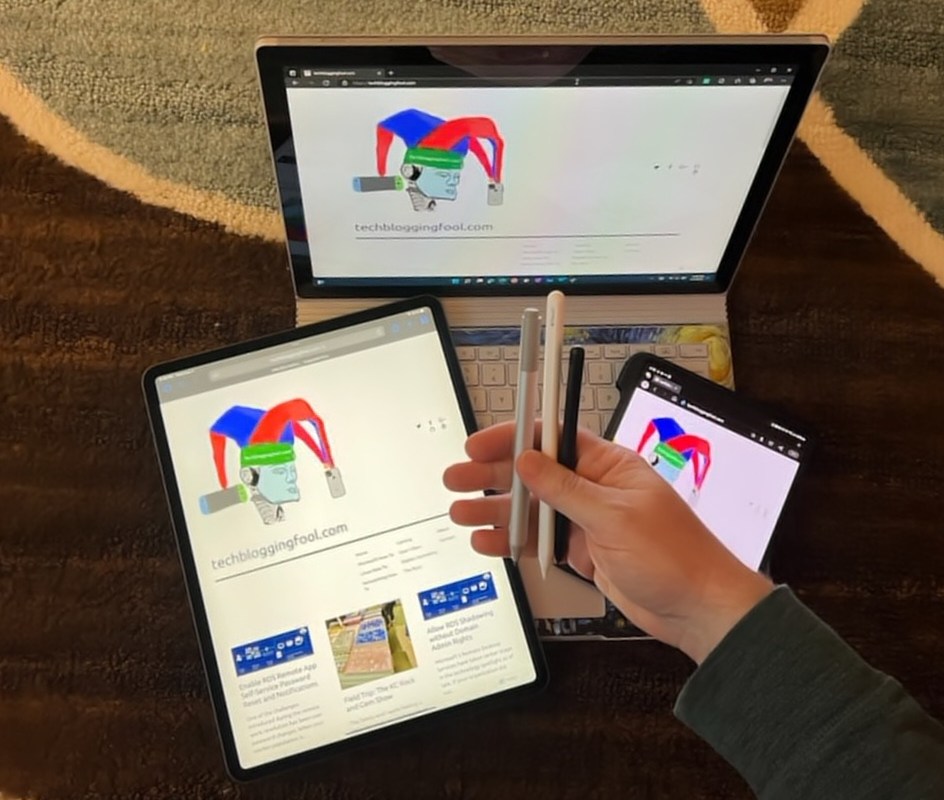
A friend asked which handwriting engine was best. The answer is complicated. Microsoft, Apple, and Samsung are the top three manufactures of retail devices with handwriting recognition built-in to the devices’ operating systems. There are plenty of other companies that offer stylus based writing solutions, but this post will focus on the ones I have countless hours of experience with.

The learning curve from tapping, to comfortable writing, can be steep. The tools feel deceptively familiar to the analouge versions. The similarities can cause a lot of frustration when attempting to transition. Your mind wants it to feel like paper and pen, but you are not writing. You are controlling a word processor, on a glass computer, with a plastic stick.

Your muscle memory will probably engage and cause the entire experience to feel wrong. The only solution I’ve found is to keep at it. Reaserch suggests that you are looking at anywhere from twenty to forty hours before it feels “normal” and that is a lot of writing. To get there, I used the pen for everything. No matter how slow and cumbersome it felt.

There are numerous benefits to be had from writing with a stlyus if you can get past the ackward phase. Perfect erasing, layers, predictive text, spelling and grammar tools, unlimited colors, numerous ink styles, the list is extensive.  Perhaps the most unexpected benefit is the increased productivity. I wouldn’t dream of thumb typing a post like this on my phone, but I enjoy writing on it. Once your muscle memory is tuned to glass, it is a surprisingly fast form of computer input and control. 

To answer the original question, the best digital handwriting engine is the one that you’ll use.  If you are an Apple person, it is unlikely that uprooting your digital life’s baggage and hauling it over to Android Town will be a wholy positive experience. There is a lot of nuance to learn. Adding a new OS could be a lot to deal with all at once.

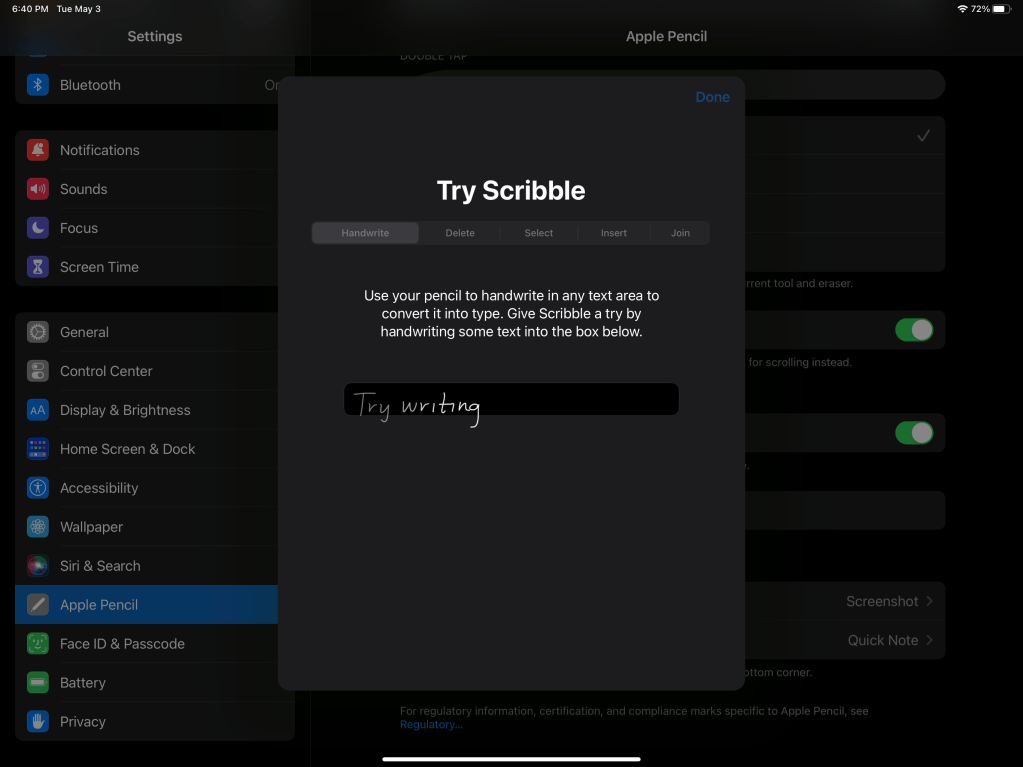
One key to success is to work with alternate apps that support your system. Apple’s Scribble engine requires developers to include its APIs in their code. Microsoft’s Word lacks the new function on Apple devices. However, Apple’s own Pages app is able to edit Word documents and fully supports Scribble. Searching in your app store is a quick way to find the best app for your situation.

You’ll find the training for Scribble under Apple Pencil in the settings menu.

Another tip, power matters. Reading my quick form of handwriting is hard work. Processing power  gets you a shorter wait between recognizing your input on the on-screen writing pad and it’s appearance as typed text in your app. It also allows for a more accurate translation. Systems that include dedicated AI solutions provide real-time prediction of your next words for a tap based speed boost. 

All three solutions work really well after you learn them. Like anything else, they also have strengths and weaknesses. Scribble is the newest solution and it shows. It isn’t fully compatible with loads of third party apps yet, and some of the gestures are difficult to execute. It is improving with every update and devs are incorporating it into apps quickly.  Microsoft has recently added support to Outlook and Teams.

Apple being Apple, is going for a more elegantly integrated presentation. Rather than popping a keyboard overlay on top of your app to ink in, you write in-line with the on screen text. The lack of a clearly defined space to write in can feel off in some apps. When it is done right, like in the afore mentioned Pages, it is a fantastic experience.

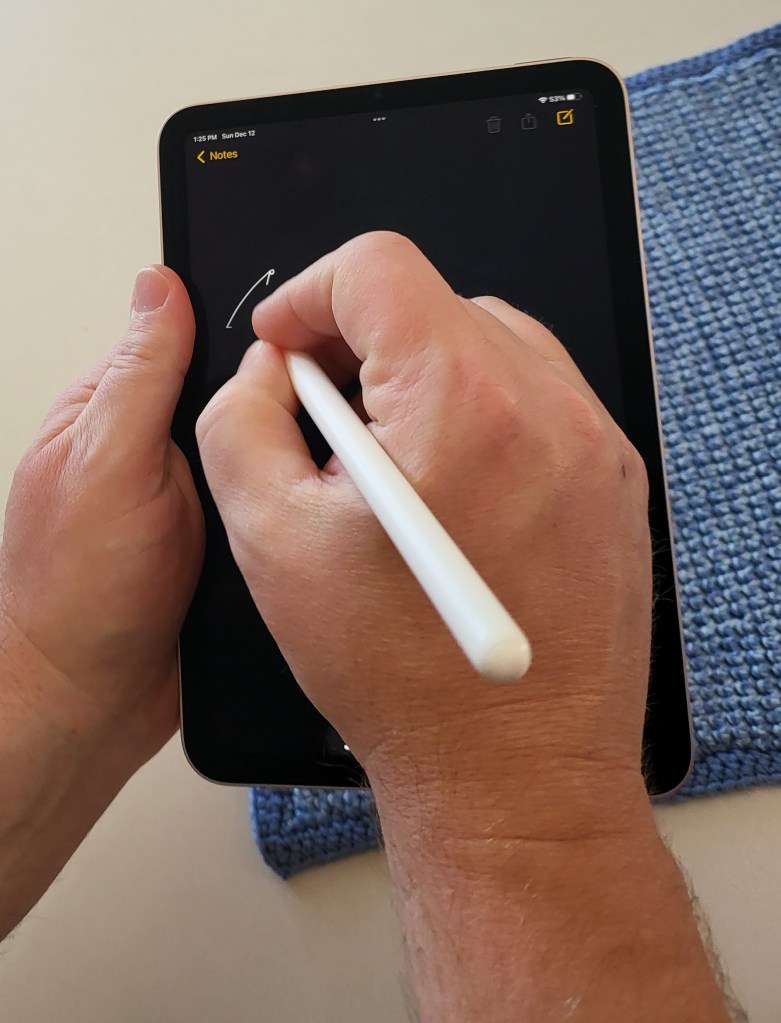
The handwriting recognition is good, it easily keeps up with my mix of cursive and print on my 3rd gen iPad Pro. The Apple Pencil feels nice in your hand and on the screen. Apple’s powerful and light weight devices make them excellent choices for pen based interaction. I especially enjoy writing on the new 6th Gen iPad Mini.

Microsoft has been including handwriting as a form of input in their operating systems since Windows XP.  Their founder believed that writing with a stylus was the future of computer input. In my opinion Microsoft’s handwriting recognition is the best, overall with some caveats, of course.

When the operating system is running on suitable hardware, it’s uncannily accurate. It easily understands text I wrote in haste and can hardly read myself. Unfortunately, many people’s experiences with Windows handwriting are limited to underpowered tablets. If your Windows tablet has less than four gigabytes of RAM expect to experience performance issues while using the ink recognizer. I find that Microsoft’s own Surface line is the standard for pen computing.

Microsoft detects if you touch the on screen keyboard icon in the task tray with your finger, or a pen, and automatically presents the correct option. It can be configured to allow in-line writing like Scribble. There are numerous integrations with both 1st and 3rd party apps. You can customize the input panel’s color and the font your handwriting is converted to.  In most cases you can even choose your own custom stylus.

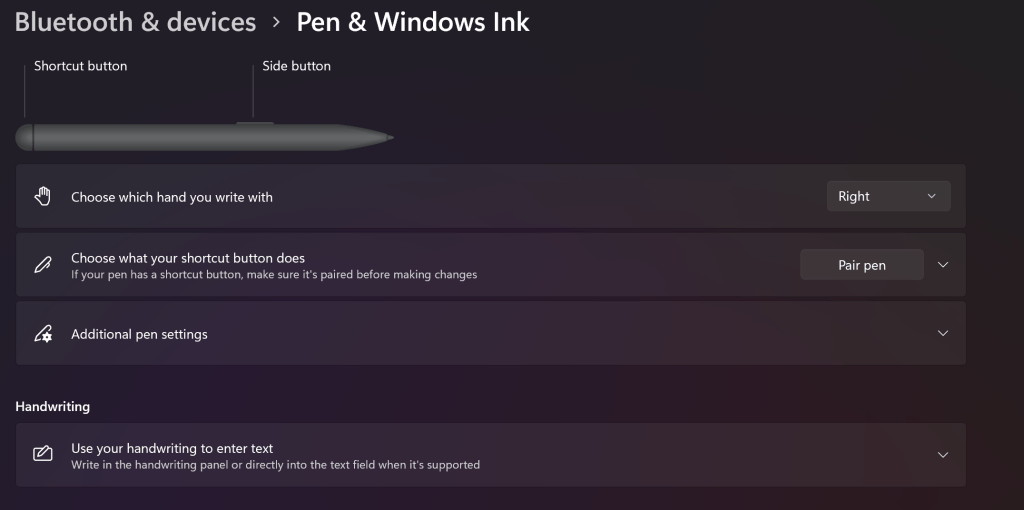
Like all things Microsoft, the need to include options for every type of hardware and each user’s personal preferences makes for a complicated solution. You will need to spend some time setting up before you start penning your Memoirs.

Microsoft’s Pen experience is best when you spend a few minutes setting it up for your preferences.

Samsung’s approach has matured nicely over the years. The first Galaxy Note’s giant screen lent itself to a pleasant writing experience. The new Galaxy Fold 3 and it’s optional S-Pen is the current pinnacle of what is possible with a digital pen and screen as far as actual productivity is concerned.

Samsung’s recognition has really ramped up as of late. It nips at Microsoft’s heels in accuracy.  It’s a native function of Samsung’s keyboard, so it works in all applications. Even some that it shouldn’t, but that is another story.

Samsung’s writing panel takes the cake with its plethora of quick access buttons to make editing a cinch. What makes their solution the one I use most is portability. I hear that squeezing an Apple or Microsoft tablet into your jeans pocket is a no go.

Samsung’s Handwriting Recognition is always with me

No matter who’s digital handwriting tools you prefer, the technology has reached a milestone.The point where devices have become powerful and light enough to deliver on their original pitch has been realized. If you gave the stylus a go “a while back” and had a negative experience, it’s a good time to consider sticking a toe in the screen writing pool again.

Enable RDS Remote App Self-Service Password Reset and Notifications

One of the challenges introduced during the remote work revolution has been user password changes. When your worker population is directly connecting to your network on a regular basis, Active Directory password policies do the job nicely. VPN password resets can be difficult master, but it’s nothing some training can’t overcome.

What happens when the remote worker solution is based on Microsoft’s Remote Desktop Services? If your people are connecting to full remote desktops, the answer is easy. Teach them to press CTRL-ALT-END. If you publish remote applications instead of desktops, two issues present themselves pretty early after the rollout. It is possible to overcome the challenges using only native OS functions.

The first problem we’ll need to address is the actual method a user will employ to change their password. Lucky for us, the RDWeb feature of the Remote Desktop Services Role includes this functionality; it just has to be enabled. Log on to a server that hosts the RDWeb site. If you aren’t sure, log on to any member of the RDS farm, open an elevated PowerShell console, and run the one-liner below.

Get-RDServer -Role "RDS-WEB-ACCESS"

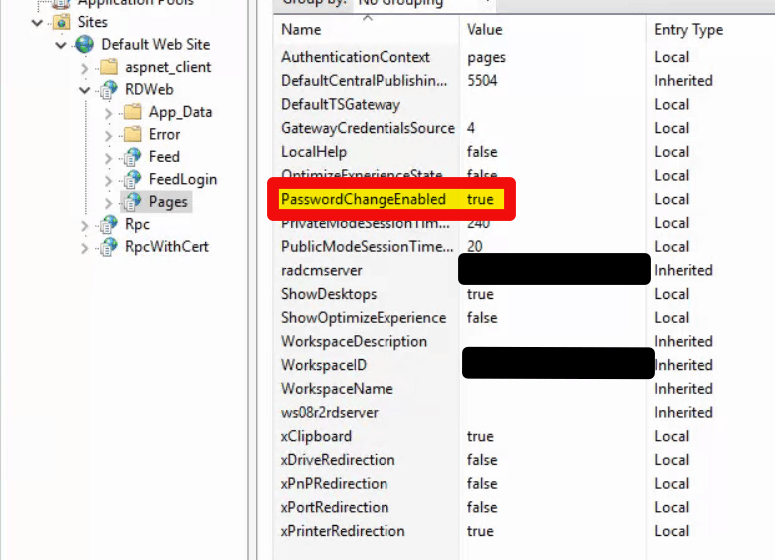
Open the IIS MMC on the RDWeb server. If you are load balancing, perform the following instructions on each RDWeb host to enable the hidden password reset page. First expand the chevrons until you get to RDWeb, then one more time and click Pages. Next double click “Application Settings” and set the “PasswordChangeEnabled” attribute to True. Restart IIS by opening an elevated PowerShell or CMD console and running IISRESET (add /Force to end sessions immediately).

Set the yellow attribute to true

Once completed, a hidden password reset page will be available at a variation of the URL you already use for RDWeb. The default for a US English server is https://yourdomain.com/RDWeb/Pages/en-US/password.aspx. All that is left is to address notification. There’s no prompt in a published application that effectively tells a user when their password is about to expire. We’ll use a PowerShell script to send an email with the relevant information like complexity rules and include a link to the reset page we just created.

Connectivity to SMTP is your responsibility. If you have an internal email relay server already established, then target the notification script at that by changing the $SMTPServer variable. You may also need to authenticate to your email server with a licensed account to send mail or configure an Office365 mail connector. The script can be modified to fit those situations but is not configured for it now.

Schedule the script below to run as a task from a server or workstation that is running RSAT for the appropriate version of Windows. Specifically, you’ll need the Active Directory PowerShell modules. Schedule the task with an appropriate service account, read-only access to Active Directory is required. Adjust the variables to fit your environment and needs.

#**Password_Expiration_RDS.ps1**
#Send password expiration password and link to reset for RDS Published Apps"
#Author: techbloggingfool.com

#Variables, populate with values for your environment and goals. 
$DaysToWarn = 7
$SupportTeam = "Support at XXX-XXX-XXXX"
$From = "Password AutoBot <noreply@yourdomainname.com>"
$Subject = "Reminder - Your Domain user account password will expire soon"
$SMTPServer = "Your Email Server's FQDN Goes between these quote marks"
$MailDomain = "Your email domain name goes here"
$RDWebResetURL = "The URL to your RDS password reset page goes here" 

function PreparePasswordPolicyMail ($ComplexityEnabled,$MaxPasswordAge,$MinPasswordAge,$MinPasswordLength,$PasswordHistoryCount)            
{            
    $verbosemailBody = "<p class=MsoNormal>&nbsp;</p><p class=MsoNormal>Below is a summary of the requirements for your new password:</p>`r`n<ul>`r`n"            
    $verbosemailBody += "<li class=MsoNormal>Your password must be changed every <b>" + $MaxPasswordAge + "</b> days.</li>`r`n"            
    If ($ComplexityEnabled) {
        $verbosemailBody += "<li class=MsoNormal>Your new password cannot contain any part of your name or username and must contain 3 of the 4 character types:<ul><li class=MsoNormal>Uppercase letters</li><li class=MsoNormal>Lowercase letters</li><li class=MsoNormal>Numbers</li><li class=MsoNormal>Symbols</li></ul>`r`n"
    }
    If ($MinPasswordLength -gt 0) {
        $verbosemailBody += "<li class=MsoNormal>Your new password must be at least <b>" + $MinPasswordLength + "</b> characters long.</li>`r`n"
    }
    If ($PasswordHistoryCount -gt 0) {
        $verbosemailBody += "<li class=MsoNormal>Your new password cannot be the same as the last <b>" + $PasswordHistoryCount + "</b> passwords that you have used.</li>`r`n"
    }
    If ($MinPasswordAge -eq 1) {
        $verbosemailBody += "<li class=MsoNormal>You must wait <b>" + $MinPasswordAge + "</b> days before you can change your password again.</li>`r`n"
    }
    If ($MinPasswordAge -gt 1) {
        $verbosemailBody += "<li class=MsoNormal>You must wait <b>" + $MinPasswordAge + "</b> days before you can change your password again.</li>`r`n"
    }
    $verbosemailBody += "</ul>`r`n"
    return $verbosemailBody            
}  

#HTML Email Header and Footer Formatting
$header = '<html>

<head>
<meta http-equiv=Content-Type content="text/html; charset=windows-1252">
<style>
<!--
 /* Font Definitions */
 @font-face
	{font-family:Wingdings;
	panose-1:5 0 0 0 0 0 0 0 0 0;}
@font-face
	{font-family:"Cambria Math";
	panose-1:2 4 5 3 5 4 6 3 2 4;}
@font-face
	{font-family:Calibri;
	panose-1:2 15 5 2 2 2 4 3 2 4;}
 /* Style Definitions */
 p.MsoNormal, li.MsoNormal, div.MsoNormal
	{margin:0in;
	font-size:11.0pt;
	font-family:"Calibri",sans-serif;}
@page WordSection1
	{size:8.5in 11.0in;
	margin:1.0in 1.0in 1.0in 1.0in;}
div.WordSection1
	{page:WordSection1;}
 /* List Definitions */
 ol
	{margin-bottom:0in;}
ul
	{margin-bottom:0in;}
-->
</style>

</head>

<body lang=EN-US style=''word-wrap:break-word''>

<div class=WordSection1>
'

$footer = "</div>

</body>

</html>
"
#Import AD Module and obtain data from it
Import-Module ActiveDirectory -Verbose:$false

$domainPolicy = Get-ADDefaultDomainPasswordPolicy            
$passwordexpirydefaultdomainpolicy = $domainPolicy.MaxPasswordAge.Days -ne 0            
            
if($passwordexpirydefaultdomainpolicy)            
{            
    $defaultdomainpolicyMaxPasswordAge = $domainPolicy.MaxPasswordAge.Days            
    if($verbose)            
    {            
        $defaultdomainpolicyverbosemailBody = PreparePasswordPolicyMail $PSOpolicy.ComplexityEnabled $PSOpolicy.MaxPasswordAge.Days $PSOpolicy.MinPasswordAge.Days $PSOpolicy.MinPasswordLength $PSOpolicy.PasswordHistoryCount            
    }            
} 

#Find accounts that are enabled and have expiring passwords
$users = Get-ADUser -filter {Enabled -eq $True -and PasswordNeverExpires -eq $False -and PasswordLastSet -gt 0} `
 -Properties "Name", "UserPrincipalName", "msDS-UserPasswordExpiryTimeComputed", "mS-DS-ConsistencyGuid" `
 | Where-Object {$_."ms-DS-ConsistencyGuid" -ne $null} | Select-Object -Property "Name", "UserPrincipalName", "SAMAccountName", `
 @{Name = "PasswordExpiry"; Expression = {[datetime]::FromFileTime($_."msDS-UserPasswordExpiryTimeComputed").ToLongDateString() + " " + [datetime]::FromFileTime($_."msDS-UserPasswordExpiryTimeComputed").ToLongTimeString() }}

If ($null -eq $Users) {
    Write-Error "No users found with the selected search criteria."
}
#check password expiration date and send email on match
foreach ($user in $users) {

    $DaysRemaining = (New-TimeSpan -Start $(Get-Date) -End $user.PasswordExpiry).Days

    if ($DaysRemaining -le $DaysToWarn) {

        $EmailBody = $header
        $EmailBody += "<p class=MsoNormal>Greetings $($user.Name),</p>`r`n"
        $EmailBody += "<p class=MsoNormal>&nbsp;</p><p class=MsoNormal>This is an automated password expiration warning.&nbsp; Your password will expire in <b>$DaysRemaining</b> days on <b>$($User.PasswordExpiry)</b>.</p>`r`n"

        $PSO= Get-ADUserResultantPasswordPolicy -Identity $user.SAMAccountName            
        if ($null -ne $PSO) {
            $EmailBody += PreparePasswordPolicyMail $PSO.ComplexityEnabled $PSO.MaxPasswordAge.Days $PSO.MinPasswordAge.Days $PSO.MinPasswordLength $PSO.PasswordHistoryCount            
        }
        else {
            $EmailBody += PreparePasswordPolicyMail $domainPolicy.ComplexityEnabled $domainPolicy.MaxPasswordAge.Days $domainPolicy.MinPasswordAge.Days $domainPolicy.MinPasswordLength $domainPolicy.PasswordHistoryCount            
        }
        
        $EmailBody += "<p class=MsoNormal>&nbsp;</p><p class=MsoNormal>Office workers, press the Ctrl+Alt+Delete keys on your keyboard and select ""Change a password"".</p>`r`n"
        $EmailBody += "<p class=MsoNormal><b>Note:</b> If you are a remote worker, first connect to the VPN.</p>`r`n"
        $EmailBody += "<p class=MsoNormal><b>Note:</b> Then go to ""$RDWebResetURL"" and reset your password.</p>`r`n"
        $EmailBody += "<p class=MsoNormal><b>Note:</b> Finally, reboot your computer and reconnect to the VPN with your new password.</p>`r`n"
        $EmailBody += "<p class=MsoNormal>&nbsp;</p><p class=MsoNormal>Please contact $SupportTeam if you need assistance changing your password.</p>`r`n"
        $EmailBody += "<p class=MsoNormal>&nbsp;</p><p class=MsoNormal>DO NOT REPLY TO THIS EMAIL. This is an unattended mailbox.</p>`r`n"
        $EmailBody += $footer
         
        $Recipient = $user.SAMAccountName + '@' + $MailDomain
        Send-MailMessage -To $Recipient -From $From -SmtpServer $SMTPServer -Subject $Subject -BodyAsHtml $EmailBody

        Write-Verbose "Server: $SMTPServer`r`nFrom: $From`r`nTo: $Recipient`r`nSubject: $Subject`r`nBody:`r`n$EmailBody"
    }
}

The task should be scheduled to run at least once per day. User’s will be able to reset their own passwords. The notification currently includes a line that suggests remote users should connect to the VPN, you may need to remove it if you utilize a different type of tunnel.

Field Trip: The KC Rock and Gem Show

The family and I were feeling a little stir crazy, so we hopped on social media to see if there was anything interesting to do this weekend. The cold weather and snow meant indoors would be preferable. We ran across an ad for the Kansas City Rock and Gem show. None of us had ever been to something like that so, we’re off to see the wizard.

I really had no idea what to expect. The FB post said the show was sponsored by several area clubs. It was in a building up by our airport. For the non-KC readers, our airport is an hour away from everywhere. It’s almost always the first thing any visiting celebrity mentions in their opening dialogue. “Holy cow, you need a flight to get to town from the airport”, is a pretty common theme.

I wasn’t expecting the crowds. The place was packed. There was a one-hundred-person long line stretching out the front door of the KCI Expo Center building. More importantly there were exactly zero available parking spaces, like anywhere.

Here in KC, we all drive 4X4s for just this type of thing. There was already a field lot forming across the street. Last night’s snow was melting. The tires of the trucks and SUVs that hopped the curb had already made mud soup of the entire area. I figured the Pathfinder was up for it, jumped the curb and found a spot in the middle. I warned the fam to watch their steps and made a mental note to take the wife’s car through the wash on the way home.

Inside were rows and rows of picnic tables, covered in every kind of rock and semi-precious stone I’ve ever heard of. And people, an ocean of people were making their way up and down the rows in neat orderly lines. Heads bent over the tables, faces twisted in observation and inspection.

Tables and more tables

Raw ore, raw hunks of metal like copper and silver, geodes, turquoise Native-American jewelry, green malachite, countless minerals of all colors, were all displayed on open eight-foot table tops that stretched as far as the eye could see. All of the colors, shapes, and sizes made it difficult to know where to look first as you approached each display. Luckily, each was tended by a friendly vendor, or club member that was more than happy to answer questions, point out interesting facts, and generally help you understand what you were holding as they encouraged you to pick up everything.

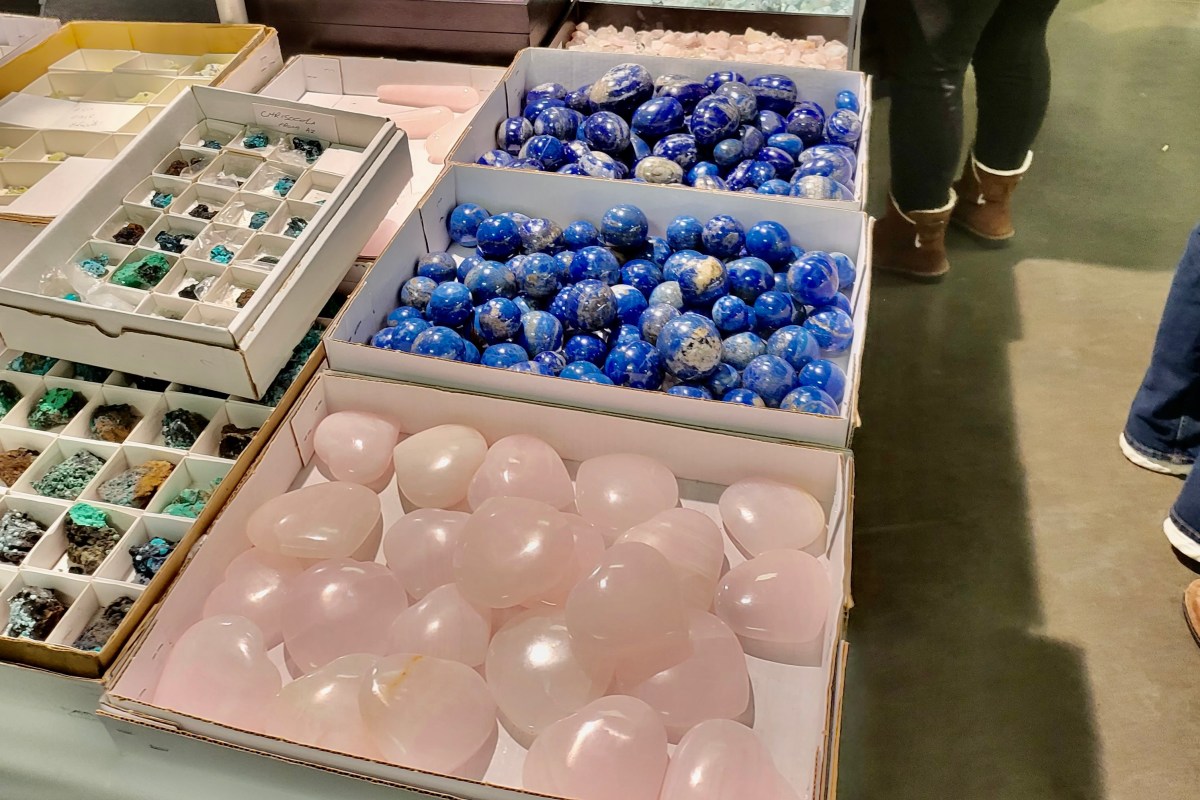
The semi-precious stones were also offered in almost every 3-D shape that comes to mind. Cubes, cylinders, pyramids, obelisks, and globes occupied a significant percentage of the table’s sufaces. I was shocked at some of the prices. I picked up what I though was probably a fifty-dollar, baseball sized blue sphere, that turned out to be six hundred. Others were less than I expected. A wide price range was represented, from a single dollar to thousands.

The vendors weren’t fond of photographs inside the show’s space, hence this post’s lack of them. Some of the minerals are light sensitive, some are rare and valuable. We saw gold in various forms. You could purchase Iridium, gallium, even small coins made from pressed depleted uranium, but people made faces when you pointed a camera at their stuff.

Out of all the fantastic items we saw, my absolute favorites were the fossils. There were some small four-legged impressions too, just no T-Rex. Unless you count the foam puppet a gentleman was entertaining the younger crowd members with.

Mr. Bones is fun for the kids

Allow RDS Shadowing without Domain Admin Rights

Microsoft’s Remote Desktop Services have taken center stage in the technology spotlight as of late. If your organization did not have an RDS platform before the work from home revolution, it probably does now.  The effort to build so many of them in such a short time reminded me of Y2K remeditation efforts.

The shadowing function built-in to RDS allows one remote user to view and interact with another’s session. A form of remote control. Starting with the 2012 edition, Microsoft made changes to the RDS role that required Domain Administrator rights to use shadowing.

The feature is quite popular with the help desk, training staff, and onboarding teams. Today’s need to help users with RDS desktops and remote apps is greater than ever. However, making that many people domain administrators is nightmare fuel for your average system admin.

As with many of the limitations found in Microsoft’s products, this one can be overcome, just not via the GUI controls. MS has a programmatic class and method to control these permissions named “Win32_TSPermissionsSetting AddAccount.” 

Unfortunately, this solution is not perfect. Shadowing a session still requires local administrator rights on the session host. Still, local admin rights on single systems is better than domain admin rights. So, create a group for your shadow users in AD, like “Domain\RDS Shadow”. Then, add that group to each session host’s local administrator group.

Once that is done, open an elevated CMD prompt on each session host. Special Note: normally you can run almost any CMD in a PowerShell console and it will execute correctly. This is one of the few cases where that is not true. It has to be CMD prompt, unless recent patches have changed the outcome.

In the CMD console run (replace Domain\RDS_Shadow with your domain and group names):

wmic /namespace:\root\CIMV2\TerminalServices PATH Win32_TSPermissionsSetting WHERE (TerminalName=”RDP-Tcp”) CALL AddAccount “Domain\RDS_Shadow”,2 

Now, users who are members of the RDS Shadow group will be able to RDP to a session host and shadow another person’s session.

The shadowing session can take a long time to initialize, and all you see is a black screen while the output stream is mirrored. Be patient; if you didn’t receive an error, it eventually works.

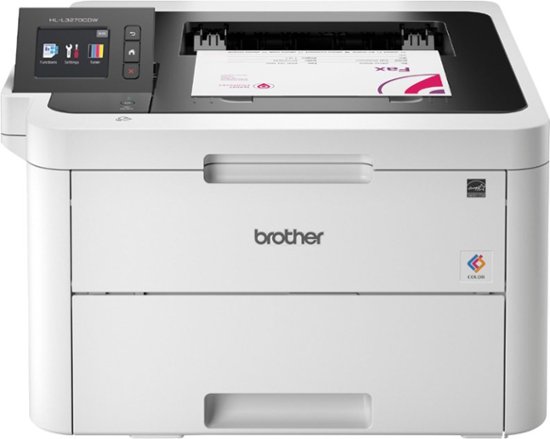
The Brother HL-L3270CDW. Toss the Ink and get a Color Laser Printer Instead

I have a challenging relationship with paper printers. They have been nothing but trouble for me throughout my career. They posess an uncanny ability to malfunction exactly when they are needed most and always in the most obscure ways.

Don’t get me wrong. The ability to bring a digital construct into the physical world in any form will always be astonishing. The machines we utilize to facilitate the physical output are often complicated, temperamental, and crucial to some aspect of their owner’s ambitions.

Printing my own photos still makes me smile. Right up until I remember how much that ink costs. My wife and kids print photos, artwork, and papers for school. How much was I spending on those annoying cartridges anyway?

Warning: Using your finance app to answer that question will not lead to warm fuzzies.

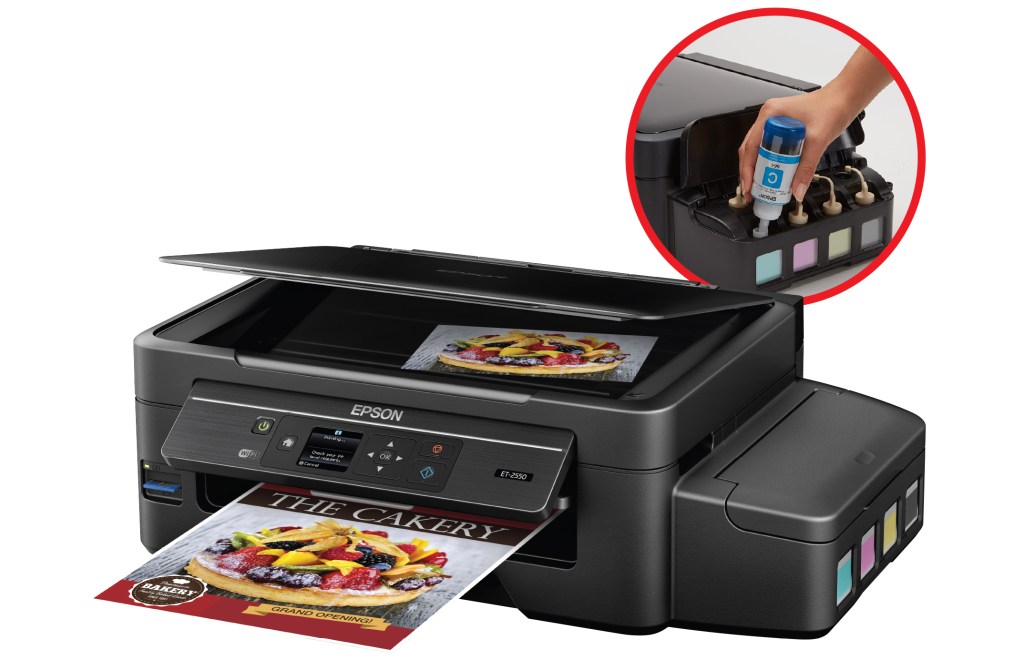
Not long ago, I was watching TV with the family and caught a commercial in which Shaq was pitching a printer with big ink tanks. Epson’s eco-tank series is pitched as holding more ink than cartridges and is supposed to be easily refillable.

Subconsciously, my mind recognized that something must be driving the one-hundred and eighty degree flop. Printer manufactures are notorious for their near total control of the little paint tubs. Going so far as RFID tagging them to prevent a third party from making competing cartridges. It didn’t take long for me to discover what had changed in the market.

Several color laser printers had hit the shelves with price points squarley in the inkjet’s territory. Thanks for the heads up, Epson. I was immediately ready to change. Average ink cartridges struggle to print 100 pages. Small toner cartridges will usually top 1000 pages.

Before you consider changing to a laser printer, there are some key differences to be aware of. Do your research. Inkjet printers typically produce more vibrant photo prints. Inkjets are also capable of printing on surfaces other than paper. CDs \ DVDs, T-Shirts, stickers, and more can be inked. LaserJet’s are stuck with plain old paper, card-stock if you push it.

That isn’t to say that color laser printers can’t print photographs. They do, and the results are fantastic. They just aren’t the glossy things most people think of as pictures.

Magic and other card games allow for proxy decks that you print at home. Each card is a work of art. Printing on our inkjet, we go through the cartridges about every one-hundred pages or so. So far, we have printed almost 300 of these pages, plus another forty pages of generic printing, and the toner status has barley dipped.

There are countless studies and debates about the cost per page of ink vs. toner, I have nothing to add. The Brother is available for $249.00 and will print around 1500 pages on the cartridges that come with it. At that price and for the type of printing I’m doing, I could purchase a new printer each time the toner ran out and would still come out ahead.

The Brother HL-L3270CDW supports wired and wireless networks, Apple and Android device printing, dual sided prints, and all the other modern features. It should be noted that it is only a printer, not an MFP.

If you find yourself blasting through ink cartridges faster than you can afford, check it out. We’ve been happy with the change.


PowerShell: List all non-system Service Accounts in A Windows Domain

During a recent security exercise, I needed to validate all of the admin created service accounts in use on a customer’s Windows domain. The only problem was the total lack of trust in the documentation. In order to check them, I would first have to find the service accounts across dozens of customer environments.

Surely Microsoft included a method to acquire the data I needed? I mean, it’s their recommendation to review the accounts in the first place. So, I’ll just fire up the domain service account console. Yeah, right, you are on your own.

Some of my co-workers had resorted to logging on to each server one at a time, but I had way too many for a manual search. Of all the skills that I have invested my time into learning, none have paid off like knowing PowerShell. Run the script below from a DC or system with the RSAT AD modules installed. Use a Domain Admin account in an elevated PowerShell console. It will find all of the Windows servers in the domain and list the services that are automatically starting with a named account.

$ErrorActionPreference = "SilentlyContinue"
 
Import-Module ActiveDirectory 

$domains = (Get-ADForest).domains
$dcs = Foreach ($domain in $domains) {
    Get-ADDomainController -DomainName $domain -Discover -Service PrimaryDC
}
$servers = Foreach ($dc in $dcs) {
    Get-ADComputer -Properties * -Filter {(OperatingSystem -like "*Windows Server*")}| Select-Object DNSHostName -ExpandProperty DNSHostName
}

Foreach ($Server in $Servers) { 
    Get-WmiObject -Class win32_service -ComputerName $Server -Property SystemName, Name, StartMode, StartName, State | 
    Select-Object SystemName, Name, StartMode, StartName, State | 
    Where-Object {($_.startmode -like "auto") -and ($_.startname -NotLike "*NT Auth*") -and ($_.startname -Notlike "*Local*") -and ($_.startname -Notlike $null)} |
    Format-Table -AutoSize
}

Trouble landing a GPU? Go fish for a CPU instead.

My main gaming rig, the “Elder-Wand,” has been struggling to maintain 120 FPS at 4K in several triple A titles as of late. I’ve been holding off on upgrades while waiting for the GPU mess to sort itself out. After more than a year of waiting, I’ve decided to change tactics.

Running the benchmark utilities built into games like Tomb Raider, Gears of War, and Borderlands revealed interesting  data. The Kaby Lake CPU and 270Z chipset were  bigger bottlenecks than my 2080 Ti. Time to overhaul the old girl. After consideration and research, I decided to go with an Alder Lake i-7 and a few accessories.

While choosing the motherboard, I opted for keeping my DDR4 memory and existing nVME storage. Instead of upgrading those components, I would upgrade the cooling system to better support overclocking the graphics card. I felt like it was the best strategy to obtain the most performance I could out of the system. I chose a Lian Li Galahad 360 AIO CPU cooler and their UNI Fan SL case fans.

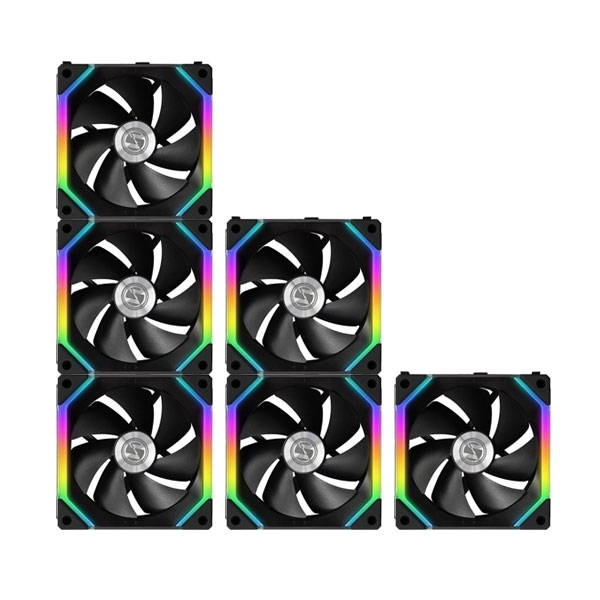
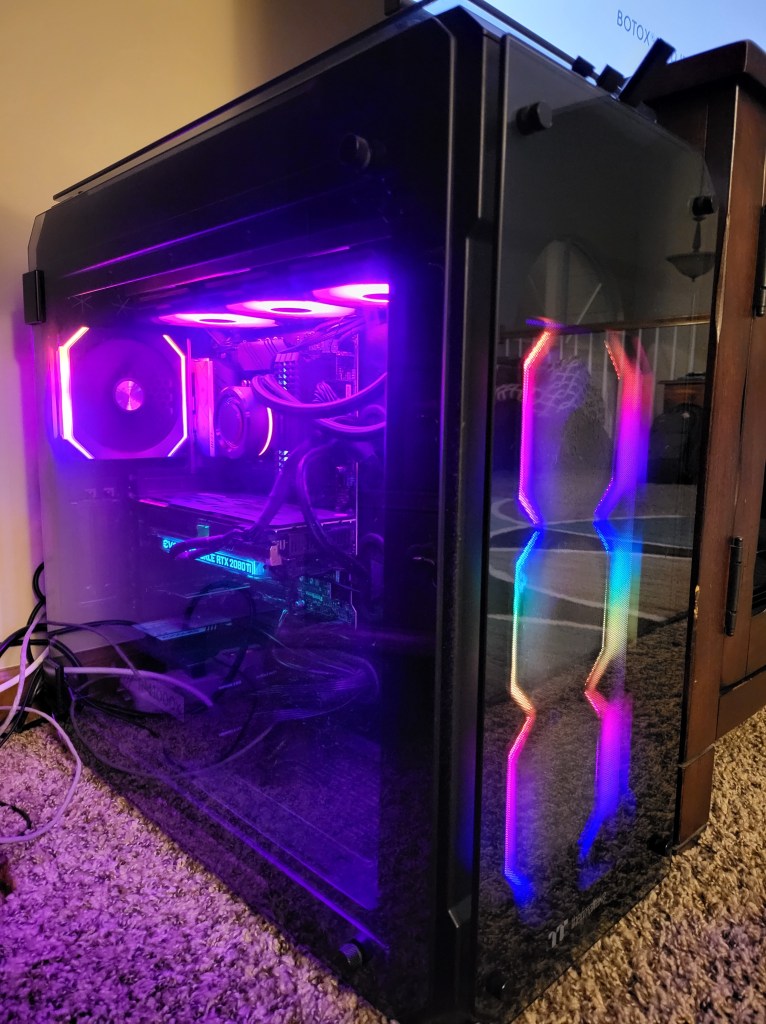
One major reason for choosing the Lian Li equipment was the need to find an in-stock CPU cooler that fits the new Alder Lake 1700 socket. The other is their innovative modular linking solution. UNI fans lock together and form a single controllable stack both in terms of the blade/motor control and lighting. Each stack of fans takes a single set of connectors (PMW/RGB) on the motherboard. The effect is striking and looks fantastic sitting next to the home theatre set up. My favorite pre-programmed pattern is the dripping rainbow. It reminds me of the Lava lamp from my childhood bedroom.

The installation of the new equipment was pretty straightforward. I was caught off-gard by how much pressure you have to apply to the CPU retainer’s handle on the new socket to lock it in place. I made it through the always nerve-wracking first boot with no issues. Windows 10 detected the new hardware on its own.

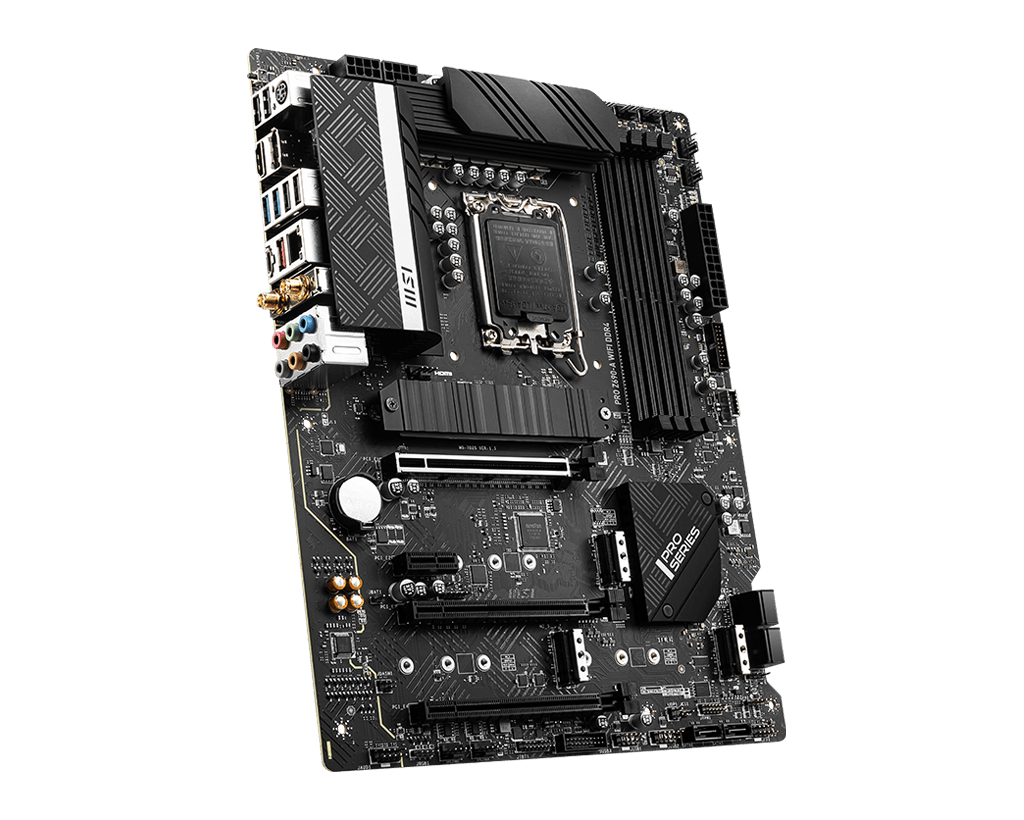
The motherboard I replaced was an MSI. I had stuck with the brand when I picked the PRO Z690-A WIFI DDR4. I had hopes of having an easier time with the software. It paid off! The MSI Center detected the new model, and Live Update took care of the rest. The Lian Li cooling system said it was compatible with MSI’s control software, and it is. Once I installed LConnect, MSI Center offerrered to control the cooling and lighting. I agreed.

So now the moment of truth had come. I had spent around $1000.00 and an entire day off on this little upgrade experiment. Was it worth it? The first thing I ran was Destiny 2. I went into the settings and pushed everything to the max. Before the upgrade, I averaged 😯 FPS; now, I was running at 100. I ended the game and used my GPU’s control app to boost the power, cooling, and clock cycles up by about 30%.
The AIO block removes most of the CPU exhaust heat from the case’s interior. The inside of the case is much cooler and hovers at 35°. The extra capacity allows me to overclock as long as I watch my telemetry. It took a while to get everything tuned, but eventually, I got the FPS average up to the 120 goal. Fantastic results if you ask me.

My Experience with Installing Windows 11 On Stuff

In the beginning, there was so much confusion around Microsoft’s new OS requirements that even many professionals had to tune out the noise. Now that 11 has actually landed, the requirements aren’t too difficult to grasp, right? TPM 2.0 and an eighth gen or newer CPU are the big ones.

If you are okay with accepting some risk, then you can bend the rules and load the new version on pretty much anything. Side doors are always an intriguing option for inquisitive people. They almost always come with some grave side effects, and Microsoft doesn’t disappoint.
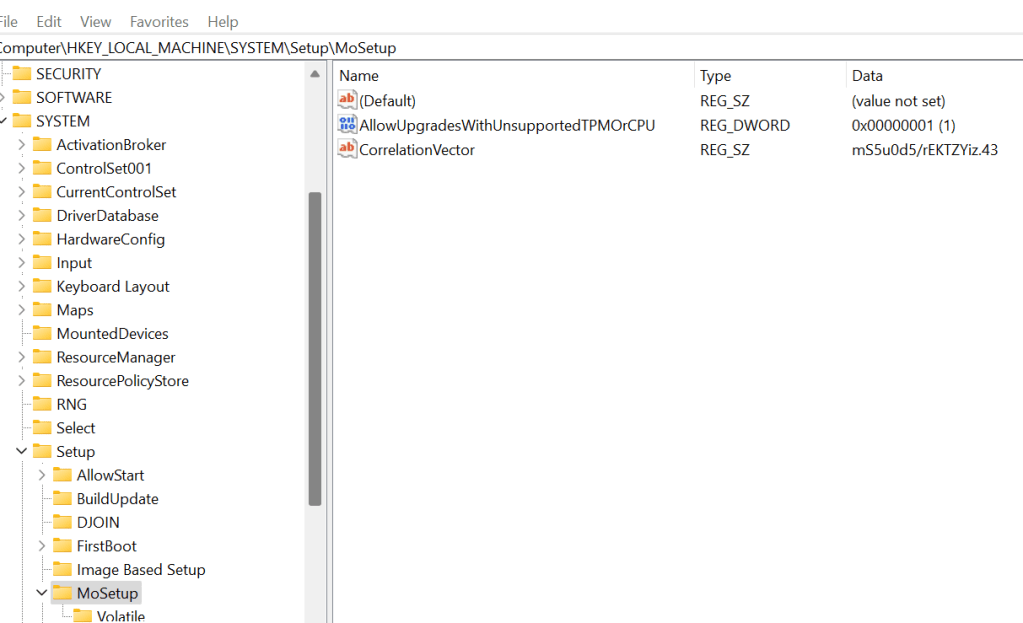
If you edit the registry of most computers from the Windows 7 era (already running 10), the TPM and CPU checks can be bypassed. This allows the Windows 11 upgrade to be intiatied by mounting the ISO and running setup. You will be accepting an agreement that states you are proceeding at your own peril and that future updates may be withheld. I followed The Verge’s three step guide the first time: read it @ https://www.theverge.com/22715331/how-to-install-windows-11-unsupported-cpu-intel-amd-registry-regedit

Tip: if the key/folder doesn’t exist, then just create it yourself.

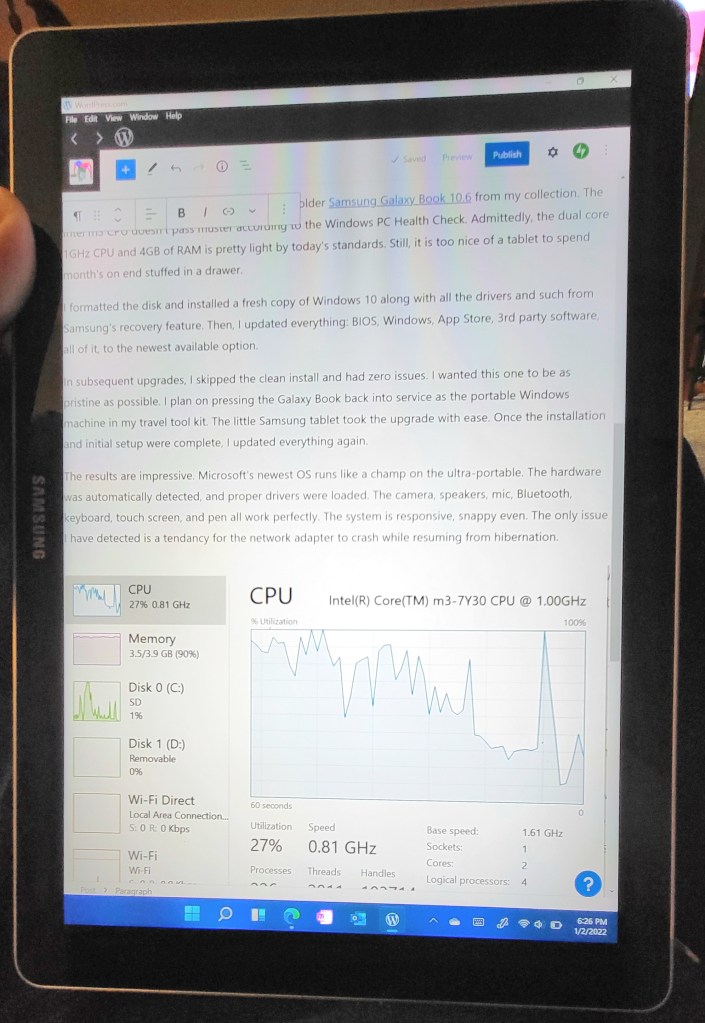
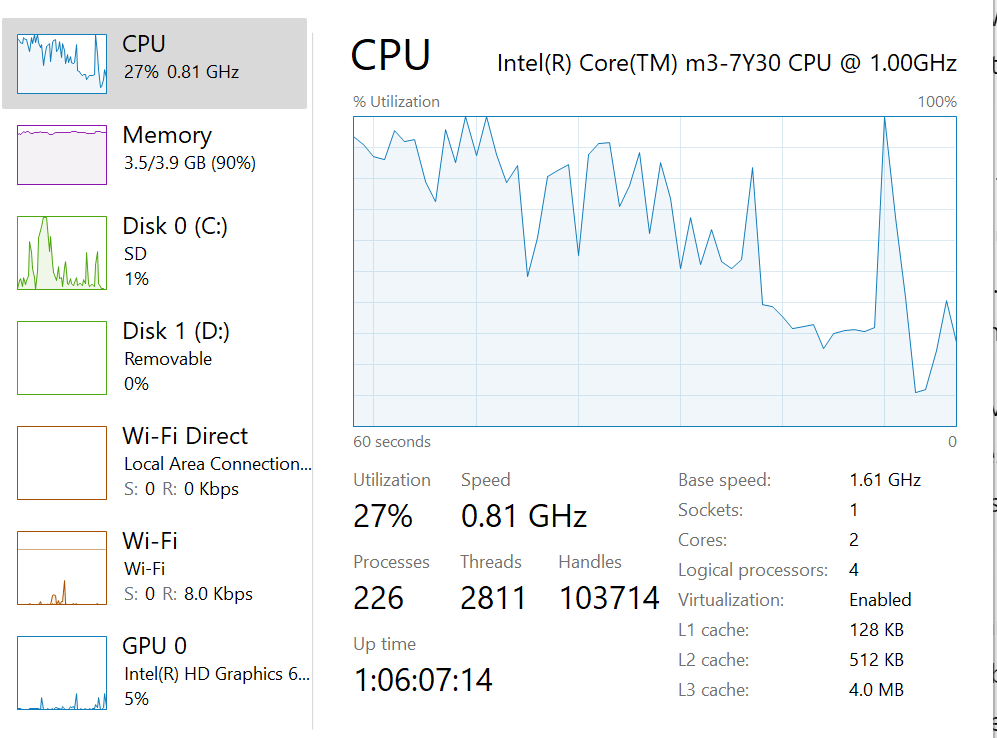
The first thing I used the technique on was an older Samsung Galaxy Book 10.6. The Intel m3 CPU doesn’t pass muster according to the Windows PC Health Check. Admittedly, the dual core 1GHz CPU and 4GB of RAM are pretty light by today’s standards. 

I formatted the disk and installed a fresh copy of Windows 10 along with all the drivers and such from Samsung’s recovery feature. Then, I updated everything: BIOS, Windows, App Store, 3rd party software, all of it, to the newest available option.

In subsequent upgrades, I skipped the clean install and had zero issues. I wanted this one to be as pristine as possible. I plan on pressing the Galaxy Book back into service as the portable Windows machine in my travel tool kit. The little Samsung tablet took the upgrade with ease. Once the installation and initial setup were complete, I updated everything again.
The results are impressive. Microsoft’s newest OS runs like a champ on the ultra-portable. The hardware was automatically detected, and proper drivers were loaded. The camera, speakers, mic, Bluetooth, keyboard, touch screen, and pen all work perfectly. The system is responsive, snappy even. The only issue I have detected is a tendancy for the network adapter to crash while resuming from hibernation.

I proceeded to upgrade a Dell G3 laptop, Lenovo gaming laptop, an HP Elite Book, a Dell Venue tablet, a Surface 3,  Surface Go, Surface Go 2, Surface Book 2, and multiple custom built gaming desktop systems of both Intel and AMD architectures. In all of that, the network resume glitch is the only issue I have personally encountered.

Here’s the thing: I have encountered that glitch on three different systems. Both wireless and wired nics have been affected. I’ve tried everything I know but have not been able to resolve the problem without resorting to disabling hibernation. Incidentally, disabling the network adapter in the device manager and then turning it back can sometimes help.

Given how draconian Microsoft has been in the media about the requirements, I was pleasantly surprised. My experience to date has been that any system or software compatible with Windows 10 is also compatible with Windows 11. Or, at least, it can be if you are willing to jump through Microsoft’s hoops.

The Best One is the 6th Gen iPad Mini

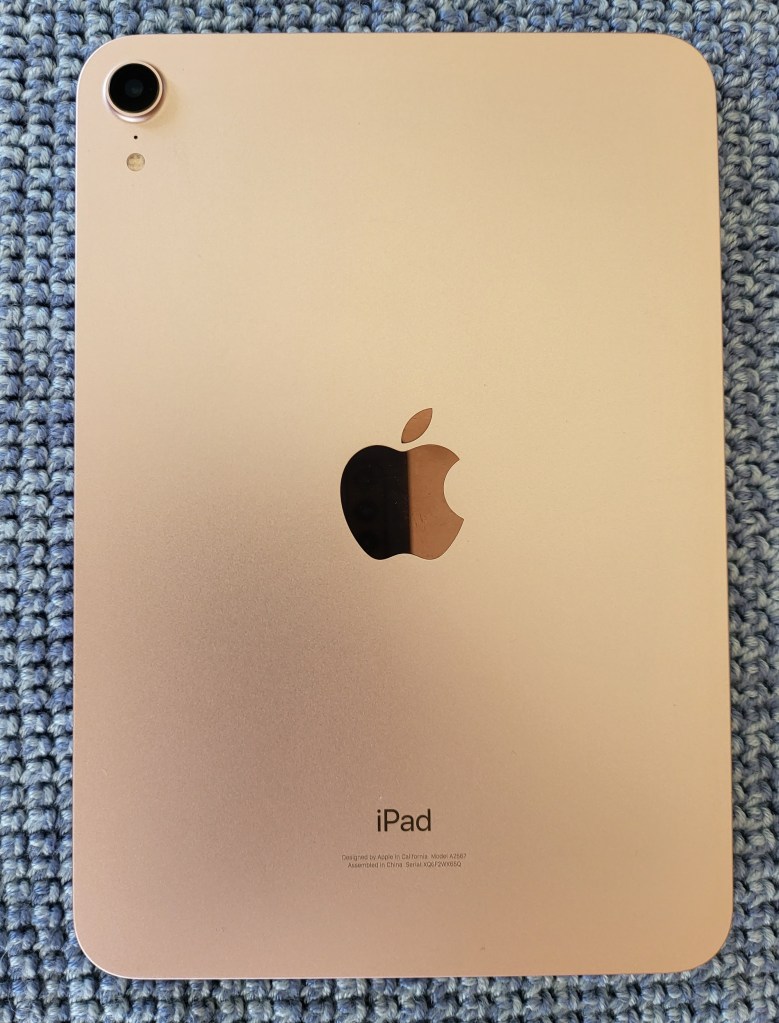
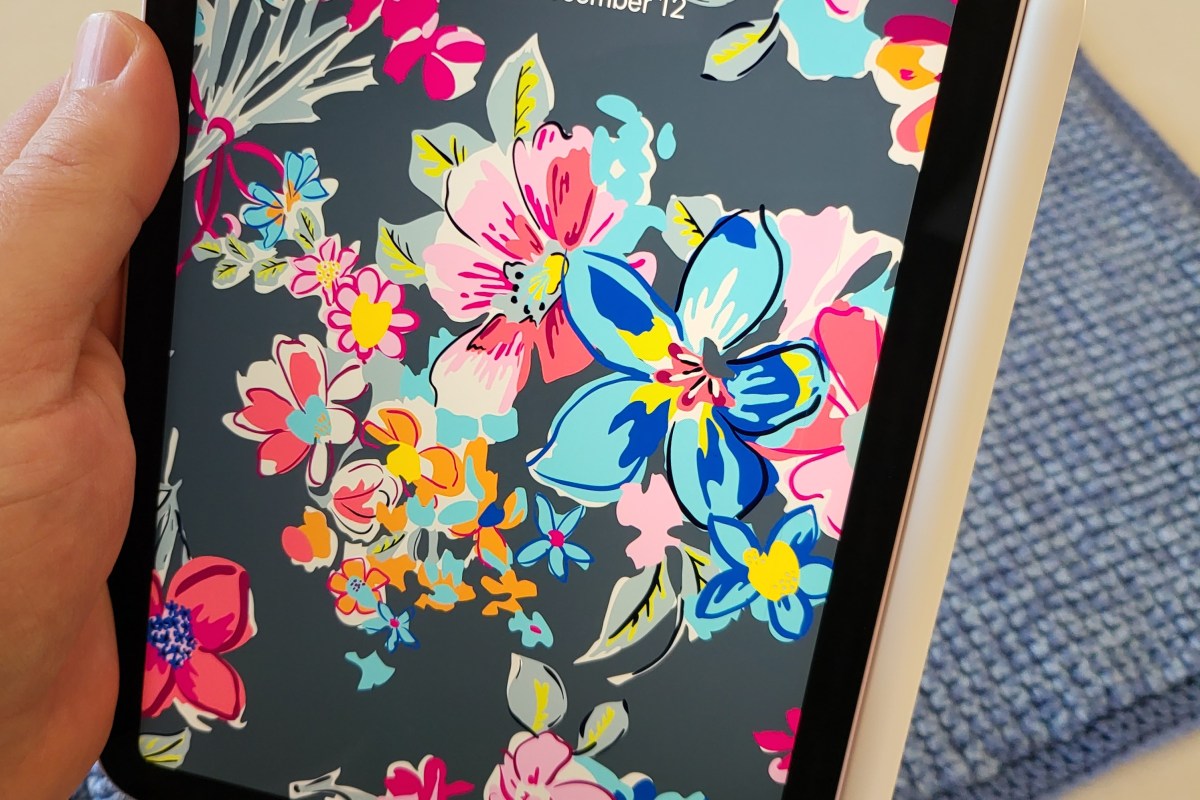
An iPad Mini is the lesser-known middle sibling that sits between a full-size tablet and a phone. The diminutive tablet is often skipped over in Apple’s upgrade cycles. Not this time though. The new Mini has been completely redesigned and the results are spectacular. 

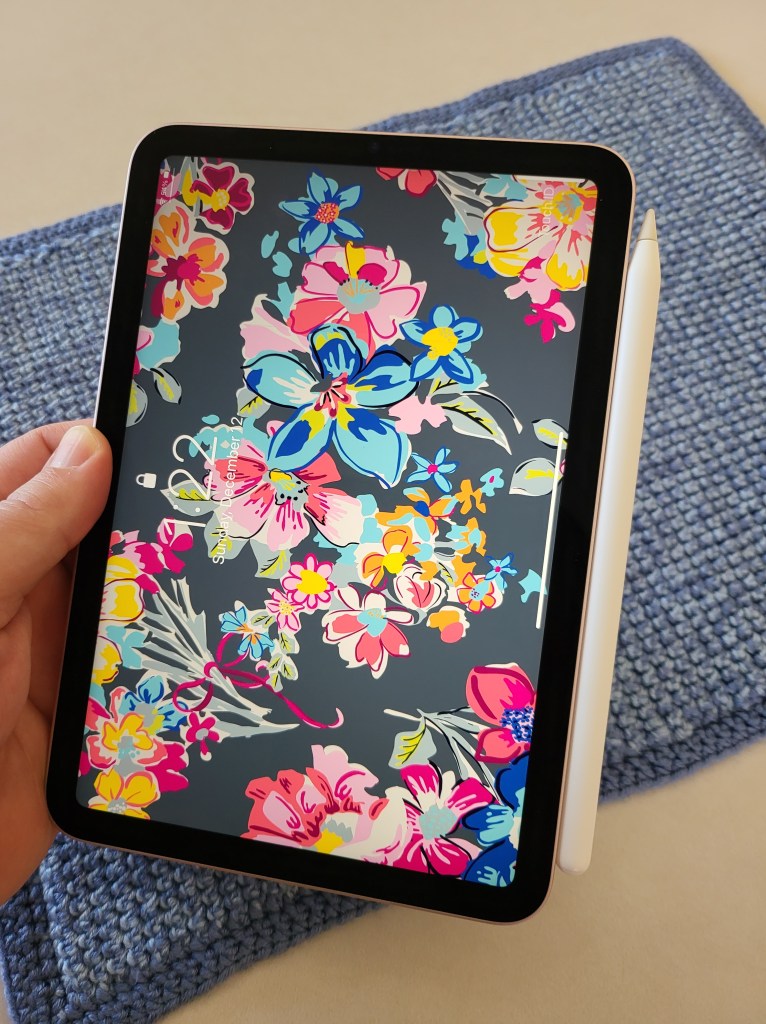
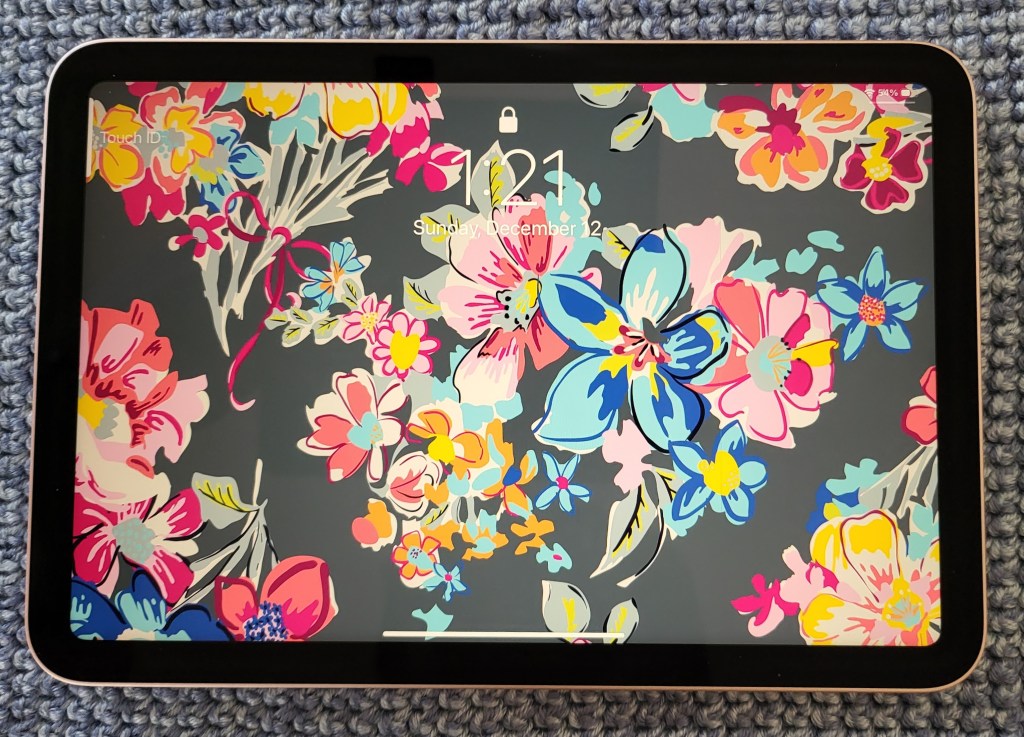
First up on the long list of upgrades is the screen.  Apple reduced the size of the bezels and rounded their corners which drastically updates the look of the tablet. The 8.3-inch screen is larger but doesn’t consume any more physical space. HDR and 327 pixels per inch mean everything is bright and crisp. Gamers will be disappointed with the 60 FPS limit.

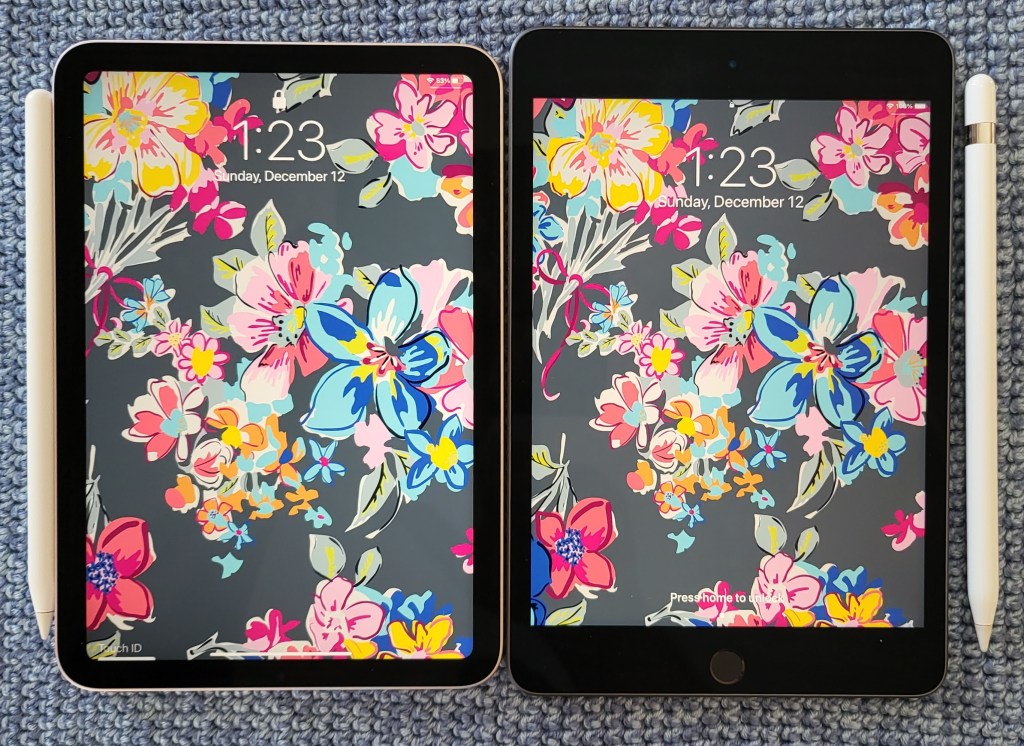
The 6th gen screen is considerably larger than the 5th’s despite the tablet itself being smaller. 

For the last year my spouse has needed to keep track of two Apple pencils. The iPad Mini line picked up support for the stylus a generation back, butter for the proverbial sliced bread. In true Apple, “milk it for all its worth” form, support was only for the first gen tool, even though the second gen stylus was available. This time around, you can use the new magnetic pencil and it sticks right on the side like it should. For writing on a screen, it is hard to beat the experience of a fast tablet that weighs just over half-a-pound.

The 6th Gen iPad Mini delivers one of the best digital writing experiences you can have on any device.

Speaking of fast, the A15 chip is impressive. With Wi-Fi 6 and optional 5G LTE hoovering up the net’s charms at up to 1.2 gigabits per second, you need a CPU / GPU combo that can keep up. The A15 is more than up for the task. Even split screen multi-tasking with a game and a video doesn’t cause it to lag.  Only the screen’s slower refresh rate will keep the hardcore mobile gaming community from flocking to this system.

Add a ten-hour battery, Touch ID, a 12 MP camera, stereo speakers, almost every aspect of the Mini has been upgraded to the most modern technology available (except for that refresh rate). Out of the entire Apple line up, this Mini is my personal favorite. It delivers all of Apple’s magic in the largest visual, best sounding, comfortably handheld, experience possible.

A Note Lover Switches to The Galaxy Z Fold 3 5G

I have owned almost every model of Galaxy Note phone and written extensively about them. If you have read many of my other posts then you know of my appreciation for writing with digital pens. The Note and I were a match made in Heaven. Taking Samsung’s S-pen support bait and moving to the Fold 3 was not a decision I made lightly.

My chief concerns were the lack of internal storage for the stylus and the fragility of the device in general. I’m sure Samsung had to decide between launching the 3 now, or waiting for the engineers to solve the problem. The question is does the folding screen make up for the lack of a garage?

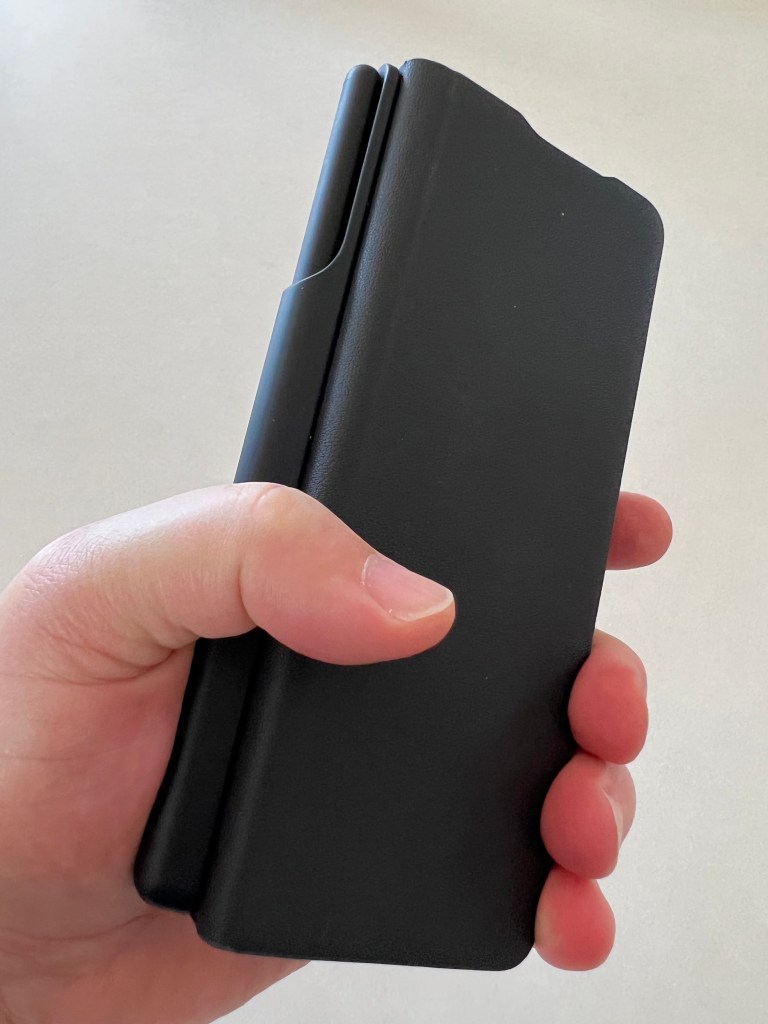
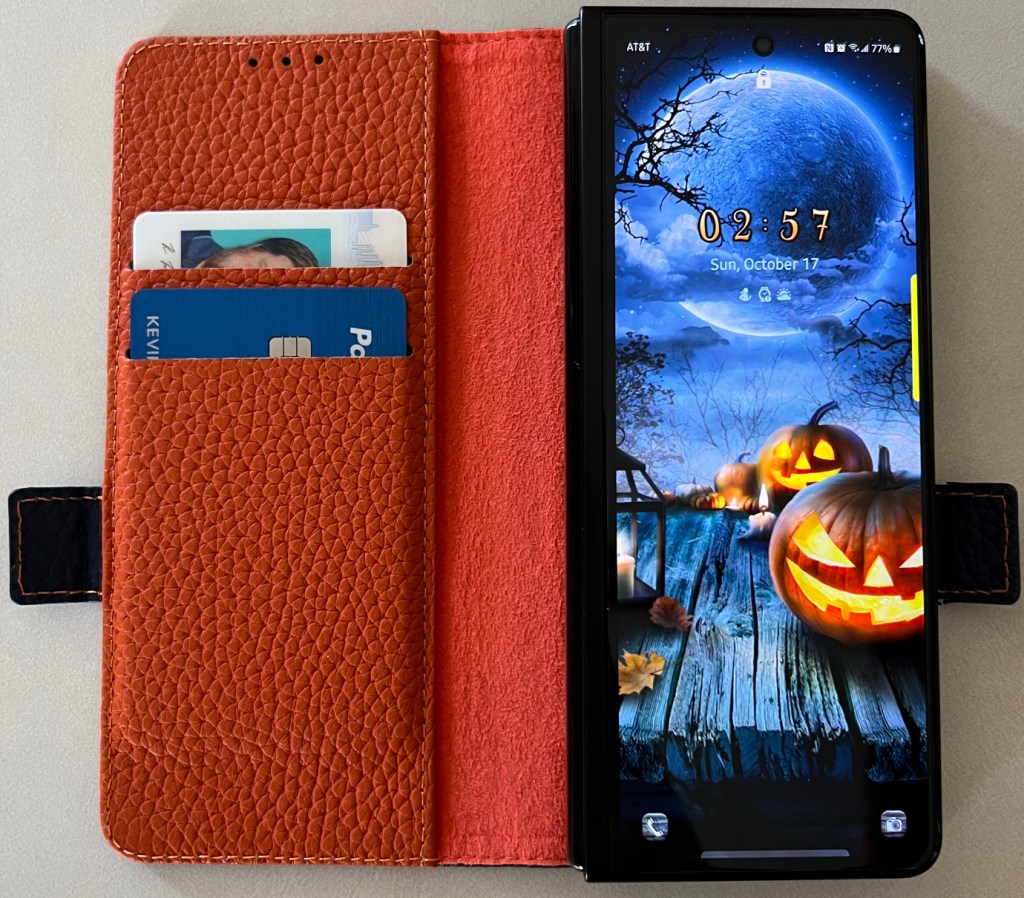
I opted for the S-Pen and flip case combo. The case is fine, not the best and not the worst. It fits the device well, offers some protection, and feels good in your hand. I replaced it with a wallet and kickstand model that I found on Amazon. Reports are that units are moving well. Expect a decent third party accessories market to be available.  Watch for a future post on the accessories I have been using with my Fold 3.

The official Samsung S-Pen Case Combo gets the job done. 
This wallet case has been my daily driver. 

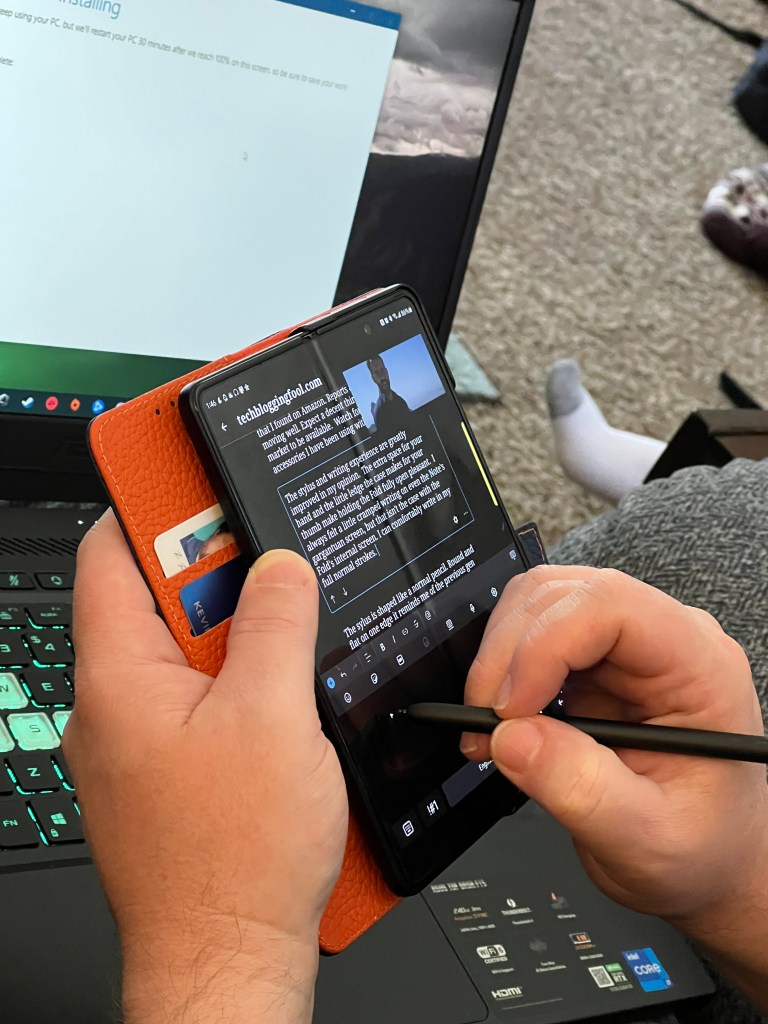
The stylus and writing experience are greatly improved in my opinion.  The extra space for your hand and the little ledge the case makes for your thumb, make holding the Fold fully open a pleasant experience.  I always felt a little cramped writing on even the Note’s gargantuan screen, but that isn’t the case with the Fold’s internal screen. I can comfortably write in my full normal strokes.

Writing this post and watching a Netflix movie at the same time is no sweat for the Fold 3.

The sylus is shaped like a normal pencil. Round and flat on one edge it reminds me of the previous gen Surface Pro pen. The single button is on the flat edge, the stylus is light and more comfortable to hold than the Note’s is.

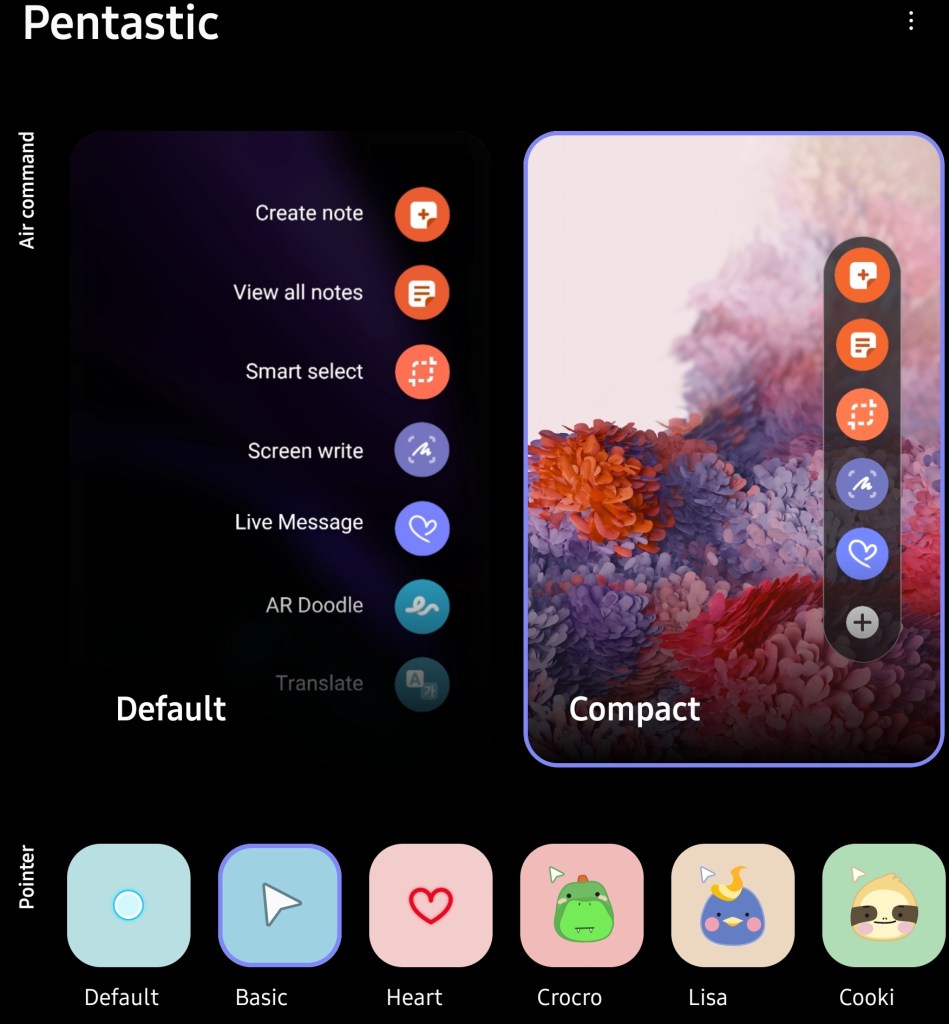
The writing experience can be more customized than I had expected. You can control which keyboard is presented in which screen mode. “S-Pen to text” allows you to fill out on-screen forms with your handwriting. There is also a free app to change the shape of the hover icon and the sound your S-pen makes among other tweaks. I’m not quite sure why the apps aren’t pre-installed, probably an effort to get you to use the Samsung app store.

Apps in the Samsung store fine tune the writing experience.

I have always really enjoyed using the Apple Pencil on my wife’s iPad Mini. The size and weight of the screen are perfect to hold and write on. The Fold 3 and S-Pen are actually a little better than that. So the answer to my question is, “yes”. From my point of view, the screen makes up for the lack of a garage. I personally wouldn’t have wanted to wait another year for this device.

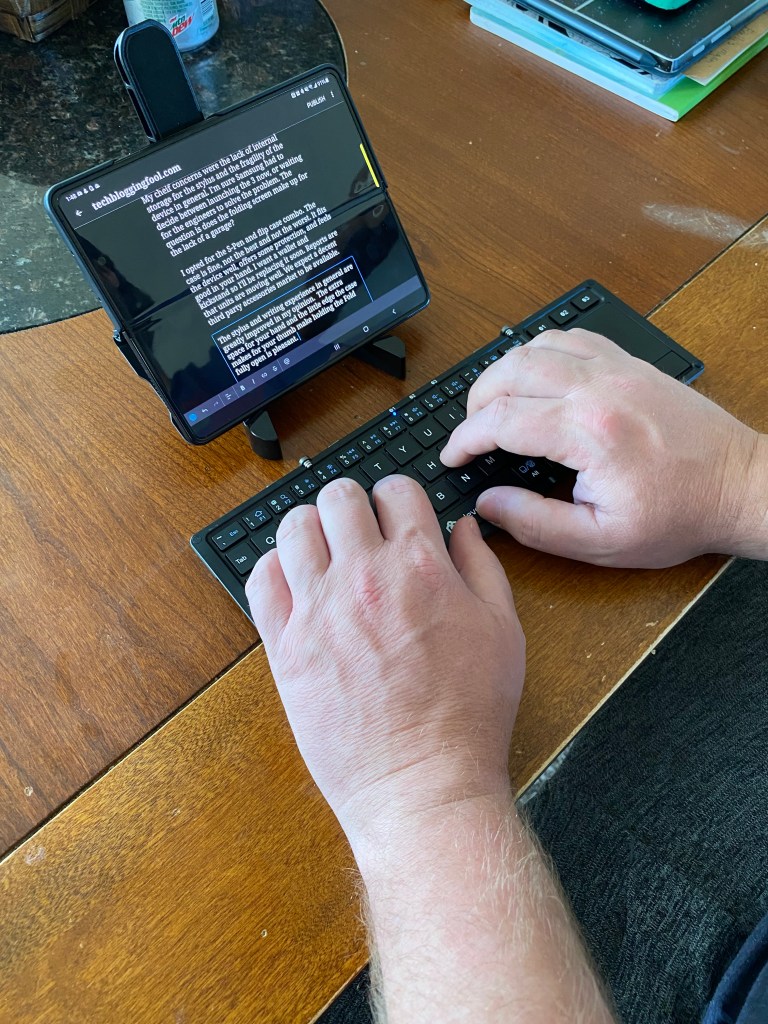
When paired with a folding keyboard and touchpad, the result is a full office that fits in your pocket. I have challenged myself as an IT professional to work soley from this platform. I’ve witten numerous documents, worked on Excel and Word at the same time, and had a whiteboard Zoom session from just what was in my pockets and nobody noticed. 

A foldable Bluetooth keyboard and touchpad boosts productivity.

When combined with my Jabra headphones and the keyboard, the Fold 3 is everything I need to work. The hi-res screen and extra space let me run two apps at once without issue. The mobile versions of apps have come a long way and the Internet’s conversion to HTML5 means most sites and web tools work well.

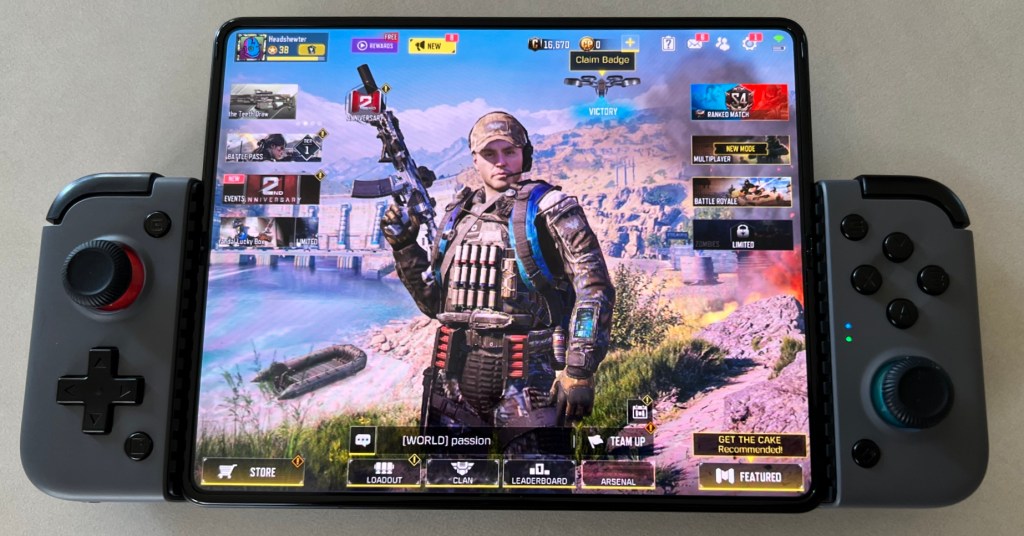
Gaming on the Fold’s screen is just amazing. The big screen running at a full 120Hz is stunning. Playing CoD mobile or running an Xbox Game Pass game with a controller is hands down the best mobile gaming experience to be had.

The Gamesir X2 Bluetooth Edition turns the Fold 3 into a portable gaming beast.

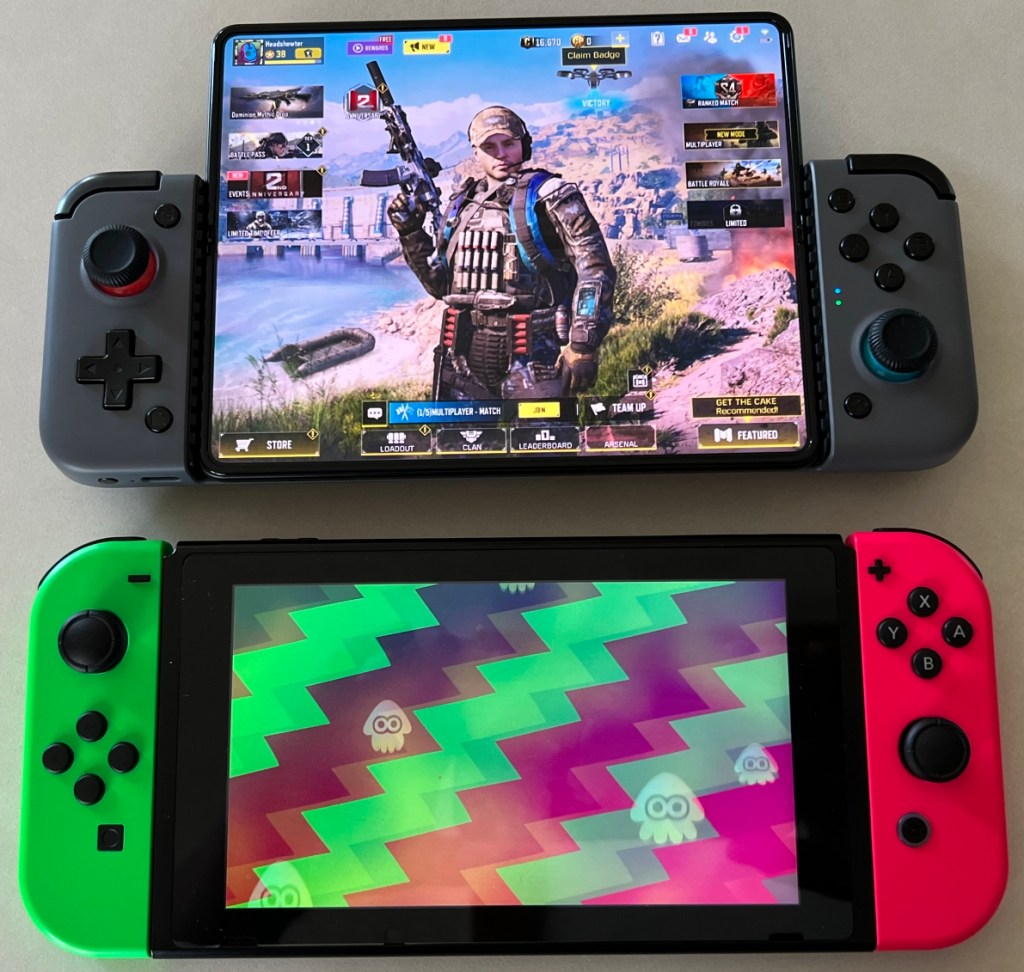
The screen is larger than even the new OLED Switch. The color, brightness, and 120Hz refresh are fantastic. With twelve gigabytes of RAM and the fastest Snapdragon yet, games play smooth and look epic.

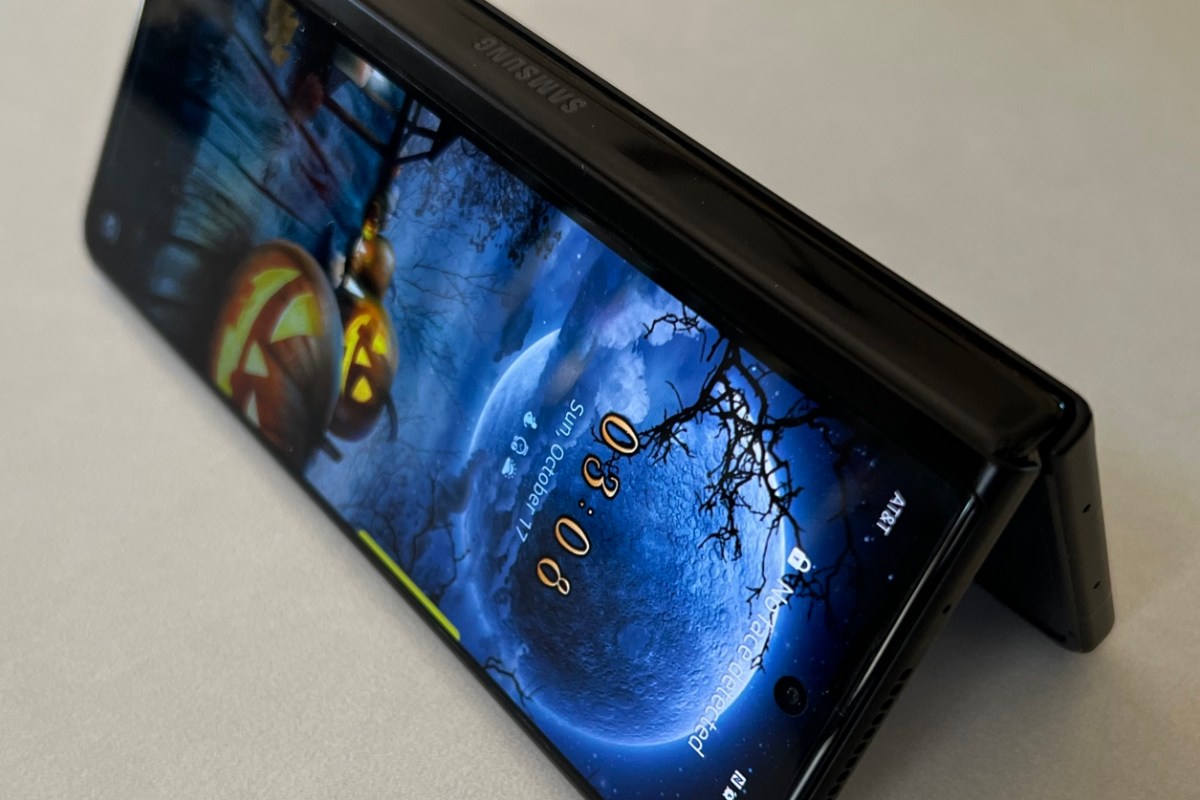
The screen is tailor made for games.

I’ve intentionalley given the Fold 3 no special quarter. It is stuffed in my pocket, mounted to the dash in my truck, tossed on my desk, and otherwise treated like my Phone. I’ve folded and unfolded the screen countless times and it shows zero signs of wear. I feel like the third generation of Samsung’s foldables have hit the everyday durability mark.

I’ve been very pleased with my decision. The Galaxy Fold 3 is spectacular. As with all technology, there is room for evolution and future innovation, but the age of folding screens has arrived.

Get Started 3D Laser Printing with a K40

The 3D printers we have all become familiar with over the last ten years use an additive process to create objects from digital maps. The X,Y,Z mechanisms contained within their erector set frames, lay rows of molten plastic one on top of the other to build up structures millimeter by millimeter. They are fantastic machines that continue to amaze with their ability to bring items from our imagination into the physical world.

3D Printers stack layers of plastic to create complex shapes

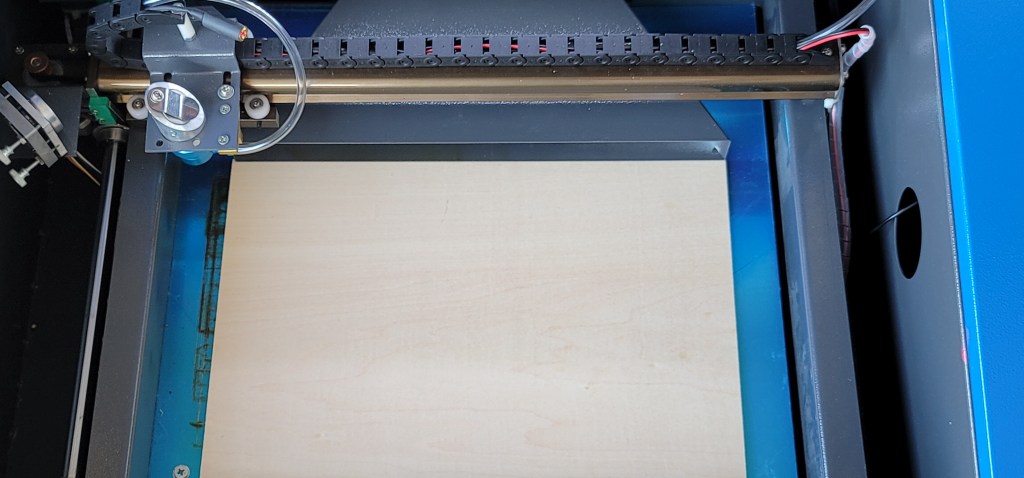
The inverse of additive manufacturing is subtractive. Material is removed to create structures. Think of whittling a stick into a spear.  3D laser printers use X,Y,Z mechanisms similar to those found in 3D printers to burn or cut shapes from various materials.

You may have seen a commercial for a machine named the “Glowforge”. That device is the top-shelf of at home laser cutting and engraving systems. As with most tech gear, there are lower priced alternatives that lack some of the creature comforts, but still get the job done. Research on the topic revealed the need to focus on a powerful laser, as close to 40w as possible. Dealing with that much heat and smoke requires generous cooling and ventilation systems and a large enough power supply to keep the electrons flowing.

3D Laser printers use similar machinery

It may look like something out of a 1950’s space serial, but the OMTech 40W CO2 Laser Engraver Cutter has everything a hobbyist or semi-pro might need. This is one of the many names attached to the ever growing family of K40 devices that many use as their vehicle to enter the 3D Laser printing community. 

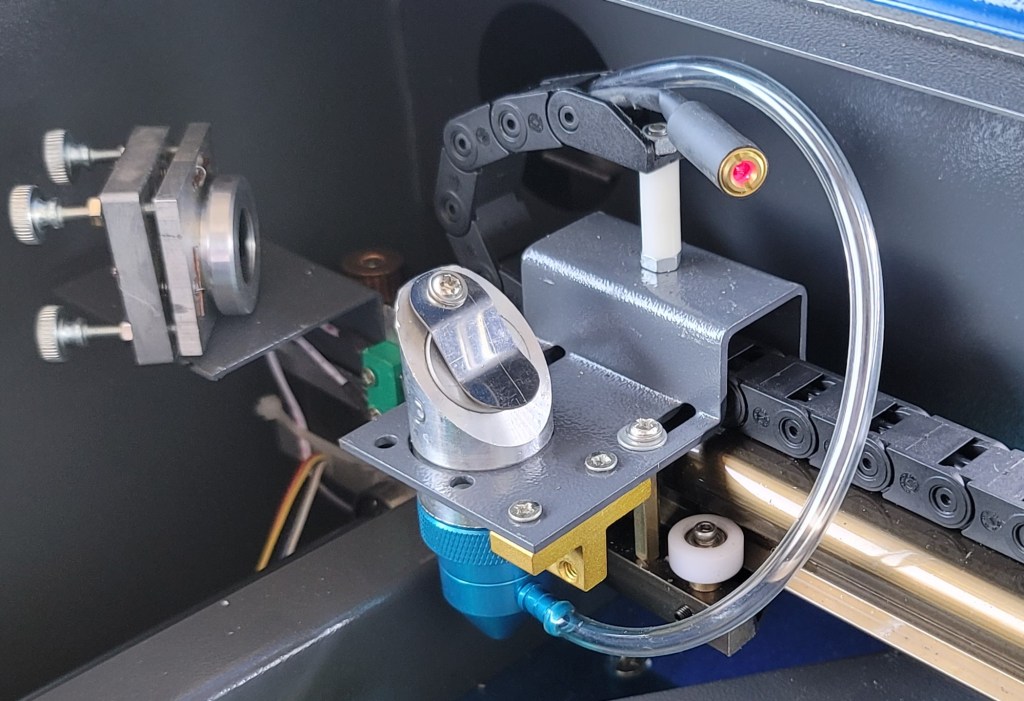
In true DIY fashion there are also numerous add-ons and modifications to upgrade nearly every piece and function of the K40 with. One of the first mods new owners go for is to add an air pump (aquarium pump), some hose, and a nozzle to create a blower that pushes ablated material out of the way for the next pass.

You can see the clear air tube and custom nozzle that have been added to this machine’s laser unit

Out of the box, good K40 units like the OMTech are ready to go for introductory use. They are serious pieces of equipment, the laser is powerful enough to cause harm. If you are pondering getting one of your own, consider that these machines are burning various materials, some make noxious smoke. Therefore your setup will require good air flow. I recommend that you download and read the manual before making a purchase.

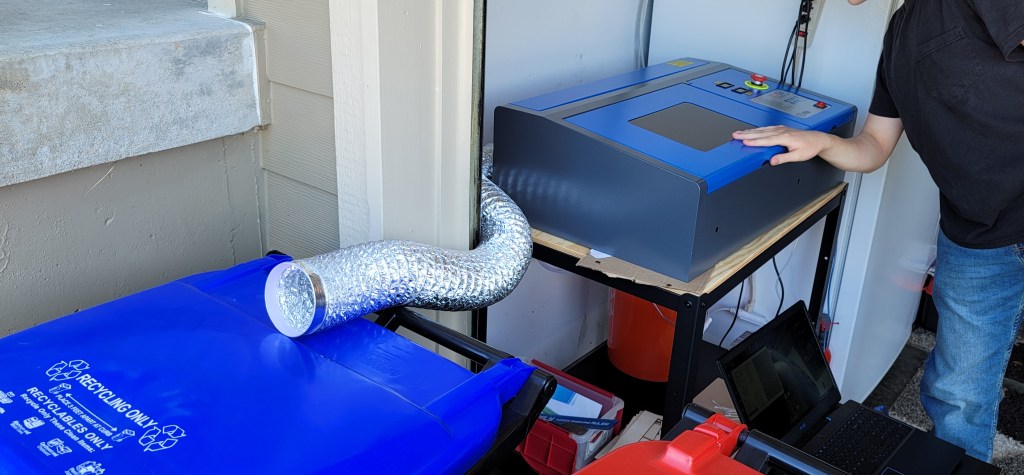
3D Laser printers need good ventilation a lot of space

As for the smoke thing, our K40  is on a kart we picked up at IKEA that can be wheeled out to work in the driveway. The unit has a built in exhaust fan and uses the same type of flexible exhaust tube that a clothes dryer does. On cold or rainy days we wheel the kart close to the garage door and open it just enough to pass the exhaust tube through. I would not try to put a unit like this in a living space. The amount of smoke it makes can be substantial and occasionally overwhelms the exhaust system.

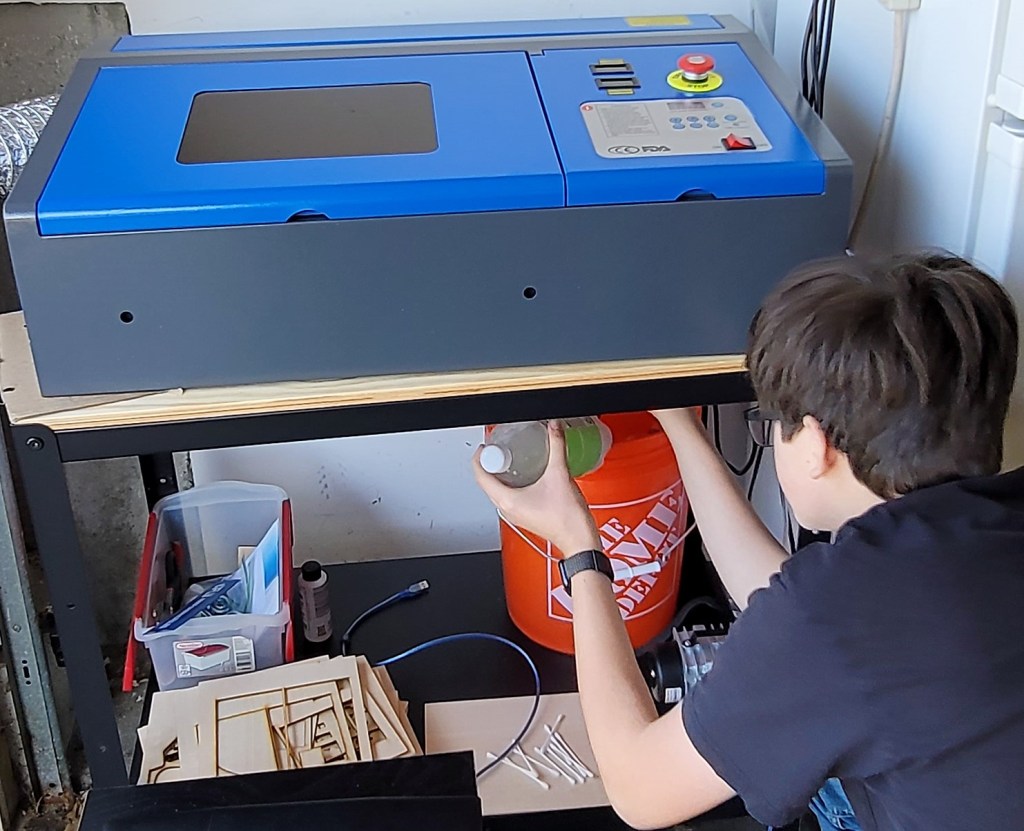
If you fail to keep the glass tube, in which the laser generator is encapsulated, cool enough, it will crack and ruin your expensive machine. Good kits include a water pump, tubing, and  temperature sensors to prevent over-heating. You will need to supply a five gallon bucket with a couple of holes drilled in the lid. Pass the tubes through the holes, put the pump in the bottom of the bucket along with the water-temp probe,  fill the contraption with three gallons of distilled water.

Distilled water is important to prevent mineral deposits from building up on the laser. If the area you work in is warm you will find that you can’t burn long before the water reaches the recommended max temp. Fill a couple of one-liter pop bottles to 75% and drop them in your freezer. Add them to the water bucket to keep things cool. The water will need to be changed on a regular basis to keep it as free from contaminants as possible. Don’t make the rookie mistake of putting your cooling bucket out of easy reach.

1-liter bottles of frozen water keep the laser cool for longer sessions

There is also the software to consider. What good is your fancy laser cutter if you can’t process your designs and images into instructions that your rig can follow? There are a lot of application choices out there, but the K40 crowd leans toward a combination of two open source titles Inkscape and K40 Whisperer. Since you’ll be googling your way through the first few burns, it makes sense to follow suit and use the same packages the bloggers do. Life is just easier when we all use the same software.

If you are new to laser 3d printing, expect to spend a couple of days getting the machine setup the first time. You have to unpack and remove the tape from your laser. Get the unit setup on a kart, which takes several hours to assemble itself. Drill two holes through the lid of a clean 5 gallon bucket to put your cooling pump in. Fill the bucket with your pump, 3 gallons of distilled water, and an ice bottle to keep it cool. Test the mirror alignment by following the instructions that came with your laser. Run the temperature probes and connect them to the controller.  Install the two software packages to your laptop and find the USB link cable.

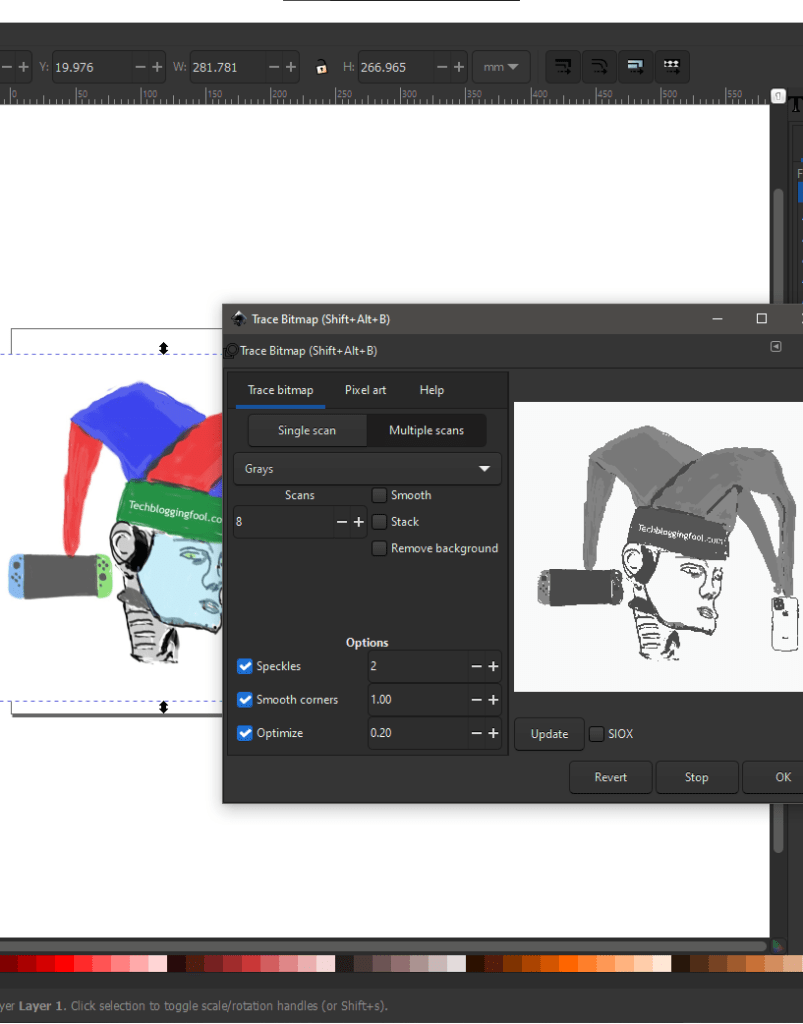
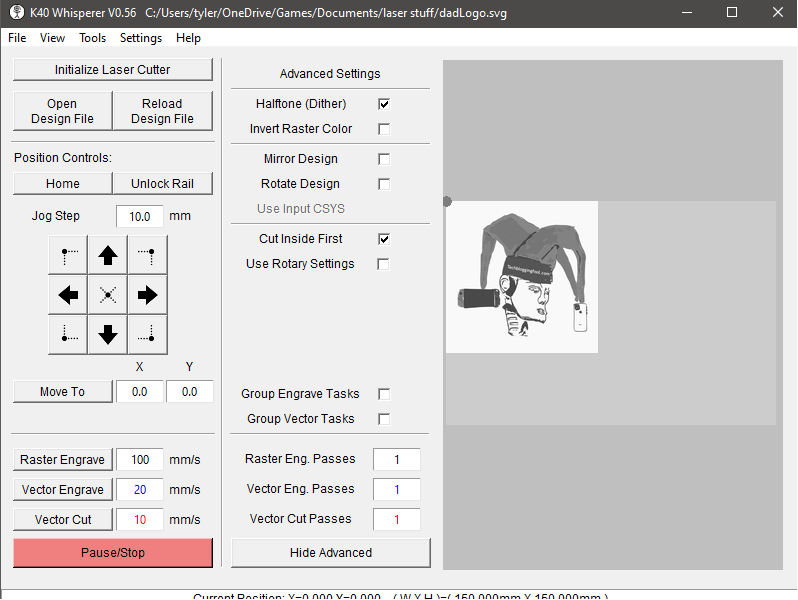
Any digital image can be laser 3D printed onto almost any surface that will fit on the unit’s target platform. The file is opened in Inkscape and converted (saved as) a vector-based file. The vector file is fed to K40 Whisperer which translates the picture into instructions that are transmitted to the controller.

Converting the image into a vector graphic is the first step

Setting the machine’s power and speed is an artform that takes a lot of practice to master. Use low power and speed settings when starting out. You can find guides for most types of projects online. Youtube is an excellent source of knowledge on the topic.

K40 Whisperer sends the image to the printer as a series of instructions

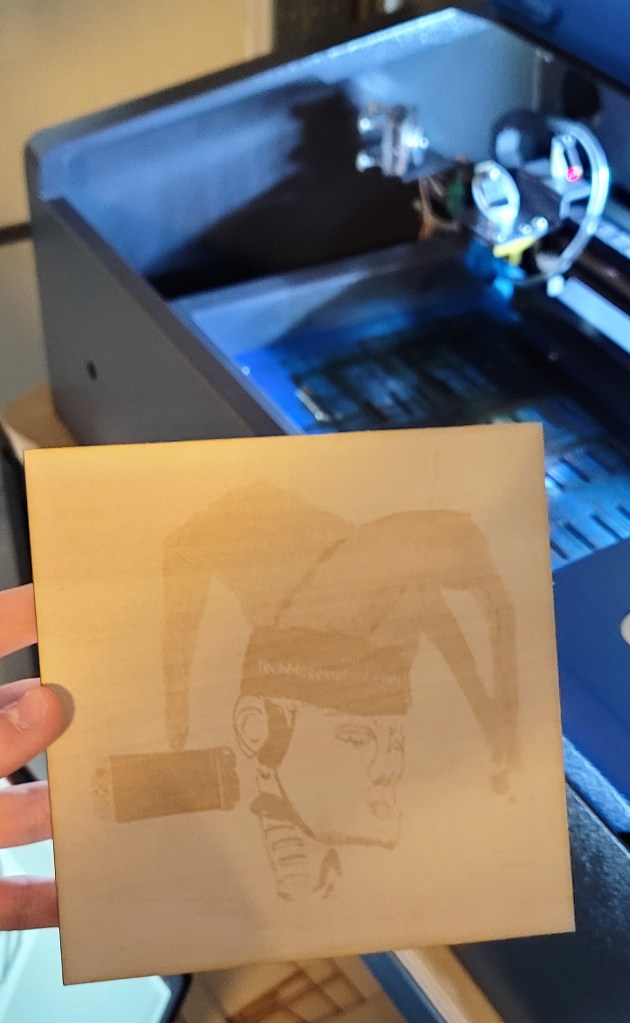
Cuts are made by making multiple passes over the same lines. The type and thickness of the material has a drastic effect on how long “prints” take. Etching is achieved by ablating a shallow trench of material to form the required shape. Pre-cut panels of Balsa and other lite woods are an ideal material to practice on and can be found at most hobby stores or on-line. Cardboard can also work but be warned, it catches fire very easily.

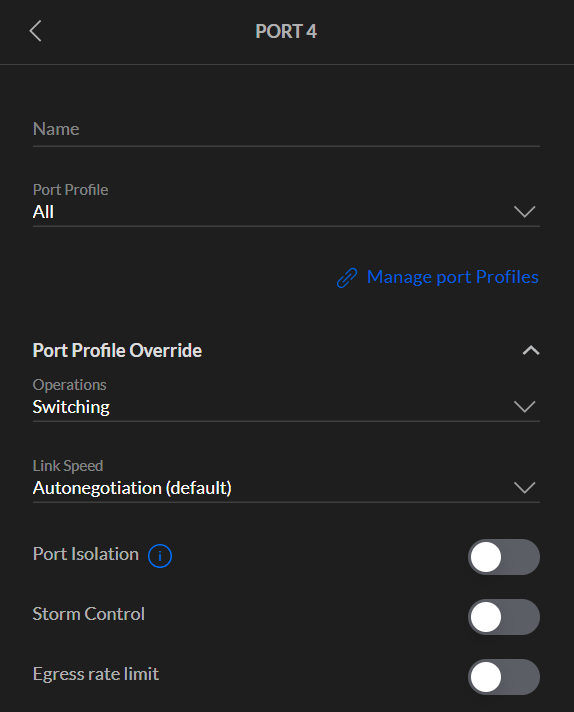
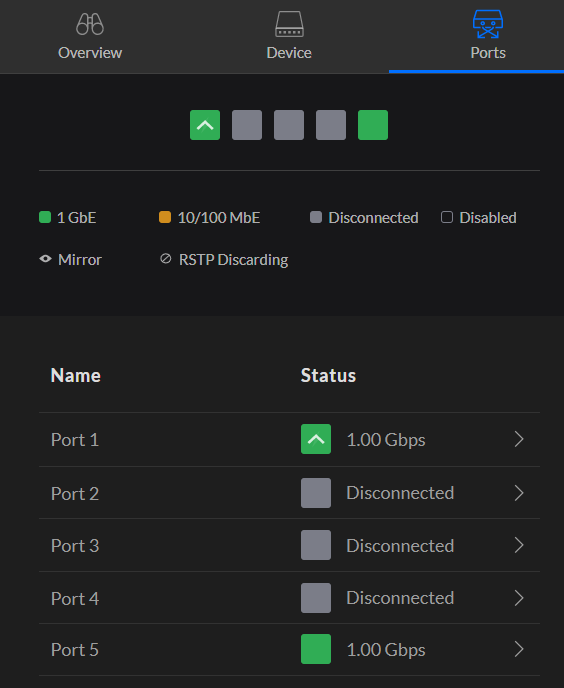
The Unifi Flex Mini Managed Switch

Sometimes it is necessary to add a few network ports in a room, on a table, or even in an office cube. We know that our network admins hate those little five port mini switches that we all pick up at BestBuy and plug-in behind the printer, but the two jacks they put in our cube just won’t cut it. How else are we supposed to connect our desktop, laptop, printer, and NAS to the network?

Adding a mini switch to someone’s cube, office, or bedroom is more cost effective than running four new drops. The mini switch solution wouldn’t be a problem for network admins if they were managed and could be integrated into the rest of the network instead of being stand-alone troublemakers that don’t respect the in-place topology, monitoring, and controls. Switch manufactures are beginning to capitalize on this market segment.

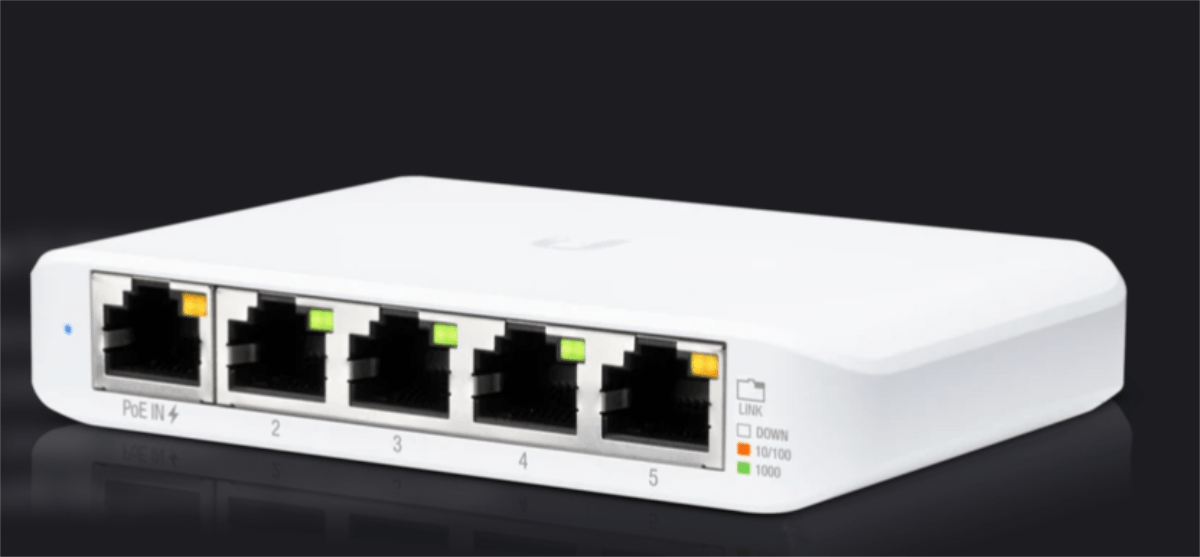
Ubiquiti has jumped on the small managed switch bandwagon with the Flex Mini. I picked one up at our local electronics store a few weeks ago for $30.00. Seriously, thirty bucks for a name brand, five port, gigabit, layer 2, managed switch. I got it to replace the no name standalone switch that was in my kid’s room. When I took it out of the box I was immediately impressed by how small it was.

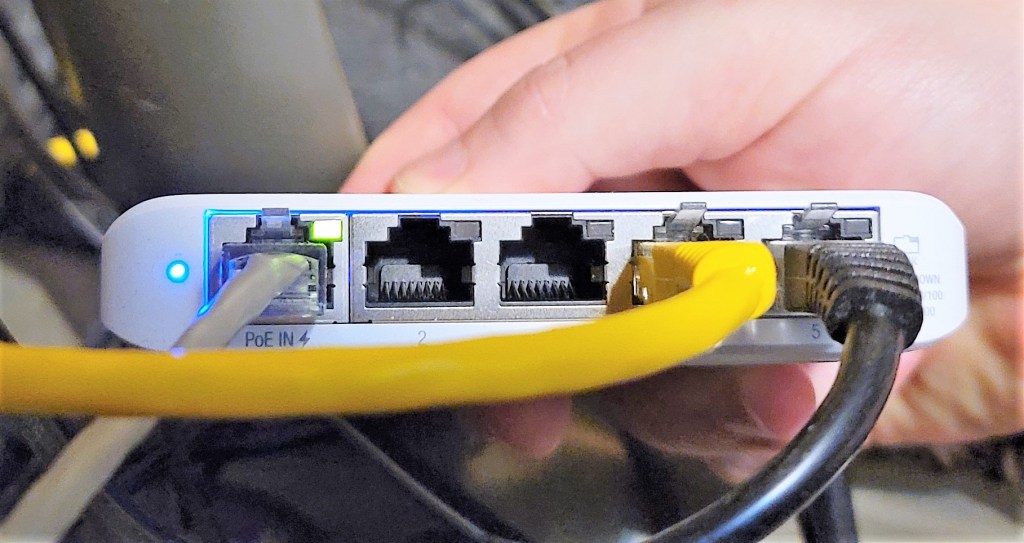
The Flex Mini also offers dual power choices. It can run off of USB-C (adapter included), or PoE. This flexibility means you can put the switch where it needs to be instead of being forced to locate it next to a wall plug and drag the network cables to it. I happen to have PoE running to the location where the switch needs to go. This allowed me to remove an extension cable and power supply from the mess of cables in the room, which is always nice. Locating the switch next to the equipment also let me swap out several long network cables that ran around the edges of the room for short direct ones.

Assuming that you already have a Unifi controller up and running, set up is a breeze. Connect the switch to your network and it will get a DHCP address. The controller will automatically adopt it and provision it with a default profile in which nearly everything is set to automatic.

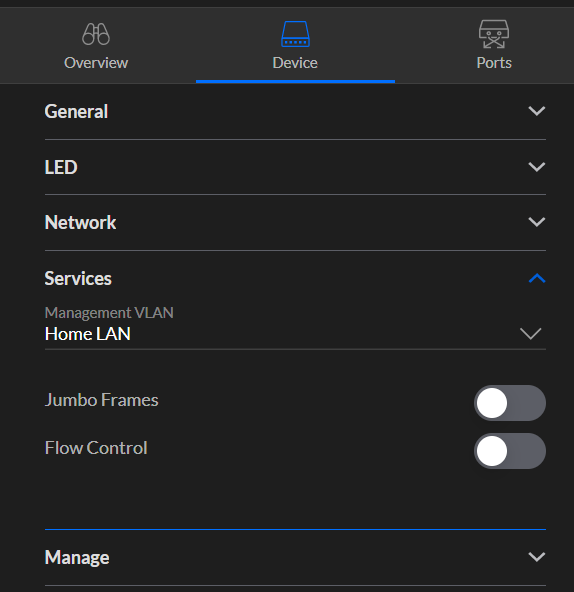
After the adoption is complete, you can customize the switch to fit your topology using the controller. Tag ports for VLANs, enable jumbo frames, set up mirroring, and turn on loop protection. The only thing that I’ve found missing is spanning tree. To get STP on Unifi switches you’ll need to jump up to an eight port model.

Overall I’ve been impressed with the Flex Mini. If you are not already using Unifi equipment, setting up a controller for five ports is probably overkill. Luckily, they also sell them in three and five packs.

PowerShell: Remove Offline Network Printers from all Workstations

If you have ever moved Windows print services to a new server, chances are that you have been left wondering what to do with the old stuff left over on the client computers. GPOs make deploying printers a snap, but when it comes to removing them, you are on your own.

Leaving the old printers installed can be confusing to people. In today’s world, printers are increasingly used as attack vectors to establish a beachhead inside corporate networks, leaving them could turn out to be a security risk. Plus, my dad taught me that no job is finished until you’ve cleaned up the mess you made doing it LOL.

If your workstation operating systems are new enough to be running PowerShell and WinRM is enabled, a script could be utilized to remove the old printers. First you will need to find the printers to be removed and store them in a variable. The Get-Printer cmdlet lists all the printers on a system and the Where-Object function will let us filter the properties that identify the specific printers we want to uninstall.

$OfflinePrinters = Get-Printer | Where {($_.Type -like "Connection") -and ($_.PrinterStatus -notlike "Normal")}|
Select Name -ExpandProperty Name

The line above will store the names of printers on the system you run it from that are connected via network and not online in the variable $OfflinePrinters. It should be noted that there is a potential to remove printers you use with this method. If you have a network printer installed from a location you are are not currently connected to, it will match the criteria. For example, if you have a network printer at home but are executing the script from your office the home printer will be deleted.

Next, we’ll loop through the printers in the variable and remove them. If you are concerned about the potential to remove printers you need, remove the -confirm $false and you’ll be prompted for each one.

Foreach ($OfflinePrinter in $OfflinePrinters) {
    Remove-Printer -Name $OfflinePrinter.Name -Confirm $false
}

Removing all the old printers from a single computer is well and good, but PowerShell’s true power comes from it’s ability to execute commands against all systems. With a few more lines of code we can search through your Active Directory domain and find all your workstations. Then we’ll use PowerShell’s Invoke-Command to execute our little printer removal tool on each one.

The script below will need to be run from a Domain Controller or from a system with RSAT installed. To use Invoke-Command, WinRM has to be enabled on your workstations to allow PowerShell Remoting. See Windows Remote Management – Win32 apps | Microsoft Docs


Function Remove-Printers {
    $OfflinePrinters = Get-Printer | Where-Object {($_.Type -like "Connection") -and ($_.PrinterStatus -notlike "Normal")}|
    Select-Object Name -ExpandProperty Name
Foreach ($OfflinePrinter in $OfflinePrinters) {
    Remove-Printer -Name $OfflinePrinter.Name -Confirm $false
    }
}
$Computers = Get-ADComputer -Filter ‘Operatingsystem -Notlike “*server*” -and enabled -eq “true”‘|
Select-Object dnshostname -ExpandProperty dnshostname

ForEach ($Computer in $Computers){
    Invoke-Command -ComputerName $Computer -ScriptBlock {Remove-Printers}
}

Fix A Common FortiGate VPN DNS Issue

FortiGates are fantastic UTM devices that are often used as VPN concentrators for remote workers. Their SSL VPN is simple enough to setup but there is a misunderstanding around DNS that I have encountered a few times now.

The problem occurs when an administrator has configured the Fortigate to use internal DNS severs such as Active Directory controllers and those DNS servers have more than one zone. The symptom is that machines connected via VPN can only resolve names from records in the primary AD integrated zone.

Specifically, this happens when the VPN portal is configured to use split DNS. In most firmware versions, split DNS is enabled by default when split tunneling is selected. Administrators often enter the FQDN for the local directory and the IP addresses of the domain controllers, because this is how workstation and server DNS clients work.

It isn’t how split DNS on a FortiGate works. To resolve names in zones other than the active directory integrated zone, you will need to manually enter each additional zone’s domain name. Don’t take my word for it, here is the KB post Technical Tip: Split DNS support for SSL VPN portals.

Unexpected Results Installing Anti-Virus Software on Windows Servers

When you install anti-virus software on Windows 10 it registers itself with the Security Center and automatically turns off Windows Defender. This happens because Microsoft knows that running two AV packages at the same time causes problems like poor performance, application crashes, and even system failures.

Until recently, I assumed that installing anti-virus on Windows Servers worked the same way. The other day while investigating an application that was performing poorly I noticed events from Windows Defender scans. The sever in question was running Trend’s Worry Free Business suite.

It turns out that the server versions of the Windows operating systems do not have the Security Center feature. There’s no method for third-party security software to disable Windows Defender. Furthermore, it is enabled by default in all Windows Server 2016 and newer editions.

Microsoft’s documentation that explains Windows Defender compatibility in located here. The matrix at the bottom of the page shows how Defender is configured in each version. Microsoft and the vendors I checked with suggest running a single solution. Here are the official posts for Symantec and Trend.

Leaving Defender running on one or two physical machines is probably not the end of the world, but virtualized environments are another story. In high-density virtualized datacenters, the wasted resources could really add up, even if running both scanners isn’t causing more visible issues.

Always Connected, Life with an LTE Smartwatch

I’ve had a cellular capable smartwatch since the Samsung Gear S was released way back in 2014. I’ve grown to take the technology for granted. Recently, many of my family members acquired LTE capable smartwatches and listening to their comments and seeing how the devices have altered their routines inspired me to write about the experiences.

The Galaxy Gear S was one of the first LTE smartwatches

As technology has progressed smart watches have become far more powerful. Modern models sport multi-core 64 bit processors, LTE cellular radios, Wi-Fi, Bluetooth, NFC, GPS, Heart Rate sensors, Electro-cardiogram sensors, some can also take your blood-pressure and check your blood oxygen level.  All of this along with a touch screen, and battery that can run for more than 24 hours are packed into a water-tight case the size of a traditional wristwatch. They are truly marvels of our age.

In my line of work, I need to be available to my employer 24/7/365. Companies depend on their technology. The people that make that technology work are expected to monitor for, and respond to, issues regardless of where they are, or what they are doing. For me and countless people like me, smart watches offer a sense of freedom that is palpable.

Read and reply to email, text, and more even without your phone

Before they existed, I wouldn’t be able to go for a walk or a hike without my phone. If I left the house and realized I had forgotten my phone, I would have to go back and get it no matter how far I had traveled before I discovered it missing. Now, I frequently leave the house without my mobile in my pocket. I can still get email, text messages, phone calls, review system alerts, and even check various monitoring tools (a stretch on the small screen, but I have done it).

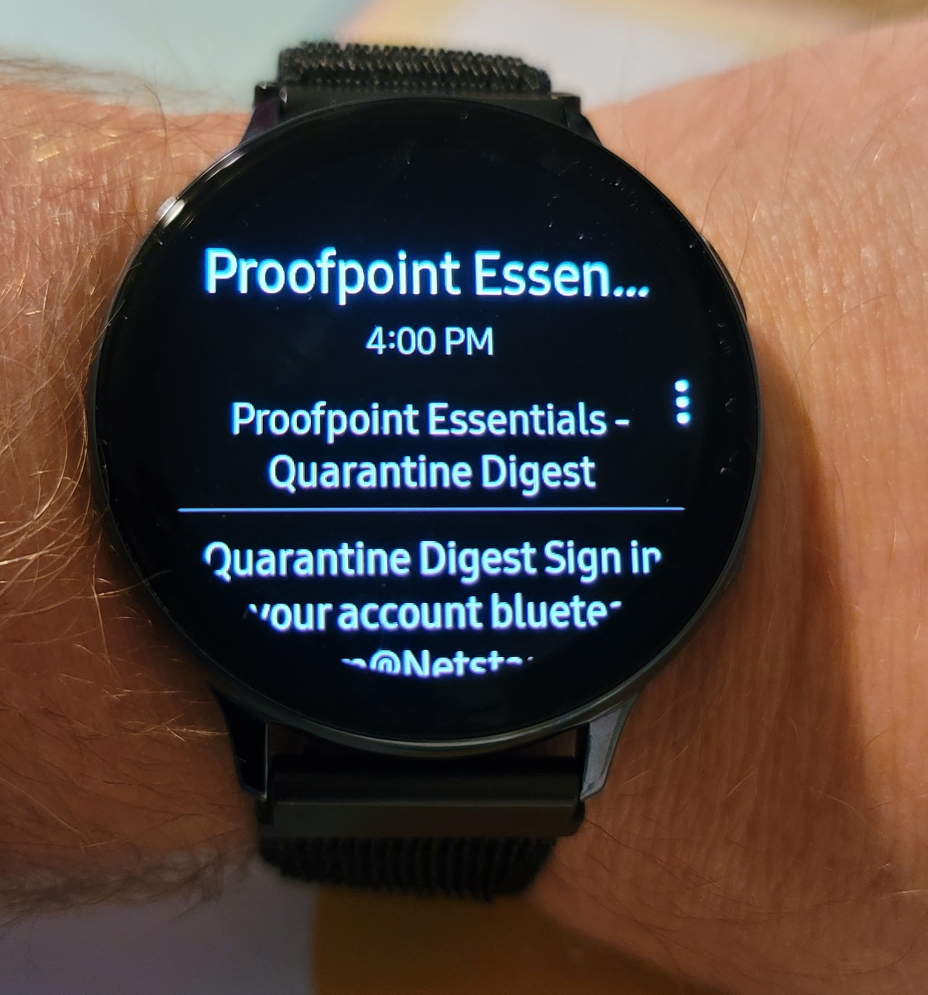
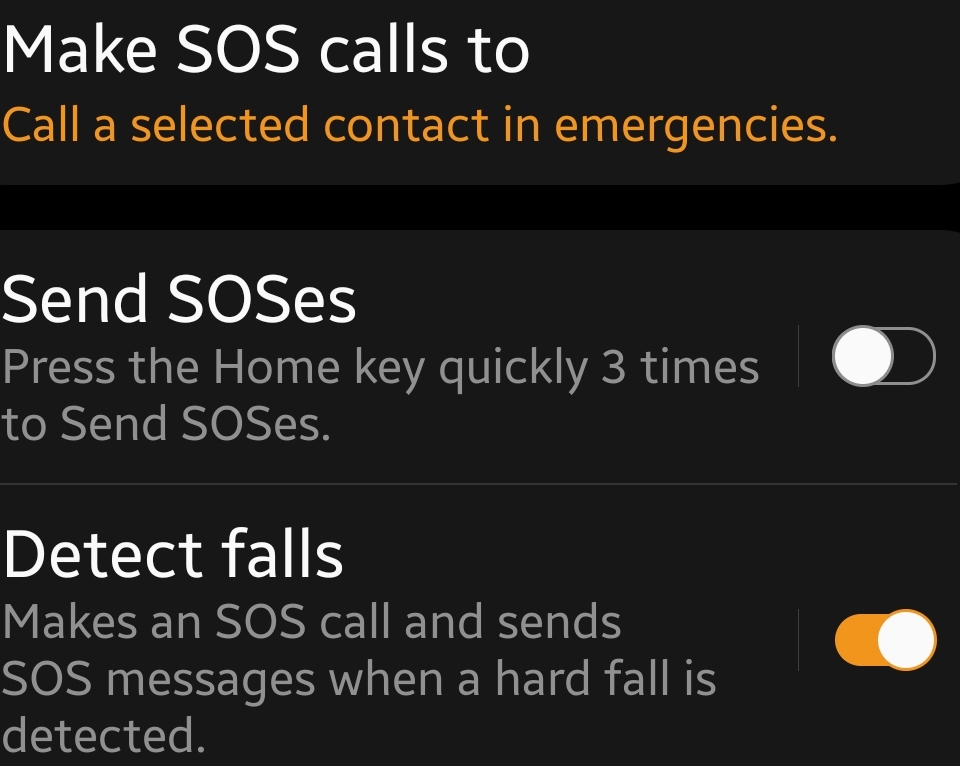
As a young person, I used to make fun of the, “Help! I’ve fallen and I can’t get up!” commercial. Now I’m wiser, having a communication system attached to your person is a powerful safety tool. The Samsung and Apple devices are capable of detecting hard falls and notifying loved ones if you are rendered unresponsive. There’s an enormous peace of mind that comes from knowing that any of my family members can reach out and get help even if they can’t get to their phones.

SOS and Fall detection

Search the web and you can find countless examples of people reporting that their ECG enabled smartwatch saved their lives. When a person reports an issue to their medical professional that could be heart related, they are often asked to wear a heart monitor for number of days. The doctor is hoping to capture data about the problem the next time it occurs. When your watch contains similar sensors and your phone records its monitoring events for months or years at time, the data has probably already been captured. This can lead to a faster diagnosis or at least better targeting of further diagnostics.

Share your ECG history with your doctor in a report

The devices are the best exercise tool since the stationary bike. Over the years, developers have found ever more creative ways to use a smartwatches abilities to assist their user’s in reaching their health goals. Going for a walk or run while recording distance, pace, and cardio performance used to be something you could only do on a high-end treadmill while wearing a chest strap and face mask. Now if I sit too long, or haven’t reached my move goal, my wrist buzzes with a suggestion. When I head out, I can easily keep streaming my podcast, tunes, or even my YouTube video.

It has been fun to witness the evolution of the smartwatch from a nerd gizmo to a mainstream accessory. If you have had the standard Wi-Fi model for a while and are considering upgrading to an LTE option, I can say that I don’t personally know anyone that has regretted the decision.

Fix a Dell G3 3950 Laptop Hinge

The Dell G3 laptop that I bought my son for Christmas last year has been a good choice. It runs all of his games, graphics editing, and CAD software with ease. A few months ago we doubled the RAM to 32GB and added another 1TB SSD so that he can run VMs for his development machines and even host some Minecraft servers for his buddies. All in all it has proven to be a great system except for one thing.

About a year and a half after we purchased it, the laptop’s lid stopped closing properly. When you shut the lid it made a cracking sound and shifted to the left on its way down. Clearly there was something wrong with the hinge. I hopped on the web and found a page in Dell’s forums where numerous people were complaining about this particular laptop having a design flaw in its hinge system. Inspiron G3 15 3590, hinge broken – Dell Community

Like us, many of these people are upset. It seems the hinge usually fails just outside of the system’s warranty. At least one person was able to get Dell to repair it anyway. According to the post if the system is part of a certain batch they are acknowledging that it is a manufacturing flaw. My kid’s laptop was one that they will repair, but the parts are on backorder with no estimate of an arrival time. I decided to fix it myself.

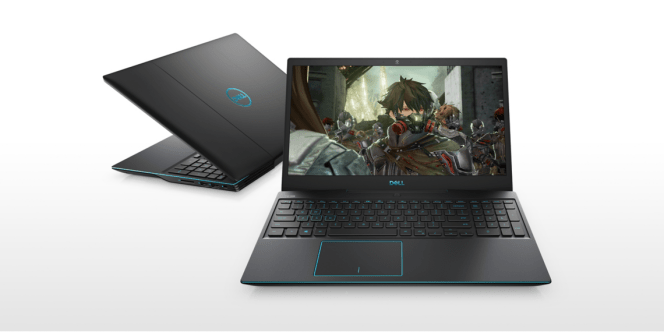
Dell G3 3950

This repair is difficult. If you are not experienced working on laptops, tablets, or phones I caution you against attempting the procedure yourself. There are numerous ways you could damage the screen, motherboard, and other components while working on a laptop’s internal components. If you choose to proceed you are doing so at your own risk.

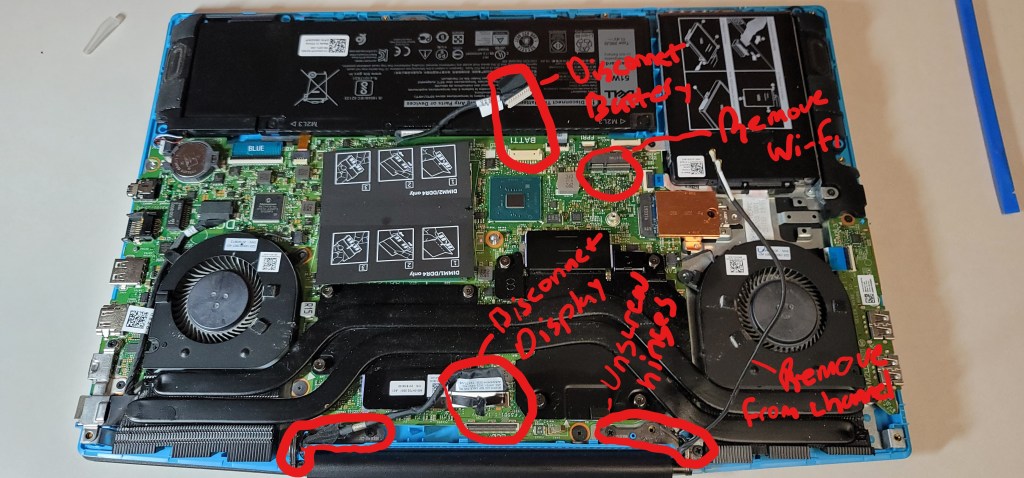
You will be removing the case, disconnecting the battery, removing the Wi-Fi adapter, disconnecting the display, and removing the display’s case. I was able to find a video (not English) that shows the process step by step. I suggest that you watch it both before you decide to proceed and while doing it. How to fix laptop Hinges Dell G3 15 3590-Easy Tutorial – YouTube

You’ll need a clean dry work surface with good lighting. Remove any drinks or other containers of liquid from the area. It is best if you have an anti-static mat to work on. If you don’t, avoid standing on carpet and ground yourself before touching anything inside the case. You will need a number 1 Philips head screw driver, tweezers, plastic pry tools, plastic pics and something to put the screws and parts you remove on to keep them organized. If you don’t have these types of tools you can find kits that have them on-line and in many stores.

Follow along with the video. First remove the back of the laptop by taking out the screws. Then disconnect the battery by pulling its connector out. The antenna is a wire that is looped around the outside of the display, it needs to be disconnected before the display can be removed. Unscrew the wi-fi adapter’s antenna guard and remove it. Disconnect the antenna leads and remove the wi-fi adapter, slide the antenna cable out of it’s channel.

Now disconnect the display’s lead from the mother board by pulling straight up on it. Carefully open the display so that the hinges are extended and remove their screws. The display should come off of the laptop now. Set the laptop’s bottom cover and motherboard assemble to the side.

Now that you have the display separated from the lower half of the laptop we need to remove the top cover from the screen so that we can access the hinge assembly. In the video the man uses a sharp piece of plastic to slip down between the bottom of the cover and the screen. He actually cuts part of the display cable’s outer sheath doing this. I used the plastic picks (guitar picks) from my tool kit to remove the lower portion of the cover with no damage. Slide the pics in to open up some space and use your fingers to unsnap the clips one at a time. Go slowly. Be careful not to dislodge the camera or wi-fi antenna wires.

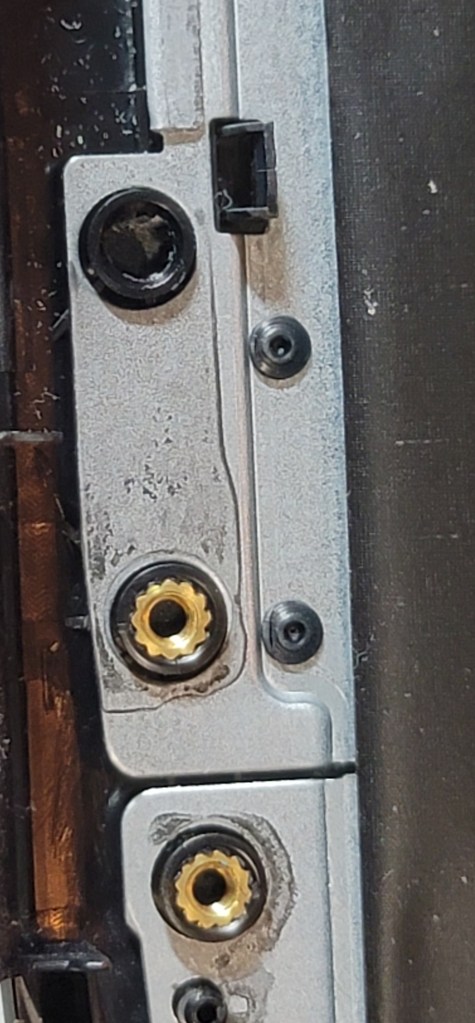
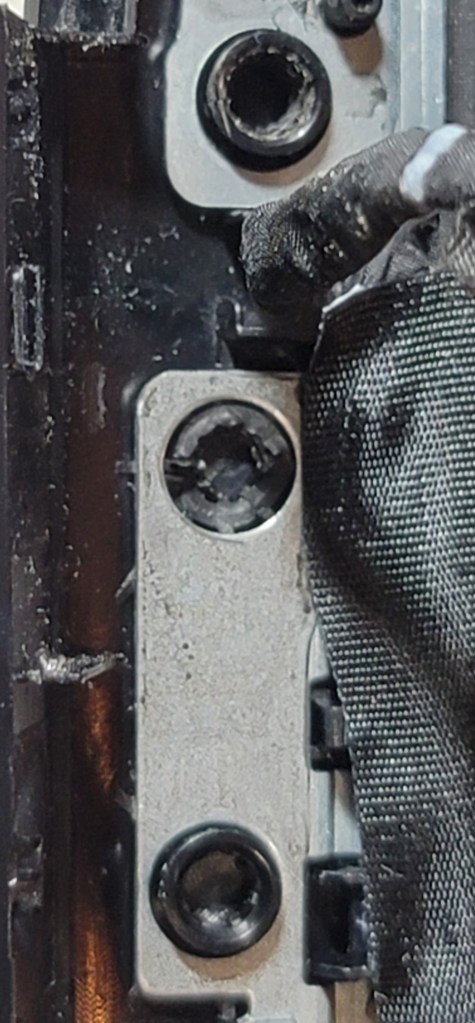
Once you get the display shell off the cause of the problem will be apparent. The failure occurs because the brass thread inserts twist in the plastic as the lid is opened and closed. Eventually they break the plastic entirely. They will fall out when you remove the case covering the hinge.

In the video the gentleman winds the screws in cotton and covers that with a layer of super-glue to enlarge them and fill the void that is left in the hinge mounts when the brass threads come out. Our laptop was more damaged than that. When the brass inserts failed they broke the plastic badly.

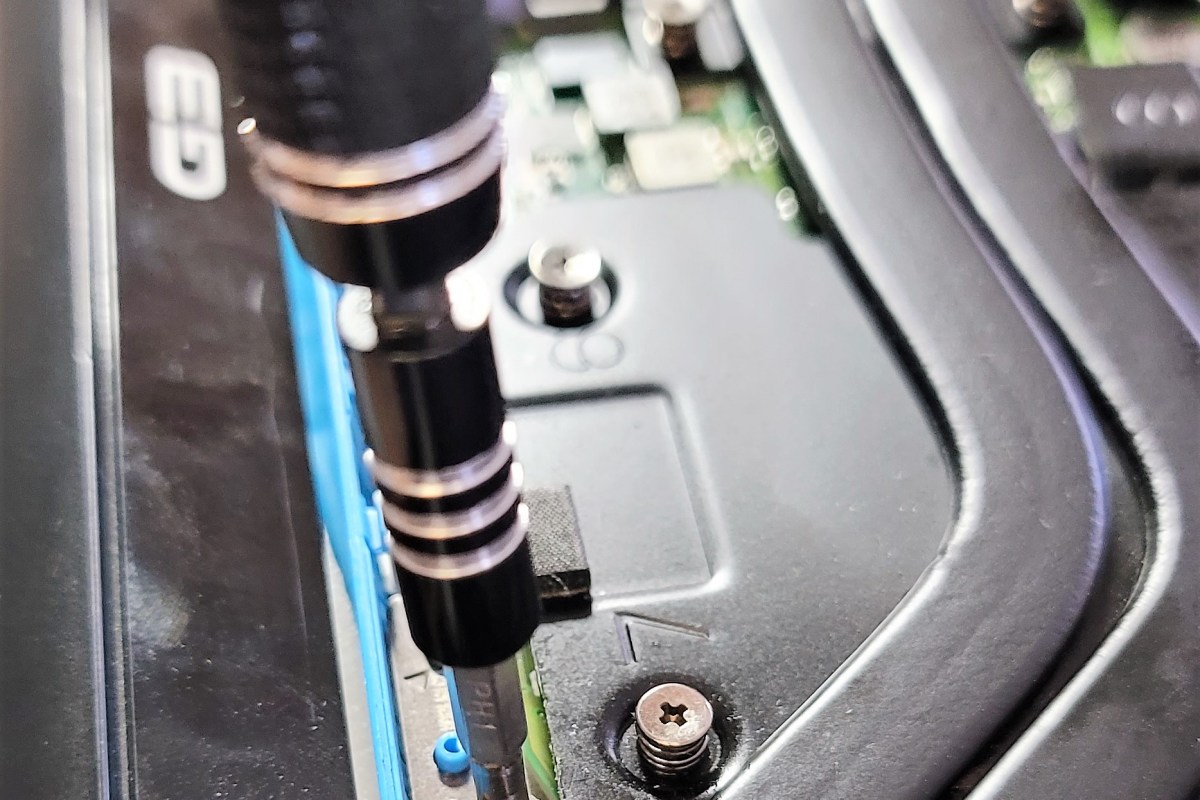
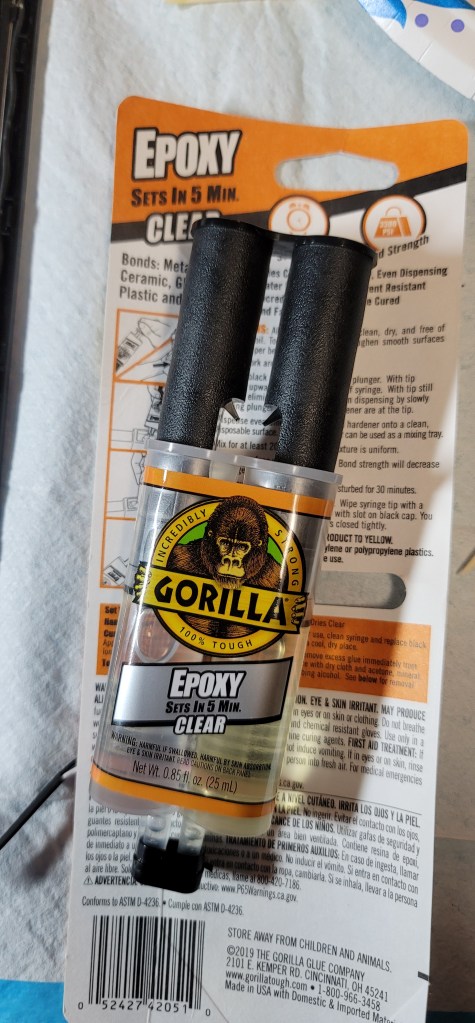
I used two-part epoxy to repair the hinge mounts. Working on one hinge at a time, dip a paper towel in rubbing alcohol and clean the hinge as well as the surface it mounts to. Mix the epoxy according to the directions and spread a thin layer on the mounting surface and in the screw holes. Put the hinge back in place and use your screw driver to hold it down firmly for a minute or two. Insert the screws back in their holes holding each one in place for ten seconds or so.

Epoxy forms a bond that is stronger than the case itself and is easy to work with in its liquid state.

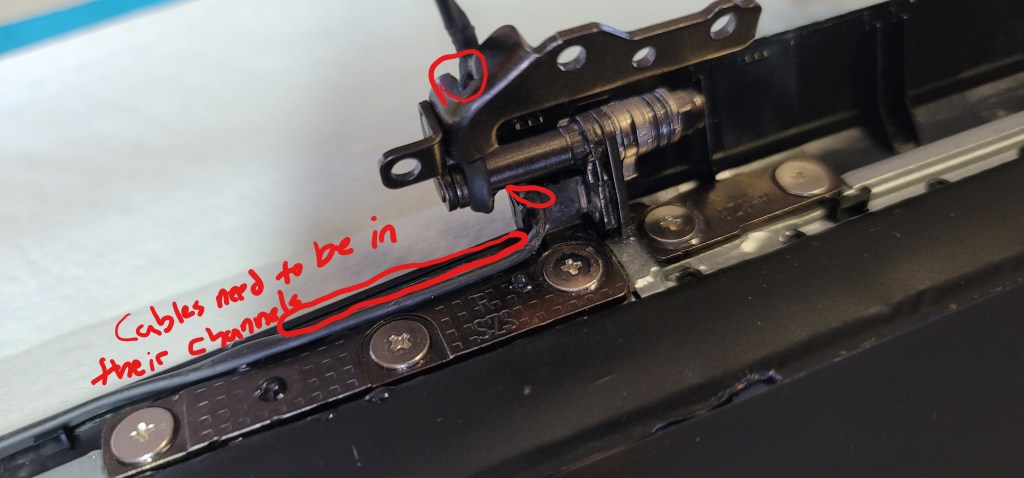
I let the hinges dry overnight before reassembling the case. The epoxy I used says that it sets in 5 minutes but the fine print adds that it takes 24 hours to fully cure. When you put the cover back on the display be sure the antenna and display cables are back into their channels before you try to snap the cover back down. I used a few pieces of double sided tape to help secure the bottom of the cover.

Reassemble the laptop, be sure to run the antenna cable back through its channel before you screw the display on to the lower chassis. I found the Wi-FI adapter antenna leads quite difficult to reattach. They are very small, a magnifying glass came in handy to see them. Use your fingers to squeeze them back into place, tools might break the fragile card. Don’t forget to hook up the battery and display cable too.