Hyper-V NAT: Remote Access to Windows and Linux Virtual Machines

I’ve written several posts on creating Hyper-V virtual machines on Windows 10. One of my most popular covers how to create a Linux VM with sound. Inevitably, somebody will follow up with a question along the lines of, “How do I access XRDP (Linux RDP Server) from other machines on my network?”

One might be tempted to think the answer to this question is just a simple firewall rule. It isn’t. After the Windows 10 1607 update, Hyper-V started including a default virtual switch that uses NAT to allow your virtual machines access to the same network resources that your host machine can reach. This default switch makes the Quick Create function extremely useful. With a couple of button clicks, you can deploy a VM that has full outbound (Internet) network access. No network chops required.

Your newly deployed VM will be running on its own network segment that uses NAT to reach the host network’s resources. It is fantastic when you are trying to go from your VM out to the world. Getting traffic to go in from your host network(s) to your VM is another matter. Since the VM is running in its own network, there’s no path for traffic to reach it. The NAT is handled on your Windows host system so your router won’t be much help either.

Like all technical problems there are multiple ways to address this challenge. For example, if all the machines you intend to access the VM from are running Windows 10 Pro +, or Windows Server 2012 + you could configure the Hyper-V manager to access the host remotely. I’ve written those instructions here. You could also create an external virtual switch that would allow your VMs to use the same network your host system is attached to. In this post I’ll create a new NAT virtual switch and forward the traffic to the VMs.

Windows 10 has built-in port forwarding and NAT mapping. Normally you would need a few lines of PowerShell to forward the packets to your VM, but there’s a problem. The Hyper-V default switch’s NAT is not exposed to the OS. If you open PowerShell and run Get-NetNat you will probably see no return (assuming you haven’t configured other NAT mappings). We need to create a virtual switch that uses NAT and allows us to control it. Microsoft has not included this functionality in the GUI, but it can be done.
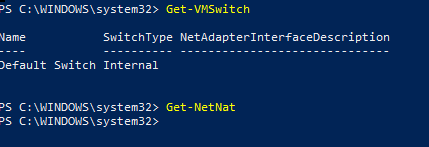
First we need to create a new Hyper-V switch. In an elevated PowerShell console run:

New-VMSwitch –SwitchName “HyperVNAT” –SwitchType Internal

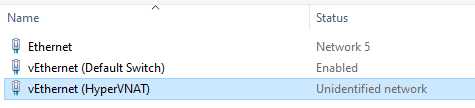
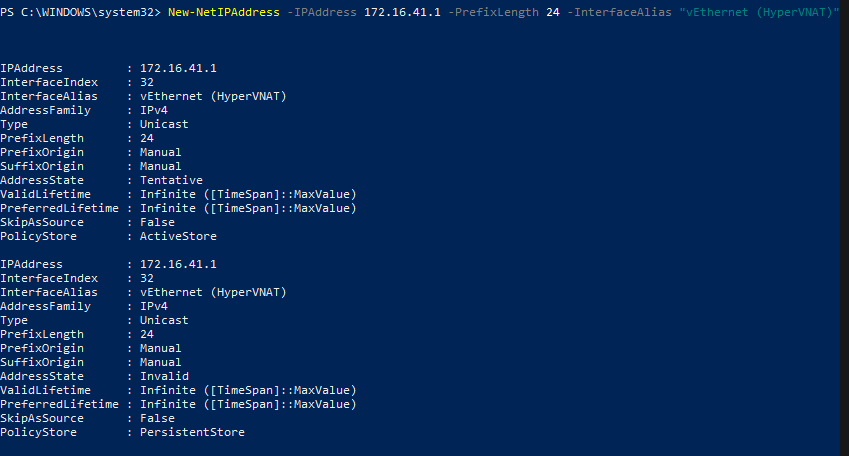
If you look in the Windows network adapter console, or list them with PowerShell (Get-NetAdapter), you will see that a new NIC has been created with the name you specified between the “” marks in the command above. It can’t access anything because it isn’t configured. First we need to give the switch adapter an IP address. This address will be the gateway for all the VMs that are attached to this virtual switch.
New-NetIPAddress –IPAddress 172.16.41.1 -PrefixLength 24 -InterfaceAlias "vEthernet (HyperVNAT)"
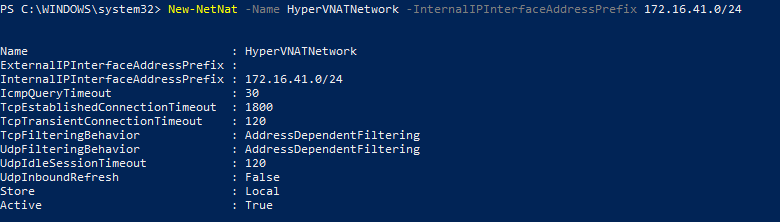
Now we need to create a NAT rule for our new network:

New-NetNat –Name HyperVNATNetwork –InternalIPInterfaceAddressPrefix 172.16.41.0/24
The built-in default virtual switch includes a DHCP function that automatically assigns IP addresses to the attached VMs. Our new virtual switch does not. You will need to manually assign your VM an IP address in the same subnet. If you followed my example, the useable addresses are 172.16.41.2 – 172.16.41.254 the subnet is 255.255.255.0, and the gateway is 172.16.41.1. You’ll also need to configure DNS if you plan on surfing the web or accessing named resources, 8.8.8.8 is Google’s public DNS server.

There are numerous ways to configure the IP information for a computer. They all differ according to the operating system. Generally, somewhere in the settings of your OS should be the network options. Set the IPv4 interface to manual (not automatic or DHCP) and enter the correct numbers for each. Below I’ve configured an Ubuntu Linux machine for the network we’re creating in this post.
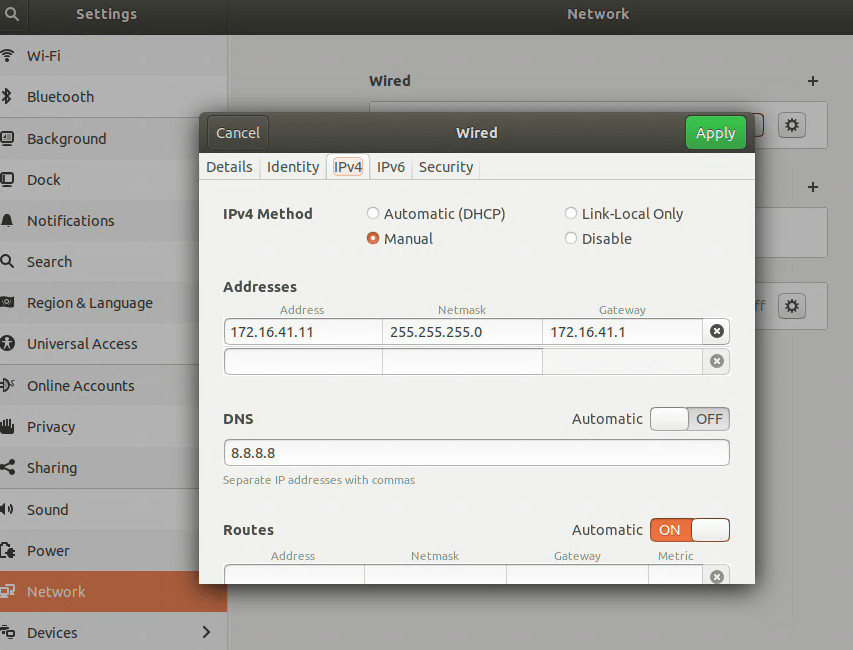
It is always a good idea to reboot after changing an IP address.

Now the VM should be able to use our new virtual switch to access the outside world. Also, when we run Get-NetNat on the host in PowerShell you’ll see information returned. You should be able to open a web browser on your VM and hit your favorite sites or check your email. We’ve done all of this and basically ended up where we started LOL. The key difference is that the NAT rules can be controlled now.

The problem we started out to solve was to allow XRDP access to a Linux VM on our Windows 10 host from other computers on our network. Add a NAT mapping to forward a custom port (3391) from our host to our VM as XRDP (3389) by using the PowerShell command below. Note: Do not forward 3389 to 3389 unless you do not use RDP on your host system.

Add-NetNatStaticMapping -NatName "HyperVNATNetwork" -Protocol TCP -ExternalIPAddress 0.0.0.0/24 -ExternalPort 3391 -InternalIPAddress 172.16.41.11 -InternalPort 3389

If your Windows Firewall is enabled (should be) you’ll need to create a rule to allow the forwarding port, 3391.

New-NetFirewallRule -DisplayName "HyperVRDPNat" -Direction Inbound -LocalPort 3391 -Protocol TCP -Action Allow

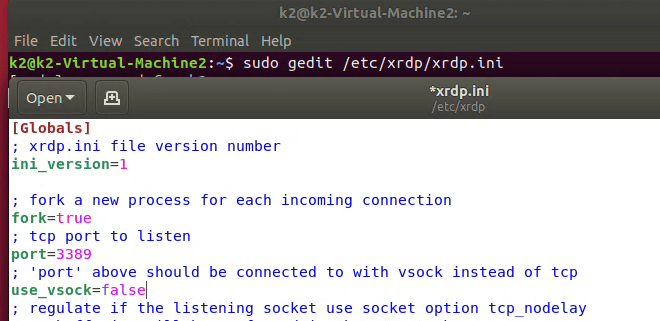
Depending on how XRDP was installed and configured on your Linux machine, you may also have to edit the XRDP.INI file. If XRDP is configured for vsock, it is not listening on the traditional RDP port. Vsock is only accessible via the Hyper-V management console’s enhanced session function.

sudo gedit /etc/xrdp/xrdp.ini

Depending on the distro, you may need to use nano or vim to make sudo changes to the xrdp.ini file. Change the line use_vsock=true to use_vsock=false. Make sure there is a port=3389 line that is not commented out (;) and save the file. Reboot the VM.

Note: chaining this setting will mean that to connect to an enhanced session, you will always need to manually open an RDP connection. Right clicking on the VM in the Hyper-V Management console and choosing connect will only open a basic session if vsock is disabled.
You should now be able to connect to RDP via the Windows 10 host’s IP (not the VM’s) address to port 3391 (X.X.X.X:3391) from any machine that is able to reach your Windows 10 host computer. If you want to access the VM from the Internet you would need to forward the custom port (3391) from your external firewall to your Windows 10 host system.

This technique was demonstrated in Windows 10, but it would work for Windows Server and a Windows Docker Container as well. You can find more details about the NAT abilities built into Windows at Set up a NAT network | Microsoft Docs .

Deploy a Linux VM on Hyper-V with Sound 20.04 Edition

In a previous article I explained how to use PulseAudio with XRDP to allow your Ubuntu Hyper-V VM to pass audio through your host machine’s sound system. It has been brought to my attention that the instructions do not work for everyone.

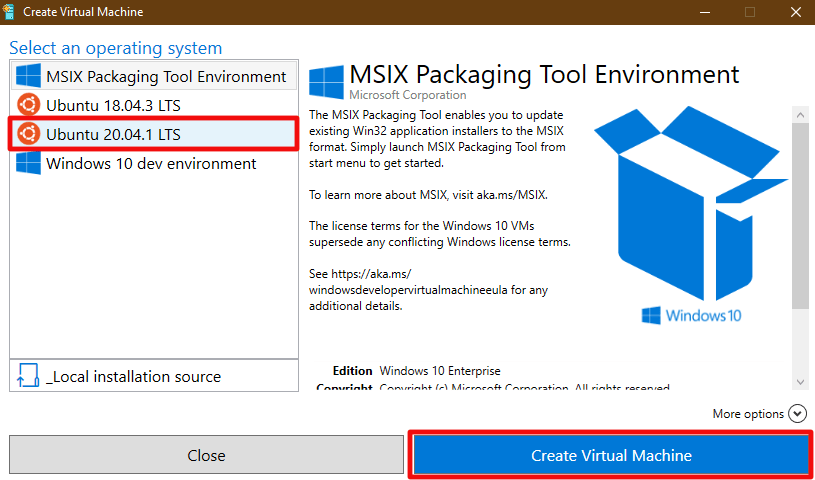
I believe most of the people that have issues are choosing the 20.04 version of Ubuntu when deploying their Hyper-V VM. The 20.04 edition of Ubuntu is not running XRDP (Linux RDP Server) by default. When you connect to it from the Hyper-V manager you are directly viewing the machine’s console. PulseAudio requires an enhanced XRDP session to work.

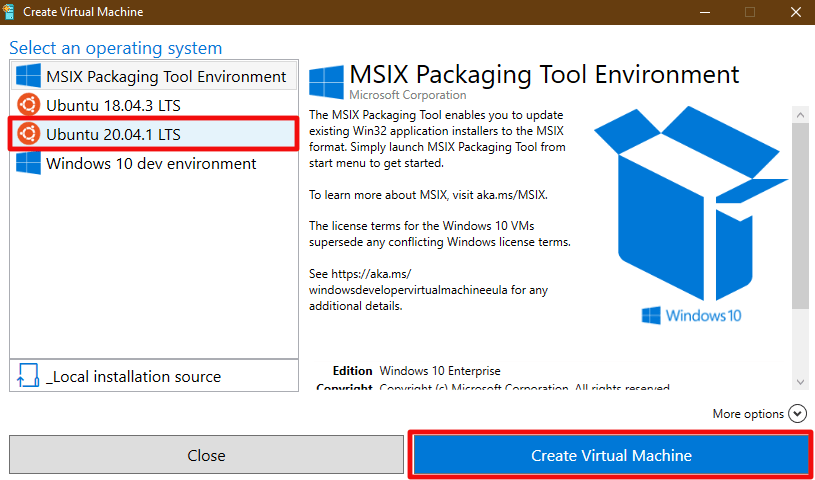
I’ve spent a lot of time getting pass-through sound working in 20.04. Deploy the VM as outlined in the original document choosing the 20.04 version instead. Once you have completed the operating system installation, run the software updater (in the apps menu) until everything is patched to the newest version.

Please Note: These instructions will not work if your VM is configured for auto logon. PulseAudio runs in the user space and requires active logon to work. It would be possible to convert the daemon to a service, but that is beyond the scope of this post.

Use Hyper-V quick create to deploy a VM

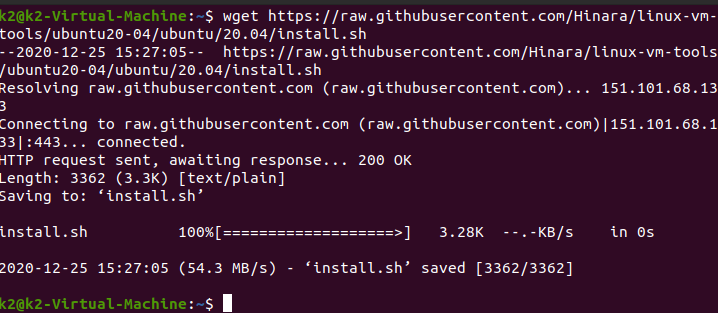
Once Ubuntu is installed and up to date we’ll need to manually configure it for an enhanced session. Open a terminal and run this command to download the configuration script:

wget https://raw.githubusercontent.com/Hinara/linux-vm-tools/ubuntu20-04/ubuntu/20.04/install.sh 

Once the download finishes run:

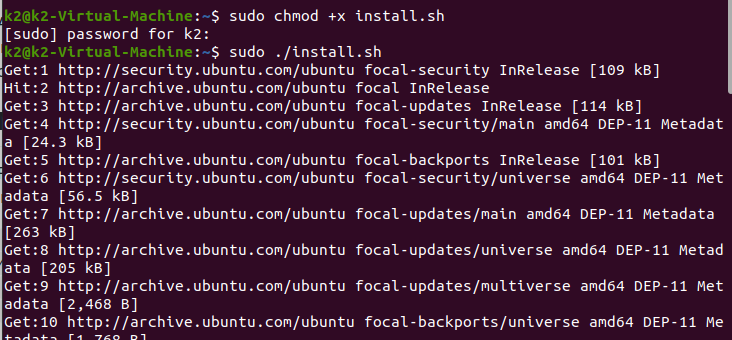
sudo chmod +x install.sh

followed by:

sudo ./install.sh


to install and configure XRDP.

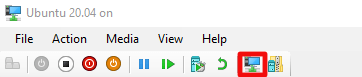
You will be prompted to logon to your VM with XRDP, but it will not work until you reboot. Use the button in the tool bar to return to the basic session and power off the VM.

The highlighted button will return you to a basic session so you can shutdown the VM.

Open PowerShell on your host system and run the command below, where the name of your particular VM is between the quote marks.

Set-VM -VMName "Ubuntu 20.04" -EnhancedSessionTransportType HvSocket 

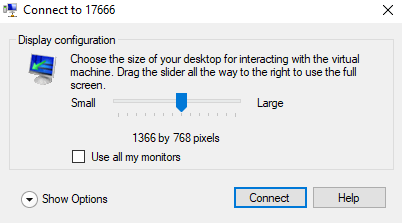
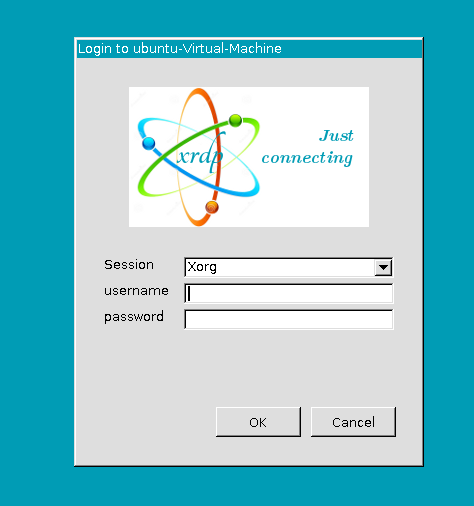
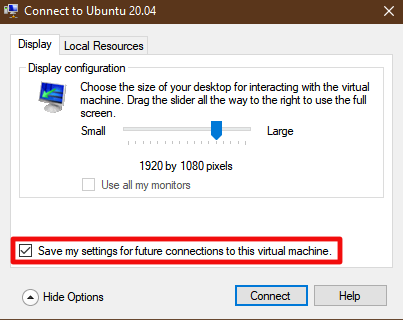
Power on the VM and you will be prompted by the RDP client to select your monitor size. Logon to XRDP with your Linux credentials and the desktop will load. Now that we have installed and configured XRDP we can proceed to install and configure PulseAudio.

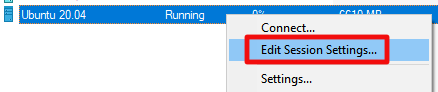
Occasionally you may stop being prompted to change your monitor size, etc. by the RDP client when you connect to your VM. There is a check box that can accidently be selected that stores your current settings for all future connections. To get the controls back, right click on your VM in the Hyper-V manager and then click Edit Session Settings.

Open a terminal.

Install the pre-requisite libraries with this command:

sudo apt-get install git libpulse-dev autoconf m4 intltool build-essential dpkg-dev libtool libsndfile-dev libspeexdsp-dev libudev-dev -y

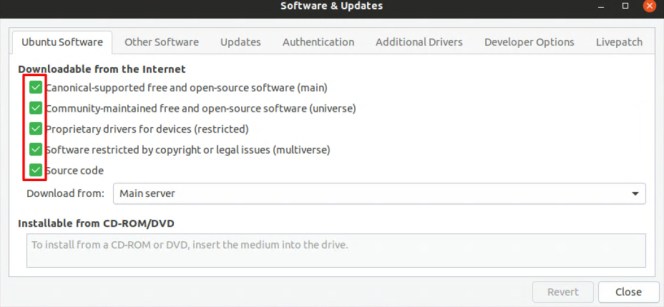
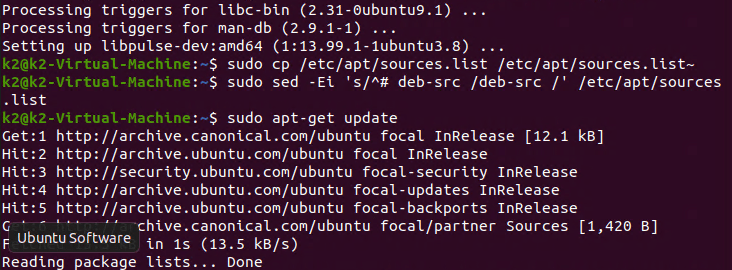
Next we need to enable the “source” repository so that we can download PulseAudio and compile it. You can enable the “source” repo in the GUI:

Enable the Source-code repo in the GUI.

Or run:

sudo cp /etc/apt/sources.list /etc/apt/sources.list~
sudo sed -Ei 's/^# deb-src /deb-src /' /etc/apt/sources.list
sudo apt-get update

Now we need to get the source code for pulse audio and compile it. Run the following command groups one after the other. Each will take some time to complete.

sudo apt build-dep pulseaudio -y
cd /tmp
sudo apt source pulseaudio
pulsever=$(pulseaudio --version | awk '{print $2}')
cd /tmp/pulseaudio-$pulsever
sudo ./configure
sudo git clone https://github.com/neutrinolabs/pulseaudio-module-xrdp.git
cd pulseaudio-module-xrdp
sudo ./bootstrap
sudo ./configure PULSE_DIR="/tmp/pulseaudio-$pulsever"
sudo make
cd /tmp/pulseaudio-$pulsever/pulseaudio-module-xrdp/src/.libs
sudo install -t "/var/lib/xrdp-pulseaudio-installer" -D -m 644 *.so

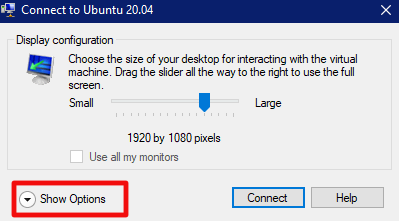
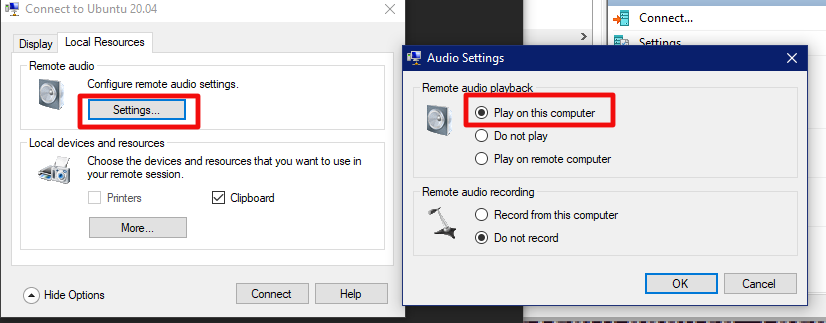
Power off your VM and wait until the snapshot merge in Hyper-V completes then power it back on. When you connect to it this time, use the “Show Options” down arrow and then click the “Local Resources” tab. Click the settings button and then choose the option to play back audio on this device.

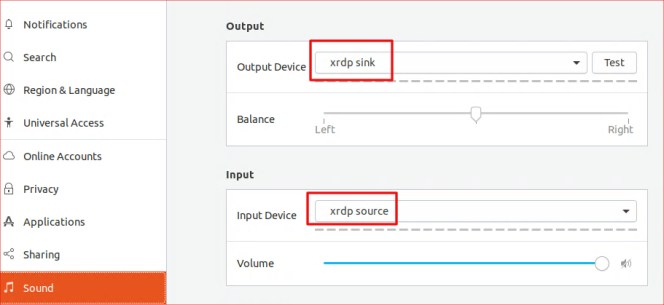
Now open the setting applet on your Ubuntu VM and go to sound. Use the drop down to select xrdp-sink as the audio device. Sometimes the option will be missing. Generally, if you wait some random amount of time the daemon will start on its own, I’m not sure what causes the inconsistency.

If the option never appears or you get tired of waiting. Close the Settings applet and open a terminal. Run: pulseaudio -k to start the daemon yourself. Then use settings to adjust the output device again.

Deploy A Linux VM on Hyper-V with Sound

By default you can not pass sound through to your host Windows system’s audio devices from a Linux virtual machine. I struggled finding reliable instructions for getting this to work and ended up using a third party solution called PulseAudio.

Attention: If you are using a newer edition of Ubuntu these instructions will not work. The more modern versions do not include XRDP in the base image. There is an updated version of these instructions that will get sound working at https://techbloggingfool.com/2020/12/26/deploy-a-linux-vm-on-hyper-v-with-sound-20-04-edition/

To get started, you’ll need an Ubuntu VM to work with and we’ll need to install Hyper-V if you haven’t already. Open PowerShell as an Administrator and install the Hyper-V components. Run: Enable-WindowsOptionalFeature -Online -FeatureName Microsoft-Hyper-V -All

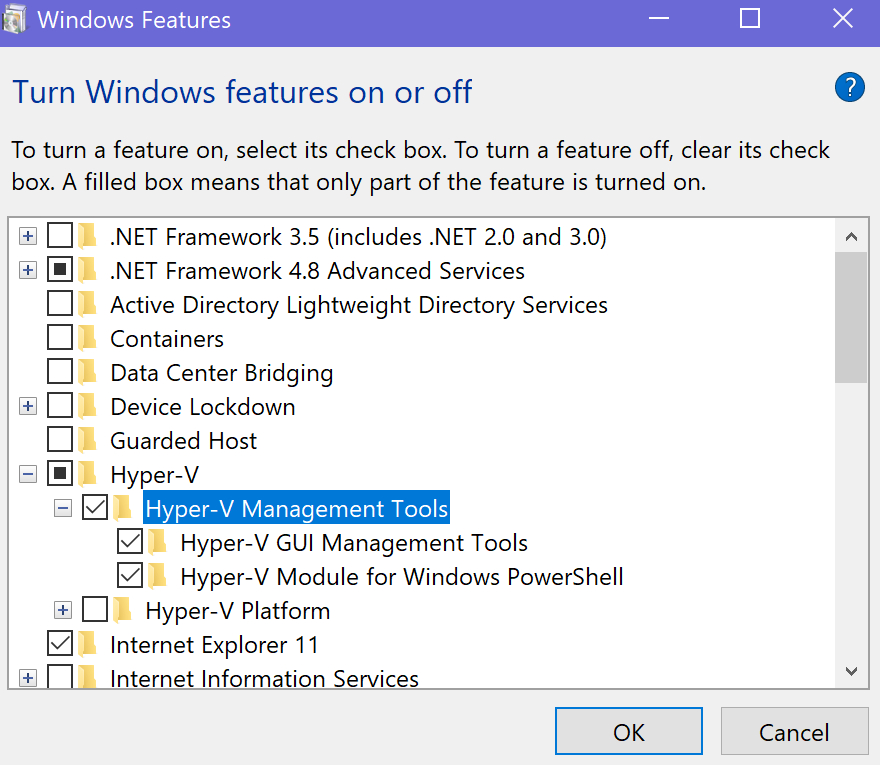
Hyper-V can also be installed using the GUI. Go to the Control Panel -> Programs and Features > Turn Windows Features on or off and choose it from the menu (both boxes).

Once you have the Hyper-V tools installed, launch the Hyper-V Manager and use the Quick Create feature to automatically install and configure and Ubuntu Linux VM.

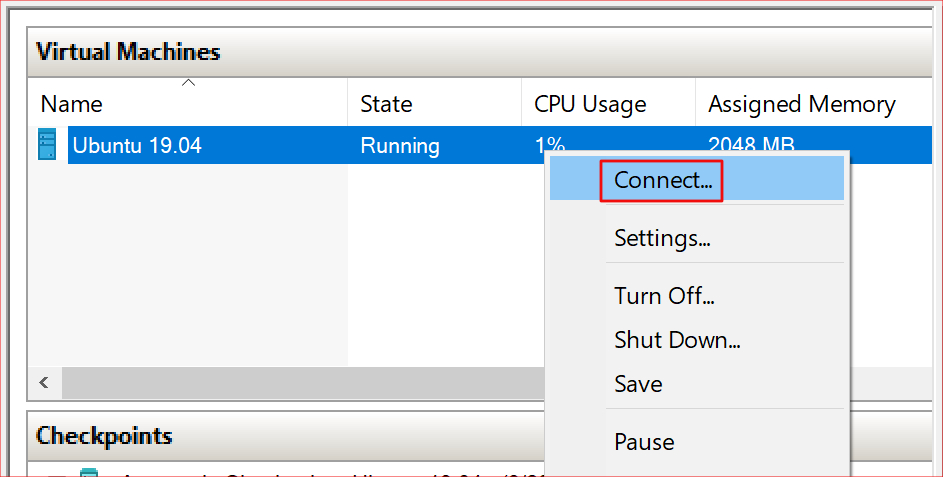
After the creation of your new VM has finished, right click on it in the Hyper-V Manager and start the virtual machine. Right click on it again to connect to the console.

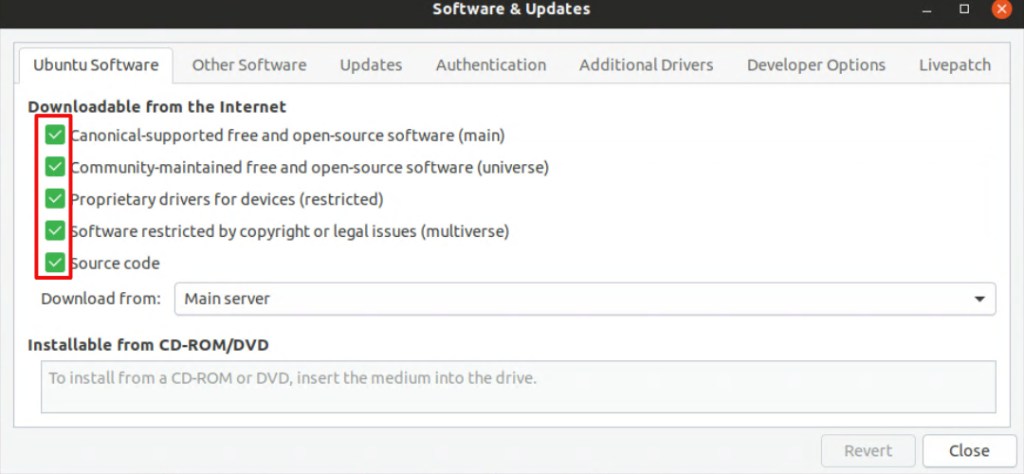
After you get logged on to your new Linux machine, the first thing we need to do is to configured the repos so that you can download the PulseAudio software we will be using to enable your VM’s sound. In the show Applications menu, open Software and Updates. Go to the Ubuntu Software tab and select all of the boxes.

Now, open a terminal from the Show Applications menu and run the following lines to install and configure PulseAudio. Reboot the Linux VM when you are finished.

cd /tmp
sudo apt source pulseaudio 
cd /tmp/pulseaudio*
sudo ./configure
cd /usr/src/xrdp-pulseaudio-installer
sudo make PULSE_DIR="/tmp/pulseaudio-11.1"
sudo install -t "/var/lib/xrdp-pulseaudio-installer" -D -m 644 *.so

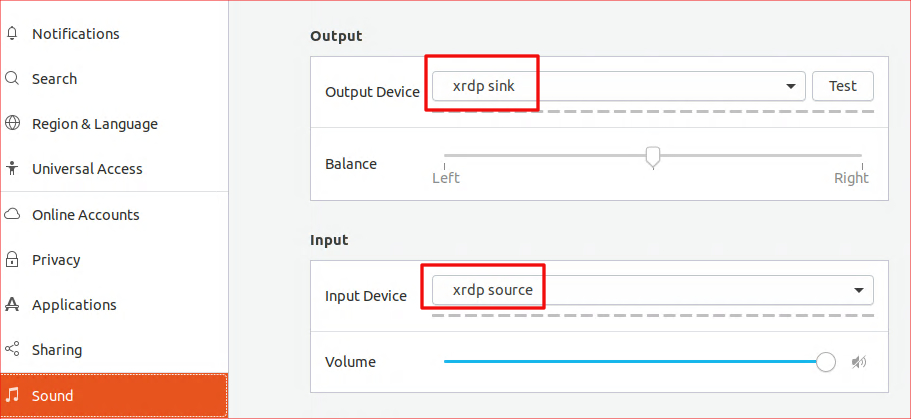
When the system comes back on line, connect again and use the Show Applications menu to open Settings. Go to the sound section and set the Output device to xrdp sink. Set the Input Device to xrdp source. That’s it. If everything went according to plan, your Ubuntu VM should be able to pass sound through to your Windows Host.

Python Programable Robots with LEGO?

A few years back, I picked up a Lego Mindstorms kit when they went on sale. My family had fun building all of the robots that the kit provides instructions for. We also tried several of the designs people have published on-line.

Mindstorms are comprised of Lego bricks, gears, shafts, wheels, and other various pieces similar to those found in the Technic sets. In addition to the bricks they also have motors, sensors, wiring, a remote, and a brain box to programmatically control your creations via a simple to use drag-n-drop app on your mobile or PC.

ourbot

Once we’d had our fun with them, they went back in the box. Fast forward a few years, my now teenage son, approached me saying that he wanted to learn how to code in Python. He asked if I had any ideas for a project he could use for motivation. Having just gone through a bunch of items to put in the neighborhood garage sale, I thought of the Mindstorms. I had recently read an article regarding a Python runtime someone had created for the control box. “Let’s build a robot.”, I answered.

He thought of building a Roomba like bot, that could navigate its environment. We would need to write software to tell the machine to make a reverse J-turn when either the forward or downward facing sensors detected an obstacle. He used the TRACK3R plans from LEGO as the basis for the vehicle. Basically, we built a tank with a sonic sensor facing downward and an IR sensor facing forward.

Track3r

Once he had assembled the bot, the next step was to load the Linux based OS onto a MicroSD card. We followed the well written instructions on the Lego education site and at Ev3Dev.org to get our controller to dual boot Linux with an embedded Python framework. If you are planning a similar project, the best advice I can give is to be patient, go slow, and follow each instruction exactly.

There is a extension for Microsoft’s Visual Code IDE that makes getting up and coding a breeze. The Ev3DevPython site has some great documentation for installing and using the extension. They also have some sample code, video instructions, and a lot of other useful information. I would suggest visiting the site before starting your own build.

2019-06-09

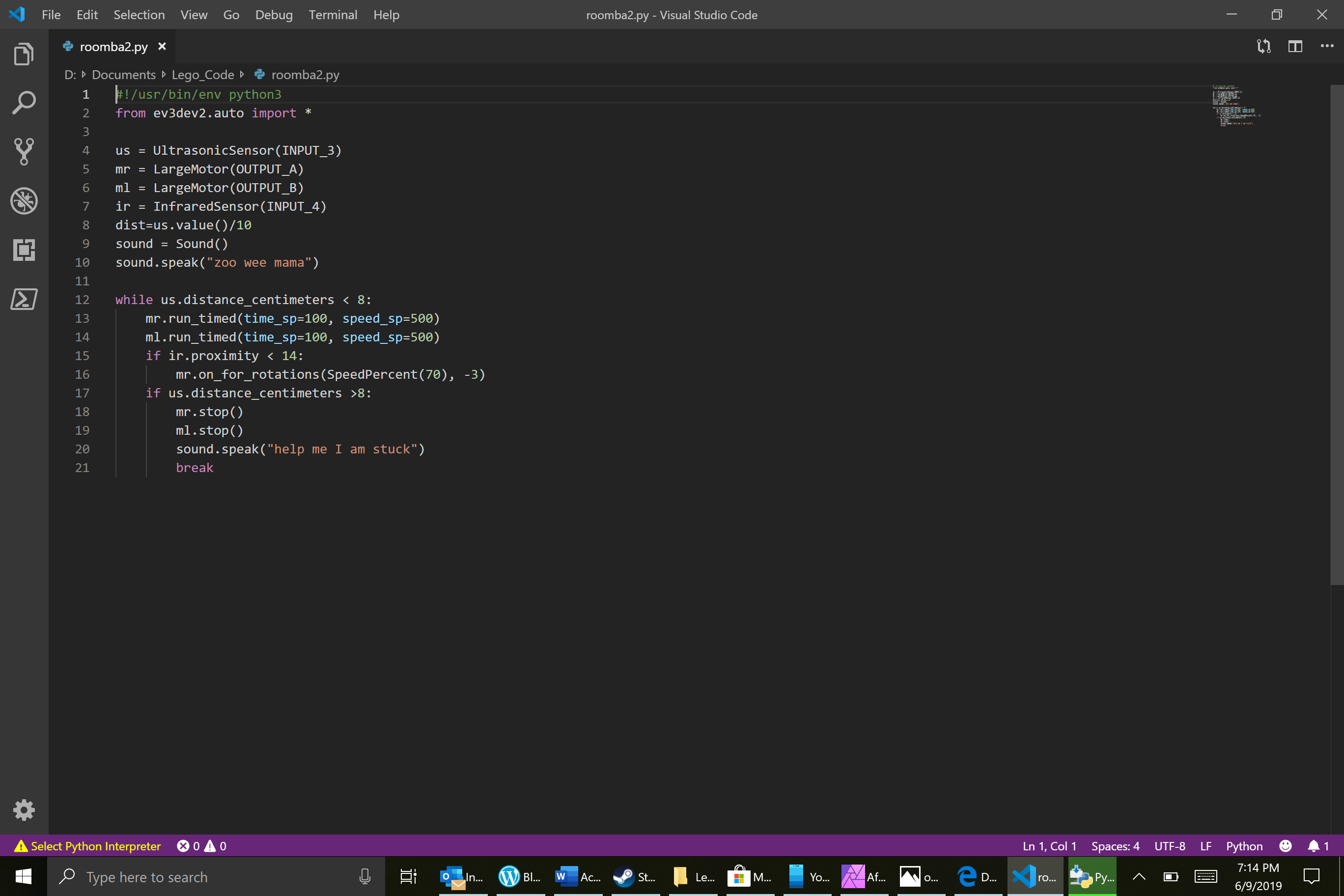
After all the moving parts were sorted, we began testing various solutions for the code that would allow our bot to autonomously drive around the house. At first, we struggled trying to get the tank to run straight. We were trying to use the “MoveTank” method, but couldn’t keep it running in a loop. We solved the problem by running each motor, individually, in a while loop. The finished “Roomba” code is below. Feel free to use it in your own projects. You may need to change the Output ports to match the way your bot is wired.

#!/usr/bin/env python3
from ev3dev2.auto import *

us = UltrasonicSensor(INPUT_3)
mr = LargeMotor(OUTPUT_A)
ml = LargeMotor(OUTPUT_B)
ir = InfraredSensor(INPUT_4)
dist=us.value()/10
sound = Sound()
sound.speak("zoo wee mama")

while us.distance_centimeters < 8:
    mr.run_timed(time_sp=100, speed_sp=500)
    ml.run_timed(time_sp=100, speed_sp=500)
    if ir.proximity < 14:
        mr.on_for_rotations(SpeedPercent(70), -3)
    if us.distance_centimeters >8:
        mr.stop()
        ml.stop()
        sound.speak("help me I am stuck")
        break

PowerShell on Linux and Mac OS X: Kumbayah or Microsoft Takeover?

Microsoft has really turned over a new leaf in regards to its view of the previously despised Linux operating systems. Satya Nadella has led the company through a complete 180. Not only have they stopped dissing Linux, Microsoft seemingly fully supports it. Previous CEO Steve Balmer tried to put Linux in a guillotine with its 59,000 strong, patent portfolio blade. He pushed companies into signing patent licensing deals; search Amdocs for the details on one such agreement.

With Nadella at the helm, the company now views Linux as an asset rather than a competitor. They may be on to something, Linux is a fantastic operating system that has propagated to data centers world-wide. It usually far outnumbers Windows nodes in those same dcs. However, a lot of the software available for Linux is sub-par in many a users’ eye. Kolab is able to ape some of the best features of Microsoft Exchange, but lacks the polish and scalability features. Libre Office Writer 5 is good for free software, but I write all my documents in Microsoft Word.

The ablity to run Microsoft’s flagship software on Linux machines could greatly expand Microsoft’s user base, both in the Enterprise and by individuals. Last year MS released an edition of its SQL 2016 Server that runs on Linux and enabled Bash (the Linux terminal for my Windows readers) in Windows 10. It fully supports Linux virtual machines in its Azure cloud and Unbuntu on Windows is available in the Microsoft store.  Its latest offering is the ubiquitous PowerShell and .Net core. The old lines in the sand are starting to become awfully blurry. The official Microsoft announcement is here if you’d like to read it.

Speculation could lead one to ponder what else will run on Linux now that it has the next-gen .Net framework easily available. Rumors abound that everything from Microsoft Exchange to Microsoft Office is on the way. Only the future will tell for sure, but I can’t imagine that MS went to all this trouble just to let Windows admins run their PowerShell scripts on the Linux team’s VMs. Python isn’t that big of a leap for those of us that are proficient at PowerShell, there’d be no reason for this type of overture unless they have plans to do something more with it.

So how do we get PowerShell on to Linux and what can you do with it after you do? Let’s find out! If you don’t have an old system lying around that you can toss your favorite Linux distro on, I suggest building a VM on your Windows machine. You can use Hyper-V if you have Windows 10 Pro or Server, and VirtualBox if you don’t. See my article about building a VM on windows for more info.

I’m using Ubuntu 17.10 and I’m going to add the Microsoft repository to my package manager so that my install stays up to date with my regular update procedure. If you’re doing this on a MAC you’ll want to grab one of the OS X packages from the GitHub Repository. The Macintosh operating system has an unknown developer lock on it just like your phone does. You’ll need to CTRL + Click on the PKG file that you downloaded and then pick Open to bypass the security feature. Follow the Wizard to complete the installation.

In Ubuntu, open a terminal and follow the instructions below.

  1. We need to add the curl program unless you’ve already had to for some other task.
    1. Type: sudo apt install curl and press enter.
  2. Now we’re going to import the repository GPG keys.
    1. Type: curl https://packages.microsoft.com/keys/microsoft.asc | sudo apt-key add – then press enter.
  3. We need to register the repository.
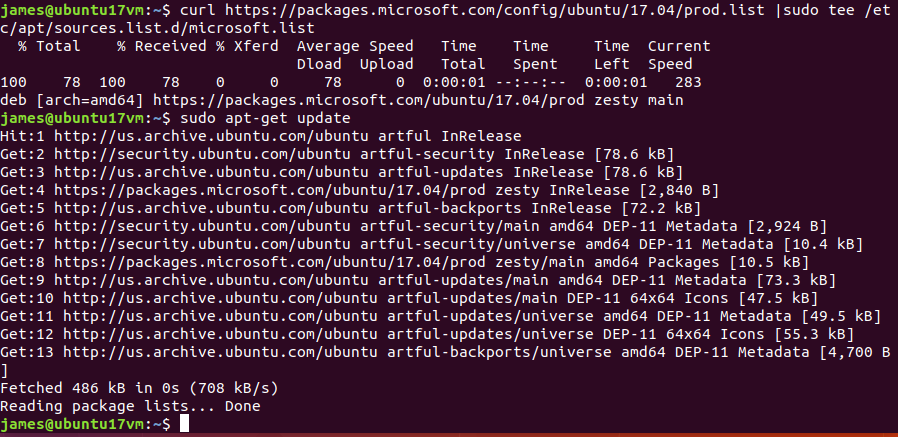
    1. Type:  curl https://packages.microsoft.com/config/ubuntu/17.04/prod.list | sudo tee /etc/apt/sources.list.d/microsoft.list and press enter.
  4. Next we need to check for updates.
    1. Type: Sudo apt-get update and press enter.
    2. installpowershellonlinux2
  5. All that’s left is to install PowerShell
    1. Type: sudo apt-get install -y powershell

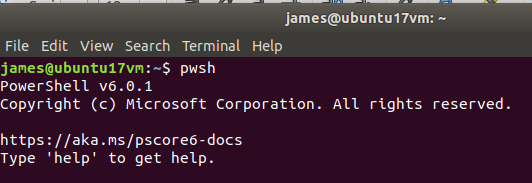
That’s it, you’ve installed PowerShell on Linux. To those of us that have been in tech for more than a few years, that is a very odd sentence to type. Now what? Well, first you’ll need to launch it. Open your terminal and depending on the version of Linux/Mac OS X and the package you’ll need to type either powershell or pwsh to access it.

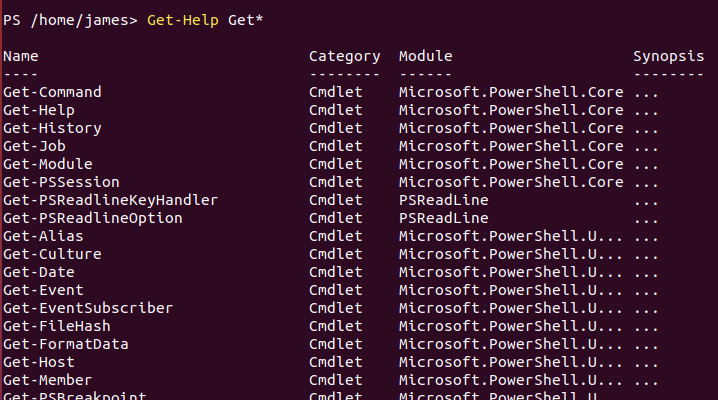
Once you’re in, it works exactly like it does on Windows. A good way to see what you can do is to list out the commands and modules available. Try Get-Help Get* for a list of get commands and Get-Help Set* for the settings you can alter. Get-Module -list is also handy.linuxpowershellget

There are a lot of commands available but some of my favorites are missing. Get-NetAdapterConfiguration and Test-Connection are nowhere to be seen but the trusty Get-ChildItem and Get-Process are both fully functional. You’ll have to check for your favorites. One would assume cmdlets will be added with future updates as there were in the evolution of PowerShell on Windows.

As I’ve stated in numerous posts before, I like and use all technology. I see the new trend of intergration as an extreme advantage for the future of computing in general. I sincerely hope it continues.

Pfsense OpenVPN Server and Mobile Client Setup Guide; Mobile Data Protection and Remote Access in One

Introduction

In today’s data centric world, everybody wants to know what you’re doing on-line. The free Wi-Fi at fast food restaurants and hotels allows them to mine your data usage habits for marketing purposes. The “Guest” Wi-Fi at your place of business can also be monitored. What’s a private person supposed to do? There are lots of articles on the Internet regarding VPN services but few of them are free and all result in the purveyor of the service being privy to all your data habits.

One solution is to route all your mobile traffic, personal device at work, phone/tablet connected to public Wi-Fi, etc. through your home network over a VPN. There are  several services on my home network that I’d like to access from anywhere; Remote Desktop to my family’s computers, in-home Wi-Fi console, my router / firewall dashboard, and my email server just to name a few. I prefer to not punch that many holes through my firewall. A personal VPN solves these challenges.

In today’s post I’ll walk you through setting up OpenVPN on Pfsense. OpenVPN is a popular open source VPN solution that is included on some firewalls and runs on most distributions of Linux. If your device includes it as an option the principal steps in this guide will apply but the screens and locations will vary.

Instructions

I will be posting a full setup guide for Pfsense at some point in the near future. If you’re not familiar with the software, it is a commercial class firewall and router package that you run on a PC. You can get a lot of information about it from their excellent website.

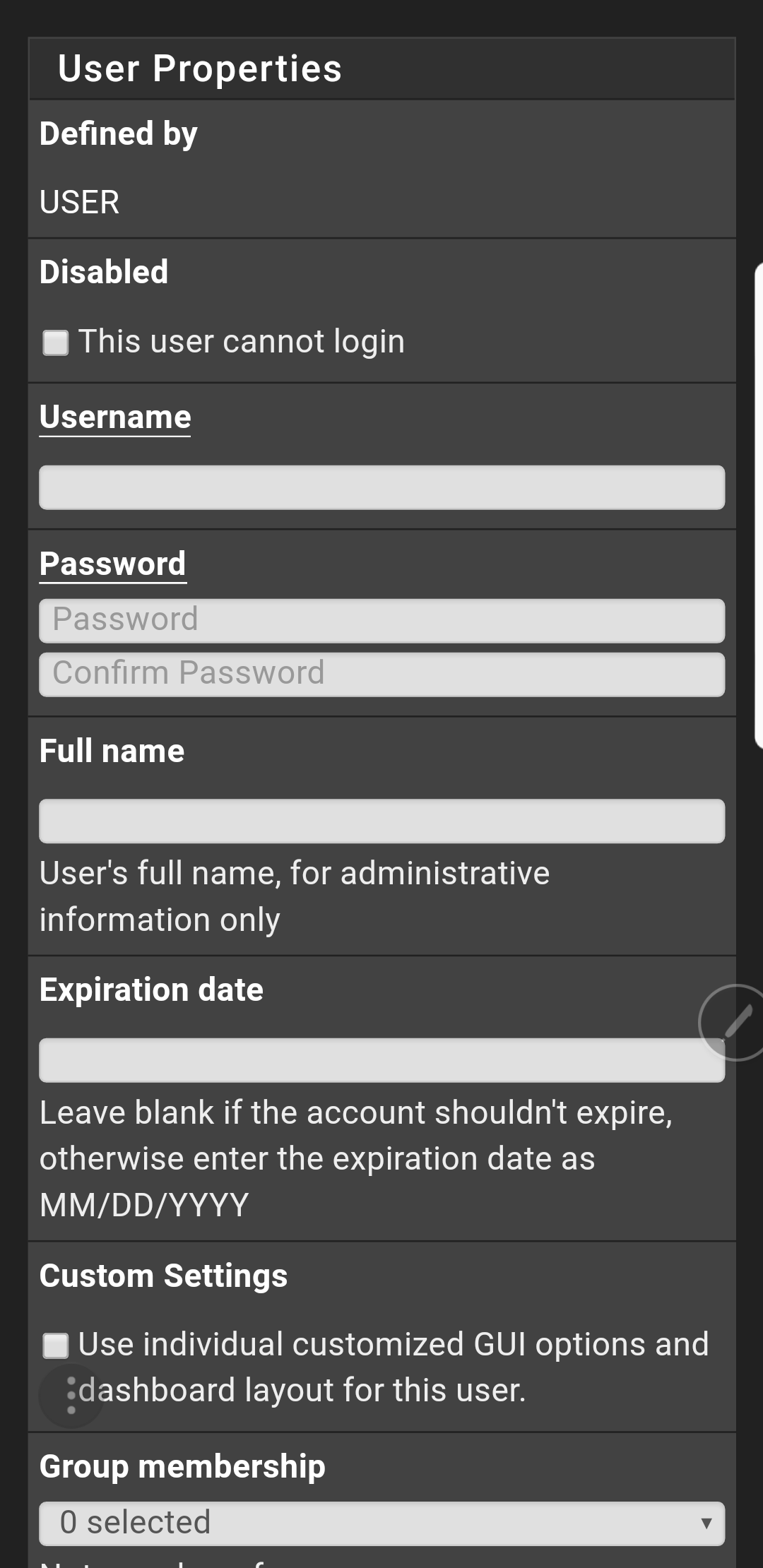
Create User Account(s)

You will need a user account to logon to your new VPN with. The software supports certificate based authentication. However, self-signed certificates (issued ourself vs. purchased) are difficult to work with on modern operating systems. For the purposes of this guide we’ll stick with a basic username and password.

  1. Open the web configuration
  2. Click System -> User Manager -> Add
  3. Complete the form
  4. Do not check the box to create a user certificate
  5. Click Save


You may be tempted to make a single account for everyone to share. However, I recommend creating a separate account for each person that may use the service. This makes troubleshooting easier and advances your security stance.

Install VPN Client Exporter Package

Once OpenVPN is up and running you’ll need to install and configure the client software on your mobile, laptop, etc. The easiest way to accomplish this is by sending yourself (email, Dropbox, etc.) a pre-packaged configuration file. To export the configuration file we’ll need to add some software to Pfsence.

  1. Open the web configurator
  2. System -> Package Manager -> Available Packages
  3. Search for openvpn-client-export
  4. Click the Install button

vpnclientexporterpackage

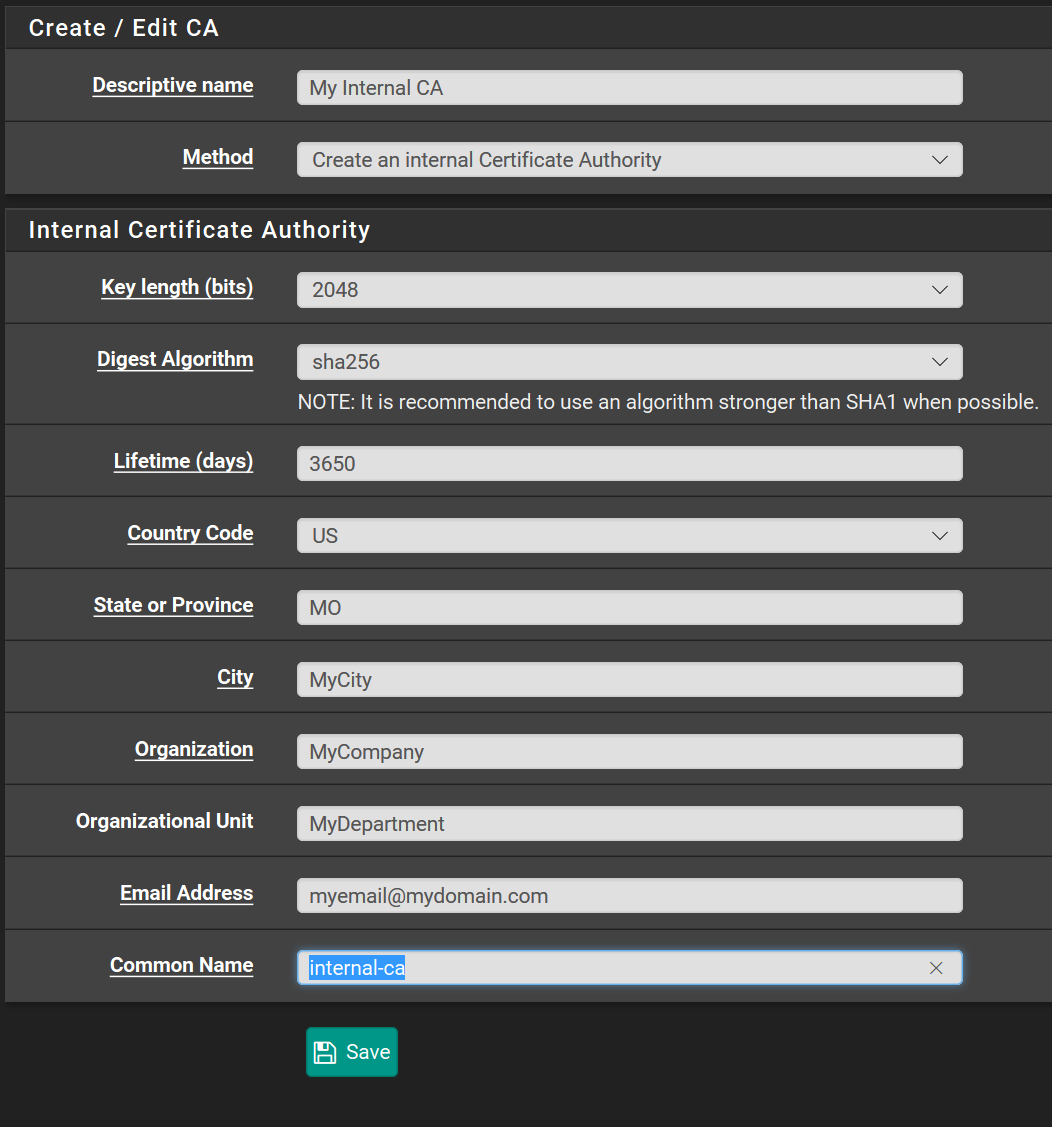
Create an Internal CA

OpenVPN’s private connections are built using TLS encryption; it’s not important that you understand the details but we need to set up Pfsence as a certificate authority so that it can issue the encryption certificates required to make this work.

Depending on how you installed Pfsence, you may find there is already a CA present in which case you can skip this section.

  1. Open the web configurator
  2. System -> Cert Manager -> CA -> ADD
  3. Complete the form and click Save

PfsenceCA

Issue Certificate

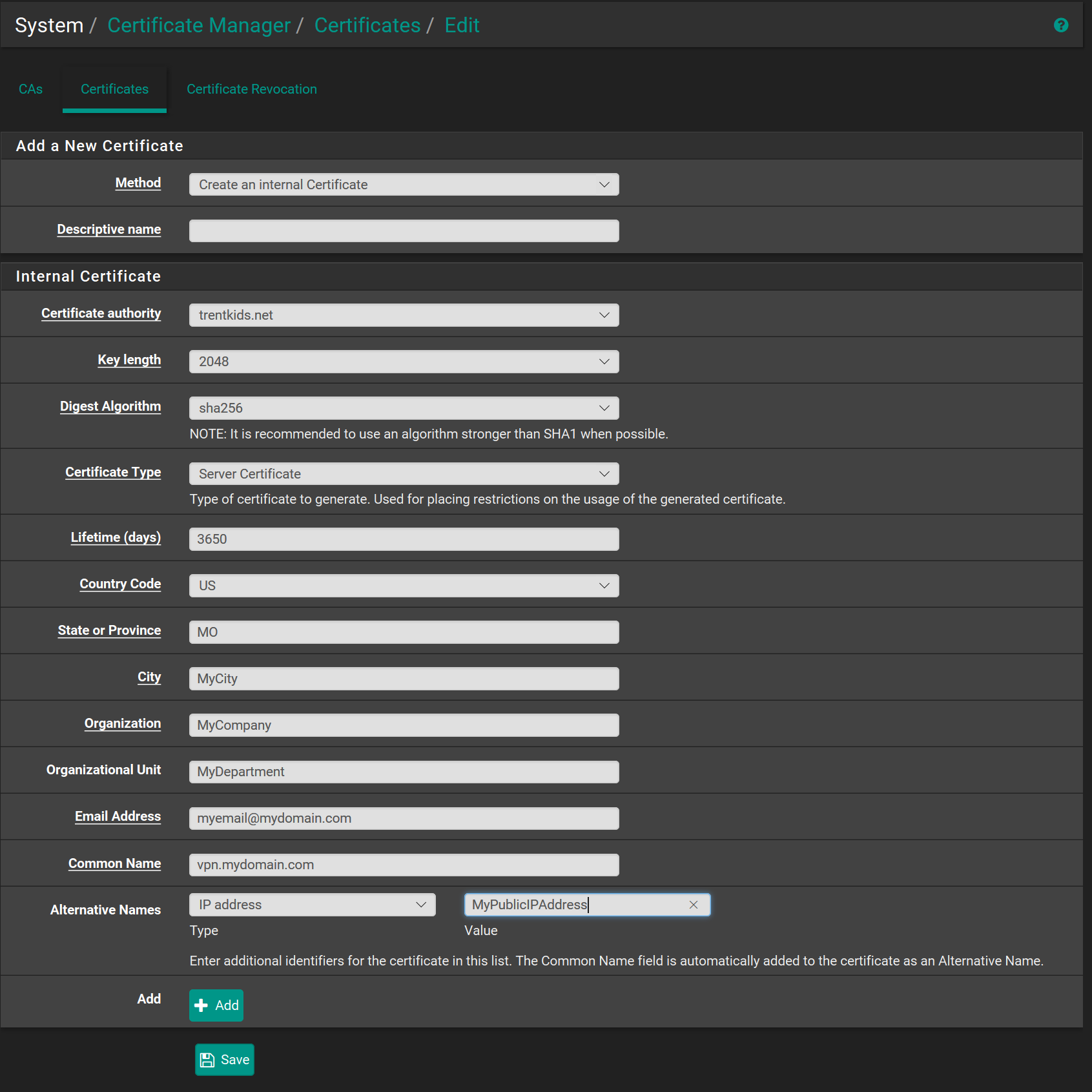
Now that we have a Certificate authority, we’ll need to issue the TLS server certificate the encrypts our data as it travels over the VPN.

  1. Open the web configurator
  2. System -> Cert Manager -> Certificates -> ADD
  3. Complete the form and click Save
  4. Be sure that you set the Certificate type to Server Certificate
  5. Add your public IP address as an alternative name
  6. Click Save

PfsenceServerCert.png

OpenVPN Wizard (Setup the service)

  1. Open the web configurator
  2. Click VPN
  3. Select OpenVPN
  4. Click the Wizards Tab
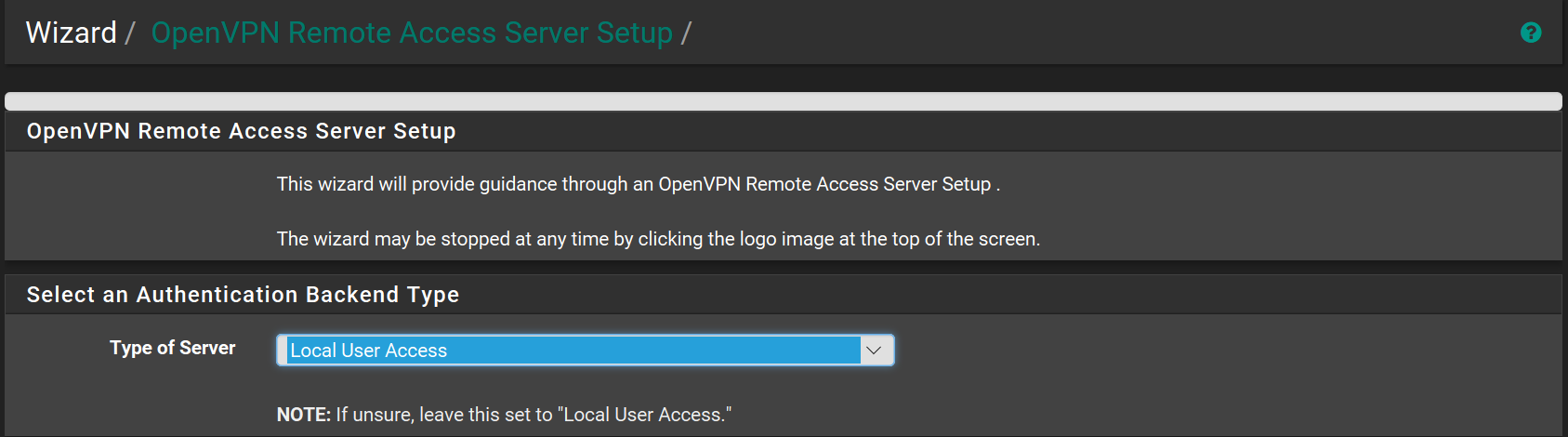
  5. Leave type of server as Local User Access
  6. NextOpenVPNWizard1
  7. Certificate Authority, select the CA you created
  8. Click Next
  9. In the certificate drop down, select the server certificate we issued from our CA
  10. Click Next
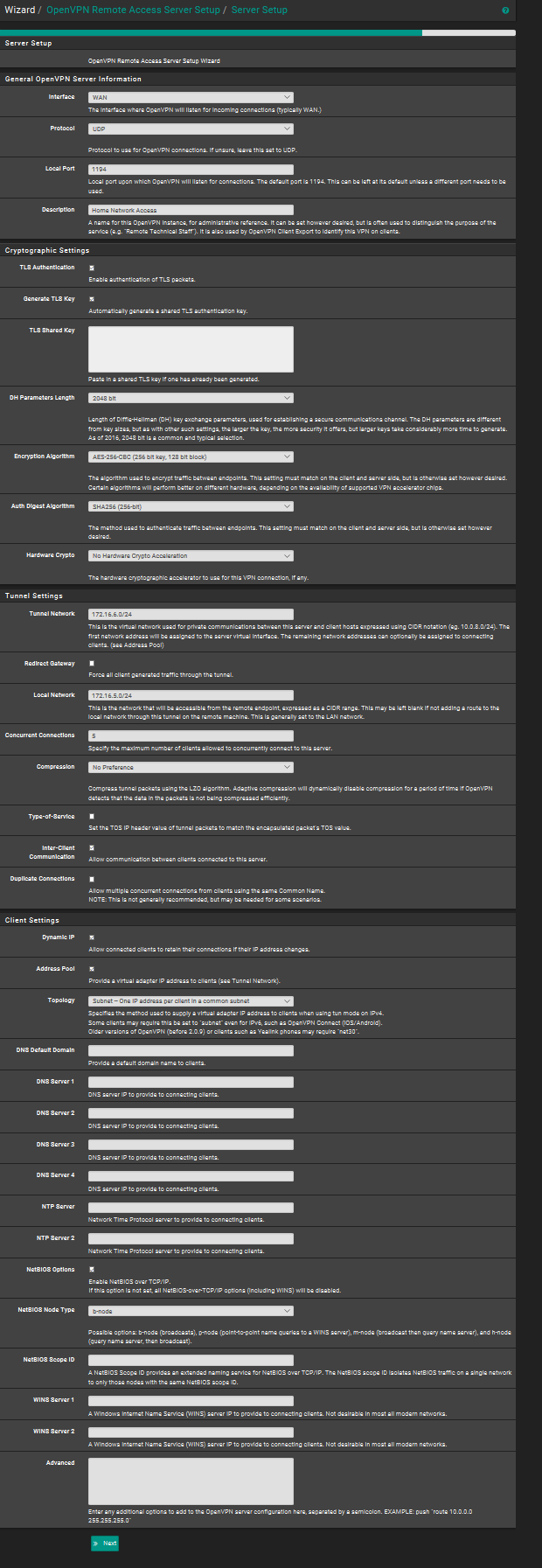
  11. The next form has a lot of options on it. Change the following:
    • Description, name your connection
    • Tunnel Network = CIDR network separate from your primary LAN subnet. For example; if your current primary network is 172.16.5.0/24 then you would want to put 172.16.6.0/24 here. Incoming VPN clients will receive addresses in this range.
    • Local Network = your primary LAN range. In the example, 172.16.5.0/24
    • Redirect Gateway = Select this option, it is the magic sauce that prevents the networks you connect to from snooping on your usage habits by sending all your network traffic through your home router instead of theirs.
    • Concurrent Connections = How many devices will you allow at once.
    • Select allow Inter-Client Communications
    • DNS Server 1 = IP address of your Pfsence firewall
    • Enable NetBIOS options
    • NetBIOS Node Type = b-node
    • Next

OpenVPNWizard2

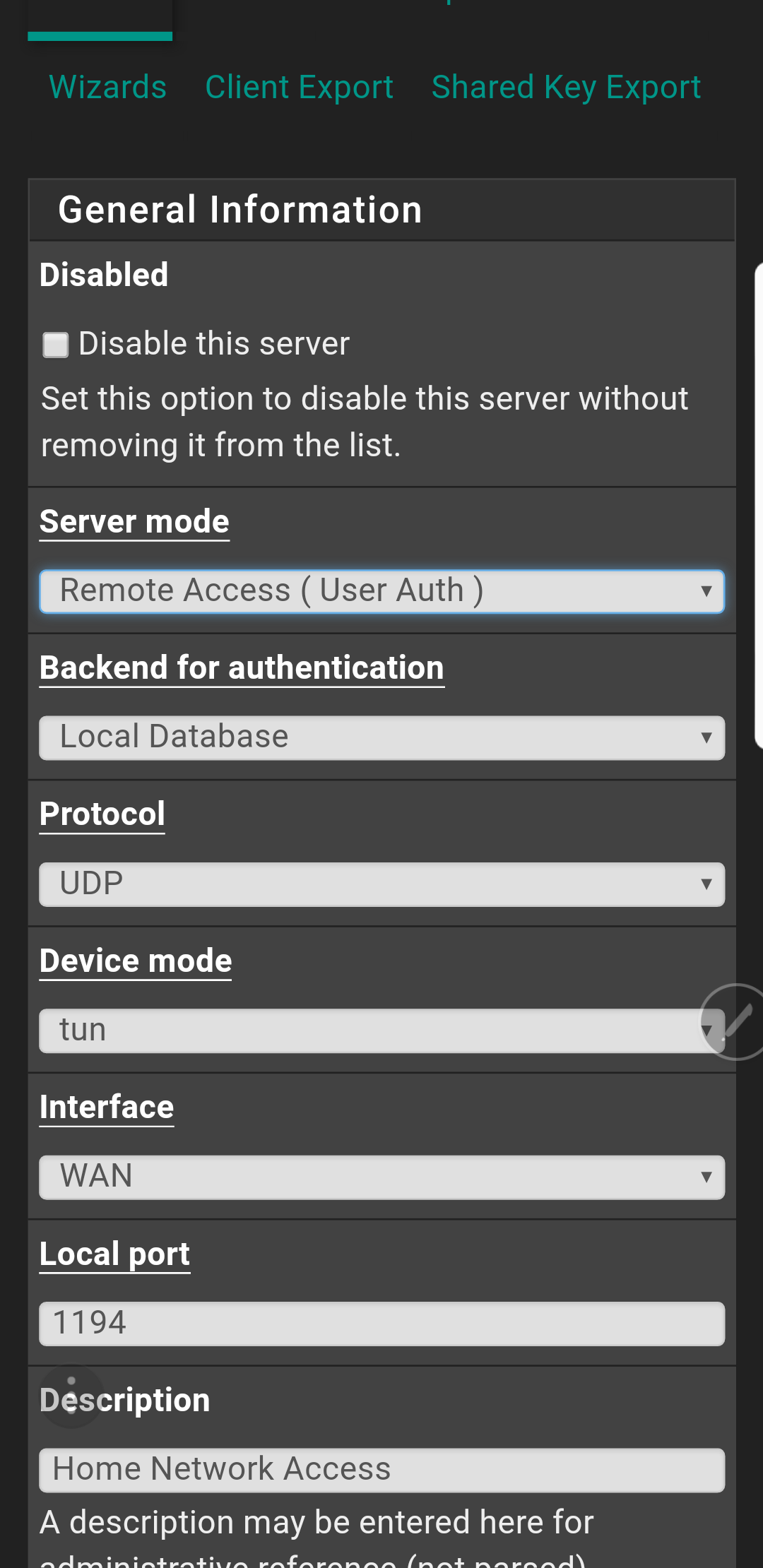
The wizard will automatically add the required firewall rules and routes for us. However, it defaults to certificate based authentication and we want to change that (see create accounts).

  1. Click System-> VPN -> OpenVPN
  2. Select the pencil icon to edit the settings
  3. In the drop-down for server mode, choose Remote Access ( User Auth)

At this point our VPN server configuration should be complete. To use it we will need to install and setup the client software on our mobile device. There are a lot of client applications that support OpenVPN my personal favorite is OpenVPN CONNNECT. It is available on both the iOS Itunes App Store and Google Play for Android. The software works the same way on both mobile operating systems.

Google Play download (Android)
Itunes download (Apple iOS)

Export the Configuration File

OpenVPNExport

  1. Open the web configurator
  2. Select the VPN menu
  3. Click OpenVPN
  4. Click Client Export
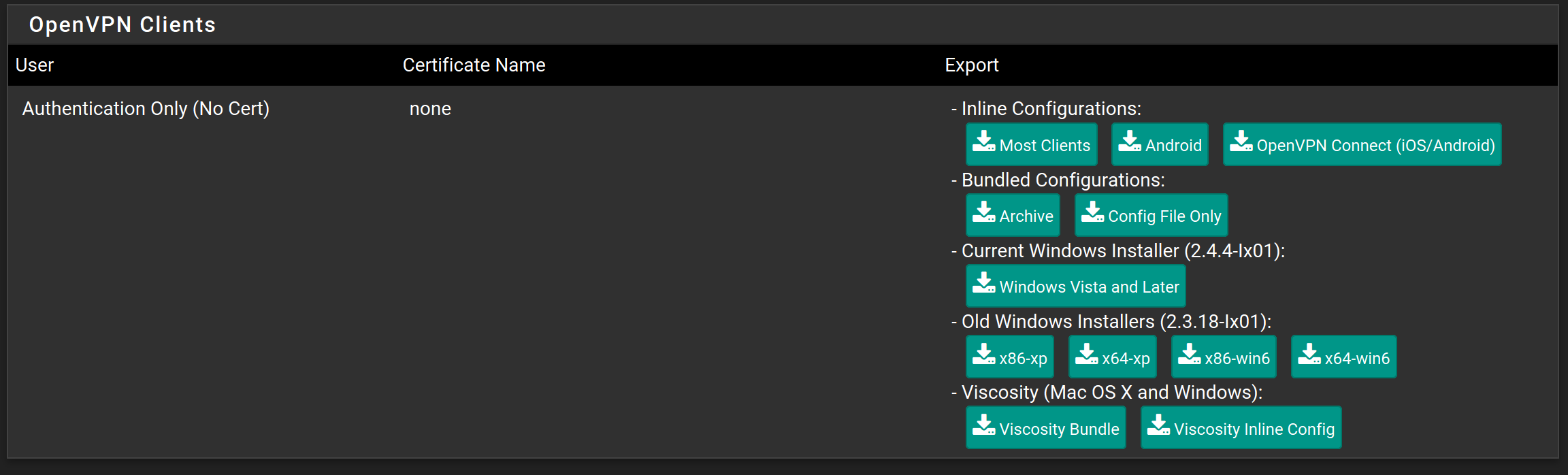
  5. Scroll down to the OpenVPN Clients section and click the button labeled OpenVPN Connect (iOS/Android)
  6. Save the file to your disk
  7. Send the file to an email address that you can access from your mobile or place it in your cloud storage. (You could also connect your device and side load it)

Configure the client application

  1.  For Apple devices,
    • Open the configuration file from your device
    • Select OpenVPN CONNECT as the application to open the file with
    • Choose YES to import the profile
  2. For Android devices,
    • Save the file to your device from your email or cloud app
    • Launch the OpenVPN CONNECT application
    • Tap the three dots button in the upper right
    • Tap Import
    • Tap Import Profile from SD Card 
    • Browse to the Downloads folder (default save location) on either your internal storage or SD card
    • Tap the file you saved
    • Tap the Select button
  3. Enter the correct username and password (choosing save is optional)
  4. Click the Connect button.

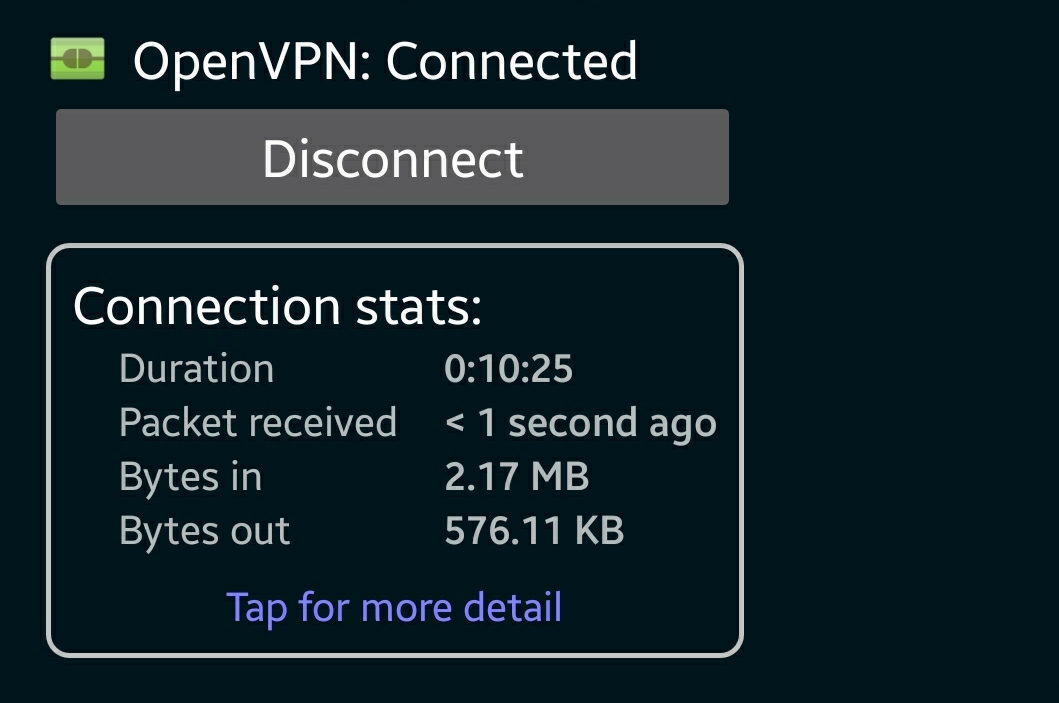
Screenshot_20171011-151545.jpg

Validate your setup

Obtain your mobile public IP address by opening your device’s browser and going to http://www.ipchicken.com (not connected to VPN). Then connect to your VPN and open the page again. Your IP when connected to the VPN should be the same as a computer on your home network. If it is, everything is working. If not, try looking in the OpenVPN connect client logs and in the logs of Pfsense for clues.

Kolab Groupware Private and Shared Mailbox Setup with Client Configuration

Now that we have our groupware server up and routing mail; we’ll need to configure some mailboxes for the mail to be delivered to. There are several types to choose from but we’ll stick to a standard user mailbox and a shared mailbox; two of the most common. The others work the same way you’ll just use different drop-downs and end up with different options.

CONFIGURE USER MAILBOXES

  1. Logon to the Kolab Web Admin panel in a browser that has access to your virtual machine. If you installed a GUI on your Linux server, its built-in browser will work.
    • kolabadminlogon
    • kolabwebadmin
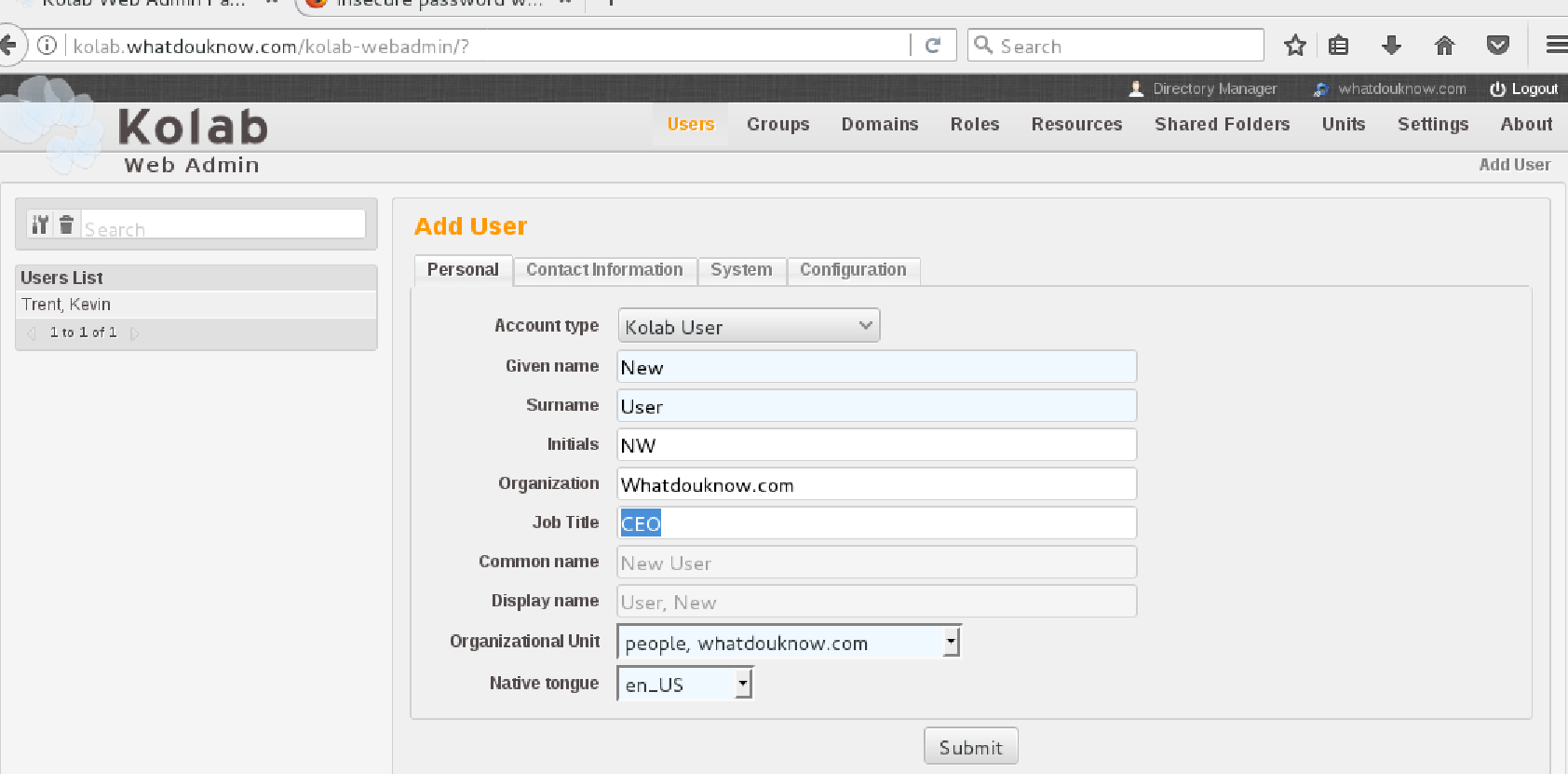
  2. Click on the Users icon.
    • Selecting Kolab User from the drop-down box will present a tabbed form that allows you to configure a standard user mailbox including the LDAP account.
    • Complete all the fields on all the tabs then click Submit.
    • Kolabnewuserform
  3. Create at least two user accounts so you can test your server.

Explore the Web-Mail Interface

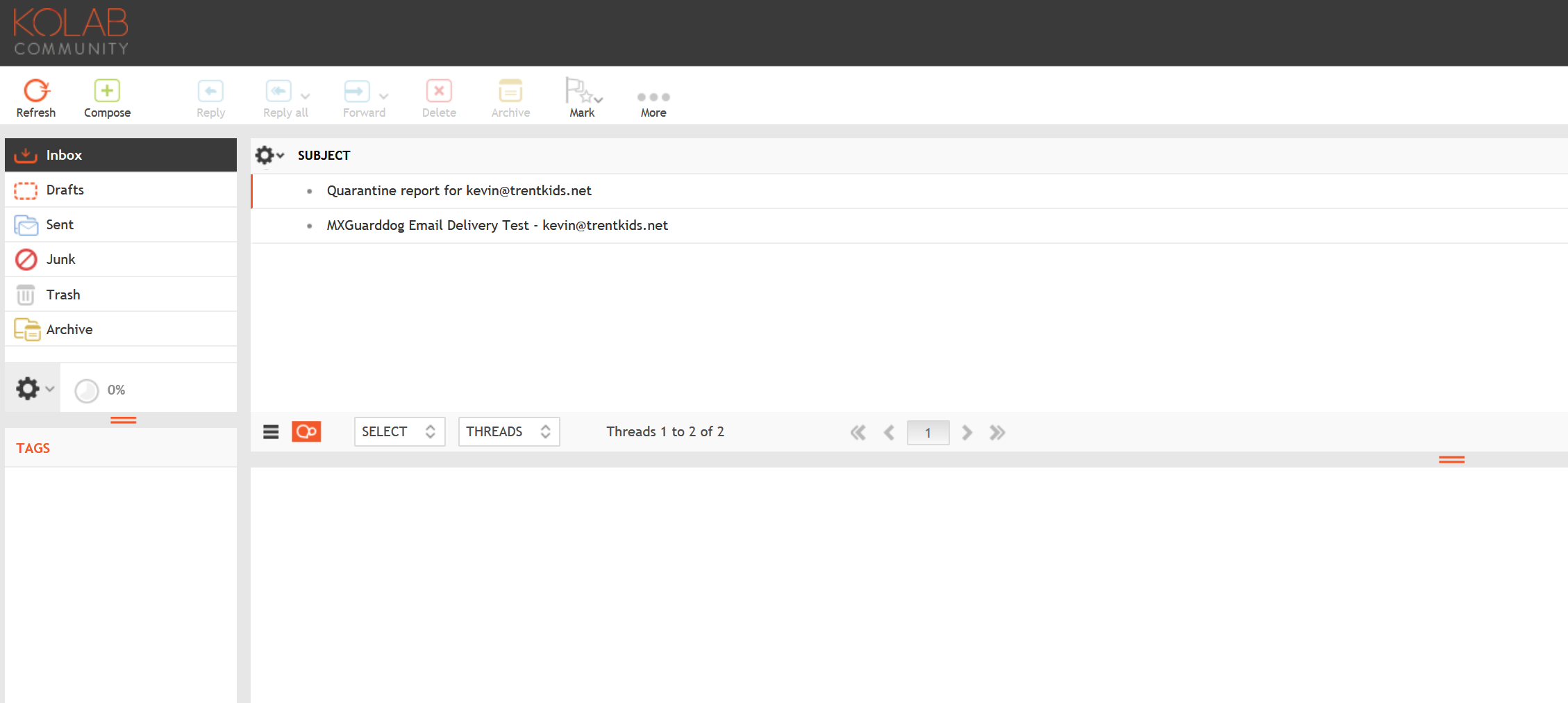
  1. Open the web browser and go to https://youserverfqdn.com/roundcubemail/
    • You’ll be presented with a very nice web mail interface.
  2. Compose a message from user A to user B and send it.

I like to use two different browsers to log on as both users at the same time. The system will prevent two logons from the same client IP.

Kolabwebclient

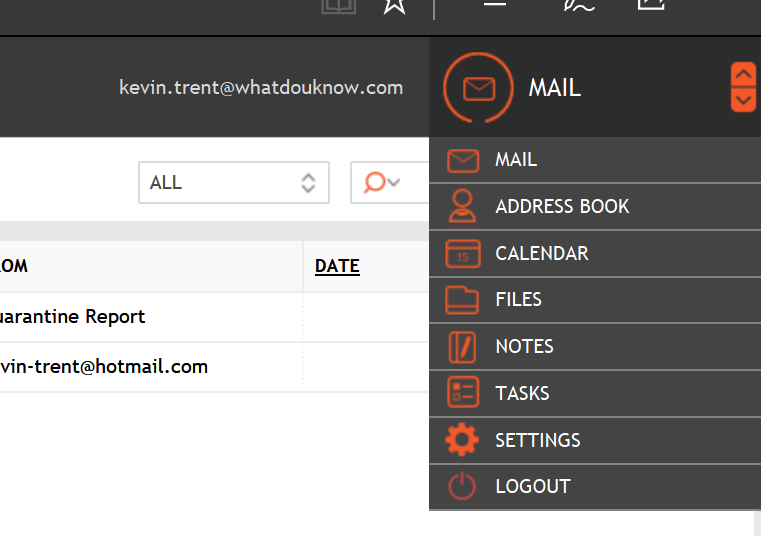
Switch between Email, Calendar, Contacts with the icon in the upper right. kolabclientpanes

Settings

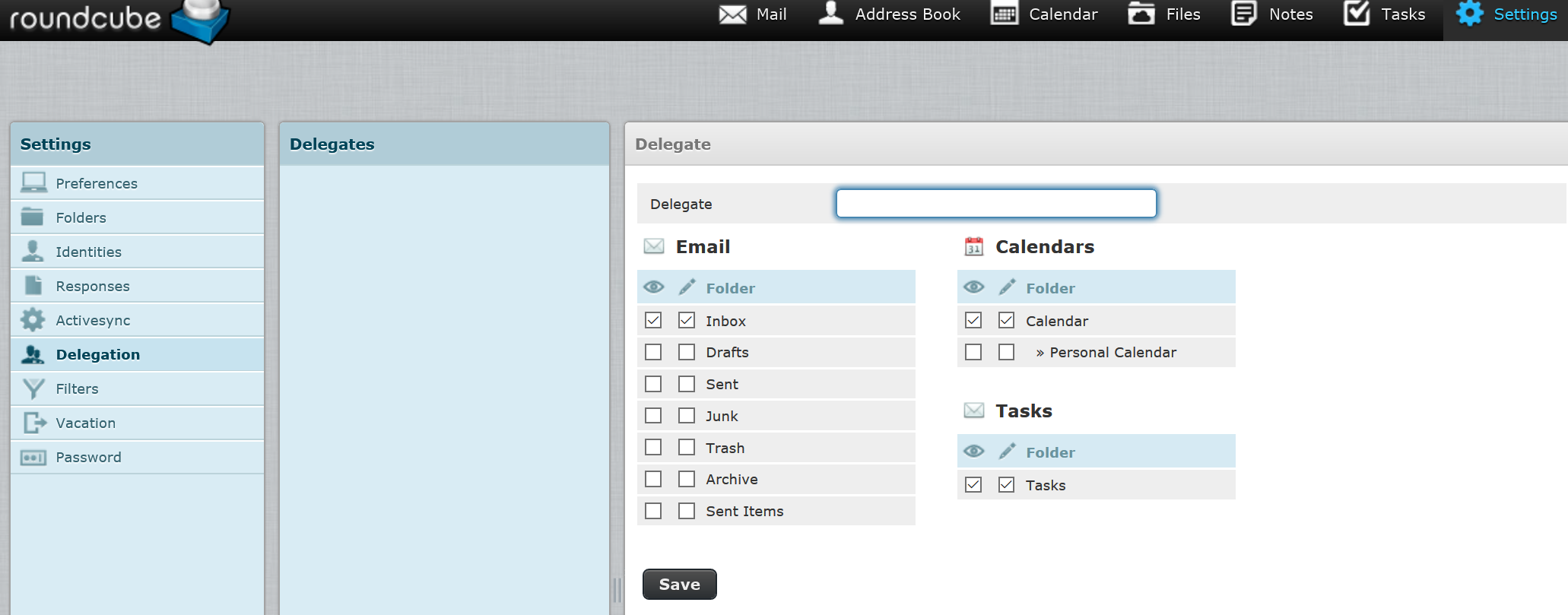
Look in the settings menu system to personalize, delegate and control your mailbox. This web client is very robust and customizable.

kolabclientdelegation

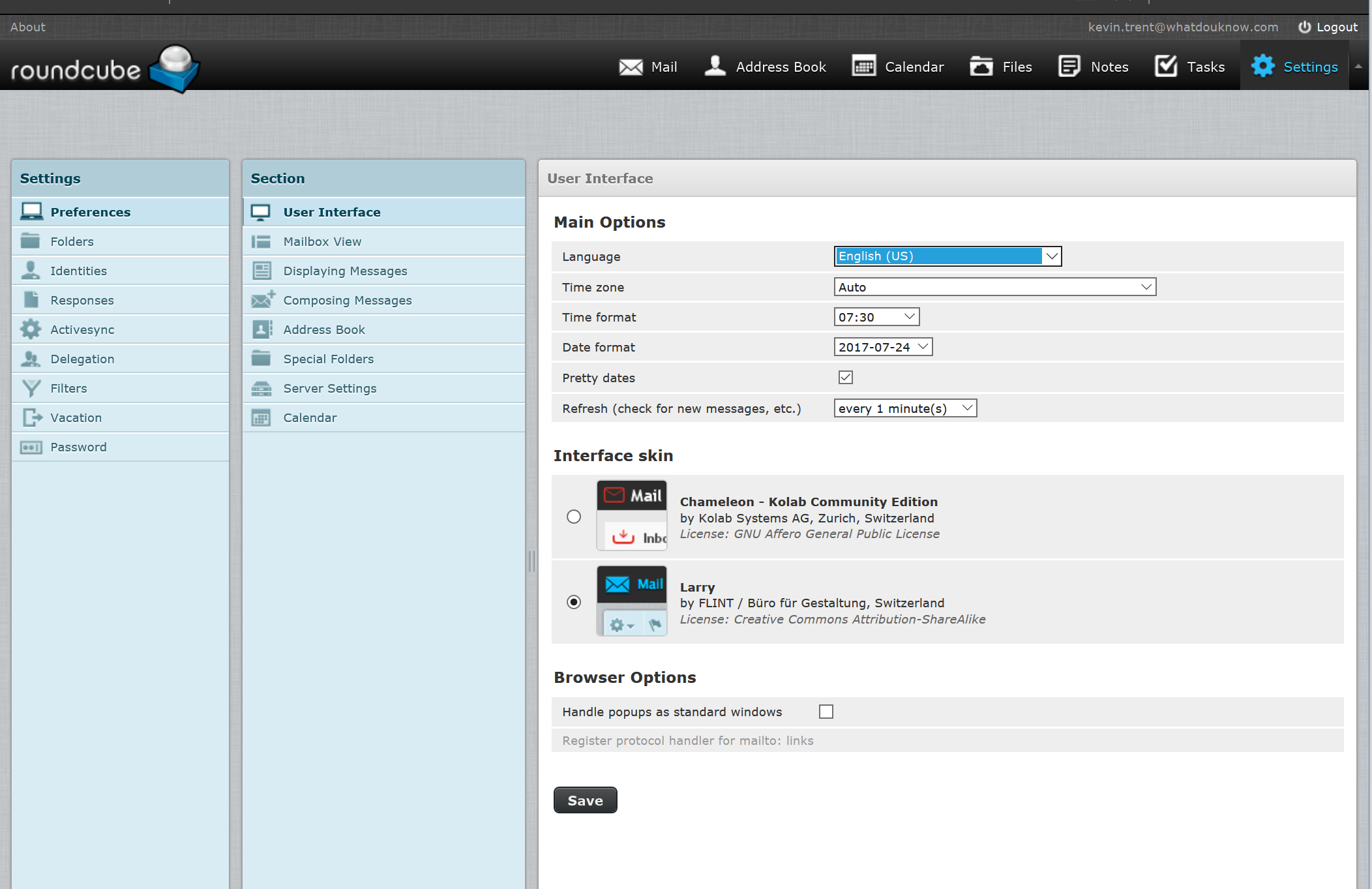
The menus are intuitive and self-explanatory. Each menu has sub-menu’s for the selected category. For example under Preferences you can control how things look and feel.

kolabclientui.png

Other Clients

See the Kolab documentation for configuring other clients. Your choices are: Microsoft Outlook; Mozilla Thunder Bird, or Kontact the vendor’s client software. Its IMAP protocol is accessible by a wide range of apps and clients across all devices. https://docs.kolab.org/client-configuration/

Create a Shared Mailbox

  • Open the Web Admin Console
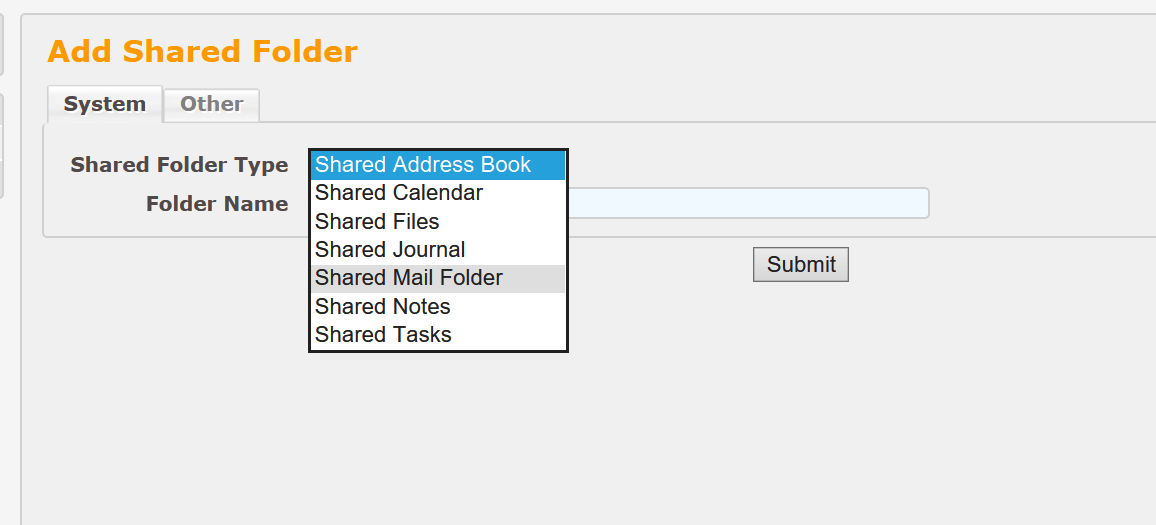
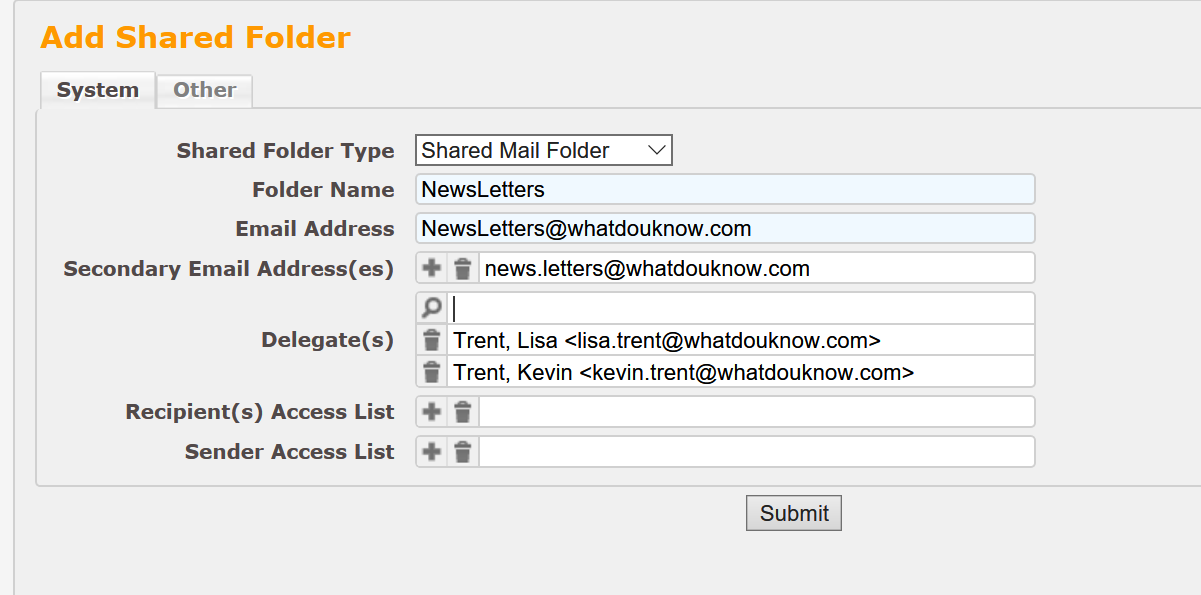
  • Click the Shared Folder Icon.
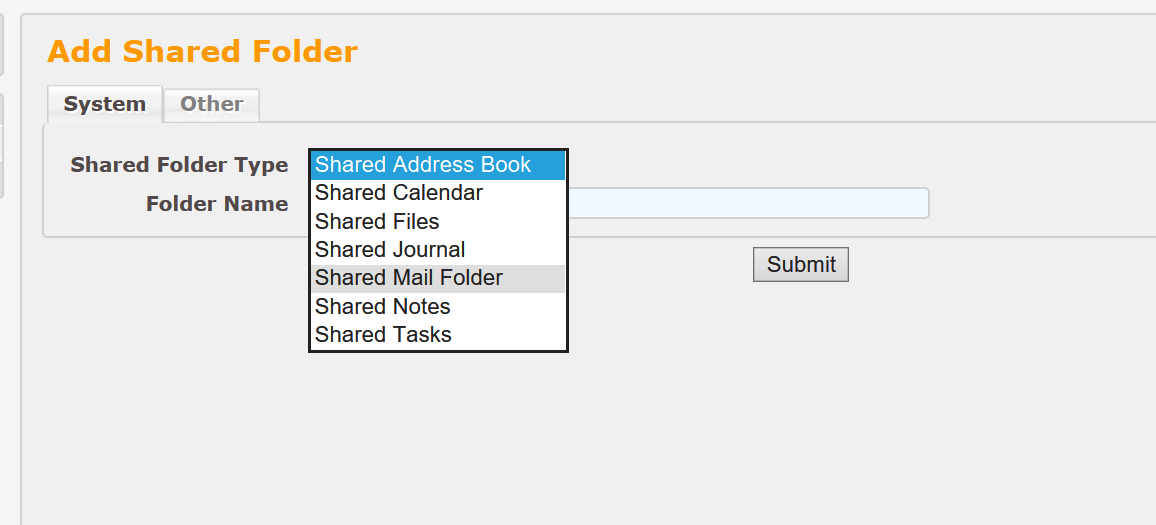
  • Select Shared Mail Folder from the drop down and click the Submit button.
    • kolabsharedmailbox
  • Fill out the form and click Submit.
  • kolabsharedmailboxform

To Use/Open the shared folder

  1. Open the Web client.
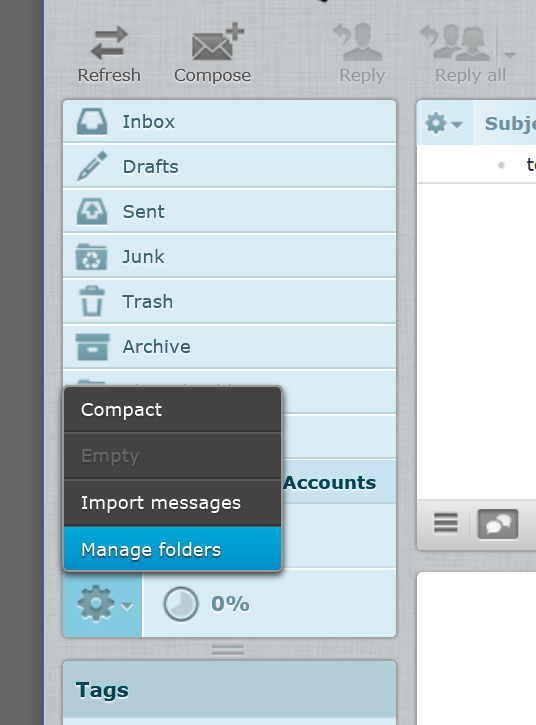
  2. Click the gear setting at the bottom of your folder list and click manage folders.
    • kolabclientmanagefolders
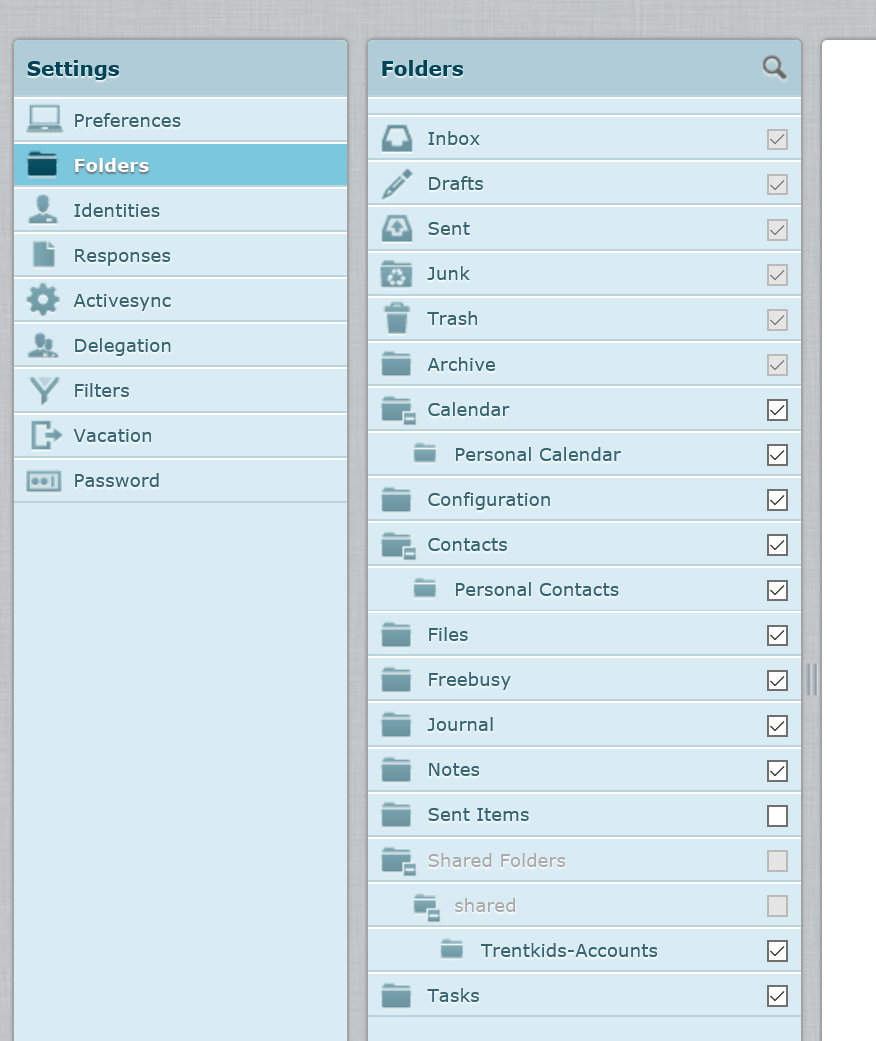
  3. Select Folders and check the Shared Folder’s box in the list.
    • kolabclientsharedfolders

Now that you can route mail to mailboxes you are able to implemeant and access it via several client types you should be ready to expand your system. If you’re setting this up for a small company or POC with 40 or fewer users, you’ll just need to setup some type of backup/restore (snapshotting the VM works just fine) and you should be ready to run. Start expanding your users, groups, and shared resources.

Kolab Groupware Mail Routing Configuration

In the previous Kolab article we installed our messaging and collaboration server on a Windows hosted Hyper-V VM. Now we’ll set it up to function as a live email server.

Firewalls

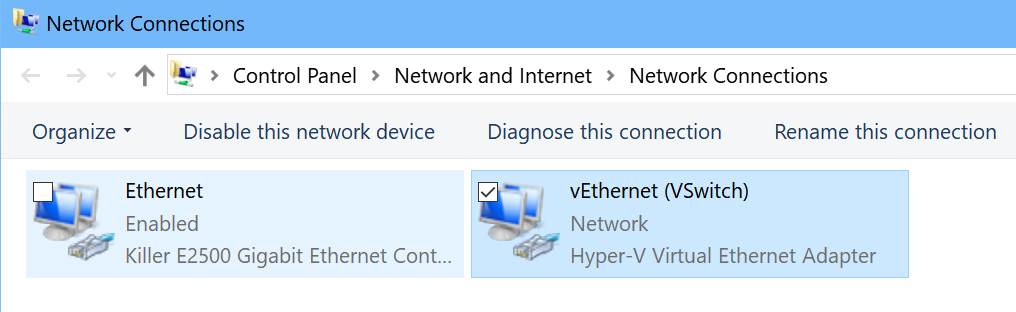
People often assume that because our Linux VM is hosted on a Windows computer that we will need to adjust or turn off the Windows firewall (or Symantec, McAfee, Avast, etc.) but this is not the case. When we created our V-switch the VM received its own network interface that is separate from the host computer’s interface. You can view it in the Network Connections control panel. This NIC is not tied to any of the software firewalls you may have installed on your Windows host system. The only firewalls that will be in play are your gateway device (router, cable modem, etc.) and the software firewall on your Linux VM. We’ve already allowed the required ports on the Linux firewall.

Network_Connections

If your network is protected by a physical firewall of some type (it should be), you will need to forward the following ports from it to your Kolab server: TCP 25, TCP 110, TCP 143, and TCP 587. If you’re not sure what your Kolab server’s IP address is, the easiest way to obtain it is by running the command ifconfig (just like ipconfig) from its terminal.  Unless you have customized your NIC, the eth0 interface is likely the one in use.

ifconfig

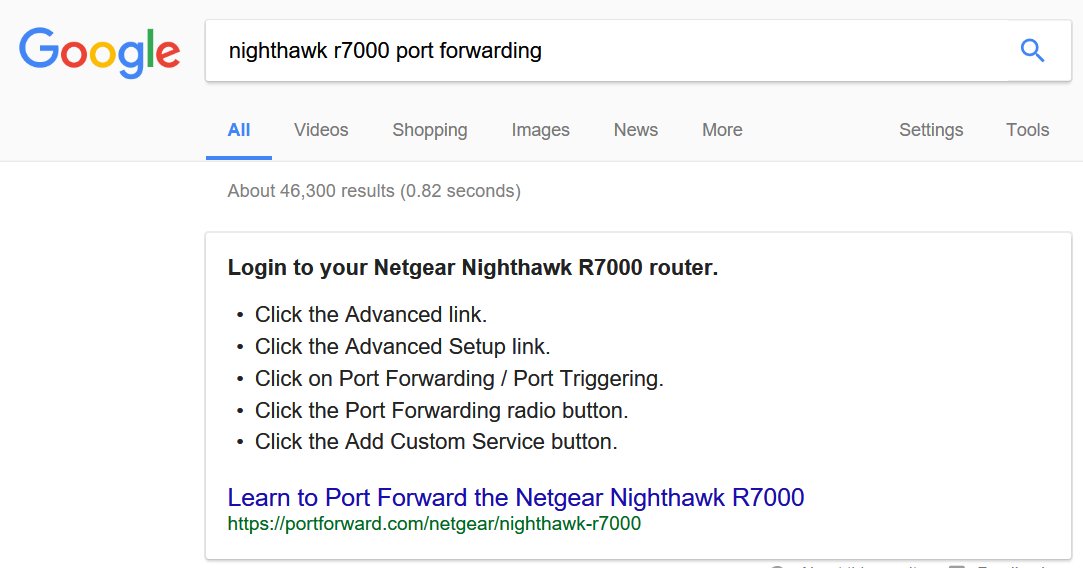
Precise instructions for forwarding the ports from your physical firewall is outside of the scope of this document. There are too many variations and types of firewall devices for me to document the process. Most of them involve logging on to the Admin console (usually a web page or app); locating the forwarding tab, and entering the correct ports in the box (or selecting them from a drop-down list) along with the destination IP address. If you are having trouble; google “The name/model of your firewall, Port Forwarding” and you’ll probably find step by step instructions.

googlerouterconfig

Inbound Email Routing

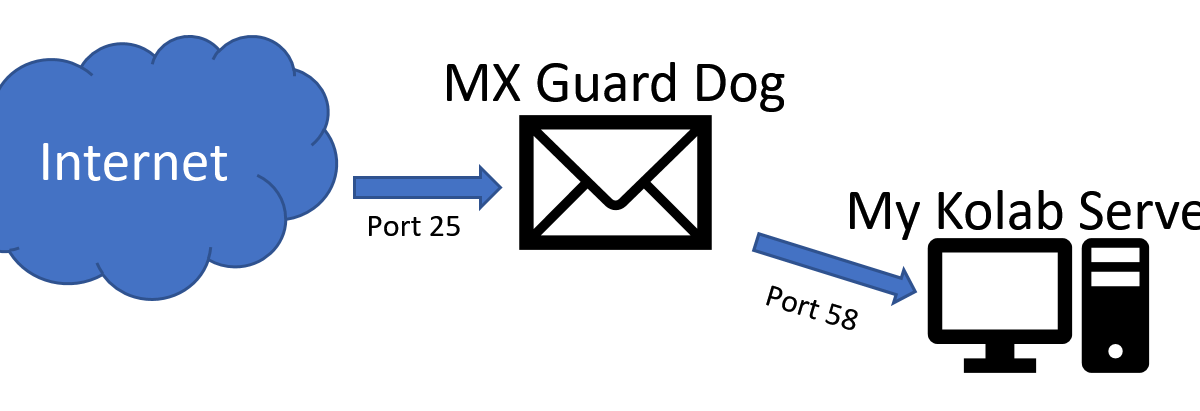
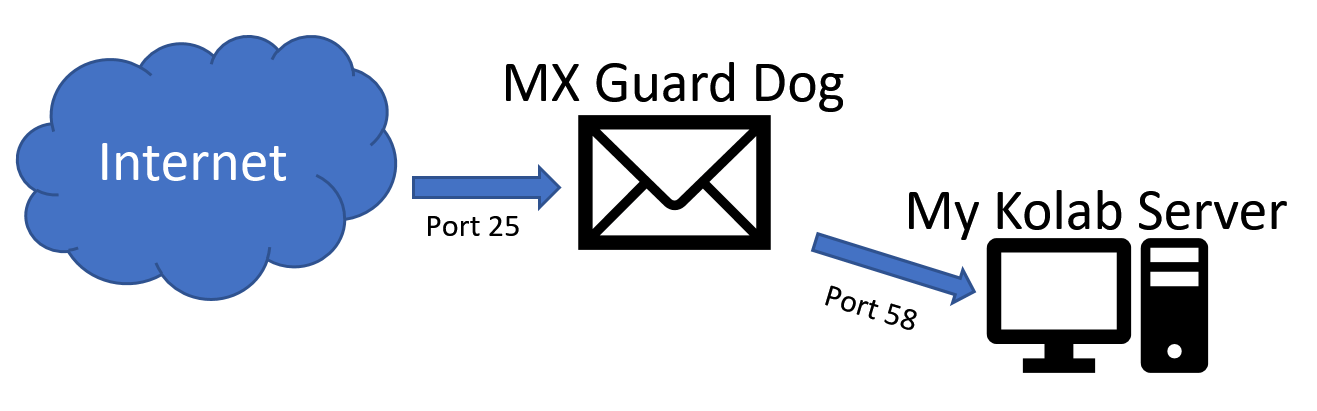
To route email from the Internet to our Kolab server we’ll need to configure our domain namespace to identify it as a post office. This process can be tricky, especially if you are attempting it on a residential Internet connection. Many ISPs do not allow SMTP (email protocol) hosting via residential connections and block incoming requests on port 25 (standard SMTP port). Evading detection usually involves a man in the middle service of some kind. My anti-SPAM service, mxgaurddog.com provides this function for me. My public MX records (next paragraph) points at their servers and they deliver the mail to my server on a non-standard port directly to its IP. This also serves as a very effective way of preventing various types of attacks against my domain.  If you try something similar you will need to add your custom port to the firewall on your Linux VM (refer to the previous article for examples of how to do this).

MX records (Mail Exchanger) are what the internet uses to direct mail to the server(s) that are responsible for receiving messages for a given domain name (it identifies your post offices address). Again, precise instructions are not possible because ISPs, Domain Providers, and DNS servers can all be quite different from one another. The general process involves configuring a host record on your domain registrar’s DNS servers that targets your network’s public IP address. You can obtain the public IP address assigned to your network by visiting www.ipchicken.com from any system connected to your network. For example; if your public IP was 192.51.124.7 and your domain was mydomain.com. You would create an A (host) record for kolab.mydomain.com pointed at 192.51.124.7 and an MX record that points at the host kolab.mydomain.com. If you google “Your domain name provider, setup MX record” you will probably find step by step instructions.

If you are using a “man in the middle” service like MX Guard Dog your MX record will point at their systems and they will target your network’s public IP address. Your chosen service will provide you with exact configuration instructions.

Emailalternateport

Your ISP may provide you with a “leased” public IP address. This means the address can or will change over time. If you have a leased address you will need to logon to your domain name registrar’s site and update the IP address for your mail host when it changes or use a service that does it for you. NoIP.com is one of the most popular; https://www.noip.com/.

Outbound Email Routing

If you are setting up your Kolab server on a network with a business class Internet connection you should be all set to send email assuming you have allowed the correct ports out of your firewall(s). Many business class firewalls allow all outbound traffic and sending email is simply a matter of our Kolab server asking DNS for the recipient’s MX record and then sending the message to the specified address. If you company guards its outbound ports you will need to allow port 25 (SMTP) and port 53 (DNS) from the Kolab server to the internet.

If your business class connection has a dedicated perimeter SMTP relay, uses a service that provides egress for email (ProofPoint, Office 365, etc.), or if you are attempting to setup your Kolab server on a residential network, you will need to configure Kolab to use a “Smart Host relay”.

Residential ISPs do not usually allow an email server to send mail. Smart hosts act as a man in the middle for outbound mail. This service is usually very expensive to pay for. Sending mail also allows you send SPAM and we all hate that. To prevent it, a collection of blacklists on the Internet (Google it) stop servers connected to dynamically assigned IP addresses from sending mail.  However, most ISPs provide you with an email account and if you are not trying to send mass mail campaigns you can use the smart host feature to connect to that account and send mail.

To configure Kolab to use a SmartHost you will need to edit the main.cf file.

  • Open a Terminal session on your Kolab server and give it root access (sudo -i)
  • Type: gedit /ect/postfix/main.cf
  • Add the following entries to the end of the file (edit to fit your requirements):
    • relayhost = [my SmartHost FQDN]:587 (or specified port)
    • smtp_sasl_auth_enable = yes
    • smtp_sasl_security_options = noanonymous
    • smtp_sasl_password_maps = hash:/etc/postfix/sasl_passwd
    • smtp_tls_key_file = /etc/pki/tls/private/localhost.pem
    • smtp_use_tls = yes
    • smtp_tls_security_level = encrypt
    • smtp_tls_note_starttls_offer = yes
  • Now we need to edit the password file to conatin our username and password
    • gedit /etc/postfix/sasl_passwd
    • [my smarthost FQDN]:587 (must match relayhost) Myusername:MyPassword
  • Run the postmap command
    • Type: postmap /etc/postfix/sasl_passwd
  • Restart the Postfix server
    • Type: service postfix restart

Now our Kolab server is configured to send and receive email. In the next article we’ll discuss user and mailbox configuration.

How to Install a Kolab Linux groupware server on a Hyper-V virtual machine

Kolab is a full featured messaging and collaboration (aka Groupware) server that rivals Microsoft’s Exchange Server and IBM’s Lotus Notes in both functionality and features. It can run on most versions of Debian Linux. It can be installed on single server or distributed among many. It supports load balancing, LDAP directories, shared calendars, shared mailboxes, sharing files, notes, tasks, resource scheduling, and has an easy to use web based admin console. You can even use Outlook as its client. It has a robust web interface and IMAP support for mobile devices. Can it replace Microsoft Exchange in your orgainziation? There’s only one way to find out. We’ll explore Kolab and its abilites in several documents over the next few weeks. First up, is how do you go about installing it.

One might ask, why am I installing this Linux app on a Windows virtual machine? The anwser is: I wanted to demo it for my company but didn’t want to wait for the VMware server team to spin up a server for it. If you have an old laptop or desktop you may prefer to load the Linux OS directly onto it. You can also dual boot a system between Windows and Linux but this requires you to choose one OS or the other whereas a VM will allow both systems to run simultaneously, sharing the hardware. Since our Kolab VM will not require many resources, a virtual machine will not drastically impact my computer’s performance.

Windows 10 Professional allows me to use the built-in Hyper-V but if you have a non-pro version of a Microsoft OS you can still run VMs; you’ll need something like VirtualBox to make it possible. Use the links below for detailed information on setting up your chosen hypervisor.

Once you have your hypervisor up and running, download the ISO for the Linux operating system of your choice. You can download CentOS (my choice) from here: http://isoredirect.centos.org/centos/7/isos/x86_64/CentOS-7-x86_64-Everything-1611.iso .
Create a Hyper-V VM

The instructions that follow are for creating a VM in Hyper-V but the process is much the same regardless of the hypervisor you are using; the menus will, of course, be in different places, but the concepts are the same.
  1. Use the “New VM” menu option in your hypervisor to start its creation wizard.
  2. Create a V Switch so that your VM can use your network.
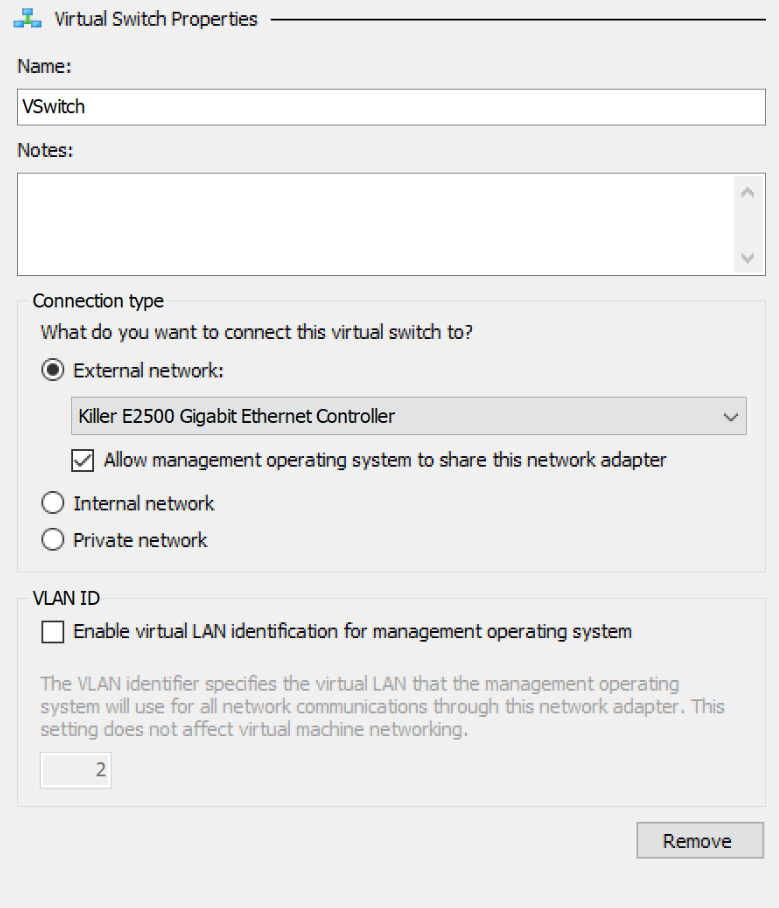
    1. Virtual Switch Manager -> Create Virtual Switch -> External (name it Vswitch).
    2. Vswitch
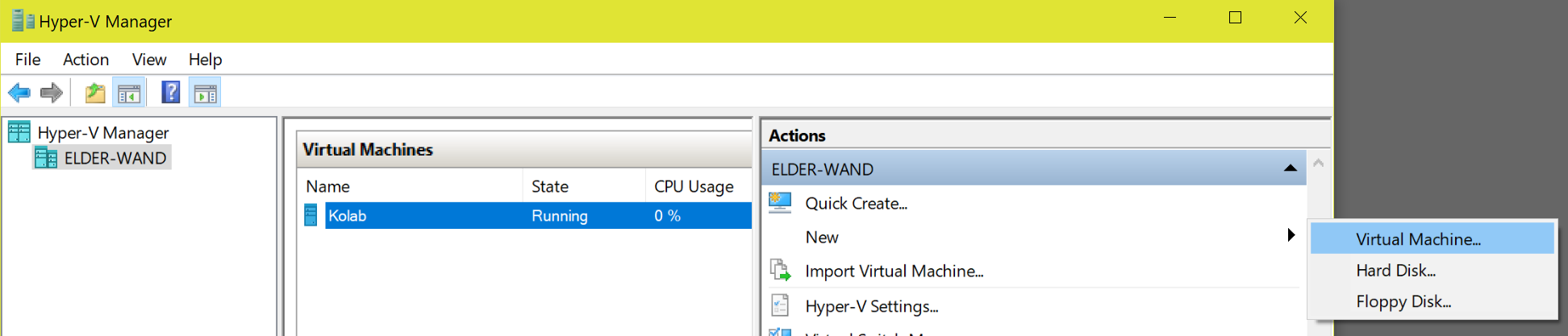
  3. Open the Hyper-V Manager and select New -> Virtual Machine
    1. NewVM
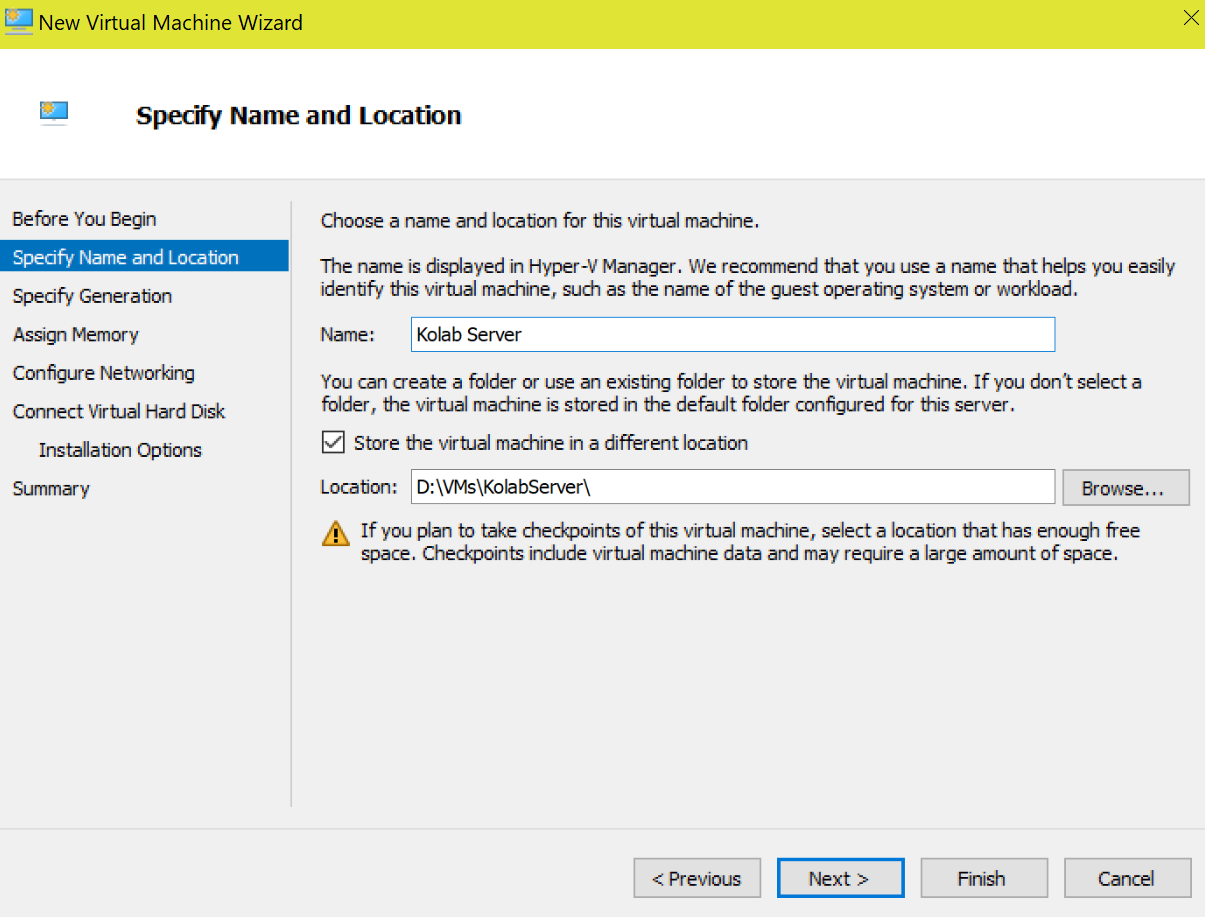
  4. Name your VM something logical and choose where to store the files. Pick a disk that has plenty of room. You can see I’ve chosen my D drive because it is large and mostly empty. Choosing a drive sperate from my OS partition will also help to limit the performance impact my VM(s) will have on my overall system performance.
    1. FileLocation
  5. On the next page select Generation 1 (few Linux operation systems support UEFI).
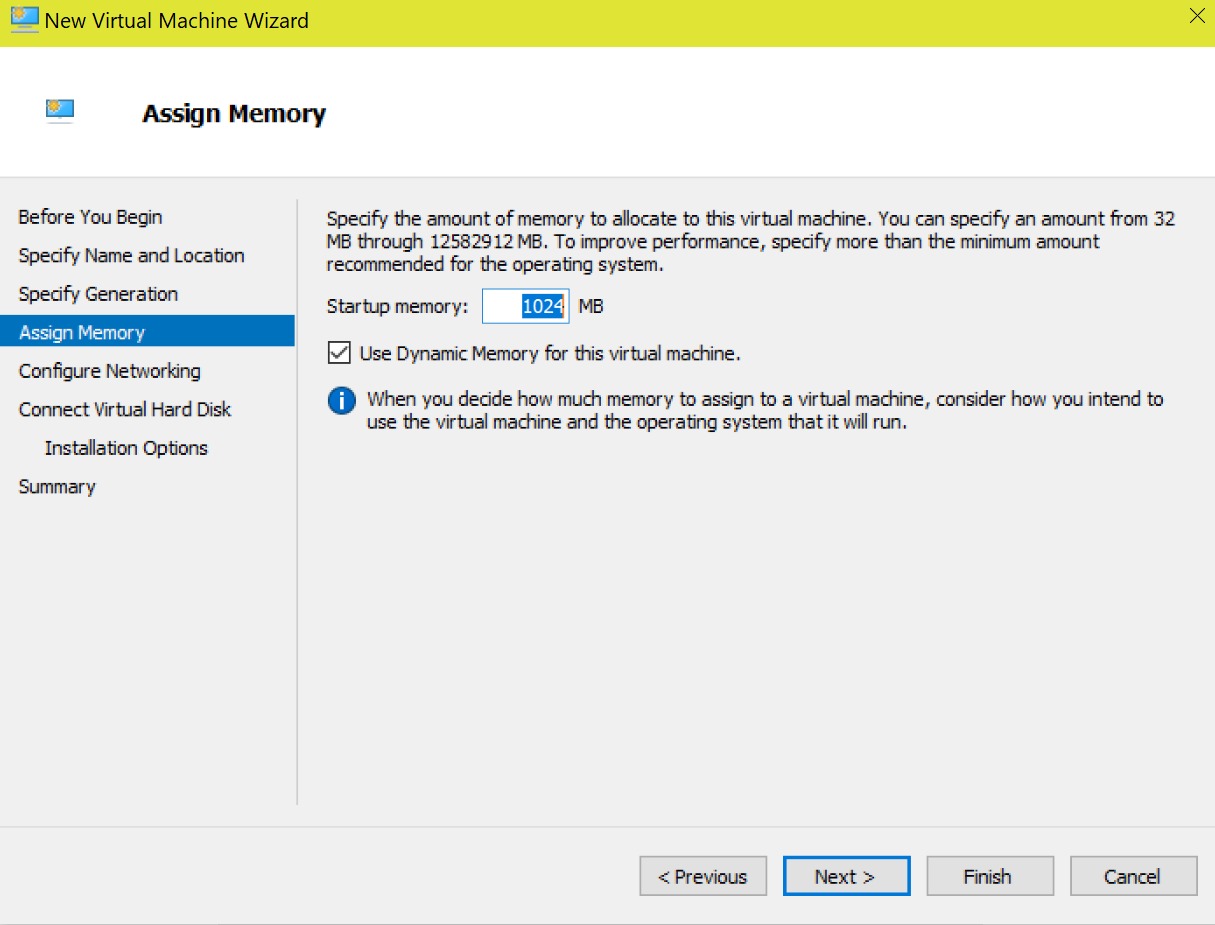
  6. Assign memory to your VM. More memory will make your VM perform better at the cost of lowering the performance of the Windows host machine. It’s a balancing act but the default 1GB is a good place to start. Leaving the Dynamic option selected will allow Windows to provide more memory to the VM if it is available.
    1. vmmemory
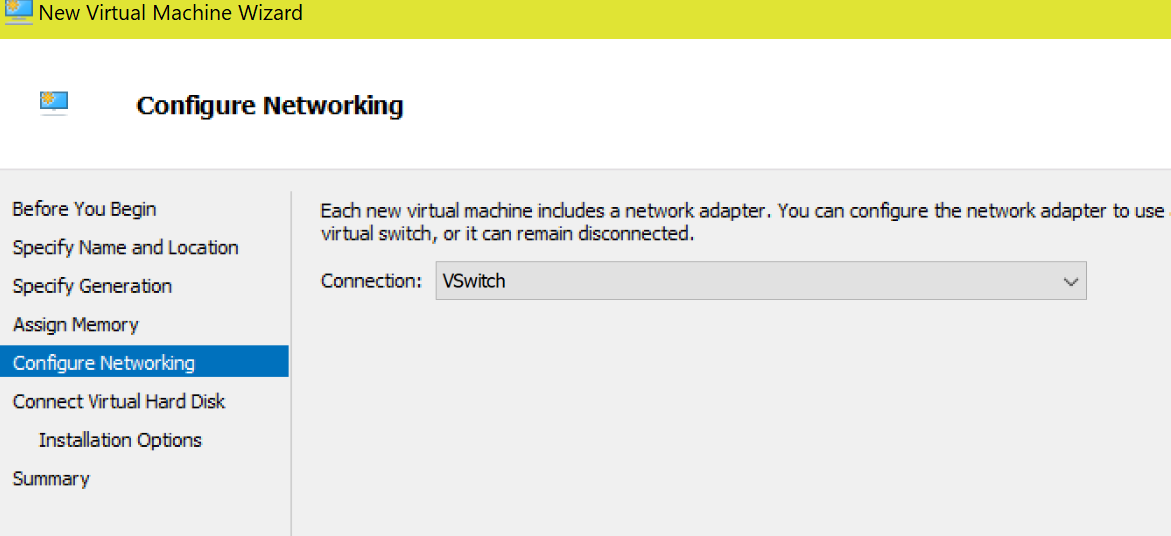
  7. Configure your network by selecting the virtual switch that you created in step one.
    1. VMNetworking
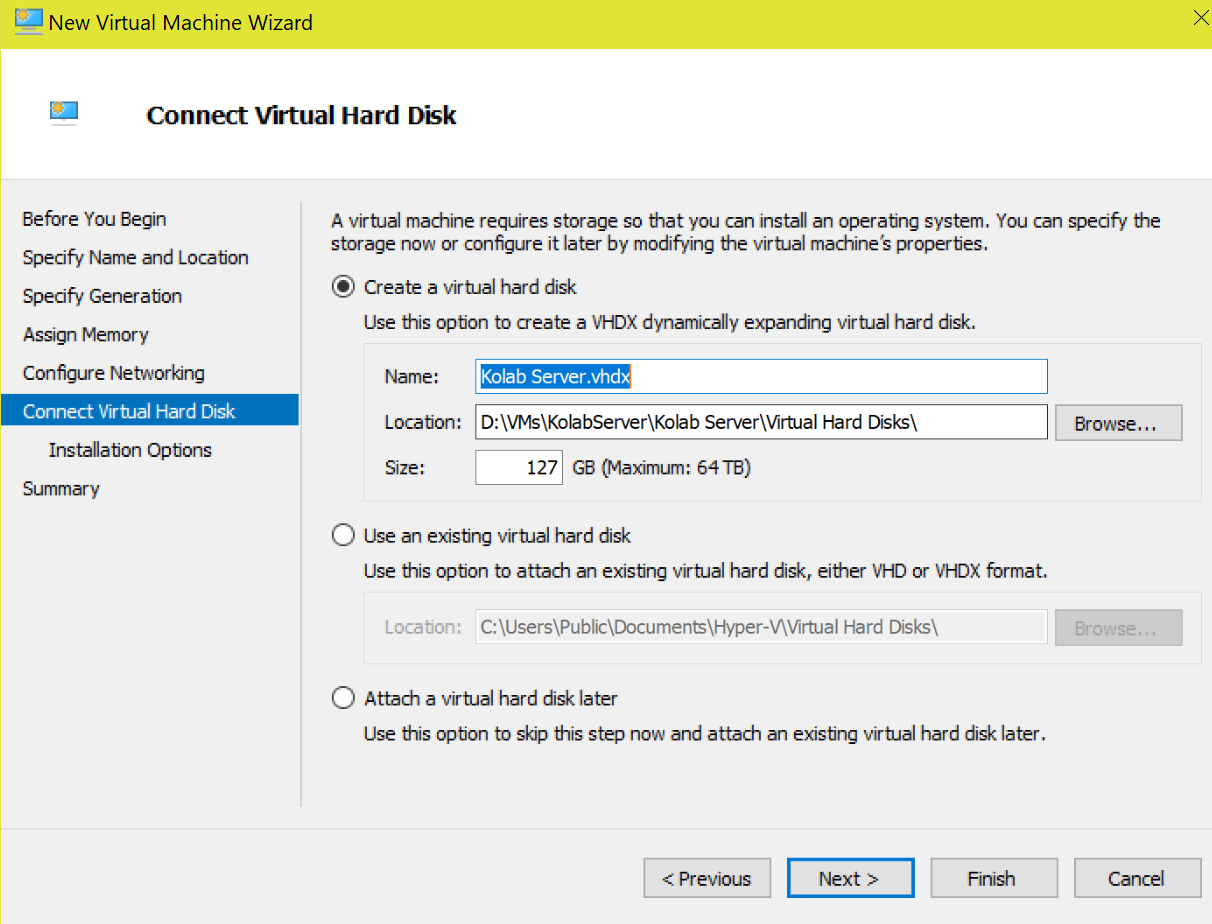
  8. Storage is essentially a file (.vhdx) on your hard drive that will be used for the VM. Do not assign more space than you can afford to spare. Hyper-V / VirtualBox will create a file large enough to store your virtual machine and will allow it to grow to the maximum size you have entered.
    1. vmharddrive
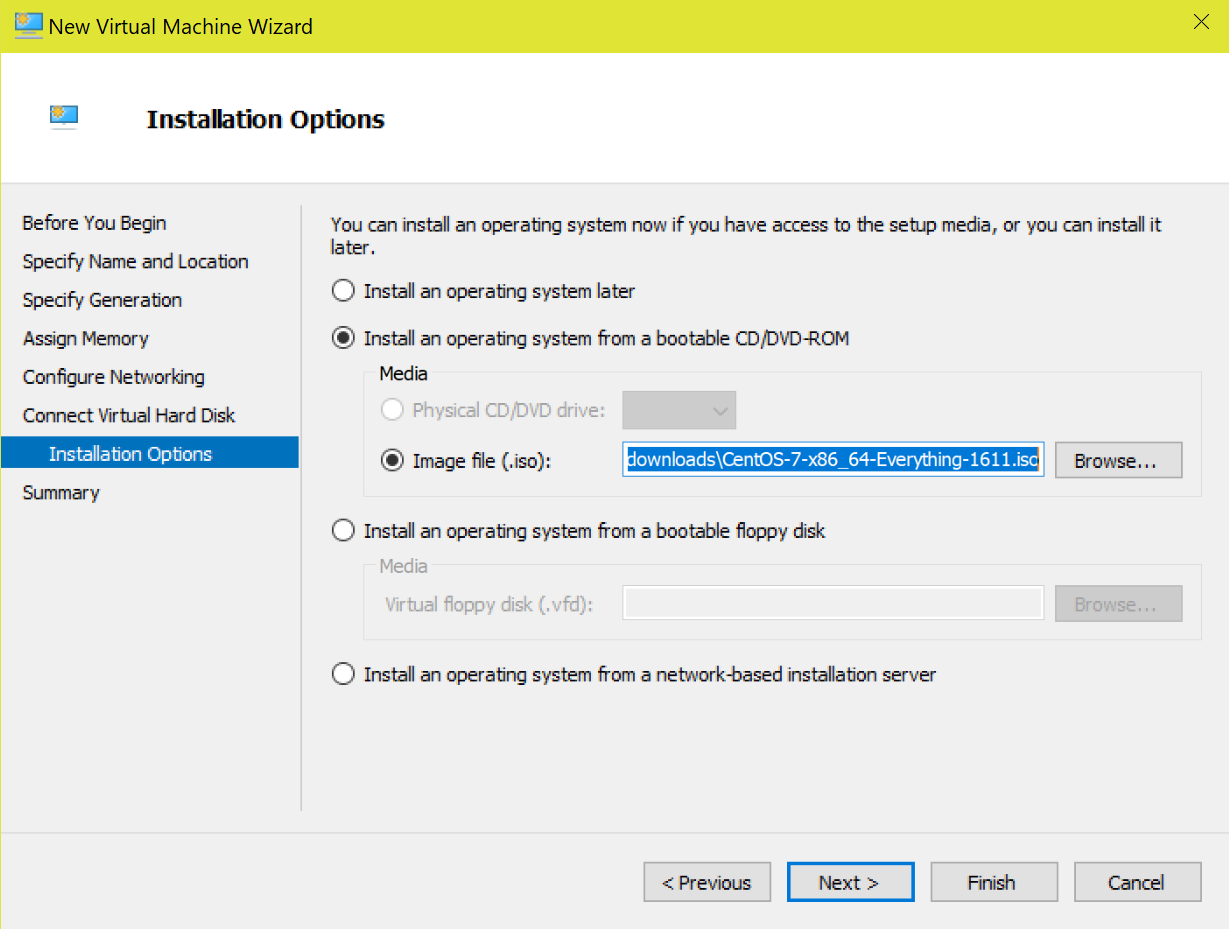
  9. Specify the location of your Linux ISO on the next screen.
    1. VMIso
  10. When you click on the Finish button your VM will be created in Hyper-V but the OS is not installed. To start the installation right click on the VM and start it. Then right click again and choose Connect. This will open a window that displays your VM screen and will allow you to interact with the server.


Linux OS Configuration

The first time you connect to your server it will boot from the ISO you selected during the creation wizard. Each Linux installation is slightly different and not in the scope of this document. For a Kolab server there are some configuration options you need to consider regardless of the distribution you are installing.

  • You might be tempted to select the Email role if your chosen Linux distribution has one. Don’t. It will probably install Sendmail and that will cause issues when we try to install Kolab. I recommend the generic server role or application server role.
  • I recommend choosing to install the GUI (GNOME Desktop) if possible.
  • Your server’s hostname needs to be an FQDN that is resolvable (in DNS) on your network or the Kolab services will fail to talk to each other. For example, my primary SMTP domain is whatdouknow.com our hostname is kolab.whatdouknow.com. Names like localhost, localdomain, etc. will not work correctly. If you don’t run your own DNS server you can use a hosts file on the VM itself. Sudo gedit etc/hosts will open the file for editing.
  • If you have set your Vswitch as I suggested above your VM will get an IP from the same DHCP server that your host computer did. You will need to reserve this address in that DHCP server for this machine or set a static address manually.
  • If you are installing CentOS 7, this is an excellent guide: http://www.tutorialspoint.com/articles/centos-7-step-by-step-installation-quick-guide
  • Once you have completed the installation you will need to update it. The GUI tools for most Linux installations usually include a software updating application. If yours doesn’t then: sudo apt-get update and sudo apt-get upgrade should do the trick (you’ll need both commands).

Kolab Prerequisites

Now that we have our Linux VM up and running it is time to install Kolab but there are quite a few pre-requisites we’ll need to configure first.

  • Open a Terminal and give the session root access by typing: sudo -i then press enter.
  • Kolab doesn’t support SELinux yet (advanced security module) depending on your Linux distro, you might need to disable it.
    • gedit /etc/selinux/config (use vim /etc/selinux/config if you chose not to install a GUI)
    • change the line SELINUX= from enabled to disabled and save the file.
  • Open the firewall ports that Kolab needs to function by pasting the following script into the terminal session.
    • for s in ssh http https pop3s imaps smtp ldap ldaps
      do
      firewall-cmd –permanent –add-service=$s
      done
      for p in 110/tcp 143/tcp 587/tcp
      do
      firewall-cmd –permanent –add-port=$p
      done
  • Restart the firewall so the settings take effect.
    • firewall-cmd –reload
  • Now we’ll need to install the Kolab repository so that we can download and install the packages.
  • Change to the following directory: cd /etc/yum.repos.d/ and run the following command to add the kolab repository.
  • Retrieve the GPG key by running:
  • Install the yum-plugin-priorities package.
    • yum install yum-plugin-priorities
      • This command is going to prompt you for (Y/N) at least twice so don’t walk away.
  • Finally, we need to set some service priorities.
    • for f in /etc/yum.repos.d/Kolab*.repo; do echo “priority = 60” >> $f; done

Kolab Setup

Now it’s time to install and configure Kolab.

  • Install command
    • yum -y install kolab

Next we’ll launch a text based wizard and answer its questions. It will ask for five passwords so have your generator handy. To be sure that all the prerequisite changes have taken effect, I recommend rebooting your Kolab VM before continuing.

  • Open a terminal session and give it root access
    • (sudo -i)
  • At the prompt
    • setup-kolab
  • Enter and confirm the application’s administrator password
  • Enter and confirm the LDAP administrator password
  • Enter the user the service will run under
    • pressing enter will select “nobody”
  • Enter the group the service will run under
    • pressing enter will select “nobody”
  • Enter and confirm the Cyrus administrator password
  • Enter and confirm the Kolab service password
  • When prompted for the MySQL installation
    • choose option 1 and
    • enter (the preset password is blank)
  • Enter the time zone UTC in Country/City format example; USA/Chicago would be the CST.
  • Enter and confirm the password for the Roundcube webmail interface.

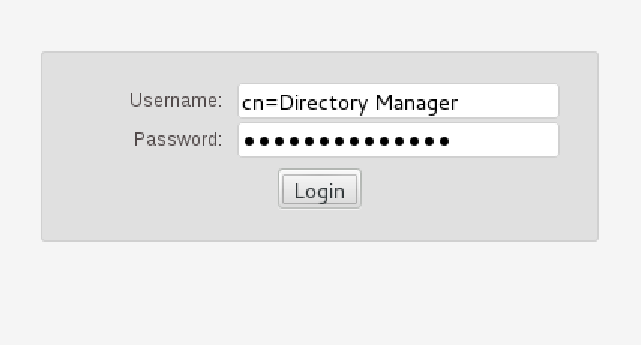
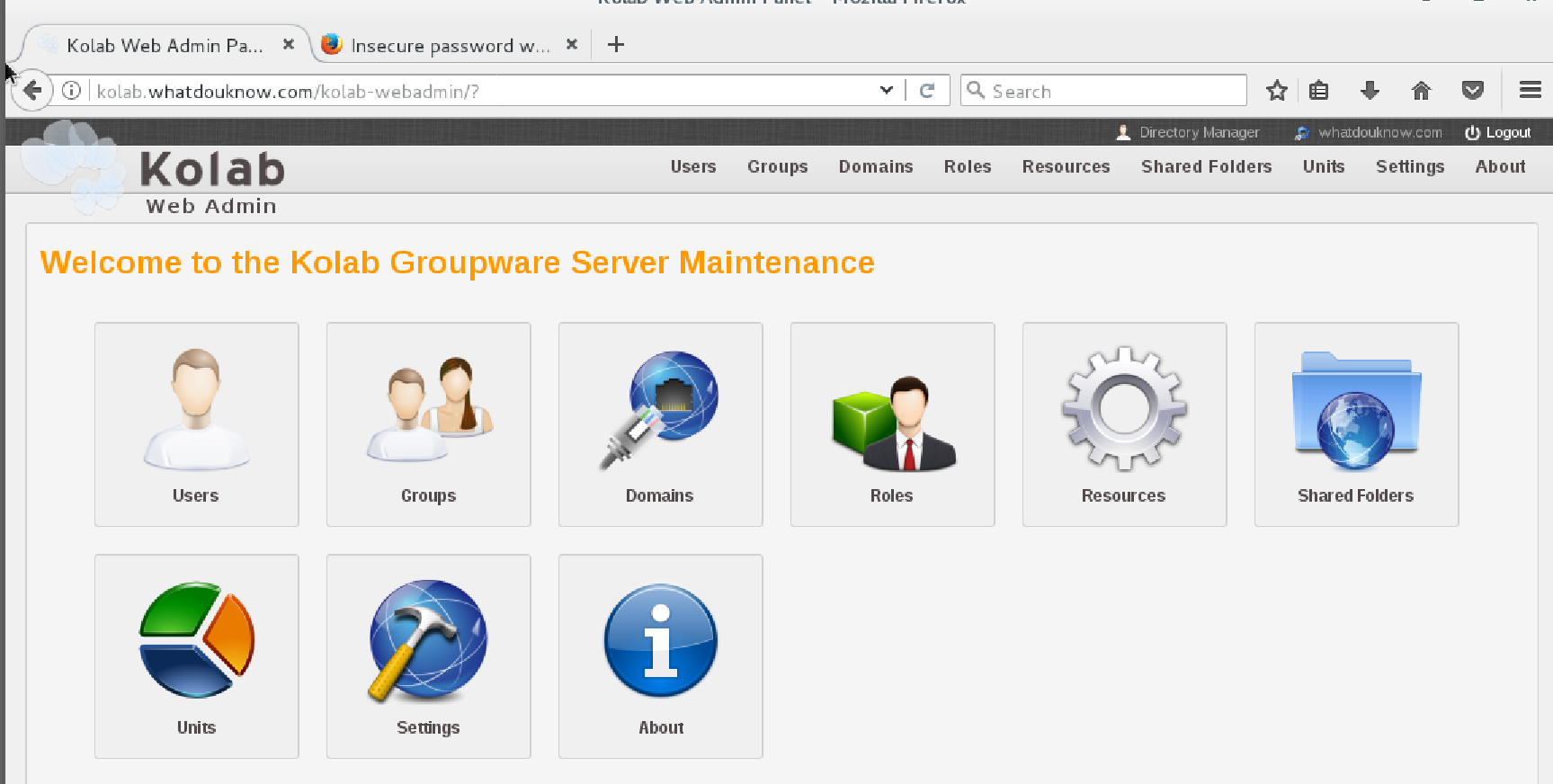
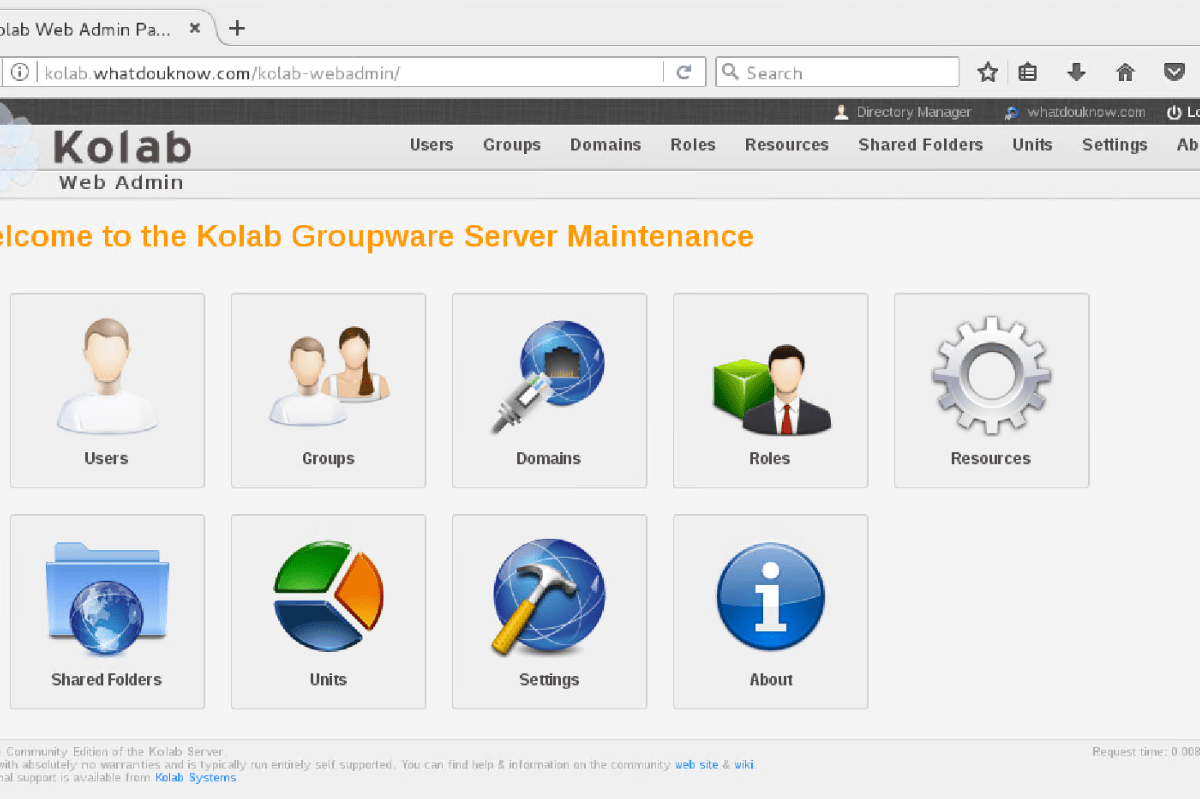
Congradulations you have installed Kolab. You should be able to launch a web browser that has network access to your server; if you installed a GUI the one on your server will work fine. Open the URL http://yourhostname.yourdomain.com/kolab-webadmin and logon with cn=Directory Manager and the password you configured for it. You will be presented with the Admin control page if everything went according to plan.

kolab-webadmin

Retry

If everything didn’t go to plan you can run setup-kolab again but there 2 things you need to do first or you will get error messages.

  • Clear the LDAP server configuration.
    • remove-ds.pl -i slapd-$HOSTNAME -a (replace hostname with the name of your system)

  • If the databases were created you will need to drop them.
    • MySQL (password is blank)
    • Show Databases; (the ; is part of the command)
    • Drop Database kolab;
    • Drop Database roundcube;
    • quit;
  • Reboot your server before running setup-kolab again.

In the next article in this series we will examine how to get Kolab setup and running including routing mail, configuring users, setup clients, configure sharing of all types, and more.