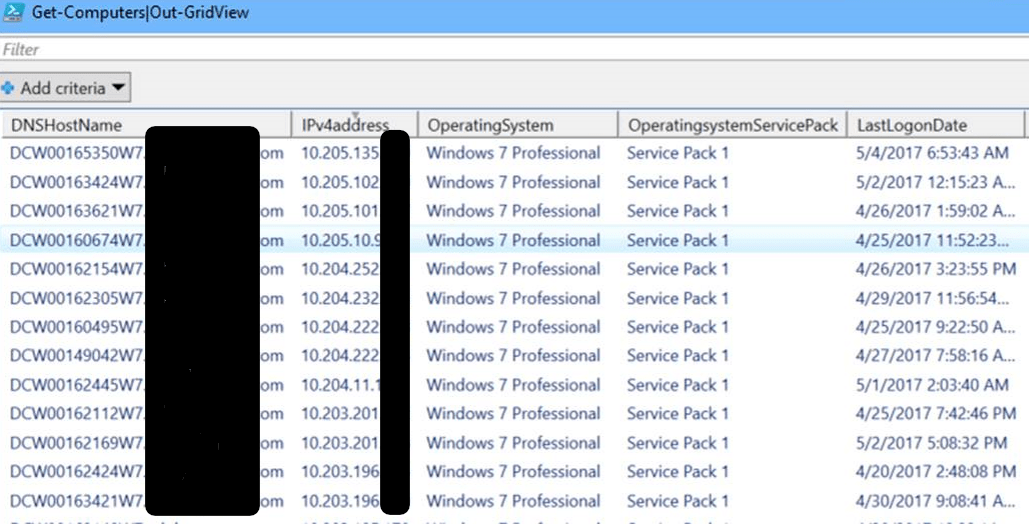
PowerShell; All Windows Servers and / or Workstations Storage Report

A lot of companies have monitoring software that will generate a report showing the amount of storage used on all of your systems. Smaller organizations may lack this type of software and occasionally even if you have monitoring, it won’t provide the specific data you require.

You can use PowerShell for all types of system monitoring and reporting. By calling WMI (CMI) we can access nearly any component of a system and obtain its status. If you’re planning on following the instructions below from your workstation you’ll need to install the appropriate RSAT package from Microsoft or use PowerShell remoting to connect to a domain controller and import a session for the Active Directory module. It may be easier to run the script from a Domain Controller.

The first step our script needs to accomplish is to build a list of the systems we want to report on. For most windows networks that means importing the Active Directory PowerShell module and using its Get-ADComputer function.

Import-Module ActiveDirectory
$domains = (Get-ADForest).domains
$dcs = Foreach ($domain in $domains) {
Get-ADDomainController -DomainName $domain -Discover -Service PrimaryDC
}
$servers = Foreach ($dc in $dcs) {
Get-ADComputer -Properties * - Filter {(OperatingSystem -like "*Windows Server*")}|Select DNSHostname -ExpandProperty DNSHostName
}

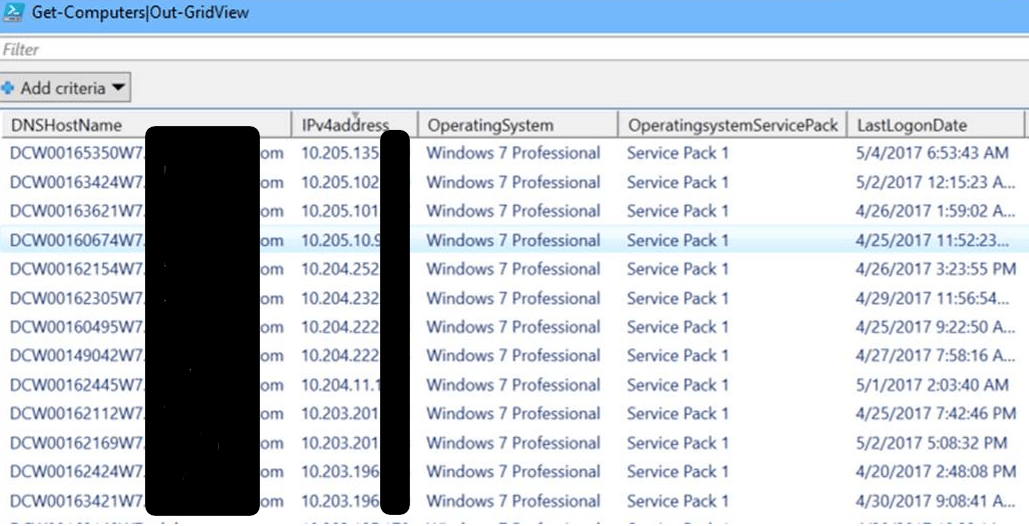
The snippet above will find all the primary domain controllers in your AD Forest and then scan them for all computer objects who’s operating system properties contain the words “Windows Server”. It will store the dns hostnames of those systems in a variable named $servers. If you wanted to scan workstations instead (or add them to your report) you just need to alter the filter or add a line.

$workstations = Foreach ($dc in $dcs) {
Get-ADComputer - Properties * - Filter {(OperatingSystem -notlike "*Windows Server*")}|Select DNSHostName -ExpandProperty DNSHostName
}

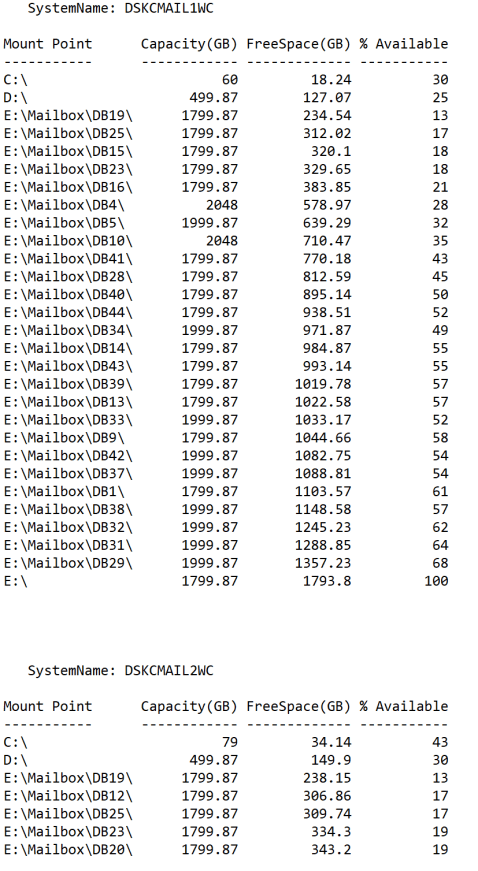
Now that we have our list of systems to scan the rest is just a matter of using WMI to find the drives and their status. We’ll also toss in a little math to make a report that’s easier to read.

$report = Foreach ($server in $servers) {
Get-WMIObject Win32_Volume -Filter "DriveType = 3" -ComputerName $server|Where-Object {"Label -ne 'System Reserved'"}|Sort-Object Freespace|FT -Property @{Name = "Mount Point"; Expression = {$_.Caption}}, @{Name = "Capacity (GB)"; Expression = {[math]::Round(($_.Capacity/1GB),2)}}, @{Name = "Free Space (GB)"; Expression = {[math]::Round(($_.Freespace/1GB),2)}}, @{Name = "% Available"; Expression = {[math]::Round (($_.Freespace/$_.Capacity)* 100)}} -GroupBy SystemName -Autosize
}

Combine the snippets above into a script and you’ll have full functioning storage report. You can add a SendMail command and schedule it with the Windows Task Scheduler to create an automated report. It also wouldn’t be difficult to output the results to a HTML page somewhere to create a dashboard. There are a lot of possibilities once you understand the data collection techniques. For another alternative look at my Exchange storage report, its essentially the same script but finds and filters for your Exchange email servers.

PowerShell; Office Add-ins and Plug-ins report for Office 365 implementation

If you’re considering implementing Office 365 in your company, you need to know that some add-ons and plug-ins for Microsoft Office applications will not work. There’s not really a good way to tell which ones will or will not work other than trying to upload them to the plug-in page in the admin tools section of the portal. Before you can do that you’ll need to know what plug-ins are being used across your enterprise. That’s where PowerShell comes in, we can scan the registry and generate a nice HTML report from either each machine on your network or just from a select few.

The code below will create an email an HTML report from whatever machine it is executed against. This comes in handy if your network security blocks WinRM.

$userinfo = $env:USERNAME+" "+"on"+" "+$env:COMPUTERNAME+$env:userdnsdomain

Function Get-Plugins {
$searchScopes = "HKLM:\SOFTWARE\Microsoft\Office\Outlook\Addins","HKLM:\SOFTWARE\Wow6432Node\Microsoft\Office\Outlook\Addins", "HKLM:\SOFTWARE\Microsoft\Office\Word\Addins", "HKLM:\SOFTWARE\Wow6432Node\Microsoft\Office\Word\Addins", "HKLM:\SOFTWARE\Microsoft\Office\Excel\Addins", "HKLM:\SOFTWARE\Wow6432Node\Microsoft\Office\Excel\Addins", "HKLM:\SOFTWARE\Microsoft\Office\MS Project\Addins", "HKLM:\SOFTWARE\Wow6432Node\Microsoft\Office\MS Project\Addins", "HKCU:\SOFTWARE\Microsoft\Office\PowerPoint\Addins", "HKLM:\SOFTWARE\Wow6432Node\Microsoft\Office\PowerPoint\Addins"
$searchScopes | % {Get-ChildItem -Path $_ | % {Get-ItemProperty -Path $_.PSPath} | Select-Object @{n="Name";e={Split-Path $_.PSPath -leaf}},FriendlyName,Description} | Sort-Object -Unique -Property name
}

$style = "BODY{font-family: Arial; font-size: 10pt;}"
$style = $style + "TABLE{border: 1px solid black; border-collapse: collapse;}"
$style = $style + "TH{border: 1px solid black; background: #dddddd; padding: 5px; }"
$style = $style + "TD{border: 1px solid black; padding: 5px; }"
$style = $style + ""
$report = Get-Plugins|ConvertTo-Html -Head $style|Out-String
Send-MailMessage -SmtpServer yourmailserver -From yourreport@yourdomain.com -To youremail@yourdomain.com -Subject "Office Plugins for $userinfo" -BodyAsHtml:$true -Body $report<span id="mce_SELREST_start" style="overflow:hidden;line-height:0;"></span>

If you are able to use WinRM to access all of your computers you can expand this script to invoke the function on every workstation in your AD Forest by scanning for the domain controllers, the using Get-ADComputer with a filter to find all of the workstations. After you have all the workstation names stored in a variable you’ll just need to use “invoke-command” against them to create a comprehensive report.

Import-Module ActiveDirectory 

$domains=(Get-ADForest).domains
$dcs = foreach ($domain in $domains) {Get-ADDomainController -DomainName $domain -Discover -Service PrimaryDC|select -ExpandProperty hostname
}

$systems = foreach ($dc in $dcs) {
Get-ADComputer -properties * -Filter {(OperatingSystem -like "*Windows*") -and (OperatingSystem -NotLike "*Server*")} -Server $domain |select DNSHostName
}

$userinfo = $env:USERNAME+" "+"on"+" "+$env:COMPUTERNAME+$env:userdnsdomain

Function Get-Plugins {
$userinfo = $env:USERNAME+" "+"on"+" "+$env:COMPUTERNAME+$env:userdnsdomain
$searchScopes = "HKLM:\SOFTWARE\Microsoft\Office\Outlook\Addins","HKLM:\SOFTWARE\Wow6432Node\Microsoft\Office\Outlook\Addins", "HKLM:\SOFTWARE\Microsoft\Office\Word\Addins", "HKLM:\SOFTWARE\Wow6432Node\Microsoft\Office\Word\Addins", "HKLM:\SOFTWARE\Microsoft\Office\Excel\Addins", "HKLM:\SOFTWARE\Wow6432Node\Microsoft\Office\Excel\Addins", "HKLM:\SOFTWARE\Microsoft\Office\MS Project\Addins", "HKLM:\SOFTWARE\Wow6432Node\Microsoft\Office\MS Project\Addins", "HKCU:\SOFTWARE\Microsoft\Office\PowerPoint\Addins", "HKLM:\SOFTWARE\Wow6432Node\Microsoft\Office\PowerPoint\Addins"
$searchScopes | % {Get-ChildItem -Path $_ | % {Get-ItemProperty -Path $_.PSPath} | Select-Object @{n="Name";e={Split-Path $_.PSPath -leaf}},FriendlyName,Description} | Sort-Object -Unique -Property name
}

$style = "
BODY{font-family: Arial; font-size: 10pt;}"
$style = $style + "TABLE{border: 1px solid black; border-collapse: collapse;}"
$style = $style + "TH{border: 1px solid black; background: #dddddd; padding: 5px; }"
$style = $style + "TD{border: 1px solid black; padding: 5px; }"
$style = $style + "

"

$report = Foreach ($system in $systems) {Invoke-Command -ComputerName $system {Get-Plugins|ConvertTo-Html -Head $style|Group-Object $system|Out-String}}
Send-MailMessage -SmtpServer yourmailserver -From yourreport@yourdomain.com -To youremail@yourdomain.com -Subject "Office Plugins for $userinfo" -BodyAsHtml:$true -Body $report

Either way, you’ll end up with a nice report that will help you obtain and test all the plug-ins being used in your company.

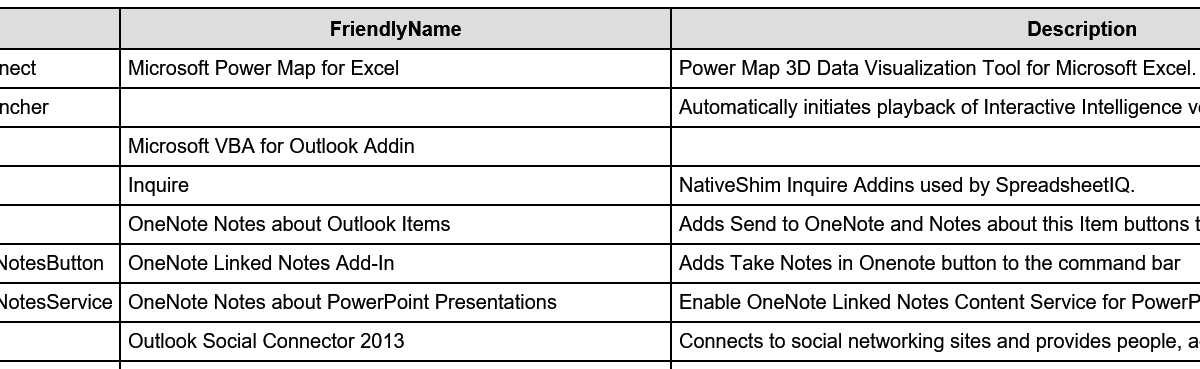
Name FriendlyName Description
ExcelPlugInShell.PowerMapConnect Microsoft Power Map for Excel Power Map 3D Data Visualization Tool for Microsoft Excel.
InteractionVoicemail.OutlookLauncher Automatically initiates playback of Interactive Intelligence voicemails.
Microsoft.VbaAddinForOutlook.1 Microsoft VBA for Outlook Addin
NativeShim.InquireConnector.1 Inquire NativeShim Inquire Addins used by SpreadsheetIQ.
OneNote.OutlookAddin OneNote Notes about Outlook Items Adds Send to OneNote and Notes about this Item buttons to the command bar
OneNote.PowerPointAddinTakeNotesButton OneNote Linked Notes Add-In Adds Take Notes in Onenote button to the command bar
OneNote.PowerPointAddinTakeNotesService OneNote Notes about PowerPoint Presentations Enable OneNote Linked Notes Content Service for PowerPoint
OscAddin.Connect Outlook Social Connector 2013 Connects to social networking sites and provides people, activity, and status information.
PhishMeOutlookReporter.AddinModule PhishMe Reporter PhishMe Outlook Reporter
Search.OutlookToolbar Windows Search Email Indexer Windows Search Email Indexer
TFCOfficeShim.Connect.15 Team Foundation Add-in Team Foundation Add-in
UCAddin.LyncAddin.1 Lync Meeting Add-in for Microsoft Office 2013 Lync Meeting Add-in for Microsoft Office 2013
UCAddin.UCAddin.1
UmOutlookAddin.FormRegionAddin Microsoft Exchange Add-in Exchange support for Unified Messaging, e-mail permission rules, and calendar availability.
VS15ExcelAdaptor Visual Studio Tools for Office Design-Time Adaptor for Excel Visual Studio Tools for Office Design-Time Adaptor for Excel
VS15WordAdaptor Visual Studio Tools for Office Design-Time Adaptor for Word Visual Studio Tools for Office Design-Time Adaptor for Word

Sneak Attack! Proxy Malware; What it is, How to Find It, and How to Remove It

There’s a new trick up the Internet bad guy’s sleeves and it’s a doozy. Instead of installing keyloggers or other capturing tools they install a proxy server and set your browsers and other web apps to use it. A proxy server is a tool that re-directs web traffic to the proxy which then forwards it on to the site you asked for. For example, when I open google.com at work my browser asks the office proxy server for the page which checks against a list of allowed sites and then sends my computer google.com (assuming its allowed and safe). It’s a man in the middle. Advanced programming techniques have allowed nefarious characters to package an entire proxy server into a small easily executed file.

Once the proxy has been enabled on your system all of your traffic gets directed to it, which then forwards to the dark web servers so the bad guys can see the bank site and password you typed in. Here’s the rub, you don’t usually know this is happeing. Their system is a true proxy and is returning the pages you’re asking for. You might notice a delay or you may get errors when you try to go to certain sites that say “Proxy Error”. The other problem is that this type of software is a legitmate tool so most Anti-Virus or Anti-Malware software doesn’t detect or flag it.

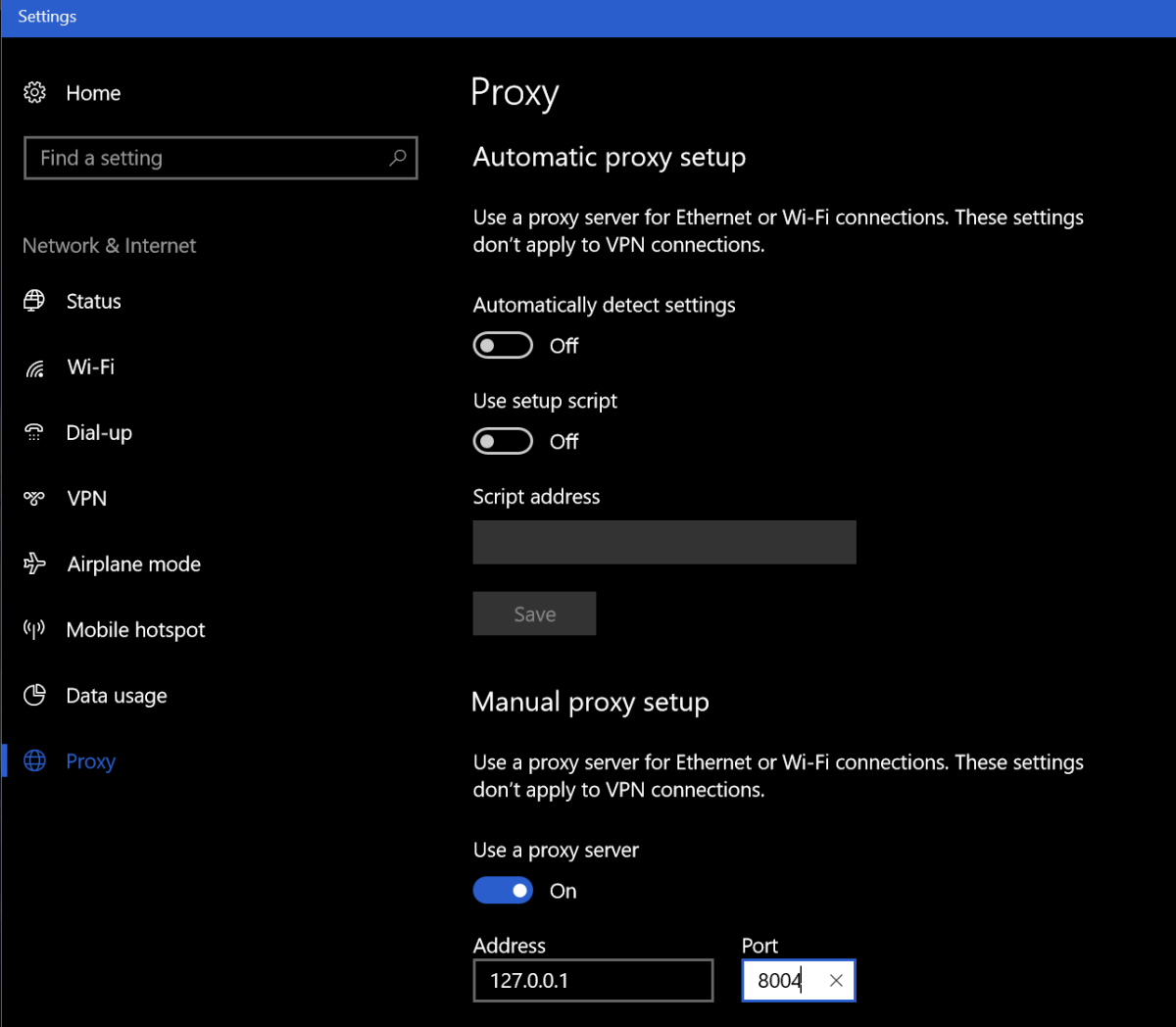
How do you know if you’ve been hit by this type of malware? Besides the afore mentioned “Proxy Error” you may notice unusual delays in your browser or web apps. The first thing to check is your Browser’s proxy settings. These are different for every broswer and every Operating System so Google “My browser proxy settings” and “My Windows Version” to see where to look on your system. When you get there, you should not see an address of 127.0.0.1, if you do this is an indication you’re a victim of a proxy attack. You’ll know for sure if you turn the proxy setting off, reboot, and find it turned back on (assuming your not on a mananged PC where you IT staff is doing this).

Windows10_Proxy_Settings

You can also go to a site like http://www.ipchicken.com and see if the public IP address it shows you matches the one on your internet modem / gateway’s admin page. If it doesn’t this is proof your web traffic is being re-routed through a foreign IP.

You’re being proxied, now what? Follow the instructions below at your own risk, I’m not in-front of your computer and each situation is unique. This is general advice and you are responsible for your actions, not me or whatdouknow.com. If you have a backup available you should consider formatting your hard drive and re-installing everything.

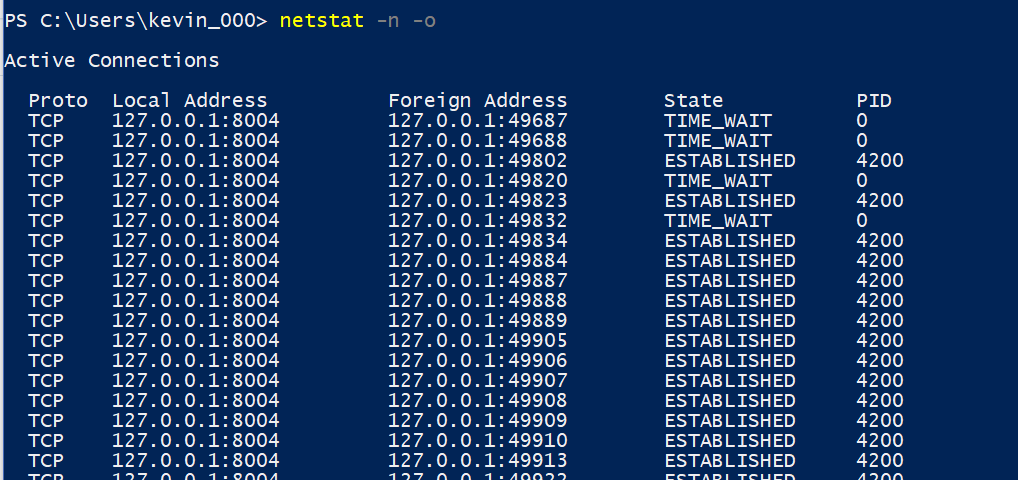
I’m going to assume your operating system is Windows. I’ve not seen this type of attack on Linux or MACs yet. So, first open PowerShell (search for it or find it in the start menu). Once you have it open type: Netstat -n -o and press enter. This is going to show you all the open network connections on your computer and the PIDs (Process ID) for the software that opened them. We’re looking for a line or lines that match what you saw in the browser settings of your computer.

WIndows10_Netstat

Once you’ve found it open another PowerShell session. Type: Get-Process -PID Number where number is the PID number that corresponds to the PID of your Netstat command (4200 in my case). Press enter and PowerShell will show you the name of the process. Write this down or type it into Word or notepad.

Windows10ProcessName

Now open task mananger (CTRL+ALT+Delete, click TaskManager) and find that process in the list of running apps. Right click on it and choose Open File Location, this will launch Windows Explorer and go to the directory that contains this file. Go back to the task manager and right click on the file again, this time choose End Task. Now go to the Explorer window you just opened and delete the entire folder. Just ending the task won’t stop the software from running again the next time your reboot your computer but you can’t delete the file until you’ve ended the task so the order is important here.

Once you’ve killed the task and deleted the file run Netstat -n -o again you should no longer see connections from 127.0.0.1. If you do, you may have more than one copy of the proxy attack installed, keep repeating the process until you’ve gotten them all. Always right down the name of the process. After you’ve stopped them all and deleted all their files we’ll need to clean up the registry.

Type Regedit in the search or run bar to open it. Right click on computer (top left) and choose find and search for the IP and Port numbers you found in your Netscan. If you find a match, delete the value by right clicking on the entry and choosing Modify, then clear the Value box and click OK. Press F3 to keep searching. Repeat the process until you see the “Finished Searching through the Registry” message pop-up. If you found more than one proxy on your system repeat the process until you’ve cleared all of them.

Now we’ll search the registy for the software entries. Right click on computer (in Regedit) and click find. Then enter the name of the process you found when you ran Get-Process in PowerShell. This time instead of deleting the value we’re going to delete the Key (folder) or Record itself. Right click on whatever it is and choose delete, click yes when prompted. Press F3 and keep searching / deleting until you get to the end of the registry. Repeat this process for every copy that you found.

Now go to your Proxy settings and turn it off. Then reboot your computer. When it comes back up everthing should be back to normal. Run the Netstat -n -o command again in PowerShell to be sure you got everything cleaned up. Go change all of your passwords for everything.


Stop the Distribution List Apocalypse; Dynamically Populate Outlook Contact Groups with PowerShell

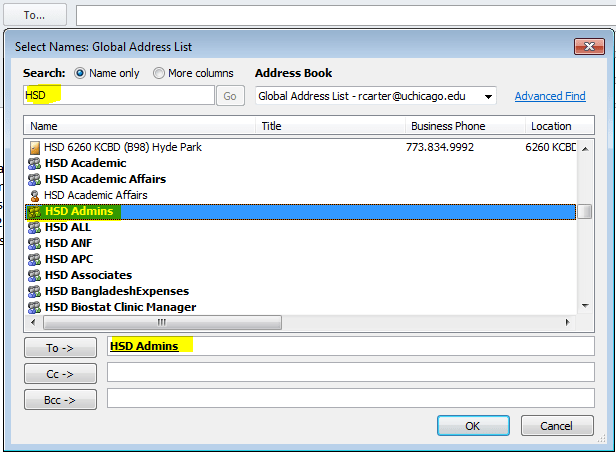
Almost every company that I have ever worked for has an enormous collection of distribution lists; many are duplicates or very slight variations of other group names. This makes group communications difficult to say the least. Do you use the Network Team, Network Support Team, Network Help, or Network HQ list to get in touch with your current network group? Sure, you can check the membership, but at a large company you probably don’t know the correct individual’s names, it’s why you’re using the group address in the first place right?

Where did all these address collections come from? That is a simple question to answer, people ask for them. As a team’s management and membership changes the people in it want a way to email their group all at once. They aren’t sure about the existing lists so they ask IT to make a new one. Before you know it; the company address book is a giant mess with more groups than people in it.OutlookDlOverkill

Not only is having this many DLs confusing to use, it is a security nightmare. Security professionals are finding that controlling who can communicate with whom is almost as important as changing your password. The “Wild West” days of allowing all employees to email anybody they see fit should be coming to an end at your company. Every message that leaves your organization represents it in the marketplace. Each one is a piece of data that can be used by your competition or for nefarious reasons by dark net residents.

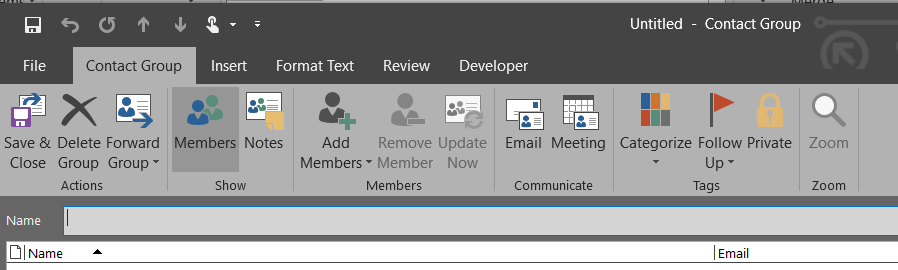
What’s the solution? There quite a few, from commercial DL management tools like ManageEngine and Ensim, to hiring a FTE to manage distribution. If you use Microsoft Exchange you can set security and transport rules to control access to groups and the same is true for Office 365 (How To coming soon). Personally, I think the best solution is to avoid putting them in the Global Address Book in the first place. Personal or small team DLs belong in each individual’s Outlook. Outlook calls its lists Contact Groups.

Outlook Contact Groups have a lot going for them. They’re local to the user’s Outlook profile but can be shared, they can auto update email addresses for the members, and don’t require an administrator to update them. So what’s the catch? Why doesn’t everybody use Outlook Contact groups?OutlookContactGroup

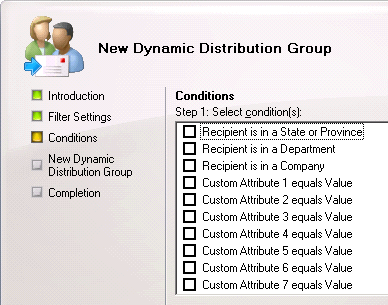
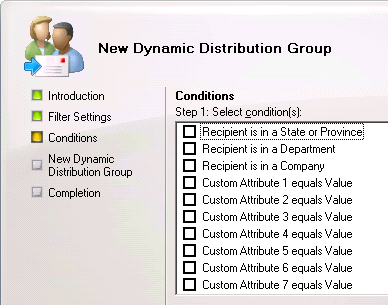
Email address distribution groups in the Global Address List are often dynamically populated. If your company uses Active Directory there’s a good chance that they have filled that directory with employee details like phone numbers, email addresses, physical addresses, and more. Dynamic DLs are formed when an administrator creates a query and filter set in Exchange. This rule searches AD based on the specified parameters and inserts the matching addresses into the desired list, essentially automating the process. Outlook contact groups lack this ability and have to be manually created which is tedious and time-consuming. I believe this is the biggest obstacle to their widespread adoption.

dynamic_distribution_group

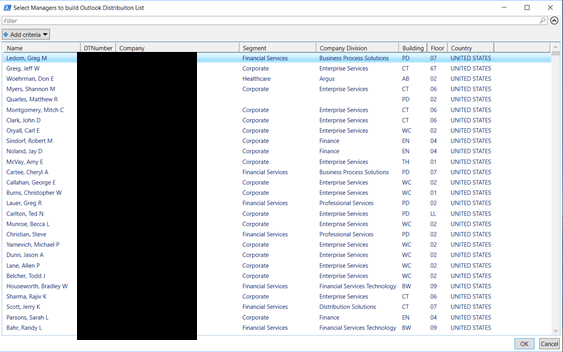
Being the crafty scripter that I am, I decided to see if I could create Outlook contact groups dynamically. Did you know that Active Directory usually contains your entire firm’s management structure? There’s a field in which you can enter an employees manager. If your HR or IT department populated this field you can view the information but there’s no way to create an email list from it. I imagined it would be useful for my company if a person could choose a supervisor from a list and end up with a contact group that contained all that manager’s employees. If you select multiple managers you can create lists that contain entire departments. Unlike most “scripts” this tool has a full GUI. Does that make it an Application? What exactly is the dividing line between script and app?

OutlookDLBuilderManagers
Manager’s List Generated From AD Query Select, Filter, and Sort

The code below is written for Windows 10 and requires the RSAT package be installed. You’ll also need to be sure the Manger’s list is done populating before you select items from it. The scroll bar will stop shrinking when it is done querying all your accounts. If you’re running this on a large distributed directory it can take up to a couple of minutes to complete. If you select a manager and click “Ok” and nothing happens then the scan wasn’t finished. Try again and wait a little longer.

THE CODE:

Import-Module ActiveDirectory
[System.Reflection.Assembly]::LoadWithPartialName('Microsoft.VisualBasic') | Out-Null

$temppath = "$env:userprofile\documents\Outlook_dl_builder_selected_managers.csv"

function Get-Managers
{
Get-ADUser -properties * -Filter {(directreports -ne "$null") -and (displayname -notlike "*test*")  -and (displayname -notlike "123*")}|
Select @{n="Name";e={$_.Displayname}},@{n="Logon";e={$_.SamAccountName}},@{n="Email";e={$_.PrimarySmtpAddress}},Company,@{n="Country";e={$_.co}}|
Out-GridView -Title 'Select Managers to build Outlook Distribuiton List'-PassThru|
export-csv -Path $temppath -NoTypeInformation
} 

function Get-ADdirectReports
{
    PARAM ($SamAccountName)
    Get-Aduser -identity $SamAccountName -Properties directreports | %{
        $_.directreports | ForEach-Object -Process {

            Get-ADUser -identity $Psitem -Properties * | Select-Object -Property DisplayName, SamAccountName, Mail, @{n="ManagerName";e={(Get-ADUser -Identity $_.Manager -Properties displayName).DisplayName}}

            Get-ADdirectReports -SamAccountName $PSItem
        }
    }
}

function OutlookDL
{
    $outlook = new-object -com Outlook.Application
    $contacts = $outlook.Session.GetDefaultFolder(10)
    $dl = $contacts.Items.Add("IPM.DistLIst")
    $dl.DLName = "$groupname"
    $dl.Save()
}

function OutlookDL-Delete
{
    Try {
    $outlook = new-object -com Outlook.Application
    $contacts = $outlook.Session.GetDefaultFolder(10)
    $DL=$Contacts.Items("$groupname")
    $dl.delete()
    }
    Catch {Write-Host "No duplicate Outlook Group found"}
}

function AddContacts
{
    $outlook = new-object -com Outlook.Application
    $contacts = $outlook.Session.GetDefaultFolder(10)
    $namespace = $outlook.GetNamespace("MAPI")
    $DL=$Contacts.Items("$groupname")
    $recipient = $namespace.CreateRecipient("$employee")
    $recipient.Resolve()
    $DL.AddMember($recipient)
    $dl.Save()
   }

function DisplayDL
{
    $outlook = new-object -com Outlook.Application
    $contacts = $outlook.Session.GetDefaultFolder(10)
    $DL=$Contacts.Items("$groupname")
    $dl.display()
}

$groupname = [Microsoft.VisualBasic.Interaction]::InputBox("Enter the name of the Outlook Contact Group to be created or updated:","Outlook Contact Group", " My Outlook Distrobution List")
OutlookDL-Delete
Get-Managers
$managers = Import-CSv -Path $temppath |select Logon -ExpandProperty Logon
$drlist = Foreach ($manager in $managers){Get-ADdirectReports -SamAccountName $manager|select-object -ExpandProperty mail}
OutlookDL
Foreach ($employee in $drlist) {AddContacts}
DisplayDL

Now that you’ve seen the technique at work you should be able to easily adjust the AD query to scan or filter for the fields that are most useful to your organization. You could also use sources other than AD, it would be simple to connect to a SQL database or import a CSV file.

Move Games and Applications without Re-installing them; Symlinks (AKA mklink, symbolic links)

SSDs are the best thing to happen to computers since Windows 95. Running your computer from an SSD will increase it’s performance where it matters most. Your computer will boot in seconds instead of minutes, large applications will start almost instantly, load screens in games will zip by, and copying the pictures and videos off your camera will seem almost instant.

Unfortunately, most of us can’t afford an SSD drive large enough to handle all of our storage needs. Compare a 1 Terrabyte Evo 850 SSD at $350 to a 4 Terrabyte Toshiba 7200 RPM HD at $130 and you’ll see what I mean. Wouldn’t it be great if you had a fast SSD and a large capacity HD that you could easily move stuff between? The problem is that to move a program in Windows you have to re-install it, right?

Wrong! There’s a little known technique in Windows and Linux called Symlinks. A symlink or, symbolic link is a type of pointer that tells your operating system to look somewhere else for the data. A symlink will let you move the files and folders that make up a program or game to a new location and will tell the software where you moved them to. Our dream of having a small, fast SSD with our most used data and large HD to store everything else on, is in reach.

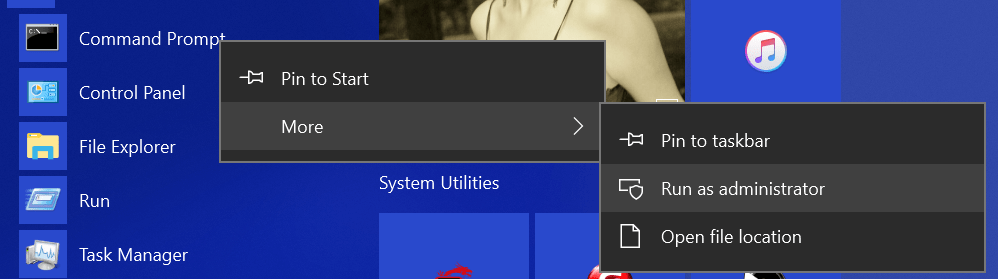
To make a symlink you’ll need to open PowerShell or a Command Prompt in administrator mode (right-click and choose Run As Administrator).

RunAsAdmin

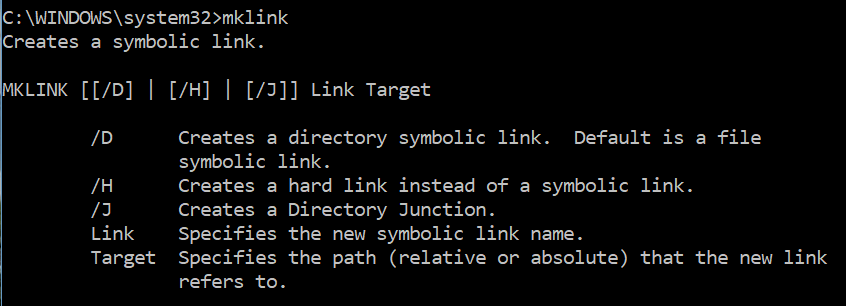
In Windows there are a few different types of links to choose from. Soft links are a kind of redirection similar to a shortcut. Hard links are impossible for software to see and are therefore the most useful. A hard link for an entire folder (vs. a single file) is called a junction in Windows. Typing mklink in our command prompt will show us the basics.

mklink

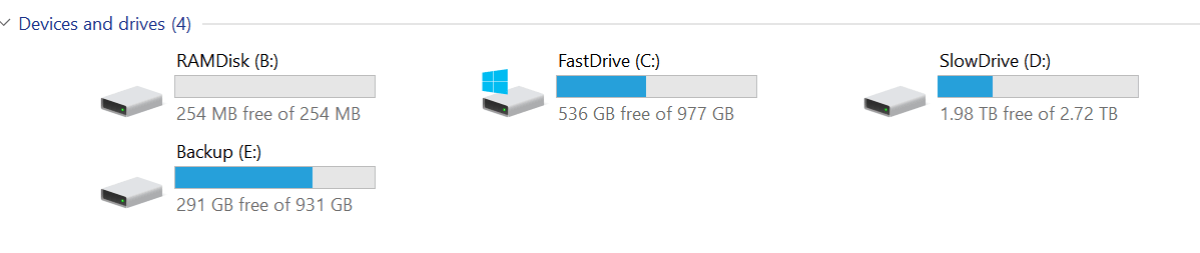
As you can see below, my gaming rig has several storage drives, the RAMDisk is RAM memory that can store files as long as the power isn’t turned off, the FastDrive is my SSD, and the SlowDrive is a 3TB 7200 RPM HD.

mydrives

When I installed Battlefield 1, I let it go to its default location (C:\Program Files (x86)\Origin Games\Battlefield 1) because I was playing it a lot and wanted it to start fast and have short load screens. Now that I’ve switched to mostly playing Destiny 2, I want to move Battlefield to free up the space on my SSD. The instructions below will work for any software you want to move on all versions of Windows since Vista (including servers). Just change the folder names in your commands. Be careful, quote marks and spacing matter.

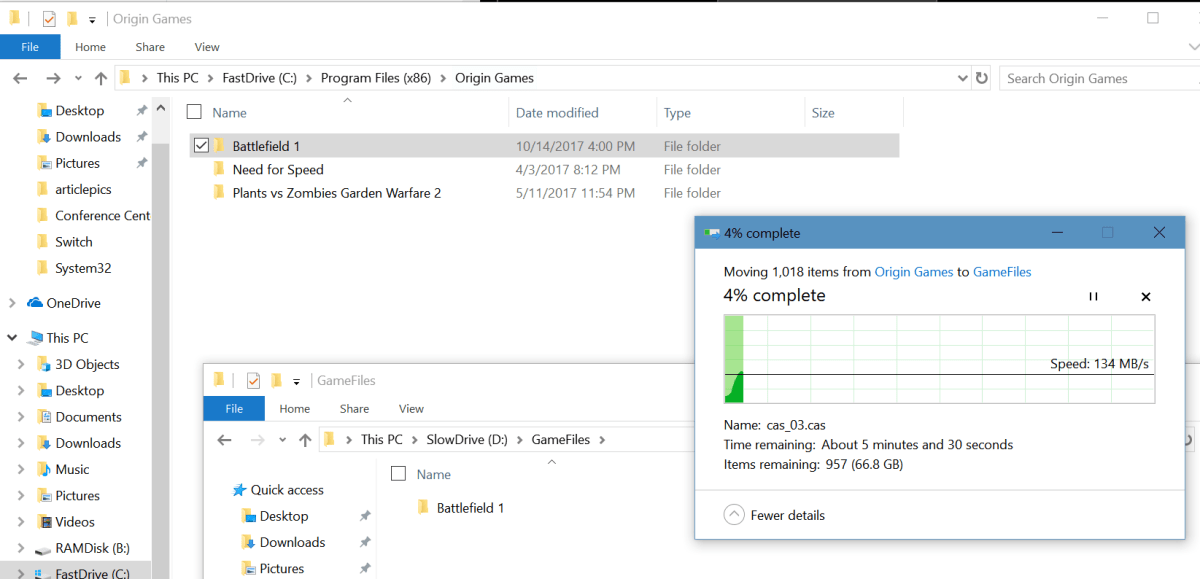
  • I use Windows Explorer to cut the Battlefield 1 folder from its original location and paste it onto my SlowDrive.MoveGameFiles
  • In this case we’re relocating an entire folder so our link needs to be a junction. The syntax is: mklink /j path I moved the folder to path of the original folder.  Note the quote marks, these are required if your path has spaces in any of the folder names. Also note, there is a space between the new location and original path.mklink-junction
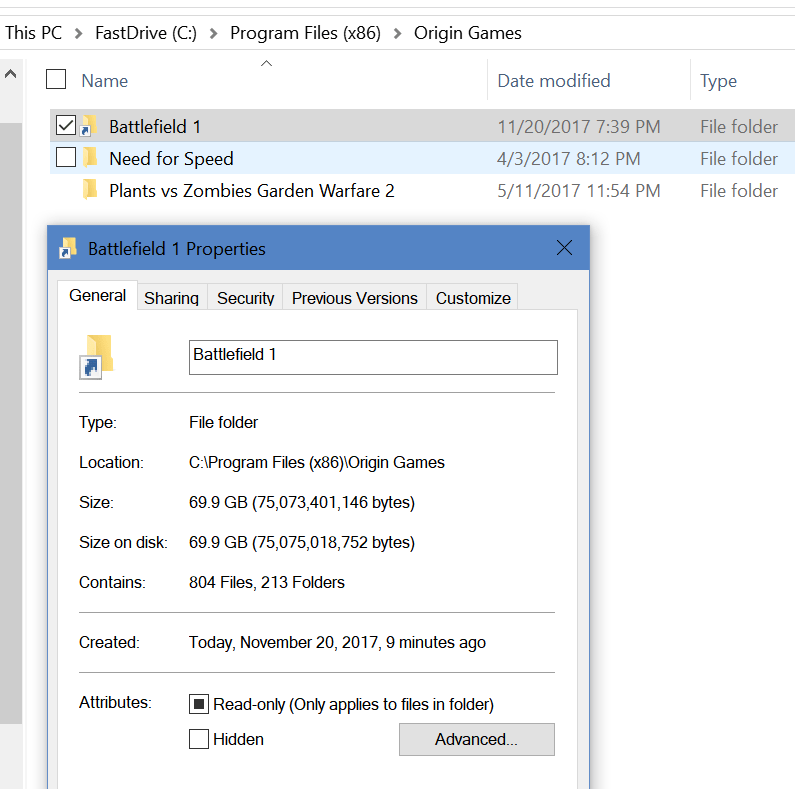
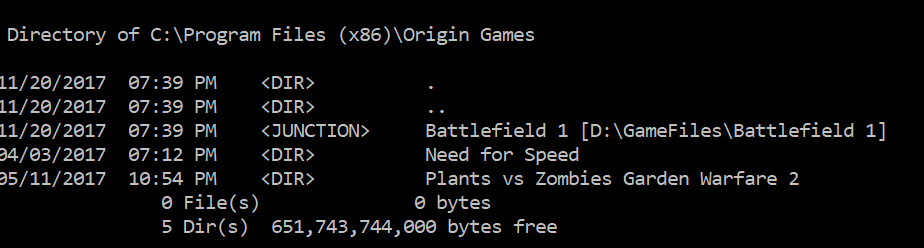
  • When I look in the original path of the data, I will see a shortcut. This is the link; it’s what fools our software into thinking the files are in their original location. In fact, if I check the properties of the link in Windows Explorer I will see the information (size, etc.) for the new location, it even shows the original path. Checking the directory in PowerShell or a command prompt will show us the truth.mklink-shortcut-propertiesmklink-cmd-properties

You can use symbolic linking to move software to any drive you like without having to re-install it. I took less than 6 minutes for me to move this game vs. hours of downloading and re-installing. I used this same technique to map my children’s Minecraft save data to my OneDrive account so that they can access their games from any of our computers or even from their friend’s houses. It’s a very handy thing to know. Let me know in the comments if this helped you out or if you have questions about using links.

7.1 Surround Sound with Any Headset in Windows 10

If you’ve updated your Windows 10 computer with the creators update you can enable virtual surround sound for any headset. It doesn’t matter if you’re using a 3.5 mm jack or a USB headset the setting works on all of them. Movies and games benefit from the effect most; music is normally only recorded in stereo.

  1. Plug in your headset
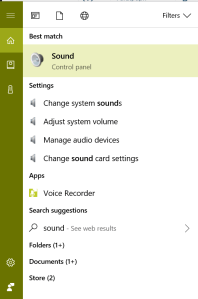
  2. Type “Sound” in the search bar and press enter
  3. Click the Sound Control Panel icon
  4. SoundSearch
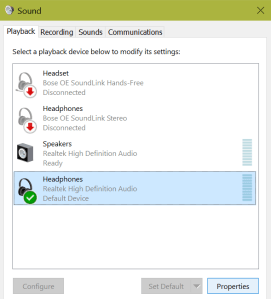
  5. In the Sound control panel select your headphones and click the Properties button
  6. headphoneproperties
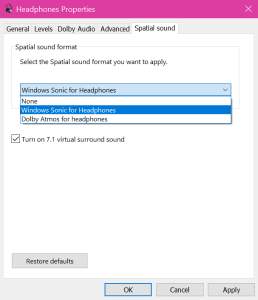
  7. Click the Spatial Sound tab
    • If the tab is missing you don’t have all the required updates. Type Updates in the search bar and open Check for updates to get them installed.
  8. Use the drop down to select Windows Sonic for Headphones
  9. Spatial Sound
  10. Selecting it should automatically check the box to turn on 7.1 virtual surround sound.
  11. Click Apply and OK

You also notice that Dolby Atmos is an available selection; this software may work slightly better, but it isn’t free. After the demo period you have to purchase it in the store for $15.00.

Congratulations, you should be able to hear angular sound in your games and movies. This feature is essentially the same functionality games pay big bucks for in surround sound headphones. Now you can do it for free with any old headset you have lying around.

Exchange & Outlook Custom Form Room Reservations; Retain Invitations

As I mentioned in my article Exchange & Outlook Custom Room Reservations, Guide & Template , the trouble with using custom forms for room reservations in Microsoft Exchange is that you have to retrain your users to open the room’s calendar directly. This is because the default room invitation process never displays a form at all. It only shows an EWS (Exchange Web Service) generated list of available rooms and their free / busy information. When the user selects one, the room’s mailbox is sent an invitation email which is processed by the attendant service or the room’s moderator. The reserver never gets a chance to see your custom form or complete any of the extra data fields you’ve painstakingly created.

Re-training your employees to open the room’s calendar isn’t too difficult if you’re setting up the service for a small organization. If you work for a company with hundreds or thousands of employees you’ll likely end up frustrated and so will your users. There are quite a few 3rd party add-ons for Exchange that claim to fix this limitation. You don’t need them. In this article we’ll explore using a few lines of HTML, JavaScript, PowerShell, and Outlook to allow the normal invitation process, while still compelling your users to complete the custom form.

My solution involves 4 basic components that, when executed correctly, allows the room’s mailbox to send an email back to the user requesting they complete your custom form. The auto response message will include a link that directly opens the room’s calendar showing their appointment. We’ll use PowerShell to alter the appointments created by the invitation so that they use our custom form.

  • Enable automated processing for the room invitations
  • Alter the message class of the tentative appointments
  • Create web pages that open each room
  • Create an invitation auto response with a link to the web pages

Enable Invitation Auto-update

In order for my technique to work, the room’s invitation must be processed from an email to a tentative appointment before the user receives the automated response. To accommodate this requirement we need to tell Exchange to automatically update the invitation on receipt (it can wait for hours otherwise).

  1. Create a txt file that contains only your room’s (assuming more than one) email addresses (you can see them in the EMC).
  2. Open the Exchange Management Shell or import an Exchange session in to your PowerShell.
  3. Run the following script (change the path to match the location of your text file)
    $ccrooms = Get-Content -path "C:\Users\MyUserName\Documents\ccroom.txt"
    Foreach ($ccroom in $ccrooms) {Set-CalendarProcessing -identity $ccroom -AutomateProcessing Autoupdate}
    
  4. If you ever add more rooms you’ll need to update them as well.

Alter the Message Class of the tentative appointments

Which form Exchange uses to open a message is determined by an attribute stored in Active Directory called the message class; it gets added when you alter the schema for the installation of Exchange. We want to alter all of the room’s tentative appointments so that they use our custom form. For this to work you’ll need to set up a few things ahead of time.

  1. A machine with Outlook installed (I use a VM). You could also use CDO on an Exchange 2013 or older server but you will need to alter the COM object in the script.
    • I haven’t been succesful in changing the attribute via EWS. You can set the default message class for a mailbox but not for each individual appointment; which is what we need for this solution to work.  If you know how to do this in EWS leave a comment, I’d really appreciate it.
  2. The AD account you logon to the machine with must have full permissions to all the room’s mailboxes.
  3. Create an Outlook profile for each room’s mailbox on the machine (individually); you probably think that you know better and can just open the mailboxes from one profile but you don’t / can’t. Just trust me.

Now that you have everything staged, we’re going to execute a PowerShell script that runs in a loop every 30 seconds and changes all the appointment’s message class attributes to our custom form.

Here’s the code:

Function Change-Class
{
$mbxs = Get-Content -path "C:\Users\Myusername\Documents\ccroom.txt"
Foreach ($ccroom in $ccrooms)
{
$outlook = new-object -com Outlook.Application
$namespace = $outlook.GetNamespace("MAPI")
$room = $namespace.CreateRecipient("$ccroom")
$room.Resolve()
$roomcal = $outlook.Session.GetSharedDefaultFolder($room, 9)
$appointments = $roomcal.items

Foreach ($appointment in $appointments)
   {
     If ($appointment.messageclass -eq "IPM.Appointment")
     {
      $appointment.messageclass = "IPM.Appointment.Conference Center"
      $appointment.save()
     }
   }
}
}
While ($true)
{
Change-Class
Sleep -Seconds 30
}

Notice that we’re using the same list of the room’s email addresses; don’t forget to change the path to match the location you’ve stored the file in. You’ll also need to alter the name of the form on the line $appointment.messageclass = “IPM.Appointment.Conference Center” to match the name of your published custom form. You must publish your form to each room with the same name or alter the script accordingly.

Create Web Pages that Open each room from a hyperlink

We’ll setup an auto responce to room invites in the next step. We’ll want to include a hyperlink in that auto-responce that opens the room’s calendar in Outlook for the user. This makes the process appear more seamless. You could accomplish this same goal in other ways, but I found this approach to be effective and simple.

You’ll need an IIS instance to host the pages on. Since we’re talking about Exchange you’ll have OWA and EWS installed, the IIS instance that hosts those services will do just fine here. Just create a new file based site and place the pages you create into the folder. I’m not including full instructions for this, but if you get stuck leave a comment.
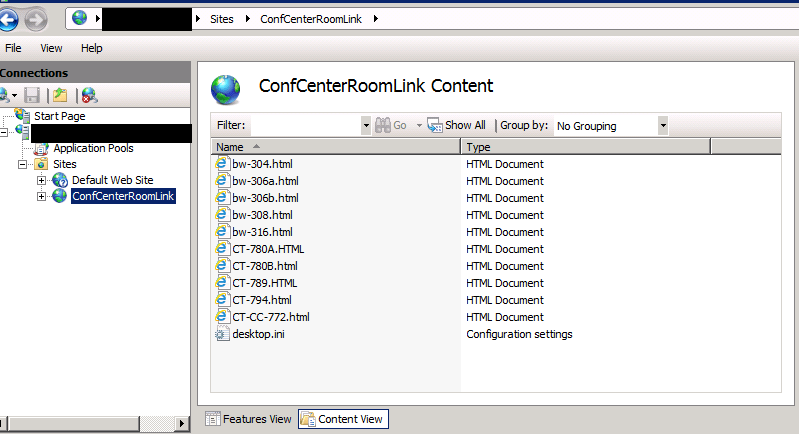
ConferenceCenterRoomLinkPages

Now we need to create one page for each room. You be using the email address of the room to identify it. Paste the code below (change the email address) into notepad and save it with the HTML extension.

<!DOCTYPE html>
<html>
<head>

function OpenConferenceCenter()
{
var outlookApp = new ActiveXObject(‘Outlook.Application’);
var pmapi = outlookApp.getNameSpace(“MAPI”);
var recipient = pmapi.CreateRecipient(“room@mydomain.com”);
recipient.Resolve();
var calendar = pmapi.GetSharedDefaultFolder(recipient, 9)
calendar.display ()
}

</head>
<body onload =”OpenConferenceCenter ()” ;>
</body>
</html>

As you can see, we are creating an Active X object in the web pages to open Outlook and then the room’s calendar, which means this only works in Internet Explorer.

Create an invitation auto response with a link to the web pages

Now is when those Outlook profiles we setup earlier will come into play. We want to use Outlook to create a rule to repsond to calendar inviations in each room’s mailbox. This rule is not visible in Outlook for shared mailboxes, hence the profiles.

For each room:

  • Open the Room’s mailbox in an Outlook profile
  • Click on the Rules button in the ribbon and then select Manage Rules and Alerts.
  • Click the New Rule button
  • Select Apply rule on messages I receive
  • Check which is a meeting invitation or update
  • Click Next
  • Check; Have the server reply using a specific message.
  • In the bottom pane click underlined words “a specific message” and enter your message. I reccomend something like the text below(change the hyperlink location).

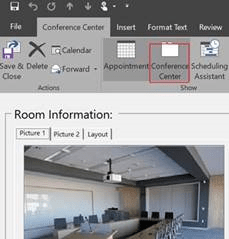
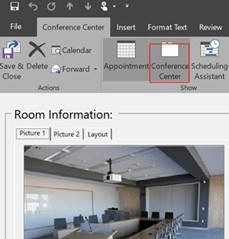
Your tentative reservation request has been received. Approval of your reservation request is based on receipt of the meeting information form. Please use the link below to locate your appointment, open it, and complete the Conference Center form by clicking its icon in the Ribbon.
CustomFormButton

The web link below only works in Internet Explorer. If your default browser is set to something else, you’ll need to right click and copy the they hyperlink below. Then paste it into Internet Explorer.

Click here to open the room’s calendar and adjust your appointment.

  • Click Save and Close on the Message
  • Finish the Rule

You should be ready to test now. If everything has gone according to plan the user’s experience should go like this:

  1. The meeting’s organizer selects a room from the default appointment form in the Outlook.
  2. Once they submit the invitation the room’s mailbox will reply with our message to finish the form.
  3. When the click the link embedded in the message the room’s calendar will open, they should double-click the appointment they just made to open it.
  4. All that is left is to click the form’s button to display it, complete it and save it.

This seems complicated but I’ve implemented it in an environment with 15,000 + users without any training and encountered very few issues. If you end up using this method in your own business I’d appreciate you leaving a comment.
PowerShell; Use COM to interact with other applications

If we want to move beyond the abilities afforded to PowerShell via its module system; we’ll eventually need to interact with other applications in our own code. For example; have you ever tried to load the “Outlook” module for PowerShell? There isn’t one, but does that mean we can’t interact with the software? Of course not. PowerShell can interact with applications in a myriad of ways, you’ve heard all the buzz words; “REST API”, “SOAP API”, “COM” but how do we use these tools? What are they really? In simplest terms they’re what us old school techs call “hooks”, built-in ways for applications to interact and exchange data. PowerShell is capable of using all of the popular methods including REST with JSON but in this episode we’ll discuss COM.

The Component Objet Model (COM) was introduced by Microsoft in 1993 as a non language specific standard for inter-process communication. It serves as the basis for some of Microsoft’s most popular technology; OLE, Active X, Direct X, and the Windows Runtime are all directly based on it. Using COM can be both extremely simple and frustratingly complex depending on what you are trying to accomplish but since nobody is going to read a 200 page blog post we’ll start with the easy stuff. If you would like a more detailed explanation of COM refer to https://msdn.microsoft.com/en-us/library/windows/desktop/ms680573(v=vs.85).aspx.

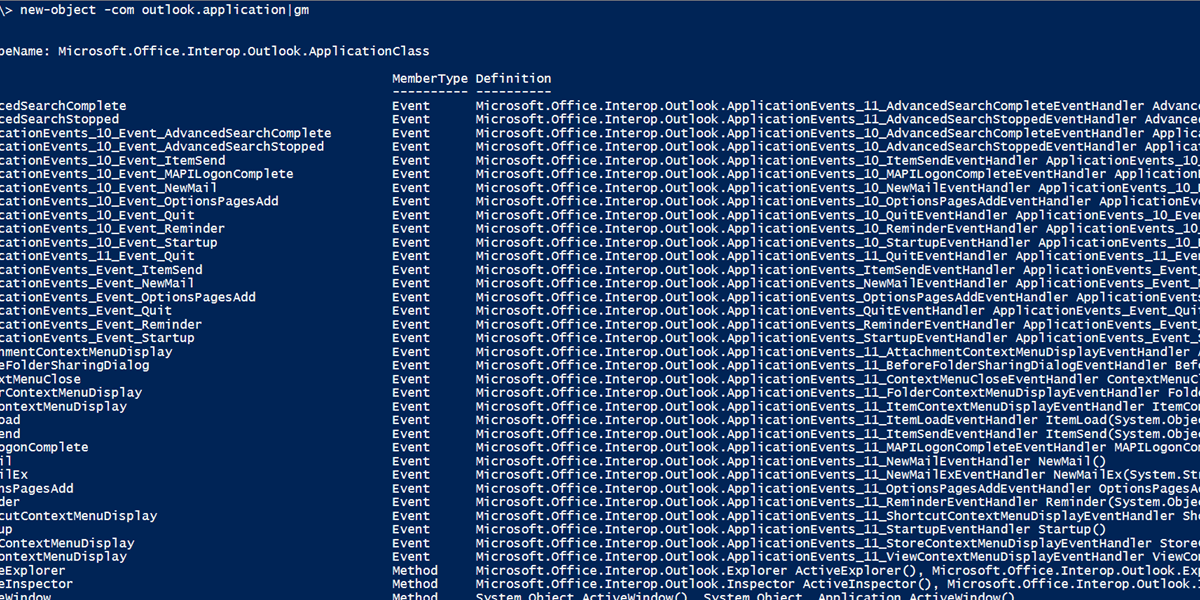
All of the examples and code that follows interacts with Outlook, I am an email admin after all, the techniques work with pretty much any application that runs on Windows. First we need to create an object to hold our application in memory while we work with it. How do you hold something in memory? With a variable of course, $outlook = new-object -com outlook.applicationwill essentially open a hidden copy of Outlook and store it in the $outlook variable so that we can send commands and exchange data with it (Get it? Outlook, Exchange data, I’m so funny). How does one find out what commands you can send to a COM object? You might be tempted to try help and that’s a good instinct but we’ve actually switched to C# here (called encapsulation) so PowerShell’s help won’t know anything about Outlook. We need to ask PowerShell to ask the Outlook COM object what commands (methods) it has available. We use the Get-Member command to do that; new-object -com outlook.application|gm will return a list of all the options at our disposal. Note that we had to create the object before we can get its member methods.

 I always try to keep these posts short enough to read and obviously we could spend the next year just going over all the different options in Outlook alone so lets look at a specific scenario. We’re writing a script/application and want our user’s Outlook contacts to pop-up on the screen.

$outlook = new-object -com outlook.application
$contacts = $outlook.session.GetDefaultFolder(10)
$contacts.display()

In the short script above we have loaded our application into memory, then selected the contacts folder. I just happen to know that each Outlook folder type (calendar, inbox, contacts, appointments, etc.) has an assigned number, GetDefaultFolder is saying get the top folder of this type and the display method is opening the selected item on the user’s screen.

Just for fun, lets create an Excel spreadsheet. Just to prove we can.

$Excel = New-Object -com Excel.Application
$Excel.Visible =$True
$Workbook = $Excel.workbooks.add()

Exchange & Outlook Custom Room Reservations, Guide & Template

Exchange has a decent built-in room reservation system. It has some nice features like Free/Busy information, a robust address book, advanced room lists, automatic time selection, and an excellent invitation and approval system. However, it leaves a lot to be desired when it comes to information about the rooms themselves. It doesn’t track the information required by managed conference centers at all. There’s no layout or seating information, no pictures or directions, no way to alert IT staff or room managers that custom setup is required and no catering tracking.

At the heart of Microsoft’s Exchange Server software is a series of databases. These databases can be modified to store both the fields you see and use in Outlook as well as custom data. Outlook itself provides the tools we need to add our required fields but it also will allow us to create custom forms to input and access the new data with. Many Exchange admins and Outlook power users are already familiar with Outlook’s custom forms trick. There are a lot of articles and excellent information on-line about using them. I like Outlookcode.com and have learned much from reading the site. Microsoft also publishes several TechNet articles on the subject. Using custom forms, Outlook transforms from a CRM and PIM tool to full database application solution.

Create a Room Mailbox

A room mailbox is pre-configured to handle meeting requests and approvals. A room mailbox must exist before publishing and testing the form. More information about resource mailboxes is available @ https://technet.microsoft.com/en-us/library/bb124374(v=exchg.141).aspx

To create room:

  • Open the Exchange Management Console or Exchange Web Console
  • Navigate to Recipient Configuration ->Mailbox
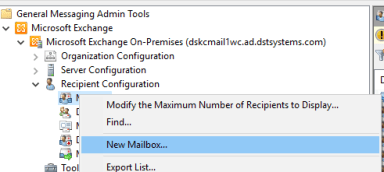
  • Right click on Mailbox and choose New Mailbox

New Mailbox

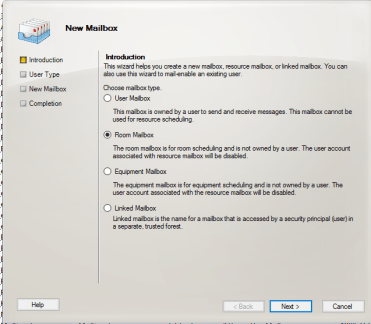
  • In the New Mailbox wizard select Room Mailbox then click Next

New Room Mailbox.png

  • On the User Type screen select New User then click Next
    • Please note: this option will create an Active Directory account for this mailbox and then disable it once permissions are set, automatically. You should not delete the disabled account the process leaves behind but it is wise to move them to an OU in AD that is protected against accidental deletion. 
  • On the User Information screen, select the check box for Specify the organizational……..
  • Click the Browse button
  • Navigate to the OU that your room mailboxes occupy
  • In the Name Field enter the room’s name as you would like it to appear
  • Enter a username in the User Logon name field (name of temporary AD account)
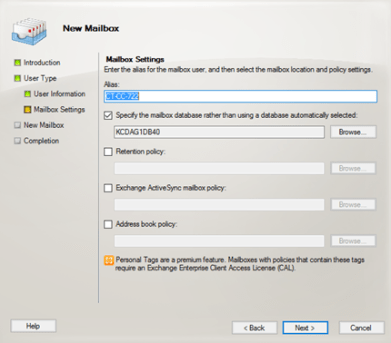
  • Verify that the Alias field is populated with the room name or some variation of it
  • Select the database location and any applicable policies
  • Click Next

RoomAliasDatabase

  • Click the New button on the next page
  • Click Finish
  • Your new room mailbox will be visible in the EMC after enough time for replication has occurred

Room Mailbox Options

Options for room mailboxes include things like: who are the room administrators, should requests be processed automatically, and who can override the default settings. The options below are a good place start, but you will need to customise them to fit your specific requirements.

  • Locate the conference room you wish to configure in the EMC. 
  • Right click on it and select Properties
  • On the Resource General tab enter the Room’s capacity (this will be visible in the room finder)
  • On the Resource Policy tab enter delegates if this room is to be moderated by a human
  • Uncheck the Forward meeting requests to delegates box (this setting can be annoying)
  • On the Resource In-Policy Requests tab choose Selected Recipients for the first option and All Users for the second option This configuration will make sure your users follow the policies you set.
  • On the Address and Phone tab complete the location information fields
  • On the Resource Out-of-Policy Requests add the Room administrator, this will allow them to override a policy when required.

 Outlook Developer Mode

To create custom forms, fields, edit code, etc. you need to enable Outlook’s developer mode. Outlook in Developer Mode, functions as an IDE (Integrated Development Environment) and a pretty powerful one at that.

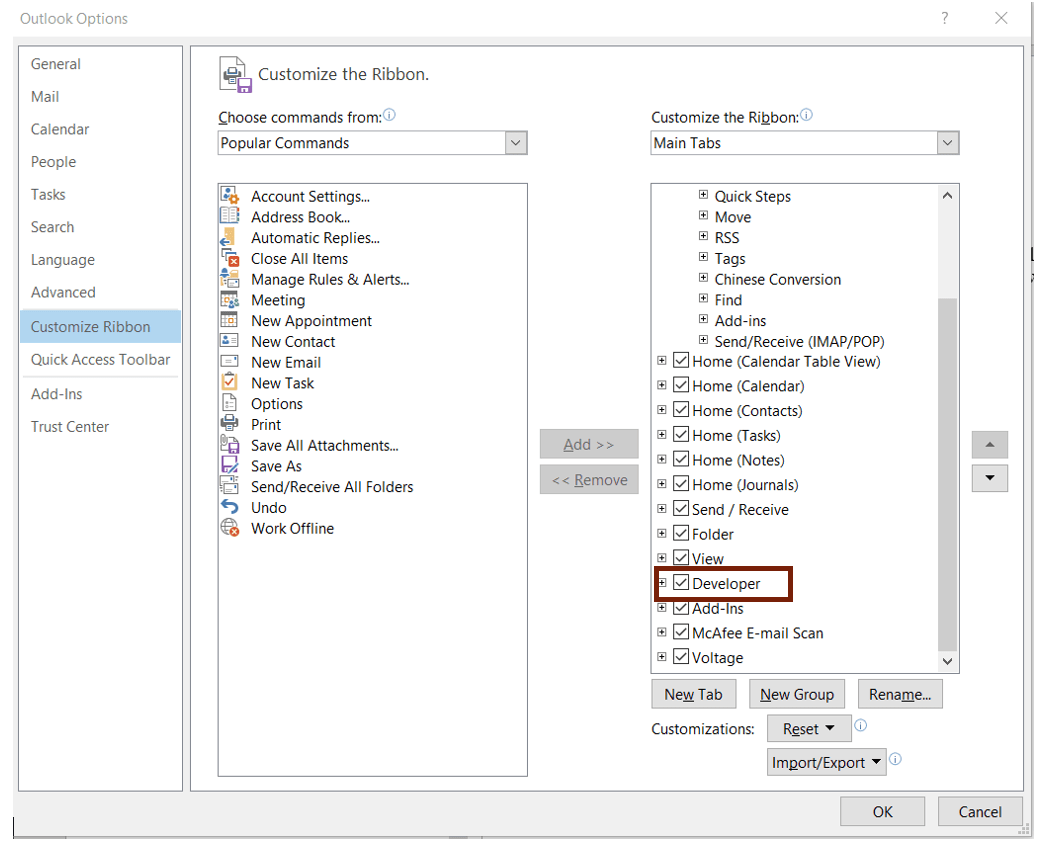
  • Open Outlook
  • Click on File
  • Click on Options
  • Select Customize Ribbon
  • Put a check mark in the box marked Developer
  • Click the OK button

Outlook Developer Mode

A new Developer Tab will be visible in Outlook’s ribbon, from this tab you can design and publish forms, edit Visual Basic Scripts (VBS) and Visual Basic for application (VBA) add-ins.

Download and Edit the Template

In this article we’ll walk through editing a template I’ve already made, you’ll see how the tool works and be able to make your own with ease. Plus, it’s a good template even if I do say so my self, LOL. You can download it here: Conference Center Template. Unzip the file to your hard drive. Opening a form template in Outlook the first time can be a little confusing.

  • Open Outlook
  • Click the Developer Tab
  • Click the Design a Form button
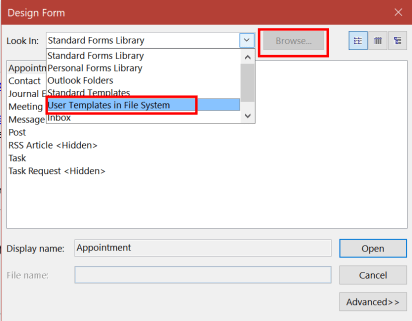
  • Use the drop down to select User Templates in the File System
  • Click the Browse button and locate the file you saved

OutlookFormTempFileSys

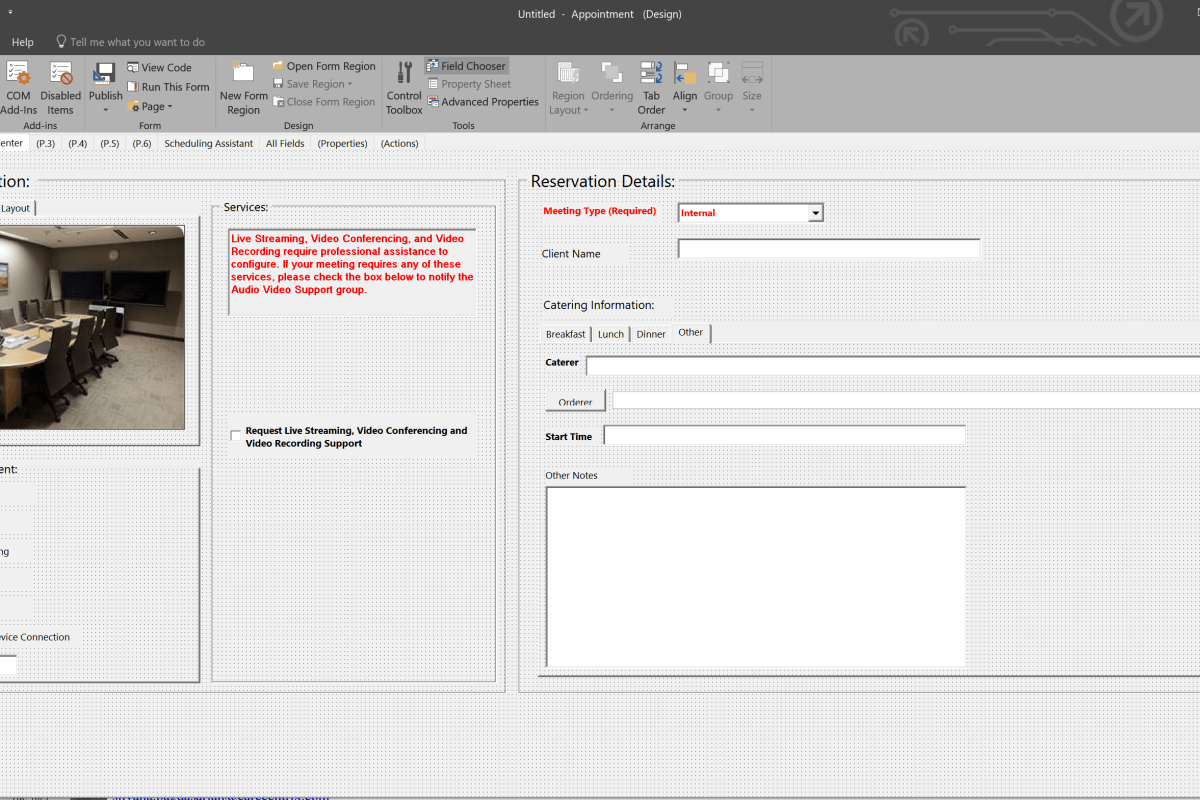
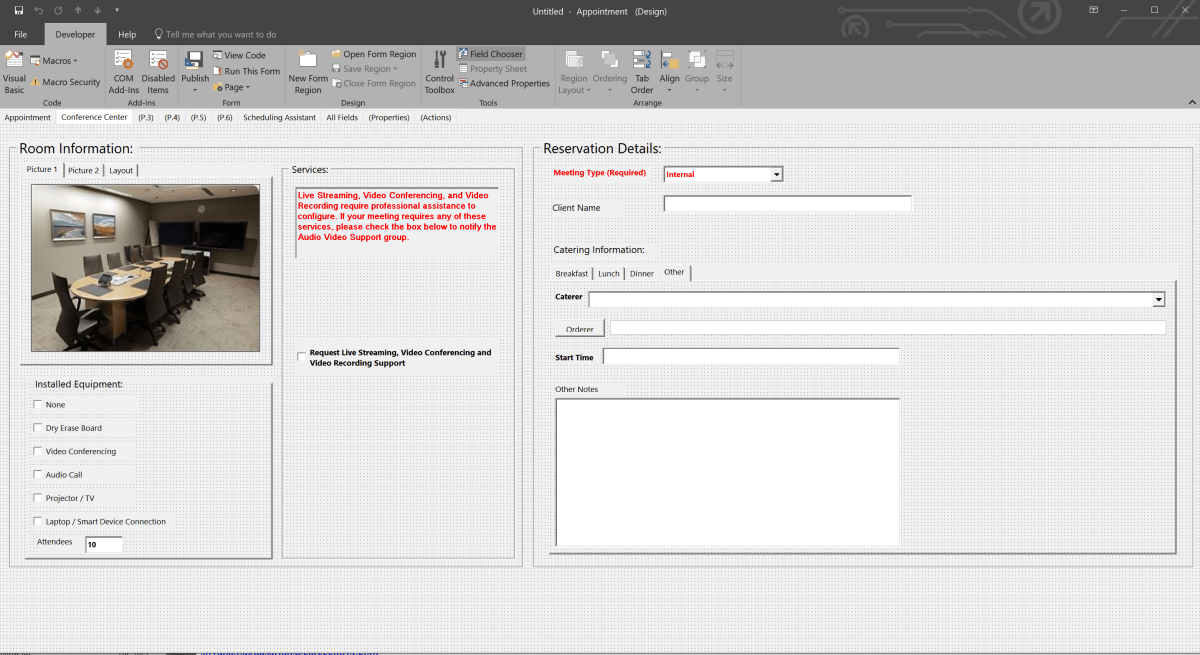
The template will open in Edit mode. It opens to the default Appointment tab because this form is based on the built-in meeting maker. Click on the tab named Conference Center to see the customizations.

OutlookConferenceCenter

Change the Pictures

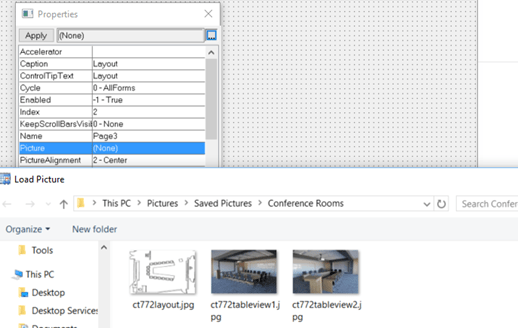
  • Right click on the picture (use tabs to select) and pick advanced properties
  • Select the Picture field and click the button in the upper right
  • Browse to the picture you wish to insert
  • Click Open

OutlookFormEditPic.png

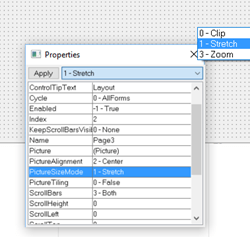
  • After inserting an image, size it by selecting PictureSizeMode in the properties
  • Choose Stretch from the drop down at the top, this will cause your pic to fill the frame

OutlookFormPicSize

Edit the Equipment List

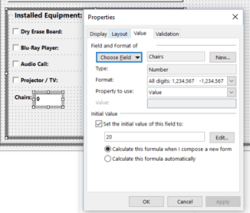
  • Right click the field you wish to edit and select Properties
  • Use the controls to adjust the field properties accordingly
    • You can choose whether the boxes are checked by default or not. Enter Yes for checked or No for not checked

OutlookFormEditEquip

Edit the VBS Code (AV Notification)

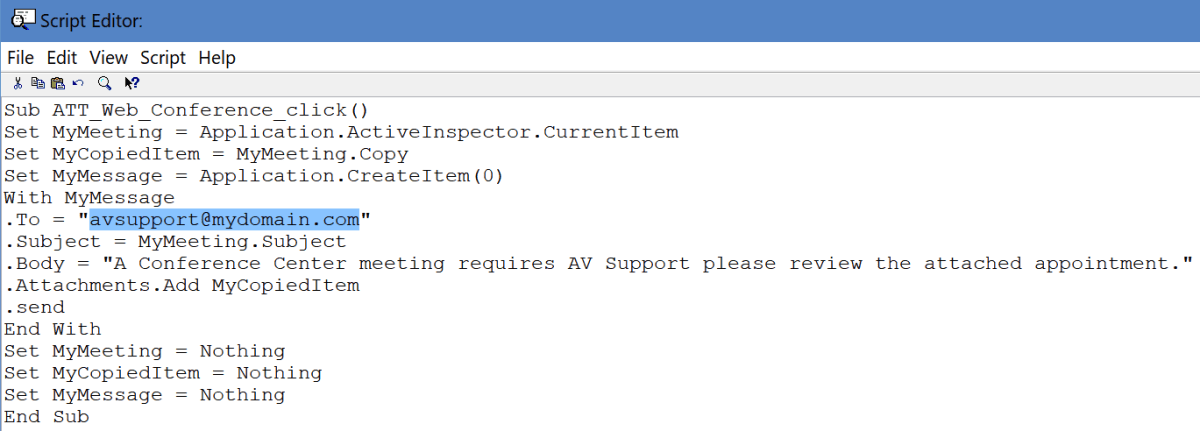
This template includes VBS code that emails a copy of the appointment when the “Request Live Streaming……” box is selected. You can remove this section of the form if you don’t need it. Otherwise, you’ll need to edit the email address or change the code to better suite your particular requirements.

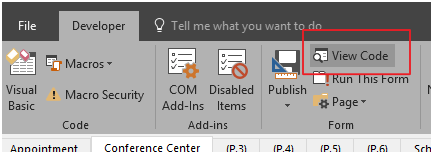
  • In the Ribbon click the View Code button

OutlookFormVBS

  • Change the highlighted Email address or otherwise adopt the code for your purposes. There is no save option in the editor. Once you are finished close its window.

OutlookFormVBSCodeEdit

After you’ve completed all of your changes save the form. File -> Save.

Publish the form to the Room’s Mailbox

Your users cannot access the form until you publish it to the mailbox we created at the beginning of this article. Before proceeding you’ll need to open the room’s mailbox in Outlook. If you don’t, it’s path will not be available in the publishing dialog. I prefer to setup an Outlook profile just for working with the room’s calendar, but this is optional.

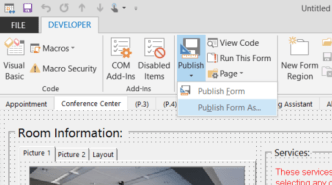
  • Select the drop-down chevron under the Publish button
  • Choose Publish Form As from the menu

OutlookFormsPublishAs.png

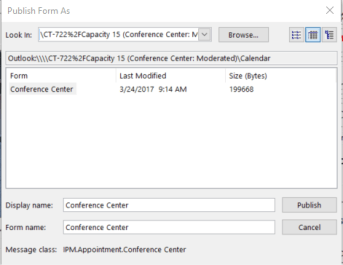
  • Select the room’s calendar from the Look In drop down
  • Provide the Display Name and Form Name
  • Click the Publish button

OutlookFormDisplayname.png

Make the New Form Default

To prevent users from having to manually open the form we’ll want to replace the default appointment form.

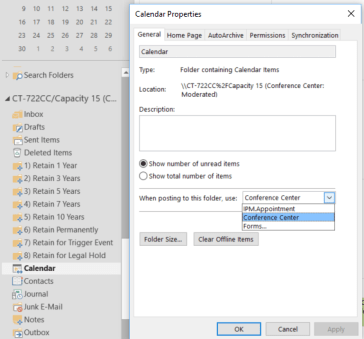
  • Open the room’s folder in your Outlook (you must be displaying the folder list)
  • Right click on the room’s calendar folder
  • Click Properties
  • In the When posting to this folder use drop down box select the form you published
  • Click Ok

OutlookFormDefault.png

Congratulations you’ve upgraded your room reservation system. After you’ve wowed all your co-workers with the results of your hard work and get around to fully testing everything, you will notice a usability flaw. The form only works if you open the room’s calendar directly in Outlook.

Most Outlook users create an appointment and then invite the room to it. This invitation is based on the Free/Busy system in Exchange which is a subset of the Exchange web services. EWS never presents a form at all. Just a list of rooms and their availability. When the user selects a room, an e-mail is sent to the room’s mailbox which is processed by the attendant and added to the calendar. You’re left with a couple of choices.

  1. Train your users to open the room’s calendar and book their appointments from there. This isn’t a bad option for smaller organizations, but if you have thousands of employees, retraining all them could be problematic.
  2. Read my next article about how to use a few lines of HTML, some PowerShell, and Outlook to allow the normal invitaiton process while still compelling your users to complete the custom form. Exchange & Outlook Custom Form Room Reservations; Retain Invitations


Color code Outlook email; Conditional Formatting 

I recieve more email in a day than I could possibly read. My job doesn’t allow for things falling through the cracks just because I’m busy. I use Outlook’s conditional formatting feature to make important messages stand out from the ocean of junk.

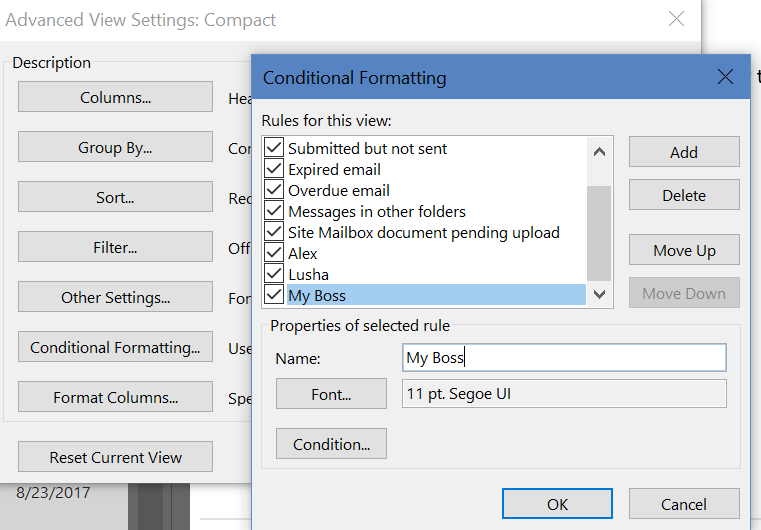
Conditional formatting will change the color and / or font of an email in your message list based on parameters you specify. You can easily change emails from your boss to red, team members blue, the big project to large yellow, etc.. Personally, I assign each project I’m involved with a color. This makes it easy to find relevant information quickly. 

  1. Open Outlook. 
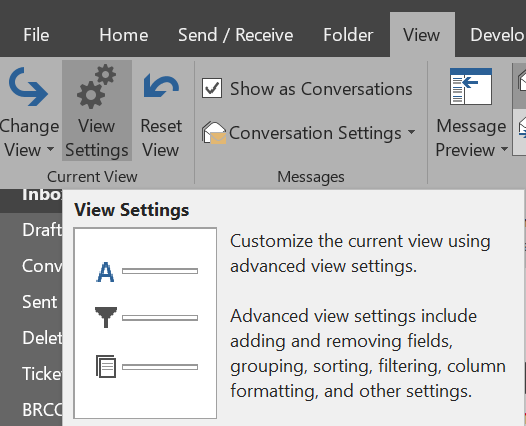
  2. In the ribbon click View and then the View Settings button. 
  3. Click the Conditional Formatting button. 
  4. Select Add to start a new rule and assign an appropriate name.
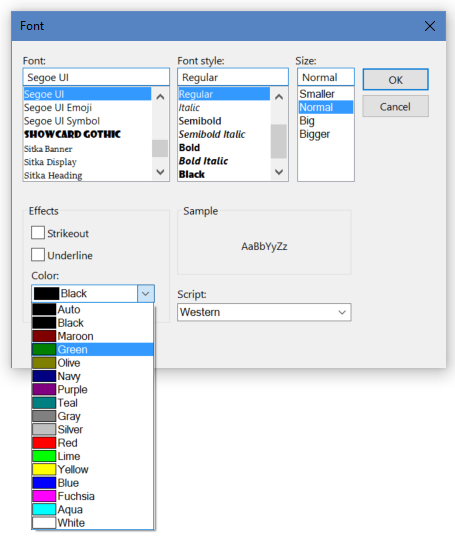
  5. Use the Font button to choose the text effects your rule should trigger.
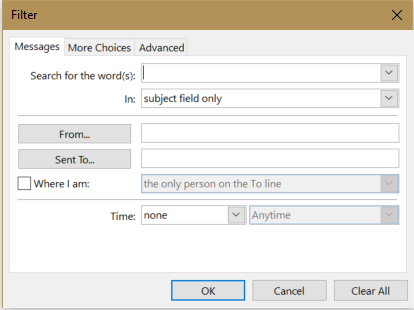
  6. The Condition button presents a list of filters to trigger your font change with. Choose the message sender, subject, keywords, and more. The three tabs across the top provide advanced options. 

Good organization of your inbox can be the difference between drowning in email or sailing through your workload. Spend a couple of hours upfront to automate as much as possible. You won’t regret it. 

PowerShell Hash Tables; Combine data from multiple modules.

If you use PowerShell long enough you will inevitably need to combine data from more than one module into a report. As an example, My co-worker ran into a situation where she needed to show mailbox sizes by city. Exchange doesn’t have the city but we know Active Directory does. How do you combine the information from the Exchange Module with the information from the Active Directory Module?

SQL, SharePoint, Lync, pretty much all MS server products have a module at this point. The examples below are Exchange and AD but you can use the technique to combine data into a report from any or all of them. First get the data you need from the Exchange module; Get-MailboxStatistics youremailaddress|fl totalitemsize should do the trick.

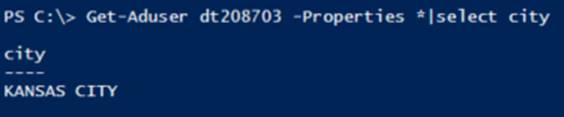
We know that Active Directory has our address in it. 

How in the world do we combine the data? There are lots of ways to do this programmatically but one of the easiest is to use a hash table. 

What’s a hash table? In the simplest terms it is an array (a spot in memory) that stores key/value pairs. In our case we going to store a key (the name of our column) and a value (the results of another command) in the array and then display only the results. It sound complicated but trust me; it is easy once you get the hang of it.
The trick with hash tables in PowerShell is to get the syntax right. @{ <name> = <value>; [<name> = <value> ] is the formula. I know it looks complicated but if we plug in the data we’re looking for in, it will make more sense.
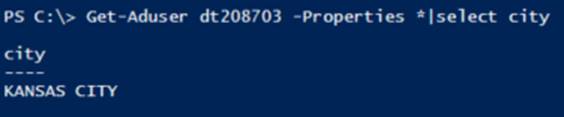
Get-MailboxStatistics dt208703|fl totalitemsize,@{Name=”City”;expression={(Get-ADUser -Identity dt208703 -Properties city).city}} see that comma between our first command and the @ that starts our hash table? You need a comma separator for each new hash table in your command. English teachers may be trying to get rid of the comma in written language but if you forget them in programming you’ll be sorry.

So what’s up with the ().city in our hash table? The syntax didn’t say anything about that. Turns out it is just some formatting. Who remembers grade school math; what does (3×2)+6 mean? For those of us that are a little rusty, it means multiply 3 and 2 and add 6 to the answer; the () mean do this first. Same thing in programming languages (they’re all just subsets of Algebra). So do this first (Get-ADuser –Identity dt208703 –properties city) and then display only the value named city. 

Automatically Organise your Outlook Inbox in folders by years

Wow, people’s mailboxes are a mess. Who has time to read and sort the thousands of mostly irrelevant messages that have built up in there over the years? We can’t just delete the stuff because as soon as you commit to saying good-bye the laws of corporate Karma will cause an executive to ask for one of the messages you just dumped. 

What’s a busy person supposed to do? I get Outlook to put all my mail into folders by year, only leaving the current year’s mail sitting in my inbox. It’s easy to setup and really helps. 

1. Open Outlook.

2. Create folders for each year under your Inbox. I personally create a folder named Archive and then folders for each year under it.

3. In the Outlook Ribbon click on Rules -> Manage Rules and Alerts.

4. Click the New Rule button.

5. Choose “Apply rule on messages I receive”.

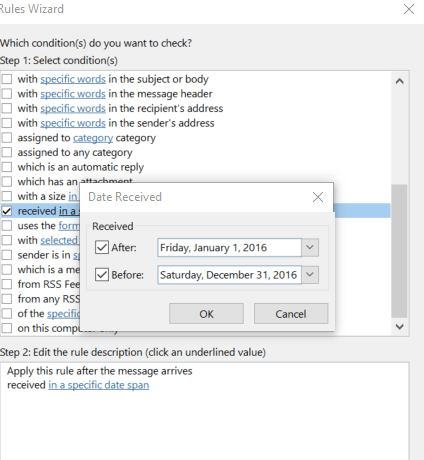
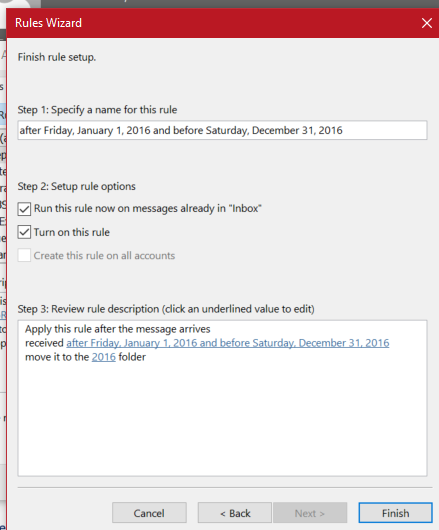
6. Select the box next to “received in a specific date range”.

7. In the Step 2 window (lower); click on the underlined words “in a specific date span”. 

8. Use the pop up to enter the start date (Jan 1st of the year you are building the rule for) and the after date (Dec 31 of the same year).  

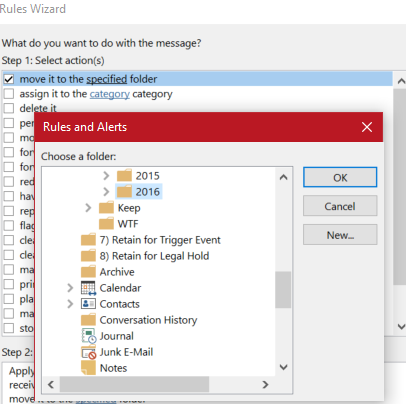
9. Click Next and select the check box for “Move it to the specified folder”. 

10. Click the word specified and browse to the year’s folder to select it. 


11. Click Next to add any exceptions. 

12. Click Next again and check the “Run this rule now…..” check box. 

Repeat the process to create rules for each year. Your inbox will be cleaner, your Outlook will respond quicker, and your email administrator will get off your back. 

Make a Windows 10 Theme from your personal pictures

Chances are that after a few years of carrying around a camera with you near constantly, you’ve probably racked up a stack of epic pictures that you’d rather stare at instead of the usual melting clock wallpaper fair. Windows 10 makes setting up your own custom theme using your pictures ridiculously easy.

First you’ll need to separate out all your favorite pics. Copy and paste them in to a  folder anywhere on your hard disk. As a beginner’s tip; I suggest that you choose pictures with a wide-angle (large area) view. They tend to look better as background pics than those that are of tight spaces.

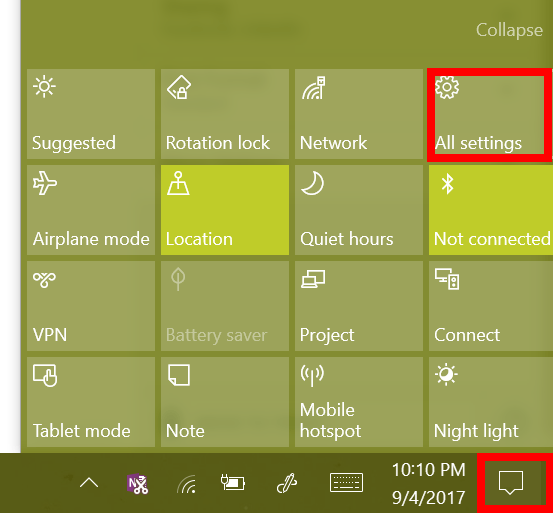
Now that you have your pictures all picked out. Open your notifications pain and click the All Settings button. allsettings

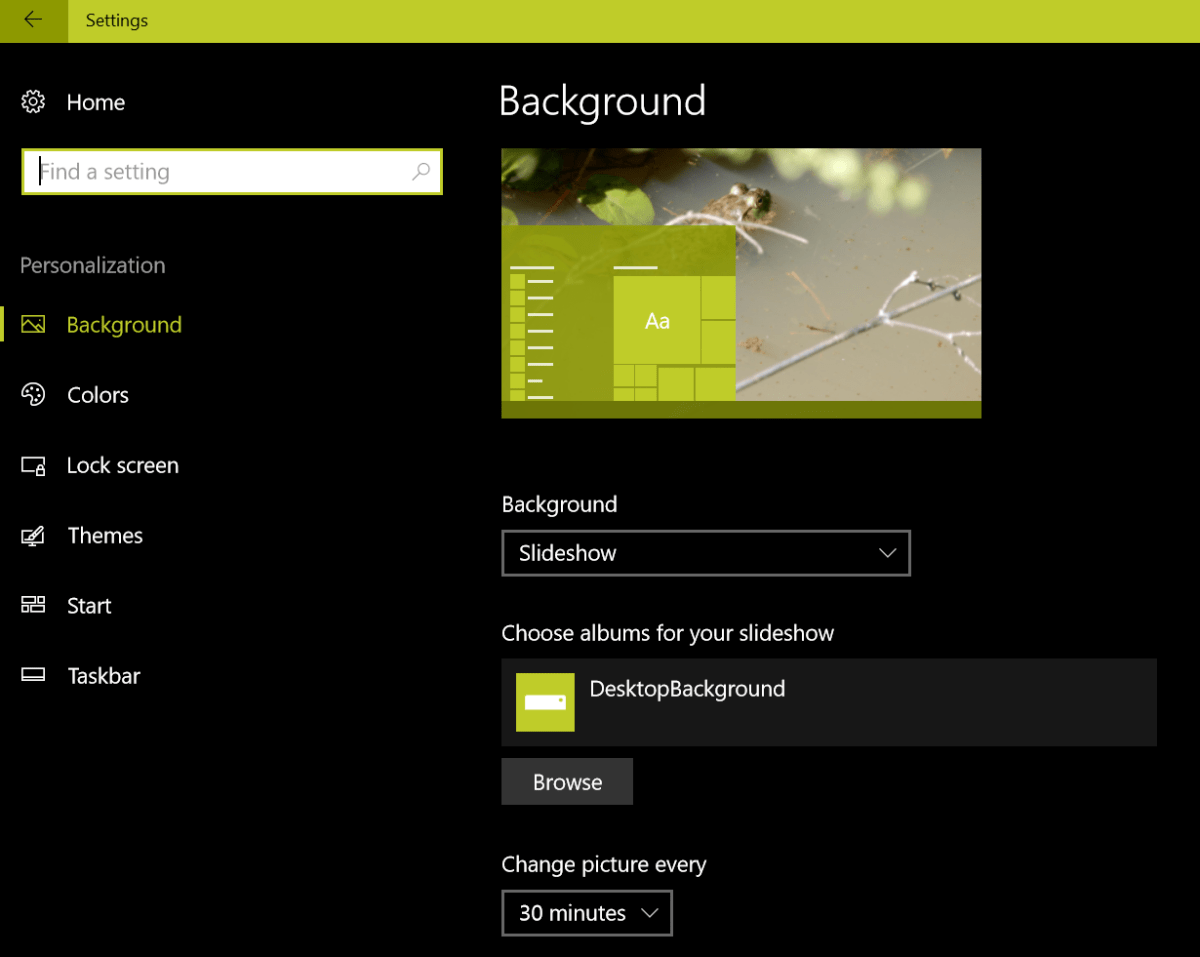
Choose Personalization from the menu and then click on Background in the menu on the left. Choose Slideshow in the drop down box in the center. Now use the browse button to locate the folder you saved all of your epic pictures in. Basically you want your screen to look like mine does below but with your folder’s name.

Background

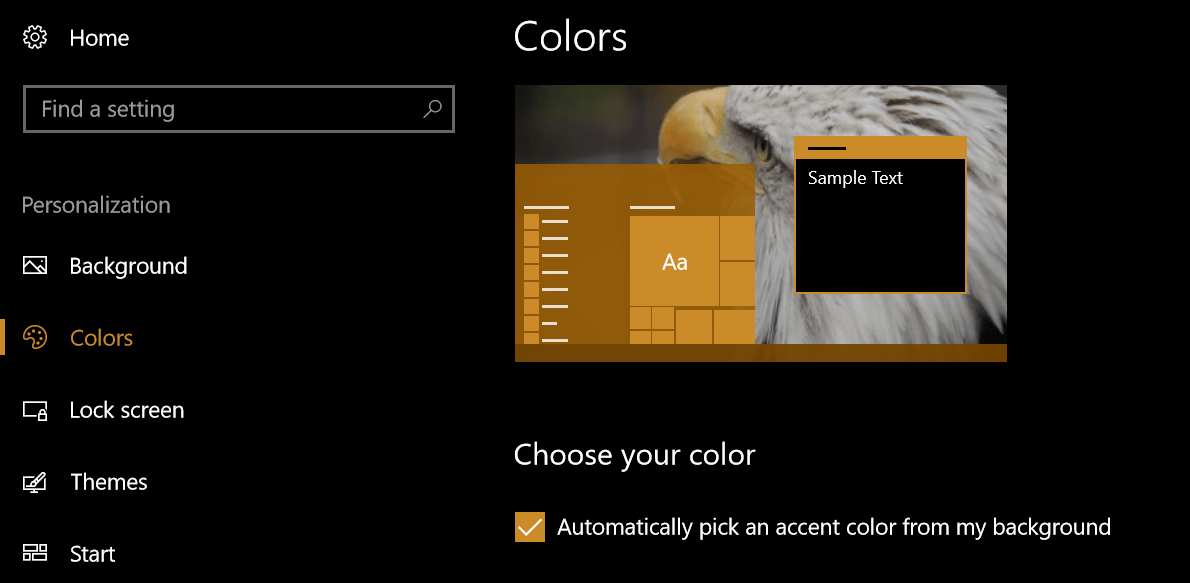
Now pick colors from the menu on the left and check the box that says to automatically pick a color from your image.

Colors

That’s it. Your background will now cycle through all the pictures in your folder and the task bar and window colors will change to match the selected picture. It’s one of my favorite features in Microsoft’s new OS. If you haven’t already upgraded, you should think about it.


PowerShell: Retrive a user’s AD Account and Exchange Mailbox info in Last Name first directories

If your Global Address List (GAL) or AD environment is configured for Last Name, First Name; it can be frustrating when trying to script bulk user actions when your datasource is First name first. If you’re just talking about a one time operation it isn’t too difficult to paste the names into Excel columns and sort them out that way. However, if you are trying to create an interactive script or are running some sort of automated process, trying send everything to Excel first is difficult and resource intensive.

There are plenty of articles on-line that suggest various methods of dealing with this issue but when I tried, lots of them just didn’t work. So, I wrote my own. At my day job I publish an internal blog called PowerShell Friday. I use it to share my PowerShell knowledge with my fellow administrators. The code below is from that blog. It isn’t extremely useful on its own, but I’ve used the techniques it demonstrates in countless scripts and applications. Since it was written as a learning exercise; each line is commented. It demonstratrates the following methods:

  • PowerShell Remoting – specifically to Microsoft Exchange Server
  • Custom credentials prompt – Adds text to the default dialog box
  • PowerShell Functions
  • PowerShell text manipulation
#Get-EmailAddress - Conversts Last Name, First Name to AD Logon Account and looks up email addresses.
#Get Exchange Admin Credentials and Connect to Exchange
$UserCredential = Get-Credential -Message "Credentials are required to access Active Directory and Microsoft Exchange, use the detected username or enter a different account." -UserName ($env:userdomain +'\'+ $env:username) #creates a pop up authentication box to get your username and password
$Session = New-PSSession -ConfigurationName Microsoft.Exchange -ConnectionUri http://FQDNOFYOUREXCHANGESERVER/PowerShell/ -Authentication Kerberos -Credential $UserCredential #starts remote Exchange Management Shell with the credentials you entered above.
Import-PSSession $Session #imports the Exchange session from Exchange into your PowerShell so you can use its commands in your script.
Import-Module ActiveDirectory #imports the ActiveDirectory commands from your local machine, you need the RSTAT tools installed for this to work.
Set-ADServerSettings -ViewEntireForest $true #tell Exchange to scan the full AD forest, child domains, etc.
function Get-ADAccount #creates a function the code gets placed between a { and a } called a "script block"
{
PARAM (
[string]$FnameFirst = $(Read-Host "Enter the employees first and last names"))# prompts the user to enter a name and stores it as text in a variable named $fnamfirst.
$NameSplit = $FnameFirst -Split '\s+' #splits the text into two seperate objects
$LnameFirst = $NameSplit[1]+ ", " +$NameSplit[0] #reverses the order of the name (our AD is last name first) and adds a comman between. In PowerShell the first number is 0 not 1.
Get-ADUser -Filter "DisplayName -like '$($LnameFirst)*'"|select SamAccountName -ExpandProperty SamAccountName #uses AD lookup the name and then select the SamAccountName.
}
function Get-EmailAddress
{
$userlogon = Get-ADAccount #runs the Get-ADaccount function above to get the SamAccount (AD logon) and store it as a variable.
Get-Mailbox -Identity $userlogon|select emailaddresses -ExpandProperty emailaddresses #uses Exchange to find the users mailbox and select the emailaddresses field then expands it to show them all.
}
Get-EmailAddress #executes the the Function Get-EmailAddresses to show the results.

Line 13 is where the magic happens. We  take the First Name, Last Name and reverse it, adding a comma between them. Now our user name will match the displayname property in our backwards Active Directory tree and we can find it using a filtered Get-ADUser query.

If you need to do this with a list of usernames instead of an interactive prompt just change the $fnamefirst variable to your datasource.

$FnameFirst = Get-Content myfile.txt
#or
$FnameFirst = Import-CSV -path c:\path\to\my\file.csv |select firstnamecolumn, lastnamecolumn -expandproperty firstnamecolumn,  lastnamecolumn -notypeinformation


How to Install a Kolab Linux groupware server on a Hyper-V virtual machine

Kolab is a full featured messaging and collaboration (aka Groupware) server that rivals Microsoft’s Exchange Server and IBM’s Lotus Notes in both functionality and features. It can run on most versions of Debian Linux. It can be installed on single server or distributed among many. It supports load balancing, LDAP directories, shared calendars, shared mailboxes, sharing files, notes, tasks, resource scheduling, and has an easy to use web based admin console. You can even use Outlook as its client. It has a robust web interface and IMAP support for mobile devices. Can it replace Microsoft Exchange in your orgainziation? There’s only one way to find out. We’ll explore Kolab and its abilites in several documents over the next few weeks. First up, is how do you go about installing it.

One might ask, why am I installing this Linux app on a Windows virtual machine? The anwser is: I wanted to demo it for my company but didn’t want to wait for the VMware server team to spin up a server for it. If you have an old laptop or desktop you may prefer to load the Linux OS directly onto it. You can also dual boot a system between Windows and Linux but this requires you to choose one OS or the other whereas a VM will allow both systems to run simultaneously, sharing the hardware. Since our Kolab VM will not require many resources, a virtual machine will not drastically impact my computer’s performance.

Windows 10 Professional allows me to use the built-in Hyper-V but if you have a non-pro version of a Microsoft OS you can still run VMs; you’ll need something like VirtualBox to make it possible. Use the links below for detailed information on setting up your chosen hypervisor.

Once you have your hypervisor up and running, download the ISO for the Linux operating system of your choice. You can download CentOS (my choice) from here: http://isoredirect.centos.org/centos/7/isos/x86_64/CentOS-7-x86_64-Everything-1611.iso .

Create a Hyper-V VM

The instructions that follow are for creating a VM in Hyper-V but the process is much the same regardless of the hypervisor you are using; the menus will, of course, be in different places, but the concepts are the same.

  1. Use the “New VM” menu option in your hypervisor to start its creation wizard.
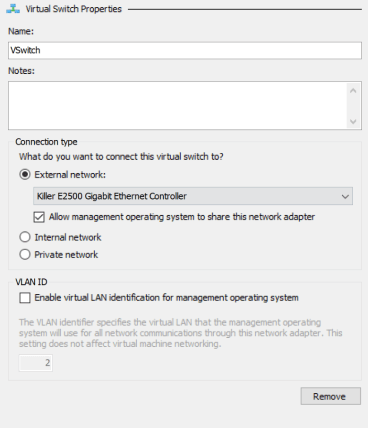
  2. Create a V Switch so that your VM can use your network.
    1. Virtual Switch Manager -> Create Virtual Switch -> External (name it Vswitch).
    2. Vswitch
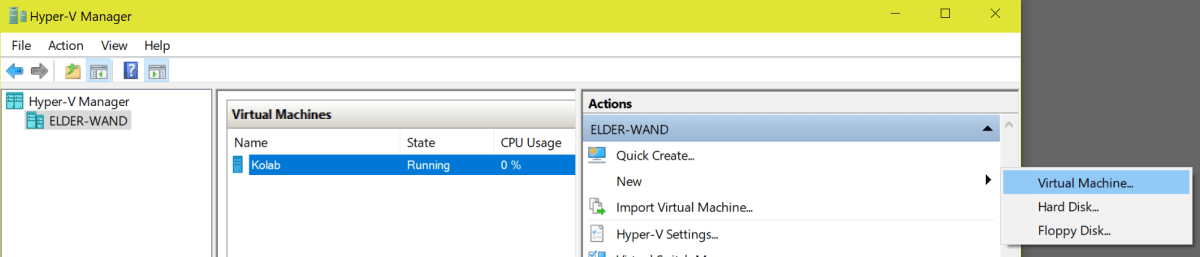
  3. Open the Hyper-V Manager and select New -> Virtual Machine
    1. NewVM
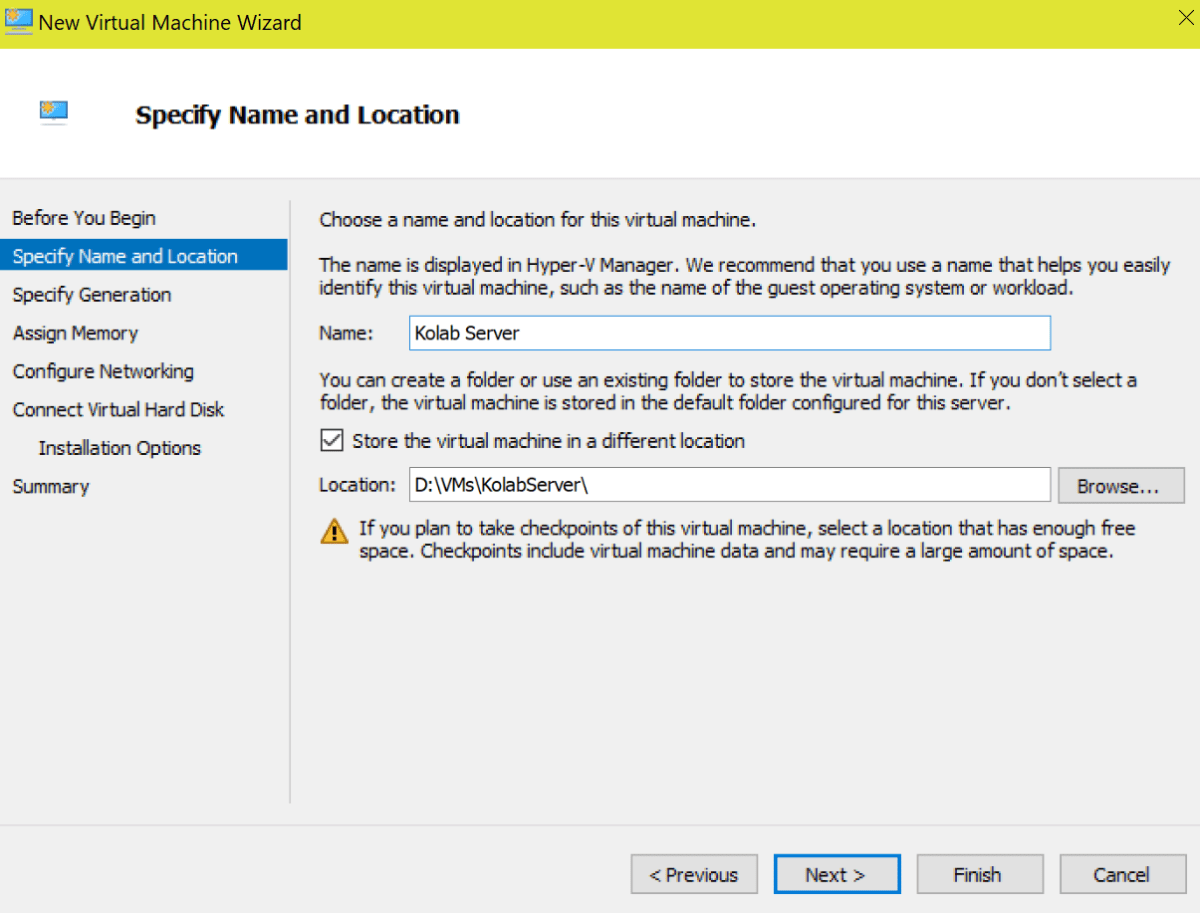
  4. Name your VM something logical and choose where to store the files. Pick a disk that has plenty of room. You can see I’ve chosen my D drive because it is large and mostly empty. Choosing a drive sperate from my OS partition will also help to limit the performance impact my VM(s) will have on my overall system performance.
    1. FileLocation
  5. On the next page select Generation 1 (few Linux operation systems support UEFI).
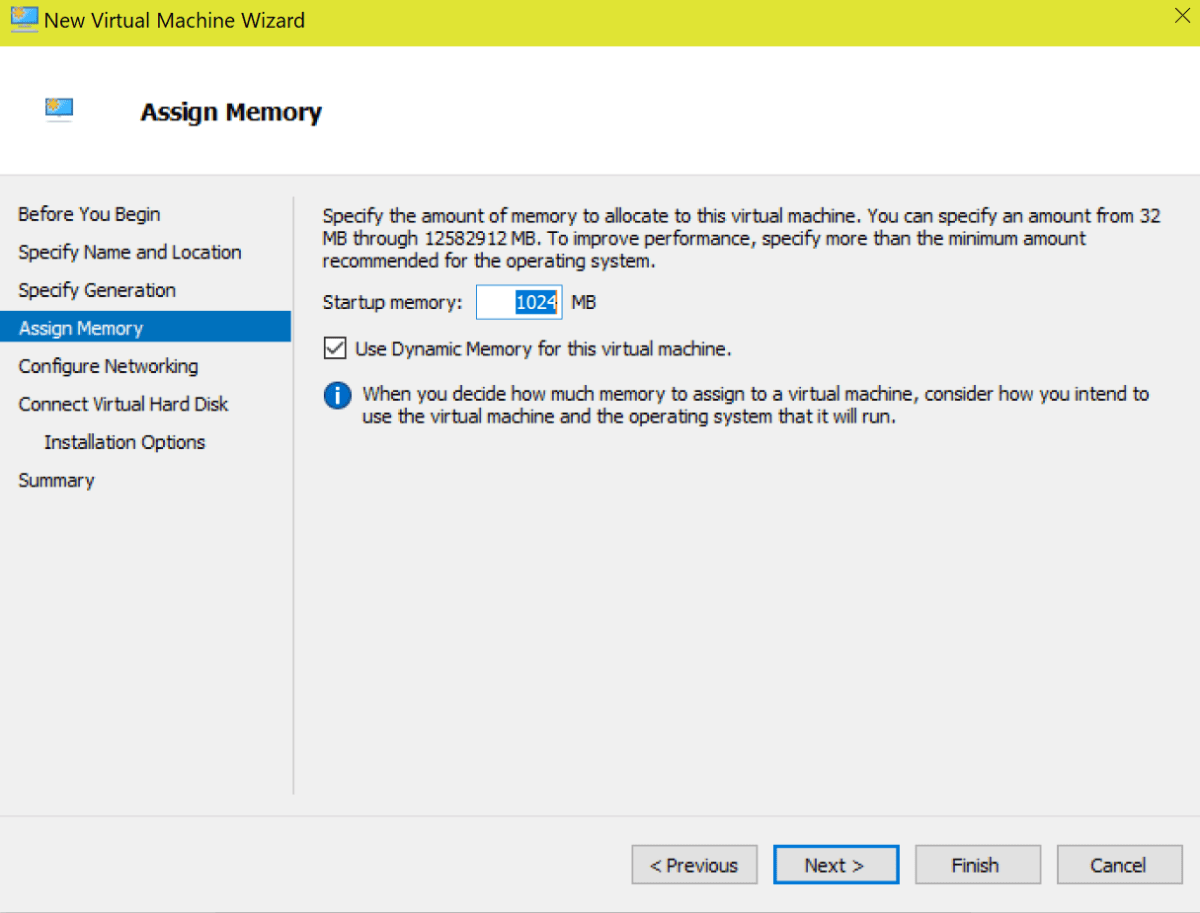
  6. Assign memory to your VM. More memory will make your VM perform better at the cost of lowering the performance of the Windows host machine. It’s a balancing act but the default 1GB is a good place to start. Leaving the Dynamic option selected will allow Windows to provide more memory to the VM if it is available.
    1. vmmemory
  7. Configure your network by selecting the virtual switch that you created in step one.
    1. VMNetworking
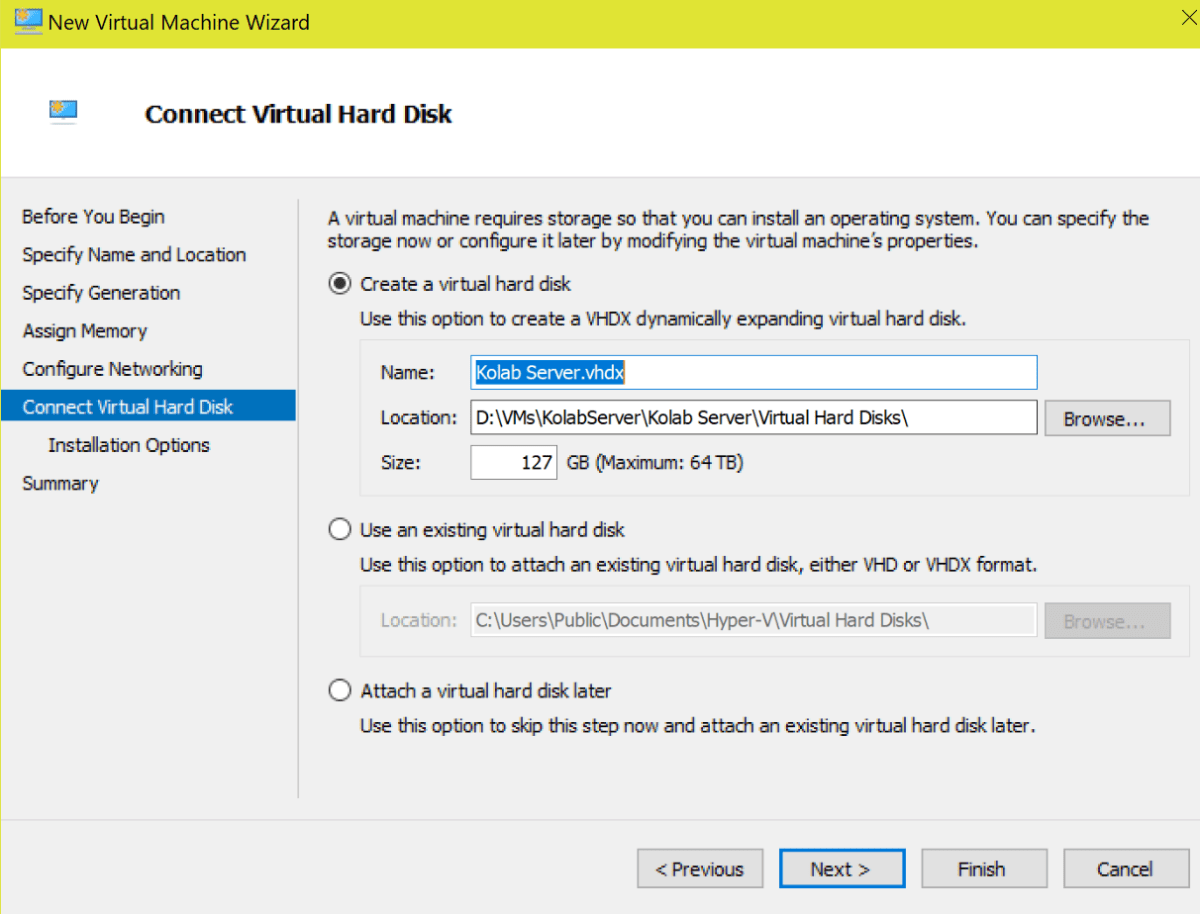
  8. Storage is essentially a file (.vhdx) on your hard drive that will be used for the VM. Do not assign more space than you can afford to spare. Hyper-V / VirtualBox will create a file large enough to store your virtual machine and will allow it to grow to the maximum size you have entered.
    1. vmharddrive
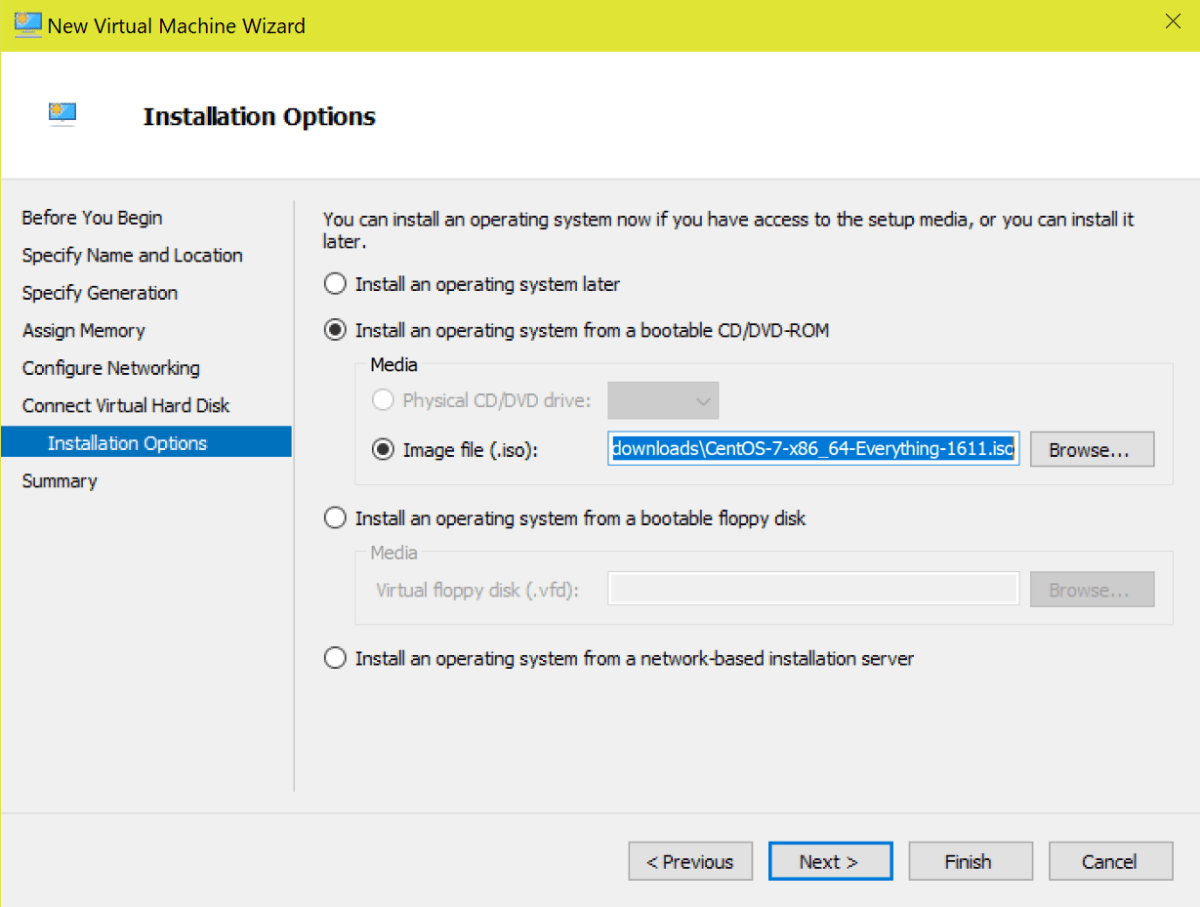
  9. Specify the location of your Linux ISO on the next screen.
    1. VMIso
  10. When you click on the Finish button your VM will be created in Hyper-V but the OS is not installed. To start the installation right click on the VM and start it. Then right click again and choose Connect. This will open a window that displays your VM screen and will allow you to interact with the server.


Linux OS Configuration

The first time you connect to your server it will boot from the ISO you selected during the creation wizard. Each Linux installation is slightly different and not in the scope of this document. For a Kolab server there are some configuration options you need to consider regardless of the distribution you are installing.
  • You might be tempted to select the Email role if your chosen Linux distribution has one. Don’t. It will probably install Sendmail and that will cause issues when we try to install Kolab. I recommend the generic server role or application server role.
  • I recommend choosing to install the GUI (GNOME Desktop) if possible.
  • Your server’s hostname needs to be an FQDN that is resolvable (in DNS) on your network or the Kolab services will fail to talk to each other. For example, my primary SMTP domain is whatdouknow.com our hostname is kolab.whatdouknow.com. Names like localhost, localdomain, etc. will not work correctly. If you don’t run your own DNS server you can use a hosts file on the VM itself. Sudo gedit etc/hosts will open the file for editing.
  • If you have set your Vswitch as I suggested above your VM will get an IP from the same DHCP server that your host computer did. You will need to reserve this address in that DHCP server for this machine or set a static address manually.
  • If you are installing CentOS 7, this is an excellent guide: http://www.tutorialspoint.com/articles/centos-7-step-by-step-installation-quick-guide
  • Once you have completed the installation you will need to update it. The GUI tools for most Linux installations usually include a software updating application. If yours doesn’t then: sudo apt-get update and sudo apt-get upgrade should do the trick (you’ll need both commands).

Kolab Prerequisites

Now that we have our Linux VM up and running it is time to install Kolab but there are quite a few pre-requisites we’ll need to configure first.

  • Open a Terminal and give the session root access by typing: sudo -i then press enter.
  • Kolab doesn’t support SELinux yet (advanced security module) depending on your Linux distro, you might need to disable it.
    • gedit /etc/selinux/config (use vim /etc/selinux/config if you chose not to install a GUI)
    • change the line SELINUX= from enabled to disabled and save the file.
  • Open the firewall ports that Kolab needs to function by pasting the following script into the terminal session.
    • for s in ssh http https pop3s imaps smtp ldap ldaps
      do
      firewall-cmd –permanent –add-service=$s
      done
      for p in 110/tcp 143/tcp 587/tcp
      do
      firewall-cmd –permanent –add-port=$p
      done
  • Restart the firewall so the settings take effect.
    • firewall-cmd –reload
  • Now we’ll need to install the Kolab repository so that we can download and install the packages.
  • Change to the following directory: cd /etc/yum.repos.d/ and run the following command to add the kolab repository.
  • Retrieve the GPG key by running:
  • Install the yum-plugin-priorities package.
    • yum install yum-plugin-priorities
      • This command is going to prompt you for (Y/N) at least twice so don’t walk away.
  • Finally, we need to set some service priorities.
    • for f in /etc/yum.repos.d/Kolab*.repo; do echo “priority = 60” >> $f; done

Kolab Setup

Now it’s time to install and configure Kolab.

  • Install command
    • yum -y install kolab

Next we’ll launch a text based wizard and answer its questions. It will ask for five passwords so have your generator handy. To be sure that all the prerequisite changes have taken effect, I recommend rebooting your Kolab VM before continuing.

  • Open a terminal session and give it root access
    • (sudo -i)
  • At the prompt
    • setup-kolab
  • Enter and confirm the application’s administrator password
  • Enter and confirm the LDAP administrator password
  • Enter the user the service will run under
    • pressing enter will select “nobody”
  • Enter the group the service will run under
    • pressing enter will select “nobody”
  • Enter and confirm the Cyrus administrator password
  • Enter and confirm the Kolab service password
  • When prompted for the MySQL installation
    • choose option 1 and
    • enter (the preset password is blank)
  • Enter the time zone UTC in Country/City format example; USA/Chicago would be the CST.
  • Enter and confirm the password for the Roundcube webmail interface.

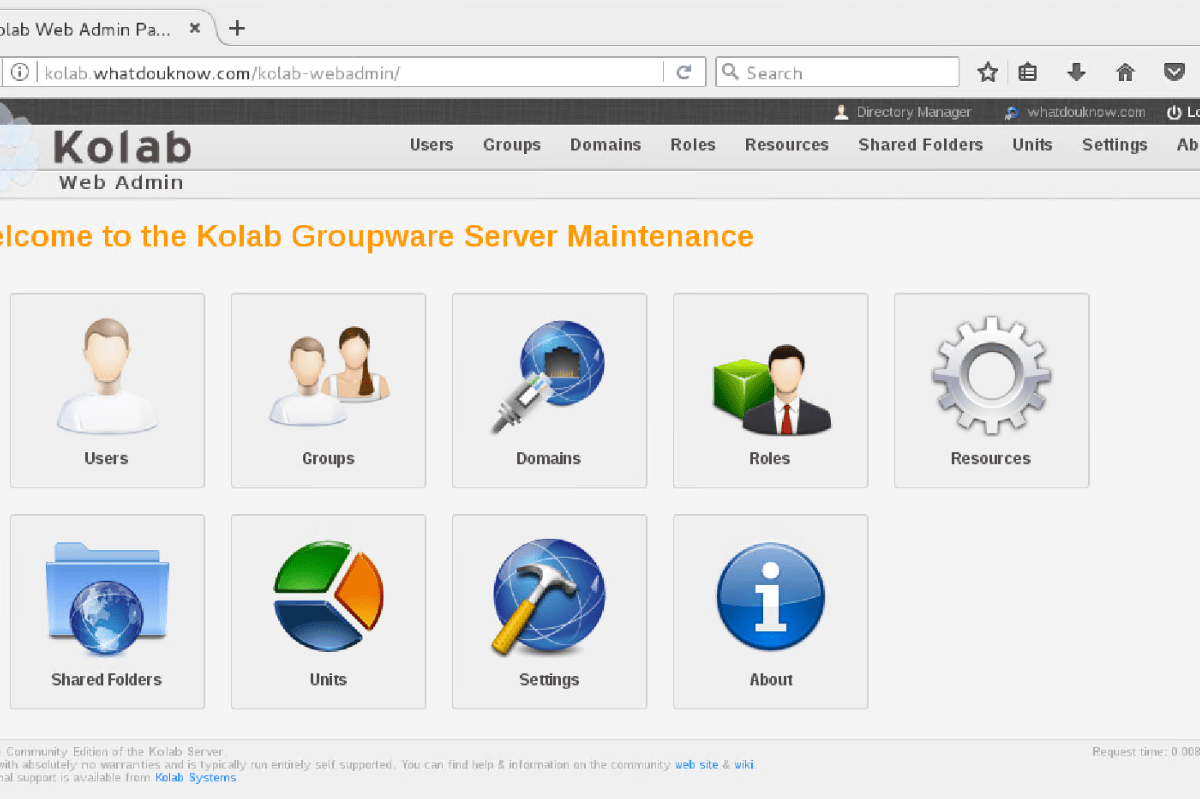
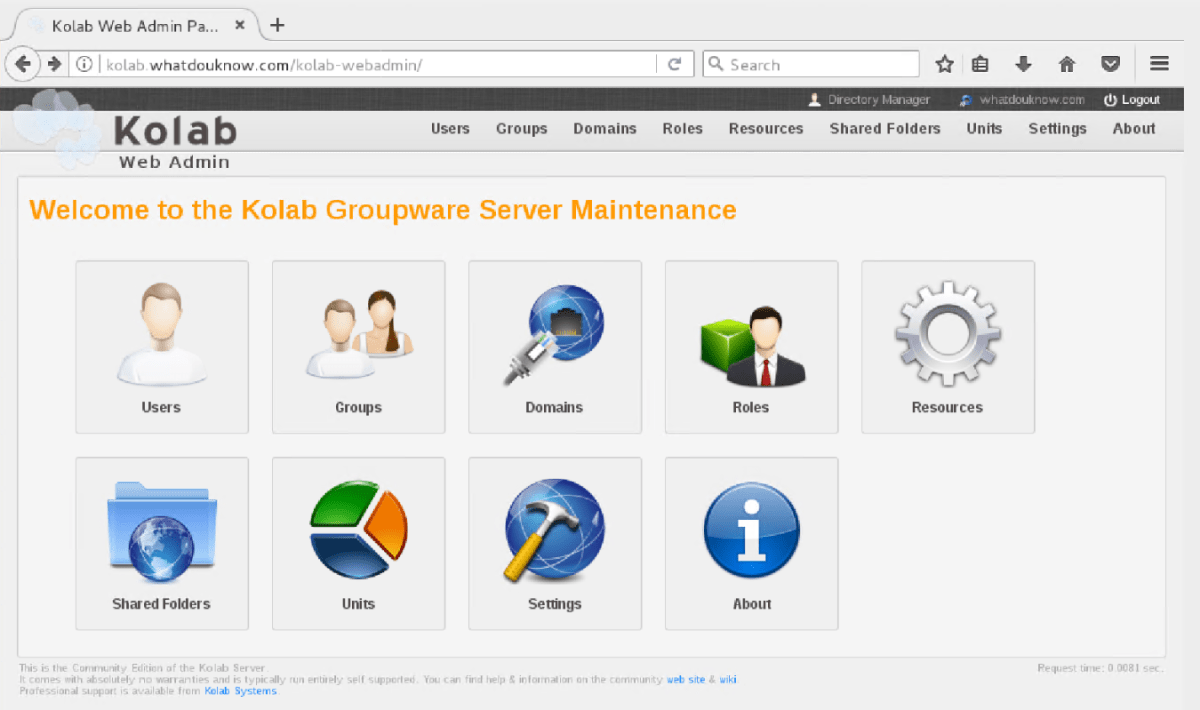
Congradulations you have installed Kolab. You should be able to launch a web browser that has network access to your server; if you installed a GUI the one on your server will work fine. Open the URL http://yourhostname.yourdomain.com/kolab-webadmin and logon with cn=Directory Manager and the password you configured for it. You will be presented with the Admin control page if everything went according to plan.

kolab-webadmin

Retry

If everything didn’t go to plan you can run setup-kolab again but there 2 things you need to do first or you will get error messages.

  • Clear the LDAP server configuration.
    • remove-ds.pl -i slapd-$HOSTNAME -a (replace hostname with the name of your system)

  • If the databases were created you will need to drop them.
    • MySQL (password is blank)
    • Show Databases; (the ; is part of the command)
    • Drop Database kolab;
    • Drop Database roundcube;
    • quit;
  • Reboot your server before running setup-kolab again.

In the next article in this series we will examine how to get Kolab setup and running including routing mail, configuring users, setup clients, configure sharing of all types, and more.


PowerShell – Exchange Storage Report

Most Exchange administrators have probably experienced the nightmare that is caused when the storage for the transaction logs or a DB runs out of room. By some hidden law of corporate IT the problem will undoubtedly occur just after you fall asleep and right when the CEO is trying to conclude a multimillion dollar transaction that requires a confirmation email.  There are plenty of articles out there that will help you get the problem resolved; one of the most common tricks is to run a “fake” backup to truncate the transaction logs and free up some room. Another easy trick is to compress the log drive (an option in Windows Explorer). I’ll trust that you can search for these options and decide whether to use them or not on your own (they both have drawbacks). There are some more advanced ways and I plan on writing about a couple of them in the future.

This post is more about helping you stay out of the “no space” pickle in the first place. In larger organizations Exchange can be spread across multiple servers in multiple sites with multiple storage systems in play. Relying on the storage teams to give you head up is risky. Windows applications that use distributed storage models like Exchange DAGs can be tricky for monitoring tools to cope with. My current employer’s Exchange footprint is a worldwide stretched DAG solution and each location uses different hardware, different storage platforms, etc. I created this report to compensate for what the tools weren’t showing the administrators. We haven’t had a storage problem since.

First we’ll need to get a list of all our Exchange servers, which we can do with Get-ExchangeServer cmdlet. We need the FQDN of each server but if you do Get-ExchangeServer|Select FQDN you will get a list of servers in a column with FQDN at the top and that’s no good for our next command. We just need to expand the column property to remove the column name.

$Servers = Get-ExchangeServer|Select fqdn -ExpandProperty fqdn

Next we’ll run that list of servers though a loop and ask WMI to get the drive information we’re after. If we didn’t do any formatting we’d get back the data in bytes; it isn’t very easy to read that way. We’ll use hash tables to do calculate Gigabytes and percentages.

$report = ForEach ($server in $servers)
{
 Get-WmiObject Win32_Volume -Filter "DriveType = 3" -ComputerName $server|`
 Where-Object {"Label -ne 'System Reserved'"}|Sort-Object Freespace|`
 FT -Property @{Name="Mount Point";Expression={$_.Caption}},`
 @{Name="Capacity(GB)";Expression={[math]::Round(($_.Capacity/1GB),2)}},`
 @{Name="FreeSpace(GB)";Expression={[math]::Round(($_.Freespace/1GB),2)}},`
 @{Name="% Available";Expression={[math]::Round(($_.Freespace/$_.Capacity)`
* 100)}} -GroupBy SystemName -AutoSize
}

I’ve noticed that when running this script that some older version of Powershell on Exchange 2007 / 2010 don’t like the ` marks which just mean to continue to the next line. If this happens to you just remove the backtiks and paste the command in a single line. I only have them here because it looks nicer on the page.

I choose to email the report to all the Exchange Admins as a text attachment because it works on everything; you could easily output it to HTML, Excel, or whatever format you like. To email an attachment you need a file to attach; we’ll use the out-file command to send our $report to a text file.

$report|out-file C:\Path\To\File.txt`​
Send-MailMessage -SmtpServer nameofyourexchangeserver`
-To recipient@mydomain.com -From sender@mydomain.com`
-Subject "Exchange Storage Report" -Body "Please see the attached file"`
-Attachments C:\path\to\file.txt

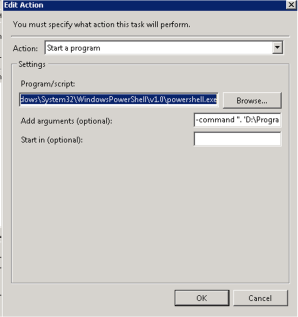
You’ll want to run this from an Exchange server using the task scheduler. This way , the task scheduler will handle authentication , accessing the Exchange Management Shell, and the actual scheduling itself. You can do all of this in PowerShell itself of course, I just find it to be more work that way. Scheduling a task for Exchange is a little different than others. You set the time and credentials as normal but the action is different. You’ll need to specify the path to Powershell and in the arguments call EMS and pass it your script. like this (change the paths to match your environment):
C:\Windows\System32\WindowsPowerShell\v1.0\powershell.exe
-command “. ‘D:\Program Files\Microsoft\Exchange Server\V14\bin\RemoteExchange.ps1’; Connect-ExchangeServer -auto; C:\scripts\Exchange-Storage.ps1”

Task Scheduler
The punctuation is very important.
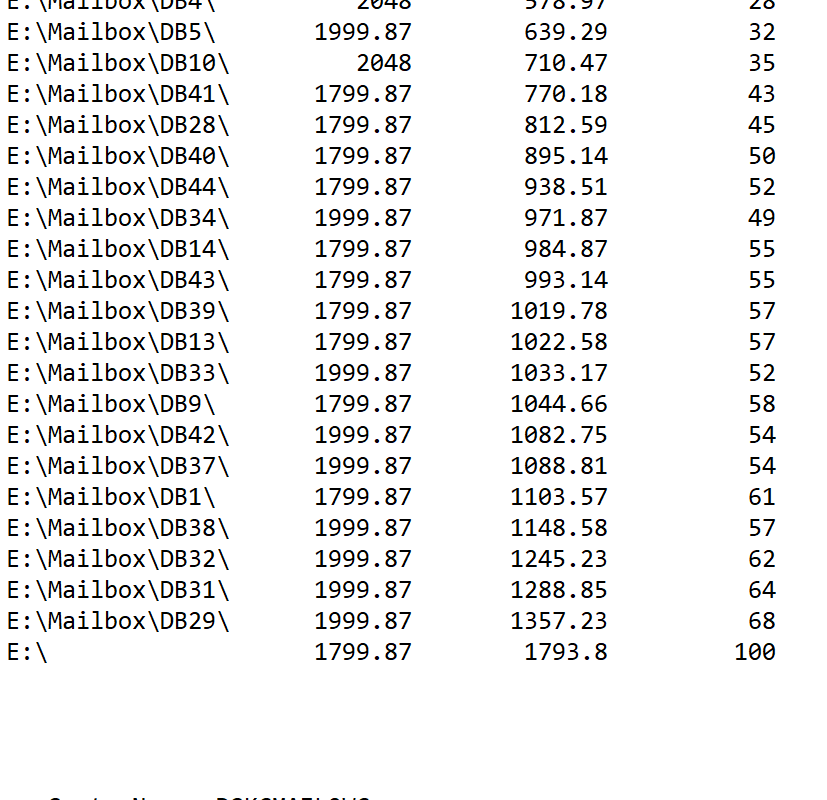
Once you have it all working your report will look like this:

Exchange_Storage

PowerShell – Get-ADUser in a Multi-Domain Forest

When I first started using PowerShell I was both amazed and frustrated. One of my first projects required that I generate a list of all the users in my company’s large Active Directory forest. I figured out the Get-ADuser part in no time but was disappointed to see the returns from my commands only listing the users from the domain I was currently logged in to. We had 20 plus child domains at the time. Where was the -alldomains parameter for the command?
Here’s what I came up with. Using the Get-ADForest cmdlet I could get a list of all the domains but it still wasn’t something I could plug into any Get-ADuser parameters. I figured out that I could also use Get-ADDomainController -DomainName to find a DC and that Get-ADuser had a -server paramater. I was soooo close. I just need to put them all together.

Import-Module ActiveDirectory
$domains = (Get-ADForest).domains
$dcs = ForEach ($domain in $domains) {Get-ADDomainController -DomainName $domain -Discover -Service PrimaryDC | Select -ExpandProperty hostname}

This string of commands (small script) results in the $domain variable containing a list of all the primary domain controllers in an AD Forest. Now we can use that variable with the -server parameter and get our list:

$AllUsersReport = ForEach ($dc in $dcs) {Get-ADUser -server $dc -properties *}
$AllUsersReport|Export-Csv - path c:\temp\allusersreport.csv -notypeinformation

We’ll end up with a nice CSV file conaining all the details of every user in our Forest. I have used the  top part (getting the domain controllers) in countless scripts since. For examaple:

Import-Module ActiveDirectory
$domains=(Get-ADForest).domains
$dcs = foreach ($domain in $domains) {Get-ADDomainController -DomainName $domain -Discover -Service PrimaryDC|select -ExpandProperty hostname}

$systems = foreach ($dc in $dcs) {Get-ADComputer -properties * -Filter {(OperatingSystem -like "*Windows*") -and (OperatingSystem -NotLike "*Server*")} -Server $domain |select DNSHostName, IPv4address, OperatingSystem, OperatingsystemServicePack, LastLogonDate
}
$systems|Out-GridView

The scirpt above will output a Grid of all the Windows workstation computers in your entire forest. A quick change of (OperatingSystem -NotLike “*Server*”) to (OperatingSystem -Like “*Server*) will output a grid of all your servers.

AllworkstationsReport