The Dark Side of MFA

Have you every met a person who has invested in a four-wheel-drive vehicle and became a poor driver because of it? An acquaintance was taking me for a drive in his new SUV on a snowy day and was driving quite dangerously. “Don’t worry, it’s four-wheel drive”, he told me. I was thinking, “yeah, but 4WD doesn’t help you stop.” He assumed that the added traction and driver assist systems in his new ride meant that he could drive like a maniac in inclement conditions. He was confident that the technology would overcome his mistakes. His vehicle was in the body shop before then end of the first month.

I have observed MFA (Multi-Factor Authentication) causing a similar false sense of security. StuxNet jumped an air gap, Heartbleed crippled the world’s routers, and Specter attacked CPUs themselves, any single security measure can be subverted. There are more weaknesses than there are people or man-hours to fix them. Security works best when it is applied in layers, relying on a single solution is likely to land your network at the business end of a security event.

There are several methods that can be employed to beat MFA, just Google, “Defeat MFA.” One of the most effective is the good ol` man-in-the-middle. Evilginx2, who’s logo graces the top of this article, is a standalone pre-packaged MITM proxy server complete with instructions. Of course, Evilginx was designed to be a demonstration and to help security experts understand how these attacks work, but it is fully functional and could be used for evil (see what I did there).

Multi-Factor-Authentication is a tool that can be added to your security strategy, not an all encompassing security solution. The tendency to let your guard down after deploying a new security measure like MFA can be a costly mistake. I wouldn’t ease up on the password requirements just yet.

A Kickstand for any Phone or Case

I’ve been a big fan of Samsung’s LED Wallet Case for years. I had them for my last three Samsung Galaxy Note phones. They hold a couple of cards and have an LED display on the front that displays various simple lighted icons for notifications, calls, texts, and music. The one thing the case doesn’t do is hold my phone up when I want to watch a video.

The missing kickstand bothers me so much that it has driven me to try other phone cases multiple times. Somehow I always end up back in the Samsung. There’s just something about the way it feels and fits both the phone and my pocket that the others don’t quite match.

A couple of years ago I started down a different path. Adding something to the Samsung Wallet that would keep it propped up seemed like an easy solution. This journey has taken far longer than I ever imagined. Rings, pop-sockets, fold-out card contraptions, and even 3D printed gizmos, I’ve tried them all to no avail. Granted, a big part of the reason they don’t work is due to the size of the Galaxy Note. When you attach a ring or pop-socket in the middle, the angle is to shallow when you change to kickstand mode.

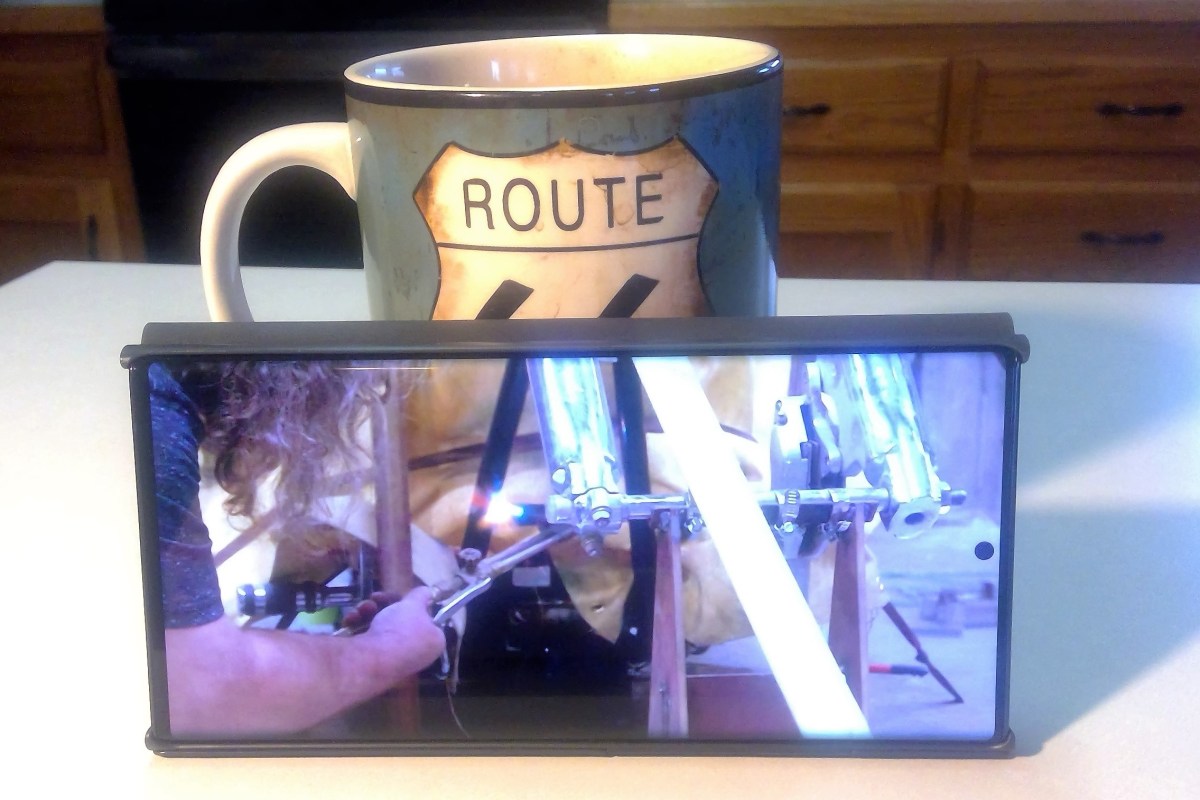
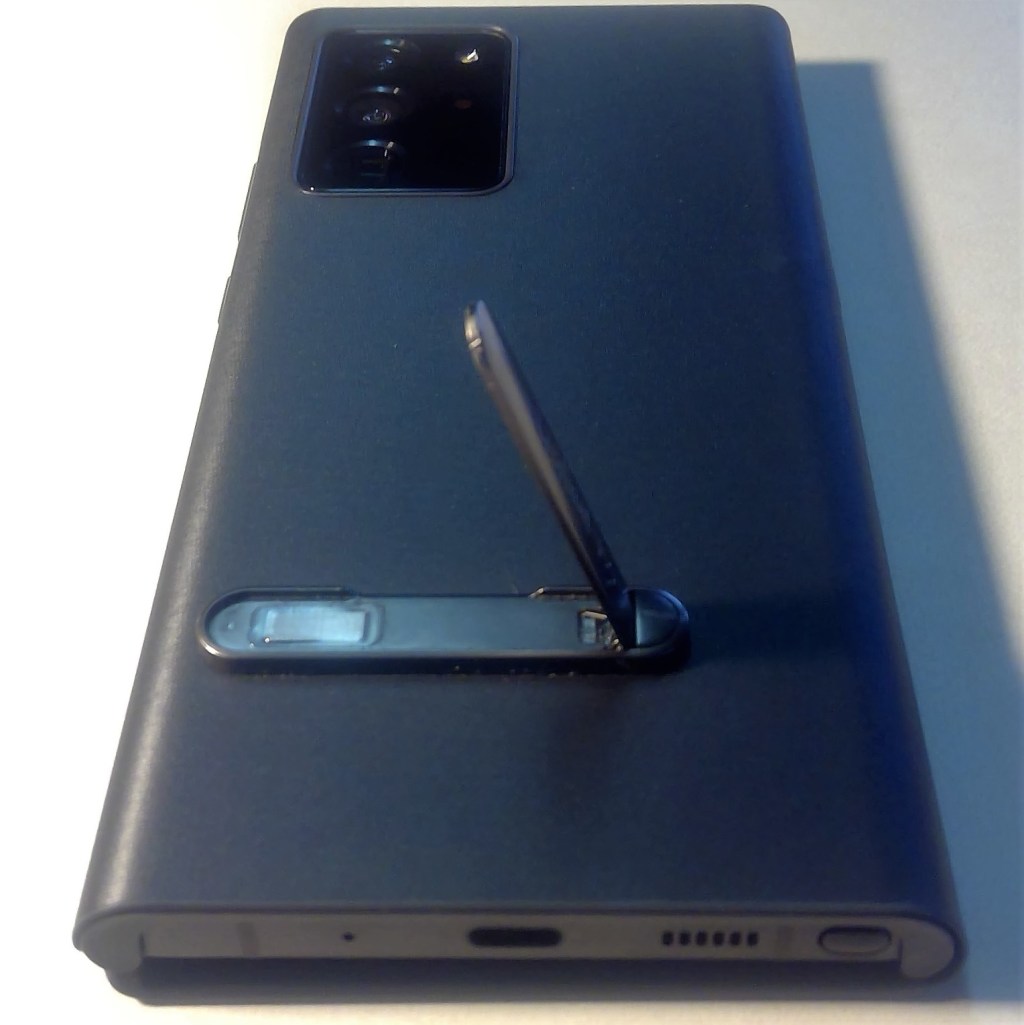
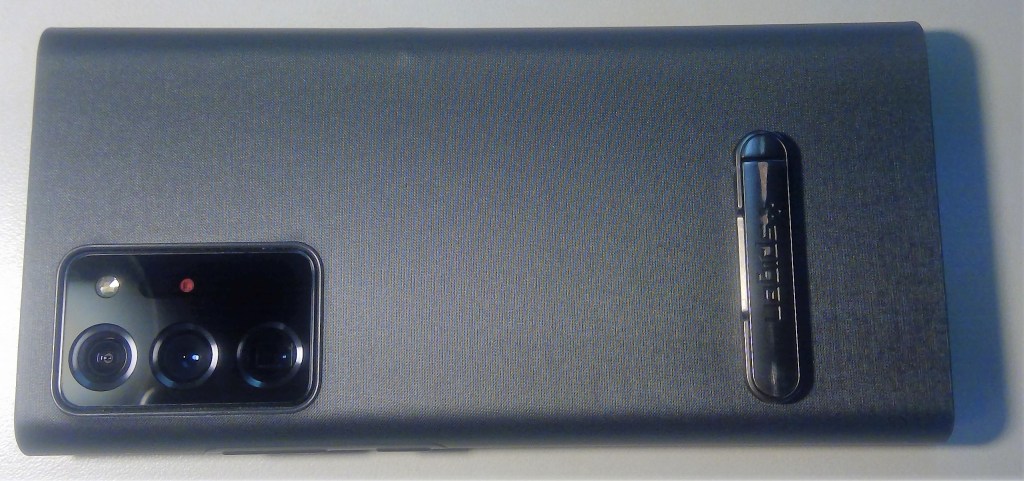
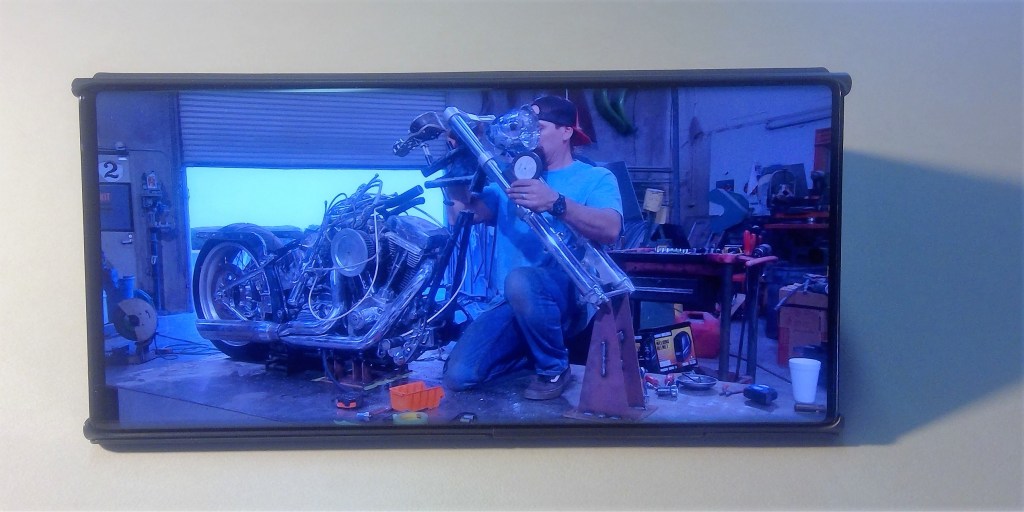
I had all but decided that I would forever be searching for something to prop my phone against when I ran across the Spigen U100 Universal Kickstand. This wonderful little gadget is a stick-on, metal, spring-assisted kickstand that adheres to your phone or case with 3M tape. It solves the angle issue because it is much longer than a ring or socket.

The kickstand folds pretty flat, I don’t notice it when the phone is in my pocket. I have it stuck to the bottom third of my phone case so it isn’t in the way when my phone is in my hand or while it sits on my wireless charger. The same strip of 3M tape has kept this thing stuck firm on two different cases for more than a year. Taking it off my last Samsung Wallet did leave a mark that I had to clean off with a magic eraser. It ships with an extra piece of the tape if you have a different experience.

It holds my phone steady at the perfect angle. I found the Spigen for $10.99 on Amazon. I especially like that it is available in a few different finishes. It was easy to match the style of my case. Spigen also makes several other models of kickstands, rings, and sockets.

PowerShell: Worried about Ransomware? Prepare for Application Lock Down by Finding the Software and Services You Use Now

With all of the ransomware attacks that are making the headlines this year, many businesses are looking to improve their security posture. One of the methods security professionals find most effective is to use software that controls what applications any networked computer is able to run. If an employee can’t open the bad actor’s malware package, then the attack can’t happen.

VMware’s Carbon-Black, Microsoft’s Windows AppLocker, and Trend’s Apex One all operate by allowing only a list of approved applications to run on any given system. A key step in deploying tools of this nature is to have a full understanding of the applications and services that are installed and running on your systems now. Some of these tools include discovery mechanisms that will help you locate the data. What do you do if your chosen tool lacks this feature?

Application Control Solutions

PowerShell can get the data we need. First up is to list the applications running on your workstations. We’ll scan in the registry keys that record what software is installed on the systems that are part of your Windows domain. You’ll need to run the code below from a domain controller, or a system that has RSAT installed and is a member of the domain.

Installed Application Inventory:

Import-Module ActiveDirectory 
$Computers = Get-ADComputer -Filter 'Operatingsystem -Notlike "server" -and enabled -eq "true"' -Properties dnshostname|Select dnshostname -ExpandProperty dnshostname 
Foreach ($computer in $computers){$PingTest = Test-Connection -    ComputerName $computer -Count 1 -Quiet 
If ($PingTest) { $computers += $computer } 
Else {Write-Warning "Failed to connect to server '$Computer'."} } 
$report = @() 
ForEach ($computer in $computers) { $report += Invoke-Command -ComputerName $computer -Command {Get-ItemProperty HKLM:\Software\Wow6432Node\Microsoft\Windows\CurrentVersion\Uninstall*,HKLM:\SOFTWARE\Microsoft\Windows\CurrentVersion\Uninstall* | 
Select-Object @{n="Application"; e={$_.DisplayName}}, @{n="Version"; e={$_.DisplayVersion}}, HelpLink, Publisher, InstallDate | 
Sort-Object Application} } $report | Format-Table -AutoSize $report |select -Property * -ExcludeProperty RunspaceID, PSShowComputerName|
Export-Csv -Path $env:userprofile\documents\windows_computers_softwareinventory.csv -NoTypeInformation

Programs that automatically execute and keep running once you’ve booted your computer are called services. Most of the application control methods will automatically approve Microsoft services. However, other program packages also use services to enable their functions. Hackers know this and are starting to hide their tools by running them as a service. The code below will find and list all of the non-Microsoft services running on your computers. Again, you’ll need to run the script from a domain controller, or a system that has RSAT installed and is a member of the domain.

Non Microsoft Services:

Import-Module ActiveDirectory
 Function InstalledServices {
 $Computers = Get-ADComputer -Filter * -Properties dnshostname|Select dnshostname -ExpandProperty dnshostname
 Foreach ($Computer in $Computers)
 {Get-WMIObject win32_service -ComputerName $Computer|
 Select @{n="Computer";e={$Computer}}, @{n="Service";e={$_.Name}}, @{n="State";e={$_.State}}, @{n="Exe_Path";e={$_.PathName}}|Where Exe_Path -notlike "c:\windows*"
     }
 }
 $report = InstalledServices|Sort-Object Computer
 $report|Export-CSV $env:userprofile\documents\InstalledServicesReport.csv -NoTypeInformation 

Locking down computer networks is almost always a painful experience for both the administrators and users. Knowing what apps your people need to do their jobs and ensuring they aren’t entangled in your security efforts will help soften the blows.

Fix Oculus Quest 2 Fan Noise

I was so excited when my Oculus Quest 2 arrived this afternoon. I booted it up, went through the setup and upgrade and prepared to play my first game. While I was waiting for the game to load I noticed a buzz or whining noise that my IT brain immediately identified as a fan.

Sometimes when you first boot up new equipment it takes a bit for everything to settle, so I played a game for a couple of hours. The noise got worse not better. I hopped on the web and started searching. There are numerous complaints on Reddit, the Oculus Forums, there are even YouTube videos of the issue. The advice on nearly all of them was the same, send the unit back for replacement. Really? I just got it and I already have to send it back? Before I boxed it back up, I decided to see if I could fix it on my own.

I was able to get the sound on mine to completely stop! I removed the face pad and the noise stopped immediately. I snapped the face pad back down tight and buzz never came back. To remove the face pad just gently pull it away from the body of the headset. You’ll hear a couple of light snaps as it disconnects, especially near the top where the strap connects. Reseat the face pad and make sure it is snapped down tight all the way around. I hope this works for you as well as it did for me. Watch for a full review of the new Quest in a few days.

Improve Your Password Changing Practices

Back in the day, your network credentials were used to logon to your computer, get to your email server, and maybe to access some files or a printer. When you changed your password, if you changed it at all, it made sense to update it on the two or three systems that used it all at once and get it over with.

Now your password is synchronized to untold numbers of cloud platforms, on-premises application servers, VPNs, companion devices, and remote access solutions. Your password authenticates you to your computer and thanks to single sign on (SSO) it also logs you in to Zoom, Microsoft 365, your phone, and Salesforce. Single sign on usually involves an agent application that runs on your company directory servers and updates the other systems when a change is made to your account.

If you are like me you probably dread password change day and want to get it over with as quickly as possible. So you update your computer password when you are prompted and then preemptively logon to your other devices and apps and change them too. It seems prudent to update it everywhere, but our modern cloud connected networks are complicated. The agents that synchronize your password often encounter unresolvable conflicts between your company directory and the passwords that you manually updated. You may end up not being able to logon or lock-out your account.

I have a better experience and am less likely to end up calling the help desk when I wait for the sync agents to do their work. The next time that you are prompted to change your password try this. Only change it on the system that asked. Then wait for the other devices and software to require your new credentials. Some may take days, others may never ask.

Like the infamous CTRL+ALT+DEL, naming the alphanumeric strings we make up to authenticate our identities to our digital systems “passwords” was a mistake made long ago. It causes so much frustration to think of a single word that complies with the complexity requirements that many of us feel like we are losing at Scrabble. It’s no wonder that we forget them the next day. Here’s a tip, use phases like the lyrics from your favorite songs or quotes from movies. They are easier to remember and are actually more secure. Most password fields will allow at least 254 characters.

Ignite and VMworld Virtual and Free in 2020

IT conferences have always been a mixed bag of experiences for me. Some amount to a giant sales pitch with little value. The good ones cram a year’s worth of training and collaboration into a few days. They are almost always prohibitively expensive to attend when you factor in travel, but this year is different.

One of the best has consistently been Microsoft’s Ignite. Some executive had the bright idea to combine all of what used to be individual conferences like Tech-Ed into a single event. The result was a combination keynote, training, and exhibition. Being able to learn DAG and AG architecture from the actual Exchange and SQL teams has had an impact on my career.

Due to the pandemic, Ignite will be a virtual conference this year. Will it be as effective? That is hard to say. SolarWinds’ Thwack Camp has always been on-line and also makes my top five. In any case, Ignite is free, you just need a Microsoft account to register. It runs September 22-24. Sign-up or get more information at https://myignite.microsoft.com/home .

VMware’s VMworld has been a heavy hitter on the conference circuit since it’s inception. Some would argue that VMworld’s format is what sparked the Microsoft Execs idea for Ignite. Featuring a renown vendor exhibition, training sessions on topics like VDI and cloud infrastructure, along with keynotes from some of the most important players in IT. It is almost impossible to walk away from VMworld without learning something useful.

VMworld is also virtual and free this year. It runs September 29th – October 1st, register at https://www.vmworld.com/en/index.html .

Dark Mode for Facebook, Linked In, and most Other Android Apps

I have always been sensitive to light. Ironically, I have spent a large portion of the last thirty years looking at bright white rectangles. Is it bad that I still see them when I close my eyes?

I am the person that wears sunglasses indoors. I turn the backlight on all of my screens as low as I can, anything to stop the eyeball frying white-out. Don’t get me started on the sea of over saturated light that most office spaces subject you to. Are they trying to give us all a free tan? You can imagine my elation when dark mode hit the scene a couple of years ago. It has a major problem though.

Even after all this time, Dark Mode isn’t available everywhere. Opening some of the most frequently used applications on my phone is like looking into the headlights of an on-coming car. Maybe Zuckerberg secretly wants us to stop spending so much time on Facebook?

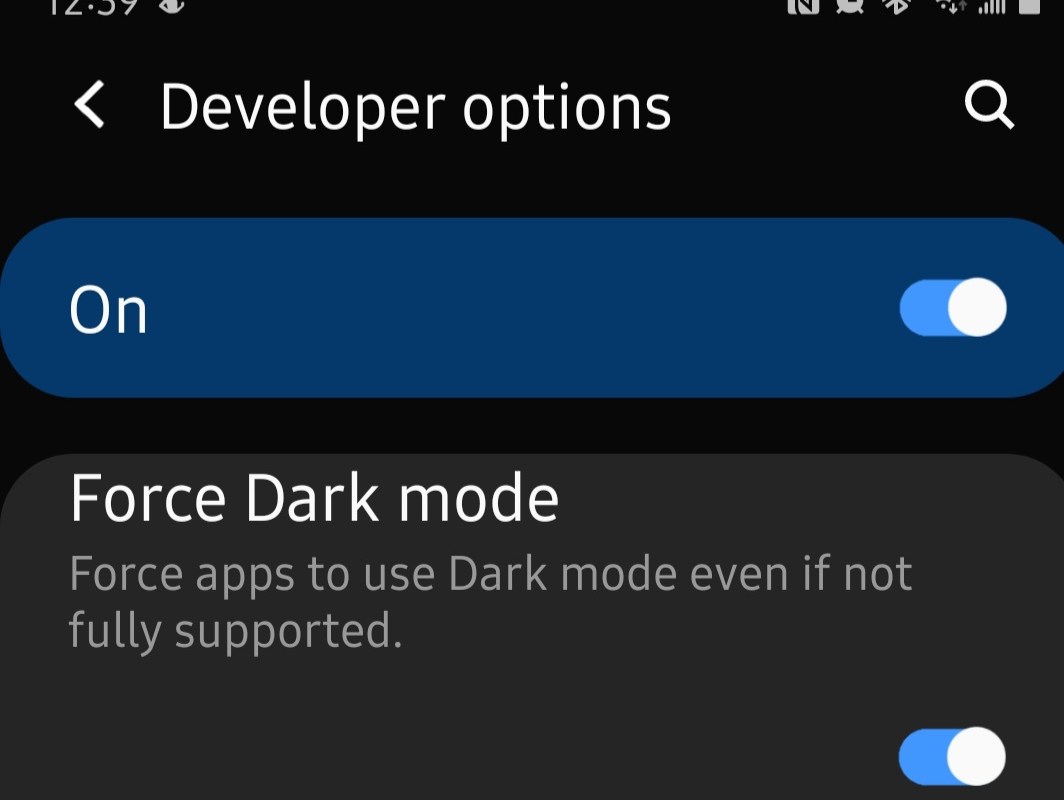
Dark app and page backgrounds are about more than comfort. Forcing modern OLED screens to light all of those white pixels burns through your battery faster. Lucky for us, Android 10 has a hidden trick that enables Dark Mode for apps that don’t support it on their own yet.

The option to Force Dark Mode is in the hidden Developer Options menu. There’s a secret process to enable this menu. I promise I am not making this up. Open the settings menu and then go to About Phone. Look for Build Number, if you don’t see it then look under Software Information. Once you find Build Number tap on it (the words) seven times. After the first few taps a countdown will appear. When you complete all seven taps, exit settings.

Now close all of your open apps and open the settings menu again. Scroll all the way to the bottom and tap Developer Options. Scroll down until you see Force Dark Mode and tap it to enable the option. Open Facebook, Linked In, Amazon Shopping, or any other app that used to have a white background and embrace the darkness. This is an experimental feature and you are using it at your own risk. I haven’t had any issues with it yet on my Galaxy Note 20, if you do post the problem you ran into in the comments.

Is Your Laptop Plugged In All Day While Working From Home?

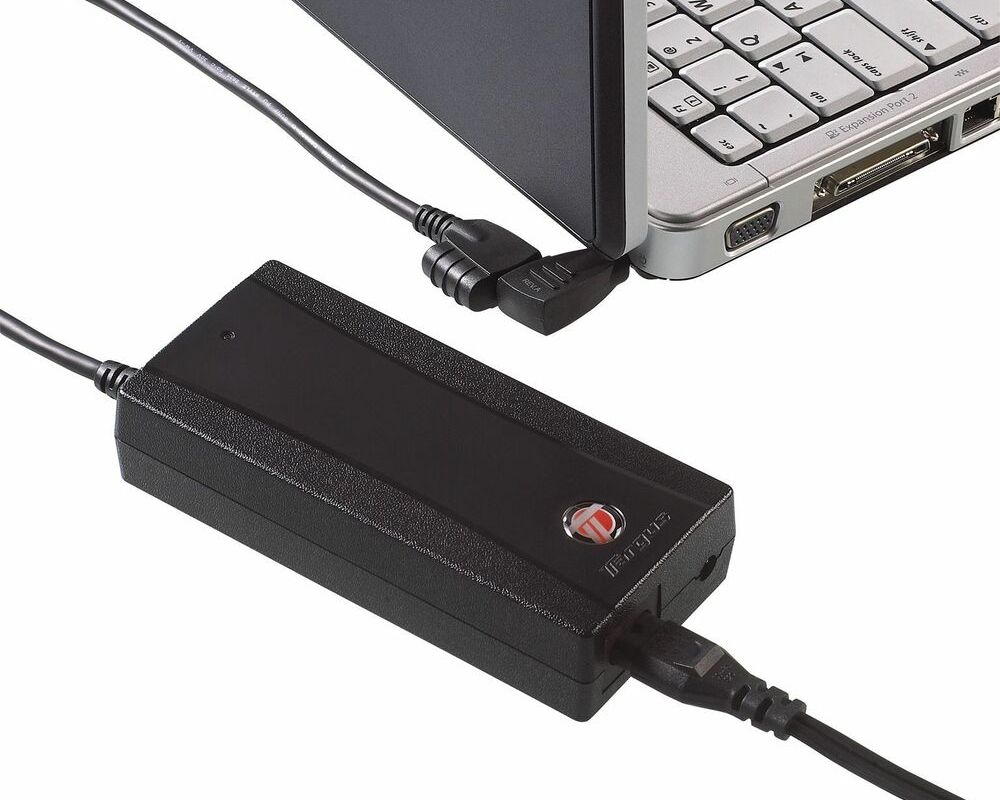
When you work in an office you go to meetings, visit clients, go to lunch and commute. Your laptop gets undocked or unplugged and runs on its battery for at least a few of these events. This is the normal cycle that the batteries in your device are designed for.

Now many of us are working from home and leaving our laptops connected to power all of the time. Don’t worry the batteries won’t overcharge, but their useful lifespan can be shortened. The modern lithium battery in your device degrades a little each time that it is charged to its maximum voltage. When you run off a power cord all day you are continually reaching the 100% mark.

So what should you do? If your computer has a removable battery, take it out and put it in your bag. Your machine will run fine without it, but you will want to connect and charge it once a week. Completely discharged batteries can brick. If your battery isn’t removable there may be a software option that prevents a continual full voltage charge cycle.

On Dell systems look in the Command app. Lenovo’s Vantage app control’s their battery threshold. The Microsoft Surface line has an option in the boot config section of its UEFI. Hold down the volume up and power keys, let go of the power button when you see the Window Flag. HP laptops are usually controlled from their BIOS, accessing it is a different process throughout their product lines. Newer MacBooks have the option enabled by default.

Search the web or call your tech support if you don’t know how to change the setting on your particular device. If all else fails, just un-plug and run on your battery once in a while.

Adjust Your Service Plans to Save Money While Working From Home

Many Americans are working from home for a much longer stretch than anyone expected. For some, it has become a permanent change. For others, it is a temporary situation with no end in sight. The other night my spouse and I sat down to review and modify our various service plans to better fit our current lifestyle.

We’re both home and paying for unlimited mobile data when our phones hardly leave Wi-Fi didn’t make sense. We contacted our mobile provider and they helped us make some changes that saved more than $100.00 a month. They even threw in a free year of HBO MAX.

The changes weren’t limited to our mobile plan. Working from home being on VPNs, video calls, and accessing our company’s cloud data was causing us to go over the data cap from our ISP. We dropped the movie channels that we never watched and boosted the data plan to a faster connection with unlimited use. The monthly bill was a wash, the savings will come from not getting hit by the overage fees.

If your family is working from home for an extended period, take a look at the services you pay for. Chances are the way that you use them has changed. Don’t limit your investigations to digital services. Everything from your car insurance to your electric bill was based around your being out of the house most of the time.

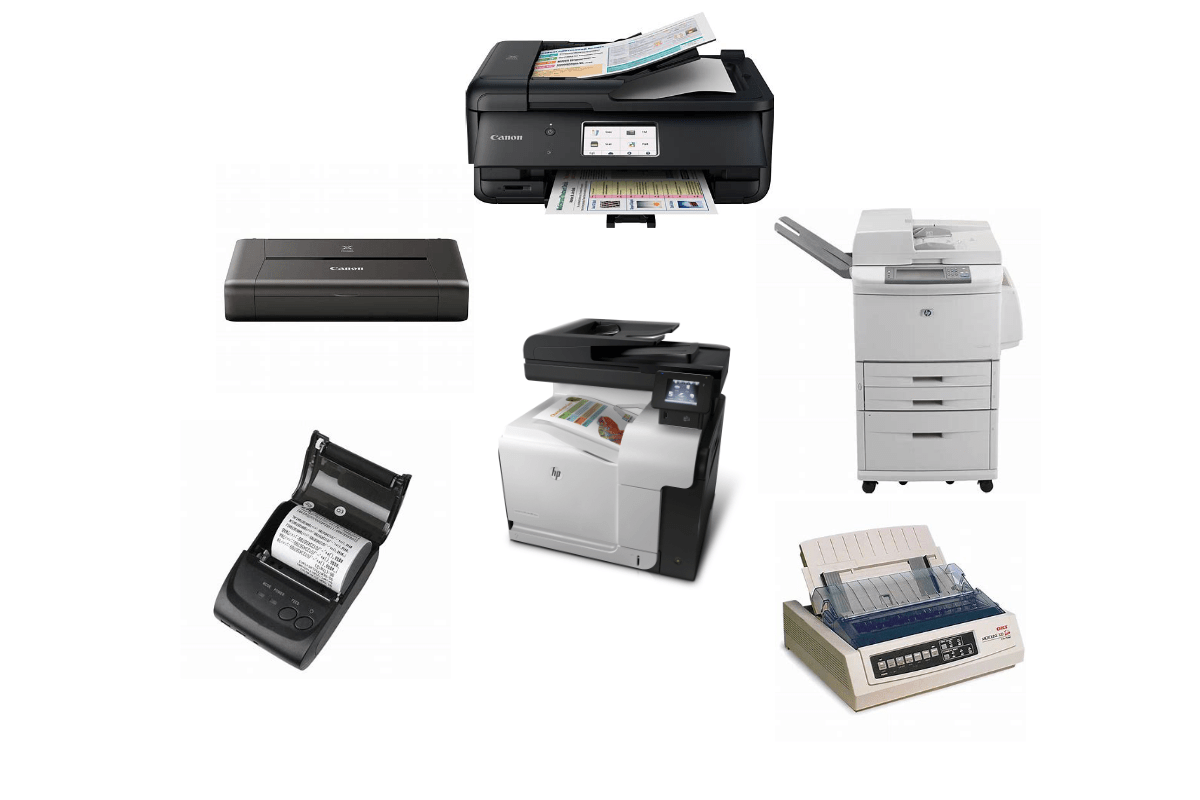
Has the Pandemic Shown Us That We Don’t Need to Print?

I once worked with an individual that printed and filed his emails. All of them, even the SPAM. This person wore out a LaserJet printer about once per year. I asked about the endeavor while installing yet another new printer. It was a form of hoarding pure and simple, the printed copies were “in case the server crashed”. Even explaining the redundancy of the email platform, multiple distributed servers, RAID, backups, etc. wasn’t enough to deter them.

Printing has become an enormously wasteful habit propagated by people and businesses that refuse to modernize their routines. I recently stopped to get fuel at a major convenience store chain. The clerk asked if I needed a receipt, I replied that I did not. His cash register spit out two copies which he crumpled and tossed in a can under the counter.

I picked my car up from being serviced to find three full sheets of paper on the passenger seat. I asked the service manager if I needed to keep them. “Not really, all of your vehicle’s service records are in our system. You can get them anytime from the app on your mobile,” he answered. As my phone notified me of my emailed receipt, a clothing store cashier asked me to wait while she changed out the resister’s tape. One waitress explained that nearly half of their nightly trash dumps were comprised of receipts left on the tables.

They were all slaves to their software. POS (also stands for Point of Sale) applications that automatically vomit up streams of paper for each transaction. Hardly anyone wants or needs the paper trail anymore. Transactions are recorded by the vendor’s software and your bank, both of which can be accessed at any time. So what happens to all of these seemingly important pieces of paper? They fill trash cans, cabinets, and musty records rooms that nobody looks in.

Recently, I attended a business meeting where each of the twenty attendees were given a full-color copy of a thirty page report on the topic of trimming operating expenses. Not a single person used the paper version. They all read on their laptops, tablets, and phones. I brought up the irony and was rebuked; “what if someone forgot their device?”, asked the presenter standing in front of a wall-sized screen.

How many mountains worth of paper is printed each year by US companies? Twenty-six tons, not including magazines, news papers, or other printing based businesses. It’s not just the paper. Some forty percent of world-wide logging efforts are consumed by the industry. Printers are electrically and thermally inefficient. Ink and toner are made in toxic factories the world over. Telling people that their operating procedure needs to change, results in push-back and not much else. A defensive posture to protect our ego against feelings of wrong doing displaces rational thought for many of us. Soul crushing statistics seem to harden the armor rather than penetrate to the logic centers of people’s minds.

I like to find the silver linings in life. The Covid-19 pandemic is horrible beyond words. The amount of suffering and death it has caused are incomprehensible. Even still, if you look hard, there are positive outcomes to be had. I’ve been able to spend an unprecedented amount of time with my family while working from home. People and companies are learning that business is adaptable and there are alternatives to rush hour and high rises.

It is my hope that separating workers from their printers combined with the new stigma associated with handing objects to people will have an impact on printing. If you’ve been able to conduct your business without installing printers in your work force’s homes during the lock-down, you didn’t need to print that stuff in the first place.

When we return to our office buildings and places of business, take a good look at your printing practices. Does your POS software have an option to skip printing the receipt, is there an update that adds the feature? How are people using the paper trails they are generating, do they need to be printing those documents? Do your people know how to create and share a PDF of their work? It’s easy to do and has been free for a long time now.

When discussing the subject I often hear, “we have to print x”. So many times X turns out to be some antiquated process that nobody his examined in the last ten years. “We have to print checks”, have you looked in to digital banking services lately? In the rare cases where they can’t submit your payment as a digital transaction, the bank will print and send a check for you.

Did you have a printer company do the last cost analysis of printing in your company? LOL. Get an IT person that doesn’t like printers or an accountant that hates waste to tell you how much it really costs. It’s like eating out for lunch every day; we all know that it costs more than the ten dollars we budget for. I did a true analysis for an employer and showed them when including electricity, consumables, lost support time, and the lost productivity of physically dealing with paper, printing cost them almost two and a half million dollars per year. Furthermore, less than nineteen percent of that paper was still in existence at the end of each year.

Consolidate your printers, make them inconvenient to access and people will only use them when they absolutely have to. Get rid of all individual printers. Do not make exceptions. There is no such thing as a secure print, once a file exists in the physical world you have lost control of it. Investigate the situations that require printing a little more thoroughly. Times have changed and a lot of that stuff can be taken care of electronically now.

Shifting all vehicles to electric and stopping our use of plastic are noble environmental goals. Both will take years and cost vast amounts of capital to accomplish. Drastically reducing how much your organization prints is something we can do right now and it increases your profit margin. Have your people look into how much less you have used your printers during the lock down and challenge your company to make that change permanent.

Use Your Phone to Scan Real Objects into Your Digital Projects

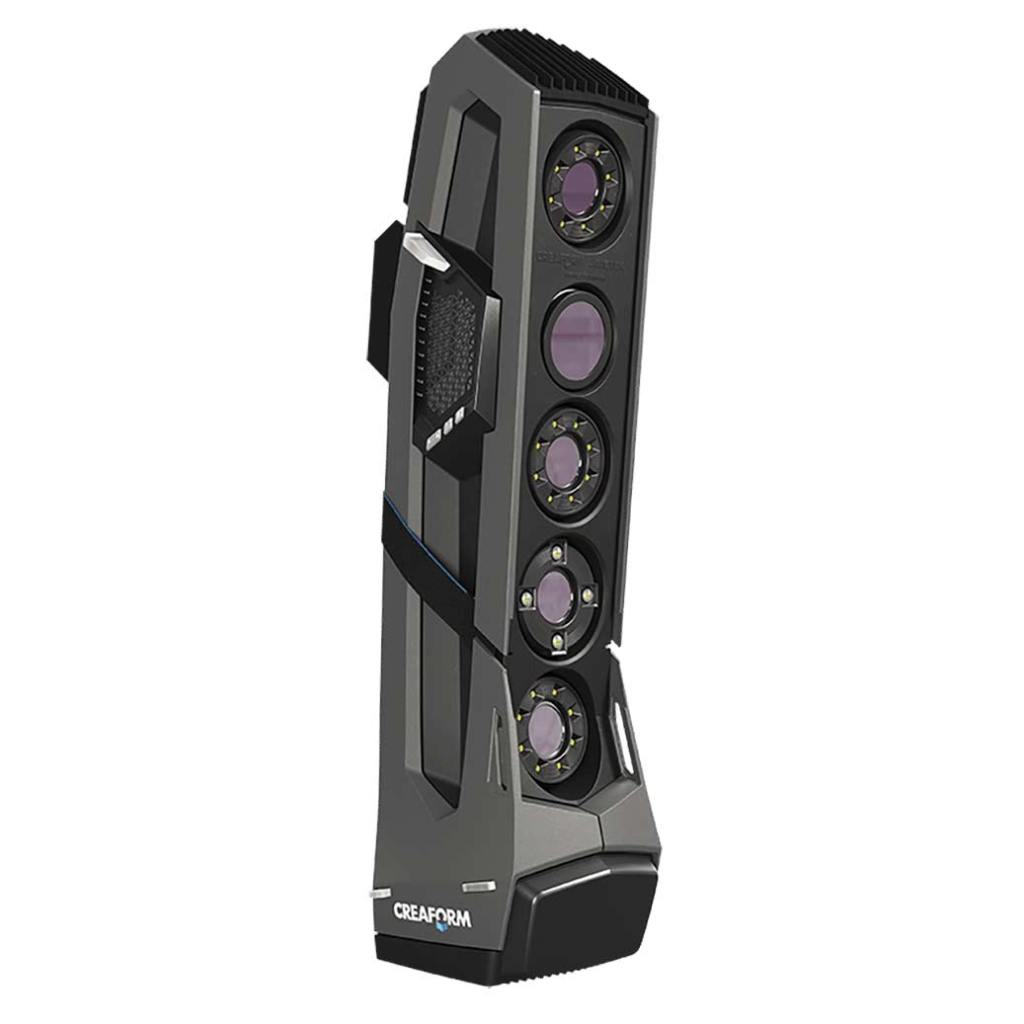
If you have a 3D printer, an interest in augmented reality, are a film maker, or game developer, chances are that at some point you have wanted to scan a real world object into your work. There are many systems and tools on the market to do exactly that. Solutions like the Go!Scan range in price from a few hundred, to thousands of dollars.

These uber-tech devices are so close to Star Trek that you can almost hear the warp core humming in the background when you pick one up. Point it at any person or thing, pull the trigger, move around for even coverage, and your target will be transported into your CAD package as a fully detailed mesh. No dilutetium chamber required.

Even if I had enough funds to purchase a 3D scanner, I couldn’t justify the expense. I wouldn’t get enough use out of it. I am sure that somebody rents them, but I didn’t come up with an option close enough to my location. So how is an enterprising tech head supposed to get his hands on one?

To continue our Star-Trek themed post, just use your tricorder. Most newer smart-phones are able to act as an object scanner through a process known as photogrammetry. Software helps you take multiple photographs of an object while tracking the angle and exact position of the camera during each snap.

The app will stitch all of the photos together along their X, Y, and Z plot points. Presto, a three dimensional representation of your subject is rendered on your two dimensional screen. You’ll be able to rotate and twist it to see every nook and cranny. Many of the apps support drawing lines between each point in the cloud, which results in a wireframe mesh.

The best apps like Display.Land will allow you to export that mesh to a file that can be imported into your favorite CAD package. I use the open source Blender software and Display.Land has published an end-to-end instructional video for it and several other solutions. Once you’ve imported your object’s scanned mesh into your CAD software, you’ll be able to manipulate it to your heart’s content.

Blender for all has published an excellent three part video series on using Blender with Cura to generate STL files for a 3D printer. I am attempting to use this process to create an adapter that will allow my friend’s gaming headset to fit over his hearing-aid. We’ll scan his headset and his head, then use both wireframes to design an adapter that fits between them. Keep an eye out for more posts on the project.

Fix Oculus Rift Washed Out Colors on Nvidia Graphics Card

Earlier today I installed the newest driver update for my Nvidia 2080 Ti. Not long after, I decided it was time to play some Skyrim VR. When I slid the headset down over my face, I was concerned to see that the colors were off.

Everything was dull and washed out, like the contrast was turned down too low. I’ve run into similar issues with HDMI only monitors before with this GPU. TV screens typically operated with at limited color range. Nvidia GPUs tend to detect everything that connects via HDMI as a television and restrict the colors that are rendered on the display.

There’s a setting in the Nvidia control panel that will allow you to force a full color spectrum on an HDMI connected device. Seems simple, we’ll just open the control panel and, oh no the Oculus does not show up as a display. to apply the setting to. Now what?

There are all kinds of methods to deal with this issue posted on-line. One of the more common is to get a HDMI display and connect it to the same port you use to connect your Oculus. Then use the control panel to force the color setting. The idea is that setting will stick on that port. Personally I was not able to get this method to work. Every time I plugged in my headset the setting was changed back to restricted.

In the end, I found that some kindly sole has written a utility that searches through your registry and sets all of the HDMI devices to full color. It worked perfectly for me and the next time I update my driver, I’ll just need to run it again. You can download the Nvidia Full Color Toggle utility here. Keep in mind downloading and running anything off the Internet can be dangerous and that you are doing so at your own risk.

Keep Your Kids Learning During the Pandemic with On-line Resources

Schools around the world are closing early or stopping classes for an extended period of time due to the Covid-19 mitigation efforts. Many school children and their parents are used to having breaks during the summer. A few trips to the pool, some video games, a vacation, and the time is up. This time we’re looking down the barrel of a five month stretch depending on the source. That’s a lot of time to fill and a lot of lessons left uncompleted or forgotten. Read on to lean about some of the on-line resources available to keep your kids engaged.

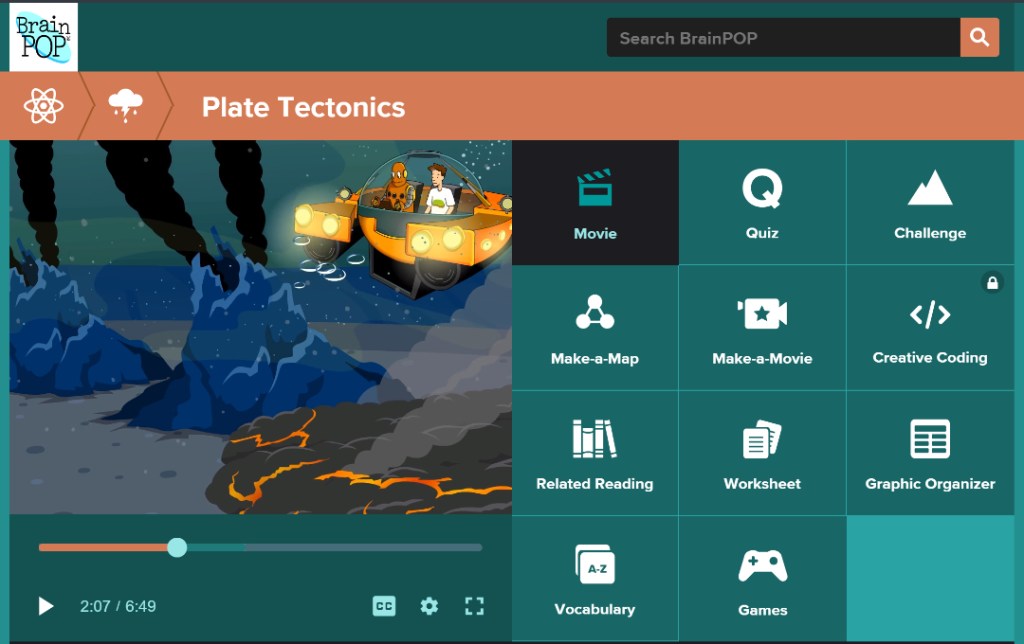
BrainPOP is an extremely well produced educational platform based on short-form videos. The videos follow Tim and his robot friend Moby as they explore every subject under the sun. From basic grade school lessons to engineering, you will be amazed at the depth exhibited in this easy to use and free system.

Shmoop is complete on-line curriculum for every level of student. From Kindergarten through SAT/ACT prep, the system is designed to replace traditional school entirely. Both video and interactive lessons are featured in a, “School On-line” method of teaching. While the entire Shmoop solution is not free, the company is offering several of its resources for no cost during the crisis.

Schoolastic is offering daily projects to keep kids engaged with learning throughout the extended break. Lessons for K-9 are free and new exercises are being added weekly.

Time4Learning was developed as an online program for homeschool families. The system features built-in lesson plans and automatic grading. Core subjects from kindergarten through twelth grade are covered. The lessons flow from one to another in a logical order and student achievements are automatically recorded. The system isn’t free, but there are plenty of demonstrations to help you decide if it is a good fit for your family.

If you’re lucky enough to own an Oculus Quest or Rift, you can find virtual trips to famous destinations all over the world in the Oculus TV App. Take a tour of the Pyramids or Cairo museum , visit the International Space Station, Dive the Great Barrier Reef, and more.

There are thousands of Podcasts from experts and Ivy league colleges that cover every subject under the sun. Some are broadcasts of actual classes. Others are discussions between multiple experts in any given field. Just browse the Educational section of your favorite Podcast app. Don’t forget, both Spotify and iTunes have Podcast support built-in.

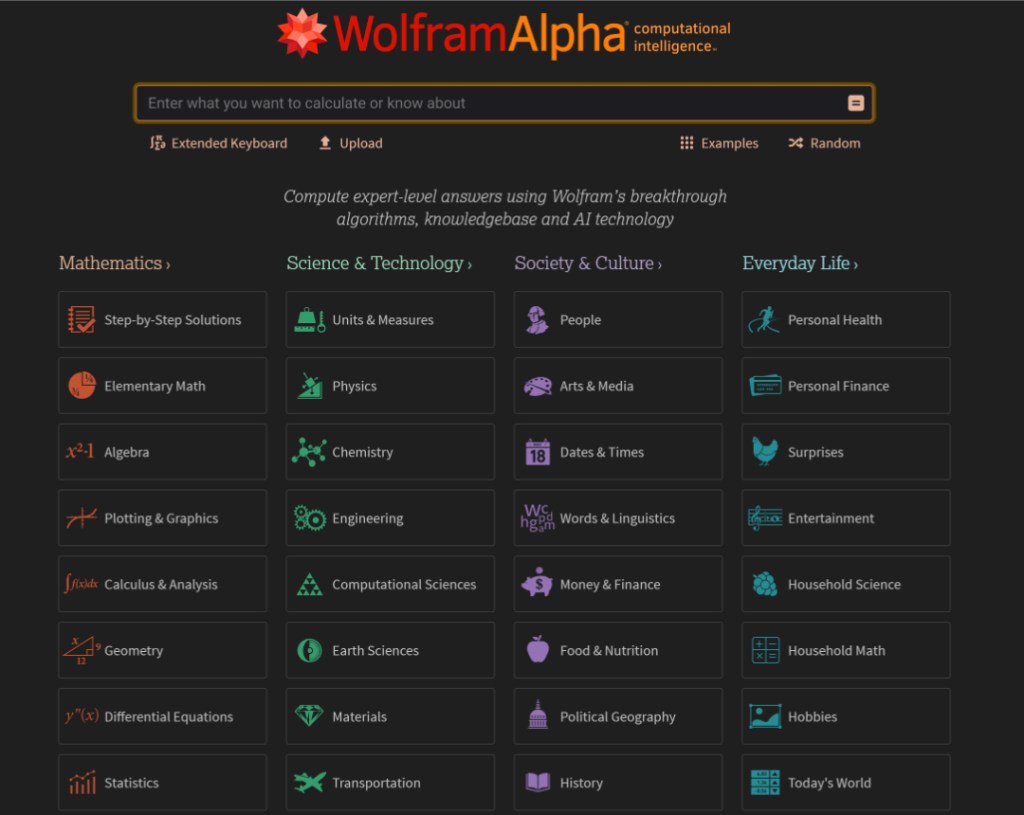
Maybe you don’t need to take over teaching entirely? Lots of teachers are assigning plenty of homework for the duration of the crisis. What happens when your child needs help factoring polynomial prime numbers? Do you even remember what a prime number is? Lucky for you, you don’t need to there are plenty of homework helpers on-line these days. WolframAlpha, Microsoft Math Solver, and Virtual Nerd are just some of of the fantastic resources available.

People make the mistake of thinking that children (and adults) are happiest when they are free to do nothing. For most of us, that just isn’t the case, we lack the self-motivation to use our time creatively and end up spending all of it consuming other people’s work. Binge watching Netflix, YouTube, TV, pointlessly scrolling Facebook, Instagram, or TikTok are acts of consumption. If we don’t balance consumption with productivity we end up, well, unbalanced. Keep your children’s minds engaged by actively learning and producing, they’ll be much happier for it.

Are Your IT Systems Prepared for The Coronavirus?

As the Covid-19 pandemic becomes more likely to be an issue in the United States, businesses are beginning to form contingency plans. Group gatherings, travel, and even routine meetings are being postponed. Conferences and conventions are being canceled. Companies are fearful of losing the services of large swaths of their workforce and supply chains.

One strategy is to keep people physically separated as much as possible. Wash hands and disinfect surfaces regularly. If possible, instruct your employees stay home if they feel under the weather. Even if they think it is just allergies or a cold.

Red States have confirmed infections, Blue States are suspected.https://www.cdc.gov/coronavirus/2019-ncov/index.html

The work from home movement has inadvertently prepared many organizations for this event. Many of today’s technology based workers are already able to utilize VPN, Remote Desktop, Cloud Applications, Soft-phones, and the like to do their jobs from almost anywhere. It is important for IT leadership to realize that the virus situation could result in an influx of remote access that will test these platforms.

Perhaps you have Remote Desktop or Citrix severs to support remote workers. Will they be able to handle an increased load? What about your VPN solution? Is it licensed for a small number of travelling users? Now is the time to work with your engineers to scale these platforms up or out. In-path equipment like routers, switches, and firewalls could also be stressed by the extra external pressure, so be sure to include them in your evaluation.

Do you have cloud or hybrid platforms that need to be temporarily buffed? Some vendors are offering free or low cost service upgrades for the duration of the crisis. For example, Cisco is offering to increase your virtual meeting abilities and Microsoft is offering a free six month subscription to a fully functioning Teams solution. Many other service providers have similar offers to help see their customers through the coming crisis.

Hybrid platforms can usually be configured to extended into the cloud on-demand. Some on-premises software can be easily made hybrid or migrated to the cloud. Businesses frequently have subscriptions to services like Office 365 or G-Suite that are not being fully utilized. Both include features that support remote work and communications. Now is the time to get them fully spun up.

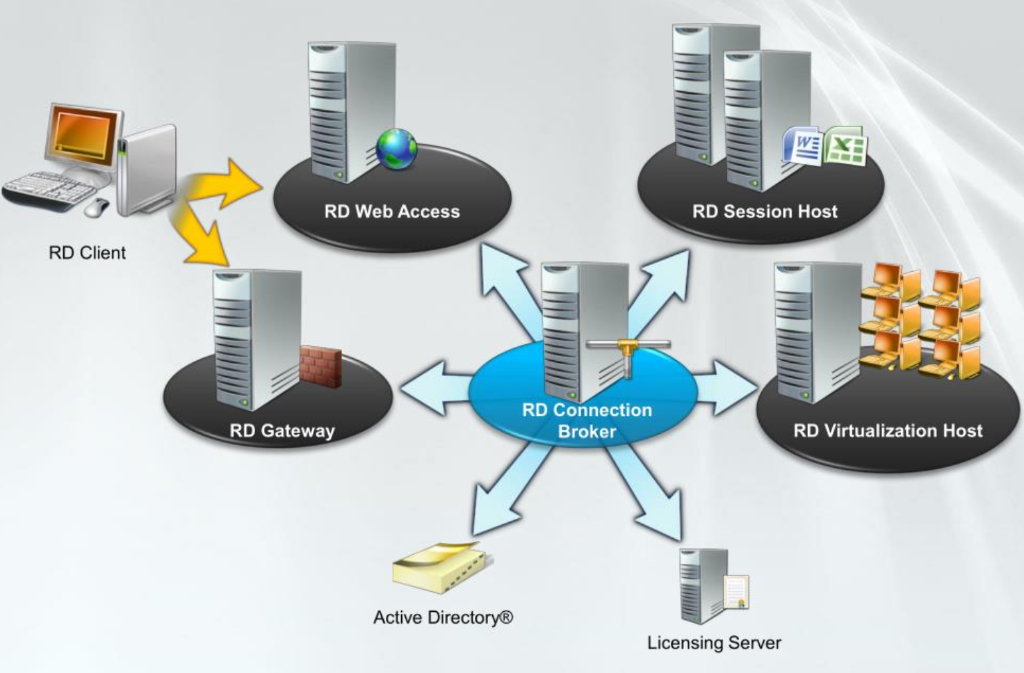
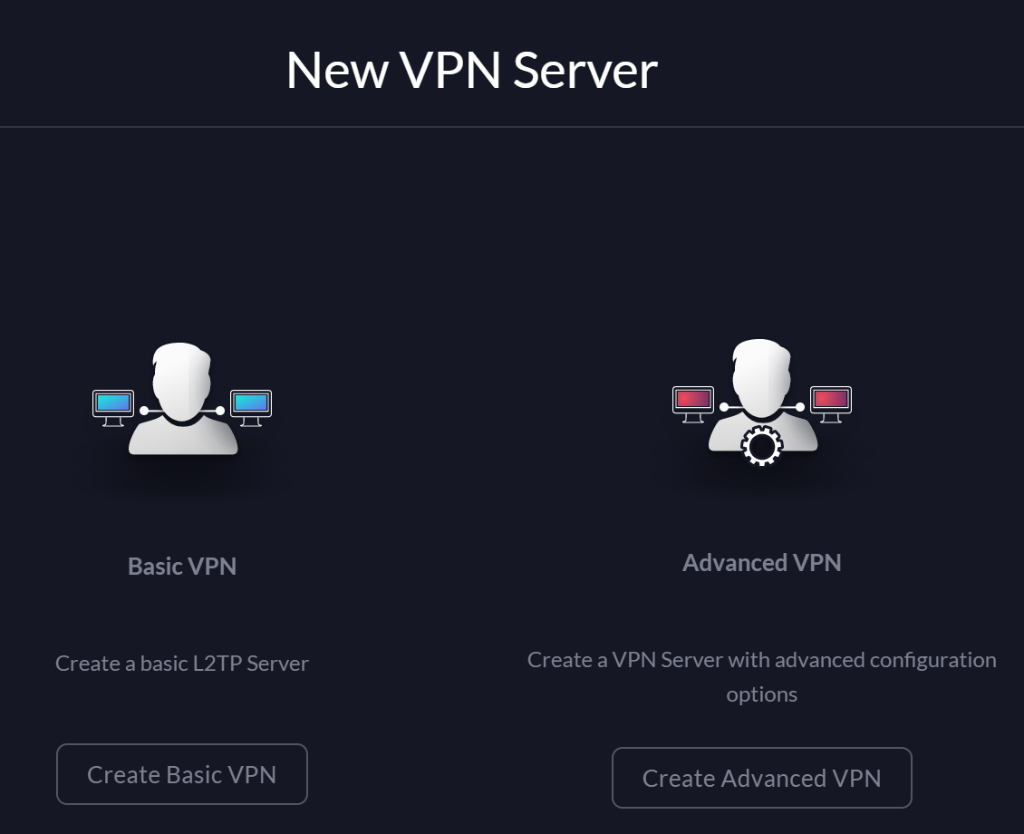
If your organization doesn’t already have remote access solutions in-place, obtaining them is easier and more cost effective than you realize. Almost any Windows or Linux server can be configured to host VPN services, so can many firewalls. A Remote Desktop Gateway will allow your workforce to securely connect from their home/personal end-points to their company owned desktop computers, just like they were sitting at their desk.

If your business doesn’t have an IT staff of its own. I recommend contacting a local service provider. Technology experts can help you understand how to utilize the services you already have, or what solutions you should add to your technology portfolio to support a larger remote workforce.

The Techbloggingfool Nice Gift List

Tis the time of year when all mankind comes together to bring the world peace and happiness, through discount shopping. There’s a lot of technology out in the world today. Some of it is nice and some is naughty. Here’s our list of tech items you probably know about but may not have yet.

4K TV’s time has come. We have crossed the point where not having one means you are missing out. Netflix, Hulu, Amazon Video, YouTube, many gaming consoles, and computers can all take advantage of the format. My cable provider even broadcast’s some sporting events and shows in 4K. If you’ve been holding out for the ideal moment to upgrade, this is it. 65 inch 4K screens are available from multiple vendors for less than $500.00 and smaller screens are under $200.00.

True wireless earbuds are a godsend for office and blue collar workers everywhere. If you wear headphones to stay focused and block out the world, then you have probably run into these situations: drug your phone off something, gotten a headache from the headband, been mistaken for princess Leia in a video chat, been cord yanked, or gone to a meeting with headphone hair. Personally I like the true-wireless buds that feature active noise cancelling, but no matter your flavor they are all at the lowest prices we’ve seen.

Remote start for your vehicle is an easy add-on. Best-Buy will install it into any automobile for less than $300.00. If you’re more a of a do-it-yourself type of person, you can find kits on Amazon. Most are under $200.00 and the one I put on my truck took less than an hour to install. It required no tools, or skills, of any kind, I just had to plug-in a few wires. Scraping snow and ice off your windshield and freezing to death for the first twenty minutes of your commute is so passe’.

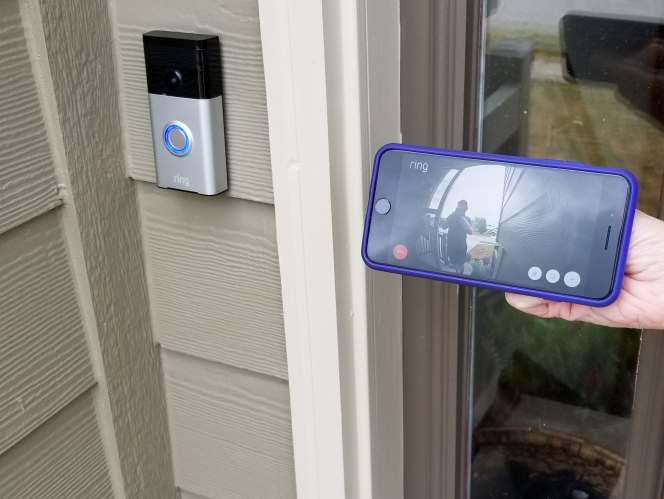
I can’t say enough about video doorbells. They are so useful in so many situations that they should be standard equipment on all homes. The ability to see who is at your door no matter where you are is a game changer. They improve security and more importantly let you chase off solicitors without getting off the couch. All of the major brands are available in easy self-install kits that require very little expertise. Follow the video instructions and you’ll have yours installed in no-time.

Smart thermostats save money, keep your home a more consistent temperature, and they look cool. They are available in easy to install kits that require basic home improvement skills. If you can use a screw driver and understand how sheet-rock anchors work, installing one will be a cinch.

In addition to devices, there are some subscription services that can make great gifts for people. Of course you know about Netflix, Amazon, and the new Disney Plus. Have you heard of the Xbox game pass? It gives you access to an ever increasing library of games (more than 300) on the Xbox and PC (Ultimate Pass). There’s an exploit for their $1.00 per month introductory price that will let you purchase up to three years worth of the service at the discounted rate.

Mesh wireless networks have been available for quite a while but until recently they required professional installation. Now major manufacturers have engineered solutions that you can setup with an app on your smartphone. If you can connect your phone to a new WiFi network, you can install equipment that will drench your property in full strength signal happiness. Many of the networks are smart and will automatically load balance your devices to keep them all running at full speed.

Work From the Road Like a Boss

In a previous post I wrote about the ins and outs of working from home. It has been one of my most popular posts. Now that I am an Senior Systems Engineer for a Managed Services Provider I find myself in many different situations. I am constantly needing to work from the road, literally. I’ve had to pull over at a gas station or a McDonald’s on more than one occasion.

In addition to parking lots, I also end up in clinics, numerous types of offices, manufacturing facilities, mechanic’s bays, and pretty much any other environment you can imagine being in your average city. Through trial and tribulation, I’ve filled my bag with the gear that allows me to be successful, no matter the location.

The most important item in a road warrior’s bag is their laptop. You want to choose your’s carefully. For example, if you work from it all day, a twelve inch screen will probably be a hindrance regardless of how little the laptop weighs. If you spend time in professional settings, a gaming system that resembles a Tie-Fighter might be inappropriate. Battery life isn’t as important as it used to be now that most systems will hit the four hour mark.

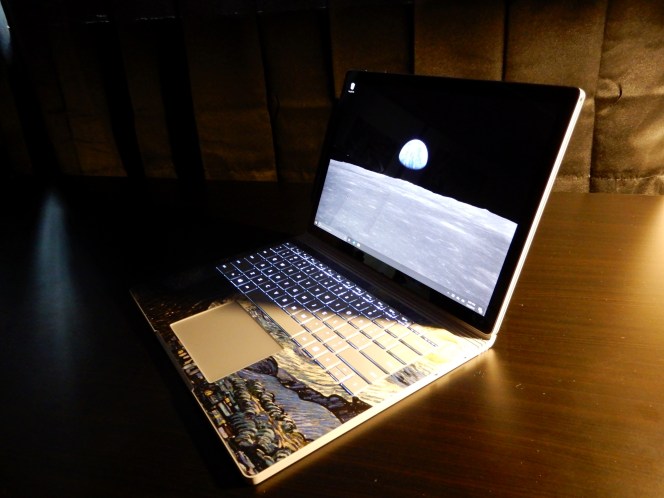
My weapon of choice is the Surface Book 2. I find that with a few key accessories, it adapts to any situation. From drawing out plans during a presentation from the tablet, to running three monitors while managing an entire company’s infrastructure, and even some gaming on down time, the Surface Book does it all.

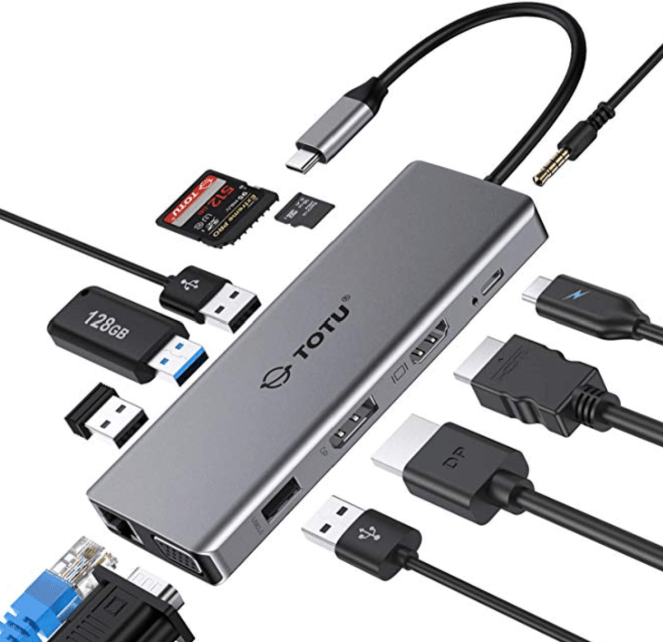
I mentioned that adaption requires some accessories. I find that a portable docking station is a necessity. With the right one, you can connect to any type of equipment you may need no matter what it is. I carry the TOTU USB C 12 – N – 1 Hub . Three monitors, a keyboard, mouse, network connection, power, and SD card all at once are no problem for this little gem.

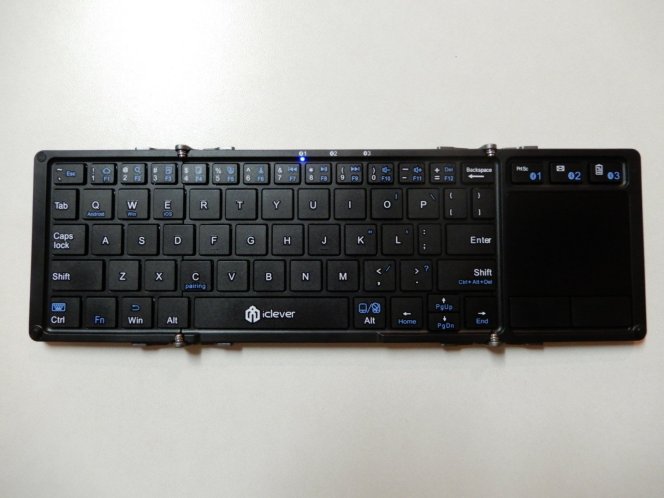
When it comes to connecting to other people’s equipment; I’ve never been a big fan of using random keyboards and mice. You never know which button doesn’t work, when the batteries will die, or where they’ve been. I avoid the jank and carry my own. The iClever IC-BK08 folds up to the size of a phone, connects to three Bluetooth devices at once, as well as anything with a USB port, and includes a great little touch-pad.

Monitors, monitors everywhere and not a screen to use. How do you take an extra screen on the road ? There are several ways. If you carry a tablet in your bag there are apps that will turn it into a wireless monitor. You can also purchase purpose built portable monitors.

I have tried both of those options, but have landed on something that is more useful than either. I carry a Vivitek QUMI Q38-BK mini projector. It’s small, battery powered, displays in 1080P HD, and is bright enough to use almost anywhere. A few days ago, I propped up a white binder, pointed my projector at it and had an instant second screen. I’ve also given full presentations to customers with it. It runs Android so you can install your favorite apps on it. It supports Wi-Fi, Bluetooth, AirPlay, Mira-cast, HDMI, and USB connections.

Cables are the key to connectivity. I have a one of each type of USB cable: 2.0, 3.0, C, Micro, A, B (printer), and Mini in my bag. I also carry two ten foot CAT 6 network cables, a USB to serial port adapter, a Cisco serial console cable, a 3 foot HDMI cable, a Display Port to HDMI adapter, an extra PC power cord, and a lightning cable.

In addition to all of that you will also find a 5 port mini switch, a 1.5 terabyte USB hard drive, a Bluetooth mouse, a pair of over-the-ear headphones with mic, a Voyager Pro wireless headset for phone calls and conferences, and a Nintendo Switch.

After reading all of this you might be asking yourself, “Does he actually use all of that?” The answer is “Yes, all of the time”. I don’t bother carrying things that I rarely use in my bag. Those things live with the junk in my trunk. Sorry, it was too easy.

Speaking of bags, the one you choose is as important as the gear it will carry. If you are going to stuff this much stuff into a bag of your own you will want sturdy straps, a reinforced handle, and lots of pockets to keep everything organized in. I use the Wenger Ibex 17″ Laptop Bag because it has all of those features and then some.

Galaxy Note 10 Road Challenge, A Tech Blogger Goes to the Art Museum

Kansas City is fortunate enough to have a world renown art museum. I’ve always enjoyed my trips to the Nelson-Atkins Museum of Art, but haven’t been in quite some time. My family and I were on stay-cation and decided to visit some of our favorite pieces and see what was new.

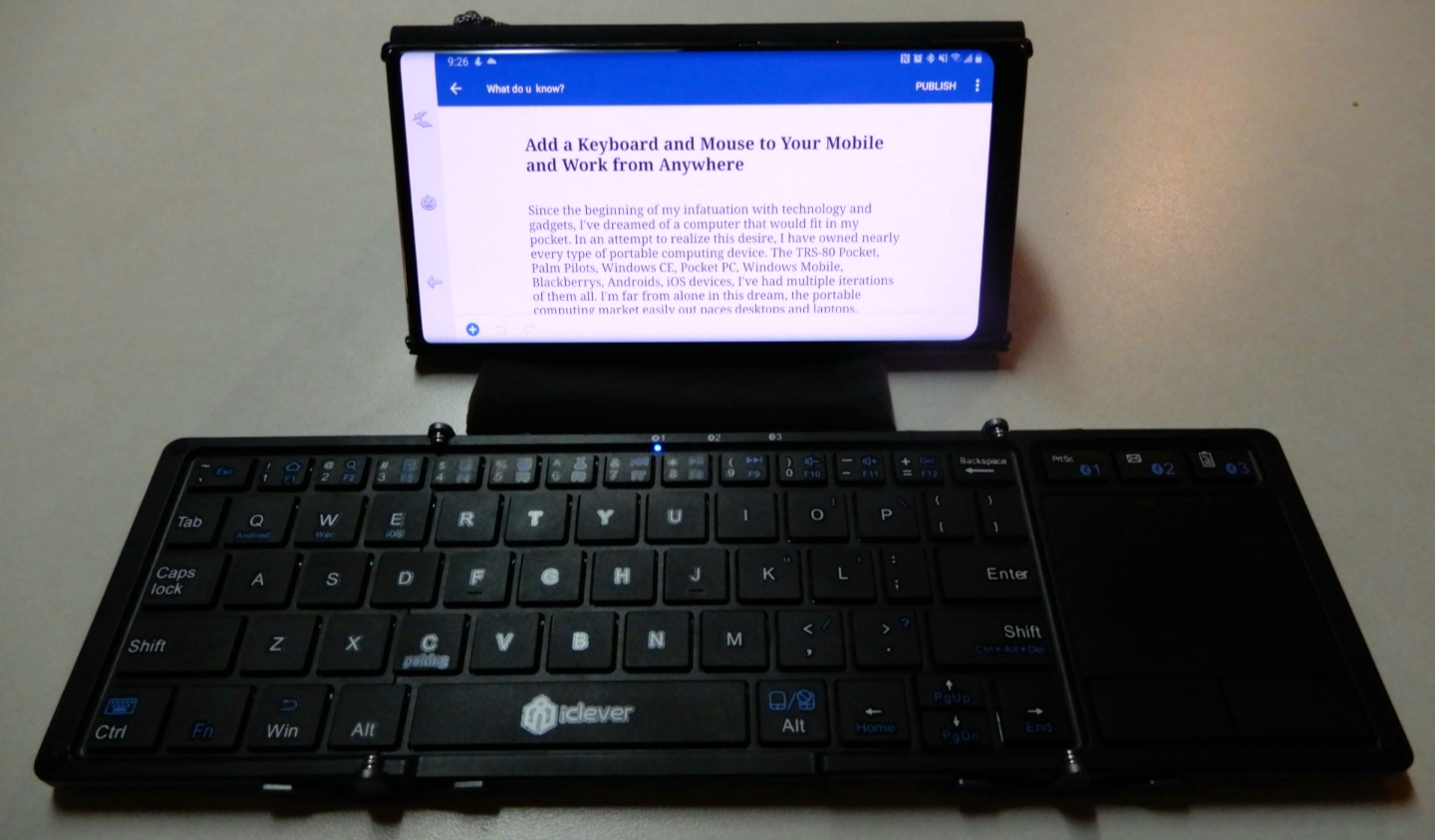
This article is being written in its entirety on my Galaxy Note 10 Plus. I’ve written pieces on the super-phablet before, but this is the first time I will be doing so in real-time and without using a PC for post-editing. All pictures, videos, and text are products of the phone itself. I am using a combiniation of the S-Pen and my iClever keyboard for input.

In addition to writing a post about the art muesum, I will be keeping up with my employer’s emails and texts, will probably play a few games, and I’m sure somebody will call me at some point. I will not be using an extra battery or charging the Galaxy, if the battery dies the post will just end at that spot.

The Nelson-Atkins is in the Plaza area surrounded by many of the water fountains that our beautiful city is famous for. The large white building is itself a work of art. It sits in the middle of an expansive green park and is framed as the net of the world’s largest badmitton game. The giant shuttlecock that sits in the green field has become famous in it’s own right and adorns countless articles and videos about Kansas City.

Jeff Sonhouse, Return to Sender

The multiple colors, shades, and textures in this contemporary piece give the auto-focus a workout. The characters hair is made from matchsticks. In the photo below, the wide-angle lense captures an entire room in the contemporary section.

Several works by Andy Warhol hang in this room

This ultra- realistic statue of a security guard has been catching people by surprise for as long as I can remember. He stands in a dimly lit corner and there is no flash allowed, but the camera still captures great detail.

Don’t Touch the Art!

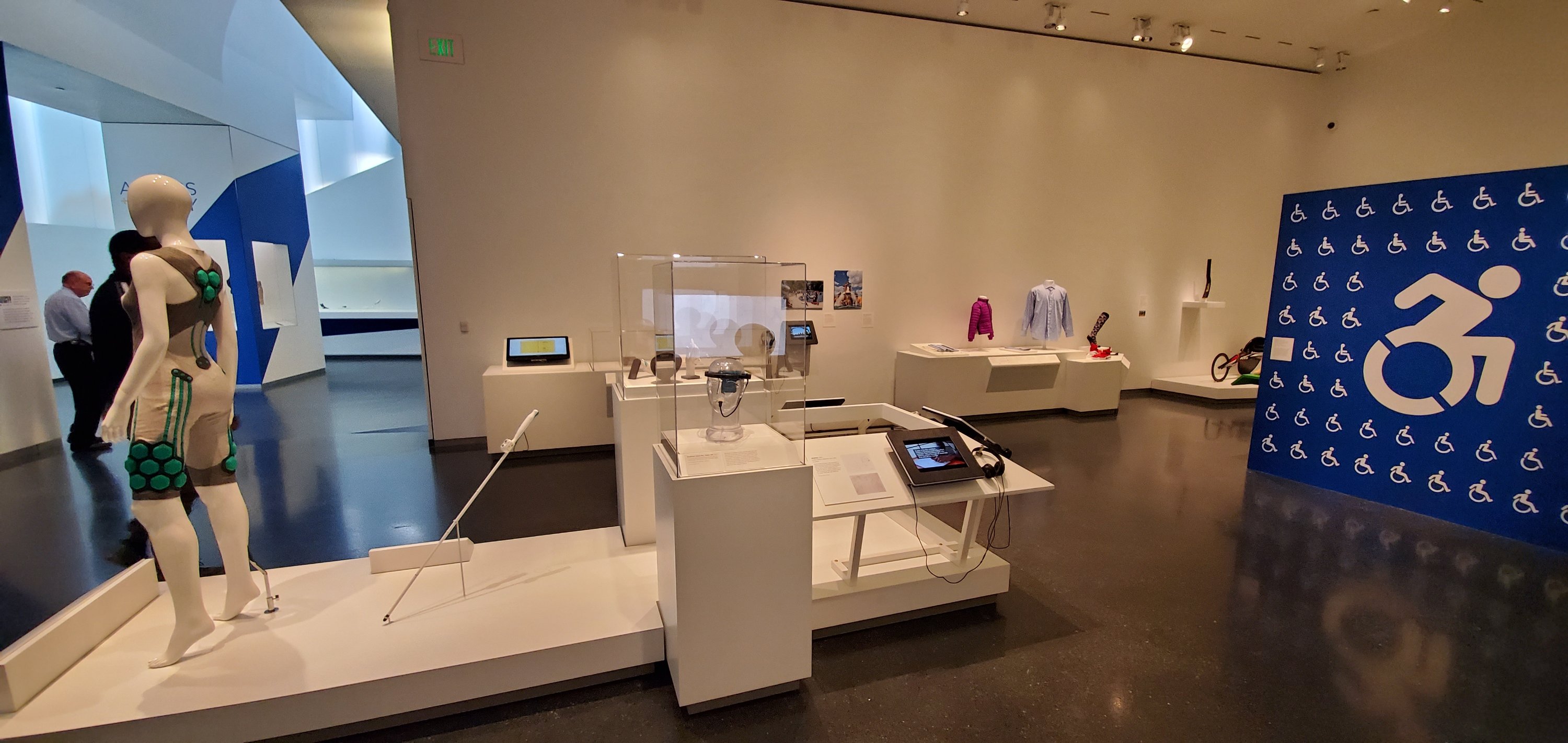
There’s an entire room dedicated to the technology that helps make the world more accessible to those of us who are differentley abled. 3D printed prosthetic limbs, cameras that turn vision into vibration, and watches that output in brail, are just some of the amazing devices on display. This exhibit is one of my favorites.

The Access + Ability Display

I’ve been fascinated by these suits of armour since I was a child. I cannot imagine wearing a metal outfit, nevermind trying to fight for your life in one. The room these items are in is actually quite dark. The camera’s automatic mode does an excellent job of adjusting to the different lighting situations presented by the museum.

Skyrim forever

Impressionism is my personal favorite of the classical styles. Lucky for me, the Nelson-Atkins has an extensive collection. The masters are well represented some of the most famous works by: Monet, Van-Gogh, Cezan, and Renior hang here.

There’s an impressive collection of Egyptian art. Sculptures, stone tablets, even mummies, are displayed. Some items are behind glass, but many are out in the open. Security gaurds keep those who may be too tempted to touch something in check.

We had a great day at the Nelson-Atkins. If you’ve never been, or haven’t been for a while, I highly reccomend that you take the time to visit. Entry is free, parking is not. I used my GPS for an hour and a half, took twenty two pictures, answered two emails, sent three texts, had one short phone call, and composed this article. My battery still has 66% of its power left and that is almost as impressive as the works of art were.

Add a Keyboard and Mouse to Your Android to Work from Anywhere

Since the beginning of my infatuation with technology and gadgets, I’ve dreamed of a computer that would fit in my pocket. Something that would always be with me, should inspiration or work come calling. In an attempt to realize this desire, I have owned nearly every type of portable computing device made. The TRS-80 Pocket, Palm Pilots, Windows CEs, Pocket PCs, Windows Mobiles, Blackberrys, Androids, and iOS devices. I’ve had multiple iterations of them all. I’m far from alone in this endeavor, the portable computing market easily out paces desktops and laptops.

Why do I and countless others keep spending untold fortunes to reach an aloof goal like portable computing? For me, I think it is a subconscious rebellion against sitting. I was the kid in class that was always in trouble for not staying still. I like to be moving and going more than resting. I don’t understand why we train our children to sit motionless for most of their childhood and then are surprised when many of them end up with sedentary lifestyle issues as adults? Do we need to sit in order to learn or work?

My desire to be on the move has often been constrained by my love of computers. Powerful computers that can do anything my restless, creative mind conceives of, have traditionally not been very mobile. I want something that I can pull out of my pocket and do whatever has popped into my head, wherever I happen to be. Powerful laptops are great, but require a backpack to haul around with you. Tablets have promise in the “Post PC” era, but they don’t fit in your pocket.

My Galaxy Note 10 Plus is more powerful than some laptops. Its battery and screen are big enough to work from. To be a full solution it would need a keyboard and mouse. The S-Pen is great and I use it everyday, but there are just some things you cannot do very well without a keyboard. For example, writing code with a pen is not a pleasant experience. I hopped on Amazon and did some research on portable keyboards and mice. There are a lot of manufacturers trying to solve this issue for the mobile crowd.

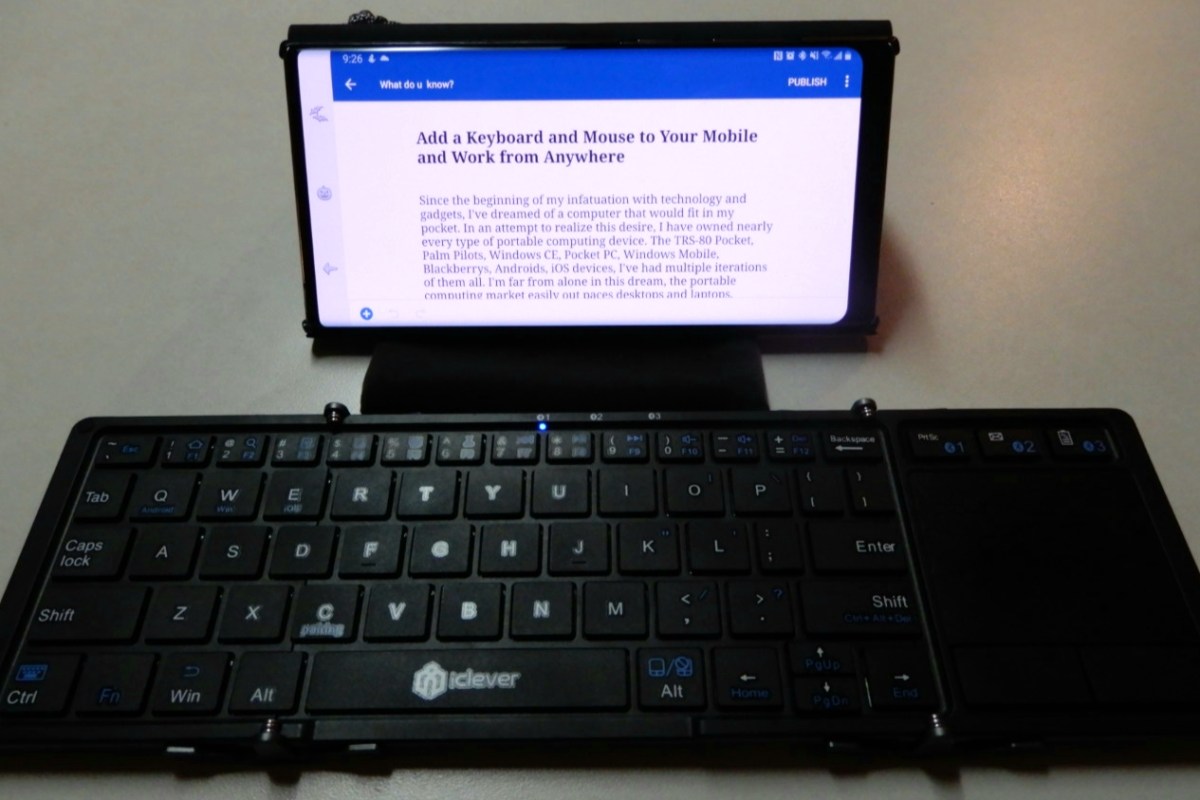
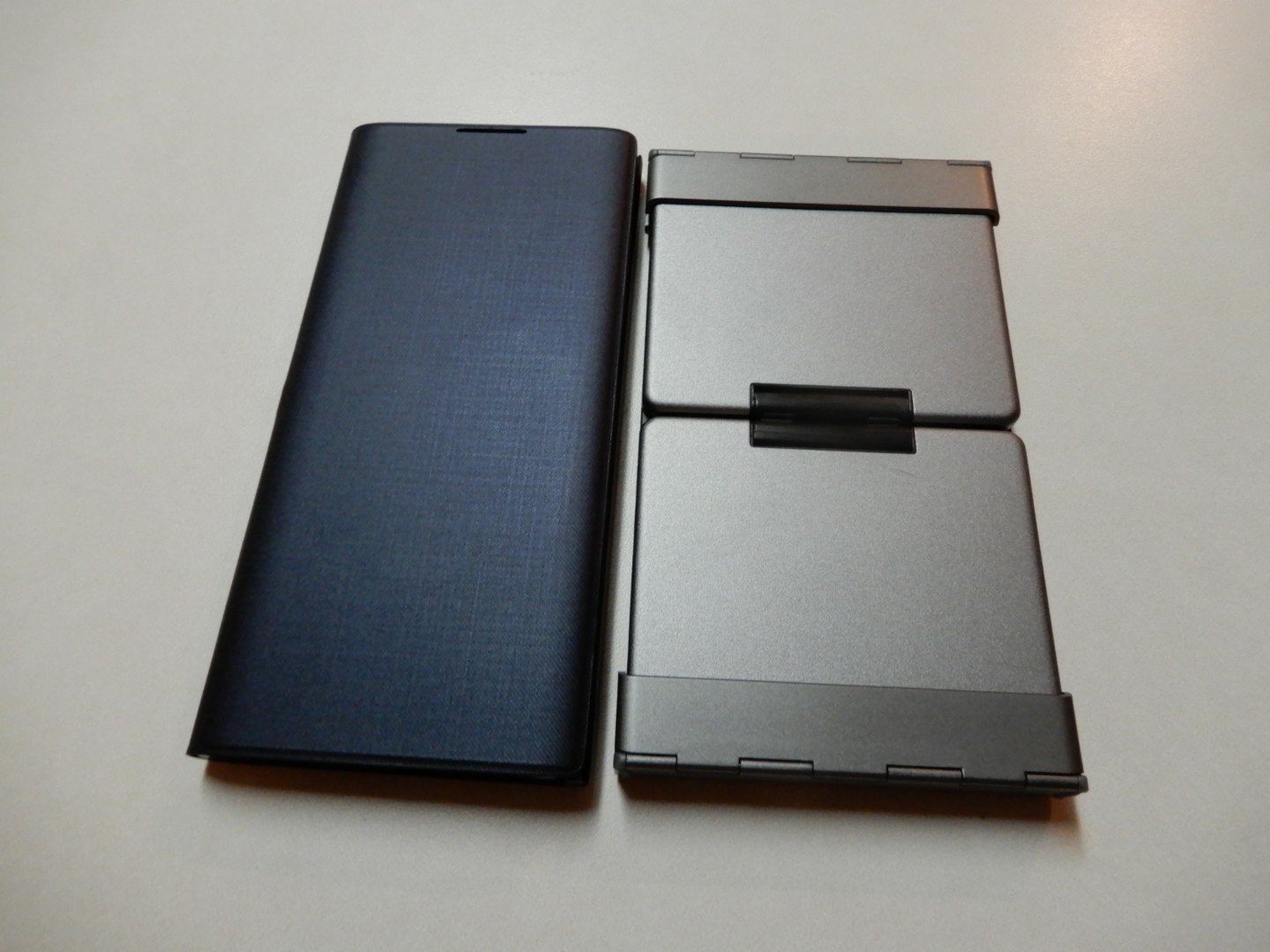
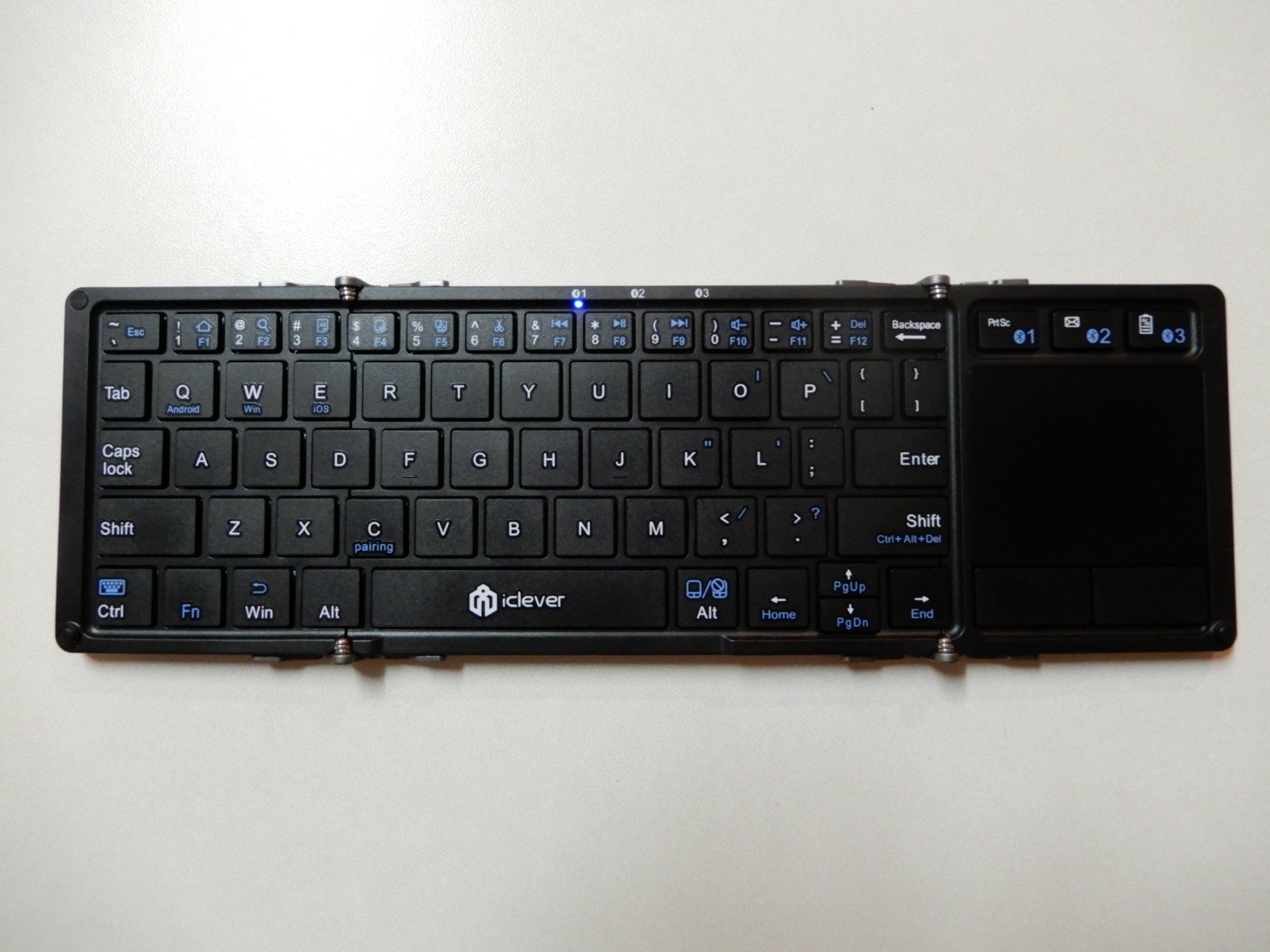
I chose the iClever IC-BK08 fold-able Keyboard and touch-pad. I am writing this article with the tri-fold device right now. When folded, it is about the same size as my Note 10 Plus. Open it up and you have a keyboard that is only 9% smaller than a full size laptop and includes a touch-pad. In addition it can connect to three devices simultaneously and change between them at the press of a button.

I find that I am able to type at full speed on the diminutive keyboard without much trouble. The only issues I’ve had so far are with some of the symbol keys. Typing an apostrophe requires pressing the FN key first, which is annoying but not insurmountable. To make a keyboard and touch-pad this small, something had to give.

The touch-pad is surprisingly excellent. It is better than some of the touch-pads I have run into on various laptops. There are two physical mouse buttons, but the pad is sensitive enough to pick up on taps accurately as well. The iClever powers on and connects to the last device you used it with as soon as you open it. Likewise, folding it shut turns it off.

I have been able to do my entire job from my phone now that I’ve added the keyboard and mouse. In the last few days I have: worked on multiple documents, edited photos and video, remoted into several systems, written two scripts, and finished a presentation. I never took my laptop out of my bag to do any of it.

Would I work this way all of the time? No, but that isn’t the point. I still have a high-end gaming PC. I still have a laptop, and I still have a desk at my office. The point is for my compute options to fit into whatever I am doing, rather than me making arrangements to fit my activities around my device’s abilities. Have you every tried to lug a laptop around Disney World?

When my family and I head out for vacation next week the only compute devices making the trip will be my phone, its Dex dock, and the iClever keyboard; all of which easily fit in my pockets. If my employer needs me to assist with a customer while we are out, I will be able to logon and help solve the problem. My family won’t need to head back to the hotel or finish the day without me while I sit in the car.

That is the dream realized for me. Being able to spend more time with the people I love while fulfilling my professional responsibility and pursuing my personal passions. Mobile computing tech is at an amazing stage of development and its only going to get better from here.

Fix Microsoft Word Missing Mobile View on Galaxy Note

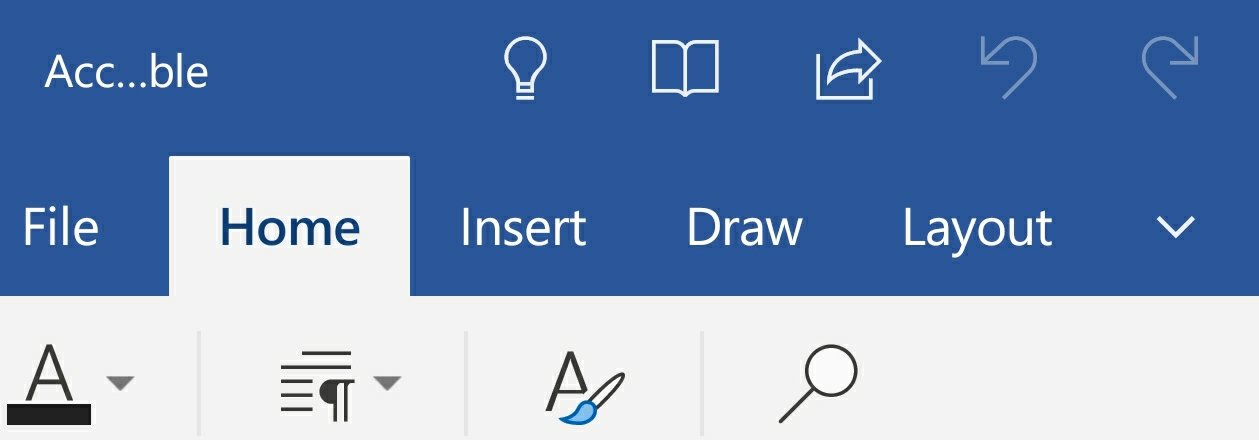
I’ve been an avid mobile writer for quite some time. I’m writing this post with my S-Pen on my new Note. A problem that I first experienced on my Galaxy Note 8, followed me to my new device. The mobile edition of Microsoft Word has a layout called “Mobile View” that reflows the document you are working with to be easily readable on a phone.

Without the mobile view, it is nearly impossible to read or edit Word files on a phone. Starting with my Note 8, the button that turns mobile view on or off would randomly disappear. I searched Google and read countless posts that never helped. I reinstalled the app, reset my phone and everything in between.

I was disappointed that even a new device didn’t solve the problem. I was also more determined then ever to resolve the issue. After a lot of troubleshooting I have found the problem.

It’s being caused by the Note’s impossibly high screen resolution. Word Mobile assumes that tablet devices don’t need the mobile view feature. It makes the device type determination by the display’s resolution on launch.

If your display is running higher than 1080 when you open Word, the full ribbon is displayed and it doesn’t have the mobile view button.

Close Word. Go to Settings -> Display -> Screen Resolution and choose 1080P or lower.

Then open Word and the mobile ribbon will be displayed along with the all important button. After Word has opened you can raise the resolution and retain the mobile view until Word is closed.

Finally! My frustration with Word Mobile is over.

Photoshop and Lightroom Too Expensive? Try Affinity Photo and Darktable Instead

I’ve been editing pictures on computers since the beginning of digital photography. I started with one of the first consumer grade digital cameras, the Casio QV-11 and never went back to film. I’ve used countless photo editing apps but nothing compared to Adobe’s Photoshop.

Adobe changed to their current subscription only model in 2013 and I signed up. I paid sixty dollars a month for access to all of Adobe’s software and one-hundred gigabytes of cloud storage. For a while the cost seemed justified. Eventually, I started thinking about its cost compared to how often I used it and decided I needed to find an alternative.

Photoshop

I began testing alternative applications to see if any had improved enough, or if there were any new offerings that could replace Photoshop for my needs. Paint.Net and GIMP are great, but they lack true digital pen support, advanced brushes, batch processing, and some of the other tools that I’ve come to rely on. My goal wasn’t to find free software, but if it was I would probably be using Paint.Net (can still download free from the web site).

Paint.Net

I had looked at Serif’s Affinity Photo in the Microsoft Store before. It was coincidentally on-sale so I purchased and installed it. I launched the new software with a skeptical mindset. How could a forty-dollar app compete with a powerhouse like Photoshop? The skepticism didn’t last long.

What sets Photoshop apart from other photo editing software is the number of options, customizations, plug-ins, brush packs, and the ecosystem around it. While Affinity is not on the same scale as Adobe, it does have many of these features. Places like Frankentoon make custom brush packs for Affinity. All of the tool panes can be customized to your liking. Lots of Photoshop plug-ins can be imported into Affinity.

You can process jobs in batches, create your own custom brushes, export your work into almost any format you can think of, and more. Affinity Photo supports the Surface Dial and other digital tools, it even allows you to select from multiple GPUs. For me the only Photoshop feature I use on a regular basis that was missing from Affinity Photo was Lightroom.

I was able to find the perfect open-source replacement. Darktable runs on Windows, Linux, and Mac OS. It costs nothing, and works great for my needs. There’s both a lightroom for pursuing your photo collections and a darkroom for adjusting images.

Photoshop is still the king of photo editing solutions. Its high-price can be prohibitive for average use cases. If you’re a power-user like myself, give Affinity Photo and Darktable a try (both have trial editions). I bet you’ll be shocked at how easily you can transition into these apps.