Play Your PC Games On Other Screens with an Nvidia GPU and Moonlight

If you have a 1080 or newer Nvidia GPU (Graphics Card) in your Windows gaming PC, you can play your desktop’s games on almost any screen in the house that you can pair a controller to. Modern Nvidia graphics cards are designed to support streaming video games to the Nvidia Shield series of devices. Unlike typical remote desktop options, the Shield console protocol known as “Gamestream” offers high performance remote play of games over high-speed Wi-Fi.

A group of developers have written a universal Gamestream client app named Moonlight. The free software will let you stream your desktop games to numerous tablets, phones, consoles, and computers. The latency is low enough that I am able to play on-line multiplayer games with my equipment. The performance you experience will vary widely depending on the host system specs, client device capabilities, and the network underpinning it all.

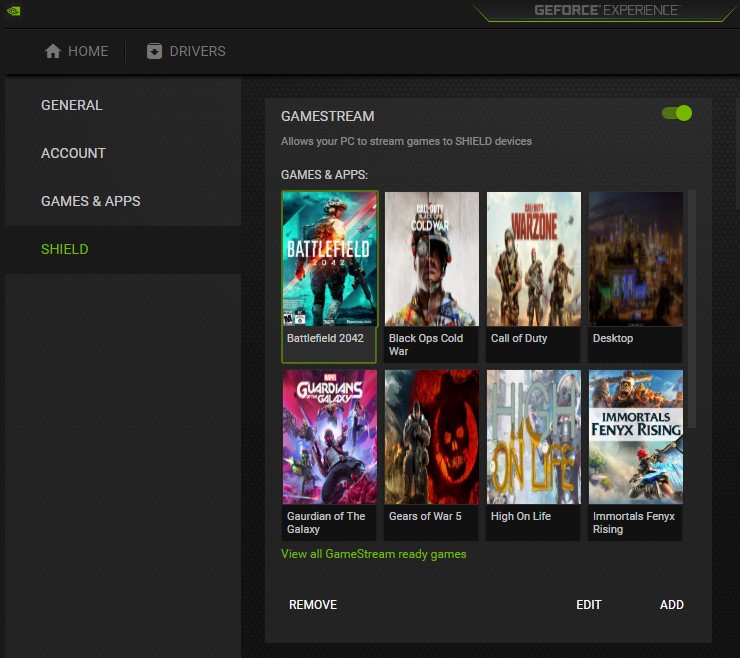
The NVIDIA GeForce Experience App has the streaming technology built in.

If you are considering a Moonlight / Gamestream setup, be aware that Nvidia has announced they are removing Gamestream from Shield devices. Not discontinuing, but actively removing. I haven’t seen an official answer on if the protocol will be removed from their GeForce Experience software on the PC.

Removing the streaming option from the GeForce Experience software would stop Moonlight from working. If that happens, or if your GPU is another brand, you can use software named Sunshine to host your stream. See their GitHub at https://github.com/LizardByte/Sunshine for the downloads and instructions. The difference between using Gamestream or Sunshine versus something like Steam Link is that the Gamestream options supports any game from any store, rather than just Steam.
To get started with the NVIDIA solution (easiest) you will need to download and install the newest version of GeForce Experience that matches your video card from Nvidia’s download site. I highly recommend reading though Moonlight’s excellent documentation and setup guide @ https://github.com/moonlight-stream/moonlight-docs/wiki/Setup-Guide. It will step you though the entire setup and device pairing process.

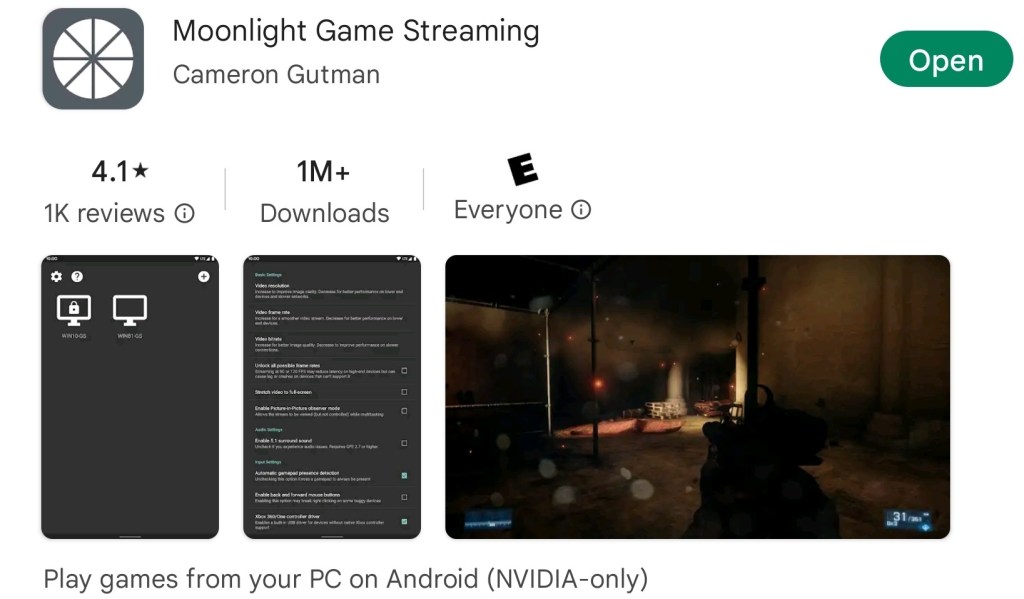
Look for the Moonlight app in your device’s store.

The Moonlight application for your device(s) should be available in it’s associated app store. If you have one of the rare devices that does not feature the app in its store, check the Moonlight download page at https://github.com/moonlight-stream/moonlight-qt#downloads.

Download, install, and run Moonlight’s Internet Hosting Software to automatically configure the Windows defender firewall on your gaming PC. The tool will also attempt configure your network’s firewall to allow Gamestream access to your computer from the Internet. For the Internet part to work, your Internet firewall must allow the UPNP protocol, or be running IPv6.

Warning: Some IT Experts consider UPNP to a be a security risk. To manually configure your network for Internet streaming allow the following network ports: TCP 47984, 47989, 48010 and UDP 47998, 47999, 48000, 48002, 48010 between the server and client devices. All of the network setup, including manual firewall setup tips are documented @ https://github.com/moonlight-stream/moonlight-docs/wiki/Setup-Guide#streaming-over-the-internet

If you have programable network equipment and are familiar with it, enable Multicast DNS on your network. It allows your network devices to communicate by name instead of IP addresses when you do not have a local DNS server. While you are in there, enable IGMP Snooping, it lets your switches forward packets to groups of devices more efficiently, which frees up those resources for other duties.

These settings are required for proper streaming if you have multiple access points in your Wi-Fi network.

In some cases, the activation of the rumble effect causes the client app to crash at the moment the buzz should be activated by the in-game action. I disable the rumble feature as a result. I also frequently disable HDR support. You can see the difference it makes in the graphics, but it also causes instability (dropped frames and lagged controls) on my setup.

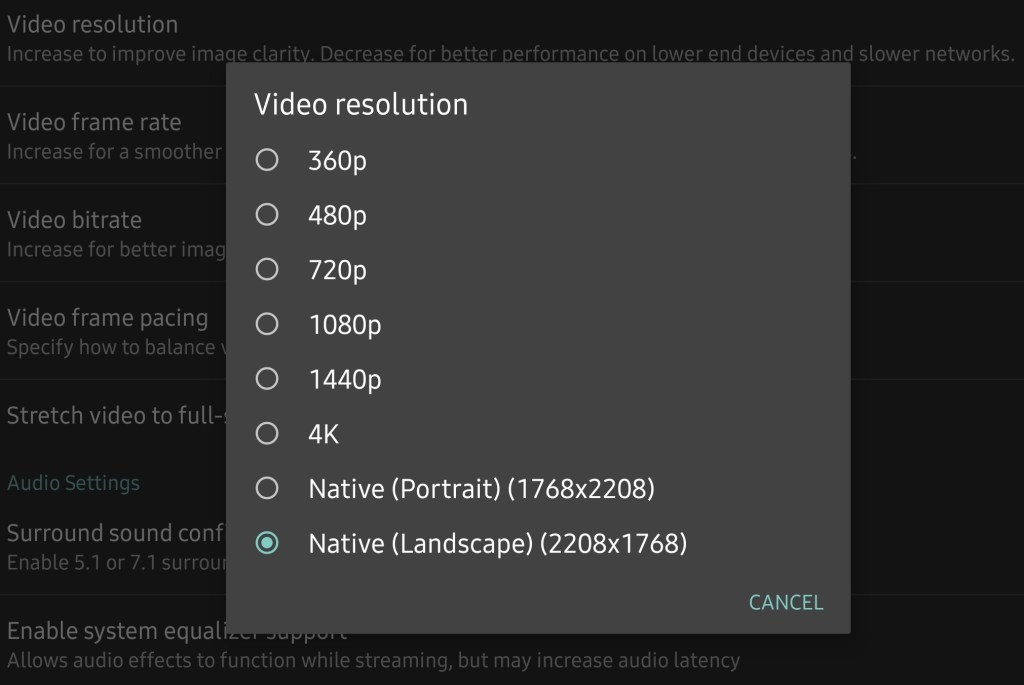
If you are experiencing issues, try adjusting the client application settings to compensate. Generally speaking, you can improve stability by lowering the resource demands of the software. Done by turning off toggles and lowering numbers in the app’s graphics settings menu.

Adjust settings in the app for a balance between performance and appearance.

I frequently experience an issue with some on-line games in which the client abruptly returns to the home screen within a few minutes of starting a match. I am usually able to reselect the game from the Moonlight Menu and resume the same game session. I have not discovered the cause, or precise pattern of occurrence for this issue yet.

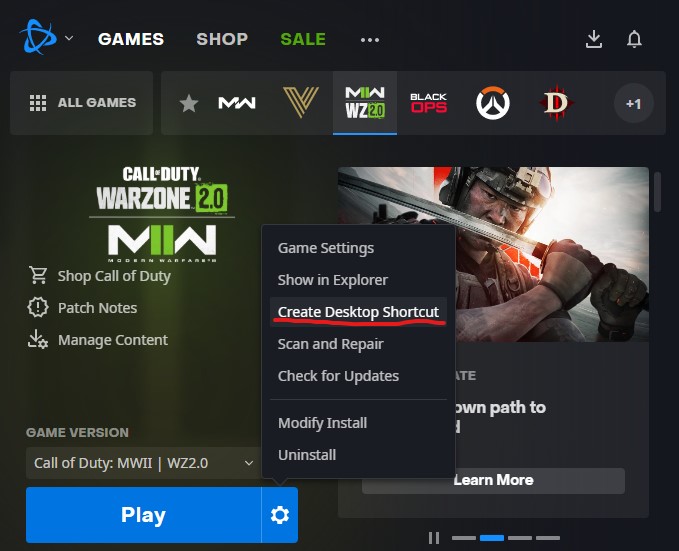
The process for adding games is well documented in the Moonlight setup guide linked to above. Experience has taught me to publish shortcuts created from the game’s launcher, rather than the game’s direct exe file. Multiplayer authentication and anti-cheat systems stay happy that way.  In most of the launcher apps like Steam, Xbox, and EA Desktop you can create a shortcut for a game by right-clicking on it in the app’s library.

Use the target of game launcher shortcuts to add games for the best results.

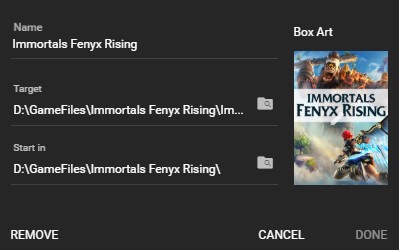
To keep the client game carousel looking clean, I use image search and my device’s screen clipping feature to grab a sample of each game’s cover art which I save as a .PNG. I put the images in a folder, each named for the corresponding game. Then on my PC, in the GeForce Experience App, I assign the appropriate image to each game by selecting the Edit Button under Settings -> Shield -> Games & Apps. Click the Box Art space for the game and browse to the folder I saved the box art snips in. While I am in this location, I edit the name to something short to prevent messy line-wrapping on my Moonlight device’s screen.
Use the edit option to clean up game titles and add box art.

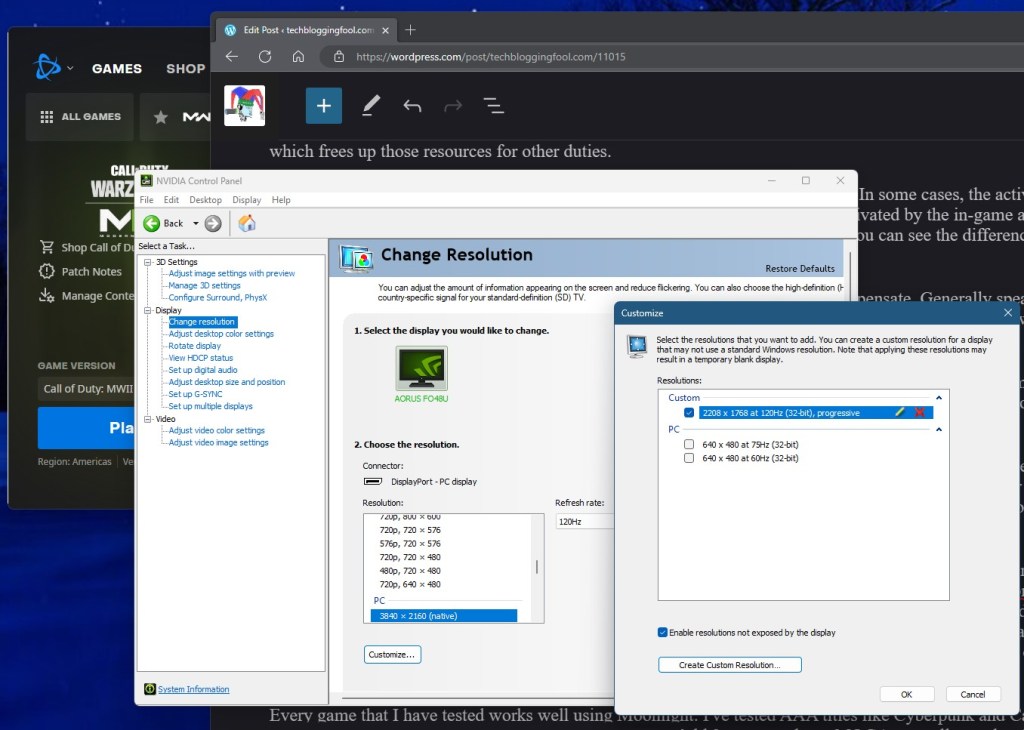
To use your devices native screen resolution in games you’ll need to create it on your desktop first. The Moonlight client app tells you as much when you enable the feature in its menus. To create a custom resolution, use the GeForce Control Panel. You should fully understand the risks to your monitor before proceeding and are doing so at your own risk.

TIP: You can use the NVIDIA Control Panel to create a custom resolution that matches the device you stream to.

Every game that I have tested so far works well using Moonlight. I’ve played AAA titles like Cyberpunk and Call of Duty, along with emulators like Dolphin. Gamepass PC games, Steam games, EA Desktop games, and even Ubisoft games, all work. You can play either with a controller, or with a mouse and keyboard connected to the client device. I find the freedom to play my games from any location in my home to be worth the trouble of getting it all working. It takes between one and four hours depending on your experience and the speed of your systems and connections, good luck.

Hogwarts Legacy PC Allowing Pre-Download Now!

If you want to get ahead of the download storm, check Steam. I was able to pre-download the game starting at 7:00 PM Central Time. I’m not able to launch it, but it is ready to go for tomorrow.

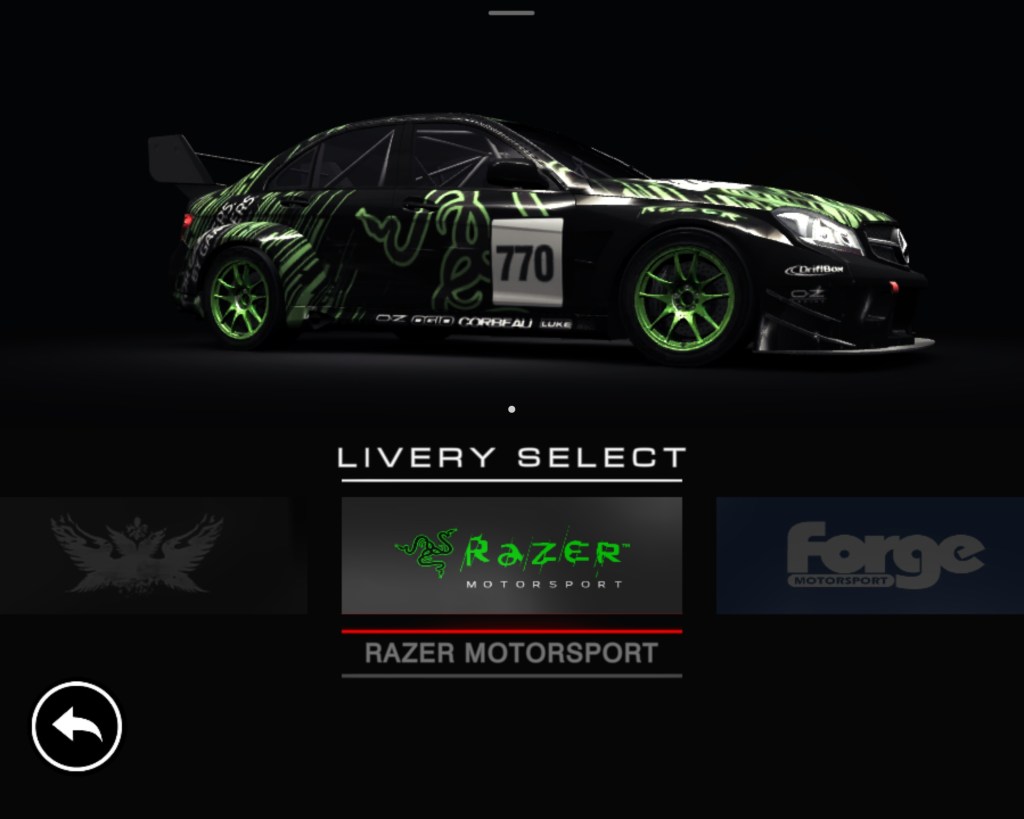
Grid AutoSport is My Favorite Mobile Racing Game

I have always been a big fan of racing games. I started with the classics like Pole Position and Outrun and have been playing them ever since. I almost always have a racing game installed on my smartphone. There have been plenty of excellent options over the years. The Real Racing and Asphalt franchises have been some of my favorites.

Recently, I stumbled across Grid Autosport in the Google Play store. I had played a few of the Grid titles on my XBOX so I opted to give it a shot. The game was $10.00. It seemed to be a high price when comparing options in the store, but it has no micro transactions after the initial buy which I prefer. The $10.00 fee also includes texture, track, and car pack downloads that were available the first time I started the game.

It turns out that ten bucks is a steal given how good Grid Autosport is. The game’s career mode follows the well established class based, earn your garage path, made famous by the likes of Gran Turismo and Forza. What helps set Grid Autosport apart is the number of racing types available beyond that traditional career mode. Everything from Drag racing to Demolition Derby and Drifting are available modes. I’ve had the game for weeks and haven’t managed to try them all yet. Sadly, there’s no multiplayer option.

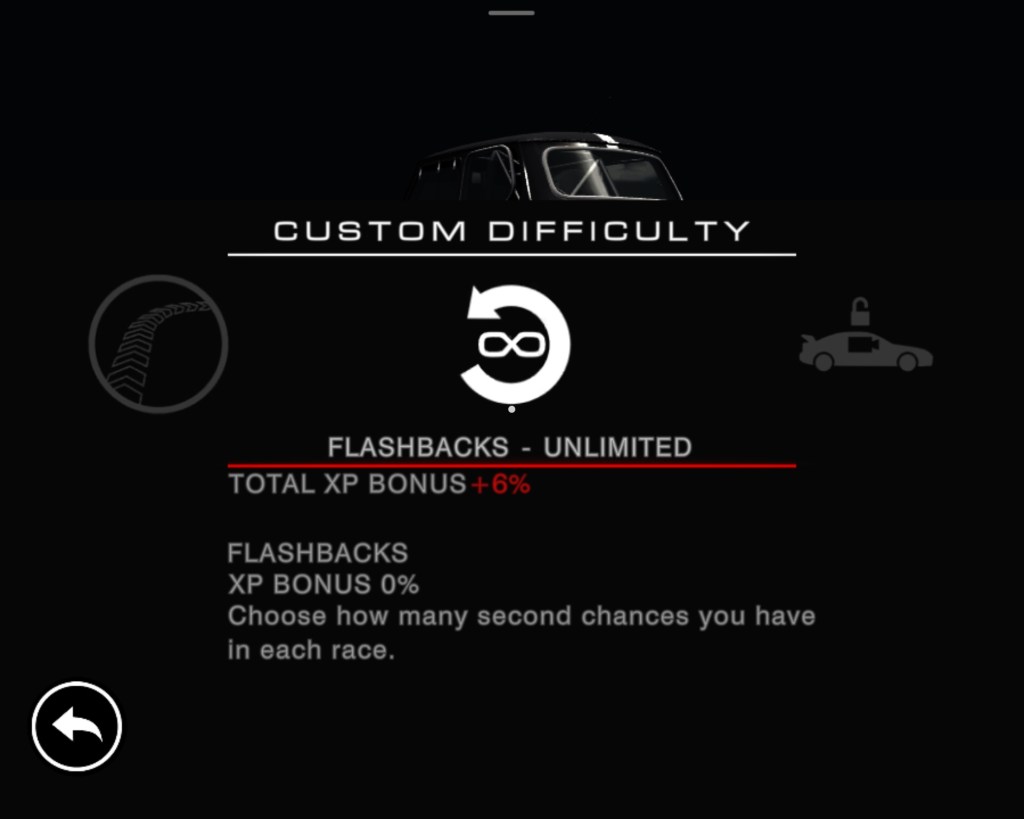
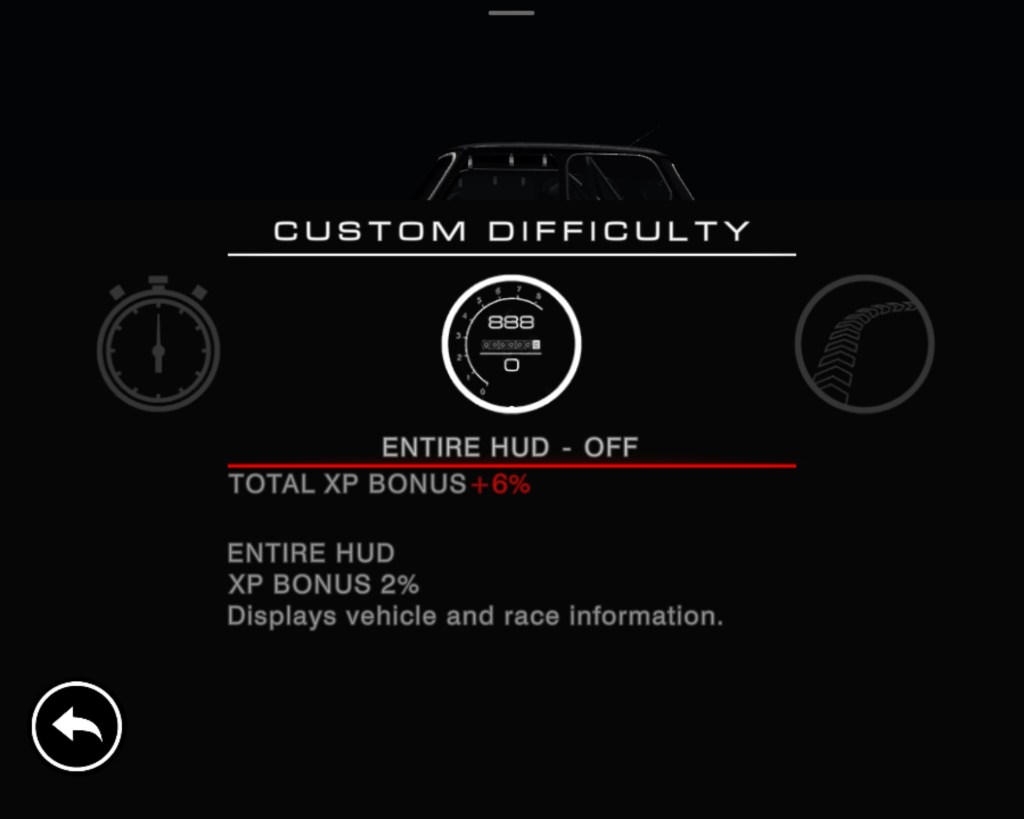
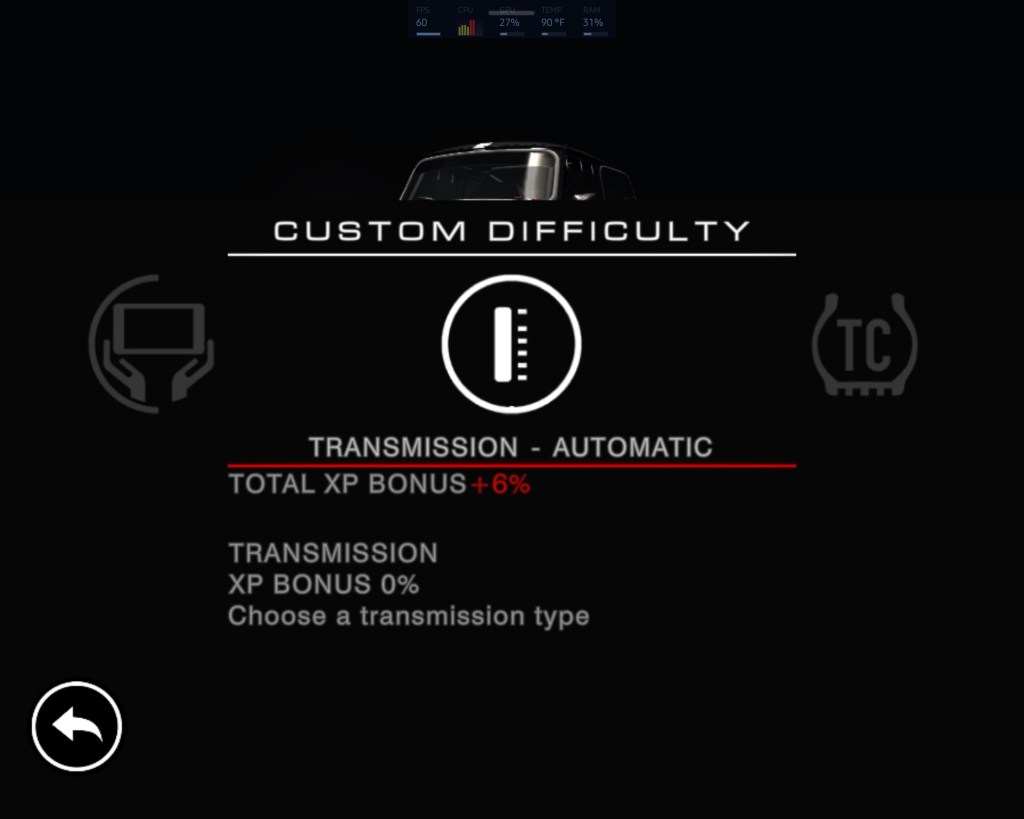
The difficulty options make it easy to tune for your style of driving and skill level. I like to aim for a challenge in which winning appears possible but not probable. There are options for disabling the hud and locking the camera to in-car modes along with turning ideal lines, braking assist, traction control, and others. Besides adjusting how much the game is helping your driving, the AI competition also has its own difficulty levels. When tuning the driving experience, you are increasing or decreasing the XP bonus received for completing the run.

The tilt controls, vibration, and unique touchscreen-sliding throttle combine to deliver a satisfactory level of car control immersion. Twisting the phone in space like a wheel feels more like driving than using a gamepad to me, but the later is fully supported via Bluetooth or cable. The motion controls in Grid are exceptionally accurate, drifting around corners at high-speed feels risky but can be accomplished. The haptic feed back manages to provide some sense of road feel, especially when you encroach on the edge of the track or while traversing surfaces like cobblestone.

The graphics are good enough to justify hooking my phone up to a bigger screen and playing with a controller. I’ve used Android’s wireless streaming option to play on my living-room screen more than once. The experience is on-par with an Nintendo-Switch running in docked mode. On my Galaxy Fold 3, turning the graphics to their maximum, drops my FPS from sixty to thirty. I tend to run the game on the mid-settings because of this. Smooth is better than pretty and the expression of speed is more defined, for me.

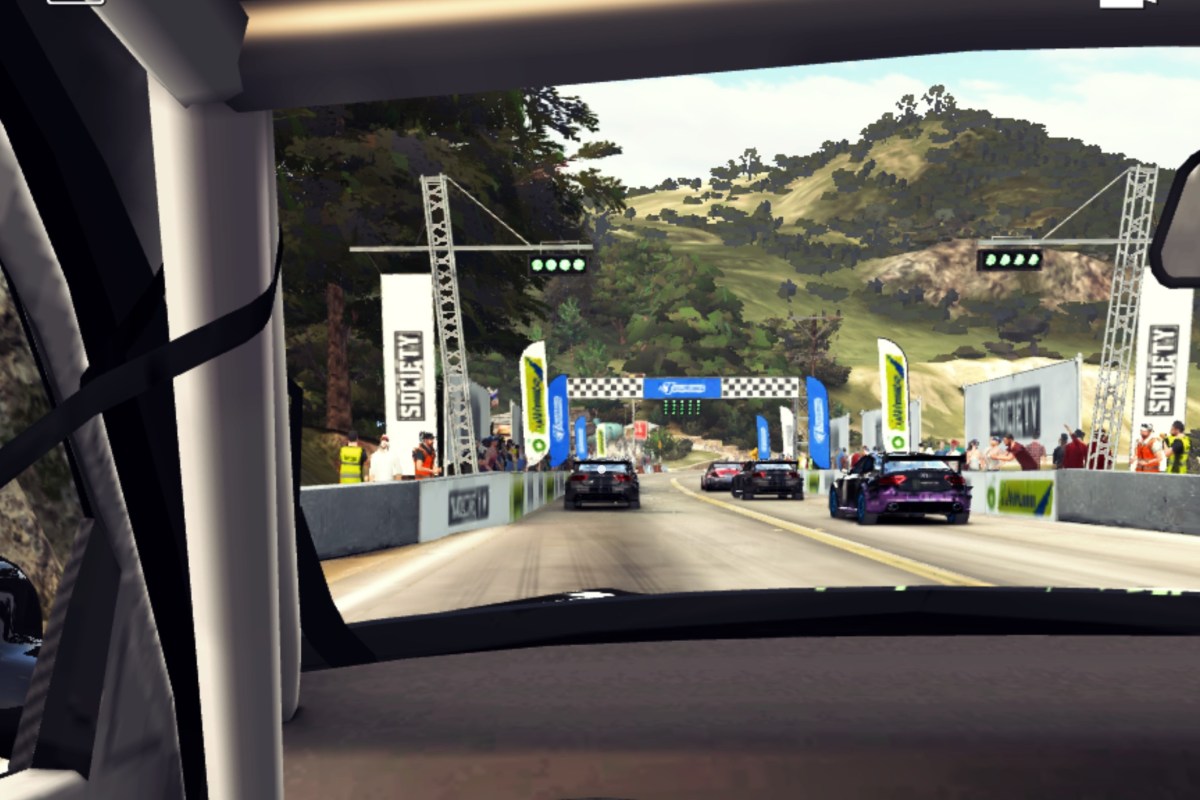
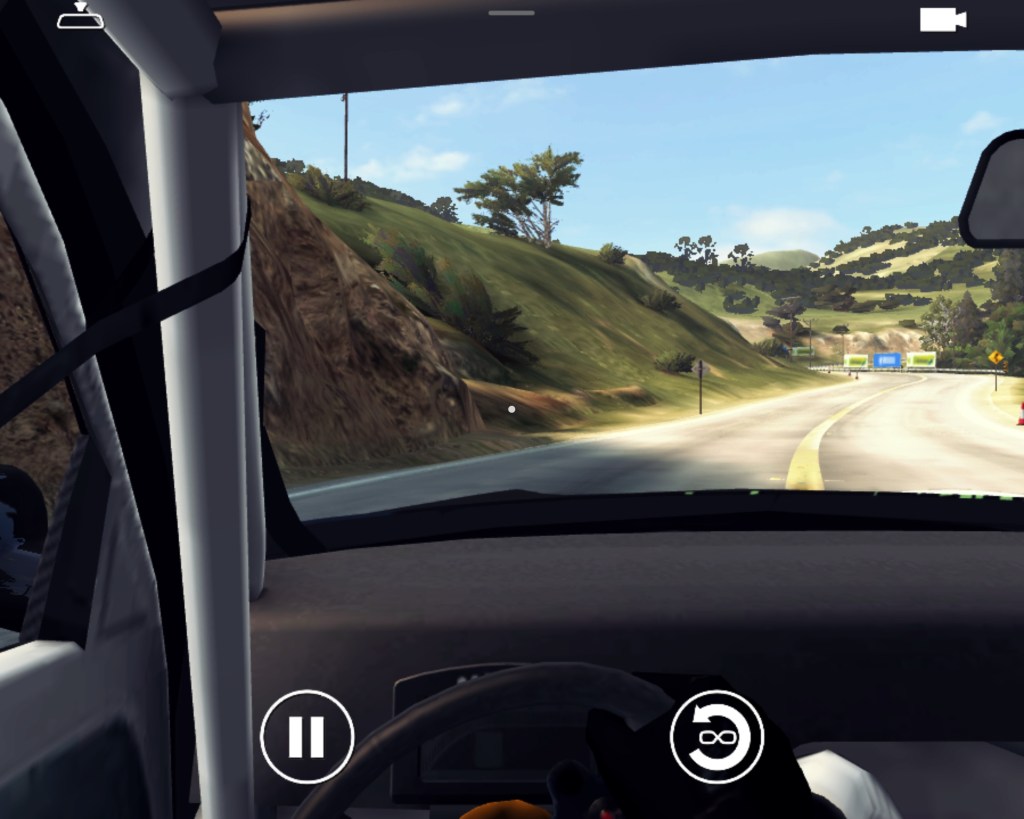
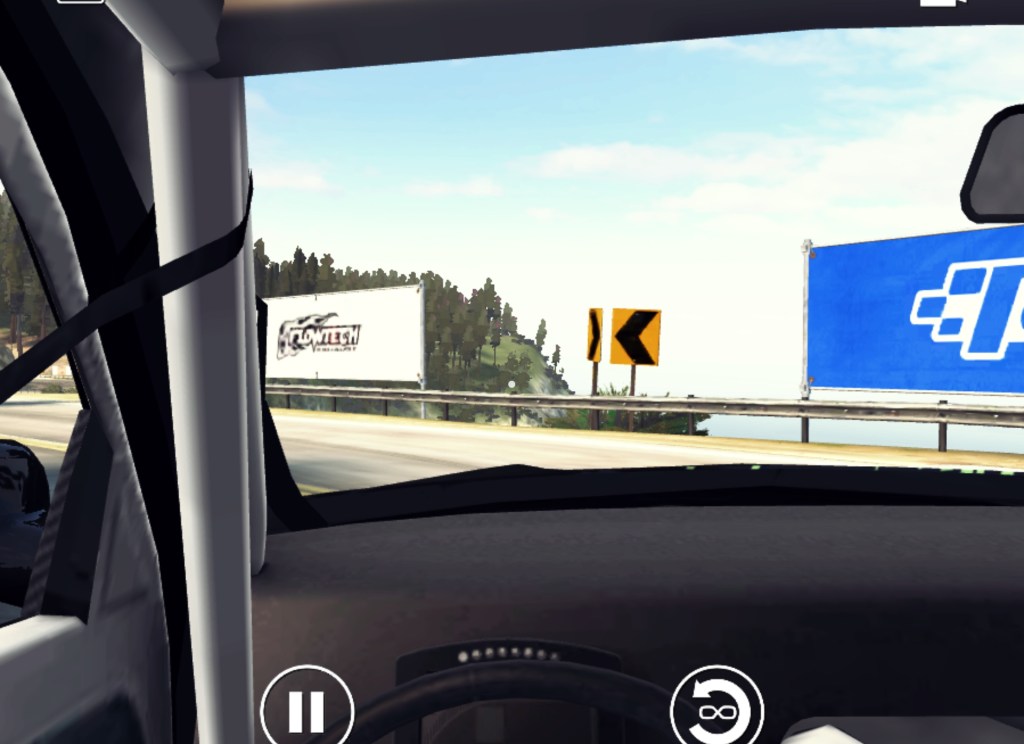
There are 100 realistic tracks based on real-world venues and locations. The scenery and environments are exceptional in all the ones I have raced on so far. There are a wide variety of track surfaces and weather elements. NPC fans fill the stadiums and city streets to cheer you on, mountains are majestic, and coast lines glimmer. Sun glare, grime on the windshield, and other touches lend themselves to the realistic environmental experiences the developers were clearly aiming for.

There are also 100 cars in Grid. Multiple driving disciplines like touring, super-car, or open wheeled mean there’s always something new to get into. There’s even a class of racing UTEs, the El Camino style of truck-car you hardly see anymore. The detail in each machine’s exterior is exquisite. I chose to download the optional HD texture pack. The sheetmetal and paint jobs are photo-realistic after you install the add-on. Vehicle interiors are accurately scaled but otherwise lackluster.

The physics feel great. Cornering speeds match my expectations for the type of car being slung around the track. Collisions with other drivers have appropriate levels of mass reaction and damage. The driving impact of that damage is another option that can be toggled on and off in the menus. I keep one driver profile configured for the type of “racing” that takes focus and a light touch to avoid over-driving and sliding into the grass. I have another for casual play where traction control and steering assist make distracted/Netflix driving easier.

As you can tell, I’ve been impressed by Grid Autosport. It would be a great racing game on any platform. The fact that it is always in my pocket is icing on the cake. I often find myself playing it while watching Netflix, or while waiting for things like my turn at the barber-shop.

Tis the Season of Noobs

The Holiday season is often a gamer’s favorite. New systems, new accessories, and new games are given and received all over the world. Depending on where you live, the weather is voting against your venturing outside, and there’s a good chance that you are off work for at least one extra day.

Many an online community got an infusion of fresh players over the last few days. Are you a gracious welcoming committee, or do you rain destruction on the fields of innocents?

If you are an established player, try to keep in mind what it was like to get started. Maybe don’t go full “pro mode” in the casual queues. Or at least not in every match. Your beloved game will fade to black if new players are unable to gain a foothold and feel like they are progressing.

If you are one of the beginners, brace for repeaded loss. It is a normal part of your initiation. Veterans have memorized the maps, ranked up their weapons, and have full armor. Grinding for all those hours has honed their skills to a razor’s edge. You will be an easy target until you rank up.

You can minimize the noob phase with study. I start with the single-player campaign to learn the ropes. Some story modes reward you with XP to boost your stats online. Most will run you through the various offensive and defensive tools along with the general gameplay scenarios. Many titles have a test range, which also helps.
If your new game supports spectating, it can also be a shortcut to getting up to speed. Watching on Youtube and Twitch are good ways to get an edge. For some of the more popular games, professionally led lessons are available.

I often find that the experienced players are less aggressive in their style of play. Preferring to wait for group pushes rather than rushing in alone is a trait often observed in veteran players. Knowing when to cut and run from a one-on-one engagement rather than pursuing is another.

There are often weapon and armor sets that are advantageous for people who are just getting started. In class-based titles, playing the medic can be a fast way to gain XP and to learn the nuance of team play. Playing your role can be key to gaining rank and moving up the leaderboards. Snipers are typically backline suppression, assault players should be mixing it up in the middle ground, and shot guns are good in CQB.

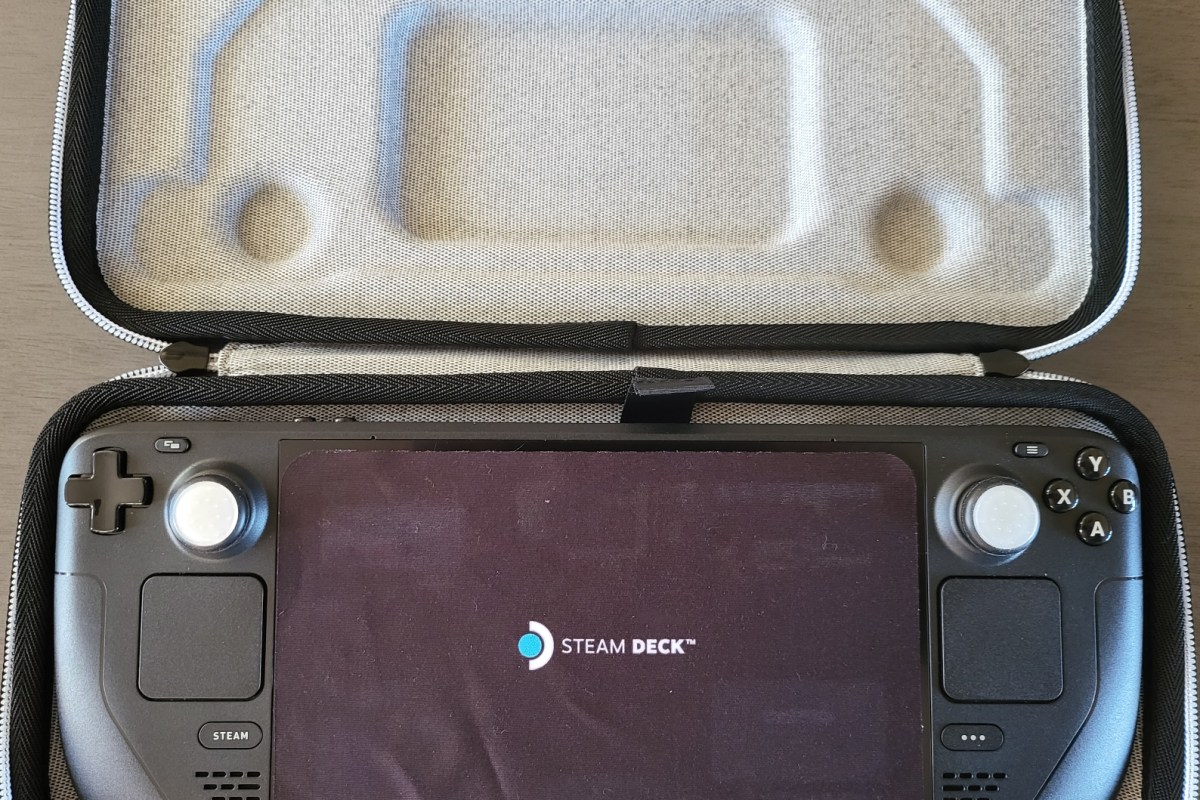
My Experience With The Steam Deck

The Steam Deck isn’t the first attempt at squeezing a PC gaming experience into a small form factor. There have been gaming oriented laptops since the beginning. Other companies have prototyped and released handheld gaming computers in small batches over the years.Valve’s Steam Deck is considered to be the first attempt at a triple-A handheld gaming PC.

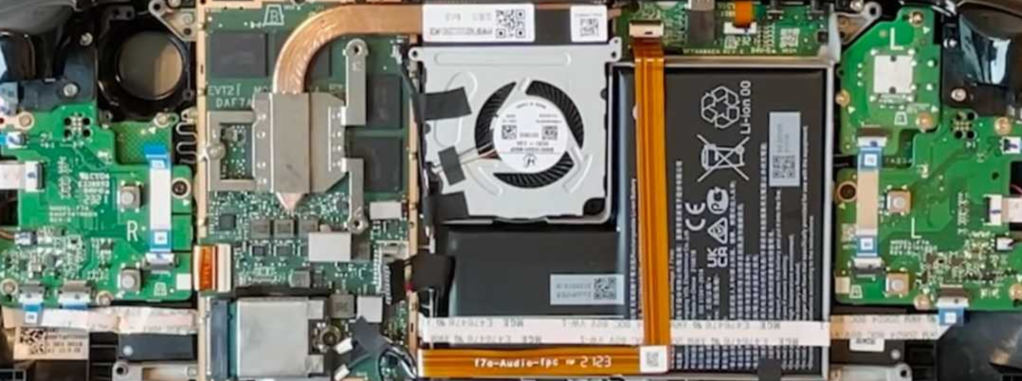
The custom designed AMD APU (Accelerated Processing Unit – CPU/GPU combo chip) is the proverbial bat that knocks the performance ball out of the park. It’s capable of 1.6 TFLOPS of processing throughput. To put that in perspective, an Xbox One S hits about 1.4 TFLOPS and a Switch struggles to make 1.0 TFLOPS.

TFLOPS is an acronym for a Billion Floating Point Operation Per Second and is a measurement that can provide a general idea of a system’s potential performance. Given that an Xbox One S is capable of playing modern titles like the new Modern Warfare 2, albeit on very low settings and slower frame rates, you can get a general idea of how powerful the Deck is.

Valve Supports Self-Repair of the Steam Deck.

Getting games and services running on the diminutive computer can be tricky. The Steam Deck’s operating system is a customized distribution of Linux. Games that are certified by Steam to run on the Deck are simple installations from the store, not unlike your phone. Everything else requires knowing your way around a computer. This is not vastly different than the knowledge usually needed for PC gaming anyway, but may be unexpected for those coming to the device from a console only experience.

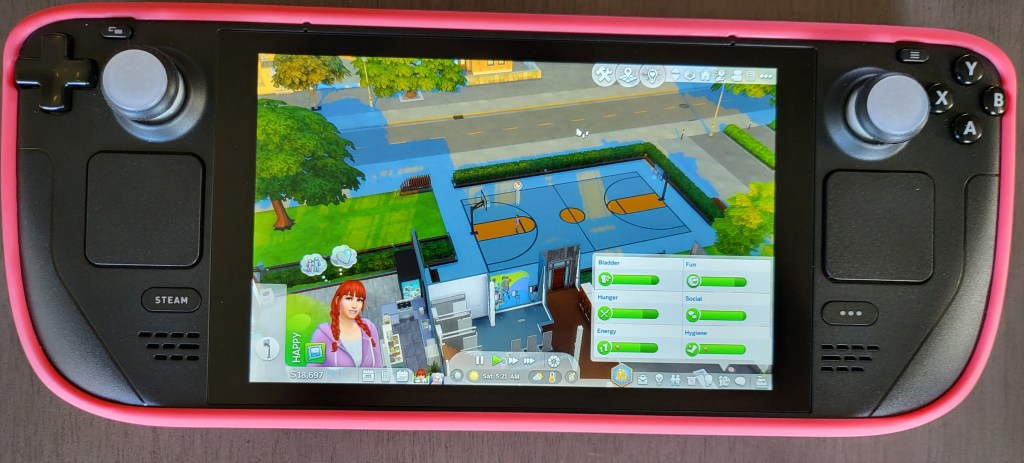
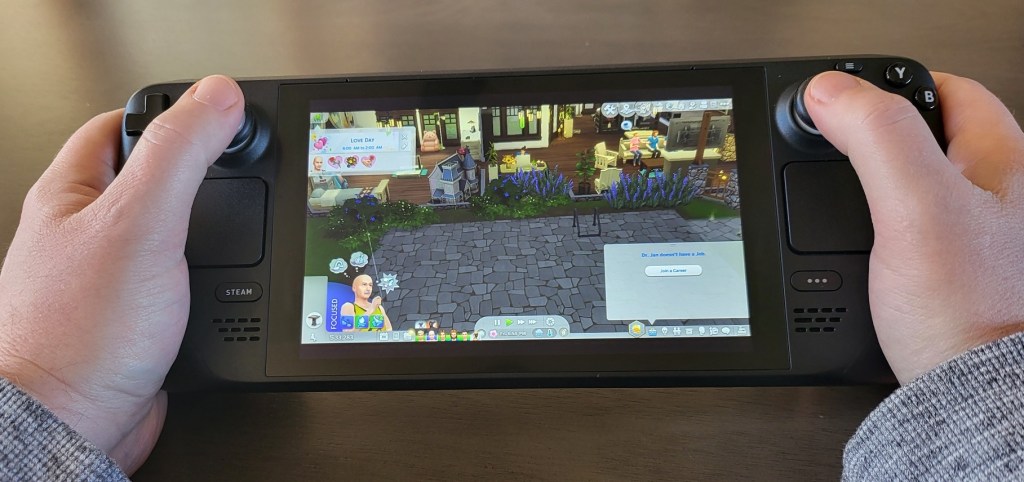
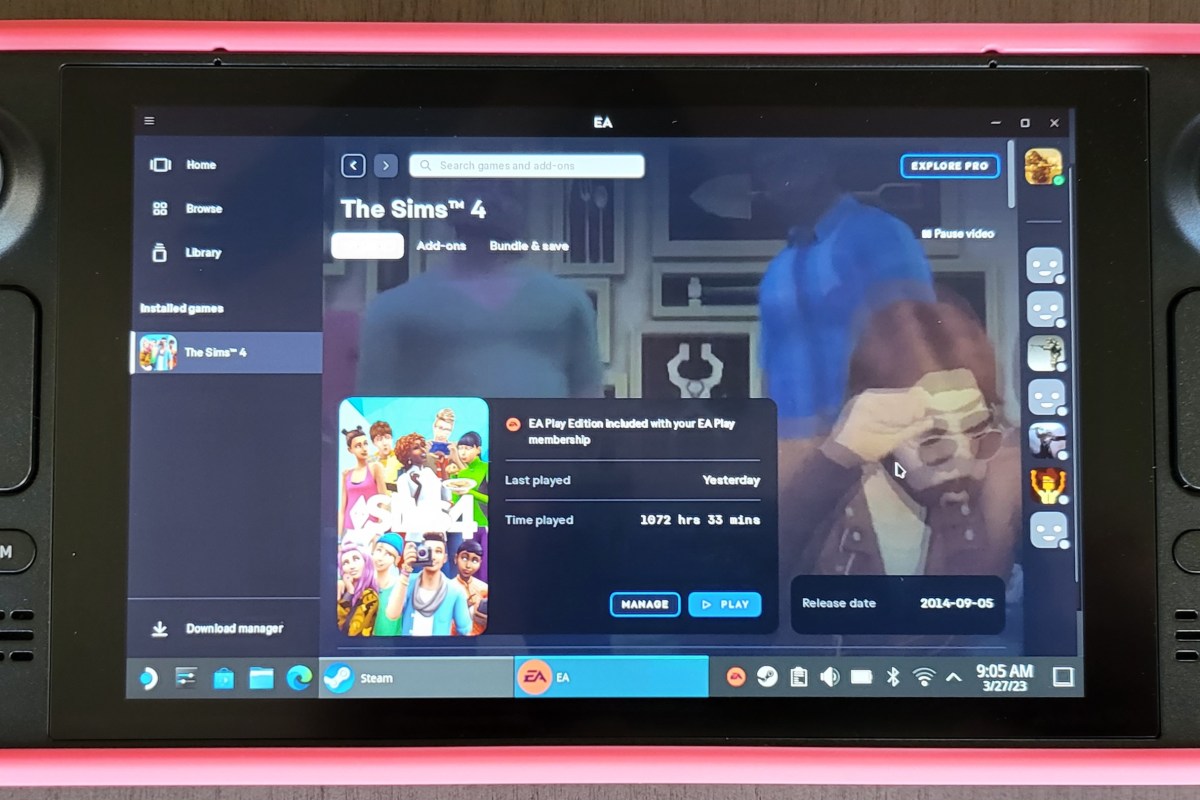
My partner wanted to run The SIMS 4 on her Steam Deck. She had purchased the expansive game and most of the add-ons from the EA store well before the Steam Deck ever existed. The SIMS 4 and its DLC packages are more expensive than the Steam Deck itself. Purchasing all of it again from the Steam store was not an option for us. Getting the game to run from the EA Desktop launcher involved following several complicated videos and written tutorials and multiple attempts.

The project was extensive and required knowledge beyond the average computer user’s. I personally enjoyed the process but many people may find it frustrating. There are plenty of online guides available and I like to feel that I have a good idea of what I’m doing. However, anytime you enter SUDO level BASH commands that you don’t fully understand, you are accepting risk to your system and to the identities registered on it.

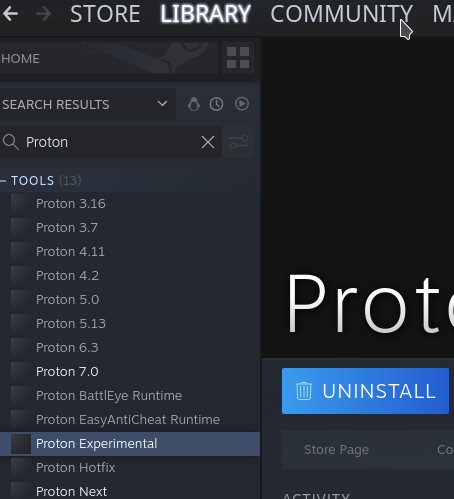
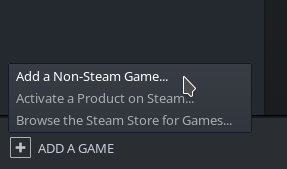
The handheld is marketed as a gaming PC, not a Steam console. Yet, stepping outside of the curated experience provided by Steam is often met with a steep learning curve. The built-in Proton solution for playing Windows games on Linux works well, once you get to know the ins and outs. For example; learning to create shortcuts to launchers rather than directly to games was a trial and error adventure, all by itself.

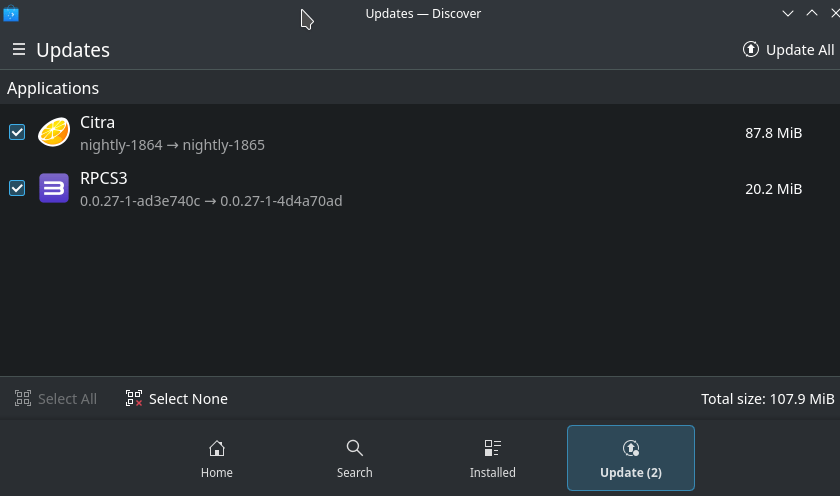
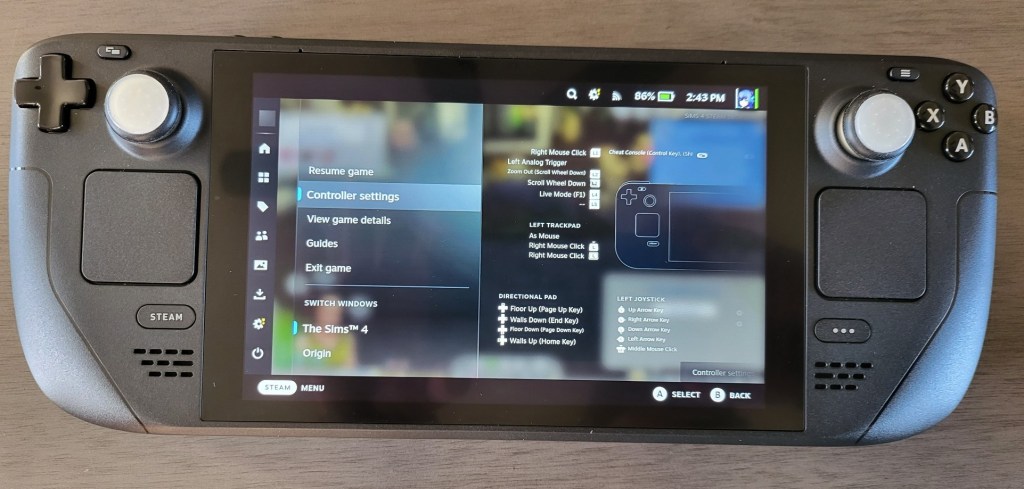
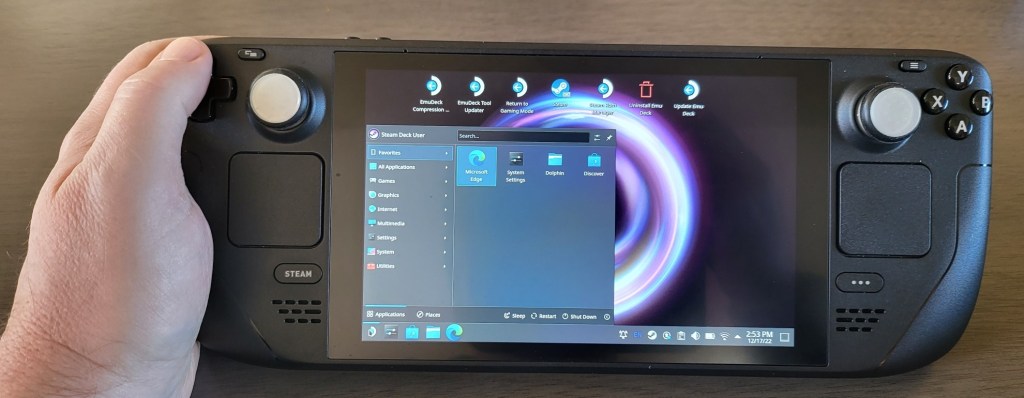
The operating system is dual sided, not unlike Windows 8’s ill-received desktop and tablet modes. The “Game Mode” boots into the Steam store’s Big Picture mode. It looks and works like a console for the most part. The desktop mode of the Steam Deck gives you full access to the Linux operating system and this is where you’ll do most of the work to get the non-steam store software working. Adding Office software, a Remote Desktop solution, or other non-gaming software is also an option on the desktop side of the system.

Desktop Mode is more complicated than the default Game mode.

Installation difficulties aside, The SIMS 4 plays really well. The controls are better than those on the Xbox edition of them game. The dual thumbtack and dual touchpad design is simply genius. I’ve had great experiences with other “un-supported” games including emulators for the Xbox, Playstation, Nintendo, and Sega consoles. It seems that low settings, and 30 FPS is the average for intensely graphical games. Older titles and those with casual hardware requirements can hit 60 FPS.

There is still plenty of room for Valve to improve the design. The unit can get very warm during extended play sessions. The fans are loud, yes even the new one, and the battery life is short. As I alluded to before, the software’s learning curve can be challenging at times. The device seems to fragile and complicated for young children to enjoy unsupervised.

Those who like to tinker with technology and gaming, will almost certainly enjoy owning one. It runs standard PC hardware which means that it can be customized to no end. Everything from parts replacement to swapping out the operating system is possible. The usual fair of custom skins, cases, docks, and other accessories is available online. If you’re in the market for a portable gaming experience, the Steam Deck offers access to more games than other handheld systems and costs less than most gaming laptops. If you can tolerate the learning curve it makes a great alternative.

NVIDIA Releases HOTFIX Driver to Correct Call of Duty Modern Warfare 2 Woes

The newest entry in the Call of Duty franchise has proven to be a hit. The single player campaign features almost photo-realistic graphics and a compelling storyline that keeps you on-edge until the end. The multi-player offerings are on-par with the best of the best. Tight controls, skills-based matchmaking, and new gaming modes will keep you coming back for more.

Like many new games at launch, not everything has come up roses. PC players using NVIDIA GPU’s have experienced a wide range of problems from screen flickering to the game completely crashing. The newest GeForce driver (526.47) did not fix things, it made them worse. Advice from both NVIDIA and Activision has been to roll-back to or re-install older driver versions.

NVIDIA has released a HOTFIX driver to address the issues. HOTFIX drivers are not automatically downloaded. If you want to try the new driver. You will need to download it from this NVIDIA link and manually install it yourself. The installation is straight forward, download the file and double click to start the installation. I advise that you reboot when it is complete, even if you are not prompted to.

I’ve been playing with the new driver all day. The dark artifacts, white flickering, and crashes have stopped in both the campaign mode and multi-player.

APEX Legends Mobile Nailed It

Like a lot of people, I picked up APEX Legends after playing the Titanfall games. Besides the super shooting mechanics that I was already attuned to, the game had an innovative revive and respawn mechanism that lowered the bar of entry into the Battle Royal genre.

The original APEX Legends game features fantastic performance on the PC, Xbox, and Playstation. It’s free to play. Good luck trying not to drop cash to unlock characters, skins, and the like. The mobile edition is much the same in regards to cost.  Free to play, but you’ll be pushed to purchase a Battle Pass and other unlocks. You can earn in-game curencey just from playing, but it is pretty slow going.

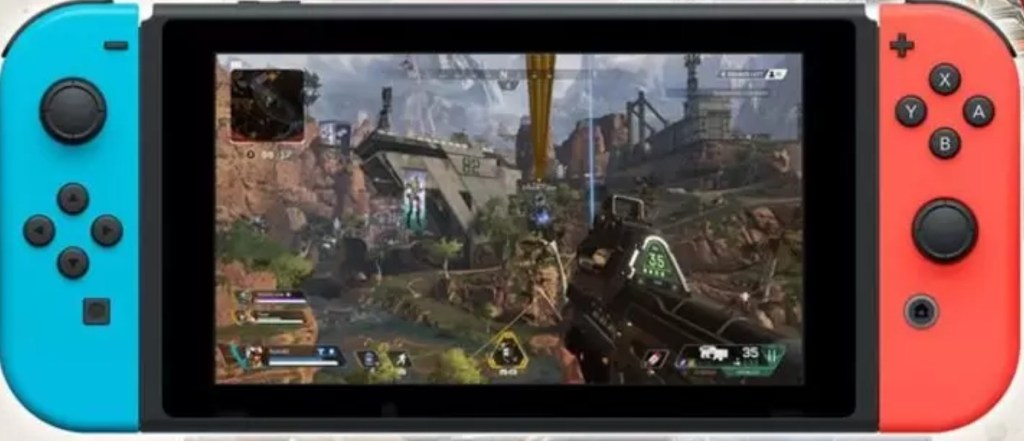
The Switch version of the game plays well with some stipulations. To make the full port of the original game work on the handheld’s hardware required sacrifices. To start with, the frame rate is capped at 30. In addition the resolution, processing effects, and textures are all low enough to look noticeably degraded.

The Nintendo Switch Plays the original game.

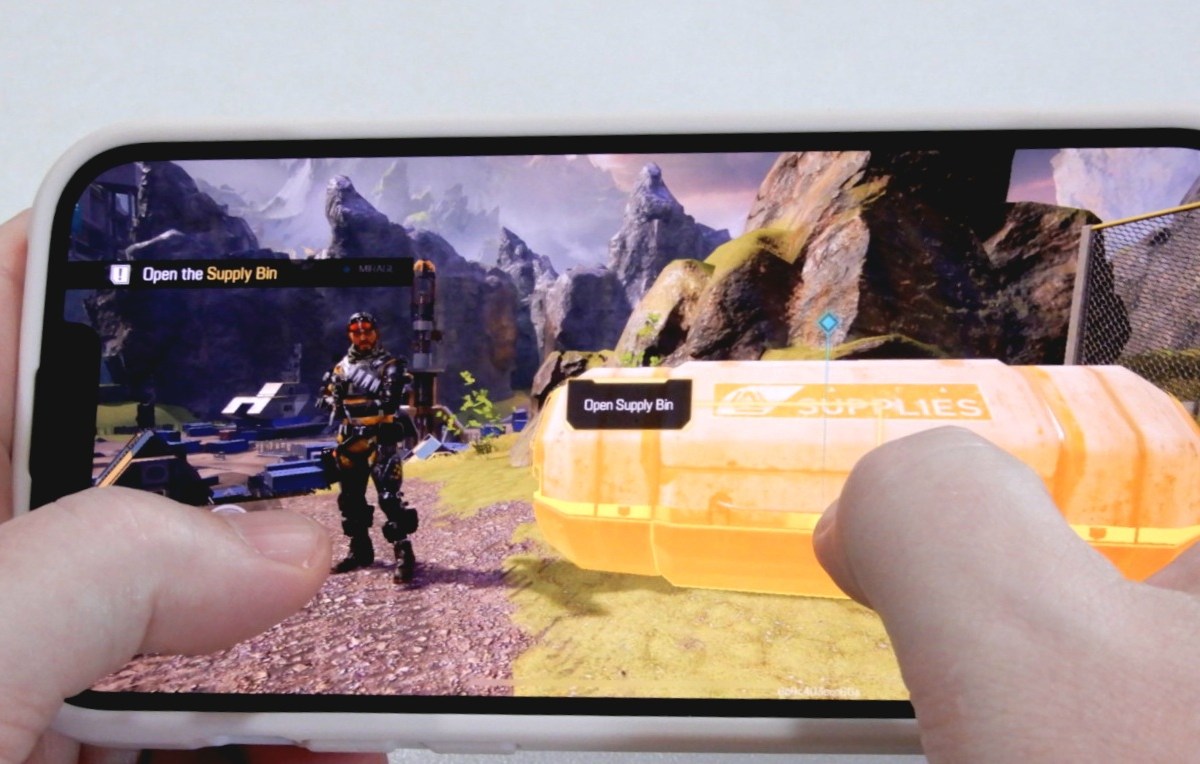
APEX Legends Mobile was built for mobile devices from the ground up. It features graphics that are some of the best I have seen in any AAA mobile title. The developers have included options to allow players to tune the game to favor looks, or performance.

On Android devices of any kind, the frame rate is capped at 60 FPS. Rumor has it this is a temporary situation and that an update will raise the limit to match the 90 FPS enjoyed by some Apple devices. Other than that, the Apple and Android versions are the same.

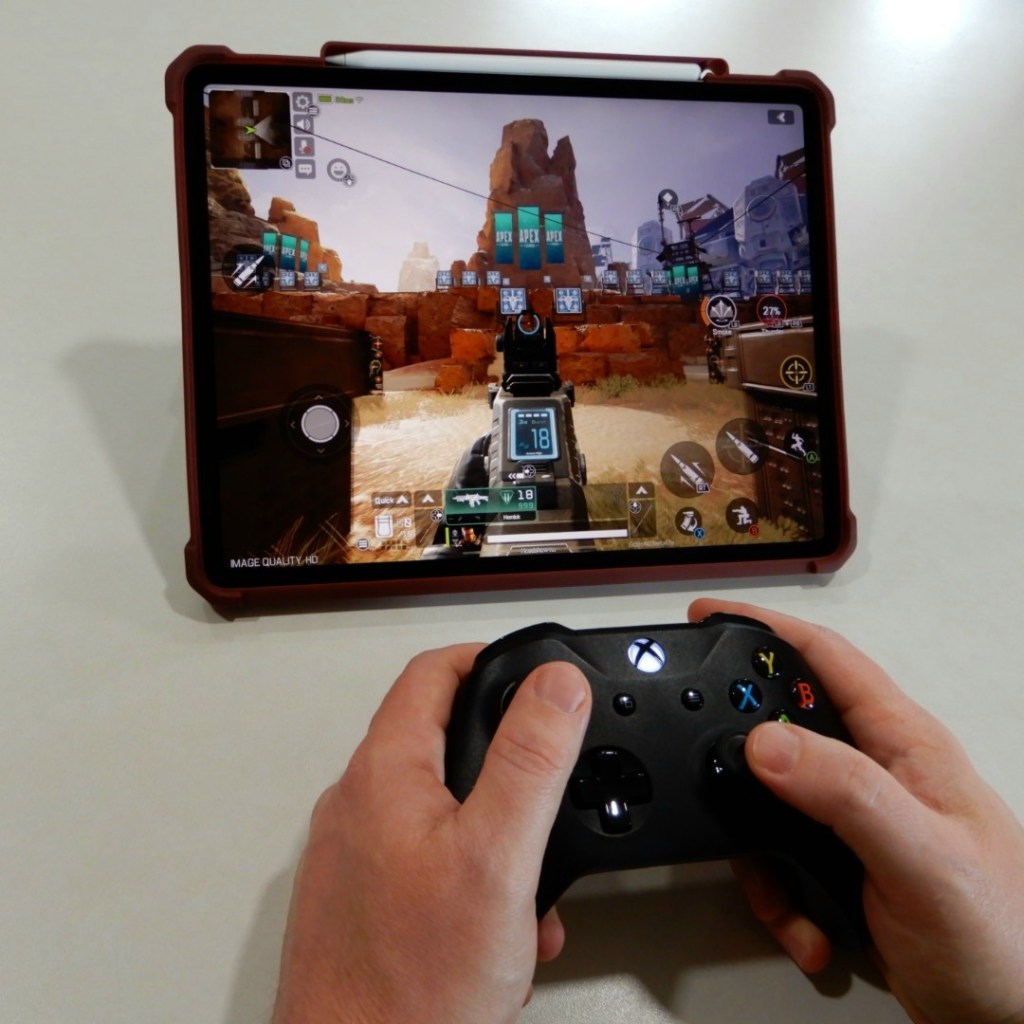
Speaking of Apple devices, playing on the 12.9″ iPad Pro with the graphics cranked to their max is an epic experience. On the big screen with an Xbox controller in my hand and my noise cancelling earbuds in, the immersion was comparable to a home system.

The 12.9″ iPad Pro experience could replace a console.

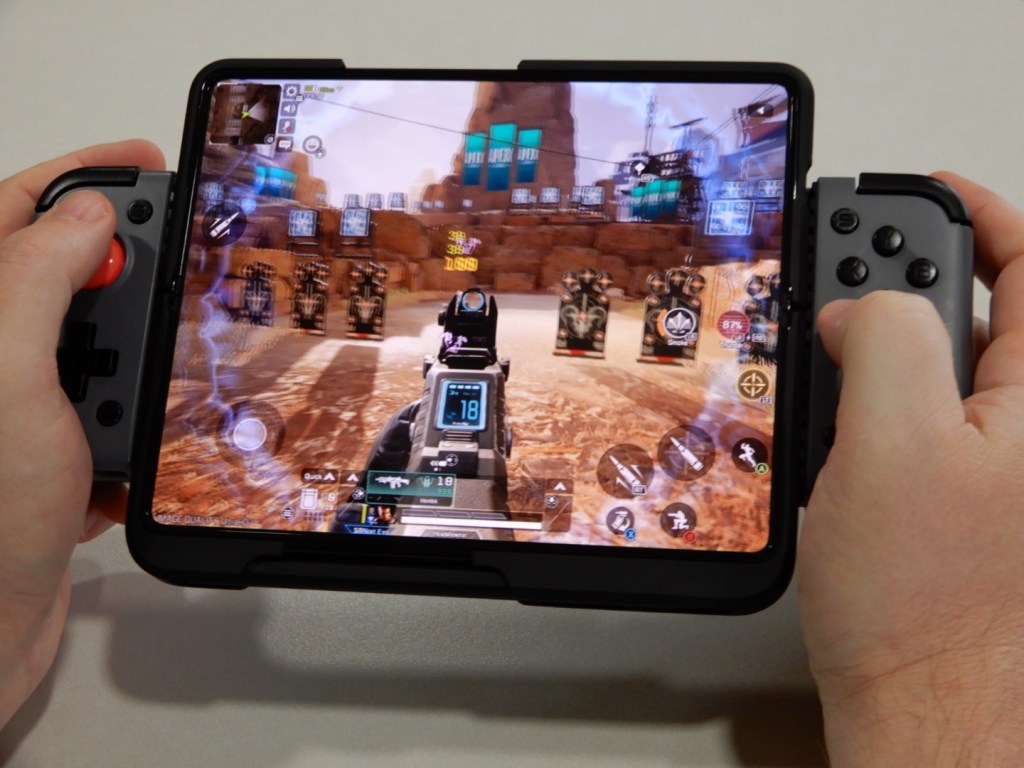
APEX Legends Mobile on the Galaxy Fold 3 combined with the Gamesir X2 Bluetooth controller, and ANC earbuds is flat-out the best mobile gaming experience I’ve had to-date. The game and controller are also fantastic when paired with the iPhone 13 Pro Max. For me, the Fold’s screen size edges out the iPhone’s faster refresh rate.

APEX Legends Mobile is Phenominal on Android and Apple.

In the Battle Royal mode called “Prime Time” Teams of three Legends choose a landing spot on the classic World’s Edge map and scavenge for the all important first weapon. The trios continue killing and looting everything in sight until the map’s force feild contracts and drives the groups closer together. Each turn of the screw ratchets up the frequency and ferocity of the skirmishes until only one team is left standing.

The mobile edition also features a Team Death Match mode that is not available on the consoles or PC. You can choose between base spawn or a random spawn point.  TDM

Third person views are new.

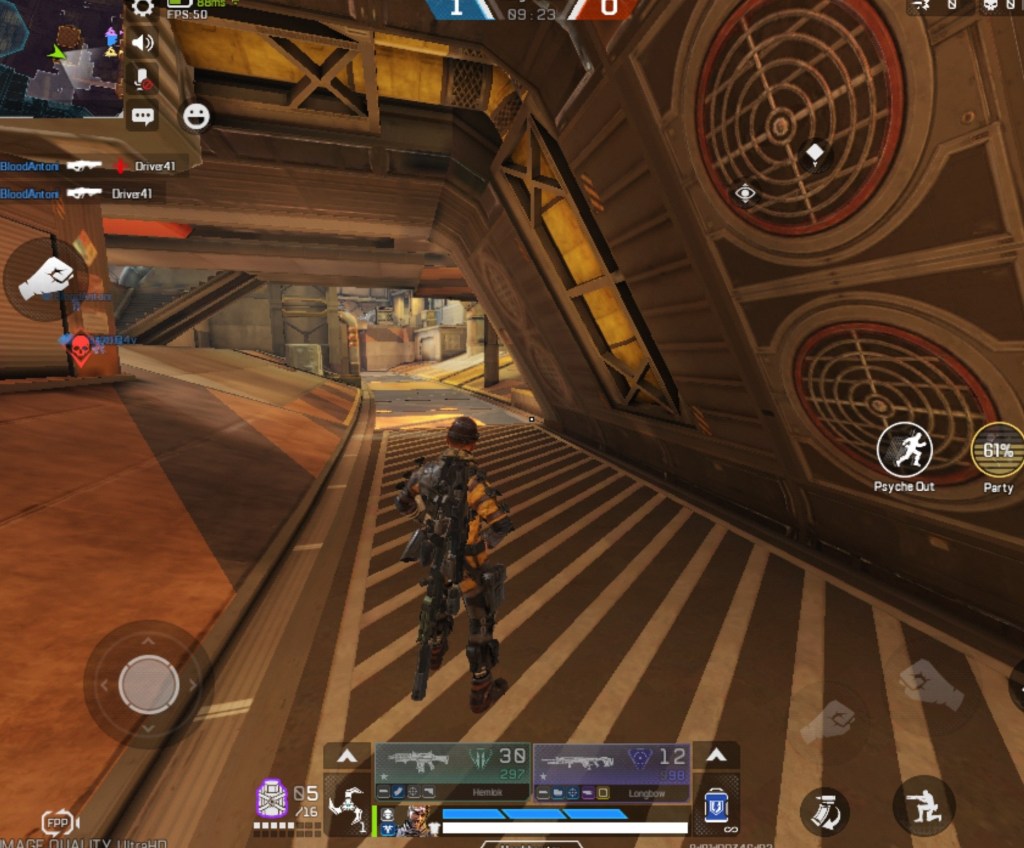
In a move I haven’t seen since the original CoD MW, a third person view is supported in all modes. Matchmaking is based on the view. Selecting TPP (third person player) puts you in a TPP queue, likewise for FPP.

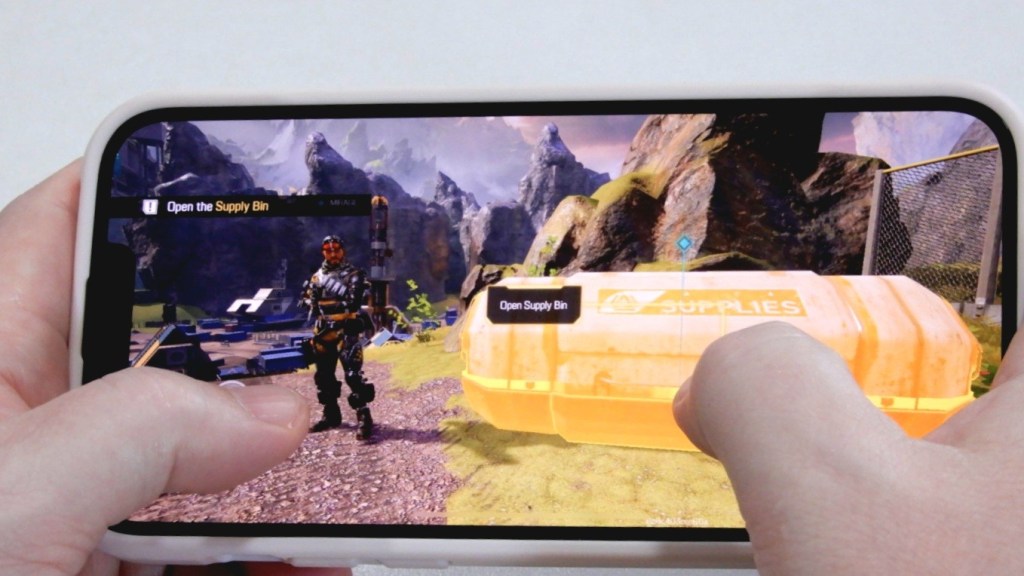
I assumed that the touch-screen controls would be atrocious, but was happily surprised to find they are serviceable. Like other popular mobile shooters, the numerous control icons are confusing at first. I suggest taking advantage of the customization option to maximize your screen realestate.

The game really shines when you use a controller. Not all controllers are supported at this point. I was able to play with my Xbox and Gamesir X2 Bluetooth controller. I’ve read that the Razer Kishi also works. The controller only functions in-game. You still need to use the touchscreen for menus.

Trouble landing a GPU? Go fish for a CPU instead.

My main gaming rig, the “Elder-Wand,” has been struggling to maintain 120 FPS at 4K in several triple A titles as of late. I’ve been holding off on upgrades while waiting for the GPU mess to sort itself out. After more than a year of waiting, I’ve decided to change tactics.

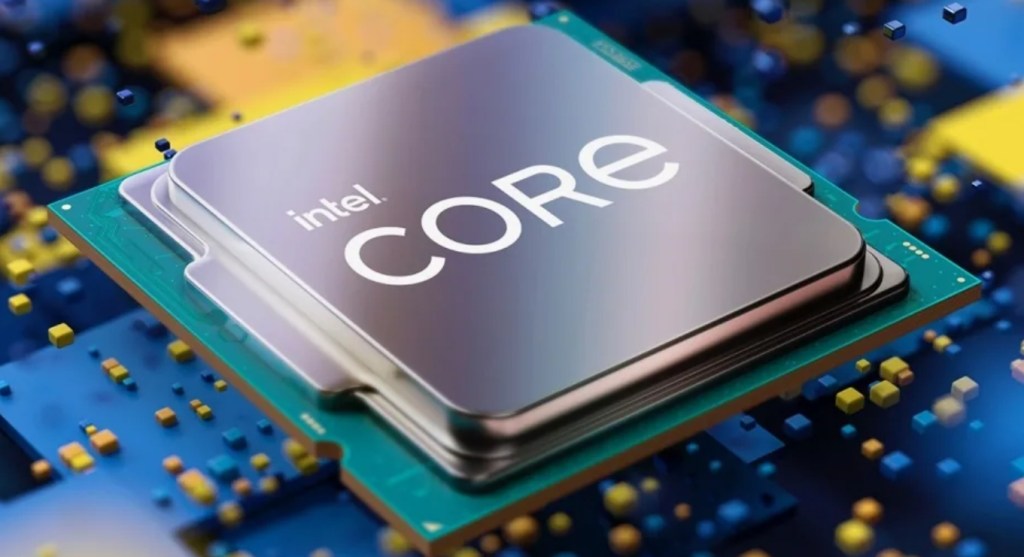
Running the benchmark utilities built into games like Tomb Raider, Gears of War, and Borderlands revealed interesting  data. The Kaby Lake CPU and 270Z chipset were  bigger bottlenecks than my 2080 Ti. Time to overhaul the old girl. After consideration and research, I decided to go with an Alder Lake i-7 and a few accessories.

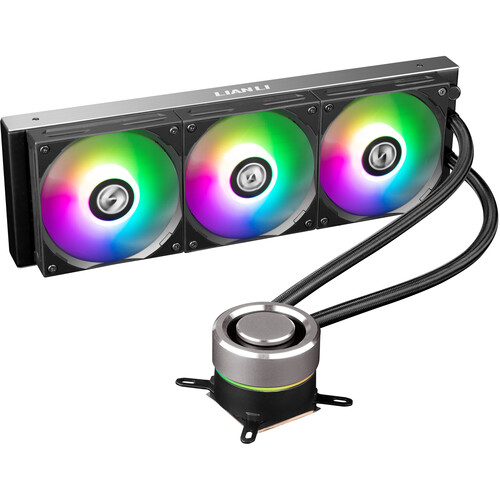
While choosing the motherboard, I opted for keeping my DDR4 memory and existing nVME storage. Instead of upgrading those components, I would upgrade the cooling system to better support overclocking the graphics card. I felt like it was the best strategy to obtain the most performance I could out of the system. I chose a Lian Li Galahad 360 AIO CPU cooler and their UNI Fan SL case fans.

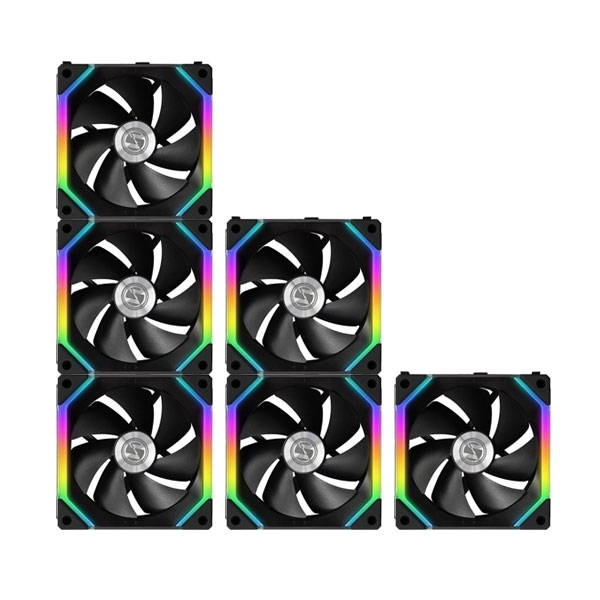
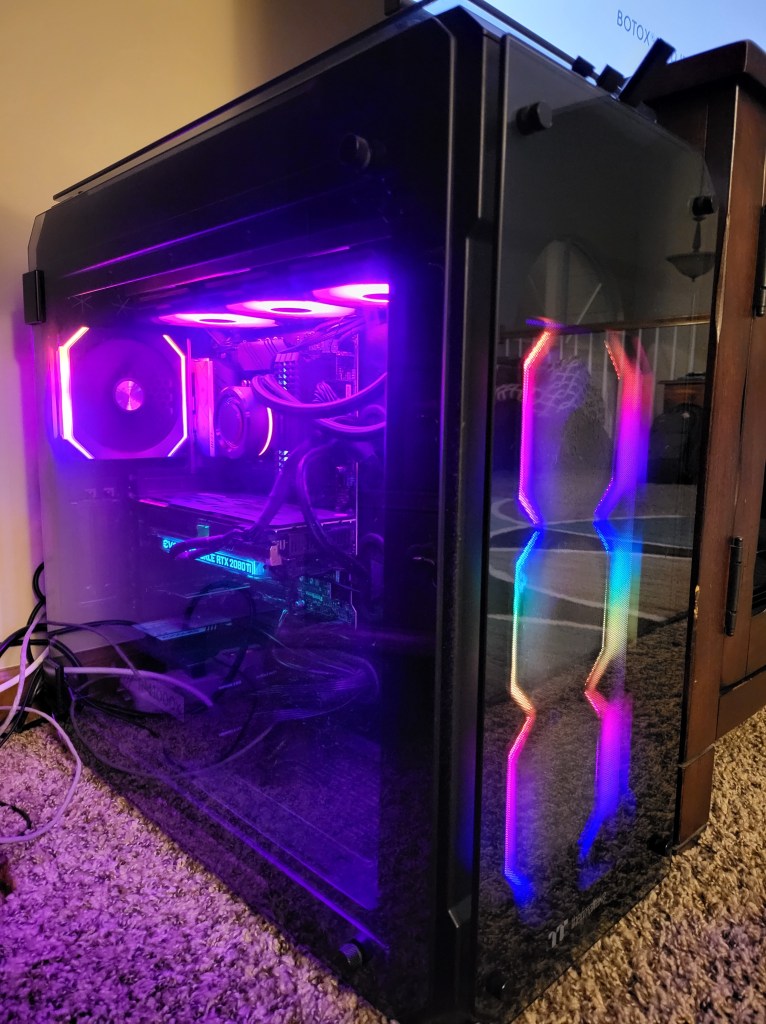
One major reason for choosing the Lian Li equipment was the need to find an in-stock CPU cooler that fits the new Alder Lake 1700 socket. The other is their innovative modular linking solution. UNI fans lock together and form a single controllable stack both in terms of the blade/motor control and lighting. Each stack of fans takes a single set of connectors (PMW/RGB) on the motherboard. The effect is striking and looks fantastic sitting next to the home theatre set up. My favorite pre-programmed pattern is the dripping rainbow. It reminds me of the Lava lamp from my childhood bedroom.

The installation of the new equipment was pretty straightforward. I was caught off-gard by how much pressure you have to apply to the CPU retainer’s handle on the new socket to lock it in place. I made it through the always nerve-wracking first boot with no issues. Windows 10 detected the new hardware on its own.

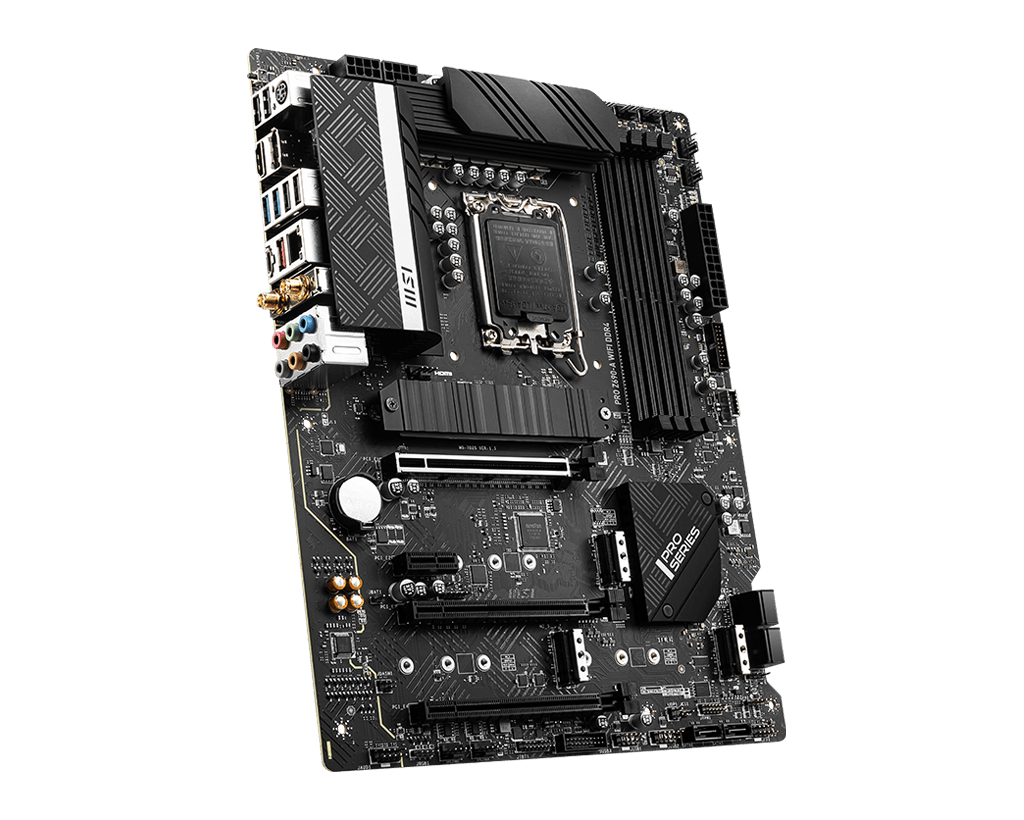
The motherboard I replaced was an MSI. I had stuck with the brand when I picked the PRO Z690-A WIFI DDR4. I had hopes of having an easier time with the software. It paid off! The MSI Center detected the new model, and Live Update took care of the rest. The Lian Li cooling system said it was compatible with MSI’s control software, and it is. Once I installed LConnect, MSI Center offerrered to control the cooling and lighting. I agreed.

So now the moment of truth had come. I had spent around $1000.00 and an entire day off on this little upgrade experiment. Was it worth it? The first thing I ran was Destiny 2. I went into the settings and pushed everything to the max. Before the upgrade, I averaged 😯 FPS; now, I was running at 100. I ended the game and used my GPU’s control app to boost the power, cooling, and clock cycles up by about 30%.

The AIO block removes most of the CPU exhaust heat from the case’s interior. The inside of the case is much cooler and hovers at 35°. The extra capacity allows me to overclock as long as I watch my telemetry. It took a while to get everything tuned, but eventually, I got the FPS average up to the 120 goal. Fantastic results if you ask me.

Fix Nvidia RTX 30 Series HDMI HD Audio Drop Out

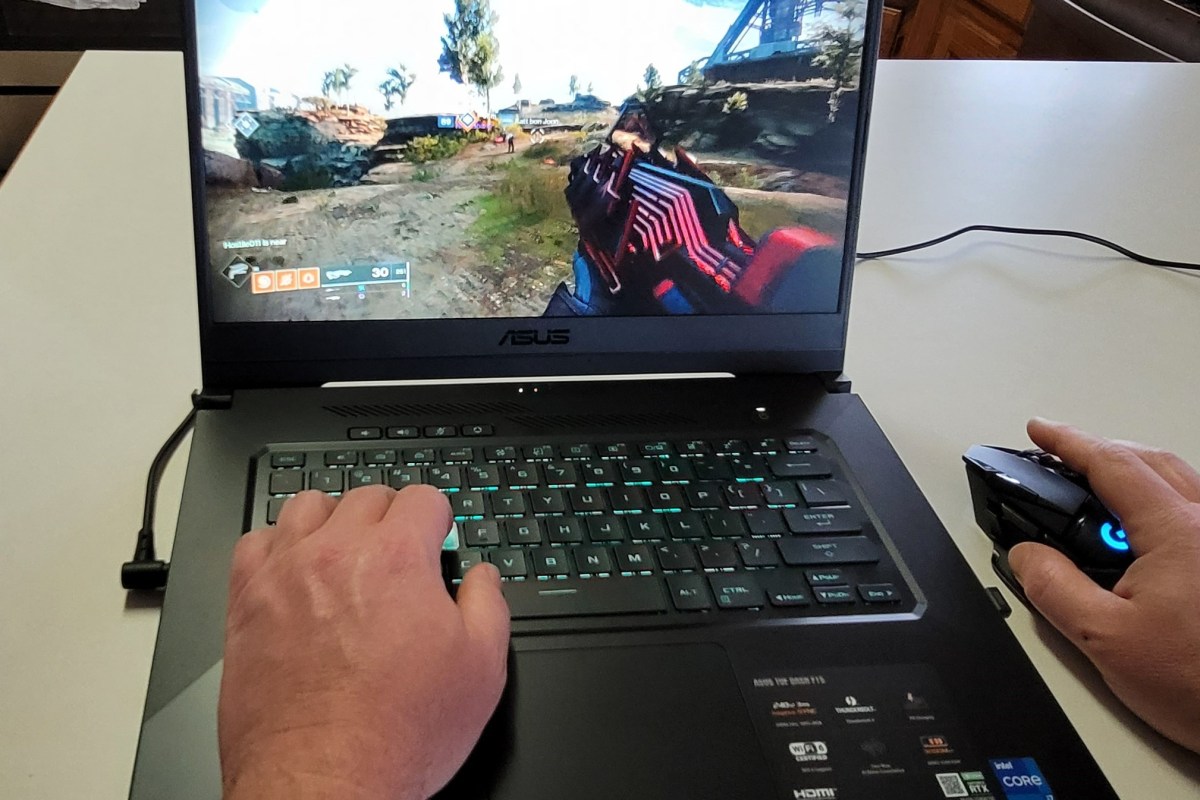
I’ve written several articles about my recent foray into laptop gaming. I purchased an ASUS TUF gaming laptop, Logitech Keyboard and Mouse, and Logitech Headphones to use with my big screen in the living room. Everything has been working well until a week or so ago.

I noticed that when my laptop was connected to my home theatre system via the HDMI port, audio would drop out for 1 or 2 seconds every minute or so. It happened in games, movies, YouTube, and everything else. It was slowly driving me insane.

I tried every possible setting and trick I knew of to fix it. I swapped out cables and changed the Nvidia HD Audio driver to the standard Windows driver, I adjusted from various versions of surround sound to stereo. I even switched to the TV’s internal speakers. Nothing worked. I strongly suspected it was a driver problem because my headset and laptop speakers worked fine. The issue only occurred when using the HDMI port but video through it was great.

Today I installed the previous Nvidia driver package (466.27) and the problem is fixed. Once I corrected the problem and understood the cause, I was able to find a thread on Nvidia’s forum where other people are having the same issue with the 466.47 driver. That forum is at Stuttering sound driver 466.47 | NVIDIA GeForce Forums. You can download the 466.27 version of Nvidia’s driver from NVIDIA DRIVERS GeForce Game Ready Driver WHQL, just run the file and it will remove the new version automatically.

Oculus Air Link Setup on Unify Networks

Until now, wirelessly streaming games to the Oculus Quest 2 has been limited to using development drivers in combination with specialized software like Virtual Desktop. I’ve written step by step guide to getting that option working here. Now, Facebook has enabled Oculus Air Link which allows streaming of Oculus Store apps too. It was a little tricky to get working on my network so I decided to share what I’ve learned.

Your desktop system must be connected to your network with at least 1Gbps. Your desktop system needs to have at least one USB-C port to connect your Quest with. I’ve heard that a USB-3 port with an adapter works but have not tried it. Your wireless network must support AC or AX (Wi-Fi 5 or Wi-Fi 6) and be capable of sustaining 800 Mbps in the area you intend on playing in. You must have at least WPA2 security enabled on the wireless network. If you don’t meet these requirements you should not proceed.

Assuming your gear all checks out, you’ll need to install the Oculus app on your desktop if you haven’t already. Download it from Setup Your Oculus: Quest, Quest 2, Link, Rift S & Rift | Oculus once you’ve downloaded and installed the software, complete the basic setup by connecting your Quest to your PC via the USB-C cable that came with it and following the wizard.

Your Quest will need to have at least software version 28 installed. In the Quest, go to Settings then About. There’s not much you can do to get the new version if you don’t already have it. Facebook pushes it out slowly like an Android mobile update. You just have to wait for it.

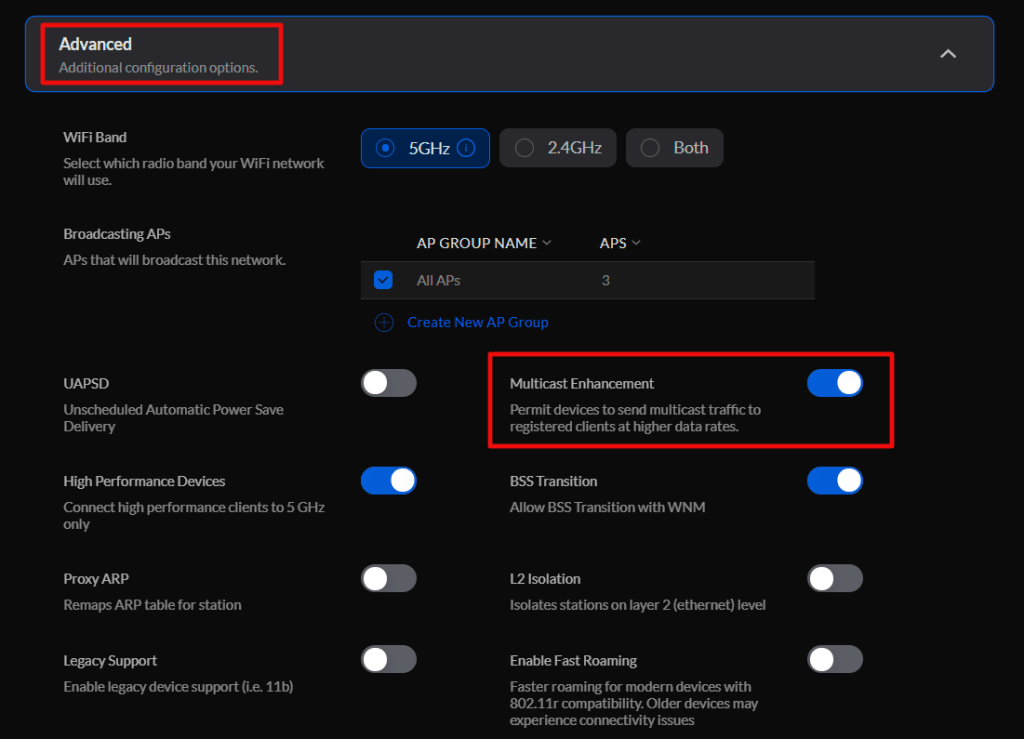
If your network is a mesh topology, the access points can not be wirelessly uplinked. Each one needs to be cabled. Air link is a multicast protocol, your network will need to have Multicast DNS, Multicast IGMP, and IGMP Snooping enabled. These settings are in different places depending on the brand of network gear you are using.

On Unify networks, enable Multicast Enhancement in the advanced settings for the WLAN you will connect your headset to.

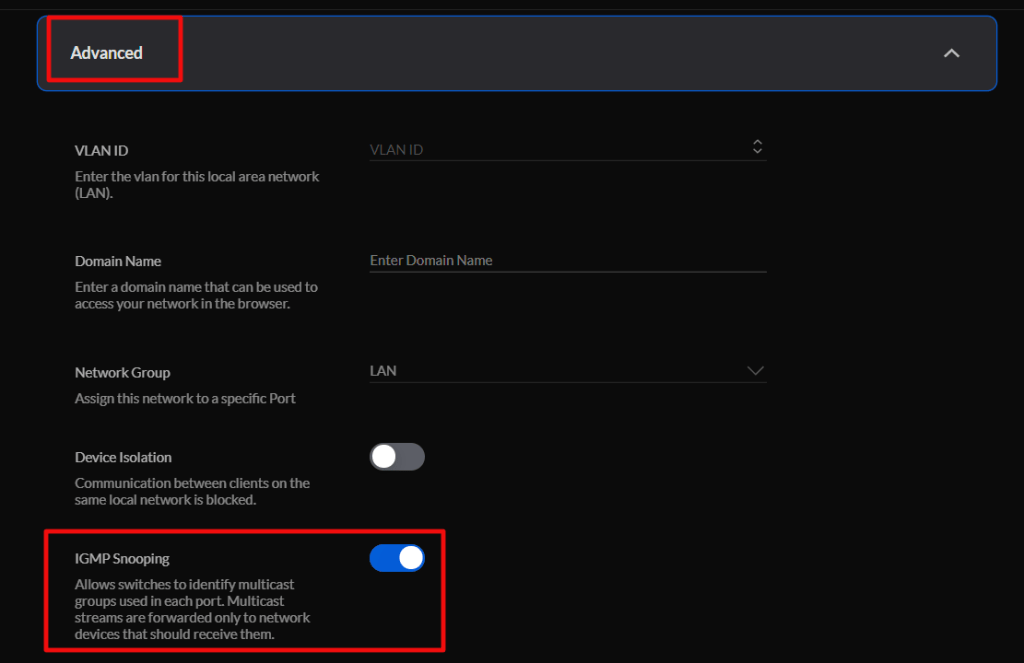
Enable IGMP Snooping in the advanced settings for the network your WLAN is connected to.

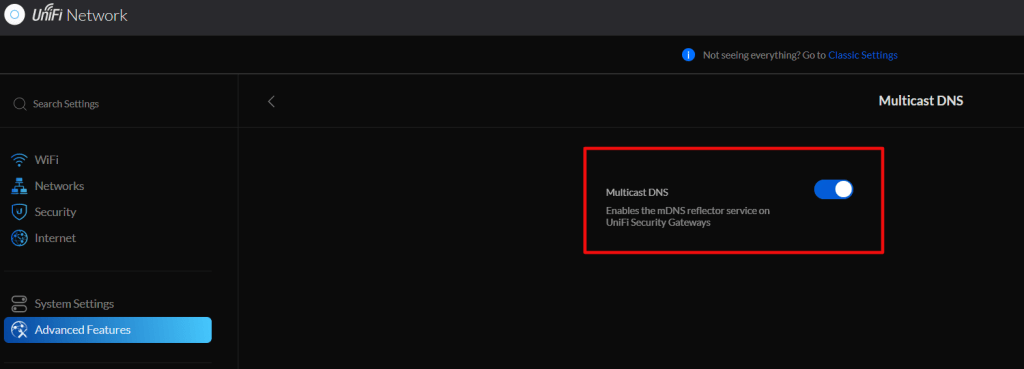
Finally, turn on Multicast DNS in the Advanced Gateway settings under the Advanced Features menu.

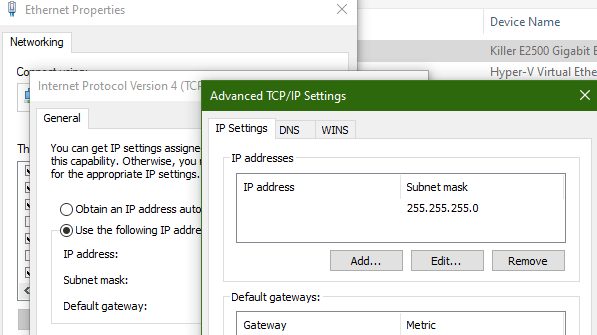
The PC running the Oculus desktop software can not have more than one IP address assigned to the network adapter that is on the same network as the Quest. This causes the Launch button to be greyed out, the Quest will pair but multicast will not function properly. Check the advanced IP settings for your network card and ensure that only one address is listed there.

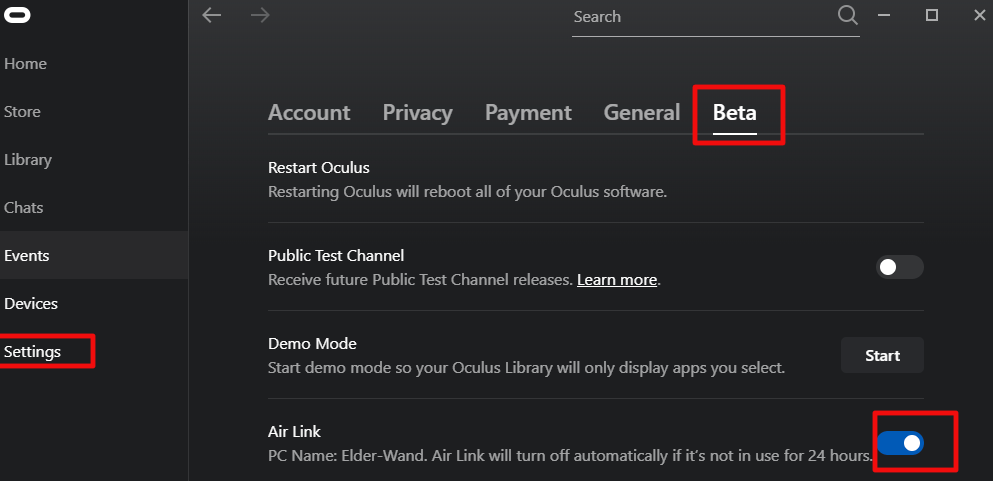
Now enable the Air Link option in the Oculus desktop software under Settings -> Beta.

All that is left is to put on your headset and go to the Settings menu. Then go to Experimental Features and turn on the slider for Air Link. Now go to the Quick Action menu in Settings and select the Air Link button at the far right. The first time you run Air Link you will need to pair your headset with your computer. Then tap the Launch button. After a few moments the Oculus Desktop Home should load and work just like it does from a link cable or Rift.

Xbox Game Pass Ultimate Cloud Streaming on PC

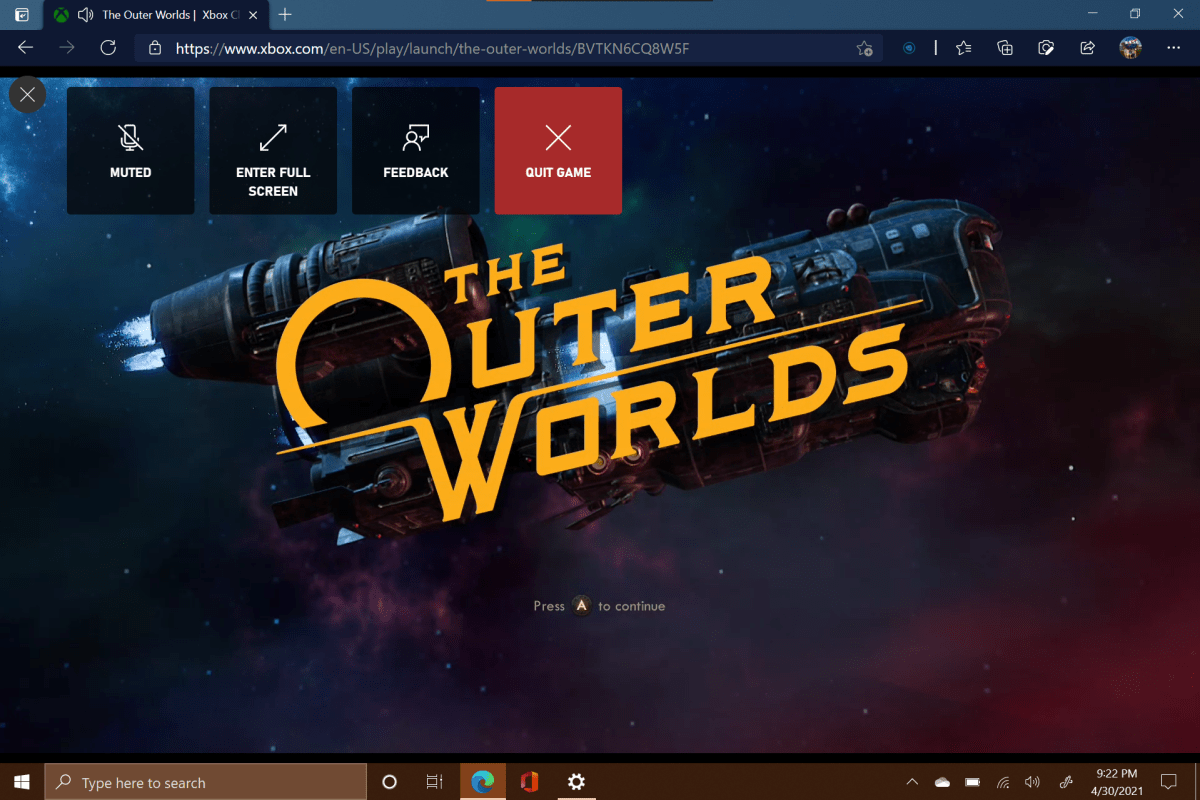
I jumped on the Xbox Game Pass Ultimate bandwagon at the very beginning. The service started out strong and has only gotten stronger. When they added game streaming to Android devices I knew that I had picked a winner. I had just started playing The Outer Worlds on my Xbox and the ability to play the same game with synchronized saves from my phone was fantastic. My Xbox and TV are in demand from my family so being able to play on something else was a big advantage.

Like the Switch, my phone’s screen could be a little small for a game that was designed to play on a TV or PC screen. The text was difficult to read and distant objects were a challenge to make out. It wasn’t a big enough problem to keep me from playing. I’ve played more of The Outer Worlds on my phone than on my Xbox. I don’t have a current Android tablet and wouldn’t purchase one just for game streaming. Instead, I gazed longingly at my Surface Go 2 and wondered how long it would be before I could use the service with it. I had already been streaming Steam games to it so I knew it would be perfect for Xbox games too.

It took a lot longer than I expected, but I got the invitation to participate in the cloud stream to PC beta a few days ago and have been putting to use. Like I thought, it is difficult to imagine a more perfect system for this experience than the Surface Go 2. It’s screen size, Wi-Fi 6, excellent speakers, and most of all it’s kick stand, make it a fabulous game streaming platform. Just pair an Xbox controller and you’re ready to get your game on anywhere there’s a good Wi-Fi signal.

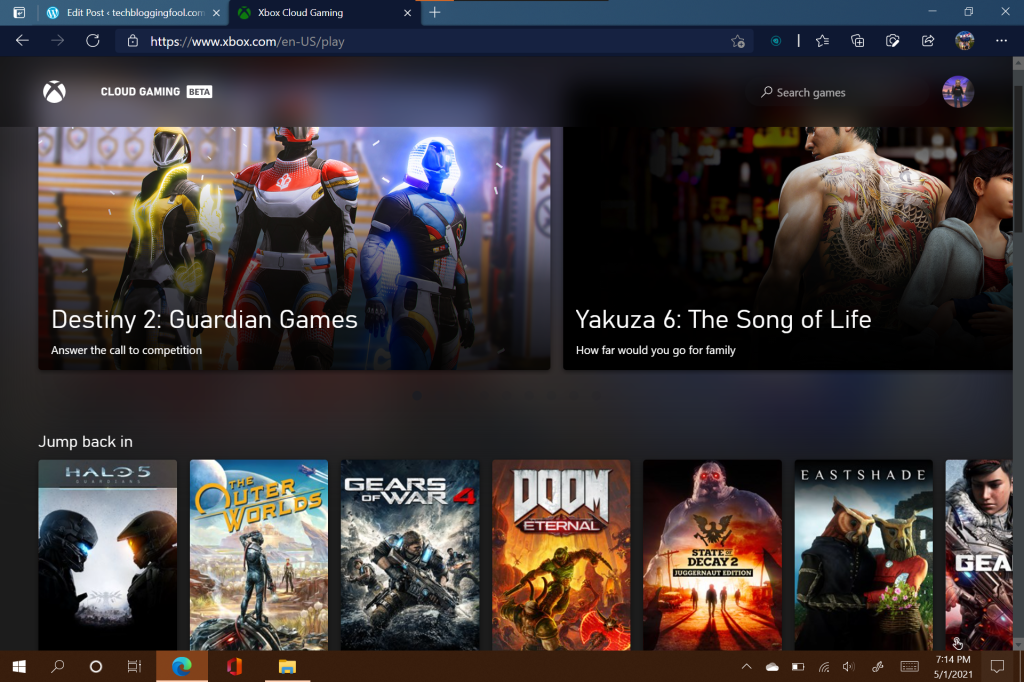
As for the service, it does not disappoint. It runs from any HTML5 web browser. There’s no software to install, or configure, just go to https://xbox.com/play and sign in with your Xbox account. As with the Android streaming option, you’ll need fast Wi-Fi or 5G Internet and a Bluetooth Xbox controller. There is not currently any support for keyboard and mouse controls. A list of the cloud stream games will be presented, click the one you want to play. That’s it.

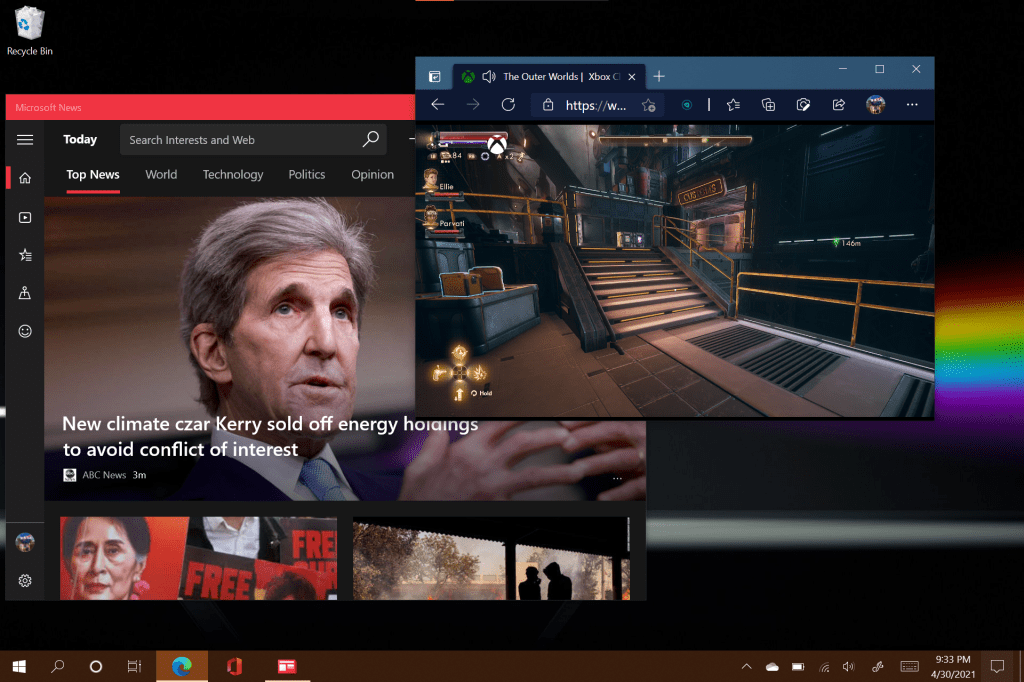
I picked up The Outer Worlds right where I had left off. It looked great, I was surprised that the service adapted to full screen with no artifacts or other visual issues. It was awesome in full screen, but I really enjoyed being able to drop down into a window once in a while so that I could keep an eye on my email.

Playing in a window can be useful.

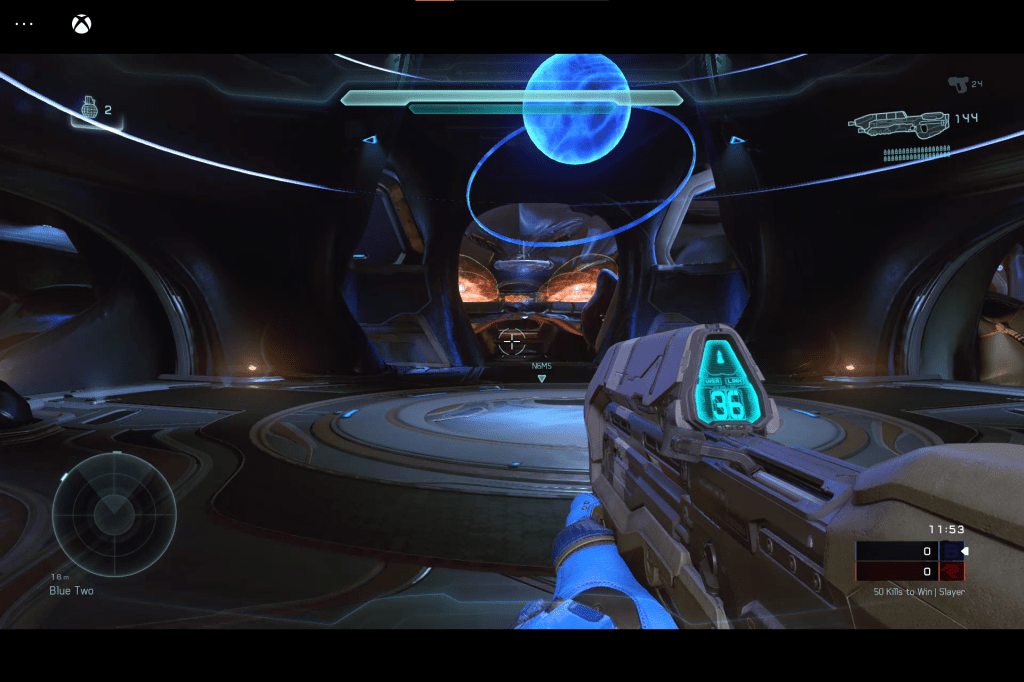
Game play was smooth. There’s no counter, but I would guess it is between thirty and sixty FPS, depending on the game and scene. There is a barley detectable input lag even on a 1.2 Gigabit connection with less than a twenty millisecond ping. It is difficult to put into words. The lag doesn’t inhibit solo game play, but you do have to adapt to it. I am able to play Doom Eternal with almost zero issues. When I try Halo PvP matches I get slaughtered even though I usually come in near the top of the leaderboard on my actual Xbox. I feel like if I practiced enough in the streaming edition that I could make it to the middle, but I doubt that I’ll ever be winning any matches that way.

The input lag is hard to adjust for in FPS multiplayer matches.

Are streaming services the future of all gaming? I think the industry really wants them to be. Who wouldn’t want a completely pirate proof way to distribute their work? From what I know of gamers, games, and network technology, I think streaming will eventually capture a large portion of the casual market, but it will struggle to overtake local media for competitive players. Its a nice option to have when your main console or system is busy though.

Couch Gaming Perfection with the Logitech Lightspeed G915TKL Keyboard and G502 Mouse

Recently, I purchased a gaming laptop with the intention of connecting it to my home theatre and answering the Call of Duty from my recliner. The laptop did exactly what I wanted, but it didn’t take long to learn I had overlooked something. I planned on running an extra Bluetooth keyboard and mouse that I had lying around, but they just didn’t cut it. Bluetooth dropped, there was too much lag, and they just didn’t feel like gaming equipment.

I tried using a wired keyboard and mouse, but that was also less than ideal. I had to use USB extension cables to reach, or I needed a really long HDMI cable. Either way, having a cable draped across the middle of my living room proved to be hazardous. My wife got tripped up one night and almost fell. Time to find a better solution.

I started researching wireless options for gaming. Most manufacturers have something to offer. Traditionally I’ve used Razer equipment with my gaming systems. Before I placed an order, I decided to go look around my local computer store. They had lots of options on display. I was surprised to discover that I preferred the look and feel of the Logitech gear over Razer this time. I picked up the ten keyless version of the G915 and the G502 mouse hoping that the TKL would give me enough space to use both on a lap desk.

Both devices use Logitech’s Lightspeed wireless technology. The company claims that it has less than one millisecond of lag. I don’t have the equipment to confirm or deny that at a technical level, but I can say there’s no noticeable lag of any kind. I’ve had zero issues with signal dropout and no missed clicks or keypresses. The only complaint I have about Lightspeed is that each piece of gear requires it’s own USB dongle. So if you are thinking about picking up a keyboard, headset, and mouse make sure that you have three free USB ports. You’ll also want to be sure to not loose the tiny receivers. Luckily each piece of equipment has onboard storage.

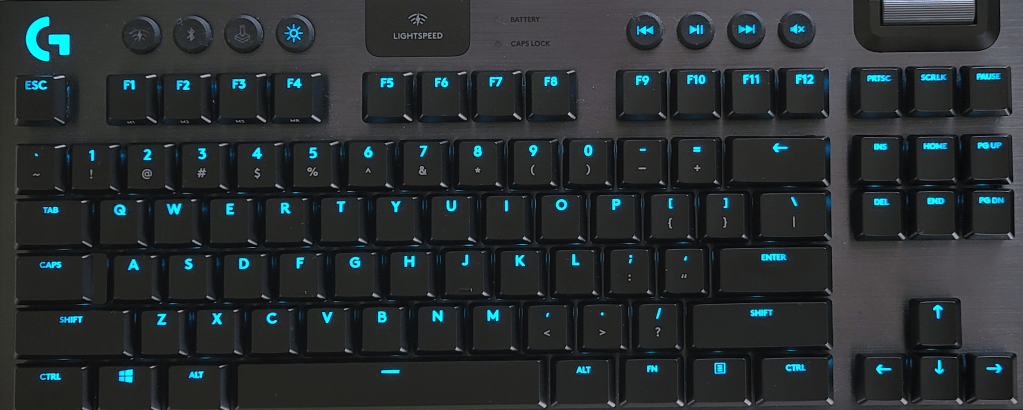
The G915TKL is 368 mm (15.2 in) wide, 150 mm (5.9 in) high, and 22 mm (0.9 in) thick. The chassis is aluminum and provides a flex free deck for the rigorous punishment gaming boards must endure. The keys are full RGB with several built-in patterns and effects. The software will also let you create schemes and some games provide their own. There are dedicated media control buttons and a clever volume control that is similar to a mouse’s scroll wheel. The volume control is extremely useful and more accessible than the one on my headset.

There are three choices of switch styles available: Tactile (brown), Linear (red), and clicky (cherry). You can also choose between carbon and white colors. I went with the tactile carbon combo. Normally I prefer a cherry switch, but I wanted to keep the sound down for use in the living room. The keys feel great and actuate about half way though their travel. They are spaced perfectly for my hands. The metal chassis is heavy enough for the keyboard to stay put and there are two levels of heights adjustment on the back edge. The TKL edition does not include a wrist rest, but my lap desk has a built-in one so this wasn’t an issue for me.

The batteries are rechargeable via micro USB and you can use both the keyboard and mouse while they are plugged in to your PC charging. The keyboard will last for around forty hours and the mouse for about 60, with the backlights on. You can use the keyboard and mouse with your Xbox or PlayStation on supported games. They both also support a secondary device connection over Bluetooth and can flip between them easily.

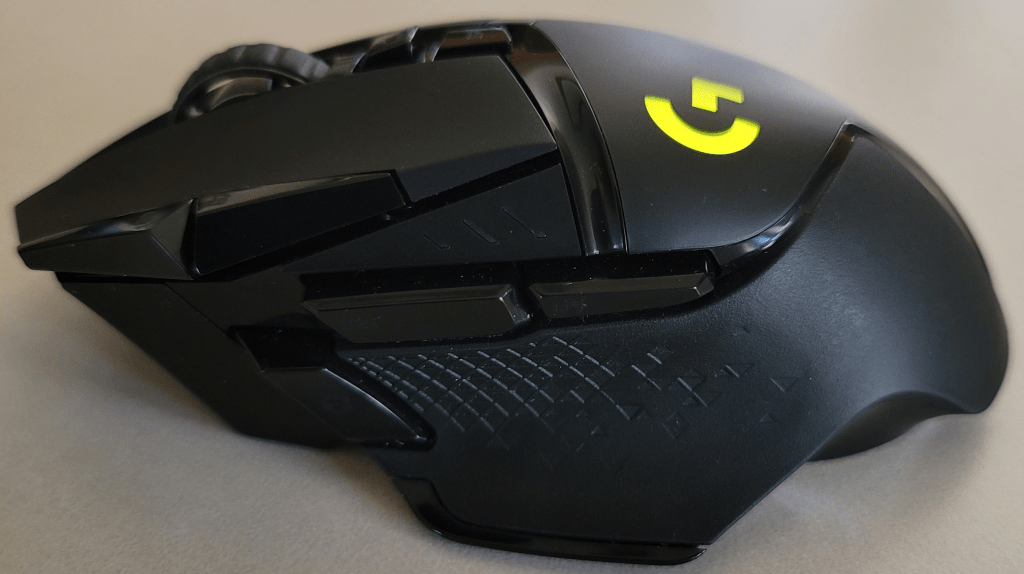
Speaking of the mouse, the G502 Lightspeed features user adjustable weights and a sensor that can track at 25,600 DPI. There’s a dedicated sniper button on the thumb rest that drops the sensitivity to a lower level while you keep it depressed. It also has Logitech’s famous scroll wheel that changes from click scroll to free scroll with the press of a button. If you have ever used an MX mouse, you know what I’m talking about.

The mouse is controlled by the same GHUB software as the keyboard, but requires it’s own USB chip. The RGB lighting is easy to manage. The eleven on-board buttons are fully customizable and support macros too. The mouse fits in my hand well with plenty of room for my fingers. The buttons are right where they should be and long enough that any size of hand should easily be able to find them. The mouse also supports wireless charging from an optional mouse pad. I don’t currently have the charge pad so I can’t comment on it.

Both the TKL keyboard and G502 mouse fit comfortably on my lap desk. I’m using a LapGear Home Office Pro that I picked up at BestBuy. It has an integrated mouse pad with a lip that keeps the mouse from falling off every time you move or need to get up. The mouse pad is a little small but if you crank up the sensitivity a little, it works well. It is really nice to be able to sit in my favorite chair and play all my favorite games. The Lightspeed tech works flawlessly from across my living room even with my non-Bluetooth friendly WAP sitting right next to it.

ASUS TUF DASH F15 an Underrated Nvidia 3070 RTX Gaming Laptop

I’ve have owned so many laptops that I’ve literally lost count. Some of those systems, like my Surface Book, are capable of playing games. However, none of them are, or were, dedicated game machines. I’ve helped my friends and family pick out their portable game machines and have spent plenty of hours playing on them. Their cost versus their life span was always prohibiting from my point of view. I could get more bang for my buck from a desktop rig and portability wasn’t a concern.

Now that top of the line GPU cards cost almost as much as an entire laptop, I have reconsidered my position. I wanted something that I could treat like a gaming console and hook up to my televisions. I also plan on it traveling with us some depending on the destination. It needed to have enough power to play AAA titles on decent settings, but I didn’t want to break the bank. The closer I could stay to $1500.00 the better. I figured I would pay at least that much to get a hold of an upgraded GPU for my desktop, if I could find one at all.

I started my shopping spree by doing a bunch of research. At the time the best gaming laptops still had RTX 2070 and 2080 cards in them. I just happened to be on BestBuy’s site when they put up the ASUS TUF system with an RTX 3070 for pre-order. I was a little concerned with pre-ordering a system that featured a brand new, untested card, but you can’t always play it safe. I wasn’t in a hurry and I knew I could return it if I didn’t like it, so I pulled the trigger. Waiting more than two months for it to get here was agonizing.

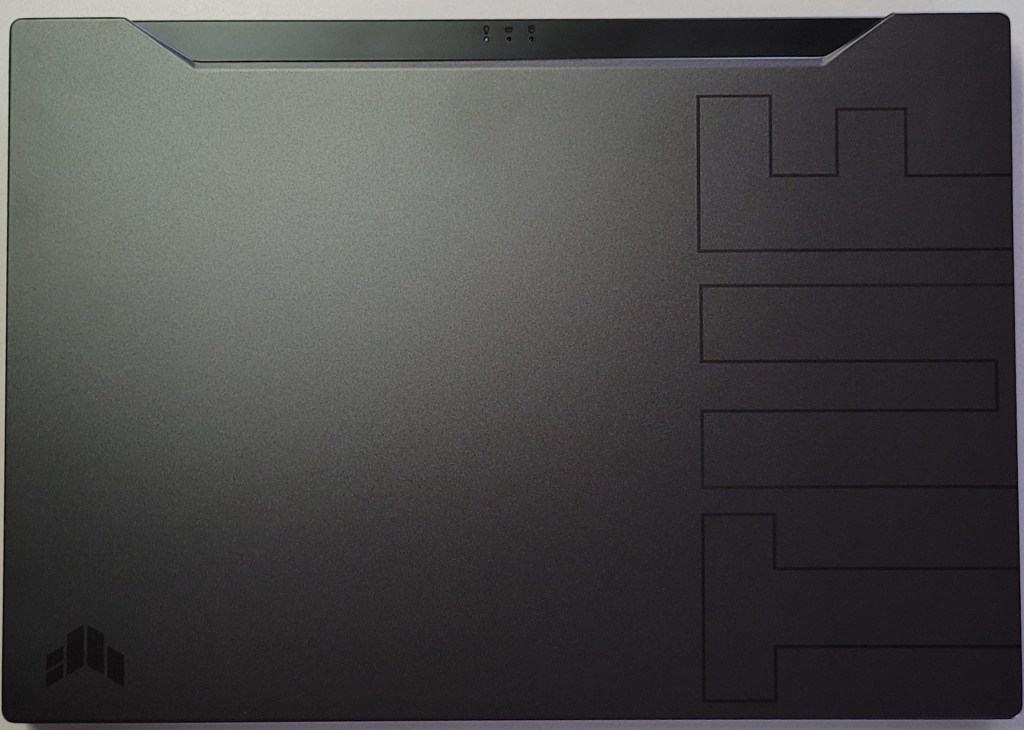
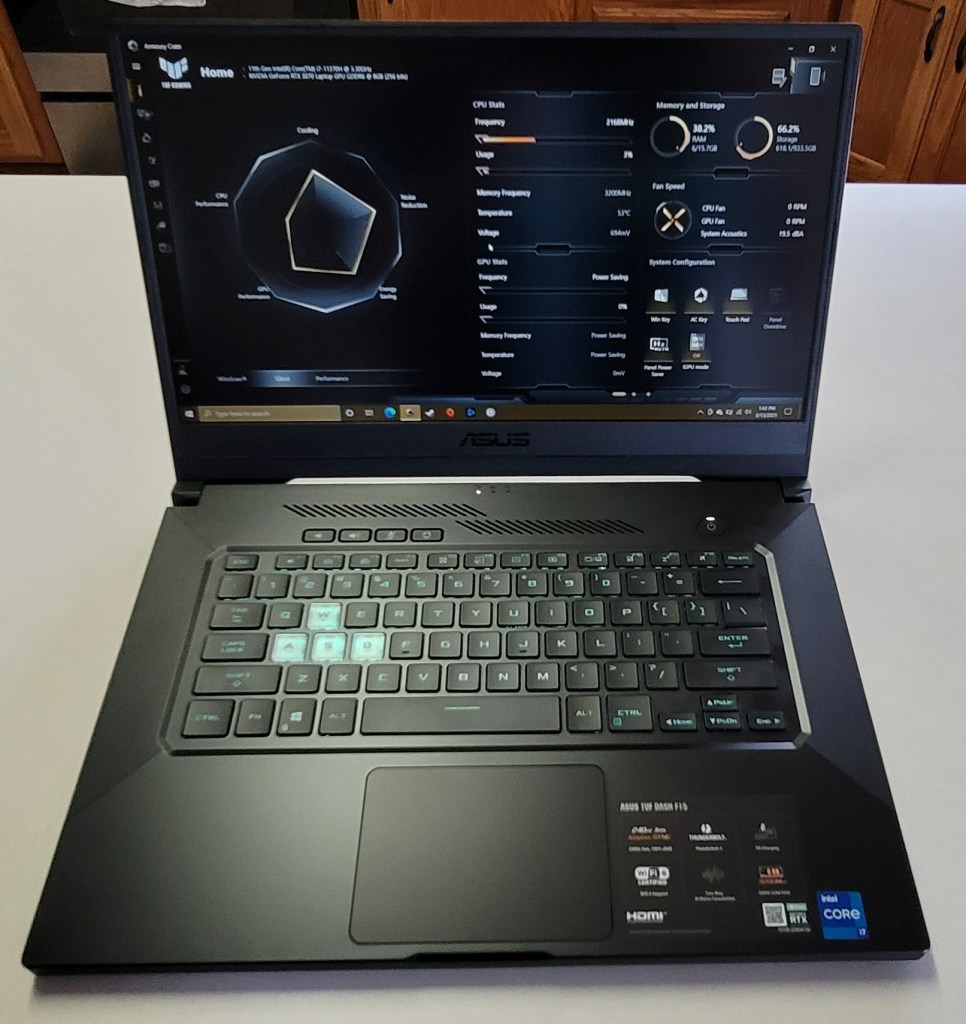
Of course it showed up in the middle of a work day so I couldn’t immediately tear into it. As soon as my shift was over, I carefully opened the box and was pleasantly surprised by the look and feel of the system. The nondescript case is metal, there are two color choices, I have the black one. Except for the lightly etched TUF and logo on the lid, it looks like any other high-end slim notebook you might see in a boardroom. It measures 14.17 x 9.92 x 0.78 inches (360 x 252 x 19.9mm) and weighs 4.41 pounds (2kg).

The 15.6 inch screen features thin bezels along the top and sides. There’s no built-in web cam and if you’re planning on this being a daily driver, that may be an issue in today’s video conference based world. The non-HDR screen is 1080P and can hit 240 frames per second witch is super smooth. You may wonder why I didn’t go for a 4k or 1440P screen. On a 15.6″ display the extra res doesn’t exactly equate to a better picture. It does however, require more of your GPU and battery to push. You’ll also spend more on the systems that have higher resolutions. I didn’t see any 3070 laptops with a 1440P+ screen for less than $2000.00.

The keyboard is backlit and the WASD caps are clear. It is only a single teal color but I like it. There’s a row of dedicated volume, mic, and management keys which I find myself using more than I thought I would. The keys themselves feel great, the caps are a little concave and there’s a decent snap from the membrane that lets you know you’ve completed the stroke. The trackpad is nice. It is offset from the spacebar, but centered under your thumbs where it should be. It’s responsive, but ignores my accidental brushes while typing.

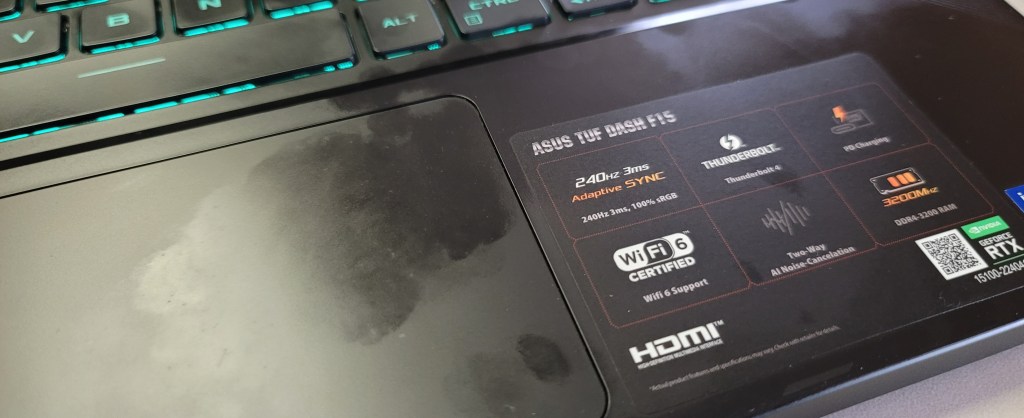
The deck and trackpad are fingerprint magnets.

The sound system is decent and has a trick that I didn’t expect to work. It has built-in noise canceling in the on-board mics. You know what? It totally works. I’ve played multiple on-line games of CoD, Apex, and Destiny without head phones and questioned my friends about how I sounded. I wanted to know if they could hear the fans, or the game echoing from the speakers and was pleasantly surprised to learn they didn’t. It’s really nice to be able to play without headphones once in a while.

You’ll find an HDMI 2.1 port to connect the system to your home theatre. I recommend that you get an HDMI 2.1 rated cable to go with it. Otherwise you will probably have issues hitting higher frame rates with HDR enabled. I did. When connected to my Q70t home theatre using an HDMI 1.4 cable, I could do 120 hertz or 60 hertz with HDR. A new $10.00 2.1 cable from Amazon solved the issue.

You will also find a Thunderbolt 1.4 port which will take care of docking stations, external GPUs, display port monitors and lots of other accessories including most USB-C devices. It also has an RJ-45 network jack, headphone/mic jack, and three USB 3.0 ports. The Intel AX201 is Wi-Fi 6 compatible and hits the 1200 MB/ps mark with ease. Bluetooth is built-in as well. I’ve connected my system to the afore mentioned home theatre with an external keyboard and mouse without needing another port.

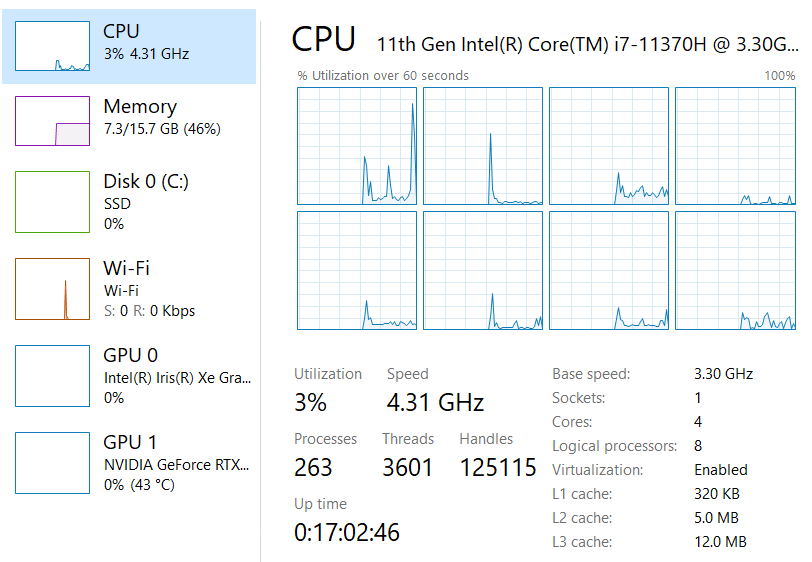
The one terabyte SSD is fast and large enough to hold the games I am currently playing. It came with 16GB of PC-3200 RAM, I will probably be taking advantage of the fact that it is user upgradable in the future but it does the job. The 11th gen 4 core i-7 11370H CPU is more than fast enough for anything I plan on doing.

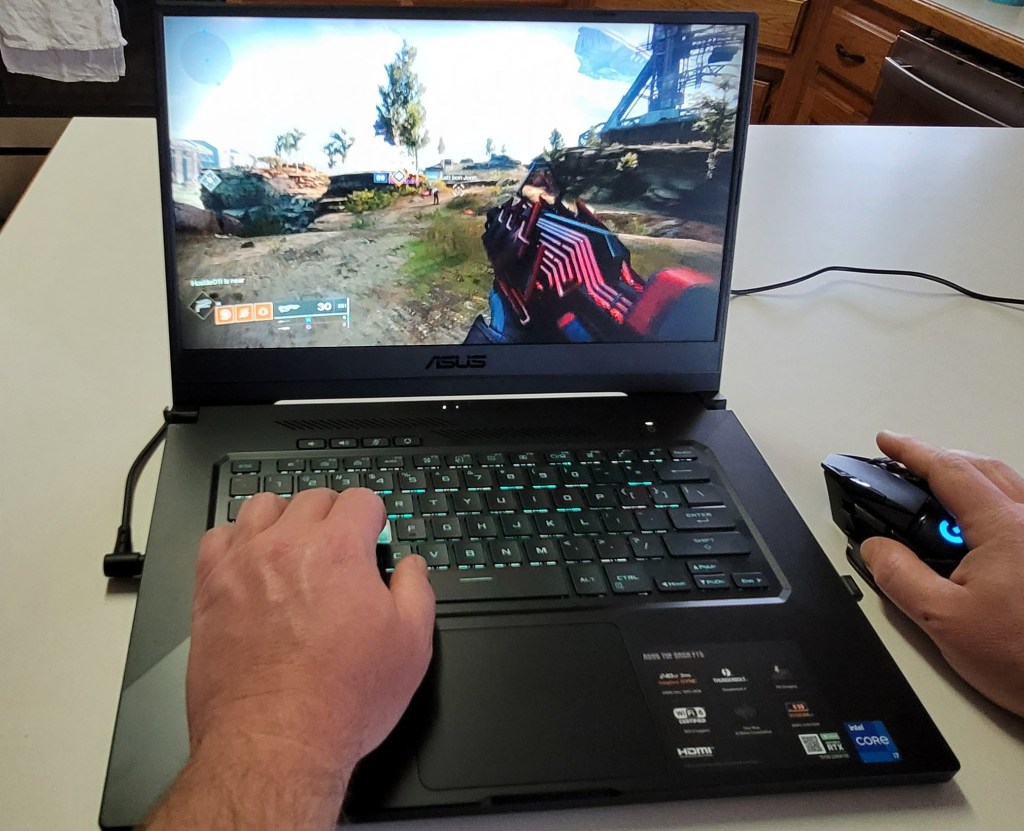
Right out of the box I was disappointed with the performance of the GPU. I spent an hour running updates, BIOS, firmware, Windows, drivers, and the management app all needed updates. It’s a good thing I bothered before packing it back up, it was like a totally different system. When playing CoD BlackOps, Destiny, Apex, Tomb Raider, and Doom Eternal on the built-in screen I was able set everything to ultra, including ray tracing, and still hit over 120 fps with the fans barely running.

When connected to my big screen I have a choice to make. I can run the games on high, or ultra at 1440P and still hit my TV’s 120 FPS limit with HDR on. Or, I can crank down some of the settings to medium and low and run at 4K with 60 – 90 FPS. Personally I prefer the lower resolution with more post processing, but the games look and play great either way. At 4K they look and play better than the same games on my PS4 Pro, or Xbox One X at the same resolution. If you want more out of your system make sure to get one that is not a Max-Q GPU design. Basically, the thin and light gaming systems use the Max-Q versions of GPUs which limit power to prevent overheating. The thicker, heavier systems tend to have the full power chips that preform better but are, well, huge.

Overall I’m really happy with the ASUS. It is a good balance of performance and cost. There are systems with the same GPU that have features like a web cam and RGB lighting, but they’re all much closer to the $2000.00 price point. I’ve had the DASH F15 for a couple of weeks and have spent a lot of hours sitting in my easy chair with it on my lap and connected to my TV. It’s a keeper.

A No Spoilers Look at Immortals Fenyx Rising

Many times when a new release is a mashup of other titles the results are abysmal. The ideas they borrow from more popular games are not implemented well and don’t form a cohesive experience. When they switch between the borrowed elements it can feel like you have changed games in the middle of play.

Immortals Fenyx Rising’s “design by committee” shows through in places. The title is a dead giveaway for the boardroom meetings that inspired the compromises. However, in this case Ubisoft seems to have limited their group decisions to mostly superficial matters.

The game itself is great. The world it takes place in is reminiscent of Breath of the Wild. You climb statues to reveal new sections of the incredibly large map. While you’re up there, a little maneuver reminiscent of Assassins’ Creed has you mark interesting locations on your map. Speaking of interesting locations, you will find Vaults that are similar to BoTW’s shrines, chests of loot, challenge quests, and collectible resources scattered everywhere. So much so, that I can’t imagine anybody but a professional having the time to 100% complete everything.

The combat system reminds me of the God of War series more than anything else. You are armed with a sword for quick strikes, an ax for heavier blows, and a bow for ranged engagements. Dodges and parries are available for defense. The weapons and armors feature unlockable upgrades and powerful combinations that make engaging multiple enemies easier. Eventually you’ll earn a sidekick that will fight along with you and other power ups that greatly enhance your lethality.

The enemies span the full gambit of evil creatures from Greek mythology. Gorgons, Harpies, Minotaur, Cyclops, and zombie soldiers will do their best to stop you from reaching your goals. There are also enraged bears, wild boar, and some crazy chickens thrown in for good measure. The fighting starts out simple and increases in difficulty as you improve your character’s abilities. Boss fights can be very challenging especially if you haven’t mastered all the abilities you have unlocked at the time.

The game is fully voice acted. A large part of its charm comes from the amusing banter of the narrators and NPCs. The story is fairly straight forward. You play Feynx, a lowly shield barer who is the only chance of restoring order to the Golden Isle before Mount Olympus is over run. The character creation system features a choice between male or female along with the usual face shape, hair styles, etc. You will unlock more options as you play. Your character’s look can be edited during play and micro transactions provide custom skins for almost everything.

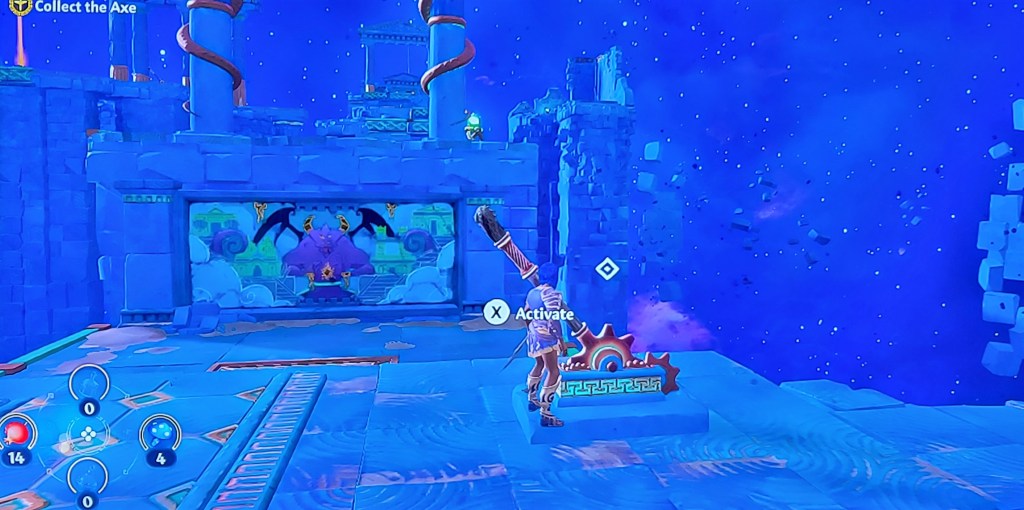
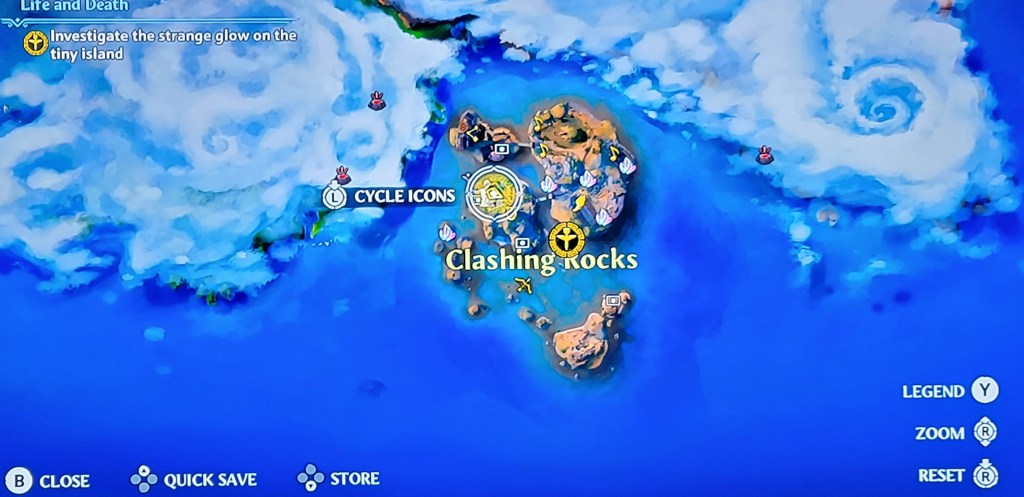
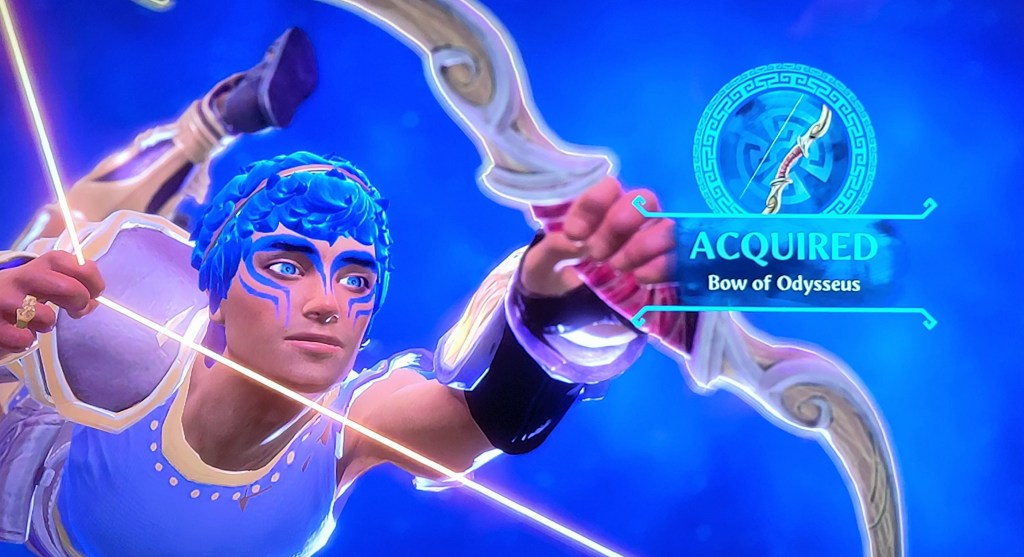
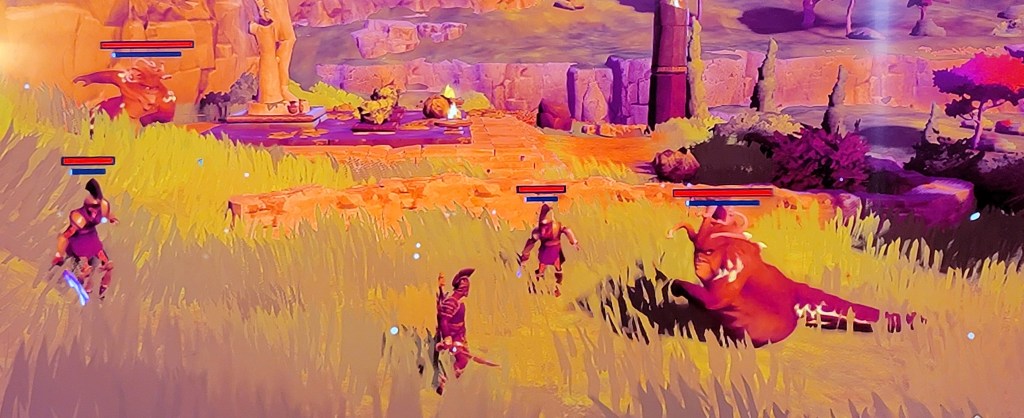
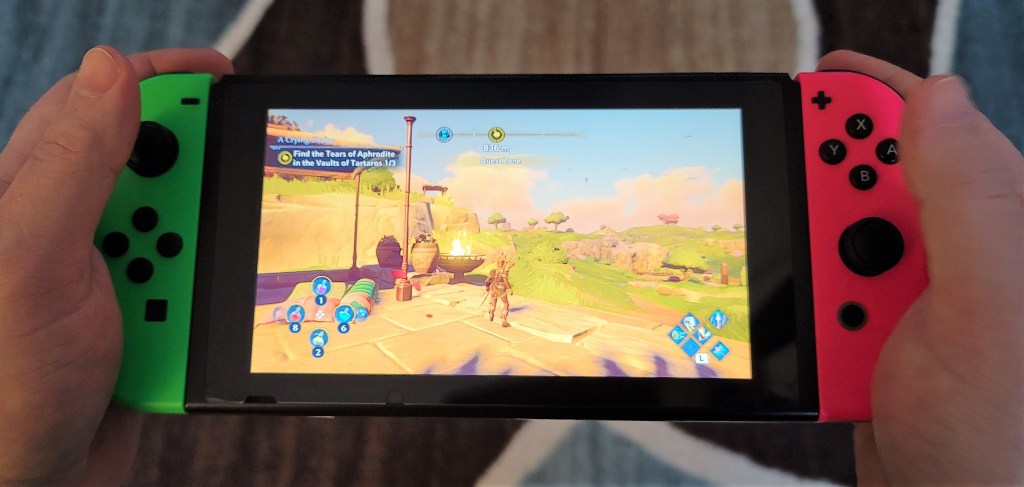
The game’s graphics fall squarely on the cartoon side of things which keeps the play family friendly. I’m playing the game on a Switch. It runs fine and looks good on the small screen although text can be hard to read. When blown up to a big screen TV the graphics are a little on the blurry side but still playable. The pictures above are of the Switch on my TV. I haven’t noticed any serious lagging so far. I’ve also played the game on a friend’s PC, which of course looks much better. The game is available for Xbox, PlayStation, PC and the Switch. According to Ubisoft, if you sign into their cloud you should be able to transfer your saves between the various platforms, but I personally haven’t tried to yet.

A Comprehensive Guide to Playing PC Steam VR Games on your Oculus Quest 2

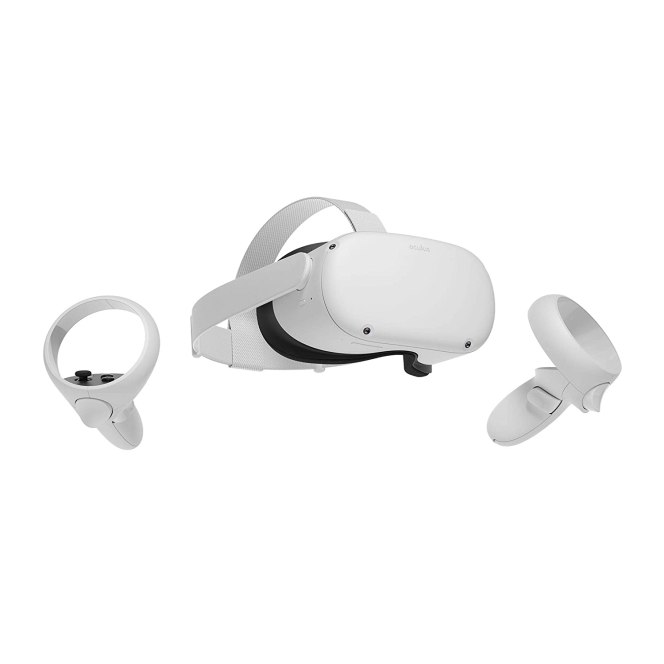
Pretty much the first thing people realize after spending a few minutes in virtual reality via the Oculus Quest or Quest 2 headset is that VR should never have wires. The experience is more immersive without a tether bouncing off your back and the worry of tripping. The trade off is a loss of processing power.

Don’t get me wrong, the Quest, and especially the Quest 2 are packing some serious hardware and can deliver amazing experiences. However, the electronics inside them are similar to a Nintendo Switch or high-end phone and this means the games are limited to those types of environments. If you have a Rift or Hive you are probably enjoy playing AAA titles like Project Cars 3, Star Wars Squadrons, or the new Half-Life; all of which require a powerful desktop PC.

There are ports of popular games like Beat Saber, Onward, and Robo-Recall for the Quest headsets, but they don’t quite stack up to the full versions that I play on my Rift. Of course, you can use a link cable to connect your Quest to a PC and use it to play Oculus Rift or Steam VR games. Linking works really well with the right cable, but even a single cable can be bothersome once you’ve experienced wireless freedom.

It turns out that with a little ingenuity and a couple of apps, you can have your cake and eat it too. Virtual Desktop is a desktop streaming app that allows you to control your desktop PC from your VR headset. It is available in the Quest store for $19.99. There is a side-loaded add-on from the developer that converts the Oculus USB development drivers to function over a wireless network. Before you head down this road, know that your PC and network need to be robust to support a pleasant wireless streaming experience.

There are a lot of steps to complete in this project. Use this outline to stay on track.

  • Check Wi-Fi connection speed in headset
  • Check Computer GPU
  • Install Oculus app on phone
  • Setup Quest Headset and link to Facebook
  • Purchase and install Virtual Desktop application on your Oculus
  • Install Oculus PC application sign in with Facebook account
  • Install Steam PC Application sign in or create account
  • Purchase and install Steam VR game
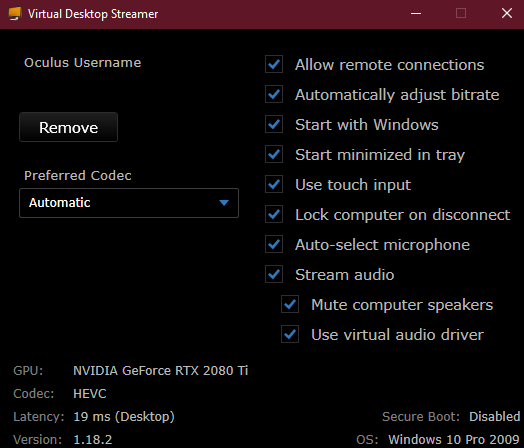
  • Download and install the VR desktop streamer app on your PC
  • Configure the VR Desktop Streamer App
  • Register for Oculus Developer Account
  • Download and install the Quest ADB Drivers
  • Enable Developer Mode on the Oculus app
  • Download and install SideQuest on your PC
  • Connect the Oculus headset to your PC with USB C cable
  • Accept USB Content prompt
  • Accept USB debugging mode prompt
  • Install the Virtual Desktop Steam VR add-on from SideQuest
  • Tune Virtual Desktop
  • Tune VR Game
  • Enjoy

Your wireless network needs to sustain a 300 Mbps (Megabits per second) or faster connection to your headset for game streaming to be smooth. I experienced stuttering, visual artifacts, and fuzzy video anytime my bandwidth dropped below this mark. Check your network speed by selecting the Wi-Fi symbol on the menu bar while in your headset. Then click the SSID of the Wi-Fi network that you are connected to. Scroll down and click on the Advanced menu. Scroll down some more to see the send and receive speeds.

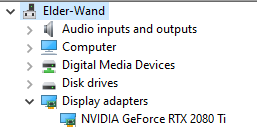
Your computer needs to be strong enough to run VR applications. On the lowest-end you’ll need at least an RX-480 8GB or GeForce 970 GPU. Check which GPU you have by right clicking on the Windows Start button. Then choose device manager from the menu. Click the chevron next to Display Adapters. If you have a lower end GPU you will need to carefully tune the graphics settings of your game. Disable SuperSampling, turn shadows to low, and use the least expensive anti-aliasing option to improve performance.

After you are reasonably sure that your network and computer can support VR game streaming, get started by downloading the Quest App on your mobile phone. Continue by setting up your Quest (put on the headset and turn it on) and link it to your Facebook account. The headset and app will walk you though this process. A tutorial will show you how the controls work. A Facebook account is required to install the streaming add-on, so you might as well use it for everything.

You’ll need to purchase and install the Virtual Desktop app from the Quest Store in your headset or the mobile app. Next you will need to download and install the Oculus and Steam VR applications on your PC. Sign into the Oculus Software with your Facebook account. Sign into or create an account for Steam. You’ll also need a Steam VR game installed and ready to go.

You will also need to download and install the VR streamer application for the Virtual Desktop software onto your PC and provide it with the Facebook account name that you setup in your Quest. In general you will want to select all the boxes in the application’s configuration screen.

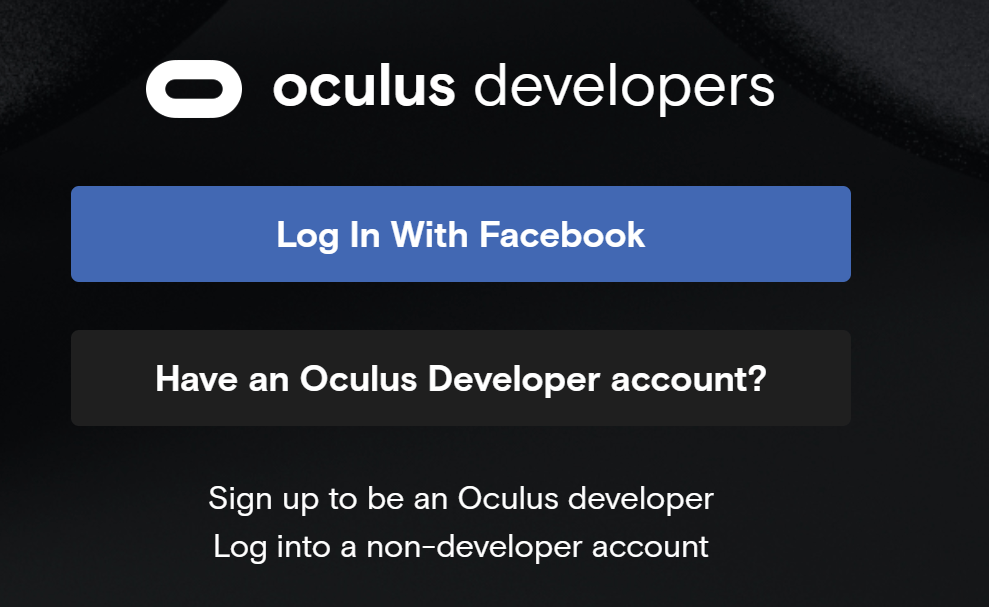
At this point you should be able to open the Virtual Desktop app in your headset and use it to access and control your desktop. To gain the ability to stream VR games we will need to install the add-on that the Virtual Desktop developer releases for free. The add-on gets side-loaded onto the Quest headset. To side-load applications you’ll need a developer account, don’t worry its free and easy. Go to Oculus Developer Dashboard and sign-in with your Facebook account. Provide any unique organization name that you like and accept the agreement. Should you ever publish an Oculus store app, the name you pick here will be shown in the store.

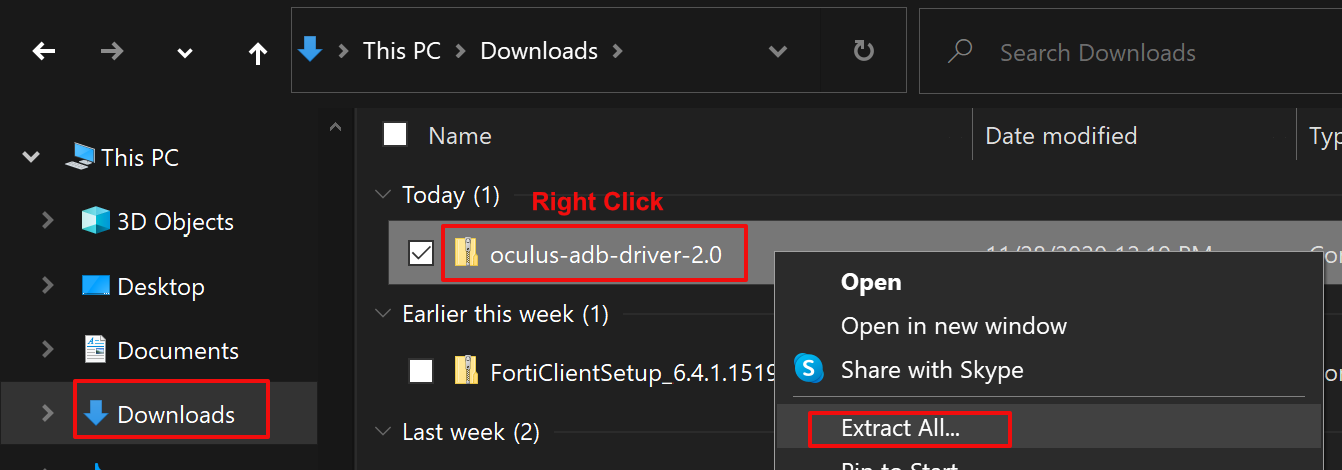
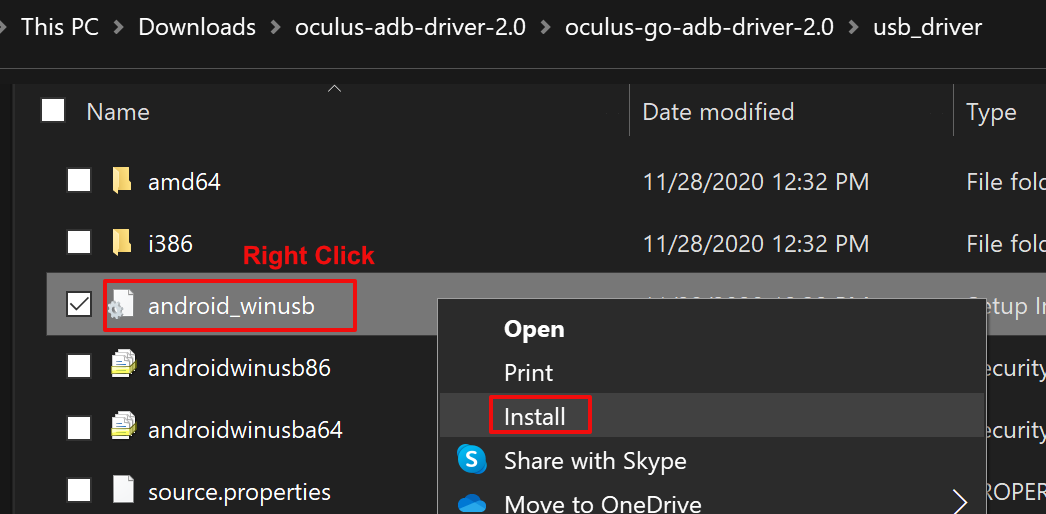
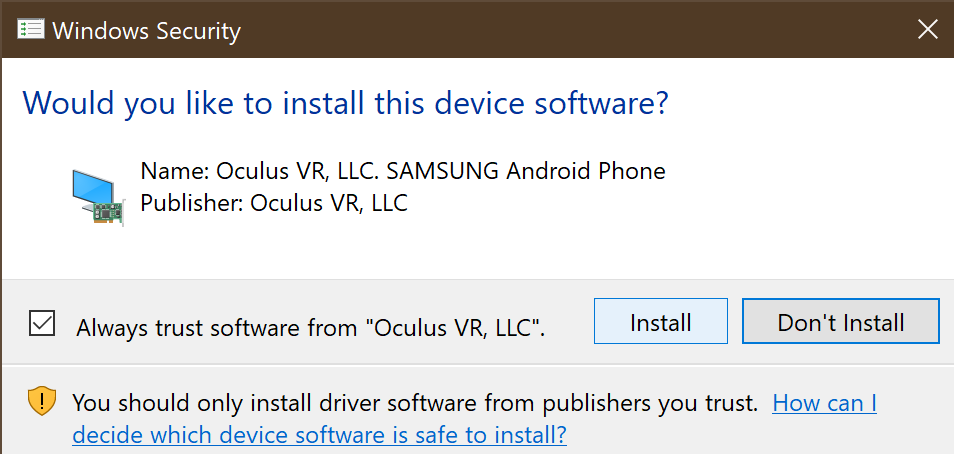
Now you’ll need to download and install the Quest ADB Drivers. On your PC, go to Oculus ADB Drivers | Developer Center | Oculus click the “I agree to the terms….” box and hit the download button. Open Windows Explorer and find the the downloaded file. Right click on it and choose Extract All from the menu then click the Extract All button. A new window should open, double click the “oculus-go-adb-driver-2.0” folder, then the “usb-driver” folder. Right click on the file named “android_winusb” and click Install from the menu. On the next screen click the Open button, then click Yes, then click Install.

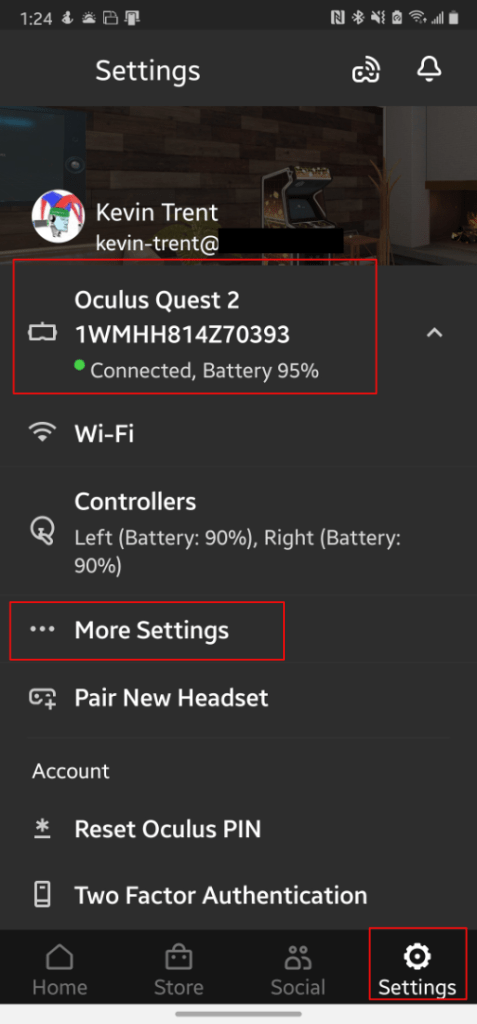
Now we need to enable developer mode on your headset. Open the Oculus app on your phone. Tap on your headset to connect to it, then tap the settings button in the bottom right. In the menu that appears, tap on more settings, then tap developer mode and the slide the setting to on.

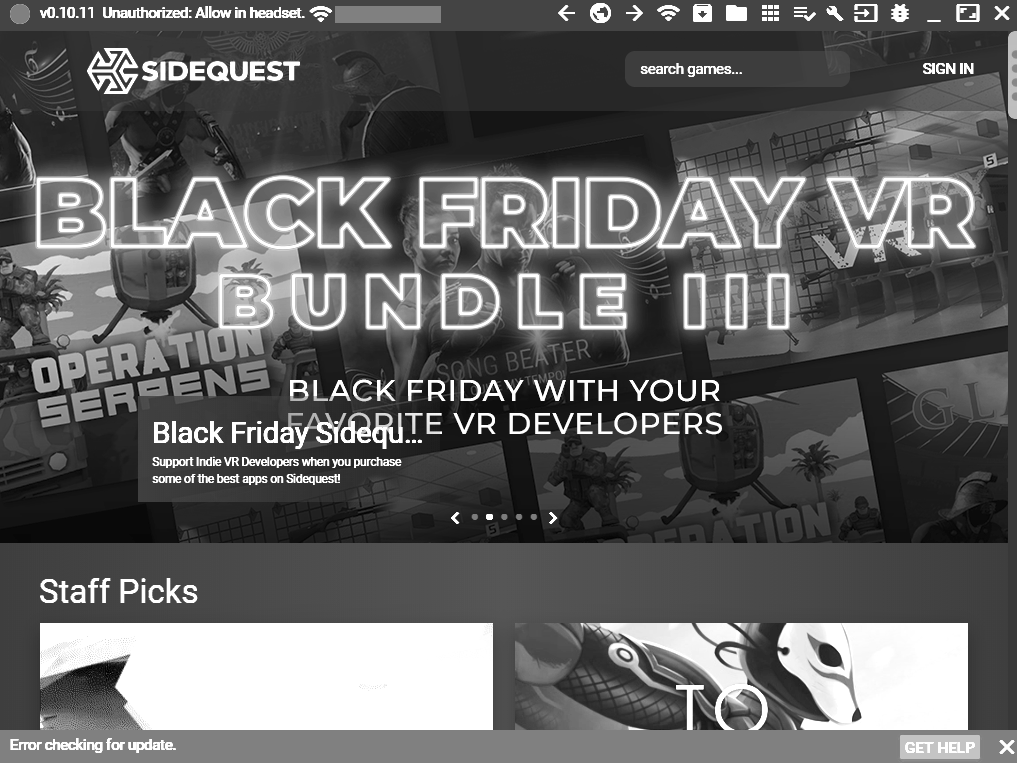
SideQuest is a 3rd party app store for your Quest headset. The Virtual Desk add-on is published here and that makes installing it much easier. In addition, there are lots of games and apps for your headset that are not available in the Quest store and many of them are free. On your PC head over to SideQuest (sidequestvr.com) download and install the software. You’ll notice they have an installation guide on the download page, you have already completed those steps, but it is a good idea to double check everything. Open SideQuest when the install finishes. You’ll notice that is says it can’t connect to a headset. This is normal.

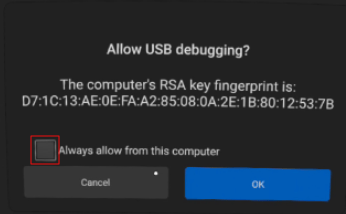
Now we are ready to connect your headset to your PC via the USB cable that came with it. Put your headset on and select a stationary boundary. You will be presented with a prompt to allow your PC to access content via the USB cable, accept it. Then another prompt asking to enable USB debugging will be shown, check the box that says to always allow from this computer and accept it as well. Do not enable the Oculus Link option if you are prompted to. Remove your headset (leave it connected) and the top right of the SideQuest app should show a green dot along with the name of your headset. If it doesn’t, you probably missed one of the security prompts, unplug and try again.

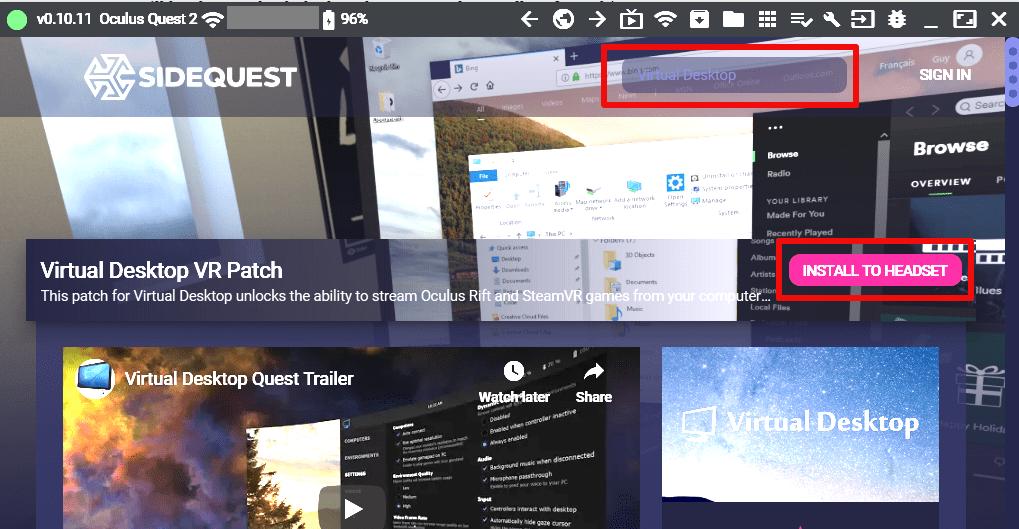
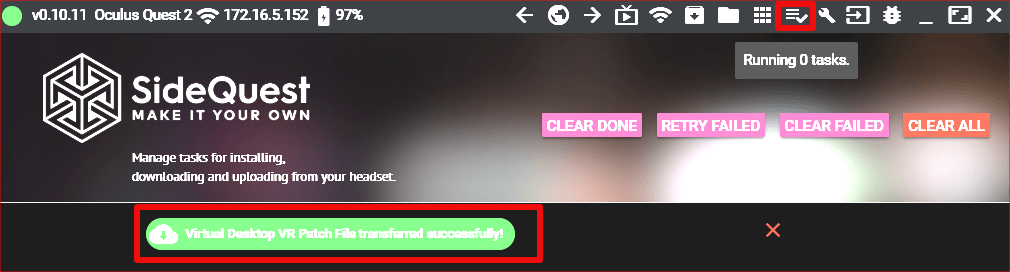
In the SideQuest app on your PC (with your headset still connected). Search or browse for Virtual Desktop. Click the Install To Headset button and watch for the message that the install task has been completed at the bottom. You can also use the task manager icon on the toolbar to verify the install has completed. When the install finishes, unplug your headset and close SideQuest.

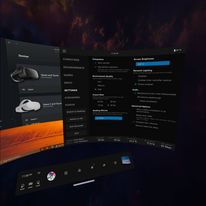
The install is complete. Put on your headset and select / draw a play area sized boundary. Open Virtual Desktop and wait for it to connect to your PC or pick it from the menu. Once you are connected, quickly press and release the menu button on your left controller to access the Virtual Desktop settings menu. Long pressing (holding for a couple seconds before releasing) will access the Steam VR menu.

You will need to tune the application to align with your network and PC capabilities. I like to turn everything to the max settings try my game and then back the settings off until I find a good balance between looks and performance. Running everything on their highest settings is a fantastic experience, but requires some very beefy hardware in both your computer and network. Dropped frames and lagging game play tend to mean that you need to lower the graphics settings in your game. Fuzzy video, black screens, and lockups are usually related to the bitrate of your Wi-Fi which require you to tune Virtual Desktop settings.

Facebook has Enabled Ninety Frames Per Second on the Oculus Quest 2!

As of firmware version 23, the Oculus Quest 2 supports 90 FPS both in Quest games and desktop VR games via the Oculus Link cable. This is a major upgrade for Quest 2 owners and for those thinking of jumping in the VR pool. In my opinion, the new option raises the Quest 2 to being the best VR headset you can buy.

Ninety frames per second is the sweet spot for lessening the motion sickness that people experience while piloting virtual reality vehicles. Games that involve driving, flying, roller coasters, and even riding horses are notorious for causing queasy reactions if you turn your head to look around the environment.

Your computer will require a powerful GPU to play desktop VR games at 90 FPS. To achieve virtual reality, your system is displaying a copy of every frame in each eye at a resolution of 1440×1600. If your system cannot hit 90 FPS while playing regular games in 4K, you may be disappointed with the results of the new setting.

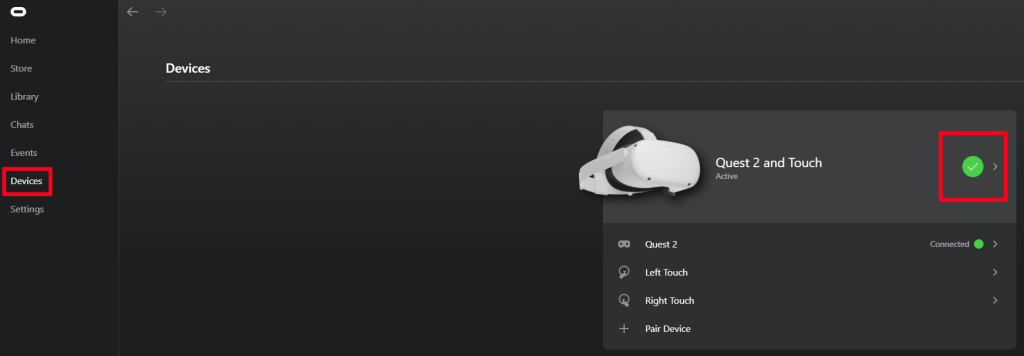
To enable the setting, make sure your Quest 2 has the newest firmware installed and then connect your Link cable and open the Oculus Desktop app. In the menu on the left select Devices, then click on your Quest 2.

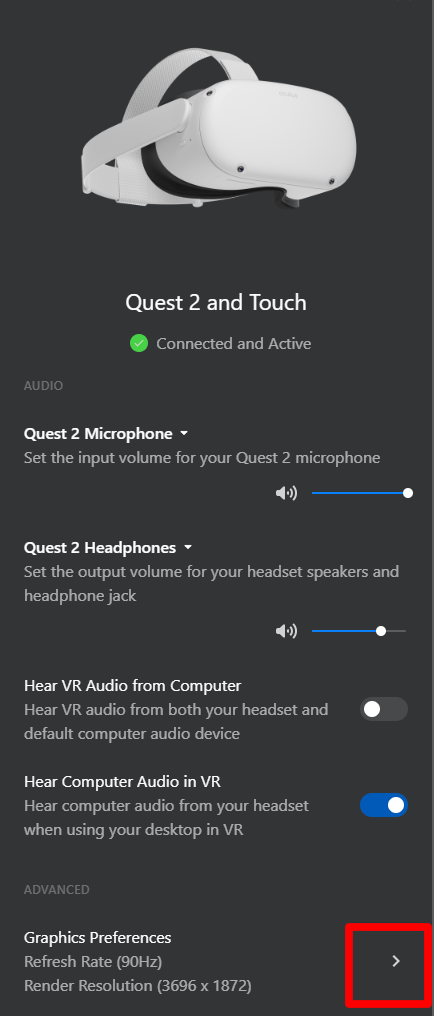
In the menu that opens, select Graphics Preferences.

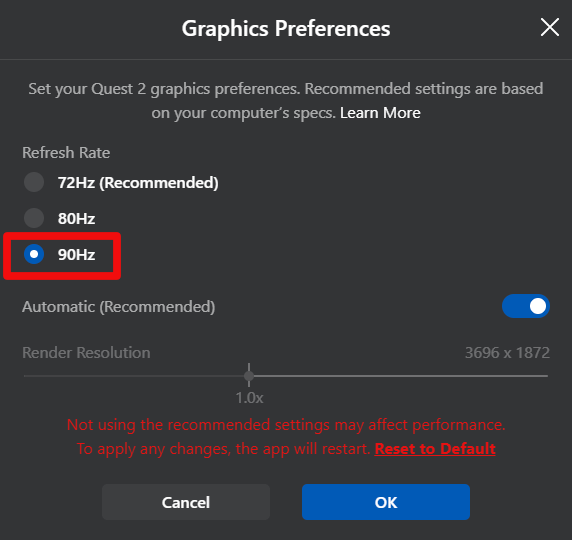
Click the bottom radio button and then click the Ok button to save and restart the Oculus application.

The setting will be applied to any game you launch from the Oculus desktop application. Steam VR will also automatically pick up the setting. Currently there are only a limited number of Quest store games that support the faster frame rate, those that do will automatically engage the option.

Oculus Quest Adds Native Bluetooth Headphones Support

Ever since I first put on my Oculus Quest and jumped into a VR game, I’ve wished that I could pair my noise cancelling earbuds with it. The sound system built into Facebook’s virtual reality goggles sounds pretty good, but it isn’t quite loud enough to fully overcome the amount of ambient noise that it lets through. Facebook included audio jacks on the Quest and Quest 2 and it does solve the problem, but who wants to plug cables into their fancy wireless headset?

A few days ago we wondered what would happen if we tried to pair my son’s Air Pod Pros to his Quest. To our surprise they paired up and worked perfectly, even the microphone was supported. What’s more, is that they sounded fantastic. There is a slight lag that is worse if you are streaming a game from your PC.

To be sure we hadn’t experienced some type of fluke, I grabbed my Quest 2 and paired my MPOW X3 earphones to it. Again, they paired up without issue and worked perfectly. I went on to try several other Bluetooth headsets that I had lying about. All but one worked and those wouldn’t pair to my phone either.

Both of our Quests are running OS version 21 and are in development mode, but I don’t think it is required. To pair your earphones just go to Settings and then to Experimental Features to access the Bluetooth pairing option.

Partycade; All of the Arcade Action, None of the Floor Space

I have quite the man cave chiseled out of my basement. There’s office space, a gym, and a nice place to sit and play games or watch the TV. I’ve always wanted a classic arcade cabinet like Pac-Man, but there’s literally nowhere to put one.

One late night while flipping channels, something on HSN caught my eye. The sales people were demonstrating an arcade cabinet that looked like it had a full-size screen and controls. What made it stand out wasn’t the game they were playing, the cabinet was hanging on a wall!

The Arcade1Up Partycade is an HSN exclusive, which explains why I had never seen this marvel before. At the time of this writing there are two models available each is $199.00 and plays four games. The sales person was doing an excellent job of making it sound like they were about to sell out of the Pac-Man / Galaga unit that I needed in my life. I couldn’t find the HSN account, so I woke my wife up at one in the morning to help me make the order.

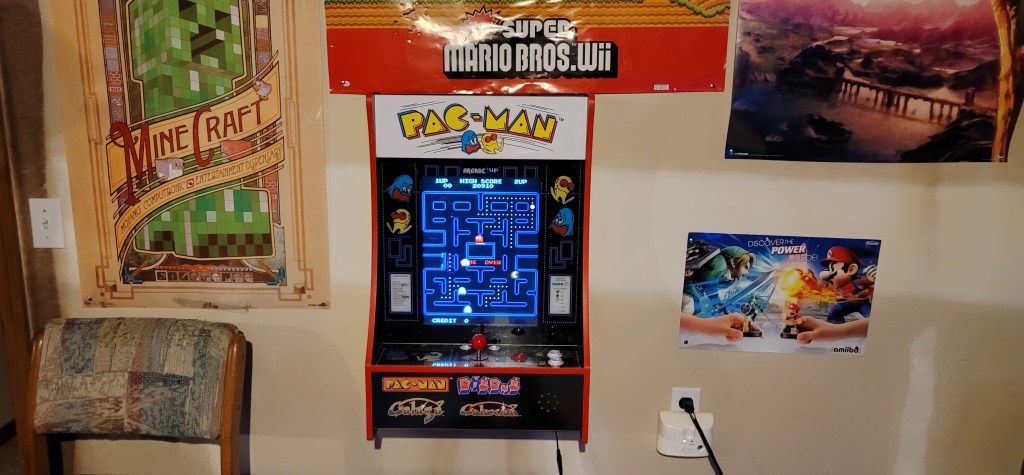
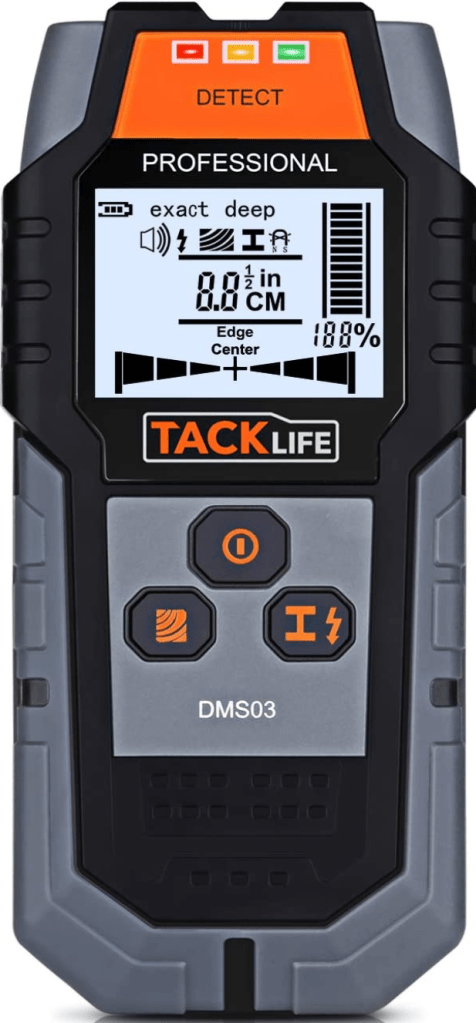
I’m so used to Amazon Prime that I was shocked my order took almost three weeks to show up. The Partycade has three configuration options. Mount it on a wall, hang it on a door, or stand it on a table. The hardware for each option is included. I mounted mine on the wall, it’s more or less the same process as hanging a heavy picture. I recommend a stud finder. The other tip I’ll share is to consider whether you will stand or sit while playing. The screen is not tilted at an angle like a traditional cabinet, so doing both can be tricky if you don’t get the height just right.

You need to mount the hanging bar into studs. A stud finder makes the job easier.

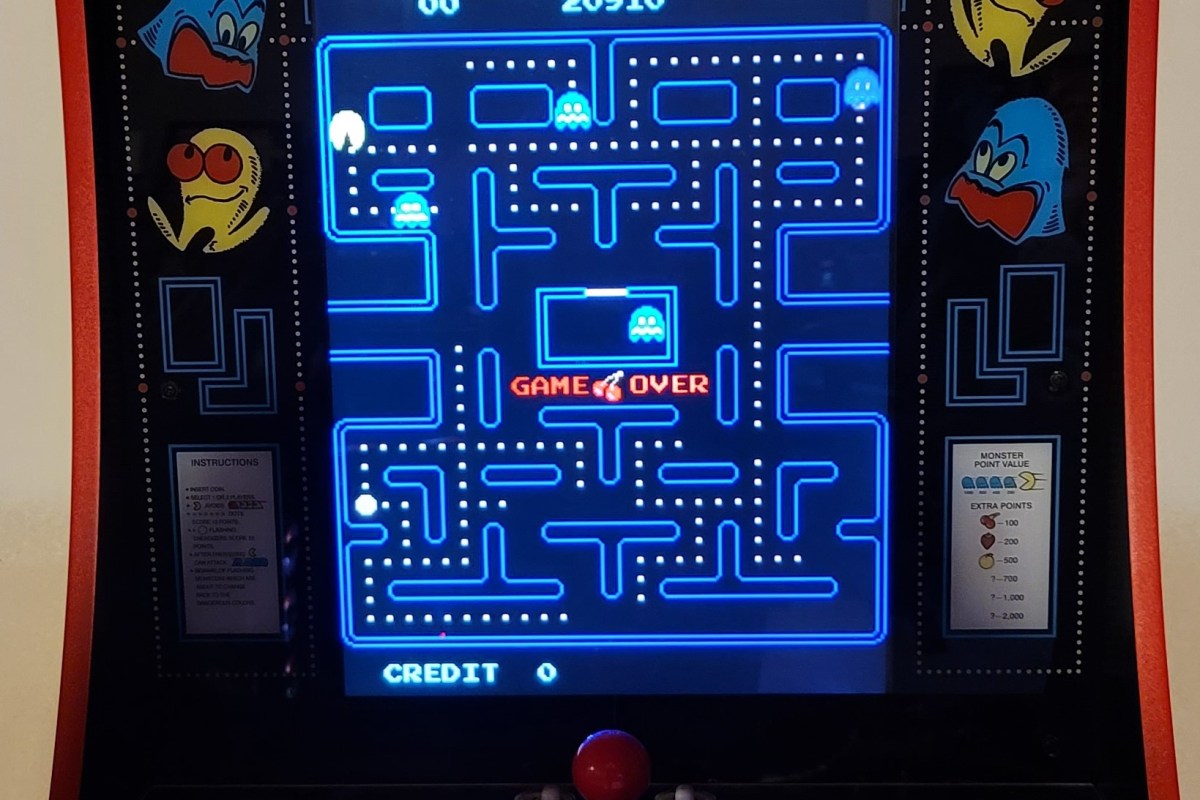
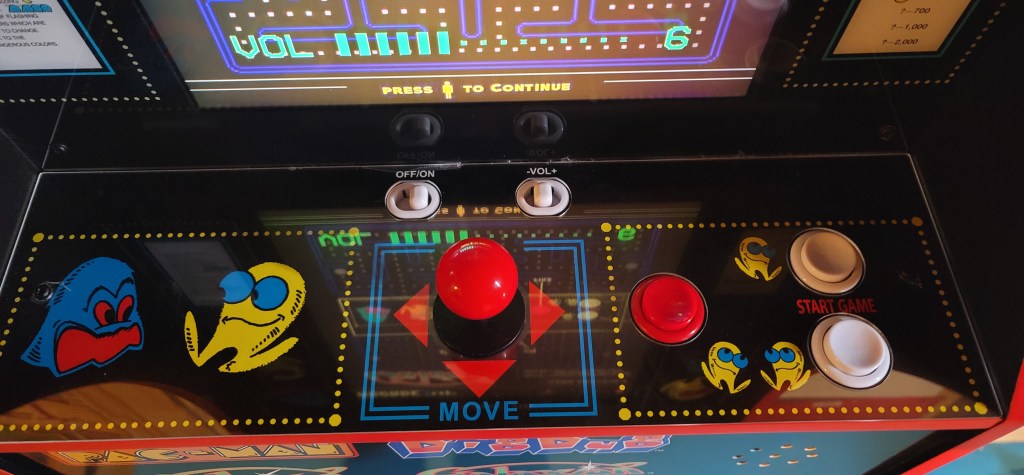
I’m sure what you really want to know is what it’s like to play. In an 80’s word, rad it’s totally rad man. Every time that I play it, I’m instantly a kid bumming around in the mall’s arcade again. The seventeen inch LCD is mounted in portrait and looks great, although you’ll wish it tilted back. It just isn’t possible in this form-factor. The control stick feels just like I remember and the buttons click just right. There’s a volume rocker for the fantastic speaker system and a power switch. All that’s missing is a coin slot.

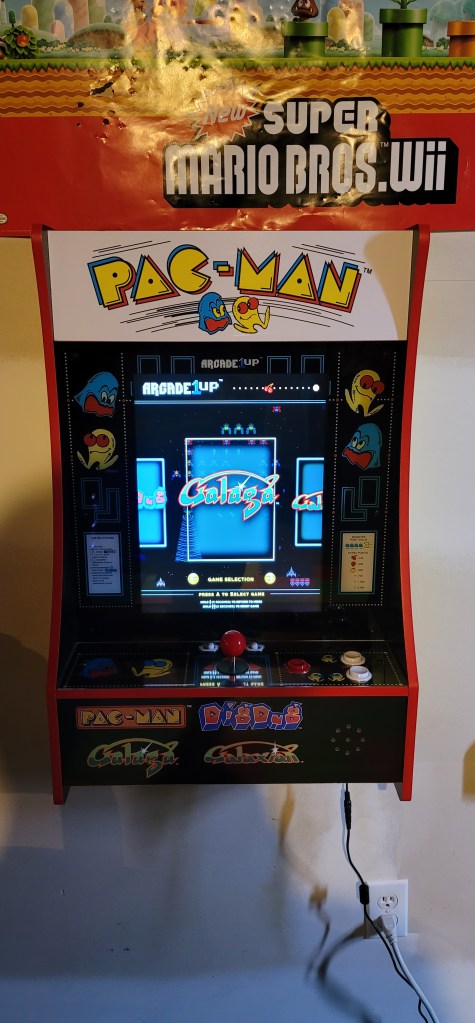
The cabinet art is fantastic.

The unit I have plays Pac-Man, Galaga, Galaxian, and Dig-Dug. There’s a carousel menu to launch the games from. If you leave the unit powered on it will randomly select a game and play its screen saver mode. The games themselves are the real thing as far as I can tell. MAME ROMs are often glitchy altered copies but these play just like the machines in the back of the pizza shop.

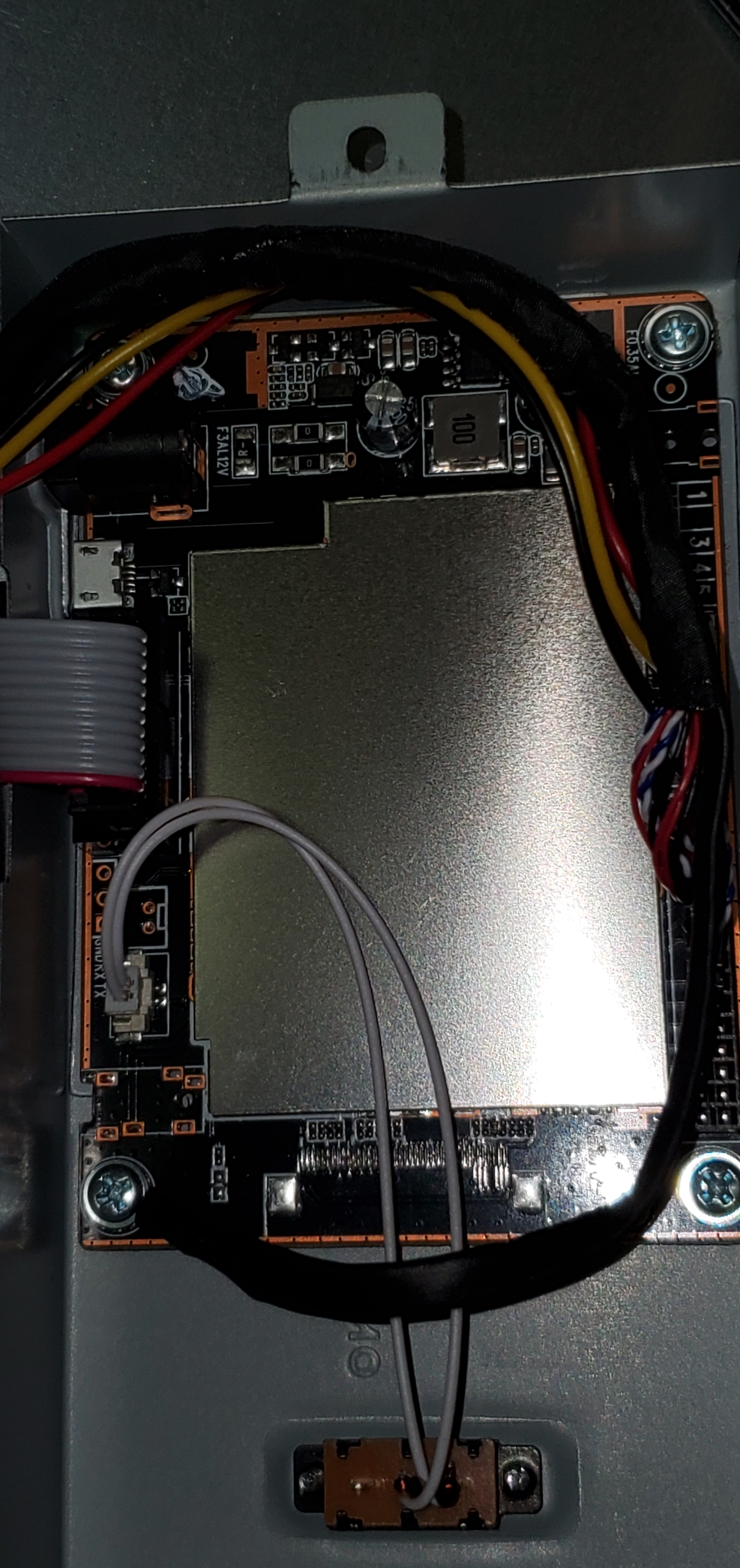
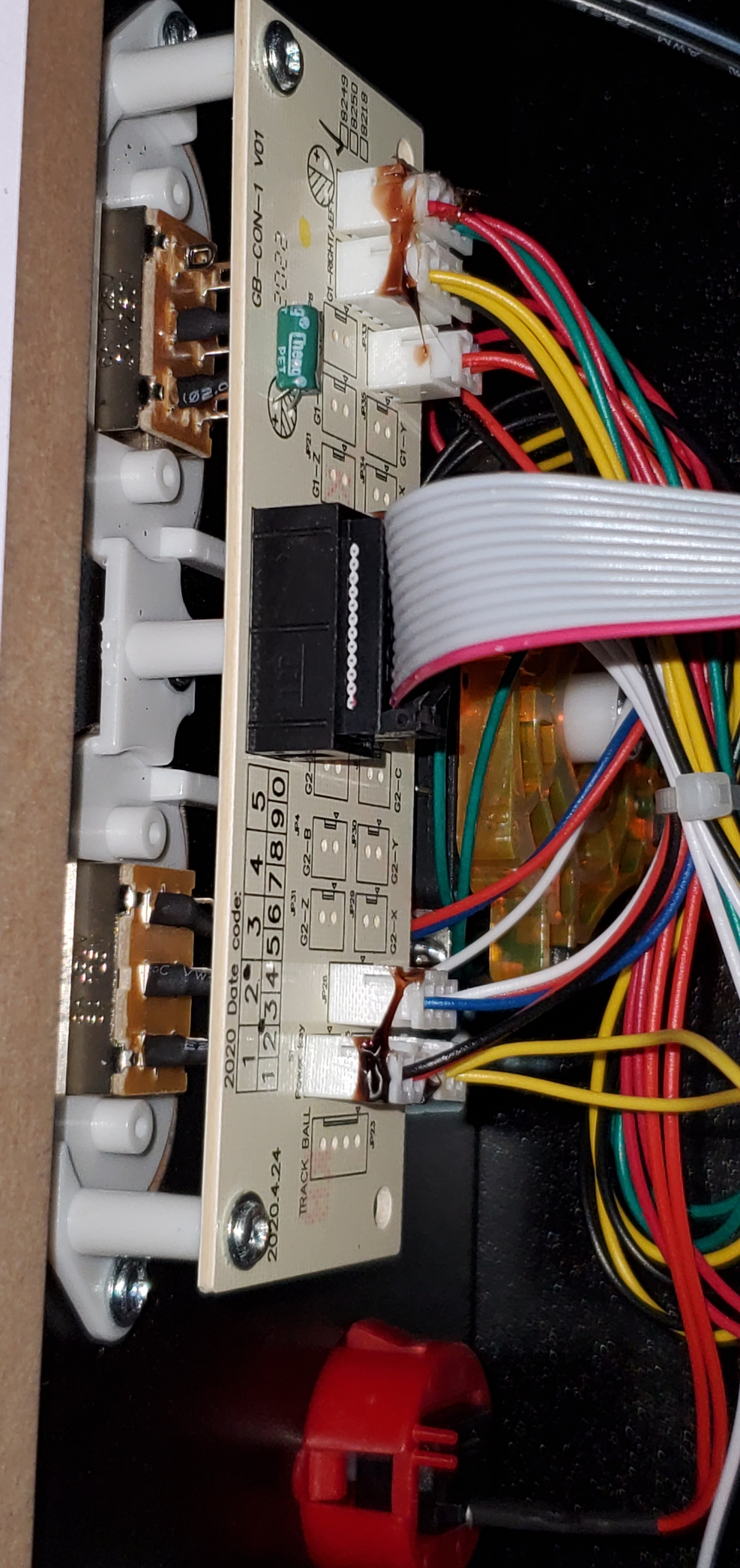
The Partycade is also surprisingly mod friendly. I haven’t had a lot of luck getting the board to run other ROMs yet, but taking apart the case is just a few philips-head screws. The PCB is housed inside a heat shield that is easily accessible and would be simple to replace with a Rasberrypie. The monitor, button, and joystick connections are all off-the-shelf. It wouldn’t take more than an afternoon to convert this into a full MAME cabinet. Several people on-line have already accomplished it. It already plays the two games I care about most, so I’ll leave mine stock for now.

It actually makes a great piece of wall art that fits well with my gamer motif. I find myself walking over to play a game in between conference calls, or while I’m mulling over a problem I’ve been asked to solve. I’ve already got a spot picked out to hang the Centipede model. I’m hoping somebody gets it for me for Christmas hint hint.

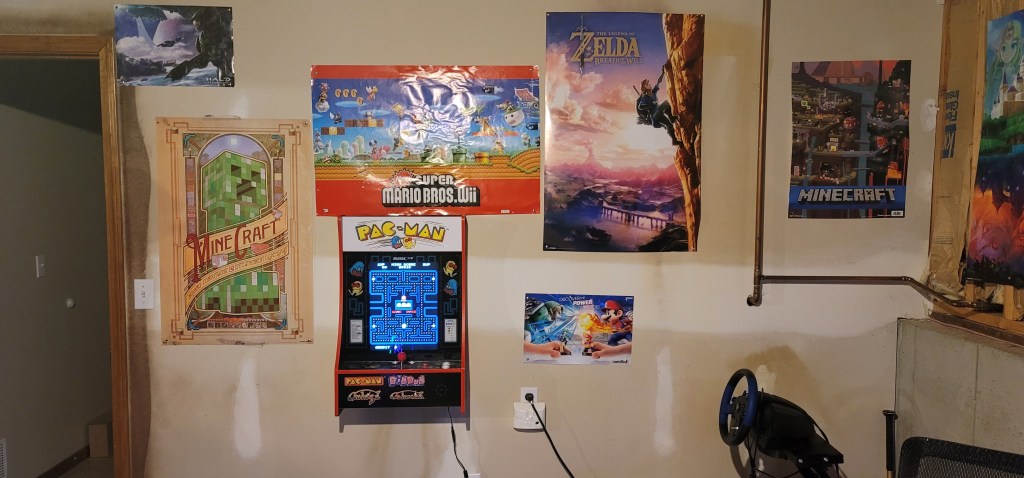
Along with some posters, the Partycade turns a unfinished basement wall into something interesting.

Portal Knights A Great Co-Op Game for Couples

My wife and I are both gamers, but we prefer different genres. She enjoys farming, life simulation, and collecting, with some adventure and task completion tossed in to keep things moving. Some of her favorite games are Animal Crossing, The Sims, Harvest Moon, Zelda, and Skyrim. My tastes tend to fall more on the shooter, racing, and action adventure side of things. Some of my favorites are Destiny 2, Call of Duty, Tomb Raider, and Zelda.

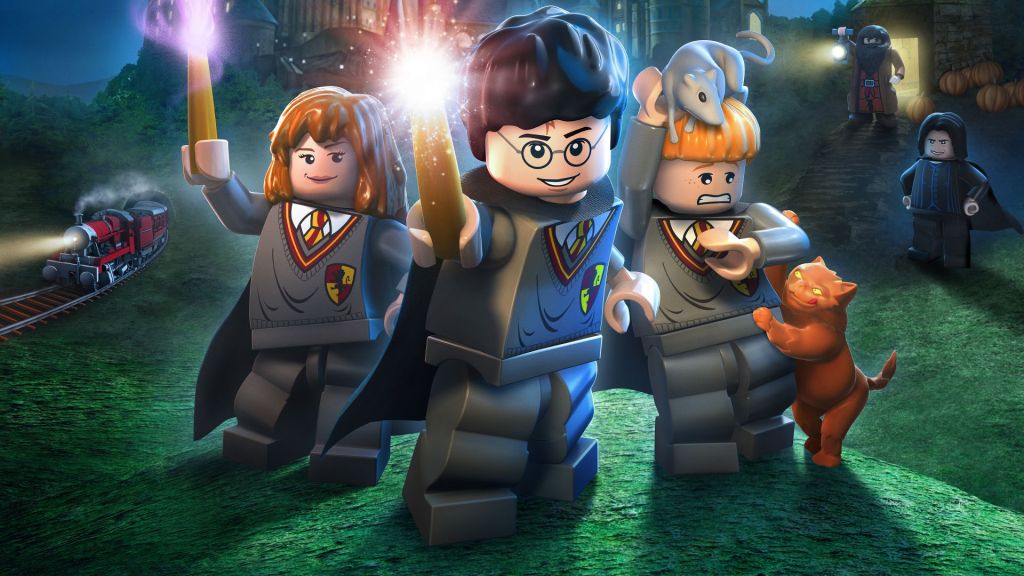
We like to play together but our differences make finding a game that we both enjoy challenging. I find Animal Crossing boring and she thinks Call of Duty is a loud obnoxious mess. The last co-op games we played were the Harry Potter Lego series. We have fooled around with Captain Toad’s Treasure Tracker. Its puzzles are intriguing, but it is low in entertainment value.

The Harry Potter Lego games are also excellent fun for couples.

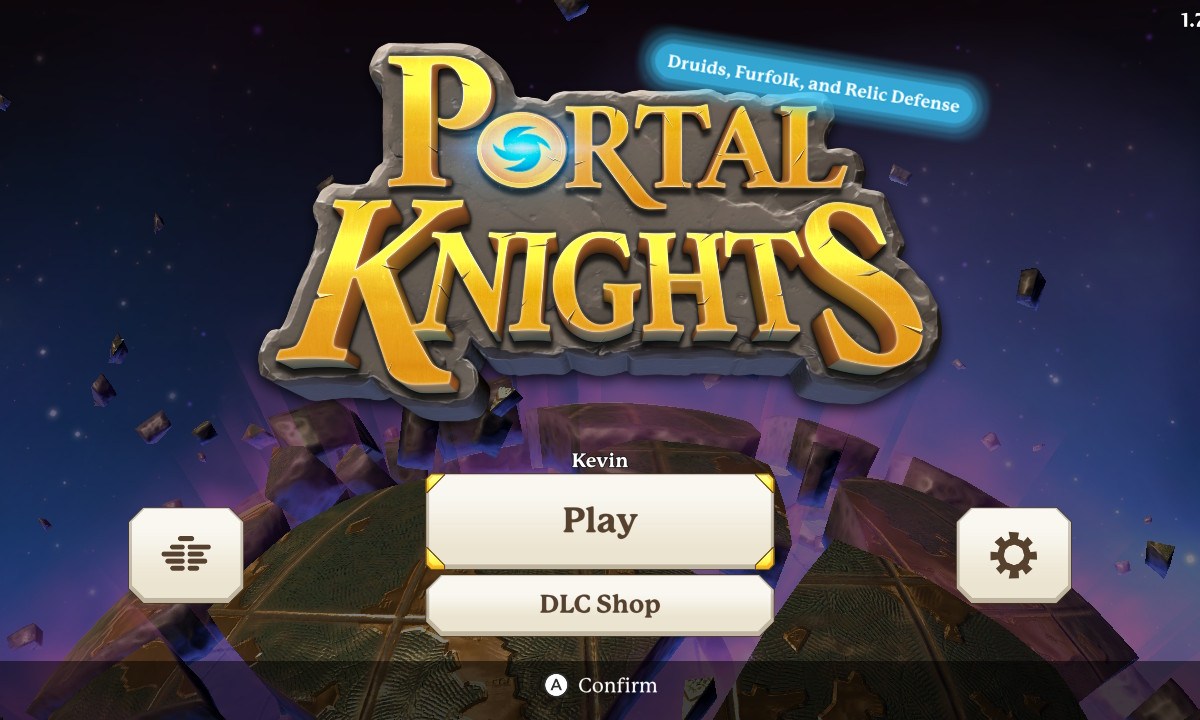
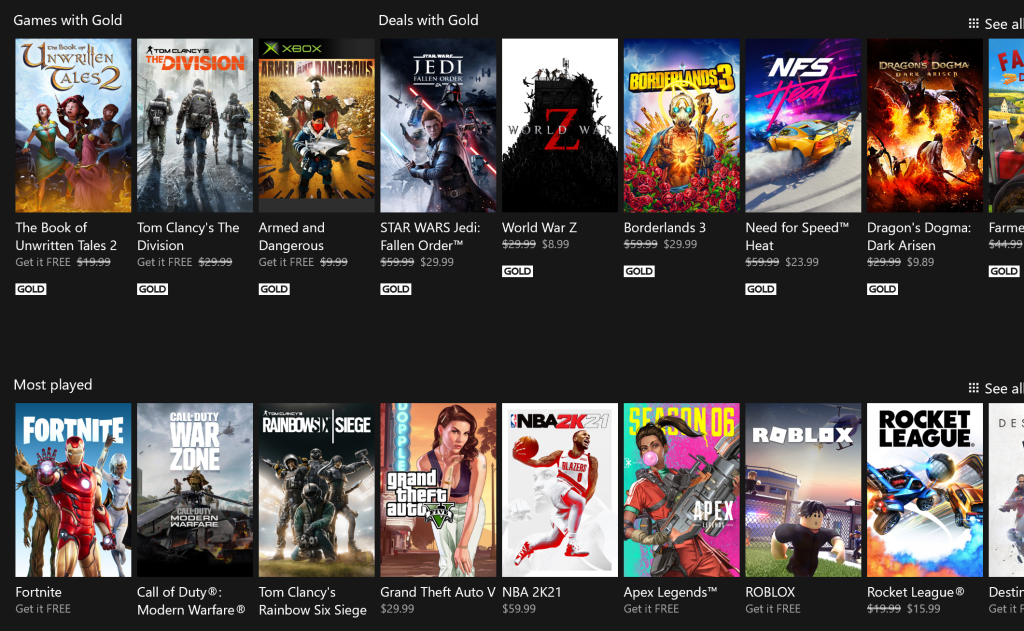
I was exploring the games made available by the Xbox Game Pass and Games with Gold when I stumbled upon Portal Knights. We decided to try it out in split-screen and purchase a copy for our separate devices if we liked the game because co-op is fine, but sharing is too much to ask for any married couple. Portal Knights is available on the Xbox, PlayStation, Switch, PC, Android, and iOS.

Between Xbox Games with Gold and the Xbox Ultimate Pass a new game is a click away.

We played through the intro and enough of the game to see that we would keep playing. Then we each purchased the bundle that included all the DLC for our Switches. The game works fine in split-screen. We specifically wanted a game we could play when the TV was unavailable.

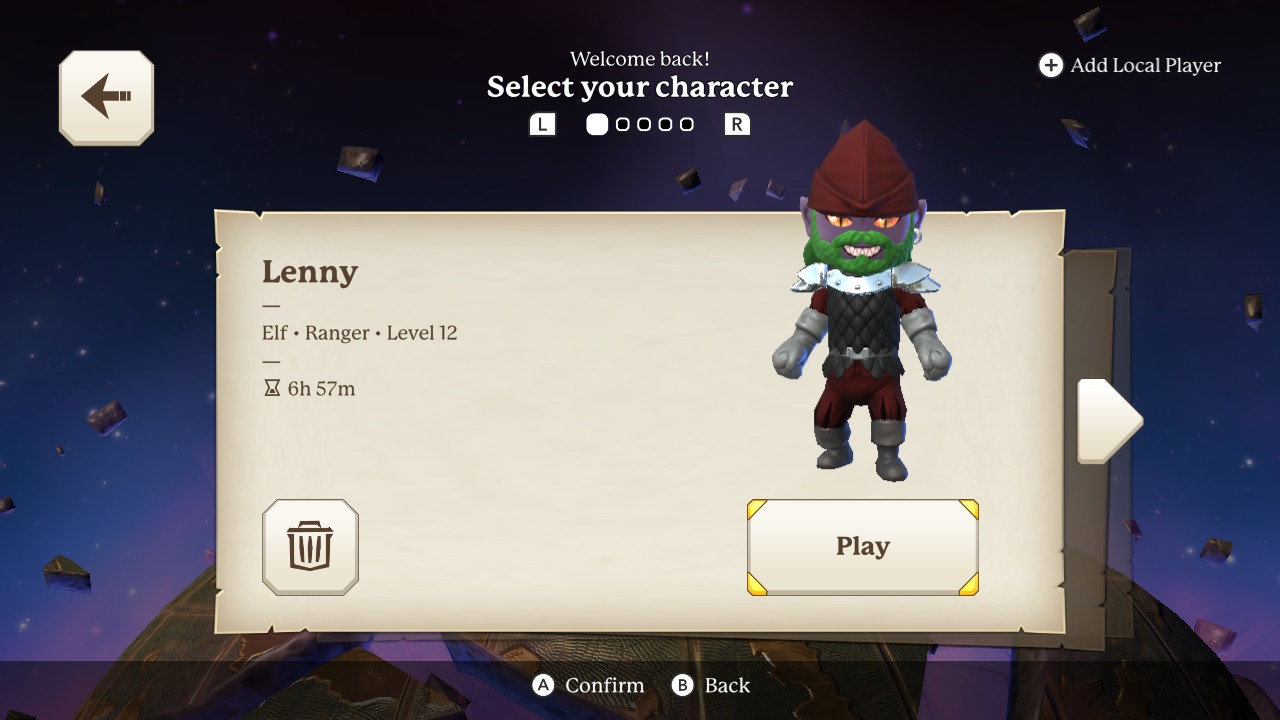
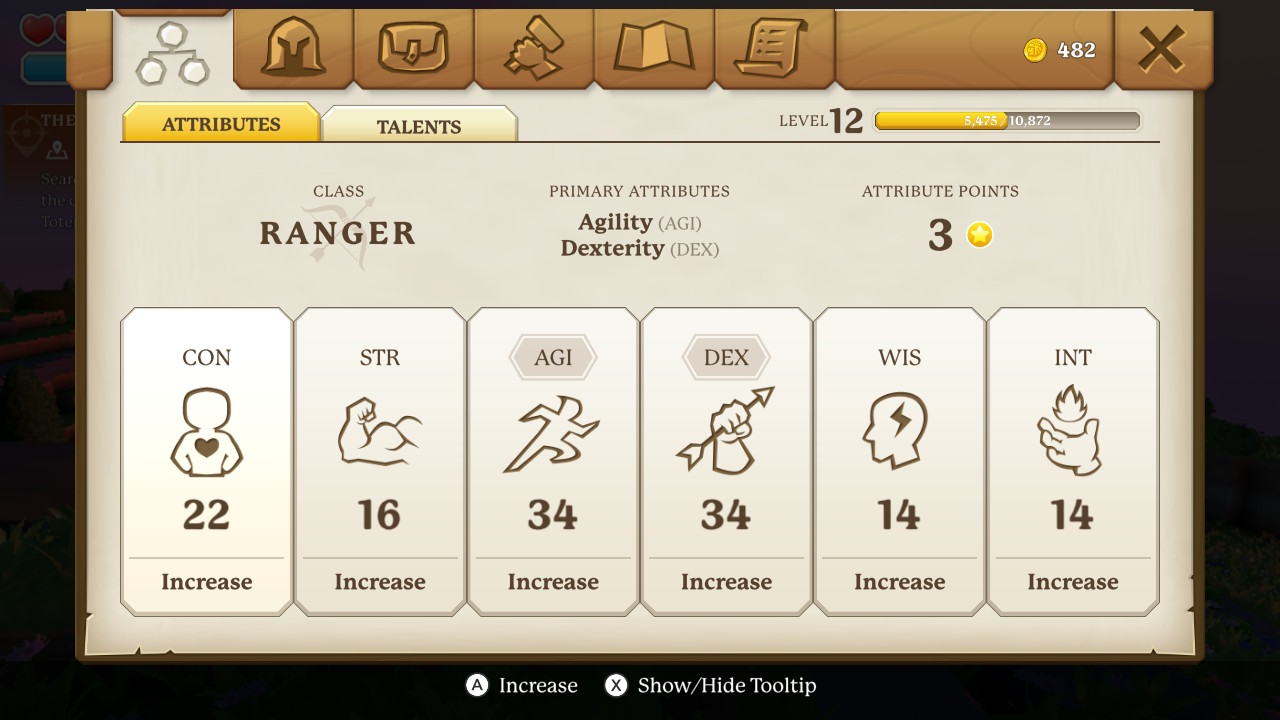
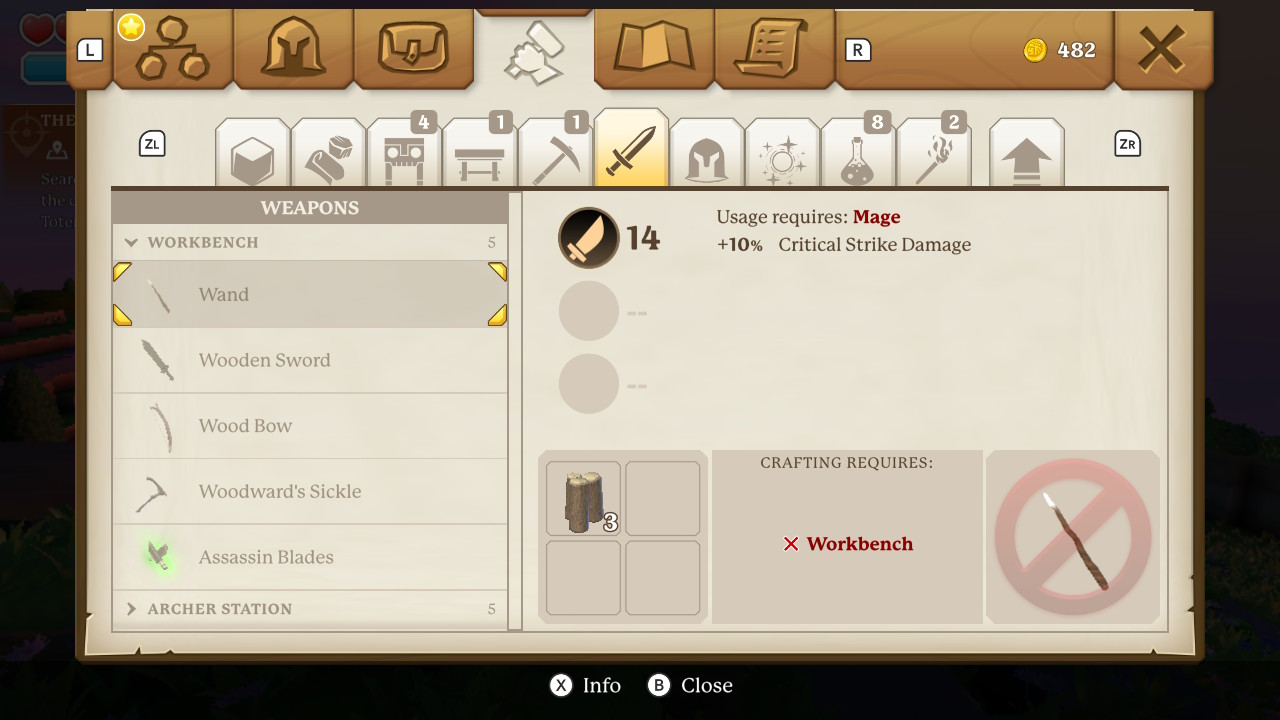
What is Portal Knights? I think the best way to categorize the game is to call it a compilation. It starts off with your standard RPG character creation. Choose your class, edit your looks, and pick your skills. In the base game there are three classes. The bundle or, DLC adds two more. The lady went mage, and I chose a bow wielding scout. There is an excellent array of choices to make your avatar personal.

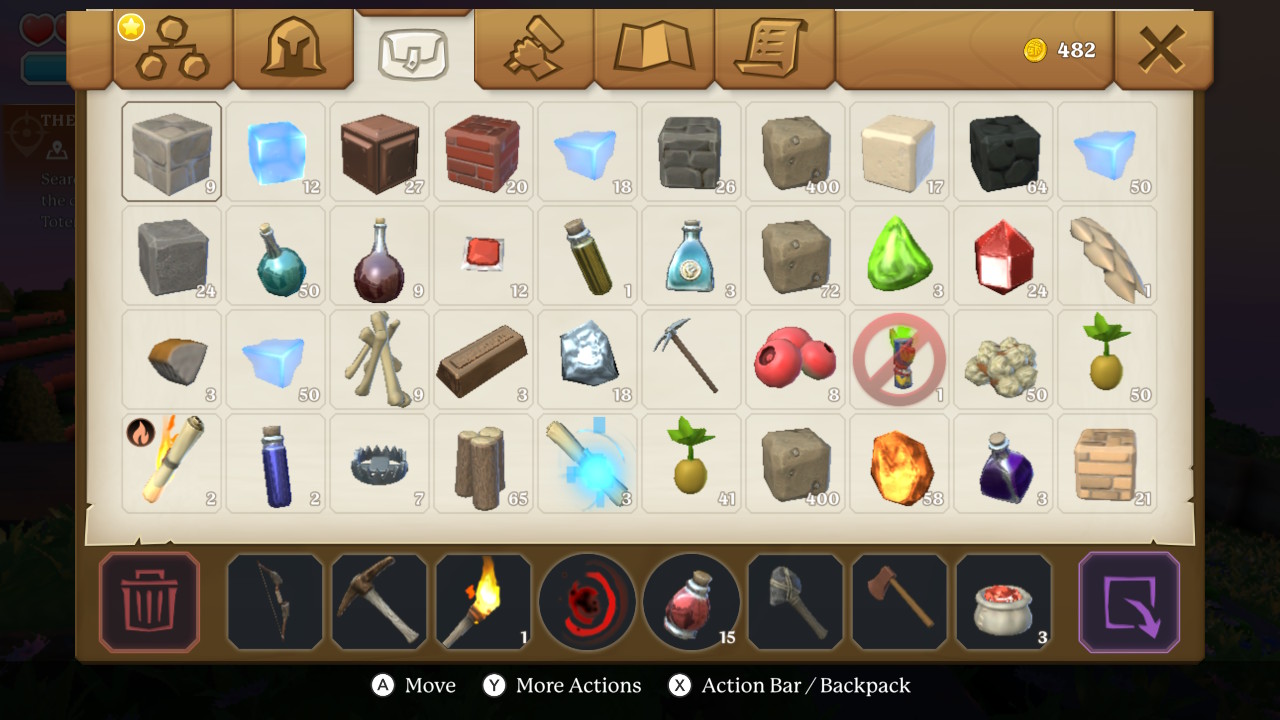
The worlds your characters have their adventure in are created randomly a` la Minecraft. Speaking of the block-based juggernaut, Portal Knights borrows more than just the random world generation. The blocky feeling is present as are mining for resources, building, recipes, different types of work benches, and the need for shelter. You will be digging up dirt, stone, metals, jewels, various plant materials and more to fill your inventory with the stuff you need to upgrade your tools and rank up. There are also creative mode worlds with no combat or questing.

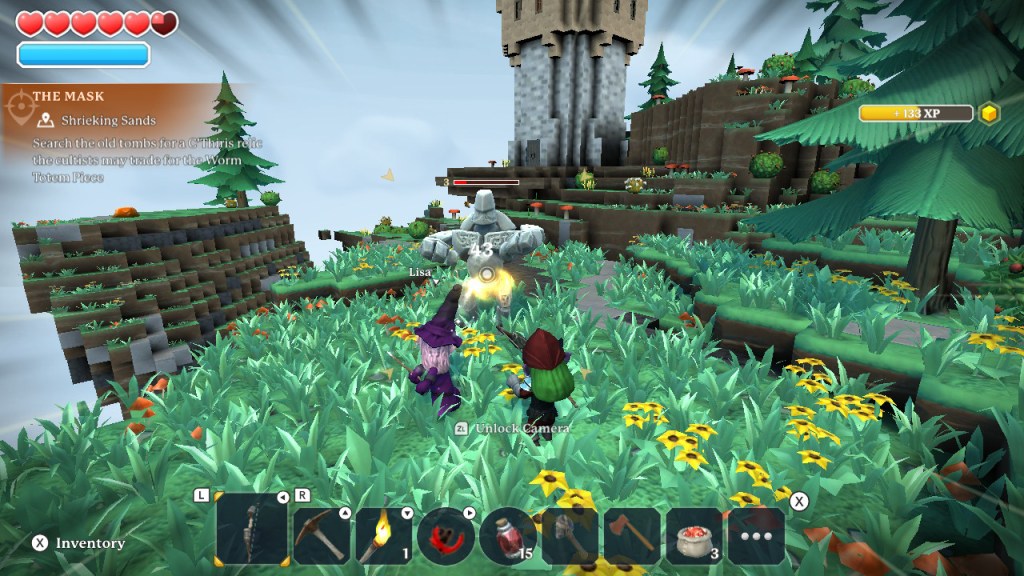
In adventure mode, some of the resources you’ll need can only be acquired in combat. The combat is third or first person, you can switch at will, and ranges from easy to intense. There are many unique enemies that each have their own weaknesses. Armored knights, flying critters, shelled turtle creatures, and giant boss fights with everything from squid to dragons keep the action exciting. Your chosen class of warrior does not preclude you from using the other types of weapons if you build or pick them up. My bowman is quite adept with a sword when he needs to be. There are potions, shields, spells, scrolls, magic items, and other RPG items to be deployed against your foes.

Win battles faster when you team up.

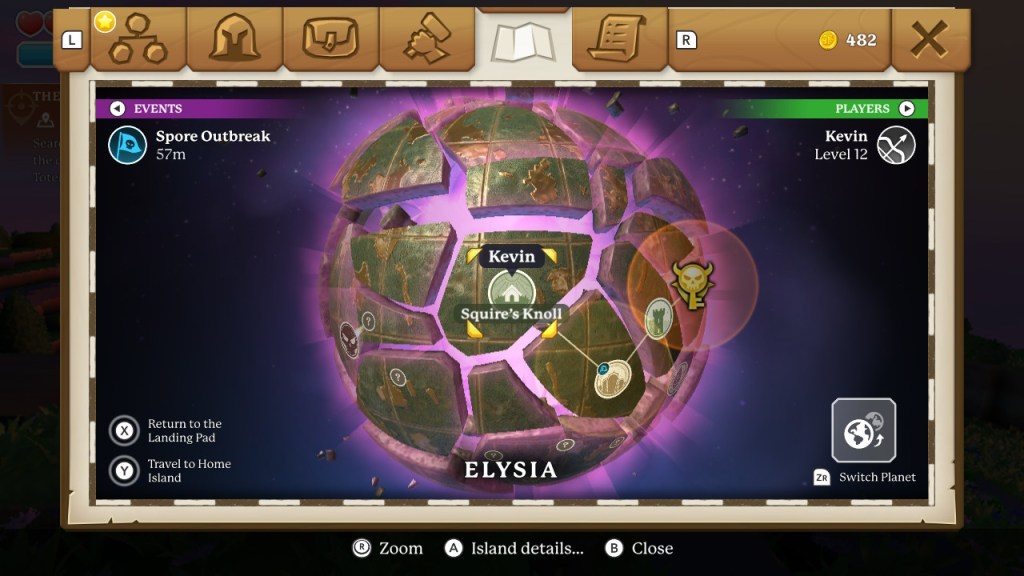
The game takes place on multiple islands that are spread across multiple planets. Each island is centered around particular resources and inhabited by various characters some of whom will ask you to complete certain tasks or quests to move the story forward. You mine in part to obtain colored magic stones that allow you to complete portals that jump you to other islands and planets so that you can complete more of the story.

There are numerous locations.
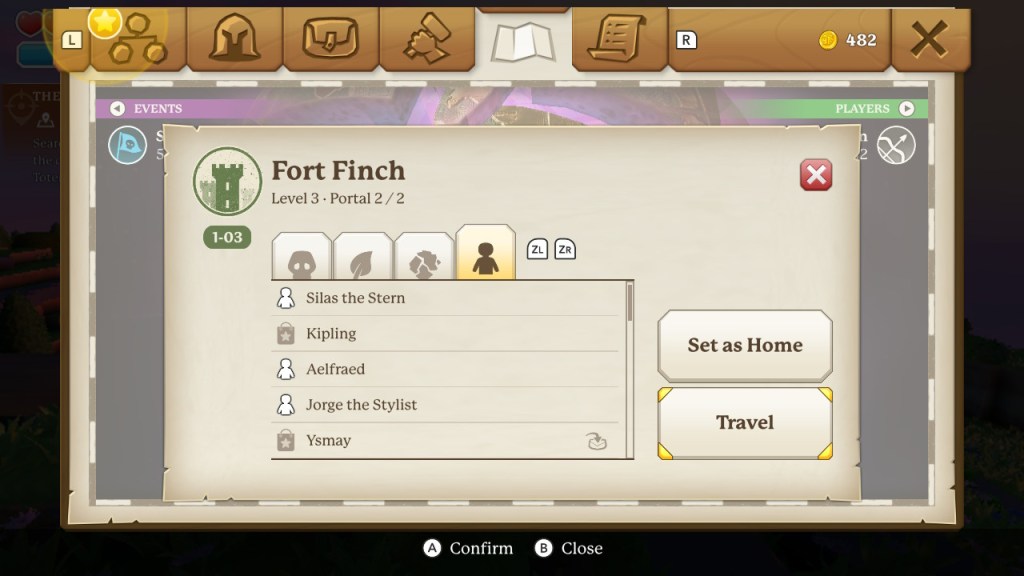
Your map shows where characters and resources can be found.

What makes the game a great co-op experience is the blend of RPG, combat, adventure, mining, farming, and building. There’s something you will enjoy doing no matter what type of gamer you are. A good balance of open-world exploration and quest driven tasks keeps you and your partner from floundering about without a clue, while still allowing you to wander. Some of the characters are cute and entertaining while others are nefarious and clearly need to be vanquished. The game tries to have a little of everything in it and does a respectable job of balancing it all. It plays especially well on the Switch due to the combination of physical controls for your character and touch for the numerous menus. My wife and I are about twenty hours in and still going strong.

Don’t Be Bored, Go Racing

In our new normal, one of the complaints that I hear most often is how bored people are when there’s nowhere to go. Shops, stores, movie theatres, and restaurants are all closed. Baseball and most other sports are on hold for who knows how long? A lot of our free time was spent “going”. Now that you have all of that time on your hands, what do you do with it?

This is the perfect time to find a hobby. For years one of my favorite pastimes has been racing. While I have been lucky enough to own and drive some fantastic cars, I am not referring to racing real vehicles. I’m talking about digital racing, not in the form of Mario Kart or any other button masher, but racing simulations.

Racing isn’t about mashing the gas as hard as you can and hoping for the best. It’s an exercise of surgical precision, superb timing, and a personal relationship with Newton’s laws of motion. Driving is a ubiquitous skill for Americans, so perfecting it has a smaller learning curve than other simulated experiences. Racing simulations are available on nearly every type of computing device. Below are some of my favorites (pics link to the web sites).

Real Racing 3 is an excellent simulation for Apple, Android, and Amazon mobile systems. I highly recommend the in-car view and tilt controls to get the most realistic experience.
People have been burning up the track in Sony’s PlayStation exclusive Gran Turismo since 1997. Always a leader in innovation, GT was the first console game to support 3-D.
With cars so detailed you can almost smell the gasoline, the Forza series is the premiere Xbox exclusive racer.
Get your race on anywhere with Grid AutoSport on the Nintendo Switch

Racing games have been in development for nearly fifty years . Gran Trak 10 was released by Atari in 1974 and featured a steering wheel and pedals control interface. It wasn’t much to look at but was entertaining. People flocked to it in the arcades and bowling alleys of the time. This encouraged the investment and development we are able to experience today.

Gran Trak 10 is the Granddaddy of Racing Simulators. The arcade cabinet had a real wood steering wheel and pedal controls.

When you flip on ESPN and see a vehicle race during the Covid pandemic you are most likely watching an iRacing event. iRacing is a subscription based virtual experience that is renowned for its ability to accurately portray the minutia of racing a car or truck. From Trophy Trucks to F1, every type of race and track is available. Tire wear, fuel consumption, track degradation and weather conditions all occur as they would in the real world.

Race with the pros on iRacing.

iRacing supports Virtual Reality, motion simulators, advanced control kits, and nearly every other type of advanced equipment the sport has to offer. Make no bones about it, this is a sport; people spend thousands of hours practicing and honing their skills here. Spend the $6.50 for a one-month membership and see how you stack up.

Project Cars 2 is the game I spend most of my time playing right now. It features almost every type of car and track laser modeled to the most exquisite detail. Day and night driving in the sun, rain, snow, and ice are all represented. There are pro events, on-line matchmaking, and everything in between. It’s available on the Xbox and PlayStation but really shines on a PC with a high end GPU.

Project Cars 2 has nailed PC racing simulation

No article about racing simulations would be complete without mentioning the astounding amount of hardware designed to push the experience from something you see and hear, to something you feel as well. Most people start their rigs with a wheel and pedal set. From inexpensive spring loaded wheels to servo controlled force feedback sets, there’s an option for almost everyone. You can get gear shifters, hand brakes, gauge clusters, eye trackers, cockpit stands, and even full motion systems to take your racing to next level.

For me, nothing beats a force feedback wheel. Using small electric motors in combination with gears, or belts these wheels go far beyond the buzzing you get from gamepads. Pushing back on your hands in corners, the slip of traction loss, bumps in the road, a lot of driving is done through your sense of touch. A good kit to start with is the Thrustmaster TS150, designed for the PlayStation it is a little known fact that this wheel works great for PCs too; there’s a switch on the back and drivers available on their web site.

An excellent add-on for any driving kit, is a gear shift. Most of the wheel combos sold today come with a 3-pedal setup but don’t include a manual gear shift. You can add one from Logitech or Thrustmaster in a snap and be rowing your way through 6 gears in no time.

You can try to clamp your wheel and shifter to a desk and put the pedals underneath. They usually include clamps made for this purpose. You’ll have a hard time getting everything to line up where it would in a real car’s cockpit. Most of us end up getting a purpose made wheel stand. There are lots of makes and models, search Amazon to get an idea. The best ones let you mount the shifter on either side. When you run European races you can make your setup match the car.

You might be tempted to think that after you’ve got a wheel, stand, pedals, a shifter, a seat, and a cockpit that you’ve reached the end of racing simulation hardware. Nope, you’re just in the beginning phases of the addiction. After you’ve had a the stand for a while, a lot of people make the jump to a full cockpit. If you’re going to dedicate that much space and money to your setup, you might as well go all in and get the motion simulation too.

With prices ranging from $800 to $10,000, or more, full motion cockpits are the apex of racing simulation. Working in conjunction with your force feedback wheel and VR headset the seat will lean and pitch to make you feel the torque of acceleration, throw you forward on hard braking, and push you to the sides in the corners. I haven’t purchased one of these yet, rest assured that if I do you’ll be able to read about it here. Now I that I’m done writing, I think I’ll go run a few laps.