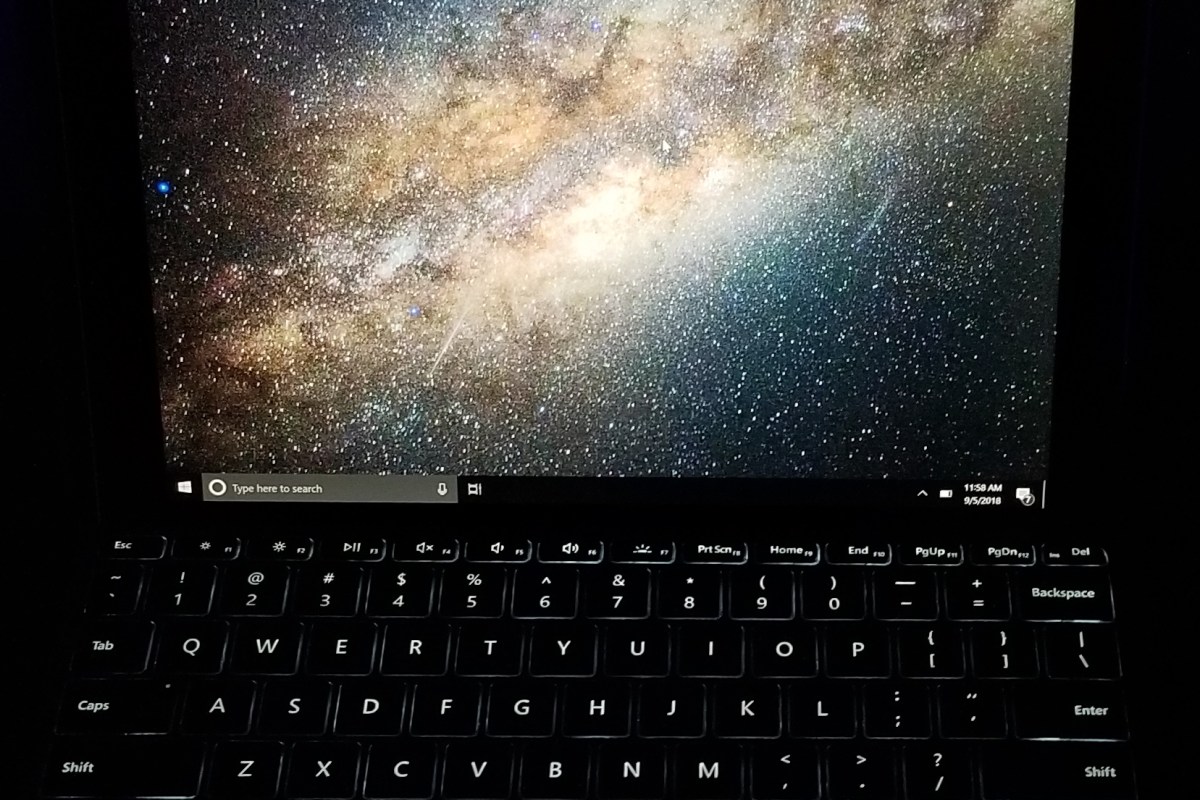
Fix Surface Go Brightness Control

I love my Surface Go, I’ve written multiple articles about it. I also spend more time on the “Go” than I do any of my other computer systems. I rarely leave home without it. The only issue I have with tablet is that the graphics driver occasionally flakes out and looses the ability to control the brightness.

The problem seems to be worse when the system is resumed from sleep and is especially bad if the brightness is set to manual vs. automatic. The control is not completely broken on my unit. If I select a setting say, 75%, it will eventually get brighter but can take up to an hour before it does.

I’ve tried to manually install the generic Intel drivers but Windows Update just replaces them eventually. They didn’t fully work anyway. I’ve also made sure I’m on the latest updates from Microsoft, I have my system in the fast ring even. Still no luck.

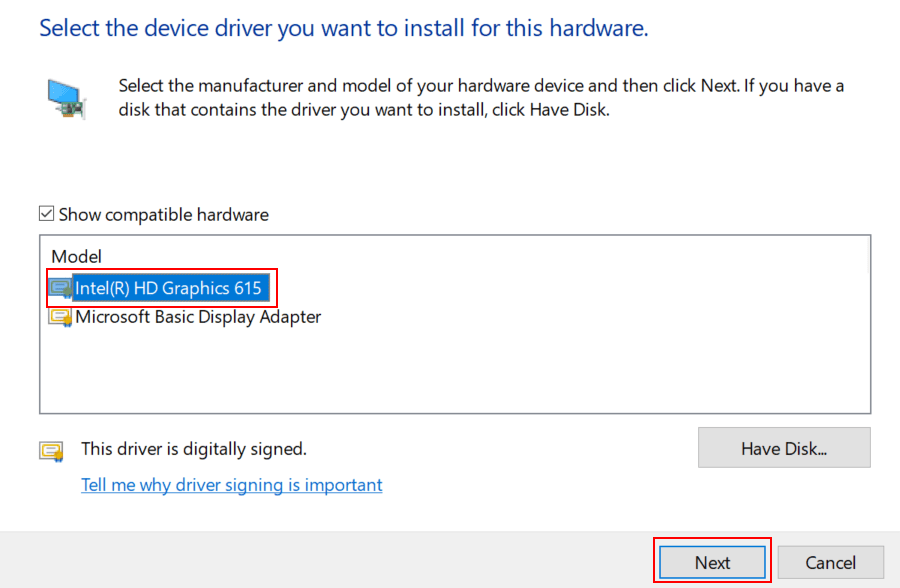
I’ve finally found a fix that worked for me. Maybe it will work for you as well. I used the device manager to switch my drivers to the “Microsoft Basic Display Adapter” rebooted and then changed the driver back to the “Intel HD Graphics 615 driver” and rebooted again. Its been several days now and I am able to change my brightness instantly.

Here’s how to do it.

  • Right click on your start button and click Device Manager
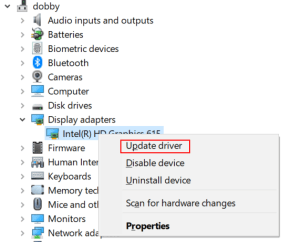
  • Right click on the Intel HD Graphics Driver and pick Update Driver from the menu.
    • Update-Driver
  • Click the second option “Browse my computer….”
  • Click the second option again “Let me pick…..”
    • Let-Me-Pick
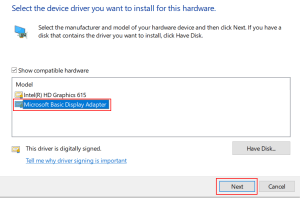
  • Choose “Microsoft Basic Display Adapter” and click Next
    • Basic Display Adapter
  • Your screen will flicker and you may hear some beeps.
  • Click the close button.
  • Reboot your computer.
  • Repeat the process above but select the “Intel HD Graphics 615 driver”
    • Intel_Drivers
  • Reboot again


Nvidia’s 2080 Ti, The New Hottness

Gaming PCs have been part of my life for as long as I can remember. I like to build them myself and through the years I’ve learned that getting the best quality components is less expensive in the long run. Much like buying your kid a pair of sneakers that is one size too big, high-end equipment has a longer useable life because it is overpowered for the current generation of games and applications.

At well over a thousand dollars for the least expensive iteration, does Nvidia’s new flagship chipset provide enough bang for the buck? Will it offer enough future-proofing at this price point? I’ve read tons of benchmark results, perused many articles both for as well as against, and watched countless review videos. I’ve decided that it is time to find out first-hand. This one component will cost more than everything else in my system put together. It better be worth it!

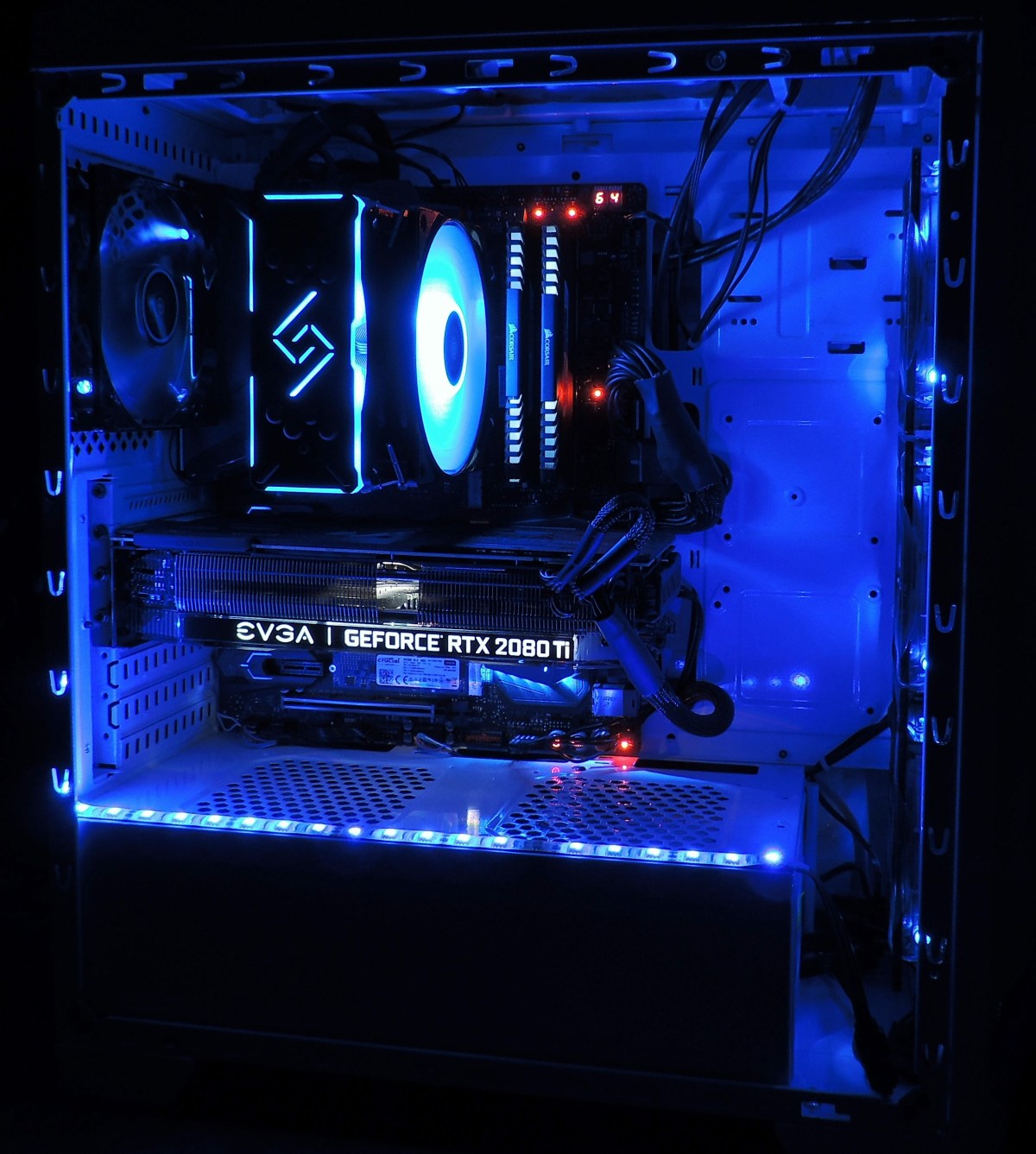
DSCN1185

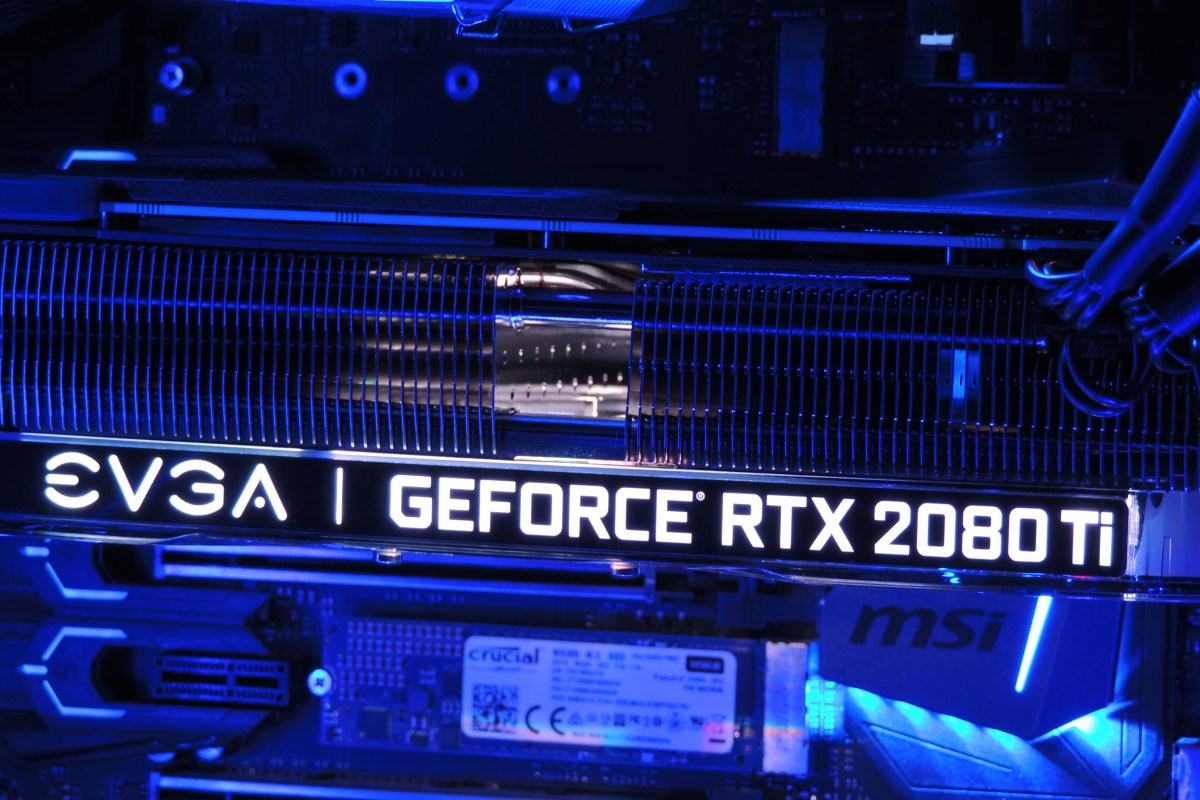
Just deciding which manufacture’s card and which of their ten or more models to get was a project unto itself. The decision was made more difficult by many options being unavailable. Some of my top contenders were back-ordered for as long as six weeks. The various cards differ from each other in a couple of ways. First is whether they have a factory overclock applied or not. Second is how many fans their chassis have attached. Generally speaking, the higher the overclock, the more fans you need to keep it cool. The current generation of these cards come in one, two, or three fan configurations. I ended up with an EVGA Gefroce RTX 2080 Ti XC Ultra Gaming card. It has a slight overclock and two high-speed fans.

Nvidia’s new monster requires dual eight pin power connectors and a minimum of six-hundred and fifty watts. The PSU in Elder-Wand that ran my previous RX-480 had the dual connectors but was rated for only six-hundred watts. I decided to try it with the 2080ti anyway, just to see what would happen. At first I thought everything was going to be ok. The system booted, the Nvidia drivers loaded, and my desktop screen looked great. My web browser and Visual Studio worked well. Everything went sideways when I tried to launch Destiny 2. The fans on the GPU went nuts and my system froze completely. Luckily this was just an experiment and I had a Corsair RM 1000x on deck.

After installing the new PSU, I fired up the same game (Destiny 2) and set all the graphics options to their maximum modes. I went to Earth in the game because the Trostland (EDZ) has a variety of environments and lighting situations in a small area. I was floored. Staring at my 40 inch 4K screen was like looking through a window at an actual church. Albeit one in which odd purple aliens are running around shooting at each other.

2018-12-22 (3)

I systematically set all of the games I am currently playing to 4K ultra and they all preformed flawlessly. The card wasn’t struggling to keep up and 60 FPS (max for my screen) was a breeze. The fans were in cruising mode and it was obvious there’s a lot of head room between what current games are consuming and the power this chipset can bring to bear. I don’t think future proofing is going to be an issue, but the price per year is going to end up on the high side. If the card lasts the typical three years I’m looking at four-hundred per year which is the equivalent of buying a new top-tier console every birthday.

2018-12-23

Besides being the most powerful consumer card on the market, Nvidia’s other claim to fame for the new chipset is being the first to enable real-time ray-tracing. The technique allows the GPU to simulate the path that rays of light would follow in nature, providing a realistic photo like picture. Especially where reflective surfaces like water, clouds, or ice are concerned. Until now ray-tracing required server farms to render and was only used in CG for movies and TV.

2018-12-23 (10)

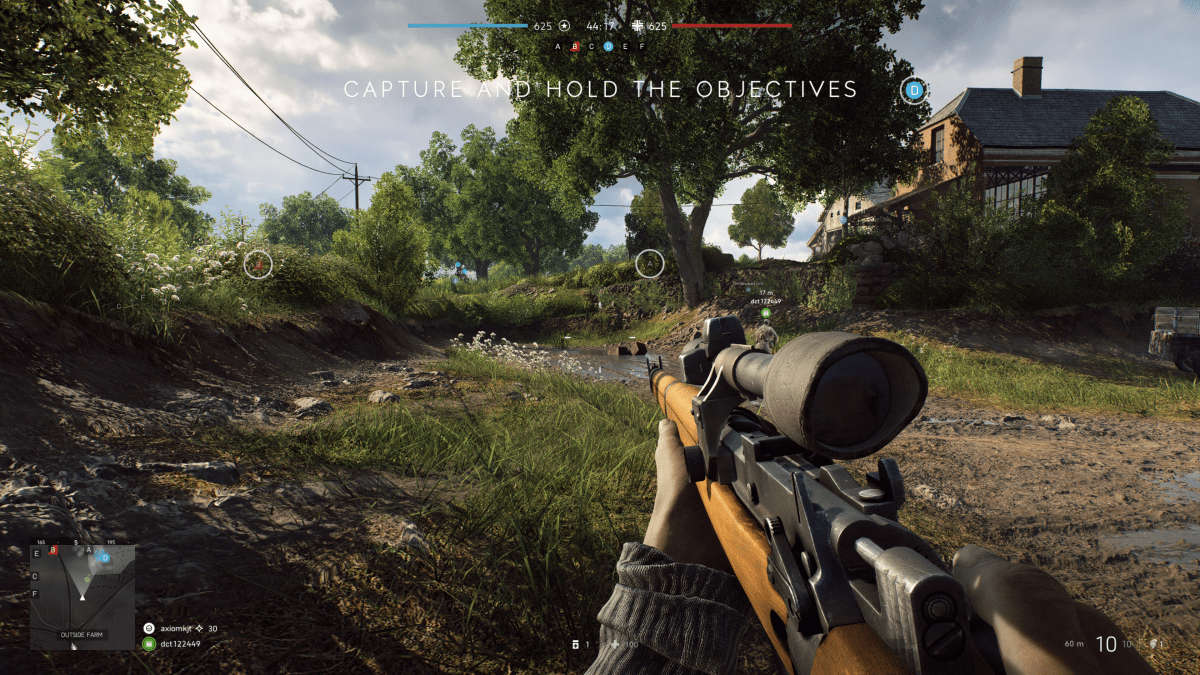
There are only a handful of games that can utilize ray-tracing right now and it remains to be seen whether the tech will catch on in the main stream. Lucky for me, my purchase came with one of the DRX enabled titles, Battelfield V.  I was impressed with results. You do take a hit to FPS when enabling the feature, but I was still able to stay close to sixty most of the time.

The net result is that surfaces look almost real. I imagine that if I removed the text and in-game overlays from the screen grabs above and below, you would be hard-pressed to identify them as a computer generated images. These were taken in the middle of an on-line multiplayer battle. Notice the superb reflections from the slight dampness in the ditch on the right and the gleam off the weapon’s surfaces and the shooter’s skin in the picture below. The water in the picture above is the best I’ve seen in a game, period.

2018-12-22 (4)

The other gaming function that the 2080ti excels at is Virtual Reality. Current VR goggles are somewhat lacking in resolution and this causes items that are “far away” to appear grainy or digitized. One technique to help minimize the degradation is to enable supersampling. Essentially supersampling tells the system to use multiple copies of every image to fill in the detail; it’s a type of anti-aliasing. This operation takes a lot of horsepower from your GPU especially when you consider that you need to run two displays at 90 frames per second while doing it. The 2080ti was easily able to support 5.0 (highest setting in SteamVR) supersampling for all of my games.

The price of this chipset puts it out of reach for a lot of gamers and that is a shame. The power to run all games at 2160P with ultra everything is intoxicating. The 2080ti lives up to the hype in my opinion. I doubt if it will last long enough to be considered a wise financial decision, but don’t most hobbies end up costing you a lot of money in the the end?

Photographs appearing in this article are courtesy of Tyler Trent.

My journey from drone zero to hero with the DJI Mavic Air. Part 2.

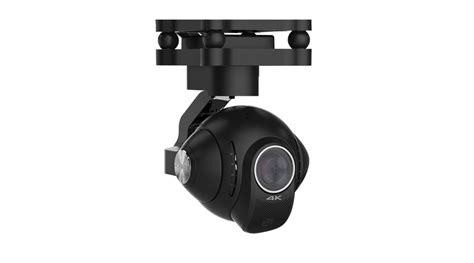
To get stellar shots with a camera drone, it needs to have a gimbal mount. Preferably a three-axis gimbal. This technical marvel will allow your camera to stay steady and level while the drone moves around it. It’s a miniature version of the device you see mounted on the nose of news choppers and attached to Hollywood camera rigs. They come in various versions and styles; some are part of the drone itself and others can be bolted on to any vehicle powerful enough to carry them. My research led me to believe that the bolt on types were more flexible but required more adjustment to get the best results. I have little enough free time already, so I decided to go with a quadcopter that included a built-in gimbal.

gimbal_camera.jpg

Deciding on a built-in gimbal reduced my choices in hardware. There were a few other requirements for my flying camera purchase that cut the list down further. I wanted a true “drone” this time, something that had brains of its own. Features like return to home, follow me, and GPS location were important for my plans. I also needed portability. Monster octocopters with full DSLR rigs are cool, but I wanted something that could easily fit in a backpack or laptop bag.  As always, I did tons of research online and talked to a lot of people, including my brother who is an avid quadcopter pilot. In the end, I narrowed my list down to just two choices.

I’ve had the DJI Mavic Air for almost three months now. I picked it because DJI has an excellent reputation and offers an accident replacement program similar to Apple Care. I was also very impressed by its automatic flight abilities. This drone has followed me down multiple trails in the woods weaving in and out of the trees in an eerie “the robots are taking over” manner. It has sensors on the front, back, and bottom that let it hug terrain and navigate nearly any path. It’s truly amazing to see it fly itself. It also has touch and go flight, touch a spot on your screen and it will go there all by itself.

DJI makes some of the best Gimbals in the business and the one on the Mavic Air is no exception. Pictures and video look like they were taken with a camera on a tripod even when the Mavic is flying at over forty miles per hour.

I ended up getting what DJI refers to as the “Fly More” package. It comes with the drone, controller, 2 extra batteries, a multi-battery charger, extra props, and a very nice carrying case. I’ve been happy with my decision, if you go with this drone you will almost certainly want more than one battery and this package is the least expensive way to get them right now. A single battery lasts somewhere between 15 and 20 minutes in real-world conditions, depending on how fast you are flying and how hard the wind is blowing.

I’ve had the Mavic out in 12 mile per hour winds and it stays steady as a rock. Rather than me tilting into the wind, the drone’s AI automatically does it. It even auto-brakes. As you level off the pitch during a high-speed run, it automatically tilts in the opposite direction until it comes to a hover all on its own. Where was this tech back in part 1 when I was bouncing my micro-drone off the walls?

created by dji camera

Flying the Mavic compared to the micro-drone I started out with is like comparing a Yugo to a BMW.  I will say that before the Mavic, the piloting was all me. Avoiding the wall, my dog, and my wife’s face while screaming down the hallway at what seemed like mach two, was all my skill. Much like modern supercars, the Mavic can do the same with or without my input. It’s onboard AI is a better pilot than I am, but that doesn’t stop me from shifting the the switch on the remote into sport mode and fully controlling it by myself.

The Mavic Air isn’t the fastest drone on the market but something this size traveling at forty miles per hour is astonishingly quick. You will want to leave the drone in beginner mode which limits the speed and distance the vehicle can travel from the controller until you get the hang of flying. I also suggest turning on the AVS option which is the vision based obstacle avoidance.  In the video below you can see this system keeping me from hitting the trees. Watch it work out how to exit the dry creek bed and make its way to the road I touched on the map.

Now you know what drone I chose and why. At this price point, it met all my requirements and exceeded my expecations. The software, camera, and drone itself are all impressive. Watch for the next post in this series in which I’ll do a full review of the Mavic Air including shots of its software, features that aren’t commonly discussed, and more. I’ll finish the series with an article discussing useful things you can do with a drone that you might not have thought of.

My journey from drone zero to hero with the DJI Mavic Air. Part 1.

Growing up I really liked remote control vehicles and toys. They’re what I asked for almost every Christmas and I was a regular pest at the local hobby store. As a young adult, I got more serious about the pastime and ended up with several gas-powered and electric models. I’ve always been interested in RC flying too, but the expense and learning curve of scale model planes and helicopters have kept me on the ground until recently.

I realize that gyro helicopters have been on the market for a long time. I’ve had several of them. In my opinion they have a few drawbacks. Chief among them being no good way to change pitch to generate thrust. My dual rotor HC “swims” through the air by wiggling its tail back and forth and barley achieves walking speed. Some models have a tail rotor that can lift the rear to change pitch, but I found them awkward to pilot and only marginally effective. Scale RC helicopters with a full collective and tail-rotor are fairly expensive and have a massive learning curve to fully master. I watched my novice neighbor shatter his bird into a thousand pieces on our street after a botched take-off; even with the safety spokes attached.

gyrocopter

Quadcopters and multi-roter drones are the great equalizer amongst flying vehicles. They typically have a gyroscope that keeps them balanced which makes them easier to fly. They change direction by varying the speed of their rotors rather than by changing their wing shape like a traditional plane or helicopter. This results in more precise control and the ability to fly in any direction equally well.

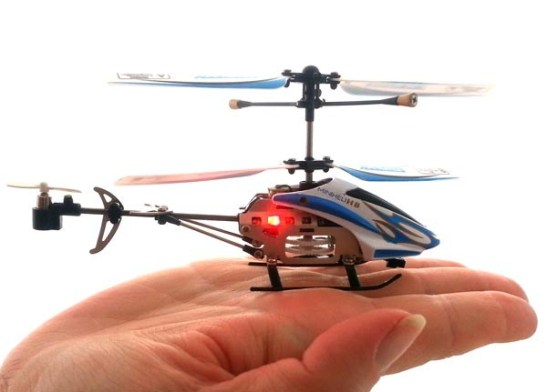
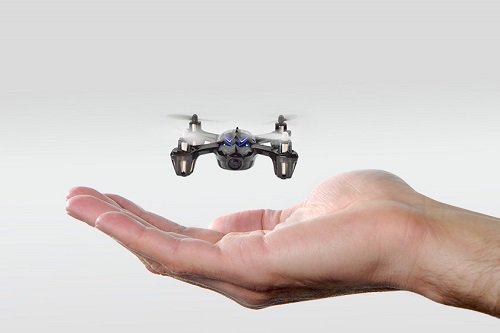
When I started out with quadcopters, I knew that I eventually wanted to do areal photography and videography. I didn’t want to risk crashing an expensive camera drone right out of the gate so, I decided to learn in stages. First I purchased an in-expensive indoor micro drone for less than $15.00 .This little rocket can cover the entire length of my home in just a few seconds. In addition, it can do flips, impossible turns, and other impressive maneuvers that take a lot of practice to get the hang of. They really are quite fun to buzz around the house with, most can stay in the air for five to ten minutes on a charge and include a simple controller.

Minidrone

At first, piloting a quadcopter was difficult. The smallest input on the controls would lead to the little machine bouncing off a wall or careening to the floor at break-neck speed. I learned to hold the sticks between my thumb and index fingers rather than with just my thumbs. I also discovered that throttle control is paramount to keeping your vehicle in the air. In all, it took somewhere around twenty hours of practice before I could fly around my home with confidence.

After forty hours and a bag of replacement props, I could do flips, fly in and out of door-ways at full speed, circle the ceiling fan, and buzz my pets like a fighter pilot on a bombing run. Speaking of pets, if you have any, you’re going to want to keep a pair of tweezers handy. Almost every time that you crash, you’ll need to pull hair or carpet fibers off of the prop shafts before you can fly again.

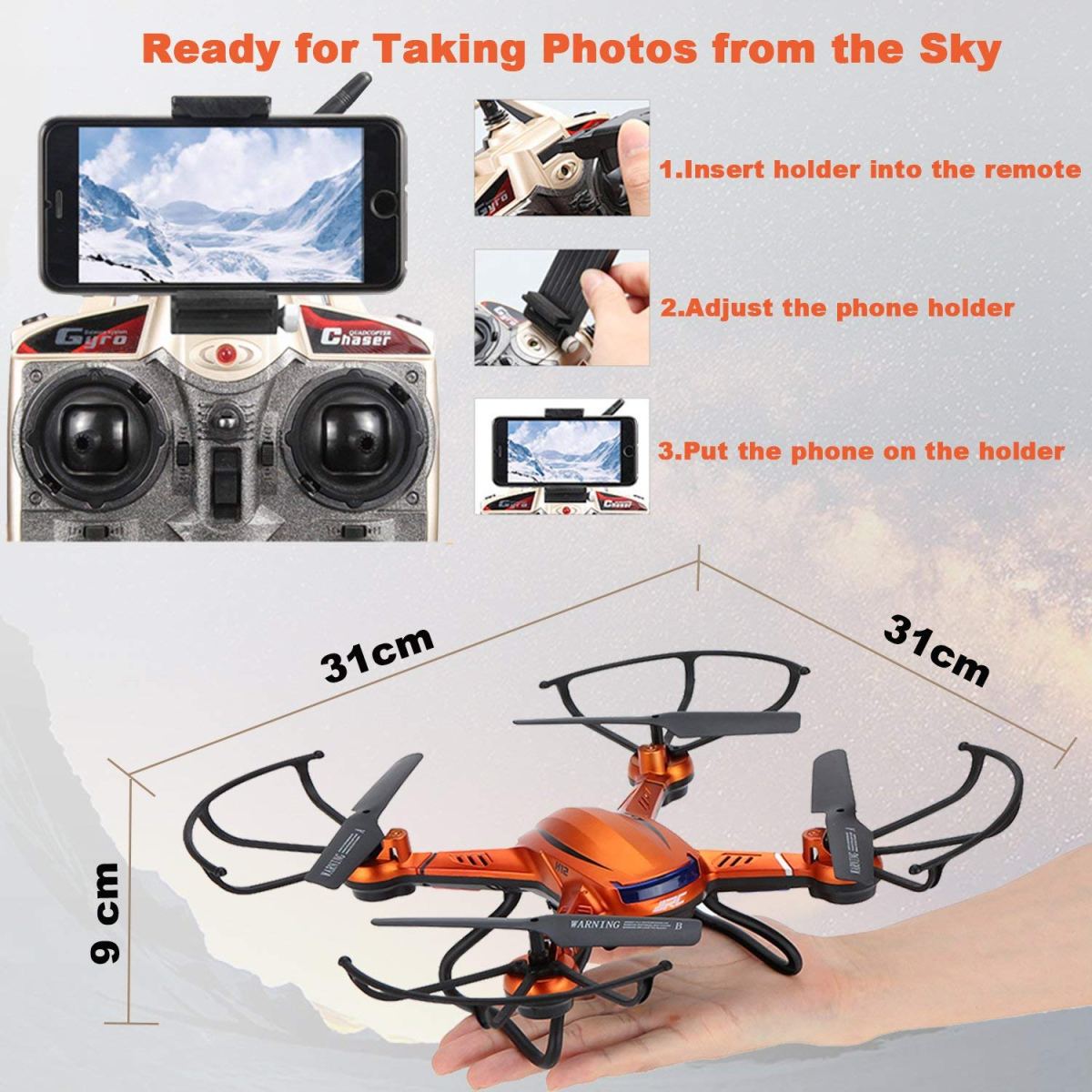
Once I had mastered the micro-drone, I upgraded to a slighty larger and more powerful indoor/outdoor model that included a camera. At less than $100.00 it wasn’t overly expensive but it was faster and therefore more difficult to control. I could pilot it indoors right out of the box, but the first time I took it out to my backyard the wind blew it over my neighbors fence right after takeoff.

medium_drone
I’m pretty sure this won’t handle the mountains shown on the phone’s screen.

It turns out that balancing against the wind is a skill unto itself. You learn to tilt the drone into the wind and then back off when it lulls. It requires quickly reacting to changes in the machine’s pitch that you know you didn’t initiate. React too harshly on the sticks and the over-correction will cause a crash or mess up your shot. The upside is that I got to know my neighbors better from having to knock on their doors to retrieve my toy from their yards.

After I was comfortable flying in my yard, I began to push the flights higher and faster. It wasn’t long before I could comfortably fly over my whole neighborhood above tree level faster than most kids can ride a bike. The camera worked and it was neat to see the jittering low quality video and grainy pictures. With no gimbal, every twitch in the air resulted in a jerky, out of focus, picture. Still, I could see enough potential to dream of the areal shots I would be getting with my next upgrade.

Eventually, I got too brave and suffered a fly-away. This is when the wind blows your rig so far that you can’t find it. Wind blows different speeds at different altitudes. I was a couple of hundred feet up, trying to get a picture of a small lake, when a gust took hold and carried my baby out of sight. Since it didn’t have a GPS locator I had no chance of finding it. I was ready to upgrade anyway. Or, at least that’s what I told myself. Continue on to part two for the rest of the story.

The Apple Watch series 4

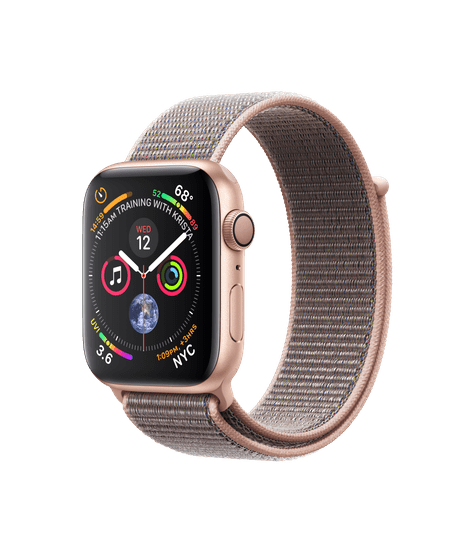
The last time I wrote about smart watches I ended up liking the Samsung Gear 3. I purchased the new Apple watch for my wife and we’ve spent the last few days setting it up and putting it through its paces. Have I changed my mind?

She’s upgrading from a series 0 (original) so the differences are as drastic as they can be. The new watch is 40mm vs. the 38mm of the orignal but you can barely tell they’re not the same size. The corners on the series 4 are rounded off at a shallower angle and this hides the small size difference. Surprisingly, her custom leather watch band from the 38mm fit on the 40mm without any issue.

The biggest improvement is that the screen than has significantly more viewable space. The extra size makes things like text messages and certain views in the calendar much easier to read and the numbers on many of the watch faces easier to make out in a quick glance. You can also add more complications.

The new Apple Watch is noticeably faster and the speed boost is most appreciated when opening complex apps that deal with lots of data like the text messaging app or Apple pay. There’s almost no delay between tapping the icon and the app opening. I imagine in the months to come we’ll see apps that can take advantage of the added processing power.

Apple has added haptic feedback to the crown so that you feel it “click” when it rotates. This is a more important update than you might think. I know it impressed me more than expected. Operating the device is more precise when you have some sense of how far you’ve rotated the knob. It’s like the difference between typing on-screen and on a keyboard.

She got the Cellular version of the watch and something we didn’t expect was how much louder the speaker is. You can easily hear music or calls, in fact my wife had to turn the volume down from its default because it was uncomfortably loud. The microphone pics up your voice from almost anywhere. There’s no need to walk around talking into your wrist a’la Knight Rider.

Michael-knight-watch

I expect the EKG feature to be fantastic when it is activated later this year, watch for an article on that (puns are fun). The heart rate sensor is much more accurate than the orignal is. The podcast app is a great addition. The device has finally evolved to something that lets you feel comfortable running to the store or going for a run without your phone. The fall detection and alerting is a great safety feature for people that are home alone.

My only major gripe is that Apple still doesn’t allow 3rd party watch faces. Don’t get me wrong they make some great ones, but for comparison there are some 60,000 available for my Gear 3. Overall, I’m impressed but I won’t be ditching my Samsung for one anytime soon.

Things to do with your Surface Go’

So you’re the proud owner of a shiny new Surface Go, now what? Besides checking your email and surfing the web, what else can you do with the little powerhouse? Of course, you can install the ubiquitous PC applications, MS Office, Photoshop, and what have you. This article is more about doing things you may not know about or considered.

Have you ever wished there was a font that matched your handwriting? Mine is atrocious, I’m always surprised that a computer can read it. My spouse’s on the other hand, is quite elegant. If you write nicely like she does, Microsoft has just the app for you. Download the Microsoft Font maker from the Microsoft store and with a few simple steps your handwritings will be digitized and turned into a font that you can use anywhere.

Fontmaker

It’s time to unleash your inner artist. The Surface pen is one of the most sophisticated digital marking instruments you can purchase. It works incredibly well on this tablet. I have several digital art systems, but the Surface Go is my current favorite. It’s light weight, responsiveness, and accuracy are ideal for drawing and painting anywhere. There are a plethora of different artistic apps in the store. If you’re just starting out I recommend Sketchbook. It’s a good balance of power and ease of use.

langrylink

It seems like every time that I sit down to get my game on, one of my family members wants to watch a movie or something on the home entertainment system. You can use your Surface to play your Steam, Xbox, or Playstation games through their respective streaming services. For Playstation or Xbox games you’ll need to pair a Bluetooth controller. The Xbox app is pre-installed, open it and click the icon on the right hand menu that looks like an Xbox. Follow the prompts to get the service running. If you have a Playstation, download the Remote Play app and follow the on-screen instructions. To stream Steam games from your gaming rig, just install the Steam client app on your Surface and login with the same account. Select a game in your library and pick stream.

Steam_Stream

Most of the whiteboards in my office are old crusty things with the shadows of meetings past bleeding through. Skip the dying markers and eraser arm, use Microsoft’s Whiteboard app instead. Download it from the store and you’ll be collaborating in no time. Features like ink to shapes and ink to tables, help ensure that your art skills don’t derail your ideas. The “invite people” option works when you’re all in the same room or in different countries.

Whiteboard

Hopefully I’ve given you some ideas to think about. The device’s diminutive size and power make it an excellent tool for data consumption and productivity. The Microsoft Store is full of applications that are useful, but don’t forget that if you convert from S mode, all windows software becomes available.

The 2018 Microsoft Surface Go

As most of my readers know, I am a fan of tablet computers. Especially those that have a pen input option. I first became interested in them after seeing Bill Gates show off a Windows XP tablet edition device on Good Morning America. I like technology and I also enjoy writing, but some part of my brain does the latter better with a pen or pencil in hand. A system that combined the two was just the thing for me.

I spent countless hours mastering the specialized Graffiti input on my Palm Pilot PDA but it just wasn’t the same as scribbling something on paper. What Mr. Gates demonstrated on that show was true handwriting recognition. I convinced my boss at the time to get me one of the first devices and I haven’t looked back since. I have owned and used nearly every pen enabled computer since then.

This weekend, I picked up the Surface Go. I’m writing this article with it. The last Surface system I bought was one of my favorite computers of all time. Why get a Go if I already own a Pro? In-short, size and weight are a pen writers biggest enemies with this type of tech. Until recently it has been difficult to find devices that are small enough to comfortably hold in a single hand but powerful enough to run real-time handwriting recognition. Most of the tablet devices are large enough to require a table or knee to lean on. The Galaxy Note phones were some of the first devices to allow handheld writing and I still love mine. The Galaxy Book 10.6 was among the first tablets light enough to hold and write but powerful enough to be useful. It’s a great device but the Surface Go has some district advantages that drew me to it.

Foremost in my mind is the integrated kickstand. There’s just nothing else that competes with it, even with HP and Asus trying to copy it. The other manufacturer’s versions don’t stand-up. The Surface Go keyboard has the same fold and attach ability that its big brother does which makes the keyboard more rigid on your lap. It’s one of the few 2-in-1 designs that works well on your lap, on a table, and on the arm of your chair.

20180901_200524
Midna chillin’ on my lap while I write this article.

Next on are the size and weight. The Surface Go weighs 1.15 pounds and feels the same as holding a 9.7″ iPad. It’s light and has a small foot print. The Go is just the right size to slip in your day pack or a purse but still big enough to be worth carrying the extra device. Even as a long time Galaxy Note fan, I find myself tossing this thing in my bag for the extra screen space. It’s comfortable to hold in one hand and write with the other. Every ounce less that a tablet weighs, improves its usability in this regard. The Go is light enough that I find myself reading books on it which is not something I have normally used a tablet for.

Some of the reviews that I had read before purchasing the Go indicated that the processor was weak. I’m not a huge fan of benchmark testing, I find that it is largely irrelevant in the real world. In my very un-scientific testing the Surface Go opens some popular everyday apps like the browser, Facebook, Instagram, and Twitter, a fraction of a second slower than it takes the current iPad to launch the same software. However, Apple has spent considerable time and capital optimizing the iPad for those specific tasks. If we switch our testing to apps like Word, Excel, Onenote, and WordPress, the Surface Go is much faster at launching these programs in some cases several seconds faster. The Surface Go was faster at launching every “Productivity” app that we tested: Sketchbook, Photoshop, Evernote, and Homebudget, all opened faster on it. Full disclosure, my testing method consisted of my wife grabbing her iPad and us launching the same app after a 3-2-1 countdown. In my opinion, this is the only kind of speed test that matters for these types of devices.

Power_Slider
To get the best performance, tell Windows to favor it over battery life by tapping the battery icon.

For me, one of the true tests of a system’s power is to load up a game and see how it plays. The system easily handles “App Store” games like Candy Crush, Modern Combat, and Fruit Ninja so I decided to throw something harder at it. I installed Steam and downloaded Borderlands 2. I let the game auto-dected the resolution and graphics settings (1152 X 854) and was floored by how well it played. It looked good, and was fully playable. I actually enjoyed playing on it and was also able to play Sims 4 (on high at 1080P) along with Stardew Valley. Don’t get me wrong, it’s not a gaming system. It couldn’t play Destiny 2 at all and you won’t be hooking up a VR headset to it, but for a college person or to play on your lunch break at work, it’s surprisingly good.


Microsoft says that the battery can last up to nine hours. I’ve been using it all day for the last three days doing everything from writing and surfing to playing and drawing and I haven’t needed to plug-in except for its nightly charge. I also have the 2018 iPad and the battery life seems comparable in real-world use.  I am enabling battery saver mode when reading or doing other low demand tasks.

Overall I’m very happy with this system. It would be nice if it were a little less expensive, but it’s an incredibly good small computer and you’re always going to pay a premium for that. The 128 GB iPad comes in at $429.00 and the 128GB Go is $549.00, for the extra $120 you get a full Windows operating system that can run the full versions of software like Office in a similarly sized package. I’ve already installed Visual Studio, written a PowerShell script, loaded PhotoShop and edited a picture, written countless emails and a few Word documents.

The keyboard is fantastic but I disagree with a lot of the tech blogs that say it is required. If you plan to use this system for “tablet” tasks, it’s on-screen keyboard is leagues above Apple’s. It has multiple sizes and modes that allow it to fit almost any situation. The predictive text is spectacular. If you want to type 100 WPM then you’re going to need a keyboard. If you want to take that keyboard with you, I recommend the one that Microsoft made but you can use any with bluetooth or a USB C adapter. The purpose made keyaboard is nearly perfect as far as small keyboards go. I’ve never used one that was better.

I already owned the new Surface Pen and have written an article about it. It works really well on this tablet. If I had to choose between the keyboard and the Pen I would have picked the Pen! I still think the Norris pencil for the Samsung Galaxy Note is the best stylus I’ve ever used, but this one is a close second and it’s more functional.

I’m very happy with the Surface Go and think that if you mostly use a high-end desktop or big-laptop and need something more portable, this tablet is a great fit. If you’re a college student, home user that doesn’t edit video/play AAA games, or 95% of office workers, you could likley use this as your only computer system with a dock. Microsoft will be releasing a business edition and an LTE equipped version in the near future. I expect this device will be quite popular over its lifetime.

Appbot Riley, an affordable home security bot.

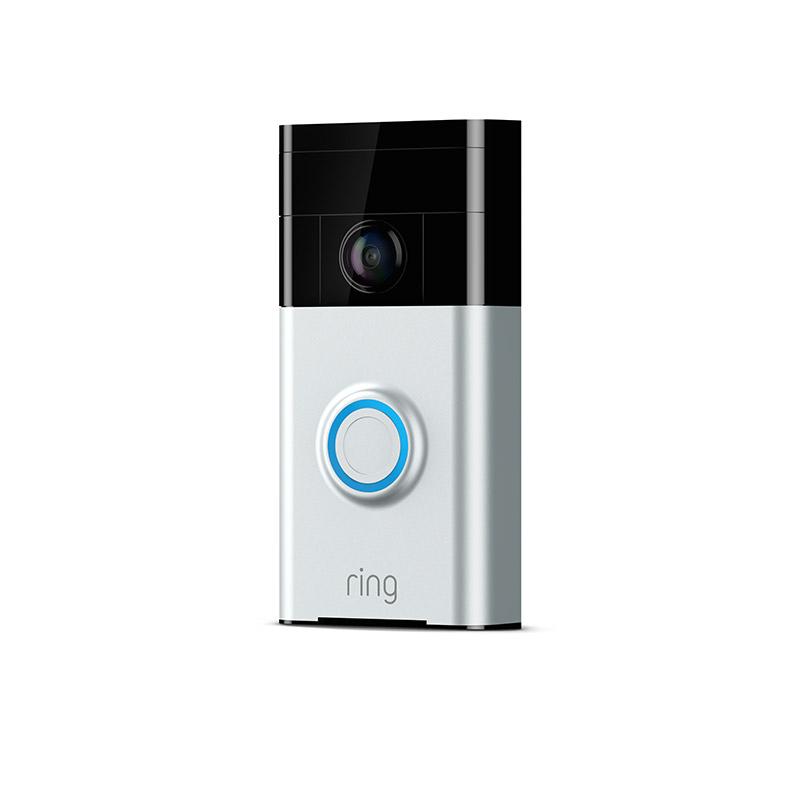
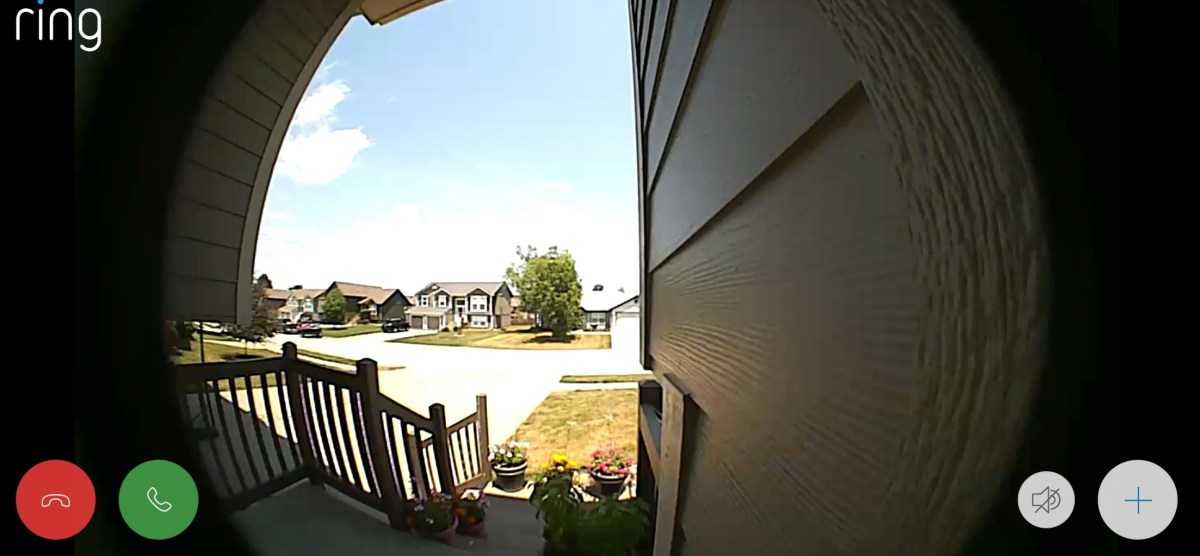
Not long ago I jumped on the IoT bandwagon and installed a Ring doorbell. I was surprised by how much peace of mind the thing provides. Getting a notification when somebody approaches my house, a doorbell that not only chimes but beeps my phone, and being able to tell salespeople that I’m not interested without getting off the couch are game changers in everyday life. Knowing that the UPS man dropped off my package on the porch and being able to keep an eye on it until someone gets home is just great, too.

Ring

These high-tech super powers of observation got me thinking that it would be awesome to keep an eye on the inside of my home too. I know there are several systems on the market that facilitate putting multiple cameras throughout your home and connecting them to a controller that monitors, records, and provides control over the camera network. Nightowl offers systems that are both wired and wireless with multiple cameras, indoor and outdoor options, and more. I wasn’t interested in having a system like that in my house though. My family and I think that having cameras staring us 24/7 would be creepy. My goal isn’t to spy on people. It’s to see what’s going on in my home when nobody is there.

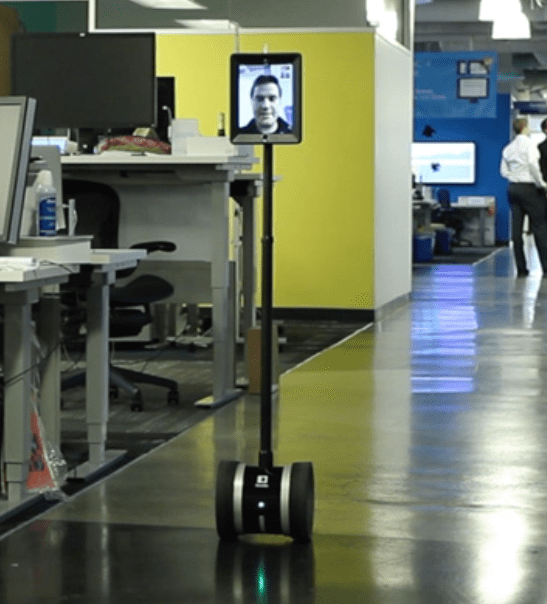
I have experience with several models of office bots. You place an iPad or other tablet into them and then connect with 2 way video software to drive yourself around and talk to people (think Facetime on wheels). A couple of the companies that I’ve worked for have had these devices for employees that work from home or remote offices. They are surprisingly effective after everyone gets used to them. There are a couple of problems for my use case though; they are too expensive and just flat-out overkill. I like the idea of a camera I can pilot throughout my home but it doesn’t need to show my face.

ipadbot

I hadn’t run into a solution IRL so I did what I always do, research. It turns out there are a few options for home security bots that are basically web cams on wheels, but not as many as you might think. The lower tier of these devices are children’s toys, which I immediately ruled out. The upper tier is comprised of personal assistant robots, that look cool (to a geek) but are priced out of my budget. Right in the middle are a handful of home security bots that are basically web cams on wheels, or tracks as it were. I narrowed my list down to three based on customer reviews and the features each offered.

  1. YZ MeE Smart Home Security System
  2. FEISIER CLOUD ROVER IV Cloud Companion RC Car
  3. Appbot Riley App Controlled Movable Home Safety Robot Camera

My home has several different floor surfaces; shag carpet, tile, and various rugs, made me think that the option 3 might get around a little easier. Tracks offer excellent traction and weight dispersal. There’s a reason why tanks use them right? So I ordered the Appbot Riley from Amazon.

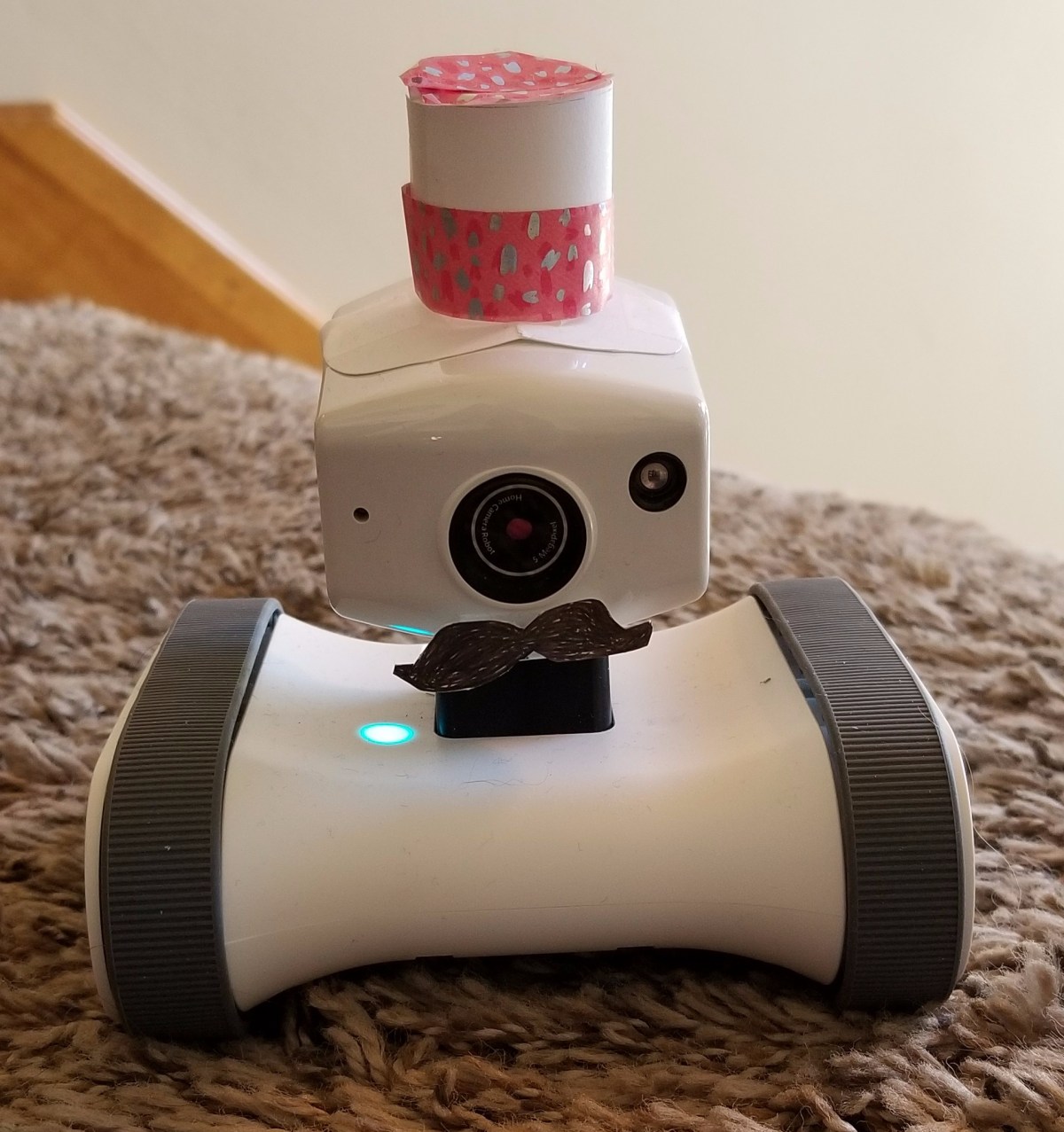
It had several features that I was interested in without being total overkill. The little bot has: 720P streaming video, a rotating docking station, automatic docking and undocking, a motion detector, IR night vision, picture and video recording (to your phone), face tracking, two-way audio, a tilt camera mount, and automatic self-righting.

We’ve had the robot (we named it Robby) in our home for a couple of months now. I’ve been happy with it overall, there are only two things bug me. When you pilot it at full speed it tends to turn left. There’s a sweet-spot at which you can drive forward at around 70% of the full speed and stay straight. The other is, every time you switch out of the app to say, check a text message, you have to go through the log on process all over again.

When the little guy is on its dock you can use it like a 360 pan/tilt security camera, the dock is motorized and spins while the “head” tilts up and down. We’ve strategically placed it so that its easy to see the front and rear doors without undocking. If we want to see what our dog is up to we just hit the undock button and the app bot orients itself and then backs out of the dock ready to go. When you’re done driving you only need to get it close to the dock (where the camera can see it) and then hit the dock button. It will position itself and start charging all on its own.

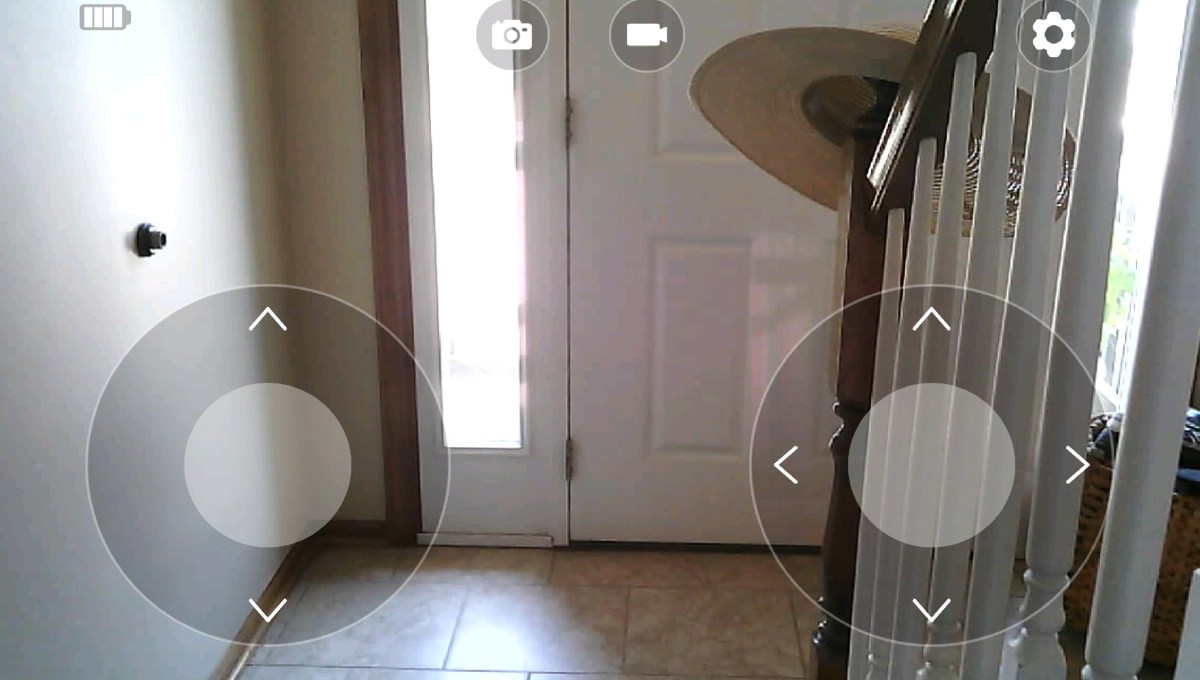
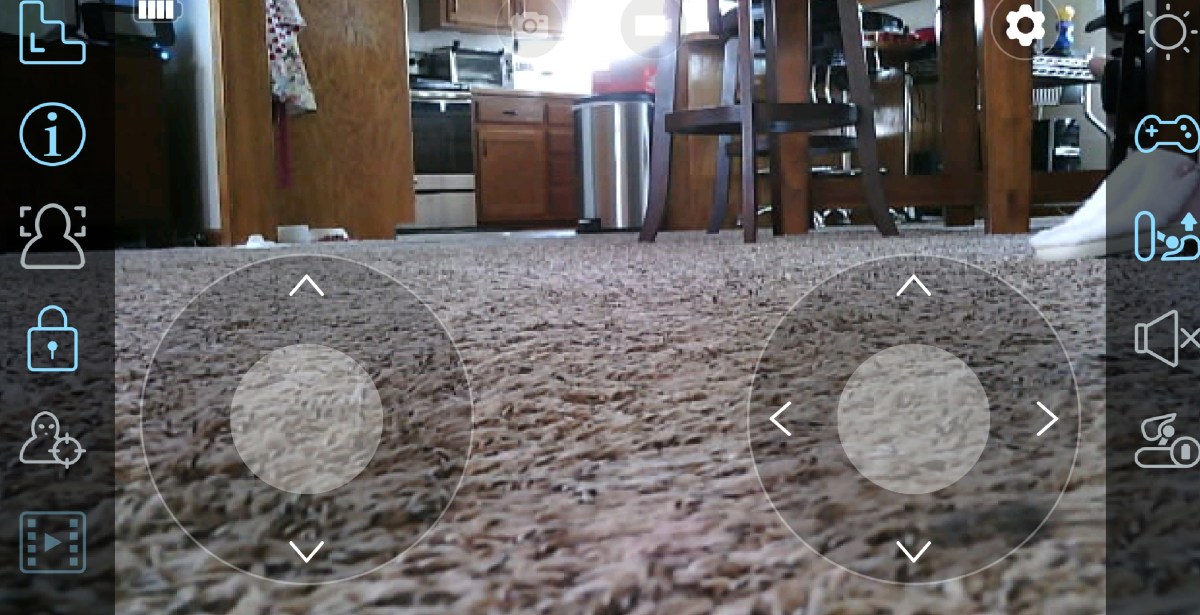
You see what the camera sees from the app on your phone and drive with virtual control sticks much like those in any FPS game that you’ve every tried on your smart phone. The controls are simple and the app works great on my Galaxy Note 8 and iPhone 8. It also works on my wife’s iPad. There isn’t a Windows or Linux app for it yet but the developer has mentioned they are considering creating one.

The bot connects to your wi-fi and then to cloud servers hosted by the manufacturer. Your mobile connects to the servers (not the bot directly) so you can use it anywhere that you have an internet connection. I’ve even tested turning off my LTE and was able to pilot it just fine on plain old 4g, although there is some lag and the picture quality degrades at this low-bandwidth.

We’ve traveled away from home a couple of times since setting up Robby and its nice to be able to check the outside of our home through the ring and then take a look inside to check the doors and windows. Once again, I find myself shocked at how much worry it relieves to be able to see that nothing is wrong, I didn’t leave the stove on, and just generally check things out. My son has a pet lizard that almost always stays home, but Gizmo’s tank is on a stand that is fairly high up and difficult to see from the floor. No problem, I just leaned a piece of cardboard up against the stand at a 45 degree angle and Robby can drive right up it to see in the tank. It’s night vision makes it easy to see the bearded dragon holed-up in its den and make sure she’s doing well.

I’ve used it to prank the wife a few times, we’ve checked on the kids when we’ve left them home alone. My dog is slowly getting used to it. At first she’d bark her fool head off when Robby undocked and started moving but now she just gives it the stink eye. It still freaks her out if we talk to her through it, though. It’s night vision and low profile makes it great for looking under beds for lost items.

My mom thought of another excellent use for it. If you have a loved one that isn’t quite fully independent it would be a great way to keep tabs on them. I wish it would have existed when my grandmother lived in her assisted living home. It would have been nice to have had the ability to check on her more often. It would also be great to leave in a vacation property or RV.

wp-1532285456383.jpg

The lazy boy and his quest for the perfect living room chair.

We’ve had the same couch in our living room for a long, long, time. It’s gotten so worn out that there’s a permanent dent where my butt goes and the wooden frame pushes into my back every time I recline in it. The poor thing is permanently bent at an angle on one end and the material looks like a shirt that’s been through the wash one too many times. Furniture shopping time!

We started out at the local furniture store looking at couches that were similar to the one we needed to replace. We like having recliners on each end and cup holders are nice. My parents had recently picked up a unit with power recliners and built-in USB ports that we really liked.

☆▻ Home Furniture : Antique Living Room Chairs Ashley Furniture throughout Ashley Furniture Showroom

One might think that power recliners are just for lazy people; how hard can it be to pull a handle? The thing is, they can do some things that other seating just can’t. Power recliners can maintain any position your heart desires. Wherever you let go of the button is where they stay. For me, this is especially nice on the foot rest. Traditional reclining furniture usually has two foot positions, up or down. Having my feet fully up while sitting puts stress on my hip joints and lower back because they are almost always a too high of an angle for my build. Being fully reclined makes it difficult to watch TV or play a game. These are some serious first-world problems people!

So, power reclining is a requirement for us and you would think there’d be limited choices in the category, but you would be wrong. Apparently while I was working on digging a deeper butt hole in my old couch, the whole furniture world decided to make power everything. Guess we’ll have to pick the old fashioned way; by sitting on a bunch of them.

My wife and I tried out literarily hundreds, possibly thousands, of couches and chairs in a multitude of different stores. Aesthetics aside, we figured out some key features that make a big difference in comfort. First, a power headrest is important; much like power windows in a car, you can get a couch or recliner without the option but the savings aren’t worth it in the end. The power headrest allows you to prop your head and shoulders up for the perfect viewing angle, no matter how far you lay back.diagramThe ability to move the back separate from the footrest also dramatically improves comfort. Being able to get your perfect pelvis angle while sitting, removes stress points. Unfortunately this option is both rare and expensive. Out of the countless examples that we looked at, only a handful had it and most were well over $1300.00 for a single chair. We didn’t find any couches with the option at all.

Most of the power reclining furniture will raise the legs until they reach their maximum height and then the back will lower or vice versa; the two parts are connected via their movement mechanism. This is still better than the old fashioned pull a handle solution but, if you have the funds I suggest you try the indpendant movement before going this route. It’s uncomfortable for me to sit up-right with my legs fully extended and either power recliner configuration will fix this, you can put the legs at any angle that you like. Being able to get the same adjustability on the back is like having  steering wheel that tilts and telesopes; it provides a slightly better fit.

While looking at and testing all of these furniture pieces we both came to the realization that a couch wasn’t what we wanted at all. While they are the more traditional living room seating option, they have a lot of issues for us. Their footprint is too large given the seating surface, they are difficult to arrange in many rooms, and somebody always ends up with a worse view of the TV. We decided to go with two chairs and end-tables in between each.

Now that our list was narrowed down; power reclining chairs with seperate back and footrest mechanisms along with a power headrest our choices were pretty limited. Especially with regard to our budget. We really liked the Lazy Boy Morrison PowerReclineXR but at the time it was almost $1400. It was easily the most comfortable chair either of us have ever sat in but was out of our price range. We ended up finding it at our local Nebraska Furniture Mart for $749.00, the catch was that it only came in one color. Luckily we both liked the indigo fabric. Normally, I would provide you with a link to their site but it currently isn’t listed; the closest thing they have right now is the manual version of the same chair.

Ourchairs

We’ve had them in our home for more than a month now and couldn’t be happier. The chairs are a major uprade in comfort. Being able to slightly move your back, feet, head, and lumbar at any point you feel stress is a huge advantage over traditional seating. Remember when you first sat in a car with power seats and could adjust them just right? It’s like that but more cushy and with a footrest.

These chairs do not have cup holders or USB ports but our end-tables do. We had planned on getting end-tables to fill in the gaps between the chairs so why shouldn’t they be of the hi-tech variety? Again we spent several days looking on-line and in stores before we found the right pieces for our room. We ended up going with Laflorn Chair Side Tables from Ashley Furniture. They have built-in cup holders, power strips, and usb charging, along with closed in storage for all our controllers, game disks, and books. Several furniture stores carry a version of them but we found the best deal on Amazon.

end-tables

I never expected to write a piece about furniture on my tech blog. It just goes to show you how far technology has infiltrated our daily lives when chairs have controllers and motors and end-tables can charge your laptop and your phone. I predict that in the near future we’ll see smart chairs that automatically adjust to your body position and tables that wirelessley charge your devices while they back them up to the cloud.

Do smart doorbells live up to the hype?

In the age of the IoT (Internet of Things) almost any product is available in a model that will connect to the Internet for some reason or another. Cars, refrigerators, cameras, watches, and toys can all connect to your Wi-Fi and do various things that are supposed to improve your life experience in some fundamental way.

As a technologist, I am frequently an early adopter of these gadgets. Some of them turn out to accomplish their goal and make life easier like my smart phone. Some aren’t worth the trouble or money like my “smart” telescope. I was recently gifted with and installed a Ring doorbell (thanks, mom). Does it improve my life or is it a waste?

I didn’t jump on the smart doorbell bandwagon very early. To be honest they were too expensive, a pain to install, and I couldn’t see how they’d significantly make things easier. A doorbell does its job just fine, right? Why would it need to be smart? Ring has turned smart doorbells around. Their original unit can be found for under $100 dollars and is easy to install.

As with all IoT devices there are some technical requirements to using it. Namely, your Wi-Fi router will need to be powerful enough or close enough to reach outside. This is easily testable by taking your phone/tablet/laptop out to where you are mounting the, Ring and make sure you can still surf the web. While you’re out there, run a speed test, I like speedtest.net but any of them will work. You need to have at least 2 megabytes download and 2 Megabytes of upload bandwidth for the ring to work properly. Although we were able to make it work on a relative’s rural DSL with only .6MB of upload; you’ll be out of support if you attempt slower than 2.

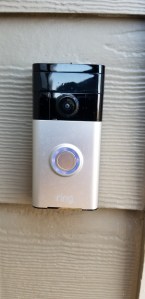
It took me about 15 minutes to install my Ring. Everything you need comes in the box including a level, screws and anchors, a screw driver, and well written instructions. If you don’t like to read, install the app on your phone before you get started and it will play a high quality instruction video.

  1. Disconnect the power to your current doorbell (find the breaker).
  2. Remove your door bell. Usually two screws and then pry it off with a flat head screw driver.
  3. Attach the level to the mounting bracket.
  4. Pass the old door bells wires through the ring’s mounting bracket.
  5. Square up and level the bracket against your house.
  6. Drive in the four included screws; I cheated and used a drill. I also drilled four small pilot holes to make it easier.
  7. Attach the two wires from your original doorbell to the terminal screws on the mounting bracket. It doesn’t matter which one goes where. If your existing doorbell is digital (plays a tune instead of just ding-dong) you have to bridge the terminals with the included diode.
  8. Pair your Ring with your phone.
  9. Slide the Ring down on the bracket.
  10. Tighten the security screws at the bottom with the included star bit.
  11. Turn the power back on.

The device will draw power from the circuit that ran your old doorbell, but what if you don’t have one? Ring has thought of that. It has an internal rechargeable battery so you can still mount it outside. You’ll have to slide the unit off of its mounting bracket and charge it with a standard Micro-USB cable (included) every few months. The app will let you know when your battery is getting low.

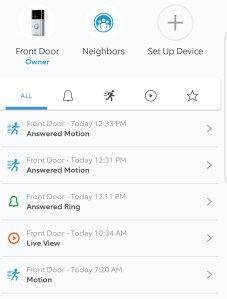
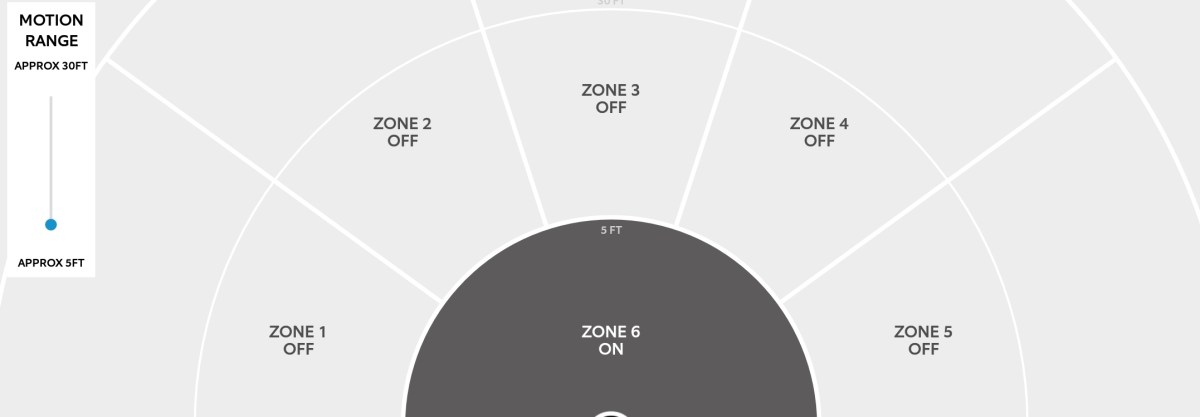
After you have it installed, you’ll need to spend some time configuring the options that best fit your needs. The device has a motion detector, night vision, two-way audio, and can be shared with multiple users. You can also sign up for the Neighbors program; a high-tech twist on the old neighborhood watch in which you can post videos of suspicious activities. It’s a little eye-opening to see the flower-pot stealing crime syndicate at work.

Does it make life easier after you go through the trouble and expense? Yes, yes it does. If for no other reason than having the ability to tell sales people to go away without having to get off the couch. The notifications and functions work even when you’re not home. I wasn’t aware of how many neighborhood kids are playing basketball in my driveway while I am at work (don’t care, but nice to know). My wife and I can “answer” the door when we’re out shopping and leave the teenagers home, no one need know they’re home alone.

You can turn on Live view which lets you connect to the camera anytime you want (otherwise requires a doorbell ring / motion event) and see what’s going on in your front-yard from anywhere at anytime. I heard some big bangs this morning and from my bed looked out from the Ring camera and saw some kids getting a jump on the 4th of July celebrations. Back to sleep…

My family likes it so much that we are considering adding a couple of their security cameras and possibly even their full alarm system. I get some piece of mind knowing what’s happening at my home when we’re not there and better alerts (can’t hear a regular doorbell in the basement) when we are.

Finding an affordable unlocked smartphone. Our winner is the Sony Xperia XA2.

Now that the days of carrier subsidized smartphones have largely come to a close, many of us are considering purchasing our mobile devices outright. Shelling out nearly a thousand dollars for the latest flagship hardware is a tough pill to swallow. Spending $35.00 a month on the financing plan can also leave a nasty taste in your mouth, especially if you need multiple devices. What other options are out there?

Several manufacturers have responded by producing some decent hardware for between two and three hundred dollars. My teen son’s hand me down gave up the ghost this week so I suddenly found myself with a reason to take a hard look at the options in this price range. I started where I always do; with a ton of research.

There are a surprising number of entrants in our price range but as always, a good list of requirements will help narrow them down. Besides all the standard WiFi, Bluetooth, etc. smart phone stuff. We also needed LTE support, a fast processor (teens = games), the newest version of Android with a proven update track record, and a decent camera. Optionally, we also wanted biometric security, because typing in a password sucks, and NFC is nice, too.

The requirement that really narrows down the field in a hurry is the Android version. From my research I deduced that one of the ways these mid-tier devices are being differentiated from the top-tier devices is that many of them are running outdated operating system versions with no upgrade path. A lot of the devices I looked at were still on 6.x or 7.x and had no listed date for an Oreo (8.0) update. Several of the “off brand” makers appear to never update their devices. You’re stuck with whatever was on it when it shipped, unless you have the skills to root it and install a custom ROM. For a lot of us this won’t matter much, but if you like to play games and run many apps, it’s a concern. Developers eventually stop supporting the older OS versions because they have too.

The next most limiting category is the processor. Current flagship level devices have Octa-core (8 processing units on the chip) monsters that push almost 3 Gigahertz on each core. The closer you are to this spec the better your device will perform with the newest apps. Again, many of the lower-tier devices cut corners here by going with only quad-core 1.X Ghz chips. If you mostly send texts, take calls, and browse the web these lower end CPUs are fine but don’t expect Facebook and Twitter to scroll fast and you’ll also be left out in the cold when it comes to intense games.

Keeping our requirements in mind, I narrowed down the list to three contenders, rather than filling this page with their specs I’ve just linked to them so you can look for yourself.

The Moto X doesn’t have Android 8.0 on it out of the box but the update for it is already available. Motorola used to be a major player in the smart phone market. Their Droid series was top of the line, but after being bought and sold several times in the last few years, the brand has been somewhat tarnished. The phone itself was fine, but the styling was pretty bland and we didn’t like the launcher very much.

Nokia has recently separated from Microsoft and is trying to establish itself in an already crowded market. The specs and styling on this one look good and it’s getting some positive on-line reviews but we couldn’t find one in a store to get hands on with it.

In the end we chose the Sony. For my teen, one of its biggest selling points was the styling; it is a sharp-looking mobile that is available in four different color schemes. The next most important stand-out to him was the audio equalizer and amp, a feature that is lacking in most devices at this price point. I liked that it had Android Oreo on it right out of the box and that it’s predecessor the XA1, had also been updated.


We purchased the Sony at Bestbuy for $319.00. It’s a good value at this price. The phone has a nice screen, great audio, the latest version of Android, a snappy octa-core processor, 3 Gigabytes of RAM, 32 Gigabytes of onboard storage and it can take a memory card. It also has a 23 megapixel back camera, and 8 megapixel front camera, a fingerprint scanner, and an FM radio.

Both cameras work well enough in well lit rooms and outside but get poorer results in low light. There are multiple reports of issues with call quality in other on-line reviews but ours doesn’t have this issue at all. I’ve also seen reviews that say the WiFi randomly turns off but again, this issue hasn’t afflicted our unit.

Overall my son and I have been very happy with the XA2. A word of warning, there are not very many cases specfically made for this device. There are some, but you’ll probably have to order them on-line (we did).

Samsung’s Galaxy Book 10.6. My new main squeeze.

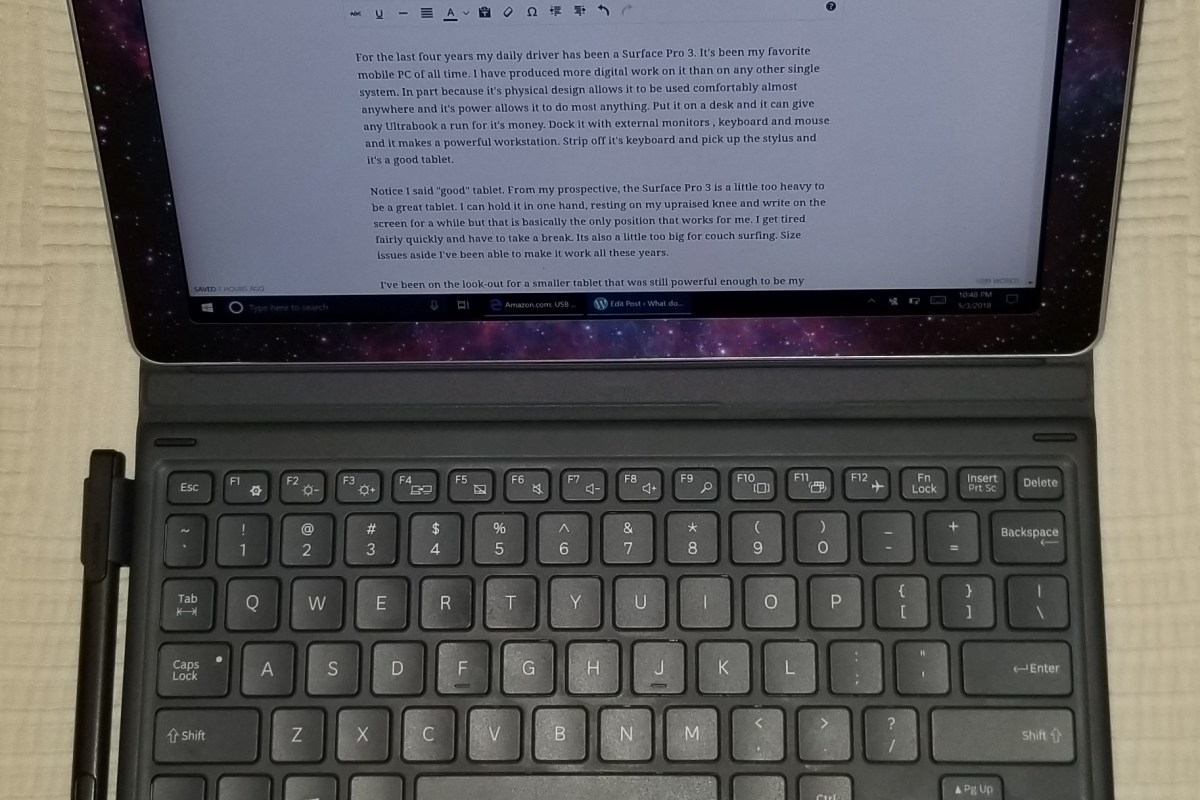
For the last four years my daily driver has been a Surface Pro 3. It’s been my favorite mobile PC of all time. I have produced more digital work on it than on any other single system. In part because it’s physical design allows it to be used comfortably almost anywhere and it’s power allows it to do most anything. Put it on a desk and it can give any Ultrabook a run for it’s money. Dock it with external monitors, keyboard, and mouse and it makes a powerful workstation. Strip off it’s keyboard and pick up the stylus and it’s a good tablet.

Notice I said “good” tablet. From my prospective, the Surface Pro 3 is a little too heavy to be a great tablet. I can hold it in one hand, resting on my upraised knee and write on the screen for a while but that is basically the only position that works for me. I get tired fairly quickly and have to take a break. Its also a little too big for couch surfing. Size issues aside I’ve been able to make it work all these years.

I’ve been on the look-out for a smaller tablet that was still powerful enough to be my main system. I have to run PhotoShop, Illustrator, Visual Studio, write documents, run multiple apps, and I’m not a fan of waiting. My task demands tend to rule out systems that use the Atom processors. I’ve tried them a few times, I like my Dell Venue 8 Pro, but it just isn’t quite fast enough and lives most of it’s life in my desk drawer.

I’ve had my eye on Samsung’s Galaxy Book since it launched. The combination of Intel’s m-series processor and the small 10.6″ footprint caught my attention. There are mixed reviews of the tablet out on the intertubes. They run the gambit from best tablet ever to POS. I’ve had good experiences with other Samsung equipment so I decided to give it a shot. Originally I had purchased the tablet for my spouse, to replace her aging iPad mini but although she liked the tablet itself, she didn’t enjoy Windows. She ended up with a new iPad and I inherited the Galaxy Book. Neither of us could be happier.

The Galaxy Book comes in two sizes 10.6″ and 12″. For my use the 10.6″ is the ideal size. It’s essentially the same size as the smaller iPad Pro. The larger system is roughly the same dimensions as my Surface Pro 3 and so doesn’t solve my one-handed couch surfing problems. I’m also not sure that any 12″ tablet is going to beat Microsoft’s. None of the units that I’ve tried so far have managed to pull it off.

I think the best way to describe the device’s physicality is to say that holding it feels similar to holding an iPad. It’s thin, light, and made of premium materials. The screen is vibrant and just the right size. The speakers sound surprisingly good but they are side facing which causes me to turn up the volume. There’s no rear camera, just a front facing one for video calls.

The front camera is not compatible with Windows Hello and there’s no onboard fingerprint scanner. If you own a Samsung phone you can use a service called Samsung Flow to pair your phone’s security devices to the tablet. I can use either the Fingerprint or Iris scanner on my Note 8 to logon to my tablet. It was a little clunky to get running but it works surprisingly well once your get the hang of it. Flow also sends all of your phone’s notification messages to your tablet and let’s you reply to them.

The device ships with a case that contains a keyboard and touchpad combo. The keys are small but I have no trouble touch typing at full speed. The keyboard isn’t backlit and that’s a bummer, but I didn’t have to shell out an extra hundred bucks for it so I won’t cry too much. The touchpad is fine, it gets the job done and has a lot of options for gestures which I like. The case looks nice and doubles as a multi-angle stand. It has two positions for typing, a couple for vid watching, and one specifically for drawing or writing.

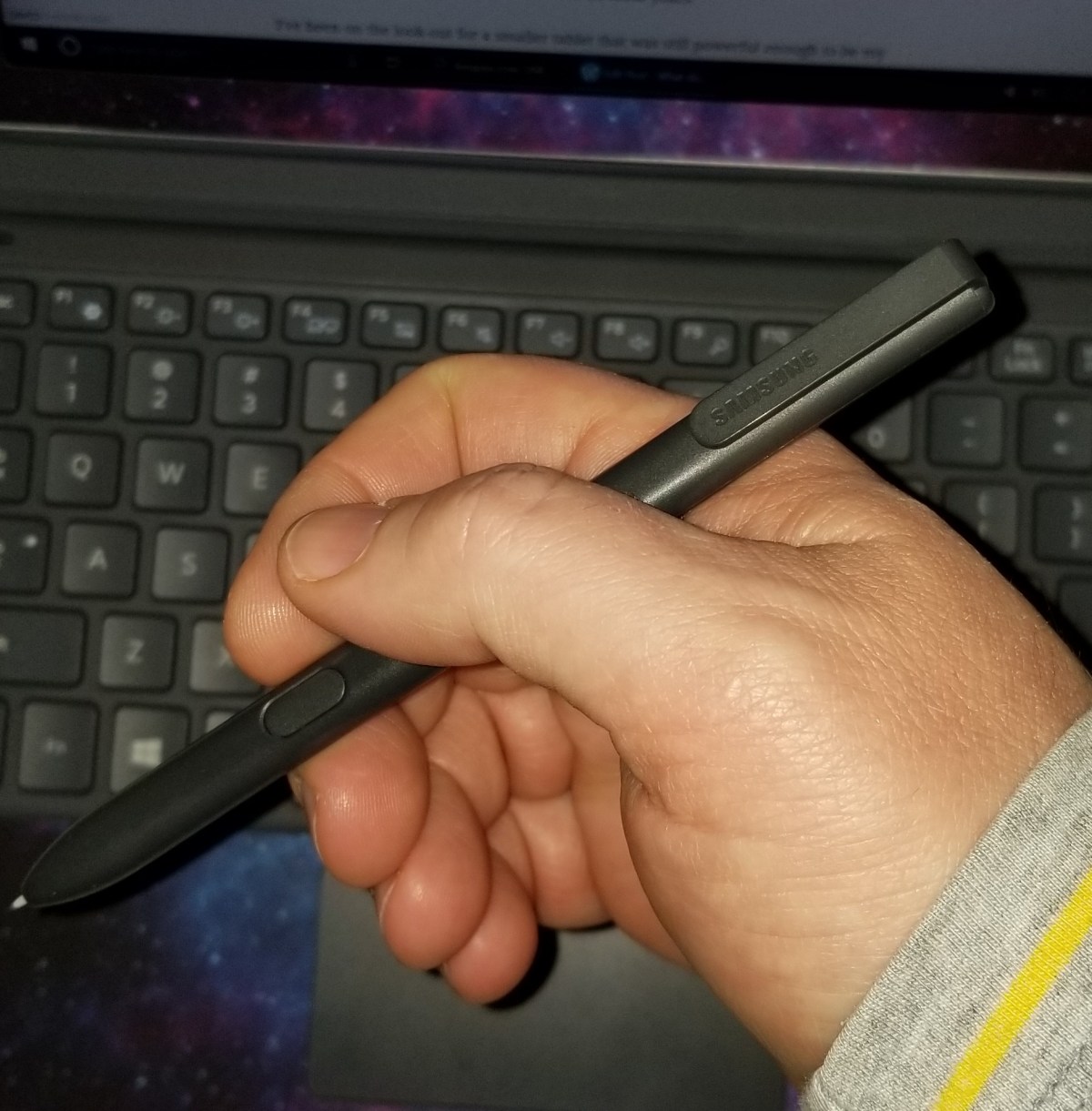
That brings us to my favorite piece. The S-Pen is great. It has pressure sensitivity and tilt support. The ERM (Wacom) digitizer is accurate and doesn’t suffer from parallax issues. The shape of the S-Pen basically requires that you hold it the same way every time that you pick it up. The clip and button location force the situation but luckily it is fairly comfortable. The tips are replaceable and it comes with two different styles

Spen

.

If you’re not in love with the Pen itself there are several other options. There are a few different Wacom styluses that will work, the S-Pen from a Note phone will work, and there are several third party ERM compatible devices available like those made for the Surface 1 and 2.

Samsung teamed up with STAEDLTER to make a truly epic digital pencil. It’s an exact replica of the classic Noris #2 pencil down to the freshly sharpened tip. You can find them on Amazon for less than $30.00 if you catch a sale. It’s my favorite stylus ever, period. That’s saying something considering that I’ve owned and used almost every type of digital writing instrument ever made. Yes, I have an Apple Pencil, and the Studio Pen, and a Wacom Intous, and an XP-Pen and a Dell, and . . . . . . .

When it comes to performance, I’m impressed. I’ve been using it as my main system for a few weeks and haven’t experienced any wait-rage yet. I’m not one for elaborate benchmarking. I find that the results of such testing are often irrelevant. All that matters is the ability of a device to do it’s tasks in a satisfactory manner. That being said, web pages are snappy to load and Outlook runs well. Photoshop and Illustrator both run fine and there’s no lag when drawing. I’m even able to play some games; Sims 4 and Skyrim both play well as does Fruit Ninja and several others from the Windows Store. Multi-tasking is no issue either.

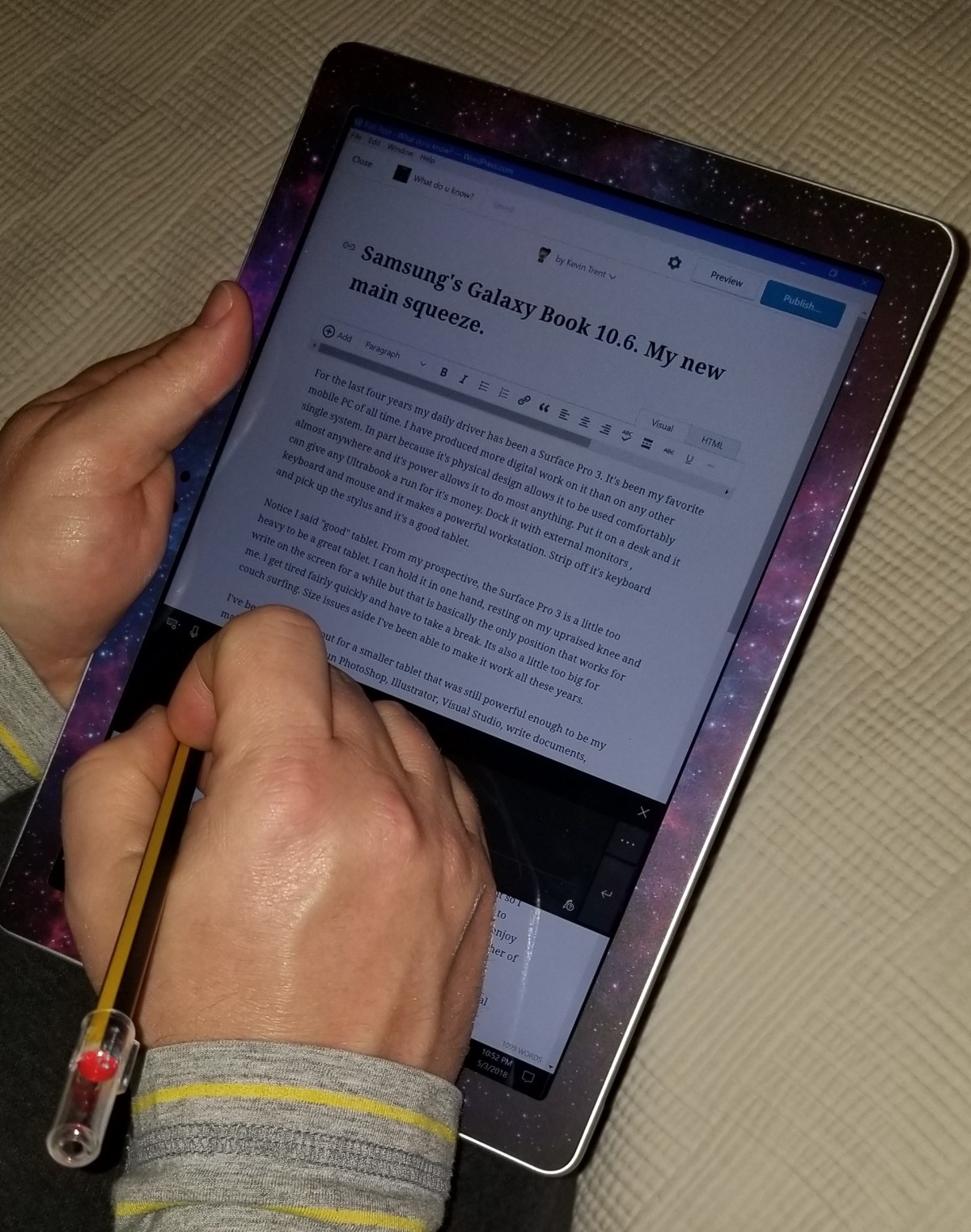
The same USB C dock that enables DEX mode on my Note 8 works on this tablet to connect an external monitor, keyboard, and mouse. When “docked” the system makes a decent workstation although I rarely use it as one. Most nights you can find me on the couch writing on the Galaxy Book in tablet mode just like I’m doing now.

tablet write

Creative Journaling with the iPad: Part 1, Review of the 2018 iPad and Apple Pencil

In this series we’ll be investigating the options for digital journaling on the iPad. We’ll take a look at the available software along with various techniques  for bullet journaling in a digital format. First we’ll say hello to the new iPad 9.7 with Apple Pencil support. This series has a twin based on Windows Tablets: Part 1, Part 2, and Part 3 that you may also enjoy.

Until now, if you desired to use an instrument for writing or drawing on your iPad, other than your finger, there were only a couple of options. None of which were particularly grand.

The first thing most of us try is a capacitive stylus; a mesh tipped stick that works for tapping but is too wide for precision marking. Next up are the 3rd party active pens like Fifty-three’s Pencil. These these types of tools use various electronics to send more data about your strokes to the tablet, usually over bluetooth. They work better, but not great, and have some severe limitations; chiefly, they only work in the app that comes with them more often than not.

Your other option was to shell out some serious cash for the iPad Pro and the Apple Pencil. I’ve enjoyed being teased by the wealthy Apple fans of the world that could drop close to $1000.00 so they could draw with precise results on their tablets.

Lucky for me (and my wife) Apple has decided to grace the rest of us poor sobs with a non-pro tablet that works with the treasured stylus. The new iPad has pencil support and pricing starts at $329.00. Of course, the pencil itself is just shy of $100.00. I was able to find the 128GB iPad for $399.00 and decided that model was the winner.

ipadcolor

So, what’s it like you may be wondering? It’s both amazing and frustrating. Allow me to explain. The pencil itself is well-balanced, totally round, the same lenght as a #2 pencil, and pleasant to hold in your hand. The iPad supports pressure sensitivity, tilt (used for shading), and it tracks well. It’s fantastic when using it in one of the supported apps.

Lisa'sdrawing
A fine line trace done in Autodesk’s Sketchbook

Unlike Windows Ink or Samsung’s S-Pen, Apple’s Pencil only works in designated apps. You can use it to tap on the screen anywhere but there’s no handwriting recognition, you can’t just draw and scribble on any screen, it’s not a general system input tool. It also lacks the hover mode (think mouse pointer) that is typical for most active writing tools. For someone who writes with a digital pen most of the time (doing it now) this is a big let down. Apple is still fairly new to the digital pencil club, so hopefully future editions of iOS will add handwriting support. There are a few apps that have built-in handwriting recognition like Writepad that are a step in the right direction but using them to write WordPress and Facebook posts is clunky.

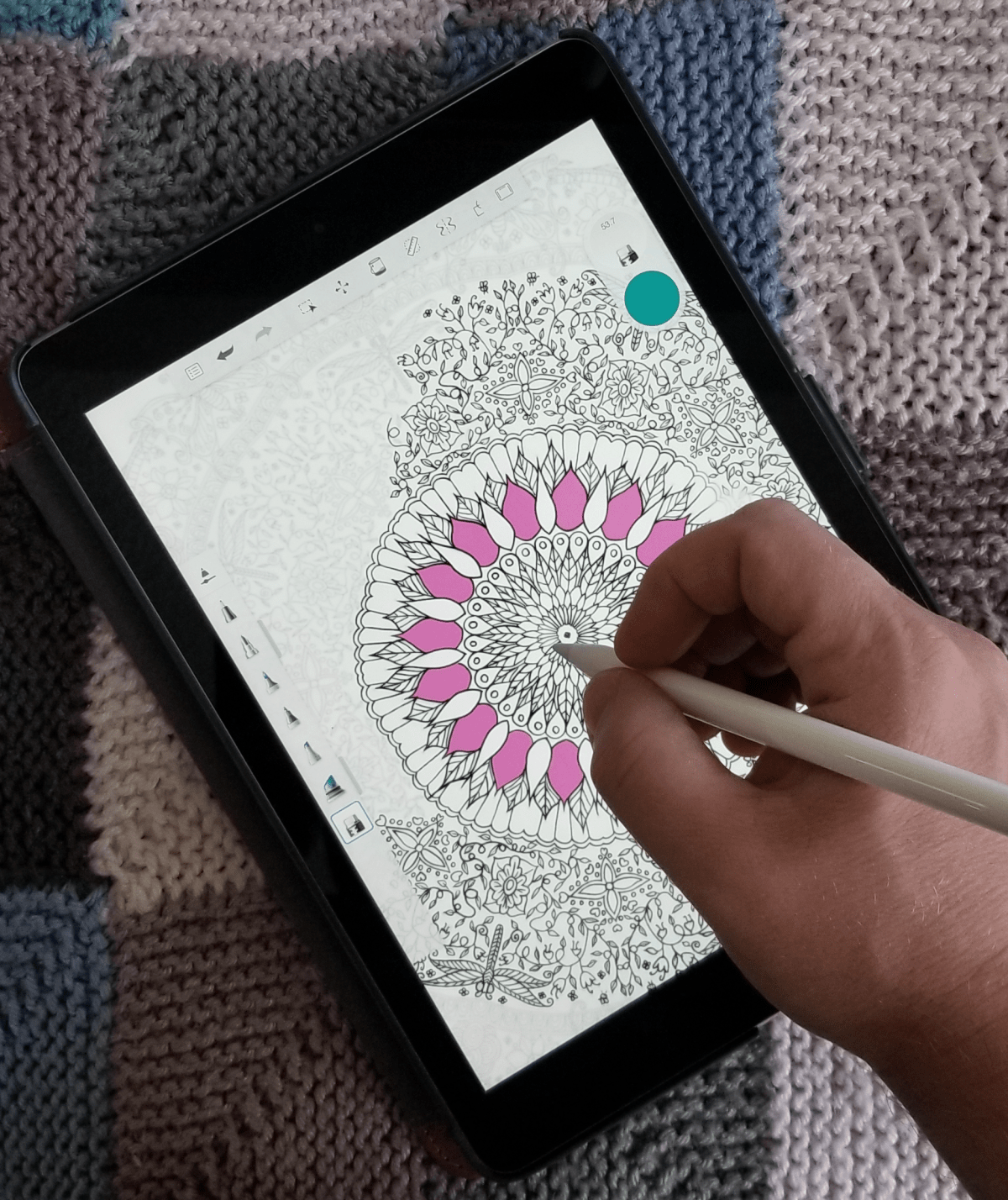
Fire up your favorite drawing app and you’ll soon forget all about the handwriting thing. Personally I like Autodesk’s Sketchbook, it has most of the pro level tools but is far less complicated than Photoshop. There’s not much resistance between the pencil’s tip and the iPad’s screen. Some artists may not like the slide. Personally, I’ve grown to prefer less resistance; drawing on paper feels slow and awkward to me now. Especially when coloring and shading. The pencil is responsive and the tilt and pressure sensitivity work well in apps that support the features.

Lisa's cone
An original freehand done in Autodesk’s Sketchbook

The new iPad is fast, really fast. It runs on Apple’s new A10 brain chip and it sings. Now that iOS supports multiple (2 + a video) windows and has the horsepower to run them, it’s capable of replacing a traditional computer for general use. The 9.7 inch screen looks great. The rest of it is what you’ve come to expect from the latest generation of Apple’s tech. It feels great to hold in your hand and because it shares a footprint with the previous 9.7 there are a plethora of accessories already available for it.

Some reviewers and owners complain about the screen bezel on this and other tablet devices. I see not having a bezel causing another issue. Without it there would be nowhere to put your thumb(s) when holding the device that didn’t interfere with the view.

Overall I really like the new iPad and am thrilled that Apple added pencil support to the base model. For me, the lack of handwriting input and hovering will keep me using Windows or Android based pen tablets. Alas, I didn’t purchase it for my use. My wife absolutely loves it. If you’ve followed my blog for long, you’ll know that I was trying to convert her to a Galaxy Book. She learned to use it but never truly enjoyed Windows. That’s ok, it means the Galaxy tablet is mine now. Look for a review of it soon.

Smartwatch Shootout; Apple Watch vs. Wear OS vs. Tizen

My Tech Monkey and lack of brand loyalty have compelled me to end up with all of the major smartwatch operating systems. From the first gen Gear S1, Sony Android Wear, and Apple watch to the current equipment; I’ve had them all and witnessed their evolution. How do they stack up in the real world? I’ve worn them in every conceivable situation: work, work-outs, hikes, vacations, date night and everything in between.

I’ll start by declaring that I like them all. For my lifestyle there’s a best fit, but they’re all useful pieces of gear. Second, I must say that I’ve always enjoyed gadget watches. Calculator watch? Check. TV remote control watch? Got it. Casio Databank? I have two. I also had the Timex DataLink. I mention this because it causes a bias in my overall opinion when comparing smartwatches and standard time pieces.

My grandfather sparked my interest in time pieces at an early age. He was an antique watch trader and often took me to watch shows, pigeon swaps, and other various gatherings to obtain some of most beautiful pocket watches and clocks you can imagine. Railroad pocket watches with cases of multi-colored gold and jeweled internal mechanics were his specialty. Some of them were able to show the time, date, and phase of the moon with nothing more than spring powered gears.

Why wear a smartwatch in the first place? They don’t do anything that your phone can’t already do better. This is what more than a few members of my social group think. The valuation is accurate. They really don’t do anything that your smartphone won’t. But isn’t that true for lots of tech? What does your iPad do that your iPhone or laptop can’t? For me, the point of a smartwatch is not to provide unique functionality but to augment your other devices and to look cool while doing it. Seriously, the best feature of smartwatches from my point of view is the ability to change the watch face at will. I often match my watch to my clothing on any given day just because I can.

I use my watch to primarily do the following (no particular order):

  • Fitness Tracking – Specifically I need to track my heart rate, distance, and ideally my location.
  • Notifications – Text, email, and calendar alerts are the biggies here, but Facebook, Xbox Live, PSN, Skype and Instagrahm are appreciated.
  • Directions – I spend a lot of time navigating various downtown areas and have found glancing at my wrist for the next turn to be safer than having my phone up in my face.
  • Tell the time – This would include all of your basic watch functions; stopwatch, timer, alarm, ect.

All three of the major operating systems can perform these functions as can most of the secondary vendors like Fitbit, Garmin, and Pebble (if you can still find one). So what ends up setting the devices apart are the looks and secondary features that are most helpful to you. I’m not going to spend much time discussing specifications, there are countless articles on-line to enlighten you about the hardware options. In a nutshell Apple is square and Android is round, LOL. The watches themselves break down just like their phone counterparts.

Apple-Watch-3

The Apple Watch is the easiest to use right out of the box; strap it on your wrist and pair it with your phone. That’s it. Sure there are apps you can install for everything under the sun, but most people don’t need them and won’t use them. The design is elegant, but I’m not a fan of square wrist watches in general. The fit and finish on Apple’s wrist computer is second to none. The tolerances between components are minuscule and the case feels like a premium device. My biggest complaint about the Apple is that you’re stuck with the watch faces they give you. If it wasn’t for this limitation, it could have ended up being my favorite.

You can use the Apple Watch with an Android phone, albeit in a limited fashion. I wouldn’t recommend purchasing one specifically to pair with an Android device, but it’s a nice option for people who are moving between platforms. My wife is the Apple fan in our home, so the Apple Watch belongs to her. I borrow it from time to time just to see what Apple has changed on it . I really enjoy wearing it, but the lack of 3rd party watch faces is maddening to those who’ve grown accustomed to the ability.  It does everything else on my list of requirements exceptionally well. The Medical ID feature could prove invaluable to someone with drug allergies or other need-to-know health conditions.

android-wear

Android Wear, now renamed to just Wear OS, matches its phone counterpart. Rather than a hardware and software solution like the Apple Watch, Wear OS is an operating system that many manufactures use on their watches. Not all Wear OS devices are created equally! They can have drastically different features, functions, and shapes. Due to these differences, you need to be careful when choosing a device to be sure it has the hardware to support the functions you are after. For example; choosing a Wear watch that doesn’t have an integrated GPS receiver will prevent it from tracking your run locations unless you take your phone along.

Wear OS takes more work and know how to get up and running. You will be installing apps on both your phone and the watch before it is fully functional. It is more difficult to use but ultimately offers more functionality than the Apple Watch, assuming you got top-end hardware. Plus, you can load different watch faces to your heart’s content! Up until a few weeks ago my everyday watch was a Wear based Moto 360 Gen 2. It’s Google voice functionality is the best of the voice assistants and having the full Google maps was great. You can pair most Wear OS watches with an Apple phone but you’ll get less functionality if you choose to.

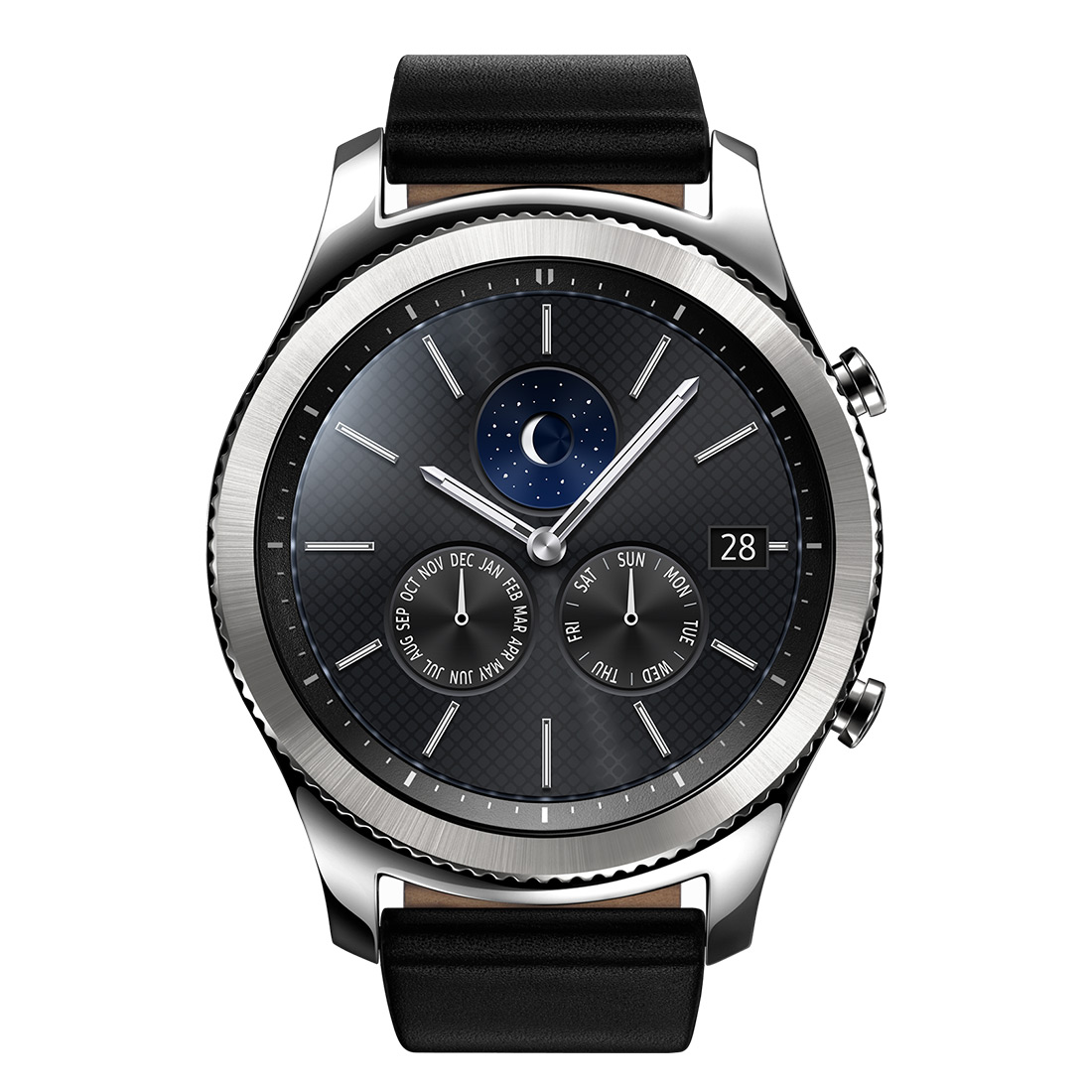
gear-s3_design_classic

Samsung wasn’t happy with Google’s Wear OS so, they created their own. Like Wear OS, Tizen is a Linux-based smartwatch operating system. Similar to Apple’s approach Samsung makes both the hardware and the operating system for the Gear S3 series of watches. If you are pairing it with a Samsung phone, the process is just as easy as Apple’s. No apps to install and configure, just pair the devices and go. Of course Samsung has their own app store full of apps for you to fiddle with, but most of the main features are controlled by the built-in software. The watch can be paired with any Android or even Apple phone.

I’ve just recently switched to a Gear S3 and for my lifestyle its the best choice of the three systems. It doesn’t have as many apps as Google’s Wear OS, and isn’t as simple as the Apple Watch; it sits comfortably in-between them. For me, the always online LTE connection and excellent fitness app (Samsung Health) are the best features. It offers some truly excellent watch faces (not as many as Wear) and looks nice. The LTE connection means I don’t need a phone at all when I head out for a run, I can stream music, track my run and heart, and even take calls and texts all from the watch. The bad news is that it requires a service plan from your carrier. I was also disappointed in the S Voice assistant and had to learn to use a new map provider.

Smartwatches aren’t for everybody but they can be a life saver if you rely on tech for your livelihood or are required to be in constant communication. They don’t do anything your phone already doesn’t, but they do extend your digital life to something that is always visible. I’ve stopped wearing out my pants pockets since I’ve started wearing them, LOL.

Traveling without a laptop for the first time in 15 years! Thanks to my Samsung Note 8.

I have been employed by the tech sector for my entire working life. Somehow I always wind up in positions that demand on-call service. As a result, I rarely leave my home or office without a laptop and it’s accessories in tow. I have never been on vacation or a business trip without one.

I’ve tried every Palmpilot, Pocket PC, Windows CE, Psion, tablet, and mobile ever made in an attempt to free myself from “The Bag”. Sometimes I feel like Lydia from Skrim ” … sworn to carry your burden”. Until now, the mobile devices always fell short for me to use them as anything other than companions. They lacked power, storage, input options, apps, something was always missing.

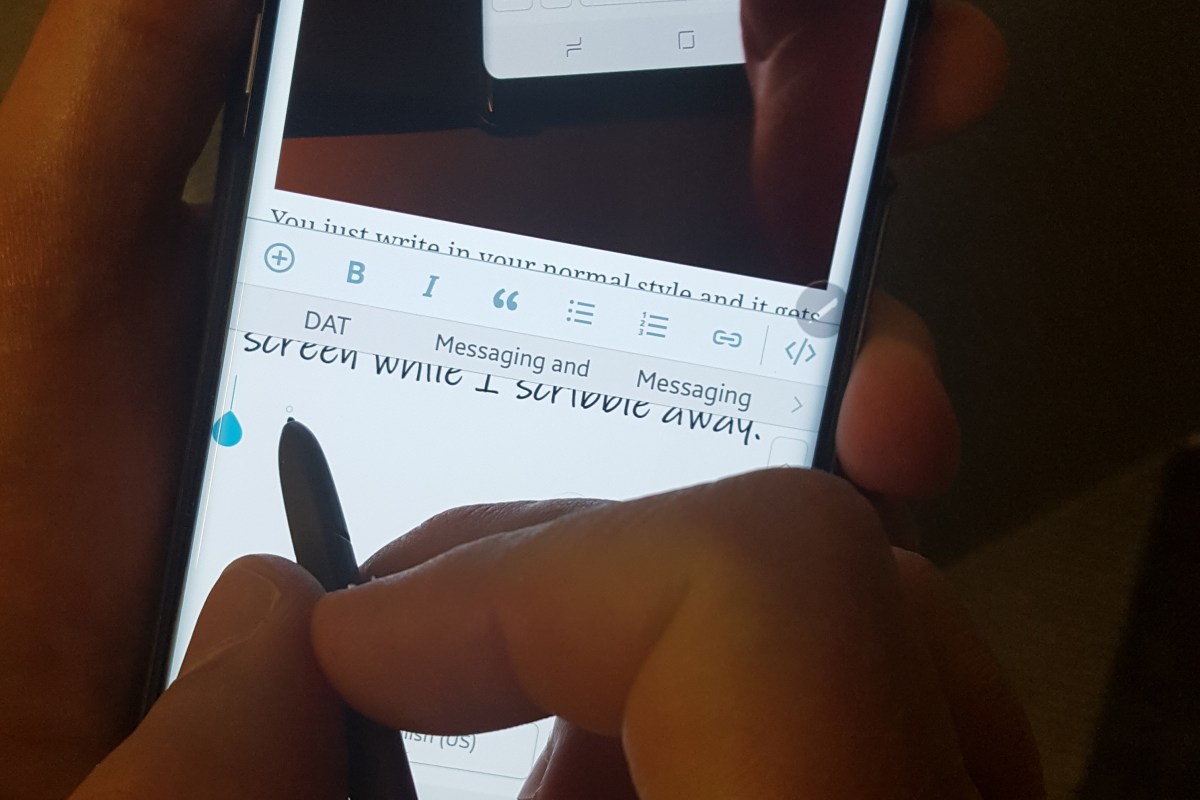
I’ve had my Note 8 since launch day and have been locally venturing away from base without “The Bag” for a while now. My company has a VDI infrastructure that I can easily connect to with my Note. The hover mode afforded by the S-Pen acts as a wireless mouse and the awesome handwriting recognition handles my input needs with ease. Openvpn on my home network means I can RDP to any of my personal equipment as well. The Google play store is fully fleshed out with engineering and development utilities along with any productivity software that you might require.

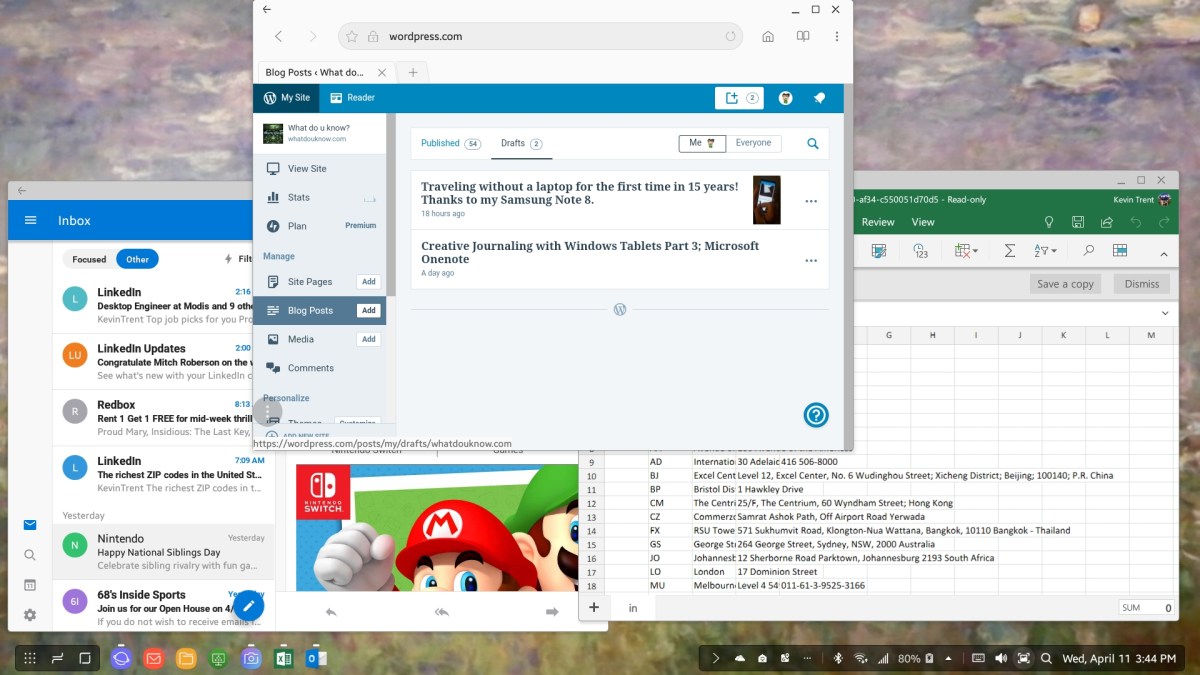
The Note 8 has one more brilliant trick up its sleeve that has allowed me to end up on this flight to San Antonio with nothing in the overhead bin but my jacket. The Dex dock in my luggage means I have access to a full PC experience should it be required on my journey. I only need to hook the dock to the hotel TV (HDMI) and connect my portable keyboard / touchpad to one of the USB ports and I’ll be in business. Many of my apps like Word, Excel, and Outlook will run in fullscreen or windows in Dex mode and if I need more power I only have to logon to the VPN and connect to my VDI or RDP to the system that needs attention.

The Dex dock also increases my entertainment options by letting me stream fullscreen video, browse the web, and even play games. Not all applications work with it but more than enough to get by do.

So I sit here on the plane writing this post and try to suppress a chuckle as my seat neighbor tries in vain to get his laptop to fit on the tray-table in a manner that allows him to comfortably type. All the while, reflecting on what a different experience airport security is without “The Bag”. OMG, I never knew how easy it could be!

The new Surface Pen. Is it worth upgrading?

My kid and I were rough housing, I moved in to tickle him and felt my hand be poked by something sharp. When I looked down, the cap of my Surface Pro 3 stylus was laying on the floor; the batteries had bounced to who knows where. When I picked up the parts I immediately noticed that the cap’s rubber attachment seal that holds it to the battery cover was torn.

It was my fault I should have paid more attention to what was in his hand before I started playing. Oh well, I had been wanting to get the new stylus ever since I’d demoed it at the Microsoft Store and now I had the all important justification for my purchase! Maybe I subconsciously picked the wrong time to wrestle?

My daily driver is a Surface Pro 3. It’s been my favorite mobile computer of all time. I splurged and got the most powerful model that Microsoft offered and I’m nowhere near ready to replace it. That being said, I’ve never loved the stock stylus. Don’t get me wrong it works just fine. It doesn’t fit my hand very well because it is both too short and too thick. I’m not a huge fan of the balance and really wish the top functioned as an eraser. Unfortunately, you can’t just hop on-line and order some other stylus to use with the Surface Pro. The technology is proprietary so unless Microsoft releases a new stylus; you’re stuck.

Lucky for me, MS did exactly that. When they designed the next generation pen for the Surface 4 and Surface Studio line they made it compatible with the previous generations and sold it separately. At $99.00 it’s not exactly cheap. So is it worth the moolah?

The short answer is absolutely! The long anwser is that for me personally, it corrects every issue that I had with the original. It feels like an expensive writing instrument. It’s well-balanced and the dimensions are a much better ratio. Holding it reminds me of a number 2 pencil, the flat edge accentuates the nostalgia and also serves to help you easily find the barrel mounted select button.

Dormant Tree
The first thing I did with my new pen

The stylus tip is made of a softer material than the orignal’s and provides a little more drag as you write or draw on the screen with it. The added drag gives you more control, helping to prevent overshot on connecting planes and tightening handwriting strokes. Speaking of control, the pressure sensitivy is 4 times higher than the original at 4096 points. The device also seems to communicate with the Suface faster and reduces the lag I used to see while drawing in PhotoShop.

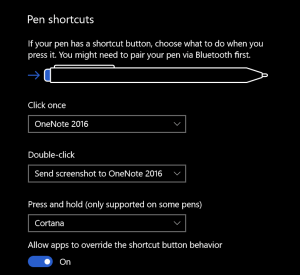
The top button can activate up to 3 programable functions (one for click, double -click, and another for press-n-hold); I have mine set to Take a screenshot, open OneNote and launch Cortana
Pen settings Did you make a mistake while drawing? Just flip the device over and erase; no need to go to the tools menu and select the eraser (such a time saver).  The barrel button is the same as right cliking on your mouse; you press the pen on the screen and hold it there to left click.

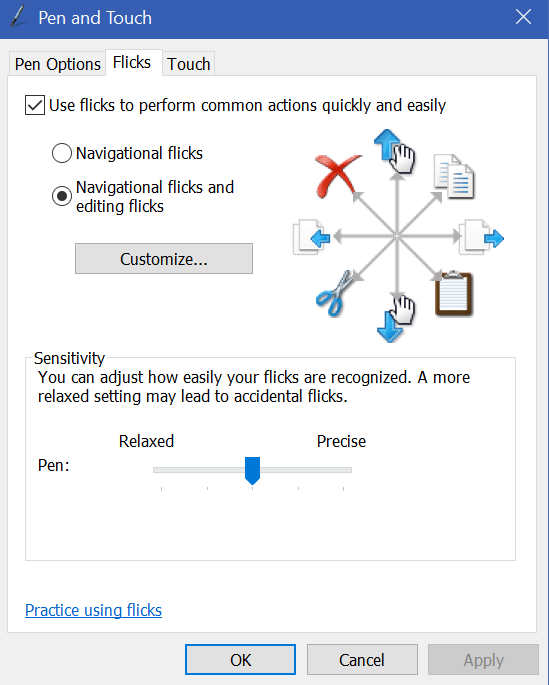
While we’re on the subject of navigation with your pen. Here’s a tip! Windows has a little known feature in it called flicks. Pen flicks let you perform an action by quickly moving your stylus across the screen in various directions. You can find the settings and enable flicks by opening the control panel (search) and selecting the icon for Pen and Touch, then choose the Flicks tab. Flicks

I am really impressed with the new Surface Pen and will be using it for years to come. Microsoft has been at the forefront of digital input devices and this one will go a long way toward keeping them at the top.


Digital Art and the XP-Pen Artist 15.6 drawing monitor

I’ve written about my fondness of pen input on computers and mobiles before. I’m writing this article on my Galaxy Note 8 with the S-Pen in handwriting mode. Some of my posts feature digital sketches and drawings that I’ve done on my Note or my Surface Pro.

My son has also shown an interest in digital art. We share an Adobe Creative Cloud subscription which gives us access to all of their software; Photoshop, Illustrator, Premiere Pro, and even their animation software is included. You can install the applications on two devices but can only use one of them at a time. It’s a good value in my opinion. I don’t think I’d ever drop the thousands it would cost to purchase all of the apps independently. They also give you a synchronization solution and 100GB of cloud storage so your works can be accessed from any of your devices at any time.

There are lots of free or inexpensive art and photo editing apps like Mediabang and Paint.Net, the built-in Microsoft Paint, and more; they’re good enough, but not the same caliber as Adobe’s software. In the same way that Open Office is good, but not quite as great as Microsoft Office. They make a great place to start if you want to make art, edit photos, or try your hand at animation while keeping costs down. They’re also great for learning how digital tools work.

Things like layers, lassoes, and pixel cloning are going to be new concepts if you’re used to paper. It’s features like these that separate digital and analog art techniques. For example; in the sketch of a truck that I’m using throughout this article, I only needed to draw one tire and then copy/paste. The truck is a seperate layer from the background and color which would let me easily do something else with it. When I drew the hood scoop, it was a little off-center. I didn’t need to start over. I  just had to use the lasso tool to move it.

TruckSketch

When we started out with digital art, my kid had decided on a Wacom Intous Draw tablet. This tablet is like a mouse pad that you write / draw on with a stylus. They are in-expensive (depending on size); I picked up ours at Best-Buy for $79.00 on sale. In terms of art, it works well but there is a disconnect between the tablet and what you’re working on, because your drawing or photo is on the screen but your stylus is touching the pad on a different plane. It works reasonably well after acclimation.

While we’re on the subject, it takes around 40 hours to become accustomed to any input device. Whether we’re talking about a drawing pad, a game controller, a keyboard, or a stylus you won’t have it mastered until you’ve spent about 40 hours working with it. So many of the people I know pick up a tool and judge it a failure if they can’t fully use it in 10 minutes. That’s just not how learning a new motor skill and building muscle memory works. In my opinion, it’s the biggest downfall of stylus input on computers. When the digital tool doesn’t work exactly like a pencil or pen on paper, people get turned off. It’s not supposed to be like paper. The experinece is supposed to be better than paper and if you dedicate the time to gain the skills, I think you’ll be surprised.

The trouble with drawing pads occurs when you lift your pen to connect two lines. For example; when drawing a large square you might lift your pen at the end of each side. Knowing where to put your pen down to start the next line can be a little challenging. The screen will show you where your stylus is hovering but there’s still a disconnect between your hand and your eyes that you just can’t quite overcome at first. There is also some translation happening between the size of your monitor (40″ in my case) and the size of the drawing space (5.7″) that you just can’t quite predict every time. Don’t get me wrong, if you spend the afore-mentioned 40 hours working with the device you’ll get the hang of it, but when working on complex shapes with minute details, it can be slower and become bothersome if you’re working on a long project.

The next step in digital art tools is a drawing monitor. Of course the primary difference between a drawing pad and a drawing monitor (aka pen display) is that the drawing surface is also a screen. The Cadillac of drawing monitors is the Wacom Cintiq line. Wacom popularized the technology first and owns several patents around the technology. Their screen based products are quite expensive, especially if you’re not using them for professional reasons. My son and I are not able to spend thousands of dollars on a digital art device so we needed to find an alternative. Lucky for us, several key patents for pen tech have expired or are about to expire. As a result, there are lots of competitors on the market that understand if they want “everyday” people to consider purchasing this type of device; the price point needs to be much lower.

I never purchase a new gizmo or gadget over $50.00 without doing a ton of research first. In this case, I’ve worked with pen displays through-out my career and know several professional digital artists. My experience and their recommendations were combined with hours of research online (lots of YouTube reviews) by myself and my son to produce our short list.

In the end, we chose the XP-Pen because the Huinon was so large that it would always require a stand and sometimes we like to draw on our lap. The Parblo Coast had a lot of complaints on various blogs for driver issues with Photoshop. Although, from their descriptions, I think it was probably a failure to adjust the refresh rates in their video driver.
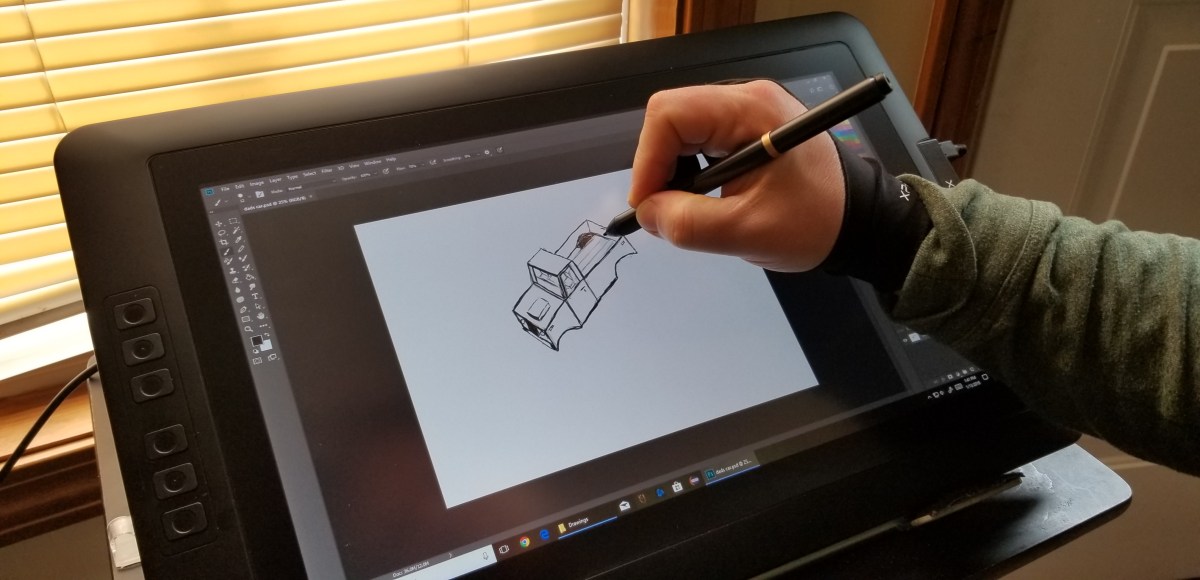
XP-Pen

The XP-Pen was easy to set up; just go to their web-site and download the newest drivers, hook up the included cable(s) and hit the power button. If your system is relatively new you should be able to plug the USB power cable in to one port and the controller cable into another. It comes with a power adaptor and plug fittings for both the US and Europe. It also ships with a mini display-port to HDMI adapter cable. They have drivers for both Windows and MAC so no matter your computer preference, it should work well.

There’s a reported issue with many of these tablet devices blinking or flickering while you’re using them. If this happens to you, try adjusting the refresh rate of your video card to match the 60Hz refresh rate of the screen. For some reason it gets auto-deteced at 59Hz and this causes the flicker. In Windows just search for Display Settings, then click Display Adapter Properties and use the drop down to select 60Hz.
Refresh_Rate

This thing is fantastic. It’s the best overall drawing experience I’ve had to date. Part of the reason behind this is that the graphics are being driven by my Radeon GPU instead of a the Intel chipset my Surface Pro has. Even if that wasn’t the case, the drawing experience itself is better. The screen is not smooth like glass, there is a texture applied to it that offers a little tactile feedback to your strokes. The pen tracks well and suffers very little, if any parallax (pen tip and cursor don’t align). There’s a rocker switch on the side that adjusts the brightness and the colors look good.

The drivers work great. If you’re using it with Windows 10 and want the pressure sensitivity to work you’ll need to enable Windows Ink; search for it to find the settings. I tested it with the Adobe products, Paint.Net, Microsoft’s built-in apps, MediaBang, and Auto-Desk. It worked well on all of them.

My son and I both wish the tablet had more shortcut keys but that isn’t a deal breaker by any means. Also, we already had a tablet stand that we knew would work with this thing. If you don’t, you’ll need to consider buying theirs. There’s a bundle that includes the stand on Amazon or you can order it as an accessory from the XP-Pen website. There are also quite a few inexpensive tablet stands out there that would work well for it and I suspect that you could use a painting easel.

Overall we’re very happy with our purchase and would recommend it to anybody looking to use a digitizer for computer input. At $359.00 with free shipping from Amazon, it’s a bargain. If you’re wondering how that sketch of the truck came out, here it is with the color layer turned on. Thanks for reading.

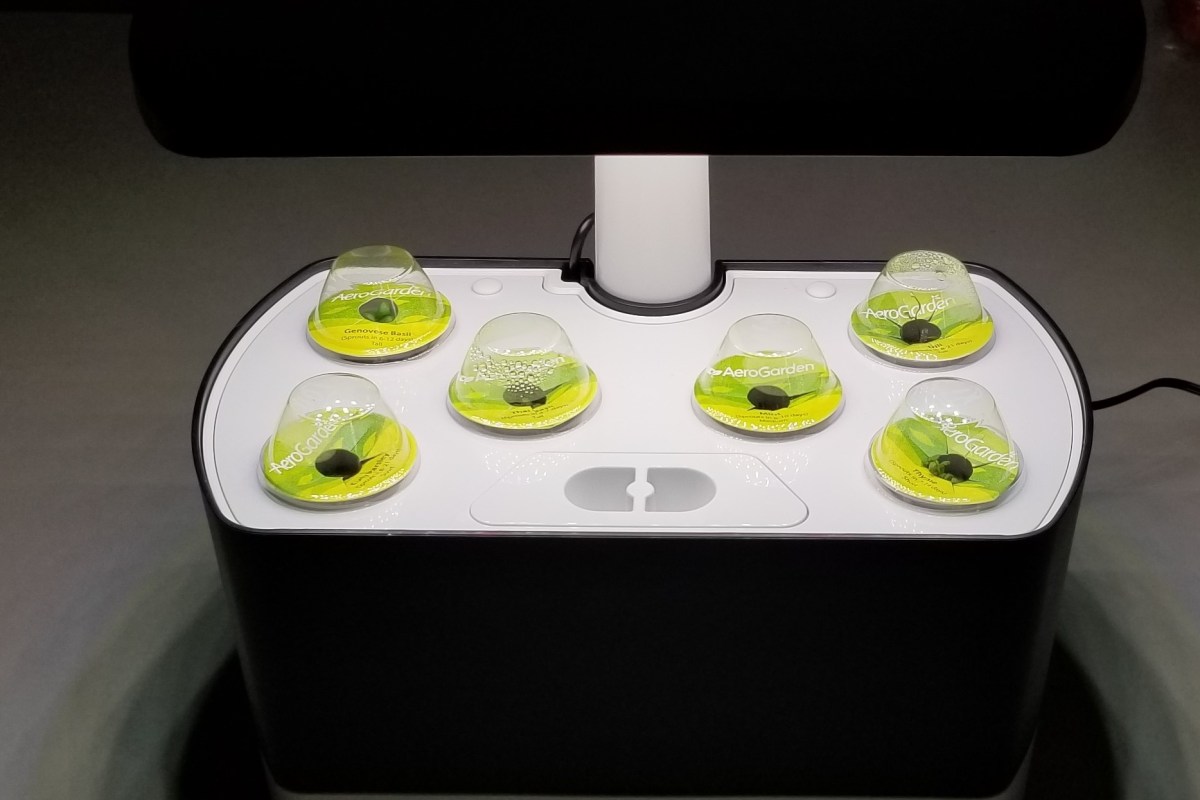
TruckPainting


I have so many fans! The perilous adventures of a CPU cooler upgrade

As I have stated numerous times throughout my blog, I am a gamer. I have custom-built my gaming PC and I’m pretty proud of it. One of the things I like best about Elder-Wand is it’s RGB LED lights that are controlled by my MSI motherboard’s “Mystic Light” feature. As long as the lights that I install are RGB, the motherboard’s controller and app can change them all to the same color with an app on the rig or from my mobile. It even controls my Razer Chroma Keyboard, Mouse, and Headset. This is a fairly common feature among high-end gaming systems now, but they usually don’t go the same extreme.

When I built Elder-Wand, I put most of my fun money into the running components: motherboard, CPU, GPU, M2 SSD, and Vengeance RAM. I skimped on the case, fancy fans, got a no name CPU cooler, etc. figuring I would update those components later. I have stuck with that goal, updating components as my budget allows. I’ve put everything in a nice new case, upgraded all the fans to LED 120 mm PWM, upgraded the power supply and more.

While I was moving everything into the new case, I broke one of the plastic mounting tabs for my CPU cooler. It still worked, but it wasn’t attached in all four corners as it should be so I decided to replace the cooler over the Christmas break from work. This is where my tale begins.

I started my project the same way that I always do, with a ton of reasearch. I wanted something that worked well but it also had to look great. I considered converting to liquid cooling but I don’t need to overclock my system right now, so I settled on copper tube based designs, there are a lot of them out there. One of the most popular units is the Cool Master Hyper 212 it’s been around  a while and has great reviews. It looks nice, but I wanted something with a little more flair. The Noctua Dual Tower looked big enough to chill my living room but was overkill for my requirements. In the end, I chose the Deepcool Gammaxx GT, I thought it would be a good balance of performance and looks.

I had planned on this taking an hour or so, boy was I wrong.

Oldcoolergone
Step 1 is to remove the old CPU cooler. I needed to remove my GPU first.

I used a thermal paste kit that I purchased on-line to remove the grey goop from my CPU and prep its surface for the new paste.

Readytoinstallnewcooler
Next, I read through all the instructions for the new unit.

I followed the instructions to insert the nuts into the bracket, mount the brackets, and mount the rails.

The instructions with new cooler said to place 5 pea size dots of thermal paste on the CPU. I used the paste that came with my kit, Arctic Silver is supposed to be the best you can get and I’ve used it for years.

InstallCPU

I installed the cooler, connected the cables, installed my GPU and double checked everything.

InstallCooler

When I booted up my PC, I was concerned to see it shutting down almost as soon as it powered up. The fans and board lights would come on for a second or two but then turn off before the BIOS post even started. My first assumption was that I had a partially connected cable somewhere so I took the case back off and re-seated my components along with re-plugging all the connectors.

No go. Still blinking on and then back off. My next guess was that something was amiss with the thermal paste. I took the case back apart, removed the GPU, pulled off the CPU cooler and sure enough, the paste was not evenly distributed. The fan screws in to the mounting bracket and unless you have a 4 screw driver rig of some sort, there’s no way to apply pressure evenly (yes, I did opposite corners a few turns at a time). I decided to clean the CPU and cooler base and try again. This time I applied the thermal paste in an X pattern (what I’ve always used in the past).

I got everything back together, booted up and I almost lost it!!! My system was still blinking on and then back off. I decided to remove the BIOS battery to reset everything. Of course on my board, the battery is underneath the GPU so I had to take everything back apart again. Bye now I am around 4 hours in to this project and my nerves are starting to fray. I got the battery out then re-assembled and tried booting. Yes! Elder-Wand booted up, the BIOS config screen loaded. I set the clock and boot options then saved and exited the BIOS. A quick reboot and my Windows logon screen loaded.
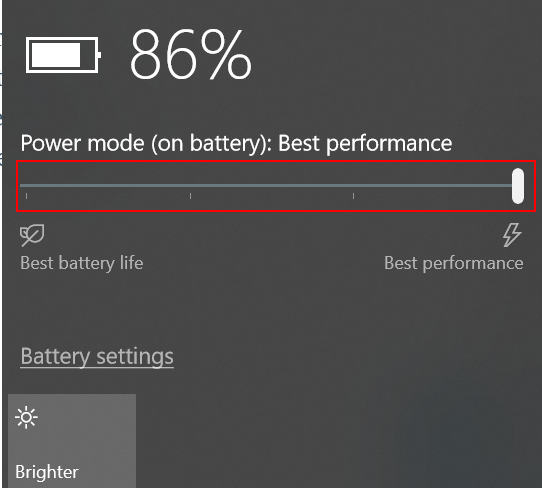

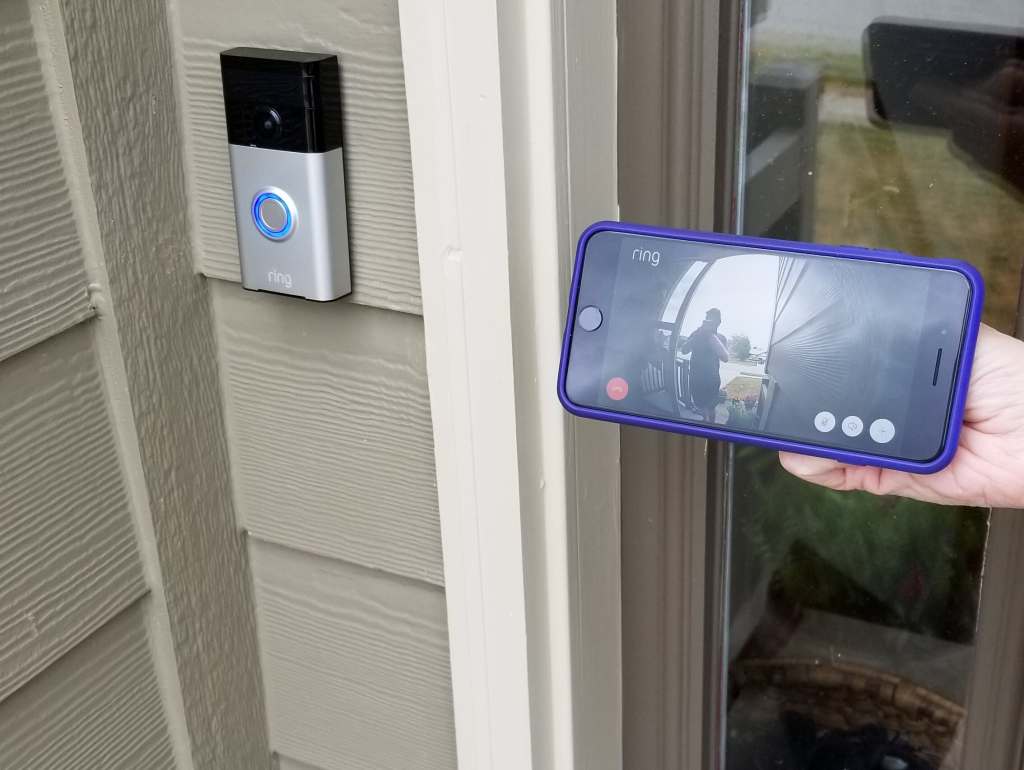
After I got logged on I decided to load my hardware monitoring app and see how the new fan performed while I played a game of Overwatch. Just about the time my match was starting my PC shutdown hard. When I tried to boot it back up I got the blinks back *%^! That was it; I’d had all I could take. I had to work in the morning so I decied to leave my system down and deal with it on the weekend.

Over the next couple of days my mind was turning over all the things that could be causing my issue. I knew the i-7 CPU had built-in thermal protection and so did my board so I was reasonably sure I hadn’t fried anything. I closely examined the pictures above and decided that the thermal paste would work better if I spread it like peanut butter. So I took my system apart, cleaned everything and used a silicone spatula to evenly apply a nice thin coating to the processor. Put it all back together and it booted again. Time to test. This time I made it through a couple of games before it shutdown. I had data though, there was a temperature spike on the processor.

I thought about it for a bit and looked at the pictures some more. I noticed the ridges in the copper cooling plate had gaps that were not being filled by the paste. I decided the paste was too thick to get down in there and was just smooshing out to the sides. I went and dug around in the box my new cooler had come with and found the paste that came with it. So I proceeded to dis-assemble, clean, and re-apply the manufactures paste. Then I put everything back together and booted. After 3 matches of Overwatch and an hour or so of Destiny 2 I felt I was in the clear. My system has been running fine for more than a week now. The new cooler works great and keeps the temp around 5 degrees lower than my previous one did. It looks nice too. The moral of this story is, “Don’t think you know better than the people who made your hardware”.  If you have a system that won’t stay up after a CPU cooler swap; you might try thinner thermal paste.

HP Sprocket; the little printer that could….

The only Christmas present on my wife’s list this year was an HP Sprocket printer. I must admit to being a little embarrassed because I had absolutely no idea what she was talking about.  What kind of tech blogger am I anyway?

After she explained what the Sprocket was, I jumped on-line and did some research of my own. The Sprocket is a printer that utilizes ZINK (Zero Ink) paper. Each piece of the paper is a multi layered packet that is impregnated with heat activated dye crystals. The printer contains the heating element, not traditional print heads. These things are the new trend for “crafty” types and most printer manufactures are making at least one model of ZINK printer.

Sprocket

So basically, we’re talking about the digital age version of a Polaroid camera. In fact, the Polaroid company makes one of these things with a camera attached. It’s called the Polaroid Snap. They all have an embedded camera or hook up with your mobile via bluetooth. Most of them spit out 2X3 photos that double as stickers if you peel off the back. I was a little sceptical about how useful a 2×3 photo would be but it was the only thing she really wanted and I always like new gizmos so I dropped the hint to my mother and she ordered one from Best Buy. HP’s model is available in 6 different colors, I went with white.

After the food and present exchange, I offered to set it up for her but it was so easy to get going she’d already done it herself. She had even printed a photo from our celebration on one of the 10 sheets of demo paper that comes with it. I was impressed, the print looked great and the size was better than I had imagined. suddenly a whole bunch of uses for the thing popped into my head. Lables for my gear being chief among them. We travel in an RV and I thought of plastering the ceiling with shots from our trips.
Sprocket_Print

The software is easy to use and apparently HP’s implementation is considered the best by ZINK connoisseurs. It offers easy photo touch ups, frames, stamps, text insertion and more.

I’ll let you in on a little tip. Each manufacturer makes their own ZINK paper but as long as you keep the little bar code card that comes in your brand’s first pack of paper you can use any of them in your printer. Sometime’s Polaroid’s paper is on sale, order it, scan the card that came with your HP paper and insert the Polaroid stack into your printer. On average you’ll be spending about $0.50 per print. It prints a sheet in just a couple of minutes and because its battery-powered and not much bigger than an iPhone you can easily take it with you. We’re taking ours to my son’s birthday party to make stickers for all the kids with their pictures on them.

All in all, they are neat little gadgets. I’m not sure anybody actually “needs” one but if you’ve got the extra money and you like pictures, you can come up with some pretty cool uses for it. For instance my wife, sticks the pictures on her notebook pages.

Sprocket_Scrapbook


Galaxy Note 8 Wallet Case Shootout

As I have said in other articles, I’m not a fan of cases in general. However, if a case can extend the functionality of a gadget, that is a different story. Wallet cases do just that for me. One less thing I have to find in the morning, gets me that much closer to being on-time to work. I’ve been on a mission to find the perfect wallet case for my beloved Galaxy Note 8.  I’ve purchased, carried, and used 3 of the top models and thought my readers might appreciate what I’ve learned.

First Up is the Samsung LED Wallet Case:

You can find this case on Samsung’s web-site, on Amazon, and even at Target. It retails for $59.99 but I’ve seen it on sale for as low as
$41.00 several times. Its available in the same 3 colors as the Note itself and holds two cards (I stuffed 3 in mine). This protector has a pretty cool trick up its sleeve; LED lights embedded in the case display icons for your notifications. There are several default icons and software that will let you create custom ones. The LED section on the front of the case is touch sensitive you can answer calls by swiping on it etc..


I bought this case with my phone and carried it for a couple of months. It barely adds any thickness to the phone and looks great. The LED lighting function is cool to show off but isn’t really all that useful in my daily life. I wear a smart-watch and the notifications it shows are detailed vs. the generic icons the case displays. The LED notifications don’t last very long so if the phone is in your pocket when it buzzes you’ll probably miss the ICON . I constantly found myself wishing I could carry more than two cards. I was disappointed in the durability of this case. After just a few weeks the material started to unravel next to the power button (open the last pick full screen). I put some tape over it but at this price point it should last a lot longer before having these types of issues.

Next I purchased the Burkley Leather Wallet Case:

You can find this case on their web site and if you watch the price it will go on sale for around $50.00 (normally $69.99). This thing is gorgeous. It is the nicest looking phone case I have ever owned, period. It feels soft and supple, like the inside of your favorite fuzzy slippers. The case fits the phone perfectly and easily holds 3 cards and some cash. I wanted it to work so, so bad, but it just doesn’t. The magnets that hold the phone in the wallet are in the wrong place and kept the screen from turning off when you hold the phone up to talk on it. The magnetic field also disturbs the auto-brightness sensor and stops it from working when attached to the wallet. More importantly, the entire back of the inner phone case is metal which stops wireless charging from working all together and for me, that is a deal breaker.


I ended up sending this case back. I told Burkley that if they could make it work with wireless charing I would purchase another one in a heart beat and be happy to pay twice as much for it. It is so nice I actually considered keeping it even though it stopped three important functions from working. I’ve never gotten so many compliments from random people as when my phone was in this case. If they can fix the magnet issues this will be the top of the line wallet for your Note 8. Please fix it Burkley, I really like it a lot.

Last is the AMOVO Detachable Wallet Folio:

This is the case I am currently carrying. It’s also made of leather and feels very nice but in my opinion it doesn’t quite look as nice as the Burkley did. It is glossy leather instead of suede. It fully works with the phone. It doesn’t stop any of the features from functioning thou wireless charing is a little finicky. You have to get the phone in just the right position due to the magnets being on the sides but once you get a feel for where it needs to go it works just fine.


It holds 3 cards and cash and the inner case seems like it might protect from drops better than the others. My phone will be living in this case for the forseeable future. You can beat the price either, its only $24.95 on Amazon.

Summary:

  1. Samsung LED Wallet Case
    • Pros
      • Looks Nice (matches phone color)
      • Thin
      • LED display
      • Works with wireless charging
    • Cons
      • Only 2 cards
      • No cash pocket
      • durability issues
      • Phone is always in a wallet, this one doesn’t have an inner case that detaches
  2. Burkley Leather Wallet Case
    • Pros
      • Looks excellent
      • Feels excellent
      • 3 cards and cash pocket
      • Attention getting
      • Makes a stand for watching videos
    • Cons
      • Not compatible with wireless charging
      • Breaks auto-brightness
      • Breaks screen-off while talking
      • Expensive (when not on-sale)
  3. AMOVO Detachable Wallet Folio
    • Pros
      • Looks good
      • Feels good
      • All functions work
      • 3 cards and cash pocket
      • Makes a stand for watching videos
      • Available in multiple colors
      • Half the cost of the others
    • Cons
      • None

If you’re in the market for a wallet style case for your Galaxy Note 8, the winner in whatdouknow.com’s opinion is the AMOVO. It looks and feels nice and doesn’t hinder any device functionalilty. If you have a favorite wallet case that isn’t listed, let me know in the comments.