PowerShell: Worried about Ransomware? Prepare for Application Lock Down by Finding the Software and Services You Use Now

With all of the ransomware attacks that are making the headlines this year, many businesses are looking to improve their security posture. One of the methods security professionals find most effective is to use software that controls what applications any networked computer is able to run. If an employee can’t open the bad actor’s malware package, then the attack can’t happen.

VMware’s Carbon-Black, Microsoft’s Windows AppLocker, and Trend’s Apex One all operate by allowing only a list of approved applications to run on any given system. A key step in deploying tools of this nature is to have a full understanding of the applications and services that are installed and running on your systems now. Some of these tools include discovery mechanisms that will help you locate the data. What do you do if your chosen tool lacks this feature?
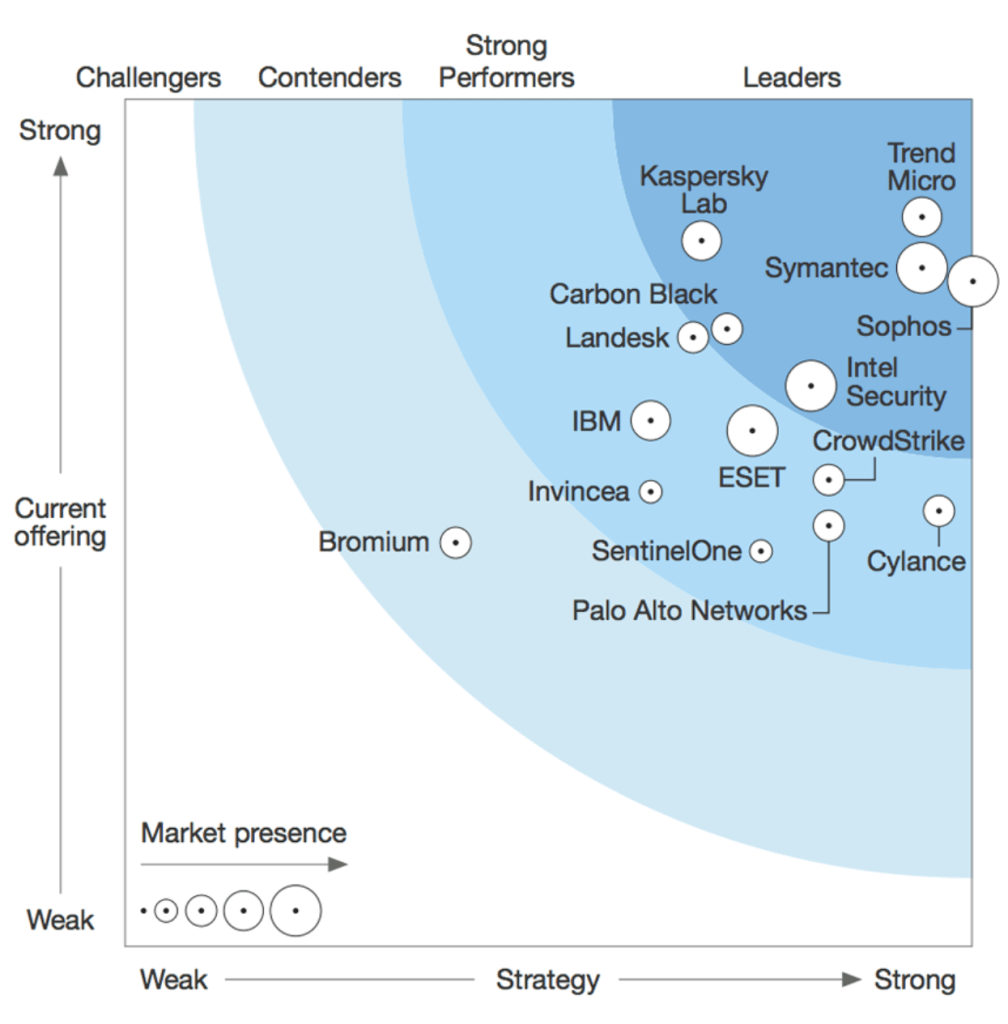
Application Control Solutions

PowerShell can get the data we need. First up is to list the applications running on your workstations. We’ll scan in the registry keys that record what software is installed on the systems that are part of your Windows domain. You’ll need to run the code below from a domain controller, or a system that has RSAT installed and is a member of the domain.

Installed Application Inventory:

Import-Module ActiveDirectory 
$Computers = Get-ADComputer -Filter 'Operatingsystem -Notlike "server" -and enabled -eq "true"' -Properties dnshostname|Select dnshostname -ExpandProperty dnshostname 
Foreach ($computer in $computers){$PingTest = Test-Connection -    ComputerName $computer -Count 1 -Quiet 
If ($PingTest) { $computers += $computer } 
Else {Write-Warning "Failed to connect to server '$Computer'."} } 
$report = @() 
ForEach ($computer in $computers) { $report += Invoke-Command -ComputerName $computer -Command {Get-ItemProperty HKLM:\Software\Wow6432Node\Microsoft\Windows\CurrentVersion\Uninstall*,HKLM:\SOFTWARE\Microsoft\Windows\CurrentVersion\Uninstall* | 
Select-Object @{n="Application"; e={$_.DisplayName}}, @{n="Version"; e={$_.DisplayVersion}}, HelpLink, Publisher, InstallDate | 
Sort-Object Application} } $report | Format-Table -AutoSize $report |select -Property * -ExcludeProperty RunspaceID, PSShowComputerName|
Export-Csv -Path $env:userprofile\documents\windows_computers_softwareinventory.csv -NoTypeInformation

Programs that automatically execute and keep running once you’ve booted your computer are called services. Most of the application control methods will automatically approve Microsoft services. However, other program packages also use services to enable their functions. Hackers know this and are starting to hide their tools by running them as a service. The code below will find and list all of the non-Microsoft services running on your computers. Again, you’ll need to run the script from a domain controller, or a system that has RSAT installed and is a member of the domain.

Non Microsoft Services:

Import-Module ActiveDirectory
 Function InstalledServices {
 $Computers = Get-ADComputer -Filter * -Properties dnshostname|Select dnshostname -ExpandProperty dnshostname
 Foreach ($Computer in $Computers)
 {Get-WMIObject win32_service -ComputerName $Computer|
 Select @{n="Computer";e={$Computer}}, @{n="Service";e={$_.Name}}, @{n="State";e={$_.State}}, @{n="Exe_Path";e={$_.PathName}}|Where Exe_Path -notlike "c:\windows*"
     }
 }
 $report = InstalledServices|Sort-Object Computer
 $report|Export-CSV $env:userprofile\documents\InstalledServicesReport.csv -NoTypeInformation 

Locking down computer networks is almost always a painful experience for both the administrators and users. Knowing what apps your people need to do their jobs and ensuring they aren’t entangled in your security efforts will help soften the blows.
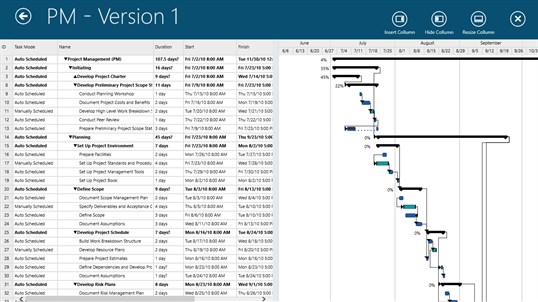
View Microsoft Project Files without Microsoft Project

Microsoft Project is the king of planning software. I’ve been using it for more than a decade but my current employer uses a different tool for the job which isn’t a problem on it’s own, I’m flexible.

The issue arises when a client sends me their plan in an mpp file. There is no Project Viewer application anymore. In the recent past this meant I would need to ask my customer to export their project to different format such as Excel or a PDF. Often this resulted in multiple communications, explaing the why and how.

I’ve had some success in finding alternatives for other popular software like Visio and PhotoShop in the Microsoft Store so I decided to try my luck. I installed and removed quite a few apps on my test VM, but eventually I found a suitable solution.

Seavus Project Viewer does exactly what its name implies. Not only will it open Microsoft Project files, but it supports the most popular views.  Gnatt charts, task sheets, and resource are all available. I tested the app with multiple complex Project files and was satisfied with the results.
Samsung Note’s Synch with OneNote Feature is Here, Sort Of

During the announcement event for the Galaxy Note 20 one of the features I was most interested in was the ability to synchronize Samsung Notes with OneNote. Samsung Notes has the screen off memo function that OneNote can’t match. The problem is, when I’ve used it to jot down something quick that information ends up isolated from the rest of my repository.
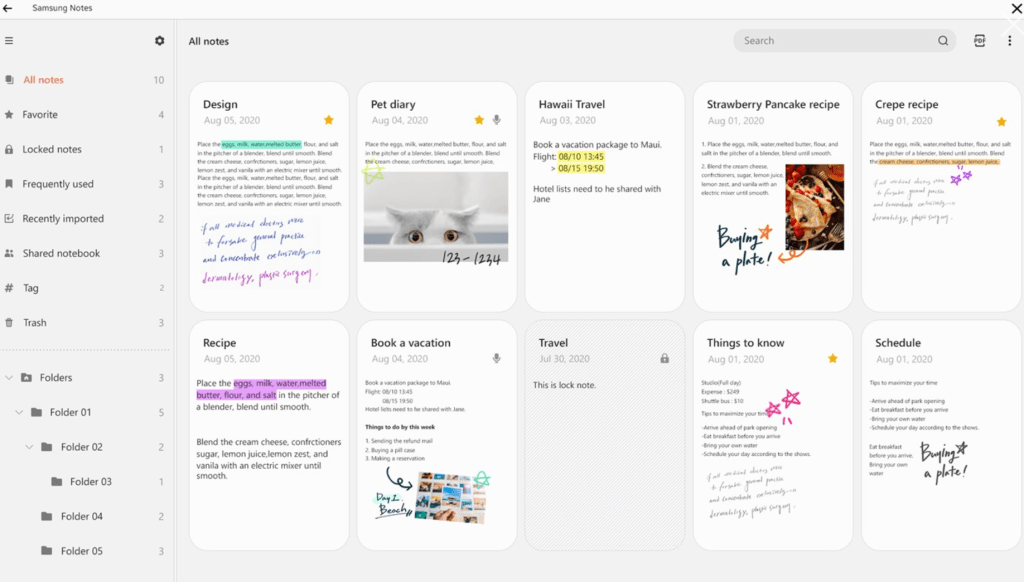
For the longest time Samsung’s solution was to install their Note app on your PC. The PC version of Samsung Notes is a decent experience but lacks the integrations with other Office software that OneNote enjoys. There’s also no easy method to migrate from OneNote to Samsung Notes, both reasons kept me from using the software.

Samsung Notes for the PC is in the Microsoft App Store.

Now, the newest version of Samsung Notes on your Galaxy will synchronize to your Microsoft 365 account. The synched data can only be viewed in the Outlook web client at the moment. However, if you have selected to be an Office Insider you can see that Microsoft is building the framework for the OneNote feed to show Samsung Notes, it already appears as a non-functioning option.

UPDATE: The synchronized notes are viewable in OneNote now. See my newest post on this subject for more information. https://techbloggingfool.com/2020/12/29/samsung-notes-synch-with-onenote-feature-is-here-now-more-functional/

The first thing you’ll need to do is to upgrade both apps. Open the Galaxy Store app on your mobile and tap the hamburger menu, then tap updates and install the newest version of, well, everything. The same goes for your PC, open the Windows Store and click the … menu in the upper right. Choose Downloads and Updates then click the Get Updates button and install everything.

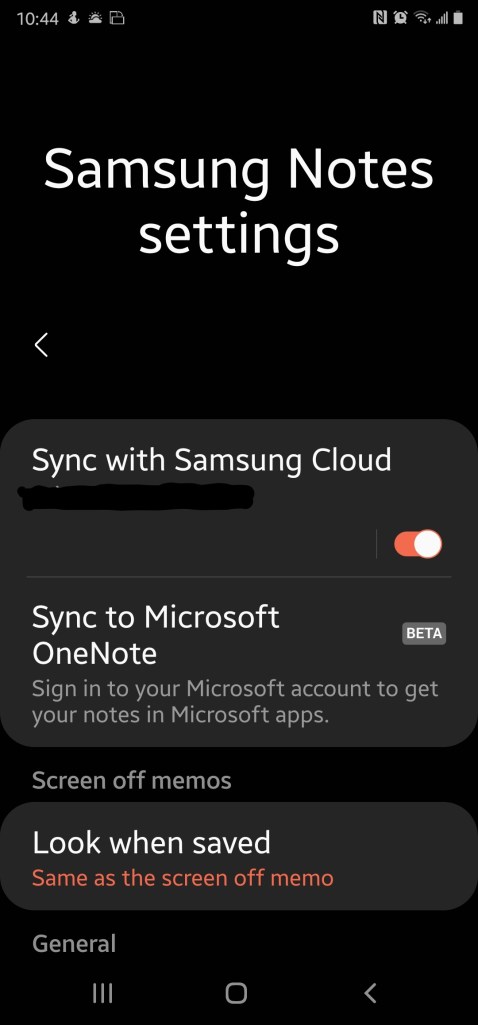
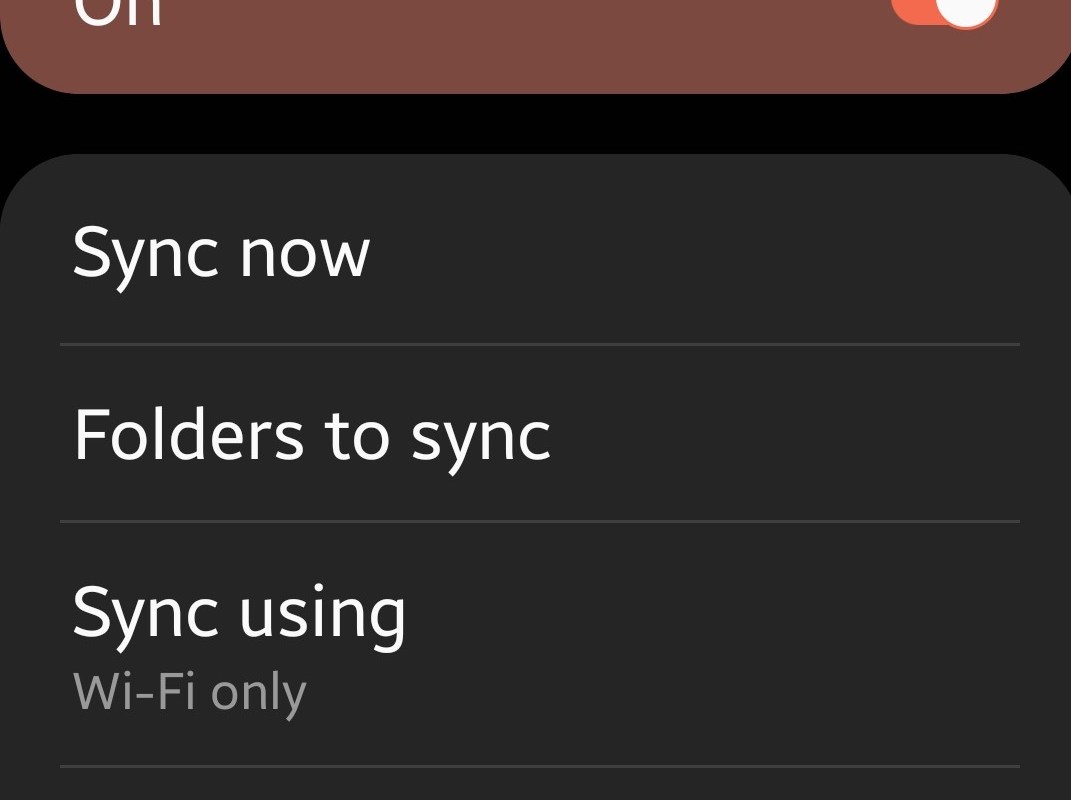
Now configure the Samsung Notes app on your mobile device. Open it and hit the options icon again. You should now see “Sync to Microsoft OneNote Beta”, toggle it on and sign in with the Microsoft Account you want to share notes with. You’ll also need to select the folders who’s notes you to sync. I recommend tapping the sync now button just for good measure.

Sync to Microsoft OneNote Beta is available in the newest edition of Samsung Notes.

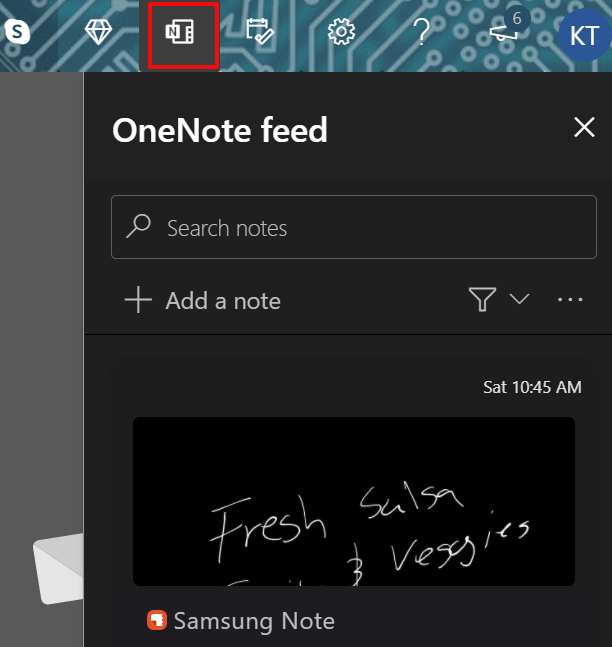
To see the synchronized notes, sign-in to Outlook.com with the same account that you configured in Samsung Notes. In the upper right, click the OneNote feed icon. The OneNote Feed pane will slide open from the right. Click a note to see more of it and to get an option to copy it to the clipboard. Right now I find that copying a Samsung Note in this manner and pasting it to a blank OneNote page is the optimal way to use the tool.

The OneNote Feed in the Outlook Web App will show your Samsung Notes after the first sync.

We know that Microsoft and Samsung have plans to enhance this feature in the near future. The Note Feed is present in the insider edition of the Windows 10 OneNote app and Samsung Notes is an option in it although it doesn’t work yet. Hopefully they’ll get to a point where the Samsung Notes become pages in OneNote but we’ll have to wait and see.

Fix Oculus Quest 2 Fan Noise

I was so excited when my Oculus Quest 2 arrived this afternoon. I booted it up, went through the setup and upgrade and prepared to play my first game. While I was waiting for the game to load I noticed a buzz or whining noise that my IT brain immediately identified as a fan.

Sometimes when you first boot up new equipment it takes a bit for everything to settle, so I played a game for a couple of hours. The noise got worse not better. I hopped on the web and started searching. There are numerous complaints on Reddit, the Oculus Forums, there are even YouTube videos of the issue. The advice on nearly all of them was the same, send the unit back for replacement. Really? I just got it and I already have to send it back? Before I boxed it back up, I decided to see if I could fix it on my own.

I was able to get the sound on mine to completely stop! I removed the face pad and the noise stopped immediately. I snapped the face pad back down tight and buzz never came back. To remove the face pad just gently pull it away from the body of the headset. You’ll hear a couple of light snaps as it disconnects, especially near the top where the strap connects. Reseat the face pad and make sure it is snapped down tight all the way around. I hope this works for you as well as it did for me. Watch for a full review of the new Quest in a few days.

Partycade; All of the Arcade Action, None of the Floor Space

I have quite the man cave chiseled out of my basement. There’s office space, a gym, and a nice place to sit and play games or watch the TV. I’ve always wanted a classic arcade cabinet like Pac-Man, but there’s literally nowhere to put one.

One late night while flipping channels, something on HSN caught my eye. The sales people were demonstrating an arcade cabinet that looked like it had a full-size screen and controls. What made it stand out wasn’t the game they were playing, the cabinet was hanging on a wall!

The Arcade1Up Partycade is an HSN exclusive, which explains why I had never seen this marvel before. At the time of this writing there are two models available each is $199.00 and plays four games. The sales person was doing an excellent job of making it sound like they were about to sell out of the Pac-Man / Galaga unit that I needed in my life. I couldn’t find the HSN account, so I woke my wife up at one in the morning to help me make the order.

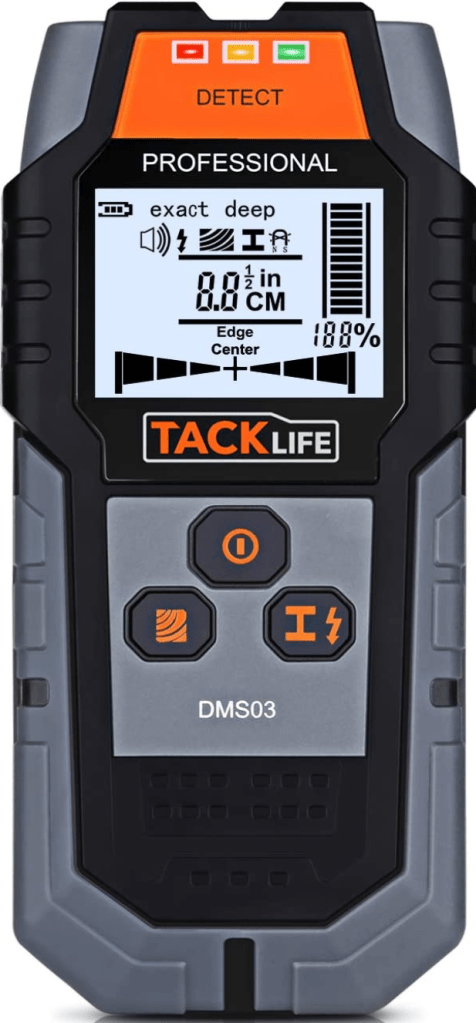
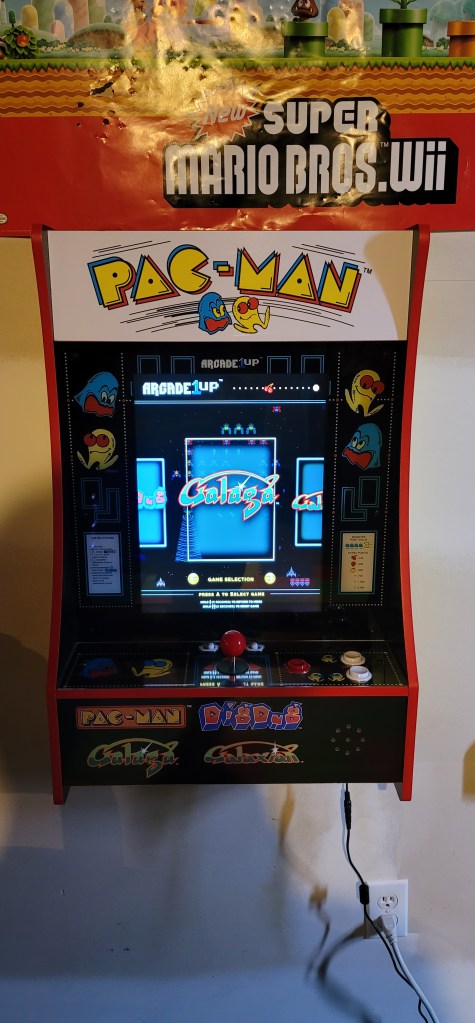
I’m so used to Amazon Prime that I was shocked my order took almost three weeks to show up. The Partycade has three configuration options. Mount it on a wall, hang it on a door, or stand it on a table. The hardware for each option is included. I mounted mine on the wall, it’s more or less the same process as hanging a heavy picture. I recommend a stud finder. The other tip I’ll share is to consider whether you will stand or sit while playing. The screen is not tilted at an angle like a traditional cabinet, so doing both can be tricky if you don’t get the height just right.

You need to mount the hanging bar into studs. A stud finder makes the job easier.

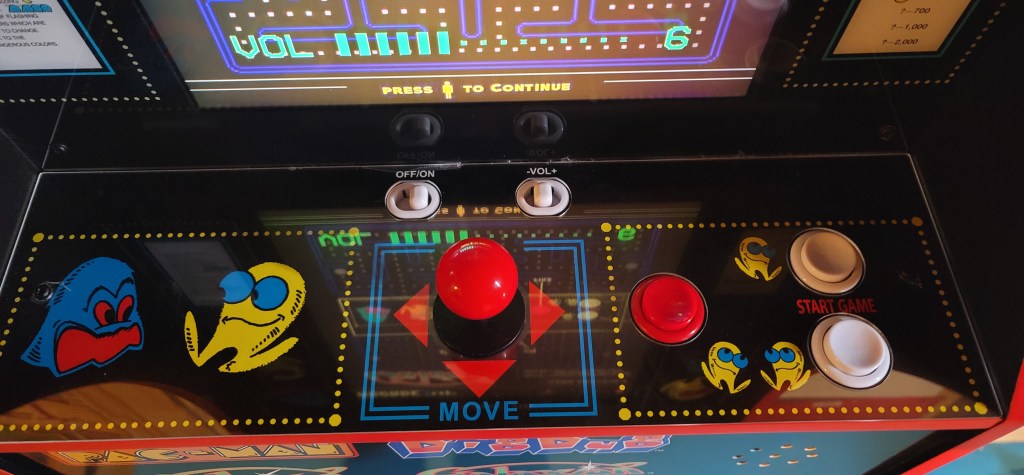
I’m sure what you really want to know is what it’s like to play. In an 80’s word, rad it’s totally rad man. Every time that I play it, I’m instantly a kid bumming around in the mall’s arcade again. The seventeen inch LCD is mounted in portrait and looks great, although you’ll wish it tilted back. It just isn’t possible in this form-factor. The control stick feels just like I remember and the buttons click just right. There’s a volume rocker for the fantastic speaker system and a power switch. All that’s missing is a coin slot.

The cabinet art is fantastic.

The unit I have plays Pac-Man, Galaga, Galaxian, and Dig-Dug. There’s a carousel menu to launch the games from. If you leave the unit powered on it will randomly select a game and play its screen saver mode. The games themselves are the real thing as far as I can tell. MAME ROMs are often glitchy altered copies but these play just like the machines in the back of the pizza shop.

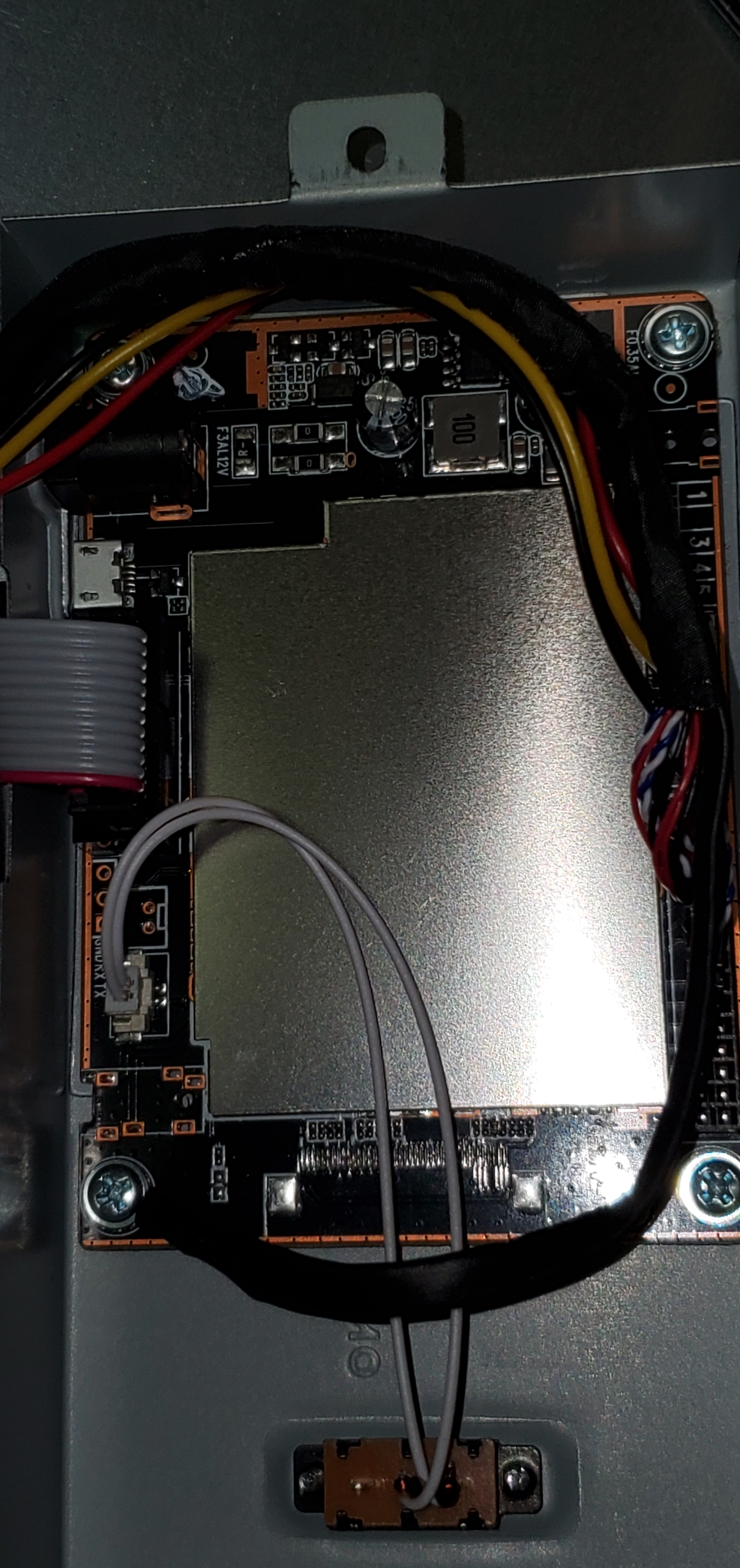
The Partycade is also surprisingly mod friendly. I haven’t had a lot of luck getting the board to run other ROMs yet, but taking apart the case is just a few philips-head screws. The PCB is housed inside a heat shield that is easily accessible and would be simple to replace with a Rasberrypie. The monitor, button, and joystick connections are all off-the-shelf. It wouldn’t take more than an afternoon to convert this into a full MAME cabinet. Several people on-line have already accomplished it. It already plays the two games I care about most, so I’ll leave mine stock for now.

It actually makes a great piece of wall art that fits well with my gamer motif. I find myself walking over to play a game in between conference calls, or while I’m mulling over a problem I’ve been asked to solve. I’ve already got a spot picked out to hang the Centipede model. I’m hoping somebody gets it for me for Christmas hint hint.

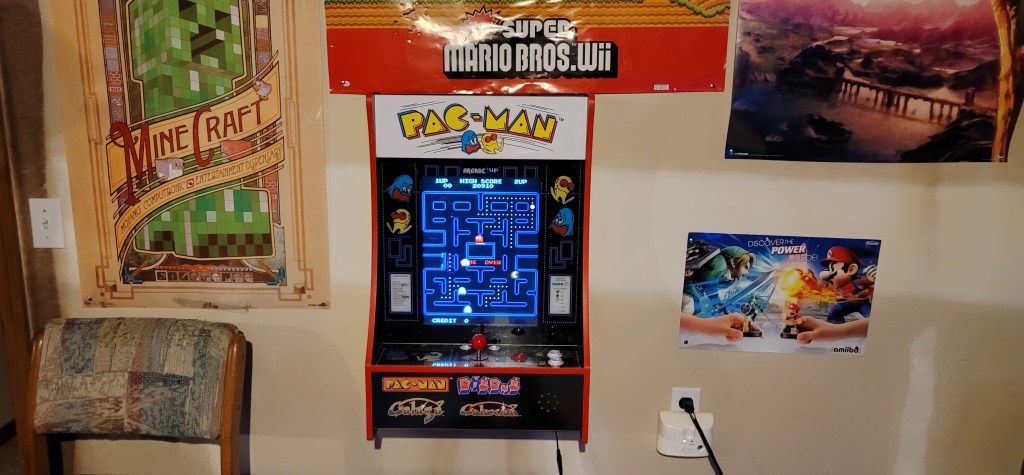
Along with some posters, the Partycade turns a unfinished basement wall into something interesting.

PowerShell: List Domain Workstations that Synchronize Offline Files

Once upon a time in an IT shop far, far away I thought that Windows offline files was a fantastic feature. Who remembers when it used to be called the briefcase? Now with DFS, SharePoint, Folder Redirection, and other modern file services taking over from standard file shares, the technology is dated and often causes conflicts.

Recently I was tasked with disabling all offline files for a large organization. If I didn’t care how much pain I caused the end users or the helpdesk, I could have just flipped a few settings in a GPO and moved on. I knew that just turning them off would cause trouble because the offline database is easily corrupted. When this happens the clients end up with files on them that have not synchronized with the sever.

I needed a way to identify which workstations had been configured to use offline files. I opened my browser and ran some searches. I came up empty. I’d have to come up with my own solution. I guessed that WMI would have the info I needed and I was right; win32_OfflineFilesCache would give me the status. A little PowerShell magic let me find every workstation on the domain, check for offline files, and output everything to a CSV report.

Import-Module ActiveDirectory


Function OfflineFilesStatus {

$Computers = Get-ADComputer -Filter 'Operatingsystem -Notlike "*server*" -and enabled -eq "true"' -Properties dnshostname|Select dnshostname -ExpandProperty dnshostname

Foreach ($Computer in $Computers)
{Get-WMIObject win32_OfflineFilesCache -ComputerName $Computer|
Select @{n="Computer";e={$Computer}}, @{n="Enabled";e={$_.Enabled}}, @{n="Active";e={$_.Active}}
    }
}
 
$report = OfflineFilesStatus|Sort-Object Computer
$report|Export-CSV C:\Temp\OfflineFilesStatusReport.csv -NoTypeInformation

Six Months in with the Microsoft Surface Go 2

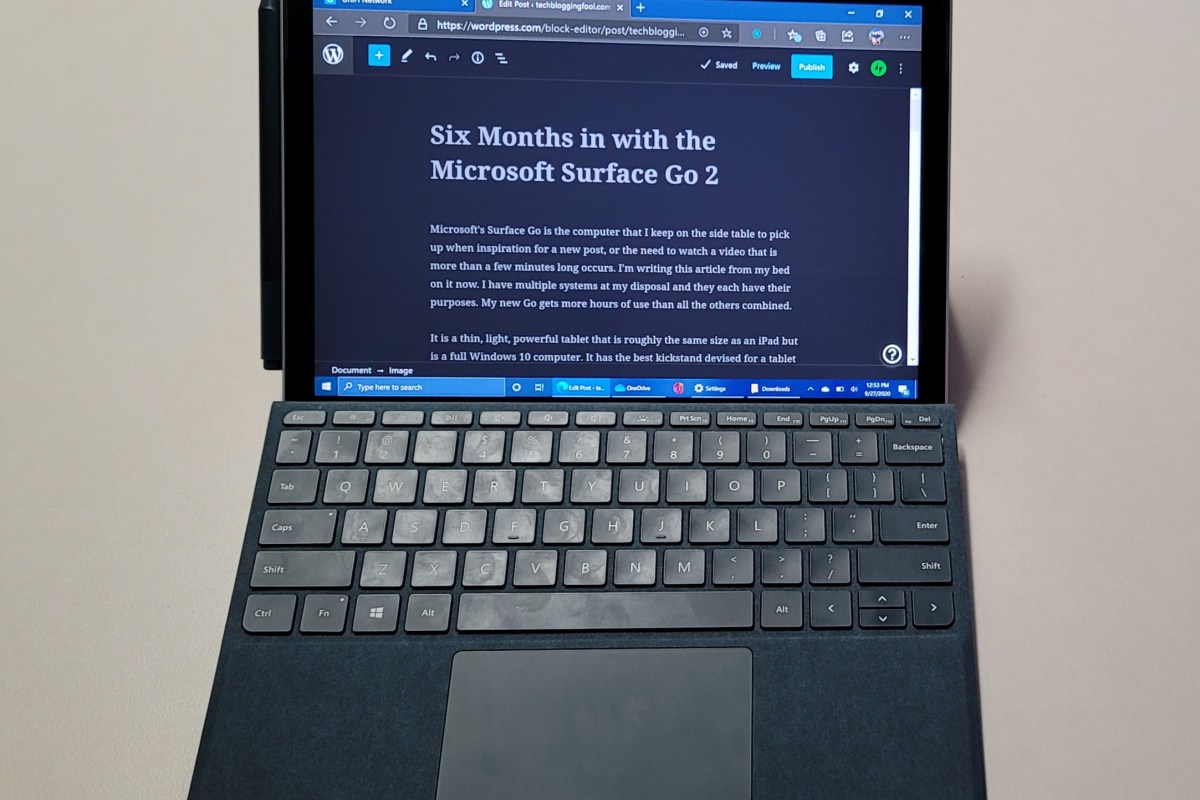
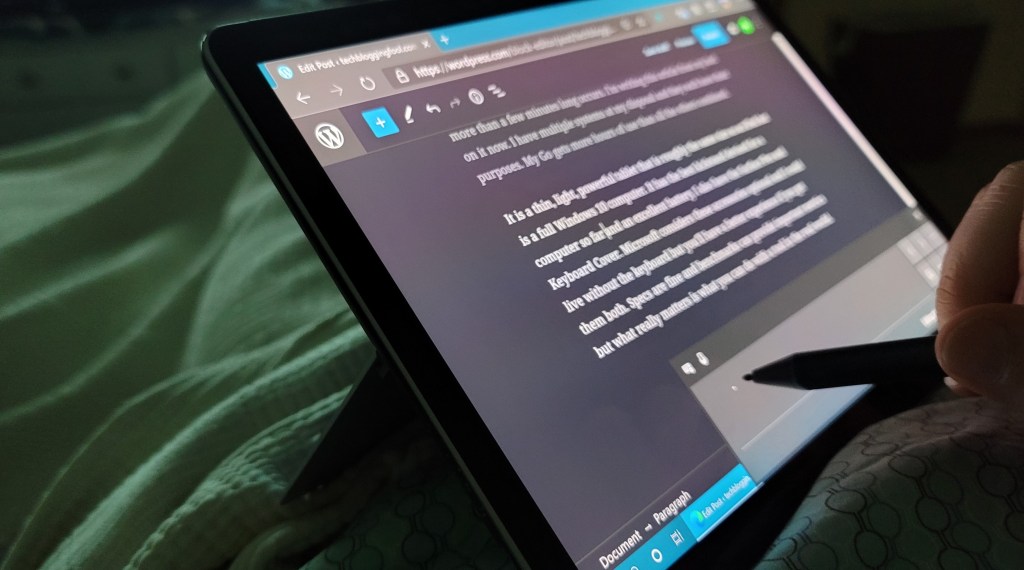
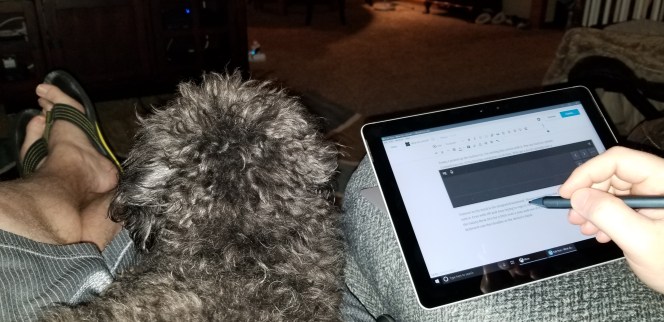
Microsoft’s Surface Go is the computer that I keep on the side table to pick up when inspiration for a new post, or the need to watch a video that is more than a few minutes long occurs. I’m writing this article from my bed on it now. I have multiple systems at my disposal and they each have their purposes. My new Go gets more hours of use than all the others combined.

It is a thin, light, powerful tablet that is roughly the same size as an iPad but is a full Windows 10 computer. It has the best kickstand devised for a tablet so far and an excellent battery. I also have the Surface Pen and the keyboard cover. Microsoft considers these accessories optional and I could live without the keyboard, but you’ll have a better experience if you get them both. Specs are fine and benchmarks can provide important metrics but what really matters is what you can do with a tool in the real world.

Almost every morning before I climb out of bed I grab my Go off the nightstand and check Outlook, Teams, the weather, and my company’s line of business apps to see if there are any emergencies and wrap my head around the day’s work. I don’t have to type any passwords. I just click the power button and the Windows Hello camera recognizes me, even in the darkened room with my crazy bed-head. I pull the pen off it’s magnetic spot and answer or fix anything that requires immediate attention. This is easy because all of the apps are open at once and I’m already on the VPN. If I didn’t hit snooze too many times, I usually check the news before I head to the gym where the Go server as a perfect video screen on the machines.

The kickstand makes writing in bed a cinch.

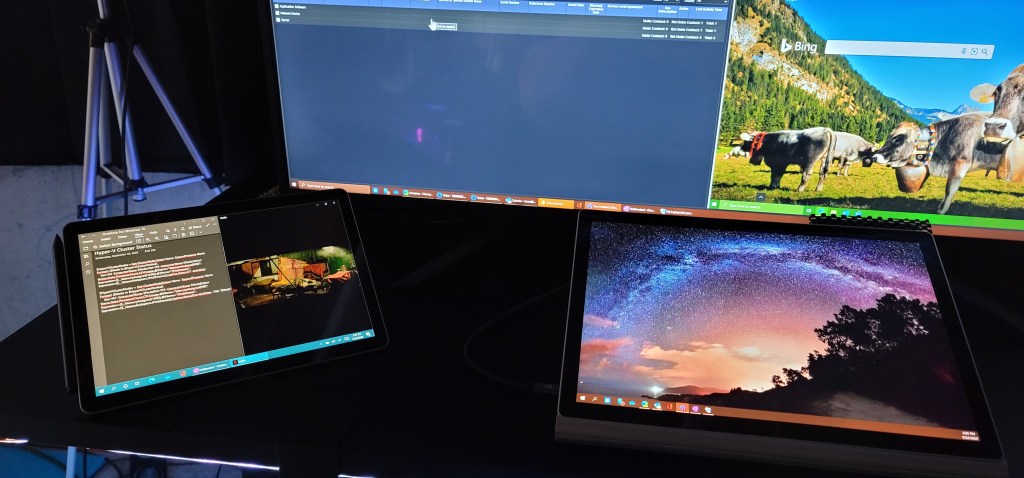
Once I’m at work, the Go becomes my Notebook. OneNote is always open. I’m in countless meetings and conversations with people about important things, there’s no way I would remember all of this stuff. I usually have the screen split between OneNote and one of the video apps that I subscribe to. This thing has great speakers. I also usually have Grapholite running because diagraming applications and networks is often the quickest way to understand them. Truth be told, I have done all of my work from the Go when the need arises. I have all of my utilities, printers, connections, and data available. My USB C dock and charger let me use the Go as a full workstation when I need to.

The Surface Go is a perfect side-kick system.

After work I usually sit in my favorite chair and watch Netflix in a small window that I mark to always stay on top. That kickstand comes into play again. The little Surface will balance on the arm of my recliner right under my writing hand and is so ridiculously comfortable. I check social media, message my friends and family, and work on my blog. Because I’m signed into Xbox live, Steam, BattleNet, and Origin I can see if any of my friends are up for a game.

The kickstand is key to the Go’s versatility.

Teams video meetings, Zoom meetings, Web-ex, and GoTo Meetings oh my; I’ve used my Surface Go 2 in all of them. Have you tried to split-screen Zoom on an iPad yet? The video drops as soon as the app isn’t filling then entire screen. It is fairly amusing when people try to do something else during a meeting and can’t figure out what happened. Even the one-thousand plus dollar iPad Pro can’t support multiple users or multitasking during a video call. The $399.00 Surface Go does both with ease.

The Surface Go 2 has a slightly larger screen at ten and a half inches versus the first generation’s ten inch panel. The second gen Go also features a faster processor, larger battery, WiFi 6, and Bluetooth 5.0. If you already own a first generation tablet the upgrades are not going to blow you away, but they are notable in everyday use. The first time around I went with eight gigs of ram and one-hundred twenty-eight gigabytes of storage. Now that cloud storage and SD cards are more affordable, I chose four gigabytes of RAM and sixty-four gigs of storage. There haven’t been any ill effects of that decision so far.

The Surface Go 2 is perfect for writers, students, meetings, and armchair engineers. I would have loved to have something like this in my college days. My backpack would have been much lighter. As an IT worker it is invaluable to have all of my tools everywhere I am. If you travel and find yourself packing a laptop and iPad this will cut your load in half. If your point-of-sale platform runs on Windows, the Go would let your floor employees access it without re-tooling for Android or iOS. Who couldn’t find a use for a powerful Windows computer that is smaller and weighs less than an average magazine?

Portal Knights A Great Co-Op Game for Couples

My wife and I are both gamers, but we prefer different genres. She enjoys farming, life simulation, and collecting, with some adventure and task completion tossed in to keep things moving. Some of her favorite games are Animal Crossing, The Sims, Harvest Moon, Zelda, and Skyrim. My tastes tend to fall more on the shooter, racing, and action adventure side of things. Some of my favorites are Destiny 2, Call of Duty, Tomb Raider, and Zelda.

We like to play together but our differences make finding a game that we both enjoy challenging. I find Animal Crossing boring and she thinks Call of Duty is a loud obnoxious mess. The last co-op games we played were the Harry Potter Lego series. We have fooled around with Captain Toad’s Treasure Tracker. Its puzzles are intriguing, but it is low in entertainment value.

The Harry Potter Lego games are also excellent fun for couples.

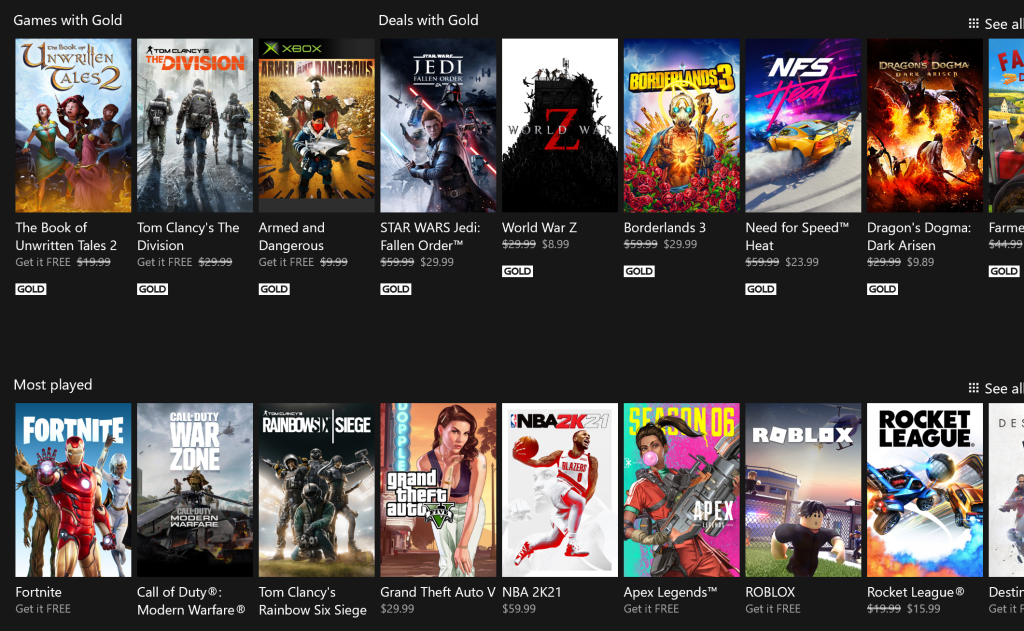
I was exploring the games made available by the Xbox Game Pass and Games with Gold when I stumbled upon Portal Knights. We decided to try it out in split-screen and purchase a copy for our separate devices if we liked the game because co-op is fine, but sharing is too much to ask for any married couple. Portal Knights is available on the Xbox, PlayStation, Switch, PC, Android, and iOS.

Between Xbox Games with Gold and the Xbox Ultimate Pass a new game is a click away.

We played through the intro and enough of the game to see that we would keep playing. Then we each purchased the bundle that included all the DLC for our Switches. The game works fine in split-screen. We specifically wanted a game we could play when the TV was unavailable.

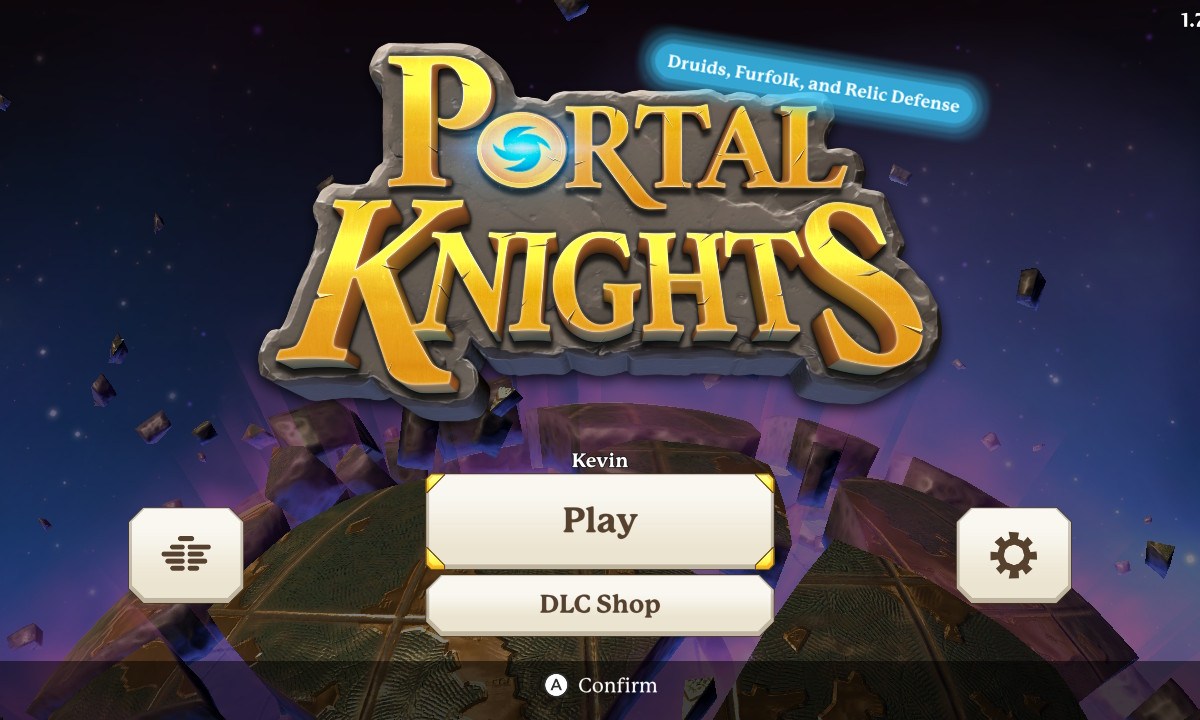
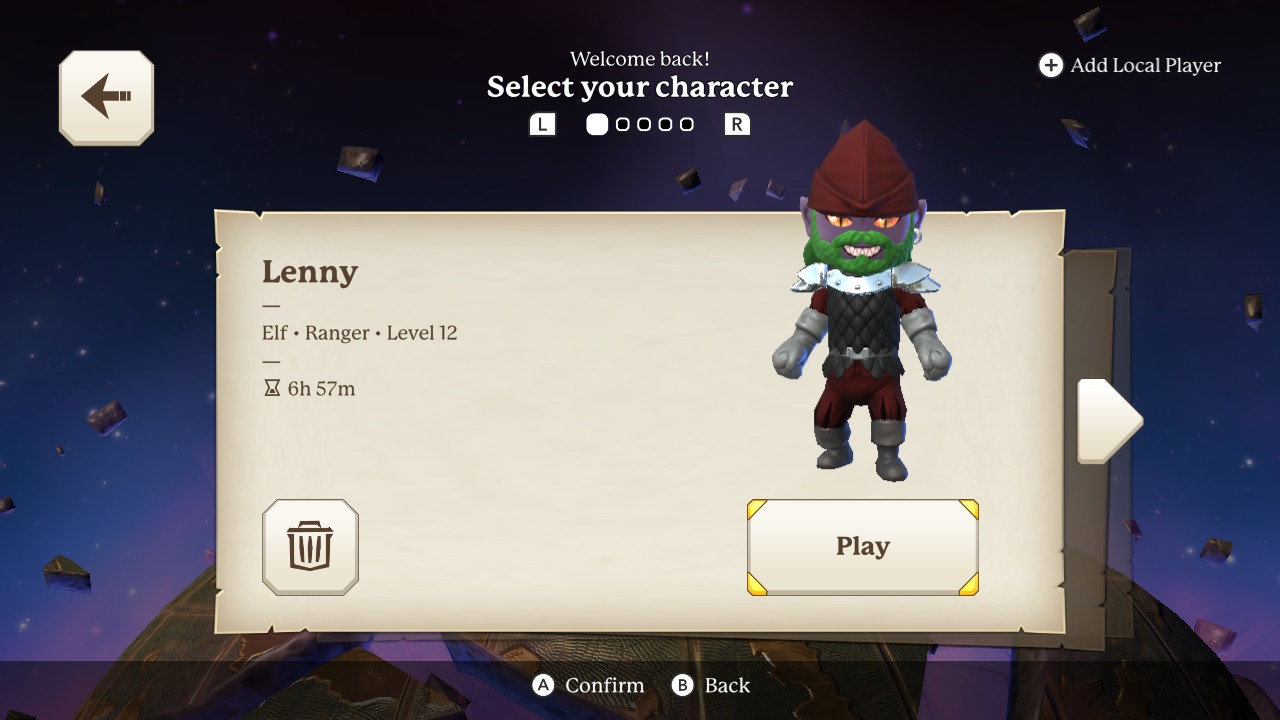
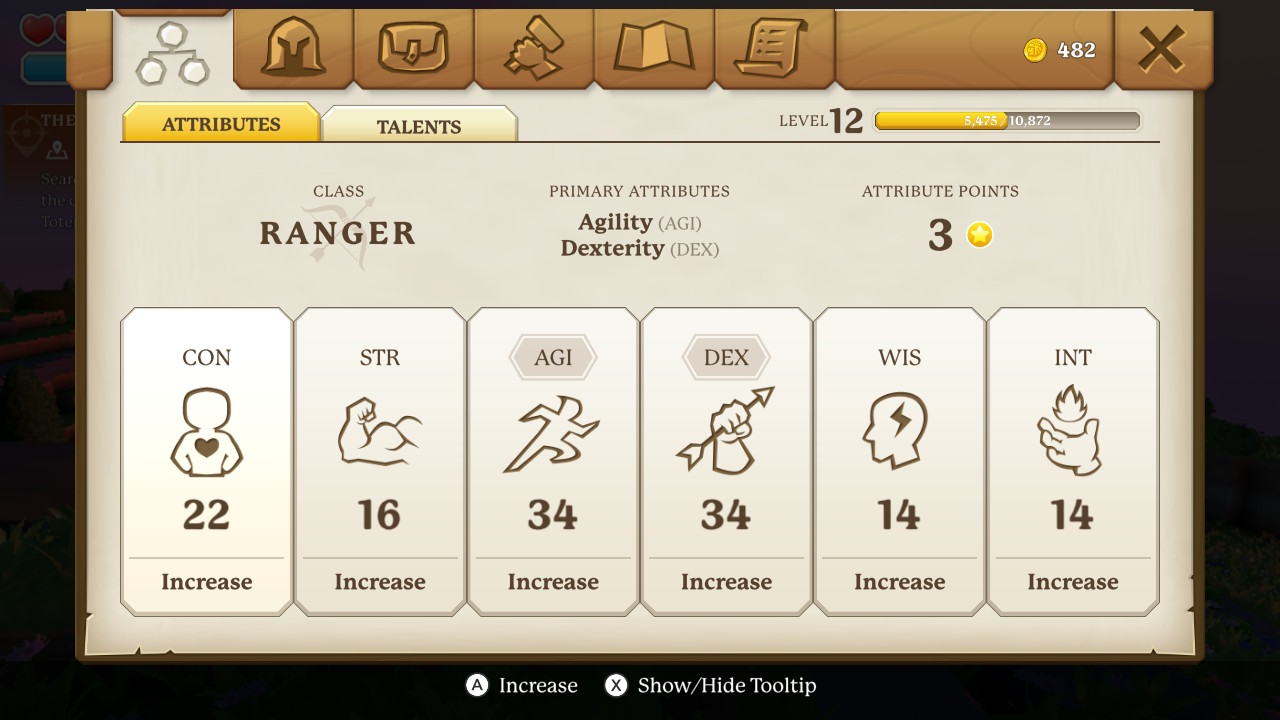
What is Portal Knights? I think the best way to categorize the game is to call it a compilation. It starts off with your standard RPG character creation. Choose your class, edit your looks, and pick your skills. In the base game there are three classes. The bundle or, DLC adds two more. The lady went mage, and I chose a bow wielding scout. There is an excellent array of choices to make your avatar personal.

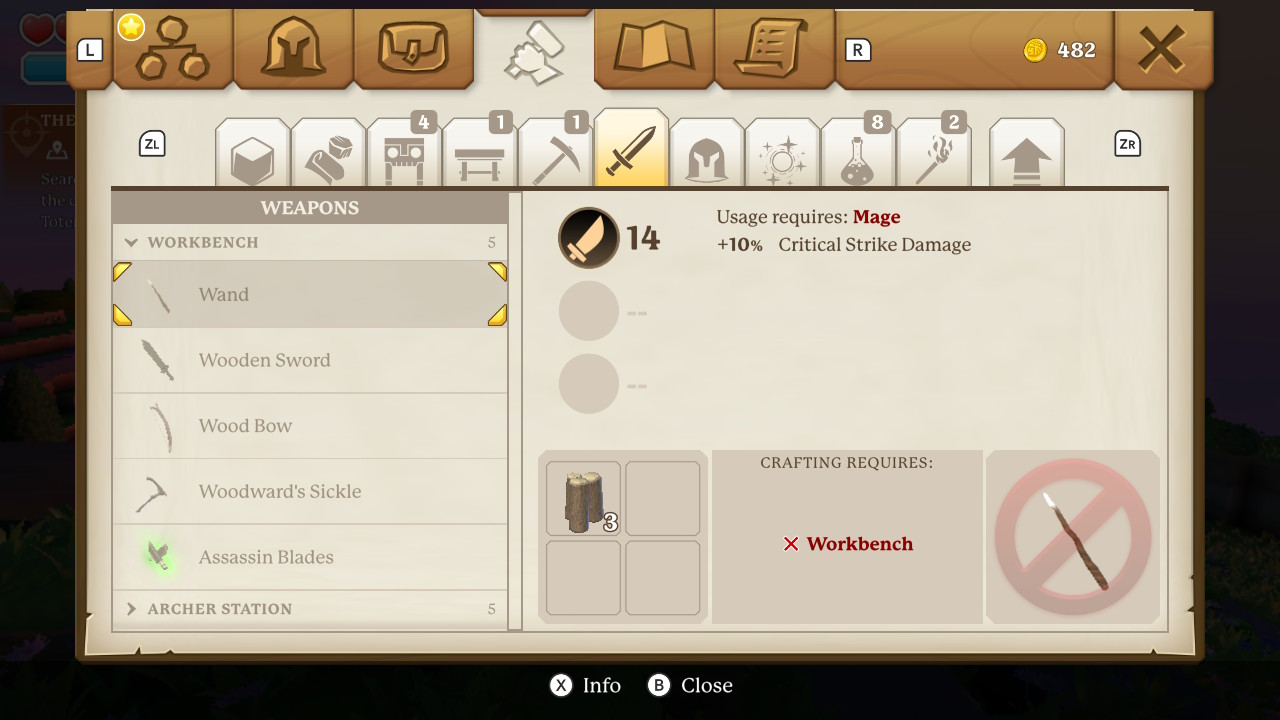
The worlds your characters have their adventure in are created randomly a` la Minecraft. Speaking of the block-based juggernaut, Portal Knights borrows more than just the random world generation. The blocky feeling is present as are mining for resources, building, recipes, different types of work benches, and the need for shelter. You will be digging up dirt, stone, metals, jewels, various plant materials and more to fill your inventory with the stuff you need to upgrade your tools and rank up. There are also creative mode worlds with no combat or questing.

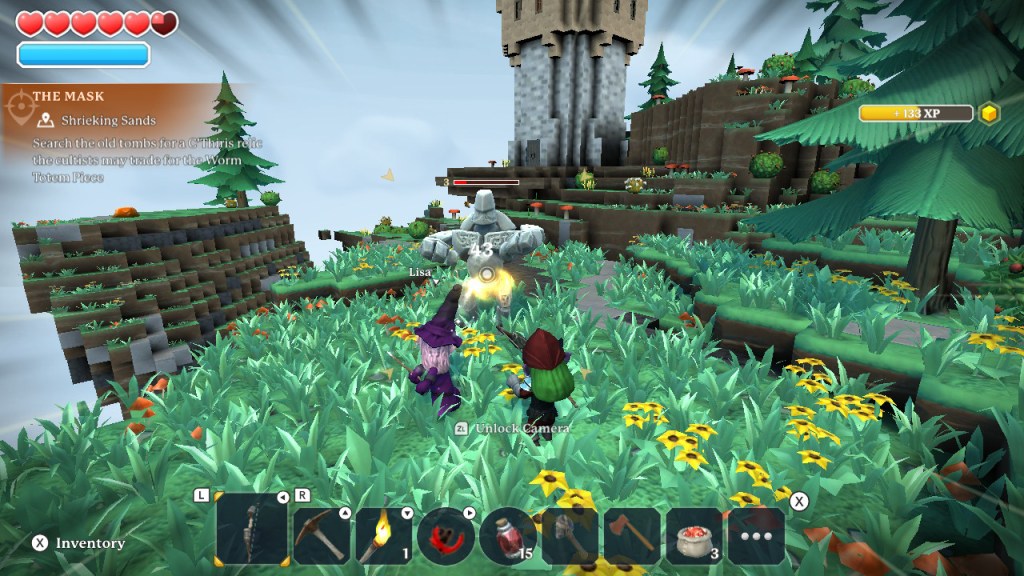
In adventure mode, some of the resources you’ll need can only be acquired in combat. The combat is third or first person, you can switch at will, and ranges from easy to intense. There are many unique enemies that each have their own weaknesses. Armored knights, flying critters, shelled turtle creatures, and giant boss fights with everything from squid to dragons keep the action exciting. Your chosen class of warrior does not preclude you from using the other types of weapons if you build or pick them up. My bowman is quite adept with a sword when he needs to be. There are potions, shields, spells, scrolls, magic items, and other RPG items to be deployed against your foes.

Win battles faster when you team up.

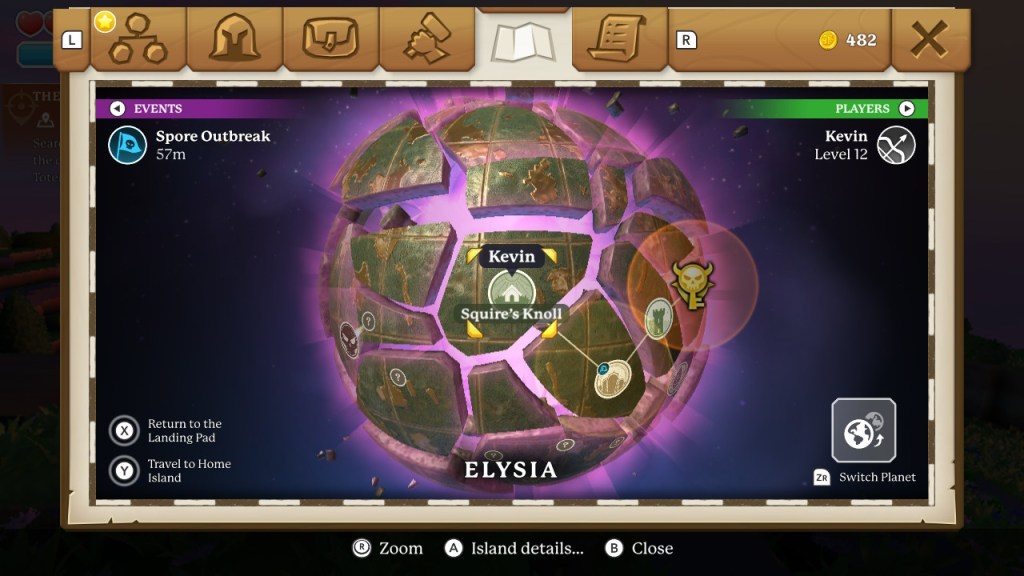
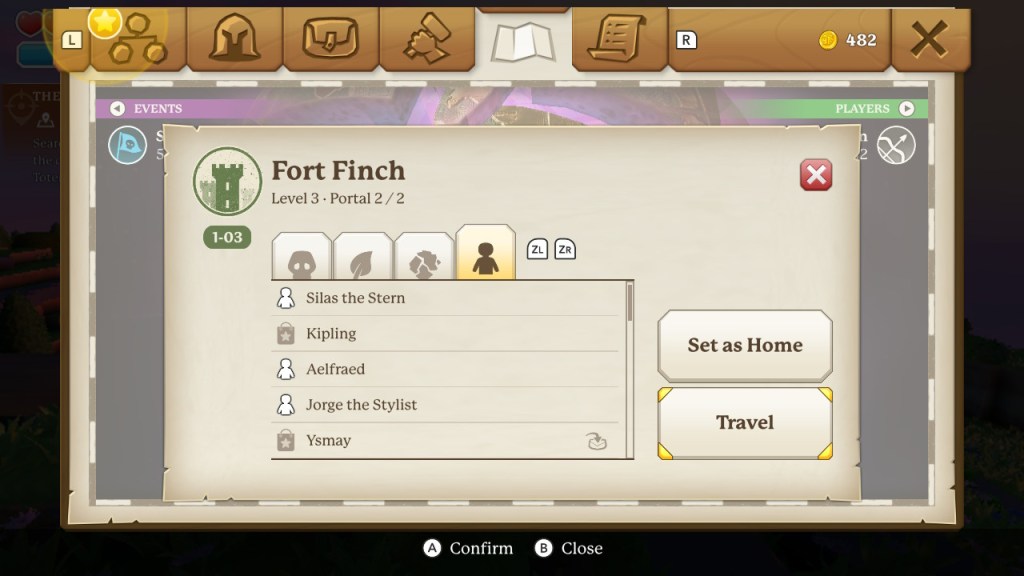
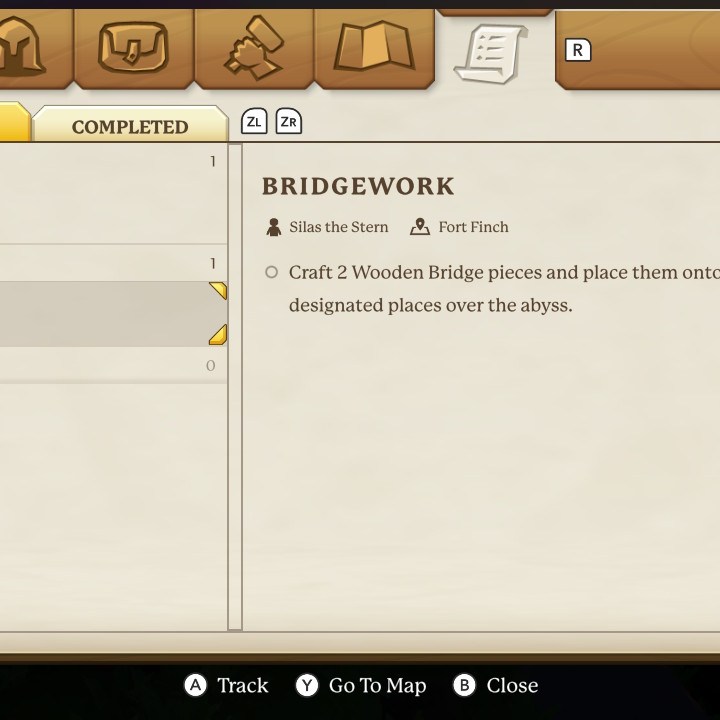
The game takes place on multiple islands that are spread across multiple planets. Each island is centered around particular resources and inhabited by various characters some of whom will ask you to complete certain tasks or quests to move the story forward. You mine in part to obtain colored magic stones that allow you to complete portals that jump you to other islands and planets so that you can complete more of the story.

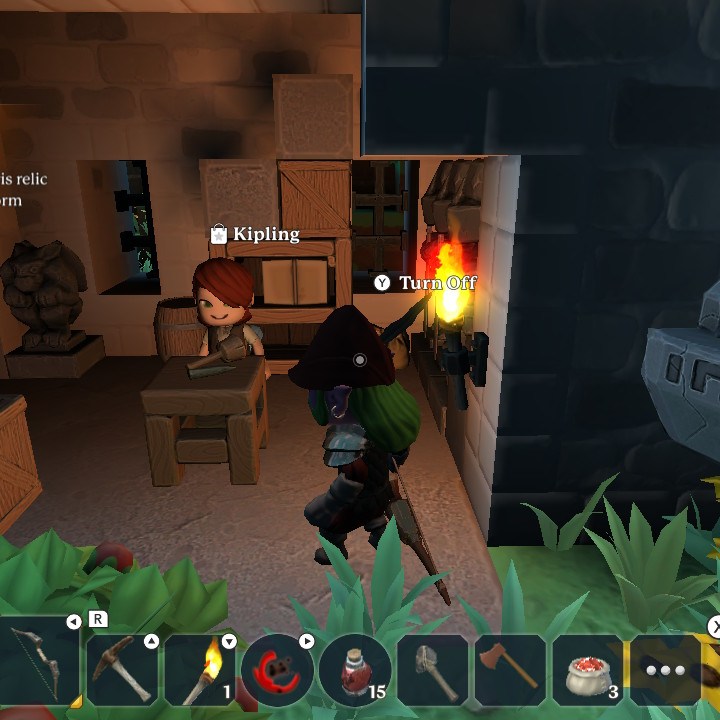
There are numerous locations.
Your map shows where characters and resources can be found.

What makes the game a great co-op experience is the blend of RPG, combat, adventure, mining, farming, and building. There’s something you will enjoy doing no matter what type of gamer you are. A good balance of open-world exploration and quest driven tasks keeps you and your partner from floundering about without a clue, while still allowing you to wander. Some of the characters are cute and entertaining while others are nefarious and clearly need to be vanquished. The game tries to have a little of everything in it and does a respectable job of balancing it all. It plays especially well on the Switch due to the combination of physical controls for your character and touch for the numerous menus. My wife and I are about twenty hours in and still going strong.

PowerShell Hyper-V Cluster VM Status

As an employee of an MSP, I am often tossed into the ring, so to speak. I’ve found that configuring Microsoft’s tools to see all of the virtual machines in a clustered Hyper-V environment consumes too much time in high-pressure situations. Depending on the version of Windows the hosts are running, you may not see the information you’re after, even when you take the time to set them up.

To save time and see the info most admins need I’ve come up with the simple script below. Run it from one of the clustered hosts and it will pop up a sortable, searchable, grid view for each host in the cluster. You will see the name, number of CPUs, assigned memory, IP addresses, on / off status, and uptime for each of the host’s VMs at a glance. Each pop-up table will be named for the host it represents.

$HyperVClusterNodes = Get-ClusterNode|Select Name -ExpandProperty Name
Foreach ($Node in $HyperVClusterNodes){
    Get-VM -ComputerName $Node|Get-VM -ComputerName $Node|Select Name,State,ProcessorCount,CPUUsage,@{Name="MemoryAssigned(MB)"; Expression={$_.MemoryAssigned/1MB}},@{Name="IPAddresses"; Expression={$_.NetworkAdapters.IPAddresses}},Uptime,Status|Out-GridView -Title "$Node"}

Improve Your Password Changing Practices

Back in the day, your network credentials were used to logon to your computer, get to your email server, and maybe to access some files or a printer. When you changed your password, if you changed it at all, it made sense to update it on the two or three systems that used it all at once and get it over with.

Now your password is synchronized to untold numbers of cloud platforms, on-premises application servers, VPNs, companion devices, and remote access solutions. Your password authenticates you to your computer and thanks to single sign on (SSO) it also logs you in to Zoom, Microsoft 365, your phone, and Salesforce. Single sign on usually involves an agent application that runs on your company directory servers and updates the other systems when a change is made to your account.

If you are like me you probably dread password change day and want to get it over with as quickly as possible. So you update your computer password when you are prompted and then preemptively logon to your other devices and apps and change them too. It seems prudent to update it everywhere, but our modern cloud connected networks are complicated. The agents that synchronize your password often encounter unresolvable conflicts between your company directory and the passwords that you manually updated. You may end up not being able to logon or lock-out your account.

I have a better experience and am less likely to end up calling the help desk when I wait for the sync agents to do their work. The next time that you are prompted to change your password try this. Only change it on the system that asked. Then wait for the other devices and software to require your new credentials. Some may take days, others may never ask.

Like the infamous CTRL+ALT+DEL, naming the alphanumeric strings we make up to authenticate our identities to our digital systems “passwords” was a mistake made long ago. It causes so much frustration to think of a single word that complies with the complexity requirements that many of us feel like we are losing at Scrabble. It’s no wonder that we forget them the next day. Here’s a tip, use phases like the lyrics from your favorite songs or quotes from movies. They are easier to remember and are actually more secure. Most password fields will allow at least 254 characters.

Fixed Frequent UniFi Wireless Disconnects

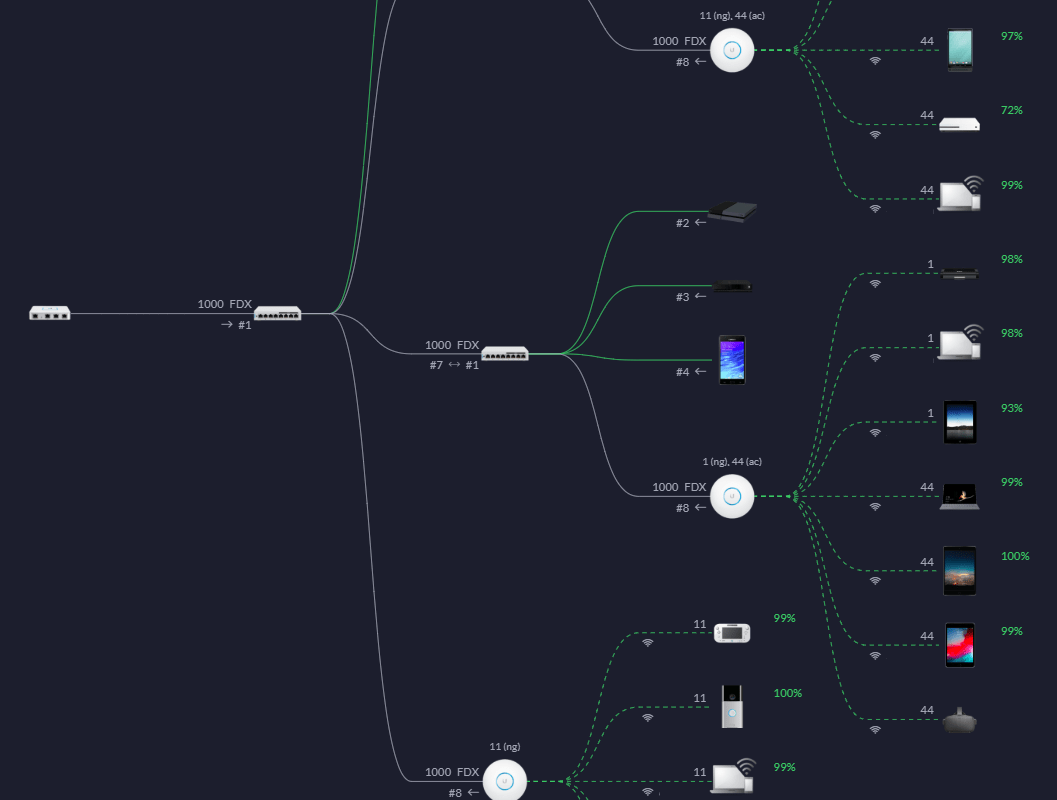
My network is based on Ubiquiti’s Unifi platform. I’m on my second generation of the equipment and have been very satisfied with it overall. Normally it just does its job and disappears into the background. So you can imagine my frustration when multiple devices started randomly flapping. My Oculus Quest would disconnect and reconnect mid-game. My wife’s iPad and kids laptops did the same.

Nailing down the cause was troublesome. I couldn’t find a pattern or common denominator to drill in on. No changes coincided with the onset and all the software and firmware were up to date. The event logs on the controller and devices recorded the disconnects but didn’t show a reason.

I spent a few hours working through Ubiquiti’s excellent support material. Specifically this document https://help.ui.com/hc/en-us/articles/221029967-UniFi-Troubleshooting-Connectivity-Issues#intermitten. Unfortunately, it didn’t directly lead to a resolution.

I had installed Wireshark as part of the troubleshooting process and left a capture running while I used my laptop. Eventually the issue occurred and I was able to see in the trace that the RESET packet was coming from the AP that I was connected to. It was intentionally disconnecting my client. Thinking about this logically jogged my memory.

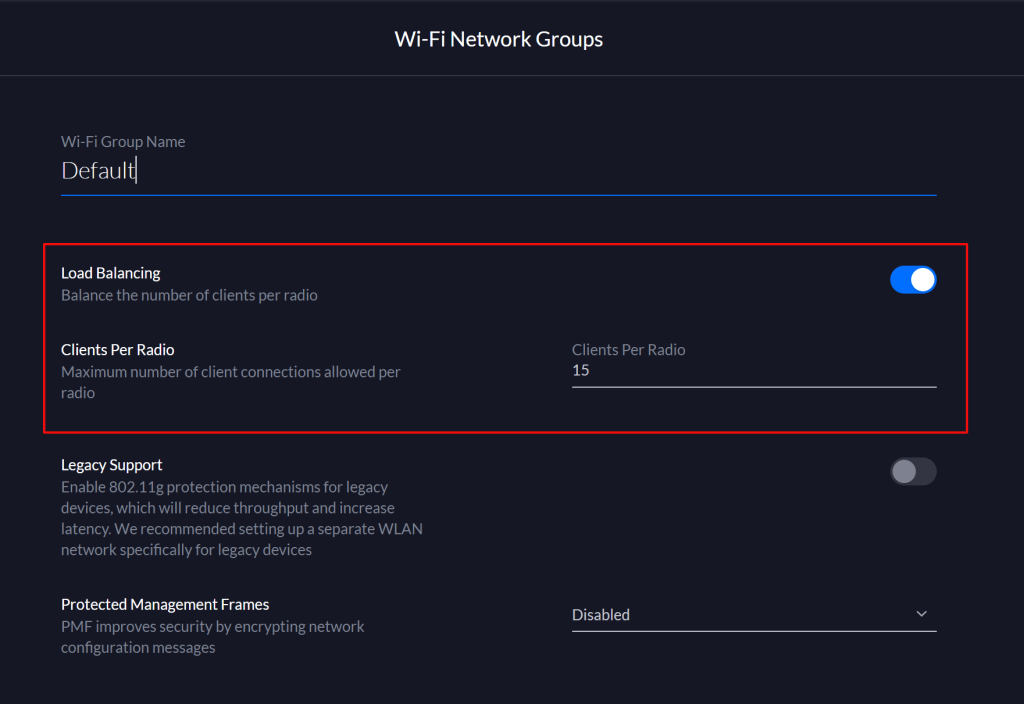
The UniFi system has a load balancing feature that can be used to control the number of clients connected to each access point. I checked and mine was set to five devices. I have more than thirty connected devices at any given time and three radios. The system was disconnecting and attempting to move clients too frequently trying to satisfy the load balancing setting. I bumped the limit up to fifteen devices and haven’t had the problem since. Not only that, but my wireless devices are actually being balanced across the available radios again.

Clients per radio should be a quotient of active devices.

MPOW X3, Can you Get Good Active Noise Cancelling Earbuds for Sixty Dollars?

I have had some very disappointing experiences with true wireless earbuds. On the one hand, I love the freedom afforded by the utter lack of cables. On the other, the dropouts and lagging are unbearable. As an early adopter I am rather used to tolerating glitches and bugs, but I draw the line at my music bombing out mid-groove.

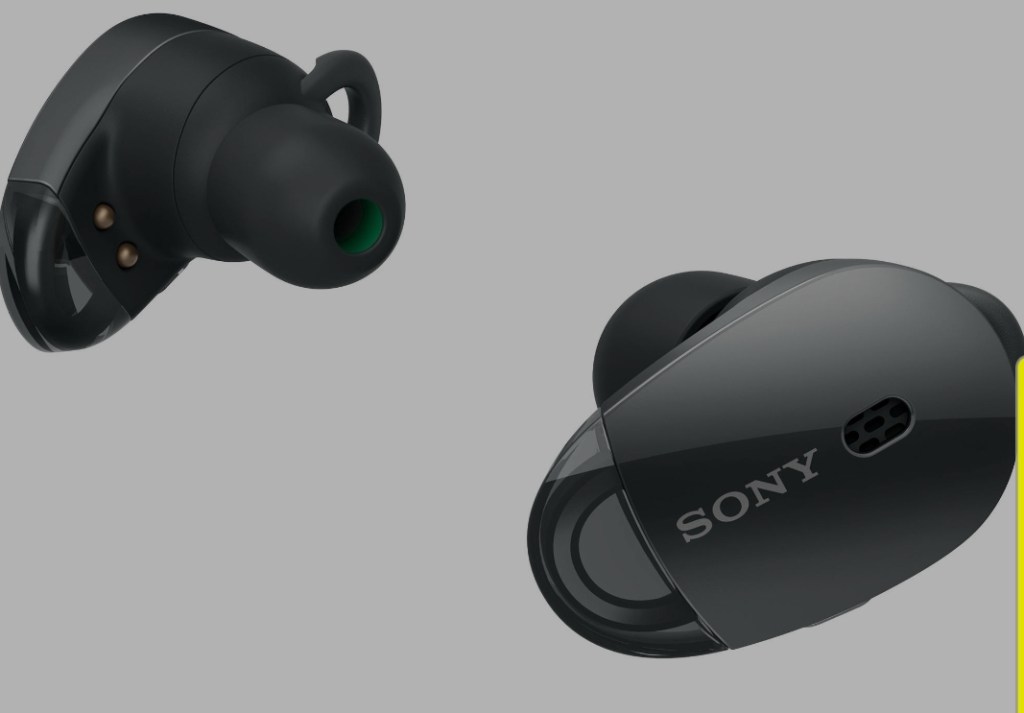
It wasn’t like my first go around with true wireless earbuds were a discount model. The Sony WF1000X were widely considered to be the best on the market at the time. After countless software and firmware updates I finally gave up. They live in the bottom of my junk drawer now.

Sounded great but wouldn’t stay connected.

My wife’s love affair with her Airpods has made me insanely jealous. They pretty much always work. Recently my kid purchased the Airpod Pro set. I liked them so much that I was considering getting a pair of my own and dealing with their limitations when paired to an Android phone.

Before I crossed the streams, I decided to research the current generation of non-Apple offerings. The successors to my Sony WF1000X, the WF-1000XM3 are very highly rated, but given my frustrations I wasn’t prepared to take the chance on Sony again. The new Amazon Echo pair looked promising and were in my cart.

Before checking-out I was reviewing one last article and it mentioned a brand I had never heard of before. The author had been surprised by the inexpensive MPOW X3 earbuds. I looked up a couple more reviews of them and decided to pull the trigger. For a quarter of the cost of Airpod Pros and half the Echo’s price, they were worth a try.

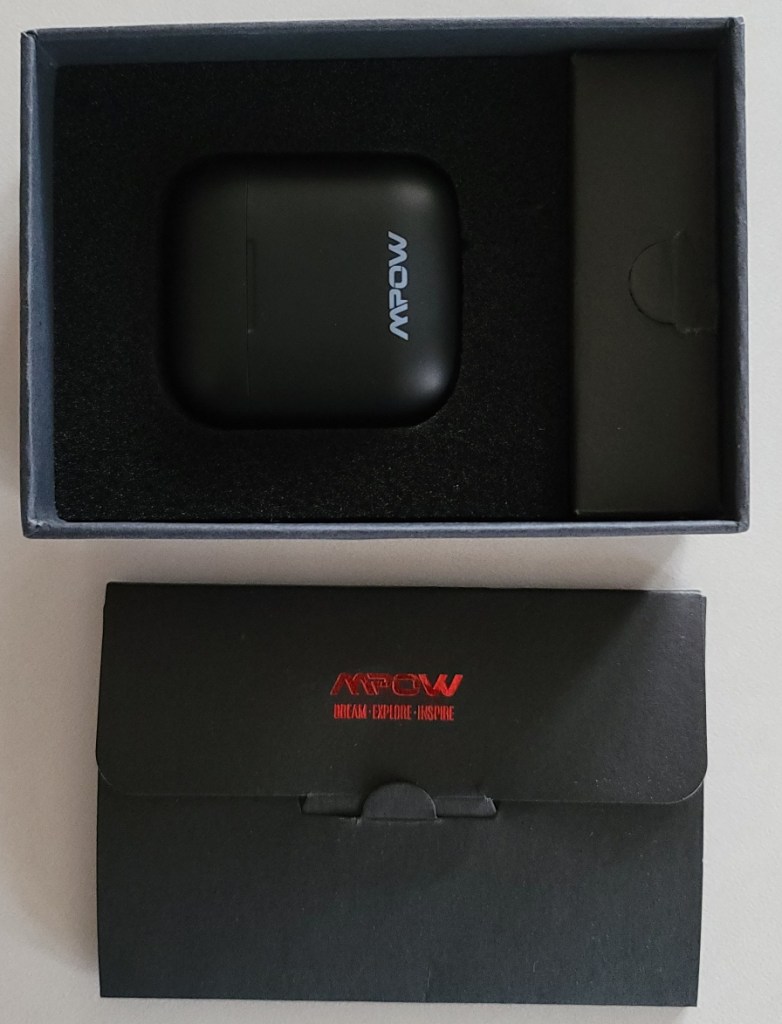
The packaging was nice even though I expected a white box at this price.

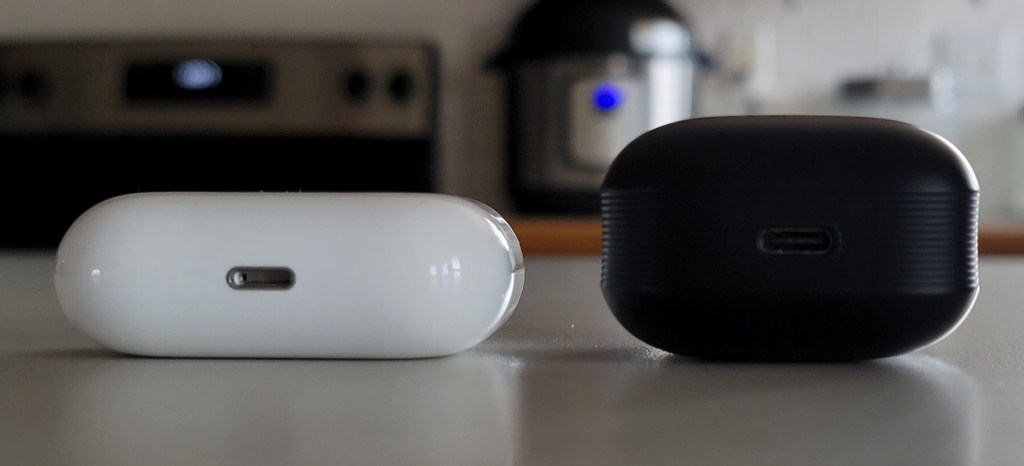
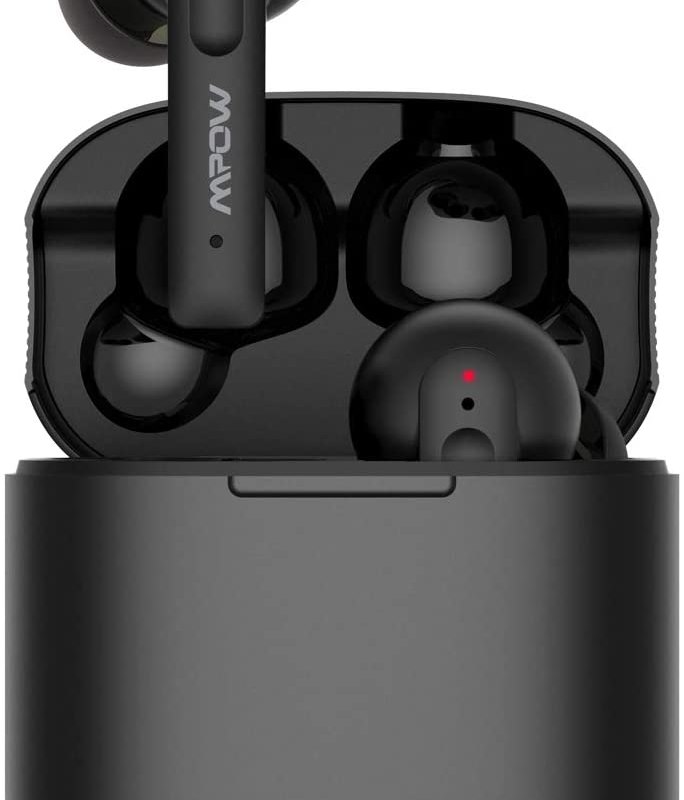
The charging case is a direct rip off of Apple’s, but a little narrower and thicker. The corners are rounded but not tapered and as a result the MPOW case is more noticeable against your leg while it is in your front pocket. It has nice grip grooves that run up the side and the lid snaps shut with a satisfying click. It is held closed with a magnet that doesn’t seem as strong as the one on the Airpod’s case, but it does the job just fine.

The MPOW case takes up less room but is more noticable in your pocket.

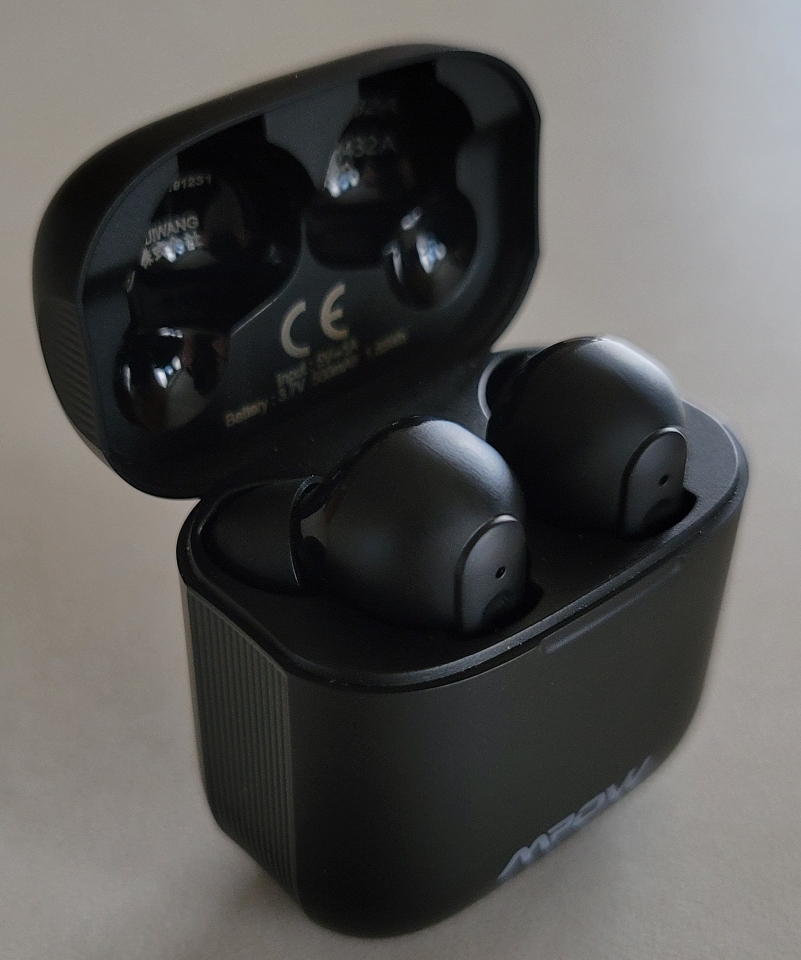
The earbuds themselves will also look familiar to Apple fans, all though the MPOWs are black. They are shaped to twist lock into your ear. You start with the stems pointed straight down and then rotate them toward your chin until they snug up. It feels a little odd the first time, but works really well. The buds stay put on the treadmill and on the street. Speaking of working out, these earbuds are IPX8 rated and should hold up to sweat with ease.

My problem with the Sony WF1000X was the drop outs. They would never stay connected consistently. Even with my phone sitting on my desk a couple of feet away, one side or the other would drop out in the middle of my music. The MPOWs have never done this. Not even once. Yesterday while cleaning the house I was working in a bedroom and had left my phone in the kitchen. It took me a bit to realize I was a good twenty-five feet and several walls away but my music was still sounding great. There is no noticeable lag when watching Netflix, Amazon Video, HBO Max, or YouTube. I did pick up on a very slight (fraction of a second) lag while playing CoD mobile but it is minor enough to live with.

The MPOWs have an impressive sound profile. The bass is punchy and the highs are clear. Once I tuned my phone’s EQ to my preferences I was surprised by how much I enjoyed just listening to them.

Not all Android devices can apply EQ prefferences to Bluetooth Audio.

The active noise canceling is not perfect but is more effective than I expected. I stood outside next to my air conditioner and fired up a podcast at low-mid volume with ANC off. I could barley make out the words over the fan’s hum. I touched the right earbud to enable ANC and the experience flipped. I could barely hear the fan. It doesn’t make external noise disappear, it lowers the interference so that the audio you are playing comes through clearly.

I’ve used them on a couple of Teams and Zoom calls as well as in multiple phone calls. They have mic noise cancelling as well as ANC and it works. They won’t be my go to for calls and meetings but, if I already have them in I won’t be nervous to answer. You can use the right earbud as a standalone headset, just put the left one back in the case.

Just for good measure I paired them with my Surface Book, Surface Go, an iPhone, and an iPad. They worked and sounded fine with all of them. The earbuds go into pairing mode each time you remove them from the case and try to automatically connect to last device you were using them with. They are not multi-device capable, no true wireless headsets are yet. The device switching doesn’t work all that well in my opinion, even the Airpod Pros struggle here. I’ll leave mine paired to my mobile and call it good.

They feel premium in your hands and ears.

There’s no wireless charging and they don’t support aptX but neither of these features mattered much to me. I like that they are USB-C because who wants to carry more cables? They’ve earned a place in my pocket, I don’t leave home without them. If you’re looking for a decent pair of true wireless Bluetooth earbuds give them a try. I think you’ll be surprised what you can get for sixty bucks.

Ignite and VMworld Virtual and Free in 2020

IT conferences have always been a mixed bag of experiences for me. Some amount to a giant sales pitch with little value. The good ones cram a year’s worth of training and collaboration into a few days. They are almost always prohibitively expensive to attend when you factor in travel, but this year is different.

One of the best has consistently been Microsoft’s Ignite. Some executive had the bright idea to combine all of what used to be individual conferences like Tech-Ed into a single event. The result was a combination keynote, training, and exhibition. Being able to learn DAG and AG architecture from the actual Exchange and SQL teams has had an impact on my career.

Due to the pandemic, Ignite will be a virtual conference this year. Will it be as effective? That is hard to say. SolarWinds’ Thwack Camp has always been on-line and also makes my top five. In any case, Ignite is free, you just need a Microsoft account to register. It runs September 22-24. Sign-up or get more information at https://myignite.microsoft.com/home .

VMware’s VMworld has been a heavy hitter on the conference circuit since it’s inception. Some would argue that VMworld’s format is what sparked the Microsoft Execs idea for Ignite. Featuring a renown vendor exhibition, training sessions on topics like VDI and cloud infrastructure, along with keynotes from some of the most important players in IT. It is almost impossible to walk away from VMworld without learning something useful.

VMworld is also virtual and free this year. It runs September 29th – October 1st, register at https://www.vmworld.com/en/index.html .

Install an Advanced Home Network – Part 4 Network Configuration

This series is all about installing an advanced software defined network where a controller ensures that our equipment works together. So far we’ve learned what equipment to purchase, how to make network cables, and how to wire our house. Now we need to configure the modem, network edge device, switches, and wireless access points to all work in harmony. This is an exceptionally long post but there is no good place to take a break. Once you start this process you will need to continue until you are completely finished. Warn the family that the Internet is going to be down for a few hours, it’s time to get into it.

In big picture terms we are building a LAN (private network) and bridging it with a WAN (Internet). Your ISP probably set you up with an all-in-one modem, router, firewall, switch, and wireless access point. The first step in our project is to turn off these functions so that they are not interfering with the new network.  You are not breaking any rules, most ISPs do not mind if you do this. Many make it easy, or will help you over the phone.

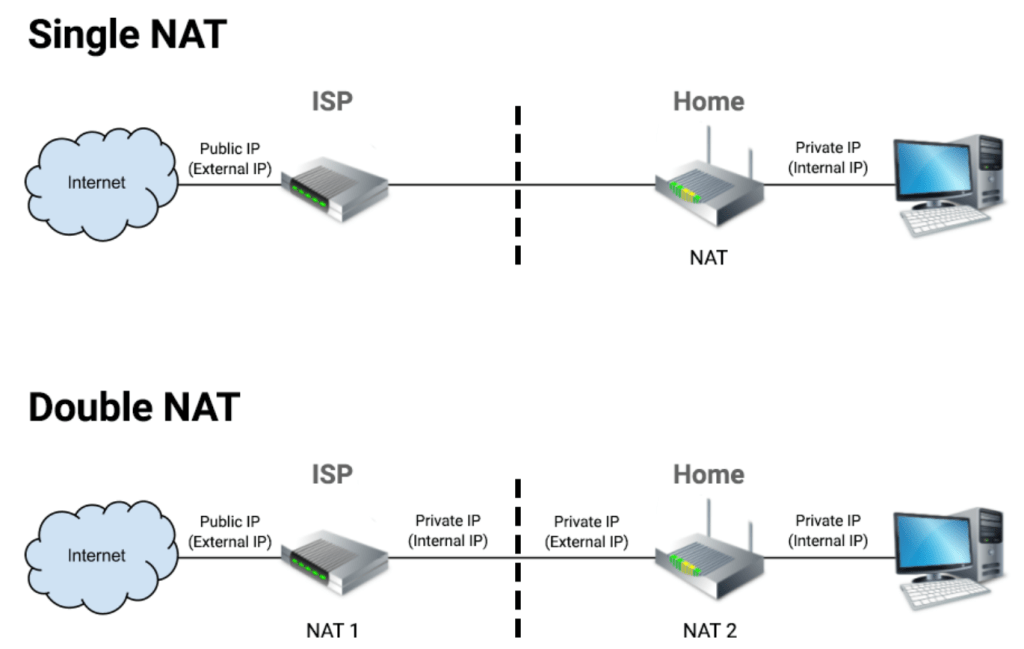
Your ISP’s device (modem) is running network address translation (NAT) to connect all of your stuff through a single public IP address. The details aren’t important, what matters is that having two devices running NAT causes all sorts of problems on networks, especially with real-time communications like gaming, VoIP, and video conferencing. To avoid the double-NAT situation we need to put your ISP device into bridge mode. Instead of behaving like a firewall or gatekeeper your ISP device will pass the Internet public address straight though. Your new edge device will take over the firewall duties.

Single NAT is less likely to interfere with on-line activities.

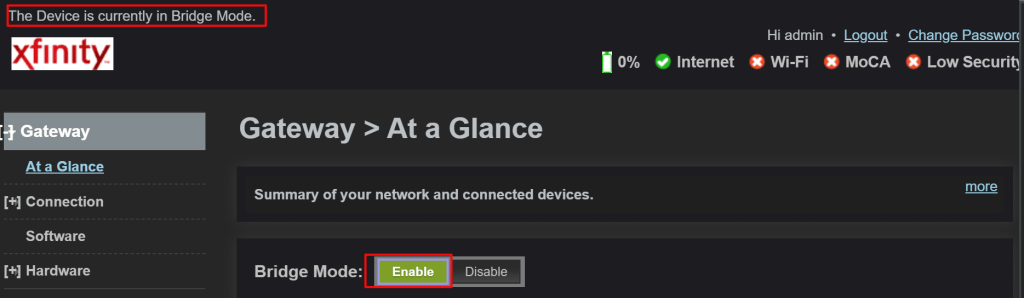
Specific directions for configuring bridge mode aren’t possible, but in general you logon to the admin page and under the settings will be the option for bridge mode. If you can’t find it, locate the model number (usually on the bottom) and Google “How do I put xxxxx in bridge mode”.  If that fails, call your ISP and ask them.

If you do not see the option for Bridge Mode in your ISP modem try Google or call them

While you are in the ISP device’s console find the wireless settings and turn off the radios (usually a drop down). We’ll be using our own wireless access points and don’t want to contend with the signal interference.

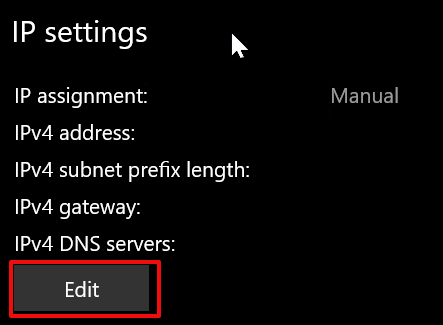
Depending on which software defined network equipment you have we are either ready to install, or configure the controller. If your controller is software that gets installed on a PC, make sure that you set that computer’s IP address to fall inline with your new network.

A word on choosing the IP scheme for your new network. Don’t use 192.168.1.0, 192.168.0.0, or 10.0.0.0. These over used private IP ranges cause chaos when you use a VPN to connect to work since many businesses use them too. A full explanation of private IP ranges is TMI, but something like 10.91.14.0 with a subnet of 255.255.255.0 (/24), and a gateway address of 10.91.14.1 would be a good choice. In this case, set the computer that you install the controller software on to 10.91.14.2.  If your controller is integrated with your router both services will run on the gateway address (10.91.14.1).

We’ll be using this network (10.91.14.1/24) as an example from here on, but that doesn’t mean that you have to. Try swapping the second and third set of numbers with your birth year and day. The more random your private IP scheme is, the less chance there is for conflict. The first set should be a 10, the next two sets can be whatever you choose between 1 and 254. Each device on your network will get a number (1-254) in the fourth group.

Some edge devices, switches, and access points require that you connect them directly to a computer via a network cable so that you can set their local or LAN IP address. This is done to ensure the controller can locate and program them, a process called adoption. If your devices require this type of pre-adoption configuration they will include instructions on doing so. Read and follow them carefully.

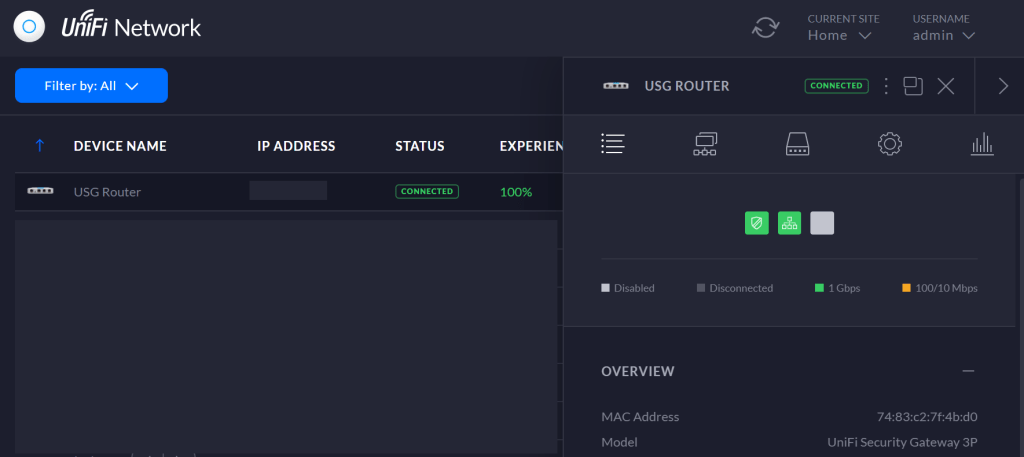
When your controller communicates with your edge device you have completed adoption, a major milestone

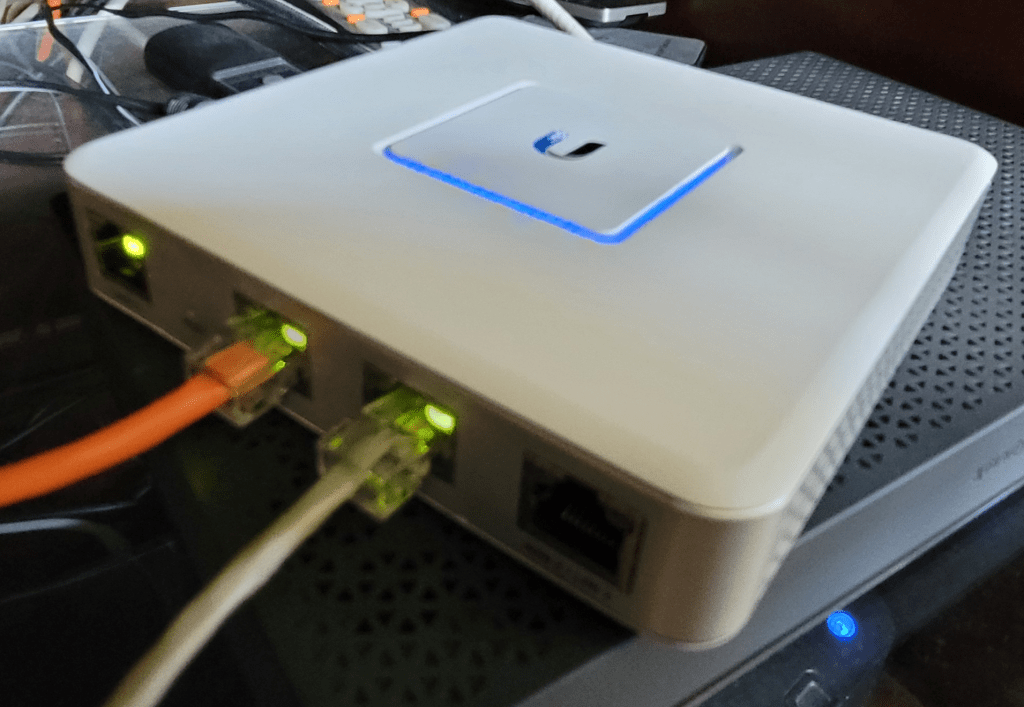
Most Internet connections are automatically configured by the Internet Service Provider. If your modem is in bridge mode and the controller has adopted the edge, you are ready to connect the Internet. Power off your modem and connect a patch cable from its network jack (1 if it has multiple) to the WAN 1 port on your edge device. Some brands label it Internet 1. I like to use a brightly colored patch cable for this connection. Power your modem up and wait for it to complete its boot process. You should see link lights (green blinking) on the modem and edge ports. The status page in your controller should show that you are connected to the Internet.

The orange cable is connected to my ISP modem, the grey to my primary network switch

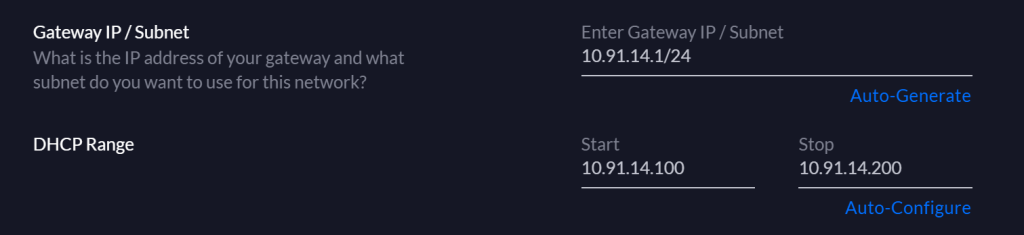
Next we need to define the parameters of our LAN (Private Network). Each of the SDN vendors does this a little differently. Generally you access the console and find the Network tab, button or link (under settings in some). From there, use the fields and options to configure a network that matches what you have done so far. If you assigned your edge device our example address, then your network will be defined as 10.91.14.1/24 or 10.91.14.1 with a subnet of 255.255.255.0 (same network different notation).

If DHCP is not already on, turn it on and configure it. DHCP is a service that configures your devices to work on your network. Its main function is to hand out IP addresses from a pool (range) that you can configure. In our example network 10.91.14.3 – 10.91.14.254 are available for assignment but it is a good idea to exclude some addresses from the pool for those systems that need to be configured by hand (static). I usually configure my pool for the 100 range, 10.91.14.100 – 10.91.14.200.

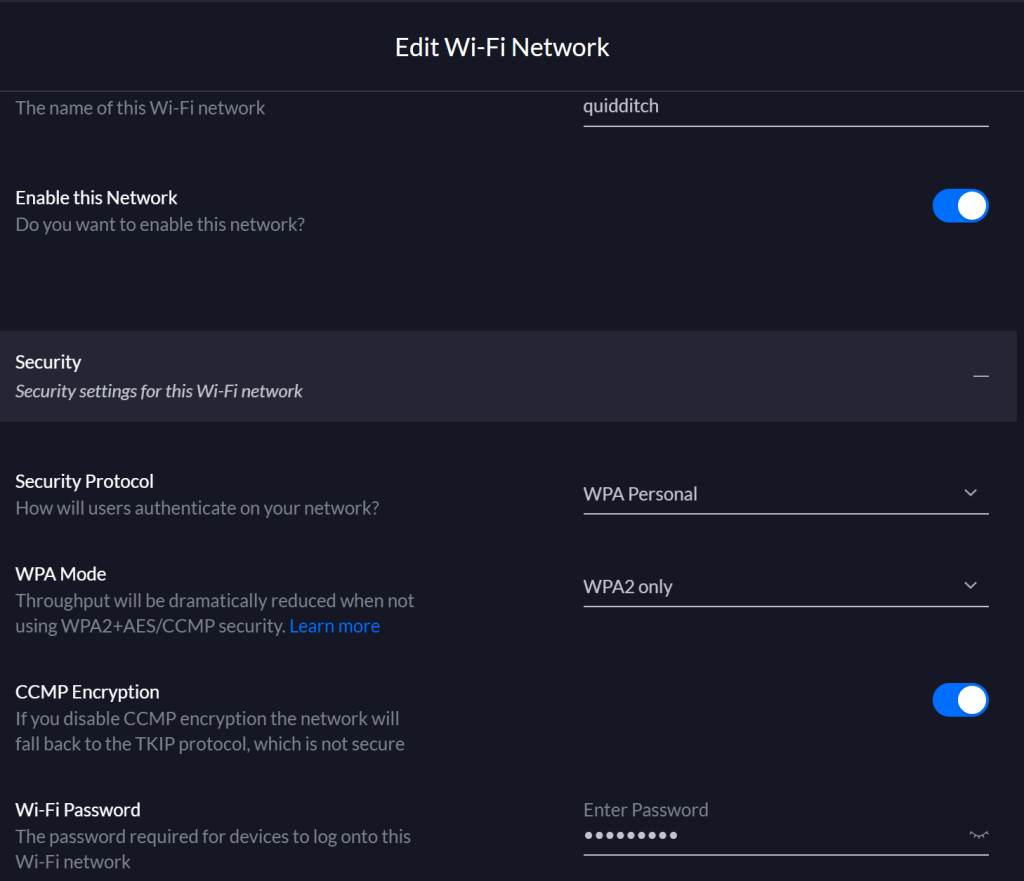
That should take care of the wired side of our network. All that is left is to setup the wireless (Wi-Fi) portion. The beauty of software defined networks is that the controller’s software does all of the heavy lifting, meaning that you don’t really need to know anything about networks. That applies to the Wi-Fi setup as well. You more or less need only to configure the name, security mode (WPA 2 Personal) and password.

Save or apply your controller changes then reboot everything connected to your network. Your modem, edge, switches, access points, computers, tablets, phones, consoles, TVs, everything that uses your network needs to be restated so that it will join up. If they don’t have a power button or reboot option then unplug them from power. Devices that use Wi-Fi will have to be connected to the new one you’ve created. When your other stuff comes back on-line the controller should detect and configure all of the components.

One of the other great features of software defined networks is their reporting. Since everything is controlled from a single point, detailed reporting about usage is a cinch. Enjoy digging into all of the new statistics on your dashboard. Many SDN networks can also be monitored or controlled from an app on your mobile. Check your app store.

Dark Mode for Facebook, Linked In, and most Other Android Apps

I have always been sensitive to light. Ironically, I have spent a large portion of the last thirty years looking at bright white rectangles. Is it bad that I still see them when I close my eyes?

I am the person that wears sunglasses indoors. I turn the backlight on all of my screens as low as I can, anything to stop the eyeball frying white-out. Don’t get me started on the sea of over saturated light that most office spaces subject you to. Are they trying to give us all a free tan? You can imagine my elation when dark mode hit the scene a couple of years ago. It has a major problem though.

Even after all this time, Dark Mode isn’t available everywhere. Opening some of the most frequently used applications on my phone is like looking into the headlights of an on-coming car. Maybe Zuckerberg secretly wants us to stop spending so much time on Facebook?

Dark app and page backgrounds are about more than comfort. Forcing modern OLED screens to light all of those white pixels burns through your battery faster. Lucky for us, Android 10 has a hidden trick that enables Dark Mode for apps that don’t support it on their own yet.

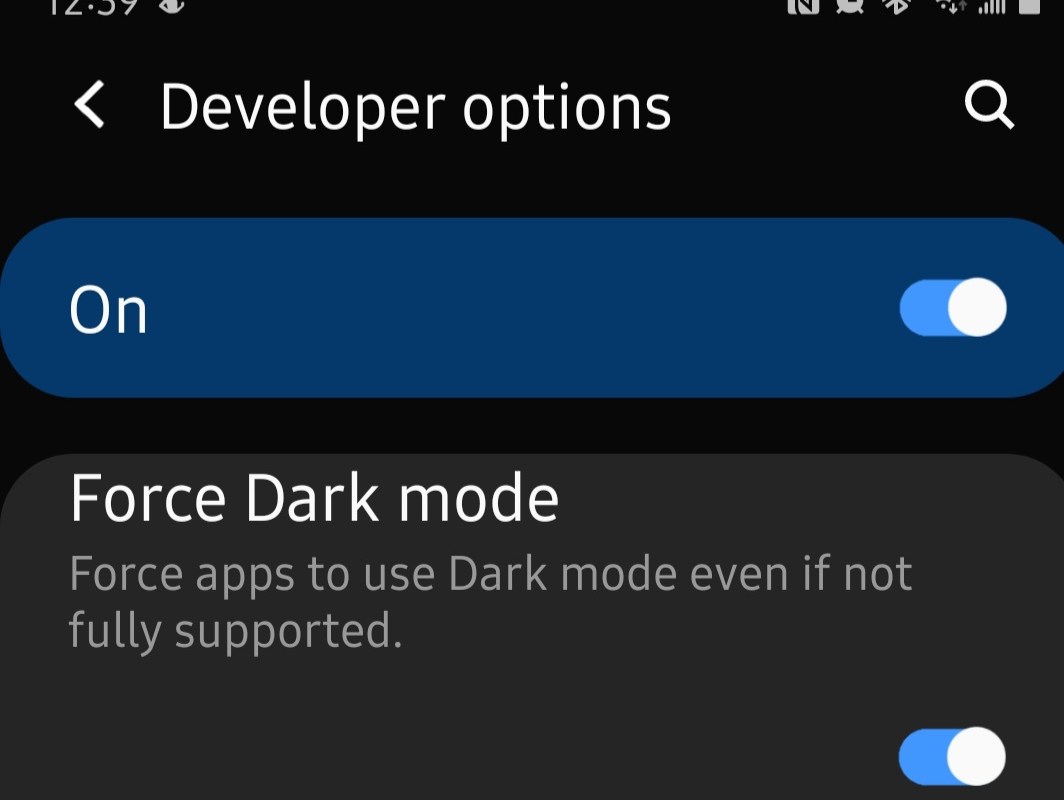
The option to Force Dark Mode is in the hidden Developer Options menu. There’s a secret process to enable this menu. I promise I am not making this up. Open the settings menu and then go to About Phone. Look for Build Number, if you don’t see it then look under Software Information. Once you find Build Number tap on it (the words) seven times. After the first few taps a countdown will appear. When you complete all seven taps, exit settings.

Now close all of your open apps and open the settings menu again. Scroll all the way to the bottom and tap Developer Options. Scroll down until you see Force Dark Mode and tap it to enable the option. Open Facebook, Linked In, Amazon Shopping, or any other app that used to have a white background and embrace the darkness. This is an experimental feature and you are using it at your own risk. I haven’t had any issues with it yet on my Galaxy Note 20, if you do post the problem you ran into in the comments.

Is Your Laptop Plugged In All Day While Working From Home?

When you work in an office you go to meetings, visit clients, go to lunch and commute. Your laptop gets undocked or unplugged and runs on its battery for at least a few of these events. This is the normal cycle that the batteries in your device are designed for.

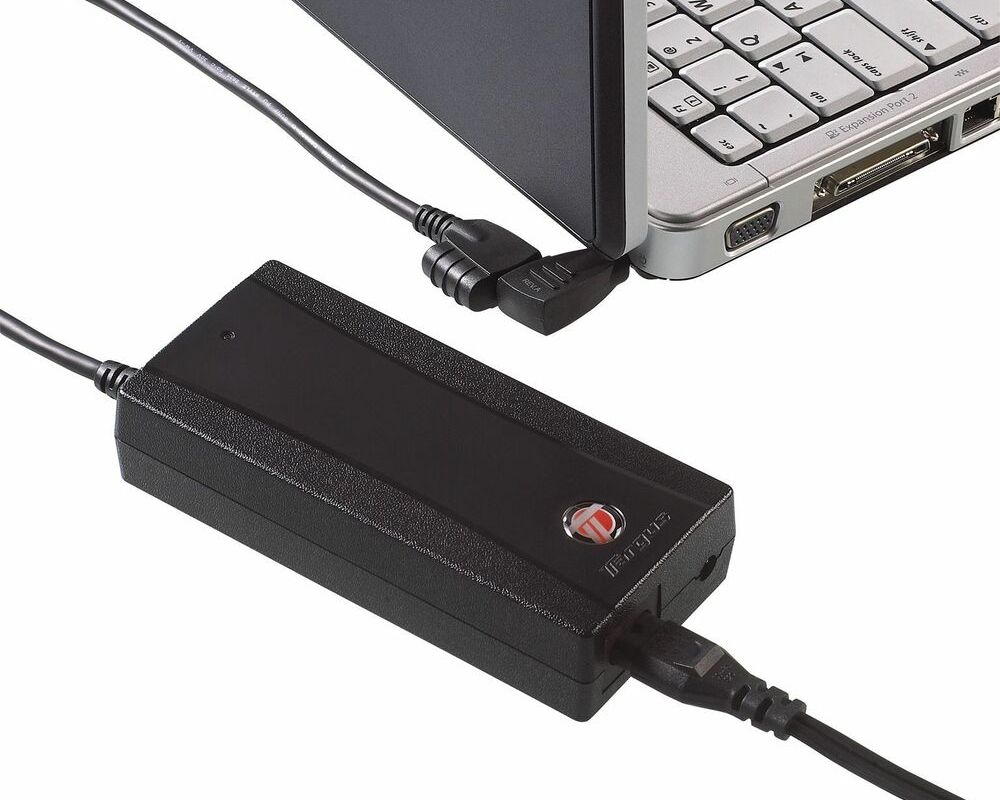
Now many of us are working from home and leaving our laptops connected to power all of the time. Don’t worry the batteries won’t overcharge, but their useful lifespan can be shortened. The modern lithium battery in your device degrades a little each time that it is charged to its maximum voltage. When you run off a power cord all day you are continually reaching the 100% mark.

So what should you do? If your computer has a removable battery, take it out and put it in your bag. Your machine will run fine without it, but you will want to connect and charge it once a week. Completely discharged batteries can brick. If your battery isn’t removable there may be a software option that prevents a continual full voltage charge cycle.

On Dell systems look in the Command app. Lenovo’s Vantage app control’s their battery threshold. The Microsoft Surface line has an option in the boot config section of its UEFI. Hold down the volume up and power keys, let go of the power button when you see the Window Flag. HP laptops are usually controlled from their BIOS, accessing it is a different process throughout their product lines. Newer MacBooks have the option enabled by default.

Search the web or call your tech support if you don’t know how to change the setting on your particular device. If all else fails, just un-plug and run on your battery once in a while.

The Galaxy Note 20 Ultra vs. The Galaxy Note 10 Plus

If you flip through the pages of my blog it won’t take long for you to conclude that I am rather fond of pen computing. I’ve written thousands of pages and produced countless works of digital art on nearly every type of pen enabled device made in the last twenty years. In my experience working with these machines, I have developed a strong affinity for two series. The Microsoft Surface and Galaxy Note lines of products are my favorites by far.

I love my Galaxy Note 10 Plus. I had planned on keeping it for several years. So when AT&T offered me a killer deal to trade it in, my initial reaction was, “no thanks”. My wife overheard the conversation and pointed out that I was in- fact, out of my mind. So with some concern that the new one wouldn’t be as good, I called them back and ordered the 20.

It arrived here a few days before the retail launch. I used Samsung’s Smart Switch feature to get moved in quickly and have been living on it for the last three days. I’m writing this post on what is already my new favorite phone. The Note series has always been Samsung’s “kitchen sink”, the device they throw everything into. I’m happy to report that the new one has not strayed from the path.

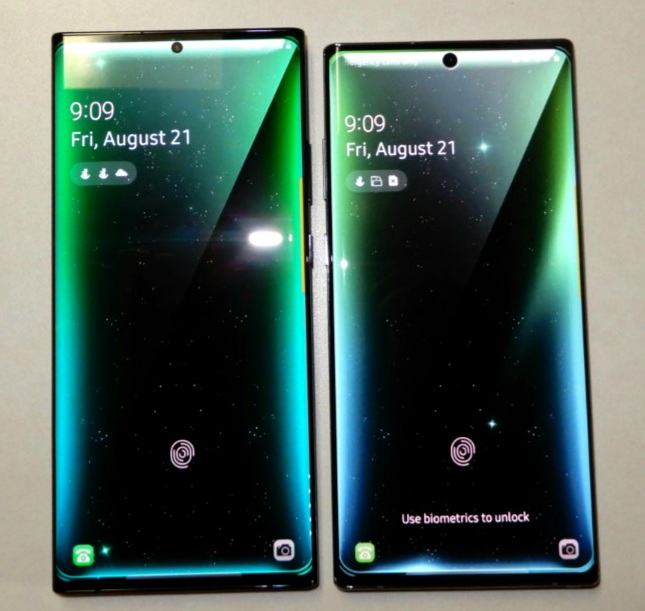
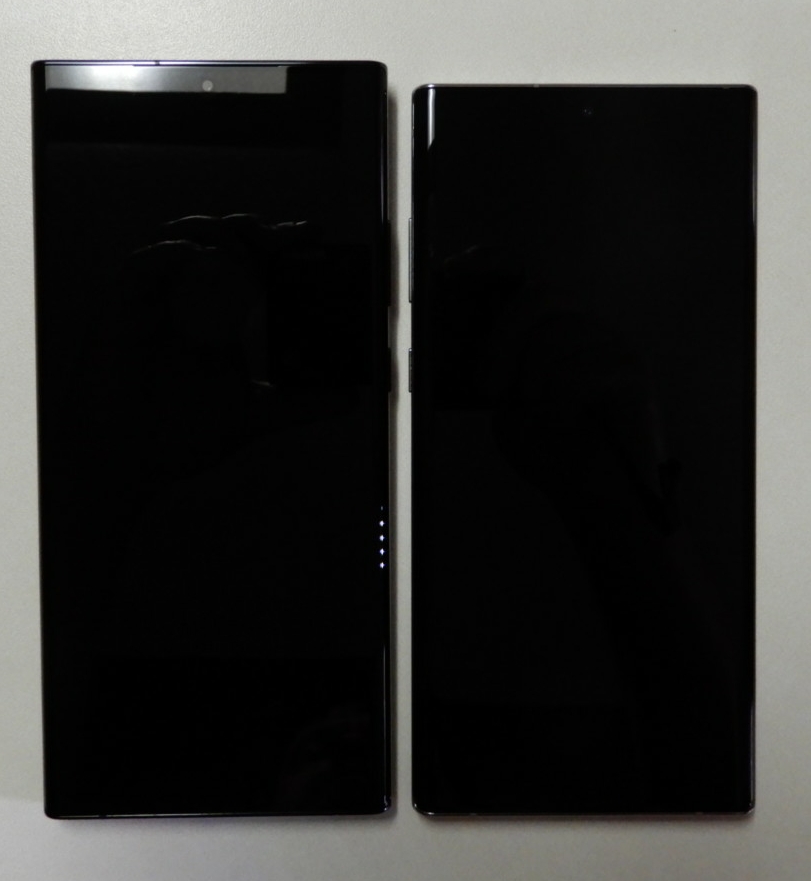
In terms of physical differences, the 20 is marginally bigger than the 10 Plus. Somehow it feels both larger and the same size. There is noticeably more screen real estate, but it doesn’t take much more room in your hand or pocket.

The 20 Ultra is a little larger.

They’ve relocated the buttons to the right edge and the stylus to the bottom left. These changes have messed with my muscle memory a few times, but I’ll get used to them soon enough. Everything else is more or less in the same spot.

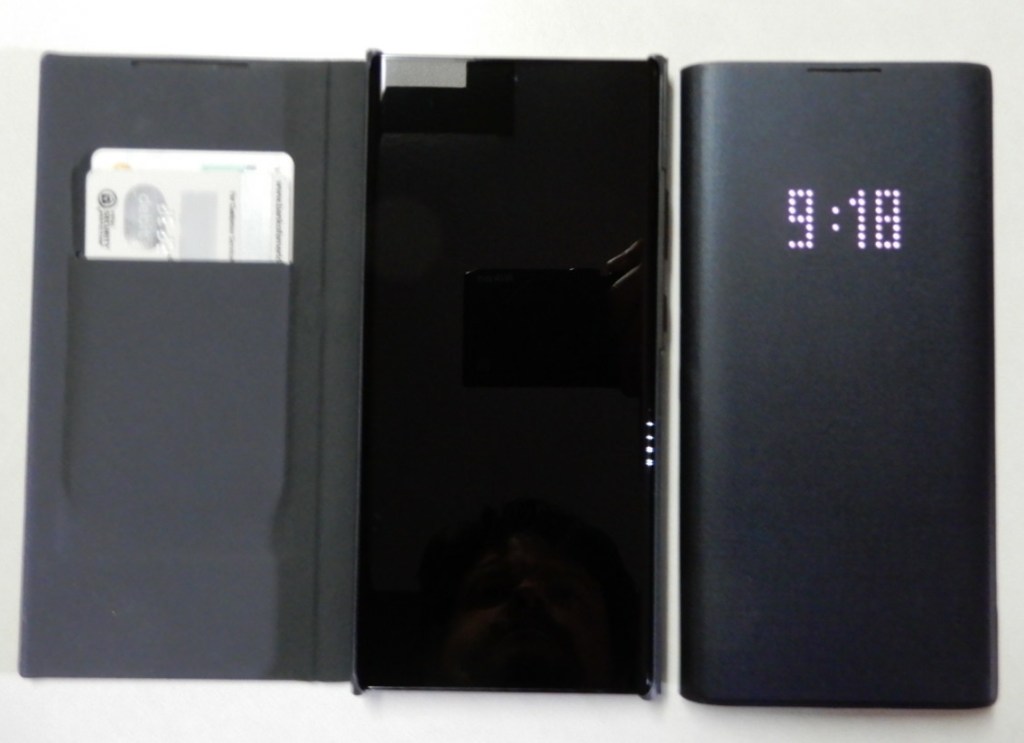
I was happy to see that the same LED Wallet Cover is available for the 20. It is an excellent addition to the Note line. I’ve been using them since the Note 8. They hold a couple of cards and show basic notifications on the cover. Between Samsung Pay, a backup debit card, and my driver’s license it’s the only thing I need to carry.

The LED Wallet Cover is my favorite.

In terms of performance, the Note 20 Ultra is noticably faster at everyday tasks. Both systems are more powerful than they actually need to be. The Note 20 outpaces most of the laptops I have used recently. Where I really notice the speed boost is while using the S Pen in handwriting recognition mode. The delay before it decodes my chicken scratch is much shorter.

Samsung has reduced the lag on stylus input in the new model. I don’t notice the difference all that much while writing or pointing. Shading in my favorite drawing app is another story.  There are also some new gestures. If you are a OneNote fan turn on it’s specific app gestures in the S-Pen settings menu. The S-Pens themselves are physically identical and feel the same to hold and write with.

The screen is phenomenal and a major improvement over the Note 10 Plus. One of the first things I did with the new one was to fire up Call of Duty Mobile and crank the graphics to their max. The 120 FPS is immediately evident. Whoever thought that we would see variable refresh rate technology in a phone? Just a short while ago only the most expensive gaming monitors could adjust to match the content. It isn’t just games that are able to benefit from the advancement. Scrolling though Instagram, Facebook, or other feeds is much smoother too.

I didn’t have the 5G edition of the Note 10 so I can’t compare it. I can say that 5G is awesome. Having mobile data that runs as fast as my home service is fantastic. With my mobile hotspot, I’ll never need to worry about crappy hotel Wi-Fi again.

Battery life seems better than the 10. I’ve been using the Note 20 all day, writing this post, taken several pics, played some TDM, listening to Spotify, and I’ve got 59% left. I haven’t run any official tests yet. I assume the ability of the screen to drop down to 10 FPS is having a positive effect. The Note 10 ran at 60 FPS regardless of what you were using it for.

That brings us to the camera. The Note 10 Plus has a great camera system. The three lense options and excellent software made it one of my favorite portable cameras of all time. The Note 20 Ultra’s camera package blows the 10’s out of the water. 5x optical zoom is an important milestone in mainstreame mobile devices. The 50x digital zoom should probably have been cutoff at 30 but that is the only fault I’ve noticed so far. The wide angle shots are jaw dropping when you show them on a 4k big-screen. Speaking of 4k, 60 FPS video is a great upgrade.

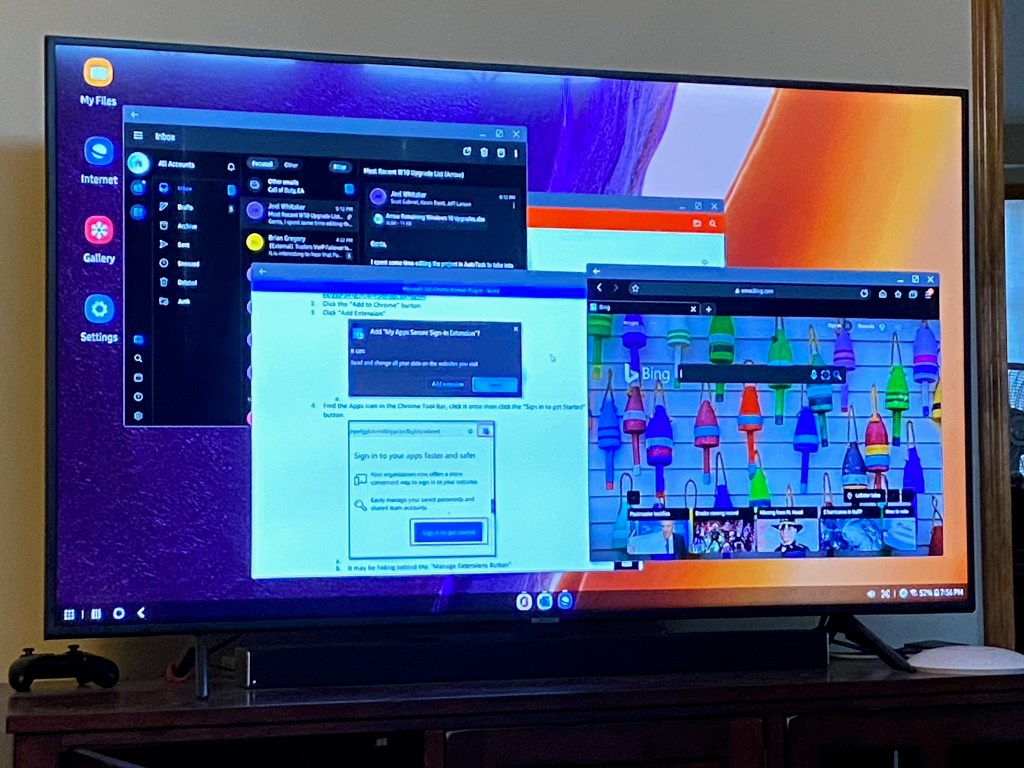
The Note 10 has Dex mode and I used it quite a bit. If you haven’t had the pleasure, Dex lets your phone become a computer. Your apps run in Windows on a full monitor with keyboard and mouse support. It’s one of the most underrated features on Samsung devices. The Note 20 takes Dex to the next level. Instead of having to plug-in to a screen with a compatible cable or dock, the Note 20 can run Dex on any wireless screen in range. This is huge. It could mean the end of carrying a laptop for me.

Wireless DeX Mode is fantastic.

Look for a more detailed review of my Note Ultra 20 after I’ve had it for at least a month. So far it has proven to be a great addition to the Note line and a worthy upgrade.

Emulate the Microsoft 365 Single-Sign-On Experience from Personal Systems

To most of us SSO (Single-Sign-On) means that we only need to enter our username and password one time to access our company’s services and applications. It sounds simple enough but is quite complex. As we have migrated to working remotely many of us have switched to using our personal computing systems for various reasons.

Many organizations have transitioned their server-based services (Web, Email, VoIP, Chat, etc.) to Microsoft’s 365 cloud platform. During this process software is installed on systems in the company datacenter that allow SSO to occur from company computers and accounts to the cloud resources. People expect this seamless process to work from their personal computers as well. Many are disappointed to find that it often does not.

Their thinking is along the lines of, “If I am accessing Outlook, Teams, and SharePoint in the cloud then my username and password aren’t going through the company network anyway.” Unfortunately, that is generally not the case. The confusion is compounded by the “used to work” factor. Cloud computing environments have greatly increased their security postures and as a result, saving a password in your browser, and other “SSO” techniques no longer work as they once did.

There are methods that allow you to emulate the SSO experience from a personal device. Keep in mind that any or all these solutions may be blocked by your company. Also be aware that you are undertaking these methods at your own risk. Your personal computer systems are not usually covered by your employer’s technical support. Some of the methods result in your company gaining access to your equipment.

Microsoft 365 Chrome Browser Plug-In


Microsoft publishes a Google Chrome extension that stores and submits your Microsoft 365 username and password from the Chrome Browser. Follow the instructions below to install and configure the extension.

Please note that installing this extension does not mean that you will never need to enter your password again. It will reduce the frequency of requests, but cloud computing environments like Microsoft 365, Amazon Web Services, or Google Docs will always require re-authentication at various points.

  1. Open Chrome and go to: https://chrome.google.com/webstore/detail/my-apps-secure-sign-in-ex/ggjhpefgjjfobnfoldnjipclpcfbgbhl
  2. Click the “Add to Chrome” button.
  3. Click “Add Extension”.
  4. Find the App’s icon in the Chrome tool bar (sometimes behind the “Manage Extensions Button”), click it once then click the “Sign in to get Started” button.
  5. Enter your Microsoft 365 email address and password when prompted to sign In.
  6. Check the box for “Don’t show this again” and click the “Yes” button.

Add Your Work Account

Windows 10 computers have an included feature that permanently links your personal system to your company’s Microsoft 365 Tenant. It requires a supported version of Windows 10. This method is not always 100% successful depending on several factors of your home computing environment and security policies enforced by your employer.

  1. Use the notifications slide out to access “All Setting” on your computer.
  2. In the Windows Settings screen click on Accounts.
  3. In the window that opens click on Access work or School then click Connect.
  4. Enter your work email address when prompted and click Next. Enter your work account password and click Next. You may be asked to accept various security policies; do so or the account addition process will fail.
  5. Once you have completed this process try accessing your company resources. From time to time you will be prompted to enter your username and password or PIN, but for the most part SSO should function.

Microsoft 365 Sign-In Assistant

The Microsoft 365 Sign-In Assistant is what the name implies, a piece of software that was intended to make signing into Microsoft’s cloud services more seamless. It is not required on Windows 10 computers, but if you are using an older version of Windows this tool can be effective. Download it from Microsoft.

Azure AD Join

The ultimate method to ensure that SSO is possible from your personal systems is to Azure AD Join them. The process is similar to adding a work account. Once completed, SSO is automatic because the system literally becomes a part of your organization’s Microsoft 365 subscription.

Note: Not all Microsoft 365 licenses support Azure AD Domain Joining. This procedure will result in your company’s Microsoft 365 Administrators having control over your personal computers.  

  1. Use the notifications slide out to access “All Setting” on your computer.
  2. In the Windows Settings screen click on Accounts.
  3. In the window that opens click on Access work or School then click Connect.
  4. On the next screen select the Join this device to Azure Active Directory link.
  5. You will be prompted to enter your work email address and your passwords. You will also be prompted to allow your employer’s administrators to have control over your system.

How To Stop Sharing OneDrive Files

In my previous post, I explained how to run a report in OneDrive that lists all of the data you have shared and who you have shared it with. These shares build up over time and it is easy to forget who has access to what. So you’ve run the report and found some data you would like to stop sharing, but how do you?

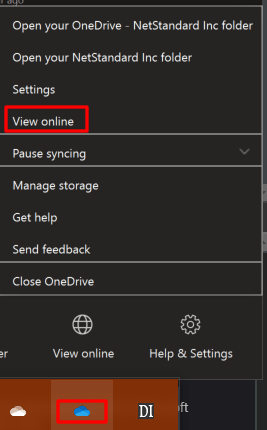
Find the OneDrive icon in your system tray (next to clock) right-click on the icon and then select View Online from the menu.

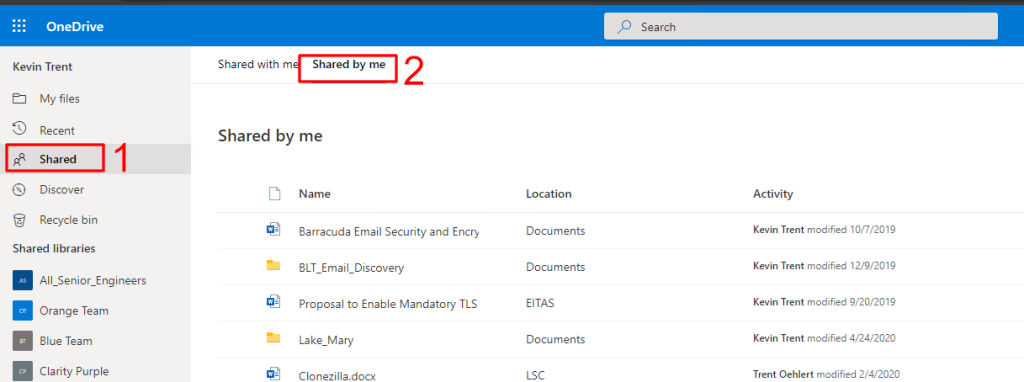
OneDrive will launch in your default web browser. Click Shared in the menu on the left. Then click Shared by me in the menu on top.

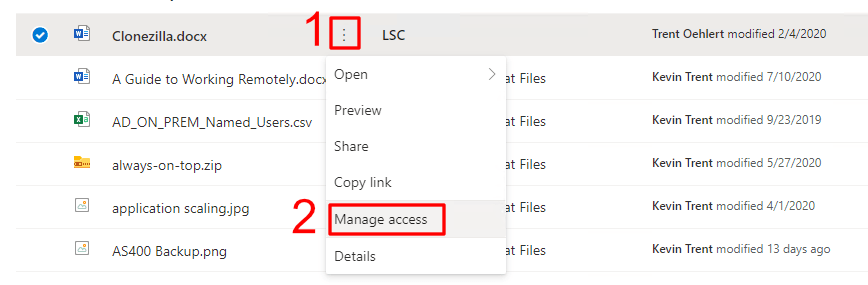
Click the icon at the end of the file that you want to stop sharing. Then click on Manage Access from the menu that appears.

In the menu that opens, click Stop Sharing or use the other controls to adjust the permissions to your liking. The advanced link in the lower left will help you remove links you have sent to others via email or text message. If you have trouble see this Microsoft support document for more information.

OneDrive Sharing Report

Over time you can end up sharing lots of files with people via OneDrive. It is easy to forget who has access. Microsoft has included a report utility in OneDrive Online that will export a list of all the shared files and who has access to them.

  • Find the OneDrive icon in your system tray (next to clock) right click on the icon and then select View Online from the menu. 
  • OneDrive will launch in your default web browser.  
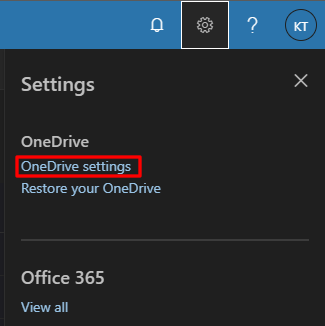
  • In the OneDrive Title Bar click the settings icon (gear on the left) 
  • Click OneDrive Settings in the menu.  
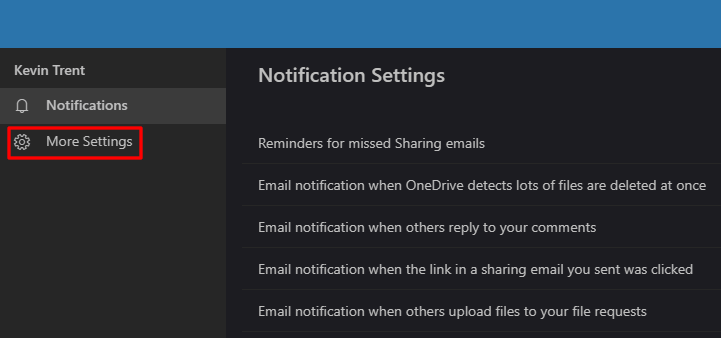
  • Click More Settings in the menu on the left.  
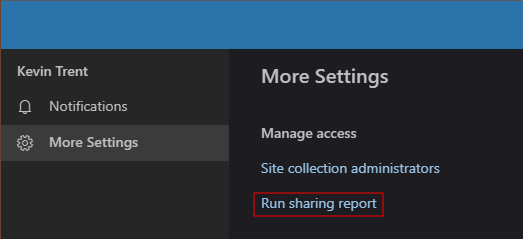
  • Click Run Sharing Report in the menu on the right. 
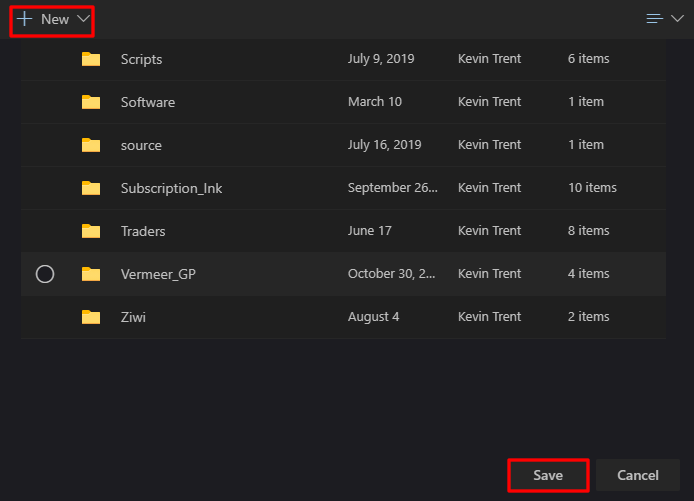
  • Choose or create a folder to save the report in. 
  • The report will be in a CSV format that will open in Excel.  You will receive an email notification when the report is ready to view.