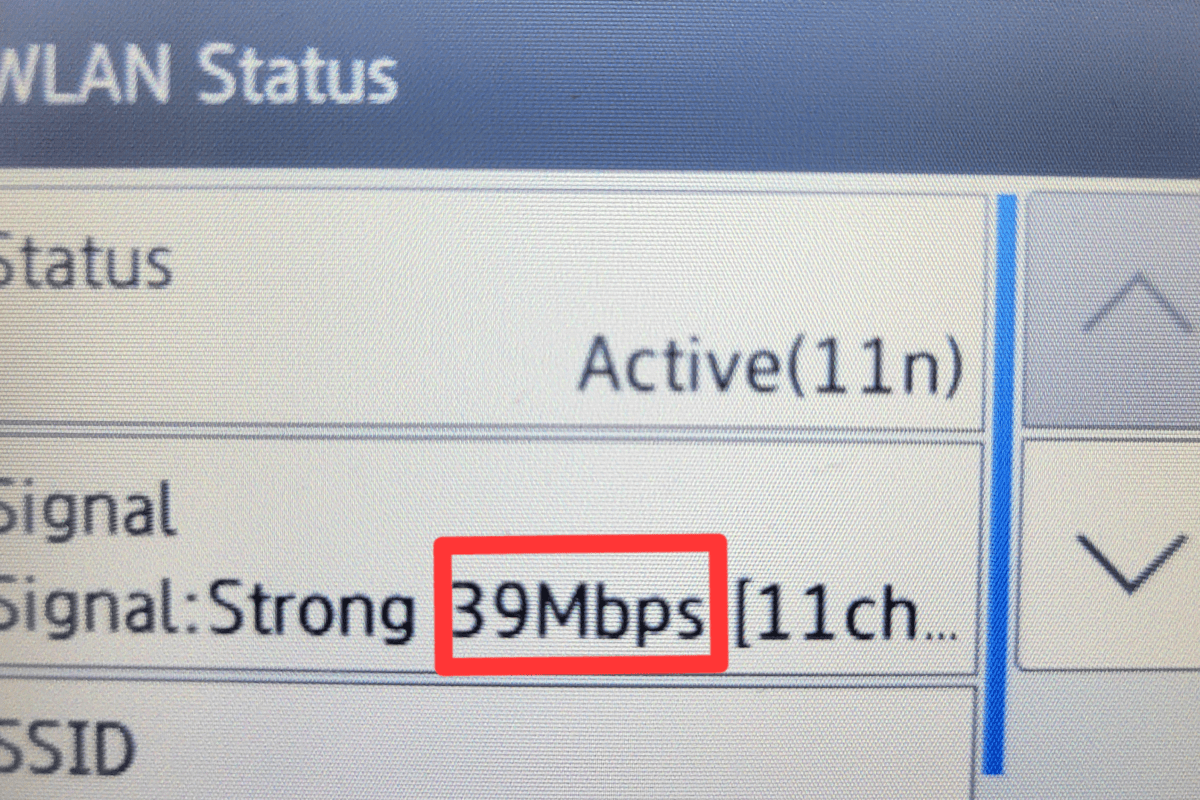
What’s not to love about wireless network printers? The flexibility to place them where they are needed, rather than where there’s a network jack nearby, is great. Plop them on a desk or table, plug them in, join the Wi-Fi network and you’re in business.
The majority of wireless network printers on the market today run a type of Wi-Fi known as 802.11n aka Wi-Fi 4. By now, many people and businesses have replaced their gen 4 Wi-Fi router combo or access points with the much faster Wi-Fi 5, or current Wi-Fi 6 gear. Many of us have also upgraded our phones, tablets, televisions, laptops, and consoles to models that run the newer standards.
| Wireless Generation | Standard | Speed |
| Wi-Fi 4 | 802.11n | Up to 600 Mbps |
| Wi-Fi 5 | 802.11ac | Up to 1300 Mbps |
| Wi-Fi 6 | 802.11ax | Up to 7600 Mbps |
It is tempting to dismiss a printer’s network speed as irrelevant. “Who cares if my printer is slow? It’s not like I’m streaming Netflix to it.” If we only needed to consider was how fast your print job or scan finished, this sentiment would be spot on. Here’s the thing, wireless networks have a couple of limitations that many people are unaware of.
One of the lesser known shortcomings is that wireless networks are half-duplex. The devices connected to them can only transmit or receive data. They can’t do both at the same time like most wired network gear can. The speed data is able to move about on a wireless connection is effectively cut in half right off the bat.
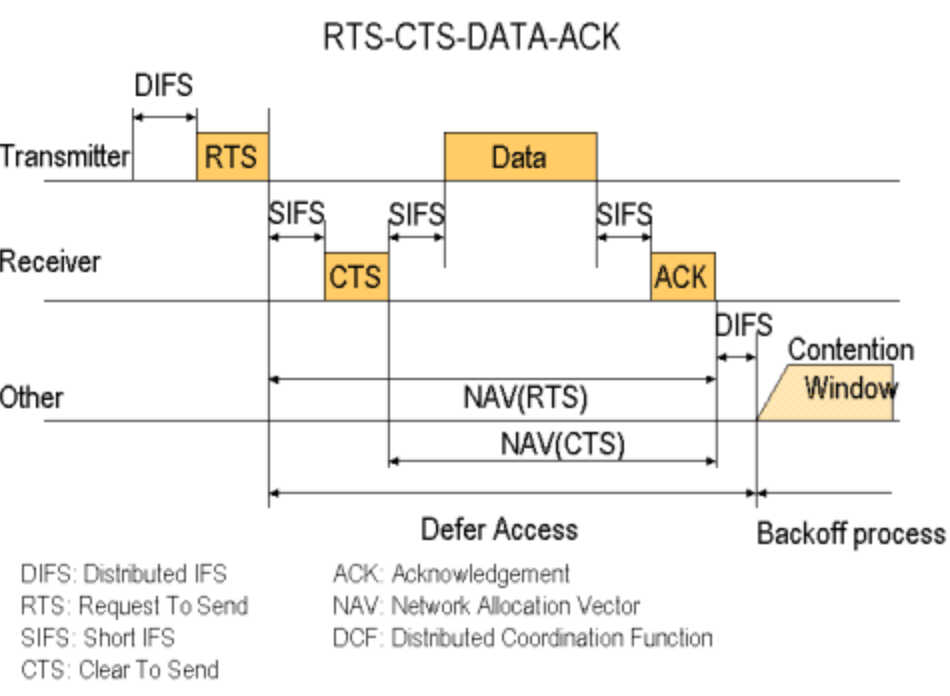
The other little known issue with wireless networking is that a radio generally performs at the speed of its slowest connected device. In our case, the printer. This is true even when the Wi-Fi 4 device is idle (not printing). In other words, if your new Macbook and your printer are connected to the same access point your M2 is stuck in slow lane behind ole’ inky.
There are a few possibilities for workarounds. The first is the easiest. Do you really need a printer anymore? Unplug it and see how life goes. Seriously, not printing is better for your bank account, the planet, and your blood pressure.
If going paperless isn’t an option, ask yourself a simple question, “Does the printer really need to be wireless?” Can you switch to using the printer via USB or a network cable? When considering this question, keep in mind how often you use the printer. Plugging in a USB cable once a month isn’t that inconvenient, but doing it several times a day sure would be.
Assuming you need to print wirelessly, there are still a few more options. The least technical of which is to purchase a printer that supports Wi-Fi 5. They can be very difficult to find, but Canon and HP currently offer models that feature 802.11ac. Others are likely to come to market. Check out the Canon Pixma G4270, or the HP Deskjet 2755e.

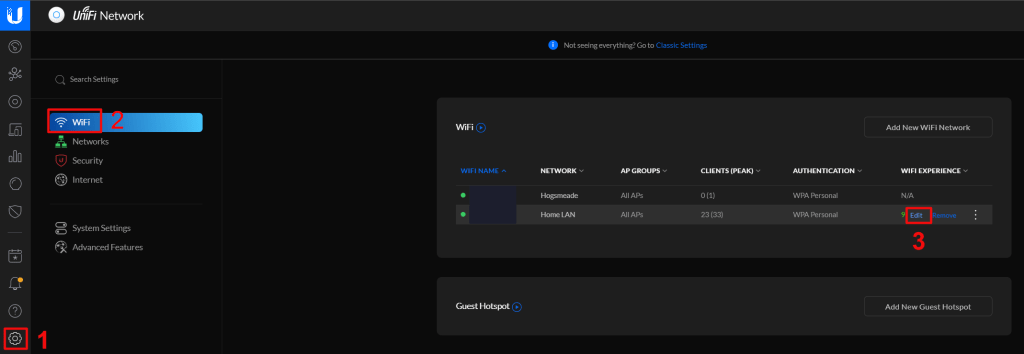
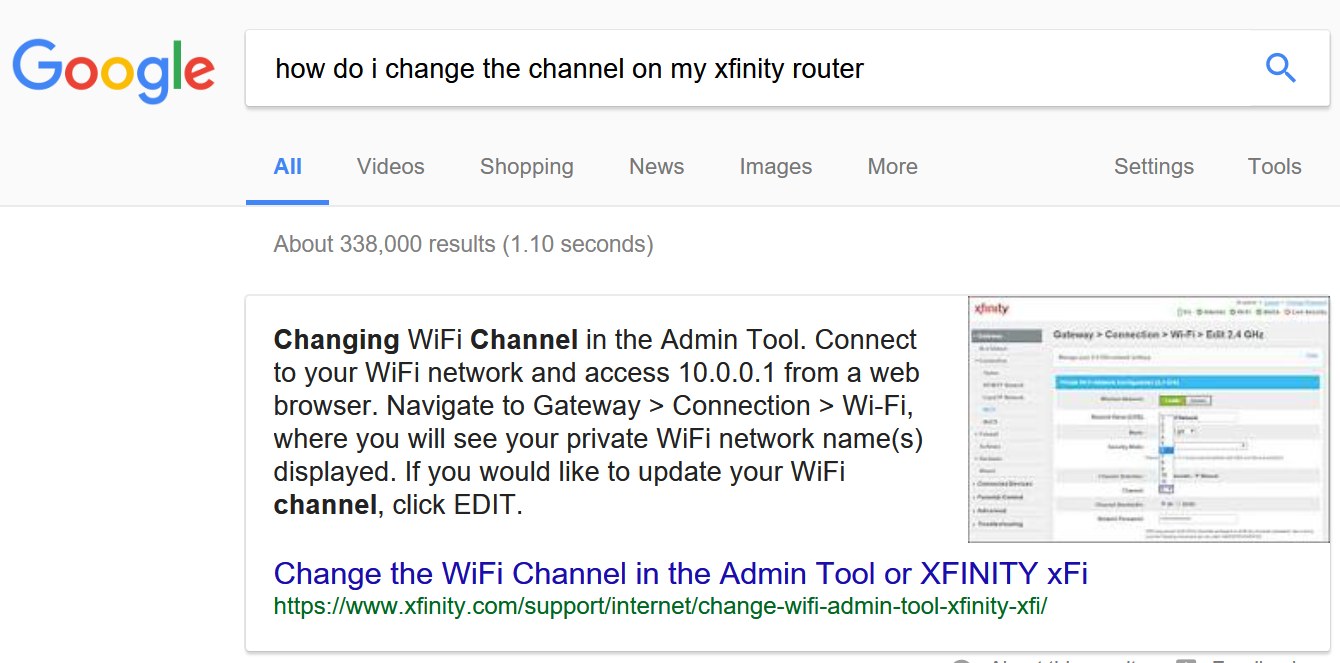
If your current printer does not see or will not connect to your Wi-Fi, the older 802.11 b/g/n is probably disabled. You can enable Wi-Fi 4 on wireless networks because backwards compatibility is a requirement of each new version of the 802.11 standard (to date). Typically turning it on is done by logging on to your Wi-Fi controller/router and accessing the wireless configuration menu. Doing so will introduce the slow down.
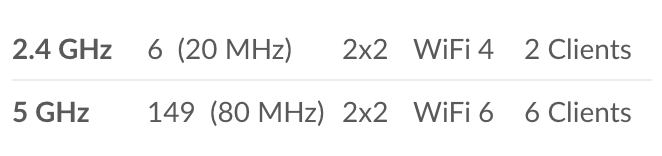
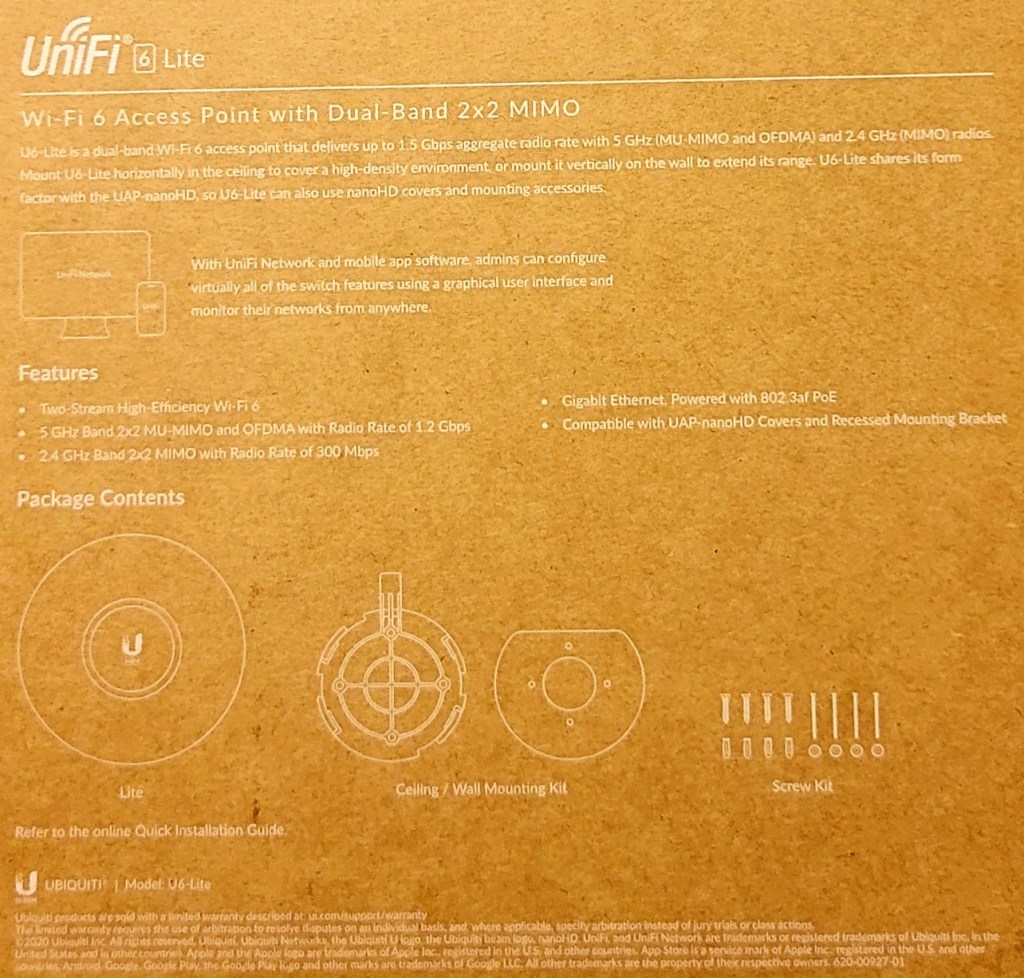
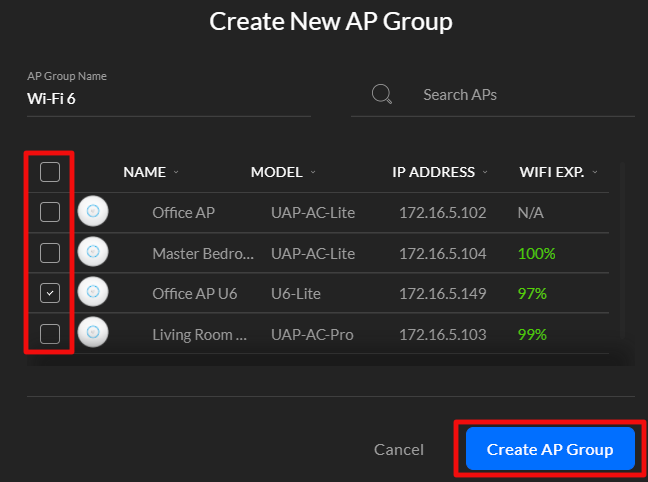
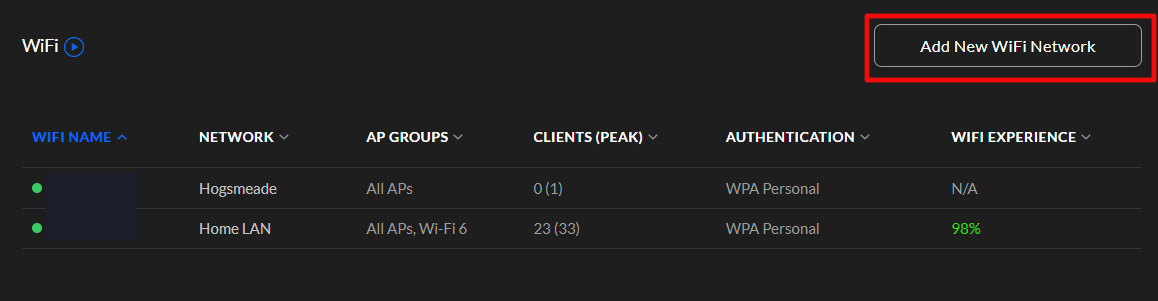
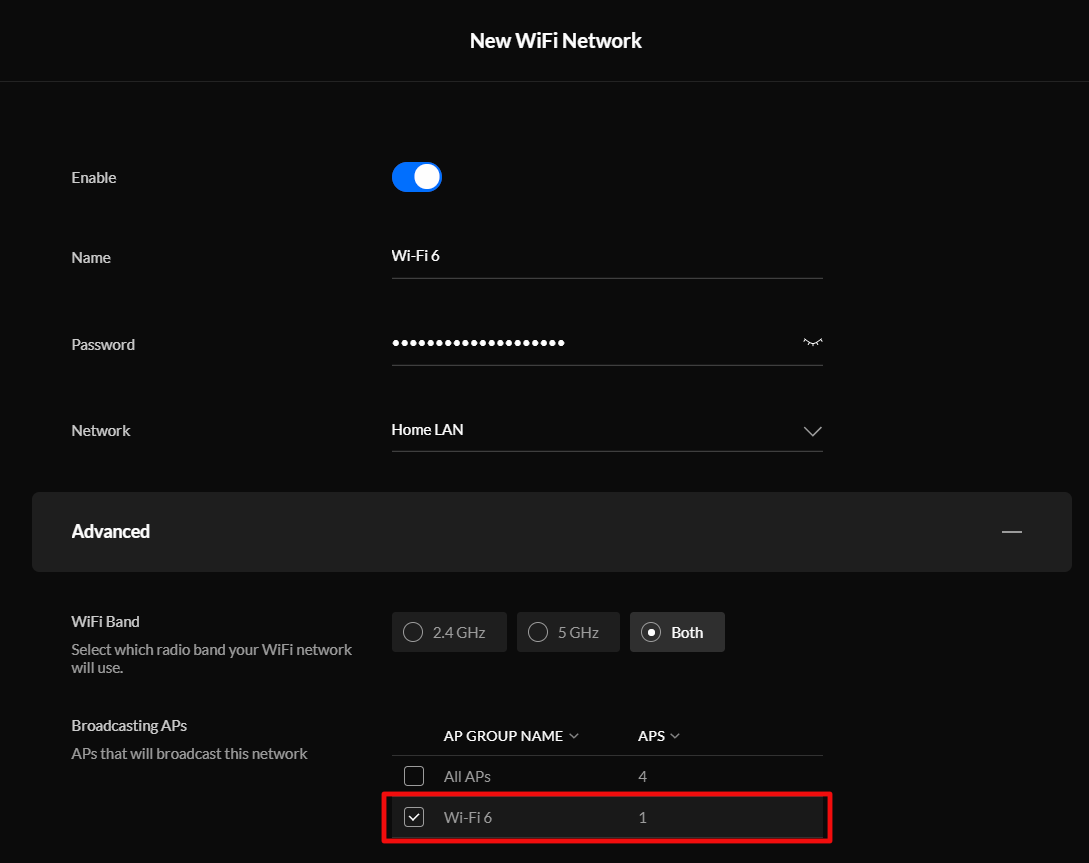
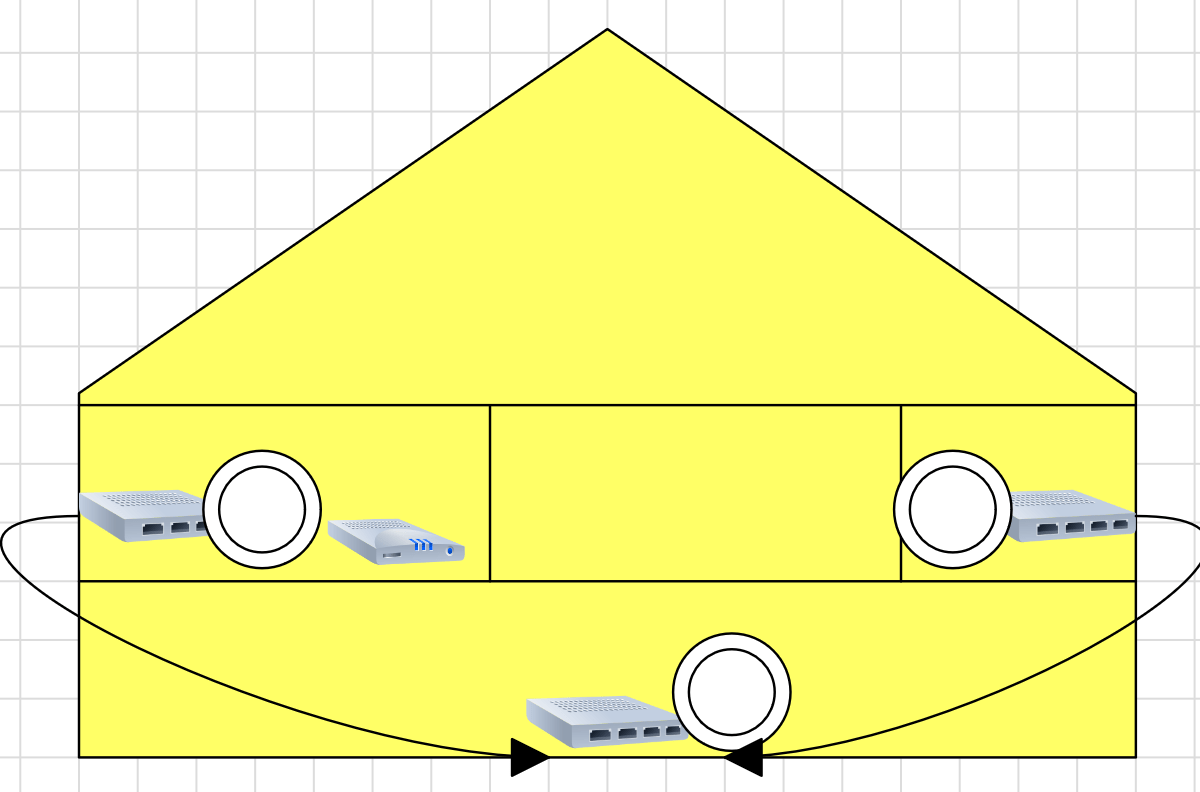
The final option requires network engineering skills. Isolate the printer(s) and other 802.11b/g/n devices to a single radio, access point, or access point group that is configured to run the older standard. Creating an SSID on the same radio you run 802.11ac on is not sufficient, the access point(s) will still run at 802.11n speeds on both SSIDs. VLANs have the same problem unless your AP has multiple radios that you can pin the Wi-Fi 4 network to.
Best of luck on your journey to wireless printing happiness.

































 techbloggingfool.com